
GRAND X PRO - Smartphone ZTE - Notice d'utilisation et mode d'emploi gratuit
Retrouvez gratuitement la notice de l'appareil GRAND X PRO ZTE au format PDF.


| Type de produit | Smartphone |
| Marque | ZTE |
| Modèle | Grand X Pro |
| Système d'exploitation | Android |
| Réseau | 4G LTE, 3G, 2G (double nano-SIM) |
| Écran | Tactile capacitif |
| Processeur | Qualcomm Snapdragon |
| Batterie | Lithium-ion intégrée, charge rapide QuickCharge 2.0 |
| Chargeur | USB Type-C, adaptateur secteur inclus |
| Capteurs | Empreinte digitale, NFC, GPS, accéléromètre |
| Connectivité | Wi-Fi 802.11 b/g/n, Bluetooth, NFC, USB Type-C, prise audio 3,5 mm |
| Appareil photo | Double caméra arrière, caméra avant |
| Audio | Dolby Audio, haut-parleur intégré |
| Mémoire | Extensible via microSDXC |
| Fonctions principales | Appels, messagerie, internet, GPS, Bluetooth, Wi-Fi Direct, partage de connexion |
| Entretien et nettoyage | Nettoyer avec un chiffon doux et sec. Éviter l'humidité et les produits corrosifs. |
| Sécurité | SAR tête : 0,51 W/kg, corps : 1,19 W/kg. Compatible appareils auditifs M4/T3. |
| Pièces détachées et réparabilité | Batterie non remplaçable par l'utilisateur. Réparation par service agréé ZTE uniquement. |
| Informations générales | Manuel disponible en PDF sur notice-facile.com. |
FOIRE AUX QUESTIONS - GRAND X PRO ZTE
Questions des utilisateurs sur GRAND X PRO ZTE
0 question sur cet appareil. Repondez a celles que vous connaissez ou posez la votre.
Poser une nouvelle question sur cet appareil
Téléchargez la notice de votre Smartphone au format PDF gratuitement ! Retrouvez votre notice GRAND X PRO - ZTE et reprennez votre appareil électronique en main. Sur cette page sont publiés tous les documents nécessaires à l'utilisation de votre appareil GRAND X PRO de la marque ZTE.
MODE D'EMPLOI GRAND X PRO ZTE

User Manual
About This Manual
Thank you for choosing this ZTE mobile device. In order to keep your device in its best condition, please read this manual and keep it for future reference.
Copyright
Copyright © 2016 ZTE CORPORATION
All rights reserved.
No part of this publication may be quoted, reproduced, translated or used in any form or by any means, electronic or mechanical, including photocopying and microfilm, without the prior written permission of ZTE Corporation.
Notice
ZTE Corporation reserves the right to make modifications on print errors or update specifications in this guide without prior notice. This manual has been designed with the utmost care to ensure the accuracy of its content. However, all statements, information and recommendations contained therein do not constitute a warranty of any kind, either expressed or implied. Please refer to For Your Safety to be sure to use your phone properly and safely. We offer self-service for our smartphone users. Please visit the ZTE official website (at www.zteusa.com) for more information on self-service and supported product models. Information on the website takes precedence.
Disclaimer
ZTE Corporation expressly disclaims any liability for faults and damages caused by unauthorized modifications of the software.
Images and screenshots used in this manual may differ from the actual product. Content in this manual may differ from the actual product or software.
Trademarks
ZTE and the ZTE logos are trademarks of ZTE Corporation.
Google and Android are trademarks of Google, Inc.
The Bluetooth® trademark and logos are owned by the Bluetooth SIG, Inc. and any use of such trademarks by ZTE Corporation is under license.
microSDXC Logo is a trademark of SD-3C, LLC.
Manufactured under license from Dolby Laboratories. Dolby, Dolby Audio, and the double-D symbol are trademarks of Dolby Laboratories.
Qualcomm®Snapdragon™ processors are products of Qualcomm Technologies, Inc.
Qualcomm and Snapdragon are trademarks of Qualcomm Incorporated, registered in the United States and other countries. Used with permission.
Other trademarks and trade names are the property of their respective owners.


Version No.: R1.0
Edition Time: November 19, 2016
Contents
Getting Started 11
Getting to Know Your Phone 11
Knowing the Keys. 13
Installing the nano-SIM Cards and Storage Card 14
Charging the Battery. 16
Extending the Battery Life 18
Powering On/Off 18
Setting Up for the First Time. 18
Locking/Unlocking the Screen and Keys 19
Using the Touch Screen 20
Getting to Know the Home Screen 23
Personalizing. 26
Changing the System Language 26
Setting the Date and Time 26
Changing Ringtone and Notification Sound 27
Turning On/Off System Sounds 28
Adjusting Volume 28
Switching to Silent or Vibration Mode 28
Using Do Not Disturb Mode 29
Applying New Wallpapers 30
Setting the Theme 31
Changing Screen Brightness 31
Setting the Home Screen Transition Effect 32
Protecting Your Phone With Screen Locks 32
Using Your Fingerprint 33
Knowing the Basics. 35
Monitoring the Phone Status 35
Managing Notifications 36
Managing Shortcuts and Widgets 40
Organizing With Folders 41
Rearranging the Primary Shortcuts 42
Entering Text 42
Editing Text 51
Opening and Switching Apps 52
Uninstalling or Disabling an App 53
Connecting to Networks and Devices. 54
Connecting to Mobile Networks 54
Connecting to Wi-Fi 56
Using Wi-Fi Direct 60
Connecting to Bluetooth Devices.. 61
Exchanging Data via NFC. 63
Using Tap & Pay 64
Connecting to Your Computer via USB 65
Using the microSDXC Card as Portable Storage. 67
Using USB On-The-Go (OTG) 68
Sharing Your Mobile Data Connection 68
Connecting to Virtual Private Networks 71
Phone Calls 73
Placing and Ending Calls. 73
Answering or Rejecting Calls 74
Working With the Call History 75
Calling Your Contacts 76
Checking Voicemail 76
Using Options During a Call 77
Managing Multi-party Calls 78
Adjusting Your Call Settings 79
Contacts. 86
Checking Contact Details 86
Adding a New Contact. 86
Setting Up Your Own Profile 87
Importing, Exporting, and Sharing Contacts 87
Working With Favorite Contacts 89
Working With Groups 90
Searching for a Contact. 91
Editing Contacts 92
Web Accounts 94
Adding or Removing Accounts 94
Configuring Account Sync. 95
Messaging 97
Opening the Messaging Screen 97
Sending a Message 97
Replying to a Message 98
Forwarding a Message 99
Copying a Message 99
Deleting Messages or Threads 100
Changing Message Settings 100
Calendar 101
Viewing Your Calendars and Events. 101
Creating an Event 102
Editing, Deleting or Sharing an Event 103
Changing Calendar Settings 103
Web Browser. 104
Opening the Browser 104
Using Multiple Browser Tabs. 104
Downloading Files 105
Using Bookmarks 105
Clearing Browsing Data 106
Changing Browser Settings 107
Camera. 108
Capturing a Photo 108
Recording a Video 110
Using Dual-Camera Modes 111
Using Manual Camera Mode 112
Using Other Camera Modes 113
Customizing Camera/Camcorder Settings 114
Gallery 117
Opening Gallery 117
Working With Albums 117
Working With Pictures 118
Retouching Your Pictures 119
Making a GIF Picture or a Collage 121
Playing Videos 122
Music. 123
Copying Music Files to Your Phone 123
Viewing Your Music Library 124
Setting a Song as the Default Ringtone 124
Playing Music 125
Managing Playlists. 126
Video Player 127
Opening the Video Library 127
Playing and Controlling Videos 127
Managing Video Files 128
More Apps and Features 129
Clock. 129
Download Manager 130
File Manager 131
Recorder 131
Toolkit 133
WeShare 134
Google Apps 134
Google PlayTM Store 136
Browsing and Searching for Apps. 136
Downloading and Installing Apps 136
Creating a Google Wallet™ Account. 137
Managing Your Downloads 138
Settings 139
Wireless and Networks 139
Customized Features 141
Device. 143
Personal 148
System 153
Troubleshooting 155
For Your Safety. 159
General Safety 159
FCC RF Exposure Information (SAR) 160
IC Notice. 162
FCC Regulations 163
Hearing Aid Compatibility (HAC) regulations for Mobile
164
Distraction 166
Product Handling 167
Electrical Safety 171
Radio Frequency Interference 172
Explosive Environments 173
Getting Started
Getting to Know Your Phone
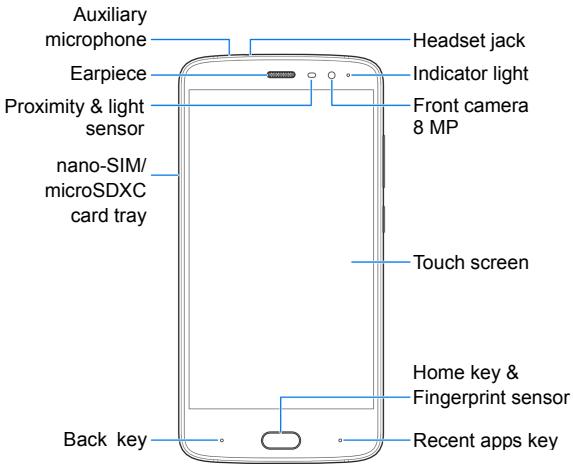
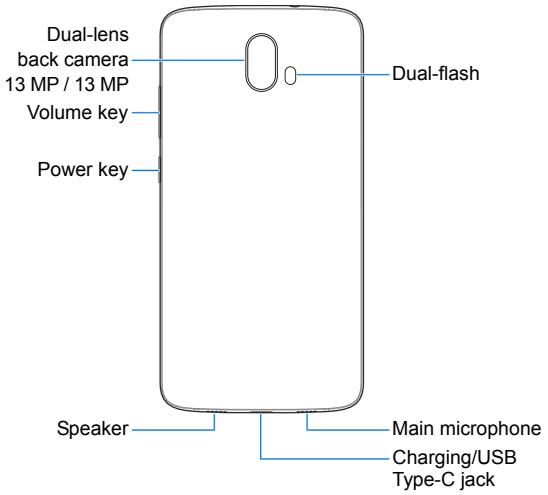
Knowing the Keys
| Key | Function |
| Power key | Press and hold to turn on or off airplane mode, control sound and vibration, restart, or power off. Press to turn off or on the screen display. |
| Volume key | Press or hold either end of the key to turn the volume up or down. |
| Home key & Fingerprint sensor | Press to return to the home screen from any application or screen. Press and hold to use Google Search or Now on Tap. Touch to register fingerprints, unlock the phone or open apps with your fingerprints. |
| Back key | Touch to go to the previous screen. |
| Recent apps key | Touch to see recently used apps. |

NOTE:
The positions of the Back key and the Recent apps key are interchangeable through Settings > All settings > Navigation keys.
Installing the nano-SIM Cards and Storage Card
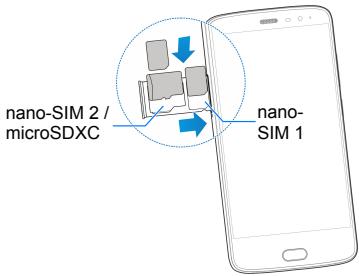
Your phone supports two nano-SIM cards, or you can use one nano-SIM card and one microSDXC card (optional, not included).
A microSDXC card can be installed or removed while the phone is turned on. You need to unmount the microSDXC card before removing it. See Using the microSDXC Card as Portable Storage.

WARNING!
To avoid damage to the phone, do not use any other kind of SIM cards, or any non-standard nano-SIM card cut from a SIM card. You can get a standard nano-SIM card from your service provider.
- Insert the tip of the tray eject tool into the hole next to the nano-SIM/microSDXC card tray on the left side of the phone.
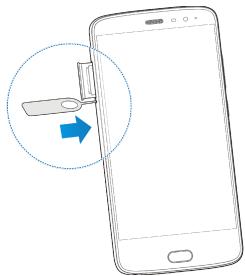
- Place the nano-SIM/microSDXC card on the tray with the gold-colored contacts facing down. Then carefully slide the tray back into place.

NOTE:
When two nano-SIM cards are installed, pay attention to the following restrictions.
- If one nano-SIM card connects to 4G LTE, the other card can only connect to 3G or 2G networks.
- You can use either card for mobile data service. See Manage the nano-SIM Cards on how to switch.
- If one card is connected to a phone call, the other card is unreachable.
Charging the Battery
Your phone's battery should have enough power for the phone to turn on, find a signal, and make a few calls. You should fully charge the battery as soon as possible.
If the battery is low, there will be a pop-up message on the screen. As you charge your phone, the screen can show you the exact battery level on the status bar.

WARNING!
Use only ZTE-approved chargers and USB Type-C cables. The use of unapproved accessories could damage your phone or cause the battery to explode.

CAUTION:
Do not change the built-in rechargeable battery in your phone by yourself. The battery can only be changed by ZTE or ZTE authorized service provider.

NOTE:
Use the charger that comes in-box with your phone to charge the battery. It's specially built to support QuickCharge 2.0.
- Connect the adapter to the charging jack.
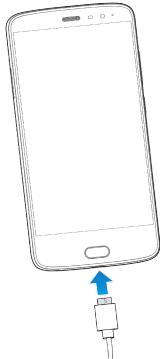
- Connect the charger to a standard AC power outlet. If the phone is on, you'll see a charging icon, such as or appear on the status bar.
- Disconnect the charger when the battery is fully charged.

NOTE:
If the battery is extremely low, the phone may not power on even while charging. In this case, charge the phone at least for 20 minutes before trying to power on again. Contact the customer service if you still cannot power on the phone after prolonged charging.
Extending the Battery Life
Active applications, screen brightness levels, Bluetooth and Wi-Fi usage and GPS functionality can drain your battery. You can follow the helpful tips below to conserve your battery power:
- Use the Power manager feature in Settings.
- Reduce the screen backlight time.
- Lower the screen brightness.
- Turn Wi-Fi, Bluetooth and auto-sync off when not in use.
- Disable the GPS function when not in use. Most applications using this function will periodically query the GPS satellites for your current location, and each query drains your battery.
Powering On/Off
- Press and hold the Power key to turn on your phone.
- To power off, press and hold the Power key and touch Shut down.

NOTE:
If the phone freezes or takes too long to respond, you can press and hold the Power key for about 10 seconds to restart the phone.
Setting Up for the First Time
When you first power on your phone after you purchase it or reset it to factory settings (see Backup and Reset), you need to do some settings before using it.
Touch the language field to select a language. Then touch and follow the prompts to set up Wi-Fi, name, device protection, Google services and other options.
Locking/Unlocking the Screen and Keys
Your phone allows you to quickly lock the screen and keys (put the phone to sleep mode) when not in use and to turn the screen back on and unlock it when you need it.
To lock the screen and keys:
To quickly turn the screen off and lock the keys, press the Power key.

NOTE:
To save battery power, the phone automatically turns off the screen after some time of inactivity. You will still be able to receive messages and calls while the phone screen is off.
To unlock the screen and keys:
- Press the Power key to turn the screen on.
- Swipe up on the screen.
-or-
Swipe right to open the Phone app.
-or-
Swipe left to open the Camera app.
-or-
Touch a notification twice consecutively to open the related app.
NOTE:
If you have set a fingerprint, a pattern, a PIN or a complex password for your phone (see Protecting Your Phone With Screen Locks), you'll need to touch the Home key, draw the pattern or enter the PIN/passport to unlock your screen.
Using the Touch Screen
Your phone's touch screen enables you to control actions through a variety of touch gestures.
- Touch
When you want to type using the onscreen keyboard, select items on the screen such as the application and settings icons, or press the onscreen buttons, simply touch them with your finger.

- Touch and Hold
To open the available options for an item (for example, a message or link in a web page), touch and hold the item.

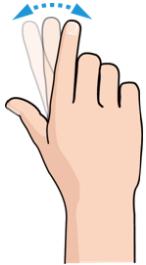
- Swipe or Slide
To swipe or slide means to quickly drag your finger vertically or horizontally across the screen.
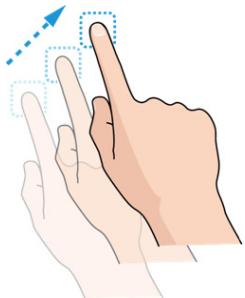
Drag
To drag, press and hold your finger with some pressure before you start to move your finger. While dragging, do not release your finger until you have reached the target position.
Pinch
In some apps (such as Maps, web browser, and Gallery), you can zoom in and out by placing two fingers on the screen at once and pinching them together (to zoom out) or spreading them apart (to zoom in).
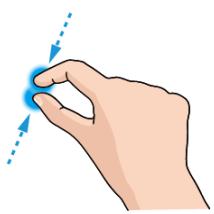
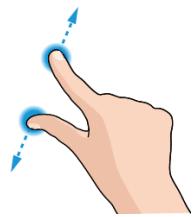
- Rotate the screen
For most screens, you can automatically change the screen orientation from portrait to landscape by turning the phone sideways.

NOTE:
The auto-rotate feature needs to be enabled for the screen orientation to automatically change. Press the Home key >

Settings > Display and switch on Auto-rotate screen.
You can also access the screen rotation control by sliding down the status bar twice and touch Auto-rotate.
Getting to Know the Home Screen
The home screen is the starting point for your phone's applications, functions, and menus. You can customize your home screen by adding shortcuts, folders, widgets, and more.
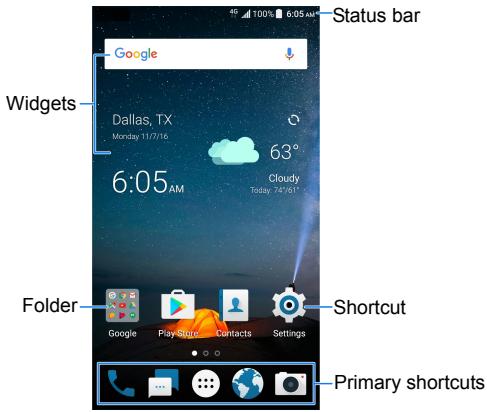
Extended Home Screen Panels
Your home screen is extendable, providing more space for shortcuts, widgets, and more. Simply swipe left or right on the home screen to see the extended panels. You can add or remove home screen panels, or adjust their order.
To add a new home screen panel:
- Press the Home key > , or touch and hold an empty area of the home screen and select Widgets.
- Touch and hold an application icon or a widget and drag it to the right edge of the screen to create a new home screen panel and put the icon or widget on it.
To delete a home screen panel:
- Touch and hold an empty area of the home screen and slide left or right to view the home screen thumbnails.
- Touch × on the top right corner of a thumbnail.
- Touch OK. The items on the panel will also be removed.

NOTE:
When there is only one home screen panel, you cannot delete it any more.
To adjust the order of a home screen panel:
- Touch and hold an empty area of the home screen and slide left or right to view the home screen thumbnails.
- Touch and hold a thumbnail and drag it left or right to the place you need.

NOTE:
Touch at the bottom of a home screen thumbnail to set it as the main home screen.
Personalizing
Changing the System Language
- Press the Home key > Settings > All settings > Language & input > Language.
- Select the language you need.
Setting the Date and Time
- Press the Home key > Settings > All settings > Date & time.
- Set the date, time, time zone, time format, and lock screen clocks.
To adjust the date and time automatically, switch on Automatic date & time.
To adjust the date and time manually, switch off Automatic date & time and touch Set date / Set time to change the date and time.
To adjust the time zone automatically, switch on Automatic time zone.
To adjust the time zone manually, switch off Automatic time zone and touch Select time zone to set the correct time zone.
To adjust the format of time, switch on or off Use 24-hour format.
To display time other than your local time on the lock screen, switch on Display dual clocks on lock screen and touch it to choose a city/time zone.
Changing Ringtone and Notification Sound
You can customize the default incoming call ringtone, message tone, and the default notification sound.
- Press the Home key > Settings > All settings > Sounds & vibration > Ringtones.
- Touch the name of a nano-SIM card to set incoming call ringtone or message tone. Or touch Notification tone to set the default notification sound.
- Select the ringtone or sound you want to use and touch OK.
- If you want the incoming call ringtone to increase in volume gradually, touch the Back key to return to the Sounds & vibration screen and switch on Ringtone fade-in.

NOTES:
- Many applications have their own notification sound settings.
- See Set a Ringtone for a Contact for how to assign a special ringtone to an individual contact.
- When selecting ringtones or sounds, touch the Music or Recordings tab to select an audio file saved on the phone or the storage card.
Turning On/Off System Sounds
- Press the Home key > Settings > All settings > Sounds & vibration.
- Switch on or off Dial pad tones, Screen locking sounds, Touch sounds, Vibrate on touch, or Silent boot.
Adjusting Volume
- Press the Home key > Settings > All settings > Sounds & vibration.
- Drag the sliders below Ring volume, Notification volume, Media volume, and Alarm volume to adjust the volume for each type of audio.

NOTE:
You can adjust the media volume when a media application is in use by pressing the Volume key. If no media application is active, press the Volume key to adjust ringtone volume (or the earpiece volume during a call).
Switching to Silent or Vibration Mode
You can set the phone to silent or vibration mode by using one of the following methods.
-
Press the Volume key when no media application is active to show the volume management window. Drag the slider to the left or keep pressing the lower end of the Volume key to switch the phone to vibration mode. Press the key again in vibration mode to switch the phone to silent mode.
-
Swipe down from the top of the screen to open the notification panel and drag the panel downwards. Touch Normal or Vibrate to switch the phone to vibration or silent mode.
- Press the Home key > Settings > All settings > Sounds & vibration > Sound mode and select Vibrate or Mute to switch to vibration or silent mode.
- Press and hold the Power key and touch Ring or Mute to switch to silent or vibration mode.

NOTE:
Silent and vibration modes will not silence your alarm sound.
Using Do Not Disturb Mode
You can limit interruptions with Do not disturb mode. This mode silences your phone so that it doesn't make sounds or vibrate when you don't want it to.
To turn on Do not disturb mode:
- Press the Home key > Settings > All settings > Sounds & vibration > Do not disturb > Do not disturb.
-
Touch Always or Scheduled as you need.
-
Touch Always to turn on the Do not disturb feature immediately, which keeps on until you turn it off.
-
Touch Scheduled to if you want the feature turned on and off automatically during specific periods.
-
If you select Scheduled, touch Days, Start time, and End time to specify the periods during which Do not disturb is on.
To set exceptions for Do not disturb mode:
You can set reminders, certain calls and messages as exceptions when Do not disturb mode is on, so these ringtones, sounds and vibration are not turned off.
- Press the Home key > Settings > All settings > Sounds & vibration > Do not disturb.
- When Do not disturb is on, in the Sound allowed in do not disturb mode section, touch the switches next to the items you want to allow. Touch Messages or Calls and set who can alert you of their messages or calls.

NOTES:
- The Do not disturb feature will not silence your alarms.
- To set exceptions based on apps, press the Home key > Settings > All settings > Notifications. Select an app and switch on Sound notifications in Do not disturb.
Applying New Wallpapers
You can set the wallpaper for the home screen and lock screen.
- Press the Home key > Settings > All settings > Themes & wallpapers > Wallpapers.
-
Set the wallpaper for the home screen or the lock screen.
-
Touch Home screen wallpaper or Lock screen wallpaper and select a built-in static wallpaper, or touch Gallery to select a picture, crop it, and use it as the wallpaper.
-
While setting the lock screen wallpaper, instead of choosing a static picture, you can touch ZTE Locker and turn on the switch to the right to get dynamically changing pictures for the lock screen.

NOTE:
To set the home screen wallpaper, you can also touch and hold an empty area of the home screen and select the Wallpapers tab. Then select a built-in image, a live wallpaper, or an image from your gallery.
Setting the Theme
- Touch and hold an empty place on the home screen.
- In the window that appears at the bottom, touch Themes.
- Select a theme you like.

NOTE:
You can also change the theme in Settings. Press the Home key > Settings > All settings > Themes & wallpapers > Themes.
Changing Screen Brightness
- Press the Home key > Settings > All settings > Display > Brightness level.
- Drag the slider to manually adjust the screen brightness.

NOTE:
Your phone can automatically adjust the screen brightness for available light. Touch Automatic brightness in the Brightness level window to turn the feature on or off.
Setting the Home Screen Transition Effect
- Touch and hold an empty place on the home screen.
- In the window that appears at the bottom, touch Effects.
- Pick an effect and the phone will demonstrate how it works. Touch other effects until you find the favorite one.
Protecting Your Phone With Screen Locks
You can protect your phone by creating a screen lock. When it is enabled, you need to draw a pattern, enter a numeric PIN or password to unlock the phone's screen and keys.
- Press the Home key > Settings > All settings > Security > Screen lock.
-
Touch Swipe, Pattern, PIN or Complex password.
-
Touch Swipe to disable the screen lock. Anyone can unlock the screen by touching the display and swiping up.
- Touch Pattern to draw and redraw a pattern that you must draw to unlock the screen.
- Touch PIN or Complex password to set a numeric PIN or a password that you must enter to unlock the screen.

NOTE:
Remember the pattern, PIN or password you set. Otherwise, you will have to upgrade the phone software to use the phone. See Upgrading the Phone Software.
Using Your Fingerprint
With the fingerprint sensor integrated in the Home key, you can register up to 5 fingerprints and use them to unlock the phone or open bound apps.

NOTE:
The fingerprint feature is only usable when the screen lock (Pattern, PIN or Complex password) is enabled. When the screen lock is reset to Swipe, all registered fingerprints are erased.
Register a Fingerprint
- Press the Home key > Settings > All settings > Fingerprint.
- Touch Register or Fingerprint > Add fingerprint.
- Follow the prompts to record the center and then the edges of a finger.
- Touch OK.

NOTE:
Touch an existing fingerprint record to change its name or delete it.
Set Fingerprint Actions
- Press the Home key > Settings > All settings > Fingerprint.
- Touch the switch next to Unlock your phone or touch Quick-open app.
Unlock your phone: When the screen lock (Pattern, PIN or Complex password) is enabled, you can wake up the phone and unlock it with a registered fingerprint.
- Quick-open app: When the screen lock (Pattern, PIN or Complex password) is enabled, you can wake up the phone, unlock it, and open different apps with different registered fingerprints.
Knowing the Basics
Monitoring the Phone Status
The status bar at the top of the home screen provides phone and service status icons on the right side. Below are some of the icons you may see.
| E # | EDGE/2G connected | No signal | |
| 4G # | 3G/HSPA+ connected | Signal strength | |
| 4G LTE # | 4G LTE connected | No nano-SIM card installed | |
| # | Silent mode | Airplane mode | |
| # | Vibration mode | Bluetooth® on | |
| Do not disturb mode | Connected to a Wi-Fi® network | ||
| Battery low | Wi-Fi in use | ||
| Battery full | Speakerphone on | ||
| / | Battery charging | Phone microphone off | |
| Alarm set | GPS on | ||
| Portable Wi-Fi hotspot on | NFC on | ||
| Wired headset connected |
Managing Notifications
Notification Icons
The status bar at the top of the home screen provides notification icons on the left. Below are some of the icons you may see.
| New SMS | Upcoming event |
| New message(s) from the GmailTM app | New Wi-Fi network detected |
| Missed call | Downloading data |
| Call in progress | Sending data |
| Call on hold | USB connected |
| Song playing | USB tethering on |
Open/Close the Notification Panel
Notifications report the arrival of new messages, calendar events, and alarms, as well as ongoing events, such as when you are playing music. You can open the notification panel to view the details of notifications.
- To open the notification panel, swipe your finger down on the home screen or from the top of the screen.
- To close the notification panel, swipe your finger up on the screen or touch the Back key.
Respond to or Remove a Notification
In the notification panel, you can respond to a notification or remove the notifications. The notification panel also supports expandable notifications that let you perform additional actions right from the notification itself.
To respond to a notification, just touch it.
- Slide down with one finger to expand certain notifications. You can also swipe two fingers vertically or pinch-zoom to expand or collapse certain notifications.
- To remove a notification, swipe it left or right.
- To remove all notifications, touch below all the notifications.
- To forbid certain apps from showing notifications, touch check the notification that you want to forbid, and touch DO NOT SHOW AGAIN.
- To manage notification settings, touch and hold a notification to identify the application that sent it. You can then touch and switch off Display notifications to hide future notifications from this app or configure other notification options for this app.
NOTE:
If you block notifications for an app, you may miss its important alerts and updates. The notifications of some apps cannot be blocked.
Use Quick Settings
The Quick Settings make it convenient to view or change the most common settings for your phone.
Open the notification panel and drag the panel downwards to find the following Quick Settings on the screen.
- Wi-Fi: Touch to turn on or off Wi-Fi. Touch and hold to open the Wi-Fi menu in Settings. See Connecting to Wi-Fi.
- Data: Touch to turn on or off mobile data for either nano-SIM card. Touch and hold to open the Dual SIM settings menu in Settings. See Manage the nano-SIM Cards.
- Normal/Vibrate/Silent: Touch to switch between sound, vibration, and mute. Touch and hold to open the Sounds & vibration menu in Settings. See Switching to Silent or Vibration Mode.
GPS: Touch to turn on or off GPS. Touch and hold to open the Location menu in Settings. See Location. - Bluetooth: Touch to turn on or off Bluetooth. Touch and hold to open the Bluetooth menu in Settings. See Connecting to Bluetooth Devices.
- Hotspot: Touch to turn on or off the Portable Wi-Fi hotspot feature. Touch and hold to open the Tethering & portable hotspot menu in Settings. See Share Your Mobile Data Connection as a Wi-Fi Hotspot.
- Mi-POP: Touch to turn on or off the Mi-POP feature. Touch and hold to open the Mi-POP menu in Settings. See Mi-POP.
- Auto-rotate: Touch to turn on or off the auto-rotate screen feature.
Airplane mode: Touch to turn on or off airplane mode.
- Smart power: Touch to turn on or off Smart Power. Touch and hold to open the Power manager menu in Settings.
- Ultra power saving: Touch to turn on or off Ultra Power Saving Mode. Touch and hold to open the Ultra Power Saving Mode menu in Settings > Power manager.
- Lock: Touch to lock and turn off the screen.
- NFC: Touch to turn on or off the NFC feature. See Exchanging Data via NFC.
- Flashlight: Touch to turn on or off the flash.
- Sync: Touch to turn on or off auto-sync of accounts data. Touch and hold to open the Accounts menu in Settings. See Accounts and Web Accounts.
- Dual SIM settings: Touch to open the Dual SIM settings menu in Settings. See Manage the nano-SIM Cards.
- Dolby: Touch to turn on or off the Dolby Audio feature. Touch and hold to open Dolby Audio settings.
- Brightness: Uncheck Auto and drag the brightness slider to adjust the screen brightness.

NOTE:
In the Quick Settings screen, touch at the top to get to the Settings menu; touch the battery icon to open the Battery Usage screen in Settings > Power manager; touch EDIT at the bottom to change control switch position.
Managing Shortcuts and Widgets
Add Shortcuts and Widgets
- Press the Home key >
-or-
To add widgets, touch and hold an empty area of the home screen and select Widgets.
- Slide up or down to browse through available applications, or left or right to find the widget you need.
- Touch and hold a widget or an application icon and drag it to a home screen panel.

NOTE:
While holding the item, you can drag it to the right edge of the screen to create a new home screen panel and put the item on it.
Move Shortcuts or Widgets
- Touch and hold a shortcut or widget on the home screen.
- Drag it to the place you need.
Remove Shortcuts or Widgets
- Touch and hold a shortcut or widget on the home screen.
- Drag it to to remove it.
Adjust Widget Size
- Touch and hold a widget on the home screen and then release it.
- An outline appears around the widget. Drag the outline to resize the widget.

NOTE:
Not all widgets can be resized.
Organizing With Folders
You can create folders on the home screen and add several shortcuts to a folder.
You can move or remove folders the same way as moving or removing shortcuts.
- Touch and hold a shortcut on the home screen and drag it to at the top left.
- Release the shortcut. A new folder will be created and the shortcut is added into the folder.
- To add more shortcuts into the folder, touch and hold each shortcut and drag it over the folder before releasing it.

NOTES:
- Touch the folder and then touch the name field to rename the folder.
- Drag the folder to to delete the folder and replace its shortcuts on the home screen.
Rearranging the Primary Shortcuts
The home screen includes a customizable primary shortcuts area at the bottom visible from all home screens. You can keep at most four items in the primary shortcuts area. Drag shortcuts or folders in or out of the area to rearrange it.

Entering Text
You can enter text using the onscreen keyboard. Some apps open it automatically. In others, you open it by touching where you want to type. Touch the Back key to hide the onscreen keyboard. You can also enter text by speaking with the Google voice typing feature.
Enable or Disable Input Methods
- Press the Home key > Settings > All settings > Language & input > Current Keyboard.
- Touch Choose keyboards at the bottom.
- Slide the switches beside the input methods to enable or disable them.
Change Input Methods
- When you use the onscreen keyboard to enter text, open the notification panel and touch (Change keyboard).
- Select the input method you need.

NOTE:
The Change keyboard notification appears only when more than one keyboard input method is installed and enabled.
Google Keyboard
The Google Keyboard provides a layout similar to a desktop computer keyboard. When screen auto-rotation is enabled, turn the phone sideways and the keyboard will change from portrait to landscape. The landscape keyboard is not supported in all applications.
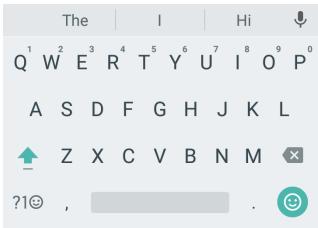
- Touch the alphabetic keys to enter letters. Touch and hold some specific keys to enter associated accented letters or numbers. For example, to enter , touch and hold E^3 and the available accented letters and number 3 appear. Then slide to choose .
- As you enter a word, candidates appear above the keyboard. Touch to select the correct one; touch and hold to see more possible options.
- Touch to use uppercase. Double-tap to lock uppercase. This key also changes to indicate the current case you are using: for lowercase, for uppercase, and when locked in uppercase.
- Touch to delete the text before the cursor.
- Touch ?1 to select numbers and symbols. You can then touch = \< to find more.
- Touch to enter miniature icons, such as expressions, horoscopes, and animals.
- Touch to use Google voice typing.
- Touch and hold to change the input language or set up the Google Keyboard.
- Touch and hold, and slide right to change the keyboard position for one-hand use.
Gesture Typing
The Google Keyboard supports the gesture typing feature. You use this feature to input a word by sliding through the letters.
To enable and use gesture typing:
- Touch and hold on the Google Keyboard and then touch Google Keyboard settings.
- Touch Gesture typing and then touch Enable gesture typing if this feature is turned off.
- Move your finger from letter to letter on the keyboard to trace a word without lifting the finger until you reach the end of the word.
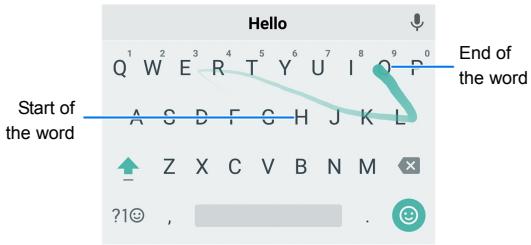

NOTES:
- Touch when you want to. If you want to enter a single letter, go ahead and touch.
- Lift your finger at the end of the word. A space is added automatically when you begin to input the next word.
TouchPal Keyboard
TouchPal Keyboard offers three layouts: FULL, PHONEPAD and
T+. You can touch to select a layout or an input language.
You can also use Curve® and Wave™ to speed up text input by moving your finger from letter to letter or word from word without lifting the finger.
The FULL Layout
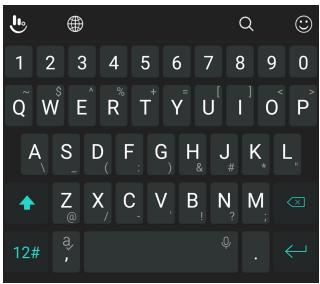
The FULL layout offers an input experience similar to a computer keyboard.
- The alphabetic keys: Touch the keys to enter letters. Touch a key and slide if necessary to choose more characters.
-
The shift key: Touch to use uppercase. Double-tap to lock uppercase. This key also changes to indicate the current case you are using: for lowercase, for uppercase, and when locked in uppercase.
-
Word prediction: Touch and hold or and tap the prediction switch to turn on or off prediction.
- Pre-defined texts: Touch 12# to enter digits, symbols, and other pre-defined texts. You can touch the arrow keys to turn pages, or touch to go back to the alphabetic keys. Slide up on the space key or touch to enter Emoji and emoticons.
- The delete key: Touch to delete text before the cursor. You can also slide left on the key to delete an entire word.
- More options: Touch to access additional functions of TouchPal, use voice input, edit text, change keyboard themes, and more.
The PHONEPAD Layout
The layout in this mode is similar to a phonepad.
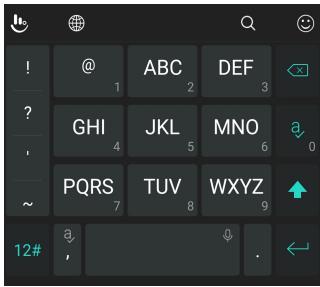
Touch an alphabetic key repeatedly until the desired letter appears. You can also touch and hold the key and slide left or right to choose the letter or number you need.
If word prediction is enabled, just touch the keys once and choose the right word.
The T+ Layout
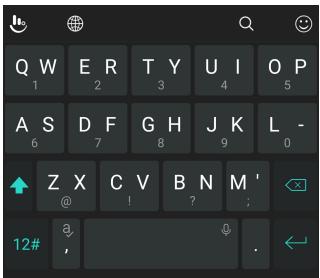
Touch to enter the left letter on the key; double-tap or flick right to enter the right letter/symbol on the key. You can also touch and hold a key and slide left or right to choose more letters and symbols.
If word prediction is enabled ( ), just touch the keys and choose the right word.
Curve Word Gesture
Curve allows you to enter text by moving your finger on the screen from letter to letter to enter each word.
To enable and use Curve:
- On the TouchPal keyboard, touch > Settings > Smart input and check Curve - Word gesture.
- Touch the Back key to return to the text field. Open the TouchPal keyboard and switch to the Full layout.
- Move your finger from letter to letter on the keyboard to trace a word without lifting the finger, until you reach the end of the word.
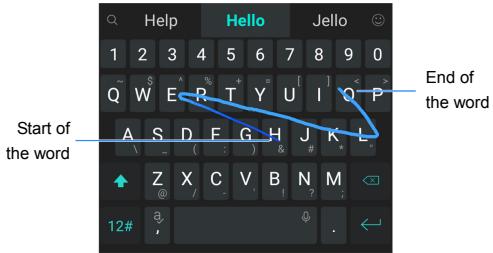

NOTES:
- Curve is only available in the Full layout.
- Touch when you want to. If you want to enter a single letter, go ahead and touch.
- Lift your finger at the end of the word. A space is added automatically when you begin to trace the next word.
Wave Sentence Gesture
Wave allows you to enter words by dragging candidate words to the space key.
To enable and use Wave:
- On the TouchPal keyboard, touch > Settings > Smart input and check Wave™ - Sentence gesture.
- Touch the Back key to return to the text field. Open the TouchPal keyboard and switch to the Full layout.
- Touch or use Curve to enter the first word. As the first word appears on the text field, candidate words appear on the keyboard for you to choose from as the following word.
- Drag the correct candidate word to the space key to add the word to the text field. If no candidate word is correct, you can go on enter the words normally.
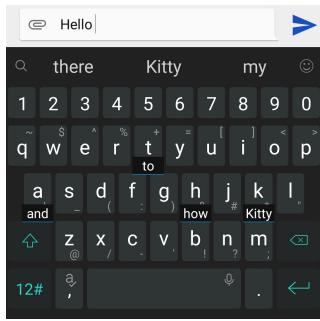

NOTE:
Wave is only available in the Full layout.
Google Voice Typing
Google Voice typing uses the Google voice recognition service to convert speech to text.
- Touch to access the voice typing feature when you are using the Google Keyboard.
Or touch in the notification panel and then select Google voice typing.
- When you see the microphone image, speak what you want to type.
- You can continue entering text to keep it or to delete it.

NOTE:
Say "comma," "period," "question mark," "exclamation mark," or "exclamation point" to enter punctuation.
Editing Text
- Move the insertion point: Touch where you want to type.
The cursor blinks in the new position, and a tab appears below it. Drag the tab to move the cursor.
-
Select text: Touch and hold or double-tap within the text. The nearest word highlights, with a tab at each end of the selection. Drag the tabs to change the selection.
-
Cut or copy: Select the text you want to manipulate. Then touch the CUT or COPY to cut or copy the text to the clipboard.
- Replace text with the clipboard text: Select the text you want to replace. Then touch PASTE.
- Insert clipboard text to the text field: Touch and hold the tab below the cursor and then select PASTE.
Opening and Switching Apps
Open an App
- Press the Home key >
- Slide up or down on the screen and touch an app to open it.
Switch Between Recently Opened Apps
- Touch the Recent apps key. The apps you've used recently are displayed in a series of tabs. Slide up and down to see all the tabs.
- Touch a tab to open that app.

NOTE:
You can swipe a tab sideways or touch X on the tab to remove it from the screen. Touch Clear all to remove all tabs.
Uninstalling or Disabling an App
- Press the Home key > to open the application list screen.
- Touch and hold an application icon and drag the icon to (Uninstall) or (Disable) at the top of the screen.
- Touch OK to uninstall or disable the app.

NOTES:
- Pre-installed apps cannot be uninstalled, and not all apps can be disabled.
- To find the disabled applications, press the Home key > Settings > All settings > Apps. You can then touch the disabled application and touch Enable to restore it.
Connecting to Networks and Devices
Connecting to Mobile Networks
Manage the nano-SIM Cards
Your phone supports two nano-SIM card working at the same time. You can turn on or off the nano-SIM cards, choose the default card for calls and data, set the network mode or other mobile network options for each card.
To turn on or off a card:
- Press the Home key > SIM settings.
- In the SIM cards section, touch the switch next to a card.

NOTE:
You can touch a card name to edit the name or view the number of the card.
To set the default card for calling and data:
- Press the Home key > Settings > All settings > Dual SIM settings.
- Swipe to the Data/Call settings section. Touch the mobile data switches to turn on or off mobile data, or touch Default SIM for calling or Default SIM for calling by voice & motion and select a card.

NOTE:
You can use either card for mobile data service, but not both at the same time. See Gesture & Motion for calling by voice and motion.
Control Mobile Data Use When Roaming
- Press the Home key > Settings > All settings > Dual SIM settings > Mobile networks.
- Touch a card tab at the top.
- Check or uncheck the Data roaming box.

NOTE:
Data roaming may incur significant roaming charges.
Select Network Type
- Press the Home key > Settings > All settings > Dual SIM settings > Network mode.
- Touch a nano-SIM card name.
- Touch the type of network you prefer to connect to.
Set Access Point Names
To connect to the Internet you can use the default Access Point Names (APN). And if you want to add a new APN, please contact the service provider to get the necessary information.
-
Press the Home key > Settings > All settings > Dual SIM settings > Mobile networks.
-
Touch a card tab at the top.
- Touch Access Point Names.
- Touch +
- Touch each item to enter the information you get from your service provider.
- Touch > Save to complete.

NOTE:
To set the APN to default settings, touch > Reset to default.
Select Network Operator
- Press the Home key > Settings > All settings > Dual SIM settings > Mobile networks.
- Touch a card tab at the top.
- Touch Network operators.
- Touch Search networks to search for all available networks and select one to register manually. You can also touch Choose automatically to select preferred network automatically.
Connecting to Wi-Fi
Wi-Fi is a wireless networking technology that can provide Internet access at distances of up to 300 feet, depending on the Wi-Fi router and your surroundings.
Turn Wi-Fi On and Connect to a Wi-Fi Network
- Press the Home key > Settings > All settings > Wi-Fi.
- Slide the Wi-Fi switch to turn it on.
- Touch a network name to connect to it.
- If the network is secured, enter the password and touch Connect.

NOTE:
Your phone automatically connects to previously used Wi-Fi networks when they are in range.
Get Notified of Open Networks
- Press the Home key > Settings > All settings > Wi-Fi.
- Slide the Wi-Fi switch to turn it on.
- Touch > Advanced.
- Slide the Network notification switch.
When Wi-Fi is on, you receive notifications in the status bar when your phone detects an open Wi-Fi network. Switch off this option to turn off notifications.
Add a Wi-Fi Network
You can add a Wi-Fi network if the network does not broadcast its name (SSID), or add a Wi-Fi network when you are out of range.
To connect to a secured network, you first need to get the security details from the network's administrator.
- Press the Home key > Settings > All settings > Wi-Fi.
- Slide the Wi-Fi switch to turn it on.
- Touch > Add network.
- Enter the network SSID (name). If necessary, enter security or other network configuration details.
- Touch Save.
Connect to a WPS Network
Wi-Fi Protected Setup (WPS) is a feature that makes it easy to add your phone to the access points which support WPS.
You can use one of the following methods to connect your phone to a wireless network using WPS.
Method one: WPS button (Recommended)
- Press the Home key > Settings > All settings > Wi-Fi.
- Slide the Wi-Fi switch to turn it on.
- Touch > Advanced > WPS Push Button.
- Press the WPS button on the access point and the access point will recognize your phone and add it to the network.
Method two: PIN number
- Press the Home key > Settings > All settings > Wi-Fi.
- Slide the Wi-Fi switch to turn it on.
- Touch > Advanced > WPS Pin Entry.
- The WPS PIN number displays on the screen. Enter the PIN number into the access point's setup page.
After entering the PIN number, your phone automatically finds the access point and configures the connection.

NOTE:
For detailed information about the WPS feature of the access point, please refer to its user documents.
Forget a Wi-Fi Network
You can make your phone forget about the details of a Wi-Fi network that you added - for example, if you don't want the phone to connect to it automatically or if it is a network that you no longer use.
- Press the Home key > Settings > All settings > Wi-Fi.
- Slide the Wi-Fi switch to turn it on.
- Touch > Saved networks.
- Touch the Wi-Fi network name and then touch Forget.
Adjust Advanced Wi-Fi Settings
- Press the Home key > Settings > All settings > Wi-Fi.
- Touch Advanced to adjust the following settings.
Network notification: Get notifications in the status bar when Wi-Fi is on and an open network is available.
- Keep Wi-Fi on during sleep: Set whether to keep Wi-Fi on in sleep mode.
Install certificates: Install certificates needed for connecting to certain Wi-Fi networks.
Wi-Fi Direct: Use the Wi-Fi Direct feature. See Using Wi-Fi Direct
WPS Push Button: Connect to a WPS network via the push button method.
WPS Pin Entry: Connect to a WPS network via the phone PIN method.
MAC address: Check the MAC address.
IP address: Check the phone's IP address.
Using Wi-Fi Direct®
Wi-Fi Direct allows Wi-Fi devices to share files and data directly by connecting to each other without the need for wireless access points (hotspots).
To connect via Wi-Fi Direct:
- Press the Home key > Settings > All settings > Wi-Fi.
- If Wi-Fi is off, slide the Wi-Fi switch to turn it on.
- Touch > Advanced > Wi-Fi Direct. Your phone will search for other devices enabled with Wi-Fi Direct connections.
- Touch a device name below Peer devices to connect with it. The other device will receive a connection prompt and need to accept the request for connection. Both devices may need to enter a common PIN.
- Once connected the device is displayed as "Connected" in the Peer devices list.
Connecting to Bluetooth Devices
Bluetooth is a short-range wireless communication technology. Phones or other devices with Bluetooth capabilities can exchange information wirelessly within a distance of about 30 feet. The Bluetooth devices must be paired before the communication is performed.
Turn Bluetooth On/Off
- Press the Home key > Settings > All settings > Bluetooth.
- Slide the Bluetooth switch at the top to turn it on or off. When Bluetooth is on, the 串 icon appears in the status bar.
Change the Device Name
- Press the Home key > Settings > All settings > Bluetooth.
- Slide the Bluetooth switch to turn it on if Bluetooth is off.
- Touch >Rename this device.
- Edit the name and touch Rename.
Pair With Another Bluetooth Device
- Press the Home key > Settings > All settings > Bluetooth.
- Slide the Bluetooth switch to to turn it on if Bluetooth is off.
Your phone automatically scans for and displays the IDs of all available Bluetooth devices in range. You could touch Refresh if you want to scan again.
- Touch the device you want to pair with.
- Confirm that the Bluetooth passkeys are the same between the two devices and touch PAIR. Alternately, enter a Bluetooth passkey and touch PAIR.
Pairing is successfully completed when the other device accepts the connection or the same passkey is entered.

NOTE:
The Bluetooth passkey may be fixed for certain devices, such as headsets and hands-free car kits. You can try entering 0000 or 1234 (the most common passkeys), or refer to the documents for that device.
Forget (Unpair With) a Bluetooth Device
You can make your phone forget its pairing connection with another Bluetooth device. To connect to the device again, you need to search it and enter or confirm a passkey again.
- Press the Home key > Settings > All settings > Bluetooth and ensure that Bluetooth is turned on.
- In the list of paired devices, touch the icon beside the Bluetooth device you want to forget.
- Touch Forget.
Send Data via Bluetooth
- Open the appropriate application and select the file or item you want to share.
- Select the option for sharing via Bluetooth. The method may vary by application and data type.
- Touch a Bluetooth device the phone has paired with or wait for it to search for new devices and touch one of them.
Receive Data via Bluetooth
- Turn Bluetooth on before trying to receive data via Bluetooth.
- Flick down the status bar and touch
- Touch ACCEPT to start receiving the data.
Received files are stored automatically in a dedicated folder (Bluetooth, for instance) in the phone. You can access them with the File Manager app.

NOTE:
Received contacts (vCard files) are automatically imported to your contact list.
Exchanging Data via NFC
Near Field Communication (NFC) allows your phone to exchange data with another NFC-enabled device when they touch each other or in close proximity.
Depending on the applications that you have installed on your phone, you might be able to use your phone as a transit pass or as an access pass. To use this feature, tap the back of your
phone against an NFC-enabled access point, subject to applicable terms and conditions from the particular vendor.
To turn on and use NFC:
- Press the Home key > Settings > All settings > More.
- Slide the NFC switch to the on position.
- If you want to share web pages, contact information, YouTube videos or other content on your phone to another NFC-capable device, touch Android Beam and slide the switch to the on position.
Using Tap & Pay
You can tap and pay with your phone at the merchants that accept contactless payments.
Set Up Tap & Pay
To tap and pay, you must turn on NFC on your phone.
- Press the Home key > Settings > All settings > More.
- Slide the NFC switch to the on position.
Manage Apps Using Tap & Pay
If you have more than one app that lets you tap and pay, you can choose a default. Your default app is the one you'll automatically use when you tap and pay at a store. You can browse Google Play Store for more payment apps. Your payment apps need to support the tap and pay functionality in order to show up. Money transfer apps and Android Beam aren't supported.
To set your default payment app:
- Open the payment app and turn on tap and pay.
- Press the Home key > Settings > All settings > Tap & pay.
- Select your default payment app.
Turn off Tap & Pay
You can turn off tap & pay in two ways:
- Turn off NFC on your phone. Press the Home key > Settings > All settings > More and then slide the NFC switch to the off position. This also turns off Android Beam and other NFC features.
- Turn off the tap & pay functionality in your payment app. Not all payment apps support this option.
Connecting to Your Computer via USB
You can connect your phone to a computer with a USB cable and transfer music, pictures, and other files in both directions. Your phone stores these files in its phone storage or microSDXC card. If you are using USB tethering, you must turn that off before you can use USB to transfer files between your phone and computer.
Connect Your Phone to a Computer via USB
- Connect your phone to the PC with a USB cable.
- Open the notification panel and touch (Connected to a PC).
3. Choose one of the following options:
Charge only: Charge your phone via USB.
Install driver: Install the driver needed for some USB connection modes (such as MTP). You only need to install the driver on the same PC once.

NOTE:
You can also install the driver on PC by running the executable file in the new CD-ROM drive.
Connect to PC software: Use computer software to manage data (such as contacts, music, videos, and messages) on your phone.
Media device MTP: Transfer files on Windows® PC or Mac®.

NOTE:
For Windows XP, please install the drivers and Media Player 11 (or later version) when you use Media device (MTP) for the first time.
Camera PTP: Transfer photos using camera software.

NOTE:
To make your phone connect to the computer automatically using the selected connection type, check Do not remind me again.
Connect With Windows Media® Player
You can sync music, picture, and video files from the computer to your phone via Windows Media Player on the computer.
- Connect the phone with your computer via USB and choose Media device MTP.
- Open Windows Media Player and synchronize music, picture, and video files.
Disconnect Your Phone From the Computer
To disconnect the phone from the computer, simply unplug the USB cable when you're finished.
Using the microSDXC Card as Portable Storage
You can use your microSDXC card as portable storage to save photos, music, videos, downloaded files, and more.
When you install a microSDXC card that has not been used on your phone before, the phone will mount the card as portable storage automatically.
To remove the microSDXC card from your phone:
If you need to remove the microSDXC card while the phone is on, you must unmount it first.
- Press the Home key > Settings > All settings > Storage.
- Touch next to the card name in the Portable storage section.
- When the screen prompts the card is safely ejected, you can now remove it from the phone.
To erase and format the microSDXC card:
- Press the Home key > Settings > All settings > Storage.
- Touch the card name in the Portable storage section.
- Touch Format > Erase & format.
- Touch Done.
CAUTION:
The formatting procedure erases all the data on the microSDXC card, after which the files CANNOT be retrieved.
Using USB On-The-Go (OTG)
Your phone supports USB On-The-Go. You can connect the phone and a USB peripheral device (such as a USB flash drive, a USB mouse, or a USB keyboard) with an OTG adapter cable.
For example, when you connect the phone with a USB flash drive, you can browse the files on the flash drive; connect the phone with a USB mouse and you can navigate the phone with the mouse.
Sharing Your Mobile Data Connection
You can share your phone's data capabilities through tethering or by activating the Wi-Fi hotspot feature to create a mobile hotspot.
Share Your Mobile Data Connection via USB
You can access the Internet on your computer via the USB tethering feature of your phone. The feature needs data connection on a mobile network and may result in data charges.

NOTE:
You cannot transfer files between your phone and your computer via USB while the phone is USB tethered.
- Connect your phone to your computer with a USB cable.
- Press the Home key > Settings > All settings > More > Tethering & portable hotspot.
- Switch on USB tethering. A new network connection will be created on your computer.

NOTE:
To stop sharing your data connection, switch off USB tethering or disconnect the USB cable.
Share Your Mobile Data Connection via Bluetooth
If your computer can obtain an Internet connection via Bluetooth, you can configure your phone to share its mobile data connection with your computer.
- Pair your phone with your computer via Bluetooth.
-
Configure your computer to obtain its network connection via Bluetooth. For more information, please see your computer's documents.
-
Press the Home key > Settings > All settings > More > Tethering & portable hotspot.
- Switch on Bluetooth tethering. Your computer is now sharing your phone's data connection.

NOTE:
To stop sharing your data connection, switch off Bluetooth tethering.
Share Your Mobile Data Connection as a Wi-Fi Hotspot
You can share your phone's data connection with other devices by turning your phone into a portable Wi-Fi hotspot. The feature needs data connection on a mobile network and may result in data charges.

NOTE:
When the portable Wi-Fi hotspot feature is enabled, you cannot use your phone's Wi-Fi capability to access the Internet. You still remain connected to the Internet via your mobile data network.
- Press the Home key > Settings > All settings > More > Tethering & portable hotspot.
- Switch on Portable Wi-Fi hotspot.
After a moment, the phone starts broadcasting its Wi-Fi network name (SSID).
- On another device, locate your phone via Wi-Fi and connect with it to start using the phone's mobile data.

NOTE:
To stop sharing your data connection, switch off Portable Wi-Fi hotspot.
Set Your Wi-Fi Hotspot
You can change the name of your phone's Wi-Fi network (SSID) and secure it with a password.
- Press the Home key > Settings > All settings > More > Tethering & portable hotspot.
- Touch Set up Wi-Fi hotspot and set the following options.
Network name: Enter or edit a network SSID (name) that other devices see when scanning for Wi-Fi networks.
Security: Choose a security option, None (not recommended) or WPA2 PSK (other users can access your Wi-Fi hotspot only if they enter the correct password). When you select WPA2 PSK, touch the Password field to edit the security password.
- Touch Save to save your settings.
Connecting to Virtual Private Networks
Virtual private networks (VPNs) allow you to connect to the resources inside a secured local network. VPNs are commonly deployed by corporations, schools, and other institutions to let people access local network resources when not on campus, or when connected to a wireless network.
Depending on the type of VPN you are using, you may be required to enter your login credentials or install security
certificates before you can connect to your VPN. You can get this information from your network administrator.
Add a VPN
- Press the Home key > Settings > All settings > More > VPN.
- Touch + at the top right corner and fill in the information provided by your network administrator.
- Touch Save.
The VPN is added to the list on the VPN screen.

NOTE:
You must set a lock PIN or password before using VPN.
Connect to a VPN
- Press the Home key > Settings > All settings > More > VPN.
- Touch the VPN that you want to connect to.
- When prompted, enter any requested credentials, and then touch Connect.
Modify a VPN
- Press the Home key > Settings > All settings > More > VPN.
- Touch next to the VPN that you want to modify.
- Edit the VPN settings you want.
- Touch Save.
Phone Calls
You can place calls from the Phone app, the Contacts app, or other apps or widgets that display contact information. Wherever you see a phone number, you can usually touch it to dial.
Placing and Ending Calls
Place a Call by Dialing
- Press the Home key > Phone.
- If the dialpad is closed, touch to display it.
- Enter the phone number or the contact name with the dialpad. Touch to delete incorrect digits.

NOTE:
As you enter the phone number or the contact name, your phone searches for matching information in your contacts. If you see the number and contact you want to call, touch it to place the call immediately.
- Touch below the keypad to dial.

NOTE:
To make an international call, touch and hold the 0 key to enter the plus (+) symbol. Next, enter the country code, followed by the city/area code and then the phone number.

NOTE:
To redial the last call you made, just touch to when the phone number field is empty to enter the number automatically.
End a Call
During a call, touch on the screen.
Answering or Rejecting Calls
When you receive a phone call, the incoming call screen opens, displaying the caller ID or the information about the caller that you've entered in the Contacts app. You can answer or reject the call, or reject it with a text message.
Answer a Call
To answer an incoming call:
- When the screen is locked, slide down.
- When the screen is unlocked, touch at the top.
NOTE:
To silence the ringer before answering the call, you can press the Volume key or the Power key.
Reject a Call
To reject an incoming call:
- When the screen is locked, slide up.
- When the screen is unlocked, touch at the top.
You can also touch to reject the call and select a preset text message or write one to send to the caller.
Working With the Call History
The call history is a list of all the calls you've placed, received, or missed. It provides a convenient way to redial a number, return a call, or add a number to your contacts.
To open the call history, you can press the Home key > Phone. If the dialpad is visible, touch to hide it and view the full call history.
Place a Call From the Call History
- Open the call history.
- Touch a listing to call back.

NOTE:
You can touch All calls, Incoming calls, Outgoing calls, Missed calls, or Rejected calls to filter the records by call type.
Add a Number From Call History as a Contact
- Open the call history.
- Touch next to a listing.
- Touch +.
- To add the number to an existing contact, touch Update existing contact and select a contact in the list. To add a new contact, touch New contact. See Adding a New Contact.
Take Other Actions on a Call History Entry
Open the call history and touch next to a listing to view detailed call information.
- Touch to delete the entry.
- Touch and hold the number and select Edit before calling to edit the number in the dialer before calling it, or select Copy the number to copy the number to the clipboard.
- Touch to call the number.
- Touch to send a message to the number.
- Touch at the top right to view the contact details.
NOTE:
You can touch and hold a listing in the call history screen and select Delete call history to delete the listing or Delete multiple call records to select and delete multiple listings.
Calling Your Contacts
- Press the Home key > Contacts.
- Touch next to a contact to place the call.
Checking Voicemail
If you have set the phone to divert calls to voicemail, callers can leave voicemail messages when they cannot reach you. Here's how to check the messages they left.
-
Press the Home key > Phone.
-
If the dialpad is closed, touch to display it.
- Touch and hold the 1 key in the dialer. If prompted, enter your voicemail password.
- Follow the voice prompts to listen to and manage your voicemail messages.

NOTE:
See Set Voicemail for how to set your voicemail service. For detailed information, please contact the service provider.
Using Options During a Call
During a call, you will see a number of onscreen options. Touch an option to select it.
- Touch to switch to the keypad when you need to enter a code (for example, the PIN for your voicemail or bank account) during the call.
- Touch to mute or unmute your microphone.
- Touch to turn on or off the speakerphone.
- Touch + to make another call separately from the first call, which is put on hold.
- Touch to put the call on hold.
- Touch to put the caller you are speaking to on hold, and switch to the other call that has been put on hold.
- Touch to merge the separate calls into a single conference call.
- Touch to end the current call.

WARNING!
Because of higher volume levels, do not place the phone near your ear during speakerphone use.
Managing Multi-party Calls
When the call waiting and three-way call features are available, you can switch between two calls or set up a conference call.

NOTE:
The call waiting and three-way call features need network support and may result in additional charges. Please contact your service provider for more information.
Switch Between Current Calls
When you're on a call and another call comes in, your phone screen informs you and displays the caller ID.
To respond to an incoming call while you're on a call:
- Touch to answer the call. (This puts the first caller on hold and answers the second call.)
- Touch to reject the second call.
- Touch to reject the second call and select a preset text message or write one to send to the caller.
To switch between two calls:
Touch to switch back to the other call.
Set Up a Conference Call
With this feature, you can talk to two people at the same time.
- Place the first call.
- Once you have established the connection, touch + and dial the second number. (This puts the first caller on hold.)
- When you're connected to the second party, touch
If one of the people you called hangs up during your call, you and the remaining caller stay connected. If you initiated the call and are the first to hang up, all callers are disconnected.
To end the conference call, touch
Adjusting Your Call Settings
Set Speed Dials
You can touch and hold the 1 9 keys from the dialer to call the corresponding speed dial number.
The number key 1 is reserved to speed dial your voicemail.
To assign a speed dial key:
- Press the Home key > Call settings > Speed dial.
- Touch a speed dial key.
- Enter a phone number or select one from the contact list.
- Touch Turn on.
Configure Auto-Answer
You can configure your phone to answer calls automatically when you are not in a call.
- Press the Home key > > > Call settings > Auto-answer.
- Check Auto-answer to turn on this feature.
- Touch Time to wait before auto-answering a call to set the wait time.
- Touch Auto-answer a call only when to set the condition when auto-answer works.
Set TTY Mode
Your phone is a TTY compatible device. A TTY device can allow people who have hearing or speech disabilities to communicate by telephone. Simply connect the TTY device to the phone's headset jack.
Select a TTY mode for your phone to work with a TTY device, or turn TTY off.
- Press the Home key > > > Call settings > Accessibility > TTY mode.
- Select one of the following options. Consult your teletypewriter manufacturer's manual if necessary.
TTY Off: Users who can hear and talk can disable TTY support.
TTY Full: Users who cannot talk or hear may use this mode to send and receive text messages through a TTY device.
TTY HCO: Users who can hear, but cannot talk, may use this mode to listen to conversation of the other party, and respond via text messages.
TTY VCO: Users who can talk, but cannot hear, may use this mode to talk through the phone and receive responses via text messages.
Set Hearing Aids
Your phone supports the Hearing Aid Compatibility (HAC) function. When you turn on the hearing aid compatibility and use a hearing aid with a telecoil to answer the phone, it will help you hear more clearly during the phone call.
- Press the Home key > > > Call settings > Accessibility.
- Check Hearing aids to turn on hearing aid compatibility.
CAUTION:
Do not turn on the Hearing aids option unless you use a hearing aid with a telecoil. Using this setting without a hearing aid or with a hearing aid without a telecoil may be harmful to your hearing.
Set Voicemail
- Press the Home key > Call settings > Carrier settings.
-
Touch a nano-SIM card and touch Voicemail.
-
Configure voicemail settings.
-
Touch Service to select the voicemail service provider. Your carrier is the default.
- Touch Setup > Voicemail number to edit the voicemail number.
- Touch Sound to select the notification sound for new voicemails.
Check Vibrate to enable vibration for notification.
Bar Certain Calls
Call barring feature allows you to forbid certain types of calls from your phone.
- Press the Home key > Call settings > Carrier settings.
- Touch a nano-SIM card and touch Call barring settings.
- Set the restriction of specific types of calls from your phone.
Use Fixed Dialing Numbers
Fixed Dialing Numbers (FDN) allows you to restrict outgoing calls to a limited set of phone numbers.
- Press the Home key > Call settings > Carrier settings.
- Touch a nano-SIM card and touch Fixed Dialing Numbers.
- Set the following options.
Enable FDN: Input the PIN2 code to enable the FDN feature.
Change PIN2: Change the PIN2 code for FDN access.
FDN list: Manage the FDN list.

NOTE:
The PIN2 code is provided by your carrier. Entering an incorrect PIN2 code more times than allowed can get your nano-SIM card locked. Contact the service provider for assistance.
Forward Incoming Calls
Call forwarding feature allows you to forward your incoming calls to another phone number.
- Press the Home key > Call settings > Carrier settings.
- Touch a nano-SIM card and touch Call forwarding.
- Touch an available option (Always forward, Forward when busy, Forward when unanswered, or Forward when unreachable) to enable or disable it.
Use Call Waiting
Call waiting allows you to get notified of incoming calls when you are already in a call.
- Press the Home key > Call settings > Carrier settings.
- Touch a nano-SIM card and touch Additional settings.
- Check Call waiting.

NOTE:
Please contact the service provider to check whether the call waiting feature is available.
Set Sound and Vibration
Set the sound and vibration for incoming calls as well as dialpad sounds.
- Press the Home key > Call settings > Ringtone and keypad sound.
-
Touch the option you want to configure.
-
Touch a nano-SIM card name to select the ringtone for incoming calls to that card.
- Touch Dialpad touch sounds to select the sound played when you touch the dialpad keys. Touch the switch on the right to turn on or off this feature.
Check Vibrate when ringing to enable vibration for incoming call notification.
SetDTMF Tones
You can set the length of Dual-tone multi-frequency (DTMF) signal tones.
- Press the Home key > Call settings >DTMF tones.
- Touch Normal or Long.
Use LTE Network for Calls
Voice over LTE (VoLTE) allows transferring of voice over 4G LTE networks and provides faster call connections and better call quality.
- Press the Home key > Settings > All settings > More.
- Touch the VoLTE voice calling to turn it on or off.
Display Options for Unanswered Outgoing Calls
When this feature is enabled, you can choose options displayed on the screen to call again or send a message to the number.
- Press the Home key > > > Call settings.
- Check or uncheck Operations for a call not answered to enable or disable this feature.
Contacts
You can add contacts on your phone and synchronize them with the contacts in your Google account or other accounts that support contactyncing.
To see your contacts, press the Home key > Contacts. From there, you can touch the tabs on the top of the screen to quickly switch to contact groups or the Phone app.
Checking Contact Details
- Press the Home key > Contacts to access your contact list.
- Scroll through the list to view all your contacts.
- Touch a contact to view its details.

NOTE:
An index of initials is displayed on the right side of the screen.
Drag the list up or down to the initial letter you need.
Adding a New Contact
-
Press the Home key > Contacts.
-
Touch

to add a new contact.
-
Touch the account field near the top of the screen to choose where to save the contact. You can save the contact on the phone, a nano-SIM card, or a web account you have added on the phone.
-
Enter the contact name, phone numbers, email addresses, and other information.
- Touch Save.
Setting Up Your Own Profile
You can create your own name card in your phone.
- Press the Home key > Contacts.
- Touch > Set my profile.
If a profile has already been set up, touch the existing profile below My profile and touch
- Edit your profile information. Touch Add more information to add more details if you want.
- Touch Save.
Importing, Exporting, and Sharing Contacts
You can import/export contacts from/to your nano-SIM cards or the storages. This is especially useful when you need to transfer contacts between different devices. You can also quickly share contacts using Bluetooth, Google Drive, Gmail, Android Beam (NFC), Dropbox, Quick Share, or Messaging.
Import Contacts From the nano-SIM Cards
- Press the Home key > Contacts.
- Touch >Import/Export contacts > Import contacts > Import from SIM1/2.
- Check the contacts you need and then touch Import.
Import Contacts From the Storages
- Press the Home key > Contacts.
- Touch >Import/Export contacts > Import contacts > Import from storage.
- Select the vCard file(s) and touch OK.
Export Contacts to the nano-SIM Cards
- Press the Home key > Contacts.
- Touch >Import/Export contacts > Export contacts > Export to SIM1/2.
- Check the contacts you need and then touch Export.
Export Contacts to the Storages
- Press the Home key > Contacts.
- Touch > Import/Export contacts > Export contacts > Export to phone storage / an SD card.
-
Select the contact accounts that will be exported and touch OK.
-
The phone will prompt you with the name of the vCard file and the directory in which the file will be saved. Touch OK to create the file.
Share Contacts
- Press the Home key > Contacts.
- Touch > Manage contacts > Share multiple.
- Check the contacts you want to share and then touch Share.
- Choose how to share the contacts. Options depend on the applications and services installed.
Working With Favorite Contacts
Favorite contacts are listed at the top of the contacts list for easy access.
Add a Contact to Favorites
You can add the contacts you use frequently to favorites so that you can find them quickly.
- Press the Home key > Contacts.
- Touch a contact and then touch at the top.
Remove a Contact From Favorites
- Press the Home key > Contacts and touch a favorite contact.
- Touch a favorite contact and then touch at the top.
Working With Groups
View Your Contact Groups
- Press the Home key > Contacts and touch the Groups tab.
- Scroll through the list to view the groups you have created.
- Touch a group to view its members.

NOTE:
To send a message or an email to all or some of the group members, open the group and touch or > Send a bulk email.
Set Up a New Group
- Press the Home key > Contacts and touch the Groups tab.
- Touch New group to create a new group.
- If you have added contact accounts other than the phone, select an account for the new group.
- Touch the Group name field and enter the group name.
- Touch Save.
- Touch + and select the contacts you wish to be the group members.
- Touch Add.
Delete a Group
- Press the Home key > Contacts and touch the Groups tab.
- Touch a group and then touch >Delete.
- Touch OK to disband the group. The contacts in the group will not be deleted.
Edit a Group
- Press the Home key > Contacts and touch the Groups tab.
- Touch a group.
-
Add or remove group members or rename the group as you wish.
-
Touch + to select contacts and add them to the group.
- Touch Remove members to select group members and touch Remove members to move them out of the group.
- Touch > Rename to give the group a new name and touch Save.
Searching for a Contact
- Press the Home key > Contacts.
- Touch the search field at the top of the Contacts tab to enter the contact name or any information the contact has to search for it.
The contacts matched will be listed.
Editing Contacts
Edit Contact Details
- Press the Home key > Contacts.
- Touch a contact you need to edit and then touch
- Edit the contact and touch Save.
Set a Ringtone for a Contact
Assign a special ringtone to a contact, so you know who is calling when you hear the ringtone.
- Press the Home key > Contacts.
- Touch a contact you want to set a ringtone for and then touch
- Touch the current ringtone next to to select a ringtone, or touch the current vibrate pattern next to to select a vibration pattern.
- Touch Save.
Delete Contacts
- Press the Home key > Contacts.
- Touch > Manage contacts > Delete multiple.
- Check the contacts you want to remove and then touch Delete.
- Touch OK to confirm.
Join Duplicate Contacts
As your phone synchronizes with multiple online accounts, you may see duplicate entries for the same contact. You can merge all the separate information of a contact into one entry in the contacts list.
- Press the Home key > Contacts.
- Touch > Manage contacts > Combine duplicate contacts.
- Touch OK.
- Touch the partially duplicate contacts whose information you want to join.
- Touch Combine duplicates.
Fully duplicate contacts and partially duplicate ones you select are combined.
Web Accounts
Adding or Removing Accounts
You can add multiple Google accounts and Microsoft Exchange ActiveSync® accounts. You may also add other kinds of accounts depending on the apps installed on your phone.
Add an Account
- Press the Home key > Settings > All settings > Accounts > Add account.
- Touch the type of account you want to add.
- Follow the onscreen steps to enter the information about the account. Most accounts require a username and password, but the details may vary. You may also need to obtain some information from IT support or your system administrator.
When the account is successfully added, it is displayed in the Accounts menu.
Remove an Account
Removing an account will delete it and all information associated with it from your phone, such as emails and contacts.
- Press the Home key > Settings > All settings > Accounts.
- Touch the account category and then touch the account.
- Touch > Remove account > Remove account.
Configuring Account Sync
Configure Auto Sync Setting
- Press the Home key > Settings > All settings > Accounts.
-
Touch : and check or uncheck Auto-sync data.
-
When automatic sync is turned on, changes you make to information on your phone or on the web are automaticallyynced with each other.
When automatic sync is turned off, you need to sync manually to collect emails, updates, or other recent information.

NOTE:
You can also turn on or off auto sync in the Quick Settings screen. See Use Quick Settings.
Sync Manually
When auto-sync is turned off, you can sync account data manually.
- Press the Home key > Settings > All settings > Accounts.
- Touch the account category and then the account you want to sync.
- Touch > Sync now.
Change an Account's Sync Settings
- Press the Home key > Settings > All settings > Accounts.
- Touch the account category and then the account. The Sync screen appears, showing a list of information the account can sync.
- When auto-sync is enabled, switch on or off the items as you need. The types of information that are switched on will be kept in auto-sync. When auto-sync is disabled, touch a listing to sync that type of information between the phone and the web.
Messaging
You can use Messaging to exchange text messages (SMS) and multimedia messages (MMS).
Opening the Messaging Screen
Press the Home key >
The Messaging screen opens, where you can create a new message, search for messages, delete messages, or open an ongoing message thread.
- Touch to write a new text or multimedia message.
- Touch to search for a message using keywords.
- Touch to select message threads for deletion.
- Touch an existing message thread to open the conversation you've had with a certain number.
Sending a Message
- On the Messaging screen, touch at the bottom.
-
Add recipients by one of the following ways.
-
Touch the To field and manually enter the recipient's number or the contact name. If the phone presents a few suggestions, touch the one you want to add.
-
Select recipients from your contacts or call log by touching
-
Touch the Enter a message field and enter the message text.
- If you want to send a multimedia message, touch 念 to add a subject or attach a file to the message.
- Touch . If two nano-SIM cards are installed, touch or ^2 to send with nano-SIM card 1 or 2.
NOTE:
You can also include email addresses as recipients for a multimedia message.
Replying to a Message
Messages you receive are appended to existing threads of the same number. If the new message comes from a new number, a new thread is created.
- On the Messaging screen, touch the thread that has the message you want to reply to.
- Type your reply in the text box at the bottom. You can touch if you want to reply with an MMS.
- Touch . If two nano-SIM cards are installed, touch or to send with nano-SIM card 1 or 2.
Forwarding a Message
- On the Messaging screen, touch the thread that has the message you want to forward.
- Touch and hold the message and then touch Forward in the menu that opens.
- Enter a recipient for the message and edit the content if you want.
- Touch . If two nano-SIM cards are installed, touch or ^2 to send with nano-SIM card 1 or 2.
Copying a Message
You can copy text messages from the nano-SIM card to the phone storage or vice versa.
- Find the text message you want to copy.
To find text messages stored on the nano-SIM card, touch on the Messaging screen and touch Settings > SMS/MMS settings > Manage SIM1/2 messages.
To find text messages stored on the phone, touch a message thread on the Messaging screen.
- Touch and hold a message and then touch Copy to phone memory.
Deleting Messages or Threads
Delete Messages in a Thread
- On the Messaging screen, touch a thread.
- Touch > Delete.
- Check the boxes of the messages you want to delete.
- Touch Delete > Delete.
Delete Message Threads
- On the Messaging screen, touch
- Check the boxes of the threads you want to delete.
- Touch Delete > OK.
Changing Message Settings
Touch Settings on the Messaging screen to change the messaging settings.
Calendar
Calendar on the phone works with the web-based Google Calendar™ service for creating and managing events, meetings and appointments. It also works with the Microsoft Exchange ActiveSync calendar once you sign into your Exchange account on the phone.
To open Calendar, touch in the home screen and select Calendar.
Viewing Your Calendars and Events
Select Visible Calendars
- Open the Calendar app.
- Touch >Display calendars selected.
- Touch the calendars to check the ones you want to see or uncheck the ones you'd like to hide.
Events from hidden calendars are not shown in the Calendar app.
Change Calendar Views
You can view your calendars in different forms. The app offers four view types: Month, Week, Day, and Agenda.
To change calendar views, touch the current time at the top left and select the view you prefer.
- In Month, Week, or Day view, swipe horizontally to see previous and future months, weeks, or days.
- In Agenda view, swipe vertically to see all your events.
- In Month view, touch > Full size / Half size to choose whether to display events below the calendar.
- When you are viewing past or future days, weeks, or months, touch 18 at the top right to quickly switch to today. The number in the icon changes with the actual date.
View Event Details
In Agenda, Day, or Week view, touch an event to view its details. In Month view, touch a day to view events on that day. Then touch an event to view its details.
Creating an Event
- In any Calendar view, touch at the bottom.
You can also touch a spot in Day or Week view twice to add an event to that time slot.
- Enter the event name, location, start time, and end time. Touch More to add more information, such as reminders, repeat, time zone, and account.

NOTE:
Different accounts may present different event details that you can fill in.
- Touch Save.
Editing, Deleting or Sharing an Event
- Find the event you want to edit, delete, or share.
- Open its details screen (see View Event Details in this chapter).
- Do one of the following as you need.
To edit the event, touch Touch Save to save your changes.
To delete the event, touch OK.
To share the event, touch and choose how to share.
Changing Calendar Settings
To change the calendar settings, open a calendar view (Day, Week, Month, or Agenda), and touch > Settings.
Web Browser
Use Browser to view web pages and search for information.
Opening the Browser
Press the Home key > to launch the web browser.
You can also open the browser by touching a web link - for example, in an email or a text message.
- Open the Browser app.
- Touch the address box at the top.
- Enter the address (URL) of a web page or enter terms you want to search for.
- Touch a URL, a search suggestion, to the right of the address box, or Go / on the keyboard to open the web page or search results.
Using Multiple Browser Tabs
You can open several web pages at the same time (one page in each tab) and switch between them freely.
To open a new browser tab:
Touch + > New window. A new browser tab opens.
To switch between tabs:
- Touch (2) (the number in the icon indicates the number of opened tabs). Titles of opened tabs appear as a list.
- Touch the title you want to open.

NOTE:
Swipe a title horizontally or touch its X to close the tab.
Downloading Files
- Touch and hold an image or a link to a file or to another web page.
- In the menu that opens, touch Save image or Save link.
The downloaded files are saved to your phone. You can view or open them in the Download Manager app.
Using Bookmarks
Add aBookmark
- Open the web page that you want to bookmark.
- Touch left of the address bar and select Add bookmark.
- In the window that opens, edit the title and URL of the bookmark, or touch the Folder field to select a folder.
- Touch OK to save the bookmark.
Open aBookmark
- Touch left of the address bar.
- In the Bookmarks tab, touch the bookmark you want to open.
Edit a Bookmark
- Touch left of the address bar.
- In the Bookmarks tab, touch and hold the bookmark you want to edit and select Edit bookmarks.
- Edit the name or the URL of the bookmark in the fields, or change the folder to contain the bookmark if needed.
- Touch OK to save and exit.
Remove a Bookmark
- Touch left of the address bar.
- In the Bookmarks tab, touch and hold the bookmark you want to remove and select Remove bookmark.
- Touch OK.
Clearing Browsing Data
- Touch > Settings > Clear browser data.
- Check the data type you want to clear: Clear browsing history, Clear search history, Clear most visited, Clear cache, Clear cookies and site data, or Clear form data.
- Touch Clear.

NOTE:
You can touch > Incognito to use the incognito mode, in which your browsing data won't be saved on your phone.
Changing Browser Settings
You can configure a number of settings to customize the way you browse the web, including several that you can use to control your privacy.
To open the browser settings screen, touch > Settings.
Camera
You can use your phone to take photos and record videos. Photos and videos are stored on the phone's internal storage or the installed microSDXC card. You can copy them to your computer or access them in the Gallery app.
Capturing a Photo
- Press the Home key >
- Aim the camera at the subject and make any necessary adjustment. Auto camera mode is used by default.
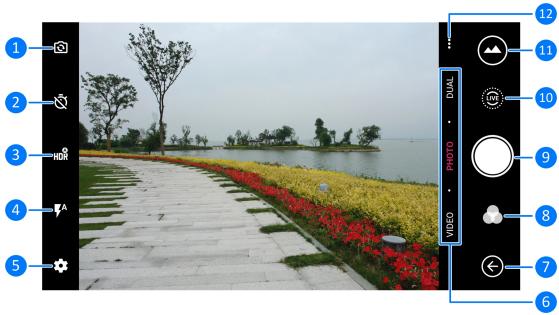
| Number | Function |
| 1 | Switch between the front and back cameras. |
| 2 | Set a time delay before the camera takes a picture automatically after you touch the shutter icon. |
| 3 | Turn on or off the High-Dynamic Range (HDR) feature, only available for the back camera. |
| 4 | Change the flash setting, only available for the back camera. |
| 5 | Change the camera settings. |
| 6 | For the front camera: Switch among video camera, selfie, and beautify modes. For the back camera: Switch among video camera, photo camera, and dual camera modes. |
| 7 | Exit the camera. |
| 8 | Select a filter. |
| 9 | Capture a picture. |
| 10 | Capture a LIVE photo. |
| 11 | View pictures and videos you have taken. |
| 12 | Use special photo or video camera modes including Manual, Panorama, Multi-exposure, Time-lapse, Slow motion, and Sports. |

WARNING!
Keep a safe distance when using the flash. Do not point the flash towards the eyes of people or animals.

NOTE:
You can spread or pinch on the screen to zoom in or out before taking pictures.
- Touch the area where you want the camera to focus, or leave the camera to autofocus on the center of the image.

NOTE:
In the default PHOTO mode of the back camera, when you touch the screen to focus, the exposure bar appears beside the focus point. You can drag up or down to adjust the exposure.
- Lightly touch . The Volume key can also be used to take a photo.

NOTE:
When you use the front camera, you can also touch or BEAUTIFY to use smile detection or beauty mode.
Recording a Video
You can record normal-speed video clips. The back camera also allows you to record slow motion or time lapse video.
- Press the Home key >
- Touch Video if you want to capture a normal-speed video. To capture slow motion or time lapse video, switch to the back camera and touch ... > SLOW MOTION or TIME-LAPSE.
- Aim the camera at the subject. Adjust focus, zoom, and exposure.

NOTES:
- With the back camera, you can touch any area on the screen to change the focus before and during recording. You can also touch and hold the focal point to lock it.
- When you change the focus of the back camera, the exposure bar appears beside the focal point. You can drag up or down to adjust the exposure.
-
Spread or pinch on the screen to zoom in or out before and during recording.
-
Touch to start recording a normal-speed video clip, or touch to record a slow motion or time lapse video.

NOTE:
While the normal-speed or slow-motion recording is in progress, touch to pause the recording. When you record a normal-speed or time-lapse video, touch to save the frame as a separate photo.
- Touch or to stop recording.
Using Dual-Camera Modes
Capture unique pictures with the dual camera on the back of your phone.
- Press the Home key >
- Touch DUAL and select a dual-camera mode.
BOKEH: Apply blur effect to out-of-focus parts of the image.
- MONOCOLOR: Select red, green, or blue as the prominent color and transform other colors into shades of black.
MONOCHROME: Capture black-and-white pictures and apply sketch or vignette effect.
- Lightly touch or the Volume key.

NOTE:
You can change the focus of the pictures taken in BOKEH mode. Just open the picture in full screen and touch . Then touch the area you want to focus, select a blur level, and touch
Using Manual Camera Mode
You can use manual camera mode to adjust more camera options for your photo such as ISO, white balance, exposure, etc.
- Press the Home key >
- Touch ... > MANUAL.
- Aim the camera at the subject and you can make the following adjustments.
Drag the green circle to any area on the screen that you want to focus on. Touch and hold it to lock the focus.
Drag the yellow square to any area on the screen where you want the camera to meter exposure so as to adjust the photo brightness. Touch and hold the square to lock exposure.
- Touch to unfold the options, including shutter speed, ISO, overall exposure, white balance, interval for time lapse pictures, or focus.
- Touch the shutter icon to take the photo.
Using Other Camera Modes
Your camera app offers a number of powerful and interesting camera modes for the back camera. Touch ... in the viewfinder screen to find them all.
- MANUAL: Adjust professional parameters for the camera.
- PANorama: Capture panorama pictures.
- MULTI EXPOSURE: Capture two pictures for collage.
- TIME-LAPSE: Set the time interval between each frame when you shot time lapse videos.
- SLOW MOTION: Capture slow motion video clips.
SPORTS: Keep the focus on moving objects.
Customizing Camera/Camcorder
Settings
Before capturing a photo or a video, you can touch the following camera and camcorder setting option

to open

NOTE:
Some camera and video options will change in different camera modes.
- Options in Photo Modes
Resolution: Set the image size for your photo.
- Point-and-shoot: Available for the front camera. When this feature is enabled, you can touch the viewfinder screen to take a photo using the front camera.
- Mirror image: Available for the front camera. You can enable this feature to take a mirror photo using the front camera.
Selfie indicator: Available for the front camera. When enabled, a small window appears in the viewfinder to help you capture more natural selfie pictures.
Light supplementary: Available for the front camera. When enabled, the screen becomes white to compensate for light as you touch the shutter icon.
Metering: Adjust the metering setting in manual mode.
Composition: Show or hide grid or golden spiral for balanced photo composition in manual mode.
Gradienter: Enable or disable the gradienter in manual mode.
Watermark: Apply a watermark to your photos.
Shutter tone: Turn on or off the shutter tone.
Geo-tag: Select whether to store the GPS location in your captured photos and videos.
- Histogram: Turn on or off histogram in manual mode, which can show the brightness and darkness of the current view.
Volume key: Assign the function of the Volume key.
- Anti-banding: Set the anti-banding value when you take pictures of TV or computer screens to avoid stripes on the screen.
- Save location: Change the storage location for captured photos and videos.
Help: View help details or enable help icon on the viewfinder screen.
- Restore defaults: Restore default camera and video settings.
- Options in Video Modes
Video quality: Set the quality up to 4K for your video.
Shutter tone: Turn on or off the shutter tone.
Geo-tag: Select whether to store the GPS location in your captured photos and videos.
- Anti-banding: Available for the back camera. Set the anti-banding value when you record videos of TV or computer screens to avoid stripes on the screen.
- Save location: Change the storage location for captured photos and videos.
- Help: View help details or enable help icon on the viewfinder screen.
- Restore defaults: Restore default camera and video settings.
Gallery
Opening Gallery
Press the Home key > > Gallery to view albums of your pictures and videos.
Working With Albums
When you open Gallery, all pictures and videos on your phone are displayed in a number of albums. Touch Camera/Others or slide left or right to switch between the Camera album and other albums.
To view album contents:
Touch an album to view the pictures and videos it contains.
To share albums, pictures, or videos:
- Touch and hold an album to select it or touch and hold an item after you open an album to select a picture or a video.
- Touch more items that you want to share.
- Touch and select how you want to share the items.
To delete albums, pictures, or videos:
- Touch and hold an album to select it or touch and hold an item after you open an album to select a picture or a video.
- Touch more albums that you want to delete.
- Touch OK.
Working With Pictures
Touch a picture in an album to view the picture in full screen.

When viewing a picture in full screen, the following features are available.
- Swipe horizontally to see other pictures or videos in the album.
- Pinch a picture or video to make it smaller. You'll then see a filmstrip-style view of all your pictures and videos in a row. Swipe left or right to scan through them all.

NOTE:
You can delete a picture or video by swiping it up in the filmstrip view.
- Double-tap the picture, or pinch two fingers together or spread them apart to zoom out or in.
- Touch or to rotate, share or delete the picture. Touch to edit or print the picture, set it as wallpaper or contact photo, check file details, or browse the album contents in a slideshow.
- If the picture is a LIVE photo you have captured, touch to play it.

NOTE:
Some options may not be available for certain albums or pictures.
Retouching Your Pictures
You can edit any photos you took and some other pictures in Gallery. The changed picture is saved in the same album as the original image, which is not affected.
- Touch Edit > Editor while viewing a picture in full screen to open the Editor interface.

NOTE:
You can also choose to edit the picture with Photos. Some editing tools need to be downloaded.
- Touch an edit option along the bottom of the screen and edit the picture.

NOTE:
Slide left or right at the bottom of the screen to find all options.
| Apply filters and old photo effects. |
| Crop, straighten, or flip (mirror) the picture. |
| Adjust exposure, saturation, hue, sharpness, and other color options. |
| Add a frame to the picture. |
| Decorate people in the picture with comical moustaches, eye glasses, hats and more. |
| Apply a blur effect to the picture. |
| Select a color and draw anything on the picture. |
| Add some text to the picture and adjust its effect. |
- Touch to keep the change or touch × to cancel it.
- Touch to save the new picture.

NOTE:
Touch ① in the Editor screen to see the edits you have made and undo or redo them.
Making a GIF Picture or a Collage
You can put together a few pictures in the same album to make an animated GIF picture or a collage of pictures.
- Open the Gallery app and touch > Gif Maker or Collage Maker.
- Touch an album.
- Touch the pictures you need.
To make a GIF, touch 2 to 50 pictures in the order or reverse to the order that you want them to appear in the GIF.
To make a collage, touch 2 to 9 pictures.
The pictures you touched are displayed along the bottom. Touch to remove the pictures you do not need.
- Exit the album and touch . The GIF or collage is displayed.
- Touch the options along the bottom to adjust the final picture.
For GIF, you can adjust the speed, play order, image size, or touch Advanced to change picture order or adjust each picture.
For collage, touch Template, Freestyle, or Collage and then select a frame, texture or layout.
- When you are satisfied with the final picture, touch to save the GIF or the collage.
The picture is saved to the zte.editor folder.
Playing Videos
- Touch an album in the gallery and then touch the thumbnail of a video.
- Touch at the center to start playing. Touch the video to view the playback controls.
Music
Press the Home key > > Music to play audio files stored on your phone. Music supports a wide variety of audio formats, so it can play music you purchase from online stores, music you copy from your CD collection, and so on.
Copying Music Files to Your Phone
Before using Music, you need to copy or download audio files to your phone.
Copy From a Computer
- Connect your phone and the computer with a USB cable.
- Touch Media device MTP as the connection mode. See Connect Your Phone to a Computer via USB.
- Copy the music files from the PC and paste them to the phone storage or the microSDXC card.
Download From the Internet
You can download music files when browsing web pages. See Downloading Files.
Receive via Bluetooth
You can receive music files from other devices via Bluetooth. See Receive Data via Bluetooth.
Viewing Your Music Library
Press the Home key > Music to open the Music app. There you can touch All songs to view all your audio files or by categorized lists or artists, albums, and genres. You can also touch Favorites. Recently played,Folders to find songs, or view all your playlists in My playlist section.

NOTE:
If an audio file is being played, its name and player controls are displayed at the bottom of the screen. Touch the area to open the playback screen.
Setting a Song as the Default Ringtone
The song will be used as the ringtone for all incoming calls, except those from contacts to whom you have assigned special ringtones (see Set a Ringtone for a Contact).
- Press the Home key > Music > All songs to see the music library.

NOTE:
If you are in the playback screen, touch at the top left of the screen to return to the music library.
- Touch and hold a song in any list.
- In the menu that opens, touch Set as the ringtone.
- Touch Set as the SIM1 ringtone or Set as the SIM2 ringtone.

NOTE:
If the song is being played and you're in the playback screen, you can touch > Set as the ringtone.
Playing Music
Touch a song in the music library to listen to it. Touch the bottom of the screen to open the following playback screen.
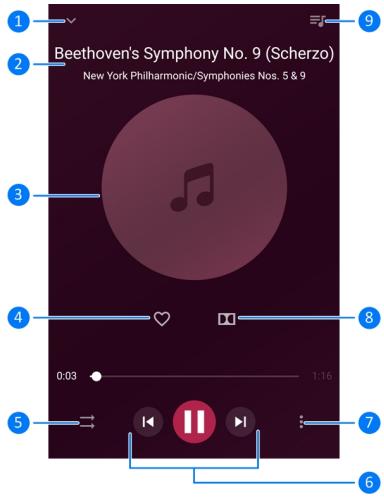
| Number | Function |
| 1 | Return to the music library. |
| 2 | Track name and artist information. |
| 3 | Album artwork. |
| 4 | Add the track to the Favorites playlist. |
| 5 | Toggle repeat mode and shuffle. You can repeat the current track, repeat the current playlist, turn on shuffle, or turn off shuffle and repeat. |
| 6 | Playback control: Skip songs or pause and resume playback. Drag the progress bar to jump to any part of the track. |
| 7 | Access additional options. |
| 8 | Manage Dolby Audio settings. |
| 9 | View the current playlist. |
Managing Playlists
Create playlists to organize your music files into sets of songs, so that you can play the songs you like in the order you prefer.
- Touch and hold a song in the music library and select Add to add it to a playlist or create a new playlist.
- In My playlist section, touch and hold a playlist and select Delete/Rename to delete or rename the playlist.
- In My playlist section, touch a playlist to view its content. You can touch + to add more songs to the playlist, or touch ⊙ to select songs for removal from the playlist.
Video Player
Use the Video app to manage your video library and watch videos.
Opening the Video Library
Touch in the home screen and select Video to view your video library, where your video files are displayed.
Swipe up or down to find the video you want. You can also touch > Search to search for video files, or touch > View or Sort to change the display mode or sort the list.
Playing and Controlling Videos
Touch a video in the video library to play it. Touch the screen to show the playback controls. You can control the video and audio or carry out other operations.
- Touch the play/pause button at the bottom to pause or resume the playback.
- Slide horizontally on the screen to rewind or fast forward.
- Slide vertically on the right or left part of the screen to adjust volume or brightness.
- Touch to skip to the next video.
-
Touch to rotate the video.
-
Touch or to hide or show the control panel.
- Touch to manage the Dolby Audio effects.
- Touch to share or delete the video, or change the video ratio.
Managing Video Files
Delete Video Clips
- In the video library, touch > Delete.
- Check other videos you want to delete.
- Touch Delete > OK.
Share a Video Clip
- Touch and hold a video in the video library.
- In the menu that opens, touch Share and select how you want to share them.
More Apps and Features
Clock
Press the Home key > Clock. The Clock app allows you to check local time in places around the world, set alarms, and use timers.
Set a New Alarm
- Touch the tab in the Clock app.
- Touch an existing alarm to configure it, or touch at the bottom of the screen to create a new alarm.
- Touch the time at the top to open the Set time window and set the alarm time.
- Touch OK.
- Touch the days in a week that the alarm should go off. Check or uncheck Repeat weekly if necessary.
- Touch Snooze to select snooze duration and repeat.
- Touch Ringtone to select the alarm ringtone.
- If necessary, touch Label to add a name for the alarm.
- Touch Save to save and exit.

NOTES:
-
To enable or disable existing alarms directly, just touch the switches on the right side.
-
Touch in the tab to configure alarm settings, including ringtone volume and duration, vibration, volume crescendo, alarm in silent/vibration mode, and keypress settings.
Check World Time
Touch the tab in the Clock app to check local time around the world.
Touch at the bottom to add a new city or country.
Use the Stopwatch and Countdown
Touch the 0 or tab in the Clock app to use the stopwatch or the countdown timer.
Stopwatch allows you to record lap times (100 laps at most), while countdown allows you to set a time and count down to zero.
Download Manager
The Download Manager app keeps a record of the files you are downloading or have downloaded using apps such as Browser or Chrome.
Press the Home key > > Download Manager to check the record.
-
Touch a downloaded file to open it with the appropriate applications.
-
Touch and hold a downloaded file to delete, rename, share it, or check file information.
File Manager
Quickly access all of your images, videos, audio clips, and other types of files on your phone storage.
Press the Home key > > File Manager. You can touch a file category to find the file you need, or touch Phone, SD Card, or External devices to browse folders and files on the phone storage, the microSDXC card, or the connected OTG device.
- Touch folders and files to access stored items.
- Touch and hold an item to access option icons such as Copy, Move, Share, Delete, Compress, and more.
- To copy or move an item, navigate to a new location and touch Paste.
- Touch + to create a new folder in the current directory.
Recorder
Recorder enables you to record voice memos and listen to them whenever you like.
Record a Voice Memo
- Press the Home key > > Recorder.
- Touch to select audio format.

NOTE:
M4A files saves storage by compressing data with some loss in audio quality, while WAV files takes up more space but provides better sound quality.
-
Touch to start recording. During recording, you can do the following:
-
Touch / to pause or continue the recording.
Touch to add time tags to the recording. -
Touch Save to stop recording.
- Edit the file name and touch OK to save the recording. If you don't want to save the memo after recording it, touch Cancel to delete it.
Play a Voice Memo
- Touch at the top right of the screen to see all recordings.
- Touch the title of a memo to play it.
Edit a Voice Memo
You can add a note to a voice recording, trim it, add or remove time tags.
- Touch in the recordings list to add a note to the voice recording.
While playing a recording, touch to open the editing screen. You can drag the "S" and "E" tabs to trim the recording, touch a tag to delete it, or touch to add a tag.

NOTE:
Touch and hold a recording in the list to delete, share, edit, rename the file, view file details, or set it as the default ringtone.
Toolkit
Press the Home key > Toolkit to access many useful tools for your daily need.
- Compass: Get directions as well as longitude and latitude data.
- Flashlight: Use the flash on the back of the phone as a torch.
- Calculator: Conduct basic and scientific calculation.
- Noise tester: Test the noise level of your environment.
Ruler: Use the phone as a straight ruler. - Protractor: Use the phone to measure angles.
- Level: Use the phone as a辅导员.
- Plumb line: Use the phone to determine verticality.
WeShare
WeShare allows you to copy data from one phone to another, back up data and apps on your phone to the phone storage or the microSDXC card, or restore backed up data and apps when you need to.
Press the Home key > >WeShare and touch Change Phone, Phone-to-Phone Data Transfer, or Backup and Restore to use these features.
Google Apps
Open the Google apps to use Google services. Some apps are put in the Google folder on the home screen.

NOTE:
Some contents or Google services may not be available in certain regions.
- Chrome: Use the Chrome app to browse the Internet and get your bookmarks, browsing history, and more synced with your Google account.
- Docs/Sheets/Slides: Use words documents, excel sheets, and slideshows offered by Google for your work and projects.
-
Drive: Store files on Google servers for free after you sign in to your Google account. You can access them on your computers, your phones and other devices, share them, or collaborate with others.
-
Gmail: Send and receive emails via your Gmail account or other personal email accounts.
- Google: Use Google search or get information when you need it with Google Now.
- Hangouts: Chat with Google+ friends or send text or multimedia messages.
- Keep: Create, share, and collaborate notes quickly and easily.
- Maps: Find your place and find your way in the world.
- Photos: Manage photos on the phone and your Google account.
- Play Movies & TV: Purchase, download and watch the latest and your favorite movies and TV shows.
- Play Music: Play music on the phone and on your Google account.
- Play Store: Buy and download apps, games, and other content from the Google Play Store.
Voice Search: Search for information with your voice. - YouTube: Watch video clips from YouTube.com, or upload your own and share with the world.
Google Play™ Store
Press the Home key > . You can buy or rent music, books, movies, apps, and download them to your phone.

NOTE:
The content you can access in Google Play Store depends on your region and your service provider.
Browsing and Searching for Apps
You can browse apps by category. Touch a top-level category, such as GAMES and touch the app from any subcategory.
You can also search for apps using an app's name or description, or the developer's name. Just touch the search box at the top and enter the search terms.
Downloading and Installing Apps
When you find the app you are interested in through browsing or searching, touch it to open its details screen, where more information about the app is displayed.
- Touch Install (free apps) or the price (paid apps). If the app is not free, you need to sign in to your Google Wallet™ account and select a payment method.
CAUTION:
Once installed, some apps can access many functions or a significant amount of your personal data. The Play Store will show you what the app can access. Touch Accept to proceed, or touch the Back key to cancel.
- Wait for the app to be downloaded and installed automatically. Payment needs to be authorized before paid apps start downloading.
After the app is successfully installed, you can find it on your phone after pressing the Home key >
Creating a Google Wallet™ Account
You must have a Google Wallet account associated with your Google account to purchase items from the Google Play Store app.
Do one of the following:
- On your computer, go to wallet.google.com to create a Google Wallet account.
- The first time you use your phone to buy an item from Google Play Store, you're prompted to enter your billing information to set up a Google Wallet account.
WARNING!
When you've used Google Wallet once to purchase items from the Google Play Store app, the phone remembers your password so you don't need to enter it the next time. For this reason, you should secure your phone to prevent others from using it without your permission.
Managing Your Downloads
After you've downloaded and installed an app, you can rate it, view it in a list with your other downloaded apps, configure it to update itself automatically, and so on.
View Your Downloaded Apps
- In the Play Store screen, touch My apps.
- Your list of installed apps opens, you can touch one to rate it, uninstall it, request a refund, and so on.
Uninstall an App
- In the Play Store screen, touch My apps.
- Touch an app to open its details screen.
- Touch Uninstall > OK.
Settings
Press the Home key > Settings. The Settings app contains most of the tools for customizing and configuring your phone. Swipe left or right to switch between frequently used settings and all settings.
Wireless and Networks
Wi-Fi
Press the Home key > Settings > All settings > Wi-Fi. You can turn Wi-Fi on or off and configure your Wi-Fi connections. See Connecting to Wi-Fi.
Bluetooth
Press the Home key > Settings > All settings > Bluetooth. You can turn Bluetooth on or off and configure your Bluetooth connections. See Connecting to Bluetooth Devices.
Dual SIM Settings
Press the Home key > Settings > All settings > Dual SIM settings. You can manage the data, call, and networks for installed nano-SIM cards. See Connecting to Mobile Networks.
Data Usage
Press the Home key > Settings > All settings > Data usage to manage mobile data use.
Touch the Cellular data or Set cellular data limit switches to turn on or off mobile data or mobile data limit.
You can check how much data has been used during the time cycle you set, set mobile data limit and warning, see what apps have been using mobile data, or restrict background data for individual apps.

NOTE:
The data usage is measured by your phone, and your carrier's data usage accounting may differ.
Airplane Mode
Press the Home key > Settings > All settings > More and slide the switch beside Airplane mode to turn airplane mode on or off. All the phone's radios that transmit voice or data are turned off when airplane mode is on.
VoLTE Voice Calling
Press the Home key > Settings > All settings > More and slide the switch beside VoLTE voice calling to turn this feature on or off. If supported by your carrier's network, VoLTE voice calling gives you better call quality over the 4G LTE network.
NFC and Android Beam
Press the Home key > Settings > All settings > More and switch on NFC to exchange data with another NFC-enabled device when they touch each other or in close proximity. Touch Android Beam and turn it on if you want to share web pages, contact information, YouTube videos or other content on your phone to another NFC-capable device. See Exchanging Data via NFC.
Tethering and Portable Hotspot
Press the Home key > Settings > All settings > More > Tethering & portable hotspot to share your phone's mobile data connection with PCs or other devices via USB, Bluetooth or Wi-Fi. See Sharing Your Mobile Data Connection.
VPN
Press the Home key > Settings > All settings > More > VPN to set up and connect to virtual private networks. See Connecting to Virtual Private Networks.
Customized Features
ZTE-Lock
Press the Home key > Settings > All settings > ZTE-Lock. You can turn on or off the feature, which provides dynamically changing pictures for the lock screen every time you turn the screen on.
Touch Lock screen settings to select a layout or today's pictures, set update option, or touch Discover to find new pictures and add them to your wallpaper collection.
Themes & Wallpapers
Press the Home key > Settings > All settings > Themes & wallpapers. You can select a different theme for the phone display, or change the home/lock screen wallpaper. See Applying New wallpapers and Setting the Theme.
Mi-Pop
Press the Home key > Settings > All settings > Mi-Pop. You can turn on or off this function.
While Mi-POP is on, a floating bubble appears on the edges of the screen. You can drag the bubble to access the Home key, the Back key, the Recent apps key, or menu.
Touch and hold the bubble for more options including powering off, restarting, locking the phone, capturing a screenshot, maximizing the volume, or muting the ringtone.
Fingerprint
Press the Home key > Settings > All settings > Fingerprint. You can set up to 5 fingerprints and use them to unlock the phone or open different apps. See Using Your Fingerprint.
Gesture & Motion
Press the Home key > Settings > All settings > Gesture & motion. You can control the phone with special finger gestures or moving the phone in different ways.
Touch the switches to enable each function; touch each function to view how to use it or try it out.
Navigation Keys
Press the Home key > Settings > All settings > Navigation keys. You can exchange the location of the Recent apps key and the Back key.
Device
Display
Press the Home key > Settings > All settings > Display to configure the following options.
- Font size: Set the font size of the text on the screen.
- Sleep: Set the length of time of inactivity before the screen turns off automatically.
- Brightness level: Set the brightness and auto-adjustment of the display.
-
Auto-rotate screen: Select whether the screen contents should rotate when the phone is rotated.
-
Battery percentage: Show or hide the battery percentage next to the battery icon in the status bar.
- Keypad light: Turn on or off the back light beneath the Recent apps key and the Back key.
- Notification light: Control the indicator light for charging, low battery, new message, incoming call, and other notifications.
- Display pedometer: Enable or disable the display of pedometer data on the lock screen.
- Cast screen: Connect with TVs, projectors or other devices that support wireless display and project your phone's content wirelessly to that device. You need to turn on Wi-Fi first and enable Cast screen. For detailed introduction, please refer to the device manual.
Sounds & Vibration
Press the Home key > Settings > All settings > Sounds & vibration. You can adjust different types of volume (see Adjusting Volume), toggle sound, vibration and mute (see Switching to Silent or Vibration Mode and Using Do Not Disturb Mode), set up ringtone and notification sound (see Changing Ringtone and Notification Sound), set Dolby effects, or select system sounds (see Turning On/Off System Sounds).
Notifications
Press the Home key > Settings > All settings > Notifications to control the display of notifications.
- Switch on or off Show on the lock screen to control whether notifications should be displayed on the lock screen.
- Touch an app to control its notifications. You may turn off its notifications, allow it to sound in Do not disturb mode, allow it to display notifications as a pop-up for quick view, or hide content in lock screen. The available options are dependent on the app.

NOTE:
The notifications of some apps cannot be turned off. Content hiding is only available if you have set a pattern, a PIN or a password as the screen lock.
Power Manager
Press the Home key > Settings > All settings > Power manager to view the battery level, check what has been using the battery, and enable different battery saving modes.
Apps
Press the Home key > Settings > All settings > Apps to see apps installed on your phone and manage them.
Touch an app to see its information. The following options may be available:
- Force stop: Stop the app.
- Uninstall: Uninstall the app.
-
Disable/Enable: Disable or enable the app.
-
Storage: Check its storage information, clear its data or cache.
- Data usage: Check how much data has been used by the app during the time cycle you set and restrict background data for the app.
- Permissions: Check or change the app permissions.
- Notifications: Manage the app notifications in the notification panel and the lock screen. You can set the priority, sensitivity, and more.
- Open by default: Check the app's supported links and set whether to open the links in the app, and clear the app's defaults.
- Battery: Check the battery use details of the app since last full charge.
- Memory: Check how much memory has been used by the app.

NOTE:
Not all options are available for the apps.
Default Apps
Press the Home key > Settings > All settings > Default apps to set the default application for certain operation. For example, you can set Hangouts or Messaging as the default messaging app. Touch >Restore defaults to return to the default settings.
Storage
Press the Home key > Settings > All settings > Storage to view the memory information of the internal phone storage and the microSDXC card.
You can touch Save photos to to choose the default location for new data, such as photos captured, and voice recorded.
Touch Phone memory to get a detailed breakdown of space usage by type. Touch a data type to see more information or delete the files you do not need.
For more information about using the microSDXC card, see Using the microSDXC Card as Portable Storage.
When you connect a USB storage device (such as a USB flash) to your phone with an OTG adapter cable, you can view its storage status, unmount it, or erase all data on it. See Using USB On-The-Go (OTG).
Memory
Press the Home key > Settings > All settings > Memory to monitor the average memory use and performance of your phone. You can also check which apps use the most memory.
Connect to PC
Press the Home key > Settings > All settings > Connect to PC to select your USB connection type between your phone and PC. See Connecting to Your Computer via USB.
Scheduled Power On/Off
Press the Home key > Settings > All settings > Scheduled power on/off to set the day and time when the phone automatically powers on or off. You can also touch the switches on the right to turn the features on or off.
Tap & Pay
Press the Home key > Settings > All settings > Tap & pay.
You can tap and pay with your phone at the merchants that accept contactless payments. See Using Tap & Pay.
Personal
Location
Press the Home key > Settings > All settings > Location to manage location services, which help your phone and apps determine your location. To use location-related applications, such as finding your location on Google Maps, you must have location services turned on on your phone.
- Slide the switch at the top to turn location services on or off.
- When location is enabled, touch Mode to select location sources you want to use.
High accuracy: Get accurate location using both GPS, Bluetooth and Wi-Fi as well as mobile networks.
Battery saving: Use only Wi-Fi, Bluetooth and mobile networks to get your approximate location. This will drain
less power from your battery than using GPS.
Device only: Use GPS to pinpoint your location.
In the Location menu, touch Accelerated location or Google Location History to use Qualcomm® IZat™ hardware accelerated location to determine your location or configure Google location options.
Security
Press the Home key > Settings > All settings > Security to configure options that help keep your phone and data safe.
- Screen lock: Disable the screen lock or enable it with pattern, PIN, or complex password. See Protecting Your Phone With Screen Locks.
- Pull down status bar on screen lock: When turned off, you cannot pull down the status bar to access Quick Settings on the lock screen.
- Make pattern visible: Show the pattern as you draw it. This option is available when unlock pattern is set.
- Automatically lock: Set the time needed for the lock protection to be activated after the screen turns off. This option is available when unlock pattern, PIN or complex password is set.
-
Power button instantly locks: Lock protection is activated immediately when you press the Power key. This option is available when unlock pattern, PIN or complex password is set.
-
Smart Lock: Keep the phone unlocked when connected to trusted devices, in trusted places, or unlocked by trusted faces or voice, or unlocked when your phone is being carried on the body.

NOTE:
You need to sign in to your Google account on the phone to use the Smart Lock feature.
- Set up SIM card lock:
Lock SIM card: Activate or deactivate the PIN lock to require PIN before accessing the nano-SIM card.
Change SIM PIN: Change the PIN used to access the nano-SIM card.

NOTE:
Put all your confidential passwords in a safe place for future use. If you enter the wrong SIM PIN more times than allowed, your nano-SIM card will be locked and you cannot access the mobile phone network. Contact your operator for a PIN Unlock Key (PUK) to restore the nano-SIM card.
- Make passwords visible: Display passwords as you enter them.
Device administrators: View or deactivate apps you have authorized to be device administrators. - Unknown sources: Check this option to permit installation of apps from sources other than the Play Store.
- Storage type: Check the credential storage type.
- Trusted credentials: Display trusted CA certificates.
Install from SD card: Install certificates from the storage.
- Clear credentials: Delete all certificates.
- Trust agents: View or deactivate trust agents.
- Apps with usage access: Turn on or off some apps' access to your phone usage information.
Accounts
Press the Home key > Settings > All settings > Accounts to manage your web accounts and synchronization. Touch Add account to sign in to or create accounts on your phone.
Touch an account type to see that type of accounts you have added and adjust the accounts settings.
Press the Home key > Settings > All settings > Google to easily manage settings for Google apps and features. You can set the options for Google account and services.
Language & Input
Press the Home key > Settings > All settings > Language & input to configure options related to system language, input methods, speech input and output as well as mouse/trackpad input.
Language: Select a language for your system.
Spell checker: Use Google Spell Checker to check for spelling errors when entering text.
- Personal dictionary: Add new words to the phone's dictionary or remove words from the dictionary. The words you add are used for spelling check and word suggestion.
-
Keyboard & input methods: Set the current input method and choose input method settings.
Text-to-speech output: -
Preferred engine: Select the speech synthesis engine you want to use or change its settings.
Speech rate: Select how quickly you want the synthesizer to speak. -
Listen to an example: Play a brief sample of the speech synthesizer, using your current settings.
Default language status: Check whether the text-to-speech output feature supports the current system language. -
Pointer speed: Select how fast the pointer/mouse should scroll when you connect the phone to a trackpad or mouse accessory.
Backup and Reset
Press the Home key > Settings > All settings > Backup & reset to manage data backup and restoration options, and to reset the network setting or the phone to factory status.
-
Back up my data: Back up app data, Wi-Fi passwords, and other settings to Google servers after you sign in to your Google account.
-
Backup account: Set the Google account that the data is backed up to.
Automatic restore:Restore previously backed up settings and data when you reinstall an app.
Network settings reset: Reset all network settings including Wi-Fi, mobile data and Bluetooth.
Factory data reset: Reset your phone to factory default settings. All your data in the internal storage will be erased during the process.
System
Date & Time
Press the Home key > Settings > All settings > Date & time to set date, time, time zone, time format and more. See Setting the Date and Time.
Updates
Press the Home key > Settings > All settings > Updates to check, download and install system updates.
Accessibility
Press the Home key > Settings > All settings > Accessibility to configure accessibility plug-ins and services on your phone, such as using Color inversion or Large text for users with sight problems.
Printing
Press the Home key > Settings > All settings > Printing to manage Google Cloud Print service or other printer plug-ins installed from the Google Play Store or your printer manufacturer.
About Phone
Press the Home key > Settings > All settings > About phone to view important phone information and legal information. You can also touch My phone name to give your phone a name for easy identification when others want to connect to your phone via Bluetooth or Wi-Fi hotspot.
Troubleshooting
If you encounter problems while using the phone, or if it performs abnormally, you can refer to the chart below. If your particular problem cannot be resolved using the information in the chart, contact the dealer where you purchased the phone.
| Problem | Possible causes | Possible solution |
| Poor reception | The network signal is too weak at your current location, for example, in a basement or near a tall building, because wireless transmissions cannot effectively reach it. | Move to a location where the network signal can be properly received. |
| The network is busy at the current time (for example, during peak times, there may be too much network traffic to handle additional calls). | Avoid using the phone at such times, or try again after waiting a short time. | |
| You are too far away from a base station for your service provider. | You can request a service area map from your service provider. | |
| Echo or noise | The network link quality is poor on the part of your service provider. | End the call and dial again. You may be switched to a better-quality network link or phone line. |
| The local telephone line quality is poor. | End the call and dial again. You may be switched to a better-quality network link or phone line. | |
| Unable to select certain features | Your service provider does not support these features, or you have not applied for services that provide these features. | Contact your service provider. |
| Cannot charge the battery | The battery or battery charger is damaged. | Contact the dealer. |
| The phone's temperature is below 0 °C or higher than 45 °C. | Adjust the battery charging environment to avoid extremes of temperature. | |
| The contact between the battery and charger is poor. | Check all connectors to ensure that all connections have been properly made. | |
| Shortened standby time | The standby time is related to your service provider system configuration. The same phone used with different service providers' systems will not provide exactly the same length of standby time. | If you are located in an area where signaling is weak, temporarily power off the phone. |
| The battery is depleted. In high temperature environments, battery life will be shortened. | Contact the dealer to change a new battery. | |
| If you are not able to connect to the network, the phone will continue to send out signals as it attempts to locate a base station. Doing so consumes battery power and will consequently shorten standby time. | Change your location to one where the network is accessible, or temporarily turn off your phone. | |
| Cannot turn your phone on | Battery power has been depleted. | Recharge the phone's battery. |
| nano-SIM card error | The nano-SIM card malfunctions or is damaged. | Take the nano-SIM card to your service provider for testing. |
| The nano-SIM card is inserted improperly. | Insert the nano-SIM card properly. | |
| There is debris on the nano-SIM card contacts. | Use a soft, dry cloth to clean the nano-SIM card contacts. | |
| Unable to connect to the network | The nano-SIM card is invalid. | Contact your service provider. |
| You are not within the network's service area. | Check the service area with your service provider. | |
| The signal is poor. | Move to an open space, or if you are inside a building, move closer to a window. | |
| Cannot answer incoming calls | You have activated the Call barring feature. | Disable this feature. See Bar Certain Calls. |
| Cannot make outgoing calls | You have activated the Call barring feature. | Disable this feature. See Bar Certain Calls. |
| You have activated the Fixed dialing numbers feature. | Disable this feature. See Use Fixed Dialing Numbers. | |
| PIN Code blocked | You have entered an incorrect PIN code three consecutive times. | Contact your service provider. If the service provider provides the nano-SIM card's PUK code, use the PUK code to unlock the nano-SIM card. |
| Phone crashes, reboots, freeze, or cannot be powered on | Some third-party software is not compatible with your phone. | Uninstall the software that may cause the problem. |
| Upgrade the phone software. | ||
| Reset the phone to factory status. |
For Your Safety
General Safety
| Don't make or receive handheld calls while driving. Never text while driving. | Don't use at gas stations. | ||
| Keep your phone at least 15 mm away from your ear or body while making calls. | Your phone may produce a bright or flashing light. | ||
| Small parts may cause choking. | Don't dispose of your phone in fire. | ||
| Your phone can produce a loud sound. | To prevent possible hearing damage, do not listen at high volume levels for long periods. | ||
| Avoid contact with anything magnetic. | Avoid extreme temperatures. |
| Keep away from pacemakers and other electronic medical devices. | Avoid contact with liquids. Keep your phone dry. |
| Turn off when asked to in hospitals and medical facilities. | Do not attempt to disassemble your phone. |
| Turn off when told to in aircrafts and airports. | Only use approved accessories. |
| Turn off when near explosive materials or liquids. | Don't rely on your phone as a primary device for emergency communications. |
FCC RF Exposure Information (SAR)
This phone is designed and manufactured not to exceed the emission limits for exposure to radio frequency (RF) energy set by the Federal Communications Commission of the United States and Industry Canada of Canada.
During SAR testing, this device was set to transmit at its highest certified power level in all tested frequency bands, and placed in positions that simulate RF exposure in usage against the head with no separation, and near the body with the separation of 15mm . Although the SAR is determined at the highest
certified power level, the actual SAR level of the device while operating can be well below the maximum value. This is because the phone is designed to operate at multiple power levels so as to use only the power required to reach the network. In general, the closer you are to a wireless base station antenna, the lower the power output.
The exposure standard for wireless devices employing a unit of measurement is known as the Specific Absorption Rate, or SAR. The SAR limit set by the FCC is 1.6 W/kg and 1.6 W/kg by Industry Canada.
This device is in compliance with SAR for general population /uncontrolled exposure limits in ANSI/IEEE C95.1-1992 and Canada RSS 102 and had been tested in accordance with the measurement methods and procedures specified in IEEE1528 and Canada RSS 102. This device has been tested and meets the FCC and IC RF exposure guidelines when tested with the device directly contacted to the body.
The FCC has granted an Equipment Authorization for this model phone with all reported SAR levels evaluated as in compliance with the FCC RF exposure guidelines. SAR information on this model phone is on file with the FCC and can be found under the Display Grant section of www.fcc.gov/oet/ea/fccid after searching on FCC ID: SRQ-Z978.
For this device, the highest reported SAR value for usage against the head is 0.51 W/kg and for usage near the body is 1.19 W/kg.
While there may be differences between the SAR levels of various phones and at various positions, they all meet the government requirements.
SAR compliance for body-worn operation is based on a separation distance of 15 mm between the unit and the human body. Carry this device at least 15 mm away from your body to ensure RF exposure level compliant or lower to the reported level. To support body-worn operation, choose the belt clips or holsters, which do not contain metallic components, to maintain a separation of 15 mm between this device and your body.
RF exposure compliance with any body-worn accessory, which contains metal, was not tested and certified, and using such body-worn accessory should be avoided.
Operations in the band 5.15-5.25 GHz are restricted to indoor use only.
IC Notice
This device complies with Industry Canada license-exempt RSS standard(s). Operation is subject to the following two conditions: (1) this device may not cause interference, and (2) this device must accept any interference, including interference that may cause undesired operation of the device.
This Class B digital apparatus complies with Canadian ICES-003.
IC: 5200E-Z978
IC Radiation Exposure Statement
This EUT is compliance with SAR for general population/ uncontrolled exposure limits in IC RSS-102 and had been tested in accordance with the measurement methods and procedures specified in IEEE 1528 and IEC 62209. This equipment should be installed and operated with minimum distance 1.5cm between the radiator and your body.
This device and its antenna(s) must not be co-located or operating in conjunction with any other antenna or transmitter.
FCC Regulations
This mobile phone complies with part 15 of the FCC Rules. Operation is subject to the following two conditions: (1) This device may not cause harmful interference, and (2) this device must accept any interference received, including interference that may cause undesired operation.
This mobile phone has been tested and found to comply with the limits for a Class B digital device, pursuant to Part 15 of the FCC Rules. These limits are designed to provide reasonable protection against harmful interference in a residential installation. This equipment generates, uses and can radiate radio frequency energy and, if not installed and used in accordance with the instructions, may cause harmful interference to radio communications. However, there is no guarantee that interference will not occur in a particular installation. If this equipment does cause harmful interference to radio or television reception, which can be determined by
turning the equipment off and on, the user is encouraged to try to correct the interference by one or more of the following measures:
Reorient or relocate the receiving antenna.
- Increase the separation between the equipment and receiver.
- Connect the equipment into an outlet on a circuit different from that to which the receiver is connected.
- Consult the dealer or an experienced radio/TV technician for help.
CAUTION:
Changes or modifications not expressly approved by the party responsible for compliance could void the user's authority to operate the equipment.
Hearing Aid Compatibility (HAC) regulations for Mobile Phones
In 2003, the FCC adopted rules to make digital wireless telephones compatible with hearing aids and cochlear implants. Although analog wireless phones do not usually cause interference with hearing aids or cochlear implants, digital wireless phones sometimes do because of electromagnetic energy emitted by the phone's antenna, backlight, or other components. Your phone is compliant with FCC HAC regulations (ANSI C63.19- 2011). While some wireless phones are used near some hearing devices (hearing aids and cochlear implants), users may detect a buzzing,
humming, or whining noise. Some hearing devices are more immune than others to this interference noise and phones also vary in the amount of interference they generate. The wireless telephone industry has developed a rating system for wireless phones to assist hearing device users in finding phones that may be compatible with their hearing devices. Not all phones have been rated. Phones that are rated have the rating on their box or a label located on the box. The ratings are not guarantees. Results will vary depending on the user's hearing device and hearing loss. If your hearing device happens to be vulnerable to interference, you may not be able to use a rated phone successfully. Trying out the phone with your hearing device is the best way to evaluate it for your personal needs.
This phone has been tested and rated for use with hearing aids for some of the wireless technologies that it uses. However, there may be some newer wireless technologies used in this phone that have not been tested yet for use with hearing aids. It is important to try the different features of this phone thoroughly and in different locations, using your hearing aid or cochlear implant, to determine if you hear any interfering noise. Consult your service provider or the manufacturer of this phone for information on hearing aid compatibility. If you have questions about return or exchange policies, consult your service provider or phone retailer.
M-Ratings: Phones rated M3 or M4 meet FCC requirements and are likely to generate less interference to hearing devices than phones that are not labeled. M4 is the better/higher of the two ratings.
T-Ratings: Phones rated T3 or T4 meet FCC requirements and are likely to be more usable with a hearing device's telecoil ("T Switch" or "Telephone Switch") than unrated phones. T4 is the better/ higher of the two ratings. (Note that not all hearing devices have telecoils in them.)
Your phone meets the M4/T3 level rating.
Hearing devices may also be rated. Your hearing device manufacturer or hearing health professional may help you find this rating. For more information about FCC Hearing Aid Compatibility, please go to http://www.fcc.gov/cgb/dro.
Distraction
Driving
Full attention must be given to driving at all times in order to reduce the risk of an accident. Using a phone while driving (even with a hands free kit) can cause distraction and lead to an accident. You must comply with local laws and regulations restricting the use of wireless devices while driving.
Operating Machinery
Full attention must be given to operating machinery in order to reduce the risk of an accident.
Product Handling
General Statement on Handling and Use
You alone are responsible for how you use your phone and any consequences of its use.
You must always turn off your phone wherever the use of a phone is prohibited. Use of your phone is subject to safety measures designed to protect users and their environment.
Always treat your phone and its accessories with care and keep it in a clean and dust-free place.
- Keep the screen and camera lens clean. Unclean screen or camera lens may slow down the phone's reaction to your operations or lower image quality.
- Clean the device and its accessories with a soft material such as cleaning cloth for eyeglass lenses. Do not use alcohol or other corrosive substances for cleaning or allow them to get inside.
- Do not expose your phone or its accessories to open flames or lit tobacco products.
- Do not expose your phone or its accessories to liquid, moisture or high humidity.
- Do not drop, throw or try to bend your phone or its accessories.
- Do not paint your phone or its accessories.
- Do not attempt to disassemble your phone or its accessories. Only authorized personnel can do so.
- Do not expose or use your phone or its accessories in a environment with or that can reach extreme temperatures, minimum - [5] and maximum + [50] degrees Celsius.
- Do not place your phone inside or near heating equipments or high pressure containers, such as water heaters, microwave ovens, or hot cooking utensils. Otherwise, your phone may be damaged.
- Please check local regulations for disposal of electronic products.
- Do not carry your phone in your back pocket as it could break when you sit down.
Small Children
Do not leave your phone and its accessories within the reach of small children or allow them to play with it.
They could hurt themselves or others, or could accidentally damage the phone.
Your phone contains small parts with sharp edges that may cause an injury or may become detached and create a choking hazard.
Demagnetization
To avoid the risk of demagnetization, do not allow electronic devices or magnetic media to be close to your phone for a long time.
Electrostatic Discharge (ESD)
Do not touch the SIM card's metal connectors.
Antenna
Do not touch the antenna unnecessarily.
Normal Use Position
When placing or receiving a phone call, hold your phone to your ear, with the bottom towards your mouth.
Air Bags
Do not place a phone in the area over an air bag or in the air bag deployment area as an airbag inflates with great force and serious injury could result.
Store the phone safely before driving your vehicle.
Seizures/Blackouts
The phone can produce a bright or flashing light. A small percentage of people may be susceptible to blackouts or seizures (even if they have never had one before) when exposed to flashing lights or light patterns such as when playing games or watching video. If you have experienced seizures or blackouts or have a family history of such occurrences, please consult a physician.
Repetitive Strain Injuries
To minimize the risk of Repetitive Strain Injury (RSI) when texting or playing games with your phone:
- Do not grip the phone too tightly.
Press the buttons lightly. - Use the special features which are designed to minimize the times of pressing buttons, such as Message Templates and Predictive Text.
Take many breaks to stretch and relax.
Emergency Calls
This phone, like any wireless phone, operates using radio signals, which cannot guarantee connection in all conditions. Therefore, you must never rely solely on any wireless phone for emergency communications.
Loud Noise
This phone is capable of producing loud noises, which may damage your hearing. Turn down the volume before using headphones, Bluetooth stereo headsets or other audio devices.
Phone Heating
Your phone may become warm during charging and during normal use.
Electrical Safety
Accessories
Use only approved accessories.
Do not connect with incompatible products or accessories.
Take care not to touch or allow metal objects, such as coins or key rings, to contact or short-circuit in the battery terminals.
Never puncture the surface of the battery with sharp objects.
Connection to a Car
Seek professional advice when connecting a phone interface to the vehicle electrical system.
Faulty and Damaged Products
Do not attempt to disassemble the phone or its accessories.
Only qualified personnel can service or repair the phone or its accessories.
If your phone (or its accessories) has been submerged in water, punctured, or subjected to a severe fall, do not use it until you have taken it to be checked at an authorized service center.
Radio Frequency Interference
General Statement on Interference
Care must be taken when using the phone in close proximity to personal medical devices, such as pacemakers and hearing aids.
Pacemakers
Pacemaker manufacturers recommend that a minimum separation of 15cm be maintained between a mobile phone and a pacemaker to avoid potential interference with the pacemaker. To achieve this, use the phone on the opposite ear to your pacemaker and do not carry it in a breast pocket.
Hearing Aids
People with hearing aids or other cochlear implants may experience interfering noises when using wireless devices or when one is nearby.
The level of interference will depend on the type of hearing device and the distance from the interference source. Increasing the separation between them may reduce the interference. You may also consult your hearing aid manufacturer to discuss alternatives.
Medical Devices
Please consult your doctor and the device manufacturer to determine if operation of your phone may interfere with the operation of your medical device.
Hospitals
Turn off your wireless device when requested to do so in hospitals, clinics or health care facilities. These requests are designed to prevent possible interference with sensitive medical equipment.
Aircraft
Turn off your wireless device whenever you are instructed to do so by airport or airline staff.
Consult the airline staff about the use of wireless devices onboard the aircraft. If your device offers a 'flight mode', this must be enabled prior to boarding an aircraft.
Interference in Cars
Please note that because of possible interference with electronic equipment, some vehicle manufacturers forbid the use of mobile phones in their vehicles unless a hands-free kit with an external antenna is included in the installation.
Explosive Environments
Gas Stations and Explosive Atmospheres
In locations with potentially explosive atmospheres, obey all posted signs to turn off wireless devices such as your phone or other radio equipment.
Areas with potentially explosive atmospheres include fueling areas, below decks on boats, fuel or chemical transfer or storage facilities, and areas where the air contains chemicals or particles, such as grain, dust, or metal powders.
Blasting Caps and Areas
Power off your mobile phone or wireless device when in a blasting area or in areas posted power off "two-way radios" or "electronic devices" to avoid interfering with blasting operations.
- User Manual
- About This Manual
- Copyright
- Copyright © 2016 ZTE CORPORATION
- All rights reserved.
- Notice
- Disclaimer
- Trademarks
- Contents
- Getting Started 11
- Personalizing. 26
- Knowing the Basics. 35
- Connecting to Networks and Devices. 54
- Phone Calls 73
- Contacts. 86
- Web Accounts 94
- Messaging 97
- Calendar 101
- Web Browser. 104
- Camera. 108
- Gallery 117
- Music. 123
- Video Player 127
- More Apps and Features 129
- Google PlayTM Store 136
- Settings 139
- Troubleshooting 155
- For Your Safety. 159
- Getting Started
- Getting to Know Your Phone
- Knowing the Keys
- NOTE:
- Installing the nano-SIM Cards and Storage Card
- WARNING!
- Charging the Battery
- CAUTION:
- Extending the Battery Life
- Powering On/Off
- Setting Up for the First Time
- Locking/Unlocking the Screen and Keys
- To lock the screen and keys:
- To unlock the screen and keys:
- Using the Touch Screen
- - Touch
- Drag
- Pinch
- Getting to Know the Home Screen
- Extended Home Screen Panels
- To add a new home screen panel:
- To delete a home screen panel:
- To adjust the order of a home screen panel:
- Personalizing
- Changing the System Language
- Setting the Date and Time
- Changing Ringtone and Notification Sound
- NOTES:
- Turning On/Off System Sounds
- Adjusting Volume
- Switching to Silent or Vibration Mode
- Using Do Not Disturb Mode
- To turn on Do not disturb mode:
- To set exceptions for Do not disturb mode:
- Applying New Wallpapers
- Setting the Theme
- Changing Screen Brightness
- Setting the Home Screen Transition Effect
- Protecting Your Phone With Screen Locks
- Using Your Fingerprint
- Register a Fingerprint
- Set Fingerprint Actions
- Knowing the Basics
- Monitoring the Phone Status
- Managing Notifications
- Notification Icons
- Open/Close the Notification Panel
- Respond to or Remove a Notification
- Use Quick Settings
- Managing Shortcuts and Widgets
- Add Shortcuts and Widgets
- Move Shortcuts or Widgets
- Remove Shortcuts or Widgets
- Adjust Widget Size
- Organizing With Folders
- Rearranging the Primary Shortcuts
- Entering Text
- Enable or Disable Input Methods
- Change Input Methods
- Google Keyboard
- Gesture Typing
- TouchPal Keyboard
- The FULL Layout
- The PHONEPAD Layout
- The T+ Layout
- Curve Word Gesture
- Wave Sentence Gesture
- Google Voice Typing
- Editing Text
- Opening and Switching Apps
- Open an App
- Switch Between Recently Opened Apps
- Uninstalling or Disabling an App
- Connecting to Networks and Devices
- Connecting to Mobile Networks
- Manage the nano-SIM Cards
- To turn on or off a card:
- To set the default card for calling and data:
- Control Mobile Data Use When Roaming
- Select Network Type
- Set Access Point Names
- Select Network Operator
- Connecting to Wi-Fi
- Turn Wi-Fi On and Connect to a Wi-Fi Network
- Get Notified of Open Networks
- Add a Wi-Fi Network
- Connect to a WPS Network
- Method one: WPS button (Recommended)
- Method two: PIN number
- Forget a Wi-Fi Network
- Adjust Advanced Wi-Fi Settings
- Using Wi-Fi Direct®
- Connecting to Bluetooth Devices
- Turn Bluetooth On/Off
- Change the Device Name
- Pair With Another Bluetooth Device
- Forget (Unpair With) a Bluetooth Device
- Send Data via Bluetooth
- Receive Data via Bluetooth
- Exchanging Data via NFC
- Using Tap & Pay
- Set Up Tap & Pay
- Manage Apps Using Tap & Pay
- Turn off Tap & Pay
- Connecting to Your Computer via USB
- Connect Your Phone to a Computer via USB
- Choose one of the following options:
- Connect With Windows Media® Player
- Disconnect Your Phone From the Computer
- Using the microSDXC Card as Portable Storage
- To remove the microSDXC card from your phone:
- To erase and format the microSDXC card:
- Using USB On-The-Go (OTG)
- Sharing Your Mobile Data Connection
- Share Your Mobile Data Connection via USB
- Share Your Mobile Data Connection via Bluetooth
- Share Your Mobile Data Connection as a Wi-Fi Hotspot
- Set Your Wi-Fi Hotspot
- Connecting to Virtual Private Networks
- Add a VPN
- Connect to a VPN
- Modify a VPN
- Phone Calls
- Placing and Ending Calls
- Place a Call by Dialing
- End a Call
- Answering or Rejecting Calls
- Answer a Call
- Reject a Call
- Working With the Call History
- Place a Call From the Call History
- Add a Number From Call History as a Contact
- Take Other Actions on a Call History Entry
- Calling Your Contacts
- Checking Voicemail
- Using Options During a Call
- Managing Multi-party Calls
- Switch Between Current Calls
- To respond to an incoming call while you're on a call:
- To switch between two calls:
- Set Up a Conference Call
- Adjusting Your Call Settings
- Set Speed Dials
- Configure Auto-Answer
- Set TTY Mode
- Set Hearing Aids
- Set Voicemail
- Bar Certain Calls
- Use Fixed Dialing Numbers
- Forward Incoming Calls
- Use Call Waiting
- Set Sound and Vibration
- SetDTMF Tones
- Use LTE Network for Calls
- Display Options for Unanswered Outgoing Calls
- Contacts
- Checking Contact Details
- Adding a New Contact
- Setting Up Your Own Profile
- Importing, Exporting, and Sharing Contacts
- Import Contacts From the nano-SIM Cards
- Import Contacts From the Storages
- Export Contacts to the nano-SIM Cards
- Export Contacts to the Storages
- Share Contacts
- Working With Favorite Contacts
- Add a Contact to Favorites
- Remove a Contact From Favorites
- Working With Groups
- View Your Contact Groups
- Set Up a New Group
- Delete a Group
- Edit a Group
- Searching for a Contact
- Editing Contacts
- Edit Contact Details
- Set a Ringtone for a Contact
- Delete Contacts
- Join Duplicate Contacts
- Web Accounts
- Adding or Removing Accounts
- Add an Account
- Remove an Account
- Configuring Account Sync
- Configure Auto Sync Setting
- Sync Manually
- Change an Account's Sync Settings
- Messaging
- Opening the Messaging Screen
- Sending a Message
- Replying to a Message
- Forwarding a Message
- Copying a Message
- Deleting Messages or Threads
- Delete Messages in a Thread
- Delete Message Threads
- Changing Message Settings
- Calendar
- Viewing Your Calendars and Events
- Select Visible Calendars
- Change Calendar Views
- View Event Details
- Creating an Event
- Editing, Deleting or Sharing an Event
- Changing Calendar Settings
- Web Browser
- Opening the Browser
- Using Multiple Browser Tabs
- To open a new browser tab:
- To switch between tabs:
- Downloading Files
- Using Bookmarks
- Add aBookmark
- Open aBookmark
- Edit a Bookmark
- Remove a Bookmark
- Clearing Browsing Data
- Changing Browser Settings
- Camera
- Capturing a Photo
- Recording a Video
- Using Dual-Camera Modes
- Using Manual Camera Mode
- Using Other Camera Modes
- Customizing Camera/Camcorder
- Settings
- - Options in Photo Modes
- - Options in Video Modes
- Gallery
- Opening Gallery
- Working With Albums
- To view album contents:
- To share albums, pictures, or videos:
- To delete albums, pictures, or videos:
- Working With Pictures
- Retouching Your Pictures
- Making a GIF Picture or a Collage
- Playing Videos
- Music
- Copying Music Files to Your Phone
- Copy From a Computer
- Download From the Internet
- Receive via Bluetooth
- Viewing Your Music Library
- Setting a Song as the Default Ringtone
- Playing Music
- Managing Playlists
- Video Player
- Opening the Video Library
- Playing and Controlling Videos
- Managing Video Files
- Delete Video Clips
- Share a Video Clip
- More Apps and Features
- Clock
- Set a New Alarm
- Check World Time
- Use the Stopwatch and Countdown
- Download Manager
- File Manager
- Recorder
- Record a Voice Memo
- Play a Voice Memo
- Edit a Voice Memo
- Toolkit
- WeShare
- Google Apps
- Google Play™ Store
- Browsing and Searching for Apps
- Downloading and Installing Apps
- Creating a Google Wallet™ Account
- Managing Your Downloads
- View Your Downloaded Apps
- Uninstall an App
- Wireless and Networks
- Wi-Fi
- Bluetooth
- Dual SIM Settings
- Data Usage
- Airplane Mode
- VoLTE Voice Calling
- NFC and Android Beam
- Tethering and Portable Hotspot
- VPN
- Customized Features
- ZTE-Lock
- Themes & Wallpapers
- Mi-Pop
- Fingerprint
- Gesture & Motion
- Navigation Keys
- Device
- Display
- Sounds & Vibration
- Notifications
- Power Manager
- Apps
- Default Apps
- Storage
- Memory
- Connect to PC
- Scheduled Power On/Off
- Tap & Pay
- Personal
- Location
- Security
- Accounts
- Language & Input
- Backup and Reset
- System
- Date & Time
- Updates
- Accessibility
- Printing
- About Phone
- Troubleshooting
- For Your Safety
- FCC RF Exposure Information (SAR)
- IC Notice
- IC Radiation Exposure Statement
- FCC Regulations
- Hearing Aid Compatibility (HAC) regulations for Mobile Phones
- Distraction
- Driving
- Operating Machinery
- Product Handling
- General Statement on Handling and Use
- Small Children
- Demagnetization
- Electrostatic Discharge (ESD)
- Antenna
- Normal Use Position
- Air Bags
- Seizures/Blackouts
- Repetitive Strain Injuries
- Emergency Calls
- Loud Noise
- Phone Heating
- Electrical Safety
- Accessories
- Connection to a Car
- Faulty and Damaged Products
- Radio Frequency Interference
- General Statement on Interference
- Pacemakers
- Hearing Aids
- Medical Devices
- Hospitals
- Aircraft
- Interference in Cars
- Explosive Environments
- Gas Stations and Explosive Atmospheres
- Blasting Caps and Areas
Marque : ZTE
Modèle : GRAND X PRO
Catégorie : Smartphone