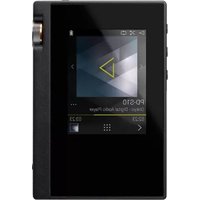
GRANBEAT - Lecteur audio portable ONKYO - Notice d'utilisation et mode d'emploi gratuit
Retrouvez gratuitement la notice de l'appareil GRANBEAT ONKYO au format PDF.


| Type de produit | Lecteur audio portable avec fonctions téléphoniques (smartphone audio) |
| Marque | ONKYO |
| Modèle | GRANBEAT (DP-CMX1) |
| Dimensions (L × l × H) | 142,3 mm × 72,0 mm × 11,9 mm |
| Poids | 234 g |
| Alimentation | Batterie intégrée 3000 mAh, charge via micro USB avec adaptateur secteur fourni |
| Autonomie de lecture | Jusqu'à 26 heures (FLAC 24 bits/96 kHz, écran éteint, sortie jack 3,5 mm) |
| Mémoire interne | 128 Go (dont espace système Android) |
| Stockage extensible | Carte micro SD (jusqu'à capacité supportée par le slot) |
| Système d'exploitation | Android 6.0 |
| Écran | 5,0 pouces, résolution 1920 × 1080 pixels |
| Connectique audio | Jack 3,5 mm (microphone compatible, impédance 16-300 Ω) et jack 2,5 mm symétrique (impédance 32-600 Ω) |
| Formats audio supportés | MP3, AAC, FLAC, ALAC, WAV, AIFF, DSD (DSF/DSDIFF), OggVorbis, MQA (jusqu'à 384 kHz) |
| Connectivité sans fil | Wi-Fi 802.11 a/b/g/n/ac, Bluetooth avec aptX HD |
| Appareil photo | Principal 16 Mpx, frontal 8 Mpx |
| Fonctions téléphoniques | Dual nano SIM (4G/3G/2G), appels et répertoire |
| Entretien et nettoyage | Éviter l’introduction de poussière dans les fentes. Ne pas appuyer sur l’écran lorsque l’appareil est retourné. |
| Sécurité | Utiliser exclusivement l’adaptateur secteur fourni. Ne pas utiliser simultanément les deux prises casque (risque d’endommagement). |
| Pièces détachées et réparabilité | Pièces fournies : câble micro USB, adaptateur secteur, outil d’éjection du tiroir. Réinitialisation possible via paramètres. |
| Informations générales | Température de fonctionnement : 5 °C à 35 °C. Homologué Hi-Res Audio. |
FOIRE AUX QUESTIONS - GRANBEAT ONKYO
Questions des utilisateurs sur GRANBEAT ONKYO
0 question sur cet appareil. Repondez a celles que vous connaissez ou posez la votre.
Poser une nouvelle question sur cet appareil
Téléchargez la notice de votre Lecteur audio portable au format PDF gratuitement ! Retrouvez votre notice GRANBEAT - ONKYO et reprennez votre appareil électronique en main. Sur cette page sont publiés tous les documents nécessaires à l'utilisation de votre appareil GRANBEAT de la marque ONKYO.
MODE D'EMPLOI GRANBEAT ONKYO
Read this first 2

Playing Music 56

Telephone function 124

Using the camera 139

natural_image
Simple line drawing of a gear (no text or symbols)Settings 153
Others 161
Read this first
Names of the parts 3
Recharging 9
▶ Insert the SIM card 11
Initial settings 14
APN settings 28
Screen composition 33
Customizing the home screen 45
Entering text 55
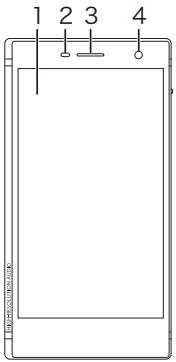
- Display
- Brightness sensor
This detects the ambient brightness when using the feature that automatically adjusts the brightness of the screen.
- Telephone speaker
- Front camera
Use to take photographs of subjects in front
of the phone.
- Call lamp
Blinks blue when there was an unanswered call or mail was received. While charging, it turns red, then orange, then green according to the charge in the battery.
-
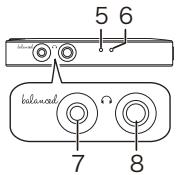
Microphone
-
Headphone jack (balanced)
Connect headphones compatible with balanced output. (2.5 mm/4-conductor)
- Headphone jack (💡)
Connect regular headphones. (3.5 mm/4-conductor, microphone compatible)
- Not all headphones are guaranteed to work.
- This unit does not support simultaneous use of the balanced headphone jack (7) and the headphone jack (8). Using both jacks at the same time may result in damage.
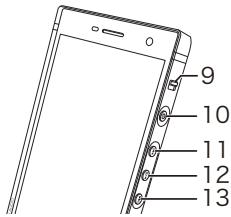
- HOLD switch
This locks the unit to prevent operations.
- Power button (☐)
Press and hold the power button to turn the power on. After the unit starts, swipe up from the bottom of the screen to display the home screen. To turn the power off, press and hold the power button, then tap "Power off". To turn the display on or off, just press the button.
- Skip (▶▶) button
Skip to the next track.
-
Play/pause (▶/■) button
-
Skip (◀◀) button
Skip to the beginning of the track or to the previous track.
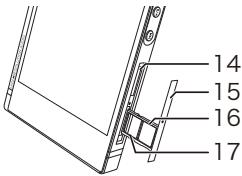
- micro SD card slot
Take the slot tray (15) out to insert a micro SD card.
- Slot tray
Use the included slot tray ejector pin to push into the small hole in the slot tray to open it.
-
nano SIM card slot 1 (4G LTE, 3G)
-
nano SIM card slot 2 (3G, 2G)
- nano SIM card slot 2 is not compatible with LTE communication.
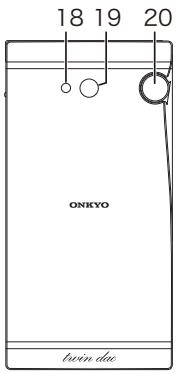
- Flash/light
- Main camera
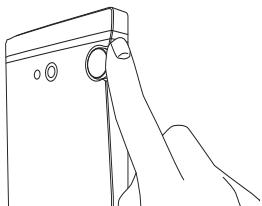
- Volume dial
Turn the dial to adjust the volume.
- When you put this unit in a pocket or case while playing music, the volume dial may turn accidentally, changing the volume. Set
"Volume lock" to ON to disable volume control with the volume dial.
For details ( 158)
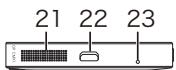
- Speaker
- micro USB port
- Microphone
The battery is not charged at the time of purchase. First charge the unit with the supplied micro USB cable and AC adapter before use. Connect so the wider side of the plug is down when inserting into this unit's micro USB port.
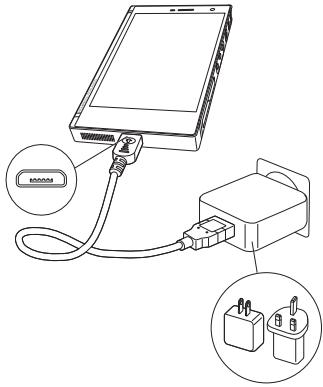
- If you turn this unit off for recharging, the recharging mark is displayed on the screen.
The recharging mark may not appear immediately depending on the condition of this unit. When this occurs, the recharging mark is displayed as recharging occurs, so please wait for a few minutes.
- You can also recharge while the unit is on. The time for recharging may increase in this case.
- Use the supplied AC adapter to charge the unit. Charging will take longer if you use anything other than the supplied AC adapter for charging.
- Operation is not guaranteed if you use anything other than the supplied AC adapter.
This unit uses nano SIM cards. When inserting the SIM card, turn this unit off first.
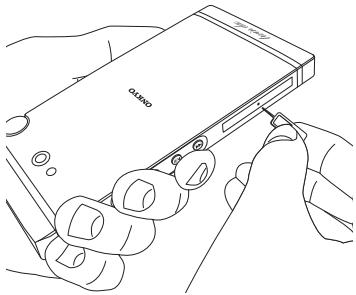
1 Use the included slot tray ejector pin and push into the small hole in the slot tray to open it.
natural_image
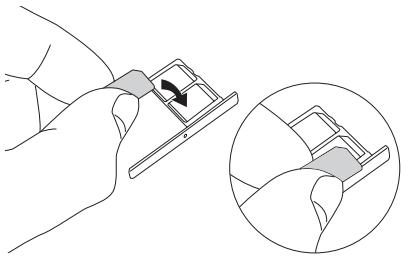
Line drawing of hands inserting a smartphone into a device (no text or symbols visible)2 Make sure you insert the SIM card the correct way when putting it into the slot tray.
natural_image
Illustration of a hand holding a small mechanical component with an arrow indicating rotation (no text or symbols present)- Two SIM cards can be inserted into the slot tray.
- nano SIM card slot 2 is not compatible with LTE communication.
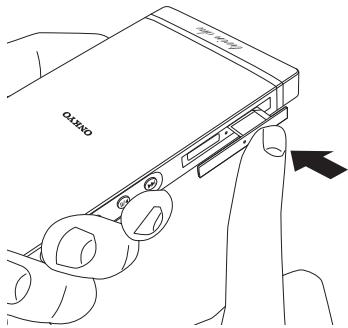
3 Push the slot tray straight in horizontally to close it.
When the unit is turned on for the first time, the setup wizard is automatically displayed. Follow the on-screen instructions to setup the unit. The setup wizard allows you to select the display language, make Wi-Fi ^® settings, enter user information, setup a Google ^™ account, and make other initial settings.

To turn the power on, press and hold the power button (☐) for 3 or more seconds. It takes about
2 minutes for the settings screen to be displayed.
Select the language
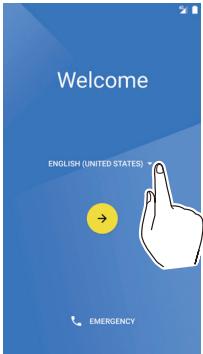
1 Tap ▼ to select the language then tap ⬤.
- A SIM error message is displayed when the SIM card is not inserted correctly. Make sure that the SIM card is correctly set.
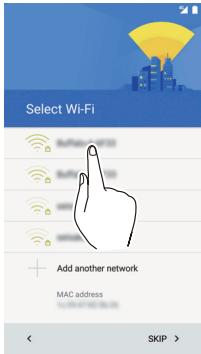
1 Select the SSID of the access point you want to connect from the list of networks.
2 Enter the password of the access point, then tap "CONNECT".
- For how to enter text (→55)
Got another device?
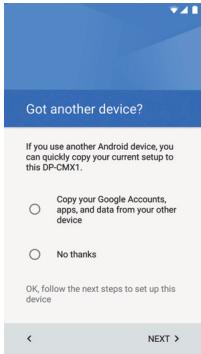
If you are already using an Android device, you can copy the Google account settings, apps, etc., to this unit.
1 To copy, select "Copy your —". If you do not want to copy, select "No thanks". Then tap "NEXT".
- If you selected "Copy your —", follow the on screen instructions to proceed. For "Google setting" apps that require operations on the
other device, you can select the app in the app list screen.
■ Add your account
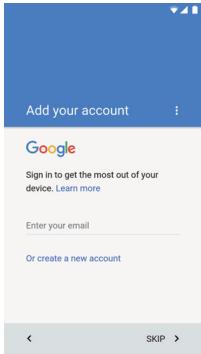
You can register a Google account you already have on this unit or create a new Google account.
1 To register a Google account that has already been set up, enter the email address registered in the Google account. To create a new Google account, tap "Or create a new account", then follow the on screen instructions to enter the information.
Google services
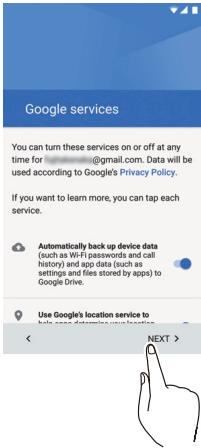
You can select the Google services to use.
1 Select the Google service to use, then tap "NEXT".
■ Set up payment info
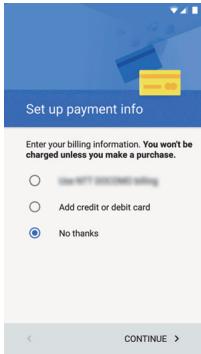
You can make settings for payments.
1 Either select the payment information, or select "No thanks" if you do not intend to use paid services, then tap "CONTINUE". To enter payment information, follow the on screen instructions to enter the information.
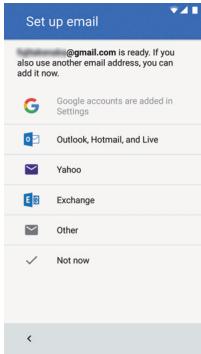
You can set an email address other than the one for the Google account you set.
1 To use an email address other that the one for the Google account on this unit, tap the appropriate item and enter the information. When one is not to be used, tap "Not now".
■ Protect your phone
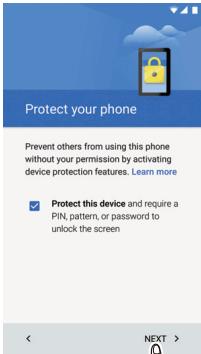
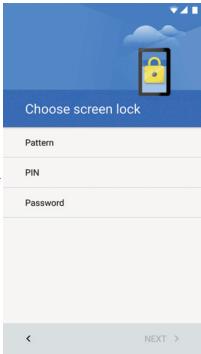
You can set up a screen lock, etc., to protect the device.
1 To use protection features, then with the check mark in place, tap "NEXT". Remove
the check mark and tap "NEXT" if you do not want to use these features.
- It is recommended to use the protection features to protect your personal information.
- "Pattern" is where you create a pattern by joining four or more points. "PIN" is a number of four or more digits. "Password" is a combination of four or more letters, numbers, or symbols.
Accelerated location
Accelerated location
□ Location consent
To enable hardware acceleration, allow iZat to collect location data. iZat stores some data on your device and may operate even when no apps are running.
Terms and Privacy Policy
< NEXT >
You can make settings to accelerate the determining of your location.
1 To enable the setting, put a check mark in the check box and click "NEXT".
This completes the initial settings
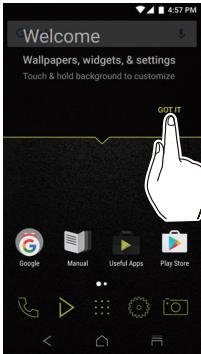
If the home screen is displayed, tap "GOT IT". This completes the initial settings.
You need to make the APN settings corresponding to the SIM card you are using in order to transmit data. Depending on your telecommunications provider, the connection may be established automatically when you insert the SIM card. You will need to enter the information yourself if it is not set automatically.
1 Tap "Settings" in the home screen.

Settings
2 Tap "More".
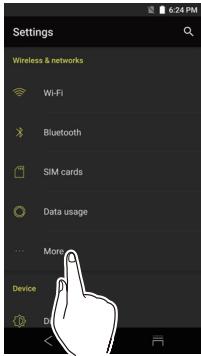
3 Tap "Cellular networks".
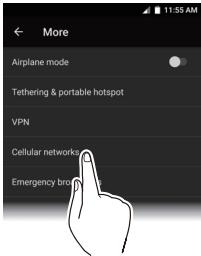
4 Tap "Access Point Names".
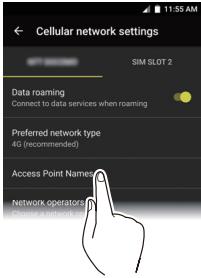
5 Make sure the telecommunications provider you are contracted to is selected in the list.
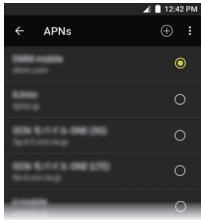
The process is complete if the telecommunications provider is selected. Proceed to step 6 if your telecommunications provider is not in the list.
6 If the telecommunications provider you are contracted to is not in the list, click the icon at the top right of the screen, then enter the required information.
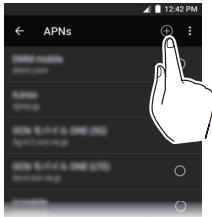
The information required depends on the telecommunications provider. Contact your telecommunications provider for details.
Screen composition
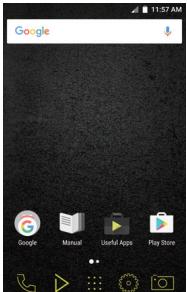
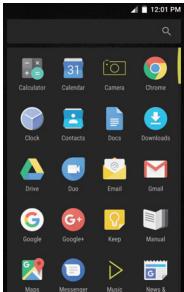
This unit is an audio smartphone running on the Android ^™ OS. The basic screens are the home screen and the app list screen. Tap the icons at the bottom of the screen to switch between the screens.
Home screen

App list screen

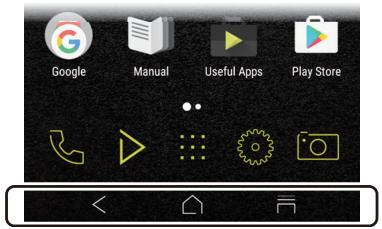
These icons are shown even if you switch screens.

Returns to the previous screen.

Switches to the home screen.

Displays a thumbnail list of apps you have recently used. You can delete the app from the list by tapping on the "×" on the upper right of the thumbnail or flicking the thumbnail left to right.
The home screen
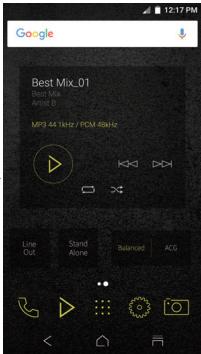
The screen that appears immediately after you turn the unit on is called the home screen. Flick left to right to switch the home screen.
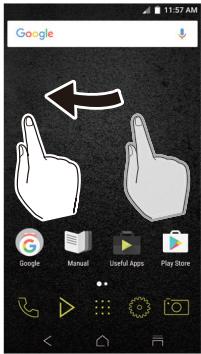
Home screen 1
Home screen 2
Home screen 1
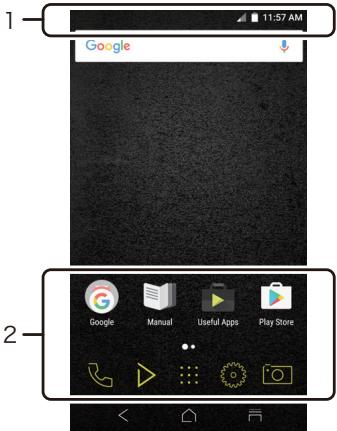
1. Status bar
2.

Google
A folder containing a collection of Google ^TM apps, such as the Google Chrome browser to view web pages and the YouTube ^TM app.

Manual
Gives you access to this document.

Useful Apps
A collection of installers to download apps. This is an introduction to a selection of these. Some apps may not be available for use in some areas.
Onkyo Music
An app to help you access the Onkyo Music site, where high-res sources are distributed.
Onkyo Remote
An app that enables you to wirelessly stream music from this unit to Onkyo audio devices. You can also use this unit as a remote controller.
Pioneer ControlApp
An app that allows you to use this unit as a remote controller to operate Pioneer audio products.
iControlAV5
An app that allows you to use this unit as a controller to operate Pioneer AV receivers and BD players.
Integra remote
An app that enables you to wirelessly stream music from this unit to an Integra receiver.
You can also use this unit as a remote controller.
SX-N30 Control App (Except for Japan)
An app that allows you to use this unit as a remote control to operate SX-N30.

Play Store
Gives you access to the "Google Play Store" where you can download apps for the Android OS. You may not be able to access this store in some areas.

Phone
You can make calls or register entries in a phone book.

Music
The Music app for playing music.

Switches to the app list screen.

Settings
Takes you to the settings screen where you can set "Wi-Fi", "Language & input", "Date & time", etc.

Camera
You can take photographs or videos.
Home screen 2
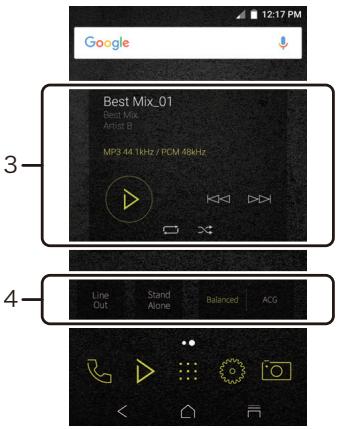
3. Music widget
You can play music, pause, skip, etc.
4.
Line Out
You can switch the headphone output to the line output mode to connect external equipment.
Stand alone
You can improve sound quality by turning off Wi-Fi ^® , the Bluetooth ^® function, and the LCD.
Balanced
A mode for balanced headphones. When you connect balanced headphones, either this mode or the following ACG (mode) is automatically selected. Compared to the normal single-ended operation, you can get a larger output and the high voltage is not grounded together with the small signal in this mode, so you can anticipate a superior effect in the background of the music.
Because you get a larger output, you can drive headphones with a higher impedance.
ACG
A mode for balanced headphones. You can switch to this ACG (mode) from Balanced (mode). The basic operating method is the same as the balanced mode, but uses technology to even more forcefully fix grounding standards, so you can enjoy a sound quality with improved clarity and more stability than the balanced mode. Output volume is the same as the regular single-ended operation, however.
The app list screen
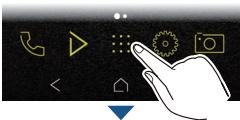
When you tap the app list icon in the home screen, the app list screen is displayed.
natural_image
Hand interacting with a touchscreen interface displaying various icons (no text or symbols)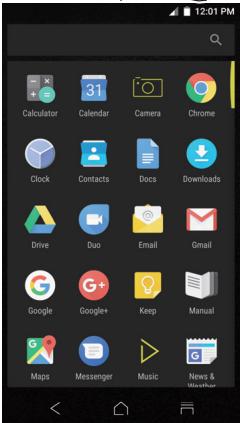
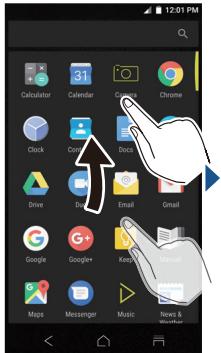
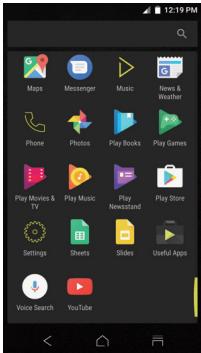
When there are a lot of apps, flick up or down to change the screen.
Customizing the home screen
You can put shortcuts for apps and widgets* such as clocks on the home screen, and you can customize it to suit yourself.
* Widgets are small apps that you can put in the home screen so that a clock is shown all the time or shortcuts to your favorite home pages can be shown.
■ Creating an app shortcut on the home screen
1 Tap the app list icon in the home screen.

2 Long tap on the app in the app list screen.
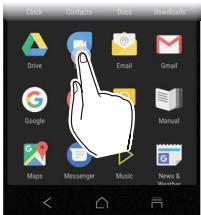
3 The background changes to the home screen, so drag to the desired position and release your finger.
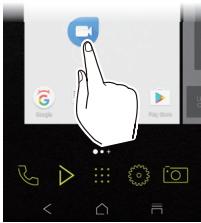
■ Adding a widget to the home screen
1 Long tap in an area of the home screen where there is nothing.
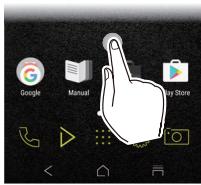
2 Tap "WIDGETS".
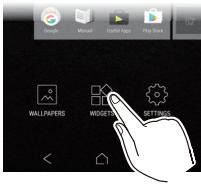
3 Long tap the widget you want to add.
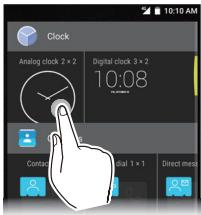
4 The background changes to the home screen, so drag to the desired position and release your finger.
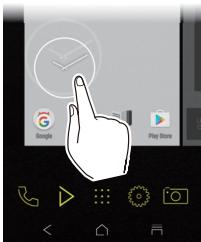
- Some widgets allow you to change their size with a long tap.
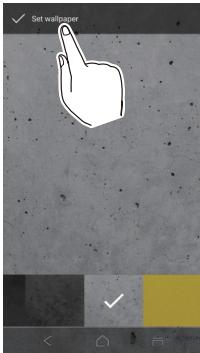
■ Changing the wallpaper in the home screen
1 Long tap in an area of the home screen where there is nothing.
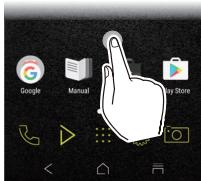
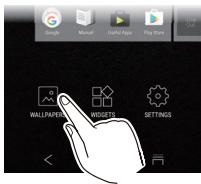
2 Tap "WALLPAPERS".
- Select "My photos" to set a favorite photo or image as your wallpaper. To take a screen shot, press and hold the power button (⏻) and the skip button (◀◀) at the same time.
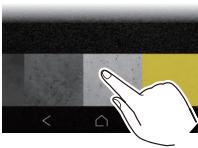
3 Tap the wallpaper you want to change to.
natural_image
Hand pointing at a grayscale pixelated image with no visible text or symbols4 Tap "Set wallpaper".
■ Deleting shortcuts and widgets
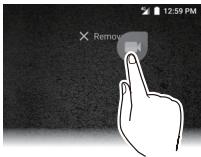
1 Long tap the shortcut or widget you want to delete.
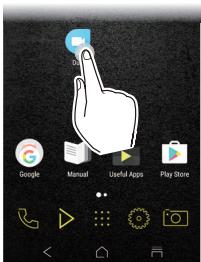
2 Drag to "Remove" and release your finger.
When you tap a text box or other place to enter text, a keyboard is automatically displayed.
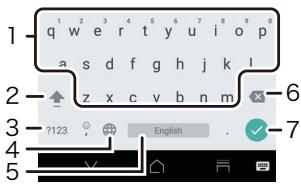
- Tap to enter text.
- Tap to switch between upper case and lower case. Double-tap to lock upper-case.
- Tap to change the type of text.
- The method of entry changes.
- Enters a space.
- Removes a character on the left of the cursor.
- Tap to confirm.
Playing Music
▶ Playing from a micro SD card 57
▶ Copying from a computer and playing 62
▶ Play operation details 82
Editing a play list 92
Equalizer settings 100
Slide menu 107
USB output 117
Bluetooth® function 120
Playing from a micro SD card
Insert a micro SD card that has music files on it and play them.
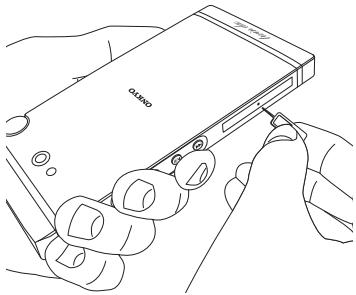
1 Turn off this unit, then insert the slot tray ejector pin and into the small hole in the slot tray to open it.
natural_image
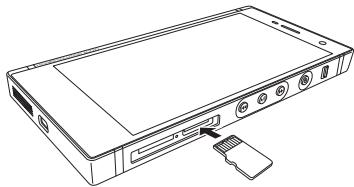
Line drawing of hands inserting a smartphone into a device (no text or symbols visible)2 Insert the micro SD card into the card slot. With the contacts facing up, push in completely so the card clicks into place.
natural_image
Line drawing of a rectangular electronic device with ports and an attached plug (no text or symbols)3 Push the slot tray straight in horizontally to close it.
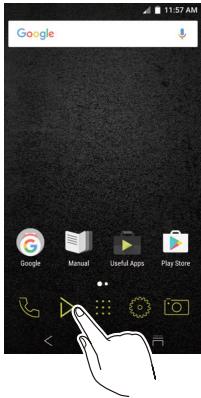
4 Tap Music in the home screen.
- Do not connect headphones that have an impedance outside the rated range as this may result in damage.
See here for headphone ratings ( 162)
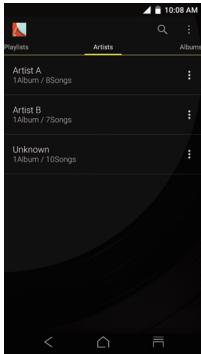
5 In the library, tap the track you want to play.
- It may take some time for tracks to be displayed in the library.
Tap or click here Play operation details. (→82)
■ Removing the micro SD card
Unmount the micro SD card using the following procedure before removing it. The card can be damaged or may stop working properly if you fail to unmount the card first.
1 Tap "Settings" in the home screen.

2 Tap △ in "Storage & USB" - "SD card".
3 Turn off this unit, then insert the slot tray ejector pin and into the small hole in the slot tray to open it.
4 Push the micro SD card in until you hear a click and then pull straight out. The micro SD card will spring out so take care not to lose it.
5 Push the slot tray straight in horizontally to close it.
Copying from a computer and playing
You can copy music data stored on your computer to the built-in storage on this unit or to a micro SD card in this unit.
■ Copy with the data copying software "X-DAP Link" and play
X-DAP Link is compatible with Windows 10 (32 bit/64 bit), Windows 8/8.1 (32 bit/64 bit), Windows 7 (32 bit/64 bit), and Mac OS X 10.11 and OS X 10.10.
1 Start your computer and download the installer for X-DAP Link from the following site.
http://www.jp.onkyo.com/audiovisual/dap/
2 On a Windows computer double-click "setup.exe" and on a Macintosh computer double-click "XDAPLink.pkg" to install. Follow the on-screen instructions to install. A shortcut is created on the desktop after installation on a Windows computer. On a Macintosh computer, "X-DAP Link.app" is added within the "Applications" folder.
3 Turn on the power of the unit.
- To copy to a micro SD card, insert a micro SD card into the card slot. When inserting a micro SD card, turn this unit off before opening the slot tray.
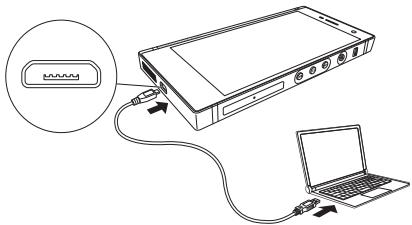
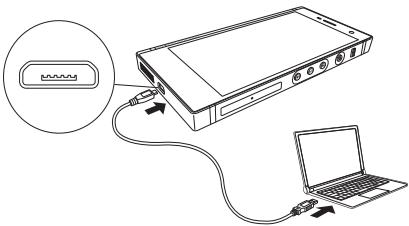
4 Connect this unit to the computer with the supplied micro USB cable. Connect so the wider side of the plug is down when inserting into this unit's micro USB port. You may damage the plug or jack if you try to insert it the wrong way.
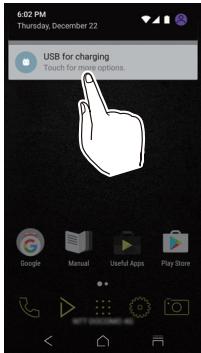
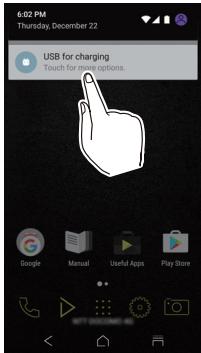
5 In the home screen of this unit, swipe from top to bottom and tap "USB for charging".
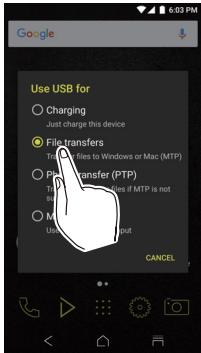
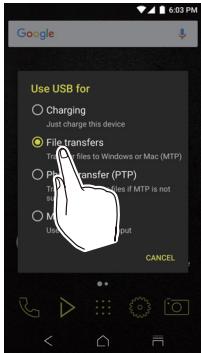
6 Tap "File transfers".
- If the message such as "Connection of the device is not recognized" is displayed on the unit, close all running applications and retry starting at step 3.
7 Start X-DAP Link.
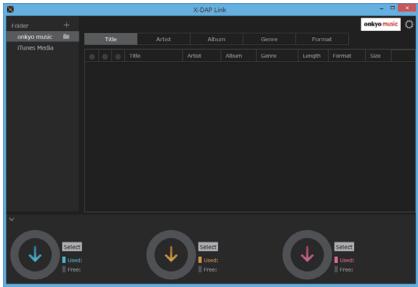
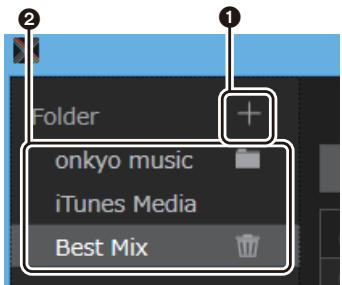
8 Click ① and select the folder that contains the files you want to copy. If the folder you want to copy is already displayed, start selecting from ②.
onkyo music
If there are files you have downloaded from onkyo music (a site that distributes music files), select this folder.
iTunes Media
If you are using iTunes ^® , a play list and content are displayed. If iTunes cannot be selected, open "Preferences" - "Advanced" in iTunes, then put a check mark next to "Share
iTunes Library XML with other applications".
- There may be some differences in the operations screens and how operations are performed depending on the iTunes version. For details, see the operating instructions for iTunes.
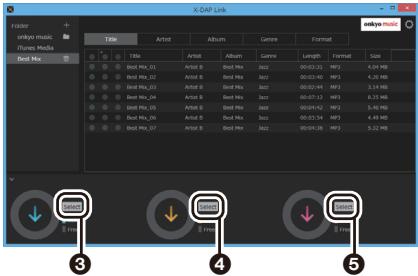
9 Click ③ to select built-in storage or SD card as the copy destination, then click "OK". You can also click ④ to specify different copy destinations to ③.
- The copy destinations for this unit are the built-in storage and SD slot × 1 , so 5 is not available for use.
10 The following message may be displayed on your computer. To select and copy only certain files to add, select "No" in this screen. Select "Yes" to reflect files that have already been copied to the list. If you do this, music files that you have deselected will be deleted from this unit during copying.
- The screen displayed depends on the OS and language of your computer.
Notice

Reflect synched contents in on screen display?
This process may take a few minutes.
Yes
No
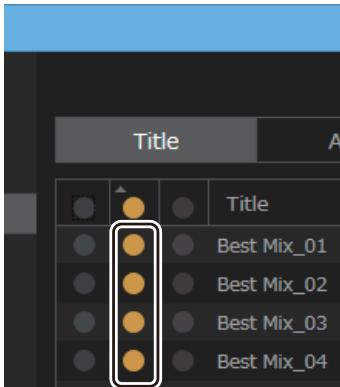
11 Select the music files you want to copy according to the copy destination.
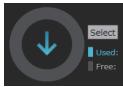
When this copy destination is selected:
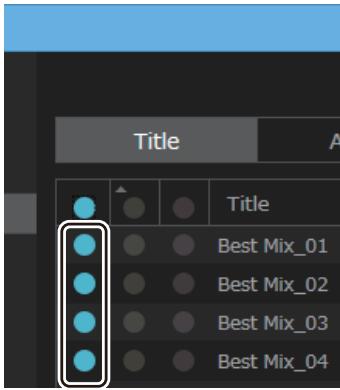
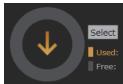
When this copy destination is selected:
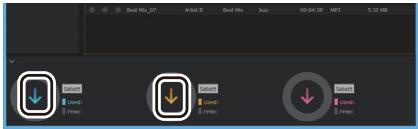
12 Click the copy button with the same color as the one you selected in step 11, then click "OK" in the confirmation screen. The selected music files are copied to this unit.
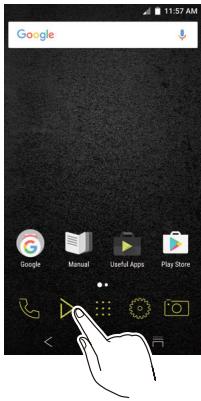
13 Tap Music in the home screen of this unit.
- Do not connect headphones that have an impedance outside the rated range as this may result in damage.
See here for headphone ratings ( 162)
14 In the library, tap the track you want to play.
- It may take some time for tracks to be displayed in the library.
Tap or click here Play operation details. (→82)
- Drag and drop to copy and play
1 Use the supplied micro USB cable to connect this unit to a computer. Connect so the wider side of the plug is down when inserting into this unit's micro USB port. You may damage the plug or jack if you try to insert it the wrong way.
2 In the home screen of this unit, swipe from top to bottom and tap "USB for charging".
3 Tap "File transfers".
- If "AutoPlay" or similar is displayed on your computer, select "Open folder to view files" and then proceed to step 5.
4 Select this unit from the "PC" option on your computer.
5 Open the folder you want to save to. To copy to the built-in storage, open the "Music" folder in the built-in storage. To copy to a micro SD card, open the folder for the micro SD card you want to copy to.
- The screen displayed depends on the OS and language of your computer.
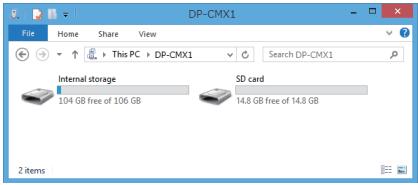
6 Drag and drop the folder on your computer that contains the music files that you want to copy to the copy destination folder.
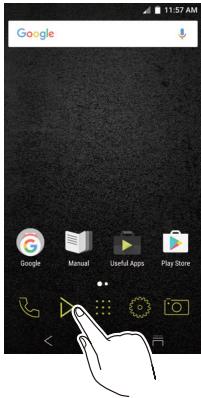
7 Tap Music in the home screen of this unit.
- Do not connect headphones that have an impedance outside the rated range as this may result in damage.
See here for headphone ratings ( 162)
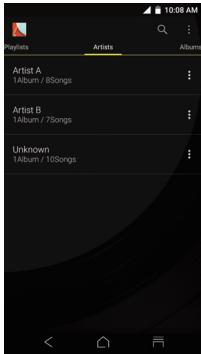
8 In the library, tap the track you want to play.
- It may take some time for tracks to be displayed in the library.
Tap or click here Play operation details. (→82)
Library display
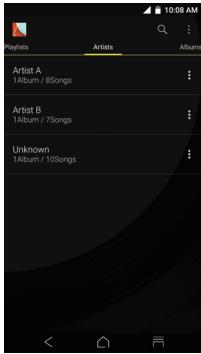
When Music starts the library (a list of tracks synched with Music) is displayed. Flick the library screen left or right to change the categorization.
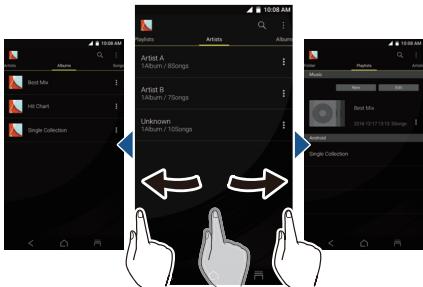
Folder
All tracks saved in the same folder level are displayed.
Playlists
Displays a list of play lists you have created.
Artists
Displays by artist.
Albums
Displays by album.
Songs
Displays all tracks.
Genres
Displays by genre.
Compilations
Displays by compilation albums.
Composers
Displays by song writer.
Format
Displays by data format.
- Tap the search icon Q above the list screen to search for a track.
- When "Auto sync" or "Music Folders" have not been set up, tracks may not be displayed.
For details about "HD Library Sync" (→110)
Play operations
When you tap the track you want to play in the library, the screen changes to the play screen and play starts. Tap < to return to the library.
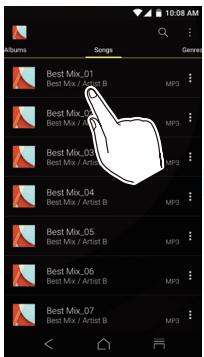
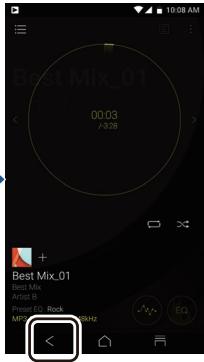
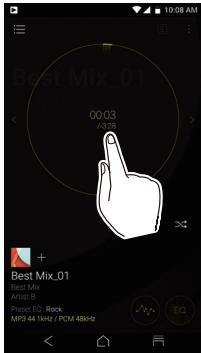
Play/pause
Tap inside the displayed circle.
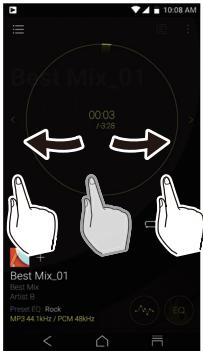
Skipping tracks
Flick the play screen side to side.
Adjusting the volume
The volume bar is displayed on the screen when you turn the volume dial. You can then adjust the volume by dragging the bar up or down. You can also adjust the volume with the volume dial.
natural_image
Line drawing of a hand pressing down on a device (no text or symbols)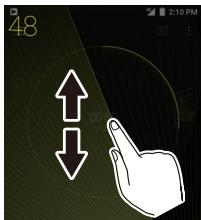
The play screen
A
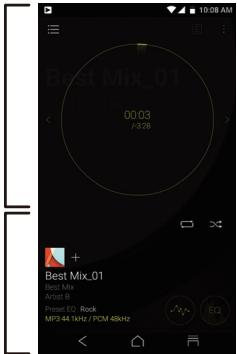
B
A
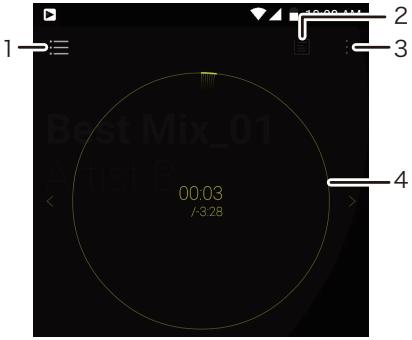
- Move to the queue.
The currently playing tracks and songs in the album are displayed in order in a queue.
- The lyrics of the songs are automatically obtained and displayed. If the unit is not connected to the internet or "Obtain synchronized lyrics" is not On, the unit displays the lyrics in the tags in the music
files. Tap the icon at the top left to return to the previous screen.
For Obtain synchronized lyrics ( 114)
-
Displays the slide menu where you can change play and sound settings.
-
Seek bar Progresses along with the track's progress. Tap on the edge of the circle to skip to that position in the track.
B
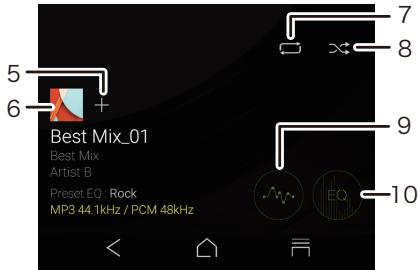
- The track being played is added to the playlist.
- Tap to see details about the track.
- Repeat mode
Tap to change the mode: 1 track repeat → all track repeat → no repeat.
- Shuffle mode
Tap to turn random play on or off. - Move to the equalizer setting screen.
- Tap to turn the equalizer on or off.
Creating a play list
Select the tracks you like to create your own play list.
1 In the library, tap the icon at the right of the screen for the track you want to add to the play list to display the list menu. The list menu is also displayed when you long tap a track that you want to add.
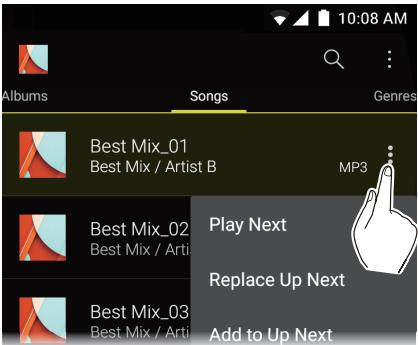
2 Tap "Replace Up Next".
3 Tap the icon at the right of the screen for the track you want to add next to display the list menu, then tap "Play Next".

4 Repeat step 3 to make a list of tracks you want to save as a play list.
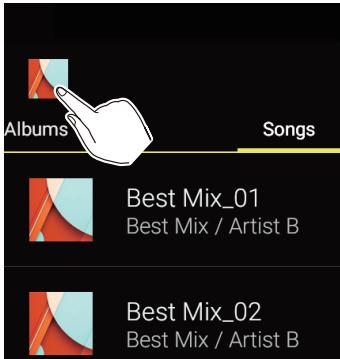
5 Tap the jacket image icon at the top left of the screen to move to the play screen.
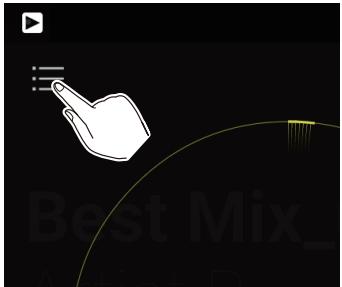
6 Tap the icon at the top left of the screen to move to the queue.
natural_image
Illustration of a hand pointing at a curved line with motion blur effect, no text or symbols present7 Tap "Save as playlist", enter a title and tap "SAVE".
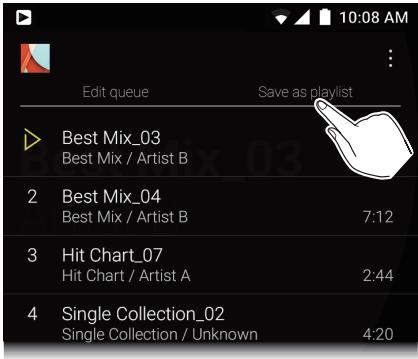
- New play lists cannot be created from play lists created outside of Music, for example with iTunes.
Editing a play list
Editing a play list
Display the list of play lists from the library and tap "Edit".
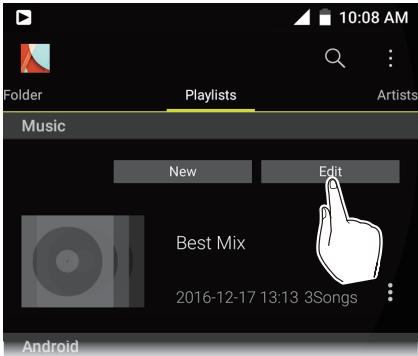
To delete a play list:
Tap the icon of the play list you want to delete then tap "OK".

To change the order of a play list:
Drag the icon of the play list you want to reorder.

To change the name of a play list:
Tap the play list you want to rename, enter the name and tap "OK".
To finish editing:
Tap "Done".
Editing tracks in a play list
Display the list of play lists from the library, tap the play list you want to edit, and tap "Edit".
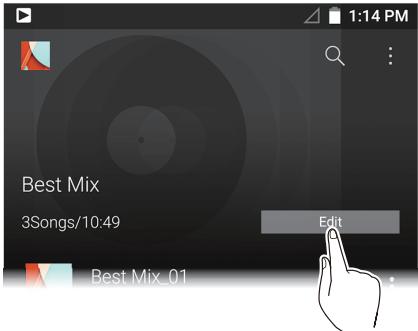
To delete a track from a play list:
Tap the icon of the track you want to delete then tap "OK".

To change the order of tracks in a play list:
Drag the icon of the track you want to reorder.

To finish editing:
Tap "Done".
- Tracks are not deleted from the unit even if you delete them from a play list.
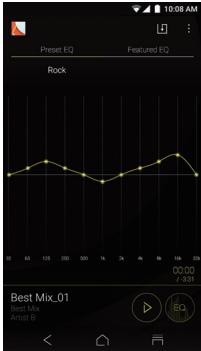
You can adjust the sound quality how you like by setting the equalizer.
■ Switching to the equalizer screen
Tap the equalizer screen icon in the play screen to move to the equalizer screen.

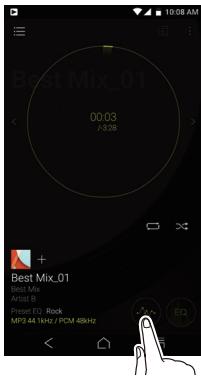
■ Selecting preset equalizers
1 Tap "Preset EQ" in the equalizer screen.
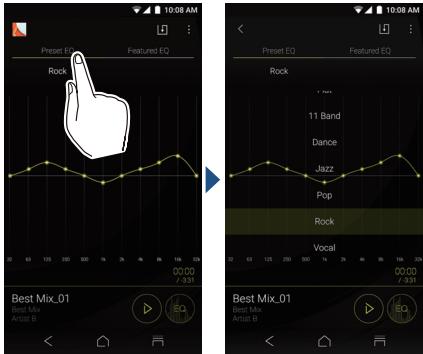
2 Tap the equalizer you want to set.
Flat/11Band/Dance/Jazz/Pop/Rock/Vocal
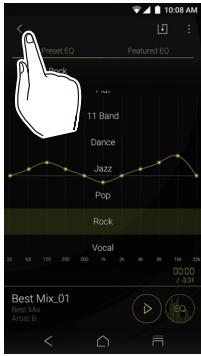
3 Tap the icon at the top left of the screen to return to the play screen.
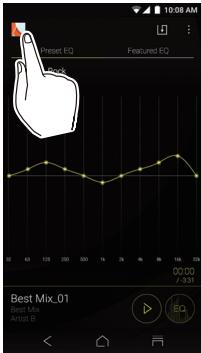
- Tap the icon to turn the equalizer on or off.

Equalizer on

Equalizer off
■ Selecting equalizers created by famous musicians
1 Tap "Featured EQ" in the equalizer screen.
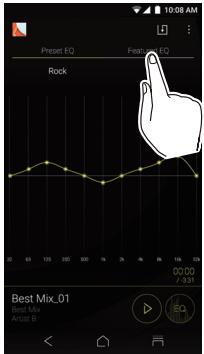
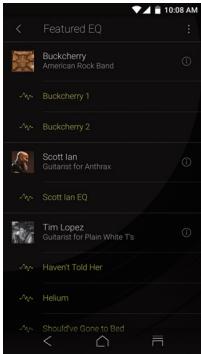
2 Tap the equalizer of the musician that interests you.
- Tap the icon to turn the equalizer on or off.

Equalizer on

Equalizer off
- Click the icon of the musician to view the profile of the musician.

■ Modifying the equalizer
You can make your own original equalizer settings by modifying the equalizer curves. You can give the equalizer you modified a name and save it.
1 Turn the equalizer on or select any equalizer.
2 Drag the points on the equalizer curve side to side to change the frequency and up or down to change the boost.
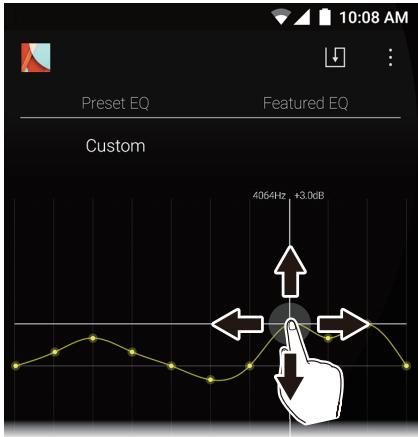
- You can add a point by tapping on the curve where there isn't a point.
- You can move all equalizer points up or down by dragging from a point off the equalizer curve.
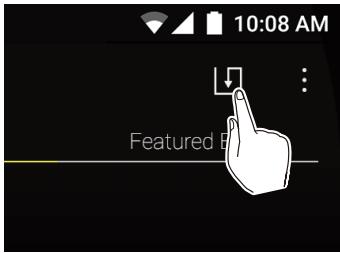
3 Tap the save icon at the top right of the screen, enter a name, and tap "SAVE".
To delete a saved equalizer
Tap the icon of the equalizer you want to delete from "Preset EQ" and tap "Delete".

Tap the icon at the top right of the Music screen to display the slide menu which allows you to make settings for the Music app.
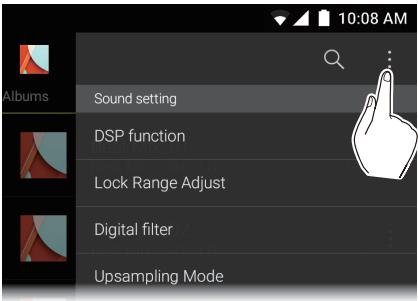
Sound setting
DSP function
Use to turn on or off the equalizer and other items in the slide menu at once ("Upsampling Mode" and "Real-time DSD Conversion").
Lock Range Adjust
You can improve sound quality by adjusting the lock range of the audio input signal's jitter (modulation). The lock range can be adjusted from the more precise Narrow up to Wide in seven steps.
- If you change the lock range and the sound is interrupted, adjust to the Normal or Wide ends.
Digital filter
By modifying the filter characteristics of the built-in digital converter you can modify the audio sound quality for output to headphones.
SHARP/SLOW/SHORT
Upsampling Mode
You can upsample the sampling frequency of tracks to suit the specifications of the unit or a
device connected via USB. (The initial setting is a maximum of 192 kHz.)
Off/On
Upsampling upper limit
Set the limit for upsampling.
96 kHz/192 kHz/384 kHz (USB audio only)
External device
Select playback device
A list of output destinations is displayed, including headphones, Bluetooth enabled device, and USB devices. Select from the list to change the audio output destination.
- Tap "SEARCH FOR USB DEVICES" to search for USB devices connected to this unit.
Settings
Settings
HD Library Sync
Auto sync
Automatically synchronize music files you have copied to this unit from a computer or music files on a micro SD card with the files in the library.
Music Folders
You can select a folder to synchronize with the library.
Sync Now
Manually synchronize music files you have copied to this unit from a computer or music files on a micro SD card with the files in the library.
SYNC ALL:
Select to synchronize all transferred tracks.
SYNC ADDED SONGS:
Select to synchronize only tracks that have been added.
FAQ
Display a list of frequently asked questions and their answers.
Playback
Crossfade
At the point where one song ends and another begins, you can fade out the song ending and fade into the song beginning.
DSD → PCM Gain setting
You can set the volume level when converting DSD format music files to PCM. 0 db/-3 db
Always keep screen on
Turns the function that keeps the light on all the time on or off.
Output Audio Route
A list of output destinations is displayed, including headphones, Bluetooth enabled device, and USB devices. Select from the list to change the audio output destination.
- Tap "SEARCH FOR USB DEVICES" to search for USB devices connected to this unit.
SEARCH FOR USB DEVICES
Searches for USB devices connected to this unit.
USB Audio
USB Host Audio Driver is valid.
You can output high-res sources by USB when you enable this setting.
Enables volume control in the background.
This setting allows you to control the volume of a connected USB device with this unit.
DSD Output Format
This allows you to select the format output from the USB when playing DSD format music files.
PCM/DoP/Direct Transfer
- You need to have a device that supports direct transferring before you can use
"Direct Transfer". (Supported devices:
DAC-HA300, XPA-700)
Direct transfer output frequency maximum
Set the upper limit for frequency when
"Direct Transfer" is selected in "DSD
Output Format". Select the frequency that
your connected USB device can process.
Auto/2.8 MHz/5.6 MHz/11.2 MHz
DoP Pause Operation
When you select "Output DSD Zero", you can reduce the reoccurrence of noise when DoP is paused by outputting a muted DSD signal for a maximum of 10 minutes even while sound is not being output.
Stop Output/Output DSD Zero
Output DSD 3/6 MHz via DoP
Outputs DSD format music files as DoP format. When the setting is canceled, even if DoP is selected in "DSD Output Format", only DSD 3 MHz and 6 MHz are automatically converted to PCM.
Real-time DSD Conversion
Converts in real time music files such as MP3, WAV, and FLAC to DSD. You can enjoy non-high-resolution music files with high quality sound.
Off/DSD 2.8 MHz/High-Precision DSD 2.8 MHz/DSD 5.6 MHz/High-Precision DSD 5.6 MHz
- You can enjoy a better sound quality if you select one of the high-precision modes, but the burden on the CPU increases and power consumption rises, which may lead to some jumping of the sound under some usage conditions.
Other
Obtain synchronized lyrics
The lyrics information for tracks is obtained automatically if the unit is connected to the internet. When playing tracks that support synchronized lyrics, the lyrics will change color as the song plays.
- It may not be possible to obtain lyrics automatically with some tracks.
Home screen wallpaper setting
Makes the wallpaper of the home screen the jacket image.
Headphone Type
Plays using the optimum frequency characteristics when using Onkyo headphones. Select from the model numbers displayed on the screen.
About
Displays the licenses for open source software.
Version
Displays the version information for this unit.
Build
Displays the Build Number.
Reset Settings
Reset the settings for Music to the initial settings.
Peeping prevention
The jacket images of the album being played are shown darkened to make it harder for someone peeping to read.
Change playback screen mode
Select playback screen mode
Select the desired mode from two types.
edit tab
You can edit the display or hide settings for the tab categories displayed in the library and also change the display order.
SNS
You can post the track currently playing to a social network.
A list of usable SNS apps is displayed.
- You need to install an SNS app to use the SNS service.
You can connect a headphone amplifier or D/A converter, for example, that has a USB connector. You will need a USB OTG (On-The-Go) cable (commercially available) to connect to this unit. Make sure you have the correct type of USB cable for the USB port of the device you are connecting to the OTG cable. (If it is a micro USB port, you can use the micro USB cable included with this unit.)
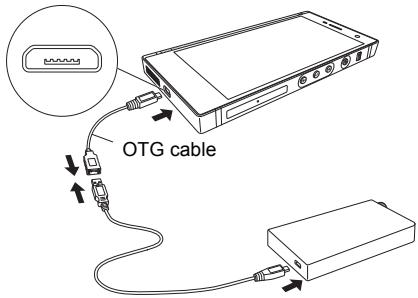
If the device connected supports high-res sources, connect after performing the following procedure to enable high-res output. Proceed to step 4 if not supported.
1 Tap Music in the home screen.

Music
2 Tap the icon at the top right of the screen.

3 Tap "Settings" - "USB Host Audio Driver is valid." to turn on.
4 Turn on the device you are connecting to this unit and connect, using an OTG cable, etc. Make sure you plug the cable in the right way up when connecting. You may damage the plug or jack if you try to insert it the wrong way.
5 A message is displayed on the unit's screen. Tap "OK".

Music
Allow the app Music to access the USB device?

Use by default for this USB device
CANCEL
OK

natural_image
Line drawing of a hand pointing upward (no text or symbols)- You can make other settings such as selecting the output format and setting the upper limit for the frequency.
For details about "USB Audio" (→112)
You can listen to music wirelessly by using Bluetooth enabled devices such as headphones or speakers. Reception is possible over a distance of 10 m with a clear line of sight. The communication distance will be reduced in some conditions.
This unit supports aptX HD. You can enjoy higher quality wireless sound by connecting headphones and wireless speakers that support aptX HD.
- Playback will be aptX when connected with a Bluetooth enabled device that supports aptX, and aptX HD when connected with a Bluetooth enabled device that supports aptX HD.
Pairing for play
Pairing is necessary when connecting the Bluetooth enabled devices for the first time. Make sure the Bluetooth enabled device you want to connect is ready to be detected.
1 Tap "Settings" in the home screen.

2 Tap "Bluetooth". If it is "Off", tap it to turn it "On".
3 Tap the equipment to be connected.
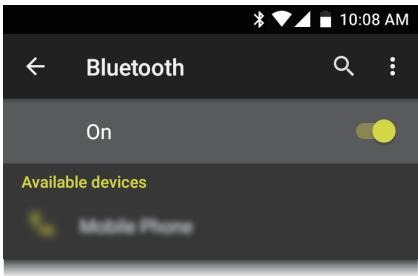
4 Pairing will end after a short time.
5 Tap Music in the home screen.

Music
6 Tap the track you want to start play.
When connecting after the first time
1 Tap "Settings" in the home screen.

Settings
2 Tap "Bluetooth" and tap the device you want to connect in "Paired devices".
- Canceling a connection
1 Tap "Settings" in the home screen.

2 Tap "Bluetooth".
3 Select the device you want to disconnect and tap "OK".
- Pairing information is not deleted even if you cancel the connection. Tap the icon displayed with the device whose pairing information you want to delete and tap "FORGET".

Telephone function
Make or take a call 125
Register a contact in the phone book 133
Make a call
1 Tap Phone in the home screen of this unit.
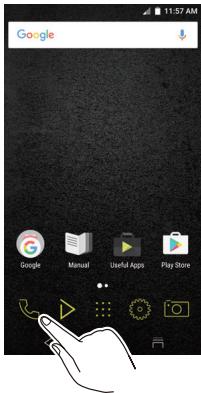
2 Tap the keypad icon.
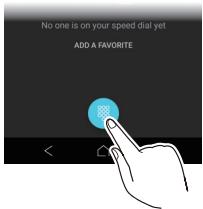
3 Tap the dial pad to enter the telephone number, then tap the icon.
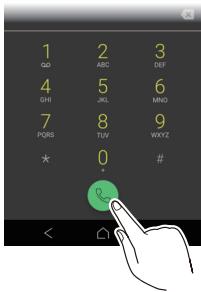
4 Tap the icon when the call is finished.
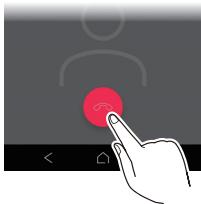
natural_image
Hand pressing a red button on a gray background with a user icon (no text or symbols)- You can also make calls to contacts in the phone book.
To "Make a call from the phone book" (→136)
Take a call
When in sleep mode
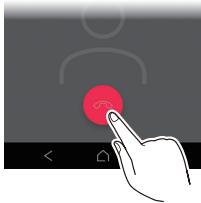
1 When you receive a call, an icon is displayed on the screen. Flick the icon to the right to take the call.
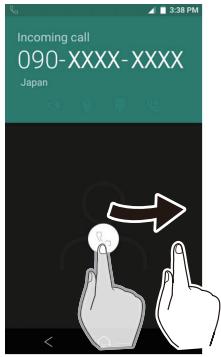
- To refuse the call, flick the icon to the left.
2 Tap the icon when the call is finished.
natural_image
Hand pressing a red button on a gray background with a user icon above (no text or symbols)When operating
1 When you receive a call, an icon is displayed on the screen. Tap the icon to take the call.
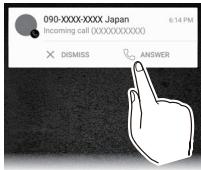
- Tap " × " to refuse the call.
The call screen

- The phone number you are in a call with is displayed.
- You can use the speaker for hands free calls.
-
You can stop the other party from hearing your voice.
-
You can display the dial pad to send push signals while in a call.
- The call time is displayed.
- Display the dial pad to call another party.
- Put the call on hold.
- End the call.
The home screen for the telephone
Flick the screen left or right to change the display.
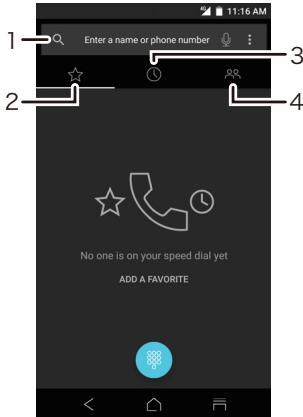
- Enter a name or phone number to search for a contact in the phone book.
- Display contacts registered as favorites.
- Display the log of calls made or received.
- The phone book is displayed.
Register a contact in the phone book
Register the information for contacts, such as names and numbers, in the phone book.
1 Tap Phone in the home screen of this unit.
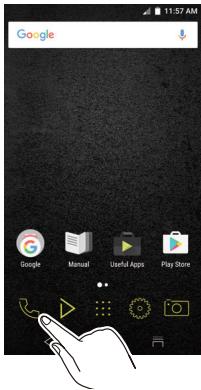
2 Tap the icon at the top right of the screen to display the contacts screen.

3 Tap the add contacts icon at the bottom right of the screen to move to the input screen.
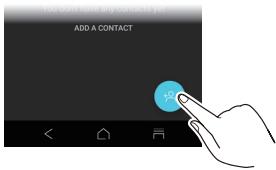
4 Enter the required items. Tap "More Fields" to enter information other than just the phone number and email address.
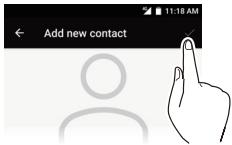
5 When you are finished entering the contact information, tap the icon to the right of "Add new contact" on the screen to save the contact.
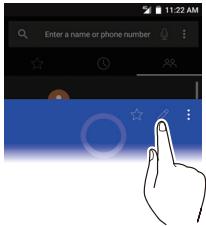
To edit phone book entries:
Tap the contact you want to edit in the list of contacts, then tap the icon.
To delete a contact:
Tap the icon of the contact you want to delete then tap "Delete".

■ Make a call from the phone book
1 Tap the icon at the top right of the screen to display the list of contacts.
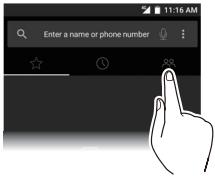
2 Tap the contact you want to call, then tap the phone number.
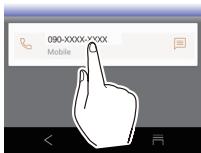
Register contacts as favorites
You can register contacts you use frequently as favorites.
1 Tap the icon at the top right of the screen to display the list of contacts.
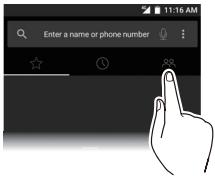
2 Tap the contact you want to register as a favorite, then tap the icon.

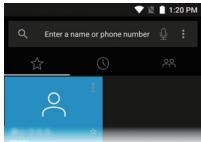
natural_image
Simple black outline of a five-pointed star on white background (no text or symbols)3 The contact is registered in the list of favorites.
Using the camera
Taking photographs 140
Taking videos 145
Taking panorama photographs 149
To view the images or videos you have taken 151
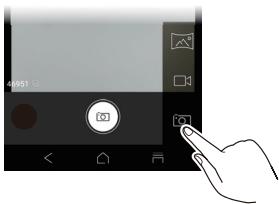
1 Tap Camera in the home screen of this unit.
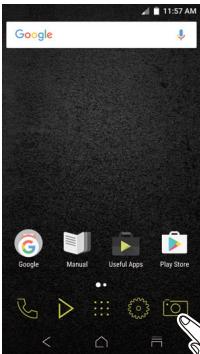
2 Tap the regular photograph icon at the top right of the screen.
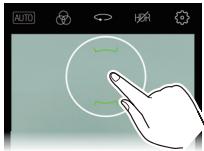
3 Tap the point on the screen you want to focus on. The focus display inside the ring turns green when the camera is focused.
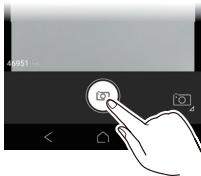
4 Tap the shutter icon.
The shooting screen
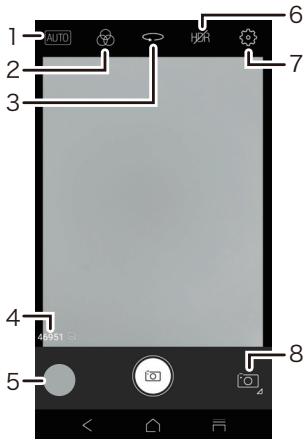
- You can change the camera settings to suit different scenes, such as "Portrait", "Sports", etc.
-
You can add effects such as "Mono", "Sepia", etc. to photos when shooting.
-
Switch between the main camera and the front camera.
- This gives you a guide to the number of images that can be recorded.
- Check the images or videos you have taken.
- This takes two photographs with one shot.
One with normal settings and one with clearer brightness and contrast. - You can make settings for the flash, locations to save photos, etc.
- Switch between normal photography, panorama photography, and video.
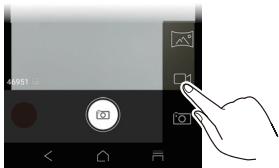
1 Tap the icon at the bottom right of the screen, then tap the video icon.
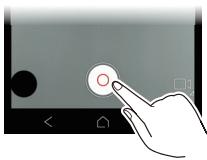
2 Tap the shutter icon to start shooting.
natural_image
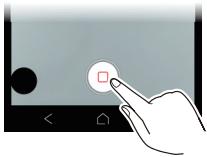
Hand pressing a button on a device screen (no text or symbols visible)3 Tap the shutter icon again to stop shooting.
natural_image
Hand pressing a button on a device screen (no text or symbols visible)The shooting screen
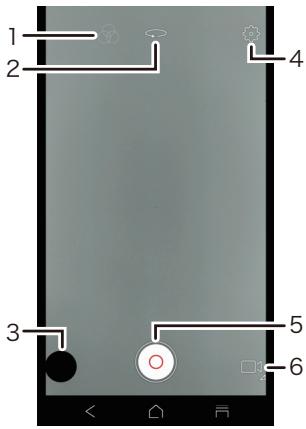
- You can add effects such as "Mono", "Sepia", etc. to videos when shooting.
- Switch between the main camera and the front camera.
-
Check the images or videos you have taken.
-
You can change settings such as the shooting quality, recording time, etc.
- Tap to start and stop shooting.
- Switch between normal photography, panorama photography, and video.
Taking panorama photographs
1 Tap the icon at the bottom right of the screen, then tap the panorama icon.
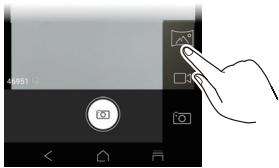
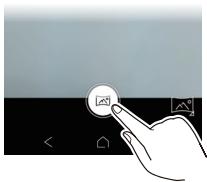
2 Tap the shutter icon, then move the unit either horizontally or vertically.
natural_image
Hand interacting with a circular icon on a device screen (no text or symbols visible)- Move the unit at a steady speed. Moving the unit too fast may result in a poor photograph.
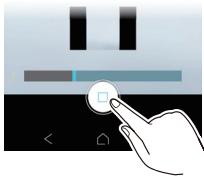
3 Tap the shutter icon again to stop shooting.
natural_image
Hand pressing a button on a device interface (no text or symbols visible)- Shooting also stops automatically once you have moved the unit approximately 180^ from the starting position.
To view the images or videos you have taken
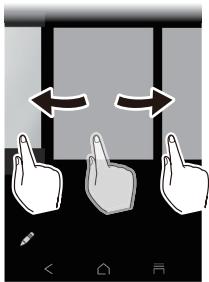
1 Tap the icon at the bottom left of the screen.
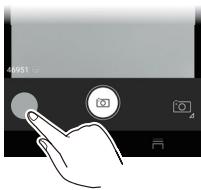
2 Flick the list left or right.
natural_image
Three hands pointing at a vertical screen with bidirectional arrows indicating rotation (no text or symbols)- To return to the shooting screen, tap < .
To delete the images or videos you have taken:
Select the image or video you want to delete from the list, and tap the icon at the top right of the screen.


Settings
Tap to enable settings for Wi-Fi and Bluetooth, settings for audio output, security settings, firmware updates, and a variety of other settings. This manual explains settings related to music playback.
Make sound and output settings 154
▶ Updating 159
▶ Backing up and resetting 160
Make sound and output settings
This section explains the items in "Sound & notification" in "Settings" that help you enjoy high-quality sound.
1 Tap "Settings" in the home screen.

2 Tap "Sound & notification" and select the item to change the setting.
Output select
Switching the headphone output.
Balanced
A mode for balanced headphones. When you connect balanced headphones, either this mode or the following ACG (mode) is automatically selected. Compared to the normal single-ended operation, you can get a larger output and the high voltage is not grounded together with the small signal in this mode, so you can anticipate a superior effect in the quality of the music, which
means you can drive headphones that have a high impedance.
A.C.G.
A mode for balanced headphones. You can switch to this ACG (mode) from Balanced (mode). The basic operating method is the same as the balanced mode, but uses technology to even more forcefully fix grounding standards, so you can enjoy a sound quality with improved clarity and stability than the balanced mode.
Output volume is the same as the single-ended operation, however.
- If Auto Volume is turned ON, the volume is automatically set to a level between Balanced and A.C.G. to moderate the volume level.
- This unit does not support simultaneous use of the balanced headphone jack and the headphone jack. Using both jacks at the same time may result in damage.
Fixed line out mode
You can switch the headphone output to the line output mode to connect external equipment.
- When you have "Fixed line out mode" on, output through the headphone jack is at maximum volume, so do not use headphones. Adjust the volume on the connected device.
L/R balance
Change the left and right volume balance between 0 and 20. If you set R to 20, no sound is heard from the left speaker.
Stand-alone mode
You can improve sound quality by turning off Wi-Fi, the Bluetooth function, and the LCD.
- The "Stand-alone mode" is canceled when you press the power button to turn the screen on.
Digital filter setting
By modifying the filter characteristics of the built-in digital converter you can enjoy three different types of modified sound quality.
SHARP/SLOW/SHORT
Lock range adjust
You can improve sound quality by adjusting the lock range of the audio input signal's jitter (modulation). The lock range can be adjusted from the more precise Narrow up to Wide in seven steps.
- If you change the lock range and the sound is interrupted, adjust to the Normal or Wide ends.
Volume Limiter
Set the limit for maximum volume.
Gain setting
You can select the headphone output level to suit your headphones.
HIGH/NORMAL/LOW1/LOW2
- Lower the volume first if you intend to select "HIGH".
- When connecting a pair of headphones for the first time, set to "LOW1" and change the volume level gradually.
Volume lock
Disables volume control with the volume dial on this unit. The effect works when the screen is off.
- It is recommended to turn this ON to avoid unexpected changes in volume during use.
Headphone jack auto detect
Set whether to detect if a headphone has been connected to the headphone jack or not.
Updates the software on this unit to the latest version. A message is displayed on the screen when an update file is released for the software. Tap the message and follow the on screen instructions to update.
- Check whether there is an update file
You can check whether there is an update file for the software.
1 Tap "Settings" in the home screen.

2 Tap "About phone" - "System updates".
Backing up
You can back up your apps and settings to a Google server.
1 Tap "Settings" in the home screen.

2 Tap "Backup & reset" and set "Back up my data" to "On".
Resetting
Reset the unit to the condition it was in when you purchased it. All data, downloads, etc. are deleted when you reset the unit.
1 Tap "Settings" in the home screen.

2 Tap "Backup & reset" - "Factory data reset" - "RESET PHONE".
Specifications 161
▶ Supported playback formats 164
Continuous play time 165
Number of music files recordable 165
▶ Cautions for use 166
License and Trademark Information 169
Specifications
Platform:
Android6.0
Display:
5.0-inch, 1920 × 1080 dot resolution
Interfaces and input/output jacks:
- Headphone jack
4-conductor, 3.5 mm microphone compatible ^1 , impedance: 16 to 300 ^2
• Headphone jack (balanced output)
4-conductor, 2.5 mm, impedance: 32 to 600 ^*2
*1 Not all headphones are guaranteed to work.
*2 Do not connect headphones that have an impedance outside the rated range as this may result in damage.
- 1 micro USB port, 1 micro SD card slot, 2 SIM slot (nano SIM, dual SIM dual standby)
Network Section:
- Wireless LAN: IEEE802.11 a/b/g/n/ac compliant
- Bluetooth: A2DP, AVRCP, HSP, OPP, HID, PAN, SPP, PBAP, HOGP
Battery power:
3,000 mAh
Operating temperature:
5 °C to 35 °C
Internal memory:
128 GB (including system area for Android)
Camera pixels:
• Main camera: 16 mega pixels
- Front camera: 8 mega pixels
Mass of main unit:
234 g
External dimensions (excluding protrusions):
142.3 mm × 72.0 mm × 11.9 mm (height/width/depth)
Supplied Accessories:
- micro USB cable
- AC Adapter
- Slot Tray Eject Pin
- Quick Start Guide
This document is an online instruction manual. It is not included as an accessory.
Specifications and features are subject to change without notice.
Supported playback formats
• MP3/AAC (up to 48 kHz) ^*1
- DSD/DSF/DSDIFF (2.8 MHz/3 MHz/5.6 MHz/6 MHz/11.2 MHz PCM conversion/DoP output)*2
- FLAC/ALAC/WAV/AIFF/MQA (up to 384 kHz), OggVorbis (up to 192 kHz)
*1 Files that are protected by DRM cannot be played.
*2 Converted to PCM for playback on the main device.
Continuous play time
Times shown are a guide. Playback times depend on settings.
- FLAC 24 bit 96 kHz*
In standby mode during unbalanced connection: 26 hours
* With the screen off, playing with Music, and using a 4-contact ∅3.5 mm headphone connection
Number of music files recordable
This is a guide to the number of music files you can record to the internal memory of this unit.
- Internal memory
Approximately 21,400 tracks (available space: approximately 107 GB, MP3 format: when 5 MB)
Approximately 535 tracks (available space: approximately 107 GB, FLAC lossless 24 bit/192 kHz: when 200 MB)
This unit
- The 2.5 mm diameter headphone jack of this unit is compatible with 4-conductor plugs and the 3.5 mm diameter headphone jack is compatible with 4-conductor plugs supporting microphone input, but there is no guarantee of operation for any headphone connected.
- This unit does not support simultaneous use of the balanced headphone jack and the headphone jack. Using both jacks at the same time may result in damage.
- Take care that dust and foreign objects do not get into the entrance of the micro SD card slot, as this can cause a malfunction.
- Do not press down with force on the unit when the unit is placed with the screen facing down. This can damage the LCD.
Screen displays
- There may be some differences in operations and displays, etc., depending on the version of Android you are using.
Playing audio
- Play may stop momentarily when you turn the Bluetooth function OFF while using balanced headphone output. If this happens, start play again.
- Play may stop momentarily when you turn "Stand-alone mode" ON. If this happens, start play again.
- If you have connected a USB device and are in the middle of playing it, sound may cease to be output if you switch the output to "Balanced". Disconnect the USB device to play in this case.
■ Copying music files
- When copying a music file with X-DAP Link and an error message is displayed, restart this unit and perform the copy operation again. If the error message is displayed again, use your computer to delete the "xdaplink" folder from the built-in storage of this unit.
■ FCC electronic authorization labeling
You can confirm information related to authorizations using the following procedure:
1 Tap "Settings" in the home screen.

2 Tap "About phone" - "Legal information" - "Certification".
Qualcomm® aptX™ HD

natural_image
Abstract white X-shaped symbol on black background (no text or symbols)Qualcomm aptX is a product of Qualcomm Technologies International, Ltd.
Qualcomm is a trademark of Qualcomm Incorporated, registered in the United States and other countries, used with permission. aptX is a trademark of Qualcomm Technologies International, Ltd., registered in the United States and other countries, used with permission.
Qualcomm Quick Charge is a product of Qualcomm Technologies, Inc.
Qualcomm is a trademark of Qualcomm Incorporated, registered in the United States and other countries.
Quick Charge is a trademark of Qualcomm Incorporated. All Qualcomm Incorporated trademarks are used with permission.

Bluetooth®
The Bluetooth ^® word mark and logos are registered trademarks owned by Bluetooth SIG, Inc.
Windows 7, Windows Media, and the Windows logo are trademarks or registered trademarks of Microsoft Corporation in the United States and/or other countries.
CERTIFIED
The Wi-Fi CERTIFIED Logo is a certification mark of Wi-Fi Alliance®.
iTunes is a trademark of Apple Inc., registered in the U.S. and other countries.
Google, Android, Google Play and other marks are trademarks of Google Inc.
DSD and the Direct Stream Digital logo are trademarks of Sony Corporation.
The product with this logo is conformed to Hi-Res Audio standard defined by Japan Audio Society. This logo is used under license from Japan Audio Society.
All other trademarks are the property of their respective owners.