KODAK PM-210 MINI PRINTER - Imprimante portable

PM-210 MINI PRINTER - Imprimante portable KODAK - Notice d'utilisation et mode d'emploi gratuit

Retrouvez gratuitement la notice de l'appareil PM-210 MINI PRINTER KODAK au format PDF.

📄 1 pages Français FR Télécharger 💬 Question IA 11 questions ⚙️ Specs
Notice KODAK PM-210 MINI PRINTER - page 1
Choisissez votre langue et indiquez votre email : nous vous enverrons une version traduite specifiquement.
Type de produit Imprimante photo portable
Technologie d'impression Impression thermique directe
Résolution d'impression 300 x 300 dpi
Formats d'impression supportés 4" x 6", 2" x 3"
Connectivité Bluetooth, USB
Compatibilité iOS, Android
Alimentation électrique Batterie rechargeable
Type de batterie Lithium-ion
Dimensions approximatives 18,5 x 12,5 x 6,5 cm
Poids 0,5 kg
Fonctions principales Impression de photos, impression à partir d'applications mobiles
Entretien et nettoyage Nettoyage avec un chiffon doux, éviter l'humidité
Pièces détachées et réparabilité Consommables disponibles : papier photo, cartouches d'encre
Sécurité Utiliser uniquement avec des accessoires approuvés par le fabricant
Informations générales Idéale pour les événements, les voyages et les souvenirs instantanés

FOIRE AUX QUESTIONS - PM-210 MINI PRINTER KODAK

Comment connecter mon KODAK PM-210 à mon smartphone ?
Assurez-vous que le Bluetooth est activé sur votre smartphone. Ouvrez l'application KODAK et sélectionnez 'Ajouter une imprimante'. Choisissez le KODAK PM-210 dans la liste des appareils disponibles et suivez les instructions à l'écran pour terminer la connexion.
Pourquoi mon impression est-elle floue ?
Vérifiez que les cartouches d'encre sont correctement installées et qu'elles ne sont pas vides. Assurez-vous également que le papier est correctement chargé dans l'imprimante. Si le problème persiste, essayez de nettoyer les têtes d'impression via l'application KODAK.
Que faire si mon KODAK PM-210 ne s'allume pas ?
Vérifiez que l'imprimante est bien chargée. Branchez-la à une source d'alimentation et attendez quelques minutes. Si l'imprimante ne s'allume toujours pas, essayez de réinitialiser l'appareil en maintenant le bouton d'alimentation enfoncé pendant 10 secondes.
Comment remplacer le papier dans le KODAK PM-210 ?
Ouvrez le compartiment à papier en soulevant le couvercle. Retirez le rouleau de papier usé et insérez un nouveau rouleau de papier en vous assurant qu'il est correctement aligné. Refermez le couvercle et l'imprimante est prête à imprimer.
Mon impression sort rayée, que faire ?
Cela peut indiquer un problème avec les têtes d'impression. Utilisez l'option de nettoyage des têtes d'impression dans l'application KODAK. Si les rayures persistent, vérifiez également la qualité du papier et remplacez-le si nécessaire.
Comment mettre à jour le firmware de mon KODAK PM-210 ?
Ouvrez l'application KODAK et connectez-vous à votre imprimante. Allez dans les paramètres et recherchez l'option de mise à jour du firmware. Si une mise à jour est disponible, suivez les instructions à l'écran pour l'installer.
L'application KODAK ne détecte pas mon imprimante, que faire ?
Assurez-vous que le Bluetooth est activé sur votre smartphone et que l'imprimante est sous tension. Vérifiez également que l'imprimante est à portée de votre appareil. Si le problème persiste, essayez de redémarrer l'imprimante et votre smartphone.
Comment imprimer des photos directement depuis les réseaux sociaux ?
Dans l'application KODAK, connectez-vous à votre compte de réseau social. Sélectionnez les photos que vous souhaitez imprimer et choisissez l'option d'impression. Suivez les instructions à l'écran pour finaliser votre impression.
Mon imprimante émet un bruit étrange, que faire ?
Un bruit étrange peut indiquer un blocage ou un problème mécanique. Vérifiez si quelque chose obstrue le mécanisme d'impression. Si le bruit persiste, contactez le service client KODAK pour obtenir de l'aide.
Où puis-je acheter du papier et des cartouches pour mon KODAK PM-210 ?
Vous pouvez acheter du papier et des cartouches compatibles dans les magasins d'électronique, en ligne sur le site de KODAK ou sur des plateformes de vente en ligne comme Amazon.

Questions des utilisateurs sur PM-210 MINI PRINTER KODAK

1 question sur cet appareil. Repondez a celles que vous connaissez ou posez la votre.

Poser une nouvelle question sur cet appareil

L'email reste privé : il sert seulement à vous prévenir si quelqu'un répond à votre question.

Comment connecter mon téléphone à l'imprimante Kodak PM-210 ?
FAQ fréquente - à l'instant
Réponse Notice-Facile

La connexion entre votre téléphone et l'imprimante Kodak PM-210 se fait via WiFi Direct (Android et iPhone) ou NFC (Android uniquement). Voici la marche à suivre :

1. Installez l'application

Téléchargez l'application Kodak printer mini sur votre téléphone :

  • Android : recherchez "Kodak printermini" sur le Google Play Store
  • iPhone/iPad : recherchez "Kodak printermini" sur l'App Store

2. Connexion via WiFi Direct (Android et iPhone)

  1. Allumez l'imprimante (maintenez le bouton d'alimentation 2 à 3 secondes) - le voyant blanc fixe indique qu'elle est prête.
  2. Sur votre téléphone, activez le WiFi et allez dans les paramètres réseau.
  3. Connectez-vous au réseau Direct-Kodak-XXXX (XXXX = code propre à votre imprimante).
  4. Mot de passe : 12345678
  5. Ouvrez l'application et lancez l'impression.

3. Connexion via NFC (Android uniquement)

Si votre téléphone Android est compatible NFC, cette méthode est plus rapide :

  1. Activez le NFC et le WiFi sur votre téléphone.
  2. Allumez l'imprimante.
  3. Posez votre téléphone contre la face supérieure de l'imprimante dans les 20 secondes suivant la mise en route.
  4. La connexion WiFi Direct se configure automatiquement.

Une fois connecté, sélectionnez une photo dans l'application, choisissez la quantité et lancez l'impression.

Répondre (soyez le premier)

Téléchargez la notice de votre Imprimante portable au format PDF gratuitement ! Retrouvez votre notice PM-210 MINI PRINTER - KODAK et reprennez votre appareil électronique en main. Sur cette page sont publiés tous les documents nécessaires à l'utilisation de votre appareil PM-210 MINI PRINTER de la marque KODAK.

MODE D'EMPLOI PM-210 MINI PRINTER KODAK

KODAK PM-210 MINI PRINTER - 1

KODAK PHOTO PRINTER Mini

Quick Start Guide

www.kodakphotoprinter.com

KODAK PM-210 MINI PRINTER - 2

KODAK PM-210 MINI PRINTER - 3

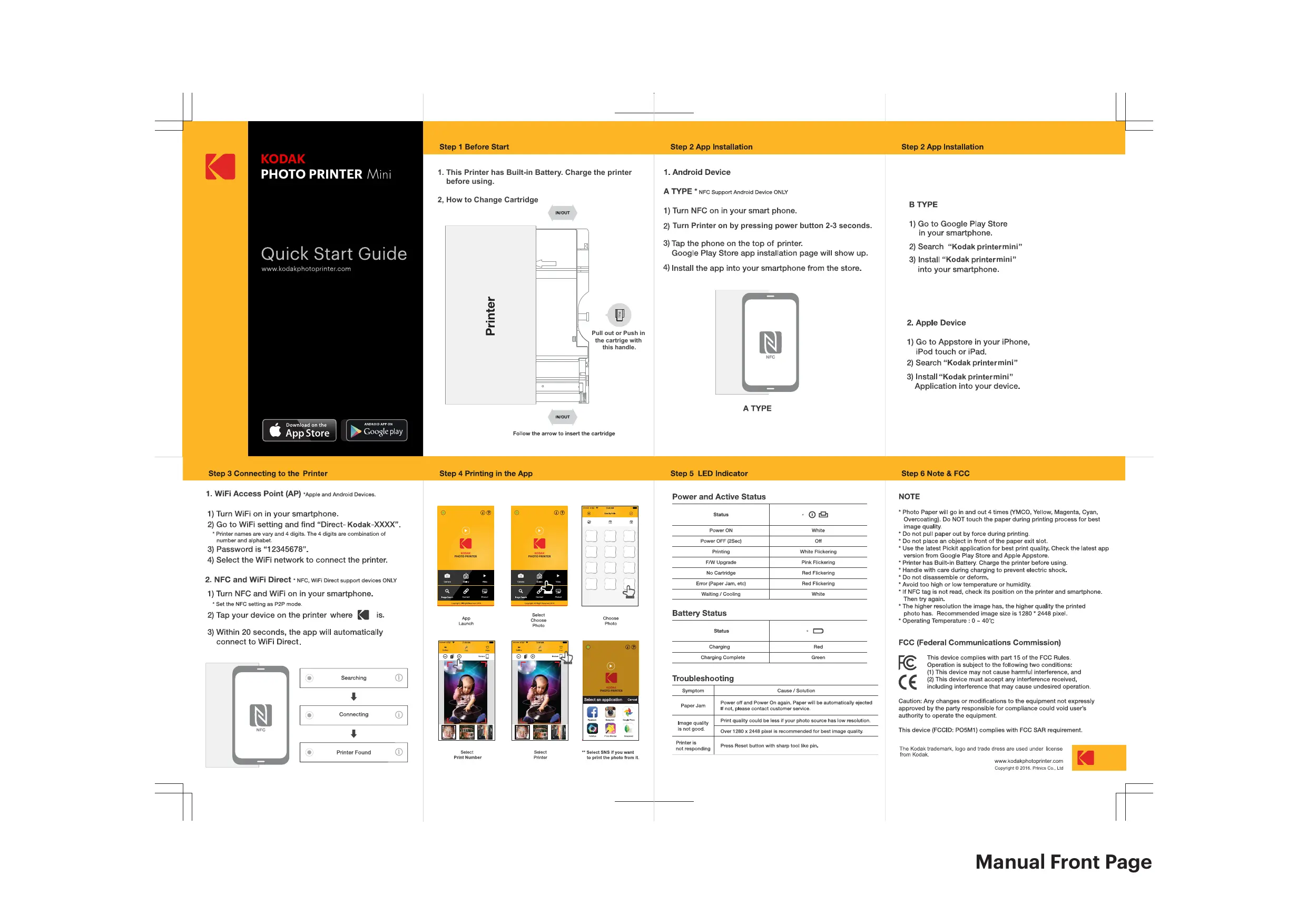
Step 1 Before Start

  1. This Printer has Built-in Battery. Charge the printer before using.
    2, How to Change Cartridge
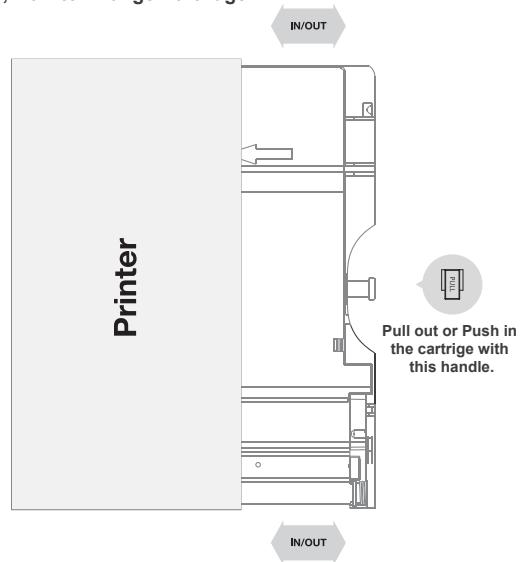
KODAK PM-210 MINI PRINTER - Step 1 Before Start - 1
Follow the arrow to insert the cartridge

Step 2 App Installation

  1. Android Device

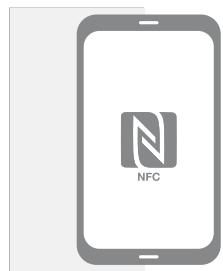
A TYPE* NFC Support Android Device ONLY

1) Turn NFC on in your smart phone.
2) Turn Printer on by pressing power button 2-3 seconds.
3) Tap the phone on the top of printer. Google Play Store app installation page will show up.
4) Install the app into your smartphone from the store.
KODAK PM-210 MINI PRINTER - Step 2 App Installation - 1
A TYPE

Step 2 App Installation

B TYPE

1) Go to Google Play Store in your smartphone.
2) Search "Kodak printermini"
3) Install "Kodak printer mini" into your smartphone.

2. Apple Device

1) Go to Appstore in your iPhone, iPod touch or iPad.
2) Search "Kodak printermini"
3) Install "Kodak printer mini" Application into your device.

Step 3 Connecting to the Printer

Step 4 Printing in the App

  1. WiFi Access Point (AP) *Apple and Android Devices.

1) Turn WiFi on in your smartphone.
2) Go to WiFi setting and find "Direct- Kodak-XXXX". * Printer names are vary and 4 digits. The 4 digits are combination of number and alphabet.
3) Password is "12345678".
4) Select the WiFi network to connect the printer.

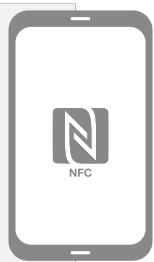
  1. NFC and WiFi Direct · NFC,WiFi Direct support devices ONLY

1) Turn NFC and WiFi on in your smartphone.
* Set the NFC setting as P2P mode.
2) Tap your device on the printer where is.
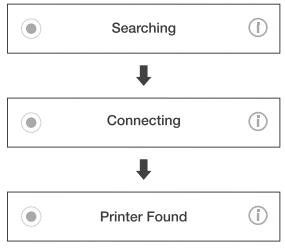
3) Within 20 seconds, the app will automatically connect to WiFi Direct.
KODAK PM-210 MINI PRINTER - Step 4 Printing in the App - 1

KODAK PM-210 MINI PRINTER - Step 4 Printing in the App - 2

KODAK PM-210 MINI PRINTER - Step 4 Printing in the App - 3
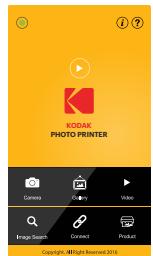
App Launch

KODAK PM-210 MINI PRINTER - Step 4 Printing in the App - 4
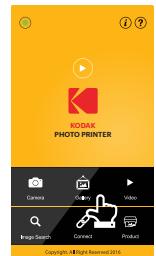
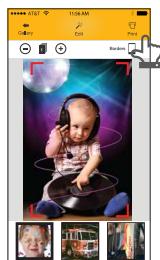
Select Choose Photo

KODAK PM-210 MINI PRINTER - Step 4 Printing in the App - 5
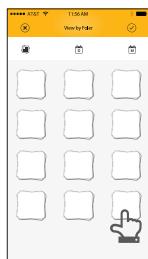
Choose Photo

KODAK PM-210 MINI PRINTER - Step 4 Printing in the App - 6
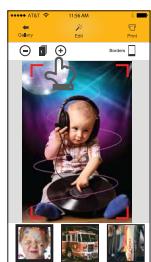
Select Print Number

KODAK PM-210 MINI PRINTER - Step 4 Printing in the App - 7
Select Printer

KODAK PM-210 MINI PRINTER - Step 4 Printing in the App - 8
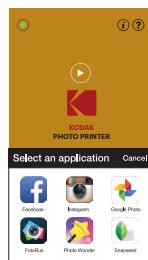
**Select SNS if you want to print the photo from it.

Step 5 LED Indicator

Power and Active Status

Status○ ①
Power ONWhite
Power OFF (2Sec)Off
PrintingWhite Flickering
F/W UpgradePink Flickering
No CartridgeRed Flickering
Error (Paper Jam, etc)Red Flickering
Waiting / CoolingWhite

Battery Status

Status
ChargingRed
Charging CompleteGreen

Troubleshooting

SymptomCause / Solution
Paper JamPower off and Power On again. Paper will be automatically ejected If not, please contact customer service.
Image quality is not good.Print quality could be less if your photo source has low resolution.
Over 1280 x 2448 pixel is recommended for best image quality.
Printer is not respondingPress Reset button with sharp tool like pin.

Step 6 Note & FCC

NOTE

  • Photo Paper will go in and out 4 times (YMCO, Yellow, Magenta, Cyan, Overcoating), Do NOT touch the paper during printing process for best image quality.
  • Do not pull paper out by force during printing.
  • Do not place an object in front of the paper exit slot.
  • Use the latest Pickit application for best print quality. Check the latest app version from Google Play Store and Apple Appstore.
    Printer has Built-in Battery, Charge the printer before using. Handle with care during charging to prevent electric shock.
  • Do not disassemble or deform.
  • Avoid too high or low temperature or humidity.
  • If NFC tag is not read, check its position on the printer and smartphone. Then try again.
  • The higher resolution the image has, the higher quality the printed photo has. Recommended image size is 1280 * 2448 pixel.
  • Operating Temperature : 0 ~ 40°C

FCC (Federal Communications Commission)

KODAK PM-210 MINI PRINTER - FCC (Federal Communications Commission) - 1

This device complies with part 15 of the FCC Rules. Operation is subject to the following two conditions:

(1) This device may not cause harmful interference, and (2) This device must accept any interference received, including interference that may cause undesired operation.

Caution: Any changes or modifications to the equipment not expressly approved by the party responsible for compliance could void user's authority to operate the equipment.

This device (FCCID: PO5M1) complies with FCC SAR requirement.

The Kodak trademark, logo and trade dress are used under license from Kodak.

www.kodakphotoprinter.com Copyright © 2016, Prinics Co., Ltd.

KODAK PM-210 MINI PRINTER - FCC (Federal Communications Commission) - 2

Assistant notice
Powered by Anthropic
En attente de votre message
Informations produit

Marque : KODAK

Modèle : PM-210 MINI PRINTER

Catégorie : Imprimante portable