
PD-450 - Imprimante photo portable KODAK - Notice d'utilisation et mode d'emploi gratuit
Retrouvez gratuitement la notice de l'appareil PD-450 KODAK au format PDF.

| Type de produit | Imprimante photo portable |
| Marque | KODAK |
| Modèle | PD-450 |
| Technologie d'impression | Sublimation thermique (YMCO) |
| Résolution recommandée | 1280 x 2448 pixels |
| Connectivité | WiFi Direct, NFC |
| Application mobile | Kodak Printer Mini (iOS et Android) |
| Alimentation | Batterie intégrée rechargeable via USB |
| Format de papier | 2x3 pouces (environ 5x7,6 cm) |
| Température de fonctionnement | 0°C à 40°C |
| Voyants LED | Alimentation, état de charge, impression |
| Fonctions spéciales | Impression sans fil, NFC pour appairage rapide |
| Entretien | Nettoyer avec un chiffon doux, ne pas utiliser de solvants |
| Sécurité | Ne pas démonter, éviter l'humidité et les températures extrêmes |
| Pièces détachées | Cartouches de papier et d'encre (vendues séparément) |
| Réparabilité | Contact service client, bouton de réinitialisation |
| Dimensions (estimées) | 7,5 x 12 x 2 cm |
| Poids (estimé) | 0,2 kg |
FOIRE AUX QUESTIONS - PD-450 KODAK
Questions des utilisateurs sur PD-450 KODAK
0 question sur cet appareil. Repondez a celles que vous connaissez ou posez la votre.
Poser une nouvelle question sur cet appareil
Téléchargez la notice de votre Imprimante photo portable au format PDF gratuitement ! Retrouvez votre notice PD-450 - KODAK et reprennez votre appareil électronique en main. Sur cette page sont publiés tous les documents nécessaires à l'utilisation de votre appareil PD-450 de la marque KODAK.
MODE D'EMPLOI PD-450 KODAK

KODAK PHOTO PRINTER Mini
Quick Start Guide
www.kodakphotoprinter.com


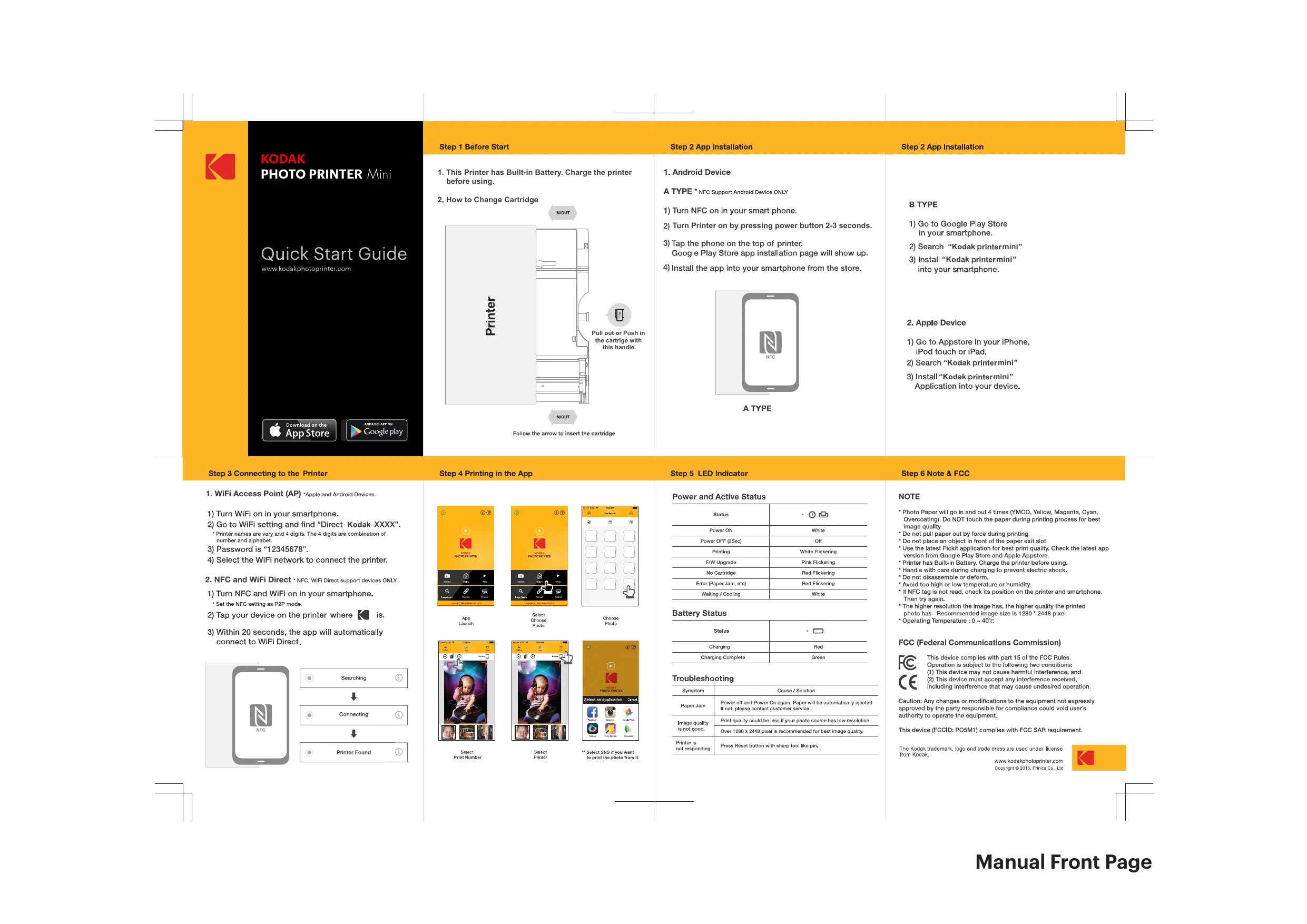
Step 1 Before Start
- This Printer has Built-in Battery. Charge the printer before using.
2, How to Change Cartridge
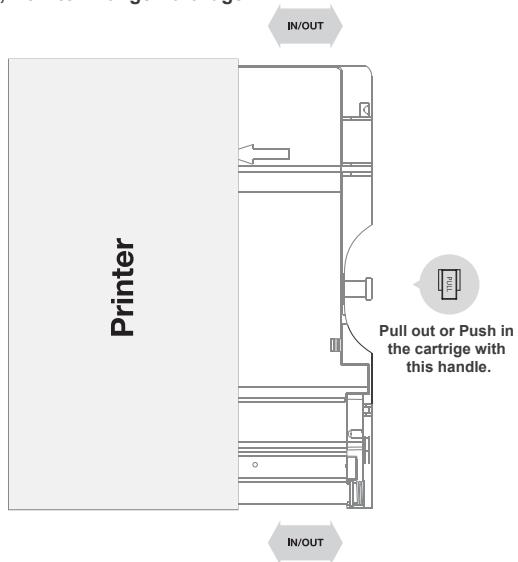
Follow the arrow to insert the cartridge
Step 2 App Installation
- Android Device
A TYPE* NFC Support Android Device ONLY
1) Turn NFC on in your smart phone.
2) Turn Printer on by pressing power button 2-3 seconds.
3) Tap the phone on the top of printer. Google Play Store app installation page will show up.
4) Install the app into your smartphone from the store.
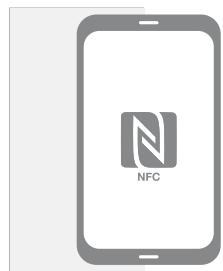
A TYPE
Step 2 App Installation
B TYPE
1) Go to Google Play Store in your smartphone.
2) Search "Kodak printermini"
3) Install "Kodak printer mini" into your smartphone.
2. Apple Device
1) Go to Appstore in your iPhone, iPod touch or iPad.
2) Search "Kodak printermini"
3) Install "Kodak printer mini" Application into your device.
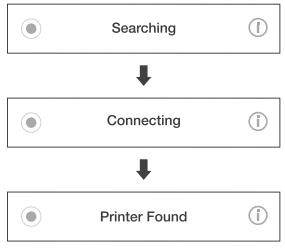
Step 3 Connecting to the Printer
Step 4 Printing in the App
- WiFi Access Point (AP) *Apple and Android Devices.
1) Turn WiFi on in your smartphone.
2) Go to WiFi setting and find "Direct- Kodak-XXXX". * Printer names are vary and 4 digits. The 4 digits are combination of number and alphabet.
3) Password is "12345678".
4) Select the WiFi network to connect the printer.
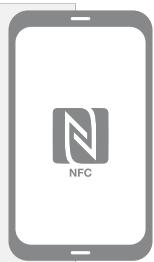
- NFC and WiFi Direct · NFC,WiFi Direct support devices ONLY
1) Turn NFC and WiFi on in your smartphone.
* Set the NFC setting as P2P mode.
2) Tap your device on the printer where is.
3) Within 20 seconds, the app will automatically connect to WiFi Direct.
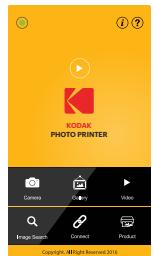
App Launch
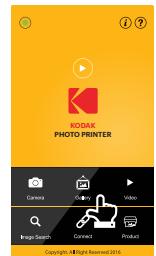
Select Choose Photo
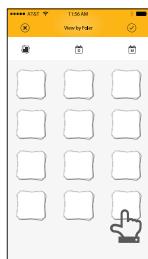
Choose Photo
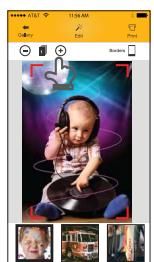
Select Print Number
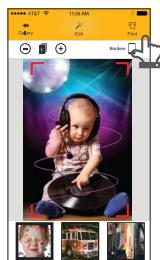
Select Printer
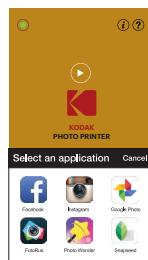
**Select SNS if you want to print the photo from it.
Step 5 LED Indicator
Power and Active Status
| Status | ○ ① |
| Power ON | White |
| Power OFF (2Sec) | Off |
| Printing | White Flickering |
| F/W Upgrade | Pink Flickering |
| No Cartridge | Red Flickering |
| Error (Paper Jam, etc) | Red Flickering |
| Waiting / Cooling | White |
Battery Status
| Status | 。 |
| Charging | Red |
| Charging Complete | Green |
Troubleshooting
| Symptom | Cause / Solution |
| Paper Jam | Power off and Power On again. Paper will be automatically ejected If not, please contact customer service. |
| Image quality is not good. | Print quality could be less if your photo source has low resolution. |
| Over 1280 x 2448 pixel is recommended for best image quality. | |
| Printer is not responding | Press Reset button with sharp tool like pin. |
Step 6 Note & FCC
NOTE
- Photo Paper will go in and out 4 times (YMCO, Yellow, Magenta, Cyan, Overcoating), Do NOT touch the paper during printing process for best image quality.
- Do not pull paper out by force during printing.
- Do not place an object in front of the paper exit slot.
- Use the latest Pickit application for best print quality. Check the latest app version from Google Play Store and Apple Appstore.
Printer has Built-in Battery, Charge the printer before using. * Handle with care during charging to prevent electric shock. - Do not disassemble or deform.
- Avoid too high or low temperature or humidity.
- If NFC tag is not read, check its position on the printer and smartphone. Then try again.
- The higher resolution the image has, the higher quality the printed photo has. Recommended image size is 1280 * 2448 pixel.
- Operating Temperature : 0 ~ 40°C
FCC (Federal Communications Commission)

This device complies with part 15 of the FCC Rules. Operation is subject to the following two conditions:
(1) This device may not cause harmful interference, and (2) This device must accept any interference received, including interference that may cause undesired operation.
Caution: Any changes or modifications to the equipment not expressly approved by the party responsible for compliance could void user's authority to operate the equipment.
This device (FCCID: PO5M1) complies with FCC SAR requirement.
The Kodak trademark, logo and trade dress are used under license from Kodak.
www.kodakphotoprinter.com Copyright © 2016, Prinics Co., Ltd.