
RS202D - Amplificateur Hi-Fi YAMAHA - Notice d'utilisation et mode d'emploi gratuit
Retrouvez gratuitement la notice de l'appareil RS202D YAMAHA au format PDF.


| Type de produit | Amplificateur stéréo intégré |
| Caractéristiques techniques principales | 2 canaux, puissance de 100 W par canal (8 ohms) |
| Alimentation électrique | AC 230 V, 50/60 Hz |
| Dimensions approximatives | 435 mm x 151 mm x 329 mm |
| Poids | 6,5 kg |
| Compatibilités | Compatible avec divers appareils audio, entrées RCA, entrée phono |
| Type de batterie | Non applicable |
| Tension | 230 V |
| Puissance | 100 W par canal (8 ohms) |
| Fonctions principales | Contrôle de tonalité, réglage de volume, entrée pour écouteurs |
| Entretien et nettoyage | Nettoyer avec un chiffon doux, éviter les produits chimiques agressifs |
| Pièces détachées et réparabilité | Réparabilité limitée, pièces disponibles via le service après-vente |
| Sécurité | Ne pas exposer à l'humidité, utiliser sur une surface stable |
| Informations générales utiles | Idéal pour les mélomanes, design compact et élégant |
FOIRE AUX QUESTIONS - RS202D YAMAHA
Questions des utilisateurs sur RS202D YAMAHA
0 question sur cet appareil. Repondez a celles que vous connaissez ou posez la votre.
Poser une nouvelle question sur cet appareil
Téléchargez la notice de votre Amplificateur Hi-Fi au format PDF gratuitement ! Retrouvez votre notice RS202D - YAMAHA et reprennez votre appareil électronique en main. Sur cette page sont publiés tous les documents nécessaires à l'utilisation de votre appareil RS202D de la marque YAMAHA.
MODE D'EMPLOI RS202D YAMAHA
Network Receiver
R-N303 R-N303D
Owner's Manual
PLEASE READ CAREFULLY BEFORE USE. BE SURE TO FOLLOW THESE INSTRUCTIONS.
The precautions listed below are to prevent risk of harm to the user and others, as well as to prevent property damage, and to help the user use this unit properly and safely. Be sure to follow these instructions.
After reading this manual, be sure to keep it in a safe place where it can be referenced at any time.
- Be sure to request inspections or repairs from the dealer where you purchased the unit or from qualified Yamaha service personnel.
- Yamaha cannot be held responsible for damage caused by improper use or modifications to the unit.
- This product is for ordinary homes. Do not use for applications requiring high reliability, such as managing lives, health care or high-value assets.

WARNING
This content indicates "risk of serious injury or death."
Power supply/power cord
- Do not do anything that could damage the power cord.
- Do not place it near a heater.
- Do not bend it excessively or alter it.
- Do not scratch it.
- Do not place it under a heavy object.
Using the power cord with the core of the cord exposed could cause electric shocks or a fire.
- Do not touch the power plug or cord if there is a chance of lightning. Failure to observe this may cause electric shocks.
- Use this unit with the power supply voltage printed on it. Failure to connect to an appropriate AC outlet may cause a fire, electric shocks, or malfunctions.
- Check the electric plug periodically and remove any dirt or dust which may have accumulated on it. Failure to observe this may cause a fire or electric shocks.
- When setting up the unit, make sure that the AC outlet you are using is easily accessible. If some trouble or malfunction occurs, immediately turn off the power switch and disconnect the plug from the AC outlet. Even when the power switch is turned off, as long as the power cord is not unplugged from the wall AC outlet, the unit will not be disconnected from the power source.
- If you hear thunder or suspect approaching lightning, quickly turn off the power switch and pull the power plug from the AC outlet. Failure to observe this may cause a fire or malfunctions.
- If not using the unit for long periods of time, be sure to pull the power plug from the AC outlet. Failure to observe this may cause a fire or malfunctions.
Do not disassemble
- Do not disassemble or modify this unit. Failure to observe this may cause a fire, electric shocks, injury, or malfunctions. If you notice any irregularities, be sure to request an inspection or repair from the dealer where you purchased the unit or from qualified Yamaha service personnel.
Water warning
- Do not expose the unit to rain, use it near water or in damp or wet conditions, or place on it any containers (such as vases, bottles or glasses) containing liquids which might spill into any
openings. A liquid such as water getting into the unit may cause a fire, electric shocks, or malfunctions. If any liquid such as water seeps into the device, turn off the power immediately and unplug the power cord from the AC outlet. Then, request an inspection from the dealer where you purchased the unit or from qualified Yamaha service personnel.
- Never insert or remove an electric plug with wet hands. Do not handle this unit with wet hands. Failure to observe this may cause electric shocks or malfunctions.
Fire warning
- Do not place any burning items or open flames near the unit, since they may cause a fire.
Maintenance and care
- Do not use aerosols or spray-type chemicals that contain combustible gas for cleaning or lubrication. The combustible gas will remain inside the unit, which may cause explosion or fire.
Battery use
- Do not disassemble a battery. If the contents of the battery get on your hands or in your eyes, it can cause blindness or chemical burns.
- Do not dispose of batteries in fire. Doing so may result in the battery bursting, causing a fire or injury.
- Do not expose a battery to high temperatures, such as direct sunlight or a fire. The battery may burst, causing a fire or injury.
- Do not attempt to recharge batteries that are not intended to be charged. Charging could cause the battery to burst or leak, which can cause blindness, chemical burns, or injury.
- If the batteries do leak, avoid contact with the leaked fluid. If the battery fluid should come in contact with your eyes, mouth, or skin, wash immediately with water and consult a doctor. Battery fluid is corrosive and may possibly cause loss of sight or chemical burns.
Wireless unit
- Do not use this unit near medical devices or inside medical facilities. Radio waves from this unit may affect electromedical devices.
- Do not use this unit within 15cm (6 in) of persons with a heart pacemaker implant or a defibrillator implant. Radio waves from this unit may affect electro-medical devices, such as a heart pacemaker implant or defibrillator implant.
If you notice any abnormality
-
If any of the following abnormalities occur, immediately turn off the power and disconnect the power plug. If you are using batteries, remove the batteries from this unit.
-
The power cord/plug is damaged.
- An unusual smell or smoke is emitted from the unit.
- Foreign material gets into the interior of the unit.
- There is a loss of sound during use.
- There is a crack or damage in the unit.
Continued use could cause electric shocks, a fire, or malfunctions. Immediately request an inspection or repair from
the dealer where you purchased the unit or from qualified Yamaha service personnel.
- Be careful not to drop or apply strong impact to this unit. If you suspect the unit may have been damaged due to dropping or impact, immediately turn off the power and pull the power plug from the AC outlet. Failure to observe this may cause electric shocks, a fire, or malfunctions. Immediately request an inspection from the dealer where you purchased the unit or from qualified Yamaha service personnel.

CAUTION
This content indicates "risk of injury."
Power supply/power cord
- Do not use an AC outlet where the power plug fits loosely when inserted. Failure to observe this may cause a fire, electric shocks, or burns.
- When removing the electric plug from an AC outlet, always hold the plug itself and not the cord. Pulling by the cord can damage it and cause electric shocks or a fire.
- Insert the power plug firmly all the way into the AC outlet. Using the unit when it is not plugged in sufficiently can cause dust to accumulate on the plug, causing a fire or burns.
Installation
- Do not place the unit in an unstable position where it might accidentally drop or fall over and cause injuries.
- Do not block this unit's ventilation holes (cooling slits). This unit has ventilation holes on the top/bottom to prevent the internal temperature from becoming too high. Failure to observe this may trap heat inside the unit, causing a fire or malfunctions.
-
When installing this unit:
-
Do not cover it with any cloth.
- Do not install it on a carpet or rug.
- Make sure the top surface faces up; do not install on its sides or upside down.
- Do not use the device in a confined, poorly-ventilated location.
Failure to observe the above may trap heat inside the unit, causing a fire or malfunctions. Ensure that there is adequate space around the unit: at least 30cm (11-3/4 in) on top, 20cm (7-7/8 in) on the sides, and 20cm (7-7/8 in) on the rear.
- Ensure that the top is facing upwards. Failure to observe this may cause malfunctions or for the unit to fall and cause injury.
- Do not place the unit in a location where it may come into contact with corrosive gases or salt air. Doing so may result in malfunction.
- Avoid being near the unit during a disaster, such as an earthquake. Since the unit may turn over or fall and cause injury, quickly move away from the unit and go to a safe place.
- Before moving this unit, be sure to turn off the power switch and disconnect all connection cables. Failure to observe this may damage the cables or cause you or someone else to trip and fall.
Hearing loss
- Do not use the unit/speakers or headphones for a long period of time at a high or uncomfortable volume level, since this can cause permanent hearing loss. If you experience any hearing loss or ringing in the ears, consult a physician.
-
Before connecting the unit to other devices, turn off the power for all devices. Also, before turning the power of all devices on or off, make sure that all volume levels are set to the minimum. Failing to do so may result in hearing loss, electric shock, or device damage.
-
When turning on the AC power in your audio system, always turn on the unit LAST, to avoid hearing loss and speaker damage. When turning the power off the unit should be turned off FIRST for the same reason. Failure to observe the above may cause hearing impairment or speaker damage.
Maintenance
- Remove the power plug from the AC outlet when cleaning the unit. Failure to observe this may cause electric shocks.
Handling caution
- Do not insert foreign materials such as metal or paper into the ventilation holes of this unit. Failure to observe this may cause a fire, electric shocks, or malfunctions. If foreign material gets into the unit, immediately shut off the power and pull the power plug from the AC outlet / then turn off any amplifiers and receivers and request an inspection from the dealer where you purchased the unit or from qualified Yamaha service personnel.
- Do not rest your weight on the unit or place heavy objects on it. Avoid applying excessive force to the buttons, switches or connectors. Failure to observe the above may cause injury or unit damage.
- Avoid pulling the connected cables to prevent injuries or damage to the unit by causing it to fall.
Battery use
- Always replace all batteries at the same time. Do not use new batteries together with old ones. Using new ones with old ones could cause a fire, burns, or inflammation due to fluid leaks.
- Do not mix battery types, such as alkaline batteries with manganese batteries, or batteries from different makers, or different types of batteries from the same maker, since this can cause a fire, burns, or inflammation due to fluid leaks.
- Keep batteries away from children. A child could accidentally swallow a battery. Failure to observe this may also cause inflammation due to battery fluid leaks.
- Do not put in a pocket or bag, carry, or store batteries together with pieces of metal. The battery could short, burst, or leak, causing a fire or injury.
- Always make sure all batteries are inserted in conformity with the +/- polarity markings. Failure to do so might result in a fire, burns, or inflammation due to fluid leaks.
- When the batteries run out, or if the unit is not to be used for a long time remove the batteries from the remote control to prevent possible leakage of the battery fluid.
- When storing or discarding batteries, insulate the terminal area by applying tape, or some other protection. Mixing them with other batteries or metal objects can cause a fire, burns, or inflammation due to fluid.
Caution
Do not touch the surface marked with this label.
The surface may become hot during operation.
Notice
Indicates points that you must observe in order to prevent product failure, damage or malfunction and data loss, as well as to protect the environment.
Power
- Indicates points that you must observe in order to prevent product failure, damage or malfunction and data loss, as well as to protect the environment.
Installation
- Do not use this unit in the vicinity of other electronic equipment, such as a TV, radio or mobile phone. Failure to observe this may cause this unit or the TV or radio to produce noise.
- Do not use this unit in a location that is exposed to direct sunlight (such as a vehicle interior), that becomes extremely hot, such as near a heater, or extremely cold, or that is subject to excessive dust or vibration. Failure to observe this may cause the unit's panel to become deformed, the internal components to malfunction, or for operation to become unstable.
- Install this unit as far away from other electronic equipment as possible. Digital signals from this unit may interfere with other electronic equipment.
- If using a wireless network or Bluetooth, avoid installing this unit near metal walls or desks, microwave ovens, or other wireless network devices.
Connections
- If connecting external units, be sure to thoroughly read the manual for each unit and connect them in accordance with the instructions. Failure to properly handle a unit in accordance with the instructions could cause malfunctions.
- Do not connect this unit to industrial units. Digital audio interface standards for consumer use and industrial use are different. This unit has been designed to connect to a consumer-use digital audio interface. Connections to an industrial-use digital audio interface could not only cause this unit to malfunction, but could also damage the speakers.
Handling
- Do not place vinyl, plastic, or rubber products on this unit. Failure to observe this may cause discoloration or deformation in the panel of this unit.
- If the ambient temperature changes drastically (such as during unit transportation or under rapid heating or cooling) and there is a chance condensation may have formed in the unit, leave the unit for several hours without turning on the power until it is completely dry before use. Using the unit while there is condensation can cause malfunctions.
Maintenance
- When cleaning the unit, use a dry, soft cloth. Using chemicals such as benzine or thinner, cleaning agents, or chemical scrubbing cloths can cause discoloration or deformation.
Batteries
- Be sure to discard used batteries in accordance with local regulations.
Information
Indicates information of note regarding this product.
About content in this manual
- The illustrations and screens in this manual are for instructional purposes only.
- The company names and product names in this manual are the trademarks or registered trademarks of their respective companies.
- Software may be revised and updated without prior notice.
- Information marked by the “ WARNING” icon indicates points that may lead to death or serious injury if not observed.
- Information marked with the “ CAUTION” icon indicates points that may lead to injury if not observed.
- Information in the "Notice" sections indicates points that you must observe to prevent product failure, damage or malfunction and data loss.
- Information listed in the "Note" sections indicates supplementary information.
- This manual describes the "iPod touch", "iPhone" and "iPad" collectively as the "iPhone". ("iPhone" refers to the "iPod touch", "iPhone" and "iPad", unless otherwise specified.)
- In this manual, illustrations of English menu screens are used as examples.
Contents
INTRODUCTION
What you can do with this unit 2
Sources that can be played back on this unit. 2
Supplied accessories 3
Controls and functions 4
Front panel 4
Front display 6
Rear panel 7
Remote control. 8
PREPARATION
Connections 10
Connecting audio devices 10
Connecting the speakers 11
Connecting the FM/AM antennas (R-N303) 12
Connecting the DAB/FM antenna (R-N303D) 12
Connecting the network cable 13
Preparing a wireless antenna 13
Connecting power cord. 13
Turning on the unit 13
Connecting to a network. 14
Sharing the iOS device setting. 15
Configuring with the router's WPS push button 16
Set the wireless network connection manually. 16
Connecting a mobile device to the unit directly (Wireless Direct) 17
Verify the network connection status 18
Configuring MusicCast. 19
BASIC OPERATION
Playback 20
Playing a source 20
Switching information on the front display. 20
Using the sleep timer 21
Listening to FM/AM radio. 22
FM/AM tuning 22
Using preset functions 22
Radio Data System tuning (Only for U.K. and Europe models) 25
Listening to DAB radio (R-N303D). 26
Preparing the DAB tuning 26
Selecting a DAB radio station for reception 26
Using preset function 27
Displaying the DAB information 28
Checking reception strength of each DAB channel label 29
Playing back music via Bluetooth 30
Connecting a Bluetooth device (pairing) 30
Playing back Bluetooth device contents 30
Disconnecting a Bluetooth connection 31
Playing back music stored on media servers (PCs/NAS) 32
Setting the media sharing of music files 32
Playback of PC music contents 33
Listening to Internet radio. 34
Playing back music with AirPlay 35
Playback of iTunes/iPhone music contents 35
Registering the current playback song/station
(Preset function) 36
Registering to a preset 36
Recalling a preset 36
Clearing a preset 36
ADVANCED OPERATION
Configuring playback settings for different
playback sources (OPTION menu).37
OPTION menu items 37
Configuring various functions (SETUP menu) ....39
SETUP menu items 39
Network 40
Bluetooth 41
Balance 41
Max Volume 41
InitialVolume 42
AutoPowerStby (Auto Power Standby) 42
Configuring the system settings
(ADVANCED SETUP menu). 43
ADVANCED SETUP menu items 43
Checking the firmware version (VERSION) 43
Selecting the remote control ID (REMOTE ID) 43
Settingtuner frequency step (TU) 43
Restoring the default settings (INIT) 43
Updating the firmware (UPDATE) 44
Updating the unit's firmware. 45
ADDITIONAL INFORMATION
Troubleshooting. 46
Supported devices and file formats 52
Supported devices 52
Supported file formats 52
Specifications 53
Trademarks 55
Index 56
What you can do with this unit
This unit is a network receiver compatible with a network source such as a media server and mobile device.
It supports playback from not only analog sources such as a CD player or AM/FM radio, but also from Bluetooth devices and network streaming services.
Sources that can be played back on this unit
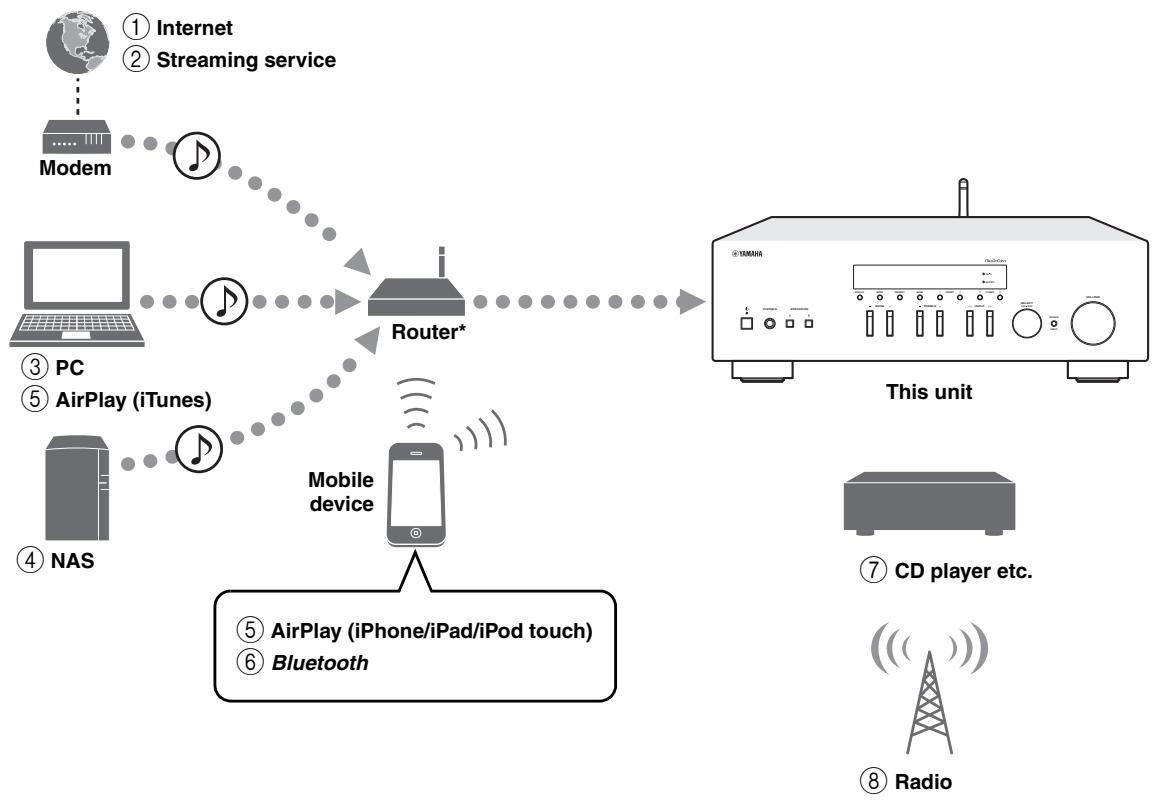
* You need a commercially available wireless router (access point) when you use a mobile device.
① Play back the Internet radio (p. 34)
② Play back the streaming service (See the supplement for each service.)
③ Play back music files stored on your PC (p. 32)
④ Play back music files stored on your NAS (p. 32)
⑤ Play back music files with AirPlay (p. 35)
⑥ Play back audio content from Bluetooth devices (p. 30)
⑦ Play back your external component (p. 10)
⑧ Listening to radio (p. 22, 26)
Note
For details on connecting the external devices, see "Connections" (p. 10).
Supplied accessories
Check that the following accessories are supplied with the product.
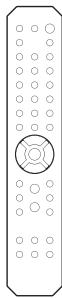
Remote control
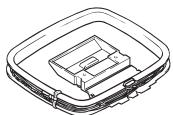
AM antenna (R-N303)
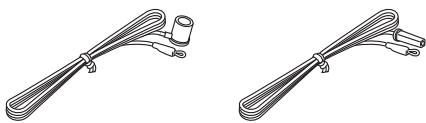
FM antenna (R-N303)
- One of the above is supplied depending on the region of purchase.
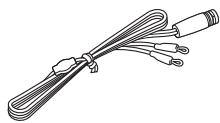
DAB/FM antenna (R-N303D)

Batteries (x2) (AA, R6, UM-3)
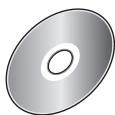
R-N303/R-N303D Owner's Manual CD-ROM (Europe model)
R-N303/R-N303D Owner's Manual (except Europe model, this book)
R-N303/R-N303D Quick Start Guide (Europe model)
Front panel
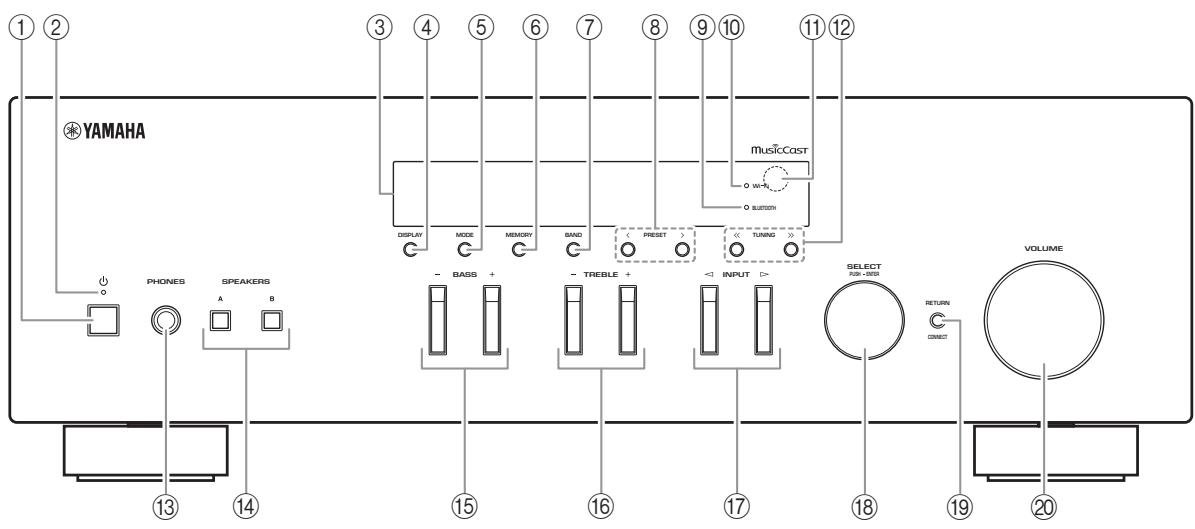
① (power)
Turns on/off (standby) the unit.
② STANDBY/ON indicator
Brightly lit: Power is on Dimly lit: Standby mode
Note
When not using this unit for an extended period of time, be sure to unplug it from the power outlet. This unit uses a minimal amount of power even in standby mode.
③ Front display
Shows information about the operational status of this unit (p. 6).
④ DISPLAY
Selects the information displayed on the front display (p. 20).
⑤ MODE
Sets the FM band reception mode to automatic stereo or monaural (p. 22).
⑥ MEMORY
Registers the current radio station as a preset when TUNER is selected as the input source (p. 23, 27).
Registers the current playback song or streaming station as a preset when NET are selected as the input source (p. 36).
⑦ BAND
Sets the radio tuner band when TUNER is selected as the input source. (p. 22, 26)
(8) PRESET /
Recalls a preset radio station (p. 24, 22) or song/ streaming station (p. 36).
⑨ BLUETOOTH indicator
Lights up when the unit is connecting to a Bluetooth device.
10 Wi-Fi indicator
This lights when connecting to a wireless network, or when the unit is operating as an access point.
It also lights up if you register the unit with the MusicCast CONTROLLER app, even if the unit is connected to a wired network.
⑪ Remote control sensor
Receives infrared signals from the remote control.
TUNING /
Selects the tuning frequency (p. 22) or a DAB radio station (p. 26) when TUNER is selected as the input source.
13 PHONES jack
Outputs audio to your headphones for private listening.
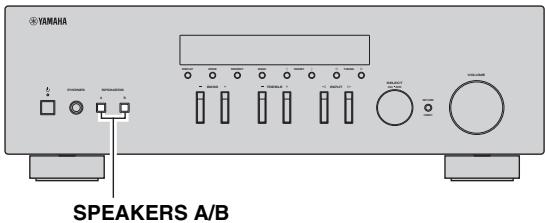
14 SPEAKERS A/B
Turns on or off the speaker set connected to the SPEAKERS A and/or SPEAKERS B terminals on the rear panel each time the corresponding button is pressed.
15 BASS +/-
Increases or decreases the low frequency response.
Control range: -10 to +10 (20 Hz)
16 TREBLE +/-
Increases or decreases the high frequency response.
Control range: -10 to +10 (20 kHz)
17 INPUT /
Selects the input source you want to listen to.
18 SELECT/ENTER (jog dial)
Turn the dial to select a numeric value or setting, and press the dial to confirm.
19 RETURN
Returns to the previous indication of the front display.
CONNECT
Use to control the unit using the dedicated MusicCast CONTROLLER app for mobile devices.
See MusicCast Setup Guide for details.
20 VOLUME control
Increases or decreases the sound output level.
Note
You can change the brightness level of the front display by pressing DIMMER (p. 8).
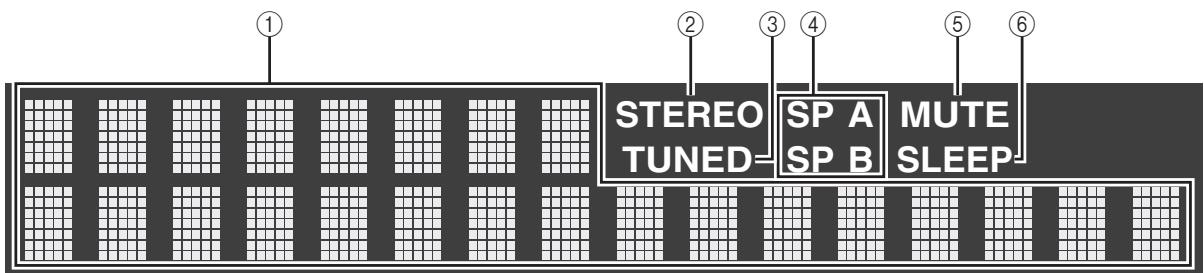
① Information display
Displays the current status (such as input name).
You can switch the information that is displayed when you press DISPLAY (p. 20).
② STEREO indicator
Lights up when the unit is receiving a stereo FM radio signal.
(3) TUNED indicator
Lights up when the unit is receiving an FM/AM radio station signal.
Note
AM radio is available only for R-N303.
④ Speaker indicators
"SP A" lights up when the SPEAKERS A output is enabled and "SP B" lights up when the SPEAKERS B output is enabled.
⑤ MUTE indicator
Blinks when audio is muted.
⑥ SLEEP indicator
Lights up when the sleep timer is on (p. 21).
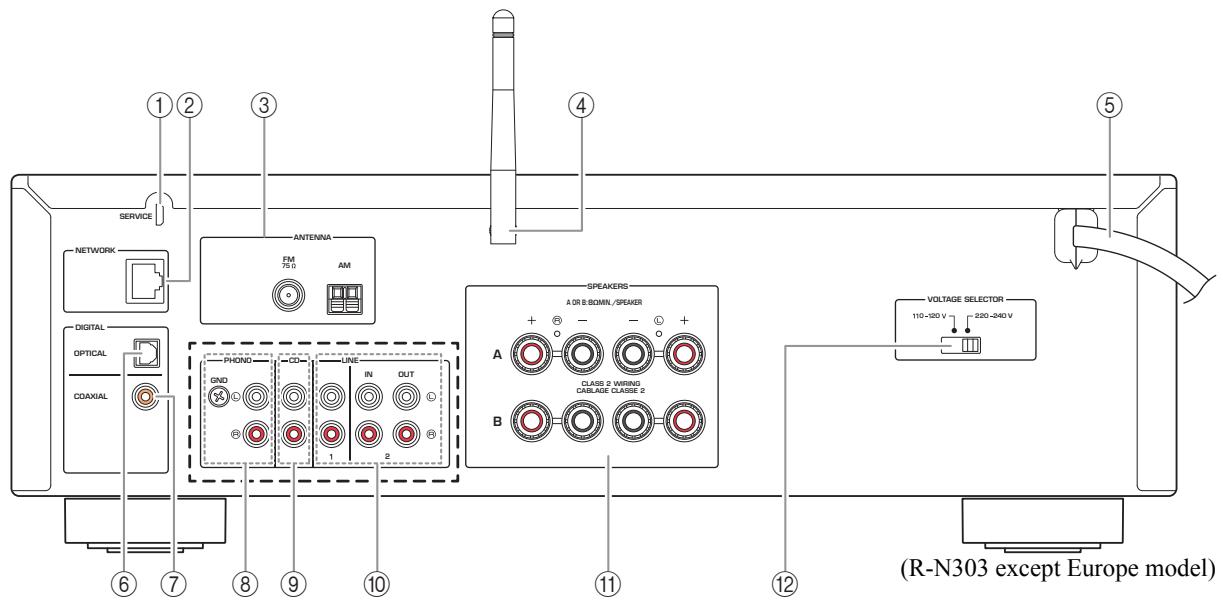
* The R-N303 Europe model and R-N303D are as shown below.

① SERVICE jack
This jack is for support use, and is normally not used.
② NETWORK jack
For connecting to a network with a network cable (p. 13).
③ ANTENNA terminals
For connecting to the radio antennas (p. 12).
④ Wireless antenna
For connecting to a network device wirelessly (p. 13).
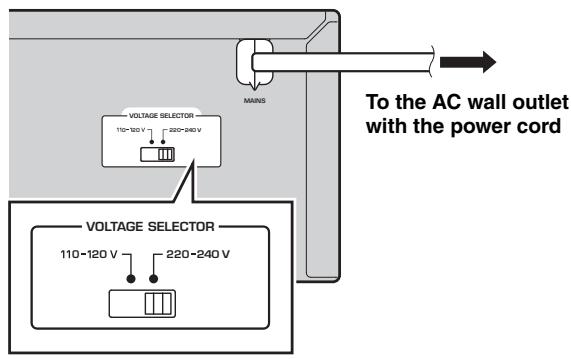
⑤ Power cord
For connecting to an AC wall outlet (p. 13).
⑥ OPTICAL jack
For connecting to audio components equipped with optical digital output (p. 10).
⑦ COAXIAL jack
For connecting to audio components equipped with a coaxial digital output (p. 10).
⑧ PHONO jacks (R-N303 except Europe model)
For connecting to a turntable (p. 10).
⑨ CD jacks
For connecting to a CD player (p. 10).
LINE 1-3 jacks (R-N303 Europe model, R-N303D)
LINE 1-2 jacks (R-N303 except Europe model)
For connecting to analog audio components (p. 10).
11 SPEAKERS terminals
Used to connect speakers (p. 11).
⑫ VOLTAGE SELECTOR
(Only for General model)
Remote control
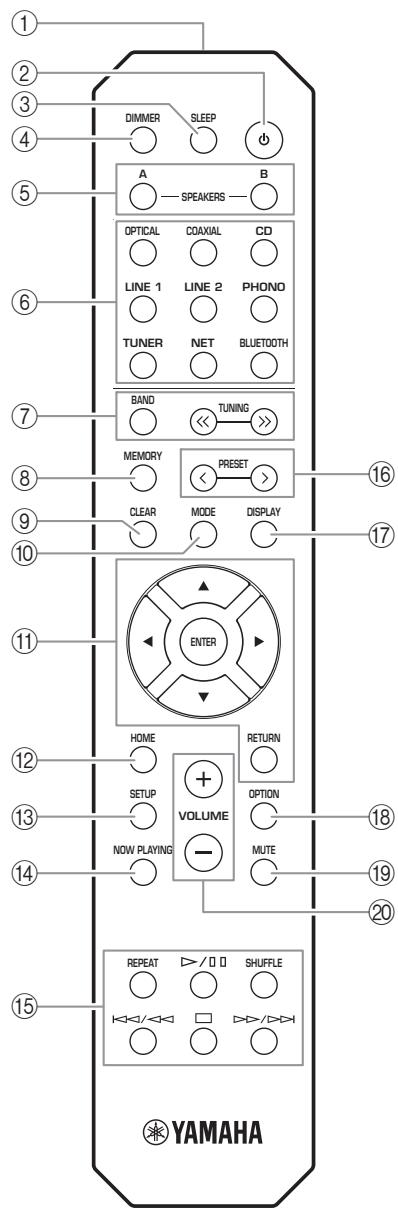
(R-N303, except Europe model)
① Infrared signal transmitter
Sends infrared signals.
② (power)
Turns on/off (standby) the unit.
③ SLEEP
Sets the sleep timer (p. 21).
④ DIMMER
Changes the brightness level of the front display.
Choose brightness from 5 levels by pressing this key repeatedly.
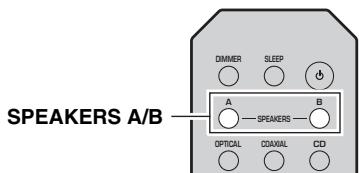
⑤ SPEAKERS A/B
Turns on and off the set of speakers connected to the SPEAKERS A and/or SPEAKERS B terminals on the rear panel of this unit when the corresponding key is pressed.
⑥ Input selection keys
Select the input source you want to listen to.
Note
NET key is for network source. Press repeatedly to select a desired network source.
⑦ Radio keys
Operate the radio.
BAND
Sets the radio tuner band when TUNER is selected as the input source (p. 22, 26).
TUNING /
Selects the tuning frequency (p. 22) or a DAB radio station (p. 26) when TUNER is selected as the input source.
(8) MEMORY
Registers the current radio station as a preset when TUNER is selected as the input source (p. 23, 27). Registers the current playback song or streaming station as a preset when NET are selected as the input source (p. 36).
(9) CLEAR
Deletes the preset memory (p. 24, 28, 36).
10 MODE
Sets the FM band reception mode to automatic stereo or monaural (p. 22).
11 Menu operation keys
Cursor keys
Selects a menu, setting value or other parameter.
ENTER
Confirms a selected item.
RETURN
Returns to the previous state.
⑫ HOME
Moves up top level when selecting music files, folders, etc.
13 SETUP
Displays the "SETUP" menu (p. 39).
14 NOW PLAYING
Displays music information when selecting music files, folders, etc.
⑤Playback keys
Let you play back and perform other operations for network sources and Bluetooth devices.
Note
Yamaha does not guarantee the operation of all Bluetooth devices.
16 PRESET
Recalls a preset radio station (p. 24, 22) or song/ streaming station (p. 36).
⑦ DISPLAY
Selects the information displayed on the front display (p. 20).
18 OPTION
Displays the "OPTION" menu (p. 37).
19 MUTE
Mutes the audio output.
20 VOLUME +/-
Increases or decreases the sound output level.
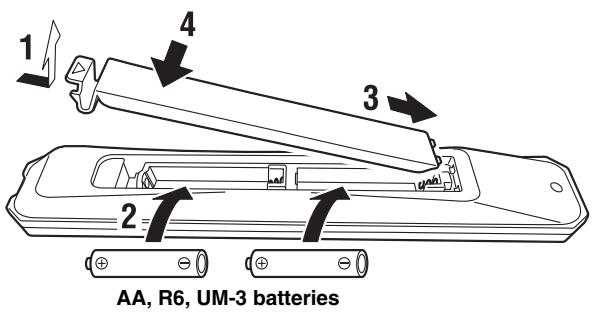
Installing batteries
Change all batteries if you notice the operation range of the remote control narrows. Before inserting new batteries, wipe the battery compartment clean.
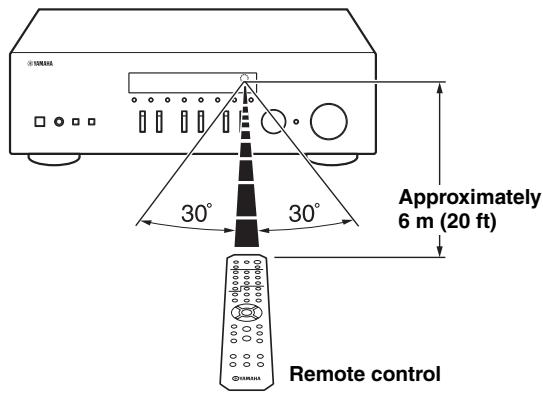
Operation range
Point the remote control at the remote control sensor on this unit and remain within the operating range shown below. The area between the remote control and this unit must be clear of large obstacles.
Connections
Connecting audio devices
Make sure to connect L (left) to L, R (right) to R, "+" to "+" and "-" to "-" If the connections are faulty, no sound will be heard from the speakers, and if the polarity of the speaker connections is incorrect, the sound will be unnatural and lack bass. Refer to the owner's manual for each of your components.
Make sure to use RCA cables to connect audio components.

CAUTION
- Do not connect this unit or other components to the main power until all connections between components are complete.
- Do not let bare speaker wires touch each other or any metal part of this unit. This could damage this unit and/or the speakers.
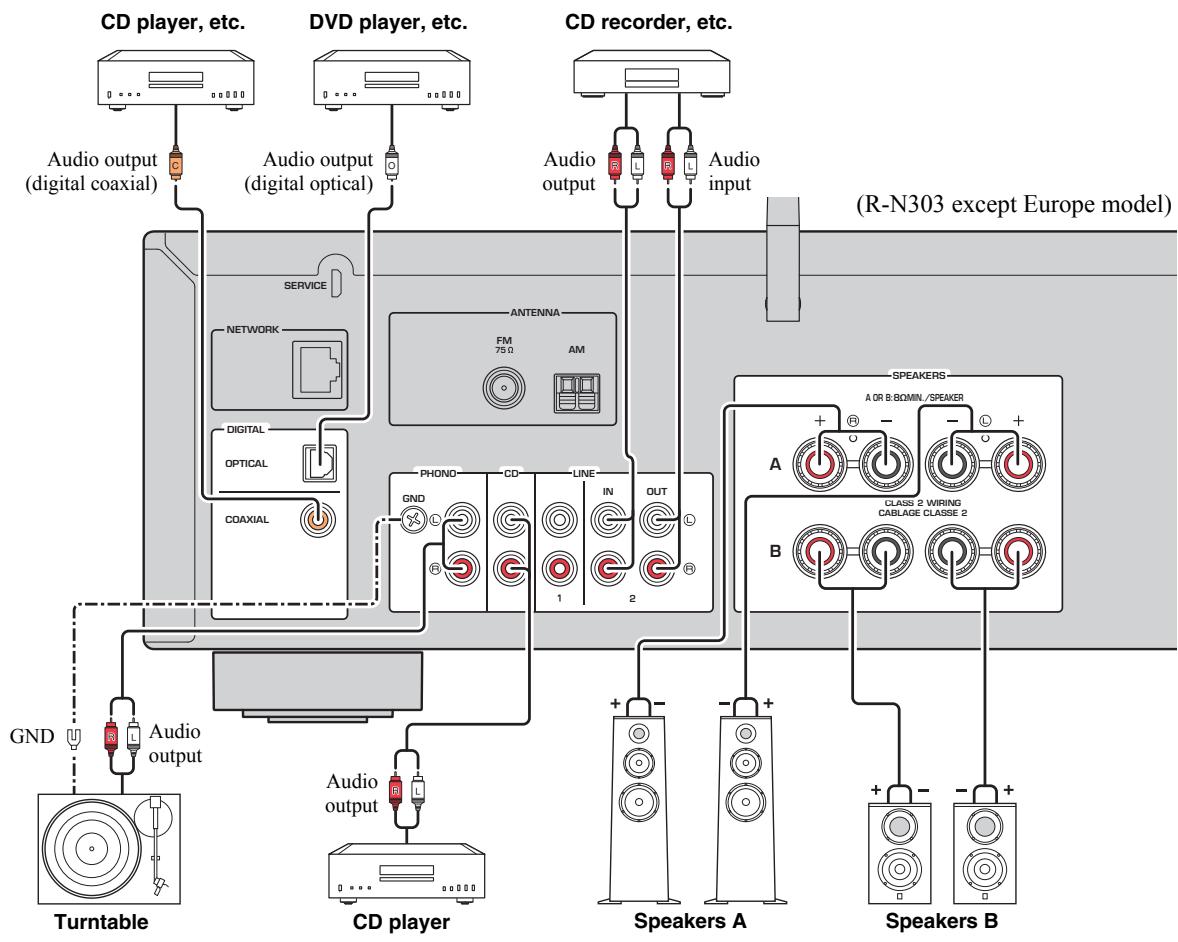
Note
The input jacks are different on the R-N303 Europe model and on the R-N303D (p. 7).
Only PCM signals can be input to the digital (OPTICAL/COAXIAL) jacks of this unit.
Note
- Do not bundle audio cables and speaker cables together with the power cord. Doing so may generate noise.
- The PHONO jacks are designed for connecting a turntable with an MM cartridge.
- Connect your turntable to the GND terminal to reduce noise in the signal. However, for some turntables, you may hear less noise without the GND connection.
- On the R-N303D and R-N303 Europe models, to prevent sound loops, no sound will be outputted from the LINE 3(OUT) jack while the LINE 3 input is selected. On other models, no sound will be outputted from the LINE 2(OUT) jack while the LINE 2 input is selected.
Connecting the speakers

CAUTION
Connect the speakers with an impedance as shown below. If you connect speakers with an excessively low impedance, this unit may overheat.
| Speaker connection | Speaker impedance |
| SPEAKERS A or SPEAKERS B | 8 Ω or higher |
| SPEAKERS A and SPEAKERS B | 16 Ω or higher (except for North America model) |
| Bi-wiring | 8 Ω or higher |

Connecting speaker cables
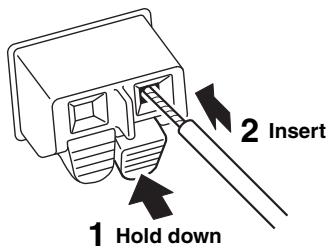
① Remove approximately 10mm (3/8") of insulation from the ends of the speaker cable and twist the bare wires of the cable firmly together.
② Loosen the speaker terminal.
③ Insert the bare wires of the cable into the gap on the side (upper right or bottom left) of the terminal.
④ Tighten the terminal.
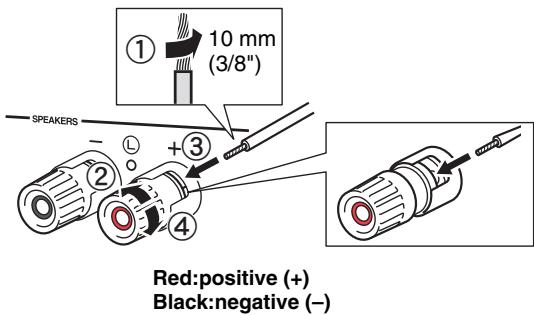
Note
When inserting speaker cables into the speaker terminals, insert only the bare speaker wire. If insulated cable is inserted, the connection may be poor and sound may not be heard.

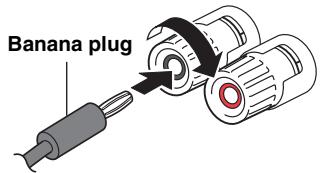
Connecting via banana plug (North America, Australia, General models only)
Tighten the knob and then insert the banana plug into the end of the corresponding terminal.

Bi-wire connection
Bi-wire connection separates the woofer from the combined midrange and tweeter section. A bi-wire compatible speaker has four binding post terminals. These two sets of terminals allow the speaker to be split into two independent sections. With these connections, the mid and high frequency drivers are connected to one set of terminals and the low frequency driver to another set of terminals.
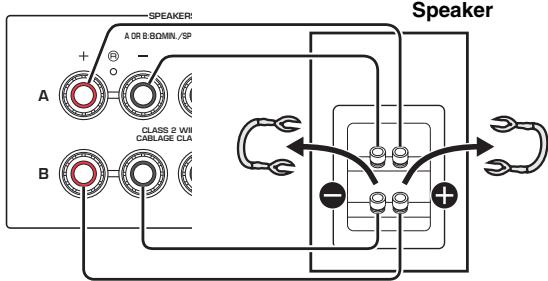
This unit
Connect the other speaker to the other set of terminals in the same way.
Note
- When making bi-wire connections, remove the shorting bridges or cables on the speaker. Refer to the speakers' instruction manuals for more information.
- To use the bi-wire connections, press SPEAKERS A and SPEAKERS B (p. 8) so that both speaker indicators ("SP A" and "SP B") light up on the front display.
Connecting the FM/AM antennas (R-N303)
Connect the supplied FM/AM antenna to this unit.
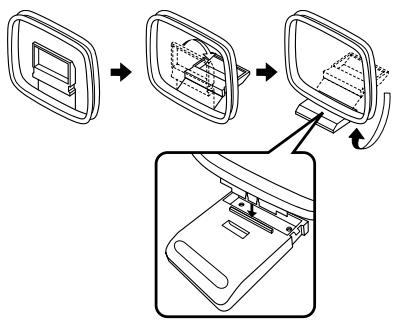
Fix the end of the FM antenna to a wall, and place the AM antenna.
Connecting the DAB/FM antenna (R-N303D)
Connect the supplied DAB/FM antenna to this unit and fix the antenna ends to a wall.
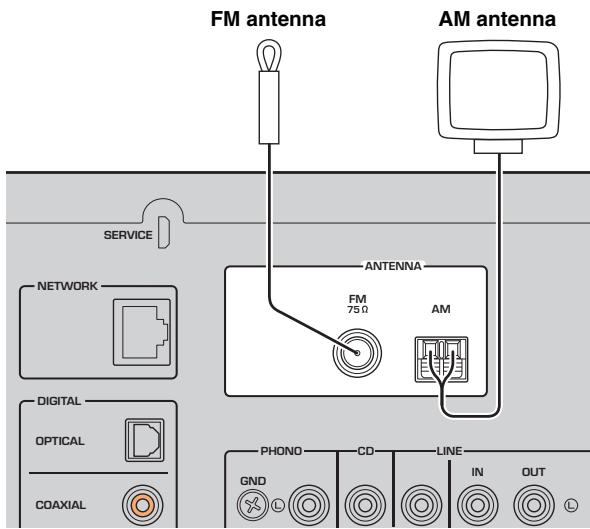
(except Europe model)
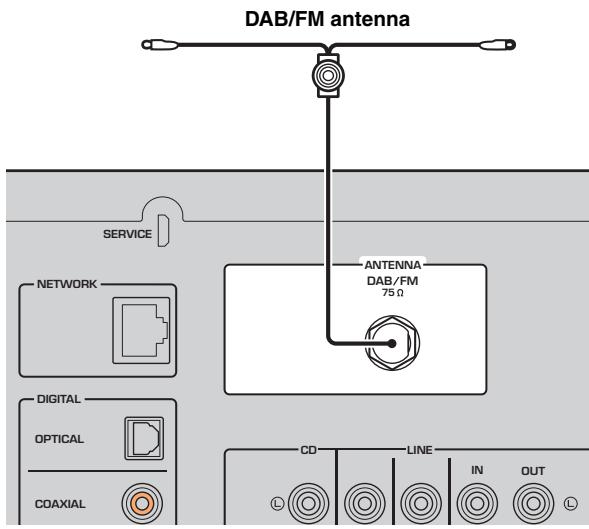
Note
- If you experience poor reception quality, install an outdoor antenna.
- Unwind only the length of cable needed from the AM antenna unit.
- The wires of the AM antenna have no polarity.
Note
- If you experience poor reception quality, install an outdoor antenna.
- The antenna should be stretched out horizontally.
Assembling the supplied AM antenna
Connecting the wires of the AM antenna
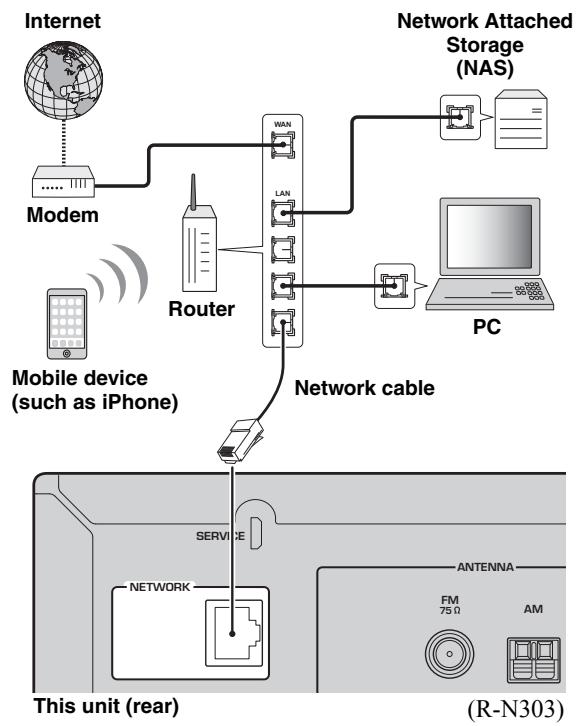
Connecting the network cable
Connect the unit to your router with a commercially-available STP network cable (CAT-5 or higher straight cable).
Note
Use STP (Shielded Twisted Pair) cable to prevent electromagnetic interference.
Preparing a wireless antenna
If you connect the unit wirelessly, erect the wireless antenna. For information on how to connect the unit to a wireless network, see "Connecting to network" (p. 14). For more information on using this unit with a Bluetooth device, see "Playing back music via Bluetooth" (p. 30).
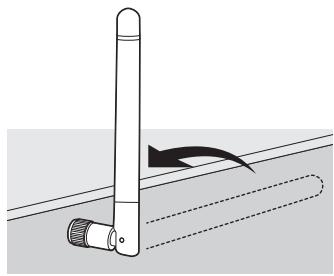
Notice
Do not apply excessive force on the wireless antenna. Doing so may damage the antenna.
Connecting power cord
Plug the power cord into an AC wall outlet after all other connections are complete.

WARNING
Only for General model: Before connecting the power cord, make sure you set VOLTAGE SELECTOR of this unit according to your local voltage. Improper setting of VOLTAGE SELECTOR may cause fire and damage to this unit.
Turning on the unit
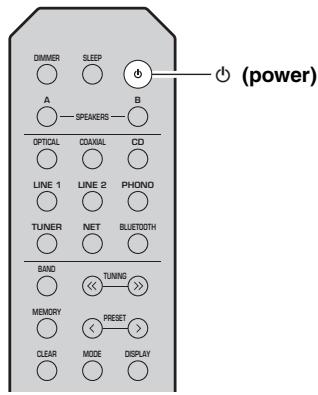
Press (power) to turn on the unit.
Connecting to a network
There are several methods to connect the unit to a network. Select a connection method according to your environment.
Note
- Some security software installed on your PC or the firewall settings of network devices (such as a router) may block the access of the unit to the network devices or the Internet. In these cases, configure the security software or firewall settings appropriately.
Each server must be connected to the same subnet as the unit. - To use the service via the Internet, broadband connection is strongly recommended.
- When playing a high-resolution audio source via the network, we recommend connecting by cable to the router for stable playback.
WAC (Wireless Accessory Configuration)
If you turn on the power to the unit right after you purchase or initialize it, the unit will automatically use the network settings of the iOS device (iPhone/iPad/iPod touch) and try to connect to a wireless LAN (unless the unit is already connected to a wired LAN).

R-N303 (example)
If you have an iOS device, follow the procedure from Step 6 in the section "Sharing the iOS device setting" (p. 15). If you plan to connect the unit wirelessly by another method, press RETURN to exit the current screen, and then proceed to one of the sections below.
Connecting with a wireless router (access point)
Connect to the network with the method listed below that corresponds to your environment.
Connecting with the MusicCast CONTROLLER app

See "Configuring MusicCast" (p. 19) for details.
Connecting using the Wi-Fi setting of the iOS device (iPhone / iPad / iPod touch)

Share the Wi-Fi setting of the iOS device (p. 15)
Connecting using WPS push button configuration on the wireless router (or access point)

Use the WPS push button configuration (p. 16)
Connecting with a wireless router (access point) without WPS push button configuration

Set the network connection manually (p. 16)
Connecting to a router using a cable
Connecting using the DHCP server function of the router

You can connect to the network by simply making a wired connection (p. 13)
Note
- For information on how to set the IP address and other menu items, please refer to page 40.
- To switch from a wireless LAN connection to a wired LAN connection, set the "Connection" under the "Network" setup menu to "Wired" (p. 40).
- Connecting without a wired router or wireless router (access point)
Connecting wirelessly to a mobile device (Wireless Direct)

Connect wirelessly with Wireless Direct (p. 17)
Note
When the unit is connected to the network with Wireless Direct, it cannot connect to any other wireless router (access point). To play back contents from the Internet or to update the firmware of this unit over the network, connect the unit to a network with a wired router or wireless router (access point).
Sharing the iOS device setting
You can easily setup a wireless connection by applying the connection settings on iOS devices (iPhone/iPad/iPod touch).
Before proceeding, confirm that your iOS device is connected to a wireless router (access point).
Note
- If you perform the following procedure, all network settings will be initialized.
- This configuration does not work if the security protocol of your wireless router (access point) is WEP. In this case, use another connection method.
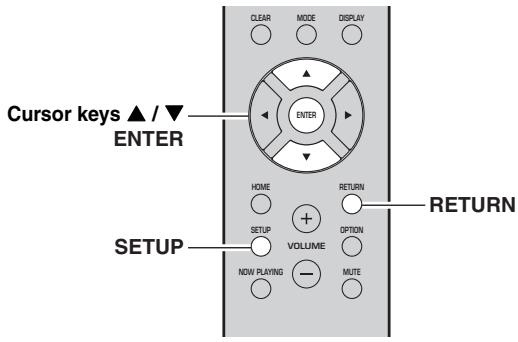
1 Press SETUP.
2 Use the cursor keys ( / ) to select "Network" and press ENTER.
Note
To return to the previous state, press RETURN.
3 Use the cursor keys ( / ) to select "Connection" and press ENTER.
4 Use the cursor keys ( / ) to select "Wireless" and press ENTER.
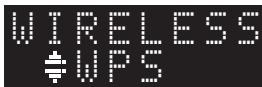
5 Use the cursor keys ( / ) to select "Share Setting" and then press ENTER twice.
Note
When connected to a wired network, the front display will show the messages "LAN CBL" and "Pls disconnect". Unplug the network cable from the unit, and press the ENTER key.
6 On the iOS device, select the unit as the AirPlay speaker in the Wi-Fi screen.
Example (iOS 10)
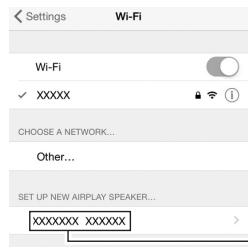
The name of this unit
7 Check that the "Network" field is set to your preferred network, and then tap "Next".
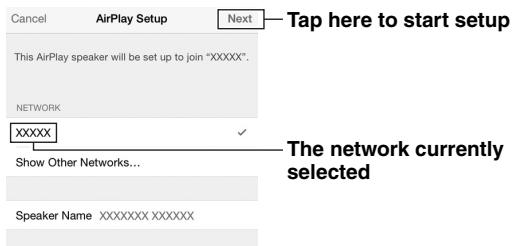
When the sharing process finishes, the unit is automatically connected to the selected network (access point).
When the setting finishes, verify whether the unit is connected to a wireless network (p. 18).
Configuring with the router's WPS push button
You can easily set up a wireless connection with one push of the WPS button.
Note
This configuration does not work if the security method of your wireless router (access point) is WEP or WPA2-TKIP. In this case, use another connection method.
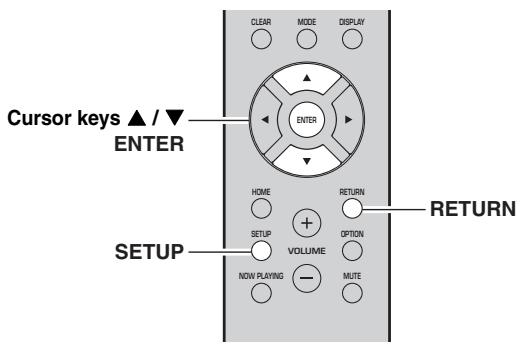
1 Press SETUP.
2 Use the cursor keys ( / ) to select "Network" and press ENTER.
Note
To return to the previous state, press RETURN.
3 Use the cursor keys ( / ) to select "Connection" and press ENTER.
4 Use the cursor keys ( / ) to select "Wireless" and press ENTER.
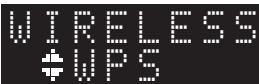
5 Press ENTER twice.
"Connecting" appears on the front display.
6 Push the WPS button on the wireless router (access point).
When the connection process finishes, "Completed" appears on the front display. When the setting finishes, verify whether the unit is connected to a wireless network (p. 18).
If "Completed" does not appear, repeat from Step 1 or try another connection method.
7 To exit from the menu, press SETUP.
About WPS
WPS (Wi-Fi Protected Setup) is a standard established by the Wi-Fi Alliance, which allows easy establishment of a wireless home network.
Set the wireless network connection manually
Before performing the following procedure, check the security method and security key on the wireless router (access point).
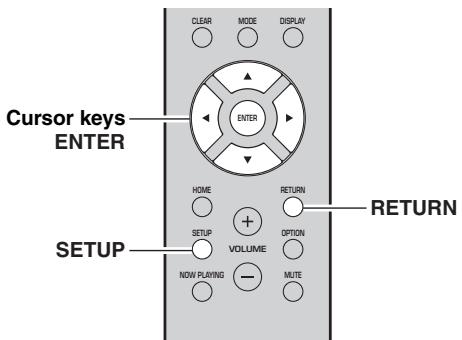
1 Press SETUP.
2 Use the cursor keys ( / ) to select "Network" and press ENTER.
Note
To return to the previous state, press RETURN.
3 Use the cursor keys ( / ) to select "Connection" and press ENTER.
4 Use the cursor keys ( / ) to select "Wireless" and press ENTER.
5 Use the cursor keys ( / ) to select "ManualSetting" and press ENTER.
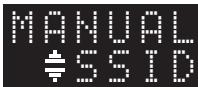
6 Use the cursor keys ( / ) to select "SSID" and press ENTER.
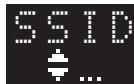

7 Use the cursor keys to enter the SSID on the wireless router (access point), and press RETURN to previous state.
Use the cursor keys ( /) to select a character and the cursor keys ( / ) to move the edit position. You can insert / delete a character, by pressing PRESET (insert) or PRESET (delete).
8 Use the cursor keys ( / ) to select "Security" and press ENTER.

9 Use the cursor keys ( / ) to select desired security method and press RETURN.
Settings
None, WEP, WPA2-PSK (AES), Mixed Mode
Note
If you select "None", the connection may be insecure since the communication is not encrypted.
10 Use the cursor keys ( / ) to select "Security Key" and press ENTER.

11 Use the cursor keys to enter the security key on the wireless router (access point), and press RETURN to previous state.
If you select "WEP" in Step 9, enter either 5 or 13 character string, or 10 or 26 hexadecimal digits. If you select "WPA2-PSK (AES)" or "Mixed Mode" in Step 10, enter either 8 to 63 character string or 64 hexadecimal digits.
Use the remote control keys as described in Step 7 to enter the key.
12 Use the cursor keys ( / ) to select "Connect [ENT]" and press ENTER to save the setting.
If the unit does not connect, check the SSID and security key on the wireless router (access point) and repeat from Step 6. Verify whether the unit is connected to a wireless network (p. 18).
13 To exit from the menu, press SETUP.
Connecting a mobile device to the unit directly (Wireless Direct)
Using Wireless Direct, this unit can operate as a wireless network access point that mobile devices can directly connect to.
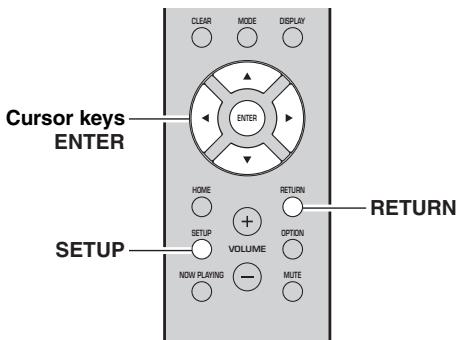
Note
You will not be able to connect your mobile device or this unit to the Internet while Wireless Direct is in use. For this reason, Internet-based services such as Internet radio will be unavailable.
1 Press SETUP.
2 Use the cursor keys ( / ) to select "Network" and press ENTER.
Note
To return to the previous state, press RETURN.
3 Use the cursor keys ( / ) to select "Connection" and press ENTER.
4 Use the cursor keys ( / ) to select "W.Direct" and press ENTER.
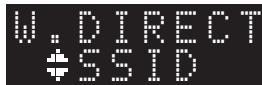
5 Press ENTER to display the SSID for this unit, and press RETURN to previous state.
6 Use the cursor keys ( / ) to select "Security" and press ENTER.

7 Use the cursor keys ( / ) to select desired security method and press RETURN.
Settings
None, WPA2-PSK (AES)
If you select "None", go to step 10 below.
Note
If you select "None", the connection may be insecure since the communication is not encrypted.
8 Use the cursor keys ( / ) to select "Security Key" and press ENTER.

9 Use the cursor keys to enter the security key on this unit, and press RETURN to previous state.
Enter either 8 to 63 character string or 64 hexadecimal digits.
Use the cursor keys ( /) to select a character and the cursor keys ( / ) to move the edit position.
You can insert / delete a character, by pressing PRESET (insert) or PRESET < < ( delete).
10 Use the cursor keys ( / ) to select "Connect [ENT]" and press ENTER to save the setting.
The SSID and security key information is required for setup of a mobile device.
When you select the "SSID" in Step 5, you can display the SSID configured for this unit.
11 Configure the Wi-Fi settings of a mobile device.
For details on settings of your mobile device, refer to the instruction manual of the mobile device.
(1) Enable the Wi-Fi function on the mobile device.
(2) Select the SSID of this unit from the list of available access points.
(3) When you are prompted for a password, enter the security key displayed in Step 9.
If the Wireless Direct connection cannot be made, the security key may be incorrect. Configure the Wi-Fi settings of a mobile device again. You can verify whether the unit is connected to a wireless network (p. 18).
12 To exit from the menu, press SETUP.
Verify the network connection status
Perform the following procedure to verify the unit's connection to a network.
Note
When using Wireless Direct, you will not be able to check the status of the network connection.
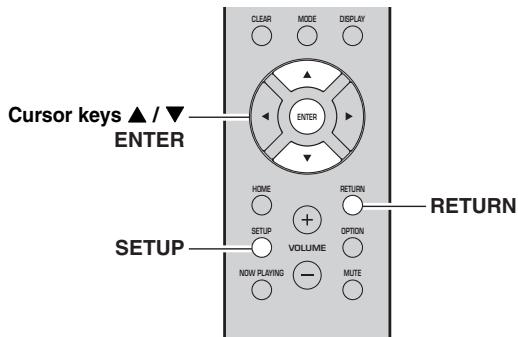
1 Press SETUP.
2 Use the cursor keys ( / ) to select "Network" and press ENTER.
Note
To return to the previous state, press RETURN.
3 Use the cursor keys ( / ) to select "Information" and press ENTER.
4 Use the cursor keys ( / ) to select "STATUS".
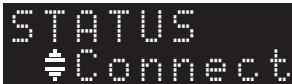
When "Connect" appears, the unit is connected to a network. If "Disconnect" appears, reset connection.
5 To exit from the menu, press SETUP.
Configuring MusicCast
About MusicCast
Use MusicCast to share music between MusicCast-compatible devices in multiple rooms.
With the dedicated "MusicCast CONTROLLER" app, you can easily enjoy music from your smartphone, a media server (a personal computer or NAS) or Internet radio (streaming services) wherever you are in your home.
- All MusicCast-compatible devices can be operated from the dedicated "MusicCast CONTROLLER" app
- Multiple devices that support MusicCast in separate rooms can be linked to play music simultaneously
Supports music playback through Internet radio (streaming services)
Network settings for devices that support MusicCast
Visit the following website for more information on MusicCast and on which devices are compatible. http://www.yamaha.com/musiccast/
Note
To use MusicCast, download the MusicCast Setup Guide from the Yamaha Downloads website.
http://download.yamaha.com/
MusicCast CONTROLLER

To use network functionality with a device that supports MusicCast, you need to use the "MusicCast CONTROLLER" dedicated app for mobile devices. Search for and install "MusicCast CONTROLLER" (free) in the App Store or on Google Play.
Registering a MusicCast network
Register this unit to a MusicCast network.
At the same time, configure the network connection settings for this unit.
Note
When connecting to a wireless network, have the SSID and the security key for the wireless LAN router (access point) on hand.
1 Start the "MusicCast CONTROLLER" app, and tap "SETUP".
Note
When configuring the settings on each subsequent device that supports MusicCast, tap "Register New Device" in the app's "..."
2 Following the instructions on the screen of your mobile device, use the "MusicCast CONTROLLER" and press the CONNECT button on the front of this unit's panel for five seconds.
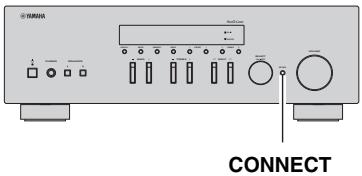
3 Following the instructions on the screen of your mobile device, use the "MusicCast CONTROLLER" to configure the network settings.
This completes the network settings for registering the device to the MusicCast network. Use "MusicCast CONTROLLER" to play back music.
Note
AirPlay and DSD sound cannot be transmitted. Music can only be played back from this unit.
Playback
Playing a source
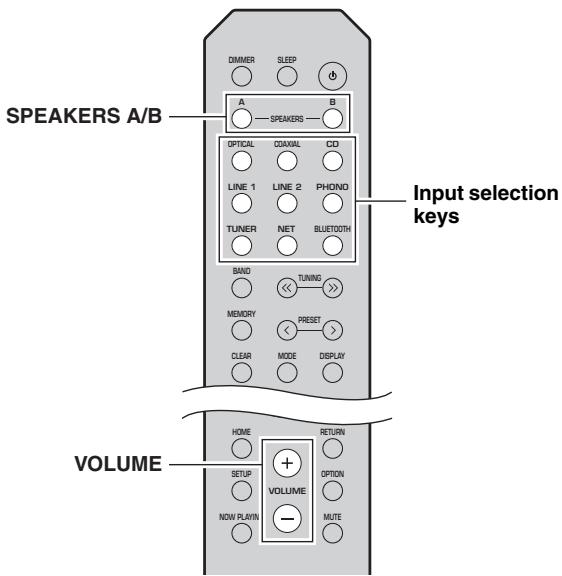
1 Press one of the input selection keys to select the input source you want to listen to.
2 Press SPEAKERS A and/or SPEAKERS B to select speakers A and/or speakers B.
The selected speakers will be enabled, and you can confirm which speakers are selected on the front display (p. 6).
Note
- When one set of speakers is connected using bi-wire connections, or when using two sets of speakers simultaneously (A and B), make sure "SP A" and "SP B" are displayed on the front display.
- When listening with headphones, turn off the speakers.
3 Play the source.
4 Press VOLUME + / - to adjust the sound output level.
Note
- You can adjust the tonal quality by using the BASS +/- and TREBLE +/- on the front panel (p. 5).
- You can also adjust the speaker balance by using the "Balance" option in the "SETUP" menu (p. 41).
Switching information on the front display
When you select a network source or Bluetooth as the input source, you can switch playback information on the front display.
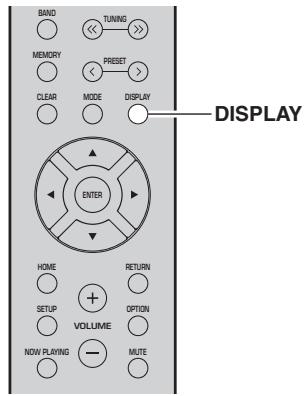
1 Press DISPLAY.
Each time you press the key, the displayed item changes.

About 3 seconds later, the corresponding information for the displayed item appears.

| Input source | Item |
| Bluetooth | Track (song title), Artist (artist name), Album (album name) |
| Server AirPlay | Track (song title), Artist (artist name), Album (album name), Time ( elapsed time) |
| Net Radio | Track (song title), Album (album name), Time ( elapsed time), Station (station name) |
Note
“” (underscore) will be displayed for characters not supported by the unit.
Using the sleep timer
Use this feature to automatically set this unit to standby mode after a certain amount of time. The sleep timer is useful when you are going to sleep while this unit is playing.
Note
The sleep timer can only be set with the remote control.
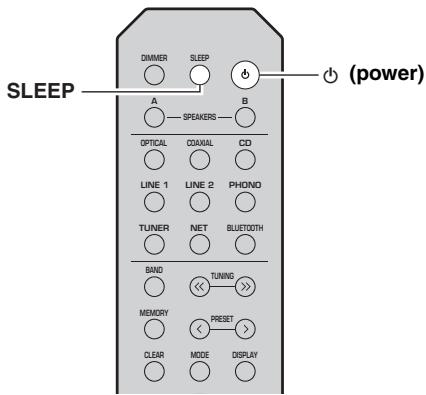
1 Press SLEEP repeatedly to set the amount of time before this unit is set to standby mode.
Each time you press SLEEP, the front display changes as shown below.

The SLEEP indicator blinks while setting the amount of time for the sleep timer.

If the sleep timer is set, the SLEEP indicator on the front display lights up.
Note
- To disable the sleep timer, select "Sleep Off".
- The sleep timer setting can also be canceled by pressing (power) to set this unit to standby mode.
Listening to FM/AM radio
Note
The R-N303D does not include an AM tuner.
FM/AM tuning
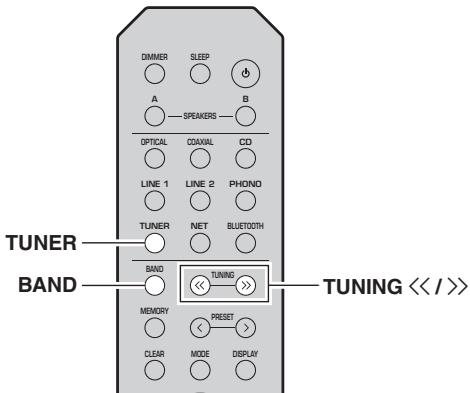
1 Press TUNER to select "TUNER" as the input source.
2 Press BAND repeatedly to select the reception band (FM or AM).
3 Press TUNING / to set a frequency.
To search stations automatically, press and hold TUNING / for a second.
If a broadcast is being received, the "TUNED" indicator on the front display will light up. If a stereo broadcast is being received, the "STEREO" indicator will also light up.
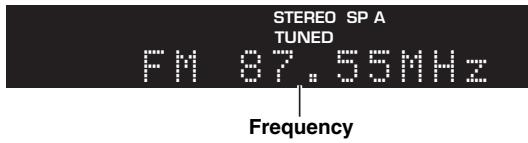
Note
- If the station signals are weak, tuning search does not stop at the desired station.
- When the signal reception for an FM radio station is unstable, switching to monaural may improve it.
Improving FM reception (FM mode)
If the signal from the station is weak and the sound quality is not good, set the FM band reception mode to monaural mode to improve reception.
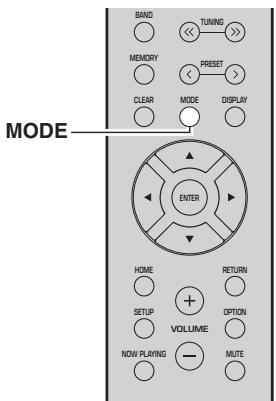
1 Press MODE repeatedly to select "Stereo" (automatic stereo mode) or "Mono" (monaural mode) when this unit is tuned in to an FM radio station.
When Mono is selected, FM broadcasts will be heard in monaural sound.
Note
The STEREO indicator on the front panel lights up while listening to a station in stereo mode (p. 6).
Using preset functions
You can register up to 40 radio stations as presets. Once you have registered stations, you can easily tune in to them by recalling the presets. You can automatically register FM stations that have strong signals. If the FM stations you want to store have weak signals, you can register them manually (p. 23).
Registering radio stations automatically (FM station only)
Note
- When you register radio stations automatically, radio stations currently registered to preset numbers may be overwritten.
- If the station you want to register is weak in signal strength, try using the manual preset tuning method.
- Only for U.K. and Europe models: Only Radio Data System broadcasting stations can be preset automatically.
- FM stations registered as presets using the automatic preset registration feature will be heard in stereo.
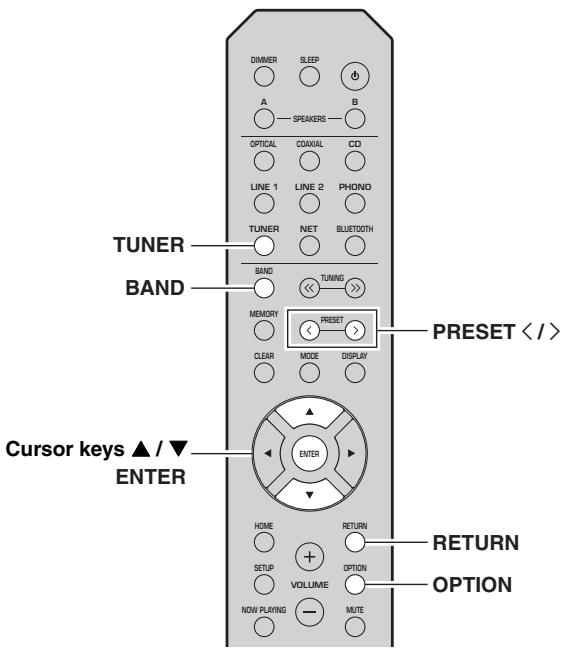
1 Press TUNER to select "TUNER" as the input source.
2 Press OPTION on the remote control. The "OPTION" menu is displayed (p. 37).
3 Use the cursor keys ( / ) to select "Auto Preset", and then press ENTER.

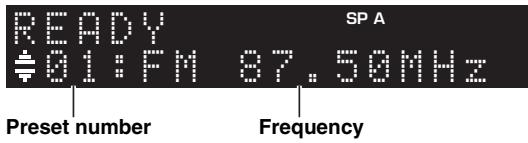
This unit starts scanning the FM band about 5 seconds later from the lowest frequency upwards. To begin scanning immediately, press ENTER.
Note
- Before scanning begins, you can specify the first preset number to be used by pressing PRESET / or cursor keys (/) on the remote control.
- To cancel scanning, press RETURN.
When scanning is complete, "FINISH" is displayed and then the display returns to original state.
Registering a radio station manually
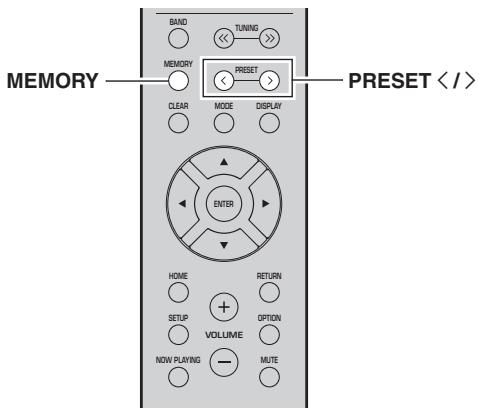
1 Tune in to the desired radio station.
See "FM/AM tuning" (p. 22).
2 Press MEMORY.
Note
By holding down MEMORY for more than 3 seconds, you can skip the following steps and automatically register the selected station to an empty preset number (i.e., the preset number following the last preset number used).
3 Press PRESET / to select the preset number to which the station will be registered.
When you select a preset number to which no station is registered, the message "Empty" is displayed.
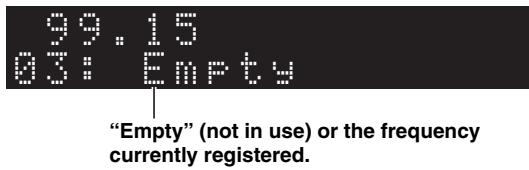
4 Press MEMORY.
When registration is complete, the display returns to the original state.
Note
To cancel registration, press RETURN or do not perform any operations for about 30 seconds.
Recalling a preset station
You can recall preset stations that you registered using either an automatic station preset or manual station preset.
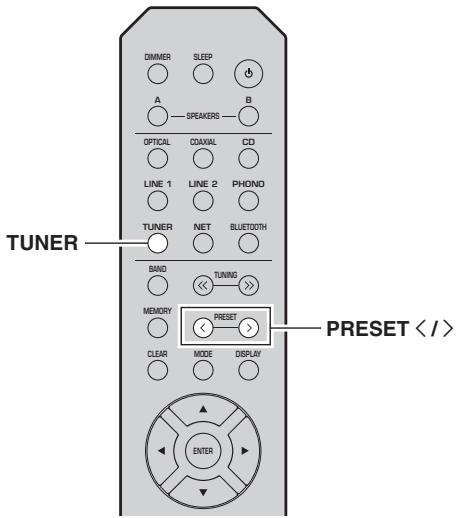
1 Press TUNER to select "TUNER" as the input source.
2 Press PRESET / to select a preset number.
Note
- Preset numbers to which no stations are registered are skipped.
- "No Presets" is displayed if no stations are registered.
Clearing a preset station
You can clear radio stations that are registered to the preset numbers.

1 Press TUNER to select "TUNER" as the input source.
2 Press OPTION.
3 Use the cursor keys ( / ) to select "Clear Preset" and press ENTER.
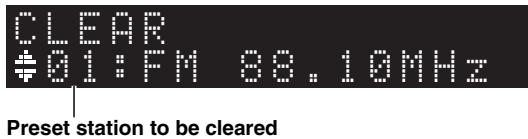
4 Use the cursor keys ( / ) to select a preset station to be cleared and press ENTER.
If the preset station is cleared, "Cleared" appears and then the next in-use preset number is displayed.
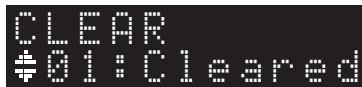
5 Repeat Step 4 until all desired preset stations are cleared.
6 To exit from the "OPTION" menu, press OPTION.
You can also use the following steps to cancel registration of a station.
1 Press TUNER to select "TUNER" as the input source.
2 Press CLEAR.
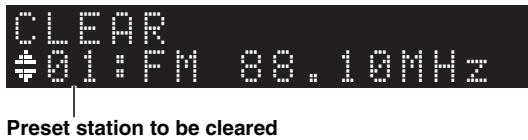
3 Use the PRESET < / > to select a preset station to be cleared and press CLEAR.
If the preset station is cleared, "Cleared" appears.
Radio Data System tuning (Only for U.K. and Europe models)
Radio Data System is a data transmission system used by FM stations in many countries. The unit can receive various types of Radio Data System data, such as "Program Service", "Program Type," "Radio Text" and "Clock Time", when it is tuned into a Radio Data System broadcasting station.
Displaying Radio Data System information
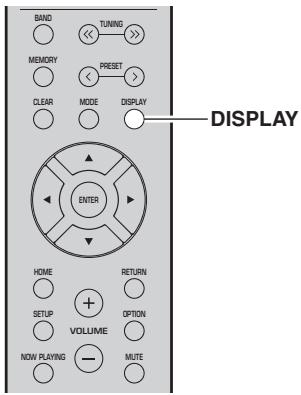
1 Tune in to the desired Radio Data System broadcasting station.
Note
We recommend that you first register radio stations automatically (p. 22) before tuning in to Radio Data System broadcasting stations.
2 Press DISPLAY.
Each time you press the key, the displayed item changes.
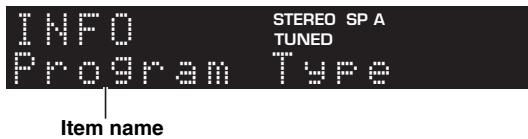
About 3 seconds later, the corresponding information for the displayed item appears.
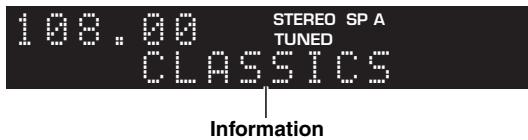
| Program Service | Program service name |
| Program Type | Current program type |
| Radio Text | Information on the current program |
| Clock Time | Current time |
| Frequency | Frequency |
Note
"Program Service", "Program Type", "Radio Text", and "Clock Time" are not displayed if the radio station does not provide the Radio Data System service.
Receiving traffic information automatically (R-N303 only)
When "TUNER" is selected as the input source, the unit automatically receives traffic information. To enable this function, follow the procedure below to set the traffic information station.
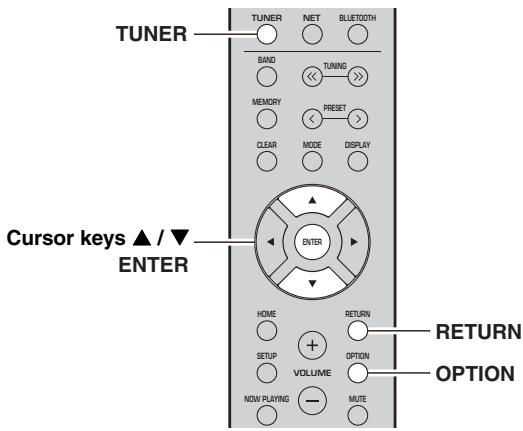
1 When "TUNER" is selected as the input source, press OPTION.
2 Use the cursor keys ( / ) to select "TrafficProgram" and press ENTER.
The traffic information station search will start in 5 seconds. Press ENTER again to start the search immediately.
Note
- To search upward/downward from the current frequency, press the cursor keys (/) while "READY" is displayed.
- To cancel the search, press RETURN.
- Texts in parentheses denote indicators on the front display.
The following screen appears for about 3 seconds when the search finishes.
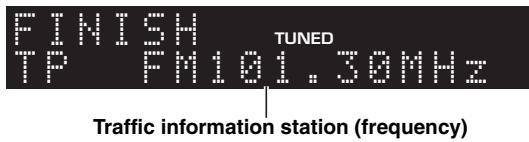
Note
"TP Not Found" appears for about 3 seconds when no traffic information stations are found.
Listening to DAB radio (R-N303D)
DAB (Digital Audio Broadcasting) uses digital signals for clearer sound and more stable reception compared to analog signals. This unit can also receive DAB + (an upgraded version of DAB) that allows for more stations using MPEG-4 audio codec (AAC + ) , which has a more efficient transmission method.
Note
This unit supports Band III (174 to 240MHz ) only.
Preparing the DAB tuning
Before tuning in to DAB stations, an initial scan must be performed. When you select the DAB for the first time, the initial scan is performed automatically.
To listen to a DAB station, connect the antenna as described in "Connecting the DAB/FM antenna (R-N303D)" (p. 12).
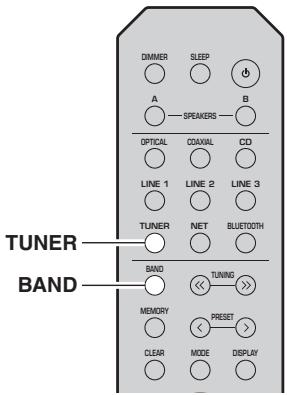
1 Press TUNER to select "TUNER" as the input source.
2 Press BAND to select the DAB band.
The initial scan starts. During the scan, the progress is displayed on the front panel display.
When the scan is complete, the top of the list of the scanned stations appears on the front panel display.
Note
- If no DAB radio stations are found by an initial scan, "Not Found" will appear on the front panel display, followed by "Off Air". Press BAND twice to re-select the DAB band and scan again.
- You can check reception strength of each DAB channel label (p. 29).
- To perform an initial scan again after some DAB radio stations are stored, select "Initiate Scan" (p. 37) in the "OPTION" menu. If you perform an initial scan again, the DAB radio stations currently registered to the preset numbers will be cleared.
Selecting a DAB radio station for reception
You can select a DAB radio station from the stations stored by the initial scan.
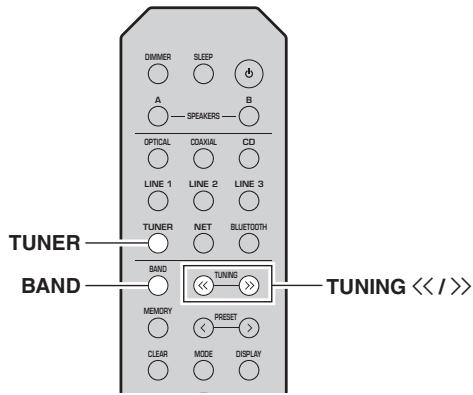
1 Press TUNER to select "TUNER" as the input source.
2 Press BAND to select the DAB band.
3 Press TUNING / to select a DAB radio station.
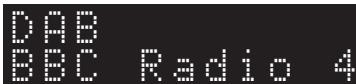
Note
- "Off Air" appears when the selected DAB radio station is currently not available.
- When the unit is receiving a secondary station, "2" appears next to "DAB".
Using preset function
You can register up to 40 DAB radio stations as presets. Once you have registered stations, you can easily tune in to them by recalling the presets.
Note
You can register up to 40 favorite radio stations each for DAB and FM bands.
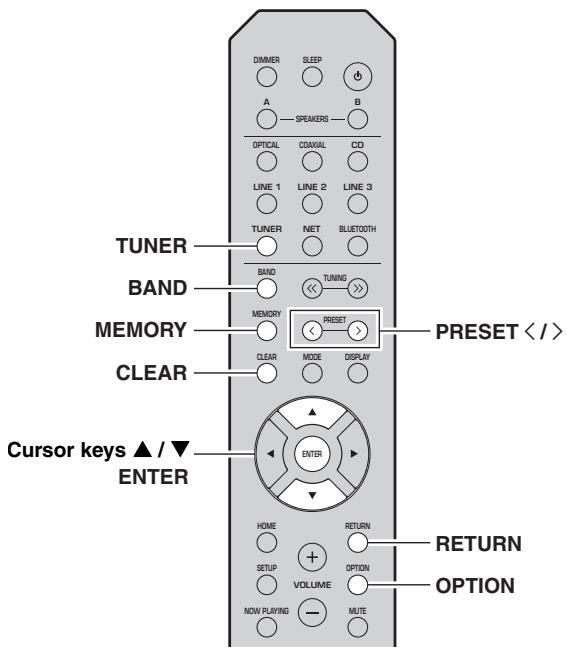
Registering a DAB radio station
Select a DAB radio station and register it to a preset number.
1 Tune in to the desired DAB radio station. See "Selecting a DAB radio station for reception" (p. 26).
2 Press MEMORY.
Note
By holding down MEMORY for more than 3 seconds, you can skip the following steps and automatically register the selected station to an empty preset number (i.e., the preset number following the last preset number used).
3 Press PRESET / to select the preset number to which the station will be registered.
When you select a preset number to which no station is registered, the message "Empty" is displayed.
When you select a preset number to which a station has already been registered, the message
"Overwrite?" is displayed.
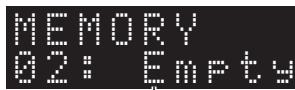
"Empty" (not in use) or "Overwrite?" (in use)
4 Press MEMORY.
When registration is complete, the display returns to the original state.
Note
To cancel registration, press RETURN or do not perform any operations for about 30 seconds.
Recalling a preset station
Tune in to a registered DAB radio station by selecting its preset number.
1 Press TUNER to select "TUNER" as the input source.
2 Press BAND to select the DAB band.
3 Press PRESET < / > to select the desired DAB radio station.
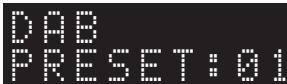
Note
- Preset numbers to which no stations are registered are skipped.
- If this unit does not have any preset stations, "No Presets" is displayed.
Clearing preset DAB radio stations
Clear DAB radio stations registered to the preset numbers.
1 Press TUNER to select "TUNER" as the input source.
2 Press BAND to select the DAB band.
3 Press OPTION to enter the "OPTION" menu. The "OPTION" menu for TUNER is displayed (p. 37).
4 Use the cursor keys ( / ) to select "Clear Preset", and then press ENTER.
5 Select the desired preset station number by using the cursor keys ( / ) repeatedly. The selected preset number blinks on the front panel display.
6 Press ENTER again to confirm.
"Cleared" is displayed on the front panel display. Then, another preset station is shown on the front panel display. When there is no more preset station, "No Presets" is displayed, and then the display returns to the "OPTION" menu.
To return the display to the original state, press RETURN.
You can also use the following steps to cancel registration of a station.
1 Press TUNER to select "TUNER" as the input source.
2 Press CLEAR.
3 Use the PRESET < / > to select a preset station to be cleared and press CLEAR.
If the preset station is cleared, "Cleared" appears.
Displaying the DAB information
This unit can receive various types of DAB information when it is tuned in to a DAB radio station.

1 Press TUNER to select "TUNER" as the input source.
2 Tune in to the desired DAB radio station.
3 Press DISPLAY.
Each time you press the key, the displayed item changes.
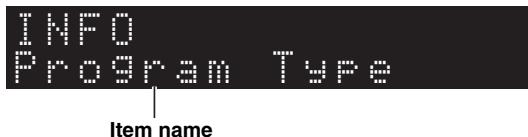
The selected item followed by a short description appears, and then the corresponding information for that item appears.
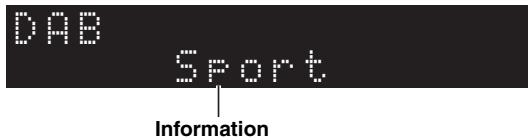
| Choice | Description |
| Service Label | Station name |
| DLS (Dynamic Label Segment) | Information on the current station |
| Ensemble Label | Ensemble name |
| Program Type | Station genre |
| Date And Time | Current date and time |
| Audio Mode | Audio mode (monaural/stereo) and bit rate |
| CH Label/Freq. | Channel label and frequency |
| Signal Quality | Signal reception quality (0 [none] to 100 [best]) |
Note
Some information may not be available depending on the selected DAB radio station.
Checking reception strength of each DAB channel label
You can check reception strength of each DAB channel label (0 [none] to 100 [best]).
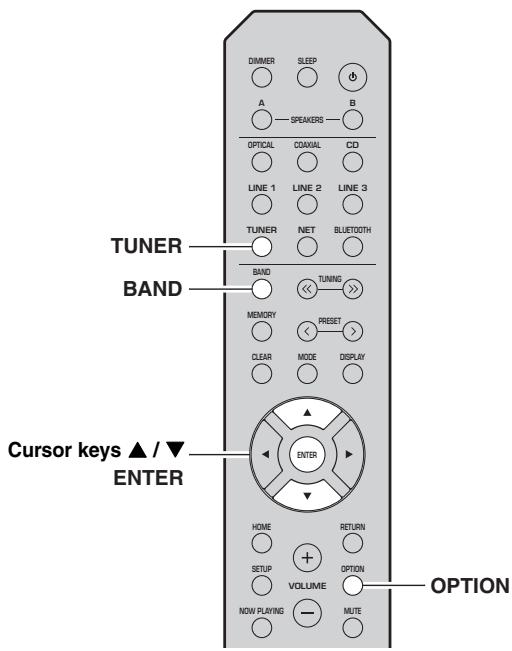
1 Press TUNER to select "TUNER" as the input source.
2 Press BAND to select the DAB band.
3 Press OPTION to enter the "OPTION" menu. The "OPTION" menu for TUNER is displayed (p. 37).
4 Use the cursor keys ( / ) to select "Tune Aid", and then press ENTER.
5 Use the cursor keys ( / ) to select the desired DAB channel label.
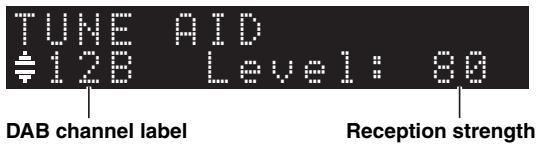
This unit supports Band III (174 to 240MHz only.
DAB frequency information
| Frequency | Channel label | Frequency | Channel label |
| 174.928 MHz | 5A | 208.064 MHz | 9D |
| 176.640 MHz | 5B | 209.936 MHz | 10A |
| 178.352 MHz | 5C | 211.648 MHz | 10B |
| 180.064 MHz | 5D | 213.360 MHz | 10C |
| 181.936 MHz | 6A | 215.072 MHz | 10D |
| 183.648 MHz | 6B | 216.928 MHz | 11A |
| 185.360 MHz | 6C | 218.640 MHz | 11B |
| 187.072 MHz | 6D | 220.352 MHz | 11C |
| 188.928 MHz | 7A | 222.064 MHz | 11D |
| 190.640 MHz | 7B | 223.936 MHz | 12A |
| 192.352 MHz | 7C | 225.648 MHz | 12B |
| 194.064 MHz | 7D | 227.360 MHz | 12C |
| 195.936 MHz | 8A | 229.072 MHz | 12D |
| 197.648 MHz | 8B | 230.784 MHz | 13A |
| 199.360 MHz | 8C | 232.496 MHz | 13B |
| 201.072 MHz | 8D | 234.208 MHz | 13C |
| 202.928 MHz | 9A | 235.776 MHz | 13D |
| 204.640 MHz | 9B | 237.488 MHz | 13E |
| 206.352 MHz | 9C | 239.200 MHz | 13F |
Playing back music via Bluetooth
You can play back music files stored on a Bluetooth device (such as mobile device) on the unit.
Please also refer to the owner's manual of your Bluetooth device.
This unit

Bluetooth device (such as mobile device)
Note
- To use the Bluetooth function, set "Bluetooth" (p. 41) in the "SETUP" menu to "On".
- A Bluetooth device may not be detected by the unit or some feature may not be compatible, depending on the model.
- You can transmit audio to Bluetooth speakers or headphones using the MusicCast CONTROLLER app. The audio output can only be selected from the MusicCast CONTROLLER app.
Connecting a Bluetooth device (pairing)
Before you can connect a Bluetooth device to the unit for the first time, a pairing operation is required. Pairing is an operation that registers the Bluetooth devices with each other beforehand. Once pairing has been completed, subsequent reconnection will be easy even after the Bluetooth connection is disconnected.
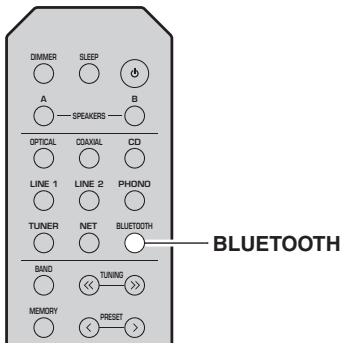
1 Press BLUETOOTH to select "Bluetooth" as the input source.
If another Bluetooth device is already connected, disconnect the Bluetooth connection before you perform a pairing operation.
2 Turn on the Bluetooth function of the Bluetooth device.
3 On the Bluetooth device, select the unit's model name from the available device list.
After pairing has been completed and the unit is connected to the Bluetooth device, "Connected" appears on the front display, and Bluetooth indicator will light up.
BT
SP A
Connected

Note
- If the pass key is required, enter the number "0000".
- You can change the network device name of this unit that will be displayed when connecting Bluetooth devices, from
"Network Name" (p. 41) on the settings menu.
Playing back Bluetooth device contents
Connect a paired Bluetooth device and start playback. Check the following beforehand:
- Pairing has been completed.
- Bluetooth function on the Bluetooth device is turned on.
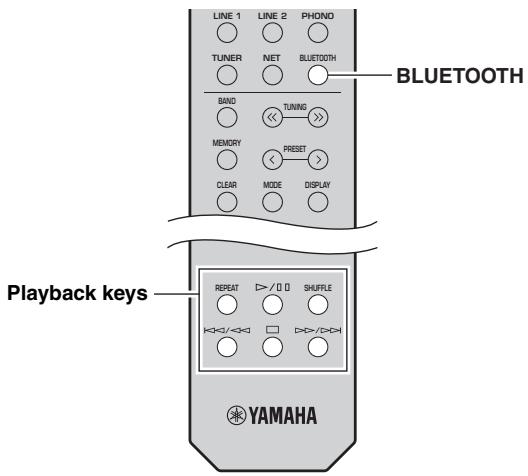
1 Press BLUETOOTH to select "Bluetooth" as the input source.
Note
If the unit detects the Bluetooth device previously connected, the unit automatically connects to the Bluetooth device after Step 1. To establish another Bluetooth connection, first disconnect the current Bluetooth connection.
2 Operate the Bluetooth device to establish a Bluetooth connection.
Select the unit's model name from the Bluetooth device list on your device.
When a connection is established, BLUETOOTH indicator on the front display will light up.
Note
If you cannot connect the Bluetooth device, please perform pairing again (p. 30).
3 Operate the Bluetooth device to play back music.
Note
You can use the playback keys on the remote control to control playback.
Disconnecting a Bluetooth connection
Follow one of the procedures below to disconnect a Bluetooth connection.
- Turn off the Bluetooth function on the Bluetooth device.
- Hold down BLUETOOTH on the remote control for at least 3 seconds.
- Set the input on this unit to anything except for "Bluetooth".
Bluetooth
- Bluetooth is a technology for wireless communication between devices within an area of about 10 meters (33 ft) employing the 2.4GHz frequency band, a band which can be used without a license.
Handling Bluetooth communications
- The 2.4 GHz band used by Bluetooth compatible devices is a radio band shared by many types of equipment. While Bluetooth compatible devices use a technology minimizing the influence of other components using the same radio band, such influence may reduce the speed or distance of communications and in some cases interrupt communications.
- The speed of signal transfer and the distance at which communication is possible differs according to the distance between the communicating devices, the presence of obstacles, radio wave conditions and the type of equipment.
- Yamaha does not guarantee all wireless connections between this unit and devices compatible with Bluetooth function.
Playing back music stored on media servers (PCs/NAS)
You can play back music files stored on your PC or DLNA-compatible NAS on the unit.
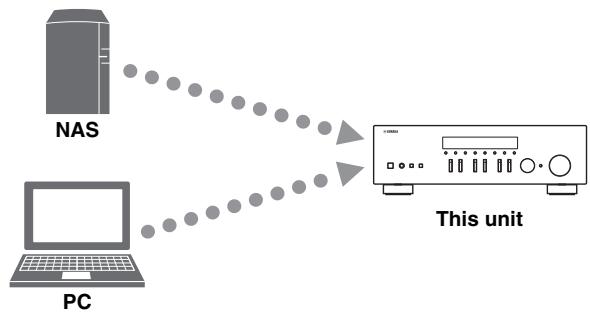
Note
- To use this function, the unit and your PC/NAS must be connected to the same router (p. 13). You can check whether the network parameters (such as the IP address) are properly assigned to the unit in "Information" (p. 40) in the "SETUP" menu.
- To play back music files, the server software installed on the PC/NAS must support the music file formats that you want to play back.
- The audio may be interrupted while using the wireless network connection. In this case, use the wired network connection.
- You can connect up to 16 media servers to this unit.
- Refer to "Supported file formats" (p. 52) for information regarding supported file formats.
Setting the media sharing of music files
To play back music files in your computer with this unit, you need to make the media sharing setting between the unit and computer (Windows Media Player 12 or later). In here, setting with Windows Media Player in Windows 7 is taken as an example.
When using Windows Media Player 12
1 Start Windows Media Player 12 on your PC.
2 Select "Stream", then "Turn on media streaming...".
(Example of English version)
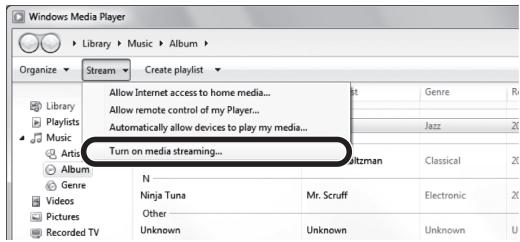
The control panel window of your PC appears.
3 Click "Turn on media streaming".
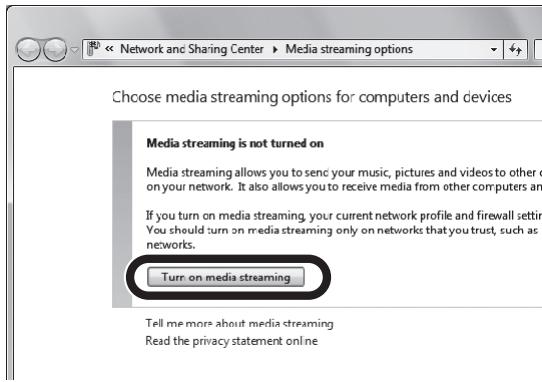
4 Select "Allowed" from the drop-down list next to the unit's model name.
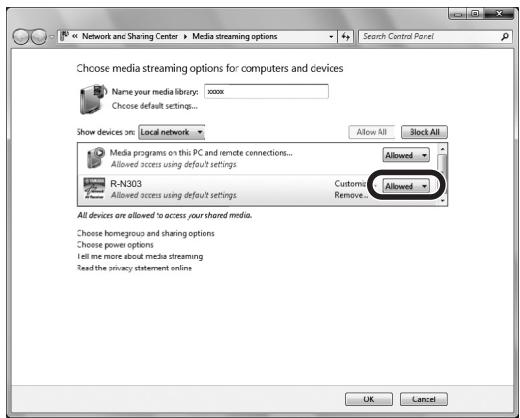
5 As with Step 4, select "Allowed" from the drop-down list next to devices (PCs or mobile devices) which you want to use as the media controllers.
6 Click "OK" to exit.
When using a PC or a NAS with other DLNA server software installed
Refer to the instruction manual for the device or software and configure the media sharing settings.
Playback of PC music contents
Follow the procedure below to operate the PC music contents and start playback.
Note
“” (underscore) will be displayed for characters not supported by the unit.

1 Press NET repeatedly to select "Server" as the input source.

2 Use the cursor keys ( / ) to select a music server and press ENTER.
3 Use the cursor keys to select an item and press ENTER.
If a song is selected, playback starts and the playback information is displayed.

Note
- If playback of a music file selected from the unit is ongoing on your PC, the playback information is displayed.
- You can register the current playback song as a preset (p. 36).
- If you press the DISPLAY repeatedly, you can switch the playback information on the front display (p. 20).
Use the following remote control keys to control playback.
| Keys | Function | |
| Cursor keys | Select a music file or folder. | |
| ENTER | Starts playback if pressed while content is selected. Moves down one level if pressed while a folder is selected. | |
| RETURN | Moves up one level. | |
| Playback keys | ▷/□ | Stops/resumes playback. |
| □ | Stops playback. | |
| [K] / [K] | Skips forward/backward. | |
| [▷] / [▷] | ||
| HOME | Displays the root directory of the music server. | |
| NOW PLAYING | Displays information about the song that is playing. | |
Note
You can also use a DLNA-compatible Digital Media Controller (DMC) to control playback. For details, see "DMC Control" (p. 40) in the "SETUP" menu.
Repeat/shuffle settings
You can configure the repeat/shuffle settings for the playback of PC music content.
1 When the input source is "Server," press REPEAT or SHUFFLE on the playback key repeatedly to select the playback method.
| Playback keys | Setting | Function |
| REPEAT | Off | Turns off the repeat function. |
| One | Plays back the current song repeatedly. | |
| All | Plays back all songs in the current album (folder) repeatedly. | |
| SHUFFLE | Off | Turns off the shuffle function. |
| On | Plays back songs in the current album (folder) in random order. |
Automatic playback settings
Use these settings to choose whether to automatically play back music from your PC or from the server when turning on the unit or when switching between inputs.
1 Press OPTION.
2 Use the cursor keys ( / ) to select "Auto Playback", and press ENTER.
3 Turn Auto Playback ON or OFF using the cursor keys (▲/▶).
4 Press OPTION when you are finished.
Listening to Internet radio
You can listen to Internet radio stations from all over the world.
Note
- To use this function, the unit must be connected to the Internet (p. 13). You can check whether the network parameters (such as the IP address) are properly assigned to the unit in "Information" (p. 40) in the "SETUP" menu.
- You may not be able to receive some Internet radio stations.
- This unit uses the "airable.Radio" service. airable is a service of Tune In GmbH.
- This service may be discontinued without notice.
- Folder names may differ, depending on the language.
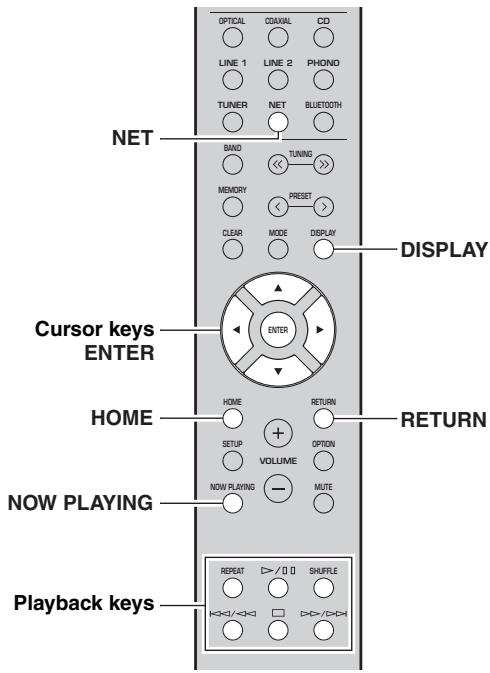
1 Press NET repeatedly to select "NetRadio" as the input source.
The station list appears on the front display.

2 Use the cursor keys to select an item and press ENTER.
If an Internet radio station is selected, playback starts and the playback information is displayed.

Use the following remote control keys to control playback.
| Keys | Function | |
| Cursor keys | Select the Internet radio station or category such as the genre. | |
| ENTER | Starts playback if pressed while an Internet radio station is selected. Moves down one level if pressed while a category is selected. | |
| RETURN | Moves up one level. | |
| Playback keys | □ | Stops playback. |
| HOME | Displays the top categories if pressed during playback. | |
| NOW PLAYING | Displays the playback information for the Internet radio station. | |
Note
- You can register the current playback station as a preset (p. 36).
- If you press the DISPLAY repeatedly, you can switch the playback information on the front display (p. 20).
- Some information may not be available depending on the station.
Playing back music with AirPlay
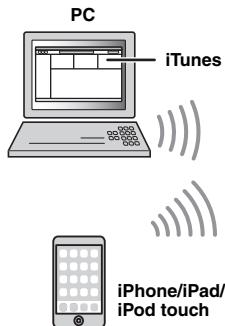
The AirPlay function allows you to play back iPhone/ iPad/iPod touch/iTunes music on the unit via network.

Note
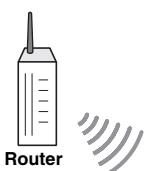
To use this function, the unit and your PC or iPhone must be connected to the same router (p. 13). You can check whether the network parameters (such as the IP address) are properly assigned to the unit in "Information" (p. 40) in the "SETUP" menu.
AirPlay works with iPhone, iPad, and iPod touch with iOS 4.3.3 or later, Mac with OS X Mountain Lion or later, and PC with iTunes 10.2.2 or later. (as of June 2017)
Playback of iTunes/iPhone music contents
Follow the procedure below to play back iTunes/iPhone music contents on the unit.
1 Turn on the unit, and start iTunes on the PC or display the playback screen on the iPhone.
If the iTunes/iPhone recognizes the unit, the AirPlay icon appears.
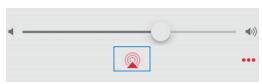
iOS 10 (example)
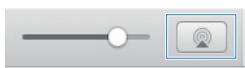
iTunes (example)
Note
If the icon does not appear, check whether the unit and PC/iPhone are connected to the router properly.
2 On the iTunes/iPhone, click (tap) the AirPlay icon and select the unit (network name of the unit) as the audio output device.
3 Select a song and start playback.
The unit automatically selects "AirPlay" as the input source and starts playback. The playback information is displayed on the front display.
Note
- If you press the DISPLAY repeatedly, you can switch the playback information on the front display (p. 20).
- You can turn on the unit automatically when starting playback on iTunes or iPhone by setting "Standby (Network Standby)" (p. 41) in the "SETUP" menu to "On" or "Auto".
- You can edit the network name (the unit's name on the network) displayed on iTunes/iPhone in "Network Name" (p. 41) in the "SETUP" menu.
- You can adjust the unit's volume from the iTunes/iPhone during playback.

CAUTION
Using iTunes or an iPhone to adjust the volume may make the volume unexpectedly loud, which could result in damage to your hearing or to the device. Stop playback immediately on iTunes or on your iPod if the playback volume is too loud. We recommend that you use the "Vol.Interlock (Volume interlock)" (p. 38) on the Option menu to limit the changes in volume from iTunes or your iPhone beforehand.
Use the following remote control keys to control playback.
| Keys | Functions | |
| Playback keys | ▷/□ | Stops/resumes playback. |
| □ | Stops playback. | |
| ▷/▷/▷ | Skipping forward/backward. | |
| ▷/▷/▷ | ||
| REPEAT | Changes the Repeat settings. | |
| SHUFFLE | Changes the Shuffle settings. | |
Registering the current playback song/station (Preset function)
When you select a network source as the input source, you can register the current playback song or streaming station as a preset. You can program up to 40 such presets. You can then easily recall any preset song/station by selecting its preset number.
The following input sources can be set as presets. Server, Net Radio, Bluetooth and streaming services.
Note
- Only the input source will be registered for "Bluetooth". Individual songs cannot be registered.
- Using the MusicCast CONTROLLER app (p. 19) enables you to register contents (songs, radio broadcast stations) and listen to them.
- When you register music files stored on a PC/NAS, this unit memorizes the relative position of the music files in the folder. If you have added or deleted any music files to or from the folder, this unit may not recall the music file correctly. In such cases, register the items again.
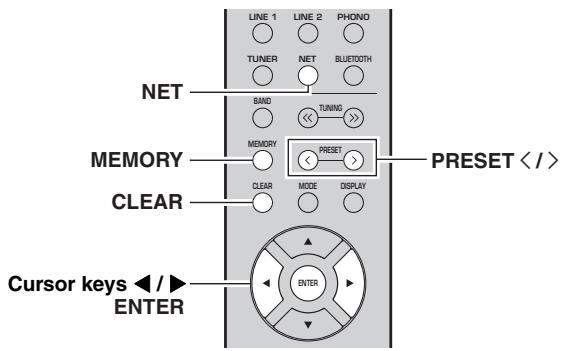
Registering to a preset
1 Playback a song or streaming station you want to register.
2 Hold down MEMORY for more than 3 seconds.
The first time you register a song/station, you will be prompted to register the selected song/station to preset number "01". You will be also prompted to register each additional song/station you select to the next available preset number.
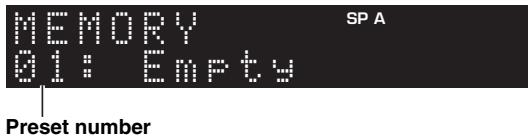
Note
To select a preset number for registering, press PRESET / or the cursor keys (▶).
3 Press MEMORY again to register preset.
Note
To cancel registration, press RETURN.
Recalling a preset
1 Select NET or BLUETOOTH as the input source.
2 Press PRESET < / > to select a preset number.
3 Press ENTER to recall preset.
Note
- A few seconds after you select the preset number, playback of the selected preset will start.
- To cancel recalling preset, press RETURN.
Clearing a preset
1 Select NET or BLUETOOTH as the input source.
2 Press PRESET < / > to select a preset number.
3 Press CLEAR to clear the preset.
If the preset station is cleared, "Empty" appears.
ADVANCED OPERATION
Configuring playback settings for different playback sources (OPTION menu)
You can configure separate playback settings for different playback sources. This menu allows you to easily configure settings during playback.
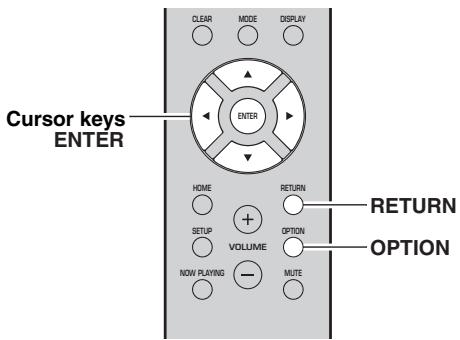
1 Press OPTION.

2 Use the cursor keys to select an item and press ENTER.
Note
To return to the previous state during menu operations, press RETURN.
3 Use the cursor keys ( / ) to select a setting.
4 To exit from the menu, press OPTION.
OPTION menu items
Note
Available items vary depending on the selected input source.
| Item | Function | Page |
| Volume Trim | Corrects volume differences between input sources. | 37 |
| Signal Info. | Displays information about the audio signal. | 38 |
| Auto Preset | Automatically registers FM radio stations with strong signals as presets. | 22 |
| Clear Preset | Clear radio stations registered to preset numbers. | 24, 28 |
| Initiate Scan*1 | Performs an initial scan for DAB radio reception. | 26 |
| Tune Aid*1 | Checks reception strength of each DAB station. | 29 |
| TrafficProgram*2 | Automatically searches for a traffic information station. | 25 |
| Vol.Interlock | Enables/Disables volume controls from iTunes/iPhone via AirPlay. | 38 |
| Auto Playback | Use these settings to choose whether to automatically play back music from your PC or from the server when turning on the unit or when switching between inputs. | 33 |
1 Only for R-N303D
2 Only for R-N303 UK and Europe models
Volume Trim
Corrects volume differences between input sources. If you are bothered by volume differences when switching between input sources, use this function to correct it.
Note
This setting is applied separately to each input source.
Setting range
-10 to +10 (increments of 1)
Default
0
Signal Info.
Displays information about audio signal.
Choices
| FORMAT | Audio format of the input signal |
| SAMPLING | The number of samples per second of the input digital signal |
Note
To switch the information on the front display, press the cursor keys ( /) repeatedly.
Vol.Interlock (Volume interlock)
Enables/disables volume controls from iTunes/iPhone via AirPlay.
Settings
| Off | Disables volume controls from iTunes/iPhone. |
| Ltd (default) | Enables volume controls from iTunes/iPhone within the limited range (1 to 60 and mute). |
| Full | Enables volume controls from iTunes/iPhone in the full range. |
Configuring various functions (SETUP menu)
You can configure the unit's various functions.
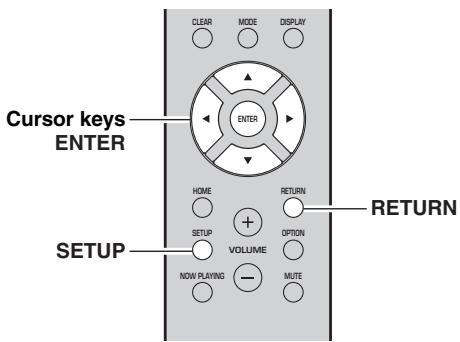
1 Press SETUP.

2 Use the cursor keys ( / ) to select and press ENTER.

3 Use the cursor keys ( / ) to select a setting and press ENTER.

Note
To return to the previous state during menu operations, press RETURN.
4 Exit from the menu, press SETUP.
SETUP menu items
| Menu item | Function | Page | |
| Network | Connection | Selects the network connection method. | 40 |
| Information | Displays the network information on the unit. | 40 | |
| IP Address | Configures the network parameters (such as IP address). | 40 | |
| DMC Control | Selects whether to allow a DLNA-compatible Digital Media Controller (DMC) to control playback. | 40 | |
| Standby (Network Standby) | Selects whether to enable/disable the function that turns on the unit from other network devices. | 41 | |
| Network Name | Edits the network name (the unit's name on the network) displayed on other network devices. | 41 | |
| Update (Network Update) | Updates the firmware via the Internet. | 41 | |
| Bluetooth | On/Off | Enables/disables the Bluetooth functions. | 41 |
| Standby (Bluetooth Standby) | Selects whether to enable/disable the function that turns on the unit from Bluetooth devices (Bluetooth standby). | 41 | |
| Balance | Adjusts the sound output balance of the left and right speakers to compensate for sound imbalances. | 41 | |
| Max Volume | Sets the maximum volume to prevent excessive loudness. | 41 | |
| InitialVolume | Sets the initial volume for when this receiver is turned on. | 42 | |
| AutoPowerStby (Auto Power Standby) | Enables/disables the auto-standby function. | 42 | |
Network
Configures the network settings.
Connection
Selects the network connection method.
| Wired | Select this option when you want to connect the unit to a network with a commercially-available network cable (p. 13). |
| Wireless | Select this option when you want to connect the unit to a network via the wireless router or access point (p. 15, 16, 16). |
| W.Direct (Wireless Direct) | Select this option when you want to connect a mobile device to the unit directly. For details on settings, see “Connecting a mobile device to the unit directly (Wireless Direct)” (p. 17). |
Note
If the unit is operating in MusicCast Extend mode, "Extend" will be displayed. For details on Extend mode, see the MusicCast Setup Guide on the Yamaha website.
Information
Displays the network information on the unit.
| NEW FW | Appears if an update for this unit's firmware is available (p. 45). |
| STATUS | The connection status of the network. |
| MC NET | Status of the MusicCast Network. If “Ready” appears, you can use the MusicCast CONTROLLER app. |
| MAC | Displays MAC address of the unit. MAC address will vary depending on the connection method (wired LAN connection or wireless LAN / Wireless Direct connection). |
| SSID | (When using wireless LAN connection or Wireless Direct) TheSSID of this unit on the wireless network. |
| IP | IP address |
| SUBNET | Subnet mask |
| GATEWAY | The IP address of the default gateway |
| DNS P | The IP address of the primary DNS server |
| DNS S | The IP address of the secondary DNS server |
IP Address
Configures the network parameters (such as IP address).
DHCP
Select whether to use a DHCP server.
| Off | Does not use a DHCP server. Configure the network parameters manually. For details, see “Manual network settings” below. |
| On (default) | Uses a DHCP server to automatically obtain the unit’s network parameters (such as IP address). |
Manual network settings
1 Set "DHCP" to "Off".
2 Use the cursor keys ( / ) to select a parameter type.
| IP | Specifies an IP address. |
| SUBNET | Specifies a subnet mask. |
| GATEWAY | Specifies the IP address of the default gateway. |
| DNS P | Specifies the IP address of the primary DNS server. |
| DNS S | Specifies the IP address of the secondary DNS server. |
3 Use the cursor keys ( / ) to select the edit position.

(Example: IP address setting)
Use the cursor keys ( / ) to switch between segments (Address1, Address2...) of the address.
4 Use the Cursor keys ( / ) to change a value.
5 To exit from the menu, press SETUP.
DMC Control
Selects whether to allow DLNA-compatible Digital Media Controller (DMC) to control playback.
| Disable | Does not allow DMCs to control playback. |
| Enable (default) | Allows DMCs to control playback. |
Note
A Digital Media Controller (DMC) is a device that can control other network devices through the network. When this function is enabled, you can control playback of the unit from DMCs (such as Windows Media Player 12) on the same network.
Standby (Network Standby)
Selects whether the unit can be turned on from other network devices (network standby).
| Off | Disables the network standby function. |
| On | Enables the network standby function. (The unit consumes more power than when “Off” is selected.) |
| Auto (default) | Enables the network standby function. The unit enters power-saving mode eight hours after it is disconnected from the network. |

With an advanced energy saving design, this product achieves a low power consumption of not more than two watts when in Network Standby mode.
Network Name
Edits the network name (the unit's name on the network) displayed on other network devices.
Select "Network Name".
For information on selecting a menu option, refer to the steps described on page 39.
R-N303 (example)

2 Press ENTER to enter the name edit display.
R-N303 (example)

3 Use the cursor keys ( / ) to select a character and ( / ) to move the edit position.
You can insert / delete a character, by pressing PRESET (insert) or PRESET < < ( delete).
4 To confirm the new name, press ENTER.
5 To exit from the menu, press SETUP.
Update (Network Update)
Updates the firmware via the network.
| Perform Update | Starts the process to update the unit's firmware. For details, see “Updating the unit's firmware” (p. 45). |
| Version | Displays the version of the firmware installed on the unit. |
| ID | Displays the system ID number. |
Bluetooth
Configures the Bluetooth settings.
On/Off
Enables/disables the Bluetooth function (p. 30).
| Off | Disables the Bluetooth function. |
| On (default) | Enables the Bluetooth function. Immediately after selecting the “On”, output of the network source is paused. |
Standby (Bluetooth Standby)
Selects whether to enable/disable the function that turns on the unit from Bluetooth devices (Bluetooth standby). If this function is set to "On", the unit automatically turns on when a connect operation is performed on the Bluetooth device.
| Off | Disables the Bluetooth standby function. |
| On (default) | Enables the Bluetooth standby function. (The unit consumes more power than when “Off” is selected.) |
Note
This setting is not available when "Standby (Network Standby)" (p. 41) is set to "Off".
Balance
Adjusting the sound output balance of the left and right speakers to compensate for sound imbalance caused by speaker locations or listening room condition.
Setting range
L + 10 to R + 10
Default
Center
Max Volume
Sets the maximum volume to prevent excessive loudness.
Setting range
1 to 99 (1step increments), Max
Default
Max
InitialVolume
Sets the initial volume when the receiver is turned on.
Setting range
Off, Mute, 1 to 99 (1step increments), Max
Default
Off
AutoPowerStby (Auto Power Standby)
Enables/disables the auto-standby function. If you do not operate the unit for the specified time, the unit will automatically go into standby mode.
| Off | Does not set the unit to standby mode automatically. |
| On | Sets the unit to standby mode automatically. While NET or BLUETOOTH is selected as the input source, the unit will switch to standby mode if the selected source is not played back for 20 minutes. For all input sources, the unit will switch to standby mode if it is not operated for 8 hours. |
Default
U.K. and Europe models: On Other models: Off
Note
Just before the unit enters standby mode, "AutoPowerStby" appears and then countdown starts in the front display.
Configuring the system settings (ADVANCED SETUP menu)
Configure the system settings of the unit while viewing the front display. The ADVANCED SETUP menu can be operated from the front panel.
1 Press (power) to turn off the unit.
2 While holding down RETURN on the front panel, press (power).
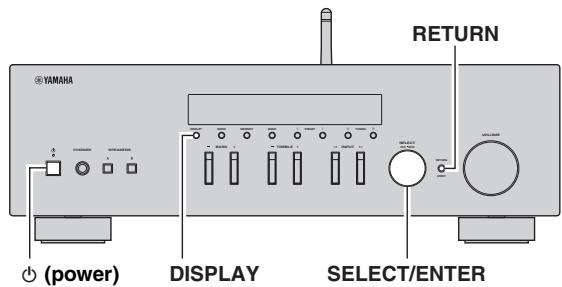
3 Rotate SELECT/ENTER to select an item.
4 Press SELECT/ENTER to select a setting.
5 Press (power) to set the unit to turn off and turn it on again.
The new settings take effect.
ADVANCED SETUP menu items
| Item | Function | Page |
| VERSION | Checks the version of firmware currently installed on the unit. | 43 |
| REMOTE ID | Selects the unit's remote control ID. | 43 |
| TU* | Sets tuner frequency step. | 43 |
| INIT | Restores the default settings. | 43 |
| UPDATE | Updates the firmware. | 44 |
- Only for Asia and General models
Checking the firmware version (VERSION)
Check the version of firmware currently installed on the unit.
Note
- You can also check the firmware version in "Update (Network Update)" (p. 41) in the "SETUP" menu.
- It may take a while until the firmware version is displayed.
Selecting the remote control ID (REMOTE ID)
This changes the remote control ID on the unit.
Normally, this should be set to "ID1". When operating the unit using remote controllers included with certain Yamaha players, set this to "AUTO".
Settings
ID1 (default), AUTO
Setting tuner frequency step (TU)
Selects the step size for locating tune frequencies. (Only for Asia and General models)
Settings
FM100/AM10, FM50/AM9 (default)
Restoring the default settings (INIT)
Restores the default settings for the unit.
Choices
| CANCEL (default) | Does not perform an initialization. |
| NETWORK | Initializes all of the network and Bluetooth settings. If you initialize the unit, all presets for the network input sources (p. 36) will be cleared. |
| ALL | Restores the default settings for the unit. |
Updating the firmware (UPDATE)
New firmware that provides additional features or product improvements will be released as needed. If the unit is connected to the Internet, you can download the firmware via the network. For details, refer to the information supplied with updates.
■ Firmware update procedure
Do not perform this procedure unless firmware update is necessary. Also, make sure you read the information supplied with updates before updating the firmware.
1 Press DISPLAY to start firmware update.
Note
You can also update the unit's firmware by following the procedure in "Updating the unit's firmware" (p. 45).
Updating the unit's firmware
New firmware that provides additional features or product improvements will be released as needed. If the unit is connected to the Internet, you can download the firmware via the network and update it.
Notice
- Do not operate the unit or disconnect the power cord or network cable during firmware update. Firmware update takes about 5 minutes or more (depending on your Internet connection speed).
- If the unit is connected to the wireless network via a wireless network adapter, network update may not be possible depending on the condition of the wireless connection.
Note
Updates can also be performed from the ADVANCED SETUP menu (p. 44).
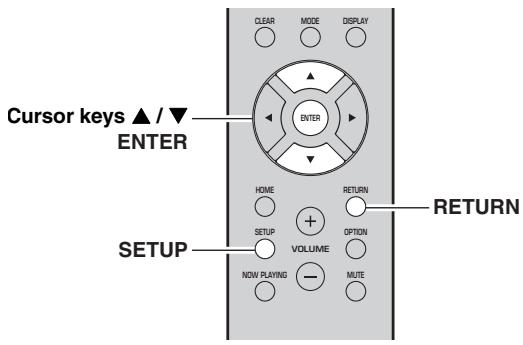
1 Press SETUP.
2 Use the cursor keys ( / ) to select "Network" and press ENTER.
3 Use the cursor keys ( / ) to select "Information" and press ENTER.
If new firmware is available, "NEW FW Available" appears on the front display.
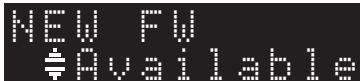
4 Press RETURN to return the previous state.
5 Use the cursor keys ( / ) to select "Update" and press ENTER.

6 To start the firmware update, press ENTER.
The unit restarts and the firmware update starts.
Note
To cancel the operation without updating the firmware, press SETUP.
7 If "UPDATE SUCCESS" appears on the front display, press (power) on the front panel.
The firmware update is complete.
■ Notification of new firmware update
When new firmware is available, "NEW FW Update" will be displayed for a short period of time when the unit is turned on.

To update the unit's firmware, press ENTER (as described in Step 6 above) while this notification is displayed. If "UPDATE SUCCESS" appears on the front display, press (power) on the front panel.
ADDITIONAL INFORMATION
Troubleshooting
Refer to the chart below if this unit does not function properly. If the problem you are experiencing is not listed below or if the instructions below do not help, set this unit to standby mode, disconnect the power cord, and contact the nearest authorized Yamaha dealer or service center.
General
| Problem | Possible cause | Remedy | See page |
| The power does not turn on. | The protection circuitry has been activated three times consecutively. If the unit is in this state, the STANDBY/ON indicator on the unit will blink when you try to turn on the power. | As a safety precaution, capability to turn on the power is disabled. Contact your nearest Yamaha dealer or service center to request repair. | — |
| The power cord is not connected or the plug is not completely inserted. | Connect the power cord firmly. | — | |
| The protection circuitry has been activated because of a short circuit, etc. | Check that the speaker wires are not touching each other and then turn the power of this unit back on. | 10 | |
| The internal microcomputer has frozen, due to an external electric shock (such as lightning or excessive static electricity) or to a drop in the power supply voltage. | Turn off the power and turn it on again after at least 15 seconds elapse. (If the problem persists, disconnect the power cord from the AC wall outlet and plug it again.) | — | |
| The power does not turn off. | The internal microcomputer has frozen, due to an external electric shock (such as lightning or excessive static electricity) or to a drop in the power supply voltage. | Turn off the power and turn it on again after at least 15 seconds elapse. (If the problem persists, disconnect the power cord from the AC wall outlet and plug it again.) | — |
| No sound. | Incorrect input or output cable connections. | Connect the cables properly. If the problem persists, the cables may be defective. | 10 |
| No appropriate input source has been selected. | Select an appropriate input source with the INPUT </▶> on the front panel (or one of the input selection key on the remote control). | 20 | |
| A pair of headphones is connected to the PHONES jack. | Unplug the headphones from the PHONES jack. | 5 | |
| The SPEAKERS A/B switches are not set properly. | Turn on the corresponding SPEAKERS A or SPEAKERS B. | 20 | |
| Speaker connections are not secure. | Secure the connections. | 10 | |
| Output has been muted. | Turn off the mute. | 9 | |
| The Max volume or Initial volume setting is set too low. | Check the settings for “Max Volume” and “Initial Volume” in the “SETUP” menu. | 41 | |
| The component corresponding to the selected input source is turned off or is not playing. | Turn the component on and make sure it is playing. | — | |
| The audio output of a device connected to a digital audio input (COAXIAL/OPTICAL jacks) is set to other than PCM. | Set the audio output of the connected device to PCM. | — | |
| The sound suddenly goes off. | The protection circuitry has been activated because of a short circuit, etc. | Set the speaker impedance to match your speakers. | 11 |
| Check that the speaker wires are not touching each other and then turn the power of this unit back on. | 11 | ||
| This unit has become too hot. | Make sure the openings on the top panel are not blocked. | — | |
| The auto power standby function has turned this unit off. | Change the auto power standby (“AutoPowerStby” in the “SETUP” menu) to turn off. | 42 | |
| Only the speaker on one side can be heard. | Incorrect cable connections. | Connect the cables properly. If the problem persists, the cables may be defective. | 10 |
| Incorrect setting for the speaker balance. | Set the speaker balance (“Balance” in the “SETUP” menu) to the appropriate setting. | 41 | |
| There is a lack of bass and no ambience. | The + and – wires are connected in reverse at the amplifier or the speakers. | Connect the speaker wires to the correct + and – phase. | 11 |
| A “humming” sound can be heard. | Incorrect cable connections. | Connect the audio plugs firmly. If the problem persists, the cables may be defective. | 11 |
| The sound is degraded when listening with the headphones connected to the CD player or the tape deck connected to this unit. | The power of this unit is turned off, or this unit is set to standby mode. | Turn on the power of this unit. | — |
Remote control
| Problem | Possible cause | Remedy | See page |
| The remote control does not work nor function properly. | Wrong distance or angle. | The remote control will function within a maximum range of 6 m (20 ft) and no more than 30 degrees off-axis from the front panel. | 9 |
| Direct sunlight or lighting (from an inverter type of fluorescent lamp, etc.) is striking the remote control sensor of this unit. | Reposition this unit. | — | |
| The batteries are weak. | Replace all batteries. | 9 |
FM reception
| Problem | Possible cause | Remedy | See page |
| The FM radio reception strength is poor, and noise can be heard. | The unit is receiving radio interference, such as multipath reflections. | Change the FM antenna height, direction, or place of installation. | 12 |
| The unit is receiving in a region located far away from the radio station. | Press the MODE button repeatedly on the remote control (or on the front panel) to set “FM Mode” to “Mono”. | 22 | |
| Use a commercially-available outdoor antenna. | 12 | ||
| The radio station cannot be automatically selected. | The FM radio signal is weak. | Use a commercially-available outdoor antenna. | 12 |
| Select the station manually. | 22 |
AM reception (R-N303)
| Problem | Possible cause | Remedy | See page |
| The AM radio reception strength is poor, and noise can be heard. | The unit is picking up noise from sources such as a fluorescent light or a motor. | In some environments, it may be difficult to completely eliminate noise. However, using a commercially-available outdoor antenna may help to reduce noise. | 12 |
| The radio station cannot be automatically selected. | The AM radio signal is weak. | Change the direction of the AM antenna. | 12 |
| Select the station manually. | 22 | ||
| Use a commercially-available outdoor antenna. Connect the supplied AM antenna to the ANTENNA(AM) jack. | 12 | ||
| AM radio stations cannot be registered (preset). | The stations may have been registered automatically (Auto Preset). | Auto presets can be used with FM radio stations only. AM radio stations must be manually registered. | 23 |
DAB reception (R-N303D)
| Problem | Possible cause | Remedy | See page |
| Cannot tune into any DAB stations. | The initial scan operations were not performed. | Perform the initial scan operations. | 26 |
| There is no DAB coverage in your area. | Check with your dealer or WorldDMB Online at “http://www.worlddab.org” for a listing of the DAB coverage in your area. | — | |
| The DAB signals are too weak. | Change the height, direction, or placement of the antenna. | 12 | |
| The initial scan operations are not successful and “Not Found” appears on the front panel display. | The DAB signals are too weak. | ||
| There is no DAB coverage in your area. | Check with your dealer or WorldDMB Online at “http://www.worlddab.org” for a listing of the DAB coverage in your area. | — | |
| The DAB station reception is weak. | The DAB signals are too weak. | Change the height, direction, or placement of the antenna. | 12 |
| There is noise interference (e.g. hiss, crackle, or jitter). | The antenna needs to be repositioned. | ||
| The DAB signals are too weak. | |||
| The DAB station information does not appear or is inaccurate. | The DAB station may be temporarily out of service, or the DAB station information is not provided by the DAB broadcaster. | Contact the DAB broadcaster. | — |
Bluetooth
| Problem | Possible cause | Remedy | See page |
| The unit cannot connect to a Bluetooth device. | The “Bluetooth” setting in the settings menu is “Off”. | Set the “Bluetooth” setting in the settings menu to “On”. | 41 |
| The unit is connected to a different Bluetooth device. | Unpair the Bluetooth device that is currently connected, and pair with the desired Bluetooth device. | 30 | |
| The unit is too far away from the Bluetooth device. | Move the Bluetooth device closer to this unit. | — | |
| A device emitting electromagnetic waves (such as a microwave oven, a wireless device and so on) are located nearby. | Do not use this unit near devices that emit electromagnetic waves. | — | |
| The Bluetooth device you are using does not support the A2DP protocol. | Use a Bluetooth device that supports the A2DP protocol. | 52 | |
| The connection profile registered in the Bluetooth device is not functioning correctly for some reason. | Delete the connection profile in the Bluetooth device, and then connect the Bluetooth device to this unit. | 30 | |
| The passkey on the Bluetooth adapter or other device is set to a code besides “0000”. | Use a Bluetooth device on which the passkey is set to “0000”. | — | |
| No sound can be heard, or the sound cuts off intermittently. | The volume on the Bluetooth device is too low. | Raise the volume on the Bluetooth device. | — |
| The sound output on the Bluetooth device is not set to this unit. | Select this unit as the output destination on the Bluetooth device. | 30 | |
| The connection to the Bluetooth device is cut off. | Connect with the Bluetooth device one more time. | 30 | |
| The unit is too far away from the Bluetooth device. | Move the Bluetooth device near this unit. | — | |
| A device emitting electromagnetic waves (such as a microwave oven, a wireless device and so on) is located nearby. | Do not use this unit near devices that emit electromagnetic waves. | — |
Network
| Problem | Possible cause | Remedy | See page |
| The network function cannot be used. | The network information (IP address) has not been properly acquired. | Enable the DHCP server function on the router. In the settings menu of this unit, set “DHCP” to “On”. When manually setting network information without using a DHCP server, make sure that the IP address of this unit is different from that of other devices on the network. | 40 |
| The unit cannot connect to the Internet via wireless LAN router (access point). | The power on the wireless LAN router (access point) is off. | Turn on the power of the wireless LAN router (access point). | — |
| The unit is too far from the wireless LAN router (access point). | Set up this unit closer to the wireless LAN router (access point). | — | |
| There is an object blocking the signal path between this unit and the wireless LAN router (access point). | Set up this unit so that there is a clear signal path between this unit and the wireless LAN router (access point). | — | |
| A wireless network cannot be found. | A device emitting electromagnetic waves (such as a microwave oven, a wireless device and so on) may be located nearby. | When connecting wirelessly, do not use this unit near devices that emit electromagnetic waves. | — |
| Access to the network is restricted, due to a firewall on the wireless LAN router (access point). | Check the firewall settings of the wireless LAN router (access point). | — | |
| The computer (server) cannot be detected. | The media sharing settings on the computer (server) may be incorrect. | Change the media sharing settings so that this unit can access the folder on the computer (server). | 32 |
| Access is restricted due to the security settings on the computer (server) or router. | Check the security settings on the computer (server) and router. | — | |
| This unit and the computer (server) are not connected to the same network. | Check the network and router settings, to make sure that they are connected to the same network. | — | |
| The files on the computer (server) cannot be displayed (played back). | The file format may not be compatible with this unit or with the computer (server). | Use a file format that is compatible with this unit and with the computer (server). See “Devices and File Formats Supported” (p. 52) for a list of music files supported by this unit. | 52 |
| Internet radio cannot be played. | Service may be stopped on the currently selected radio station. | Data may not be able to be received from the radio station due to a network error, or service at the radio station itself may be paused. Try playing back again after a while, or select a different radio station. | — |
| The currently selected radio station is broadcasting silence. | Some radio stations broadcast silence at some times of the day. During these times, even though the broadcast can be received, you will not hear anything. Try playing back again after a while, or select a different radio station. | — | |
| Access to the network is restricted due to the firewall settings on a network device, such as a router. | Check the firewall settings. Note that Internet radio can only be played back via the ports specified by the radio station in question. The port numbers may differ, depending on the radio station. | — | |
| This unit cannot be detected when using AirPlay on an iPhone. | You may be using a router that supports multiple SSIDs. | The network separator function on the router may be preventing this unit from being accessed. When connecting to this unit with an iPhone, use an SSID on which this unit can be accessed (try connecting via the primary SSID). | — |
| The unit is not detected when using a dedicated application on a mobile device. | This unit and the mobile device are not connected to the same network. | Check the network and router settings, to make sure that they are connected to the same network. | — |
| You may be using a router that supports multiple SSIDs. | The network separator function on the router may be preventing this unit from being accessed. When connecting to this unit with an iPhone, use an SSID on which this unit can be accessed (try connecting via the primary SSID). | — | |
| The firmware on this unit failed to update via the network. | The network connection may not be good. | Try connecting again after a while. | — |
| The unit cannot connect to the Internet via wireless LAN router (access point). | MAC address filtering may have been enabled on the wireless LAN router (access point). | This unit cannot connect to the Internet while MAC address filtering is enabled on the access point. Change the settings on the wireless LAN router (access point) to allow this unit to connect. | — |
Messages on the front display
| Message | Possible cause | Remedy |
| Access denied | Access to the PC is denied. | Configure the sharing settings and select the unit as a device to which music contents are shared (p. 32). |
| Access error | There is a problem with the signal path from the network to the unit. | Make sure your router and modem are turned on. |
| Check the connection between the unit and your router (or hub) (p. 13). | ||
| Check SP Wires | The speaker cables short circuit. | Twist the bare wires of the cables firmly and connect to the unit and speakers properly. |
| No content | There are no playable files in the selected folder. | Select a folder that contains files supported by the unit. |
| Please wait | The unit is preparing to connect to the network. | Wait until the message disappears. If the message stays more than 3 minutes, turn off the unit and turn it on again. |
| Unable to play | The unit cannot play back the songs stored on the PC for some reason. | Check if the format of files you are trying to play is supported by the unit. For information about the formats supported by the unit, see “Supported devices and file formats” below. If the unit supports the file format, but still cannot play back any files, the network may be overloaded with heavy traffic. |
| Version error | Firmware update via the Internet failed. | Update the firmware again. |
Supported devices and file formats
The following devices and file formats can be used by thisunit.
Supported devices
Bluetooth® devices
This unit supports the A2DP audio profile.
- This unit supports the AVRCP control profile.
- Not all Bluetooth devices are guaranteed to work with this unit.
AirPlay
AirPlay works with iPhone, iPad, and iPod touch (iOS 4.3.3 or later), Mac OS X
Mountain Lion or later, and PCs with iTunes 10.2.2 or later.
Compatible devices
Made for:
iPhone 7 Plus, iPhone 7, iPhone SE, iPhone 6s Plus, iPhone 6s, iPhone 6 Plus, iPhone 6, iPhone 5s, iPhone 5c, iPhone 5, iPhone 4s
iPad Pro (9.7" and 12.9"), iPad mini 4, iPad Air 2, iPad mini 3, iPad Air, iPad mini 2, iPad mini, iPad (3rd and 4th generation), iPad 2
iPod touch (5th and 6th generation)
(as of June 2017)
Supported file formats
PC (NAS)
| File | Sampling frequency (kHz) | Quantization bitrate (bit) | Bitrate | Gapless playback |
| WAV * | 32/44.1/48/88.2/96/176.4/192 | 16/24 | — | ✔ |
| MP3 | 32/44.1/48 | — | 8 to 320 | — |
| WMA | 32/44.1/48 | — | 8 to 320 | — |
| MPEG-4 AAC | 32/44.1/48 | — | 8 to 320 | — |
| FLAC | 32/44.1/48/88.2/96/176.4/192 | 16/24 | — | ✔ |
| ALAC | 32/44.1/48/88.2/96 | 16/24 | — | ✔ |
| AIFF | 32/44.1/48/88.2/96/176.4/192 | 16/24 | — | ✔ |
| DSD | 2.8 MHz/5.6 MHz | 1 | — | — |
- Linear PCM format only
Note
- To play back FLAC files stored on your PC/NAS, you need to install server software that supports sharing of FLAC files via DLNA on your PC or use a NAS that supports FLAC files.
- Digital Rights Management (DRM) contents cannot be played back.
Specifications
Network
- Input jack: NETWORK x 1 (100Base-TX/10Base-T)
- PC client function
- Compatible with DLNA ver. 1.5
AirPlay supported - Internet radio
- Streaming service
- Wi-Fi function
- Capable of direct connection with mobile device
- Available security method
- WEP, WPA2-PSK (AES), Mixed Mode Radio frequency band.
- 2.4 GHz
- Radio Frequency (Operational Frequency)
- 2412 MHz to 2472 MHz
- Maximum Output Power (E.I.R.P).
- 17.5 dBm (56.2 mW)
- Wireless network standard.
- IEEE 802.11 b/g/n Wi-Fi settings
- WPS (Wifi Protected Setup).
- Capable of WPS Capable of sharing with iOS devices by wireless connection.
Bluetooth related function
- Version.............Bluetooth 2.1 + EDR
Frequency 2.4 GHz - Radio Frequency (Operational Frequency) 2402 MHz to 2480 MHz
Maximum Output Power (E.I.R.P) 4.0 dBm (2.5 mW) - Wireless Output ..............................................Bluetooth Class 2
- Profiles Source function The unit Sink Device (ex. Bluetooth Headphone) Profile: A2DP version1.3, AVRCP version1.6 CODEC: SBC Sink function The unit Source device (ex. iPhone/Android) Profile: A2DP Version1.3, AVRCP version1.6 CODEC: SBC, AAC
Audio
Minimum RMS output power (40 Hz to 20 kHz, 0.2% THD, 8Ω) [North America, General, Korea, Australia, U.K. and Europe models] 100 W + 100 W [Asia model] 85 W + 85 W
- Dynamic power per channel (IHF) (8/6/4/2) 125/150/165/180 W
Maximum power per channel (1 kHz, 0.7% THD, 4Ω) [U.K. and Europe models] 115 W
- IEC power (1 kHz, 0.2% THD, 8Ω)
[U.K. and Europe models] 110 W
- Damping factor (SPEAKERS A) 1kHz,8 120 or more
Maximum effective output power (1 kHz, 10% THD, 8Ω) [General model] 140 W [Asia model] 125 W
- Input sensitivity/input impedance CD, etc. 500 mV/47 kΩ
Maximum input signal CD, etc. (1 kHz, 0.5% THD). 2.2 V
Output level/output impedance CD,etc.(input 1kHz 500~mV LINE OUT 500 mV/2.2 kO PHONES (8Ω load). 470 mV/470Ω
Frequency response CD,etc. (20Hz to 20kHz) 0±0.5dB CD,etc.(10 Hz to 100 kHz) 0±3.0 dB
Total harmonic distortion CD, etc. to SPEAKERS OUT (20Hz to 20kHz,50W,8) . 0.2% or less
- Signal to noise ratio (IHF-A) CD, etc. (input shorted, 500mV ) 100 dB or more
- Residual noise (IHF-A) 70 V
- Channel separation CD, etc. (5.1 kΩ input shorted, 1 kHz/10 kHz) 65/50 dB or more
- Tone control characteristics
- BASS
- Boost/cut (50 Hz) ± 10 dB
- TREBLE
- Boost/cut (20 kHz) ± 10 dB
- Digital input (OPTICAL/COAXIAL)
Support audio sample rate
......32 kHz/44.1 kHz/48 kHz/88.2 kHz/96 kHz/176.4 kHz/192 kHz
FM
Tuning range [North America model] 87.5 to 107.9 MHz [General and Asia models] .87.5 to 107.9 MHz/87.50 to 108.00 MHz [Korea, Australia, U.K. and Europe models] .87.50 to 108.00 MHz
- 50 dB quieting sensitivity (IHF-A, 1 kHz, 100% MOD.)
Mono .3 μV (20.8 dBf)
- Signal to noise ratio (IHF-A)
Mono/stereo 65 dB/64 dB
Harmonic distortion (1 kHz)
Mono/stereo .0.5%/0.6%
- Antenna input. 75Ω unbalanced
AM (R-N303)
- Tuning range [North America model] 530 to 1710kHz [General and Asia models] 530 to 1710kHz / 531 to 1611kHz [Korea and Europe models] 531 to 1611kHz
DAB (R-N303D)
Tuning range 174-240 MHz (Band III)
- Support audio format
MPEG 1 Layer II/MPEG 4 HE AAC v2 (AAC+ v2)
- Antenna input. 75Ω, unbalanced
General
- Power supply
[North America model] AC 120 V, 60 Hz
[General model] AC 110-120/220-240 V, 50/60 Hz
[Korea model] AC 220 V, 60 Hz
[Australia model] AC 240 V, 50 Hz
[U.K. and Europe models] AC 230 V, 50 Hz
[Asia model] AC 220-240 V, 50/60 Hz
Power consumption
[North America, General, Korea, Australia, U.K. and Europe models] 200 W
[Asia model] 165 W - Standby power consumption
Network Standby on
Wired. 1.8 W
Wireless (Wi-Fi/Wireless Direct/Bluetooth) 1.9 W - Dimensions (W × H × D)
(17 - 1 / 8^ × 5 - 1 / 2^ × 13 - 3 / 8^ ) - Reference Dimensions (W × H × D) (with wireless antenna upright) 435 × 202 × 340 ~mm
(17 - 1 / 8^ × 8^ × 13 - 3 / 8^ ) - Including legs and protrusions
Weight 7.2 kg (15.9 lbs) - The contents of this manual apply to the latest specifications as of the publishing date. To obtain the latest manual, access the Yamaha website then download the manual file.
Trademarks
Made for

iPod

iPhone

iPad

AirPlay
Supports iOS 7 or later for setup using Wireless Accessory Configuration.
"Made for iPod," "Made for iPhone," and "Made for iPad" mean that an electronic accessory has been designed to connect specifically to iPod, iPhone, or iPad, respectively, and has been certified by the developer to meet Apple performance standards.
Apple is not responsible for the operation of this device or its compliance with safety and regulatory standards. Please note that the use of this accessory with iPod, iPhone, or iPad may affect wireless performance. iTunes, AirPlay, iPad, iPhone, iPod, and iPod touch are trademarks of Apple Inc., registered in the U.S. and other countries.
iPad Air and iPad mini are trademarks of Apple Inc. App Store is a service mark of Apple Inc.

dna
CERTIFIED
DLNATM and DLN CERTIFIEDTM are trademarks or registered trademarks of Digital Living Network Alliance. All rights reserved.
Unauthorized use is strictly prohibited.
WindowsTM
Windows is a registered trademark of Microsoft Corporation in the United States and other countries. Internet Explorer, Windows Media Audio and Windows Media Player are either registered trademarks or trademarks of Microsoft Corporation in the United States and/or other countries.
AndroidTM
Google PlayTM
Android and Google Play are trademarks of Google Inc.
CERTIFIED
The Wi-Fi CERTIFIED™ Logo is a certification mark of Wi-Fi Alliance®.
The Wi-Fi Protected SetupTM Identifier Mark is a certification mark of Wi-Fi Alliance®.

Bluetooth
The Bluetooth® word mark and logos are registered trademarks owned by Bluetooth SIG, Inc. and any use of such marks by Yamaha Corporation is under license.
Bluetooth protocol stack (Blue SDK)
Copyright 1999-2014 OpenSynergy GmbH All rights reserved. All unpublished rights reserved.
Explanations regarding GPL
This product utilizes GPL/LGPL open-source software in some sections. You have the right to obtain, duplicate, modify, and redistribute this open-source code only. For information on GPL/LGPL open source software, how to obtain it, and the GPL/LGPL license, refer to the Yamaha Corporation website
(http://download.yamaha.com/sourcecodes/musiccast/).
MusicCast
MusicCast is a trademark or registered trademark of Yamaha Corporation.

Yamaha Eco-Label is a mark that certifies products of high environmental performance.

Digital Audio Broadcasting

Digital Audio Broadcasting
(For R-N303D)
The unit supports DAB/DAB+ tuning.
Explanations regarding GPL
This product utilizes GPL/LGPL open-source software in some sections. You have the right to obtain, duplicate, modify, and redistribute this open-source code only. For information on GPL/ LGPL open source software, how to obtain it, and the GPL/LGPL license, refer to the Yamaha Corporation website
(http://download.yamaha.com/sourcecodes/musiccast/).
Index
A
ADVANCED SETUP menu. 43
AirPlay 35
AM antenna connection 12
AM tuning 22
ANTENNA terminals 7
Audio device connection 10
Auto Preset, OPTION menu 37
AutoPowerStby (Auto Power Standby),
SETUP menu 42
B
Balance, SETUP menu 41
Basic playback operation. 20
batteries. 9
Bi-wire connection 11
Bluetooth 30
Bluetooth, SETUP menu 41
C
CDjacks 7
CD player connection 10
Clear Preset,OPTION menu 37
Clock Time, Radio Data System 25
COAXIAL jack 7
Connection, Bluetooth device 30
Connection, Network, SETUP menu. 40
D
DAB antenna connection. 12
DAB tuning 26
DIMMER. 8
DLNA 32
DMC Control, Network, SETUP menu 40
DVD player connection. 10
F
Firmware update, ADVANCED SETUP menu 44
Firmware update, SETUP menu. 45
Firmware version 43
FM antenna connection 12
FM tuning 22
Frequency, Radio Data System 25
Front display, controls and functions 6
Front display, message 51
Front panel, controls and functions 4
H
Headphones 5
1
Information display, DAB radio station 28
Information display, Radio Data System 25
Information switching 20
Information, Network, SETUP menu 40
INIT, ADVANCED SETUP menu. 43
Initialize 43
InitialVolume,SETUP menu 42
Initiate Scan, OPTION menu 37
Internet radio 34
IP Address, Network, SETUP menu 40
iPod content playback, AirPlay 35
iTunes content playback, AirPlay 35
L
LINEjacks 7
M
Manual network settings 40
Manual wireless network connection setting. 16
Max Volume, SETUP menu 41
Media sharing setup 32
Message, front display 51
MusicCast configuration 19
N
NAS connection 13
NAS content playback 32
Network Attached Storage connection 13
Network cable connection 13
Network connection 14
Network connection status. 18
NETWORK jack 7
Network Name, Network, SETUP menu 41
Network, SETUP menu 40
0
On/Off,Bluetooth,SETUP menu 41
OPTICAL jack. 7
OPTION menu 37
P
Pairing,Bluetooth device 30
PC connection 13
PCs content playback 32
PHONES jack 5
PHONO jacks 7
Playing back, Bluetooth device 30
Playing back, PCs/NAS content 32
Power cord connection. 13
Preset, DAB radio station 27
Preset, FM/AM radio 22
Program Service, Radio Data System 25
Program Type, Radio Data System 25
R
Radio Data System, FM radio 25
Radio Text, Radio Data System 25
Rear panel, controls and functions 7
Remote control ID 43
Remote control, controls and functions 8
REMOTE ID, ADVANCED SETUP menu 43
Repeat playback, AirPlay 35
Repeat playback, PC music content. 33
s
SETUP menu 39
Shuffle playback, AirPlay 35
Shuffle playback, PC music content 33
Signal Info., OPTION menu 37, 38
Sleep timer 21
Speaker connection 11
SPEAKERS terminals 7
Standby (Bluetooth Standby), Bluetooth, SETUP menu 41
Standby (Network Standby), Network, SETUP menu 41
T
TrafficProgram,OPTION menu. 37
TU, ADVANCED SETUP menu 43
Tune Aid,OPTION menu. 37
Tuner frequency step 43
Turntable connection 10
U
Update (Network Update), Network, SETUP menu .... 41
UPDATE, ADVANCED SETUP menu 44
V
VERSION, ADVANCED SETUP menu 43
Vol.Interlock (Volume interlock), OPTION menu. 38
Volume Trim, OPTION menu 37
W
WAC 14
Wireless Accessory Configuration 14
Wireless antenna 7
Wireless Direct 17
WPS push button configuration 16
Information for users on collection and disposal of old equipment and used batteries:
These symbols on the products, packaging, and/or accompanying documents mean that used electrical and electronic products and batteries should not be mixed with general household waste.
For proper treatment, recovery and recycling of old products and used batteries, please take them to applicable collection points, in accordance with your national legislation.

By disposing of these products and batteries correctly, you will help to save valuable resources and prevent any potential negative effects on human health and the environment which could otherwise arise from inappropriate waste handling.

For more information about collection and recycling of old products and batteries, please contact your local municipality, your waste disposal service or the point of sale where you purchased the items.
Cd
For business users in the European Union:
If you wish to discard electrical and electronic equipment, please contact your dealer or supplier for further information.
Information on Disposal in other Countries outside the European Union:
These symbols are only valid in the European Union. If you wish to discard these items, please contact your local authorities or dealer and ask for the correct method of disposal.
Note for the battery symbol (bottom two symbol examples):
This symbol might be used in combination with a chemical symbol. In this case it complies with the requirement set by the EU Battery Directive for the chemical involved.
| EN English |
| SIMPLIFIED EU DECLARATION OF CONFORMITYHereby, Yamaha Music Europe GmbH declares that the radio equipment type [R-N303, R-N303D] is in compliance with Directive 2014/53/EU. The full text of the EU declaration of conformity is available at the following internet address: https://europe.yamaha.com/en/support/compliance/doc.html |
| FR French |
| DECLARATION UE DE CONFORMITE SIMPLIFIEELe soussigné, Yamaha Music Europe GmbH, déclare que l'équipement radioélectrique du type [R-N303, R-N303D] est conforme à la directive 2014/53/EU. Le texte complèt de la déclaration UE de conformité est disponible à l'adresse internet suivante: https://europe.yamaha.com/en/support/compliance/doc.html |
| DE German |
| VEREINFACHE EU-KONFORMITÄTSERKLÄRUNGHiermit erklärt Yamaha Music Europe GmbH, dass der Funkanlagenotyp [R-N303, R-N303D] der Richtlinie 2014/53/EU entspricht.Der vollständige Text der EU-Konformitäserklärung ist unter der folgenden Internetadresse verfügbar: https://europe.yamaha.com/en/support/compliance/doc.html |
| SV Swedish |
| FÖRENKLAD EU-FÖRSÄKRAN OM ÖVERENSSTÄMMELSEHärmed fösakrar Yamaha Music Europe GmbH attenna typ av radioutrusting [R-N303, R-N303D] överensstämmer med direktiv 2014/53/EU. Den fullständiga texten till EU-fösakran om överensstammelse finns på foljande webbadress: https://europe.yamaha.com/en/support/compliance.doc.html |
| IT Italian |
| DICHIARAZIONE DI CONFORMITA UE SEMPLIFICATAIl fabricante, Yamaha Music Europe GmbH, dichiarare che il tipo di apparecchiatura radio [R-N303, R-N303D] è conforme alla direttiva 2014/53/EU. Il testo Completo della dichiarazione di conformità UE è disponibile al segmente indirizzo Internet: https://europe.yamaha.com/en/support/compliance/doc.html |
| ES Spanish |
| DECLARACION UE DE CONFORMIDAD SIMPLIFICADAPor la presente, Yamaha Music Europe GmbH declara que el tipo de equipo radioélectrico [R-N303, R-N303D] es conforme con la Directa 2014/53/EU. El textoCompleto de la declaración UE de conformidad está disponible en la direction Internet suiviente: https://europe.yamaha.com/en/support/compliance/doc.html |
| NL Dutch |
| VEREENVoudIGDE EU-CONFORMITEITSVERKLARINGHierbij verkaar ik, Yamaha Music Europe GmbH, dat hetype radioapparatuur [R-N303, R-N303D] conform is met Richtlijn 2014/53/EU.De volledige tekst van de EU-conformiteitsverklaring kan worden geraadpleegd op het volgende internetadres: https://europe.yamaha.com/en/support/compliance/doc.html |
| BG Bulgarian ОПPORTЕGA EC DEKJIAPAUÇA 3A CSBOTBETCTBVE Снастоноу Yamaha Music Europe GmbH Deklaratura, чу тося, Ти пашисторьжени [R-N303, R-N303D] в сботоветгпсе с Ди配电имба 2014/53/EC. ПадостритTekт на EC Deklarantaу За CSBOTВETCTBVE може за с在这方面 сдддддддддддддддддддддддддддддддддддддддддддддддддддддддддддддддддддддддддддддддддддддддддддддддддддд a/JP:https://europe.yamaha.com/en/support/compliance/doc.html |
| CS Czech ZJEDNODUŠENÉ EU PROHLÁSENÍ O SHODE Tímto Yamaha Music Europe GmbH prohlášuje, ze typ rádiověho zařízeni [R-N303, R-N303D] je v souladu se směrnici 2014/53/ EU. Üplné znéni EU prohlášeni o shodě je k dispozici na tevo internetové adrese: https://europe.yamaha.com/en/support/compliance/doc.html |
| DA Danish FORENKLET EU-OVERENSSTEMMELSESERKLÄERING Hermed erkläerer Yamaha Music Europe GmbH, at radioudystyrstypen [R-N303, R-N303D] er i overensstammelse med direktiv 2014/53/EU. EU-overensstammelseserklaeringens fulde tekst kan findes på fällende internetadresse: https://europe.yamaha.com/en/support/compliance/doc.html |
| ET Estonian LIHTSUSTATUD ELI VASTAVUSDEKLARATSIOON Käesolevaga deklareerib Yamaha Music Europe GmbH, et käesolev raadioseadme tiüup [R-N303, R-N303D] vastab direktivi 2014/53/EL nõuetele. ELi vastavusdeklaratsiooni tãielik tekst on kättesaadav järgmisel internetaiaadressil: https://europe.yamaha.com/en/support/compliance/doc.html |
| EL Greek АПОНΥSTÉMYMENH ΔHAΩΣΗ ΣΥΜМОΦΟΣΗ ΕE Мε την παρούσα o/η Yamaha Music Europe GmbH, δηλώνει στι o ραδιοξεπλισμός [R-N303, R-N303D] πληροι την σθηγία 2014/ 53/EE. To πληρες κείμενο της δηλώνει συμμόρωσης EE διατίθεται στην ακόλουθη τοτοσελίδα στο διαδικτον: https://europe.yamaha.com/en/support/compliance/doc.html |
| HR Croatian POJEDNOSTAVLJENA EU IZJAVA O SUKLADNOSTI Yamaha Music Europe GmbH ovime izjavljuhe da je radijska oprema tipa [R-N303, R-N303D] u skladu s Direktivom 2014/53/ EU. Cjeloviti tekst EU izjave o sukladnosti dostup je na sljedecoj internetskoj adresi: https://europe.yamaha.com/en/support/compliance/doc.html |
| LV Latvian VIENKÄRSOTA ES ATBILSTIBAS DEKLARÄCIJA Ar šo Yamaha Music Europe GmbH deklarē, ka radioiekārta [R-N303, R-N303D] atbilst Direktivai 2014/53/ES. Pilns ES atbilstibas deklarćcjjas teksts ir pieejams šādā interneta vietnē: https://europe.yamaha.com/en/support/compliance/doc.html |
| LT Lithuanian |
| SUPAPRASTINTA ES ATITIKTIES DEKLARACIJA |
| Aš, Yamaha Music Europe GmbH, patvirtinu, kad radijo jrenginiútipas [R-N303, R-N303D] atitinka Direktyvä 2014/53/ES.Visas ES atitikties deklaracijos tekstas prieinamas šiuo internetoadresu:https://europe.yamaha.com/en/support/compliance/doc.html |
| HU Hungarian |
| EGYSZERÜSITETT EU-MEGFELELösÉGİ NYILATKOZAT |
| Yamaha Music Europe GmbH igazolja, hogy a [R-N303, R-N303D] tipusús rádióberendezés megfêlel a 2014/53/EUirányelvnek.Až EU-megfelelóségi nyilatkozat teljes szövege elérhető akövetkeźinternetes cimen:https://europe.yamaha.com/en/support/compliance/doc.html |
| PL Polish |
| UPROSZCZONA DEKLARACJA ZGODNOSCI UE |
| Yamaha Music Europe GmbH niniejszym oswiadcza, ze typurżadzenia radiowego [R-N303, R-N303D] jest zgodny zdyrektywa 2014/53/UE. Pelny tekst deklaracji zgodnosci UE jestdostepny pod nastepujacym adresem internetwym:https://europe.yamaha.com/en/support/compliance/doc.html |
| PT Portuguese |
| DECLARação UE DE CONFORMIDADE SIMPLIFICADA |
| O(a) abaixo assinado(a) Yamaha Music Europe GmbH declaraque o presente tipo de equipoamento de rádio [R-N303, R-N303D] está em conformidade com a Diretiva 2014/53/UE. O texto integral da declariação de conformidade está disponivel noseguito endereço de Internet:https://europe.yamaha.com/en/support/compliance/doc.html |
| RO Romanian |
| DECLARATIA UE DE CONFORMITATE SIMPLIFICATA |
| Prin prezena, Yamaha Music Europe GmbH declara că tipul deechipamente radio [R-N303, R-N303D] este în conformitate cuDirectiva 2014/53/UE. Textul integral al declaratiei UE deconformitate este disponibil la următoarea adresă internet:https://europe.yamaha.com/en/support/compliance/doc.html |
| SK Slovak |
| ZJEDNODUŠENÉ EU VYHLÁSENIE O ZHODE |
| Yamaha Music Europe GmbH týmto vyhlasuje, ze rádiovezariadenie typu [R-N303, R-N303D] je v súlade so smernicou2014/53/EU. Üplné EU vyhlásenie o zhode je k dispozicii na tejtointernetovej adrese:http://europe.yamaha.com/en/support/compliance/doc.html |
| SL Slovenian |
| POENOSTAVLJENA IZJAVA EU O SKLADNOSTI |
| Yamaha Music Europe GmbH potrjuje, daß je tip radijske opreme[R-N303, R-N303D] skladen z Direktivo 2014/53/EU.Celotno besedido izjave EU o skladnosti je na voljo na naslednjemsplentem naslov:https://europe.yamaha.com/en/support/compliance/doc.html |
| FI Finnish |
| YKSINKERTAISTETTU EU- VAATIMUSTENMUKAISUUSVAKUUTUS Yamaha Music Europe GmbH vakuuttaa, etta radiolaitetyppi [R-N303, R-N303D] on direktiivin 2014/53/EU mukainen. EU-vaatimustenmukaisuusvakutuksen tãysimittainen teksti on saatavilla seuraavassa internetosoitteessa: https://europe.yamaha.com/en/support/compliance/doc.html |
| TR Turkey |
| BASITLEŞTİRLMIŞ AVRUPA BİRLİGI UYGUNLUK BİLDIRİMI İsbu belge ile, Yamaha Music Europe GmbH, radyo cihaz tipinin [R-N303, R-N303D], Direktif 2014/53/AB'ye uygünluğunu beman eder. AB uyumuBeganinn tam metniassistantaki internet adresinden edinilebilir: https://europe.yamaha.com/en/support/compliance/doc.html |
Important Notice: Guarantee Information for customers in EEA* and Switzerland
English
For detailed guarantee information about this Yamaha product, and Pan-EEA* and Switzerland warranty service, please either visit the website address below (Printable file is available at our website) or contact the Yamaha representative office for your country. * EEA: European Economic Area
http://europe.yamaha.com/warranty/
Yamaha Global Site
https://www.yamaha.com/
Yamaha Downloads
http://download.yamaha.com/
Manual Development Group
© 2017 Yamaha Corporation
Published 05/2017 AM-A0