
DSB-C120 - Webcam D-LINK - Notice d'utilisation et mode d'emploi gratuit
Retrouvez gratuitement la notice de l'appareil DSB-C120 D-LINK au format PDF.


| Intitulé | Description |
|---|---|
| Type de produit | Webcam USB |
| Résolution vidéo | 640 x 480 pixels (VGA) |
| Fréquence d'images | 30 images par seconde |
| Type de connexion | USB 2.0 |
| Dimensions approximatives | 10 x 4 x 4 cm |
| Poids | 150 g |
| Compatibilités | Windows, Mac OS, Linux |
| Fonctions principales | Vidéo en direct, capture d'images, microphone intégré |
| Entretien et nettoyage | Essuyer avec un chiffon doux, éviter les produits chimiques agressifs |
| Pièces détachées et réparabilité | Pas de pièces détachées disponibles, réparation limitée |
| Sécurité | Utiliser uniquement avec des logiciels de confiance, mise à jour régulière des pilotes |
| Informations générales | Produit idéal pour les visioconférences et les appels vidéo |
FOIRE AUX QUESTIONS - DSB-C120 D-LINK
Questions des utilisateurs sur DSB-C120 D-LINK
0 question sur cet appareil. Repondez a celles que vous connaissez ou posez la votre.
Poser une nouvelle question sur cet appareil
Téléchargez la notice de votre Webcam au format PDF gratuitement ! Retrouvez votre notice DSB-C120 - D-LINK et reprennez votre appareil électronique en main. Sur cette page sont publiés tous les documents nécessaires à l'utilisation de votre appareil DSB-C120 de la marque D-LINK.
MODE D'EMPLOI DSB-C120 D-LINK
D-Link
Quick Installation Guide
This product works with the following operating system software: Windows XP/2000/ME/98SE
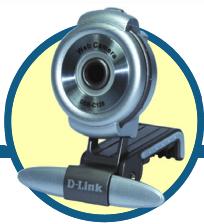
DSB-C120
D-Link 100K Pixel USB PC Camera
Before You Begin
You must have at least the following:
- Pentium III 500 MHz, Celeron, AMD Athlon processor, or higher
64MB RAM (or minimum OS requirement whichever is higher)
Microsoft Windows XP/2000/ME/98SE
Microsoft DirectX 8.1b or higher - Update Service Pack
200MB free hard drive space - CD-ROM drive
- USB Port (USB specifications version 1.1)
24Bit color display adapter - Windows compatible sound card and speakers (full duplex sound card recommended)
Check Your Package Contents
These are the items included with your purchase: If any of the below items are missing, please contact your reseller.
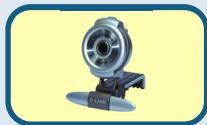
DSB-C120 USB PC CAMERA
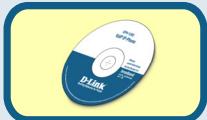
CD-ROM(containing Drivers, Application Software, PDF Installation Guide, PDF Manual, and Warranty)
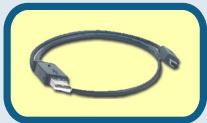
USB 1.1 Cable

Run the Driver CD before you install Camera.The Driver obtains an option program that ties your option process.
1
DSB-C120 Driver Installation
Please bring out the attached CD-ROM and follow the steps listed below carefully to insure the installation of DSB-C120 will be complete.
Insert the software CD into CD-ROM. As you can see the below picture,D-Link DSB-C120 startup window will be displayed.
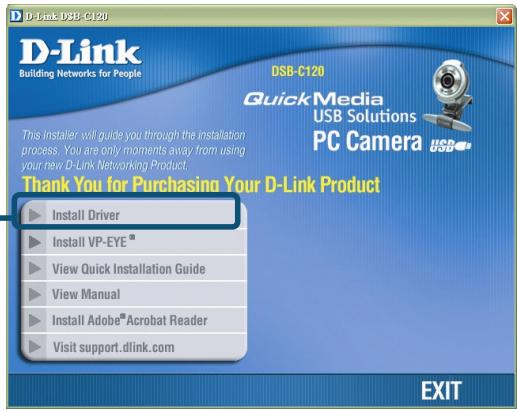
If the Autorun screen does not automatically start, click on Start > Run, enter "D:\Autorun.exe" and click OK. "D" represents the letter of your CD-ROM drive. Replace it if your CD-ROM drive is a different letter.
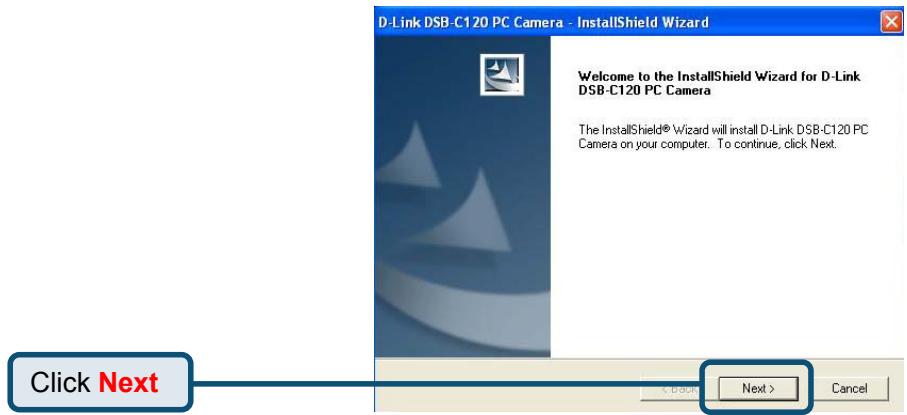
Windows XP Users
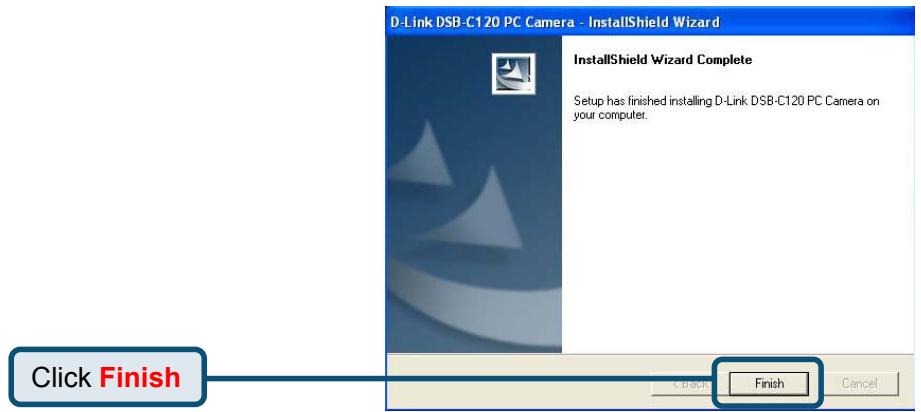
Windows XP Users (Continued)
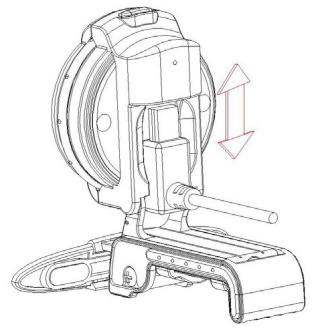
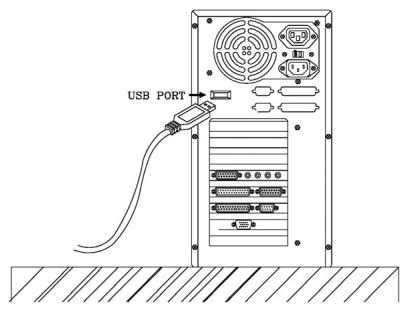
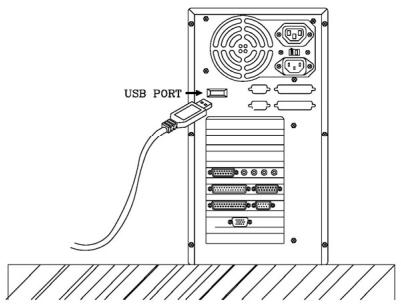
Plug the USB cable into camera and USB port on the PC directly.
Windows 2000 Users
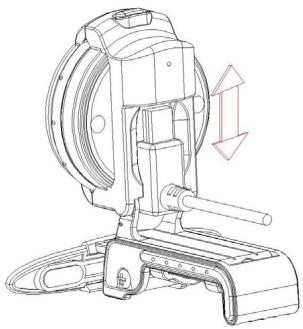
Plug the USB cable into camera and USB port on the PC directly.
Windows 2000 Users (Continued)
Windows ME & 98 Users
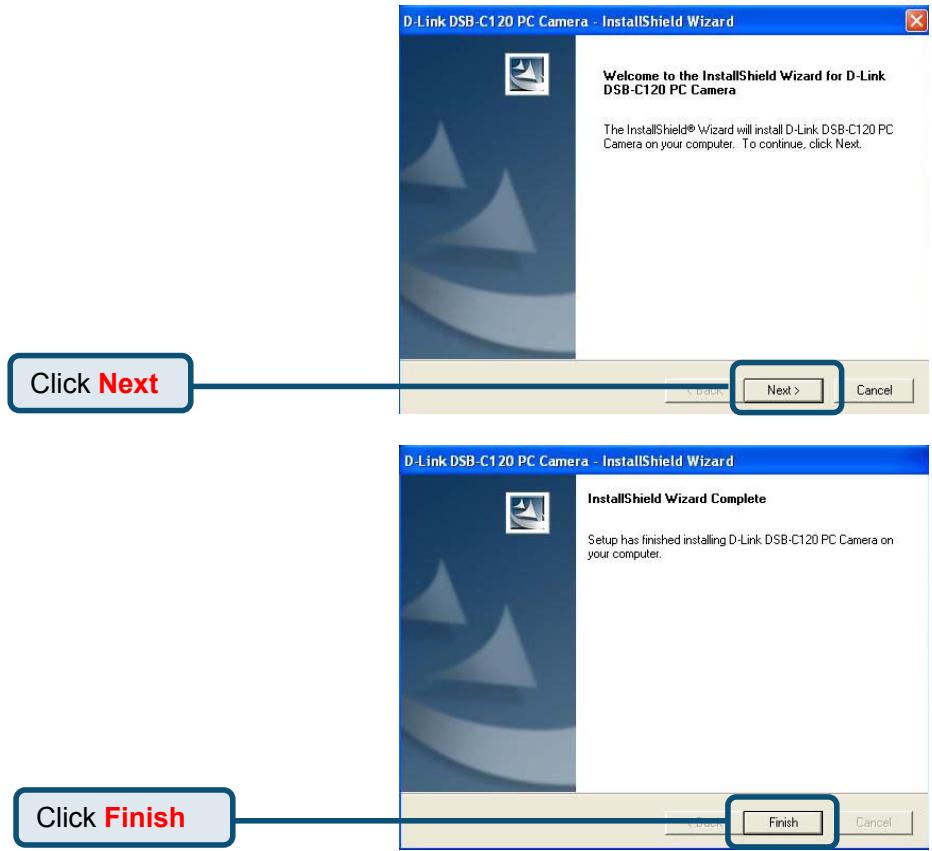
The DSB-C120 driver installation will proceed automatically for Windows ME & 98SE users.
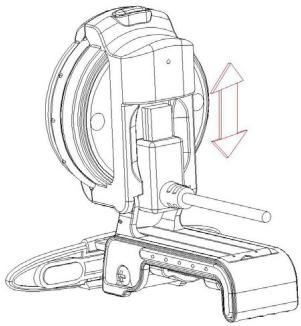
Windows ME & 98 Users(Continued)
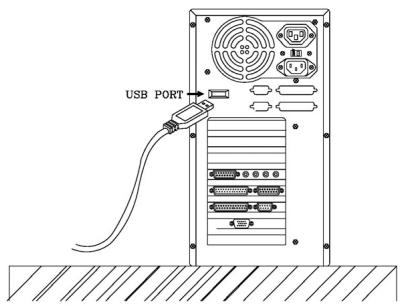
Plug the USB cable into camera and USB port on the PC directly.

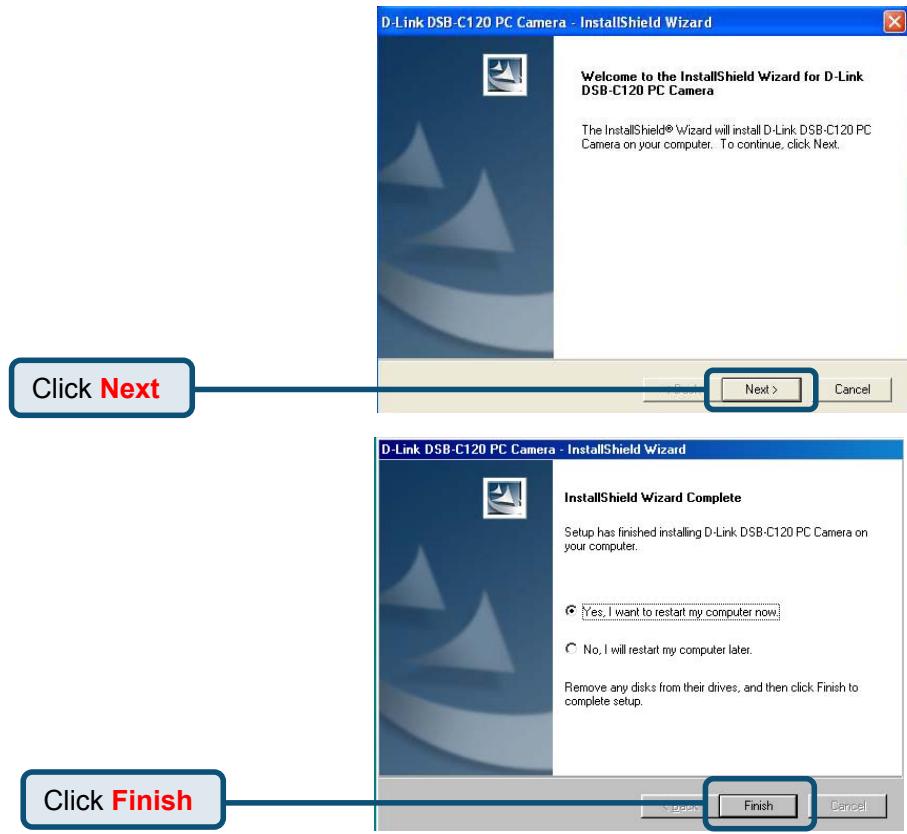
After the DSB-C120 is connected to your router and all set up, sedures are completed, MUST restart the eating system manually.
Driver Installation is Completed!
To confirm the DSB-C120 is properly installed, click "START" "SETTINGS" "CONTROL PANEL". Double-click "SYSTEM". Select the "HARDWARE" tab and click the "DEVICE MANAGER" button. Confirm that "D-Link DSB-C120" appears in the "IMAGE DEVICES" section.
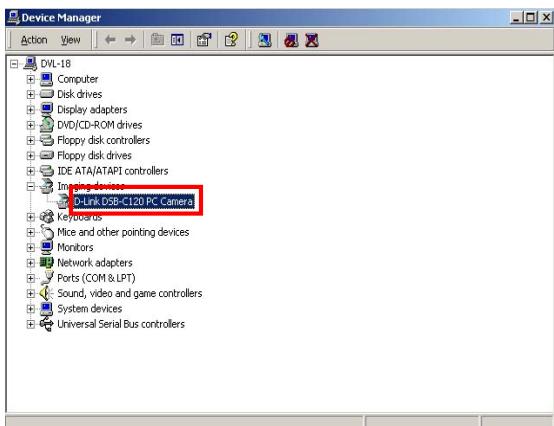
Once properly installed, you are ready to start immediately capturing images and accreating video with the DSB-C120.
Please refer to the DSB-C120 Manual on the CD included with this product for information on how to install and use the VP-EYE 4.0 software
- Make sure to install the driver and software BEFORE plugging the camera into USB port.
- We recommend plugging the cable connector to USB port on PC directly to avoid low voltage.
- If a dialog box pops up and request to have the language setting file replaced after plugging the camera into USB port, please simply click "Yes" to continue.
- Please download the latest update of "Service Pack" (from Start → Windows Update) to keep the camera running smoothly.
- If you have more than one image device in your system, please select the "D-Link DSB-C120" as the PC Camera device. In this way, you can use this camera to capture images.
MEMO
Technical Support
You can find software updates and user documentation on the D-Link website.
Tech Support for customers within Australia:
D-Link Technical Support over the Telephone:
1300-766-868
Monday to Friday 8:00am to 8:00pm EST
Saturday 9:00am to 1:00pm EST
D-Link Technical Support over the Internet:
http://www.dlink.com.au
email:support@dlink.com.au
Tech Support for customers within New Zealand:
D-Link Technical Support over the Telephone:
0800-900-900
Monday to Friday 8:30am to 8:30pm
Saturday 9:00am to 5:00pm
D-Link Technical Support over the Internet:
http://www.dlink.co.nz
email:support@dlink.co.nz
D-Link®
Building Networks for People
Technical Support
You can find software updates and user documentation on the
D-Link website.
Tech Support for customers within South Eastern
Asia and Korea:
D-Link South Eastern Asia and Korea Technical Support
over the Telephone:
+65-6895-5355
Monday to Friday 9:00am to 12:30pm, 2:00pm-6:00pm
Singapore Time
D-Link Technical Support over the Internet:
email:support@dlink.com.sg
Technical Support
You can find software updates and user documentation on the D-Link website.
Tech Support for customers within India
D-Link Technical Support over the Telephone:
+91-22-26526741
+91-22-26526696 -ext 161 to 167
Monday to Friday 9:30AM to 7:00PM
D-Link Technical Support over the Internet:
http://www.dlink.co.in
http://www.dlink.co.in/dlink/drivers/support.asp
ftp://support.dlink.co.in
email: techsupport@dlink.co.in
Technical Support
You can find software updates and user documentation on the D-Link website.
D-Link provides free technical support for customers for the duration of the warranty period on this product.
Customers can contact D-Link technical support through our web site or by phone.
Tech Support for customers within the Russia
D-Link Technical Support over the Telephone:
(095) 744-00-99
Monday to Friday 10:00am to 6:30pm
D-Link Technical Support over the Internet
http://www.dlink.ru
email: support@dlink.ru
Technical Support
You can find software updates and user documentation on the D-Link website.
Tech Support for customers within the U.A.E & North Africa:
D-Link Technical Support over the Telephone:
(971) 4-391-6480 (U.A.E)
Sunday to Wednesday 9:00am to 6:00pm GMT+4
Thursday 9:00am to 1:00pm GMT+4
D-Link Middle East & North Africa
D-Link Technical Support over the Internet:
http://support.dlink-me.com
email:support@dlink-me.com
Tech Support for customers within Israel:
D-Link Technical Support over the Telephone:
(972) 971-5701
Sunday to Thursday 9:00am to 5:00pm
D-Link Technical Support over the Internet:
http://www.dlink.co.il/forum
e-mail: support@dlink.co.il
Tech Support for customers within Turkey:
D-Link Technical Support over the Telephone:
(+90) 212-2895659
Monday to Friday 9:00am to 6:00pm
D-Link Technical Support over the Internet:
http://www.dlink.com.tr
e-mail: turkiye@dlink-me.com
Tech Support for customers within Egypt:
D-Link Technical Support over the Telephone:
(202) 414-4295
Sunday to Thursday 9:00am to 5:00pm
D-Link Technical Support over the Internet:
http://support.dlink-me.com
e-mail: amostafa@dlink-me.com
D-Link®
Building Networks for People
Technical Support
You can find software updates and user documentation on the D-Link website.
Tech Support for customers within South Africa and Sub Sahara Region:
D-Link South Africa and Sub Sahara Technical Support over the Telephone:
+27-12-665-2165
08600 DLINK( For South Africa only.) Monday to Friday 8:30am to 9:00pm South Africa Time
D-Link Technical Support over the Internet:
http://www.d-link.co.za
email:support@d-link.co.za
Technical Support
You can find updates and user documentation on the D-Link website
Tech Support for Latin America customers:
D-Link Technical Support over the followings Telephones:
Argentina: 0800-666 1442
Chile: 800-214 422
Colombia: 01800-700 1588
Ecuador: 1800-777 711
El Salvador: 800-6137
Guatemala:1800-300 0017
Panama: 0800-560 0193
Peru: 0800-52049
Venezuela: 0800-100 3470
Monday to Friday 09:00am to 22:00pm
Monday to Friday 08:00am to 21:00pm
Monday to Friday 07:00am to 20:00pm
Monday to Friday 07:00am to 20:00pm
Monday to Friday 06:00am to 19:00pm
Monday to Friday 06:00am to 19:00pm
Monday to Friday 07:00am to 20:00pm
Monday to Friday 07:00am to 20:00pm
Monday to Friday 08:00am to 21:00pm
D-Link Technical Support over the Internet:
www.dlinkla.com
www.dlinklatinamerica.com
email:support@dlink.cl
Tech Support for customers within Brazil:
D-Link Technical Support over the Telephone:
0800-7014104
Monday to Friday 8:30am to 18:30pm
D-Link Technical Support over the Internet:
www.dlinkbrasil.com.br
email: suporte@dlinkbrasil.com.br
D-Link®
Building Networks for People