
EPLUG 200 DUO - Adaptateur réseau CPL HERCULES - Notice d'utilisation et mode d'emploi gratuit
Retrouvez gratuitement la notice de l'appareil EPLUG 200 DUO HERCULES au format PDF.


| Type de produit | Adaptateur réseau CPL (Courant Porteur en Ligne) |
| Modèle | Hercules EPLUG 200 DUO (lot de 2 adaptateurs) |
| Normes supportées | HomePlug AV, IEEE 802.3, IEEE 802.3u, IEEE 802.3x, Auto MDI/X |
| Débit maximal | 200 Mbits/s |
| Portée sur le réseau électrique | Jusqu'à 200 mètres |
| Modulation | OFDM, 1024/256/64 QAM, QPSK, BPSK |
| Sécurité | Chiffrement AES 128 bits |
| Alimentation | Interne : 100-240 V AC, 50/60 Hz |
| Consommation électrique | 2,6 W (actif), 0,9 W (veille) |
| Connectivité | 1 port Ethernet RJ10 (câble fourni) |
| Boutons | Bouton Connect (appui < 10 s : ajout au réseau ; > 10 s : nouveau mot de passe) |
| Bouton de réinitialisation | Oui (restauration des paramètres d'usine) |
| Voyants LED | Power (marche/veille), Ethernet (connexion), HomePlug (vert : bon, orange : moyen, rouge : faible) |
| Compatibilité système | Windows XP/Vista/7, Mac OS, Linux ; tout appareil avec port Ethernet |
| Contenu de la boîte (version Duo) | 2 adaptateurs Hercules ePlug 200, 2 câbles Ethernet RJ45, guide de démarrage rapide |
| Entretien et nettoyage | Débrancher avant nettoyage. Utiliser un chiffon doux sans solvant. Ne pas exposer à l'humidité. |
| Sécurité | Ne pas ouvrir ni insérer d'objets. Éviter sources de chaleur et lumière directe. Utiliser sur prise murale. |
| Informations générales | Garantie 2 ans. Conforme aux directives européennes. Marquage CE. |
FOIRE AUX QUESTIONS - EPLUG 200 DUO HERCULES
Questions des utilisateurs sur EPLUG 200 DUO HERCULES
0 question sur cet appareil. Repondez a celles que vous connaissez ou posez la votre.
Poser une nouvelle question sur cet appareil
Téléchargez la notice de votre Adaptateur réseau CPL au format PDF gratuitement ! Retrouvez votre notice EPLUG 200 DUO - HERCULES et reprennez votre appareil électronique en main. Sur cette page sont publiés tous les documents nécessaires à l'utilisation de votre appareil EPLUG 200 DUO de la marque HERCULES.
MODE D'EMPLOI EPLUG 200 DUO HERCULES
CONTENTS
Clicking on a title in this table of contents will display the corresponding section
1. YOUR HERCULES EPLUG 200 ADAPTER 2
1.1. Recommendations 2
1.2. Specifications 3
1.3. Minimum system requirements 3
1.4.Box contents 3
1.5. LEDs overview 4
1.6. Connectivity overview 4
2. INSTALLING YOUR HERCULES EPLUG 200 5
2.1. How to position your Hercules ePlug 200 5
2.2. HomePlug: the partner to WiFi in your home 6
2.2.1. Connecting two computers in a HomePlug network 6
2.2.2. Connecting a computer to a modem, a modem router, an Internet "box" or a game console in a HomePlug network 6
2.2.3. Connecting an Internet "box" to a Digital Terrestrial Television decoder in a HomePlug network
2.3. You haven't yet created a HomePlug network: initial installation of Hercules ePlug 200 Duo ....7
2.4. You have already created a HomePlug network: adding a new adapter to your network (Hercules ePlug 200 Solo or Duo). 9
2.5. How to change the network password 12
3. YOUR HOMEPLUG NETWORK IN PRACTICE 13
3.1. A few prerequisites 13
3.2. Identifying your HomePlug network type: Infrastructure or Ad hoc 13
3.3. Computers running Windows Vista: Sharing folders, a printer or an ADSL connection 13
3.3.1. Windows Vista: Sharing an ADSL connection in an Infrastructure type network 14
3.3.2. Windows Vista: Sharing an ADSL connection in an Ad hoc type network 16
3.3.3. Enabling sharing 18
3.3.4. Windows Vista: Sharing public or personal folders 21
3.3.5. Computers running Windows Vista: Accessing shared folders 23
3.3.6. Windows Vista: Sharing a printer 23
3.3.7. Computers running Windows Vista : Accessing the shared printer 26
3.4. Computers running Windows XP: Sharing folders, a printer or an ADSL connection 27
3.4.1. Windows XP: Using the Network Setup Wizard in an Infrastructure network 28
3.4.2. Windows XP: Using the Network Setup Wizard in an Ad hoc network 31
3.4.3. Windows XP: Sharing folders 36
3.4.4. Computers running Windows XP: Accessing shared folders 37
3.4.5. Windows XP: Sharing a printer 37
3.4.6. Windows XP: Modifying a workgroup name (advanced users) 39
3.5. Computers running a different operating system or adding any other type of network device..39
4. TECHNICAL SUPPORT 40
5. WARRANTY 40
6. ENVIRONMENTAL PROTECTION RECOMMENDATION 41
1. YOUR HERCULES ePLUG 200 ADAPTER
PLC (Power Line Communication), also known as HomePlug, is a technology which uses your home's existing electrical wiring to efficiently transfer digital data (audio, video, Internet, other types of files) within a secure personal network. HomePlug is an ideal alternative for those who wish to easily create a network, without the constraints of cables, and are unable to enjoy all of the potential of WiFi due to the configuration of their home (as a result of the presence of thick walls or other obstacles which impede wireless data transmission).
Hercules ePlug 200 is an adapter employing HomePlug technology which can be connected to any electrical outlet in your home (from the ground floor to upstairs), thereby transforming your outlets into as many possible network connection points. Moreover, you can freely unplug Hercules ePlug 200 adapters and plug them into different outlets in your home, according to your needs (changing the location of a computer, or of your modem router...), without having to repeat the installation or re-create your network.
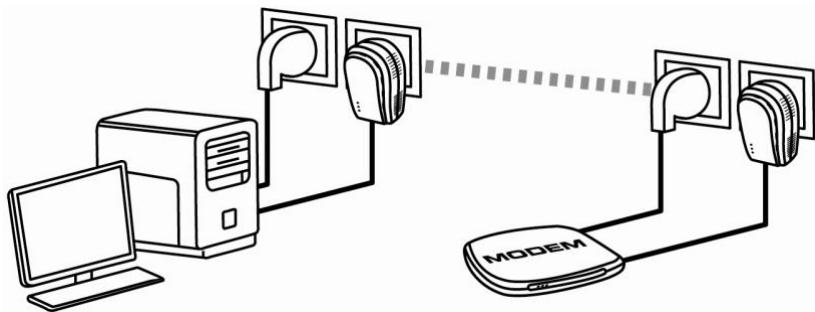
As a network is composed of at least two devices connected to one another, all you need to do is connect two Hercules ePlug 200 adapters to two electrical outlets in your home (in the same room or in different rooms). For example, to access the Internet, you can connect your modem or your Internet "box" to a Hercules ePlug adapter plugged into the nearest electrical outlet, and connect your computer to another Hercules ePlug adapter plugged into another electrical outlet. Finally, your network is already preconfigured to provide you with maximum security.
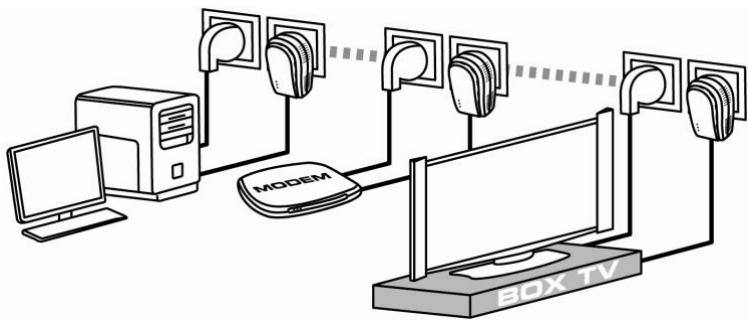
All products in the Hercules ePlug 200 range are compatible with the HomePlug AV standard (including devices functioning at 200 Mbits/s), allowing you to enjoy high-definition video or stream multimedia files with ease. These adapters may be combined according to your needs or according to your devices (a TV decoder with a "Box", a modem with a computer or a game console, two computers, a computer and a printer...). You will find some possible configurations set out in the installation section of this manual.
This standard is not compatible with the Homeplug 1.0 standard corresponding to the Hercules ePlug 85 range (and other adapters conforming to this standard). Nevertheless, you are perfectly able to create a network composed of Hercules ePlug 85 adapters in your home coexisting alongside another network composed of Hercules ePlug 200 adapters.
Even though this type of device presents no danger in terms of your home's electrical wiring, you should take care to respect certain recommendations, set out below.
1.1. Recommendations
- Only connect the Hercules ePlug 200 adapter to an electrical network which conforms to the security standards and specifications detailed on the device's electrical rating plate. If you are not sure about your electrical network, contact an electrician or your power supplier.
- Never open up the Hercules ePlug 200 adapter, as doing so risks damaging its internal components.
- Do not attempt to insert any objects into the vents and openings of the Hercules ePlug 200 adapter.
- Do not obstruct the vents and openings of the Hercules ePlug 200 adapter.
- If you need to carry out any maintenance on your Hercules ePlug 200 adapter, be sure to first unplug the adapter and entrust the job to a qualified professional in order to avoid the risk of electrocution.
-
In order to avoid the risk of fire or electrical discharge, keep your adapter away from:
-
rain or humidity, as well as all fluids (water, chemical products and any other liquids),
-
sources of heat such as heaters, stoves and any other heat-producing devices (including amplifiers),
-
direct sunlight.
-
Only plug in the Hercules ePlug 200 adapter in a sufficiently ventilated room.
- Only connect the Hercules ePlug 200 adapter using the included Ethernet cable.
- Unplug the Hercules ePlug 200 adapter from its electrical outlet if you do not plan on using it again for an extended period of time.
- Unplug the Hercules ePlug 200 adapter from its electrical outlet before cleaning. Use a soft cloth for cleaning and avoid using aerosol cleaners, water, solvent-based chemical products, benzene, alcohol or other cleaning products.
- Always keep children away from electrical outlets.
1.2. Specifications
Compatible with the IEE 802.3, IEE 802.3u, IEE 802.3x and Auto MDI/X specifications
Compatible with the Homeplug AV standard
- Coexists with HomePlug 1.0 modules
Encryption via the AES 128-bit security protocol
200 Mbits/s transfer rate
Asynchronous transmission mode
Modulation: OFDM, 1024/256/64 QAM, QPSK, BPSK
200m range over the electrical network
- Ethernet RJ45 port
Average power consumption: 2.6W when in use, 0.9W on standby when no data is circulating (these values may vary depending on your home's electrical system)
Internal power supply: 100 240VAC 50 / 60Hz
- Connect button, allowing you to add a Hercules ePlug 200 adapter to an existing network
LEDs on front face
1.3. Minimum system requirements
To connect a device to your Hercules ePlug 200 adapter:
- An Ethernet type network interface must be available on each device to be connected (computer, game console, modem, router, TV decoder, etc.)
To access the Internet with the Hercules ePlug 200 adapter:
Active Internet line
- Internet Explorer 6.0, Netscape Navigator 4.7 or Mozilla Firefox 1.0 or higher
ADSL Ethernet modem, cable modem, Internet "Box" (Livebox®, Freebox®, Neufbox®...)
1.4. Box contents
Please verify that the following elements are present in the box:
Depending on the pack:
Hercules ePlug 200 Solo: 1 adapter
Hercules ePlug 200 Duo: 2 adapters
Quick Start Guide in English
- Ethernet cable (1 per adapter)
Note: The "Hercules ePlug Station" network configuration and supervision software is available for download at http://www.hercules.com.
1.5. LEDs overview

:PowerLED:flashes during traffic
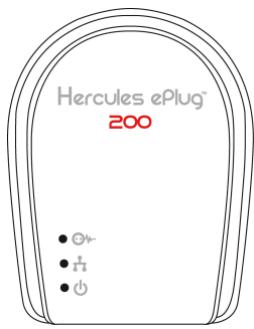

: Ethernet connection LED:
- lit up when the Ethernet cable is connected
- flashes during data transfer

:HomePlug connection status LED:
- Green: very good connection (transfer rates greater than 60 Mbits/s)
- Orange: fairly good connection (transfer rates between 60 and 40 Mbits/s)
- Red: mediocre connection (transfer rates less than 40 Mbits/s)
1.6. Connectivity overview
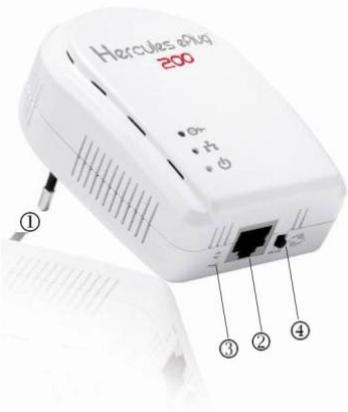
① Power plug to plug the Hercules ePlug 200 adapter into an electrical outlet
② Ethernet port allowing you to connect the Hercules ePlug 200 adapter to a device (desktop computer, laptop computer, game console, TV decoder, modem routeur, Internet "Box")
③ Restore factory default settings button
④ Dual-function Connect button, allowing you to:
- connect other ePlug 200 adapters to the network (press for less than 10 seconds (recommended: 3 seconds)); or
randomly generate a new network password (press for more than 10 seconds)

In order for the Hercules ePlug adapter to switch to standby mode, the network card on your computer or other network device must be inactive (i.e. no data is being transferred). To be sure that the network card remains inactive, you can unplug the computer from its electrical outlet, particularly if you intend to use it again for some time, or, if the computer is plugged into a power strip with an On/Off switch, you can press the Off button on the power strip.
2. INSTALLING YOUR HERCULES ePLUG 200
The Hercules ePlug 200 adapter has been designed to be simple to use and install. If you have already purchased and installed HomePlug (or PLC) adapters, Hercules provides a Quick Start Guide which guides you through several steps to take to add your Hercules ePlug 200 adapters to your existing HomePlug network.
If you are new to the world of HomePlug technology, we invite you to follow the pieces of advice set out in chapters 2.1 and 2.2 in order to get started.
Otherwise, you can proceed directly to chapter 2.3. You haven't yet created a HomePlug network: initial installation of Hercules ePlug 200 Duo which sets out, step by step, the installation procedure for your Hercules ePlug 200.
Finally, if you have already created a HomePlug network and wish to add a new adapter, please refer to chapter 2.4. You have already created a HomePlug network: adding a new adapter to your network (Hercules ePlug 200 Solo or Duo).
2.1. How to position your Hercules ePlug 200
To help you connect your Hercules ePlug 200, start by selecting an electrical outlet near to the equipment you wish to connect and follow the pieces of advice set out below.

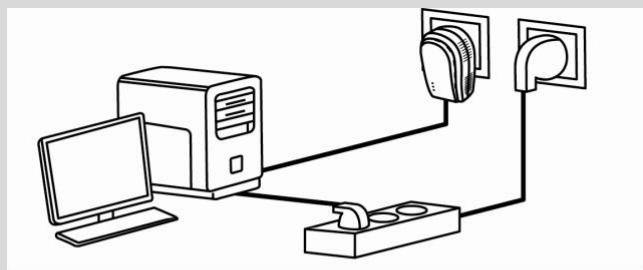
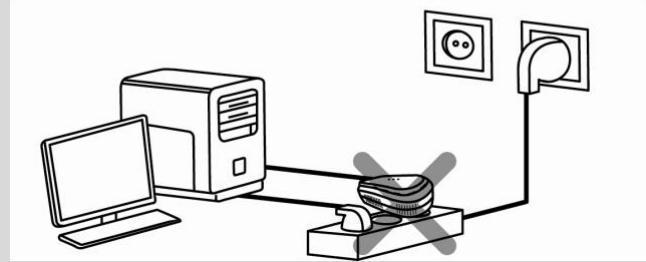
To optimize the transfer of data on your electrical network, be sure to follow these recommendations:
- You should preferably plug the adapters and devices (computer, Internet "box"...) into separate wall outlets: one for the adapter and one for the device to be connected to the HomePlug network.
If you are using a power strip, try to avoid connecting an adapter and a device to the same power strip if possible.
2.2. HomePlug: the partner to WiFi in your home
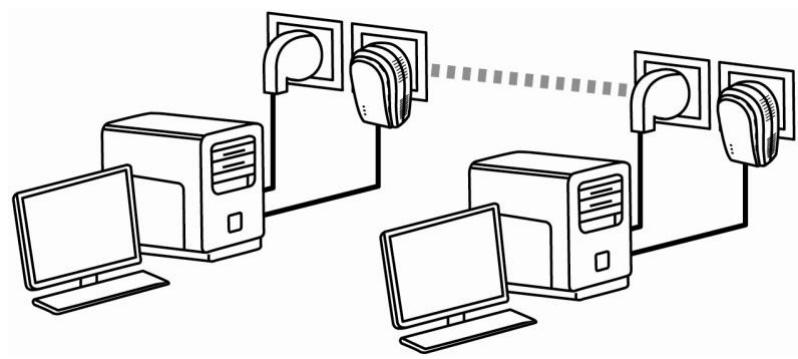
If you have a modem router or an Internet "box", your various pieces of network equipment, whether connected by WiFi or HomePlug, can communicate with one another. All data is transferred to a central point, in this case your modem router or Internet "box", and may circulate either on the electrical network via your HomePlug adapters, or by way of radio waves via WiFi.
It is therefore perfectly possible for a computer or any other piece of network equipment connected via WiFi to communicate with another piece of equipment connected via the HomePlug network to the modem router.
In chapters 2.2.1 to 2.2.3, you will find different examples of purely HomePlug networks. However, there is nothing stopping you from adding WiFi devices as well: for example, an Internet "box" connected to the HomePlug network on the one hand, and a WiFi laptop computer connected to this same "box" via WiFi, on the other hand.
2.2.1. Connecting two computers in a HomePlug network
2.2.2. Connecting a computer to a modem, a modem router, an Internet "box" or a game console in a HomePlug network
2.2.3 Connecting an Internet "box" to a Digital Terrestrial Television decoder in a HomePlug network
2.3. You haven't yet created a HomePlug network: initial installation of Hercules ePlug 200 Duo
The HomePlug AV standard of Hercules ePlug 200 adapters is not compatible with the Homeplug 1.0 standard of Hercules ePlug 85 adapters and HomePlug 14 Mbits/s adapters, but these two standards can coexist side-by-side. In effect, if you have already installed a HomePlug network in the HomePlug 1.0 standard (for example, with Hercules ePlug 85 adapters), you cannot add Hercules ePlug 200 adapters to that network. However, you are perfectly able to install a second network in your home composed of Hercules ePlug 200 adapters and HomePlug AV compatible devices.
To install a HomePlug network:

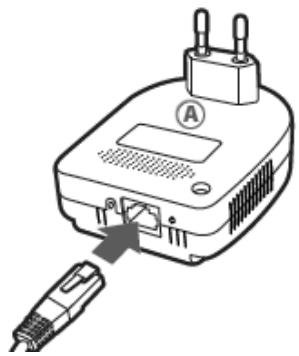
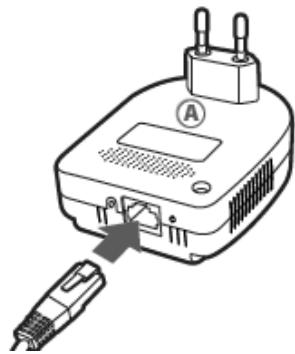
- Connect the Ethernet cable to the Ethernet plug on your first adapter.
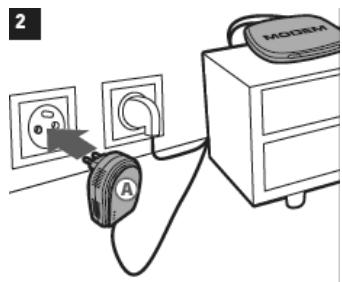
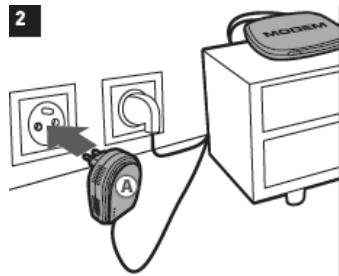
- Plug the adapter into an electrical outlet located near the device to be connected to the network.
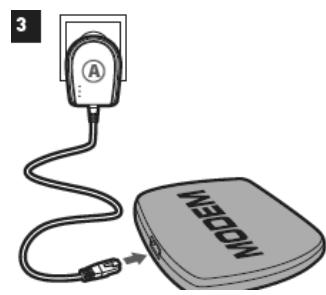
- Connect the other end of the Ethernet cable to the computer, modem, game console or any other network device (for example, a modem router).
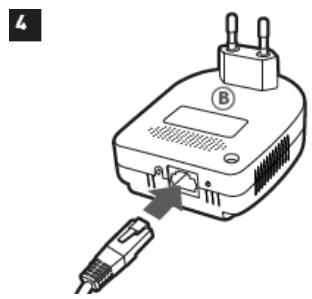
- Connect the Ethernet cable to the Ethernet plug on your second adapter.
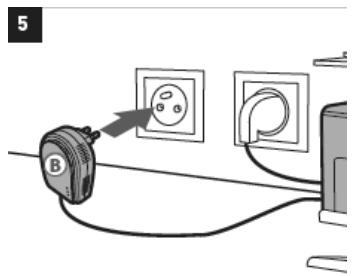
- Plug the adapter into an electrical outlet located near the device to be connected to the network.
In order to optimize the transfer of data on the HomePlug network, avoid plugging your adapter directly into a power strip.
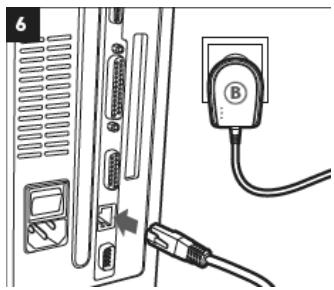
- Connect the other end of the Ethernet cable to the computer, modem, game console or any other network device (for example, a computer).
When your adapters are connected, the LED (connection status) lights up and indicates that the network is functioning properly. The signal quality is also indicated by a color code, explained in chapter 1.5. LEDs overview.
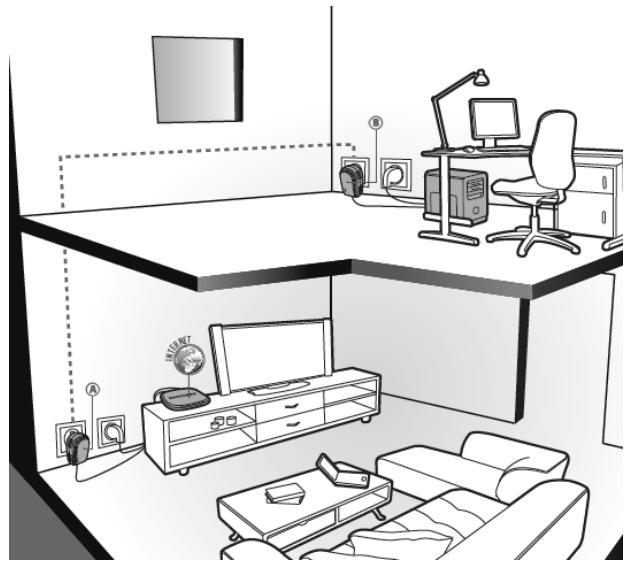
Your computer can now access the Internet via your modem, as the two devices are connected to one another via the HomePlug network and have the same network password.
2.4. You have already created a HomePlug network: adding a new adapter to your network (Hercules ePlug 200 Solo or Duo)
Let's take an example of a home in which you have already installed a HomePlug network composed of HomePlug adapters in the AV standard (Hercules ePlug 200, for example). You now wish to install one or more new Hercules ePlug 200 adapters in order to expand your network and be able to connect new devices (printer, modem, router, game console...).
1. Ethernet connection and electrical connection of your new Hercules ePlug 200 adapter
1
- Connect the Ethernet cable to the Ethernet plug on your new adapter.
2
- Plug the new adapter into an electrical outlet located near the device to be connected to the network.

In order to optimize the transfer of data on the ePlug network, avoid plugging your adapter fully into a power strip.
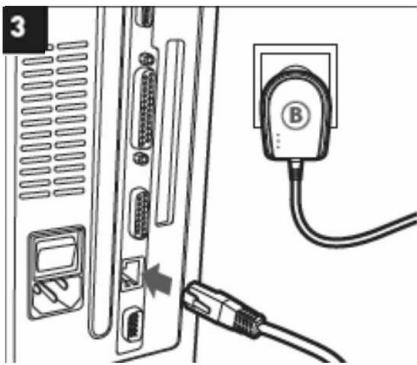
3
- Connect the other end of the Ethernet cable to the computer, modem, game console or any other network device (here, a computer).
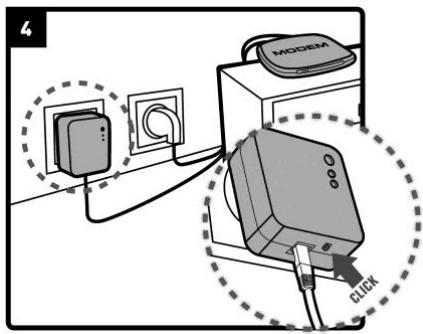
- Press for 3 seconds on the Connect button on one of the adapters already connected to the network.
You have 2 minutes to connect the new adapter.
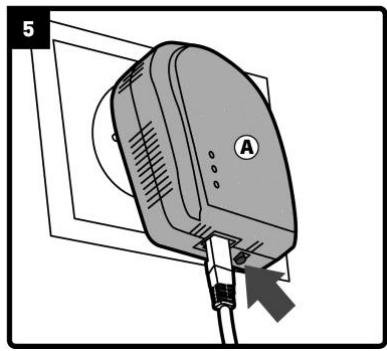
- Press for 3 seconds on the Connect button on the Hercules ePlug 200 adapter.
The LED lights up when a connection to the network has been established.
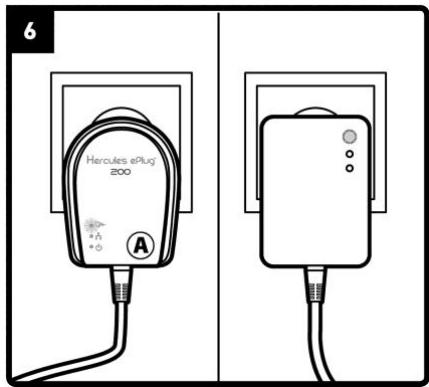
- Repeat this procedure to add another Hercules ePlug 200 adapter.
2. Connection to the network
The network password is applied to the Hercules ePlug adapter, which can now communicate with all the adapters of the existing network.

If the connection of your adapter to the network has failed, there are several possible causes.
Cause 1: You may not have carried out the connection procedure properly:
- Press for 3 seconds on the Connect button (also referred to as the security button by some manufacturers) on the adapter which is already part of your existing network.
- Make the connection by pressing for 3 seconds on the Connect button on your Hercules ePlug 200 adapter. You have 2 minutes to carry this out.
Cause 2: Your adapter may not be properly plugged into an electrical outlet, or this outlet is not powered:
- Verify that the adapter's power LED is lit up.
Cause 3: There may be a strong disturbance in your electrical network caused by other devices near to your adapter:
- Avoid plugging your adapter directly into a power strip.
- Unplug the devices plugged in near to the adapter.
- Try plugging the adapter into another outlet.
2.5. How to change the network password
When you install a HomePlug network, a random password is automatically generated. You can easily generate a new random password by using the Connect button's restart function.

If you change the network password on an adapter, that adapter will no longer be part of the network.
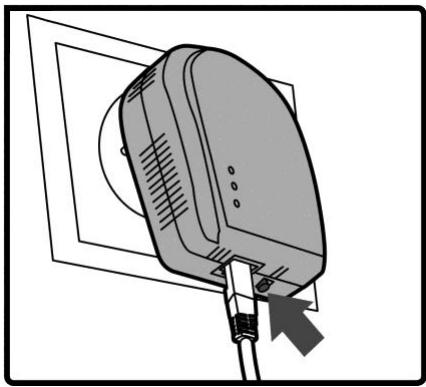
- Press for 10 seconds on the Connect button on the adapter whose password you want to change.
Wait until the adapter restarts. - Connect the other adapters by pressing for 3 seconds on the Connect button on the adapter which is already part of the network you wish to create, and then pressing the Connect button on the adapter you wish to integrate into that network.
- Repeat this procedure for all adapters you wish to integrate into the network.
3. YOUR HOMEPLUG NETWORK IN PRACTICE
Now that your HomePlug network is installed, it's time to move on to some practical examples. In the following chapters, we will show you how to share files, a printer, or let your friends share your ADSL connection for online gaming.
3.1. A few prerequisites
- The procedures described in this chapter differ according to the operating system used. Be sure to refer to the sections corresponding to your system.
- You have created a HomePlug network composed of one or more devices (computer(s), modem, router, Internet "box", printer...).
- The Internet connection sharing procedures apply to computers or devices connected to your modem router via a HomePlug network composed of Hercules ePlug adapters.
- To share an Internet connection, your router and your modem (ADSL Ethernet, cable or Internet "box") must be connected to a Hercules ePlug adapter which is itself plugged into an electrical outlet, everything must be powered on, and your Internet line must be active.
3.2. Identifying your HomePlug network type: Infrastructure or Ad hoc
The HomePlug network type will depend on the type of hardware you have.
| You are connecting... | Your mode is... |
| One or more computers to an ADSL modem router (or an ADSL Ethernet modem connected to a router) | Infrastructure, whereby the adapters are connected to your router. Infrastructure mode is suited to exchanging data, network gaming, and also sharing an Internet connection and/or a printer between several computers. To find out how to install and configure your modem router or your router, please refer to the manufacturer's documentation. |
| One of your computers by cable directly to an ADSL USB or Ethernet modem | Ad hoc (also known as Peer to Peer or computer to computer), whereby the computers are directly connected to one another, by cable or via HomePlug, without a router. Ad hoc mode is suited to exchanging data or network gaming between two computers. |
3.3. Computers running Windows Vista: Sharing folders, a printer or an ADSL connection
To create a network of computers, share data, a printer or an ADSL connection between computers running Windows Vista, it is not imperative that the computers belong to the same workgroup. However, if you wish to share between Windows Vista and an earlier operating system, make sure to define the same workgroup on all computers. For information on how to create a workgroup, please refer to the manual of your Hercules product.
Note: The access paths described hereafter may vary slightly if you have modified the default display in Windows Vista (that is to say, the Start menu properties and the Control Panel display).
You have connected your computer to a private network (as opposed to a public network). Therefore, the discovery options (namely, the ability to view outside devices and computers and to be seen by other networks) are enabled, but sharing options are not. You must therefore enable them manually before you can share your folders, your Internet connection or your printer.
3.3.1. Windows Vista: Sharing an ADSL connection in an Infrastructure type network
Reminder: If you have an Internet "box", a modem router or a router connected to a modem, and one or more computers, your network will be in Infrastructure mode by default. In this mode, the computers are connected to your access point, namely your "box", your modem router or your router connected to a modem, via the HomePlug network. Infrastructure mode is ideal for exchanging data, network gaming and also for sharing an Internet connection and/or a printer between several computers.
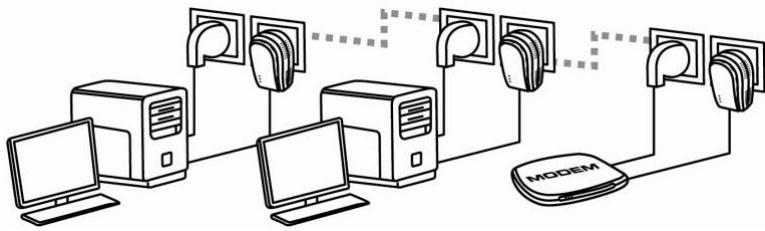
Proceed as follows for each computer that will use the shared Internet connection:
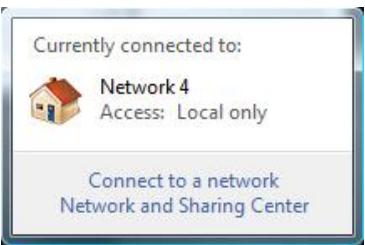
- Access the Network and Sharing Center. To do so, click the network icon on the Windows taskbar, then click the Network and Sharing Center link.
- Click the View status link.
| Network 4 (Private network) | Customize | |
| Access | Local only | |
| Connection | Network | View status |
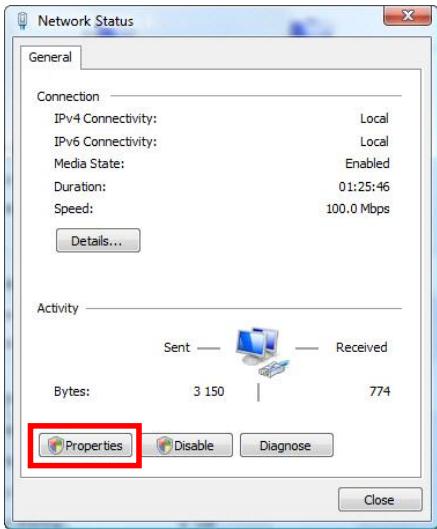
- In the Network Status window, click Properties.
- In the Windows Vista confirmation window, click Continue.
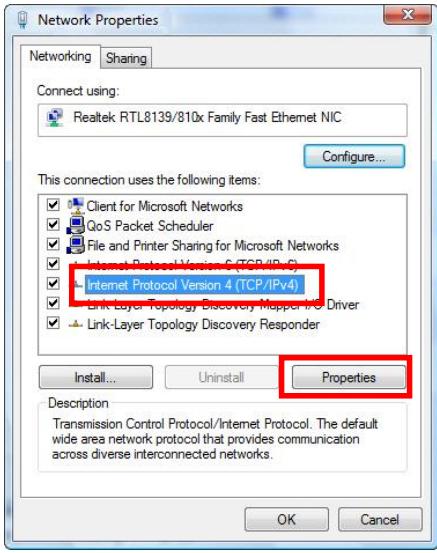
- In the Network Properties window, select Internet Protocol Version 4 (TCP/IPv4).
- Click Properties.
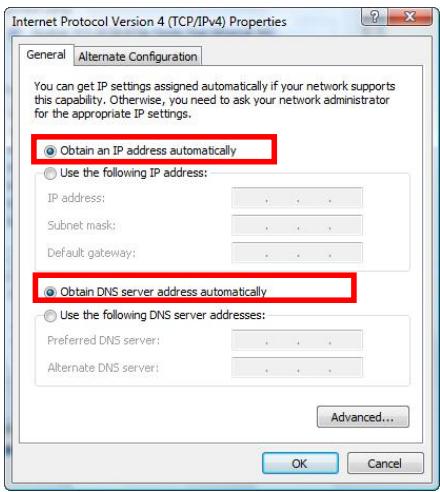
- In the Internet Protocol Version 4 (TCP/IPv4) Properties window, select Obtain an IP address automatically and Obtain DNS server address automatically.
- Click OK to validate.
- Do the same for Internet Protocol Version 6 (TCP/IPv6).
To access the Internet, simply launch your Internet browser.
3.3.2. Windows Vista: Sharing an ADSL connection in an Ad hoc type network
Let's take the example of a Hercules HomePlug network composed, on one end, of an ADSL USB or Ethernet modem directly connected by a cable to one of your computers (which we will refer to as Connection point A), and, on the other end, of a computer (which we will refer to as Connection point B) on which you want to access the Internet.
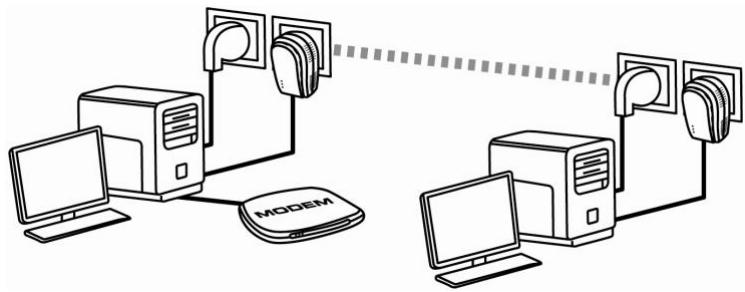
Connection point A
Connection point B
You are in Ad hoc mode. In this mode, the computers are directly connected to one another, without an access point (or router), via the HomePlug network. In order for Connection point B to be able to access the ADSL connection at Connection point A:
- Connection point B must be part of the same HomePlug network as Connection point A.
- The computer connected to the modem must be powered on.
- The Internet line must be active.
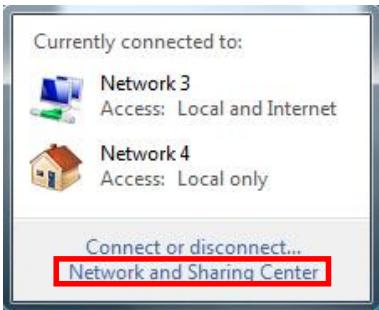
- Access the Network and Sharing Center by clicking the network icon on the Windows taskbar, then click the Network and Sharing Center link.
Before setting up sharing for your folders, your printer or your Internet connection, you must enable sharing in the Network and Sharing Center.
2. Click Manage network connections.
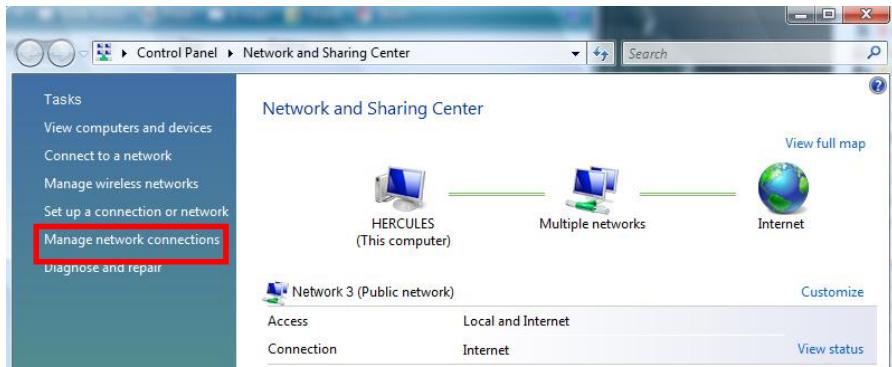
3. Right-click Internet, and select the Properties option.
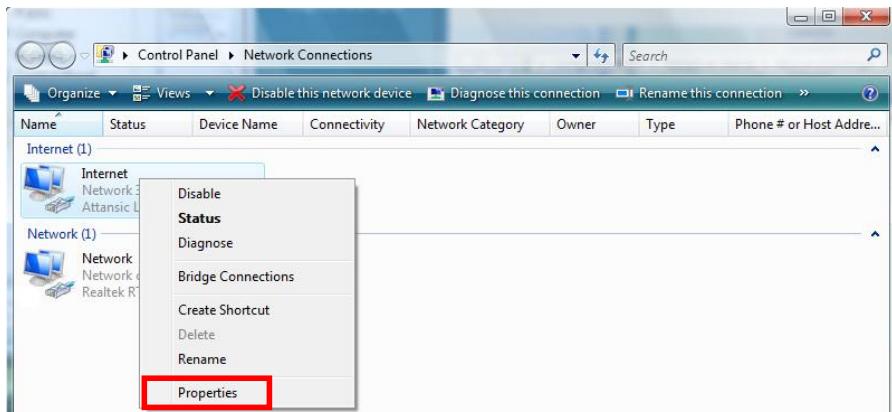
You can now access the Internet via all of the computers on your network.
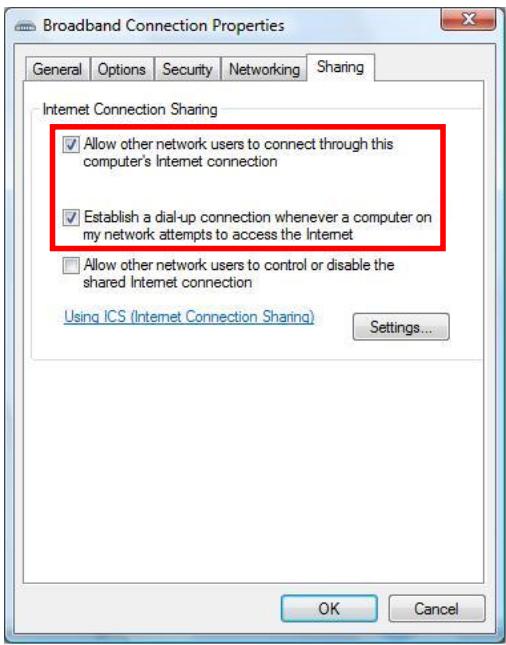
- In the Sharing tab, tick the Allow other users to connect through this computer's Internet connection and Establish a dial-up connection whenever a computer on my network attempts to access the Internet boxes.
Note: The Establish a dial-up connection whenever a computer on my network attempts to access the Internet option allows you to enable the Internet connection on the computer connected to the modem, in the event that there is no connection when another computer tries to connect to the Internet.
3.3.3.Enabling sharing
Before setting up sharing for your folders, your printer or your Internet connection, you must enable sharing in the Network and Sharing Center.

Note: To open the Network and Sharing Center, click the network icon in the Windows taskbar, then the Network and Sharing Center link.
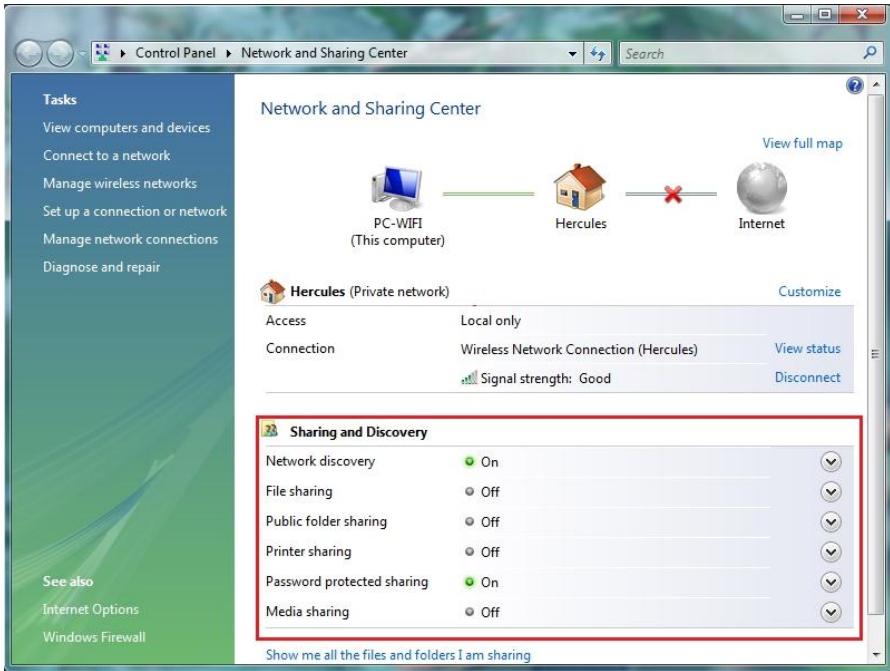
Enabling file sharing
- In the Sharing and Discovery zone, click the Off link or the button located opposite File sharing.
- Select the Turn on file sharing radio button.
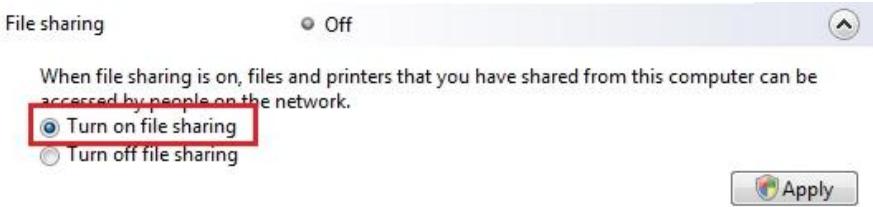
- Click Apply. In the Windows Vista confirmation window, click Continue.
Enabling public folder sharing
Note: A public folder is a folder which can be shared by other users of the same computer or of the same network.
-
In the Sharing and Discovery zone, click the Off link or the button located opposite Public folder sharing.
-
Select the Turn on sharing so anyone with network access can open files radio button (they will only be able to consult files) or select Turn on sharing so anyone with network access can open, change, and create files (there will be no limitations on the contents of these folders in terms of viewing, making changes and additions or other actions).
Public folder sharing
Off

When Public folder sharing is on, people on the network can access files in the Public folder. What is the Public folder?
Turn on sharing so anyone with network access can open files
Turn on sharing so anyone with network access can open, change, and create files
Turn off sharing (people logged on to this computer can still access this folder)

Apply
- Click Apply. In the Windows Vista confirmation window, click Continue.
Enabling printer sharing
Note: To enable printer sharing, you must first have installed a printer.
- In the Sharing and Discovery zone, click the Off link or the button located opposite Printer sharing.
- Select the Turn on printer sharing radio button.
Printer sharing
Off

When printer sharing is on, people with network access can connect to and use printers attached to this computer.
Turn on printer sharing
Turn off printer sharing

Apply
- Click Apply. In the Windows Vista confirmation window, click Continue.
Enabling media file sharing
Note: This option allows you to enable sharing of your music, videos and images.
- In the Sharing and Discovery zone, click the Off link or the button located opposite Media sharing.
- Click Change...
When media sharing is on, people and devices on the network can access shared music, pictures, and videos on this computer, and this computer can find those types of shared files on the network.
Change...
- In the Media Sharing window that appears, tick the Share my media box.
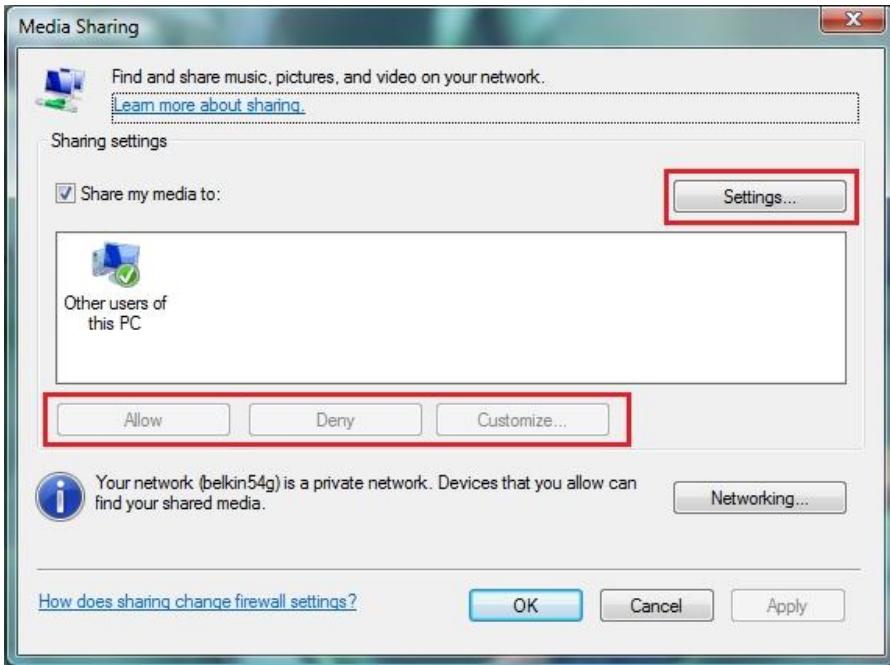
- Click Apply. In the Windows Vista confirmation window, click Continue.
- In the following window, you can define the different settings, such as: authorize or refuse groups of users, set parental controls, select media types to be shared, and so on.
- When you're done, click Apply, then OK.
3.3.4. Windows Vista: Sharing public or personal folders
Reminder: In Windows Vista, there are two types of folders: personal or local folders and public folders. A personal folder is a folder belonging to a specific user created on the computer, whereas a public folder is a folder that can be shared by any other user of the same computer or the same network. In essence, a public folder is shared, and therefore available to everyone for viewing (the minimum authorization level). For sharing personal folders (your folder of your own images, for example), you must select the users who will be able to access their contents and set the authorization level, as indicated in the following procedure.
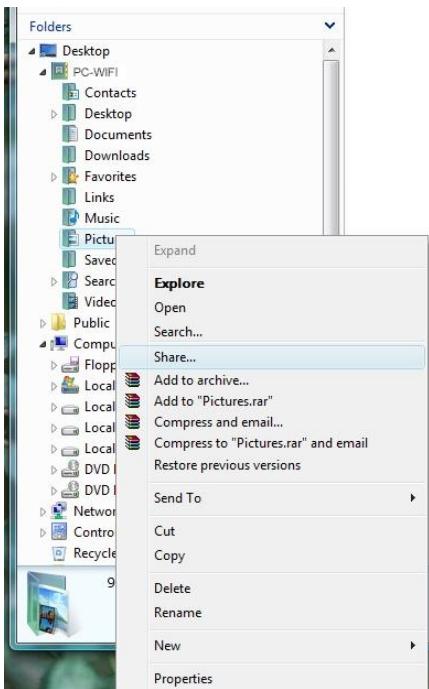
- Select the folder that you wish to share, without opening it. Here, your Pictures folder.
- Right-click the folder. Select Share.
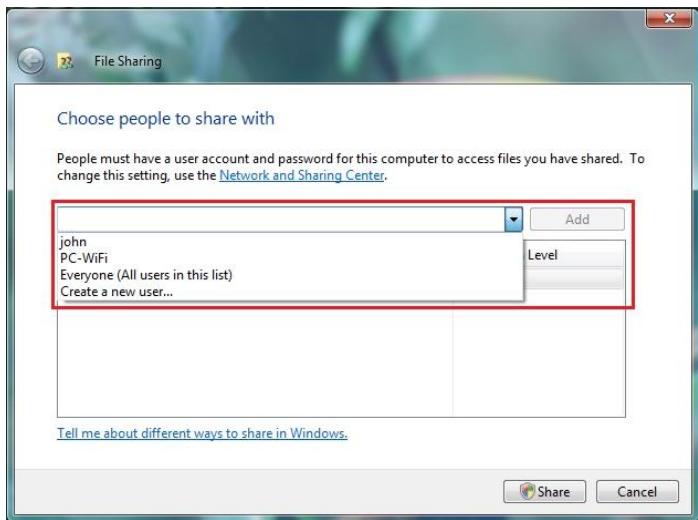
- In the File Sharing window, select the user(s) who will be able to access this folder, then click Add.
Note: You can provide access to all users with no restrictions (Everyone option) or select specific users previously created on your PC. You can also create new users by clicking Create a new user... in the dropdown list.
- Select the Permission Level you wish to assign by clicking on the line for that user: Reader (authorization to view only), Contributor (authorization to view, add and delete) or Co-owner (authorization to view, modify, add and delete).
- Click Share. Be sure to note the path indicated, which will allow for access to the shared folder on the network from another computer. For example: \PC\Users\My documents\Shared Pictures Folders.
- Click Done.
The folder is now shared. You can now display all shared folders and files on the computer or the shared files on the network by clicking the links in the Network and Sharing Center.
3.3.5. Computers running Windows Vista: Accessing shared folders
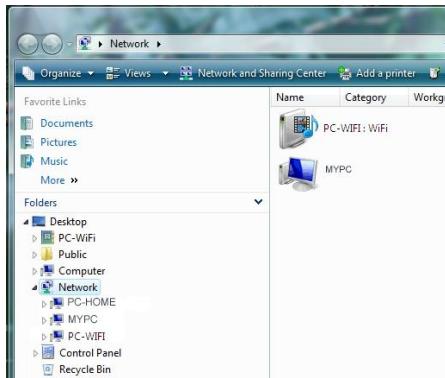
- In the file explorer, accessible via Start/Computer, double-click Network.
You access the list of the computers on the same network. Use the path indicated by Windows when setting up sharing (for example: | UsersMy documents\Shared Pictures Folders). - Double-click the computer sharing the folders you wish to access.
- If a password has been defined, enter your user name and your password.
All shared folders appear. Depending on your authorization level, you can display, modify, add and/or delete shared folders and files.
3.3.6. Windows Vista: Sharing a printer
You can put a printer on the network and thereby share it with all computers in your home connected in a network via Hercules ePlug adapters.
To access a printer on the network, sharing for the printer must first be set up in the Network and Sharing Center (please refer to chapter 3.3.3 Enabling sharing). The printer must then be set up for sharing on the computer to which is connected and on which it is installed.
On the computer connected to the printer:
- Click Start/Control Panel.
- Under the Hardware and Sound heading, click the Printer link.
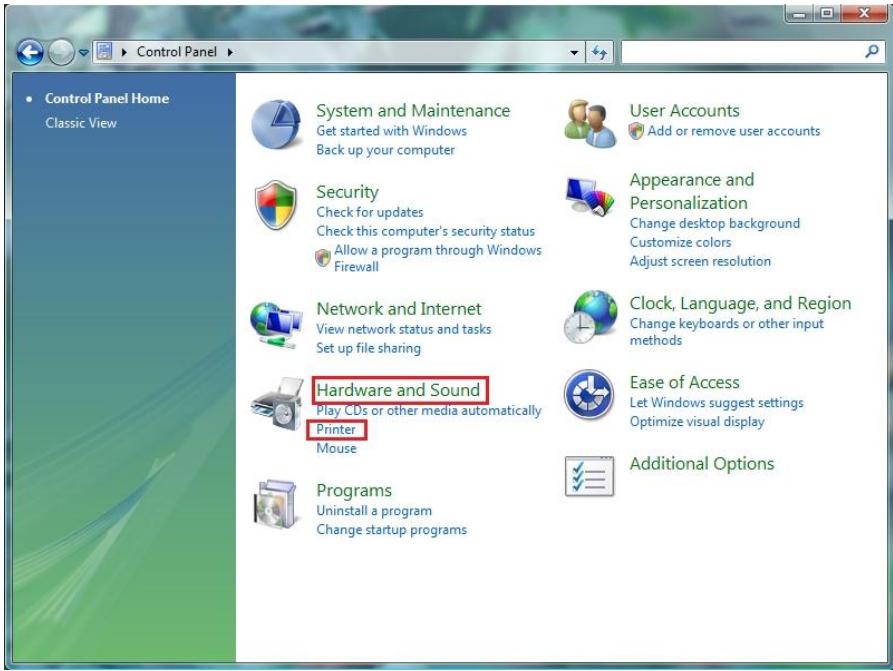
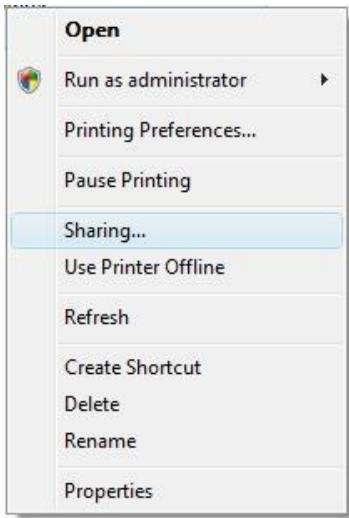
The list of installed printers is displayed.
- Right-click the printer and select the Sharing... option.
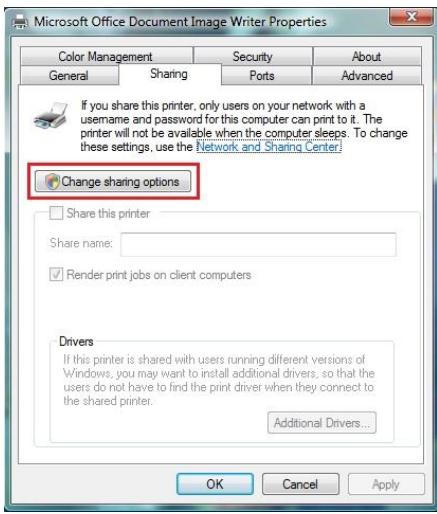
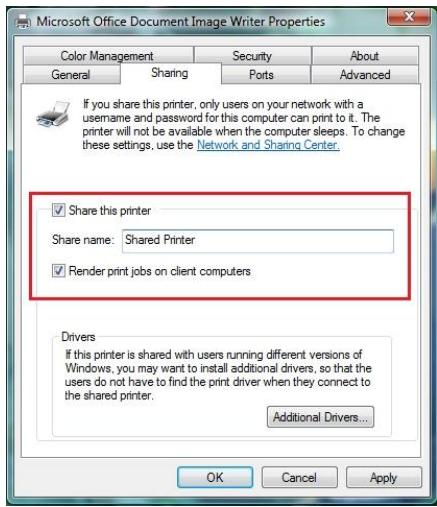
- In the Printer Properties window, click the Change sharing options button.
-
In the Windows Vista confirmation window, click Continue.
-
Tick the Share this printer box.
- Select the name of the printer which will be displayed on the network under Share name.
- Click Apply, then OK.
3.3.7. Computers running Windows Vista : Accessing the shared printer
On the computers that will use the shared printer:
- Click Start/Control Panel.
- Under the Hardware and Sound heading, click the Printer link.
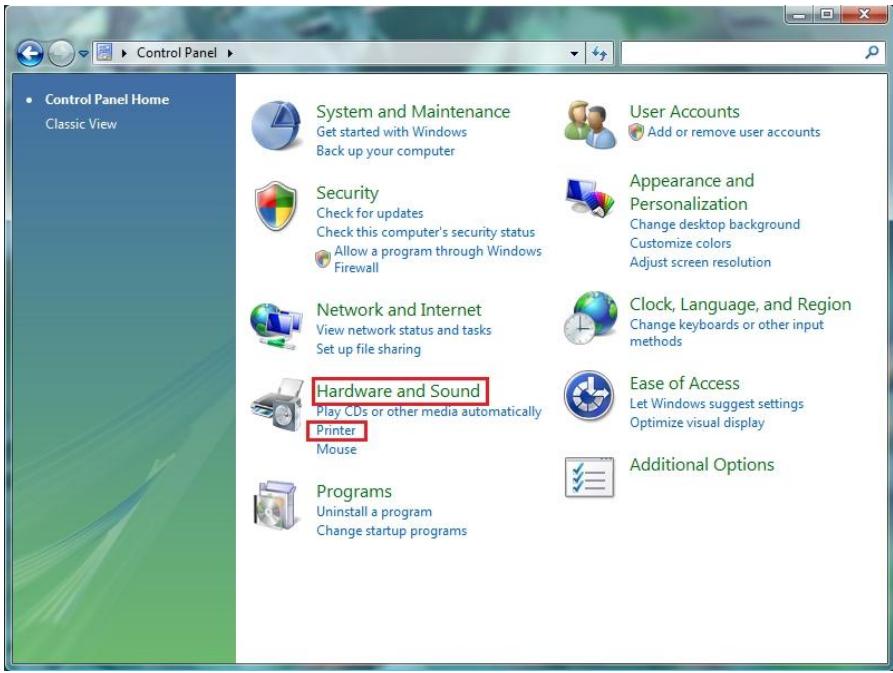

- Click the Add a printer button.
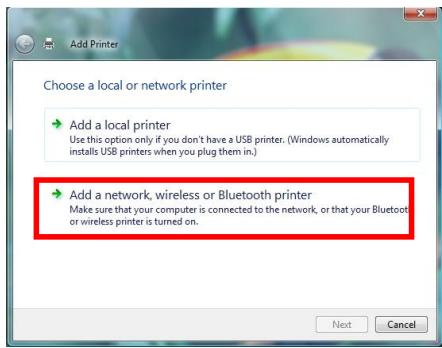
The Add a printer assistant appears.
-
Click Add a network, wireless or Bluetooth printer.
-
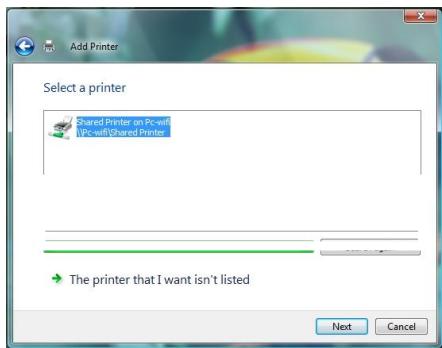
Windows searches for the shared printers on your network. Select the shared printer.
- Click Next.
-
If necessary, accept installation of the printer's drivers when prompted to do so by Windows.
-
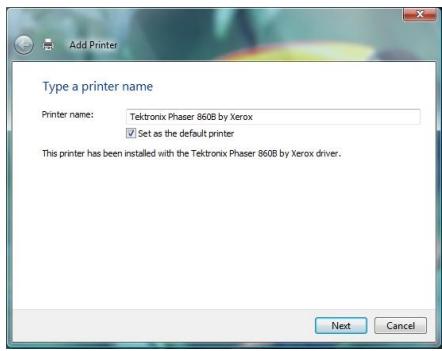
Validate the name of your printer, then click Next.
- Click Finish to close the assistant.
3.4. Computers running Windows XP: Sharing folders, a printer or an ADSL connection
A simple solution for sharing folders, a printer or an ADSL connection in Windows XP is to use the Network Setup Wizard. This Wizard will help you create a real home network.
Note: the access paths mentioned below may vary slightly if you have modified the default display configuration in Windows XP (meaning the Start menu properties and Control Panel display).
3.4.1. Windows XP: Using the Network Setup Wizard in an Infrastructure network
Proceed as follows for each computer:

HyperTerminal

Network Connections

Network Setup Wizard

New Connection Wizard

Remote Desktop Connection
Network Setup Wizard
The wizard found disconnected network hardware.

The network connections listed below are disconnected. Plug in your network cables or otherwise connect your network hardware, and then click Next.
Connections
Local Area Connection D-Link DFE-530TX PCI Fast Ethernet Adapter (rev.A)
√ ignore disconnected network hardware
Back
Next>
Cancel
Network Setup Wizard
Do you want to use the shared connection?

The wizard found a shared Internet connection on the computer "Unknown Internet Connection Sharing device."
Do you want to use the existing shared connection for this computer's Internet access?
Yes, use the existing shared connection for this computer's Internet access (recommended)
No, let me choose another way to connect to the Internet
<Back
Next>
Cancel
- Click Start/All Programs/Accessories/ Communications/ Network Setup Wizard.
The Network Setup Wizard is launched.
- Click Next twice.
The window opposite may appear if The Wizard found disconnected network hardware.
- If your Ethernet network connection is not displayed in the list, tick the Ignore disconnected network hardware box, then click Next. Otherwise, exit the Wizard by clicking Cancel and establish the connection from your network device to your router (for more information, please refer to your router's manual).
The window opposite may appear if The Wizard found a shared Internet connection on the computer.
- Select No, let me choose another way to connect to the Internet, then click Next.
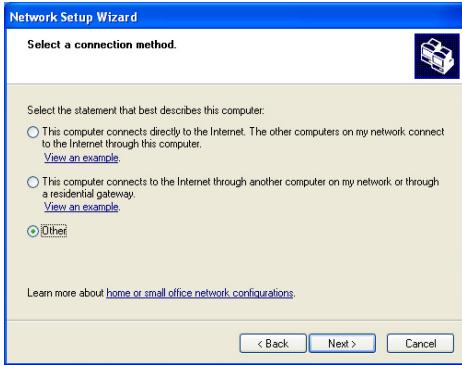
- In the Select a connection method window, select the Other option.
- In the following window, select This computer connects to the Internet directly or through a network hub, then click Next.
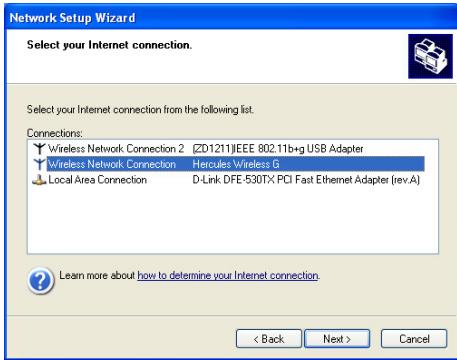
- If the window opposite appears, select the connection to your local area network (your Ethernet network card), then click Next.
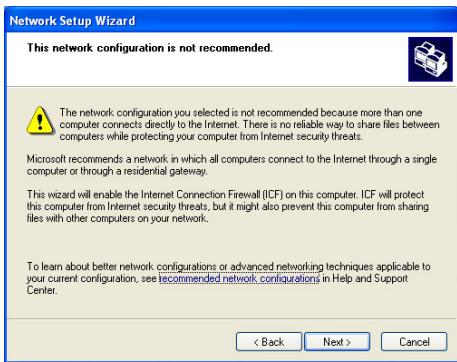
- When this warning screen appears, ignore it by clicking Next.
If you are using a Hercules modem router, your computers are already protected by the integrated firewall.
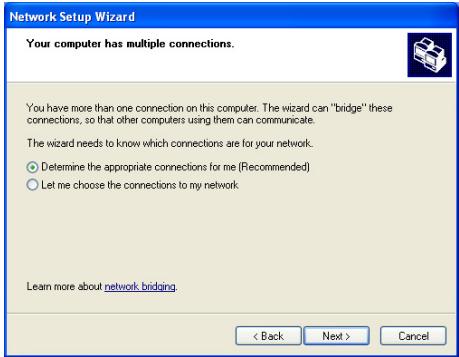
- If your computer has at least three connections (or network devices, whether Ethernet, FireWire or WiFi), the window opposite appears. In this case, let the Wizard determine the appropriate connections.
- Click Next.
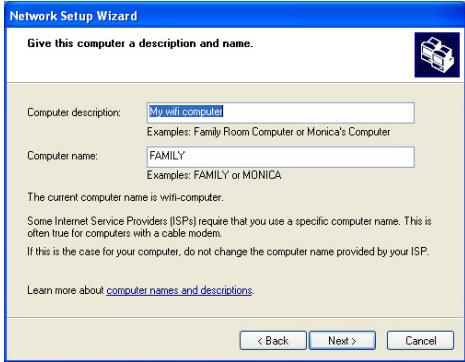
- Enter the computer name and a description, if required.
Give the computer a name that is unique and sufficiently distinctive, making it easy to recognize on your network (my-computer, HomePlugcomputer or julie, for example).
12. Click Next.
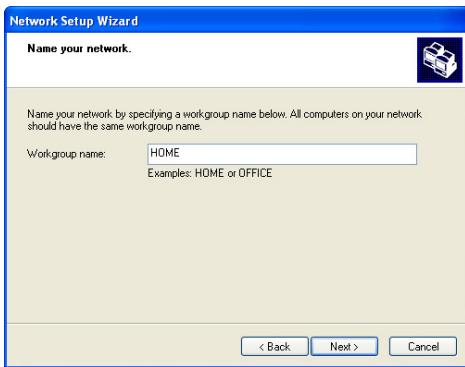
13. Enter the workgroup name (HOME, OFFICE or HERCULES, for example) and a description, if required.
The workgroup name must be identical (be sure to respect the case of letters) for all computers you wish to link together in a network.
14. Click Next.
15. Verify the configuration settings you have entered in the window that appears, then click Next.
The Wizard configures the computer for the home network. This may take a few minutes.
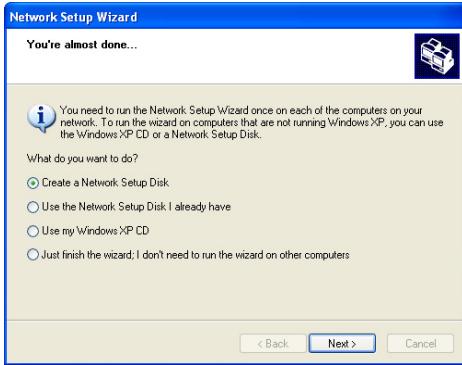
- Before completing the procedure, you may select the Create a Network Setup Disk option. This consists of copying this Wizard onto a storage medium (your choice of floppy disk or USB key) so that it can be launched on computers equipped with operating systems other than Windows XP.
This operation is carried out automatically, once you have selected a medium for saving the Wizard.
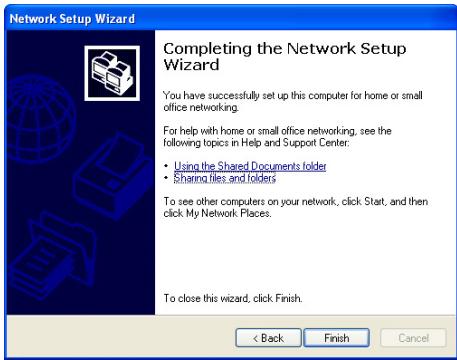
- Click Finish to exit the Wizard.
Once the procedure is finished, Windows XP may prompt you to restart your computer.
The procedures described in this chapter are specific to Windows XP. For all other questions related to sharing folders, a printer or an Internet connection, or on using Windows, please refer to the Windows online help utility.
3.4.2. Windows XP: Using the Network Setup Wizard in an Ad hoc network
Proceed as follows for each computer:
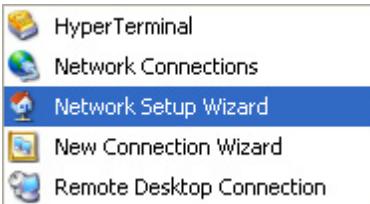
- Click Start/All Programs/Accessories/ Communications/ Network Setup Wizard.
The Network Setup Wizard is launched.
- Click Next twice.
Network Setup Wizard
The wizard found disconnected network hardware.

The network connections listed below are disconnected. Plug in your network cables or otherwise connect your network hardware, and then click Next.
Connections:
Local Area Connection D-Link DFE-530TX PCI Fast Ethernet Adapter (rev.A)
ignore disconnected network hardware
<Back
Next>
Cancel
Network Setup Wizard
Do you want to use the shared connection?

The wizard found a shared Internet connection on the computer "Unknown Internet Connection Sharing device."
Do you want to use the existing shared connection for this computer's Internet access?
Yes, use the existing shared connection for this computer's Internet access (recommended)
No, let me choose another way to connect to the Internet
<Back
Next>
Cancel
On the computer equipped with the ADSL modem:
Network Setup Wizard
Select a connection method.

Select the statement that best describes this computer:
This computer connects directly to the Internet. The other computers on my network connect to the Internet through this computer. View an example.
This computer connects to the Internet through another computer on my network or through a residential gateway. View an example
Other
Learn more about home or small office network configurations.
<Back
Next>
Cancel
The window opposite may appear if The Wizard found disconnected network hardware.
- If your Ethernet network connection is not displayed in the list, tick the Ignore disconnected network hardware box, then click Next. Otherwise, exit the Wizard by clicking Cancel and establish the connection from your network device to your router (for more information, please refer to your router's manual).
The window opposite may appear if The Wizard found a shared Internet connection on the computer.
-
Select No, let me choose another way to connect to the Internet, then click Next.
-
In the Select a connection method window, select the This computer connects directly to the Internet. The other computers on my network connect to the Internet through this computer option.
- Click Next, then select the Internet connection corresponding to your modem. Click Next again.

- If your computer has at least three connections (or network devices, whether Ethernet, FireWire or WiFi), the window opposite appears. In this case, select the Let me choose the connections to my network option, then click Next.

- Among the connections displayed, leave the box corresponding to the connection to your local area network ticked and deselect the others, then click Next.
On the computers that will use the shared Internet connection:
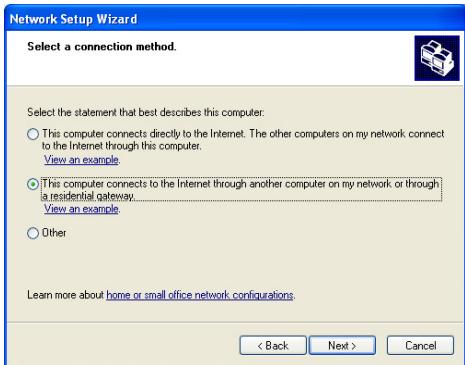
- In the Select a connection method window, select the This computer connects to the Internet through another computer on my network or through a residential gateway option.
- Click Next.
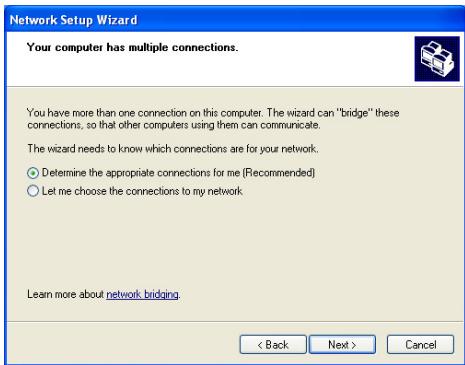
- If your computer has at least three connections (or network devices, whether Ethernet, FireWire or WiFi), the window opposite appears. In this case, select the Determine the appropriate connections for me option.
- Click Next.
Proceed as follows for each computer:
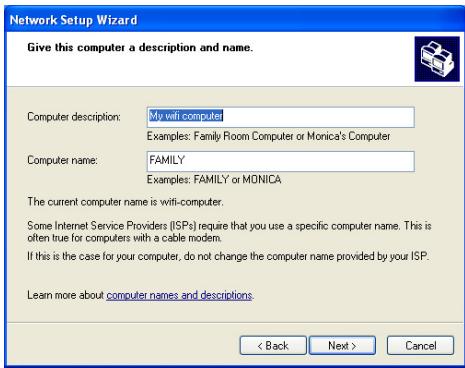
- Enter the computer name and a description, if required.
Give the computer a name that is unique and sufficiently distinctive, making it easy to recognize on the network (my-computer, HomePlugcomputer or julie, for example). - Click Next.
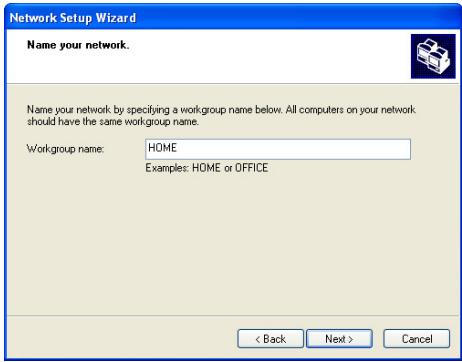
- Enter the workgroup name (HOME, OFFICE or HERCULES, for example) and a description, if required.
The workgroup name must be identical (be sure to respect the case of letters) for all computers you wish to link together in a network.
- Click Next.
- Verify the configuration settings you have entered in the window that appears, then click Next.
The Wizard configures the computer. This may take a few minutes.
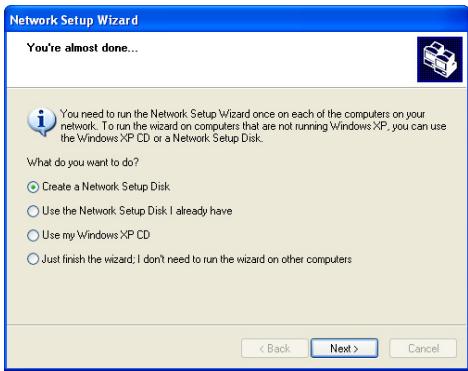
If your network is only composed of computers running Windows XP:
- Select the Just finish the wizard option.
If your network is composed of computers running Windows XP and/or computers running Windows 98 SE, Me, 2000):
- You can select the Create a Network Setup Disk option. This consists of copying this Wizard onto a storage medium (your choice of floppy disk or USB key) so that it can be launched on computers equipped with operating systems other than Windows XP.
This operation is carried out automatically, once you have selected a medium for saving the Wizard.
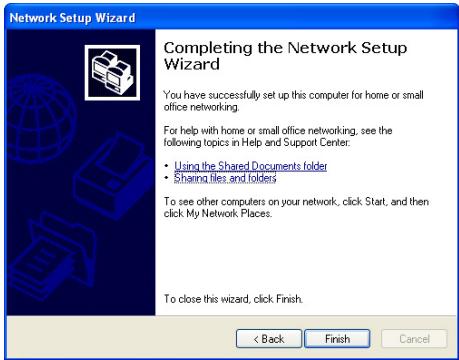
- Click Finish to exit the Wizard.
Once the procedure is finished, Windows XP may prompt you to restart your computer.
You can now access the Internet simply by launching your browser (Internet Explorer or Netscape Navigator). Sharing folders or a printer, however, requires a few additional operations, but by following the step-by-step instructions in the next chapters, the subtleties involved will no longer remain a mystery to you.
With some Internet service providers, it may happen that your shared connection is not established automatically when you launch your Internet browser. If this occurs, you must first establish an Internet connection on the computer equipped with the modem.
3.4.3. Windows XP: Sharing folders
After having configured all of your computers using the Network Setup Wizard, you can now share data located on different disk drives, as long as the user has authorized access.
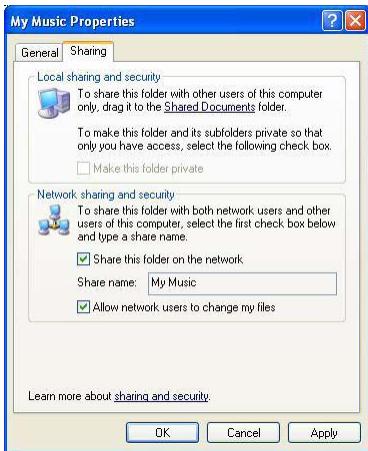
- Select the folder you wish to share, without opening it.

- Right-click the folder. Select Sharing and Security....
- In the Network sharing and security section of the Sharing tab, tick the Share this folder on the network box.
- On the Share name line, enter the folder name as it will be displayed on the network (12 characters maximum to ensure compatibility with other operating systems).
You can also tick the Allow network users to change my files box. In this case, the user will be able to read files and save any changes. If this box is not ticked, the shared files can only be read, and not changed.
The [Shared folder name] Properties window is divided into two sections. Local sharing and security only allows for the sharing of files among several users on the same PC. The files are then placed in a Shared Documents folder. Network sharing and security, however, allows for the sharing of files among more than one computer.

- Click Apply to validate your choices, then click OK to close the window.
An icon representing a hand beneath the folder indicates that the folder is now shared.
You can only share the contents of a folder, and not an individual file. We therefore recommend that you create a folder specifically for this purpose where you will put files to be shared.
3.4.4. Computers running Windows XP: Accessing shared folders
To easily access folders set up for sharing by several computers, it is preferable that the computers belong to the same workgroup. In Windows XP, the workgroup name has been defined using the Network Setup Wizard.
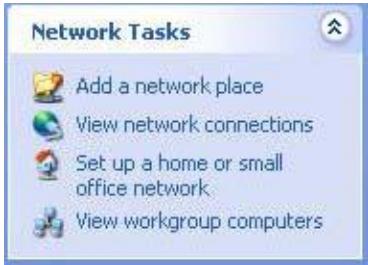
- Click Start/My Computer.
- Click My Network Places, then click View workgroup computers.
You directly access the list of computers in your workgroup.
3. Double-click the computer that is sharing the folders you wish to access.
All shared folders appear.
3.4.5. Windows XP: Sharing a printer
It is possible to put a printer on the network and share it with all computers in the house equipped with a Hercules ePlug adapter.
To access a printer on the network, the printer must be set up for sharing on the computer where it is connected and installed.
On the computer connected to the printer:
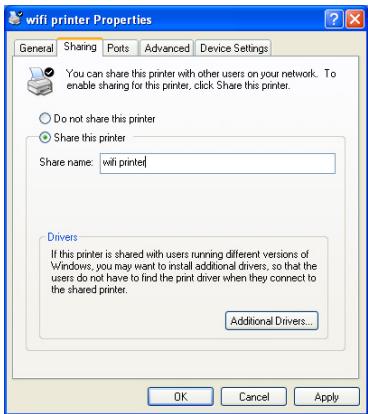
- Click Start/Control Panel/Printers and Other Hardware/ Printers and Faxes.
- Right-click the printer and select Sharing.
- In the Sharing tab, select the Share this printer radio button and enter a name for your printer.
Give the printer a name that is unique and sufficiently distinctive, making it easy to recognize (my-printer or home laser printer, for example). If one of your computers is running Windows 98 SE, we recommend that the sharing name not exceed 12 characters (without spaces) in order to ensure its compatibility with this operating system.
- Click Apply, then OK.
On the computers that will use the shared printer:
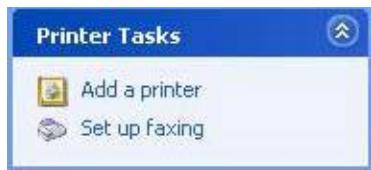
- Click Start/Control Panel/Printers and Other Hardware/ Printers and Faxes. In the Printer Tasks section, select Add a printer.
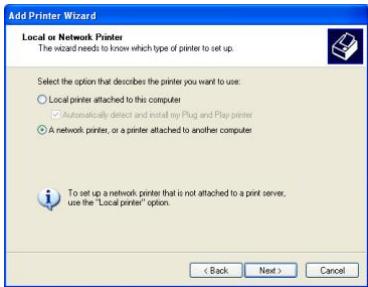
- The Add Printer Wizard is launched. Click Next.
- Select the A network printer, or a printer attached to another computer option, then click Next.
-
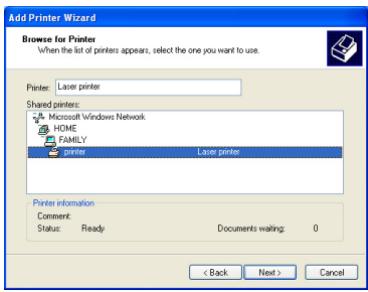
In the window that appears, click Next to launch the search for shared printers.
-
In the list displayed, double-click the computer connected to the printer.
- Select the shared printer, then click Next.
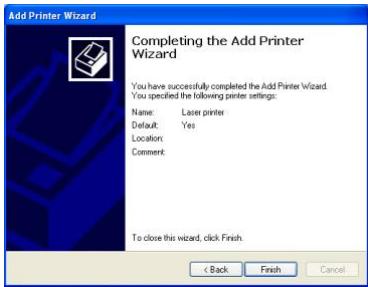
- If you wish, set the shared printer as the default printer, then click Next.
- Click Finish to exit the Wizard.
You can now use the network printer thanks to your HomePlug connection. For more information on sharing a printer, please refer to your printer's manual.
3.4.6. Windows XP: Modifying a workgroup name (advanced users)
It may happen that you need to change the name of your workgroup (advanced users only). To do so, proceed as follows:
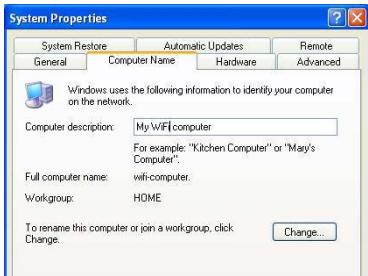
- Click Start/Control Panel/Performance and Maintenance/System.
- In the System Properties window, select the Computer Name tab.
- Click the Change... button.
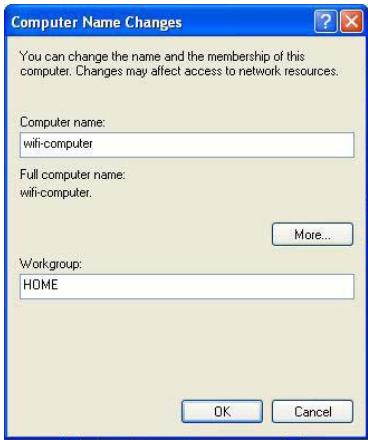
- In the Computer Name zone, enter a name sufficiently distinctive that it can easily be recognized in the list of computers for the workgroup (my-computer, HomePlug-computer or julie, for example).
- In the Workgroup zone, enter a name for the group (HOME, OFFICE or HERCULES, for example).
The workgroup name must be identical (be sure to respect the case of letters) for all computers you wish to link together in a network.
- A Windows message indicates that the task has been carried out successfully and that you must restart the computer.
- Repeat this procedure for each computer.
3.5. Computers running a different operating system or adding any other type of network device
Your HomePlug network is not limited to computers running Windows. It also functions with computers running other operating systems, such as Mac OS or Linux.
To find out how to share your Internet connection, folders, printers and more in Mac OS or Linux, please refer to the manufacturer's documentation.
Apart from desktop and laptop computers, you can add a wide range of network devices to your HomePlug network: game console, printer, TV decoder, modem router, Internet "box", access point and more... so long as the device has an Ethernet port.
To find out how to set up these devices, please refer to the manufacturer's documentation.
4. TECHNICAL SUPPORT
If you encounter a problem with your product, please go to http://ts.hercules.com and select your language. From there you will be able to access various utilities (Frequently Asked Questions (FAQ), the latest versions of drivers and software) that may help to resolve your problem. If the problem persists, you can contact the Hercules products technical support service ("Technical Support"):
By email:
In order to take advantage of technical support by email, you must first register online. The information you provide will help the agents to resolve your problem more quickly.
Click Registration on the left-hand side of the Technical Support page and follow the on-screen instructions.
If you have already registered, fill in theUsername and Password fields and then click Login.
By telephone:
| United Kingdom | 08450800942 Charges at local rate | Monday to Friday from Noon to 4pm and 5pm to 10pm Saturday from 9am to Noon and 1pm to 7pm Sunday from 9am to Noon and 1pm to 4pm |
| United States | 1-866-889-5036 Free | Monday to Friday from 7am to 11am and from Noon to 5pm Saturday and Sunday from 7am to Noon (Eastern Standard Time) |
| Canada | 1-866-889-2181 Free | Monday to Friday from 7am to 11am and from Noon to 5pm Saturday and Sunday from 7am to Noon (Eastern Standard Time) |
| Denmark (English) | 80887690 Free | Monday to Friday from 1pm to 5pm and 6pm to 11pm Saturday from 9am to 1pm and 2pm to 8pm Sunday from 10am to 1pm and 2pm to 5pm |
| Sweden (English) | 0200884567 Free | Monday to Friday from 1pm to 5pm and 6pm to 11pm Saturday from 9am to 1pm and 2pm to 8pm Sunday from 10am to 1pm and 2pm to 5pm |
| Finland (English) | 0800 913060 Free | Monday to Friday from 2pm to 6pm and 7pm to Midnight Saturday from 10am to 2pm and 3pm to 9pm Sunday from 11am to 2pm and 3pm to 6pm |
5. WARRANTY
Worldwide, Guillemot Corporation S.A. ("Guillemot") warrants to the consumer that this Hercules product will be free from material defects and manufacturing flaws for a period of two (2) years from the original date of purchase. Should the product appear to be defective during the warranty period, immediately contact Technical Support, who will indicate the procedure to follow. If the defect is confirmed, the product must be returned to its place of purchase (or any other location indicated by Technical Support).
Within the context of this warranty, the consumer's defective product will, at Technical Support's option, be either repaired or replaced. Where authorized by applicable law, the full liability of Guillemot and its subsidiaries (including for indirect damages) is limited to the repair or replacement of the Hercules product. The consumer's legal rights with respect to legislation applicable to the sale of consumer goods are not affected by this warranty.
This warranty shall not apply: (1) if the product has been modified, opened, altered, or has suffered damage as a result of inappropriate or abusive use, negligence, an accident, normal wear, or any other cause not related to a material defect or manufacturing flaw; (2) in the event of failure to comply with the instructions provided by Technical Support; (3) to software not published by Guillemot, said software being subject to a specific warranty provided by its publisher.
6. ENVIRONMENTAL PROTECTION RECOMMENDATION
At the end of its working life, this product should not be disposed of with standard household waste, but rather dropped off at a collection point for the disposal of Waste Electrical and Electronic Equipment (WEEE) for recycling.
This is confirmed by the symbol found on the product, user manual or packaging.
Depending on their characteristics, the materials may be recycled. Through recycling and other forms of processing Waste Electrical and Electronic Equipment, you can make a significant contribution towards helping to protect the environment.
Please contact your local authorities for information on the collection point nearest you.
Trademarks
Hercules® is a registered trademark of Guillemot Corporation S.A. Intel® and Pentium® are registered trademarks of Intel Corporation. Hercules ePlug™ 200 is a trademark of Guillemot Corporation S.A. Microsoft® Windows® XP and Vista are either trademarks or registered trademarks of Microsoft Corporation in the United States and/or other countries. Mac OS® is a registered trademark of Apple Computer, Inc. in the United States and/or other countries. Linux® is a registered trademark of Linus Torvalds. Intell® is a registered trademark of Intellion Corporation. All other trademarks and brand names are hereby acknowledged and are property of their respective owners. Illustrations not binding.
Declaration of conformity with EU directives
This device can be used in: AT, BE, FR, DE, IE, IT, LU, NL, PL, ES, SE, GB, FI, CH.
Hereby, GUILLEMOT CORPORATION, Carentoir France, declares that this Hercules ePlug 200 device is in compliance with the essential requirements and other relevant provisions of Directive 1999/5/EC. The Declaration of Conformity can be consulted at this website address:
http://ts.hercules.com/download/PLC/DoC/ePlug200/DoC-eng_Hercules_ePlug-200.pdf

Hercules is a division of Guillemot Corporation.

Federal Communication Commission Interference Statement
This equipment has been tested and found to comply with the limits for a Class B digital device, pursuant to Part 15 of the FCC Rules. These limits are designed to provide reasonable protection against harmful interference in a residential installation. This equipment generates, uses and can radiate radio frequency energy and, if not installed and used in accordance with the instructions, may cause harmful interference to radio communications. However, there is no guarantee that interference will not occur in a particular installation. If this equipment does cause harmful interference to radio or television reception, which can be determined by turning the equipment off and on, the user is encouraged to try to correct the interference by one of the following measures:
- Reorient or relocate the receiving antenna.
- Increase the separation between the equipment and receiver.
- Connect the equipment into an outlet on a circuit different from that to which the receiver is connected.
- Consult the dealer or an experienced radio/TV technician for help.
This device complies with Part 15 of the FCC Rules. Operation is subject to the following two conditions: (1) This device may not cause harmful interference, and (2) this device must accept any interference received, including interference that may cause undesired operation. This device and its antenna(s) must not be co-located or operating in conjunction with any other antenna or transmitter. FCC Caution: Any changes or modifications not expressly approved by the party responsible for compliance could void the user's authority to operate this equipment.
IMPORTANT NOTE:
FCC Radiation Exposure Statement:
This equipment complies with FCC radiation exposure limits set forth for an uncontrolled environment. This equipment should be installed and operated with minimum distance 20cm between the radiator & your body.
Copyright
© Guillemot Corporation S.A. 2009. All rights reserved.
This publication may not be reproduced in whole or in part, summarized, transmitted, transcribed, stored in a retrieval system, or translated into any language or computer language, in any form or by any means, electronic, mechanical, magnetic, photocopying, recording, manual or otherwise, without the prior written permission of Guillemot Corporation S.A.
Disclaimer
Guillemot Corporation S.A. reserves the right to make changes to specifications at any time and without notice. The information provided by this document is believed to be accurate and reliable. However, no responsibility is assumed by Guillemot Corporation S.A. either for its use or for the infringement of patents or other rights of third parties resulting from its use. This product may exist in a light or special version for PC integration or other purposes. Certain functions detailed in this manual may not be available in these versions. Wherever possible, a README.TXT will be included on the installation CD-ROM detailing the differences between the supplied product and the product described in the present documentation.
End-user software license Agreement
IMPORTANT: please read the Agreement carefully prior to opening and installing the Software. By opening the Software package, you agree to be bound by the terms of this Agreement. The Software enclosed in this package is licensed, not sold, and is only available under the terms of the present license Agreement. If you do not agree with the terms hereafter, you must promptly return the Software within 15 days, together with the entire contents of the box, to the place of purchase. The Guillemot Corporation S.A. Software (hereafter named the "Software") is copyrighted by Guillemot Corporation S.A. All rights are reserved. The term "Software" refers to all documentation and related material, including drivers, executable programs, libraries and data files. The purchaser is granted a license to use the Software only. The licensee also agrees to be bound by the terms and conditions of the present Agreement concerning copyright and all other proprietary rights for any third party Software, documentation and related material included in the Software package.
Guillemot Corporation S.A. reserves the right to terminate this license in the event of failure to comply with any of the terms or conditions laid out in the present Agreement. On termination, all copies of the Software shall immediately be returned to Guillemot Corporation S.A.; the purchaser remaining liable for any and all resulting damages.
License:
- The license is granted to the original purchaser only. Guillemot Corporation S.A. retains all title to and ownership of the Software and reserves all rights not expressly granted. The licensee is not permitted to sub-license or lease any of the rights that are hereby granted. Transfer of the license is permitted, provided that the transferor does not retain any part or copy of the Software and the transferee accepts to be bound by the terms and conditions of the present Agreement.
- The licensee may only use the Software on a single computer at any time. The machine-readable portion of the Software may be transferred to another computer provided it is previously erased from the first machine and there is no possibility that the Software can be used on more than one machine at any one time.
- The licensee acknowledges the copyright protection belonging to Guillemot Corporation S.A. The copyright notice must not be removed from the Software, nor from any copy thereof, nor from any documentation, written or electronic, accompanying the Software.
- The licensee is granted the right to make one back-up copy of the machine-readable portion of the Software on the condition that all copyright and proprietary notices are also reproduced.
- Except where the present Agreement expressly permits, the licensee is strictly prohibited from engaging in, nor may he permit third parties to engage in, the following: providing or disclosing the Software to third parties; providing use of the Software in a network, multiple PCs, multi-user or time-sharing arrangement where the users are not individual licensees; making alterations or copies of any kind of the Software; making any attempt to disassemble, de-compile or reverse engineer the Software in any way or form, or engaging in any activity aimed at obtaining underlying information not visible to the user during normal use of the Software; making copies or translations of the User Manual.
- CONTENTS
- YOUR HERCULES EPLUG 200 ADAPTER 2
- INSTALLING YOUR HERCULES EPLUG 200 5
- YOUR HOMEPLUG NETWORK IN PRACTICE 13
- TECHNICAL SUPPORT 40
- WARRANTY 40
- ENVIRONMENTAL PROTECTION RECOMMENDATION 41
- YOUR HERCULES ePLUG 200 ADAPTER
- Recommendations
- Specifications
- Minimum system requirements
- Box contents
- LEDs overview
- Connectivity overview
- INSTALLING YOUR HERCULES ePLUG 200
- How to position your Hercules ePlug 200
- HomePlug: the partner to WiFi in your home
- Connecting two computers in a HomePlug network
- Connecting an Internet "box" to a Digital Terrestrial Television decoder in a HomePlug network
- You haven't yet created a HomePlug network: initial installation of Hercules ePlug 200 Duo
- To install a HomePlug network:
- You have already created a HomePlug network: adding a new adapter to your network (Hercules ePlug 200 Solo or Duo)
- Ethernet connection and electrical connection of your new Hercules ePlug 200 adapter
- Connection to the network
- How to change the network password
- YOUR HOMEPLUG NETWORK IN PRACTICE
- A few prerequisites
- Identifying your HomePlug network type: Infrastructure or Ad hoc
- Computers running Windows Vista: Sharing folders, a printer or an ADSL connection
- Windows Vista: Sharing an ADSL connection in an Infrastructure type network
- Proceed as follows for each computer that will use the shared Internet connection:
- Windows Vista: Sharing an ADSL connection in an Ad hoc type network
- Click Manage network connections.
- Right-click Internet, and select the Properties option.
- 3.3.3.Enabling sharing
- Enabling file sharing
- Enabling public folder sharing
- Enabling printer sharing
- Enabling media file sharing
- Windows Vista: Sharing public or personal folders
- Computers running Windows Vista: Accessing shared folders
- Windows Vista: Sharing a printer
- On the computer connected to the printer:
- Computers running Windows Vista : Accessing the shared printer
- On the computers that will use the shared printer:
- Computers running Windows XP: Sharing folders, a printer or an ADSL connection
- Windows XP: Using the Network Setup Wizard in an Infrastructure network
- Proceed as follows for each computer:
- Network Setup Wizard
- Windows XP: Using the Network Setup Wizard in an Ad hoc network
- On the computer equipped with the ADSL modem:
- On the computers that will use the shared Internet connection:
- Windows XP: Sharing folders
- Computers running Windows XP: Accessing shared folders
- Windows XP: Sharing a printer
- Windows XP: Modifying a workgroup name (advanced users)
- Computers running a different operating system or adding any other type of network device
- TECHNICAL SUPPORT
- By email:
- By telephone:
- WARRANTY
- ENVIRONMENTAL PROTECTION RECOMMENDATION
- Trademarks
- Declaration of conformity with EU directives
- Federal Communication Commission Interference Statement
- IMPORTANT NOTE:
- FCC Radiation Exposure Statement:
- Copyright
- Disclaimer
- End-user software license Agreement
- License:
Marque : HERCULES
Modèle : EPLUG 200 DUO
Catégorie : Adaptateur réseau CPL