KEYMAX - Clé USB MAXELL - Notice d'utilisation et mode d'emploi gratuit
Retrouvez gratuitement la notice de l'appareil KEYMAX MAXELL au format PDF.


| Marque | MAXELL |
| Modèle | KEYMAX |
| Type de produit | Clé USB |
| Capacité de stockage | Variable selon modèle (non spécifiée, généralement jusqu'à 64 Go) |
| Dimensions approximatives | 60 x 20 x 10 mm |
| Poids approximatif | 10 g |
| Alimentation | Via port USB (5V, alimentation bus) |
| Interface | USB 2.0 (rétrocompatible USB 1.1) |
| Vitesse de lecture | Haute performance (non spécifiée précisément) |
| Vitesse d'écriture | Haute performance (non spécifiée précisément) |
| Systèmes d'exploitation compatibles | Windows ME/2000/XP, Mac OS 9.X et supérieur (Windows 98 nécessite pilote) |
| Fonctions principales | Stockage portable, création de zone privée avec mot de passe (DiskSafe) |
| Logiciel inclus | DiskSafe (création de zone privée, changement de mot de passe, redimensionnement) |
| Sécurité | Protection par mot de passe, formatage automatique après 6 tentatives erronées |
| Entretien et nettoyage | Éviter l'humidité et les chocs ; nettoyer avec un chiffon doux et sec |
| Précautions d'usage | Ne pas débrancher lorsque le voyant LED clignote ; retrait sécurisé via l'icône de la barre des tâches |
| Pièces détachées et réparabilité | Non applicable (appareil scellé, aucune pièce détachée disponible) |
| Garantie | Non spécifiée (généralement 2 ans) |
| Informations générales | Clé USB conforme aux spécifications USB 2.0/1.1 ; recommandé de ne pas brancher plusieurs clés DiskSafe simultanément |
FOIRE AUX QUESTIONS - KEYMAX MAXELL
Questions des utilisateurs sur KEYMAX MAXELL
0 question sur cet appareil. Repondez a celles que vous connaissez ou posez la votre.
Poser une nouvelle question sur cet appareil
Téléchargez la notice de votre Clé USB au format PDF gratuitement ! Retrouvez votre notice KEYMAX - MAXELL et reprennez votre appareil électronique en main. Sur cette page sont publiés tous les documents nécessaires à l'utilisation de votre appareil KEYMAX de la marque MAXELL.
MODE D'EMPLOI KEYMAX MAXELL
Hi-Speed USB Flash Disk USB2.0 Storage
User's Manual
Table of Contents
About Hi-Speed USB Flash Disk 1
A. Features 1
How to use Hi-Speed USB Flash Disk 1
A. Plug Hi-Speed USB Flash Disk
B. Read and Write data/files 2
C. Unplug Hi-Speed USB Flash Disk 2
Main Feature 3
DiskSafe feature 3
A. Creating the Privacy Zone 3
B. Using your Privacy Zone 5
C. Changing Your Password 7
D. Changing the Size of the Privacy Zone 8
E. Security Feature 9
About Hi-Speed USB Flash Disk
Hi-Speed USB Flash Disk is a "Powerful Speedy USB 2.0 Storage" product for those seeking to experience the USB 2.0/1.1 storage resolution. Hi-Speed USB Flash Disk has some powerful features –faster access to stored files, unlimited applications, truly trusted security. This is a solution that you could make any PC feel like home, and go with them wherever they go. Hi-Speed USB Flash Disk is the basis storage device that instantly becomes essential lifestyle accessory.
A. Features
Full Compliance with the USB Specification v2.0 and v1.1
High performance in write and read speed
- Mass storage device class compatible. No driver is needed in Windows ME, 2000, XP, MAC 9.X or above. (Windows 98 requires a driver), For MAC OS 8.6, you should download the necessary USB mass storage driver from Apple's web site.
How to use Hi-Speed USB Flash Disk
To use Hi-Speed USB Flash Disk, you just need to plug it into your computer's USB port. Windows ME, 2000, XP and above versions can support the USB Mass Storage driver. Hi-Speed USB Flash Disk will be automatically detected and running well. If you are running Windows 98, you will need to install the driver. You can download the 98 driver from WWW.RITEK.COM Then select Install / Remove Driver to start installation
A. Plug Hi-Speed USB Flash Disk
Once you plug in your Hi-Speed USB Flash Disk, Systems will assign a drive letter to Hi-Speed USB Flash Disk and be a removable disk. You can work with the drive just like another disk drive or floppy diskette.
Devices with Removable Storage
31 / 2 Floppy (A:)

Audio CD (E:)
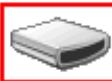
Removable Disk (G:)
After plugging Hi-Speed USB Flash Disk into the USB Port, you will find a "removable disk" icon on the files manager window.

B. Read and Write data/files
Hi-Speed USB Flash Disk is a light, portable storage device functions as hard disk. You can read, write, copy, or delete data and carry them wherever you go.
C. Unplug Hi-Speed USB Flash Disk

CAUTION!
Do not unplug or remove the device if the read/write LED of the Hi-Speed USB Flash Disk is on or blinking. Please wait for the LED to turn off before you safely remove the device. Please follow safe removal procedure in the Window ME, Windows 2000; otherwise it will make Hi-Speed USB Flash Disk damage or data lose.
You can remove Hi-Speed USB Flash Disk after finishing using the device. However, in Windows ME and Windows 2000 & Windows XP and above, please follow the safe removal procedure. You can find a safe removal icon in your computer's notification area.
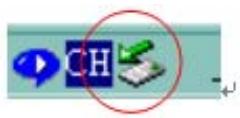
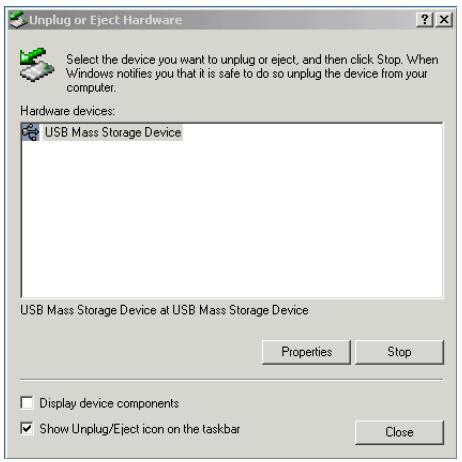
Double click the "safe removal" icon, the "Unplug or Eject Hardware" window will pop up. You can select the device you want to remove. Then, click the "Stop"
button. After that, you may unplug the device from the USB port of your computer.
Main Feature
DiskSafe feature
A. Creating the Privacy Zone

CAUTION!
When you create your Privacy Zone, the Hi-Speed USB Flash Disk is formatted and ALL data will be lost. Please back up your files before you create your Privacy Zone.
- Select the removable disk drive that was assigned to your Hi-Speed USB Flash Disk, and double click the DiskSafe software icon.
- Click "OK" to continue after you have read the DiskSafe Welcome window
Disk Safe Welcome
Welcome to DiskSafe. Currently you have no Privacy Zone. To create it, you will need to provide a password and to define the Privacy Zone size. Click to continue.
OK
CANCEL
- When the DiskSafe Format window is displayed, enter the following information in the relevant fields.
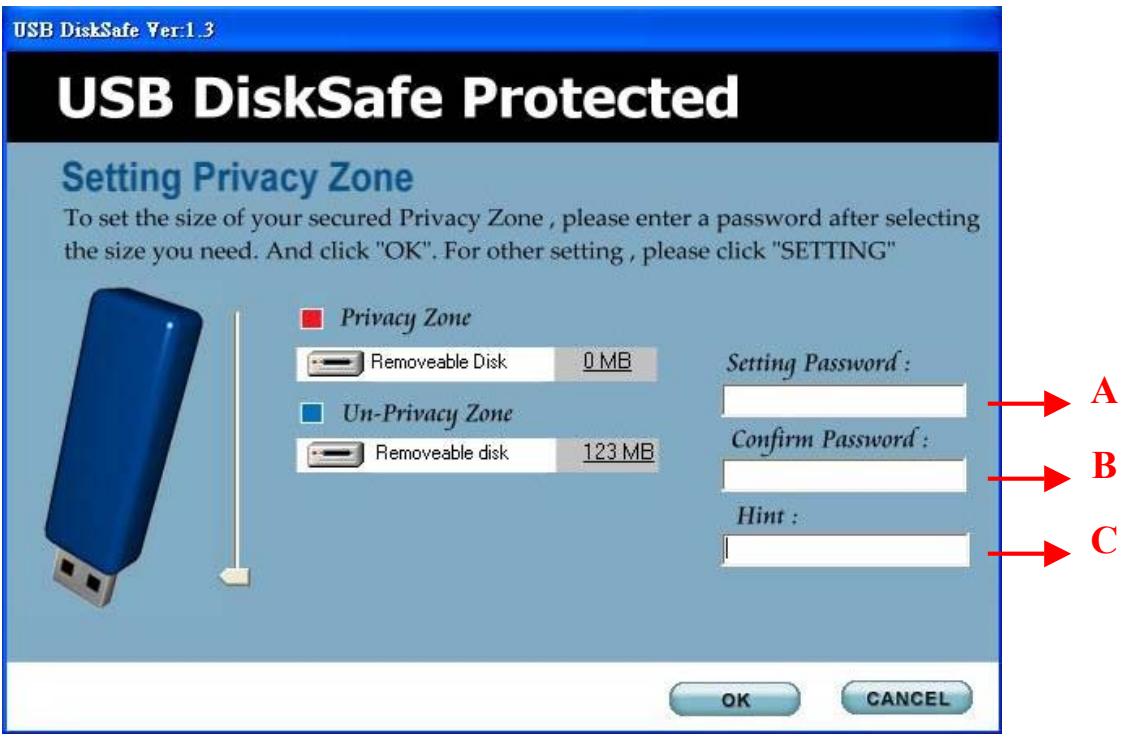
A. Your password (required)
B. The same password to confirm (required)
C. A hint to remind you of your password (optional)
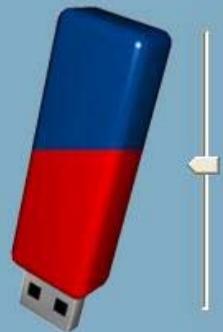
- Move the Hi-Speed USB Flash Disk slide bar (up or down) to designate the size of your new Privacy Zone. The amount of memory that will be secured is shaded orange. When you have set the Privacy Zone size, click “OK”.
USB DiskSafe Yer:1.3
USB DiskSafe Protected
Setting Privacy Zone
To set the size of your secured Privacy Zone, please enter a password after selecting the size you need. And click "OK". For other setting, please click "SETTING"
Privacy Zone

63MB

60 MB

Setting Password :
Confirm Password :
Hint:
OK
CANCEL
- The DiskSafe Format Warning window is displayed. To proceed with the format operation, click “OK”.
DiskSafe

Configure the protected area will destroy usb disk data.
Press->[OK]Continue Process Press->[Cansel]Stop Process
OK
CANCEL
- Setup password success. Please re-plug Hi-Speed USB Flash Disk again after the format operation is complete, a success message is displayed. Click "OK". In the format complete window, you can now login to your Hi-Speed USB Flash Disk Privacy Zone.
SetPWD

Configure the pravity zone success!! Please replug USB Flash Disk
OK
B. Using your Privacy Zone
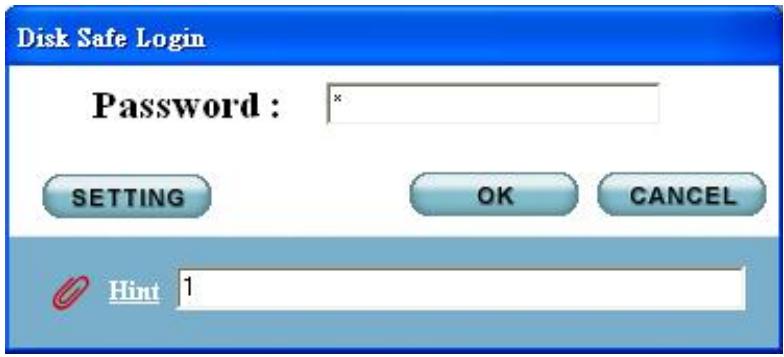
- After you have created a Privacy Zone, DiskSafe automatically prompts you to log in. Please type in your password and click “OK”.
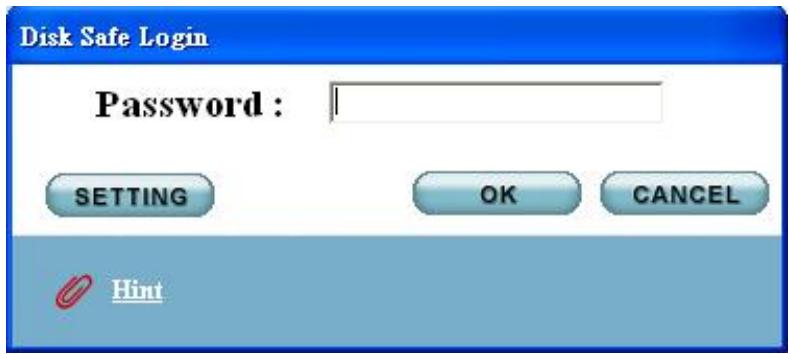
- If you enter the wrong password, an error message will show up.
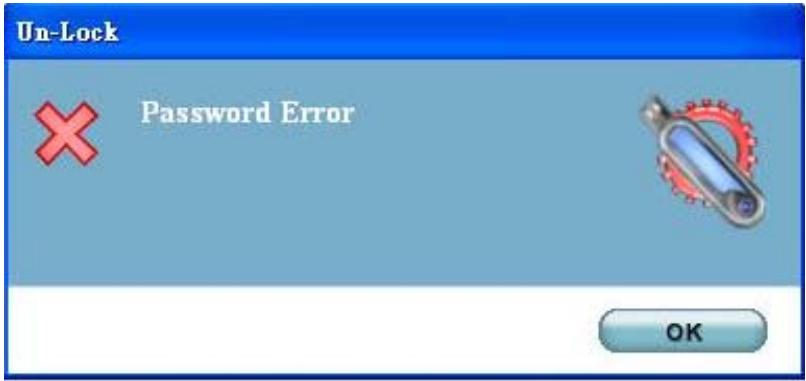
If you forget your password, click "Hint" to display the hint field in the DiskSafe login window.
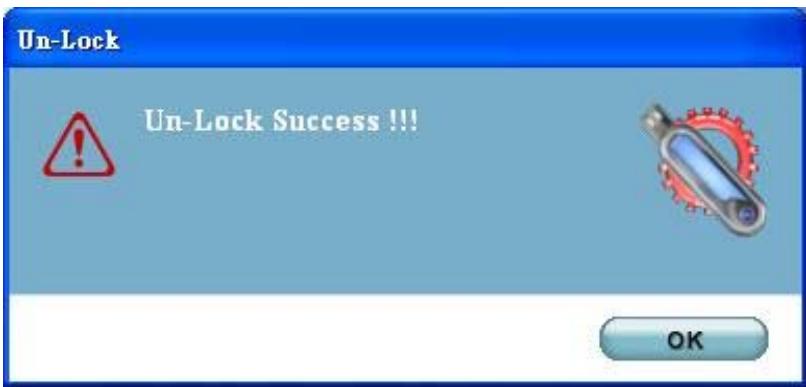
- After logging in successfully, DiskSafe displays a confirmation message.

CAUTION!
Hi-Speed USB Flash Disk will be formatted automatically after six incorrect attempts and ALL data will be lost.
C. Changing Your Password
Change Password Button
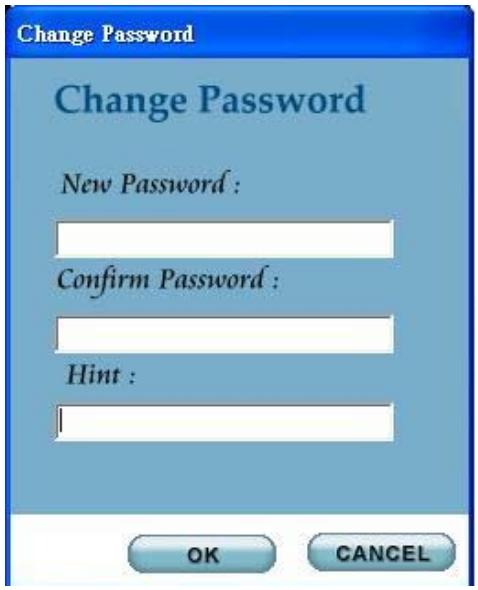
To change your password, please use change password button.
- Click Change Password in the DiskSafe Settings window.
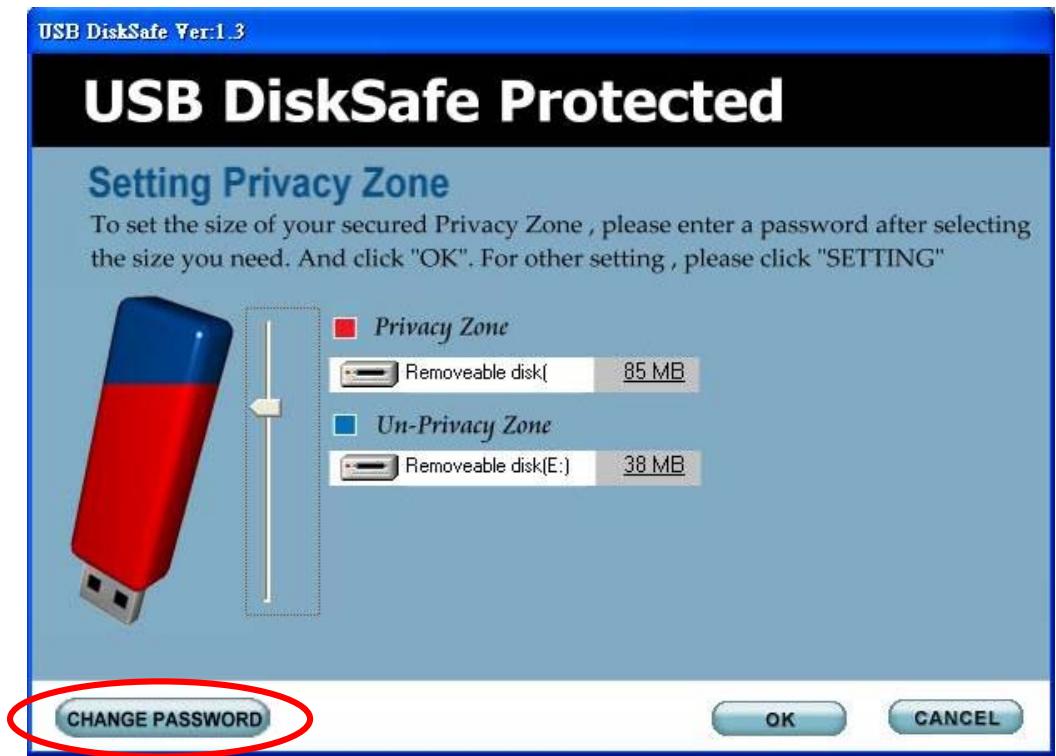
- When the Change Password dialog box is displayed, type in your password, the new password, and the new password once again for confirmation. It is recommended to type in a hint in case you forget or lose the password.
Without the Change Password Button
If the Change Password button is not displayed in the DiskSafe Settings window, you can change the password by formatting the privacy zone.
D. Changing the Size of the Privacy Zone

CAUTION!
Changing the size of your Privacy Zone will format your USB Flash Disk, that will cause ALL privacy and non-privacy data lost. Please backup your data first.
Change the size of the Privacy Zone
- Click Format in the DiskSafe Settings window. The DiskSafe Format window is displayed
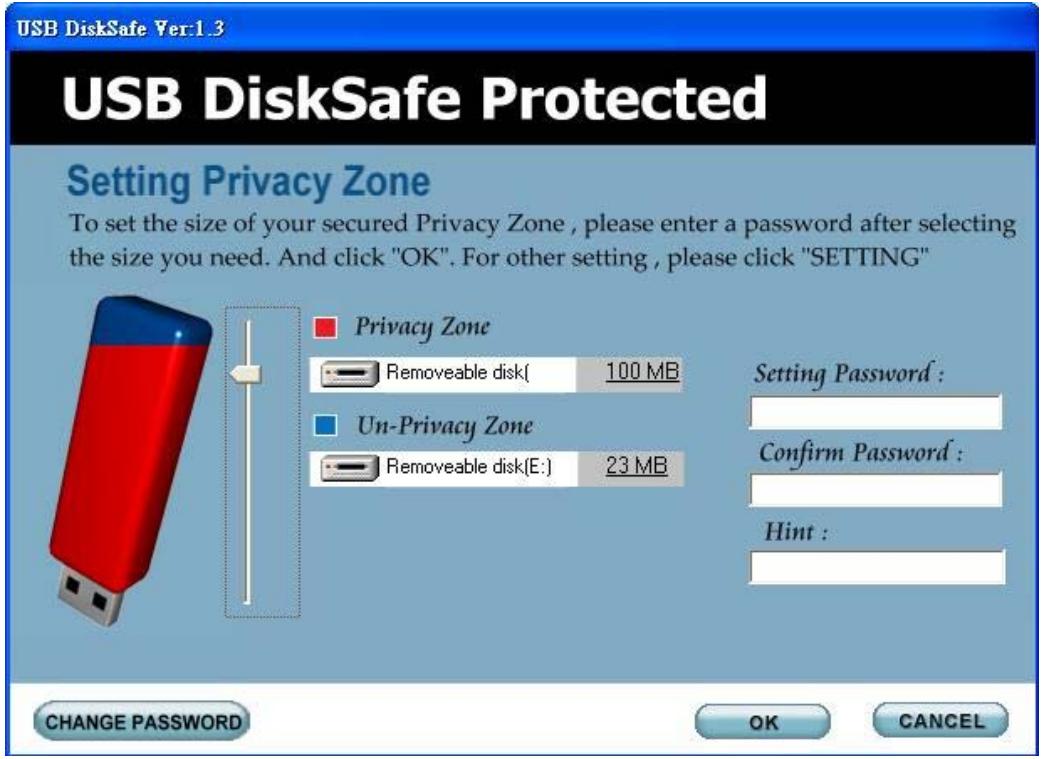
- Set the new size of your Privacy Zone by using the slide bar.
- Enter the new password and confirm it again.
- Enter a hint in case you forget your password.
- Click "OK". The DiskSafe Format Warning window is displayed.
- Click “OK” to reformat your Hi-Speed USB Flash Disk and create a new Privacy Zone.
Remove the Privacy Zone
- Follow steps 1 to 3 above.
- Set the size of your Privacy Zone to 0% using the slide bar.
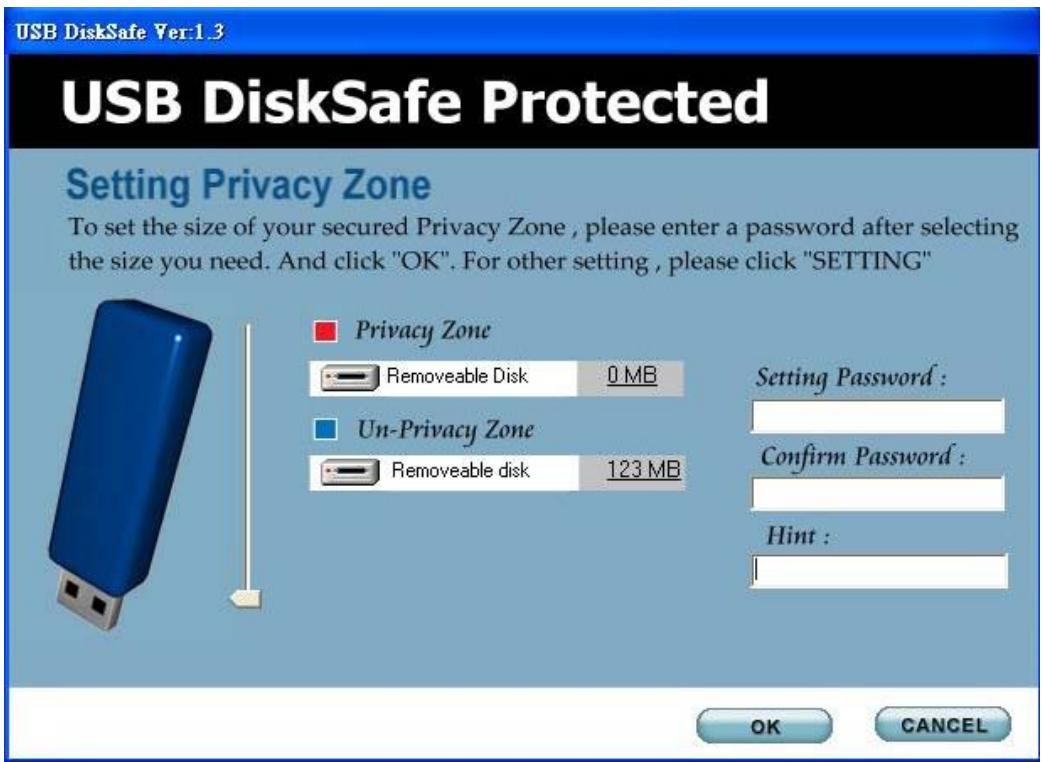
- Click "OK". A message is displayed to warn you that your Hi-Speed USB Flash Disk will not have Privacy Zone anymore.
- Click "OK". There is no Privacy Zone in your Hi-Speed USB Flash Disk now.
E. Security Feature
- Allow user to set own password.
- Allow user to enter "Password Hint", in case user forgot about their password
- Automatically format the Hi-Speed USB Flash Disk as beginning when enter wrong password 6 times.
IMPORTANT
When using Hi-Speed USB Flash Disk with the DiskSafe application program, only ONE Hi-Speed USB Flash Disk is allowed at once. DO NOT PLUG IN TWO OR MORE HI-Speed USB FLASH DISK AT THE SAME TIME.
Windows 2000 Users
Since Windows 2000 only can support ONE removable disk drive. Please install Windows Service Pack 3 or above version, then you can see two devices when you are using DiskSafe software to create Hi-Speed USB Flash Disk as public zone & privacy zone.
Mac OS Users Only
(i) There is NO Security Application Program available for Mac OS's yet.
(ii) You will only see one public zone drive when you plug in Mac systems. The privacy zone will not be access.
- HI-SPEED USB FLASH DISK USB2.0 STORAGE
- USER'S MANUAL
- TABLE OF CONTENTS
- ABOUT HI-SPEED USB FLASH DISK 1
- HOW TO USE HI-SPEED USB FLASH DISK 1
- MAIN FEATURE 3
- ABOUT HI-SPEED USB FLASH DISK
- FEATURES
- HOW TO USE HI-SPEED USB FLASH DISK
- PLUG HI-SPEED USB FLASH DISK
- READ AND WRITE DATA/FILES
- UNPLUG HI-SPEED USB FLASH DISK
- CAUTION
- MAIN FEATURE
- DISK SAFE WELCOME
- USB DISKSAFE PROTECTED
- SETTING PRIVACY ZONE
- DISKSAFE
- SETPWD
- CHANGING YOUR PASSWORD
- CHANGE PASSWORD BUTTON
- WITHOUT THE CHANGE PASSWORD BUTTON
- CHANGING THE SIZE OF THE PRIVACY ZONE
- CHANGE THE SIZE OF THE PRIVACY ZONE
- REMOVE THE PRIVACY ZONE
- SECURITY FEATURE
- IMPORTANT
- WINDOWS 2000 USERS
- MAC OS USERS ONLY
Marque : MAXELL
Modèle : KEYMAX
Catégorie : Clé USB