
TTLM - Clavier et souris sans fil GENUIS - Notice d'utilisation et mode d'emploi gratuit
Retrouvez gratuitement la notice de l'appareil TTLM GENUIS au format PDF.


| Type de produit | Clavier et souris sans fil |
| Marque | GENUIS |
| Modèle | TTLM |
| Alimentation | 4 piles AA (2 pour la souris, 2 pour le clavier) |
| Connectivité | Récepteur USB |
| Portée | Jusqu'à 10 mètres (dans un environnement sans interférences) |
| Canaux radio | 256 codes ID |
| Fonctions souris | Boutons gauche, droit, molette Magic-Roller, EasyJump, Auto-Panning, Zoom |
| Fonctions clavier | Touches multimédia (My Computer, E-mail, WWW, Back, Forward, Sleep, Calculator, Media, Volume, Stop, Play/Pause) |
| Mode EasyJump | Office EasyJump (8 applications, 16 fonctions) et Traditional EasyJump (8 fonctions Cyber) |
| Configuration logicielle | Pilotes et logiciel de personnalisation fournis sur CD |
| Compatibilité système | Windows (avec prise en charge USB Legacy dans le BIOS pour les anciennes versions) |
| Entretien | Nettoyer avec un chiffon doux sec. Ne pas utiliser de produits abrasifs. |
| Précautions d'usage | Ne pas utiliser sur une surface en verre, miroir, métal ou velours noir. Éloigner le récepteur d'au moins 20 cm des autres appareils électroniques. |
| Remplacement des piles | Remplacer les 4 piles AA par des piles neuves de même type. Ne pas mélanger différents types de piles. |
FOIRE AUX QUESTIONS - TTLM GENUIS
Questions des utilisateurs sur TTLM GENUIS
0 question sur cet appareil. Repondez a celles que vous connaissez ou posez la votre.
Poser une nouvelle question sur cet appareil
Téléchargez la notice de votre Clavier et souris sans fil au format PDF gratuitement ! Retrouvez votre notice TTLM - GENUIS et reprennez votre appareil électronique en main. Sur cette page sont publiés tous les documents nécessaires à l'utilisation de votre appareil TTLM de la marque GENUIS.
MODE D'EMPLOI TTLM GENUIS
Hardware Installation
- Install two AA batteries in the mouse and two AA batteries in the keyboard.
- You can connect the receiver to a USB port of a PC.
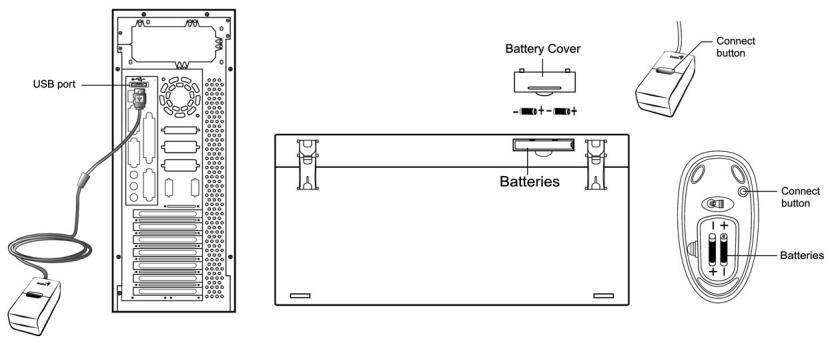
3. Turn on your computer.
Software Installation
- Make sure the mouse and keyboard is connected to the computer.
- Put the Setup disk (or CD) into the disk drive.
- Follow the instructions on the screen to finish the software installation.
Replace Batteries
If you feel the mouse does not move smooth as usual or the keyboard does not work when typing, then the batteries have lost their charge, so please replace them. Furthermore, do not mix or use different types of batteries at the same time. You should set up the channel every time you replace the batteries.
ID channel setting
The channel buttons are factory preset. The green LED, the data transmission indicator, on the receiver will be lit when the keyboard or mouse is in normal operation. If your keyboard/mouse does not work, then you have to set the ID channel setting. Please press the button on the receiver first (RB) and press the button under the mouse (MB) and the keyboard (KB) within twenty seconds. So you press RB, MB and KB to set the channel setting.
Warning: (Troubleshooting)
- Please do not use the wireless optical mouse on a desk that is made of glass, mirror, iron, or black velvet. Also a desk that is made of metal will reduce the receiving distance of the keyboard and mouse.
- Before the first installation is completed (channel setting ready), the keyboard will not work in DOS. If your USB keyboard does not work in BIOS, DOS or Windows, then use another PS2 keyboard to make the USB controller (USB function) and USB legacy (USB keyboard) "On" in the BIOS setup. This may occur with older BIOS versions. Then unplug the PS/2 keyboard and plug in your USB keyboard and everything should be working properly.
- The Wireless TwinTouch LuxeMate channel provides 256 ID-codes, and it automatically selects the ID # for your keyboard and mouse. You can only set up one Wireless TwinTouch LuxeMate at a time. But if you have additional Wireless TwinTouch LuxeMate sets in an area of 10 square meters, more interference may occur between the receiver and your keyboard and mouse.
- The Wireless TwinTouch LuxeMate with radio frequency gives you free movement and an enjoyable experience. For optimal performance, place the receiver at least 8 inches (about 20~cm ) away from the mouse and other electrical devices, such as the computer, monitor, and etc.
Factory Setting
1. Mouse:
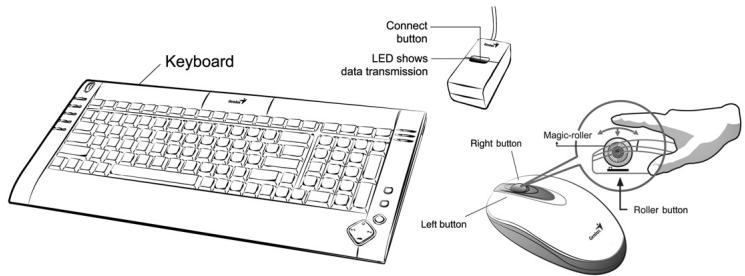
Button Assignments
The Button Assignment feature lets you work in a more efficient way because you can assign the most frequently used commands in Windows to the mouse buttons.
Magic-Roller Press the "Magic-Roller" to surf the Internet and Windows documents
Left Button Provides traditional mouse functions such as click, double click and drag.
Right Button You can assign this button frequently used keyboard and mouse functions in addition to features like EasyJump, Auto-Panning, Zoom, etc.
Roller Button You can assign this button frequently used keyboard and mouse functions in addition to features like EasyJump, Auto-Panning, Zoom, etc.
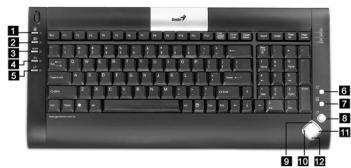
2. Keyboard:
- My Computer: Open My Computer folder from Windows
- E-mail: Open mail folder
- WWW: Open browser in Netscape or IE
- Back: See last page when viewing the Internet
- Forward: Go to next page when viewing the Internet
- Sleep: Turn system into sleep mode
- Calculator: Open the calculator from Windows
- Media: Media player program
- Volume: Vol. Up
- Stop: Stop play of audio or video CD's
- Play/Pause: Play and pause of audio or video CD's
- Volume: Vol. Down
"EasyJump for Windows
"EasyJump" now has two working modes: Office, EasyJump mode and Traditional EasyJump mode.
"Office EasyJump" lets you use eight commonly used applications and 16 Cyber functions more easily and quickly.
Once you press the button you assigned, "Office EasyJump" will be displayed on a Frisbee. Note that the functions are only available in the applications they belong to.


Click this application button to show the mouse control panel. You can check or modify the mouse properties.
Click this function and the pan icon appears. You can move the mouse in any direction in a document or a spreadsheet. The farther you move the pointer from the pan icon, the faster you can pan in that direction.
- Click this function and Office EasyJump Frisbee will always be on the screen and the button will change to . Click it again to cancel this effect.

This is a programmable application button. Press the right button on this icon and a dialog box will display for you to select an executable program. Click on this button to launch your specific application.

Click this function to implement the "replace" function in the current application.

Click on this application to launch Microsoft Word.

Click this function to perform the "cut" function in Word.

Click this function to implement the "paste" function in Word.

Click on this application to launch Microsoft Excel.

Click this function to implement the "select all" function in Excel.

Click this function to perform the "undo" function in Excel.

Click on this application to launch Microsoft PowerPoint.

Click this function to implement the "zoom in" function in PowerPoint.

Click this function to implement the "zoom out" function in PowerPoint.

Click on this application to launch Outlook Express or any other email client application installed in your system.

Click this function to open a new email.

Click this function to forward a selected email in your mailbox.

Click on this application to open Microsoft Internet Explore or any other Internet browser installed in your system.

Click this function to return to the previous web page in your open Internet browser.

Click this function to more forward to the next web page in your open Internet browser.

Click on this application to launch Windows media player or any other multimedia player installed in your system.

Click this function to play/pause the current running media player.

Click this function to stop the current running media player.
Note: All the functions related to Office applications are programmable. Place the cursor on the function icon you want to change, and click the right button to select or reset the unit from the popup menu. From the dialog box, you can choose another function to use in the EasyJump Frisbee.
To change from Office EasyJump mode to Traditional EasyJump mode, just click the right button on the Genius logo in the center of the EasyJump Frisbee.
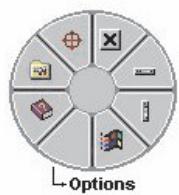
The "Traditional EasyJump" lets you use eight Cyber functions more easily and quickly.
Once you press the button you assigned, the "EasyJump" Frisbee will pop up and eight functions will be displayed on Frisbee.

Click this button to close the current window.
Click this button and the cursor will jump to the horizontal scrollbar. When you move your mouse, the open document or spreadsheet will scroll horizontally.
Click this button and the cursor will jump to the vertical scrollbar. When you move your mouse, the open document or spreadsheet will scroll vertically. Click this button to open the Start Menu.

Click this button to open the Help button.

Click this button to open the Genius Mouse Control Panel.

Click the button and you can move the mouse in any direction in a document or a spreadsheet. The farther you move the pointer from the pan icon, the faster you can pan in that direction.
The buttons in "EasyJump Options" are especially used for the Internet. The default function is "Open Browser" (button like ). You can select other functions from "EasyJump Options" in the "Settings" folder of the Genius Mouse Control Panel. The functions in "EasyJump Options" are:

"Add to Favorite [IE]"

"Add Bookmark [NetScape]"

"Go Next [Forward]"

"Organize Favorite [IE]"

"Edit Bookmark [NetScape]"

"Go Previous [Back]"

"Run Application"
Switch Applications
When the right-button or Magic-Roller is set to "Switch AP", you can quickly switch from one open application to another without moving the mouse. To switch to a specific application, press the right button or the Magic-Roller to select the application.
Zoom function for Value and IE Applications
Press the "Ctrl" key and move the "Magic-Roller" forward (or backward) to set the Zoom In/Out function. You can also use just one hand to Zoom In/Out: set the right button to be the "Ctrl" function, press the right button and move the "Magic-Roller" forward (or backward) to enlarge (or decrease) the document window.
Auto-Panning
You can set this function in the Button Assignment menu. Move the mouse, and the document moves in the direction you just moved.
Uninstall the Software
Follow these instructions to remove the software from your hard disk. In Windows, click on the Start button, select Programs and move to the mouse software. Then click on Uninstall software.
Customize the Software
This section shows you how to customize the software. To open the software control panel, you can double-click on the icon in the task bar or select the "Software" icon from the program group.
Close the Software
Click the right button on the taskbar, and select "Close Software" to close the software.