VK2000 - Mobile VK MOBILE - Notice d'utilisation et mode d'emploi gratuit
Retrouvez gratuitement la notice de l'appareil VK2000 VK MOBILE au format PDF.


| Intitulé | Valeur / Description |
|---|---|
| Type de produit | Smartphone |
| Système d'exploitation | Android |
| Écran | Écran tactile de 6,0 pouces, résolution 720 x 1440 pixels |
| Processeur | Quad-core 1.3 GHz |
| RAM | 2 Go |
| Stockage interne | 16 Go, extensible via microSD jusqu'à 128 Go |
| Caméra arrière | 13 MP avec autofocus et flash LED |
| Caméra avant | 5 MP |
| Connectivité | 4G LTE, Wi-Fi, Bluetooth 4.0, GPS |
| Alimentation électrique | Batterie de 3000 mAh, non amovible |
| Dimensions approximatives | 152 x 72 x 8.5 mm |
| Poids | 160 g |
| Compatibilités | Compatible avec les réseaux GSM et WCDMA |
| Type de batterie | Lithium-ion |
| Tension | 3.8 V |
| Puissance | Non spécifiée |
| Fonctions principales | Appels, SMS, navigation Internet, applications Android |
| Entretien et nettoyage | Utiliser un chiffon doux, éviter les produits chimiques agressifs |
| Pièces détachées et réparabilité | Disponibilité limitée, consulter un professionnel pour les réparations |
| Informations générales | Vérifier la compatibilité avec votre opérateur avant l'achat |
FOIRE AUX QUESTIONS - VK2000 VK MOBILE
Questions des utilisateurs sur VK2000 VK MOBILE
0 question sur cet appareil. Repondez a celles que vous connaissez ou posez la votre.
Poser une nouvelle question sur cet appareil
Téléchargez la notice de votre Mobile au format PDF gratuitement ! Retrouvez votre notice VK2000 - VK MOBILE et reprennez votre appareil électronique en main. Sur cette page sont publiés tous les documents nécessaires à l'utilisation de votre appareil VK2000 de la marque VK MOBILE.
MODE D'EMPLOI VK2000 VK MOBILE
Hello,
Thank you for purchasing VK cellular phone.
Thank you again for choosing VK product and we hope you have greatest success in your business with VK2000.
Please read 'Safety Precaution' prior to use. The content of this manual and functions of cellular phone are subject to change depending on the software version and conditions in business.
Contents
| PRIOR TO USE | 6 | BASIC FUNCTIONS | 18 |
| Safety Precaution | 7 | Basic Operation | 19 |
| Unpacking | 10 | Switching On/Off | 19 |
| Phone Layout and Keys | 11 | Making a Call | 20 |
| Function | Answering a Call | 22 | |
| Keys Description | 12 | Hanging up | 22 |
| LCD Icon Description | 14 | Options During a Call | 22 |
| Inserting SIM Card and 15 Battery Charging Battery | 15 | Missed Calls | 25 |
| Volume Adjustment | 26 | ||
| Manner Mode | 26 | ||
| Using Ear-microphone | 27 | ||
| Standby Screen | 28 | ||
| Function | |||
| Contacts | 29 | ||
| Storing Phone Numbers | 29 | ||
| Search Phone Number | 33 |
| BASIC FUNCTIONS | MENU FUNCTIONS | 54 | |
| Contacts Menu | 38 | Menu Tree | 55 |
| Function | |||
| Menu Function of | 42 | Message | 59 |
| Selected Items | Inbox | 59 | |
| Outbox | 61 | ||
| Character Input Mode | 45 | Write | 63 |
| T9 Mode | 45 | Settings | 64 |
| ABC Mode | 48 | Voice Message | 65 |
| Numeric Mode | 51 | Info. Message | 66 |
| Symbolic Mode | 51 | Memory Status | 68 |
| Changing Text Input Mode | 52 | ||
| Calls | 69 | ||
| Call History | 69 | ||
| Network Services | 73 | ||
| Settings | 77 | ||
| Display | 77 | ||
Contents
MENUFUNCTIONS
Sound 79
Phone Setting 81
Security 85
Organizer 89
Calendar 89
Alarm 93
Memo 96
97
Unit Convert 98
World Time 98
Stop Watch 99
Joy World 100
Internet 100
Games 105
OTHER FUNCTIONS 106
Safety Information 107
Using the Batteries 110
Safety Information 112
Care and Maintenance 118
Glossary 120
PRIOR TO USE
- Safety Precaution
Unpacking - Phone Layout and Keys Function
- Keys Description
- LCD Icon Description
- Inserting SIM Card and Battery
- Charging Battery
VK2000
Safety Precaution
Please read safety precaution before using your cellular phone. Precaution contains contents that prevent users from potential health and financial hazards. Read carefully and use the product accordingly. If the following regulation stated in precautions is not followed, you may be subject to penalties or may cause illegal conditions. For more information, refer to 'Health and Safety Precaution' described in the appendix of this manual.

Traffic Safety
Do not use a hand-held mobile phone while driving a vehicle. Follow traffic related regulations while driving. Using hand-held device while driving can be direct and indirect cause of accidents. If it is necessary to use a hand-held phone, park the vehicle before conversing or use hands-free/ear-microphone.

Potentially Explosive Atmosphere
Switch off your phone when in any area with a potentially explosive atmosphere and obey all signs and instructions.

Switch Off While Refueling
Users are advised to switch off the phone while at a refueling point (gas station).

Switch Off in Aircraft
Electronic frequency generated from your cellular phone can influence electronic equipments that are not radio frequency shielded on an airplane and cause dangerous conditions.

Switch Off in Hospitals
Follow any regulations or rules in force. Switch off your phone near medical equipment. All wireless phones may be subject to interference that can influence the performance of medical equipment. Consult with the medial equipment manufacturer to assure the equipment is safe from high-frequency energy.

Special Regulations
Meet any special regulations in force in any area and always switch off your cellular phone whenever the use of forbidden such as concert hall, public area, and etc. Also, avoid using your phone where the use of phone can cause serious danger (hospital, potentially explosive area, while driving).
Effective Phone Usage
Please use your cellular phone for proper purpose.
Backup Data from Cellular Phone
Phone numbers, message and data stored in the phone book can be lost due to user's negligence. When cellular phone may be damaged and your data may be lost while repairing. Back up important data in safe medium. We do not take responsibility for damages incurred due to data loss.
Keep Cellular Phone in Dry Place
This cellular phone is not water-proof. Keep it in dry place.
Cellular Phone and Frequency Interference
All cellular phone are subject to radio frequency interruption. Radio frequency interference may influence the performance of your cellular phone.
Accessories and Batteries
Use only VK-approved accessories and batteries. If original accessories are not used, battery can explode or damage your cellular phone.
Approved Service Center
When repairing your cellular phone, use only VK approved service centers.
Emergency Calls
The cellular phone needs to be switched on and had to be in service area. If other functions are in use, finish the other function by pressing END key. Then, press emergency number and press CALL button. Describe your location and the emergency condition. Emergency call does not end until you hang up.
Unpacking
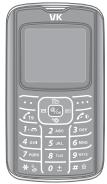
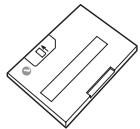

User's Manual
Cellular Phone
Battery
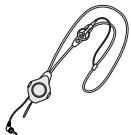
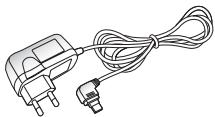
Travel adapter
Ear-microphone
Actual product may look different from the above picture.
Phone Layout and Keys Function
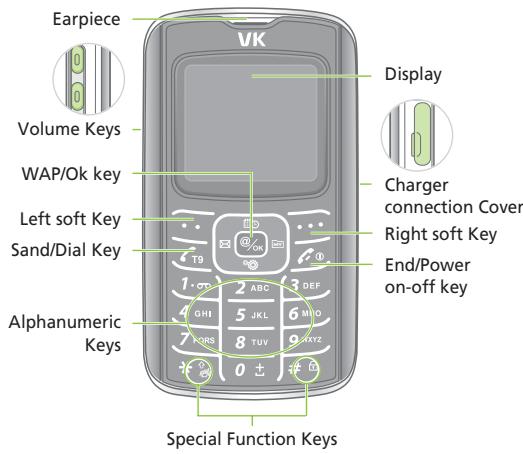
Keys Description

Left soft key
Enter the left bottom menu of the display.

Send/Dial key
Make/Answer a calls.
When this button is pressed in standby mode, the last number you dialed will be redialed.

Navigation key
Up:Oranizer
Down: Settings
Left:Message
Right : My Favorite

WAP/OK key
Enter WAP from standby mode.
Access function indicated on the bottom of the display.

Right soft key
Enter the Right bottom menu of the display.
In standby mode enters Contacts.



End/Power on-off key
End a call. Hold down to switch the phone on and off.
In menu mode, cancels input and returns the phone to standby mode.
Alphanumeric keys
Enter number and characters.
\*key
Hold down to activate Manner mode on/off.
key
Hold down to activate Lock mode on/off.
Volume key
Adjust the button volume from standby mode. Conversation volume adjustment while speaking on the phone.
LCD Icon Description
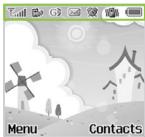

Shows the received signal strength. [Strong: Weak: ]

Appears when a call is in progress.

Appears when you are out of a service area.

Appears when roaming service is enabled.

Appears when your message box is full.

Appears when you have new or unread message.

Appears when you set the alert type for incoming calls to vibration.

Appears when you set the alarm to ring at a specific time.

Shows the level of your battery. Appears in GPRS Service.
Inserting SIM Card and Battery
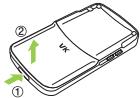
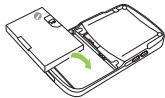
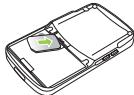
- ① Turn off the power of cellular phone.
② Remove battery as shown in the figure below. - Face the gold color contact point of SIM card towards the cellular phone and push in the SIM card into the slot.
- Push in the battery as shown in the figure below. Align the battery as shown in the figure.
Charging Battery
Charging with traveler's kit
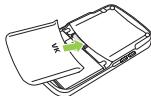
- Push in the battery until it makes 'Click' sound.
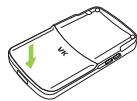
- Switch on the cellular phone.
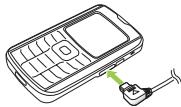
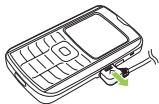
Battery can be charged without desktop charger, thus, it is easier to take the charger with you.
Charging through traveler's kit may take longer than using the desktop charger.
Connect traveler's kit to the external connector of cellular phone.
Connect the traveler's kit to the power outlet.
BASIC FUNCTIONS
Basic Operation
- Contacts
- Character Input Mode
VK2000
Basic Operation
Switching On/Off
Switch On: Hold down _0 button for 2 seconds or longer. If no SIM card is inserted in the cellular phone, a message window that states no SIM card is inserted is displayed.
In this case, only emergency call can be used and the rest of functions cannot be used.
If you are asked with password, enter the password and press 'OK' button.
The default password is set to '0000'.
When your cellular phone is set to Manner mode, the cellular phone vibrates as it is switched on.
Switch Off : Hold down _ button for 2 seconds.
Making a Call
[Dialing]
- Enter area code and phone number in standby mode.
- Press 19 button.
When you entered a wrong number, press 一 button to erase one number at a time.
Hold down l button for 2 seconds to erase all entered numbers.
When the call receiver is on the line or did not answer your call, the number is automatically redialed.
[Making a Call from Contacts]
You can make a call without entering phone number. Using phone numbers that are pre-stored, you can make a call.
Press the right soft key to enter the contacts.
For more details on contacts, see page 29.
[Latest Call List]
You can make a call using the latest call list.
- Press l button shortly to display the latest call list in order of call time.
Or, enter by accessing Menu 3. Calls 1. Call History.
- Select desired phone number using up/down button of key.
- Press _T9 button.
For more detail, refer to Call History on page 69.
[Speed Dialing]
You can make a call using speed dialing.
Using number keys from 2 to 9, hold down the pre-stored speed dial number for 2 seconds.
If the phone number is stored in your cellular phone hold down the speed dial number.
If the phone number is stored on SIM card press the speed dial number first, press key, and press _19 key.
Speed dial number can be configured from 2 to 99.
For more detail, refer to Contacts on page 29.
[Making an International Call]
- Holding down 0 button for 2 seconds displays symbol.
- Enter the country code, area code, and phone number after + symbol.
- Press _同 button.
Answering a Call
- When there is an incoming call, either bell tone or vibration is activated depending on the configuration.
- Press _下 button.
- To hang up, Press _in button. If a caller ID service is activated and if the incoming phone number is already stored in your contacts, the name you have stored for the phone number is displayed.
Hanging up
Press _g button to hang up.
Options During a Call
You can use a variety of functions while talking on the phone.
[Call Standby]
This function is available only when a network service is provided. When this function is used, Using this function, you can make a call or answer other calls during any time of call.
Confirm that you have flashed back to the previous call and press _in button to go back to the previous call.
[Ending a Call]
End a call during a Call : This function ends the current call.
End a call on hold : This function ends a call on hold.
End all calls : This function ends both the current call and the call on hold.
[Flash]
When there is a new incoming call, you can either answer the call or put it on hold. Also, you can switch the current call with the new incoming call.
[DTMF Function]
You can enter numbers and send it during a call.
In case where you need to enter a long sequence of numbers such as paging, ARS, or Telebanking, you can store the frequently used numbers (social security number or bank account number) to send them with greater convenience.
[Switching Microphone Mute]
You can turn off the microphone so that the caller on the other side cannot hear you.
Select a call list and select 'Mute'.
When a call is ended, 'Mute' function is automatically released.
[Contacts]
You can search the contacts during a call.
[SMS Function]
When this function is used during a call, you can send/SMS without handing up a call.
[Conference Call]
This function is available when a network service is provided. Up to 6 people can talk at a time.
For more details, please contact your service provider.
[Private Call]
While using Conference Call function, you can use this function to talk to a specific person.
[Sending Out My Phone Number]
This function comes very convenient when you need to enter your phone number for paging or ARS calls.
[Using Menu Function]
Menu function can be used during a call. However, the available menu function during a call is limited.
For more details, refer to Menu Tree on page 55.
[Volume Adjustment During a Call]
You can adjust the volume during a call using 念 button located on the side of your cellular phone.
The volume can be adjusted in five steps.
Missed Calls
Missed calls are displayed with the Caller's phone number.
Press key to exit Missed Call window.
Missed call phone number can be edited, stored or deleted.
For more detail, refer to Call History on page 69.
Volume Adjustment
You can adjust the conversation volume using button located on the side of your cellular phone during a call.
In standby mode and press button on the side of the cellular phone to adjust the button volume.
Press UP button of key to increase the volume. Press down button of key to decrease the volume.
For more information on ringtone and volume refer to phone setting on page 81.
Manner Mode
This function puts the cellular phone into Manner mode. Bell tone and button sound are changed to vibration, ramp blinking and Manner mode.
In areas where etiquette is required, such as public area, concert hall, lecture hall and conference room, this function is convenient.
Hold down 水 _ 水 key to setup Manner Mode.
Hold down 串 button again to release Manner Mode.
When Manner Mode is configured, icon is displayed on the screen.
When Manner Mode is set up, schedule/anniversary/alarm/ message are notified through vibration.
When the cellular phone is turned off in Manner Mode, the cellular phone stays in Manner Mode when it is turned on later.
Using Ear-microphone
Ear-microphone frees your hand during a call.
To use ear-microphone, insert the ear-microphone into ear-microphone slot on the side of the cellular phone.
Standby Screen Function
Run the standby screen function using · · and · · keys.
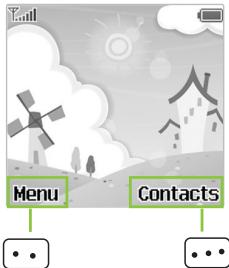
The left soft key executes function that left bottom line of the display.
In standby mode, pressing this key enters menu.
The right soft key executes function that right bottom line of the display.
In standby mode, pressing this key enters Contacts.
Contacts
You can store phone numbers and name in the contacts and retrieve to make a call. Data can be stored both in SIM card and your cellular phone, while you can search through one contacts list for data.
Note that the maximum amount of data stored depends on the type of SIM card.
When you purchase a new cellular phone, the phone numbers stored on SIM card can be inserted into the new cellular phone and retrieved.
Storing Phone Numbers
Phone numbers can be stored using either of two methods.
Directly Entering Phone Number.
Access Contacts and store a new phone number.
[Directly Entering Phone Number]
- First, enter the phone number you want to store in the standby screen.
- Save' is displayed on the left-bottom of the screen.
- Confirm the entered phone number and press key to save.
When you entered incorrect number, press key to erase.
Press key once to erase one number at a time. Hold down key for longer than 2 seconds to erase all entered number.
- Select whether to save on your cellular phone or on SIM card.
- Set up the type of phone number. Phone number types such as Mobile, Home, Office number can be saved on the cellular phone. When the phone number is stored on SIM card, only one representative phone number for the individual can be saved.
- Enter the name.
- Set up the group type.
- Two more phone numbers other than the first phone number you have saved, can be stored. Enter the related phone numbers next to each icon. Note that only one phone number can be saved for the individual on SIM card.
-
Set up the default phone number.
-
Configure the speed dial number. The speed dial number can be configured form 2 to 99.
- Enter e-mail address.
- Enter homepage address.
- Enter fax number.
- Enter home address.
- Configure special bell tone. When this bell phone is configured, an incoming call from the configured phone number plays the selected number.
- Enter Job title.
- Enter name of company.
- Enter note.
- Confirm all the entries and press key to save.
![VK MOBILE VK2000 - [Directly Entering Phone Number] - 1](/content/2025/01/184412/images/11fac154e3b09db72e92875cdf2ca82aa0dc145516c565a4f56c16f15756dd2c.jpg)
Functions from 9 to 18 can only be used when the phone number is stored on the cellular phone. Only name, phone number, group type, and speed dial number can be configured on SIM card.
[Access Contacts and store a new phone number]
- Press key in standby mode to enter contacts.
- The entire phone list is displayed.
- Enter option screen by pressing key.
- Press 1 to enter 'New' screen.
- Select whether to store phone number on the cellular phone or SIM card.
- Set up the type of phone number. Phone number types such as Mobile, Home, Office number can be saved on the cellular phone. When the phone number is stored on SIM card, only one representative phone number for the individual can be saved.
- Enter the name.
- Configure group type.
- Enter phone number and relevant phone number into fields located next to each icon. Note that only one phone number can be stored on SIM card.
- Set up the default phone number.
-
Configure speed dial number. Speed dial numbers can be configured from 2 to 99.
-
Enter email, homepage URL, fax number, home address.
- Configure the bell tone.
- Enter occupation, name of company, and note.
- Confirm all the entries and press keys to save.
![VK MOBILE VK2000 - [Access Contacts and store a new phone number] - 1](/content/2025/01/184412/images/cf019a8aed9e4b804fffaa4325858ad60ab86f51e3df1f9e9a7d1de3a59c5ef8.jpg)
Functions from 9 to 15 can be used only when the phone number is stored on the cellular phone. Only name, phone number, group type, and speed dial number can be configured on SIM card.
Search Phone Number
You can search phone number from the entire contacts list or perform selective search using various methods. (name, phone number, speed dial, group and etc.)
[Search All]
This function displays all phone numbers stored in the contacts. (The list includes stored in the cellular phone and SIM card)
-
Press key in standby mode to enter the contacts.
-
The entire contacts list is displayed.
- Select a phone number and press _19 key to make a call to the selected individual.
[By Name]
- Press key in standby mode to enter contacts.
- Press key to enter the search option.
- Select 1 to enter 'By Name'.
- When an edit window is displayed, enter the name of individual and press key. Entering only one character searches all names that contain the entered character.
- Press _19 key to make a call to the selected individual.
[By Group]
- Press key in standby mode to enter the contacts.
- Press key to enter the search option.
- Select 2 to enter 'By Group'.
-
Using left and right button on key to select a group.
-
Search a phone number from the selected group.
- Press _10 key to make a call to the selected individual.
[By Speed Dial]
You can save the phone number and then dial them easily whenever you want, simply by pressing the associated number key.
- Press key in standby mode to enter the contacts.
- Press key to enter the search option.
- Select 3 to enter 'By Speed Dial'.
- Enter the speed dial number that you want to search. If you don't know the speed dial number that you want to search, press key to enter the entire speed dial number list.
The entire speed dial number list is searched.
Using key, either select or enter the speed dial number to be searched.
- Press _19 key to make a call to the selected individual.
[By Number]
- Press key in standby mode to enter the contacts.
- Press key to enter the search option.
- Select 4 to enter 'By Number'.
- Enter the number to search.
Entering only one number searches all phone numbers that contain the entered number.
- Press _T key to make a call to the selected individual.
[SDN]
You can search special service dial number via SDN. You can use this function in emergency paging. You can search items such as address, phone number, and voice mailbox number. Telephone numbers supplied by your network provider and giving access to special services, such as voice mail, directory inquiries, customer support and emergency services.
- Press key in standby mode to enter the contacts.
-
Press key to enter the search option.
-
Select 5 to enter 'SDN'.
- Using key, select a phone number.
- Press 19 key to make a call to the selected phone number.
[IDD]
With this function, you can search for the area code.
- Press key in standby mode to enter the contacts.
- Press key to enter the search option.
- Select 6 to enter 'DDD'.
- When the list of area code appears, select an area code using key.
Contact Menu Function
You can use variety of contacts functions.
- Press key in standby mode to enter the contacts.
- Press key to enter the option.
[New]
This function stores a new phone number.
Standby Mode Number 1
For more information, refer to 'Storing Phone Numbers' on page 29.
[Details]
This function shows details of the selected item.
Standby Mode Number 2
You can also enter this function by pressing key in the entire phone number list of contacts.
[Delete]
You can either delete an item or the entire contacts.
Delete
Standby Mode Number 3 Number 1
Only the selected phone numbers are deleted.
Delete All
Standby Mode Number 3 Number 2
All phone numbers in contacts are deleted.
[Copy]
Selected phone numbers can be copied. When a phone number stored in the cellular phone is copied, the phone number is copied to SIM card and vice versa. When 'copy all' is selected, all phone numbers are copied from the current storage medium to the other.
Copy
Standby Mode Number 4 Number 1
Copy All
Standby Mode Number 4 Number 1
Delete 'phone to SIM' or 'SIM to phone'
[Move]
A selected phone number is moved from the cellular phone to SIM card, and vice versa.
Standby Mode Number 5
[Group Manager]
Phone numbers can be categorized into groups. Selected bell tones can be configured for each group.
Standby Mode
![VK MOBILE VK2000 - [Group Manager] - 1](/content/2025/01/184412/images/a6cb4207e3b3ed2000754d7695ad511503ee6f62b7394a6cedf6eb505ad750f8.jpg)
![VK MOBILE VK2000 - [Group Manager] - 2](/content/2025/01/184412/images/a77a78978342f39fef0e76f09f9dd79c702cdc8f448fe8ef3212b19ee11afecd.jpg)
Number 6
Select a group using key. New
- Press key to enter to make a new group.
- Enter the new group name.
- Configure the bell tone.
- Configure the image to be displayed for the phone number.
- Select the members of the new group.
- Confirm all the entries and press key to save.
Edit
Group bell tone, and group members can be edited.
Group member can be selected from all phone number list stored in the cellular phone.
Delete
Delete a selected group.
[Speed Dial]
Standby Mode Number 7
A list of phone number for speed dial numbers is displayed. Press key from a selected item to display 'Add' or Edit' Delete' and Goto' menus.
It appears 'Add' at display, if the selected speed dial number didn't indicate the phone number, otherwise it displays 'Edit'.
Press 'Add' to edit the selected speed dial number to other number.
Press Edit to move the selected phone number to other speed dial number.
Pressing 'Delete' removes the selected speed dial number item.
Press 'Goto', if you want to confirm in use, you can check speed dial number whether you can use it or not.
If you have not set up speed dial number,
[Own Number]
Enter a desired number to set up speed dial.
Standby Mode Number 8
Only name and phone number can be stored using 'Own Number'.
[Memory Status]
This function displays the currently used memory by numbers.
Standby Mode Number 9
This function shows the status of SIM card and the cellular phone separately.
Menu Function of Selected Items
- Press in standby mode to enter the contacts.
- Select a phone number to edit and press key to see the details.
Or, press key and press 2 key to see the details.
- Press key to display the menu for the selected number.
[Edit]
All configured items such as name, group, phone number, default number, email address, address, and etc. can be edited.
Standby Mode Select a phone number Number 1
For more details, refer to 'Storing Phone Numbers' on page 29.
[Send message]
You can send SMS message to a selected phone number.
Standby Mode Select a phone number Number 2 Enter message Send
For more details, refer to 'Message' on page 59.
[Send Contact]
You can send the selected phone number to other people.
Standby Mode Select a phone number Number 3
Via Short MSG : Send the selected phone number via SMS.
[Delete]
This function deletes the selected item.
Standby Mode
![VK MOBILE VK2000 - [Delete] - 1](/content/2025/01/184412/images/044593d43a5ef74254f32199fcf5059490dddb04e656838802c2c16d354358ca.jpg)
Select a phone number
![VK MOBILE VK2000 - [Delete] - 2](/content/2025/01/184412/images/b947b6f1257a092984b57a34de6808e2e30418d146521607b407613a49bab848.jpg)
![VK MOBILE VK2000 - [Delete] - 3](/content/2025/01/184412/images/1d83158e165611febd263164ceabf2bf01e95dcc47418e3f3b8645be00cb766f.jpg)
Number 4
[Copy]
This function copies a selected item. A phone number stored in a cellular phone is copied to SIM card, and vice versa.
Standby Mode
![VK MOBILE VK2000 - [Copy] - 1](/content/2025/01/184412/images/34d1cbdb41bda90cf787df054891563c703de55320c857749fcc2ce29e910be1.jpg)
Select a phone number
![VK MOBILE VK2000 - [Copy] - 2](/content/2025/01/184412/images/84e09f18917207630e0388d8f92ec0c1f3c8a2ff60b370996f641258277b7f4f.jpg)
![VK MOBILE VK2000 - [Copy] - 3](/content/2025/01/184412/images/c460071066d83d1f2f9e32c090a3acf422d945bb8b81b0224e5420de5df50dd4.jpg)
Number 5
[Move]
This function moves a selected phone number from the cellular phone to SIM card, and vice versa.
Standby Mode
![VK MOBILE VK2000 - [Move] - 1](/content/2025/01/184412/images/82cf26a6e567b13b065b9f2ff47400d874b8ff29bf83e18ca70388afd4e5440a.jpg)
Select a phone number
![VK MOBILE VK2000 - [Move] - 2](/content/2025/01/184412/images/e979f6c50df5927ba2b87595f497277ef46b9ecaba37fd5ec71bad595ea49db9.jpg)
![VK MOBILE VK2000 - [Move] - 3](/content/2025/01/184412/images/355aa954800f7455f01d3600602d3cc10baf7dd8463dc370fd0dd46b28b39ac6.jpg)
Number 6
Character Input Mode
T9 Mode
This mode allows you to enter English words with only one keypress per letter.
Each key on a keypad has more than one letter a single press on the 5 key could be J, K or L. The T9 mode automatically compares your key presses to an internal linguistic database to determine the correct word. This mode is based on a built-in dictionary.
This mode requires far fewer keystrokes than the traditional multi-tap method.
Typing English Words
To type a word, press keys corresponding to the letters you need. Remember the following as you are typing :
- Press key on the phone just once per desired letter. For example, to enter 'hello', press the following keystrokes: 4,3,5,5,6.
- The word you are typing appears in the display. It may change with each key you press.
- Press the # key, you can display alternate word choices for the keys that you have pressed.
-
Complete each word with a space by pressing the 0 key.
-
If the word that appears in the display is not the word that you desire, press the one or more times to display alternate word choices for the keys you have typed. (For example, 'of' and 'me' both share the sequence 6, 3) The phone displays the most commonly used choice first.

This mode displays all the words which are containing the letters you have entered.
By doing this, the T9 mode saves you typing extra keypress.
Smart Punctuations
Full stop, hyphen and apostrophe are available on the 1 key. The T9 mode applies rules of grammar to insert the correct punctuation.
Notice that the 1 key is used twice in this example to display two punctuation marks :
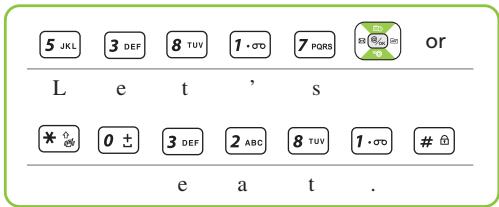
Shifting a Case
To change the case in T9 mode, press the or * key. Lower case, Capital lock and Initial capital are available.
Scrolling
The key scrolls to the alternative characters corresponding the keypress.
To view your message without moving the cursor, press keys on the left side of the phone.
To move the cursor left or right through your text message, press the key. Note that pressing the key without completing a word by the 0 key displays the alternative word.
Clearing Characters
Press the key one or more times to remove characters from the text area.
ABC Mode
When typing in ABC mode, you should press numbers key labeled with the required character:
- Once for the first character.
- Twice for the second character and so on.
For example, you press the 2 key three times quickly to display the character "C", the 5 key three times quickly to display the character "L".
So, this method is called Multi-tap typing.
The cursor moves to the right when you press a different key.
When entering the same character twice (or a different character on the same key), just wait for a few seconds for the cursor to move right automatically, and then select the next character.
Refer to the table on page 50 for the list of characters assigned on each key.
Shifting a Case
To change the case in ABC mode, press the * key.
Lower case, Capital lock and Initial capital are available.
Scrolling
To view your message without moving the cursor, press keys on the left side of the phone.
To move the cursor left or right through your text message, press the key. Note that pressing the key without completing a word by the 0 key displays the alternative word.
Clearing Strokes and Characters
Press the key one or more times to remove characters from the Text Area.
For list of characters available see table.
| Key | Characters in the Order Displayed | |
| ABC | abc | |
| 1.00 | . , ? ! 1 - / @ | . , ? ! 1 - / @ |
| 2 ABC | A B C 2 | a b c 2 |
| 3 DEF | D E F 3 | d e f 3 |
| 4 GH | G H I 4 | g h i 4 |
| 5 J K L | J K L 5 | j k l 5 |
| 6 M N O | M N O 6 | m n o 6 |
| 7 P O R S | P Q R S 7 | p q r s 7 |
| 8 T U V | T U V 8 | t u v 8 |
| 9 W X Y Z | W X Y Z 9 | w x y z 9 |
| 0 ± | □ 0 * < > % # £ | □ 0 + ( ) & _ $ |
Numeric Mode
Numeric mode is indicated by 123. It enables you to enter numbers into a text message. Press number keys corresponding to the desired digits.
Symbolic Mode
Symbolic mode enables you to enter symbols into a text message.
To scroll through the available symbol categories, press the key. When you see the desired symbol on the display, press the appropriate number key (1 to 6) to insert the symbol. The phone automatically switches back to the text entry mode used just prior to selecting Symbolic mode.
Changing Text Input Mode
When you are in a field that allows characters entry, you should notice the text input mode indicator in the display. To change to another text input mode :
- Press the (_2s) key repeatedly until you find the desired input mode.
-
Press the _19 key. You will see the text input mode indicator in the top line of the display.
-
T9 mode > T9 ABC (T9 Abc, T9 abc)
- ABC > ABC (Abc, abc)
- Simplified Chinese > Pinyin
- Traditional Chinese > Stroke
- Numeric > 123
- Symbol > Symbol
Directions for using each of the text input modes appear later in this chapter.

You can also change the text input mode by pressing the key repeatedly in text entry screen. Each time you press the _m key, the mode is changed in the following order:
T9 ABC (T9 Abc, T9 abc) > ABC (Abc, abc) > Pinyin > Stroke > 123 > Symbol
MENU FUNCTIONS
- Menu Tree
- Message
- Calls
- Settings
- Organizer
Joy World
VK2000
Menu Tree
Message
Inbox
Delete
Delete All
Outbox
Unsent Items
Sent Items
Write
Add Object
Save
Exit
Settings
SMS Center No.
Delivery Report
Validity Period
Voice Message
Listen to Voice MSG
Set Voice MSG No.
Info. Message
Read
Receive
Topics
Memory status
Calls
Call History
Missed calls
Received calls
Dialed calls
Delete All
Call Duration
Network Services
Call Diverting
Call Barring
Call Waiting
Send My Number
Select Network
Settings
Display
Standby
Status Lamp
Lighting
Sound
Incoming Calls
Message Alert
Key Tone
Volume
Phone Setting
Date & Time
Language
Answer Key
Auto Answer
Auto Redial
Factory Set
My Favorite
Security
PIN
Change PIN
Lock
FDN
Change PIN 2
Organizer
Calendar
Alarm
Morning Call
Reminder
Memo
Calculator
Unit Converter
Length
Weight
Volume
Surface
Temperature
World Time
Stop Watch
Joy World
Internet
Home
Bookmarks
Go to URL
Profile Settings
General Settings
History
WAP Inbox
Clear Cache
Games
Message
Messaging is a network service.
Using this function, you can input, send, receive, check and edit messages.
A new message notification is displayed on the screen when a message arrives.
In Standby mode, press the left key to quickly enter Messages mode.
Inbox
This function enables a user to write and send a new message. You can check and save received or sent messages.
- In Standby mode, press the key to display the menu screen.
- Press number 2 to enter Messages.
- Press number 1 to enter Inbox.
Check received messages.
On the screen with the list of received messages, press the key to enter the Options menu.
[Delete]
Deletes messages stored in your Inbox.
Standby Mode Number 1
[Delete All]
Deletes all the messages stored in your Inbox.
Standby Mode
![VK MOBILE VK2000 - [Delete All] - 1](/content/2025/01/184412/images/0ed5fba919d224c7fb72de4792003d5c03fddb64e405c1d7203faed8ad50ff5e.jpg)
![VK MOBILE VK2000 - [Delete All] - 2](/content/2025/01/184412/images/1d178f8bcd2ae5d491b0b9357b28d212dea39f7a12208fae0a9f005562ec1048.jpg)
![VK MOBILE VK2000 - [Delete All] - 3](/content/2025/01/184412/images/776c3ac7d3d0acaa38773e8f9bfc5c06a16c46b13be772ea156f5eff6a09e8cf.jpg)
lumber 2
On the screen with the list of received messages, press the @key to display the content of the received messages.
On the screen displaying the message content, press the key to enter the Options menu.
Delete : Deletes the selected message.
Reply: Send a reply to the message sender.
Forward: Forward (with or without editing) a received message to another recipient.
Call Back : Call the message sender.
Copy to Phone/SIM : Copy the selected message to the phone/SIM.
Move to Phone/SIM : Move the selected message to the phone/SIM.
Details : Displays the time and sender info for the selected message.
Outbox
The Outbox can store sent messages and message drafts to be sent.
- In Standby mode, press the key to display the menu screen.
- Press number 2 to enter Messages.
- Press number 2 to enter Outbox.
[Unsent messages]
Unsent messages, whether due to a sending failure or those explicitly saved before sending, are stored.
Delete
Deletes stored messages in the Outbox.
Outbox

Number 1


ber 1
Delete All
Deletes all the messages stored in the Outbox.
Outbox

Number 1


Number 2
On the screen with the list of unsent messages, press the key to display the content of those unsent messages.
On the screen displaying the message content, press the key to enter the Options menu.
Send: Resend a selected message.
Edit: Edit a selected message.
Delete : Delete a selected message.
Copy to SIM: Copy to SIM a selected message.
Move to SIM : Move to SIM a selected message.
[Sent Items]
Stores sent messages.
Delete
![VK MOBILE VK2000 - [Sent Items] - 1](/content/2025/01/184412/images/9f57a84c013302c2eeb9c5dc2d11fefe282f02b49b2f5a917f1ff89b4337d723.jpg)
Number 2
![VK MOBILE VK2000 - [Sent Items] - 2](/content/2025/01/184412/images/3751f865c39e345854d7848156ed8b4c787b269a4e5d20895914147d2bc3d169.jpg)
Number 1
Delete All
![VK MOBILE VK2000 - [Sent Items] - 3](/content/2025/01/184412/images/708f8810fb904656bf13d8429b1d7c2c8d1a30088ca3e72ca94e17c76f064d84.jpg)
Number 2
![VK MOBILE VK2000 - [Sent Items] - 4](/content/2025/01/184412/images/abf1626f158e0e449d13ee230c646b9b56b0cbcea7c48ecc04a9015e9c092a72.jpg)
Number 2
On the screen with the list of sent messages, press the key to display the content of the sent messages.
On the screen displaying the message content, press the key to enter the Options menu.
Send: Resend a selected message.
Edit: Edit a selected message.
Delete : Delete a selected message.
Copy to SIM : Copy to SIM a selected message.
Move to SIM : Move to SIM a selected message.
Write
This function enables the user to write and send new messages.
- In Standby mode, press the key to display the menu screen.
- Press number 2 to enter Messages.
- Press number 3 to enter Write.
Write the message to send.
After inputting the message, press the key to enter the Options menu.
Add Object : Using this function, you can add image, animation and sound to your message.
Save : You can save edited messages to send later. These messages will be saved under the Unsent Messages tab in the Outbox and you can edit and send them later.
Exit: Return to the Message menu.
Press the [_G] key to enter the screen for keying in the sender's number. After you input the number, press the [_G] key to send it.
If you have forgotten the telephone number, press the key, while on the screen for keying in the sender's number, to enter the telephone directory.
Settings
You can set various options for SMS Center, delivery report, and validity period.
- In Standby mode, press the key to display the menu screen.
- Press number 2 to enter Messages.
- Press number 4 to enter Settings.
[SMS Center]
Set SMS Center No.
[Delivery Report]
Report whether the message successfully reached the SMS Center.
On: Reports whether or not the sent message was delivered.
Off : Does not report whether or not the sent message was delivered.
[Validity Period]
Sets the storage period of a message.
If this function is selected, received messages will expire and be automatically deleted after a set period of time.
Be sure to save important pictures, sound clips and messages in the gallery before they expire.
Voice Message
When a new voice mail arrives, an indicator icon is displayed on the screen. You can listen to the voice mail using this function.
Press the voice mailbox number if the number is stored in the handset's memory, or input the number manually.
Voice mail is a network service. For further details, consult your nearest service center.
- In Standby mode, press the key to display the Menu screen.
- Press 2 to enter Messages.
- Press 5 to enter Voice Mail.
[Listen to Voice MSG]
Listen to Voice Mail waiting in the Voice Mailbox.
Voice Message Number @
Number 1 Enter a Voice Mailbox
[Set Voice MSG No.]
Stores the Voice Mailbox Number.
Voice Message Number
Number 2 Enter a Voice Mailbox
Info. Message
InformationalMsg.is a network service that provides Informational Messages to many GSM mobile phone users. For example, it provides information on weather forecast, traffic and stock prices.
- In Standby mode, press the key to display the Menu screen.
- Press 2 to enter Messages.
- Press 6 to enter Informational Msg.
[Read]
You can search and read the desired message.
Info. Message Number 1 Select a desired message
[Receive]
Choose whether to receive informational messages or not.
Info. Message Number 2 Please select an item 1:On,2:Off
[Topics]
Choose the message topics.
Info. Message Press 3 Select a message topic.
At the topics list, press the key to display the option menu.
Edit: Edit the selected message topic.
Delete : Delete the selected message topic.
Memory Status
You can check the Memory Status of your handset's memory.
- In Standby mode, press the · · · key to enter the Menu screen.
- Press 2 to enter Messages.
- Press 7 to enter Memory Status.
Calls
You can check your call history and utilize various network services in Calls.
Call History
Using this function, you can check recent calls you made, calls received and missed calls.
Also, you can check the time of each call.
- In Standby mode, press the key to display menu screen.
- Press number 3 to enter Calls.
- Press number 1 to enter Call History.
- Full list of the Call History is displayed. Pressing the key displays currently selected call's information such as phone number, name and time spent.
Press the · keys to enter menu screen and following menu items will be displayed:
Save: Saves the phone number in your Contacts.
Delete : Deletes the phone number.
- When the full list of Call History is displayed, press the key to enter option screen.
[Missed Calls]
Displays phone numbers of calls you missed.
Standby Mode
![VK MOBILE VK2000 - [Missed Calls] - 1](/content/2025/01/184412/images/b8bb4fccca96e9b6b2f8a0e285edf3c57ccd58374ecb30ae8fd3af0e2ee36bb9.jpg)
Number 3
![VK MOBILE VK2000 - [Missed Calls] - 2](/content/2025/01/184412/images/ea56a25d32ece4ac50231605dfd27e8a3ec4a956dddff41516959ce9ab3a2ca7.jpg)
![VK MOBILE VK2000 - [Missed Calls] - 3](/content/2025/01/184412/images/23d65139166b59d65e9d99fab886f5d5859d69bf5008468bd94abb914a8c2f47.jpg)
Number 1
Pressing the @key displays information of caller's phone number, name and calling time.
Press the · key to enter menu screen and following menu items will be displayed :
Save: Saves the phone number in your Contacts.
Delete : Deletes the phone number.
[Received Calls]
Displays phone numbers of received calls.
Standby Mode
![VK MOBILE VK2000 - [Received Calls] - 1](/content/2025/01/184412/images/a73c3c554a63ee625ee31b8c10ae330a5a15150dba49526b3b6ce43cc98cdca3.jpg)
Number 3
![VK MOBILE VK2000 - [Received Calls] - 2](/content/2025/01/184412/images/a344318af61dca66c7dcf9297bf19f40e710fb623397b11294186a2010741442.jpg)
![VK MOBILE VK2000 - [Received Calls] - 3](/content/2025/01/184412/images/760974f2504261b21b1dde93f7b620132e31a1e347acc8a016aa7e1d108f65c4.jpg)
Number 2
Pressing the @key displays currently selected call's information such as phone number, name and time spent.
Press the · · key to enter menu screen and following menu items will be displayed :
Save: Saves the phone number in your Contacts.
Delete : Deletes the phone number.
[Dialed Calls]
Displays phone numbers of dialed calls you made.
Standby Mode
![VK MOBILE VK2000 - [Dialed Calls] - 1](/content/2025/01/184412/images/df588206f95d111e86cec9bebc9df4dbf5734cac9dfd298605d6e040c79f2ffa.jpg)
Number 3
![VK MOBILE VK2000 - [Dialed Calls] - 2](/content/2025/01/184412/images/2398cd8bb7843103928a5383be29fd82d2c1ef9eb2b1a73526d2ff45f8f2b52a.jpg)
![VK MOBILE VK2000 - [Dialed Calls] - 3](/content/2025/01/184412/images/3b7e1982b82d5568520693240614a292eb7668d0d3520ea4cab583fc7775033f.jpg)
![VK MOBILE VK2000 - [Dialed Calls] - 4](/content/2025/01/184412/images/a73cd573123af496f4322e443819f94673b7b3bbbfbe118e941eec4dcb6196cd.jpg)
Number 3
Pressing the [_] key displays currently selected call's information such as phone number, name and call time.
Press the key to enter menu screen and following menu items will be displayed :
Save: Saves the phone number in your Contacts.
Delete : Deletes the phone number.
[Delete All]
Deletes call History information.
Standby Mode
![VK MOBILE VK2000 - [Delete All] - 1](/content/2025/01/184412/images/27489270df102d7b92fc502585fe3057613cc5f4b88c878bfd4840022ab1e252.jpg)
Number 3
![VK MOBILE VK2000 - [Delete All] - 2](/content/2025/01/184412/images/700b581a5d261f2e23b2808434f3a372a6abece0a19b1a514b89a6813246ef52.jpg)
![VK MOBILE VK2000 - [Delete All] - 3](/content/2025/01/184412/images/690b3064586d4667927d78a36f7c58488f241f52f3b24abb41c6819ece6ee2b3.jpg)
![VK MOBILE VK2000 - [Delete All] - 4](/content/2025/01/184412/images/1c327d17ce7c8d3c7822f66905ef0d21b7367fa6d07c9266a31cd9e2986e755e.jpg)
Number 4
Select among Missed Calls / Received Calls / Dialed Calls / All Calls.
[Call Duration]
Displays the duration of selected calls including received and dialed.
Call Duration time displayed on your handset may differ from the actual time recorded by the service provider according to network performance, calculation formula and other reasons.
Standby Mode
![VK MOBILE VK2000 - [Call Duration] - 1](/content/2025/01/184412/images/f63b620fab8691543c007c28cc6cc253f45124e40ff899fa89a01baaeb04cf03.jpg)
Numb
![VK MOBILE VK2000 - [Call Duration] - 2](/content/2025/01/184412/images/d719f5fdbc14dd135517e7a059b621c551cba326c7b240367fe20c7d9b8b6563.jpg)
Number 1
![VK MOBILE VK2000 - [Call Duration] - 3](/content/2025/01/184412/images/2c047a4c9a065bb1791bfbf524eef09c01c414d5301fa81337366cbcddb46675.jpg)
![VK MOBILE VK2000 - [Call Duration] - 4](/content/2025/01/184412/images/bddfc3e464cbce93cb0cdcc0cc8312436a8cd27195818f5e089bf821f7326f63.jpg)
Number 5
Voice Call
Show the every variety of call duration.
Last Call: Displays last call's duration.
All Calls : Displays the sum of all received and dialed calls' duration.
Received Calls : Displays the sum of all received calls' duration up to now.
Dialed Calls : Displays the sum of all dialed calls’ duration up to now.
Data Call
All Sent Data : Displays the sum of all sent data duration.
All Received Data : Displays the sum of all received data duration.
Network Services
Using this function, you can configure various network services.
Before using this service, check available services from your service provider.
- In Standby mode, press the key to display menu screen.
- Press number 3 to enter Calls.
- Press number 2 to enter Network Services.
[Call Diverting]
Using this function, you can divert incoming calls to a specified phone number.
For example, if you are off business and enjoying a movie in a theatre, you can divert incoming calls to your *kidding-) HATRED* colleague's phone number.
Standby Mode
![VK MOBILE VK2000 - [Call Diverting] - 1](/content/2025/01/184412/images/1dacec1636a6dbbab829792cbe4975d63240a8f91ad8b5f70ff7245914169adb.jpg)
Number 3
Number 2
Number 1
Always: Diverts all incoming calls to the specified number. If Busy: Diverts incoming calls to the specified number if your line is busy.
If Out of Reach : Diverts incoming calls to the specified number if your handset is turned off, not in a service area or unreachable for other reason.
If No Reply: Diverts incoming calls to the specified number if you don't reply to the call.
Cancel All: Releases the all Call Diverting settings.
Each Call Diverting setting may have following options :
All Calls: Configures Call Diverting to apply to all calls including Voice, Data and Fax Calls.
Voice Call Only: Configures Call Diverting to apply to Voice Calls only.
Data Call Only: Configures Call Diverting to apply to Data Calls only.
Fax Call only: Configures Call Diverting to apply to Fax Calls only.
After choosing an option, select Set Divert.
[Call Barring]
Using this network service, you can limit incoming and outgoing calls from your handset.
Standby Mode
![VK MOBILE VK2000 - [Call Barring] - 1](/content/2025/01/184412/images/bd48f0aba301b5048db7431e873b315699c57d2f98c8a550c7170c05681b3614.jpg)
Number :
Number 2
Number 2
You can limit following calls :
Outgoing Calls : You cannot make an outgoing call from your handset.
International Calls : You cannot make an international call from your handset.
Int. Calls except to Home : You can make an international call to only a domestic phone number or the number serviced by a domestic service provider.
Incoming Calls : You cannot receive an incoming call.
When Roaming: You cannot receive an incoming call when you are not in a serviced area.
Cancel All : Cancels all Call Barring settings and all incoming / outgoing calls are made properly.
Change password : You can set and change the password given by the service provider.
[Call Waiting]
Using this network service, you are notified with an incoming call when you are on another call.
Standby Mode
![VK MOBILE VK2000 - [Call Waiting] - 1](/content/2025/01/184412/images/e1dca01b71d9c78f584a468ec163b34b986463ae39a04eba4dce1f8f3a0613fc.jpg)
Number 3
Number 2
Number 3
[Send My Number]
This function sends your previously specified phone number automatically.
It is convenient to use this function when you need to send your phone number for a call, ARS, phone banking and other services not to press your phone number by manual.
Standby Mode
![VK MOBILE VK2000 - [Send My Number] - 1](/content/2025/01/184412/images/6e4a23585f0c697f9ff681a509c197a6df6ccd9270ec84c845a07a9fcb6c7547.jpg)
Number 3
Number 2
Number 4
Default: Sends the default number specified.
Hide Number : Does not send any number.
Send Number : Sends your phone number.
[Select Network]
Select Network is a function to choose a network when you are using an international roaming service whether by manual or by automatic selection.
However, a roaming network is available to choose when your network provider has an agreement on roaming service with the roaming network provider.
Standby Mode
![VK MOBILE VK2000 - [Select Network] - 1](/content/2025/01/184412/images/3f147762a277de3b7a6655ca3cf8d42b18df7da63e978c145257bba203ab5f4b.jpg)
Number 3
Number 2
Number 5 So
elect and
option among Automatic and
Manual.
Settings
Using this function, you can set various options of Display, Sound, Phone setting, Security and IrDA.
Display
Using this function, you can set various Standby and Lighting options.
- In Standby mode, press the key to display menu screen.
- Press number 4 to enter Settings.
- Press number 1 to enter Display.
[Standby]
You can set an image and clock displayed in Standby mode, and also you can input words and set the color of characters.
Standby Mode
![VK MOBILE VK2000 - [Standby] - 1](/content/2025/01/184412/images/b7a7b70c18b212817cf63ba43bc5c54e4a1516383441e81025b9b71ee959cc90.jpg)
Number 4
Number 1
Number 1
Image
You can select an image or a photo from images provided with your handset to set it as your Standby screen.
Select Image, and then select an image from provided images using the left and right side of 2212 + 1 key to set it as your Standby screen.
Animation
You can select an Animation from animations provided with your handset and those stored in your Gallery to set it as your Standby screen.
Select Animation, and then select an animation from provided animations using the left and right side of key to set it as your Standby screen.
Clock
Sets the Clock type displayed on your Standby screen.
You can select from Digital / Analog / Dual options.
Text Input
You can display words on your Standby screen.
After inputting words, you can select the font color.
[Status Lamp]
Using this function, you can set Time, Contrast, and Brightness of Lighting.
Standby Mode
![VK MOBILE VK2000 - [Status Lamp] - 1](/content/2025/01/184412/images/dcd51c5aa97d527b8ffea1306ce314984f7d5781d01a43c4ff260b50d2e8a67d.jpg)
![VK MOBILE VK2000 - [Status Lamp] - 2](/content/2025/01/184412/images/40aa630c2420d39ca27604193839b8f6fa9359144aabeead178f23de6abf21e9.jpg)
Number
![VK MOBILE VK2000 - [Status Lamp] - 3](/content/2025/01/184412/images/237018330dcd85b87b38c95e05f943554af58c269f13e21e9bc248aaea8ec860.jpg)
![VK MOBILE VK2000 - [Status Lamp] - 4](/content/2025/01/184412/images/d6e078108512acdc06cc867b8cf41fa219196f32bc0527663139ec09d8437c3d.jpg)
Number 1
![VK MOBILE VK2000 - [Status Lamp] - 5](/content/2025/01/184412/images/1ad5bc460e032a462bd04046b0a64d998abc447cad5d0a7281e096eb909815ca.jpg)
Number 2
Sound
Using this function, you can set the Sound and its volume for incoming calls, Message Alert, Key tone, and volume.
- In standby mode, press the key to display menu screen.
- Press number 4 to enter Settings.
- Press number 2 to enter Sound.
[Incoming Call]
You can select a ring tone from various ring tones provided for Incoming Calls.
Standby Mode
![VK MOBILE VK2000 - [Incoming Call] - 1](/content/2025/01/184412/images/6d824585b2a73d4ac52234bff8464a1d5de604f2c17ee5a4c8b23e07f338acc6.jpg)
Number 4
Number 2
Number 1
Mode
Sets the way of notification for Incoming Calls.
Ring Tone Only : The Ring Tone rings only.
Vibration Only : The handset vibrates only.
Ring Tone + Vib : Ring Tone rings, and your handset vibrates at the same time.
Silent: Your handset does not vibrate nor ring.
Ring Tone to Vib : Ring Tone rings, and then your handset vibrates afterwards.
Vib to Ring Tone : The handset vibrates, and then the Ring Tone rings.
Ascending : Ring Tone rings increasingly loud.
Ring Tone
You can select your Ring Tone from various tones and melodies provided with your handset.
[Message Alert]
You can set the sound for incoming messages.
Standby Mode
![VK MOBILE VK2000 - [Message Alert] - 1](/content/2025/01/184412/images/b1cb0eda62f180e3a1361c2f34b00578fd4e7794395e1d8f40ca72bd84f431fe.jpg)
Number
![VK MOBILE VK2000 - [Message Alert] - 2](/content/2025/01/184412/images/3730083757b187b41b34db4025170591c944c45f58fa7515468c9e264dfef837.jpg)
Number 2
![VK MOBILE VK2000 - [Message Alert] - 3](/content/2025/01/184412/images/b36387174c96f3ce7f1977aff6554c0c53debf278ec3a0a0e41296966013cfb7.jpg)
Number 2
You can set various options for message arrivals.
Alert Period : Sets the interval between repeating alerts when a message arrives.
Select from Once / Every 2 Min / None.
Alert Sound : Sets the Ring Tone for the message alert when you selected Ring Tone Only or Ring Tone + Vib option for your Alert Mode.
Alert Mode : Sets the type of notification for arriving messages.
Select from Ring / Vibrator / Vib + Ring / Silent.
[Key Tone]
You can set the key tone.
Standby Mode
![VK MOBILE VK2000 - [Key Tone] - 1](/content/2025/01/184412/images/23ab690282ffb26095644d426c909242d9211e761d23910be12d93524ce0cb3d.jpg)
Number 4
Number 2
Number 3
[Volume]
Sets the Volume of the ring tone which listed above, Incoming Calls / Message / Keytone / Power On/Off / Others.
Standby Mode
![VK MOBILE VK2000 - [Volume] - 1](/content/2025/01/184412/images/04d4fcdc6d9e463237d0036d4af079895bd25d46045583d6f040735af0d59fd1.jpg)
Number 4
Number 2
Number 4
Five levels are available.
Phone Setting
You can set the date, time, language and other various options of your handset.
- In Standby mode, press the key to display menu screen.
- Press number 4 to enter Settings.
- Press number 3 to enter Phone Setting.
[Date & Time]
You can set Date, Time and Time Zone. You can select the indication formats for Date and Time.
Standby Mode
![VK MOBILE VK2000 - [Date & Time] - 1](/content/2025/01/184412/images/8c1c872a4ed7716bc53f602e374f74b25f817164b6b4acd9e38b05343b2e580a.jpg)
Number
![VK MOBILE VK2000 - [Date & Time] - 2](/content/2025/01/184412/images/dd9af2846cf28cd6ed0607badd530dec08e1f88da1828a2f997e6e567df8f143.jpg)
Number 3
Number 1
- Set the date.
- Select input type among YYYY/MM/DD,DD/MM/YYYY,MM/DD/YYYY.
- Set the Time Zone.
- Set the time.
- Select the time format from 12hours / 24hours.
- After finishing, press the key to save your settings.
![VK MOBILE VK2000 - [Date & Time] - 3](/content/2025/01/184412/images/abfc94d4fe05ee7b752c67eb68a18cf91ee8feae664b1c23d0d5fcfe128d08b2.jpg)
When user changed time value, the schedule could be deleted, which saved on handset.
[Language]
You can set the Language for your handset.
Standby Mode
![VK MOBILE VK2000 - [Language] - 1](/content/2025/01/184412/images/b936f7b7edbed47fbf68929940ba906a53227576e262d41423d3538937ecabd4.jpg)
Number
![VK MOBILE VK2000 - [Language] - 2](/content/2025/01/184412/images/d68d0c013dce42c7d6f395f3501bd2cbe8fdfb01d5aa913f276ca9b0eba21c3f.jpg)
Number 3
Number 2
Select an option from English / Simplifld Chinese / Traditional Chinese.
[Answer Key]
You can set a key as the Answer Key to answer an incoming call.
Standby Mode
![VK MOBILE VK2000 - [Answer Key] - 1](/content/2025/01/184412/images/99c165ea4a292cecb3ce8550a1ca83d110a9eaee23854d94e1f81e9d518cefc8.jpg)
Number 4
Number 3
Number 3
Select an option from Any Key / Send Key.
[Auto Answer]
You can take advantage of this function when you use an ear-mic-phone (hands-free) connected to your handset. When the ear-mic-phone is connected to your handset and Auto Answer is set, an incoming call will be answered automatically without pressing the Answer Key.
Standby Mode
![VK MOBILE VK2000 - [Auto Answer] - 1](/content/2025/01/184412/images/3a3ccb67989f9ae5ad5c7b63dd18577749ab9610bdfc87d5d89472bc05fd53db.jpg)
Number 4
Number 3
Number 4
Select an option from Off / 5 sec / 10 sec.
[Auto Redial]
Using this function, you can automatically redial the number from missed and other failed calls.
Standby Mode
![VK MOBILE VK2000 - [Auto Redial] - 1](/content/2025/01/184412/images/c37c1873949bae8cb6ef6d01ffec51684a336da6897ce39ee8093247c830ebc9.jpg)
![VK MOBILE VK2000 - [Auto Redial] - 2](/content/2025/01/184412/images/2610ae7c0e66653f971fde010f457ce35d456a0629873b7c776005bb5114b5a9.jpg)
Number 4
![VK MOBILE VK2000 - [Auto Redial] - 3](/content/2025/01/184412/images/ea30a3ffe16568e1a470a8435b3d020716c56d38c9bb87703a4d2c92182152bb.jpg)
Number 3
![VK MOBILE VK2000 - [Auto Redial] - 4](/content/2025/01/184412/images/fc068dfe90164391b6212d0fb363a2afdda290fe2bbc087cc32fc29557fdda1c.jpg)
Number 5
Select an option from Off / On.
[Factory Set]
Using this function, you can reset all settings of your handset to factory default values.
Entering password will enable the Factory Set.
Standby Mode
![VK MOBILE VK2000 - [Factory Set] - 1](/content/2025/01/184412/images/31795a20edfddc08bf995ccf401167e41ad9efde52a1fe12397dac31952d32ec.jpg)
![VK MOBILE VK2000 - [Factory Set] - 2](/content/2025/01/184412/images/547c480e0bf3fa664329fb11b5d21c92cd802b6b9db33468182899e47313fcb1.jpg)
Number
![VK MOBILE VK2000 - [Factory Set] - 3](/content/2025/01/184412/images/193ca61834779f0802ee690b10489a139edcd7312e7fa0e491b252c123272bb8.jpg)
Number 3
![VK MOBILE VK2000 - [Factory Set] - 4](/content/2025/01/184412/images/cea32606205552fa55ebf07a21c49cdbdf9e2c021354888d621335e66e9d106c.jpg)
Number 6
[My Favorite]
Using this function, you can configure your own menu screen with frequently used and preferred menu items.
Standby Mode
![VK MOBILE VK2000 - [My Favorite] - 1](/content/2025/01/184412/images/11b40cfc4f00649edee2c95c83cbc006c2e069764d64cc656ae49127b009667a.jpg)
![VK MOBILE VK2000 - [My Favorite] - 2](/content/2025/01/184412/images/6c4a175d9fec9aacefa3e2790317059fa2eab7550f9bd221cd6ab954a0ace997.jpg)
![VK MOBILE VK2000 - [My Favorite] - 3](/content/2025/01/184412/images/049ff9ad36dee4a7b0293f874ddf8b7904a9672577f841640b6f9bbd0fabf590.jpg)
![VK MOBILE VK2000 - [My Favorite] - 4](/content/2025/01/184412/images/881fd2abc3edb67caeb693f65a705116a2e70ed88f7d3606f5be14970b4146da.jpg)
![VK MOBILE VK2000 - [My Favorite] - 5](/content/2025/01/184412/images/2fb38b9c13e9e361b8548bdbcc893b72e2066154052f78143ac53082884268c5.jpg)
![VK MOBILE VK2000 - [My Favorite] - 6](/content/2025/01/184412/images/edf9bed29fc694495a2b7fb347521e440fa690a302d6c4ebe674b97967857277.jpg)
![VK MOBILE VK2000 - [My Favorite] - 7](/content/2025/01/184412/images/dd141148b9518764be78ec7363d85e1fb2a5fe17a4fd72c530e36eda4fb147b5.jpg)
![VK MOBILE VK2000 - [My Favorite] - 8](/content/2025/01/184412/images/3b4f7d294e020f26b79201792bff2cadf3631010134d4fa1c56d952c22e8d307.jpg)
![VK MOBILE VK2000 - [My Favorite] - 9](/content/2025/01/184412/images/da77da9f7b148777cda0478464aeacfa82b2066b8376b595d630f610e98236c4.jpg)
![VK MOBILE VK2000 - [My Favorite] - 10](/content/2025/01/184412/images/3d6b0edf24ff0784a9a0a33d067049f57ecb35c92971709499a881bfb95dab34.jpg)
![VK MOBILE VK2000 - [My Favorite] - 11](/content/2025/01/184412/images/2b7dea19ebbaecdf18e5a1d685f64718e5e284d7a998dcbdf143035ee2790020.jpg)
![VK MOBILE VK2000 - [My Favorite] - 12](/content/2025/01/184412/images/adf5df900f82cd13bd22801b9702c0129d6cade1e6466f02467dac3ede3755cb.jpg)
![VK MOBILE VK2000 - [My Favorite] - 13](/content/2025/01/184412/images/18f3d2f30b0e60a8120ad08bcf36b856178b62754fbe3bf284b36b9b586d64dd.jpg)
Select a desired menu by pressing the
![VK MOBILE VK2000 - [My Favorite] - 14](/content/2025/01/184412/images/d4d9a712cc50a4977ab9047bec7c4028abc2bd2dc2bd7dee78312ab53af66474.jpg)
![VK MOBILE VK2000 - [My Favorite] - 15](/content/2025/01/184412/images/de4b977547318cb8a5bdb807d79640cb01ef82bf4eb66e4fd866a1b4d6fffd33.jpg)
![VK MOBILE VK2000 - [My Favorite] - 16](/content/2025/01/184412/images/ef5979a1b5e453c26d0441fc363004977fb03abceec6c115e00122658cc3f98f.jpg)
After saving menu items, press the right side of the key in Standby mode to directly enter Favorite menu screen.
Security
Sets security numbers for your privacy and protection of your handset.
- In Standby mode, press the key to display menu screen.
- Press number 4 to enter Settings.
- Press number 4 to enter Security.
[PIN]
PIN (Personal Identification Number) prevents the use of an unapproved SIM card.
PIN is usually provided with the SIM card. When your PIN has been approved, you must enter the PIN each time you switch the phone on.
Standby Mo
![VK MOBILE VK2000 - [PIN] - 1](/content/2025/01/184412/images/546ff533571d737e6c995144b19d10d10d35f81459996034f42549731356100d.jpg)
![VK MOBILE VK2000 - [PIN] - 2](/content/2025/01/184412/images/f3715a50df1dc0555cf6b7562d2718b42026bbb3c9ceb4991f507f2ff655444e.jpg)
![VK MOBILE VK2000 - [PIN] - 3](/content/2025/01/184412/images/c083714bd322f87e7209628893de1f67ec4b38c24da8bb1ea9e1a9b3e2714677.jpg)
![VK MOBILE VK2000 - [PIN] - 4](/content/2025/01/184412/images/5619ca7be5fc299dd66469388fc1906d690cebbf9f51dd7bdc94868bb6009aed.jpg)
Number 4
![VK MOBILE VK2000 - [PIN] - 5](/content/2025/01/184412/images/f2e183132ce6bec0a62c71ab9bbcbfa062c04ca8d7ea3a0fff98d3ce0373dcd5.jpg)
Number
![VK MOBILE VK2000 - [PIN] - 6](/content/2025/01/184412/images/a9e38f7b0ef31628a2dd51b6c35922d9697b73306b9d33edcf343dfc30c03847.jpg)
Number 1
Enable PIN : As the SIM card is locked, you must enter your PIN whenever you switch the phone on.
[Change PIN]
To some SIM cards, PIN is also provided on some SIM cards. To use a function, this number may be required. This feature requires support of the SIM card.
Standby Mode Number 2
![VK MOBILE VK2000 - [Change PIN] - 1](/content/2025/01/184412/images/ecdd0bed17cdaeb349ca2dfa34e5853d72bb2b96f21e662e91463d7d65e94756.jpg)
Number 4 Number 4
Change PIN : You can change your current PIN to a new one. You must enter the current PIN before you can specify a new one.
[Lock]
You can lock a selected menu item or your entire handset for your privacy.
Standby Mode Number 3
![VK MOBILE VK2000 - [Lock] - 1](/content/2025/01/184412/images/696357c0487a97a4ab043c57285142a13c1c48a5dcf2e68ca6cb3815211b9468.jpg)
Number 4 Number 4
Private Lock
Locks a selected menu item.
A locked menu item requires access password for each use. Select a menu to be locked by pressing the 空 key and then press the · key to save your setting.
The initial password is "0000".
Power on Lock
Locks your entire handset.
If this function is set, a password input is required every time the handset is turned on.
Change Password
Changes the password.
Enter the current password and then enter the new password to be set.
[FDN]
FDN : With the phone FDN (Fixed Dialing Numbers) is provided, you can dial only several numbers you specify. To use this mode, you have to enter PIN2 number.
Standby Mode Number 4
![VK MOBILE VK2000 - [FDN] - 1](/content/2025/01/184412/images/2ec387813727494cc7121f695c323dd9c1aeb0fcfe2e1cea5704a487443aacb8.jpg)
Number 4
Number 4
The following options are available :
Enable: Activates or deactivates the FDN mode.
The number of your phone may be different from the number of the SIM card.
[Change PIN2]
To some SIM cards, PIN2 is also provided. To use a function, this number may be required. This feature requires support of the SIM card.
Standby Mode Number 5
![VK MOBILE VK2000 - [Change PIN2] - 1](/content/2025/01/184412/images/7227c31822ac24f4cbe1ec7dbdea555b3e893e1215c187d42dbad4f3f7148d19.jpg)
Number 4
Number 4
![VK MOBILE VK2000 - [Change PIN2] - 2](/content/2025/01/184412/images/85c723e29b3ffb170221b7bb2adddc92bd8bde8145011f8cc45eb906e4114db8.jpg)
Change PIN2: You can change your current PIN to a new one. You must enter the current PIN before you can specify a new one.
Organizer
Organizer provides various functions such as Calendar, Alarm, Memo, Calculator, World Time, Unit Convert and Stop watch.
Calendar
Using this function, you can input and check your anniversaries, important appointments, and other events of which you can be reminded by setting the alarm.
- In Standby mode, press the key to display menu screen.
- Press number 5 to enter Organizer.
- Press number 1 to enter Calendar.
- After the calendar is displayed, press the key to select a date and then press the key to display a submenu screen of the selected date.
To check your schedule, press the key to select a date and then press the key, and number 3 to display the Schedule List.
[New]
Inputs a new schedule item.
Standby Mode
![VK MOBILE VK2000 - [New] - 1](/content/2025/01/184412/images/cc86e9f035b6c0d63f87d29b4c474bf59cc3f6a3d5308ed0983738eb4bb393df.jpg)
![VK MOBILE VK2000 - [New] - 2](/content/2025/01/184412/images/3ef8f5fca17ef4d1de026889f42be65efbea5308386fdcbe2f2fc283ccbf71c0.jpg)
![VK MOBILE VK2000 - [New] - 3](/content/2025/01/184412/images/f8ca73e26b0ae73cddcbaa1a97da2aa4e6c4e6b6077f8d0e0c6ce5d8fa4ea583.jpg)
Number 5
5 Number 1
![VK MOBILE VK2000 - [New] - 4](/content/2025/01/184412/images/e6f87e4a9d1e7a0d80d0003c1520a27f0fe2a58d4c145a5c11958256680940a8.jpg)
![VK MOBILE VK2000 - [New] - 5](/content/2025/01/184412/images/5c83a08d7bff7a7b0d552b3f131f239ef8f6ac9f18c6332a08c7a0619e1d5b1d.jpg)
![VK MOBILE VK2000 - [New] - 6](/content/2025/01/184412/images/bd3005f3844cec2eeabe12e38247fdd54deb4fd031fc9481e416bba8b86038ea.jpg)
Number 1
- Input following items :
Subject: Input the subject of the schedule item.
Start Date & Time : Input the start date and time of the schedule item.
End Date & Time : Input the end date and time of the schedule item.
Location : Input the location of the schedule item.
Notes : Input a reminding note of the schedule item.
Alarm : Set the alarm time.
Alarm Sound : Set the ring tone for the alarm.
- After finishing, press the key or the key to save the schedule item.
[Delete All]
Deletes all the schedule items stored on the selected date.
To delete all the schedule items, confirm the prompt message displayed by pressing the l key.
Standby Mode
![VK MOBILE VK2000 - [Delete All] - 1](/content/2025/01/184412/images/82eb31ed7e4d4a4b84d7854bc06f5f8330cb25ea24d72bd58bc1ce1c048fe4c6.jpg)
![VK MOBILE VK2000 - [Delete All] - 2](/content/2025/01/184412/images/a165d2bba347db9356bb46c9774a34f68252c9abf8e473424ed3c97b7230f4eb.jpg)
![VK MOBILE VK2000 - [Delete All] - 3](/content/2025/01/184412/images/2f5fa8349c83e78a7850aca74ac296a8a030cbf51e5f19335a8b6584d3b8a9e1.jpg)
![VK MOBILE VK2000 - [Delete All] - 4](/content/2025/01/184412/images/a3bfc3ea8052447153fd89384269de66acb5cbd52c94060408875db33ac709ba.jpg)
![VK MOBILE VK2000 - [Delete All] - 5](/content/2025/01/184412/images/7d808359c270a3a5b7266a324cd8e445a2fe1dfd4ebfd11ad6323654c48a70e1.jpg)
![VK MOBILE VK2000 - [Delete All] - 6](/content/2025/01/184412/images/9310438178bae86f7c6ffd7ae2b2a9b8fad6fc17308a5119c1d2fed2126d1bff.jpg)
Number 2
![VK MOBILE VK2000 - [Delete All] - 7](/content/2025/01/184412/images/1b3f26a23d02f5bfdec00e6986a52c60799a58170a7893b1f40df58c0d7debd7.jpg)
![VK MOBILE VK2000 - [Delete All] - 8](/content/2025/01/184412/images/8fe34fa2354a17c6c81674f3bfe1c0652c57a4ee95a3c331e831eb02c7add037.jpg)
![VK MOBILE VK2000 - [Delete All] - 9](/content/2025/01/184412/images/58e6cacf356f9d8046dc487215062be3842cfb7bd53ef3a64a0d09caebb8ca53.jpg)
![VK MOBILE VK2000 - [Delete All] - 10](/content/2025/01/184412/images/4ba0cd947a75b59a74a276db9a041a2f2eb088e2382d0b7088432a8196939e9a.jpg)
[Schedule List]
Displays all the schedule items stored on the selected date.
Standby Mode
![VK MOBILE VK2000 - [Schedule List] - 1](/content/2025/01/184412/images/36f65dd59ca14e414a94b08047ff66d6add6909a93c1f9534656c85ccd1abff1.jpg)
Number 5
Number 1
![VK MOBILE VK2000 - [Schedule List] - 2](/content/2025/01/184412/images/6bda8d00048aad1d80584dcb575227e00053f21c023ecbbdb5220bb35f52f5dd.jpg)
![VK MOBILE VK2000 - [Schedule List] - 3](/content/2025/01/184412/images/b21bfa6a8c9475cbaa75dbf8136c4bdf51c070ed10ab75b41a4adc93a6440067.jpg)
Number 3
Press the key to enter the option menu.
New
Inputs a new schedule item for the selected date.
- Input respective schedule data items.
- After inputting schedule data items, press the key to save it. For further details, please refer to 'New' of 'Calendar' on page 89.
Delete
Deletes one selected schedule item only.
To delete selected item, confirm the prompt message displayed by pressing the key.
Delete All
Deletes all the schedule items stored on the selected date.
To delete all the schedule items, confirm the prompt message displayed by pressing the key.
Go to Date
Moves to the selected date when you press the key.
Auto Delete
Deletes schedule items automatically according to the selected expiry date.
You can select from Never / After 1 Day / After 1 Week / After 1 Month.

If you change the Date & Time of Phone Setting in Settings menu to the one following the date and time of a preset schedule item, this schedule item will not be automatically deleted by the Auto Delete setting.
[Go to Date]
Moves to the selected date when you press the key.
Standby Mode
![VK MOBILE VK2000 - [Go to Date] - 1](/content/2025/01/184412/images/4e86ddea1f396143f47be8060b4cb5c100c0658fea62e457c52d1d8994efbcf0.jpg)
Numl
er 5 Number
![VK MOBILE VK2000 - [Go to Date] - 2](/content/2025/01/184412/images/8a7123ff3adbc9bbbc666c6165a56639e104809f914c1b42c36ab743a9e00452.jpg)
Number 4
Alarm
Sets the Alarm to notify you at the time you set.
- In Standby mode, press the key to display menu screen.
- Press number 5 to enter Organizer.
- Press number 2 to enter Alarm.
[Morning Call]
You can set the Morning Call time.
The Morning Call repeats after an interval set unless you stop it by pressing key.
Standby Mode
![VK MOBILE VK2000 - [Morning Call] - 1](/content/2025/01/184412/images/d6d1702151a0032ab8a2ee1318b4bcc5a2241ca205a0338b3d91a7b986425a2a.jpg)
Number 5
Number
![VK MOBILE VK2000 - [Morning Call] - 2](/content/2025/01/184412/images/4746330bc5990125d43b454aa63395055f9f2a3a01d3f25bcdb0aad5543137af.jpg)
Number 1
- Input following items to set the Morning Call :
Time : Using number keys, set the time of Morning Call.
Days: Select the day on which you want to set the Morning Call.
Select from Everyday / Once / Mon - Fri / Mon - Sat / None.
Snoopze : Select the Snooze interval of the Morning Call.
The Morning Call will repeat with a selected ring tone after an interval you set.
If Snooze is set to a value other than Off, you need to open up the slide of the handset and then press the key to release the Snooze not to repeat the ring.
Select from Off / 1 min / 5 min / 10 min / 30 min / 1 hour.
Alarm Mode : Sets the Alarm Mode of the Morning Call.
Select from Sound / Vibration / Vibration + Sound.
Alarm Sound : Sets the Alarm Sound of the Morning Call.
- After finishing, press the key to save and complete your Morning Call settings.
[Reminder]
You can set a Reminder to ring alarms for anniversaries, important and repeating schedule events at the time you set.
Standby Mode
![VK MOBILE VK2000 - [Reminder] - 1](/content/2025/01/184412/images/2cafc66437106fc1fb5122656a95358a8c0444c45c36f73e0a3d12bf6b676d92.jpg)
![VK MOBILE VK2000 - [Reminder] - 2](/content/2025/01/184412/images/5abbaf827d7281d766f38adcd243a990de6a3d17b4da1a41f8ca46f81df1c048.jpg)
Number
![VK MOBILE VK2000 - [Reminder] - 3](/content/2025/01/184412/images/79485ba5300a8887779f65c262c48a35706a3dcfca6921b3da3049a3aed0706a.jpg)
Number 2
![VK MOBILE VK2000 - [Reminder] - 4](/content/2025/01/184412/images/e991bc325127eaeaf6fc1e854df1f3f69e0dc583f0c98aae4540c4f75be4a5ee.jpg)
Number 2
Pressing the · key displays the Menu.
New
Sets a new Reminder item.
Select repeating interval from Once / Daily / Weekly / Monthly.
Once: Reminder will alarm on the date you set only.
- Subject : Set the Subject of the Reminder.
- Date: Set the date of the Reminder.
- Time : Set the time of the Reminder.
Daily: Reminder will alarm everyday at the time you set.
- Subject : Set the Subject of the Reminder.
- Time : Set the time of the Reminder.
Weekly : Reminder will alarm every week on the day you set.
- Subject : Set the Subject of the Reminder.
- Date : Set the day of the week of the Reminder.
- Time : Set the time of the Reminder.
Monthly : Reminder will alarm every month on the date you set.
- Subject : Set the Subject of the Reminder.
- Date: Set the dates of the Reminder. Set the dates using number keys.
- Time : Set the time of the Reminder.
After finishing, press the key to save and complete your Reminder settings.
Delete
Deletes a selected Reminder.
Delete All
Deletes all the Reminder items stored.
Alarm Option
Sets Alarm Mode and Alarm Sound.
Memo No. 1
Using this function, you can edit and delete Memos.
Standby Mode Number 5 Number 3
Press the key, you can enter a new Memo.
Enter the title and the contents in the selected empty item.
Press the @key to save it.
Press the key to display the option menu.
[Edit]
After editing a Memo, press the _ox key to save it.
[Delete]
Deletes a selected Memo.
[Delete All]
Deletes all the Memo items stored.
Calculator
Using this function, you can perform simple calculations such as addition, subtraction, multiplication, and division.
Standby Mode Number 5 Number 4
[Function Keys]
![VK MOBILE VK2000 - [Function Keys] - 1](/content/2025/01/184412/images/1d170a09303f3235e81c76f61aeb1ed065c132b8f88b0ee842e734c12cf16d03.jpg)
Resetsthe Calculator.
![VK MOBILE VK2000 - [Function Keys] - 2](/content/2025/01/184412/images/90e44c894ecc7dc5030a7b17f43951eb3eb515c200b0a38d3474785fb5a3f693.jpg)
Returns to previous screen.
![VK MOBILE VK2000 - [Function Keys] - 3](/content/2025/01/184412/images/58f0f5b78b794a421f213ede86e3cac05317dbc3887f651812d51ba3af3ba5c2.jpg)
: Multiply X Divide
![VK MOBILE VK2000 - [Function Keys] - 4](/content/2025/01/184412/images/4b0d660d3a5068a6edc10a60a7cd3a7d8d40b75933a6710321ecf03d420c981e.jpg)
: Add + Subtract -
![VK MOBILE VK2000 - [Function Keys] - 5](/content/2025/01/184412/images/b7d91ad35c17f5679d36e3eaa5998ada1f8a2a6678c1d3a9281c75ea9736ef3f.jpg)
@0 : Shows the result.
![VK MOBILE VK2000 - [Function Keys] - 6](/content/2025/01/184412/images/646603665ebc707e60fbaa336ccd5d7aced7b892d4d47466895cb7f5a2b10472.jpg)
Enters a decimal point.
![VK MOBILE VK2000 - [Function Keys] - 7](/content/2025/01/184412/images/42c3f4d52d9ad9083106c3885b62487007576064fd285e9d492dd785baa4720a.jpg)
Enters a plus or minus sign.
Unit Converter
You can convert one length, weight, volume, surface and temperature unit into another unit.
Standby Mode Number 5 Number 5
After selecting the original unit, select your target unit to convert into by using left and right side of the key.
World Time
Displays the World Time for the selected region.
Standby Mode Number 5 Number 6
Using the key, select the region you want to display the time for.
Stop Watch
You can use a stop watch function.
Standby Mode Number 5 Number 7
Start:Press the key to start.
Stop: Press the · · · key to stop, when you use the Stop Watch function.
Lap : Use this function, you can measure the lap time.
Reset : Use this function, you can reset the measured time recording.
Joy World
You can enjoy various functions such as Internet and Game.
Internet
Your handset supports WAP browser so that you can connect to and use wireless internet connection.
- In Standby mode, press the key to display menu screen.
- Press number 6 to enter Joy World.
- Press number 1 to enter Internet. Or, press the key in Standby mode to enter Internet directly.
[Home]
Select this item to connect to the internet and it will display the Home page of the wireless internet service provider.
Standby Mode
![VK MOBILE VK2000 - [Home] - 1](/content/2025/01/184412/images/63ab3a37027407a57ac947d3b711796b2d107a6a78a49cfd26e88b732b4881b8.jpg)
Number 6
Number1
Number 1
[Bookmarks]
Using this function, you can store a URL of your favorite site.
Standby Mode
![VK MOBILE VK2000 - [Bookmarks] - 1](/content/2025/01/184412/images/91dd9f1daf868e5d33687a3a5fd4a5f479c0e85b923f7fd54ebb0ef11199751c.jpg)
Number 6
Numbe
1
Number 2
Add
- Press the key to display the option screen.
- Press number 1 to add a new bookmark.
- Give the bookmark a URL, Title, and assign a Folder. Press the (B) key to save the bookmark.
Edit
- Select a URL to edit and then press the key to display the option screen.
- Press number 2 to edit the bookmark.
- Edit selected bookmark as in Adding a NewBookmark, and then press the key to save it.
Delete
- Select a URL to delete and then press the key to display the option screen.
- Press number 3 to delete the selected URL only.
Set as Home
- Select a URL to delete and then press the key to display the option screen.
- Press number 4 to set the selected URL as home.
[Go to URL]
You can enter the URL directly and connect to the site.
Standby Mode
![VK MOBILE VK2000 - [Go to URL] - 1](/content/2025/01/184412/images/d2cfc2d835ce6cf5044c08a7c6c95ce43775a52e3c34795eea419f2268c71df4.jpg)
Number 6
Number 1
Number 3
[Profile Settings]
Using this function, you can setup WAP browser options.
Standby Mode
![VK MOBILE VK2000 - [Profile Settings] - 1](/content/2025/01/184412/images/533042d6be409e886562c872b66e9a53933d513353fb14bf46c064fb5c8bd1aa.jpg)
Number 6
Number 1
Number 4
![VK MOBILE VK2000 - [Profile Settings] - 2](/content/2025/01/184412/images/56d1a1cf7de16543e4992cfbe02c784cbdfe0c2b3d5e8222e69e973fe8daa25c.jpg)
elect a service provider
Profile Name
Enter Profile Name.
Homepage
Enter Homepage.
Connect Mode
Select the connect mode option from CL / CO / TCP.
IP Address
Enter IP Address.
GPRS Data Attach
Attach the selected service provider.
GSM Data Attach
Attach the selected service provider.
Detach Data Account
Detach the selected service provider.
[General Settings]
Standby Mode
![VK MOBILE VK2000 - [General Settings] - 1](/content/2025/01/184412/images/35c4678448a7afd2ec34e0eb1fbfd397c49513beb8690948752b355c800e5918.jpg)
Number 6
Number 1
![VK MOBILE VK2000 - [General Settings] - 2](/content/2025/01/184412/images/8dc16744efe558593fded886e2bc5e1b105ea20ca84bd7ddd31d64a034ba55be.jpg)
Number 5
Access Type
Select the Access Type option from GPRS preferred / GSM only / GPRS only.
Push Access
Sets the WAP push access option.
Load Images
Sets to display the image in WAP.
Data Account
GSM Settings
- Setup : Using this function, you can set the selected service provider's data call type, dial-up number, log-in name and password.
-
Add : Using this function, you can add a new service provider.
-
Edit: Using this function, you can edit the name of the selected service provider.
- Delete : Using this function, you can delete the selected service provider.
GPRS Settings
- Setup : Using this function, you can set the selected service provider's data call type, dial-up number, log-in name and password.
- Add : Using this function, you can add a new service provider.
- Edit: Using this function, you can edit the name of the selected service provider.
- Delete : Using this function, you can delete the selected service provider.
[History]
Shows the list of the contacted URL records.
Standby Mode Number 6 Number 1
Number 6
[WAP Inbox]
Stores the WAP Push Messages.
Standby Mode Number 6 Number 1 Number 7
[Clear Cache]
Cleared the WAP browser's cache memory.
Standby Mode Number 6 Number 1 Number 8
Games
You can enjoy games using your handset.
- In Standby mode, press the key to display menu screen.
- Press number 6 to enter Joy World.
- Press number 2 to enter Games.
Enjoying Games may consume more battery power. - Select the game and press the @key to start the game.
OTHER FUNCTIONS
- Safety Information
Using the Batteries - Safety Information
Care and Maintenance
Glossary
VK2000
Safety Information
Password Input
There are several passwords that are used by your phone and its SIM card. These passwords help you protect your phone against unauthorized use.
Phone Password
The phone password is used for unlocking the keys, deleting all Phonebook entries, restoring the factory setting, and locking or unlocking the phone. If the Phone Lock feature is enabled, you must enter the password each time the phone is turned on.
This password can be used to avoid unauthorized use of your phone. The password is usually preset to "0000".
PIN Code
PIN(Personal Identification Number) code protects your SIM card against unauthorized use. The PIN code is usually supplied with the SIM card. When the PIN code request is enabled, the code is asked each time the phone is switched on.
If you key in incorrect PIN code three times in succession, the phone will lock and you will be required to enter a PUK code. When you enter a new PIN code, you will have no enter your new password twice to confirm correct.
PIN2 code
Some SIM cards are provided with a PIN2 code. To use a function this code may be required. The use of this code requires the support of the SIM card.
If you key in an incorrect PIN2 code three times in succession, enter the PUK 2 code and then press the key.
When you enter a new PIN2 code, you will have to enter it twice for confirmation and then press the key.
PUK code
The PUK (Personal Unblocking Key) code is used for changing a blocked PIN code. This code is usually supplied with the SIM card, if not contact your service provider.
If you key in an incorrect PUK code ten times in succession, the SIM card will become void and you must obtain a new card. As the PUK code cannot be changed, contact your service provider if you forget the code.
PUK2 code
The PUK2 code, supplied with some SIM cards, is required to change a blocked PIN2 code. If you key in an incorrect PUK2 code ten times in succession, you cannot use the functions requiring the PIN2 code. Contact your service provider for a new card. You cannot change the PUK2 code. If you lose the code, contact your service provider.
Barring Password
The 4-digit barring password is required when you use the Call Barring function. You can obtain the password from your service provider when you subscribe to this function.
Using the Batteries
The battery provided with the phone is a Lithium slim battery.
Precautions When Using Batteries
- Never use any charger or battery that is damaged in any way.
- Use the battery only for its intended purpose.
- If you use the phone near the network base station, it uses less power; talk and standby times are greatly affected by the signal strength on the cellular network and the parameters set by the network operator.
- Battery charging times depend on the remaining battery charge, the type of battery, and charger used. The battery can be charged and discharged hundreds of times, but it will gradually wear out. When the operation time (talk time and standby time) is noticeably shorter than normal, it is time to buy a new battery.
-
If left unused, a fully charged battery will discharge itself over time.
-
Use only approved batteries and recharge your battery only with approved chargers. When a charger is not in use, disconnect it from the power source. Do not leave the battery connected to a charger for more than a week, since overcharging may shorten its life.
- Extreme temperatures will affect the charging capacity of your battery: it may require cooling or warming first.
- Do not leave the battery in hot or cold places, such as in a car in summer or winter conditions, as you will reduce the capacity and life-time of the battery. Always try to keep the battery at room temperature. A phone with a hot or cold battery may temporarily not work, even when the battery is fully charged. Li-ion batteries are particularly affected by temperatures below 0^ ( 32^ ).
- Accidental short circuiting can occur when a metallic object (coin, clip or pen)causes a direct connection between the + and - terminals of the battery (metal strips on the back of the battery), for example when you carry a spare battery in a pocket or bag. Short-circuiting the terminals may damage the battery or the object causing the short-circuit.
- Dispose of used batteries in accordance with local regulations. Always recycle. Do not dispose of batteries in a fire.
Safety Information
Traffic Safety
Do not use a hand-held mobile phone while driving a vehicle. If using a hand-held phone, park the vehicle before conversing. Always secure the phone in its holder, do not place the phone on the passenger seat or where it can break loose in a collision or sudden stop.
The use of an alert device to operate a vehicle lights or horn on public roads is not permitted.
Remember, road safety always comes first!
Operating Environment
Remember to follow any special regulations in force in any area and always switch off your phone whenever it is forbidden to use it, or when it may cause interference of danger.
When connecting the phone or any accessory to another device, read its users guide for detailed safety instructions. Do not connect incompatible products.
As with other mobile radio transmitting equipment, users are advised that for the satisfactory operation of the equipment and for the safety of personnel, it is recommended that the equipment should only be used in the normal operating
position (held to your ear with the antenna pointing over your shoulder).
Electronic Devices
Most modern electronic equipment is shielded from radio frequency (RF) signals. However, certain electronic equipment may not be shielded against the RF signals from your mobile phone.
Pacemakers
Using the phone within 6 inches (20cm) may cause a potential interference with a pacemaker.
Persons with pacemakers:
- Should always keep the phone more than 6 inches (15cm) from their pacemaker when the phone is switched on.
- Should not use the phone near around their chests.
- Should use the ear opposite the pacemaker to minimize the potential for interference.
- If you have any reason to suspect that interference is taking place, switch off your phone immediately.
Hearing Aids
Some digital mobile phones may interfere with some hearing aids. For more information, contact your service provider.
Other Medical Devices
Electromagnetic waves generated from the cellular phones may dangerously affect medical devices. Switch off your phone in health care facilities in accordance with their regulations.
Car
Electromagnetic wave signals may affect improperly installed or inadequately shielded electronic systems in a car. Check with the manufacturer regarding your car before using your phone.
Potentially Explosive Atmospheres
Switch off your phone when in any area with a potentially explosive atmosphere and obey all signs and instructions. Sparks in such areas could cause an explosion or fire resulting in bodily injury or even death.
Users are advised to switch off the phone while at a refueling point (service station). Also switch your phone off when you
are below deck on boats; in chemical transfer or storage facilities and in vehicles using liquefied petroleum gas as the air may contain chemicals or particles such as grain, dust or metal powders.
Vehicles
Only qualified personnel should service the phone, or install the phone in a vehicle. Faulty installation or service may be dangerous.
Check regularly that all mobile phone equipment on your vehicle is mounted and operating properly. Do not store or carry flammable liquids, gases or explosive materials in the same compartment as the phone, its parts or accessories.
Do not install your mobile phone equipment near an air bag. If the air bag inflates, your phone may be damaged.
Switch off your phone before boarding an aircraft. The use of mobile phones in an aircraft may be dangerous to the operation of the aircraft, disrupt the wireless telephone network and may be illegal.
Failure to observe these instructions may lead to the suspension or denial of telephone services to the offender, or legal action, or both.
Emergency Calls
Important!
This phone, like any mobile phone, operates using radio signals, wireless and landline networks as well as userprogrammed functions that cannot guarantee connection in all conditions. Therefore, you should never rely solely upon any wireless phone for essential communications (for example, medical emergencies).
Remember, to make or receive any calls the phone must be switched on and in a service area with adequate signal strength. Emergency calls may not be possible on all wireless phone networks or when certain network services and phone features are in use. When you cannot use this function, contact your local service provider.
To Make an Emergency Call :
- If the phone is not on, switch it on.
-
Key in the emergency number for your present location (for example, 999 or other official emergency number). Emergency numbers vary by location.
-
Press the SOS key. If certain features are in use (key guard, restrict calls, etc.), you may first need to turn those features off before you can make an emergency call. Consult this document and your local cellular service provider. When making an emergency call, remember to give all the necessary information as accurately as possible. Remember that your phone may be only means of communication at the scene of an accident-do not cut off the call until given permission to do so.
Care and Maintenance
Your phone is a product of superior design and craftsmanship and should be treated with care. Carefully read the following information :
- Keep it and all its parts and accessories out of small children's reach.
- Keep it dry. Precipitation humidity and liquids contain minerals that will corrode electronic circuits.
- Do not use or store it in dusty, dirty areas.
- Do not store it in hot or cold areas. High or low temperatures can shorten the life of electronic devices, damage batteries, and warp or melt certain plastics.
- Do not store it in cold areas. When the phone warms up (to its normal operating temperature), moisture can form inside the phone, which may damage the phone.
-
Do not drop, knock or shake it. Rough handling can break internal circuit boards.
-
Do not use harsh chemicals, cleaning solvents, or strong detergents to clean it. Wipe it with a soft cloth slightly dampened in a mild soap and water solution.
- Do not paint the phone. Paint can clog the devices moving parts and prevent proper operation.
- Use only the supplied or an approved replacement antenna. Unauthorized antennas, modifications of attachments could damage the phone and may violate regulations governing radio devices.
- If the phone, battery, charger, or any accessory is not working properly, take it to your nearest qualified service facility.
Glossary
Airtime
Actual time spent talking on the wireless phone. You are billed according to this reference.
Antenna
A device for transmitting or receiving signals. The size and shape of antennas is determined, in part, by the frequency of the signal they receive. Wireless phones and the base station must have antennas.
ALS (Alternate Line Service)
ALS provides the capability of associating two alternate lines with one SIM card. You can make and receive calls on either line as desired with this service.
Call Barring
Ability to restrict outgoing and incoming calls.
Call Divert
Ability to reroute calls to another mobile or fixed line.
Call Holding
Ability to put one call on standby while answering or making
another call; you can then switch between the two calls, as required.
Call Waiting
Ability to inform users that they have an incoming call when engaged on another call.
CLI (Caller Line Identification) Service
Service allowing subscribers to view or block the telephone numbers of callers.
Conference Calling
Ability to establish a conference call involving up to five additional parties.
DTMF (Dual-tone Multi Frequency)
You send DTMF signals when you enter numbers by pressing the digit keys.
Hands-Free
A feature that permits a driver to use a wireless phone without lifting or holding the handset an important safety feature for automobiles, tractors and most other motorized vehicles.
GSM (Global System for Mobile Communication)
International standard for cellular communication, guaranteeing compatibility between the various network operators. GSM covers most European countries and many other parts of the world.
LCD (Liquid Crystal Display)
Commonly used to refer to the screen display on the wireless phone.
LED (Light Emitting Diode)
Commonly used to refer to a small light on the wireless phone or on the Desktop Charger. The lights on the charger indicate that battery charging is taking place.
PIN (Personal Identification Number)
Security code that protects the phone against unauthorized use. The PIN is supplied by the service provider with the SIM card. It may be a four to eight-digit number and can be changed, as required.
PUK (PIN Unblocking Key)
Security code used to unlock the phone when an incorrect PIN has been entered three times in succession. The eight-digit number is supplied by the service provider with the SIM card.
Roaming
Use of your phone when you are outside your home area (when traveling for example).
SIM (Subscriber Identification Module)
A card containing an integrated circuit. The circuit contains the information about the phone operation.
SMS (Short Message Service)
A network service sending and receiving messages to and from other persons without the need to call. The incoming messages immediately appear on the display, and you can edit, receive and send the messages.
Soft Keys
The function of this key :
- Varies according to the function that you are currently using.
- Is indicated on the bottom line of the display just above the corresponding key.
Voice Mail
When you cannot be reached, you can record your voice using this function.
Wireless
Receives signals. There is not need to connect using a physical connection, such as a metal wire (copper) or fiber optic cable.
For more details, contact your local service provider. There may be some differences between the phone and user manual.
MEMO
MEMO