
EL71 - Téléphone mobile BENQ-SIEMENS - Notice d'utilisation et mode d'emploi gratuit
Retrouvez gratuitement la notice de l'appareil EL71 BENQ-SIEMENS au format PDF.

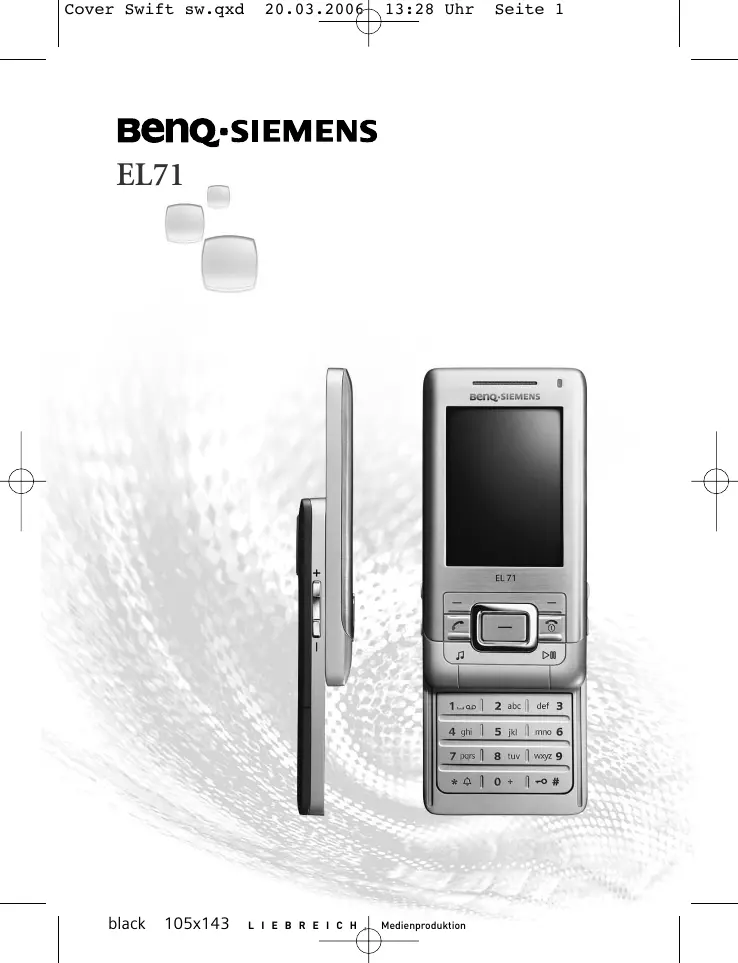

| Intitulé | Description |
|---|---|
| Type de produit | Téléphone mobile |
| Caractéristiques techniques principales | Écran TFT de 2,2 pouces, résolution 176 x 220 pixels |
| Alimentation électrique | Batterie Li-Ion 800 mAh |
| Dimensions approximatives | 108 x 46 x 14 mm |
| Poids | 90 g |
| Compatibilités | Réseaux GSM 900/1800 |
| Type de batterie | Batterie rechargeable Li-Ion |
| Tension | 3,7 V |
| Puissance | Non spécifiée |
| Fonctions principales | Appels, SMS, MMS, radio FM |
| Entretien et nettoyage | Utiliser un chiffon doux et sec, éviter les produits chimiques |
| Pièces détachées et réparabilité | Disponibilité variable, consulter un réparateur agréé |
| Informations générales utiles | Vérifiez la compatibilité avec votre opérateur avant l'achat |
FOIRE AUX QUESTIONS - EL71 BENQ-SIEMENS
Questions des utilisateurs sur EL71 BENQ-SIEMENS
0 question sur cet appareil. Repondez a celles que vous connaissez ou posez la votre.
Poser une nouvelle question sur cet appareil
Téléchargez la notice de votre Téléphone mobile au format PDF gratuitement ! Retrouvez votre notice EL71 - BENQ-SIEMENS et reprennez votre appareil électronique en main. Sur cette page sont publiés tous les documents nécessaires à l'utilisation de votre appareil EL71 de la marque BENQ-SIEMENS.
MODE D'EMPLOI EL71 BENQ-SIEMENS
BenQ·SIEMENS
EL71
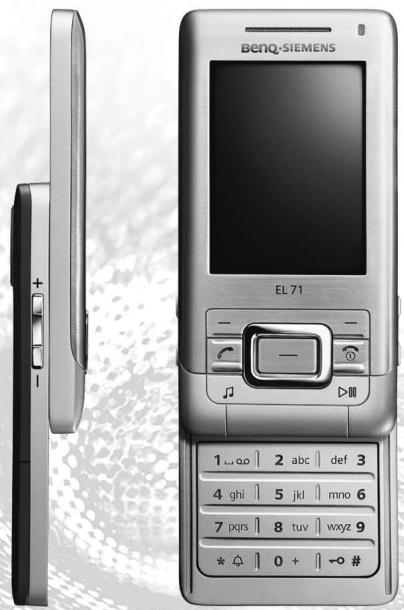
Phone overview 1
Safety precautions 2
Getting started 4 Inserting battery/SIM card/ MicroSD card 4 Charging the battery 5 Entering the PIN 5 Emergency number (SOS) 5
General instructions 6
User guide 6
Slider 6
Main menu 6
Centre key 6
Navigation keys 6
Tabs 7
Mark mode 7
Digital Rights Mgmt. (DRM) 7
PIN, PUK, Phonecode 7
Text input with T9 8
Calling 9 Last number redial .9 Call options .10 Direct call .10
Contacts 10
All contacts 10
Groups 11
Distribution list 11
SIM 11
Online status 11
Filter 11
General functions 11
Call records 11 Durat./charges 11
Camera 12 Take a picture 12 Record video 12 Flash 12
SMS 13
MMS 13
Voice mailbox .15
Internet 16
Settings 17
Profiles 17
Ringtones 17
Themes 17
Display 17
Vibration 17
Connectivity 17
Shortcuts 17
Call settings 18
Phone settings 18
Clock 18
Security 18
Network 18
Accessories 18
Organiser 19
Calendar 19
Appointments 19
Tasks 19
Notes 19
Dictat machine 19
Time zones 19
Remote synchronisation 19
Extras 19
SIM services (optional) 19
My applications 19
Online status 19
Sound recorder 20
My menu 20
Alarm clock 20
Media player 20
My stuff 21
Mobile Phone Manager 22
Customer Care 22
Care and maintenance 23
Product data 24
SAR 25
Guarantee certificate (UK) 25
Guarantee certificate (IRL) 26
Licence Agreement 27
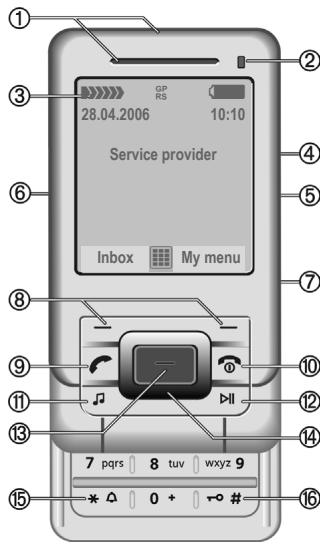
Phone overview
① Loudspeaker
② Standby indicator LED
LED indicates that the phone is still on, when phone display is switched off.
③ Status indicator line
④ O Fast dialling key (p. 17)
⑤ Camera key
⑥ I Volume control
⑦ Plug socket
⑧ Softkeys
The current functions of these keys are shown as text / symbols (e.g. l
⑨ Call key
Dial displayed/highlighted phone numbers/names, accepts calls
10 On/Off/End key
During a conversation or in an application: press briefly to end.
In menus: return to standby mode.
- In standby mode, slider closed: Press briefly to lock keypad. Press briefly and confirm with OK to unlock the keypad.
⑪ Media player key
Key for activating the media player.
12 Play/Pause key
Centre key
Press the centre key to open the main menu and to start an application or function (p. 6).
Navigation keys (p. 6)
15 Ringtone
- Press and hold in standby mode: switch all acoustic signals on/off (except alarm clock).
- Press and hold during incoming call: switch off ringtone for this call only.
16 r l Key lock
Press and hold in standby mode: activate/deactivate key lock.
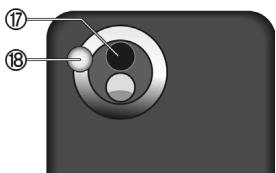
⑦ Camera lens
18 Flash/torch
Press and hold to switch torch on/off.
Safety precautions
Information for parents
Please read the operating instructions and safety precautions carefully before use. Explain the content and the hazards associated with using the phone to your children.

Remember to comply with legal requirements and local restrictions when using the phone. For example in aeroplanes, petrol stations, hospitals or whilst driving.

Mobile phones can interfere with the functioning of medical devices such as hearing aids or pacemakers. Keep a distance of at least 20cm/9 inches between the phone and pacemaker. Whilst using the mobile phone, hold it to the ear furthest away from the pacemaker. For more information consult your doctor.

Tones, music and handsfree talking are reproduced through the loud-speaker. Do not hold the phone to your ear when it rings or when you have switched on the handsfree function. Otherwise you risk serious permanent damage to your hearing.

Only use original batteries (100% mercury-free) and - charging devices. Otherwise you risk serious damage to health and property. For instance, the battery may explode.

Small parts such as the SIM card, dust cap, lens ring and lens cap can be dismantled and swallowed by small children. The phone must therefore be stored out of the reach of small children.

Do not place the phone near to electromagnetic data carriers such as credit cards and floppy disks. Information stored on them could be lost.

Do not look at the LED (e.g. activated infrared port, flash LED) with optical magnifiers because of radiation. This product complies with IEC/EN 60825-1 "Safety of Laser Products" for LED Class 1M products; such products are safe under reasonably foreseeable operating conditions.

Permanent hearing loss may occur if you use ear- or headphones at high volume. You can adapt over time to a higher volume, which may sound normal but can be damaging to your hearing. Set your volume to a safe level. If you experience ringing in your ears, reduce the volume or discontinue use of your system.

The mains voltage specified on the power supply unit (V) must not be exceeded. Otherwise the charging device may be destroyed.

The power supply must be plugged into an easily accessible AC mains power socket when charging the battery. The only way to turn off the charging device after charging the battery is to unplug it.
You may only open the phone to replace the battery (100% mercury-free) or SIM card. You must not open the battery under any circumstances. All other changes to this device are strictly prohibited and will invalidate the guarantee.

All electrical and electronic products should be disposed of separately from the municipal waste stream via designated collection facilities appointed by the government or the local authorities.
This crossed-out wheelie bin symbol on the product means the product is covered by the European Directive 2002/96/EC.
The correct disposal and separate collection of your old appliance will help prevent potential negative consequences for the environment and human health. It is a precondition for re-use and recycling of used electrical and electronic equipment.
For more detailed information about disposal of your old appliance, please contact your local council, waste disposal service or the shop where you purchased the product.

The phone may cause interference in the vicinity of TV sets, radios and PCs.

Use only original accessories. This will avoid potential risks to health or property and ensure compliance with all relevant regulations.
Improper use will invalidate the guarantee! These safety instructions also apply to original accessories.
As mobile devices offer a range of functions, they can be used in positions other than the head, such as on the body. In this case, separation distance of 1.5cm is required.
Bluetooth®
Your phone has a Bluetooth interface. This makes it possible to establish a wireless connection with your phone and a headset of a car kit, or other Bluetooth-enabled devices.
In order to establish a secure link between the devices and to prevent a third party from having access to your phone, you should observe the following points:
- The initial connection between two devices, what is called "pairing", should take place in familiar surroundings.
- Both devices must be able to identify themselves one time by using a password/PIN. To ensure sufficient security, you should choose a 16-digit number combination for a password that would be difficult to guess (if a PIN has not been assigned).
- An automatic connection acceptance ("connection without confirmation") should only be used in exceptional cases.
- In general, only trustworthy devices should be linked in order to minimize security risks.
- You should restrict the "visibility" of your phone if possible. This will make it much more difficult for unknown devices to establish a connection with your phone. To do this, in the Bluetooth menu, set the option Visib.to others to Always visible to Not visible.
- The name of your phone is transmitted in a Bluetooth connection. The factory default is the "Bluetooth ID". The first time Bluetooth is activated, or later in the Bluetooth menu, you can change this name (My BT name).
- If Bluetooth is not needed, this function should be deactivated.
Before using Bluetooth accessories, or a mobile phone inside a vehicle, check the vehicle user guide for any limitations on the use of these products.
The Bluetooth® word mark and logos are owned by Bluetooth® SIG, Inc. and any use of such marks by BenQ Corp. is under licence. Other trademarks and trade names are those of their respective owners. Bluetooth QID (Qualified Design ID): B02422
Getting started
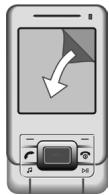
Your phone's display is covered with a protective film. Remove this before using the phone.
In rare cases static discharge can cause temporary discolouration in the display. However, this will disappear within approx. 10 minutes.
Inserting battery/SIM card/ MicroSD card
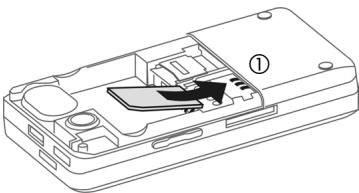
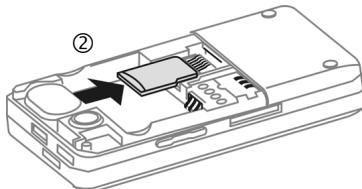
The service provider supplies you with a SIM card on which all the important data for your line is stored. If the SIM card has been delivered in credit-card size, snap the smaller segment out and remove any rough edges. Please follow the instructions in the diagrams when inserting SIM card, MicroSD card (optional) and battery.
Insert SIM card
Ensure that the cut-off corner is in the correct position.
Insert MicroSD card (optional)
Insert battery
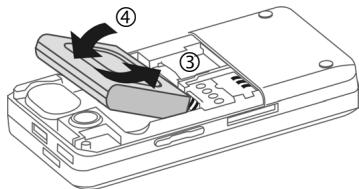
Close battery cover
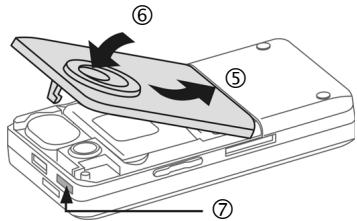
- To remove the battery cover, press the release button ⑦ , then lift the battery cover.
Additional information
Please switch off your phone before removing the battery! Do not remove the SIM card as long as the battery is inserted. If the battery is removed for longer than 30 seconds, the clock must be reset.
Charging the battery
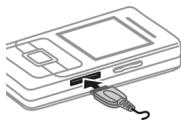
The battery is not fully charged when delivered. Plug the charger cable into the side of the phone, plug the
power supply unit into a mains power socket and charge for at least two hours (for charging via USB, see p. 18). Do not interrupt the charging procedure prematurely.

Display when charging is in progress.
Charging time
An empty battery is fully charged after about 2 hours. Charging is only possible within a temperature range of +5^ to +45^ . If the temperature rises/falls 5^ above/below this, the charge symbol flashes a warning. The mains voltage specified on the power supply unit must not be exceeded.
Operating time
The operating time depends upon the respective conditions of use. Extreme temperatures considerably reduce the phone's standby time. You should therefore avoid leaving the phone in the sun or on a radiator.
Talktime: up to 250 minutes Standby time: up to 280 hours
Charge icon not visible
If the battery has been discharged fully, the charge icon is not immediately visible when the power supply is plugged in. It will appear after up to two hours. In this case the battery is fully charged after 3 to 4 hours.
Only use the plug-in power supply unit included in delivery!
Display during operation
Charge level display during operation (empty-full):
A beep sounds when the battery is nearly empty. The charge level of the battery is only displayed correctly after an uninterrupted charging/discharging cycle. You should therefore not remove the battery unnecessarily and where possible not terminate the charging process before completion.
The power supply unit heats up when used for long periods. This is normal and not dangerous.
Switching on/off

Press and hold the On/Off/End key. Press briefly to open the "Switch off menu".
Entering the PIN
The SIM card can be protected with a 4 to 8-digit PIN.

Open slider. Enter the PIN using the number keys. The characters **** appear in the display to ensure nobody can read your PIN. Correct with C

Press the left softkey to confirm. Logging on to the network will take a few seconds.
Set the clock once after getting started (p. 18)
Emergency number (SOS)
Only to be used in real emergencies!
By pressing the left softkey S0S you can make an emergency call on any network without a SIM card and without entering a PIN (not available in all countries).
General instructions
User guide
The following symbols are used to explain operation:
Menu Displays a softkey function. 8! Function dependent on the service provider.
Standard functions which appear repeatedly in the options menu are not listed in this short user guide. The complete description can be found on the CD ROM or the Internet at this address: www.BenQ-Siemens.com/el71
Slider
Open slider completely
- Display light on.
- Keypad unlocked.
The call is accepted. - Alarm sound off (appointment, alarm).
Close slider completely
- Keypad locked in standby mode if no application except Media Player is running (if set).
- The call is ended (only if headset is not connected).
- An incoming call is rejected.
- Alarm sound off (appointment, alarm).
Main menu

Call up from standby mode using the centre key.
Options
Open menu.
Search
List output of the menu. You can use the search option to directly access any menu item just by browsing for the keyword.
Illumination
Set display light brighter/darker.
Centre key
The symbol in the centre of the lower line of the display shows the current function when the centre key is pressed.

Main menu

Send

OK, confirm

View

Change

Save

Call

Play

Edit

Record

Insert

Pause

Options

Stop

Camera

Zoom
Navigation keys
In standby mode/during conversation:

Open contacts.

Open inbox.

Start Profiles.

Start the camera.
Tabs
The handy tabs offer you fast access to information and functions.
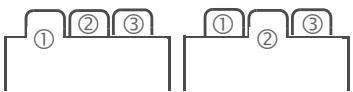

Switch between the individual tabs.
If an input field is activated on a tab, it is only possible to navigate within the field using the navigation key.
Mark mode
For some applications (e.g. deleting several SMS messages) you can mark several entries on the tab in order to perform multiple functions at once.
Options Open menu.
Mark Activate mark mode.

Select entry/entries.

Mark or unmark.
Additional mark mode functions:
Options Open menu.
| Mark all | Mark all entries. |
| Unmark all | Unmark all marked entries. |
| Delete marked | All marked entries are deleted. |
Digital Rights Mgmt. (DRM)
Remember that your phone has Digital Rights Management. The use of downloaded pictures, sounds or applications can be restricted by the suppliers, e.g. copy protection, use for a limited period of time only, number of times it can be used etc.
PIN, PUK, Phonecode

The phone and SIM card are protected against misuse by several security codes.
Keep these security codes in a safe place where you can access them again if required.
PIN codes
| PIN | Personal Identification Number. Pro- vided by service provider. Protects your SIM card. If PIN is entered incor- rectly three times, SIM card is barred. Unbar with PUK. |
| PIN2 | Provided by service provider to access additional functions on special SIM cards. |
| PUK PUK2 | Master PIN. Provided by service pro- vider. Used to unlock SIM cards after PIN is entered incorrectly more than three times. If PUK has been lost, please contact your service provider. |
| Phone- code | Defined by you (4-8 digits) the first time you call up a phone-code protect- ed function (e.g. Direct call, p. 10). If phone code is entered incorrectly three times, access to the phone code and the functions that use it is denied. For your reference please note your phone code here: |
PIN control
The PIN is usually requested each time the phone is switched on. You can deactivate this feature but you risk unauthorised use of the phone. If PIN use is deactivated confirmation is required to switch on the phone. This prevents the phone from being switched on accidentally, e.g. when carried in a pocket or whilst you are on an aircraft.

Edit, enter PIN.

Confirm entry.
Change PIN/Change PIN2
You can change the PIN to any 4 to 8-digit number you find easier to remember.

Edit, enter current PIN.

Confirm, enter new PIN.

Confirm, repeat new PIN.

Confirm.
Chg.phonecode
You define the phone code (4-8 digit number) the first time you call up a phone-code protected function (e.g. Direct call, p. 18). It is then valid for all phone-code protected functions. If the phone code is entered incorrectly three times, access to the phone code and the functions that use it is denied. If this happens please contact the Service Centre (see p. 22).
Text input with T9
"T9" uses various key entries to deduce the correct word.

Activate/deactivate T9.
Writing with T9
It is best if you finish a word without looking at the display.
Simply press the keys where the relevant letter is located once.

A blank space or moving to the right ends a word.
Do not use special characters such as Å. Use standard characters only, e.g. A. T9 will do the rest.
T9 word suggestions
If several options are found in the dictionary for a word, the most probable is displayed first.

Press. If this word is incorrect, press again until the correct word is displayed.
Learning function
To enter a word in the dictionary:

Select and enter the word without T9, then Save.
Correcting a word

Move left or right, word by word, until the required word is highlighted.

Scroll through the T9 word suggestions again.

Deletes the character to the left of the cursor and displays a new possible word.
Text templates


→ Templates

Text templates
Text templates can be stored in the phone for adding to your messages.

Press briefly: swap between: abc, Abc, T9abc, T9Abc, 123. Status shown in top line of the display.
Press and hold: all input variants are displayed.

Press briefly: select special characters.
T9 Text Input is licensed under one or more of the following: U.S. Pat. Nos. 5,187,480, 5,818,437,5,945,928,5,953,541,6,011,554, 6,286,064,6,307,548,6,307,549,6,636,162 and 6,646,573; Australian Pat. Nos. 727539, 746674 and 747901; Canadian Pat. Nos. 1,331,057, 2,302,595 and 2,227,904; Japan Pat. No. 3532780, 3492981; United Kingdom Pat. No. 2238414B; Hong Kong Standard Pat. No. HK1010924; Republic of Singapore Pat. No. 51383, 66959 and 71799; European Pat. Nos. 0 842 463 (96927260.8), 1010 057 (98903671.0), 1018 069 (98950708.2); Republic of Korea Pat. Nos. KR201211B1 and KR226206B1. People's Republic of China Pat. Application Nos. 98802801.8, 98809472.X and 96196739.0; Mexico Pat. No. 208141; Russian Federation Pat. No. 2206118; and additional patents are pending worldwide
Calling

Enter number (always with area/ international dialling code).
A short press clears the last digit, a long press clears the phone number.

Press the Call key. The displayed phone number is dialled.
Ending a call

Press briefly or close slider.
Setting the volume

Adjust the volume with the plus/minus keys.
Additional information
Accept the call and/or switch off "handsfree" talking before bringing the telephone to your ear in order to avoid ear damage caused by the ringtones.
Activate/deactivate Handsfree

→ Handsfr.
International dialling codes

press and hold until a "+" is displayed.

Country codes, select country.
Last number radial

Press twice. The phone number last called is redialed. Press once; opens redial list.
Auto last number radial
Options Auto dial. The phone number is dialled ten times at increasing time intervals.
Reminder
Options Reminder A beep reminds you to redial the displayed phone number after 15 minutes.
Call options
Functions which are only available during the call are offered in the call menu.
Swapping between 2 calls
Options Hold actual call. Enter phone number. When the connection is established, Options Swap between the calls.
Conference
When the first connection is established, put it on hold. Enter phone number. When the second connection is established:
Options Conference to join in the held connection. Repeat until all participants are connected (max. 5).
Tone sequences (DTMF)
Enter tone sequences (digits) for remote access to an answering machine.
Options Send DTMF.
Direct call
If this is active, only one number can be dialled (see also p. 18). This is a phonecode protected function.
Contacts

You can store up to 1500 entries in this phone directory, with several phone and fax numbers plus additional address details. Five tabs are offered for fast access: All contacts, Groups, Online status, SIM, Filter
Switch between the tabs.
All contacts
Display of all entries stored in the phone or on the SIM card in alphabetical order.
New entry
Confirm New entry. The following tabs are displayed. Enter information by working through the list.
| General sett. | First name, surname and impon- tant phone numbers. A ringtone, a picture, or video with sound can be assigned to each contact. |
| Private | General address information and additional communication num- bers such as fax and e-mail. |
| Business | Company information, address, communication numbers. |
| Person | Personal details such as date of birth and other notes. |
| Online status | Contact information for Instant Messaging (p. 15). |
Viewing/editing entries

Select required entry.
Open current tab to edit.
Open options menu.
Groups
You are offered 10 different groups to enable you to arrange your contacts clearly.
Editing group attributes
Select Groups Options Attributes.
Adding a contact to a group
Start function in the All contacts tab.
Select contact, open options and select
group. A contact can only belong to one group.
Distribution list
Special entries in All contacts are distribution lists (max. 250 lists, in each list max. 100 contacts). A contact can appear in several distribution lists.
SIM
Display contacts on the SIM card. Confirm New entry to store a new contact to SIM.
Online status
Display all contacts that have WV user ID (Instant Messaging).
Filter
Those entries which match the selected filter criteria are displayed.
General functions
Options
Different functions are offered depending on the tab and the current situation.
For a detailed description of all functions see the complete version of the user guide on the
CD ROM or at: www.BenQ-Siemens.com/el71
Call records
Phone numbers are stored for easy redialling.


Select and open record, then select phone number.

Dial phone number.
Calls missed

The phone numbers of calls that you have received but not answered are stored for callback purposes. Further functions:
Calls received, Calls dialled, Delete records
Durat./charges


Durat./charges
Last call, All outg. calls,
All incom calls, Remain. units
Select display,
Options

Reset to reset the setting.
Charge settings
Currency
Enter desired currency (PIN2).
Personal rate
Enter the currency as well as the charge per unit or time (PIN2).
Account limit
Special SIM cards allow you or the service provider to define a credit or duration limit after which the phone is barred for outgoing calls.
Auto display
Call duration and charges are displayed during and after call if personal rate is set.
Camera
A camera with flash is integrated in the phone. Use photos/videos as
- wallpaper, logo, screensaver, startup and shutdown animation
- a picture of your contact entries
- an attachment to an MMS or e-mail Save photos and videos in My stuff (p. 21).
Activating


Or
Press camera key in standby mode.

Switch between the Take a picture and Record video tabs.
The preview image is displayed. In the first line you will see:

Zoom factor

White balance

Night mode

Flash active
The number of photos that can still be taken in the selected resolution is displayed in the preview image. This number varies considerably depending on the subject matter and how much storage space is required.
Take a picture

Take a photo. If necessary, set the zoom factor first.
The photo is saved with the user-defined name (Rename in camera options) or a consecutive number in the Pictures folder in My stuff (p. 21).
Image resolution
It is possible to set the quality of the image regardless of the preview image resolution. To take individual wallpaper images you need to set Wallpaper as the image resolution in Options Settings.
Record video
The video mode resolution is by default the premium resolution. It is possible to set the quality of the image for a video regardless of the preview image resolution.

Select the Record video tab.

Start video recording. A red dot appears in the display.

End video recording.
Flash
For settings, see options menu. In the automatic mode the flash would be turned on depending on the lightning condition. This mode is recommended to save standby time.
Camera Options
Further functions are available in the options menu depending on the situation: Memory assist, Microphone on, Use flash, Self-timer, White balance, etc.
For a detailed description of all functions see the complete version of the user guide on the CD ROM or at: www.BenQ-Siemens.com/el71
SMS
You can transmit and receive very long messages (up to 760 characters) on your phone. They are automatically composed of several "normal" SMS messages (note higher charges). Using special letters in some languages reduces the maximum possible length of an SMS. If you do not wish to use these letters, please change the input language in the options menu.
SMS settings
→Settings SMS →Select function.
Normally the basic settings have already been made by the service provider.
MMS
The Multimedia Messaging Service enables you to send texts, pictures/videos and sounds in a combined message to another mobile phone or to an e-mail address. All elements of an MMS message are merged to form a "slide show".
Depending on your phone's settings, you will receive either the complete message automatically or notification that an MMS has been saved in the network, giving sender and size details. You may then download it to your phone to read it.
Writing an MMS
→Create new MMS
An MMS message can consist of a series of pages which may hold text, pictures/videos and sounds (note DRM, p. 7). You will find the operating functions in the options menu.
Content
Options Open menu, then select Add item. Choose between Text, Picture, Sound, Video and/or add an Attachment.
Address(es)
Enter phone number or open menu, then select Add from , select recipient from Contacts. You can add more than one. If you want to insert a subject: Open menu, then select Add subject and enter a brief description of the MMS.
Start sending process.
Further functions for writing and sending are available in the options menu.
For a detailed description of all functions see the complete version of the user guide on the CD ROM or at: www.BenQ-Siemens.com/el71
Receiving
A new incoming message is shown in the display.

Display the message.

Use the softmax underneath to open the Inbox.
To receive a complete MMS later on, open the notification.
Reading


Select the SMS/IMMS tab and select the required message.

Read the SMS/MMS or the notification about an MMS.
Read options
Further functions are available in the options menu depending on the situation.
Message lists





All SMS, MMS and E-mails are each displayed in separate lists.
Archive



Messages are saved in the archive.
Templates


MMS templates are messages saved without an address. For Text templates see p. 9.
MMS settings



Select function.
Normally the basic settings have already been made by the service provider.
Send options
Set: Delivery time, Hide number, etc.
Creation
Set layout options such as Creation mode, Max. msg. size, Page duration
Retrieval
Settings for receipt of the message: Retrieval, Retriev.(roam.), Reject anon., etc.
Connec. sett.
Select the required MMS profile in which the connection attributes are specified. You can obtain the data you need for this from the service provider or at: www.BenQMobile.com/customercare
Further Settings



Text zoom
You can select one of three specified text sizes for presenting a message.
Emoticons
Show your feelings in pictorial form.
Save after send
Configure whether messages are saved in the Sent list after sending.
Auto delete
If this function is switched on, old messages in the inbox will be deleted automatically when the message memory is full.
Inst. messaging

This function is not supported by all service providers. For a detailed description see the complete version of the user guide at: www.BenQ-Siemens.com/el71
Your phone has also an e-mail program (client). For a detailed description see the complete version of the user guide at: www.BenQ-Siemens.com/el71
WAP push
WAP push messages are transmitted from special service centres. If, for example, you have requested configuration data from your service provider this will be transmitted via WAP push. For a detailed description see the complete version of the user guide at:
www.BenQ-Siemens.com/el71
Voice mailbox

Most service providers provide a mailbox in which a caller can leave voice mail for you. If the voice mail service is not part of your service provider's standard package, you will need to register for it, and possibly set it manually.
Settings
The service provider supplies you with two phone numbers:
- Mailbox number
Call this phone number to listen to your voice messages.

Enter/edit the phone number OK.
- Call divert number
Calls are diverted to this phone number.

Options Unanswered and then Set, enter phone number, Options Save.
Listening to a voice message
One of the following symbols will appear when you receive a new voice message:

Symbol with beep/an SMS or a call with automatic announcement.
Call your mailbox and play the message(s) back.
Hold down (if necessary enter mailbox number once only). Confirm with OK and Mailbox depending on your service provider.
Internet


Select function.
Download games, applications, sounds, graphics and more for your phone at wap.BenQ-Siemens.com ("Downloads"). Internet access may require registration with the service provider.
Access to the service provider
Direct call-up of the browser with the URL from your service provider.
Downl. assist.
Supports you during the download.
Enter URL
When a URL is entered, the browser starts and the entered page is displayed.
Bookmarks
List bookmarks
Display list and select a bookmark.
Bookmark site
The current page is saved as a bookmark.
Internet
The browser is started with the preset option. Further functions are available in the options menu.
For a detailed description of all functions see the complete version of the user guide on the CD ROM or at: www.BenQ-Siemens.com/el71
End connection

Press to end the connection and close the browser.
Navigation in the browser

-
Select a link.
-
Settings, status on/off.
-
Go back a level.

One input field/link forward/back.
- Scroll one line.
Display symbols in the browser (selection)

GPRS online

No network
Enter special characters


Select important special characters.
Connection settings
Handling depends on service provider (see also Connectivity, page 17).
History
Display most recently visited sites.
Saved websites
Display list of pages stored in the phone.
Your Internet browser is licensed by:

OPENWAVE

Settings


ofiles

Select function.
For more detailed description see complete version of the user guide at: www.BenQ-Siemens.com/el71
Profiles
Several settings can be stored in six phone profiles so that the phone can be adapted, for example, to the surrounding level of noise.
Ringtones
Choose individual ringtones for different functions and set the volume for all tones.
Themes
Load a completely new visual presentation onto your phone. Various media settings are re-organised on a theme basis at the press of a key, e.g. Sounds, Colour skins, Wallpaper
Display
Functions for individual display settings are offered, such as Wallpaper, Logo, Screensaver, Welcome text, Backlight timer., etc.
Vibration
To avoid the disturbance caused by a ringtone, you can activate vibration as an alternative for various applications. The vibration can be switched on in addition to the ringtone (in a noisy environment, for example).
Connectivity
In this menu you can activate/deactivate EGPRS and Bluetooth, and edit the Bluetooth (see also p. 3) and Online settings.
Shortcuts
Soft keys
You can assign a function to the right softkey.
Additional information
The service provider may have already assigned functions to all the keys (e.g. access to "SIM services" or direct call-up of the Internet portal). It may not be possible to modify this key assignment.
Fast dialling key
You can assign a phone number to the fast dialling key ( ,p.1) .When this key is pressed, the number is dialled.
Navigation keys
The navigation key can be assigned a function for three directions (only effective in standby mode). The downwards movement is assigned to opening contacts and cannot be modified.
Number keys
Number keys 2 to 9 can be used as fast dialing numbers or as fast access to functions. Number key 1 is reserved for the mailbox phone number.
Call settings
Functions related to the handling of incoming or outgoing calls, such as Hide ID, Call waiting, Divert, Any key answer, etc.
Phone settings
Country-specific settings like Language or User dictionary, and other phone-specific functions like Key tones, File system, Licence mgr., Phone identity, etc.
Clock
Settings for time and date.
Security
Auto key lock
The keypad is locked automatically if no key has been pressed for a specific time. However, you can still receive calls and make an emergency call.
ProSlide lock
Enable/disable automatic keylock when closing the slider. The keys are always unlocked automatically when the slider is opened.
Direct call
Only one phone number can be dialled.
Only

Restrict calls to SIM-protected numbers.
This SIM only

Your phone is prevented from being used with a different SIM card.
Certificates
Display certificates for secure data connections.
PIN codes

For description, see p. 7.
Barrings
Network barring restricts the use of your SIM card (network password is needed from your provider).
Network
Network-related functions to search and choose a GSM network, a line if two independent ones are available and settings for User group.
Accessories
In this menu you can choose specific settings for
Car Kit
- Headset
USB charging
Organiser
^ Select function.
Calendar
You can enter appointments in the calendar. The calendar offers you three views: monthly view, weekly view and daily view. Appointments are shown as a colour bar on the vertical hour division.

Scroll between weeks/ days/hours.
Appointments
Appointments are displayed in chronological order in a list.
Enter new appointment
Different input/selection fields are displayed depending on the type. The number of fields can be restricted, see All fields/Reduced fields at the end of the list.
Tasks
A task is displayed like an appointment in the agenda for the selected day. However, unlike an appointment it does not require a time. When no time is entered the task appears at the top of the list every day until it is marked as completed. The first entries are similar to those for Appointments.
Notes
Write and manage text notes. Protect confidential information using a phone code.
Dictatmachine
Use the dictating machine to record short voice memos or for recording calls. Play back messages via the MediaPlayer.
Time zones
Remote synchronisation
You can use this function to synchronise the personal data on your phone (contacts, notes, calendar entries) with a remote server.
Extras
→ Select function.
In this folder you will find more applications such as Calculator, Unit converter, Stopwatch, Countdown and Date calculator.
SIM services (optional)
Your service provider may offer special applications such as mobile banking, share prices, etc. via the SIM card.

Symbol for SIM services.
My applications
To help you organise the applications you download from the Internet you can use the My applications folder in My stuff (p. 21).
Online status
The application can be called up from various other applications, such as Inst. messaging or Contacts. In Online status you can set such attributes as "Availability" or "Mood", which are visible to people who have subscribed to your Online status. You can also edit your status lists for the respective service here.
Sound recorder
Use the sound recorder to record noises and tones for use as ringtones (see also Dictatmachine,p.19).
My menu
Create your own menu with frequently used functions, phone numbers or Internet pages.
Alarm clock


Alarm clock
The alarm sounds at the set time even when the ringtones or the phone are switched off. The alarm clock is activated automatically after a change is made.

Press to end the alarm.

Set the time for alarm call (hh:mm) or vate/deactivate the alarm clock.
Setting the days for an alarm

Set days

Switch between the days. Mark or
unmark the days for an alarm, then Save the alarm call time.
Media player
Incoming events, like a call or an alarm, pause the Media Player. When the interruption is finished it resumes.
Direct key for the media player

Press key on

All the media files on your phone are offered on four tabs:
Music, Pictures, Videos, Playlist

Select tab, select a file, start back.
Media Library
In the media player the following tabs are displayed:
Songs: All MP3, AAC and AAC+ files are displayed.
Playlists: All playlists (*.m3u) are displayed.
Pictures/Videos: All supported picture and video formats are displayed.
All files stored in the phone are automatically shown in a list in the tabs. This list can be arranged according to album, artist, genre or title.
Music/Videos
Play back melodies or videos.

Play or pause, depending on the
situation.
Fast forward/rewind while
key is pressed
Stop.
next/previous media file.

Player active: Play or pause Player not active: Start playback of the last song/playlist.

Set volume.

Switch to mute and off mute.

Switch to full screen mode and back again (only for video).

End playback.
Playlist
Several pieces of music are compiled in a playlist (*.m3u).

ns New Playlist
Pictures

Zoom function. Zoom in/out with the (+/-) softkeys.

Move enlarged picture detail.

Centre picture.
My stuff
To organise your files, you can use the file system like a PC file manager. There are separate folders for the various data types in My stuff (phone memory and Micro SD card).

The list of the folders and files is displayed.

Select file or folder.


Open folder and select file or link. Depending on the selection, the file with the associated application is opened or the download started.
Download
Melodies, pictures, games and other applications are offered on the Internet. Once downloaded, you can access these via the phone. Most applications include instructions. The appropriate folders contain the download function to download new pictures and sounds, for example.
Remember that pictures and sounds may be protected (DRM, p. 7).
For a detailed description of all functions see the complete version of the user guide on the CD ROM or at: www.BenQ-Siemens.com/el71
Additional information
You can use the browser to download applications (e.g. ringtones, games, pictures, animations) from the Internet.
BenQ Mobile excludes all warranty and liability claims in respect of or in connection with any applications subsequently installed by the customer and any software not included in the original delivery package. This also applies to functions enabled subsequently at the customer's instigation. The buyer bears the sole risk for loss, damage or faults to the phone or application as well as all damage and implications arising from the application. For technical reasons, such applications or their retrospective release for certain functions may be lost if the phone is exchanged/re-delivered or repaired. In such cases, the buyer is required to download or release the application again. Please ensure that your phone has Digital Rights Management (DRM) so that downloaded applications are protected from unauthorized reproduction. These applications are then exclusively intended for your phone and cannot be transferred from this even to create a backup. BenQ Mobile does not warrant, guarantee or accept any liability for the customer's ability to download or enable applications again or to do so free of charge. We recommend that from time to time you backup the applications on your PC using the "Mobile Phone Manager". You will find this on the supplied CD-ROM. You can download the relevant latest version of the MPM from the Internet at: www.BenQ-Siemens.com/el71
Mobile Phone Manager

MPM (Mobile Phone Manager) enables you to use extended phone functions from your PC. The phone and PC communicate via a data ca
ble or Bluetooth. MPM offers you a wide range of functions.
You can manage your address data and contacts and synchronise them with other phones, dial on a mouse click and manage phone conferences. Creating, reading, saving and sending SMS messages is also supported.
MPM makes managing your music and sound files, playlists, ringtones and videos effortless.
With MPM you can easily and conveniently edit your photos, pictures and wallpaper logos and add a wide variety of effects.
Mobile Modem Assistant enables you to use your phone conveniently and easily as a modem both at home and when travelling. You can easily compile your WAP favourites and copy them to your phone.
Naturally the data and settings on your phone can also be backed up on your PC with MPM. With Phone Explorer you can access the files in your phone as if it was simply another folder in your PC.
If wished, the software also automatically takes over such routine tasks as synchronising your contacts, downloading the latest photos you have taken, or updating your music files.
MPM, a detailed user guide and online help are contained on the CD enclosed with this phone. You can download future versions of the software from the Internet at: www.BenQ-Siemens.com/el71
Customer Care
We offer fast, individual advice! You have several options:
Our online support on the Internet:
www.BenQMobile.com/customercare
We can be reached any time, any place. You are given 24 hour support on all aspects of our products. Here you will find an interactive fault-finding system, a compilation of the most frequently asked questions and answers, plus user guides and current software updates to download.
When calling customer service, please have ready your receipt and the phone identity number (IMEI, to display press # 06# ), the software version (to display, press # 06# , then | | ) and if available, your Service customer number.
You can also get personal advice about our range of products on our Premium Hotline:
United Kingdom .0906 9597500 (0.75 £ per minute)
Qualified employees are waiting to offer you expert information about our products and installation.
In some countries repair and replace services are impossible where the products are not sold through our authorised dealers.
If repair work is necessary, please contact one of our service centres:
Abu Dhabi 026423800
Argentina 08102226624
Australia 13 00 55 76 68
Austria. 05170517
Bahrain 40 42 34
Bangladesh 017527447
Belgium. 078152221
Bolivia 02121414
Bosnia Herzegovina. 033276649
Brunei 02430801
Bulgaria. 02739488
Cambodia 12800500
Canada 18887770211
Chile. 800530662
China 40 08 88 56 56
Colombia. 018007006624
Croatia 016105381
Czech Republic. 233032727
Denmark 35 25 65 29
Dubai 043966433
Ecuador 1800101000
Egypt. 023334111
Estonia. 56 64 54 00
Finland. 0922943700
France. 0156384200
Germany. 01805333226
Greece 80 11 11 11 16
Hong Kong. 28611118
Hungary 06 14 71 24 44
Iceland 5203000
India. 22 24 98 70 00 Extn: 70 40
Indonesia 02146826081
Ireland. 1850777277
Italy 0245279036
Ivory Coast. 05 02 02 59
Jordan. 064398642
Kenya. 2723717
Kuwait. 2454178
Latvia. 7501118
Lebanon 01443043
Libya 02 13 50 28 82
Lithuania. 870070700
Luxembourg 4066615640
Macedonia 023131848
Malaysia. +60377124304
Malta. +35 32 14 94 06 32
Mauritius 2116213
Mexico 018007110003
Morocco 22669209
Netherlands 0900333100
New Zealand. 08 00 27 43 63
Nigeria 014500500
Norway 22577746
Oman 791012
Pakistan. 02 15 66 22 00
Paraguay 800102004
Peru. 080052400
Philippines 02757118
Poland. 08 01 30 00 30
Portugal .808201521
Qatar. 04322010
Romania 02 12 09 99 66
Russia. 88002001010
Saudi Arabia 022260043
Serbia 01 13 07 00 80
Singapore 62 27 11 18
Slovak Republic. 0259682266
Slovenia 014746336
South Africa .08 60 10 11 57
Spain. 902115061
Sweden. 0857929049
Switzerland 0848840845
Taiwan 02 23 96 10 06
Thailand. 029535000
Tunisia 71861902
Turkey. 02164599898
Ukraine 88005010000
United Arab Emirates. 043660386
United Kingdom 08705334411
Uruguay 00 04 05 46 62
USA 18887770211
Venezuela. 08001005666
Vietnam. 84 89 20 24 64
Zimbabwe 04369424
Care and maintenance
Your phone has been designed and manufactured to the highest of standards and should be treated with great care. The suggestions below will help you to enjoy your phone for many years.
- Protect your phone from moisture and humidity. Precipitation, humidity and liquids contain minerals that will corrode electronic circuits. Should your phone become wet, disconnect it immediately from the power supply to avoid electric shock. Do not place your phone (even to dry it) on/in a source of heat such as a microwave oven, oven or radiator. The phone may become overheated and possibly explode.
- Do not use or store the phone in dusty, dirty areas. Its moving parts may be damaged and the casing may become deformed and discoloured.
-
Do not store your phone in hot environments (e.g. vehicle instrument panel in the summer). High temperatures can shorten the life of electronic devices, damage batteries and warp or melt certain plastics.
-
Do not store your phone in cold environments. When the phone warms up again (to its normal ambient temperature), moisture can form inside the phone, which may damage electronic circuit boards.
- Do not drop, knock or shake your phone. Rough handling can damage internal circuit boards.
- Do not use harsh chemicals, cleaning solvents, or strong detergents to clean the phone.
The suggestions given above apply equally to your phone, battery, charger and all accessories. If any of these parts is not working properly, obtain fast and reliable help at our service centres.
Battery quality statement
The capacity of your mobile phone battery will reduce each time it is charged/emptied. Storage at too high or low temperatures will also result in a gradually capacity loss. As a result the operating time of your mobile phone may be considerably reduced, even after a full recharge of the battery.
Regardless of this, the battery has been designed and manufactured so that it can be recharged and used for six months after the purchase of your mobile phone. After six months, if the battery is clearly suffering from loss of performance, we recommend that your replace it. Please buy only original batteries.
Display quality declaration
For technological reasons, a few small dots with different colours may appear in the display in exceptional cases.
Just remember that the appearance of brighter or darker dots generally does not mean that a fault has occurred.
Product data
Declaration of conformity
Hereby, BenQ Mobile, declares that this EL71 is in compliance with the essential requirements and other relevant provisions of Directive 1999/5/EC. The relevant declaration of conformity (DoC) has been signed. Please call the company hotline if you require a copy of the original or visit: www.BenQMobile.com/conformity
C€ 0168
Technical data
| GSM class: | 4 (2 watt) |
| Frequency range: | 880 – 960 MHz |
| GSM class: | 1 (1 watt) |
| Frequency range: | 1710– 1880 MHz |
| GSM class: | 1 (1 watt) |
| Frequency range: | 1850 – 1990 MHz |
| Weight phone: | 94 g |
| Weight charger: | approx. 70-90 g |
| Size: | 16.5 × 90 × 46.3 mm (~ 67 ccm) |
| Li-Ion battery: | 570 mAh |
| Operating temperature: | -10 °C to +50 °C |
| SIM card: | 1.8 V and 3.0 V |
| Talktime: up to 250 minutesStand-by time: up to 280 hours | |
Lost phone
If you lose your phone or SIM card, contact your service provider immediately to prevent misuse.
SAR
European Union (RTTE) and international (ICNIRP)
INFORMATION ON RF EXPOSURE / SPECIFIC ABSORPTION RATE (SAR)
THIS MODEL MEETS INTERNATIONAL GUIDELINES FOR EXPOSURE TO RADIO WAVES
Your mobile device is a radio transmitter and receiver. It is designed not to exceed the limits for exposure to radio waves recommended by international guidelines. These guidelines were developed by the independent scientific organization ICNIRP and include safety margins designed to assure the protection of all persons, regardless of age and health.
The guidelines use a unit of measurement known as the Specific Absorption Rate, or SAR. The SAR limit for mobile devices is 2 W/kg and was adopted into the European Standard EN 50360 and into other national standards. The CE mark demonstrates that the EU requirements are met.
The highest SAR value for this device when tested at the ear was 0.69 W/kg ^1 . As mobile devices offer a range of functions, they can be used in positions other than the head, such as on the body. In this case, a separation distance of 1.5 ~cm is required.
As SAR is measured utilizing the device's highest transmitting power, the actual SAR of this device while operating is typically below that indicated above. This is due to automatic changes to the power level of the device to ensure it only uses the minimum level required to reach the network.
The World Health Organization has stated that present scientific information does not indicate the need for any special precautions for the use of mobile devices. They note that if you nevertheless want to reduce your exposure then you can do so by limiting the length of calls or using a 'hands-free' device to keep the mobile phone away from the head and body.
Additional Information can be found on the websites of the World Health Organization (www.who.int/emf) or BenQ Mobile (www.BenQMobile.com).
1 The tests are carried out in accordance with international guidelines for testing.
Guarantee certificate (UK)
Without prejudice to any claim the user (customer) may have in relation to the dealer or retailer, the customer shall be granted a manufacturer's Guarantee under the conditions set out below:
- In the case of new devices and their components exhibiting defects resulting from manufacturing and/or material faults within 24 months of purchase, BenQ Mobile shall, at its own option and free of charge, either replace the device with another device reflecting the current state of the art, or repair the said device. In respect of parts subject to wear and tear (including, but not limited to, batteries, keypads, casings, small parts on casings, protective coverings where included in the scope of delivery), this warranty shall be valid for six months from the date of purchase.
- This Guarantee shall be invalid if the device defect is attributable to improper treatment and/or failure to comply with information contained in the user manuals.
- This Guarantee shall not apply to or extend to services performed by the authorised dealer or the customer themselves (e.g. installation, configuration, software downloads). User manuals and any software supplied on a separate data medium shall be excluded from the Guarantee.
- The purchase receipt, together with the date of purchase, shall be required as evidence for invoking the Guarantee. Claims under the Guarantee must be submitted within two months of the Guarantee default becoming evident.
-
Ownership of devices or components replaced by and returned to BenQ Mobile shall vest in BenQ Mobile.
This Guarantee shall apply to new devices purchased in the European Union. For Products sold in the United Kingdom the Guarantee is issued by BenQ Mobile UK Ltd., 1 Arlington Square, Downshire Way, Bracknell, Berkshire, RG12 1WA, United Kingdom. -
Any other claims resulting out of or in connection with the device shall be excluded from this Guarantee. Nothing in this Guarantee shall attempt to limit or exclude a Customer's Statutory Rights, nor the manufacturer's liability for death or personal injury resulting from its negligence.
- The duration of the Guarantee shall not be extended by services rendered under the terms of the Guarantee.
- Insofar as no Guarantee default exists, BenQ Mobile reserves the right to charge the customer for replacement or repair.
- The above provisions do not imply a change in the burden of proof to the detriment of the customer.
To invoke this Guarantee, please contact our online support on the Internet www.BenQMobile.com/customercare or the telephone service. The relevant number is to be found in the accompanying user guide.
Guarantee certificate (IRL)
Without prejudice to any claim the user (customer) may have in relation to the dealer or retailer, the customer shall be granted a manufacturer's Guarantee under the conditions set out below:
- In the case of new devices and their components exhibiting defects resulting from manufacturing and/or material faults within 24 months of purchase, BenQ Mobile shall, at its own option and free of charge, either replace the device with another device reflecting the current state of the art, or repair the said device. In respect of parts subject to wear and tear (including, but not limited to, batteries, keypads, casings, small parts on casings, protective coverings where included in the scope of delivery), this warranty shall be valid for six months from the date of purchase.
- This Guarantee shall be invalid if the device defect is attributable to improper care or use and/or failure to comply with information contained in the user manuals.
In particular claims under the Guarantee cannot be made if:
The device is opened (this is classed as third party intervention)
- Repairs or other work done by persons not authorised by BenQ Mobile.
- Components on the printed circuit board are manipulated
- The software is manipulated
Defects or damage caused by dropping, breaking, lightning or ingress of moisture. This also applies if defects or damage was caused by mechanical, chemical, radio interference or thermal factors (e.g.: microwave, sauna etc.)
Devices fitted with accessories not authorised by BenQ Mobile
- This Guarantee shall not apply to or extend to services performed by the authorised dealer or the customer themselves (e.g. installation, configuration, software downloads). User manuals and any software supplied on a separate data medium shall be excluded from the Guarantee.
- The purchase receipt, together with the date of purchase, shall be required as evidence for invoking the Guarantee. Claims under the Guarantee must be submitted within two months of the Guarantee default becoming evident.
- Ownership of devices or components replaced by and returned to BenQ Mobile shall vest in BenQ Mobile.
- This Guarantee shall apply to new devices purchased in the European Union. For Products sold in the Republic of Ireland the Guarantee is issued by BenQ Mobile UK, Branch Ireland, 1st Floor, Riverview House, 21-23 City Quay, Dublin – The Republic of Ireland.
- Any other claims resulting out of or in connection with the device shall be excluded from this Guarantee. Nothing in this Guarantee shall attempt to limit or exclude a Customer's Statutory Rights, nor the manufacturer's liability for death or personal injury resulting from its negligence.
-
The duration of the Guarantee shall not be extended by services rendered under the terms of the Guarantee.
-
Insofar as no Guarantee default exists, BenQ Mobile reserves the right to charge the customer for replacement or repair.
- The above provisions do not imply a change in the burden of proof to the detriment of the customer.
To invoke this Guarantee, please contact our online support on the Internet www.BenQMobile.com/customercare or the telephone service. The relevant number is to be found in the accompanying user guide.
Licence Agreement
This License Agreement ("Agreement") is between You and BenQ Mobile GmbH & Co. OHG ("BenQ"). The Agreement authorises You to use the Licensed Software, specified in Clause 1 below, which may be included in your phone, stored on a CD-ROM, sent to You by electronic mail or over the air, downloaded from BenQ Web pages or servers or from other sources under the terms and conditions set forth below.
Read this Agreement carefully before using your phone. By using your phone or installing, copying, and/or using the Licensed Software, You acknowledge that You have read and understood the Agreement and agree to be bound by all of the terms and conditions stated below. You further agree that if BenQ or any licensor of BenQ ("Licensor") is required to engage in any proceeding, legal or otherwise, to enforce their rights under this Agreement, BenQ and/or its Licensor shall be entitled to recover from You, in addition to any other sums due, reasonable attorney's fees, costs and disbursements. If You do not agree to all of the terms and conditions of this Agreement, do not install or use the Licensed Software. This Agreement governs any Updates, releases, revisions, or enhancements to the Licensed Software.
- LICENSED SOFTWARE. As used in this Agreement, the term "Licensed Software" means collectively: all the software in Your phone, all of the contents of the disk(s), CD-ROM(s), electronic mail and its file attachments, or other media with which this Agreement is provided and includes any related BenQ or third party software and upgrades, modified versions, updates, additions and copies
of the Licensed Software, if any, distributed over the air, downloaded from BenQ Web pages or servers or from other sources.
-
COPYRIGHT. The Licensed Software and all related rights, without limitation including proprietary rights therein, are owned by BenQ, its Licensors or affiliates and are protected by international treaty provisions and all applicable national laws. This Agreement does not convey to You nor allow You to acquire any title or ownership interest in the Licensed Software or rights therein. The structure, organisation, data and code of the Licensed Software are the valuable trade secrets and confidential information of BenQ, its Licensors or affiliates. You must reproduce and include the copyright notices with any permitted copies You make of the Licensed Software.
-
LICENSE AND USE. BenQ grants to You a non-exclusive, non-transferable end user right to install the Licensed Software or use the Licensed Software installed on the phone. The Licensed Software is licensed with the phone as a single integrated product and may be used with the phone only as set forth in these licensing terms.
-
LIMITATIONS ON LICENSE. You may not copy, distribute, or make derivative works of the Licensed Software except as follows:
(a) You may make one copy of the Licensed Software, excluding the documentation, as an archival backup copy of the original. Any other copies You make of the Licensed Software are in violation of this Agreement.
(b) You may not use, modify, or transfer the right to use the Licensed Software other than together with the accompanying hardware or copy the Licensed Software except as expressly provided in this Agreement.
(c) You may not subsidize, rent or lease the Licensed Software.
(d) You may not reverse engineer, decompile, modify, or disassemble those Licensed Software programs except and only to the extent that such activity is expressly permitted by applicable law notwithstanding this limitation.
Parts of the Licensed Software may be supplied by third parties and may be subject to separate license terms. Such terms are set out within the documentation.
- MISUSE OF THE LICENSED SOFTWARE OR DATA GENERATED BY THE LICENSED SOFTWARE IS STRICTLY PROHIBITED BY BENQ, MAY VIOLATE GERMAN, U.S. AND OTHER LAWS AND MAY SUBJECT YOU TO SUBSTANTIAL LIABILITY. You are solely responsible for any misuse of the Licensed Software under this Agreement and for any liability or damage related in any way to your use of the Licensed Software in violation of this Agreement. You are also responsible for using the Licensed Software in accordance with the limitations of this Agreement.
- TERMINATION. This Agreement is effective from the first date You install, copy or otherwise use the Licensed Software. You may terminate this license at any time by deleting or destroying the Licensed Software, all back up copies and all related materials provided to You by BenQ. Your license rights terminate automatically and immediately without notice if You fail to comply with any provision of this Agreement. The rights and obligations under sections 2, 5, 6, 7, 9, 12 and 13 of this Agreement shall survive the termination of this Agreement.
- YOU ACKNOWLEDGE THE LICENSED SOFTWARE IS PROVIDED "AS IS" AND NEITHER BENQ NOR ANY OF ITS LICENSORS MAKE ANY REPRESENTATIONS OR WARRANTY, EXPRESS OR IMPLIED, INCLUDING BUT NOT LIMITED TO THE WARRANTY OF MERCHANTABILITY OR FITNESS FOR A PARTICULAR PURPOSE OR THAT THE LICENSED SOFTWARE WILL NOT INFRINGE ANY THIRD PARTY PATENTS, COPYRIGHTS, TRADEMARKS OR OTHER RIGHTS. THERE IS NO WARRANTY BY BENQ OR ITS LICENSORS OR BY ANY OTHER PARTY THAT THE FUNCTIONS CONTAINED IN THE LICENSED SOFTWARE WILL MEET YOUR REQUIREMENTS OR THAT THE OPERATION OF THE LICENSED SOFTWARE WILL BE UNINTERRUPTED OR ERROR-FREE AND BENQ AND ITS LICENSORS HEREBY DISCLAIM FROM ANY AND ALL LIABILITY ON ACCOUNT THEREOF. NO ORAL OR WRITTEN INFORMATION OR ADVICE GIVEN BY A BENQ REPRESENTATIVE SHALL CREATE A WARRANTY OR IN ANY WAY AFFECT THIS DISCLAIMER. YOU ASSUME ALL RESPONSIBILITY
TO ACHIEVE YOUR INTENDED RESULTS AND FOR THE INSTALLATION, USE, AND RESULTS OBTAINED FROM IT.
- NO OTHER OBLIGATIONS. This Agreement creates no obligations on the part of BenQ other than as specifically set forth herein.
- LIMITATION OF LIABILITY. IN NO EVENT SHALL BENQ, ITS EMPLOYEES, LICENSORS, AFFILIATES OR AGENTS BE LIABLE FOR ANY DIRECT DAMAGES, LOST PROFITS, DATA OR BUSINESS, OR COSTS OF PROCUREMENT OF SUBSTITUTE GOODS OR SERVICES, PROPERTY DAMAGE, INTERCEPTION OF BUSINESS OR FOR ANY SPECIAL, INDIRECT, INCIDENTAL, EXEMPLARY, ECONOMIC, PUNITIVE OR CONSEQUENTIAL DAMAGES, HOWEVER CAUSED, AND WHETHER ARISING UNDER CONTRACT, TORT, NEGLIGENCE, OR OTHER THEORY OF LIABILITY, OR ASING OUT OF THE USE OF OR INABILITY TO USE THE LICENSED SOFTWARE, EVEN IF BENQ IS ADJVED OF THE POSSIBILITY OF SUCH DAMAGES. THE LIMITATION OF LIABILITY SHALL NOT APPLY IF AND TO THE EXTENT BENQ's LIABILITY IS MANDATORY UNDER THE APPLICABLE LAW E.G. ACCORDING TO PRODUCT LIABILITY LAW OR IN THE EVENT OF INTENTIONAL DISCONDUCT, PERSONAL INJURY OR DEATH.
- TECHNICAL SUPPORT. BenQ and its Licensees have no obligation to furnish You with technical support unless separately agreed in writing between You and BenQ or the applicable Licensee. BenQ and where applicable its Licensees in the Licensed Software shall be free to use any feedback received from You resulting from your access to and use of the Licensed Software for any purpose including (without limitation) the manufacture, marketing and maintenance or support of products and services.
- EXPORT CONTROL. The Licensed Software may include technical data and cryptographic software and is subject to German, European Union and U.S. export controls and may be subject to import or export controls in other countries. You agree to strictly comply with all applicable import and export laws and regulations. Specifically, You agree, to the extent required by U.S. Export Admin
istration Regulations, that You shall not disclose or otherwise export or re-export the Licensed Software or any part thereof delivered under this Agreement to (a) Cuba, Iran, Iraq, Libya, North Korea, Sudan, Syria or any other country (including a national or resident of such country) to which the U.S. has restricted or prohibited the export of goods or services.
- APPLICABLE LAW AND FORUM. The laws of Germany govern this Agreement. No choice of law rules of any jurisdiction will apply. The courts in Munich shall settle any disputes arising out of or relating to this Agreement provided you are a merchant.
- MISCELLANEOUS. This Agreement represents the entire agreement between You and BenQ relating to the Licensed Software and (i) supersedes all prior or contemporaneous oral or written communications, proposals, and representations with respect to its subject matter; and (ii) prevails over any conflicting or additional terms of any acknowledgement or similar communication between the parties during the term of this License. Notwithstanding the foregoing, some products of BenQ may require You to agree to additional terms through an on-line "click-wrap" license, and such terms shall supplement this Agreement. If any provision of this Agreement is held invalid, all other provisions shall remain valid unless such validity would frustrate the purpose of this Agreement, and this Agreement shall be enforced to the full extent allowable under applicable law. No modification to this Agreement is binding, unless in writing and signed by a duly authorised representative of each party. This Agreement shall be binding on and shall inure to the benefit of the heirs, successors, and assigns of the parties hereto. The failure of either party to enforce any right resulting from the breach of any provision of this Agreement by the other party will not be deemed a waiver of any right related to a subsequent breach of such provision or any other right hereunder. Notwithstanding anything to the contrary in this Agreement, BenQ and/or its licensors may enforce its rights, including but not limited to copyright, trademark or trade names, in accordance with the rules of law in each country.
| Display symbols (selection) | |
| Signal strength | |
| Battery charge level, e.g. 50 % | |
| All calls are diverted | |
| Ringer (beep) off | |
| Alarm set | |
| Keypad locked | |
| Events (selection) | |
| SMS memory full | |
| MMS memory full | |
| Phone memory full | |
| No network access | |
| Inbox |
| Message symbols (selection) | |
| Unread | |
| Read | |
| Sent | |
| MMS notification received | |
| E-mail with attachment | |
| Voice mail received |
Issued by
BenQ Mobile GmbH & Co. OHG
Haidenaupplatz 1
D-81667 Munich
© BenQ Mobile GmbH & Co. OHG 2006
All rights reserved. Subject to availability.
Rights of modification reserved.
Manufactured by BenQ Mobile GmbH & Co. OHG
under trademark license of Siemens AG
www.BenQ-Siemens.com/el71
Ref.No.: A31008-H2620-A1-2-7619
