
MOBILE PHOTO DISPLAY S4 PDS040 - Affichage photo mobile JOBO - Notice d'utilisation et mode d'emploi gratuit
Retrouvez gratuitement la notice de l'appareil MOBILE PHOTO DISPLAY S4 PDS040 JOBO au format PDF.


| Intitulé | Description |
|---|---|
| Type de produit | Affichage photo mobile |
| Caractéristiques techniques principales | Écran LCD de haute résolution, taille de 4 pouces |
| Alimentation électrique | Alimentation par batterie rechargeable ou adaptateur secteur |
| Dimensions approximatives | 10,2 cm x 7,6 cm x 1,5 cm |
| Poids | Environ 150 grammes |
| Compatibilités | Compatible avec les formats JPEG et BMP |
| Type de batterie | Batterie lithium-ion rechargeable |
| Tension | 5V |
| Puissance | Consommation d'énergie faible, adaptée à une utilisation prolongée |
| Fonctions principales | Affichage de photos, diaporama, options de transition |
| Entretien et nettoyage | Nettoyer l'écran avec un chiffon doux, éviter les produits chimiques agressifs |
| Pièces détachées et réparabilité | Disponibilité limitée des pièces détachées, consulter le service après-vente |
| Informations générales | Idéal pour les présentations photo en déplacement, léger et compact |
FOIRE AUX QUESTIONS - MOBILE PHOTO DISPLAY S4 PDS040 JOBO
Questions des utilisateurs sur MOBILE PHOTO DISPLAY S4 PDS040 JOBO
0 question sur cet appareil. Repondez a celles que vous connaissez ou posez la votre.
Poser une nouvelle question sur cet appareil
Téléchargez la notice de votre Affichage photo mobile au format PDF gratuitement ! Retrouvez votre notice MOBILE PHOTO DISPLAY S4 PDS040 - JOBO et reprennez votre appareil électronique en main. Sur cette page sont publiés tous les documents nécessaires à l'utilisation de votre appareil MOBILE PHOTO DISPLAY S4 PDS040 de la marque JOBO.
MODE D'EMPLOI MOBILE PHOTO DISPLAY S4 PDS040 JOBO
User Manual
JOB Mobile Photo Display S4 (PDS040 / PDS041)
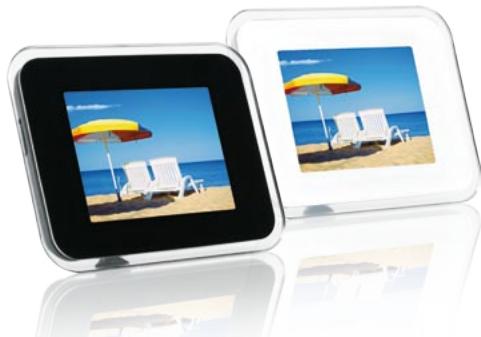
Congratulations on your purchase of the JOBO Mobile Photo Display S4
Before operating the unit, please read this manual thoroughly, and retain it for future reference. This manual will help you use many of the exciting and useful features that will make your Digital Picture Frame viewing more enjoyable.
Content
- Introduction 3
1.1.How to operate the device 3
1.2 Main Menu 3
1.3.Brief overview of functions 3
- Main Functions 3
2.1. Photo 3
2.1.1. Thumbnail (nine-picture) Mode 3
2.1.2.Full Screen Mode 4
2.1.3.Auto slideshow 4
2.2.M-JPEG 4
2.2.1. Thumbnail (nine-picture) Mode 5
2.3. Clock 5
2.3.1 Setting of Clock 5
2.3.2CALENDAR 5
2.4. File 5
2.4.1. Copy and Delete Function 6
2.4.2. Navigation in File Menu 6
2.5. Setup 5
2.5.1. Options 6
2.5.2. Navigation in Settings menu 7 - Connect to computer 7
- Technical Specifications S4 8
- Packaging Content 8
- Contact/Service 8
1. Introduction
1.1. How to operate the device
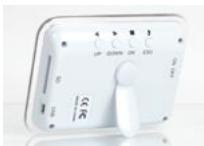
First of all you have to turn on the unit. Just switch the ON/OFF button into the ON position. To operate the device there are 4 buttons: UP - DOWN - OK - ESC. The functions are described later on in this manual.
1.2 Main Menu
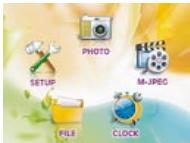
After turning on the unit automatically shows the main menu with its 5 options to choose from: Photo, M-JPEG, Clock, File, Setup. Press the UP or DOWN buttons to move within the different options.
1.3. Brief overview of functions
a) Select PHOTO and then press OK to confirm; it will display pictures.
b) Select M-JPEG and then press OK to confirm; S4 will display Motion JPEG.
c) Select CLOCK and then press OK to confirm; it will display clock. Press again to display calendar.
d) Select FILE and then press OK to confirm; you can copy / delete the files.
e) Select SETUP and then press OK to confirm; you can setup the related items.
2. Main Functions
2.1. Photo
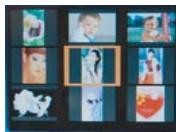
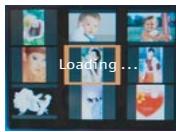
In the main menu select PHOTO and press OK to confirm. After that you can choose to view images from the internal memory (FLASH) or from a memory card. Select one option, then images are shown in thumbnail picture mode (9 pictures) stored on the memory card or the internal memory.
2.1.1. Thumbnail (nine-picture) Mode
Press the UP / DOWN key to choose picture.
Press OK key shortly to view a picture in full screen.
Press ESC key to return to the main menu.
2.1.2. Full Screen Mode
Press UP / DOWN key to view previous picture or next picture.
Press OK key shortly to enlarge the present picture (from 2X-3X-4X-1X-2X).
For Pan View LEFT and RIGHT shortly press the UP / DOWN keys.
For Pan View UP and DOWN hold the UP / DOWN keys for a second.
- Press ESC key to return to the present picture with actual size and location.
- Press ESC key again to return to the thumbnail mode.


2.1.3.Auto slideshow
- Press and hold OK key for 3 seconds in single show mode; the device will then start the auto slideshow mode.
- Press OK key to view a picture in full screen (single show).
Press ESC key to return the thumbnail mode.
2.2.M-JPEG
In the main menu select M-JPEG and press OK to confirm. After that you can choose to view motion JPEG's from the internal memory (FLASH) or from a memory card. Select one option, then all motion JPEG's are shown in thumbnail picture mode (9 pictures) stored on the memory card or the internal memory.
2.2.1. Thumbnail (nine-picture) Mode
- Press the UP / DOWN key to choose M-JPEG file.
- Press OK key shortly to play M-JPEG in full screen.
- Press OK key again to stop.
Press UP / DOWN key to choose previous / next M-JPG file.
Press ESC key to return to the thumbnail mode. - Press ESC key again to return to the main menu.
2.3. Clock
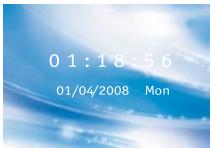
Select CLOCK in the main menu and press OK to confirm; the Mobile Photo Display will display the present time, date and day of the week. Press again to display calendar.
2.3.1 Setting of Clock
Press OK key for 3 seconds to set hour, minute, second / month, day, year.
- Press OK key to switch between the settings.
To adjust press UP / DOWN key and OK key to confirm and get to the next.
- Press ESC key to return to the main menu.

2.3.2. Calendar
Press "OK" while the clock is shown.
Press UP /DOWN key to view previous / next month.
Press OK key to go back to the clock.
Press ESC key to return to the main menu.
2.4. File
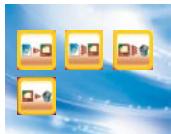
In the main menu select FILE and press OK to confirm. The device will display "Copy one to memory" / "Copy all to memory" / "Delete all from memory" / "Delete one from memory". The deleting option is only possible for pictures stored on the internal memory.
2.4.1. Copy and Delete Function
"Copy one to memory
"Copy all to memory
- "Delete all from memory"
- "Delete one from memory"
copies one photo from memory card to internal memory copies all photos from memory card to internal memory deletes all photos stored on internal memory deletes one photo stored on internal memory
2.4.2. Navigation in File Menu
- Press UP / DOWN key to select your operation and press OK key to confirm.
- During copying files, press and hold ESC key to stop and return.
Press ESC key to return to FILE menu. - Press ESC key again to return to the main menu.
2.5. Setup
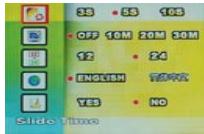
In the main menu select SETUP and press OK to confirm; the device displays all items that can be changed by the user.
2.5.1. Options
You can set the following options:
- Slideshowhow interval: 3 sec., 5 sec. or 10 sec.
- Auto Power Off: OFF after 10, 20 or 30 minutes
Time format: 12 or 24 hour mode - On Screen Language
- Reset to factory settings
2.5.2. Navigation in Settings menu
- Press UP / DOWN key to select the option you would like to change
Press OK button change the setting itself.
Press ESC key to return to the main menu.
3. Connect to computer
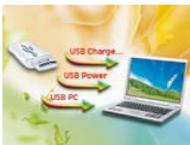
After connecting the unit to the computer you can choose from the following options:
- "USB Charge..."
- "USB Power"
- "USB--PC"
the battery will be charged, while the unit is turned off. It is just a black screen with a battery symbol.
the battery will be charged but the unit will still operate. This mode takes longer to charge the battery.
is the option to choose if you want to transfer images from the computer to an inserted SD / MMC memory card (S4 functions as a card reader).
4. Technical Specifications S4
3,5" inch QVGA TFT panel
Resolution: 320x240 pixel
Supports SD/MMC cards
- Photo support: JPG
Supports up to 16M pixel picture
- Slideshow, Still & Thumbnail view
- Slideshow interval settings
- Auto power off
- Zoom function
Calendar and clock
Copy / delete function
Stores up to 50 pictures
4 MB internal memory
- Internal Lithium battery
5. Packaging Content
- Main unit
- Stand
USB cable
AC USB charger - Manual
6. Contact/Service
If you have any questions on or need help with our products please do not hesitate to get in touch with our Technical Service. You can reach our service people by phone under the telephone number indicated below from Monday through Thursday from 9:00 am to 4:00 pm and on Friday from 9:00 am to 1:00 pm. Independently of these service times you can also get in touch by e-mail, fax or mail:
JOBO AG
Kolner Straße 58
D-51645 Gummersbach
Tel. 0049 2261 545-72
Fax:00492261545-42
E-mail: support@jobo.com
www.jobo.com