TFT 15 AL - Écran d'ordinateur YAKUMO - Notice d'utilisation et mode d'emploi gratuit
Retrouvez gratuitement la notice de l'appareil TFT 15 AL YAKUMO au format PDF.

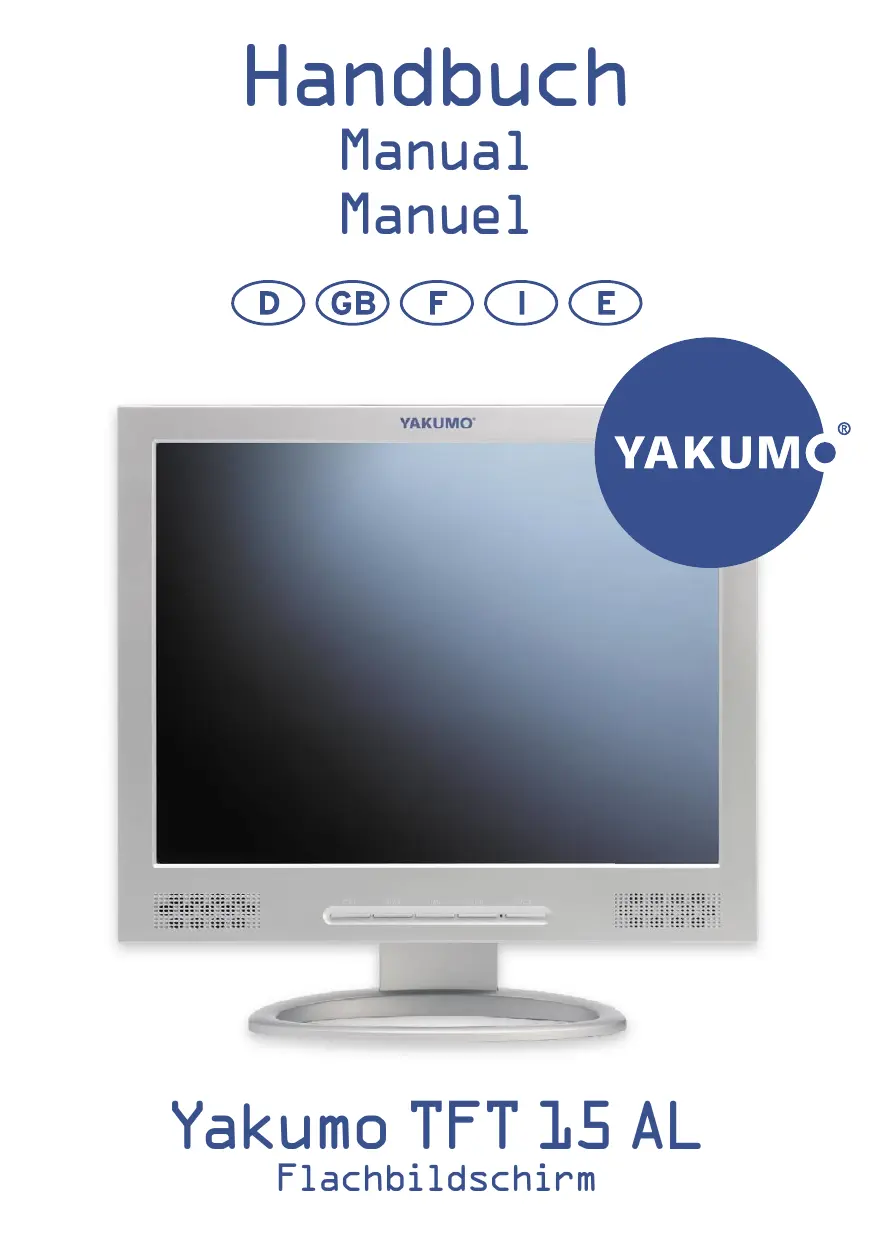

| Type de produit | Écran d'ordinateur LCD |
| Marque | YAKUMO |
| Modèle | TFT 15 AL |
| Taille de l'écran (diagonale) | 15 pouces |
| Résolutions supportées | 720x400, 640x480, 800x600, 1024x768, 1280x1024 (jusqu'à 1280x1024 @ 60 Hz) |
| Connecteurs vidéo | VGA (D-Sub 15 broches) et DVI-D |
| Connecteur audio | Entrée audio PC (jack 3,5 mm) |
| Alimentation | Adaptateur secteur externe (fourni) |
| Consommation électrique | Non spécifiée, typique pour 15" : ~20-30 W |
| Fonctions d'affichage | Réglages OSD : luminosité, contraste, position, phase, horloge, netteté, température de couleur (froid, naturel, chaud, utilisateur), volume, muet, langue (9 langues), fond OSD, timeout OSD |
| Auto-ajustement | Oui, bouton AUTO pour ajustement automatique du mode d'affichage |
| Haut-parleurs intégrés | Non, sortie audio via prise casque ? Non mentionné. Entrée audio uniquement. |
| Pied / Montage mural | Pied standard, compatibilité VESA non spécifiée (probablement 75x75 mm) |
| Certifications | TCO 99, compatible DDC I/2B |
| Poids | Environ 2,5 kg (estimation) |
| Dimensions (approx.) | 340 x 280 x 50 mm (estimation) |
| Entretien et nettoyage | Débrancher avant nettoyage, utiliser un chiffon humide, pas de nettoyants liquides ou aérosols |
| Sécurité | Ne pas ouvrir, risques de choc électrique. Ne pas exposer à l'eau ou à une chaleur excessive. Utiliser sur une surface stable. |
| Conditions d'utilisation | Température ambiante, ne pas obstruer les ouvertures de ventilation |
| Garantie | Non spécifiée, contacter le revendeur |
FOIRE AUX QUESTIONS - TFT 15 AL YAKUMO
Questions des utilisateurs sur TFT 15 AL YAKUMO
0 question sur cet appareil. Repondez a celles que vous connaissez ou posez la votre.
Poser une nouvelle question sur cet appareil
Téléchargez la notice de votre Écran d'ordinateur au format PDF gratuitement ! Retrouvez votre notice TFT 15 AL - YAKUMO et reprennez votre appareil électronique en main. Sur cette page sont publiés tous les documents nécessaires à l'utilisation de votre appareil TFT 15 AL de la marque YAKUMO.
MODE D'EMPLOI TFT 15 AL YAKUMO
Handbuch
Manual
Manuel
D
GB
F
1
E
Yakumo TFT 15 AL
Flachbildschirm
F.C.C Statement
Important safeguards
Chapter 1 Introduction
1.1 Features 1
1.2 Checking List 1
Chapter 2 Installation
2.1 Connect your monitor to computer 2
Chapter 3 Overview of your monitor
3.1 Front Panel overview 3
3.2 Rear Panel overview 3
Chapter 4 Operation
4.1 Power (ON/OFF) switch 4
4.2 Power indicator 4
4.3 Auto 4
4.4 Volume 4
4.5 Menu features 4
4.6 OSD menu 5
4.7 Self test pattern 8
4.8 Safety protection 8
4.9 Preset modes timing chart 9
Chapter 5 Technical information
5.1 Visual Inspection 10
5.2 Signal Connector Pin Assignment 11
5.3 Troubleshooting 13
FEDERAL COMMUNICATIONS COMMISSION(F.C.C) STATEMENT
This equipment has been tested and found to comply with the limits of a Class B digital device. Pursuant to Part 15 of the FCC Rules. These limits are designed to provide reasonable protection against harmful interference in a residential installation. This equipment generates, uses and can radiate radio frequency energy and, if not installed and used in accordance with the instructions, may cause harmful interference to radio communications. However, there is no guarantee that interference will not occur in a particular installation. If this equipment does cause harmful interference to radio or television reception, which can be determined by turning the equipment off and on, the user is encouraged to try to correct the interference by one or more of the following measures :
- Reorient/Relocate the receiving antenna.
- Increase the separation between the equipment and receiver.
- Connect the equipment into an outlet on a circuit different from that to which the receiver is connected.
4.Consult the dealer or an experienced radio/TV technician for help.
CAUTION:
Changes or modifications not expressly approved by the manufacturer responsible for compliance could void the user's authority to operate the equipment.
IMPORTANT SAFEGUARDS
Warnings :
I. Read all of these instructions.
-
Unplug this monitor from the wall outlet before cleaning. Do not use liquid cleaners or aerosol cleaners. Use a damp cloth for cleaning.
-
Do not use this monitor near water. For example near a bathtub, washbowl, kitchen sink, or laundry tub, in a wet basement, or near a swimming pool, etc...
-
Do not place this monitor on an unstable cart, stand, or table. The monitor may fall, causing serious injury to a child or audit, and serious damage to the appliance. Use only with a cart or stand recommended by the manufacturer or sold with monitor. Wall or shelf mounting should follow the manufacturer's instructions, and should use a mounting kit approved by the manufacturer.
-
Slots and openings in the cabinet and the back or bottom are provided for ventilation, and to insure reliable operation of the television receiver and to protect it from overheating, these openings must not be blocked or covered. The openings should never be blocked by placing the monitor on a bed, sofa, rug, or other similar surface. This monitor should not be placed in built-in installation such as a bookcase unless proper ventilation is provided.
-
Do not allow anything to rest on the power cord. Do not locate this monitor where the cord will be abused by persons working on it.
-
Never push objects of any kind into this monitor through cabinet slots as they may touch dangerous voltage points or short out parts that could result in a fore or electric shock. Never spill liquid of any kind on the monitor.
-
Do not attempt to service this monitor yourself since opening or removing covers may expose you to dangerous voltage or other hazards. Refer all servicing to qualified service personnel.
-
Unplug this monitor from the wall outlet and refer servicing to qualified service personnel under the following :
a. When the power cord or plug is damaged or frayed.
b. If liquid has been spilled into the monitor.
c. If the monitor has been exposed to rain or water.
d. If the monitor has been dropped or the cabinet has been damaged.
e. When the monitor exhibits a distinct change in performance this indicated a need for service.
I.1 Features
l Multi-scanning at horizontal frequencies of 30 60kHz(15^ ) 30 80kHz(17^ ) and vertical frequencies of 60Hz to 75Hz .
l Microprocessor based with OSD (On Screen Display) control.
Compatible with standard IBM VGA, extended VGA, super VGA, IBM XGA modes, as well as VESA resolution standards.
Universal power supply.
TCO 99 compliant.
Microsoft Windows 9x/2000/XP compatible & VESA Display Data Channel (DDC) I/2B compatible.
1.2 Checking List
Please make sure the following items are included with your LCD monitor.
Your monitor
AC Adapter
AC power cord
VGA Signal cable
Audio cable
If any of these items are missing, please contact with your dealer for technical support and custom service.
Note:
Be sure to save original box and all packing material for transport in future if the monitor need,
Installation
2.1 Connect your monitor to computer
I Turn off your computer and unplug its power cable.
2 Connect the power cable for your monitor to the DC adapter and connect the adapter the DC power jack on the back of your monitor.
You must use the supplied adapter.
3 Connect the PC AUDIO IN jack to audio in for PC.
4 Connect the DVI or D-Sub I5Pin signal cable to the video port on the back of your computer
5 Plug the computer and monitor power cables into a nearby outlet.
6 Turn your computer and monitor on, if your monitor display an image, you have successfully installed the monitor. If the monitor does not display an image, check all the connections.
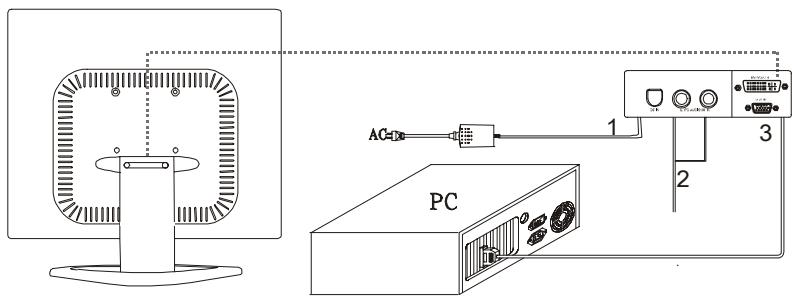
Connecting the monitor to the computer and the power supply
3.1 Front panel over view
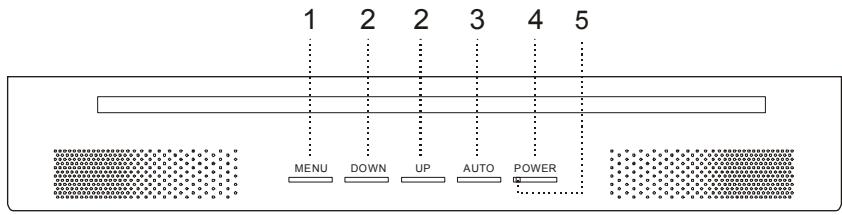
I. Menu Button (MENU)
-
Power Button
-
Select Button (DOWN/UP)
-
Power indicator
-
Auto Button (AUTO)
3.2 Rear panel over view
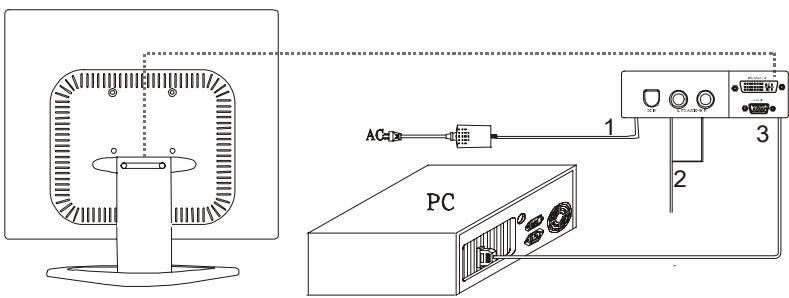
1.DC IN
2.AUDIO IN
3. DVI/VGA IN
OPERATION Direct - Access Features
4.1 Power ON/OFF Switch
This button is used to turn the monitor on and off.
NOTE : The ON/OFF switch does not disconnect the device from the main voltage. To completely disconnect the mains voltage, please remove the power plug from the socket.
4.2 Power indicator
This indicator lights up blue/green when the monitor operates normally. If the monitor is in power saving mode, this indicator changes to amber when the monitor is turned off, this indicator changes to dark.
4.3 Auto
Auto adjust function : Press AUTO button and release, the auto adjust display mode will tune to the utmost performance according to VGA setting.,
Change mode Function : Press AUTO button 2 seconds and release to enter signal search mode., You could choose among signals by pressing and release AUTO button.
4.4 Volume
This feature adjust the DOWN button to decrease the volume and adjust UP button to increase the volume.
4.5 Menu Features
The following features can all be accessed using your monitor on screen menu system. Once are finished. Making adjustments to a feature, pushing the exit button to turn off the menu. Please follow the procedure of selection and adjust an item using the OSD system as below steps for main functions adjustment.
Step I. Press MENU Button to activate the OSD menu.
Step 2. Press Select Button DOWN or Select Button UP to scroll the highlight through the main function list.
Step 3. When the desired function is highlight, press MENU Button a second time, the highlight will change to sub-menu nearby main menu.
Step 4. Press Menu Button and release again, the highlight of adjusted items and scroll bar will change the color from gray to blue.
Step 5. To make your adjustment, press DOWN counterclockwise to decrease or press UP clockwise to increase the setting.
Step 6. Press and release Menu Button again to store the change, and scroll bar will change the color from blue to gray. You can select other function to make adjustment by DOWN or UP. Also you can select exit icon and press MENU Button again to go back main menu.
Step 7. Report step 2 through 6 to make further adjustments.
4.6 OSD menu
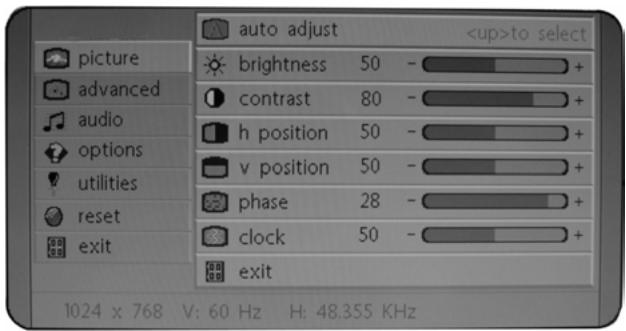
Main menu
OSD main menu of controls gives you an overview of the selection of controls available. When you want to make adjustment of the screen image, press and release button Menu
picture

1. auto adjust A
Press UP button, auto adjust the display mode to its utmost performance according to VGA setting.
2.brightness
Adjust the overall image and background screen brightness.
3. contrast ①
Adjust the image brightness in relation to the background.
4.h position
To move the picture image horizontally left or right.
5. v position
To move the picture image vertically up or down.
6. phase
To improve focus clarity an image stability.
7. clock 33
To increase or decrease the horizontal size of image.
8. exit
To exit the menu.
advanced
I. sharpness A
Adjusts the picture sharpness.
2.color
You have 4 kinds of options.
cool
This control adjusts the color temperature of the screen image, this item are preset by factory, you can not adjust these setting. The performance is bluer and brighter.
natural
This performance is yellowish and closer to paper white.
warm
The performance is reddish and closer to paper white
user
You can adjust the individual color intensity by yourself. Increase or decrease red, green or blue depending upon which is selected.
user red

Increase or decrease red.
user green

Increase or decrease green.
user blue

Increase or decrease blue.
exit
To exit the main menu.
audio
I. volume
This features adjusts DOWN to decrease volume and UP to increase volume.
2. mute
This features choose on or off to mute the sound.
3. exit
To exit the main menu.
options

I.osd
To move the OSD image.
- osd h position

To move the OSD image horizontally left or right.
3.osd v position
To move the OSD image vertically up or down.
- language

You can choose one of the nine languages you need.
- exit
To exit the main menu.
utilities

I. osd timeout
You can select how long the monitor waits after the last adjust of the key to shut off the OSD menu. The time setting choices are from 5 to 60 seconds.
- osd background

You can select opaque or translucent to change OSD background.
- Source icon
You can select on or off to display OSD icon.
- exit
To exit the main menu.
reset

I. memory recall

Reset the currently highlight control to the factory setting. User must be using factory preset video mode to use this function.
- exit
To exit the main menu.
exit
To exit the OSD menu.
4.7 Self test pattern
When the computer's video signal is not reaching the monitor, the monitor will display a self test pattern.
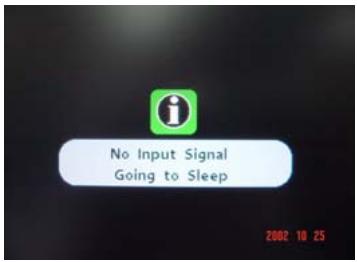
4.8 Safety protection
When frequency of video signal from computer's was out of range, the monitor will protect by itself and a warning message of OSD will appear on the screen.
4.9 Preset Modes Timing Chart
| Mode | Resolution | Horizontal | Vertical |
| 1 | 720 × 400 | 31.47 kHz | 70 Hz |
| 2 | 640 × 480 | 31.47 kHz | 60 Hz |
| 3 | 640 × 480 | 37.86 kHz | 72.8 Hz |
| 4 | 640 × 480 | 37.5 kHz | 75 Hz |
| 5 | 800 × 600 | 37.88 kHz | 60.3 Hz |
| 6 | 800 × 600 | 48.08 kHz | 72.2 Hz |
| 7 | 800 × 600 | 46.87 kHz | 75 Hz |
| 8 | 1024 × 768 | 48.36 kHz | 60 Hz |
| 9 | 1024 × 768 | 56.48 kHz | 70.1 Hz |
| 10 | 1024 × 768 | 60.02 kHz | 75 Hz |
| 11 | 1280×1024 | 63.98 kHz | 60.02 Hz |
User mode:15" item 1-10; 17" item 1-11
Technical Information
5.1 Visual Inspection
Even the normal pixels on the LCD screen reach 99.99% or higher, there may be 0.01% or less pixels showing dark or light while displaying.
5.2 Signal connector pin assignment
DVI Signal connector pin assignment
| PIN | Signal (DVI) | PIN | Signal (DVI) |
| 1 | TMDS Data 2- | 16 | Hot Plug Detect |
| 2 | TMDS Data 2+ | 17 | TMDS Data 0- |
| 3 | TMDS Data 2/4 shield | 18 | TMDS Data 0+ |
| 4 | TMDS Data 4- | 19 | TMDS Data 0/5 shield |
| 5 | TMDS Data 4+ | 20 | TMDS Data 5- |
| 6 | DDC Clock | 21 | TMDS Data 5+ |
| 7 | DDC Data | 22 | Clock shield |
| 8 | Analog Vertical Synchronous | 23 | Clock- |
| 9 | TMDS Data 1- | 24 | Analog B video Out |
| 10 | TMDS Data 1+ | C1 | Analog R Video Out |
| 11 | TMDS Data 1/3 shield | C2 | Analog G Video Out |
| 12 | TMDS Data 3- | C3 | Analog B Video Out |
| 13 | TMDS Data 3+ | C4 | Analog H-Sync. |
| 14 | +5V Power | C5 | Analog Common GND Return |
| 15 | Ground |
1 2 3 4 5 6 7 8
9 10 11 12 13 14 15 16
17 18 19 20 21 22 23 24
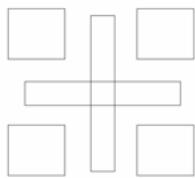
Signal connector
D-Sub 15 Pin Signal connector pin assignment
| PIN | Signal (D-sub) | PIN | Signal (D-sub) |
| 1 | Red | 9 | VDD from PC FOR DDC |
| 2 | Green | 10 | Ground |
| 3 | Blue | 11 | Ground |
| 4 | Ground | 12 | SDA (For DDC) |
| 5 | Self Test | 13 | H. Sync. |
| 6 | Red Ground | 14 | V. Sync. |
| 7 | Green Ground | 15 | SCL (For DDC) |
| 8 | Blue Ground |
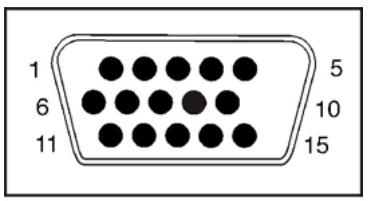
Signal connector
5.3 Troubleshooting
Before calling for service, check the information in this section to see if you can remedy any problems by yourself. If you need assistance, please call the dealer where you purchased the LCD monitor.
There is no SCREEN image
The power cord is securely connected the monitor, the adapter, and the wall outlet.
Check the signal cable connection between the monitor and the computer.
Adjust the brightness and contrast controls.
Monitor in power saving mode.
Display image is too large or small
Use the OSD controls to adjust Auto Setup.
The color are distorted
Signal cable properly connected.
Use OSD controls to adjust the color control setting.
The image is too light or too dark
Use OSD controls to adjust the brightness and contrast.
There is no sound or sound is low
Check the sound cable connection.
Make sure the computer sound program is working.
Adjust the volume on sound setting. Adjust your sound card or computer volume setting.
Adjust the volume control keys on the monitor.