
TCX950 - Téléphones sans fil UNIDEN - Notice d'utilisation et mode d'emploi gratuit
Retrouvez gratuitement la notice de l'appareil TCX950 UNIDEN au format PDF.

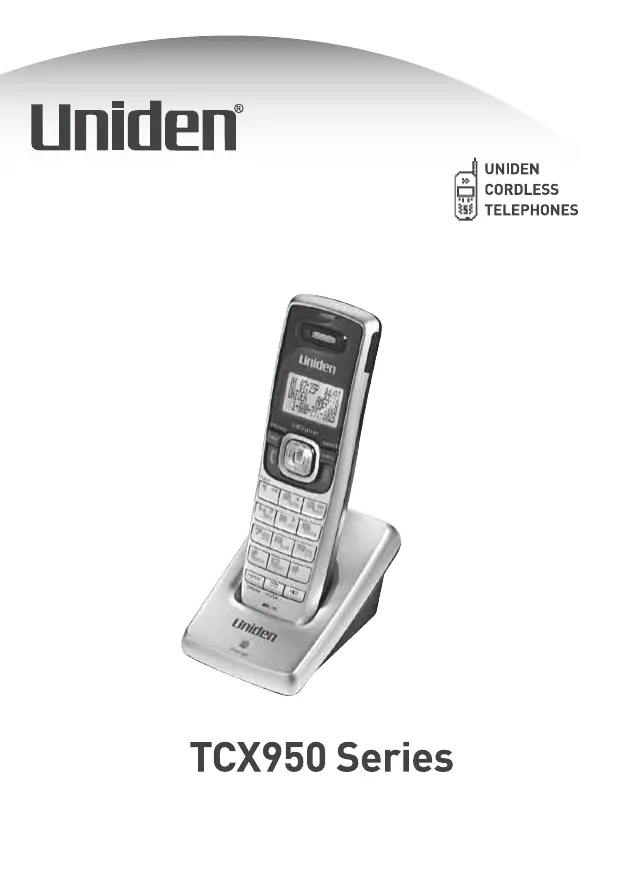

| Type de produit | Combiné supplémentaire sans fil |
| Marque | Uniden |
| Modèle | TCX950 |
| Dimensions du combiné (approx.) | 5,5 x 2,2 x 1,1 pouces (14 x 5,6 x 2,8 cm) |
| Poids du combiné (avec batterie, approx.) | 150 g |
| Alimentation du socle de charge | Adaptateur secteur PS-0007 : entrée 120 V AC, 60 Hz ; sortie 9 V DC, 210 mA |
| Type de batterie | Bloc batterie rechargeable NiMH BT-446 (3,6 V, 800 mAh) |
| Autonomie en communication | Environ 6 heures |
| Autonomie en veille | Environ 10 jours |
| Fréquence de fonctionnement | 5,8 GHz (système numérique extensible) |
| Bases compatibles | Série TRU9500 (TRU9565, TRU9585, etc.) |
| Capacité du répertoire téléphonique | Jusqu'à 70 noms et numéros |
| Liste d'appels (Identifiant d'appel) | Jusqu'à 30 entrées |
| Liste de recomposition | 5 derniers numéros |
| Fonctions principales | Appel en attente, transfert d'appel, intercom, conférence, haut-parleur, mise en garde, mode privé, répondeur à distance (si la base est équipée), accès à la messagerie vocale |
| Accessoires inclus | Combiné, socle de charge avec adaptateur, bloc batterie, clip ceinture, documentation |
| Entretien et nettoyage | Nettoyer les contacts de charge avec un chiffon humide une fois par mois ; ne pas utiliser de produits chimiques |
| Sécurité | Utiliser uniquement la batterie BT-446 et l'adaptateur PS-0007 ; ne pas exposer au feu ; recycler les batteries |
| Pièces détachées et réparabilité | Batterie de remplacement BT-446 disponible ; appeler le service pièces au 1-800-554-3988 |
| Informations générales | Garantie limitée d'un an ; numéro d'enregistrement IC ; conforme FCC partie 15 |
FOIRE AUX QUESTIONS - TCX950 UNIDEN
Questions des utilisateurs sur TCX950 UNIDEN
0 question sur cet appareil. Repondez a celles que vous connaissez ou posez la votre.
Poser une nouvelle question sur cet appareil
Téléchargez la notice de votre Téléphones sans fil au format PDF gratuitement ! Retrouvez votre notice TCX950 - UNIDEN et reprennez votre appareil électronique en main. Sur cette page sont publiés tous les documents nécessaires à l'utilisation de votre appareil TCX950 de la marque UNIDEN.
MODE D'EMPLOI TCX950 UNIDEN
Uniden

UNIDEN
CORDLESS
TELEPHONES
TCX950 Series
Welcome
Congratulations on your purchase of the Uniden TCX950 accessory handset and charging cradle. You can place this fully featured cordless handset anywhere your home has AC power.
Note: Illustrations in this manual are used for explanation purposes.
Some illustrations may differ from the actual unit.
Accessibility
Uniden provides a customer service hotline for accessibility questions. If you have a disability and need customer service assistance or if you have any questions about how Uniden's products can accommodate persons with disabilities, please call the accessibility voice/TTY line: 1-800-874-9314.
Our customer care hours as well as accessibility information can be found on our website, www.uniden.com, under the "Accessibility" link. If your call is received outside of our business hours, you can leave us a message and we will call you back.
Important!
The TCX950 accessory handset will not operate until it is registered to a Uniden main base. This manual describes how to set up your new handset; for more detailed instructions on operating your new handset, please refer to the manual supplied with your base.
Terminology Used in this Manual
| Accessory Handset | A handset that works with an expandable phone base. Accessory handsets must be registered to a base. |
| Base | The main part of the phone that connects to your phone line, and lets you make and receive calls. |
| Charging cradle | A cradle that charges an accessory handset. It connects to power but not to a phone line. |
| Standby | The handset is not in use. No line has been activated. (It doesn’t matter whether the handset is in the cradle.) No dial tone is present. |
| Station | Any registered handset or the base. |
| Talk | A dial tone has been enabled, so you can dial and carry on a conversation with an outside party. |
Uniden® is a registered trademark of Uniden America Corporation.
Compatible Bases
This handset is compatible with Uniden's 5.8 GHz Digital Expandable phone system: the TRU9500 series.
Please visit our website at www.uniden.com for the most up-to-date list of compatible bases.
Installing the Accessory Handset
Checking the Package Contents
Make sure your package contains the following items. If any items are missing or damaged, contact our Customer Service Hotline. See the back cover page for contact information.
- Cordless Handset
- Belt Clip
Printed Material - Charging cradle with AC Adapter (model # PS-0007: Input 120V AC, 60 Hz; Output 9V DC, 210 mA)
- Rechargeable NiMH Battery Pack (model # BT-446: Capacity 800 mAh, 3.6V)
Installing the Battery
Use only the Uniden BT-446 rechargeable battery pack supplied with your cordless telephone.
① Locate the battery pack, battery cover and the handset.

Battery pack

Battery cover
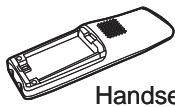
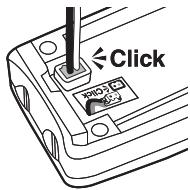
Line up the red and black wires on the battery pack connector with the sticker in the handset's battery compartment.
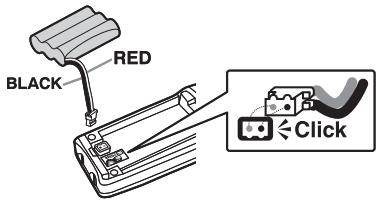
Push the battery pack connector in firmly. (You should hear it click into place.) Gently tug on the battery wires to make sure the connection is secure.
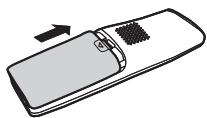
④ Place the cover over the battery compartment and slide it up into place.
Installing the Belt Clip
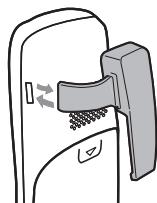
Insert the tabs on the sides of the belt clip into the holes on either side of the handset. Press the belt clip down until it clicks into place. (Tug on the clip to make sure it's secure.)
To remove the belt clip, gently pull the tabs out of the holes, then slide the belt clip off of the handset.
Charging the Accessory Handset
The handset is powered by a rechargeable battery pack that automatically recharges when the handset is placed in the charging cradle.
Use only the Uniden PS-0007 AC adapter with the charging cradle.
1 Place the cord through the molded wiring channel.
Connect the AC adapter to a standard 120V AC wall outlet.
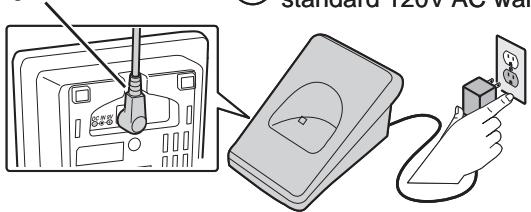
③ Place the handset in the charging cradle with the display facing forward.
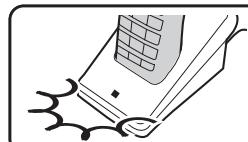
Make sure that the charge LED illuminates when the handset is seated.

What if the charge LED doesn't light up?

- Reseat the handset; make sure the contacts on the bottom of the handset are lined up with the contacts in the cradle.
- Check the AC adapter connection.
- Make sure you are not using an outlet that's controlled by a wall switch.
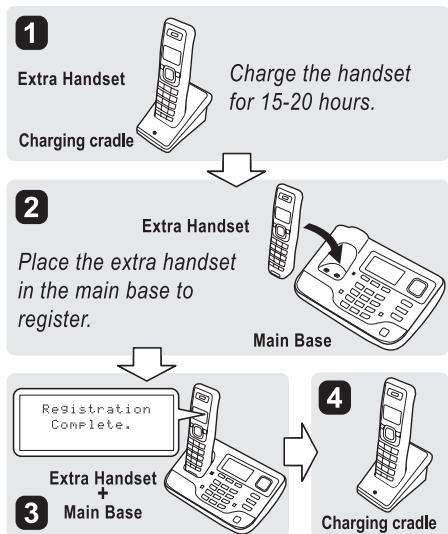
Charge your handset at least 15 to 20 hours before using your new handset for the first time.
Installing the Optional Headset
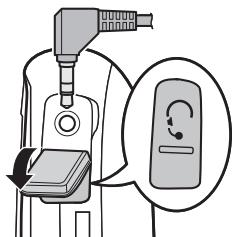
Your phone may be used with an optional headset. To use a headset, insert the headset plug into the headset jack. Headsets may be purchased by calling the Uniden Parts Department. See the back cover page for contact information.
Registering the Handset
You must register the handset to the base before you can use it. Only one handset can be registered at a time. (If an accessory handset has ever been registered to a base, you must reset the handset before you can register it to a new base.)
To register to a TRU9565 or TRU9585 base:
Place the accessory handset in the base. While the handset is registering, HANDSET REGISTERING appears in the LCD. When REGISTRATION COMPLETE is displayed, the handset has been registered to the base.

What if the display shows REGISTRATION FAILED?

Pick up the handset from the base and try again.
Resetting the Handset
If you want to register the handset to a different base or replace a handset with another one, you must first clear the registration information from the base and the handset.
1) Press and hold [ ] and [#] for at least five seconds, until the SYSTEM RESET menu appears.
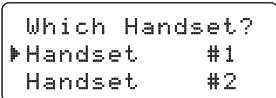
2) Select the DEREGISTER HS submenu by pressing [menu/ select].WHICH HANDSET? appears in the display.
3) Use [▲] or [▼] to select the handset ID to be de-registered from the list, and then press [menu/select]. DEREGISTER HS appears.
4) Press [▲] to move the cursor to YES, and then press [menu/select]. You will hear a confirmation tone.
Resetting the Handset Without the Base
If the original base this handset was registered to is not available for some reason (for example, it is lost or somehow incapacitated), you can still reset the handset and use it with another base.
1) Press and hold [?] and [#] for at least five seconds, until the SYSTEM RESET menu appears.
2) Press [▼] to move the cursor to BASE UNAVAILABLE and then press [menu/select]. BASE UNAVAILABLE appears.
3) Press [▲] to move the cursor to YES, and then press [menu/select]. You hear a confirmation tone, and the handset deletes its own link to the base without trying to contact the base.
Now you are ready to register the handset to the new base.
Using the Interface
Parts of the Handset
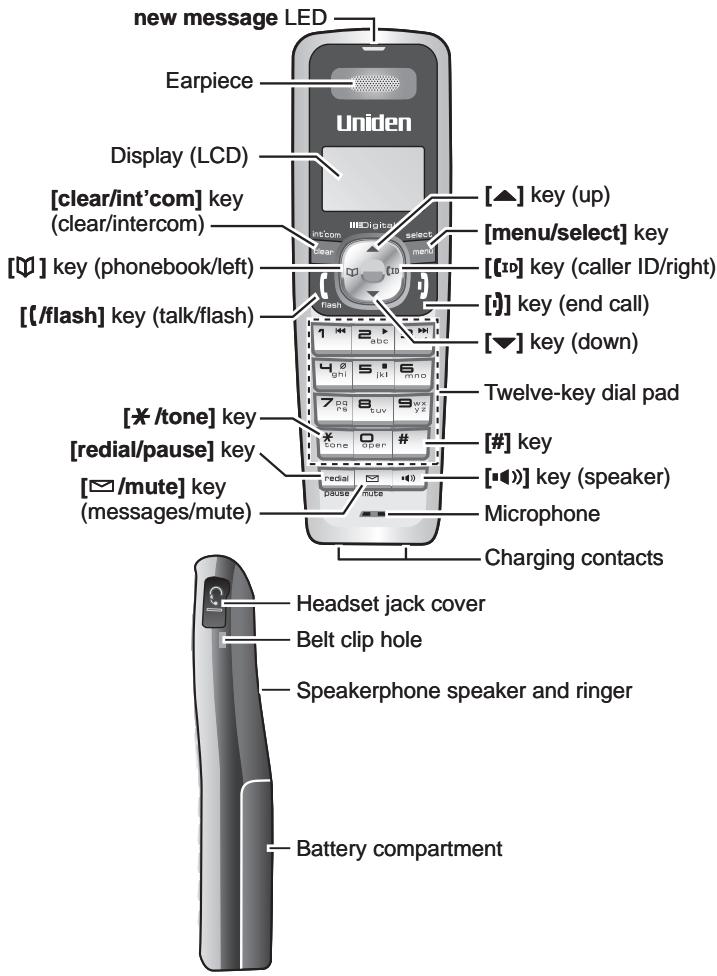
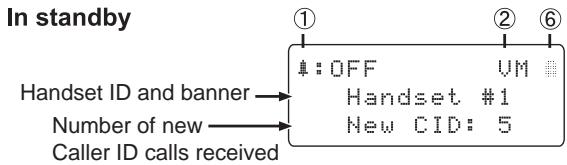
Reading the Display
During a call
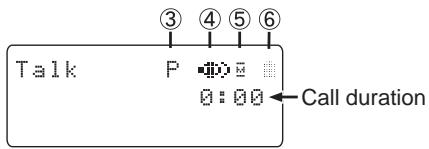
| ① | OFF | The ringer off icon indicates that the ringer is turned off. |
| ② | UM | The voice mail icon appears when you have messages waiting in your voice mailbox. |
| ③ | P | The privacy icon appears when the Privacy Mode is turned on. |
| ④ | Φ | The speaker icon appears when the speaker phone is in use. |
| ⑤ | M | The mute icon appears while the microphone is muted. |
| ⑥ | A/D | The battery icon indicates the handset battery status: full, medium, low, and empty. |
Using the Four-way Function Key
Your handset has a four-way function key that allows you to move the cursor or pointer on the display and access the most commonly used features at the touch of a button. By moving this key to the left, you open the phonebook. Move the key to the right to access Caller ID information.
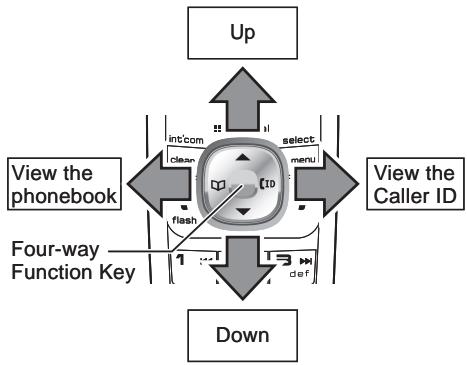
To use this four-way key, place your thumb over the key on the handset and move to the four positions to get the feel of how it moves and operates.
Using the Handset Menus
- To open the menu, press the [menu/select] key.
- The arrow pointer on the left side of the line shows which menu item is currently highlighted. Use [▲] on the four-way function key to move the pointer up and [▼] to move the pointer down.
- To select the highlighted option, press [menu/select].
- To go back to the previous screen, press [left] on the four-way function key.
- To exit the menu, press [i].
- If you don't press any keys for thirty seconds, the phone will time out and exit the menu.
Entering Text from Your Handset
You can use the number keypad on your handset to enter text by referring to the letters printed on each number key. When you press the number key in a text entry field, the phone displays the first letter printed on the number key. Press the number key twice to display the second letter and three times to display the third. Capital letters are displayed first, then lower case letters, and then the number on the key.
If two letters in a row use the same number key, enter the first letter, then use [right] on the four-way function key to move the cursor to the next position to enter the second letter.
| Number of times key is pressed | |||||||||
| keys | 1 | 2 | 3 | 4 | 5 | 6 | 7 | 8 | 9 |
| 1 | 1 | ||||||||
| 2 abc | H | B | C | a | b | c | 2 | ||
| 3 def | D | E | F | d | e | f | 3 | ||
| 4 ghi | G | H | I | g | h | i | 4 | ||
| 5 jkl | J | K | L | j | k | l | 5 | ||
| 6 mno | M | N | O | m | n | o | 6 | ||
| 7 pqrs | P | Q | R | S | F | q | r | s | ? |
| 8 tuv | T | U | V | t | u | v | 8 | ||
| 9WXYZ | U | X | Y | Z | w | x | y | z | 9 |
| 0 oper | & | ( | ) | < | > | / | (blank) | - | -- |
| * | # | # | ? | ! | # | # | " | * | |
| # | # | ||||||||
For example, to enter the word "Movies":
1) Press [6] once to enter M .
2) Use [right] on the four-way function key to move the cursor to the right.
3) Press [6] six times to enter o.
4) Press [8] six times to enter v .
5) Press [4] six times to enter i .
6) Press [3] five times to enter e.
7) Press [7] eight times to enter s.
8) Press [menu/select] to end your text entry.
If you make a mistake while entering a name, use [right] or [left] on the four-way function key to move the cursor to the incorrect character. Press [clear/int'com] to erase the wrong character, and then enter the correct character. To delete all characters, press and hold [clear/int'com].
Using Your Accessory Handset
Making and Receiving Calls
| With the earpiece | With the speaker phone | |
| Make a call | 1) Pick up the handset from the cradle. 2) Dial the number. 3) Press [ /flash ]. | 1) Pick up the handset from the cradle. 2) Dial the number. 3) Press [▶]). |
| Answer a call | 1) Pick up the handset. (If AutoTalk is on, the phone answers when you pick up the handset from the cradle.) 2) Press [ /flash ]. (If Any Key Answer is on, you can press any key on the dial pad.) | 1) Pick up the handset. 2) Press [▶]). |
| Hang up | Press [▶] or return the handset to the cradle. | |
Adjusting the Volume
| Ringer Volume | Choose from four ringer volume settings (off, low, medium, and high). With the phone in standby, press [▲] or [▼]. The display shows the current volume level and the handset sounds the ringer at that level. Use [▲] to make the ringer volume louder or [▼] to make it softer or turn it completely off. |
| Earpiece Volume | Choose from six volume levels for the earpiece. While on a call, press [▲] to make the earpiece volume louder or [▼] to make it softer. |
| Speaker Volume | Choose from six volume levels for the handset speakerphone. While on a speakerphone call, press [▲] to make the speaker volume louder or [▼] to make it softer. |
Notes: If you set the ringer volume to OFF, the handset won't ring. The other stations will ring according to their individual settings.
- The handset earpiece and the handset speaker have separate volume settings.
Using Caller ID and Call Waiting
If you subscribe to Caller ID, you can store up to thirty Caller ID numbers in each handset. Caller ID records are stored from newest to oldest. Once your Caller ID list is full and you receive an incoming call, the oldest record will be automatically deleted to make room for the new record.
To open the Caller ID list, press [ID]. The phone will show the number of new Caller ID records (that is, records you have not reviewed yet) and the total number of stored records. From the screen, you have the following options:
| Scroll through the records | Press [▼] to scroll through CID records. CID records are stored chronologically from newest to oldest. (New records have an asterisk next to the received time.) |
| Store a record in the phonebook | 1) Find the record you want to store and press [menu/select].2) Move the cursor to STORE INTO PB, and press [menu/select]. |
| Dial a record | Find the entry you want to dial and press [/flash] or [/▲]. |
| Delete a record | 1) Find the entry you want to delete and press [menu/select].2) Move the cursor to DELETE ENTRY, and press [menu/select]. |
| Delete all records | Press [menu/select]. |
| Exit the Caller ID list | Press [], or press [ ] (the left key on the four-way function key) if you are on a call. |
Using Call Waiting
If you subscribe to call waiting, a tone sounds if a call comes in when you are on the phone. If you subscribe to Caller ID on call waiting, the Caller ID information of the waiting call appears on the display. Press [\/flash] on the handset to accept the waiting call. After a short pause, you will hear the new caller. To return to the original caller, press [\/flash] on the handset again.
Using the Phonebook
Your handset can store up to seventy names and numbers in your phonebook. When all the phonebook entries are full, you will hear a beep and MEMORY FULL appears. You cannot store any additional names and numbers unless you delete some of the existing ones.
Press [M] to enter the phonebook. Once in the phonebook, you have the following options:
| Scroll through the entries | Press [▼] to scroll through the phonebook alphabetically. |
| Jump to entries that start with a certain letter | Press the number key corresponding to the letter you want to jump to. |
| Store a new entry | 1) Press [menu/select].2) Move the cursor to CREATE NEW, and then press [menu/select]. |
| Copy one entry to another station | 1) Find the entry you want to copy, and press [menu/select].2) Move the cursor to COPY, and press [menu/select].3) Move the cursor to select the station you want to copy the entry to, and press [menu/select]. |
| Copy all entries to another station at once | 1) Press [menu/select], and then select COPY ALL.2) Move the cursor to select the station you want to copy the entries to, and press [menu/select].3) Move the cursor to YES, and press [menu/select]. |
| Dial an entry | 1) Find the entry you want to dial.2) Press [/(flash] or [■]). |
| Delete an entry | 1) Find the entry you want to delete, and press [menu/select].2) Move the cursor to DELETE, and press [menu/select]. |
| Delete all entries | 1) Press [menu/select].2) Move the cursor to DELETE ALL, and press [menu/select]. |
| Close the phonebook | Press [■], or press [■] again if you are on a call. |
Redialing a Number
To redial one of the last five numbers dialed on this handset, press [redial/pause]. This opens the redial list. Use [ ] and [ ] to find the number you want to dial, and press [/flash] or [in standby, or press [menu/select] during a call.
Muting the Ringer (One Call Only)
While the handset is ringing, press [mute] or [i] to mute the ringer for this call. The phone will ring again on the next call. (The handset must be off the cradle to mute the ringer.)
Muting the Microphone
To mute the microphone so the caller can't hear you, press [mute] during a call. MUTE ON and appear in the display. Press [mute] again to cancel muting.
Privacy Mode
To prevent other stations from interrupting a call, press [menu/select]. Move the cursor to CALL PRIVACY, and then press [menu/select]. PRIVACY MODE ON and P appear in the display. Repeat the procedure to turn off privacy mode.
Adjusting the Audio Tone
If you aren't satisfied with your phone's audio quality, you can adjust the Audio Tone of the earpiece. While on a call, press [menu/select]. Move the cursor to select AUDIO TONE, and then press [menu/select]. Move the cursor to select desired audio tone options: HIGH TONE, NATURAL TONE, or LOW TONE. (The default setting, Natural Tone, is recommended for hearing aid users.) Press [menu/select] to confirm. After two seconds, the displayed audio tone is set, and the display returns to normal. Audio tone adjustments only apply to the earpiece, not the speakerphone.
Using Hold, Conference, Transfer and Intercom
| Put a call on hold | Press [clear/int'com]. If you leave a caller on hold for more than five minutes, the call will be disconnected. To return to the party on hold, press [/flash] or [■]) |
| Join a call already in progress | To join a call already in progress, press [/flash] or [■])]. You can hang up normally; the other station remains connected to the call. |
| Transfer a call | Press [clear/int'com]; the call is placed on hold. Use [▲] or [▼] to select the station you want to transfer the call to, and press [menu/select]. (To page all stations at once, select ALL.) When the other station answers, you can talk to the station; the outside call remains on hold. If the other station accepts the call, you will be disconnected. |
| Cancel a transfer | To cancel the transfer and return to the call, press [/flash] or [■])]. |
| Accept a transferred call | To answer the transfer page and speak to the transferring station, press [/flash] or [clear/int'com]. To accept the call and speak to the caller, press [/flash] again. |
| Make an intercom page | With the phone in standby, press [clear/int'com]. Use [▲] or [▼] to select the station you want to talk with, and then press [menu/select]. (If you select ALL, all other stations will be paged.) |
| Cancel a page | To cancel the intercom page, press [■]). |
| Answer an intercom page | Press [/flash] or [clear/int'com]. |
Note: When answering a transferred call or an intercom page, if AutoTalk is on, the handset will automatically answer the page when you pick up the handset from the cradle. If Any Key Answer is on, you can also press any key on the handset's dial pad.
Accessing Your Answering System
If your base has an answering system, you can use your handset to get your messages and change your answering system setup.
The answering system plays your new messages (that you have not listened to yet) first. If you have no new messages, the system plays your old messages.
You have the following options:
| Playing new messages | Press [▶/mute]. The system announces the number of new and old messages, then plays the first new message followed by the day and time it was received. Then the system plays the new messages in the order they were received. |
| Repeating a message | Press [1/▶] once to go to the beginning of the current message. Press [1/▶] repeatedly to go back to a previous message. |
| Skipping a message | Press [3/▶] to go to the beginning of the next message. |
| Deleting a message | While a message is playing, press [4/☑]. The message is permanently deleted. |
| Playing old messages | After you listen to your new messages, press [▶/mute] again to play your old messages. |
| Exiting the message review | Press [5/■] to stop the message playback. Press [■] to exit the system and return to standby, or press [2/▶] to restart the message playback. |
Screening Calls
If your base has an answering system, you can listen to callers as they leave a message. Press [mute] when the system is answering to listen to the caller without answering the phone.
Accessing Voicemail
If your base doesn't have an answering system and you subscribe to a voice mail service, you can program your handset to automatically dial the access number.
1) Press [menu/select].
2) Move the cursor to HANDSET SETUP and press [menu/select].
3) Move the cursor to EDIT VOICE MAIL and press [menu/select].
4) Enter your access number (up to twenty digits). If you need the phone to wait before sending the next digits, press [redial/pause] to insert a two-second pause. For a longer pause, press [redial/pause] multiple times. Each pause counts as one digit.
5) Press [menu/select] when you are finished.
Once you program your access number, press [mute] to dial your voice mail service.
Maintenance
Battery Life
With average use, your battery talk time will be approximately six hours and standby time will be approximately ten days. For optimum performance, be sure to return the handset to the cradle after each call. If the handset is left off of the cradle, the actual talk time duration will be reduced respective to the amount of time the handset is off the cradle.
Note: Do not place the power cord where it creates a trip hazard or where it could become chafed and create a fire or electrical hazard.
Low Battery Alert
When the battery pack is very low, the display shows LOW BATTERY - CHARGE HANDSET and the empty battery icon. If the phone is in standby, none of the keys will operate. If you are on a call, complete your conversation as quickly as possible, and return the handset to the cradle.
Battery Replacement and Handling
With normal usage, your battery should last about one year. If the talk time becomes short even after the battery is recharged, please replace the battery. You can purchase a replacement battery by calling Uniden's Parts department. See the back cover page for contact information.
Warning:
To avoid the risk of personal injury or property damage from fire or electrical shock, use only the BT-446 battery pack.
Caution:
- This equipment contains a rechargeable Nickel-Metal-Hydride battery.
- Do not remove the batteries to charge them.
- Never throw the battery in a fire or disassemble or heat it.
- Do not remove or damage the battery casing.
- Nickel is a chemical known to state of California to cause cancer.
- Do not short-circuit the battery.
- Do not charge the battery used in this equipment in any charger other than the one designed to charge this battery as specified in the owner's manual. Using another charger may damage the battery or cause the battery to explode.
- Rechargeable batteries must be recycled or disposed of properly.
Clean the Battery Contacts
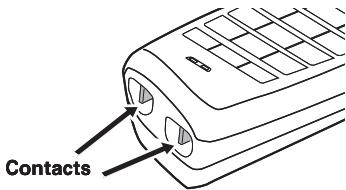
To maintain a good charge, clean the charging contacts on the handset once a month. Dampen a cloth with plain water. Gently rub the damp cloth over the charging contacts until all visible dirt is removed.
Dry the contacts thoroughly before returning the handset to the cradle.
Caution:
Do not use any chemical products (alcohol, paint thinner, etc.), or you may discolor the surface and damage the finish.
The FCC Wants You To Know
Changes or modifications to this product not expressly approved by Uniden, or operation of this product in any way other than as detailed by the owner's manual, could void your authority to operate this product.
This device complies with part 15 of the FCC rules. Operation is subject to the following two conditions: (1) This device may not cause harmful interference, and (2) This device must accept any interference received, including interference that may cause undesired operation. Privacy of communications may not be ensured when using this phone.
To insure the safety of users, the FCC has established criteria for the amount of radio frequency energy various products may produce depending on their intended usage. This product has been tested and found to comply with the FCC's exposure criteria. For body worn operation, the FCC RF exposure guidelines were also met when used with the Uniden accessories supplied or designed for this product. Use of other accessories may not ensure compliance with FCC RF exposure guidelines and should be avoided.
I.C. Notice
Terminal Equipment
NOTICE: This equipment meets the applicable Industry Canada Terminal Equipment Technical Specifications. This is confirmed by the registration number. The abbreviation, IC, before the registration number signifies that registration was performed based on a Declaration of Conformity indicating that Industry Canada technical specifications were met. It does not imply that Industry Canada approved the equipment.
NOTICE:The Ringer Equivalence Number (REN) for this terminal equipment is marked on the equipment itself. The REN assigned to each terminal equipment provides an indication of the maximum number of terminals allowed to be connected to a telephone interface. The termination on an interface may consist of any combination of devices subject only to the requirement that the sum of the Ringer Equivalence Numbers of all the devices does not exceed five.
Radio Equipment
The term "IC:" before the radio certification number only signifies that Industry Canada technical specifications were met. Operation is subject to the following two conditions: (1) this device may not cause interference, and (2) this device must accept any interference, including interference that may cause undesired operation of the device. "Privacy of communications may not be ensured when using this telephone".
One Year Limited Warranty
Important: Evidence of original purchase is required for warranty service. WARRANTYOR: UNIDEN AMERICA CORPORATION ("Uniden") ELEMENTS OF WARRANTY: Uniden warrants, for one year, to the original retail owner, this Uniden Product to be free from defects in materials and craftsmanship with only the limitations or exclusions set out below.
WARRANTY DURATION: This warranty to the original user shall terminate and be of no further effect 12 months after the date of original retail sale. The warranty is invalid if the Product is (A) damaged or not maintained as reasonable or necessary, (B) modified, altered, or used as part of any conversion kits, subassemblies, or any configurations not sold by Uniden, (C) improperly installed, (D) serviced or repaired by someone other than an authorized Uniden service center for a defect or malfunction covered by this warranty, (E) used in any conjunction with equipment or parts or as part of any system not manufactured by Uniden, or (F) installed or programmed by anyone other than as detailed by the owner's manual for this product.
STATEMENT OF REMEDY: In the event that the product does not conform to this warranty at any time while this warranty is in effect, warrantor will either, at its option, repair or replace the defective unit and return it to you without charge for parts, service, or any other cost (except shipping and handling) incurred by warrantor or its representatives in connection with the performance of this warranty. Warrantor, at its option, may replace the unit with a new or refurbished unit. THE LIMITED WARRANTY SET FORTH ABOVE IS THE SOLE AND ENTIRE WARRANTY PERTAINING TO THE PRODUCT AND IS IN LIEU OF AND EXCUSES ALL OTHER WARRANTYES OF ANY NATURE WHATSOEVER, WHETHER EXPRESS, IMPLIED OR ARISING BY OPERATION OF LAW, INCLUDING, BUT NOT LIMITED TO ANY IMPLIED WARRANTYES OF MERCHANTABILITY OR FITNESS FOR A PARTICULAR PURPOSE. THIS WARRANTY DOES NOT COVER OR PROVIDE FOR THE REIMBURSEMENT OR PAYMENT OF INCIDENTAL OR CONSEQUENTIAL DAMAGES. Some states do not allow this exclusion or limitation of incidental or consequential damages so the above limitation or exclusion may not apply to you.
LEGAL REMEDIES: This warranty gives you specific legal rights, and you may also have other rights which vary from state to state. This warranty is void outside the United States of America and Canada. PROCEDURE FOR OBTAINING PERFORMANCE OF WARRANTY: If, after following the instructions in the owner's manual you are certain that the Product is defective, pack the Product carefully (preferably in its original packaging). Disconnect the battery from the Product and separately secure the battery in its own separate packaging within the shipping carton. The Product should include all parts and accessories originally packaged with the Product. Include evidence of original purchase and a note describing the defect that has caused you to return it. The Product should be shipped freight prepaid, by traceable means, to warrantor at:
Uniden America Service
4700 Amon Carter Blvd.
Fort Worth, TX 76155
May be covered under one or more of the following U.S. patents:
| 4,797,916 | 5,426,690 | 5,434,905 | 5,491,745 | 5,493,605 |
| 5,533,010 | 5,574,727 | 5,581,598 | 5,650,790 | 5,660,269 |
| 5,661,780 | 5,663,981 | 5,671,248 | 5,696,471 | 5,717,312 |
| 5,732,355 | 5,754,407 | 5,758,289 | 5,768,345 | 5,787,356 |
| 5,794,152 | 5,801,466 | 5,825,161 | 5,864,619 | 5,893,034 |
| 5,912,968 | 5,915,227 | 5,929,598 | 5,930,720 | 5,960,358 |
| 5,987,330 | 6,044,281 | 6,070,082 | 6,125,277 | 6,253,088 |
| 6,314,278 | 6,418,209 | 6,618,015 | 6,671,315 | 6,714,630 |
| 6,782,098 | 6,788,920 | 6,788,953 | 6,839,550 | 6,889,184 |
| 6,901,271 | 6,907,094 | 6,914,940 | 6,953,118 | 7,023,176 |
| 7,030,819 | 7,146,160 | 7,203,307 | 7,206,403 |
Other patents pending.
As an Energy Star® Partner, Uniden has determined that this product or product models meets the Energy Star® guidelines for energy efficiency. Energy Star® is a U.S. registered mark.

Memo
VISIT OUR WEBSITE AT WWW.UNIDEN.COM IF YOU
- Have A Question Or A Problem.
Or call our Customer Hotline at 1-800-297-1023 during regular business hours.*
- Are Looking For A Part Or Accessory.
Or call our Parts Department at 1-800-554-3988 during regular business hours.*
- Need Special Assistance Due To A Disability.
Or call our Accessibility help line at 1-800-874-9314 (voice or TTY).
© 2007 Uniden America Corp., Fort Worth, Texas. Printed in China.
UUZZ01648BZ(0)
- Central Standard Time. Detailed customer service hours are available at www.uniden.com.
- Uniden
- Welcome
- Accessibility
- Important!
- Compatible Bases
- Installing the Accessory Handset
- Checking the Package Contents
- Installing the Battery
- Installing the Belt Clip
- Charging the Accessory Handset
- Installing the Optional Headset
- Registering the Handset
- To register to a TRU9565 or TRU9585 base:
- Resetting the Handset
- Resetting the Handset Without the Base
- Using the Interface
- Parts of the Handset
- Reading the Display
- During a call
- Using the Four-way Function Key
- Using the Handset Menus
- Entering Text from Your Handset
- Using Your Accessory Handset
- Using Caller ID and Call Waiting
- Using Call Waiting
- Using the Phonebook
- Redialing a Number
- Muting the Ringer (One Call Only)
- Muting the Microphone
- Privacy Mode
- Adjusting the Audio Tone
- Accessing Your Answering System
- Screening Calls
- Accessing Voicemail
- Maintenance
- Battery Life
- Low Battery Alert
- Battery Replacement and Handling
- Warning:
- Caution:
- Clean the Battery Contacts
- The FCC Wants You To Know
- I.C. Notice
- Terminal Equipment
- Radio Equipment
- One Year Limited Warranty
- Memo
- VISIT OUR WEBSITE AT WWW.UNIDEN.COM IF YOU
Marque : UNIDEN
Modèle : TCX950
Catégorie : Téléphones sans fil