
COPPERHEAD - Souris Gamer RAZER - Notice d'utilisation et mode d'emploi gratuit
Retrouvez gratuitement la notice de l'appareil COPPERHEAD RAZER au format PDF.


| Type de produit | Souris gamer filaire |
| Marque | Razer |
| Modèle | Copperhead |
| Connectivité | USB 1.1/2.0 |
| Capteur | Laser Classe 1, résolution jusqu'à 2000 DPI |
| Fréquence de rapport (Polling Rate) | 125 Hz / 500 Hz / 1000 Hz (1 ms) |
| Boutons programmables | 7 boutons Hyperresponse avec grips antidérapants |
| Mémoire intégrée | 32 Ko pour stocker jusqu'à 5 profils |
| Pieds | Ultraslick en Téflon (une paire de rechange incluse) |
| Sensibilité réglable à la volée | Oui (On-The-Fly Sensitivity), nécessite pilote installé |
| Rétroéclairage | Non spécifié |
| Dimensions (estimées) | 125 x 70 x 40 mm |
| Poids (estimé) | 130 g |
| Alimentation | Via port USB (5V) |
| Systèmes d'exploitation supportés | Windows 2000 / XP (compatible avec versions ultérieures via pilotes génériques) |
| Entretien | Nettoyer la lentille du capteur avec un chiffon doux et un peu d'eau tiède; éviter les produits agressifs |
| Sécurité | Laser Classe 1 sans danger pour les yeux en utilisation normale; ne pas regarder directement le faisceau |
| Pièces détachées / Réparabilité | Pieds Téflon supplémentaires fournis; ne pas tenter d'ouvrir la souris (annule la garantie) |
| Garantie | 2 ans limitée constructeur (après enregistrement) |
FOIRE AUX QUESTIONS - COPPERHEAD RAZER
Questions des utilisateurs sur COPPERHEAD RAZER
0 question sur cet appareil. Repondez a celles que vous connaissez ou posez la votre.
Poser une nouvelle question sur cet appareil
Téléchargez la notice de votre Souris Gamer au format PDF gratuitement ! Retrouvez votre notice COPPERHEAD - RAZER et reprennez votre appareil électronique en main. Sur cette page sont publiés tous les documents nécessaires à l'utilisation de votre appareil COPPERHEAD de la marque RAZER.
MODE D'EMPLOI COPPERHEAD RAZER
RAZER COPPERHEAD™ MASTER GUIDE
Content Page
Introducing...The mouse with killer instincts™ 2
Razerquy's message 3
Key features 5
Installing your mouse 6
Configuring your mouse 7
Razer Synapse™ onboard features 7
Driver features (non-Razer Synapse™) 9
Using your Razer Copperhead™ 11
Switching profiles 11
On-the-fly sensitivity 11
Advanced Settings Guide 12
Safety and maintenance 14
Legalese 17
Razer Copperhead
The mouse with killer instincts™
This is the Razer™ edge of speed, precision and sensitivity: it's a revolutionary step in the evolution of gaming peripherals. From the Razer Boomslang™ to the Razer Diamondback™, Razer™ is proud to bring you the Razer Copperhead™. Powered by Razer Precision™ and developed by some of the best engineers this side of the universe, the Razer Copperhead™ is a genre-defining weapon for professional gamers that makes for penetrating, explosive gameplay.
Remember, This Is Not Your Mother's Mouse™.
Razer Copperhead™ high precision gaming mouse
USB 1.1/2.0 mouse for Windows 2000 / XP
PACKAGE CONTENTS
Razer Copperhead™
Razer Copperhead™ Master Guide, including Razer Copperhead™ CD-ROM
Certificate
There's no turning back. You're one of us now.
The Razer Copperhead™ is the world's most advanced gaming mouse offering unparalleled laser tracking precision of up to 2000 dpi, unprecedented speed and for the first time ever, it's the only mouse in the world to offer integrated intelligence with 32Kb onboard memory capabilities to store up to 5 profiles, without the need for software drivers. Featuring Razer's award winning drivers (including On-The-Fly Sensitivity™ to suit your gaming style), it's also equipped with 7 programmable ultra-large non-slip Hyperresponse™ buttons. With a dedicated 16 bit-data channel that polls at a punishing rate of 1000HZ and 1ms response rate, this is the de facto weapon for precision gaming.
It features Always-On™ capabilities pioneered by Razer™ where the laser sensor never powers down, providing instantaneous response at all times during gameplay -- unlike other mice that power down when stationary.
The Razer Copperhead™ can also be personalized in terms of weights and buttons* to meet the demanding standards of professional gaming.
We are a company of gamers who work closely with the gaming community and we know exactly what you want. The Razer Copperhead™ is designed to provide you with the much needed competitive edge in gameplay, made for gamers, by gamers. Undoubtedly, the Razer Copperhead™ will be the new benchmark in competitive gaming and you're at the helm of this technological revolution.
We know you're bustin' at your chops to put this baby through the rigors of gameplay. But before you do so, take some time to go through this Master Guide in order to unleash the maximum potential of your Razer Copperhead's capabilities.
We live by the mantra of 'For Gamers. By Gamers™' and it is imperative that we bring you into the fold. Sign up at www.razerzone.com for the latest news, product and driver announcements to stay ahead of the game. (I do assure you that all information provided will be kept private).
There's no turning back. You're one of us now.
Peace and great gaming.

RAZERGUY
razerguy@razerzone.com
(*With optional Razer™ Copperhead Pro-Tools, sold separately)
KEY FEATURES
| Default button assignments | |
| A Mouse button 1 - Left click B Mouse button 2 - Right click C Mouse button 3 - Scroll wheel and button | D Mouse button 4 E Mouse button 5 F Rubber grip |
| N O | |
| G DPI up H DPI down I Rubber grip | J Class 1 Eye Safe laser K Profile change/rest button L Ultraslick™ Teflon feet M Razer Synapse™ N 1000hz (1ms) response time O 16 bit ultra-wide data path |
INSTALLING YOUR MOUSE
For PC users and notebook users
1 Plug mouse into USB port and turn on system.
2 Load the Razer Copperhead™ driver CD.
3 Follow onscreen instructions.
REGISTER YOUR RAZER™
At the end of the Razer™ software installation, just follow the prompts or get instant gratification at www.razerzone.com
What you'll get:
- 2 years limited manufacturer's warranty
- Free online support
CONFIGURING YOUR MOUSE
RAZER SYNAPSETM ONBOARD FUNCTIONS
MAIN WINDOW
All settings will be saved on the Profile you have currently selected and will be available on another computer even without the Synapse Configurator installed. (Note: On-The-Fly Sensitivity™ requires the Razer Copperhead™ driver to be installed).
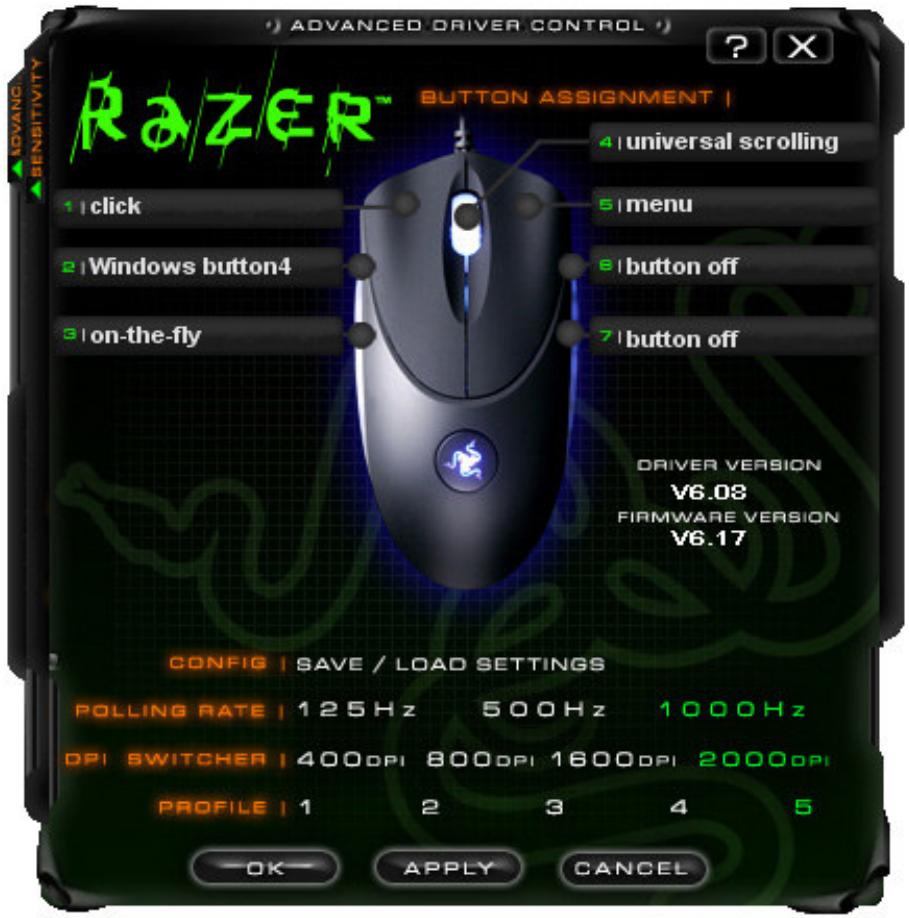
1 Assign buttons as desired.
If the button function is not listed, or if you would like to assign a macro, select Assign a Key/Macro from the drop down menu. Macros can be up to 5 characters in length, and Special Keys may be selected from the appropriate sub-menus.
2 Polling Rate
Set the polling rate of the Razer Copperhead™: 125hz (8ms), 500hz (4ms) or 1000hz (1ms).
Do note that any change to polling rate will only take effect after you reboot your computer.
3 DPI Switcher
Set the DPI of the Razer Copperhead™. Note that you can also program DPI switching to any button on the Razer Copperhead™.
4 Profile
Change the currently active Profile.
5 Config, Save/Load Settings
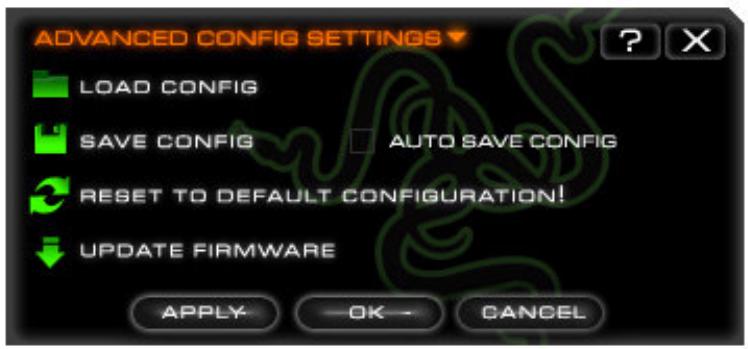
a. Load Config: Allows you to load a previously saved configuration
b. Save Config: Save your current configuration to file.
c. Reset to Default Configuration: Set the Razer Copperhead™ to factory default.
d. Update firmware: Update firmware on the Razer Copperhead™. Warning: Ensure that power supply to your computer is not interrupted during the update process or permanent damage to your Razer Copperhead™ may result. Note: For the latest updates on driver software and firmware, go to www.razerzone.com
6 Repeat steps 1 to 5 above for each Profile which will be stored onboard your Razer Copperhead™ without the need for software drivers in the future.
Note: Only Razer Synapse™ features are retained in the onboard memory of the Razer Copperhead™.
DRIVER FEATURES
(NON-RAZER SYNAPSE™)
The features listed here require the Razer Copperhead™ software driver to be installed and the Razer Copperhead™ Tray Icon to be active. This can be accessed by clicking the Sensitivity and Advanced tab from the Main Window. Each setting will be saved to the current Profile on the current machine only.
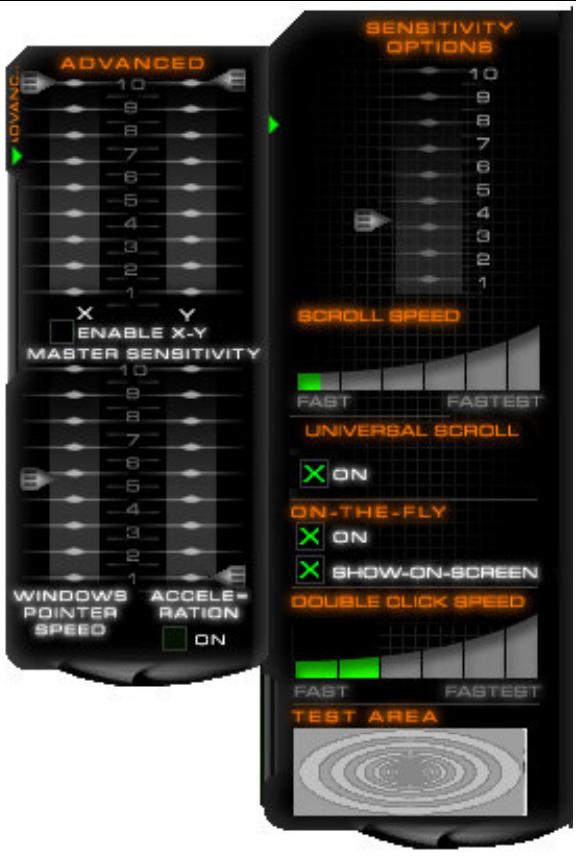
1 Sensitivity Options
Adjust the Razer Copperhead's pointer sensitivity.
2 Scroll Speed
Adjust the scroll wheel speed.
3 Universal scroll
Clicking the middle mouse button and dragging the mouse will scroll in the direction of the mouse movement.
4 On-The-Fly
Activate On-The-Fly and show it on screen when active.
5 Double-click speed
Adjust the double-click speed.
ADVANCED
6 Adjust X/Y sensitivity separately.
7 Enable X-Y Master Sensitivity
This must be enabled in order for individual adjustments to X-Y sensitivity to be effective.
8 Windows pointer speed
Adjust Windows pointer speed (as per Windows Mouse Control Panel).
Takes effect only after reboot.
9 Acceleration
Turn on/off pointer acceleration and set acceleration level. Acceleration is not recommended for gaming.
USING YOUR RAZER COPPERHEAD™
Your Razer Copperhead™ will remember all Razer Synapse™ settings from computer to computer without the need to install software drivers on each computer.
SWITCHING PROFILES
You can switch between the Profiles of your Razer Copperhead™ in 3 ways:
a. By selecting the active Profile in the Synapse Configurator,
b. Button programmed via the Synapse Configurator in the Main Window,
c. Profile button, located at the bottom of the mouse.
Pressing the Profile button will advance one Profile.
When the active Profile is switched, the Razer Copperhead™ will flash the corresponding number of times (for example, if Profile 3 is activated, the Razer Copperhead™ will flash 3 times to indicate that is the Profile you have selected).
It will remember the currently active Profile even if turned off and will boot up in the active Profile.
ON-THE-FLY SENSITIVITY™
If a button has been assigned to "On-The-Fly Sensitivity™", pressing the assigned button and moving the scroll wheel will produce a bar on the lower right hand corner of your screen, allowing you to dynamically adjust your sensitivity settings in the application. This feature requires the driver to be installed.
ADVANCED SETTINGSGUIDE
Sensitivity
Mouse sensitivity is an internal filter of the driver. The maximum sensitivity setting of 10 is unfiltered. Each incremental stop or setting is a 10% decrease, e.g. 1 setting will decrease mouse pointer input to 10% (i.e. a linear graph).
Acceleration
Acceleration is an internal filter of the driver, and is primarily a legacy option for low dpi mice users. With acceleration enabled, the faster you swipe the mouse, additional movement is added. Windows XP has acceleration turned on by default as a convenience for users assuming that everyone will have 400dpi mice, but this will likely be a hindrance to most gamers and precision users who require greater accuracy. The 'acceleration off' option (default) turns off internal acceleration only and does not affect Windows XP acceleration, which can be turned off via the Control Panel, Mouse, Pointer Options, and unselecting 'Enhance Pointer Precision'.
Windows Pointer Speed
Pointer speed is the Windows implementation of Sensitivity. In Windows XP, a setting of '5' means there is no filtering (default). This bar is included as a convenience.
DPI switcher - Resolution
Resolution is how many counts per inch of movement that is sent by the mouse hardware to the OS. e.g. 400dpi means a movement of one inch will result in 400 counts of movement. Without any of the above filters operating, this will result in 400 pixels of movement on the screen.
Independent X and Y-axis Settings
You can preset independent X-axis (sensitivity movements side to side) and Y-axis (sensitivity movements up and down). When this feature is enabled you will see a new on-the-fly interface bar when enacted on their screen that allows further sensitivity adjustments.
RESETTING TO FACTORY DEFAULT
To reset the Razer Copperhead™ to factory default, press and hold the Profile Button for 20 seconds while the Razer Copperhead™ is connected to a powered on computer.
NB: ALL CONFIGURATION SETTINGS WILL BE LOST WHEN YOU RESET THE RAZER COPPERHEAD™ TO FACTORY DEFAULT SETTINGS. ALL CONFIGURATION SETTINGS WILL NEED TO BE RE-ENTERED OR LOADED FROM THE CONTROL PANEL AFTER THE RAZER COPPERHEAD™ IS RESET.
SAFETY AND MAINTENANCE
SAFETY GUIDELINES
The Razer Copperhead™ uses a Class 1 Eye Safe laser and under normal use presents no danger. However, using it other than that prescribed herein puts the user at risk of hazardous radiation exposure.
In order to achieve maximum safety while using your mouse, we suggest that you adopt the following guidelines:
- Avoid looking directly into the laser beam of your mouse or pointing the beam in any one else's eye. Note that the laser beam is NOT visible to the naked human eye and is set on an always on mode.
- Should you have trouble operating the mouse properly and troubleshooting does not work, unplug the device and contact the Razer hotline or go to www.razerzone.com for support. Do not attempt to service or fix the device yourself at any time.
- Do not take apart the mouse (doing so will also void your warranty) and do not attempt to service it yourself or operate it under abnormal current loads.
- Keep your mouse away from liquid, humidity or moisture. Operate your mouse only within the specified temperature range of 0^(32^) to 40^(104^) . Should you operate it in a temperature that is beyond this range, unplug and switch off the device in order to let the temperature stabilize within the optimal temperature range.
COMFORT
Here are some tips to ensure that you are comfortable while using your mouse. Research has shown that long periods of repetitive motion, improper positioning of your computer peripherals, incorrect body position, and poor habits may be associated with physical discomfort and injury to nerves, tendons, and muscles. Please follow these guidelines to ensure comfortable use of your mouse and avoid injury.
- Position your keyboard and monitor directly in front of you with your mouse next to it. Place your elbows next to your side, not too far away and your mouse within easy reach.
- Adjust the height of your chair and table so that the keyboard and mouse are at or below elbow height.
- Keep your feet well supported, posture straight and your shoulders relaxed.
- During gameplay, relax your wrist and keep it straight. If you do the same tasks with your hands repeatedly, try not to bend, extend or twist your hands for long periods.
- Do not rest your wrists on hard surfaces for long periods. Use a wrist support such as Razer's gel-filled eXactRest™ to support your wrist while gaming.
- Customize the buttons on your mouse to suit your style of gaming in order to minimize repetitive or awkward motions while gaming.
- Make sure that your mouse fits comfortably in your hands.
- Do not sit in the same position all day. Get up, step away from your desk and do exercises to stretch your arms, shoulders, neck and legs.
- If you should experience any physical discomfort while using your mouse, such as pain, numbness, or tingling in your hands, wrists, elbows, shoulders, neck or back, please consult a qualified medical doctor immediately.
MAINTENANCE AND USE
The Razer Copperhead™ is equipped with a laser sensor which has a tracking beam which is invisible to the naked human eye. There is a little regular maintenance to keep the Razer Copperhead™ in optimum condition. Once a month we recommend you unplug the mouse from the USB port and clean the lens below the Razer Copperhead™ with a soft cloth or cotton swab. Use a little warm water but no soap or harsh cleaning agents.
Note that the Razer Copperhead™ comes with an extra set of Teflon feet. To get the ultimate experience in movement and control, we highly recommend a premium mousing surface from Razer. Some surfaces will cause undue wear on the feet requiring constant wear and eventual replacement.
Do note that the sensor of the Razer Copperhead™ is 'tuned' or optimized especially for the Razer™ mousing surfaces. The Razer Copperhead™ has been optimized with Razer™ mousing surfaces and this means that the sensor has been tested extensively to confirm that it reads and tracks best on Razer™ mousing surfaces. Do note that other premium mousing surfaces from companies like Everglide may work just as well.
LEGALESE
COPYRIGHT INFORMATION
©2005 Razer USA Ltd. All Rights Reserved. Razer™, the Razer triple-headed snake logo, the Razer distressed word logo, the Razer Boomslang™, the Razer Diamondback™, the Razer Copperhead™, the Razer Copperhead™ logo, This is Not Your Mother's Mouse™, The mouse with killer instincts™, On-The-Fly-Sensitivity™, Razer Synapse™, Razer eXactmat™, Razer eXactRest™ are all trademarks of Razer™. All other trademarks are the property of their respective owners. Razer™ assumes no responsibility for any errors that may appear in this manual. Information contained herein is subject to change without notice.
Razer may have patents, patent applications, trademarks, copyrights, trade secrets or other property rights, intellectual and otherwise concerning the product and subject matter in this manual. Except as is provided in any written license agreement provided by Razer, furnishing of this manual does not give you a license to any such patents, trademarks, copyrights or other intellectual property rights, whether registered or otherwise. Razer Copperhead™ - Patent Pending.
SOFTWARE LICENSE AGREEMENT ('AGREEMENT')
Razer™ IS WILLING TO LICENSE THE ENCLOSED SOFTWARE TO YOU ONLY ON THE CONDITION THAT YOU ACCEPT ALL OF THE TERMS CONTAINED IN THIS LICENSE AGREEMENT. This is a legal agreement between you (either an individual end-user, corporate entity or any other entity whatsoever) and Razer™. By installing, uploading, copying or utilizing in any way the software, you are agreeing to be bound by the terms and conditions of this Agreement. If you do not agree to the terms of this Agreement, do not install the software and promptly return the software package and other items that are part of this product in their original package with your payment receipt to your point of purchase for a full refund.
GRANT OF LICENSE
Razer™ grants you a non-exclusive, revocable license to use one copy of the enclosed software program, licensed and not sold to you, ("Software") on one computer only with the Razer™ product you have purchased. No other rights are granted. The Software is in use if it is installed, including but not limited to loaded on the computer's permanent or temporary memory. For backup purposes only, you may make one copy of the Software for your own use. You must include on the backup copy all copyright and other notices included in the Software as supplied by Razer™. Installation on a network server for the sole purpose of your internal distribution of the Software is permitted only if you have purchased an individual Software package or concurrent dedicated license for each networked computer to which the Software is distributed.
RESTRICTIONS
Razer™ retains full ownership of the Software. You shall not directly and/or indirectly attempt to decompile, disassemble, reverse-engineer, or modify the Software licensed to you in any way except as allowed by law.
You may not transmit the Software over a network (except as expressly permitted above) or electronically using
any means. You may not directly and/or indirectly transfer the Software except upon a permanent transfer of the enclosed Razer product provided that all Software updates are included in the transfer, you do not retain a copy of the Software, and the transferee agrees to be bound by the terms and conditions in this license. Upon any violation of any of the provisions of the Agreement, your rights to use the software shall automatically terminate and all copies of the Software must be returned to Razer™ or destroyed.
LIMITATION OF LIABILITY
The warranties set forth in this agreement replace and/or supersedes all other warranties and your remedies for breach of warranty are expressly limited to those herein set forth. Razer™ expressly disclaims all other warranties to the extent allowed by law including, but not limited to, the implied warranties of merchantability, fitness for a particular purpose and non-infringement of third-party rights with respect to the documentation, software (including patches and/or updates) and hardware. No Razer™ supplier, dealer, agent, or employee is authorized to make any modification, extension or alteration of the warranty or to substitute products or services, lost profits, loss of information or data, or any other special, indirect, consequential or incidental damages arising in any way out of the distribution of, sale of, resale of, use of, or inability to use any product or software subject to warranty herein set forth. In no event will Razer™ be liable for any special, incidental, indirect or consequential damages whatsoever.
COSTS OF PROCEDURE PRODUCT OR SERVICE
For the avoidance of doubt, in no event will Razer™ be liable for any costs of procurement unless it has been advised of the possibility of such damages, and in no case shall Razer™ be liable for any costs of procurements liability exceeding the actual money paid for the products subject to warranty at issue.
In the event some jurisdictions do not allow the limitation of implied warranties or liability for incidental, consequential, special, or indirect damages, the above limitation may not apply. The above limitations will not apply in case of personal injury where and to the extent that applicable laws require such liability.
U.S. GOVERNMENT RESTRICTED RIGHTS
The Software is provided to the U.S. government only with restricted rights and limited rights. Use, duplication, or disclosure by the U.S. Government is subject to restrictions set forth in 48 C.F.R. 2.101 (October 1995), consisting of "Commercial Computer Software" and 'Commercial Computer Software Documentation as
such terms are used in 48C.F.R. 12.212 (September 1995), and in FAR Sections 52-227-14 and 52-227-19 r DFARS Section 52-227-7013 ©(1) (ii), or their successors, as applicable. Consistent with 48 C.F.R. 12.512 and 48 C.F.R. 227-7202-1 through 27-7204-4 (June 1995), or any successor regulations, this Software is provided to U.S.
Government users pursuant to the terms and conditions herein.
COMPLIANCE
Your Razer Copperhead™ mouse is a Class 1 Laser Eye Safe product that complies with the following:
- International Standard IEC 60825-1:2001-08
- 21 CFR 1040.10 and 1040.1, except for deviations pursuant to Laser Notice Nr. 50. dated 26 July 2001
- FDA radiation performance standards, 21 CFR Chapter 1, Subchapter J
- FCC compliant
- Canada Declaration of Conformance: This Class B digital apparatus complies with Canadian ICES-003. Cet apparéil numérique de la classe B est conforme à la norme NMB-003 du Canada.
FCC DECLARATION OF CONFORMANCE
This equipment has been tested and found to comply with the limits for a Class B digital device, pursuant to part 15 of the FCC Rules. These limits are designed to provide reasonable protection against harmful interference in a residential installation. This equipment generates, uses and can radiate radio frequency energy and, if not installed and used in accordance with the instructions, may cause harmful interference to radio communications. However, there is no guarantee that interference will not occur in a particular installation. If this equipment does cause harmful interference to radio or television reception, which can be determined by turning the equipment off and on, the user is encouraged to try to correct the interference by one or more of the following measures: Reorient or relocate the receiving antenna. Increase the separation between the equipment and the receiver. Connect the equipment into an outlet on a circuit different from that to which the receiver is connected.
Consult the dealer or an experienced radio TV technician for help.
For more information, refer to the online help system on your Razer Copperhead™ CD ROM or www.razerzone.com
- RAZER COPPERHEAD™ MASTER GUIDE
- Content Page
- Razer Copperhead
- The mouse with killer instincts™
- PACKAGE CONTENTS
- There's no turning back. You're one of us now.
- KEY FEATURES
- INSTALLING YOUR MOUSE
- REGISTER YOUR RAZER™
- What you'll get:
- CONFIGURING YOUR MOUSE
- RAZER SYNAPSETM ONBOARD FUNCTIONS
- MAIN WINDOW
- Assign buttons as desired.
- Polling Rate
- DPI Switcher
- Profile
- Config, Save/Load Settings
- DRIVER FEATURES
- (NON-RAZER SYNAPSE™)
- ADVANCED
- USING YOUR RAZER COPPERHEAD™
- SWITCHING PROFILES
- ON-THE-FLY SENSITIVITY™
- ADVANCED SETTINGSGUIDE
- Sensitivity
- Acceleration
- Windows Pointer Speed
- DPI switcher - Resolution
- Independent X and Y-axis Settings
- RESETTING TO FACTORY DEFAULT
- SAFETY AND MAINTENANCE
- SAFETY GUIDELINES
- COMFORT
- MAINTENANCE AND USE
- LEGALESE
- COPYRIGHT INFORMATION
- SOFTWARE LICENSE AGREEMENT ('AGREEMENT')
- GRANT OF LICENSE
- RESTRICTIONS
- LIMITATION OF LIABILITY
- COSTS OF PROCEDURE PRODUCT OR SERVICE
- U.S. GOVERNMENT RESTRICTED RIGHTS
- COMPLIANCE
- FCC DECLARATION OF CONFORMANCE
Marque : RAZER
Modèle : COPPERHEAD
Catégorie : Souris Gamer