RR-1060 - Ampli-tuner audio ROTEL - Notice d'utilisation et mode d'emploi gratuit
Retrouvez gratuitement la notice de l'appareil RR-1060 ROTEL au format PDF.


| Marque | ROTEL |
| Modèle | RR-1060 |
| Type de produit | Télécommande universelle d'apprentissage |
| Fonctions principales | Commande de jusqu'à 9 appareils, apprentissage des codes infrarouges, macros intelligentes, étiquettes personnalisables, rétroéclairage automatique, bip de confirmation |
| Alimentation | 4 piles AAA (1,5 V chacune) |
| Dimensions (environ) | Largeur : 20 cm, Hauteur : 6 cm, Profondeur : 3 cm |
| Poids (avec piles) | Environ 200 g |
| Affichage | Écran LCD alphanumérique 8 caractères avec rétroéclairage |
| Émetteur/récepteur IR | Intégré, portée typique de 10 m |
| Mémoire d'apprentissage | Jusqu'à 600 commandes |
| Nombre de macros intelligentes | 20 (10 touches de périphérique + touches 0-9), jusqu'à 20 commandes par macro |
| Fonction de clonage | Transfert de toutes les programmations entre deux télécommandes RR-1060 |
| Personnalisation des étiquettes | Deux pages d'étiquettes (une fixe, une modifiable) pour chaque touche |
| Boutons multi-étapes | 5 touches (SCAN, PTY, P-TUN, TP, TA) pouvant apprendre jusqu'à 3 commandes par touche |
| Fonction Punch-Through | Copie des commandes de volume/muet du téléviseur ou de l'ampli vers d'autres périphériques |
| Compatibilité | Préprogrammée pour les composants Rotel (processeurs, récepteurs, lecteurs DVD, CD) ; base de données de codes pour de nombreuses marques |
| Entretien et nettoyage | Utiliser un chiffon doux non pelucheux légèrement humide ; éviter les solvants agressifs |
| Sécurité | Ne pas exposer à l'humidité ; ne pas démonter ; ne pas laisser tomber ; retirer les piles en cas de non-utilisation prolongée |
| Reparabilité | Pas de pièces réparables par l'utilisateur ; toute réparation doit être effectuée par un technicien agréé |
| Informations générales | Conforme aux directives RoHS et WEEE ; ne pas jeter avec les déchets ménagers |
FOIRE AUX QUESTIONS - RR-1060 ROTEL
Questions des utilisateurs sur RR-1060 ROTEL
0 question sur cet appareil. Repondez a celles que vous connaissez ou posez la votre.
Poser une nouvelle question sur cet appareil
Téléchargez la notice de votre Ampli-tuner audio au format PDF gratuitement ! Retrouvez votre notice RR-1060 - ROTEL et reprennez votre appareil électronique en main. Sur cette page sont publiés tous les documents nécessaires à l'utilisation de votre appareil RR-1060 de la marque ROTEL.
MODE D'EMPLOI RR-1060 ROTEL
ROTEL
Layout
Rotel products are designed to comply with international directives on the Restriction of Hazardous Substances (RoHS) in electrical and electronic equipment and the disposal of Waste Electrical and Electronic Equipment (WEEE). The crossed wheelie bin symbol indicates compliance and that the products must be appropriately recycled or processed in accordance with these directives.
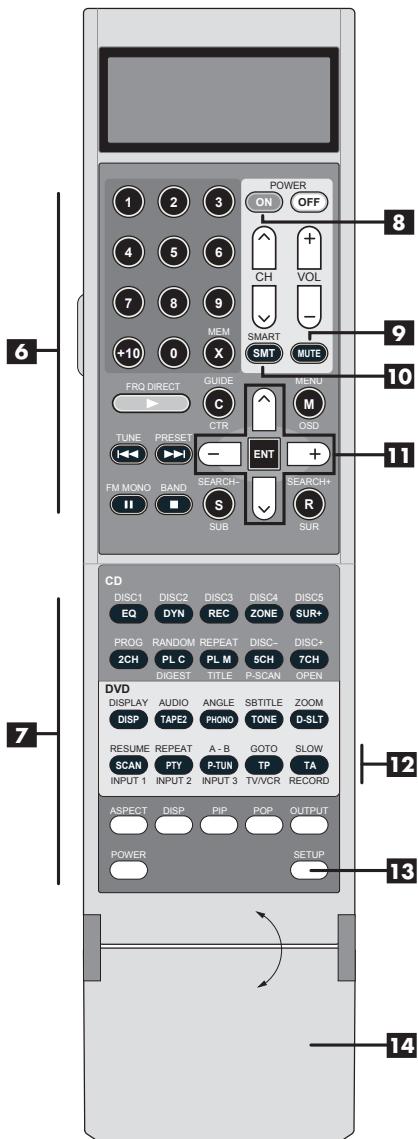
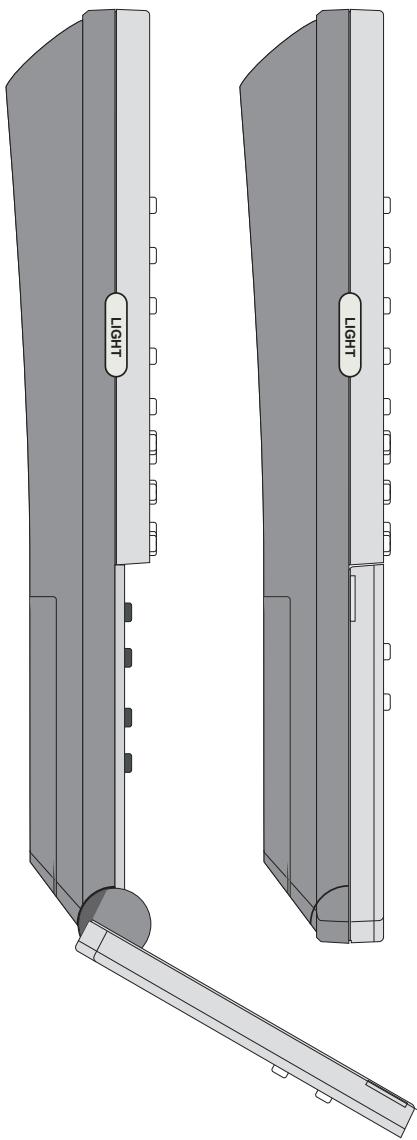
Flip Down Cover
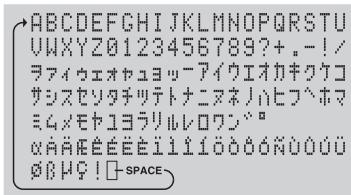
Character Map
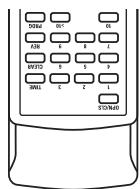
Learning Commands

Contents
Layout 2
Flip Down Cover 4
Character Map 5
Learning Commands 5
Introduction 8
Key Features 8
Sensible Precautions 8
Battery Installation 8
Overview 9
IR Emitter/Sensor 1 9
LCD Display 2 9
Light Button 3 9
Folding Cover 14 10
Device/Input Buttons 10
EXT Button 4 11
Basic Command Buttons 6 11
Secondary Command Buttons 12
Multi-Step Buttons 12
Setup Button 13 12
Operating the RR-1060 13
Sending IR Commands 567 13
Smart Macro Commands 5 6 10 14
Multi-Step Button Operation 12 14
Backlighting 3 14
Programming 15
Programming Rotel components by Model Search 5671113 15
Programming by Brand Name 567113 16
Programming by 4-Digit Code 5671113 18
Programming by Auto-Search 567891113 19
Learning Commands From Another Remote. 20
Learning Commands 5 6 7 11 13 20
Multi-Step Button Learning 21
Smart Macro Programming 22
Smart Macro Programming 5671113 22
Clearing a Smart Macro 5 6 11 13 23
Changing a Smart Macro 5 6 11 13 23
Clearing learned commands 24
Clearing a Single Learned Command 5671113 24
Clearing All Learned Commands for a DEVICE/INPUT Button 5 11 13 24
Clearing All Learned Commands for ALL DEVICE/INPUT Buttons 25
Custom Labels 25
Switching between two pages of labels 11 13 25
Editing DEVICE/INPUT button labels 5 11 13 26
Editing COMMAND button labels 5 11 13 26
Changing Smart Macro labels 111213 27
Additional Setup Options 28
Volume/Mute Punch-Through 91113 28
Disabling the Beep Tone 11 13 29
Clone Function 11 13 29
Restore Factory Defaults 11 13 30
Introduction
The RR-1060 Universal Learning Remote Control can replace up to nine remote controls, operating A/V components from Rotel or other brands.
Key Features
- Programmed to operate Rotel surround sound processors, receivers, and DVD players.
- Simple programming for hundreds of components using built-in codes.
- Learning function to teach the RR-1060 commands from other remotes. Multi-step learning on five buttons for multiple command sequences from other remotes.
- Twenty Smart Macro keys send up to 20 commands with the press of two buttons.
- LCD DISPLAY provides visual feedback during programming and operation, including status indicators, and customizable labels for every command button.
- Backlighting for use in dark rooms along with optional beep whenever a button is pressed.
- Cloning feature for easy duplication of the entire command set from one RR-1060 to another.
Sensible Precautions
- The RR-1060 is rugged, but it is not indestructible. So please don't drop it!
- Do not expose the RR-1060 to moisture. To clean the RR-1060, use a soft, lint-free damp cloth. Avoid harsh cleaning solvents.
- Don't try to take the RR-1060 apart. Disassembly will void the warranty.
Battery Installation
Remove the RR-1060 and the 4 AAA batteries from the box. Turn the RR-1060 over and slide the cover off the battery compartment by compressing the release tab and lifting up. Place the four AAA batteries inside (follow the polarity illustrations on the bottom of the compartment) and replace the cover.
Overview
The RR-1060 is a universal learning remote control that can operate all of the components in your audio/video system. Control codes for Rotel components are already programmed. You can easily customize the RR-1060 to operate other components by selecting command sets for hundreds of components from the RR-1060's extensive database. See the Programming section of this manual for easy to follow instructions. For components not in the database or for additional commands, you can teach the RR-1060 commands using your existing remotes. See the Learning section of this manual for easy to follow instructions.
Once the programming is complete, select a component with the press of a button to turn the RR-1060 into the remote control for your CD player, TV, or VCR.
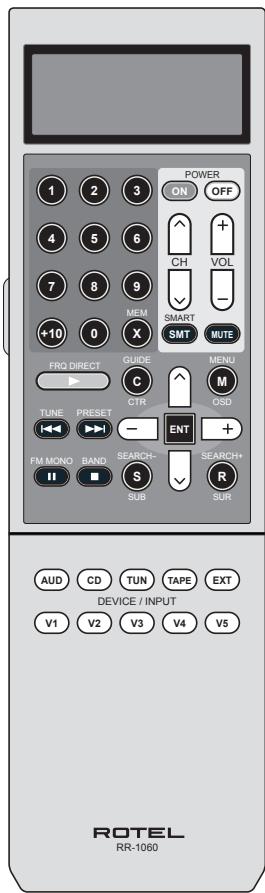
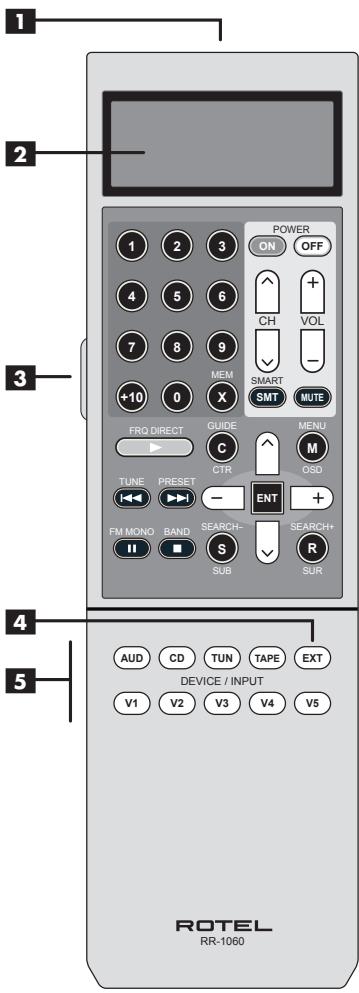
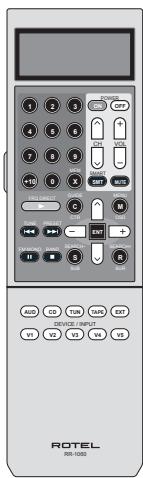
Here is the layout of the RR-1060:
IR Emitter/Sensor 1
The IR Emitter/Sensor is located in the top edge of the RR-1060. It sends the IR commands and must be pointed at the desired component. It also receives IR codes from your other Remote's during the LEARNING process.
LCD Display 2
The LCD DISPLAY provides status information including the device currently selected and a customizable label for each button as it is pressed. The eight character alphanumeric display also provides simple prompts when programming the RR-1060. These indicators and prompts are noted in the appropriate sections of this manual.
Light Button 3
The RR-1060 provides automatic backlighting in a dim room. The backlighting turns on whenever a button is pressed, including the LIGHT button on the side of the remote. The backlighting stays on for about 5 seconds each time a button is pressed.
NOTE: In a bright room, the backlighting function is disabled to save battery power.
Folding Cover 14
A folding cover conceals the buttons at the bottom of the RR-1060. These buttons provide extra command functions. Leave the folding cover in the closed position to simplify the RR-1060 for routine use. Open the cover to access the additional buttons.
Device/Input Buttons
Two rows of buttons on the folding cover (AUD, CD, TUN, TAPE, EXT and V1-V5) are used to select a component for control by the remote and, if desired, to activate the input for the component you are operating. How long the button is pressed determines whether a device is selected just for control by the remote or whether that input on the A/V receiver or surround sound processor is also activated.
To change the remote DEVICE only, press the button briefly (less than one second). This does not change the input selection.
To change the remote DEVICE and the input selection on the A/V receiver, press and hold the button for more than one second.
When a DEVICE/INPUT button is pressed, the label for that button appears in the LCD display. These labels can be customized, if desired. See the Labeling DEVICE/INPUT Buttons section of the manual for instructions.
The AUD button is pre-programmed to operate Rotel A/V receivers and surround sound processors. The V1 button is pre-programmed to operate Rotel DVD players. The CD button is pre-programmed to operate Rotel CD players. All other buttons are unprogrammed and can be used to learn the control codes of other remote controls.
The control codes of the AUD and V1 buttons can also be reprogrammed for other control codes. If you do so, you can restore the original Rotel control codes for these buttons. See the Restoring Factory Defaults section of this manual.
NOTE: The DEVICE/INPUT buttons are also used in programming the RR-1060 and are available for storing and sending Smart Macros (automatic sequences of up to 20 learned commands).
EXT Button 4
The EXT button is a special input selection button for Rotel audio/video receivers or surround sound processors. It is used to select the multi-channel analog inputs when playing SACD or DVD-A discs. This bypasses the digital/analog processing in the receiver or surround sound processor.
Press and hold the EXT button for more than one second to select the multi-channel analog input on a Rotel A/V receiver. The EXT button contains a duplicate of the remote commands programmed in the V1 device. Therefore, you cannot program or learn command codes for the EXT button.
The V1 button should be used for Rotel or other DVD players, allowing you to select the normal input with the V1 button or the multichannel analog input with the EXT button. Both DEVICE/INPUT buttons contain the same remote codes.
Basic Command Buttons 6
This large group of buttons duplicates the functions on the remote controls for your audio/video components. Each button can store commands for nine different components, selected by pressing one of the DEVICE/INPUT buttons (AUD, CD, TUN, TAPE and V1-V5).
When using the RR-1060, first press the DEVICE/INPUT button for the desired component. Then, press COMMAND buttons to send the commands learned for that component.
At the top right of this group are basic command buttons such as Power On and Off, Volume, Channel Selection and Muting. The Smart Macro button is also in this group. See the Smart Macro Programming section of this manual for more information.
At the top left of this group are twelve numeric keypad buttons that are used to make direct track selections on a CD or DVD player or direct channel selections on a TV, cable decoder, satellite receiver, etc.
At the bottom right are nine buttons that duplicate the cursor functions for cable or satellite TV receiver or audio/video components plus four round buttons are for extra functions, such as Last Channel, Viewing Guide, etc.
At the bottom left are five oval buttons that duplicate the basic transport control functions (Play, Fast Forward, Pause, etc.) of a CD player, DVD player or video tape recorder.
NOTE: The numeric buttons, 0 - 9, are also available for sending Smart Macros.
Secondary Command Buttons 7
Under the folding cover is a group of buttons which provide secondary command functions. Open the folding cover to access these buttons.
The function of these buttons varies depending on the device selected with the DEVICE/INPUT buttons. For example, the top two rows have commands for A/V receivers (see labels printed on the buttons) or commands for CD players (see labels printed above and below the buttons). The two rows below these have commands for A/V receivers (see labels printed on the buttons) or commands for DVD players and VCRs (see labels printed above and below the buttons). The bottom two rows of buttons include commands for TVs.
Multi-Step Buttons 12
In addition to normal functions, the five buttons labeled SCAN, PTY, P-TUN, TP and TA provide a special option - learning up to three commands on a single button from another remote. The first command is sent when the button is pressed once, the second command is sent the next time the button is pressed, and the third command is sent the third time the button is pressed. See the Learning Multi-Step Buttons section for information.
Setup Button 13
The SETUP button in the lower right corner under the folding cover, is used to enter the setup mode for programming, learning, relabeling, storing macros, and other configuration functions.
Operating the RR-1060
This section of the manual explains the basic operation of the RR-1060 and most of its standard features.
NOTE: The AUD DEVICE/INPUT button of the RR-1060 is pre-programmed with control codes for Rotel A/V receivers or surround sound processors. The V1 button is pre-programmed to operate Rotel DVD players. The CD button is pre-programmed to operate Rotel CD players. The other DEVICE/INPUT buttons (TUN, TAPE and V2 - V5) are unprogrammed. You must program or learn commands for these DEVICE/INPUT buttons.
Sending IR Commands 5 6 7
Instead of putting down one remote and picking up another, you simply press a button on the RR-1060 to convert it from the remote control for your CD player to the remote control for your TV set. Here's how:
- Press a DEVICE/INPUT button (for under one second) to activate the command set for the desired component. For example, press the AUD button to control a Rotel surround processor. The label for your selection appears in the display. The selected command set remains active until you press a different DEVICE/INPUT button.
- Press a COMMAND button to send an IR command to the component you have selected. For example, press the POWER ON button to turn on a Rotel surround processor. The label for the COMMAND button appears in the display. If the label "NO DATA" appears in the display, the button has no learned command for that DEVICE.
NOTE: The default labels that appear in the display match the button labels. You can customize the labels for every DEVICE/INPUT and COMMAND button.
Remember that the COMMAND buttons duplicate controls on many different types of audio/video components. Their function depends on the type of component selected. Make sure that you have pressed the correct DEVICE/INPUT button and use the button labels as guides.
When a button is pressed, a beep tone confirmation is heard. This feature can be disabled. See the Disabling the Beep Tone section of the manual. When an IR command is being sent, a triangular indicator appears in the upper right corner of the LCD display and the label for the command is shown in the display. These labels can be customized. See the Labelling Command Buttons section of this manual. If a button is pressed that has no command, the LCD shows NO DATA.
Smart Macro Commands 5 6 10
Twenty of the buttons on the RR-1060 (the 10 DEVICE/INPUT buttons plus the number buttons 0 - 9) can store multiple command macro sequences - for example, a sequence that turns on the TV set, selects channel 5, turns on the surround processor, and selects the TV input. A macro sequence is sent by pressing the SMART button followed by the button where the macro is stored:
- Press the SMART button. A SMART? prompt appears in the LCD.
- Press the button where the Smart Macro sequence is stored.
NOTE: If you push a Smart Macro button that has not been programmed, the word EMPTY followed by the name of the button appears in the display and the remote returns to normal mode.
Multi-Step Button Operation 12
The five buttons labelled SCAN, PTY, P-TUN, TP, and TA provide a special option - the ability to learn up to three different commands. The first command is sent when the button is pressed once, the second command is sent the next time the button is pressed, and the third command is sent the third time the button is pressed.
Backlighting 3
In a dark room, the RR-1060 automatically activates its backlighting feature for 5 seconds when a button is pressed. Press the LIGHT button to manually turn on the backlighting in a dim room. This button is disabled in a bright room.
Programming
The RR-1060 contains hundreds of command sets for components. Programming the remote involves selecting the command sets that correspond to the components in your system and assigning each of them to one of the nine DEVICE buttons by entering the 4-digit code for that component. This need only be done once during initial setup of the RR-1060.
There are four ways of finding the correct 4-digit code. The easiest way to program Rotel components is to search by the model number. For other components, you can search the database by the brand name of your component. A third option is to try the codes available for your brand from the list of 4-digit codes. Finally, you can search the database for ALL codes, until you find one that works.
NOTE: Programming the RR-1060 is done in a menu-driven setup mode accessed by pressing the SETUP button, then using the UP/DOWN and +/- cursor keys to navigate menus, and pressing the ENT button to confirm selections. At any time during the process, you can exit the setup mode and return to normal operation by pressing the SETUP button.
Programming Rotel components by Model Search 5 6 7 11 13
You can find the correct 4-digit code for Rotel components by searching the database for the model number of your Rotel Audio, DVD, or CD component.
When using the model search, the DEVICE/INPUT buttons can only be programmed for specific types of components as follows:
AUD: Audio components only
CD: CD players only
TUN: Audio, DVD, CD only
TAPE: Audio, DVD, CD only
V1: DVD only
V2: Audio, DVD, CD only
V3: Audio, DVD, CD only
V4: Audio, DVD, CD only
V5: Audio, DVD, CD only
- Press the DEVICE/INPUT button where you wish to program this component's code (AUD, CD, TUN, TAPE and V1-V5).
- Press the SETUP button (the LCD displays SETUP). Press the ENT button to confirm.
- Press the UP/DOWN cursor buttons until SET-UP MODEL appears in the display. Press the ENT button to confirm.
- Press the UP/DOWN cursor buttons until the type of component you are searching for appears in the display (AUD, DVD, CD) Press the ENT button to confirm. The first available model number appears in the display.
- Use the UP/DOWN cursor buttons to scroll through the list until the desired model number appears. Press ENT to confirm the selection.
- Press any COMMAND button to test the new code. For example, when programming a CD player, you could push the PLAY button to see if the disc begins play. If the command works, press ENT to save the the code selection and return to normal operation.
NOTE: You can press the SETUP button to exit the programming at any time.
Programming
by Brand Name 5 6 7 11 13
You can also use the following search method to find and test the code numbers available for your brand of component. When using the brand search, the DEVICE/INPUT buttons can only be programmed for specific types of components as follows:
AUD: Rotel audio components only
CD: CD players only
TUN: Any component
TAPE: Any component
V1: DVD only
V2: Any component
V3: Any component
V4: Any component
V5: Any component
To program using the brand search:
- Press the DEVICE/INPUT button where you wish to program this component's codes (AUD, CD, TUN, TAPE and V1-V5).
- Press the SETUP button (the LCD displays SETUP). Press the ENT button to confirm.
- Press the UP/DOWN cursor buttons until SET-UP BRAND appears in the display. Press the ENT button to confirm.
- Press the UP/DOWN cursor buttons until the type of component you are searching for appears in the display (TV, VCR, SAT, CTV, DVD, CD, etc.) Press the ENT button to confirm. The first available brand starting with the letter A appears in the display.
- Select the first letter of your component's brand, using the + / - cursor buttons. Then, use the UP/DOWN cursor buttons to scroll through the list until the desired brand appears. Press ENT to confirm.
- The brand along with the first available 4-digit code for that brand appears in the LCD.
- Press any COMMAND button to test the first available code for your brand. For example, if you are testing a code for a TV, you could press the CH UP button to confirm that the channel changes on the TV. The 4-digit code being tested is shown in the display.
If the command button operates the component, you have found a code that may work. You can test additional commands by pressing more COMMAND keys. If successful, press the ENT button to save the code.
If the command button does not work, press the UP cursor button again to test the next code for that brand, with the new 4-digit code being tested shown in the display. Continue testing codes until you find one that works, saving it by pressing the ENT button.
- Press the SETUP button at any time to exit the programming mode.
Programming
by 4-Digit Code 5 6 7 11 13
Find your audio/video component in the 4-digit code list. Then proceed as follows:
- Press the DEVICE/INPUT button where you wish to program this component's codes (AUD, CD, TUN, TAPE and V1-V5).
- Press the SETUP button (the LCD displays SET-UP). Press the ENT button to confirm.
- Press the UP/DOWN cursor buttons until SET-UP CODE appears in the display. Press the ENT button to confirm.
- Input the 4-digit code using the 0-9 buttons. Upon entering a valid code, the phrase CODE OK will be shown. If the code is not valid, the LCD will show CODE INVALID.
- Once a valid code has been entered, test the code by sending pressing any COMMAND button. For example, when testing a DVD code, you could press the PLAY button. If the code works, skip to the next step. If the code does not work properly, repeat the procedure from step 4, using the next 4-digit code listed for the brand of component.
- Press the SETUP button to exit to programming mode.
Programming by Auto-Search
567891113
To search for a code from the full list of available 4-digit codes for a type of component:
- Press the DEVICE/INPUT button where you wish to program this component's codes (AUD, CD, TUN, TAPE and V1-V5).
- Press the SETUP button (the LCD displays SET-UP). Press the ENT button to confirm.
- Press the UP/DOWN cursor buttons until SET-UP A. SEARCH appears in the display. Press the ENT button to confirm.
- Press the UP/DOWN cursor buttons until the type of component you are searching for appears in the display (TV, VCR, SAT, CTV, DVD, CD, etc.) Press the ENT button to confirm.
- Press and release the POWER ON button to advance to the next code.
- Test the code by pressing any COMMAND buttons suitable for that component. For example, if testing a CD player, press the PLAY button.
If the commands work for the desired component, you have found a code that may work. If successful, press the DEVICE/INPUT button to save the code.
If the commands do not work, press and release the POWER ON button again to advance to the next available code for that component, with the new 4-digit code being tested shown in the display. Continue pressing the POWER ON button and testing codes until you have found a code that works, saving it by pressing the DEVICE/INPUT button.
- Press the SETUP button at any time to exit the programming mode.
NOTE: You can return to the previous 4-digit code by pressing the MUTE command button.
Learning Commands From Another Remote
If you are unable to find a command set using the Programming steps, or if you need additional commands, you can teach the RR-1060 commands directly from your existing remotes. This procedure is called Learning.
Learning Commands 5 6 7 11 13
To teach the RR-1060 the commands from one of your other remotes, place the two remote controls end to end as shown in the illustration at the front of this manual. The IR signals sent by the other remote must be aimed at the IR emitter/sensor of the RR-1060.
- Press the DEVICE/INPUT button where you wish to learn this component's codes (AUD, CD, TUN, TAPE and V1-V5).
- Press the SETUP button (the LCD displays SET-UP). Press the ENT button to confirm.
- Press the UP/DOWN cursor buttons until SET-UP LEARNING appears in the display. Press the ENT button to confirm.
- Press the COMMAND button that you wish to learn (Power On, CH UP/DOWN, etc.). The name of that COMMAND button appears in the display beneath the word LEARNING.
- Press and hold the corresponding button on the original remote until the display shows "OK" indicating that the command has been learned.
If the LCD shows an ERROR message, the command was not successfully learned. Try again.
If the LCD shows a NO DATA message, no signal was received from the original remote. Adjust the position of the two remotes and try Step 3 again.
- To learn additional buttons, repeat steps 4 and 5.
- Press the SETUP button to exit the learning mode when you are finished.
NOTE: The RR-1060 has enough memory to learn 600 commands. If the memory capacity is reached, the LCD displays FULL when you attempt to learn a command.
Multi-Step Button Learning 12
The five buttons labeled SCAN, PTY, P-TUN, TP, TA provide a special option - the ability to learn up to three different commands on a single button. During operation, the first command is sent when the button is pressed once, the second command is sent the next time the button is pressed, and the third command is sent the third time the button is pressed.
To program a multi-step button using the SCAN button as an example:
- Follow the first five steps under "Learning Commands" in the previous section (pressing the desired SCAN button instead of a COMMAND button in Step 4) to program the first command for the SCAN button.
- Press the SCAN button a second time. "S1-2" shows in the display. Press and hold the next button on the original remote until the "OK!" confirmation appears.
- To learn a third command, press the SCAN button a third time. The display shows "S1-3" indicating that it is ready to learn the third command. Press and hold the next command button on the original remote until the "OK!" confirmation appears.
NOTE: To change the programming of any command for a multi-step button, it is necessary to start over beginning with the first command.
Smart Macro Programming
Twenty of the buttons on the RR-1060 (the 10 DEVICE/INPUT buttons plus the numeric buttons 0 - 9) can store multiple command macro sequences - for example, a sequence that turns on the TV set, selects channel 5, turns on the surround processor, and selects the TV input.
Smart Macro Programming
5671113
A macro sequence is sent by pressing the SMART button followed by the button where the macro is stored. To program a macro sequence, first make sure that all of the desired commands have already been programmed or learned by the RR-1060 – the Smart Macro feature simply records a sequence of individual RR-1060 button commands.
- Press the SETUP button.
- Press the UP/DOWN cursor buttons until SET-UP SMART appears in the display. Press the ENT button to confirm.
- When the LCD shows the prompt ADD SMART?, press one the Smart Macro keys (AUD, CD, TUN, TAPE, EXT, V1-V5, or 0-9). The LCD briefly shows ADD followed by the name of the Smart Macro key being programmed.
4 When the LCD shows the prompt STEP 1, press the first COMMAND button in the Smart Macro sequence. - When the LCD shows the prompt STEP 2, press the second command in the macro sequence.
- Continue until the Smart Macro sequence is complete (up to a maximum of 20 commands). Press the SETUP button to finish the Smart Macro programming.
- A confirmation message, CONFIRM? appears in the LCD. Use the UP/DOWN buttons to select either YES (to save the new Smart Macro) or NO (to erase the Smart Macro programming). Press the ENT button to confirm.
NOTE: Smart Macro buttons can have custom labels. See the Custom Labels section of the manual for information.
Clearing a Smart Macro 5 6 11 13
To clear a previously saved Smart Macro:
- Press the SETUP button and then press the UP/DOWN cursor buttons until SMART appears in the display. Press ENT.
- Press the UP/DOWN cursor buttons until SMART CLEAR appears in the display. Press the ENT button to confirm. CLEAR SMART? appears in the display.
- Press the Smart Macro button to be cleared (for example, press 1 to clear a Smart Macro stored in the 1 button).
- A confirmation appears in the LCD. Use the UP/DOWN buttons to select YES (to clear the Smart Macro) or NO (to keep the Smart Macro). Press the ENT button to confirm.
NOTE: If you attempt to clear unprogrammed Smart Macro button, the word EMPTY appears and the remote returns to normal mode.
Changing a Smart Macro 5 6 11 13
To change a previously saved Smart Macro:
- Press the SETUP button. Then, press the UP/DOWN cursor buttons until SMART appears in the display. Press ENT.
- Press the UP/DOWN cursor buttons until SMART EDIT appears in the display. Press the ENT button to confirm. EDIT SMART? appears in the display
- Press the Smart Macro button to be changed (for example, press 1 to change a Smart Macro stored in the 1 button).
- Use the UP/DOWN buttons to select the STEP # you wish to change, for example STEP 10. Press the ENT button to confirm.
- When the CHG TO? prompt appears, press the new command button for that step.
-
Repeat steps 5 and 6 to change any other commands, then press the SETUP button.
-
A confirmation appears in the LCD. Use the UP/DOWN buttons to select either YES (to change the command) or NO (to discard the changes). Press ENT to confirm.
NOTE: If you attempt to change an unprogrammed Smart Macro button, the word EMPTY appears and the remote returns to normal mode.
Clearing learned commands
You can clear a single learned command, a multi-step command, all of the learned commands for a single DEVICE/INPUT button, or all of the learned commands for all DEVICE/INPUT buttons:
Clearing a Single Learned Command 5 6 7 11 13
- Press the DEVICE/INPUT button where the learned command is stored.
- Press the SETUP button (the LCD displays SET-UP). Press the UP/DOWN cursor buttons until EDIT appears in the display. Press the ENT button to confirm.
- Press the UP/DOWN cursor buttons until CLEAR ONE KEY appears in the display. Press the ENT button to confirm.
- When the SELECT KEY prompt is displayed, press the command button you wish to clear.
- A confirmation message appears in the LCD. Use the UP/DOWN buttons to select either YES (to clear the learned command) or NO (to keep command). Press the ENT button to confirm.
Clearing All Learned Commands for a DEVICE/INPUT Button 5 11 13
- Press the DEVICE/INPUT button where the learned command is stored.
-
Press the SETUP button (the LCD displays SET-UP). Press the UP/DOWN cursor buttons until EDIT appears in the display. Press the ENT button to confirm.
-
Press the UP/DOWN cursor buttons until CLEAR ONE DEV appears in the display.
- Press the ENT button to delete all learned commands for the DEVICE/INPUT button.
Clearing All Learned Commands for ALL DEVICE/INPUT Buttons
- Press the SETUP button (the LCD displays SET-UP). Press the UP/DOWN cursor buttons until EDIT appears in the display. Press the ENT button to confirm.
- Press the UP/DOWN cursor buttons until CLEAR ALL DEV appears in the display.
- Press the ENT button to delete all learned commands for all DEVICE/INPUT buttons.
Custom Labels
Whenever you press a button on the RR-1060, its name appears in the display. By default, the labels appearing in the LCD when a button is pressed match the printed labels for each button. There are two complete sets ("pages") of labels stored in the RR-1060. You can switch between the two. The first page of labels cannot be changed. The labels for the second page can be customized. This allows you to return to the default labels at any time by switching back to the first page.
Switching between two pages of labels 11 13
- Press the SETUP button.
- Press the UP/DOWN cursor buttons until MULTI LANGUAGE appears in the display. Press the ENT button to confirm.
- Press the UP/DOWN cursor buttons until the desired set of labels (PAGE 1 or PAGE 2) appears in the display. Press the ENT button to confirm the selection.
Editing DEVICE/INPUT
button labels 5 11 13
To change the label for a button, make sure that you have selected the Page 2 set of labels (see above), then:
- Press the SETUP button.
- Press the UP/DOWN cursor buttons until EDIT appears in the display. Press the ENT button to confirm.
- Press the UP/DOWN cursor buttons until EDIT DEVICE appears in the display. Press the ENT button to confirm.
- Press the DEVICE/INPUT button (AUD, CD, TUN, TAPE, EXT, V1-V5) that you wish to relabel. The current label appears on the second line of the display.
- Press the + / - buttons to select a letter in the label to change and the UP/DOWN cursor buttons to change the letter. The Character Map illustration shows the available characters. Labels can be up to 8 characters.
- When the new label is complete, press the SETUP button to save the new label.
- A confirmation message appears in the LCD. Use the UP/DOWN buttons to select either YES (to confirm the new label) or NO (to exit without making any changes). Press the ENT button to confirm the selection.
Editing COMMAND button labels
5 11 13
To change the label for a button, make sure that you have selected the Page 2 set of labels, then:
- Press the DEVICE/INPUT button (AUD, CD, TUN, TAPE, V1-V5) containing the COMMAND button you wish to relabel.
- Press the SETUP button.
- Press the UP/DOWN cursor buttons until EDIT appears in the display. Press the ENT button to confirm.
-
Press the UP/DOWN cursor buttons until EDIT KEY appears in the display. Press the ENT button to confirm.
-
Press the COMMAND button that you wish to relabel. The current label appears on the second line of the display.
- Press the + / - buttons to select a character to change and the UP/DOWN cursor buttons to change the letter. The "Character Map" illustration shows the available characters. Labels can be a maximum of 8 characters.
- When the new label is complete, press the SETUP button to save the new label.
- A confirmation message appears in the LCD. Use the UP/DOWN buttons to select either YES (to confirm the new label) or NO (to exit without making any changes). Press the ENT button to confirm the selection.
Changing Smart Macro labels 11 12 13
To change the label for a Smart Macro:
- Press the SETUP button.
- Press the UP/DOWN cursor buttons until SMART appears in the display. Press the ENT button to confirm.
- Press the UP/DOWN cursor buttons until SMART RENAME appears in the display. Press the ENT button to confirm.
- Press the Smart Macro button that you wish to relabel. The current label appears on the second line of the display. If the button does not have a Smart Macro programmed, the word EMPTY appears in the display.
- Press the + / - buttons to select a character to change and the UP/DOWN cursor buttons to change the letter. The "Character Map" illustration shows the available characters. Labels can be a maximum of 8 characters.
- When the new label is complete, press the SETUP button to save the new label.
- A confirmation message appears in the LCD. Use the UP/DOWN buttons to select either YES (to confirm the new label) or NO (to exit without making any changes). Press the ENT button to confirm the selection.
Additional Setup Options
Volume/Mute Punch-Through 9 11 13
In many systems, the volume is adjusted at the TV set or the A/V processor. For convenience, the RR-1060 has a Volume Punch-Through feature that copies the volume and mute commands from either the TV device or AUD to DEVICE/INPUT buttons for other components such as CD players, VCRs, SAT receivers, and DVD players. After enabling this feature, volume and mute controls for your choice of the TV or A/V processor are always available even when one of these other DEVICE/INPUT command sets is active.
To enable the Volume Punch-through feature:
- Press the SETUP button.
- Use the UP/DOWN cursor buttons to select PUNCH THROUGH on the LCD display. Press the ENT button to confirm.
- When the prompt SELECT appears in the display (after about 2 seconds), use the UP/DOWN cursor buttons to select either AUD or TV. This selection is the DEVICE/INPUT whose volume control you wish to use in other modes. Press ENT to confirm.
- When the prompt TARGET appears in the display, use the UP/DOWN cursor buttons to select the DEVICE/INPUT where you want the volume and mute commands to be copied to. For example, if you want to use AUD volume even from the CD mode of the remote, select CD as the target. Press ENT to confirm.
The factory default setting for the Punch-Through feature is as follows:
AUD: AUD volume
CD: AUD volume
TUN: AUD volume
TAPE: AUD volume
V1: AUD volume
V2: No Punch-Through
V3: No Punch-Through
V4: No Punch-Through
V5: No Punch-Through
Disabling the Beep Tone 11 13
As shipped from the factory, the RR-1060 beeps as confirmation whenever a button is pressed. This feature can be disabled or enabled as follows:
- Press the SETUP button (the LCD displays SET-UP).
- Press the UP/DOWN cursor buttons until BEEP SOUND appears in the display. Press the ENT button to confirm.
- Press the UP/DOWN cursor buttons until BEEP ON or BEEP OFF appears in the display. Press the ENT button to select the desired option.
Clone Function 11 13
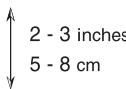
The CLONE function transfers all programming, learned commands, labels, and settings from one RR-1060 to a second RR-1060. To transfer the programming, place two RR-1060 remotes with their IR windows facing each other about 2 to 3 inches apart, then proceed as follows.
On the remote that will be receiving the data:
- Press the SETUP button.
- Press the UP/DOWN cursor buttons until CLONE appears in the display. Press the ENT button to confirm.
- Press the UP/DOWN cursor buttons until RE-CEIVE appears in the display. Press the ENT button.
On the remote that will be sending the data:
- Press the SETUP button (the LCD displays SET-UP).
- Press the UP/DOWN cursor buttons until CLONE appears in the display. Press the ENT button to confirm.
- Press the UP/DOWN cursor buttons until SEND appears in the display. Press the ENT button.
The data transfer begins. The sending remote displays SENDING DATA. The receiving remote displays RECEIVING DATA. At the completion of the data transfer (which may take 4 or 5 minutes), one of the following confirmation messages appears in the display of the receiving RR-1060:
- If the data transfer is successful, the SEND OK prompt appears on the sending remote and RECEIVE OK appears on the receiving remote.
- If the data transfer is not successful, ERROR appears in the LCD on the receiving remote. and the unit reverts to normal operating mode.
After 30 seconds or when any button is pressed, the remotes return to normal operation.
NOTE: Do not attempt to use the CLONE function to transfer data from any remote other than another Rotel RR-1060.
Restore Factory Defaults 11 13
You can restore the RR-1060 to the factory default configuration with a simple procedure described below. Restoring the factory configuration restores all of the preset code sets for DEVICE/INPUT buttons, clears all learned commands, restores all factory labels, restores the factory punch-thru settings, and turns the beep tone on.
- Press the SETUP button.
- Press the UP/DOWN cursor buttons until DEFAULT SETTING appears in the display. Press the ENT button to confirm.
- A confirmation message appears in the LCD. Use the UP/DOWN buttons to select either RESET YES (to restore the factory defaults) or RESET NO (to exit without making any changes). Press the ENT button to confirm the selection.
- In a few seconds, a RESET OK prompt in the LCD will confirm the restoring of factory defaults.
NOTE: Smart Macros are not reset by restoring factory defaults. Use the Clearing a Smart Macro instructions to delete stored Smart Macros.
ROTEL
The Rotel Co. Ltd.
10-10 Shinsen-Cho
Shibuya-Ku
Tokyo 150-0045
Japan
Phone: +81 3-5458-5325
Fax: +81 3-5458-5310
Rotel of America
54 Concord Street
North Reading, MA 01864-2699
USA
Phone: +1 978-664-3820
Fax: +1 978-664-4109
Rotel Europe
Dale Road
Worthing, West Sussex BN11 2BH
England
Phone: +44 (0)1903 221600
Fax: +44 (0)1903 221525
Rotel Deutschland
Kleine Heide 12
D-33790 Halle/Westf.
Germany
Phone: +49 05201-87170
Fax: +49 05201-73370
www.rotel.com
- ROTEL
- Layout
- Character Map
- Learning Commands
- Contents
- Learning Commands From Another Remote. 20
- Smart Macro Programming 22
- Clearing learned commands 24
- Custom Labels 25
- Additional Setup Options 28
- Introduction
- Key Features
- Sensible Precautions
- Battery Installation
- Overview
- IR Emitter/Sensor 1
- LCD Display 2
- Light Button 3
- Folding Cover 14
- Device/Input Buttons
- EXT Button 4
- Basic Command Buttons 6
- Secondary Command Buttons 7
- Multi-Step Buttons 12
- Setup Button 13
- Operating the RR-1060
- Sending IR Commands 5 6 7
- Smart Macro Commands 5 6 10
- Multi-Step Button Operation 12
- Backlighting 3
- Programming
- Programming Rotel components by Model Search 5 6 7 11 13
- by Brand Name 5 6 7 11 13
- by 4-Digit Code 5 6 7 11 13
- Programming by Auto-Search
- Learning Commands From Another Remote
- Learning Commands 5 6 7 11 13
- Multi-Step Button Learning 12
- Smart Macro Programming
- 5671113
- Clearing a Smart Macro 5 6 11 13
- Changing a Smart Macro 5 6 11 13
- Clearing learned commands
- Clearing a Single Learned Command 5 6 7 11 13
- Clearing All Learned Commands for a DEVICE/INPUT Button 5 11 13
- Clearing All Learned Commands for ALL DEVICE/INPUT Buttons
- Custom Labels
- Switching between two pages of labels 11 13
- Editing DEVICE/INPUT
- button labels 5 11 13
- Editing COMMAND button labels
- 11 13
- Changing Smart Macro labels 11 12 13
- Additional Setup Options
- Volume/Mute Punch-Through 9 11 13
- Disabling the Beep Tone 11 13
- Clone Function 11 13
- On the remote that will be receiving the data:
- On the remote that will be sending the data:
- Restore Factory Defaults 11 13
- The Rotel Co. Ltd.
- Rotel of America
- Rotel Europe
- Rotel Deutschland
Marque : ROTEL
Modèle : RR-1060
Catégorie : Ampli-tuner audio