
GRABSTERAV250 - Périphérique d'acquisition vidéo TERRATEC - Notice d'utilisation et mode d'emploi gratuit
Retrouvez gratuitement la notice de l'appareil GRABSTERAV250 TERRATEC au format PDF.


| Type d'appareil | Caméscope |
| Résolution vidéo | Non précisé |
| Format d'enregistrement | Non précisé |
| Support de stockage | Non précisé |
| Connectivité | Non précisé |
| Alimentation | Non précisé |
| Durée d'enregistrement | Non précisé |
| Poids | Non précisé |
| Dimensions | Non précisé |
| Fonctions spéciales | Création de films |
| Compatibilité | Non précisé |
| Langue du manuel | Anglais |
| Date de version | 18 février 2005 |
| Marque | Non précisé |
| Modèle | Non précisé |
FOIRE AUX QUESTIONS - GRABSTERAV250 TERRATEC
Questions des utilisateurs sur GRABSTERAV250 TERRATEC
0 question sur cet appareil. Repondez a celles que vous connaissez ou posez la votre.
Poser une nouvelle question sur cet appareil
Téléchargez la notice de votre Périphérique d'acquisition vidéo au format PDF gratuitement ! Retrouvez votre notice GRABSTERAV250 - TERRATEC et reprennez votre appareil électronique en main. Sur cette page sont publiés tous les documents nécessaires à l'utilisation de votre appareil GRABSTERAV250 de la marque TERRATEC.
MODE D'EMPLOI GRABSTERAV250 TERRATEC
GRABSTER AV250
Movie Creating Solution
Manual (English)
Version: 2/18/2005
CE Declaration
We:
TerraTec Electronic GmbH, Herrenpfad 38, D-41334 Nettetal, Germany
hereby declare that the product:
VideoSystem Grabster AV 250
to which this declaration refers is in compliance with the following standards or standardizing documents:
- EN 55022 Class B
- EN 55024
The following are the stipulated operating and environmental conditions for said compliance:
residential, business and commercial environments and small-company environments.
This declaration is based on:
Test report(s) of the EMC testing laboratory
H. C.
The information in this document is subject to change without notice and shall not be deemed as a warranty by the seller. No warranties, express or implied, are made with regard to the quality, suitability or accuracy of this document. The manufacturer reserves the right to change the contents of this document and/or the associated products at any time without the provision of prior notice to specific persons or organizations. The manufacturer shall not be held liable for damages of any kind arising from the use, or the inability to use this product or its documentation, even if the possibility of such damage is known. The information in this document is subject to copyright. All rights are reserved. No part of this manual may be reproduced or transmitted in any form or for any purpose without the express written permission of the copyright holders. Product and brand names contained in this document are used for identification purposes only. All registered trademarks, product designations or brand names used in this document are the registered property of their respective owners.
©TerraTec® Electronic GmbH, 1994 - 2005. All rights reserved (2/18/2005).
Contents
Preface 5
Scope of delivery 5
Product description.. 6
Product illustration 6
Setting up your Grabster AV 250
Driver installation under Windows XP 7
Installing the Ulead video/DVD authoring software 7
Service at TerraTec. 8
Hotline, Internet. 8
Broken?! 8
General terms and conditions of service 9
Glossary. 10
Preface
Thank you for choosing a TerraTec product. Congratulations on your decision to buy this sophisticated piece of state-of-the-art technology, the Grabster AV 250. This is one of the most powerful products for video applications. We are convinced that the Grabster AV 250 will be both very useful and a lot of fun for you for a long time to come.
Scope of delivery
- Grabster AV 250
USB cable - Composite cable
- S video cable
- Stereo audio cinch cable
Scart-composite/S video/audio cinch (RCA) adapter - Software CD
- Hardware and software manual
- Registration card with the serial number
Product description
Product illustration
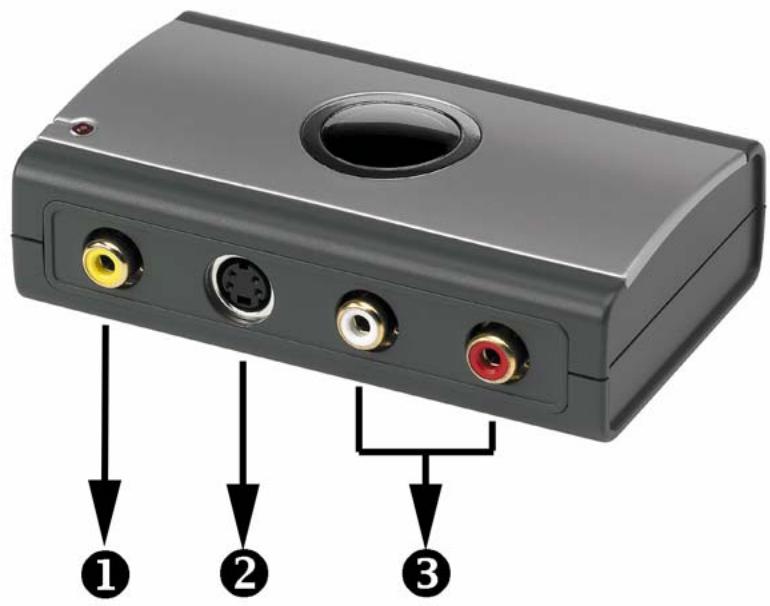
Composite video input
This input is used to connect external devices like video recorders and satellite receivers. We recommend using this input if your device features an S video output.
S video input
This input is used to connect analog video sources such as video recorders and satellite receivers. We recommend using this input if your device features an S video output. Audio is not transferred via this connection, only video data.
3 Stereo audio output
If you are connecting analog video sources using the Composite or S-video input terminal, you also have to establish an audio connection. Use this connector to do so.
Setting up your Grabster AV 250
The Grabster is extremely simple to install. The installation can be completed without shutting down your computer. Connect the USB cable to the Grabster AV 250. Insert the included installation CD into your CD drive. Connect the Grabster AV 250 to a free USB port on your computer with the USB cable. Your computer will recognize the new hardware and launch the installation wizard.
Driver installation under Windows XP
-
The next time you start your computer, Windows XP will recognize the Grabster AV 250 and will launch the hardware installation wizard. Select "Install the software automatically (Recommended)" and continue by clicking "Next".
-
Windows XP will automatically find the correct driver on the installation CD.
- Conclude the installation by clicking "Finish".
This completes the installation of the drivers and you can now start installing the application programs.
Installing the Ulead video/DVD authoring software
Install VideoStudio and DVD MovieFactory from the installation CD. Simply follow the instructions provided.
A detailed, printed software manual is included in the package.
Service at TerraTec.
"Rien ne va plus—Nothing's working" can happen to the best systems. If this happens to you, the TerraTec team is happy to offer its service and support.
Hotline, Internet.
Your first move should be to check our website http://www.terratec.com/ for current answers to frequently asked questions and the latest drivers.
If these options do not provide the necessary help, please contact our phone helpline or contact us online at http://supporten.terratec.net/. In either case, please have the following information handy:
- your registration number,
- this documentation,
- the manual of your motherboard, and
- a screen shot of your BIOS configuration (if possible).
In addition, it would be helpful to our technicians if you are at your computer during the phone call so that you can carry out our tips and tricks directly. Please do not forget to write down the name of the respective support technician if you contact our Support Team.
You will need this name if a defect is present and your card needs to be mailed to us.
Broken?!
Before you send your card back, be sure to contact us! Make a note of the name of your support contact and follow these simple instructions:
- Please fill out the service request form provided with your card clearly and completely. The more clearly and detailed you describe the problem, the faster we will be able to help. Cards sent in without a description of the problem cannot be processed and will be returned to you at your expense.
- Be sure to include a copy of your purchase receipt (not the original) with the package. If we do not receive a copy of a receipt, we will assume that the warranty for the product has expired and will bill you for the repair.
- Please use a sufficiently strong and padded mailing package. We recommend using the original package. Remember that the card is a sensitive electronic component.
- Be sure to include enough postage—we will cover for the postage for the return to you.
;)
General terms and conditions of service
1. General
By purchasing and receiving the goods, you accept our general terms and conditions of service.
2. Proof of guarantee
You will require a copy of the purchase receipt or delivery slip as proof of warranty. If you do not supply proof of warranty, we will charge for repairing the goods.
3. Description of problem
Shipments that do not include a description of the fault or an insufficient description ('defective' or 'for repair' is insufficient) will be returned for a processing fee, because this makes repair more difficult and could have been avoided.
4. Invalid returns
In the event of an unfounded complaint (no fault could be detected, probable operating error), we will return the goods and a processing fee will be charged.
5. Packaging
If possible, please use the original packaging for return shipment. Any warranty claim will be jeopardized by improper packaging. The warranty will not apply to damage caused by improper packaging.
6. Foreign manufactured products
Devices that are not manufactured or distributed by TerraTec Electronic GmbH will be returned and a processing fee will be charged.
7. Repairs liable to your expense
Repairs out of the warranty period are liable to your expense.
8. Transportation costs
The dispatcher pays all costs associated with shipping and insurance for the goods for repair to TerraTec Electronic GmbH. If the goods are covered by warranty, TerraTec Electronic GmbH will pay the shipping costs for returning repaired goods. COD shipments will not be accepted for organizational reasons.
9. Final regulation
TerraTec Electronic GmbH reserves the right to change or supplement the general terms and conditions of service at any time.
Otherwise the General Terms and Conditions of Business of TerraTec Electronic GmbH are considered to be accepted.
Glossary
AVI-A Windows video format.
Bit rate—The bit rate indicates the volume of the data stream per second. A higher bit rate results in higher quality. A distinction is made between constant bit rates (e.g. for VCD) and variable bit rates, e.g. for SVCD and DVD. Unlike constant bit rates, variable bit rates adjust the size of the data stream according to the video material.
Blue screen-A variation of Chroma keying
Capture—Recording.
Chroma keying—Chroma keying uses a surface with a single color in front of which an actor, for example, is filmed. This color area is then made transparent during subsequent editing and can be replaced by a different background.
Chrominance—Chrominance refers to the color signal in YUV, which is comprised of two color components: U, the balance between red and cyan, and V, the balance between yellow and blue.
Clip—A short piece of video material.
Composite video—Composite video is a transmission method common in the consumer sector that is generally realized using cinch connectors and which is frequently used, for example, on TVs. In this process, all signals (chrominance and luminance) share a single cable. The quality of composite video is lower than that of S video, in which chrominance and luminance are transferred separately.
CPU—Central processing unit. The part of your computer (processor, e.g. Pentium or Athlon), that does the actual computing.
D8-Digital 8 is the successor to the Hi8 and VHS-C camcorder formats. Hi8 or D8 cassettes are still used, but the video data is recorded digitally in DV format.
Data throughput—see Data transfer rate
Data transfer rate—The data transfer rate describes the speed at which a hard drive can read or write data over a sustained period. The data transfer rate is usually measured in seconds, e.g. 7 Mbps.
Device control—In DV terms, this refers to the ability to control your camcorder from your PC.
DirectDraw—DirectDraw is a graphics standard initiated by Microsoft. Its features include the capability to write graphics data directly to the memory of the graphics board for the fluid display of video material.
Dropped frames—These are individual images missing from the video data stream, usually due to a slow hard drive.
DVD—abbreviation for Digital Versatile Disk. The diameter of a DVD is the same as that of a CD-ROM. Storage capacities of 4.7 GB (DVD-5) to 17 GB (DVD-18) and data rates between 600 and 1300 KBps are currently specified. In addition, distinctions are made between a variety of formats such as DVD Video, DVD Audio, DVD-ROM, DVD-R, DVD-RW and DVD-RAM.
DV—DV stands for Digital Video. The DV standard uses a compression rate of 5:1. This corresponds to a data rate of 3.125 Mbps, which can be handled by virtually any modern hard drive. The quality of the DV standard is very high; it is therefore frequently used in professional productions. A number of different cassette types exist in the DV sector, which vary in size and maximum playing time, but which are compatible with one another in terms of video data. MiniDV is designed for the consumer sector and
supports playing times of up to one hour. The DV format used in the professional sector supports playing times of up to three hours.
DV-In—Usually, the DV jack of a camcorder can transport video data in both directions—to and from the camcorder. Many camcorders in Europe do not feature DV-In, however. Also see ->Enabling.
Enabling—Due to European import duties, imported digital video recorders are more expensive than imported digital video playback devices. For this reason, manufacturers of camcorders have begun to modify their products for the European market and to disable the digital input DV-In. Needless to say, clever developers found a way around this restriction very quickly. This is known as "enabling". Enabling the DV camcorder is a precondition for sending video material back to the camcorder. Enablers are available for almost all camcorders and can be purchased freely.
Fading—Fades are soft transitions, often involving special effects, from one clip to the next.
Fields—Rather than displaying 25 frames per second (as per the PAL standard), 50 fields are displayed per second to reduce TV display flicker. These fields consist of either the odd-numbered rows (these are sent first) or the even rows of the image being displayed.
FireWire™—Apple's name for IEEE -1394
Frame rate—The number of frames within a given period of time. The frame rate is frequently stated in frames per second (FPS).
Hi8—Analog video recording system that separates color and brightness information, thus offering quality better than that of VHS-C, for example.
Hosiden connector—a small connector with four conductors used for S video signals.
IEEE-1394—This is a universal bus system originally developed by Apple for digital data communications. The devices are connected by cables with a maximum length of 4.5m . The system supports transfer rates of up to 400Mbps. However, a standard has not been established for video data due to the lack of specifications for the format of video data using this bus. Sony got down to brass tacks and closed this gap by installing FireWire™ sockets in its digital camcorders and developing its own protocol. Thanks to FireWire™ and the Sony protocol, the dream of loss-free video editing has finally come true.
iLink—Sony's name for IEEE -1394
Interlacing—see Fields.
Linear editing—The origins of linear video editing date back to analog video. The original video data is generally present in the same sequence as the edited video clips. A simple form of linear video editing would be to copy material from an analog video camera to a VCR and discard a number of clips in the process. However, if you would like to insert a new clip in the middle, it would be necessary to copy all of the following clips again.
Luma keying—Unlike chroma keying, the transparency of the video is determined on the basis of brightness in luma keying.
Luminance—Luminance refers to brightness in YUV. (Y)
Main memory—see RAM
MiniDVD—This is a process in which DVD data, including the DVD directory structure and navigation menu, is burned onto a blank conventional CD. Due to their lower capacity, MiniDVDs can only store
around 18 minutes of video data. Unfortunately, not many DVD players can play MiniDVDs, making them mainly suitable for PC playback.
MiniDV—The consumer version of the DV format. Also see DV.
MJPEG—Motion JPEG is a compression process in which every single frame in the video data stream is compressed individually.
MPEG—The Motion Picture Experts Group is a consortium of leading manufacturers and developers of video technology that determines new standards such as MPEG-1 or MPEG-2.
Nonlinear editing—Unlike linear editing, individual clips can be edited without affecting subsequent clips. For example, with nonlinear editing, you can shorten or remove a clip at the beginning of a video project without having to edit the following clips as a result.
NTSC—NTSC is a video standard used in the USA and Japan. NTSC has a higher frame rate than PAL (30 frames or 60 -> fields per second), but a lower resolution (525 rows, with 480 visible). Color depiction in NTSC is realized in -> YIQ.
PAL—This is the most common video standard in Europe. PAL displays 25 frames (or 50 -> fields) per second and has a resolution of 625 rows, of which 576 are visible. Color depiction in PAL is realized in -> YUV.
Preview— The preview offers you a quick overview of your work. The final quality is normally considerably higher than that of the preview.
RAM—Random Access Memory is the main memory of your PC. Since video editing with effects is very memory-intensive, the old rule applies: you can never have enough RAM!
Rendering—this refers to the processing of video or audio clips after an editing operation has been completed, for example after the application of an effect or filter.
RGB color space—In the RGB color space, each visible pixel is made up of the three components R(ed), G(reen) and B(lue). To achieve the natural display of colors on a computer, each of these components must have at least 256 values. This corresponds to exactly one byte for each color component. A single complete video image would thus require 768 pixels x 576 pixels x 3 bytes = 1,327,104 bytes. This corresponds to around 1.2 MB per frame! One second of video in the RGB color space would therefore require around 31.6 MB of storage space. Using this process, a 2 GB hard drive would have a video capacity of around one minute. No current hard drive can deliver this volume of data in real time, but a number of options are available to reduce the data volume of the video signal substantially through transformation to a different color space (usually YUV) and compression (usually MJPEG).
S video—Unlike Composite video, chrominance and luminance are transmitted separately in S video, resulting in higher quality.
Saturation—Describes the ratio of color in the picture.
Storyboard—Unlike the timeline, the storyboard offers a thematic overview of your video project. Individual scenes can be identified easily, but it does not deliver a sense of the actual length of the project.
SVCD—Abbreviation for Super Video CD. SVCDs are similar to VCDs, but they have a great advantage in that their data is in MPEG-2 format with a variable bit rate. In addition, the resolution of 480 × 576 pixels is higher than that of the VCD. An SVCD generally can contain 45 - 50 minutes of video material. The bit rate (audio and video) of an SVCD may not exceed 2.6 Mbps . SVCDs can be viewed using many standalone DVD players.
Timeline—The timeline is the time axis upon which you position and edit your video clips.
Transition—see Fading
Trimming—This refers to adjusting the length of a video clip at the beginning and/or end.
VCD—Abbreviation for Video CD. The Video CD has a PAL resolution of 352 X 288 pixels and stores audio and video data in MPEG-1 format. VCDs use a constant bit rate of 1.15 Mbps for video and 224 kbps for audio data. VCDs can be viewed in virtually any DVD player.
Video filter—Video filters let you influence your video material in a wide range of ways. For example, you can manipulate the colors of your video film or use complex filters to degrade your new, top-quality film to look like an old, silent movie.
Video for Windows—This is an old, but still commonly used, video concept for Windows.
YIQ—YIQ is a color space related to YUV. It is also characterized by a brightness component luminance (Y), but also by different color components, I (cyan-orange balance) and Q (magenta-green balance). YIQ is used for NTSC, for example.
YUV-YUV is the designation for a color space characterized by a brightness component luminance (Y) and two color components chrominance (U, V).
