
CINERGY800EPVR - Tuner TV TERRATEC - Notice d'utilisation et mode d'emploi gratuit
Retrouvez gratuitement la notice de l'appareil CINERGY800EPVR TERRATEC au format PDF.


| Type de produit | Récepteur TV numérique et enregistreur PVR |
| Caractéristiques techniques principales | Double tuner DVB-T/T2, compatible avec les signaux HD |
| Alimentation électrique | Alimentation externe 5V |
| Dimensions approximatives | 200 mm x 130 mm x 30 mm |
| Poids | Environ 600 g |
| Compatibilités | Compatible avec Windows 10, 8, 7, Vista |
| Type de connexion | USB 2.0 |
| Fonctions principales | Enregistrement de programmes TV, pause en direct, lecture de fichiers multimédias |
| Entretien et nettoyage | Nettoyer avec un chiffon doux, éviter les produits chimiques agressifs |
| Pièces détachées et réparabilité | Disponibilité limitée des pièces détachées, consulter le service client pour les réparations |
| Sécurité | Ne pas exposer à l'humidité, utiliser uniquement avec l'alimentation fournie |
| Informations générales utiles | Vérifier la compatibilité de la réception TV avant l'achat, nécessite un logiciel spécifique pour l'enregistrement |
FOIRE AUX QUESTIONS - CINERGY800EPVR TERRATEC
Questions des utilisateurs sur CINERGY800EPVR TERRATEC
0 question sur cet appareil. Repondez a celles que vous connaissez ou posez la votre.
Poser une nouvelle question sur cet appareil
Téléchargez la notice de votre Tuner TV au format PDF gratuitement ! Retrouvez votre notice CINERGY800EPVR - TERRATEC et reprennez votre appareil électronique en main. Sur cette page sont publiés tous les documents nécessaires à l'utilisation de votre appareil CINERGY800EPVR de la marque TERRATEC.
MODE D'EMPLOI CINERGY800EPVR TERRATEC
CINERGY 800ePVR
Hardware and driver installation
English manual
Version: 3/2/2006
CE Declaration
We:
TerraTec Electronic GmbH, Herrenpfad 38, D-41334 Nettetal, Germany
hereby declare that the product:
TerraTec Cinergy 800e PVR
to which this declaration refers is in compliance with the following standards or standardizing documents:
- EN 55022 Class B
- EN 55024.
The following are the stipulated operating and environmental conditions for said compliance:
residential, business and commercial environments and small-company environments.
This declaration is based on:
Test report(s) of the EMC testing laboratory
A
The information in this document is subject to change without notice and shall not be deemed as a warranty by the seller. No warranties, express or implied, are made with regard to the quality, suitability or accuracy of this document. The manufacturer reserves the right to change the contents of this document and/or the associated products at any time without the provision of prior notice to specific persons or organizations. The manufacturer shall not be held liable for damages of any kind arising from the use, or the inability to use this product or its documentation, even if the possibility of such damage is known. The information in this document is subject to copyright. All rights are reserved. No part of this manual may be reproduced or transmitted in any form or for any purpose without the express written permission of the copyright holders. Product and brand names contained in this document are used for identification purposes only. All registered trademarks, product designations or brand names used in this document are the registered property of their respective owners.
©TerraTec® Electronic GmbH, 1994 - 2006. All rights reserved (3/2/2006).
Contents
Welcome! 4
Key features. 5
System requirements. 6
Scope of delivery. 7
The hardware at a glance. 8
Setting up the hardware and installing drivers. 10
Connecting to the USB 2.0 port.. 10
Installing the drivers in Windows XP (Service Pack 2 or higher) 10
Remote control - inserting the batteries. 11
Installing the ArcSoft TotalMedia2 application 11
Installing Remote Control Editor 11
Capturing analog video sources 12
Appendix A - Frequently asked questions (FAQ). 13
Appendix B - Technical data. 13
Appendix C - Service at TerraTec. 14
Welcome!
We're pleased that you have chosen a TerraTec ReceiverSystem and would like to congratulate you on this decision. With the TerraTec Cinergy 800e PVR, you've purchased a sophisticated product representing the state of the art of PC/TV technology. We're convinced that our product will prove extremely useful to you and provide you with a great deal of entertainment, both at home and on the road. Before we go into detail, here's a foretaste of what you can expect:
Analog TV with hardware MPEG encoder.
Never miss a program again—with the Cinergy 800e PVR, your computer becomes a powerful and versatile video recorder for analog television. The video compression required takes place directly in the device, so no additional load is placed on your computer.
Connecting the Cinergy 800e PVR is simple. Just connect the attractively designed box to your computer using a USB cable, connect the television cable you usually use (cable or house antenna) or the satellite receiver via the analog inputs, and install the software--you are already receiving analog television with exceptional picture quality and full-fledged stereo sound.
In the Cinergy 800e PVR, particular importance has been placed on its function as a digital video recorder. The recordings are compressed directly in the device (MPEG 2) and stored on the hard drive in DVD quality, saving valuable system resources. Specifically with older systems, this is the only way to obtain trouble-free recording; conversely, today's desktops and notebooks can simultaneously handle hardware-hungry applications like photo processing or video editing.
Everything is as easy as child's play to operate. Either start recording by pressing a button while the program is running or program it to record while you are away. You can then edit the finished file in the software provided and remove blocks of commercials and other interruptions, with no special knowledge required. Then burn the finished results to DVD.
By the way, the Cinergy 800e PVR also includes a full-fledged hardware MPEG video grabber, making video recordings from analog sources as easy as child's play. Connect a DVD player to the audio and video inputs (composite, S-Video, stereo audio) of the Cinergy 800e PVR and digitize your old family videos or make fully legal backup copies of your new DVD movies.
Don't forget the many other advantages provided by watching TV on your computer: timeshifting TV programs, teletext, editing out commercials and other features will change your life.
One revolutionary example is called time shifting, which allows you to pause the program at any point and continue watching it later. Just press the corresponding button if the phone rings or if you feel like taking a break. From that point on, the program is stored on your hard drive until you resume watching. Never wait for another commercial break—now the show waits for you!
The ArcSoft TotalMedia 2 software included in the package has even more capabilities: as you would expect of a full-fledged media center, you can listen to music, play videos and DVDs, or
browse through your picture collection and create a slide show. The remote control included in the package provides the level of living room convenience you are familiar with. By the way: not only can you use it to change channels conveniently, but also to control a wide variety of multimedia applications on your computer.
Thanks for your attention—enjoy!
...your TerraTec Team
Key features.
- Analog TV on desktop and laptop computers
- Recording via hardware MPEG encoder
- Timer-controlled recording and time shifting
- Teletext
- USB 2.0 high-speed interface, 48o Mbps
Infrared remote control - Analog video inputs via hardware MPEG encoder: S-Video, composite
- Stereo audio input
Full-fledged media software with integrated functions for editing and burning recordings from TV
2 years warranty
System requirements.
Intel Pentium 4 / AMD Athlon XP 2GHz CPU or higher or Centrino-certified laptop
- 512 MB RAM
1 free USB 2.0 interface
- Power supply for external power adapter
Audio hardware with DirectX support
- CD-R/DVD-R drive to create video CDs/DVDs
- Graphics card with DirectX drivers and video overlay support
- Analog TV reception via cable or roof antenna
- Windows XP with ServicePack 2
Scope of delivery.
- TerraTec Cinergy 800e PVR USB box
USB 2.0 cable (1.8 m)
Poweradapter
Video.audio输入 multi-connector cable - Infrared remote control including batteries
Installation & software CD-ROM
Online manual (on CD-ROM)
Service request form
Registration documents - Quick Setup Guide
The hardware at a glance.
An overview of the hardware and connections of the Cinergy 800e PVR:
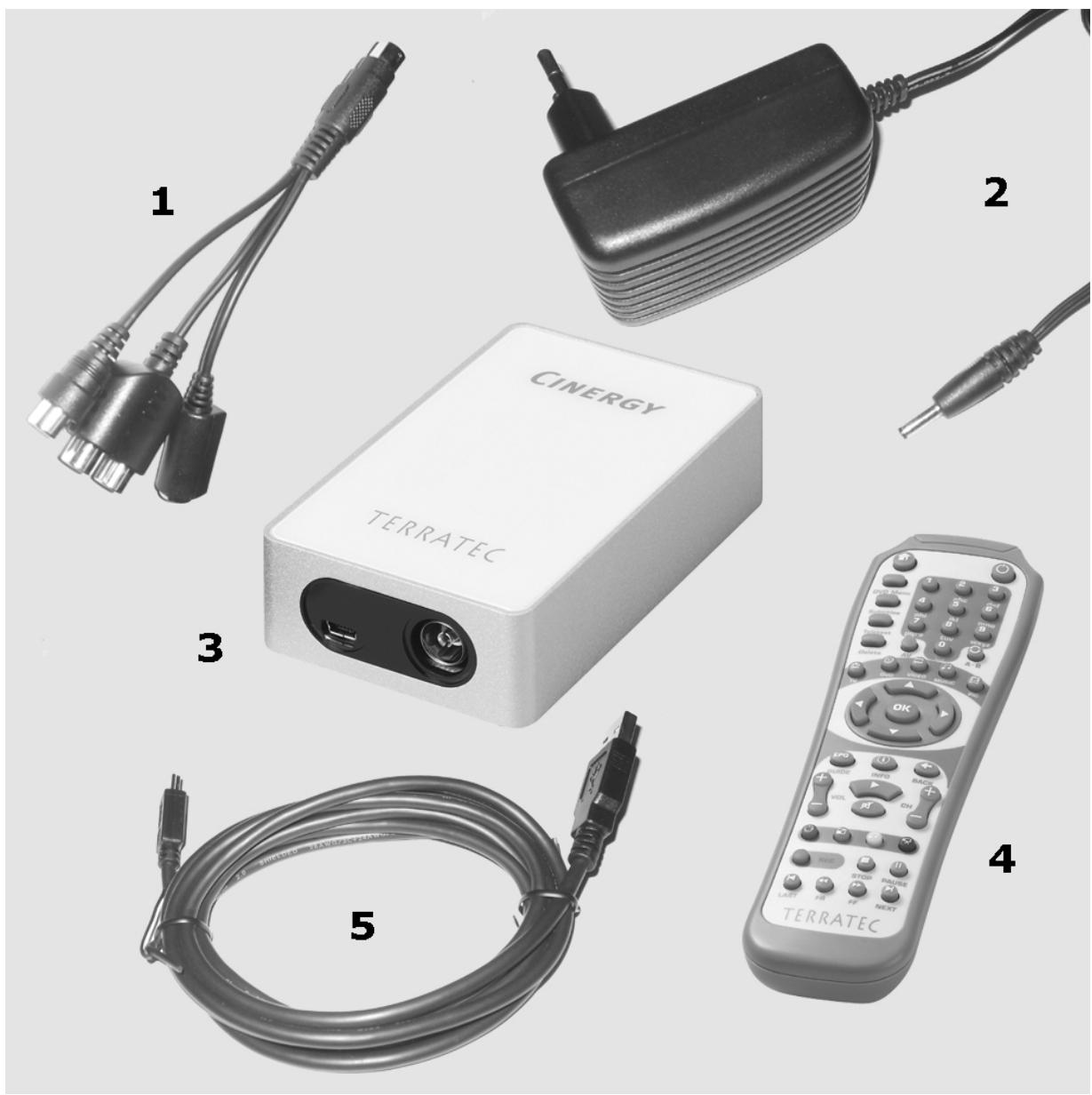
- Multi-connector cable (S-Video, stereo audio in, composite)
- Power adapter
- Cinergy 800e PVR TV box
- Remote control
- USB cable (1,8 m)
USB 2.0 connector
Simply connect the Cinergy 800e PVR to the USB cable provided (small plug). Connect the other side (large plug) to an available USB 2.0 port on your computer.
TV antenna input
Connect your cable or antenna connection carrying the analog TV signal directly to the input of the TV box.
Video.audio/input multi-connector cable
The multi-connector cable is required for composite or S-Video connections to video sources such as VCRs, DVD players, SAT receivers or camcorders. You can also connect the sound using the stereo input of the multi-connector cable. All data are encoded using the card's integrated hardware MPEG encoder.
Hardware MPEG encoder
The great advantage of the Cinergy 800e PVR is the integrated hardware MPEG encoder. All incoming video data pass through this chip and are converted directly into MPEG, the format in which DVDs are recorded. The advantage is easy to see. No more time-consuming and (especially) CPU-intensive conversion, saving you not only valuable time, but also system resources. This makes recording videos and TV shows twice as much fun—your DVD of your favorite shows or vacation videos is ready in almost no time.
Setting up the hardware and installing drivers.
The following sections describe how to connect your Cinergy 800e PVR to your computer and install the drivers.
Connecting to the USB 2.0 port.
- Boot your computer and wait until the operating system has loaded completely. Plug the Cinergy 800e PVR into an available USB2.0 port on your laptop or computer. To do so, use the USB2.0 cable provided.
- Please continue with the driver installation.
Installing the drivers in Windows XP (Service Pack 2 or higher)
Once you have connected the Cinergy 800e PVR to a USB 2.0 port on your PC, a message bubble over the system tray will tell you that Windows has found new hardware—the Cinergy 800e PVR. The Windows setup wizard will now appear.
Insert the TerraTec Cinergy 800e PVR installation & software CD-ROM into your CD-ROM drive. When the dialog asks if you want to establish a connection to Windows Update, select "No, not this time". In the next step, select "Install the software automatically (recommended)" and click "Next" to install the drivers.
Once the setup wizard has found the drivers on the installation & software CD-ROM, Windows will display a message indicating that the drivers have not passed the Windows logo test. It is safe to ignore this information and continue the installation by clicking "Continue anyway".
Click "Finish" to complete the installation once the driver files have been copied.
Windows will now display another message bubble to indicate that the Cinergy 800e PVR has been installed successfully.

The installation was completed successfully.
To be sure, open the Device Manager (Start Control Panel System Hardware tab Device Manager) and expand the "Sound, video and game controllers" entry. If the "Cinergy 800e PVR" is not marked with a yellow exclamation point, then the installation was successful.
Remote control - inserting the batteries.
Improper battery use can destroy the remote control unit. Please observe the following instructions:
- Never mix old and new batteries.
- Insert the batteries as indicated by the polarity markings in the battery compartment.
Please observe your local laws and environmental regulations when disposing of used batteries.
Installing the ArcSoft TotalMedia2 application
On the installation CD, select your language and simply install "TotalMedia 2" (AutoStart English TotalMedia). Follow the instructions on the screen until the installation wizard has "Finished" the installation.
Note: the Cinergy 800e PVR must be installed and connected to the PC during the installation.
After starting the software, you can start an automatic channel scan by clicking “Settings” in the “TV” submenu. To do so, go to the “Scan/Edit Channel List” and click “Start” to start the channel scan. When all channels have been found, click “Save” to save the channel list. You can now (after returning to the main menu) select “TV” to enjoy television at your computer. For help with the powerful program TotalMedia 2, press “F1” while the application is running.
Installing Remote Control Editor
For the remote control to work, you need to install the Remote Control Editor from the installation CD. This software allows you to conveniently control both TotalMedia 2 and a wide variety of other software solutions using the remote control.
Open the installation routine (AutoStart English Remote Control Editor) and follow the instructions on the screen. After successful installation, a small remote control icon appears in your taskbar. By clicking the icon, you can change the sequence of programs to be operated and even adjust the command sets for individual applications (a good way to confuse your partner is to simply exchange Start and Stop ©). You can configure additional settings of the OSD menu under “Options”. Don't hesitate to experiment—almost every imaginable configuration is possible.
Capturing analog video sources
To capture an analog video source, go to the "Video" main menu. Select the menu item "Capture". Brief instructions appear that you can skip by clicking "Next". The main capture menu appears next. You can define the length of the capture and its file name. However, you need to configure the input source before recording. All the important details for a capture are listed under the "Capture Settings" menu item. You can click the "Auto Detect Video Signal" button to have the signal detected automatically or configure the settings manually. Click "Save" to return to the Capture menu, where you can now start your recording.
Appendix A - Frequently asked questions (FAQ).
The FAQ can be accessed via the autopost menu of the included CD-ROM. If the autopost menu does not open automatically when you insert the software & installation CD, go to the CD-ROM drive and launch the autorun.exe file. Select the menu item "FAQ".
Note: The current version of the FAQ is available at
http://supporten.terratec.net/.
Appendix B - Technical data.
General information
- USB 2.0 HiSpeed (480 Mbps), USB bus powered
- Driver support: Windows XP (SP2)
Plug n' Play - Capture formats (MPEG encoder): DVD (720x48o NTSC, 720x576 PAL) MPEG2 (720x48o / 640x48o / 480x48o / 352x24o NTSC)(720x576 / 640x576 / 480x576 / 352x288 PAL) SVCD (480x48o NTSC, 480x576 PAL) VCD (352x24o NTSC, 352x288 PAL)
- Power supply via external power adapter (+5V DC 2A)
- Power consumption: 715 ~mA
- Housing color: aluminum/white/orange
- Dimensions: 114 × 64 × 27 ~mm (HxWxD)
2 years warranty
Tuner
- Input frequency range (42MHz - 862 MHz)
- Input impedance: 75 ohms
Infrared remote control
48 buttons
- Battery power (2 AAA cells)
Appendix C - Service at TerraTec.
"Nothing seems to work!" — This can happen even on the best systems. If this happens to you, the TerraTec team is happy to offer its service and support.
Hotline, Internet.
In case of a serious problem—where you can neither solve the problem on your own nor with the guided help found in this manual, nor with the help of your dealer—please contact us directly.
If you have access to the Internet, please check our service and support at http://supporten.terratec.net/ first. There you'll find the answers to frequently asked questions (FAQ) and a form for e-mail support requests.
If you can't access our website, please check the service request form that came with the product for country-specific helpline numbers with which you can contact our support team.
Regardless of whether you contact us by e-mail or phone, you must have the following information at hand:
- your registration number,
this documentation.
In addition, it would be helpful to our technicians if the device is within reach during the phone call so that you can carry out our support tips directly. Please do not forget to write down the name of the respective support technician if you contact our Support Team. You will need this name if a defect is present and your device needs to be mailed to us.