
BANG & OLUFSEN BEO5 - Télécommande BANG & OLUFSEN - Notice d'utilisation et mode d'emploi gratuit
Retrouvez gratuitement la notice de l'appareil BANG & OLUFSEN BEO5 BANG & OLUFSEN au format PDF.


| Type de produit | Télécommande universelle personnalisable |
| Marque | Bang & Olufsen |
| Modèle | Beo5 |
| Alimentation | Batterie rechargeable intégrée, chargeur fourni |
| Autonomie de la batterie | Environ 14 jours en veille, 3 à 4 heures d'utilisation intensive |
| Temps de charge | 4 heures pour une charge complète |
| Affichage | Écran tactile rétroéclairé |
| Commandes | Boule de commande avec molettes et boutons, écran tactile |
| Personnalisation | Programmée par le revendeur Bang & Olufsen selon l'installation |
| Zones | Gestion de plusieurs zones audio/vidéo |
| Périphériques compatibles | Produits Bang & Olufsen et certains produits non-B&O via contrôleur périphérique |
| Fonctions principales | Commande des sources, volume, navigation dans les menus, sélection de zones |
| Nettoyage | Chiffon doux non pelucheux avec eau et détergent doux ; produit vitre pour l'écran |
| Température de fonctionnement | Non spécifiée |
| Réparabilité | Contacter le revendeur Bang & Olufsen pour les pièces détachées |
FOIRE AUX QUESTIONS - BANG & OLUFSEN BEO5 BANG & OLUFSEN
Questions des utilisateurs sur BANG & OLUFSEN BEO5 BANG & OLUFSEN
0 question sur cet appareil. Repondez a celles que vous connaissez ou posez la votre.
Poser une nouvelle question sur cet appareil
Téléchargez la notice de votre Télécommande au format PDF gratuitement ! Retrouvez votre notice BANG & OLUFSEN BEO5 - BANG & OLUFSEN et reprennez votre appareil électronique en main. Sur cette page sont publiés tous les documents nécessaires à l'utilisation de votre appareil BANG & OLUFSEN BEO5 de la marque BANG & OLUFSEN.
MODE D'EMPLOI BANG & OLUFSEN BEO5 BANG & OLUFSEN
Beo5
Guide
Your personal remote control
The Beo5 remote control is customised to give easy access to the Bang & Olufsen products in your home.
When you purchase a Beo5, your Bang & Olufsen retailer programs it to match your individual product setup.
This allows for a personal design for each user and ensures that all buttons in your Beo5 are relevant to your specific setup.
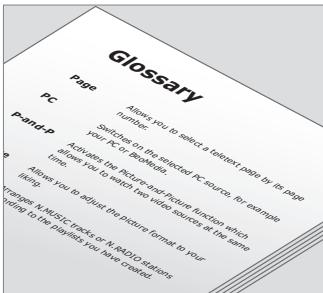
All the buttons in your customised Beo5 are explained in the personal Beo5 glossary.
This Guide describes the basic principles of how to use your Beo5 remote control.
As an additional help to the Guide, a personal Beo5 button overview and a matching glossary are created for you every time your Bang & Olufsen retailer customises your Beo5 for you in the store.
The button overview provides you with a 'road map' to your Beo5 and allows you to quickly find the button or function you need.
In the personal Beo5 glossary, you can find explanations to all the buttons available in your specific setup.
If you change your product setup, for example if you purchase a new product, always have your Bang & Olufsen retailer program your Beo5 remote control again. You then receive a new Beo5 button overview and glossary that matches your new setup.
NOTE! For information about how to operate other Bang & Olufsen products, refer to the Guides enclosed with the products.
Start using, 8
How to start using your remote control and what to do before you start.
Display operation, 9
How to use the display of your remote control.
How to operate the Beo5 ball, 10
How to operate the wheel and buttons of the Beo5 ball.
Operation of other products, 12
Find out the possibilities of operating non-Bang & Olufsen products with your Beo5 remote control.
Beo4 list, 13
Find out the differences between Beo4 and Beo5 button names.
Using the charger, 14
Find out how and when to recharge your remote control.
Beo5 Setup menu, 16
Find out how to alter settings on your remote control.
Maintenance and cleaning, 18
Find out how to maintain and clean your remote control.
For more help, 19
Find out who to contact for more help.
Before you start using your Beo5 remote control for the very first time, it must be charged. Refer to page 14 for information about how to charge your Beo5.
Start using your Beo5 ...
When fully charged, your remote control is ready for use.
To activate the Beo5 display, just pick up your Beo5 or touch the screen lightly, and the display lights up. Then select a button by a press on the screen.
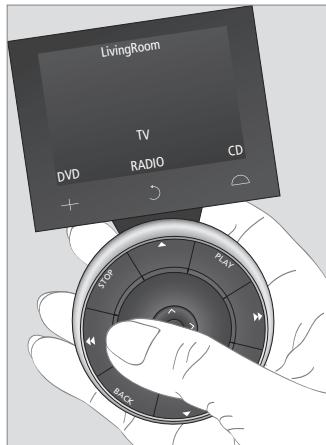
When you pick up the remote control or touch the screen, the display lights up.
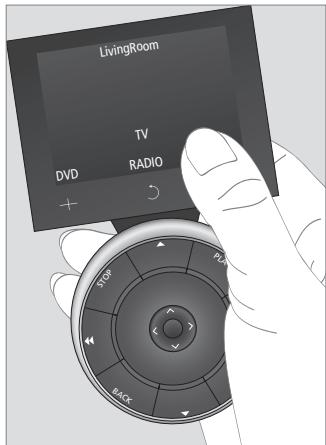
Once the display is active, the buttons appear on the screen. Press a button to activate a source or function.
Useful hints ...
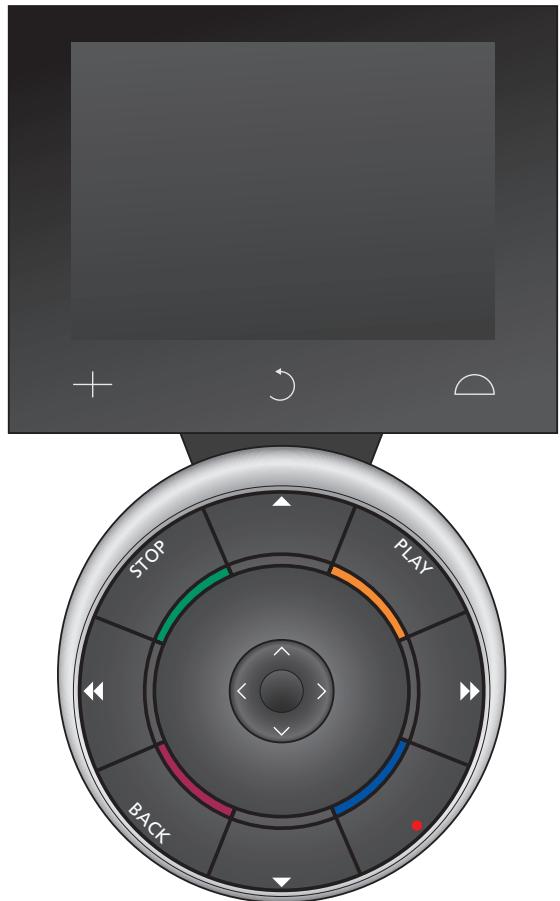
Once a source is selected, most operation is carried out via the Beo5 ball – for example to adjust volume, step through tracks or channels and pause playback.
If you use your left hand to operate the remote control, it is possible to change the placement of the buttons. Refer to page 16 for further information or contact your Bang & Olufsen retailer.
NOTE! We recommend that Beo5 is always in standby mode – not switched off. However, if you wish to switch your Beo5 on/off, press and hold the centre button.
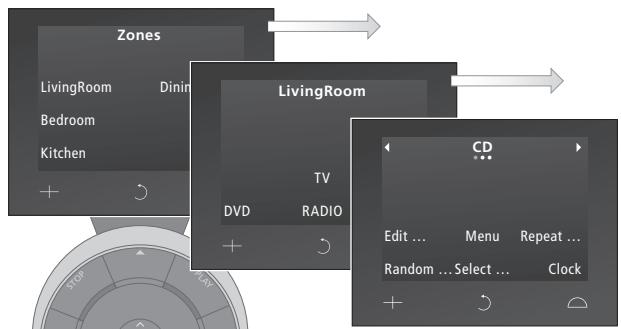
1 - Select zone ...
If you have more than one zone in your Bang & Olufsen setup, you can select or switch between your zones in the 'Zones' screen.
2-View your sources...
When you have selected a zone, the audio and video systems available in this zone appear as buttons on the screen. Select a source and activate it by a press.
3 - Activate source controls ...
Once a source is activated, the functions related to this source appear as buttons on the screen. If you select TV for example, you will be able to activate functions such as 'Text' or 'Menu'.
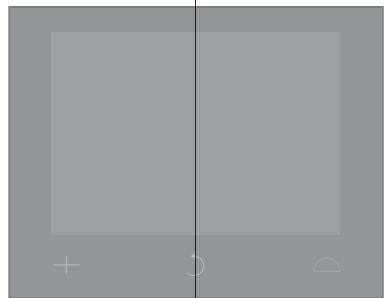
Fixed buttons ...
The three touch buttons at the bottom of the display are predefined buttons with universal purposes:
- Displays digits to select, for example, a radio station or channel number. Press again to return to the previous screen.
Backs up through Beo5 display screens.
Accesses buttons to 'set the scene' around your Bang & Olufsen setup, for example to control speakers and stand positions - and to select zone. Press again to return to the previous screen.
... the buttons of the outer ring The buttons of the outer ring are used for generic source operation.
Step through for example channels, stations, recordings and tracks. Press and hold for continuous step
Press once to pause playback, press again to stop playback completely
Start playback
Rewind through tracks, playlists and recordings
Wind through tracks, playlists and recordings
Back up through menus, press and hold to exit menus completely
Standby button; Press once to switch the product you are operating to standby, press and hold to switch the entire system to standby
Step through for example channels, stations, recordings and tracks. Press and hold for continuous step
... the buttons in the centre
The centre buttons on Beo5 are mainly used for menu operation.
The 'wheel' is used for volume adjustment.
Turn the 'wheel' clockwise to increase volume and counter-clockwise to lower volume
The coloured buttons serve different purposes depending on the product you are operating. Press the volume wheel in front of the colour you wish to activate
To mute the sound, turn the wheel quickly counter-clockwise, to restore sound, turn the wheel
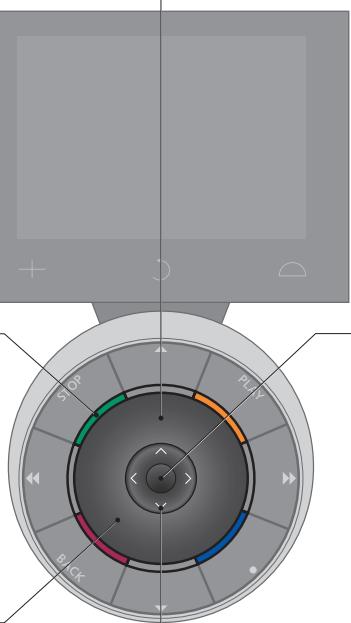
Centre button; press to accept choices and settings
Press the arrows to move up, down, left and right in the screen menus. Press and hold for continuous step
If your Bang & Olufsen video product is equipped with a Peripheral Unit Controller, you can connect supported non-Bang & Olufsen products such as set-top boxes to it – and still operate it with your Beo5 remote control. Simply have your retailer program your Beo5 to the set-top box that you have, and its remote control buttons will appear in the Beo5 display.
Other selected non-Bang & Olufsen products such as lights, curtains and blinds can be operated with Beo5 as well - some of them via the supported Home Automation System, and others directly from Beo5.
Contact your Bang & Olufsen retailer for further information about operating non-Bang & Olufsen products with Beo5.
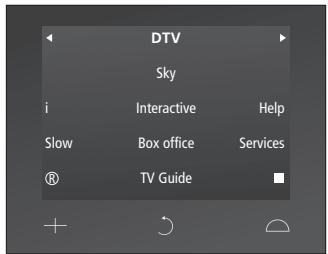
Example of buttons used to operate a set-top box.
NOTE! Buttons related to non-Bang & Olufsen products are not translated or explained in the Beo5 glossary.
In the Guides that have been enclosed with your other Bang & Olufsen products, all operation may be described as carried out with Beo4. Differences between Beo4 and Beo5 that may affect your understanding of these Guides are described here.
Beo4 list buttons translated
The Beo4 remote control had extra 'buttons' which could be called up in the display when pressing the LIST button.
These buttons can also be found in the Beo5 display, but as opposed to Beo4, all the buttons in the Beo5 display are translated.
To the right is a list of button names in Beo4 and Beo5 respectively. You may need this list when reading a Guide referring to Beo4 buttons.
Other differences between Beo4 and Beo5
If the Guide you are reading asks you to press EXIT, you must press BACK on the Beo5 ball instead.
Also, if you are used to the Beo4 GO button, note that this button is replaced by the centre button of the Beo5 ball.
| Beo4 | Beo5 |
| BALANCE | Balance |
| BASS | Bass |
| CLOCK | Clock |
| EDIT | Edit |
| FORMAT | Format |
| LARGE | Large |
| LOUDNSS | Loudness |
| MIX | Mix |
| PAGE | Page |
| P-AND-P | P-and-P |
| P.MUTE | Picture Mute |
| RANDOM | Random |
| REPEAT | Repeat |
| RESET | Reset |
| SELECT | Select |
| SHIFT | Shift |
| SOUND | Sound |
| SPEAKER | Speaker |
| S.STORE | Sound Store |
| STAND | Stand |
| STORE | Store |
| TRACK | Track |
| TREBLE | Treible |
| UPDATE | Update |
GO = Centre button
EXIT = BACK
Beo5 is a battery powered remote control that requires regular charging like a cordless phone. The customised Beo5 charger is used for this purpose.
To make sure that your Beo5 remote control is fully charged at all times, we recommend that you place it in the charger whenever it is not in use.
Charging the battery
Place the remote control correctly in the charger as shown to the right. To be fully charged, Beo5 must charge for four hours.
When fully charged, the battery will have enough capacity to power approximately 14 days standby time or three to four hours of intensive use.
A text in the display indicates when it is time to recharge your Beo5 remote control.
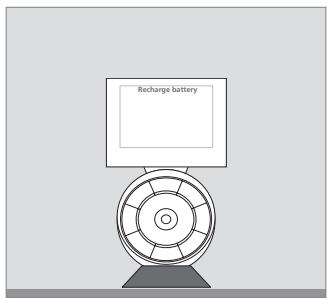
'Recharge Battery' will be indicated in the display title when the battery needs charging.
If you are unable to switch on the Beo5 remote control when you press and hold the centre button, it needs to be recharged.
If Beo5 is completely discharged, place it in the charger shortly and it will have sufficient capacity for you to switch on the TV or radio. Then leave it to charge while you watch or listen.
Beo5 Power consumption
Beo5 consumes power when switched on, in particular when the backlight is lit. Therefore your Beo5 will slowly power down when it is not in use:
- After 10 seconds, the backlight is dimmed
- After 20 seconds, Beo5 will go into standby mode and display a black screen
To change these settings, refer to page 17 in this Guide.
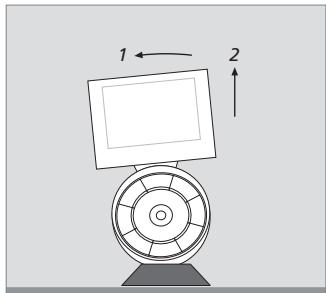
The charger has a magnet to hold Beo5 firmly in place. When you remove the remote control you have to tilt it slightly to release it from the charger.
The Beo5 remote control has a Setup menu that allows you to alter a number of settings yourself. To enter the Beo5 Setup menu, press and hold the standby button while pressing the centre button on the ball.
How to navigate in the Setup menu ...
You navigate and select items in the Setup menu directly on the screen and by means of the centre button and the arrow buttons on the ball.
To select a menu item, move the line indicator to the button you wish to activate, then press the centre button. In some cases you must press directly on the screen.
To back up one level in the Setup menu, press BACK on the ball or on the screen. Your changes will automatically be saved when you leave the Setup menu.
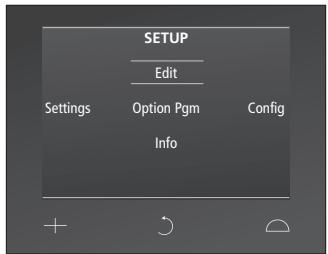
In the Setup menu, two horizontal lines indicate which button is highlighted. Press the centre button to select.
Options in the Setup menu ...
Edit ... Allows you to show or hide buttons in the Beo5 display. This means that you can remove buttons you do not use and show buttons that are currently hidden. If your retailer has set up a channels menu on your Beo5, you may also change the numbers associated with channel names in the channels or stations menu.
Settings ... Allows you to change the settings for backlight dimming and display out*. You can also restore all Beo5 settings to the original settings made by your Bang & Olufsen retailer.
*Note that the longer the display backlight is lit, the more often the remote control needs charging.
Config ... Allows you to set Beo5 to a default configuration.
Option Pgm ... Allows you to Option programme your Bang & Olufsen products.
Info ... Contains information on Beo5 software version as well as battery status and the date of the latest configuration of your Beo5.

Example - how to show or hide a button:
Press the centre button to select Edit in the Setup menu.
Use the touch screen buttons to select first the zone, then the source of the button you wish to edit.
Press the relevant touch button, then press the centre button to select the button you wish to edit; the buttons currently hidden are shown in grey.
Press the centre button again to edit the button. Your changes will automatically be saved when you leave the menu.
We recommend that you switch off the remote control while you clean it. Press and hold the centre button to do so.
To switch Beo5 back on, press and hold the centre button again.
Cleaning
Remove grease stains or persistent dirt with a soft, lint-free, firmly wrung cloth, dipped in a solution of water containing only a few drops of mild detergent, such as washing-up liquid.
To clean the Beo5 display, use a mild window cleaning fluid. To retain the optimum performance of the display, make sure that no traces of the cleaning fluid are left on the glass.
If the display glass is damaged, contact your retailer to have it replaced.
Beware that some types of microfibre cloths may harm the glass due to their strong abrasive effect.
Note! Never use alcohol or other solvents to clean any part of the Beo5 remote control!
If you have any questions regarding the daily use of your Beo5 remote control you may …
... find the answer in your customised Beo5 Glossary that has short explanations to each of the functions and buttons in your specific Beo5 setup.
... consult the Service FAQ on our website offering a list of answers to the most frequently asked questions concerning the use of Beo5.
... visit your local Bang & Olufsen retailer for advice.
... contact Bang & Olufsen's international Customer Service that offers support by e-mail or telephone in six languages.
To contact us, visit our Web-site on: www.bang-olufsen.com
or write to:
Bang & Olufsen a/s
BeoCare
Peter Bangs Vej 15
DK-7600 Struer
or fax:
Bang & Olufsen
BeoCare
+45 9785 3911
- Beo5
- Your personal remote control
- Start using, 8
- Display operation, 9
- How to operate the Beo5 ball, 10
- Operation of other products, 12
- Beo4 list, 13
- Using the charger, 14
- Beo5 Setup menu, 16
- Maintenance and cleaning, 18
- For more help, 19
- Start using your Beo5 ...
- Useful hints ...
- - Select zone ...
- 2-View your sources...
- - Activate source controls ...
- Fixed buttons ...
- Beo4 list buttons translated
- Other differences between Beo4 and Beo5
- Charging the battery
- Beo5 Power consumption
- How to navigate in the Setup menu ...
- Options in the Setup menu ...
- Example - how to show or hide a button:
- Cleaning
Marque : BANG & OLUFSEN
Modèle : BANG & OLUFSEN BEO5
Catégorie : Télécommande