
HR6XSLIM - Scanner GENIUS - Notice d'utilisation et mode d'emploi gratuit
Retrouvez gratuitement la notice de l'appareil HR6XSLIM GENIUS au format PDF.


| Type de produit | Scanner à plat |
| Marque | GENIUS |
| Modèle | HR6XSLIM |
| Dimensions (L x l x h) | 435 x 265 x 73 mm |
| Poids | 2,5 kg |
| Alimentation | Adaptateur secteur 24 V CC, 550 mA |
| Consommation électrique (fonctionnement) | 13,2 W max |
| Consommation électrique (veille) | 6 W |
| Interface | USB 1.1 |
| Résolution optique | 600 ppp |
| Résolution interpolée | 19 200 ppp (logiciel) |
| Modes de numérisation | Couleur 48 bits, Niveaux de gris 8 bits, Noir et blanc 1 bit |
| Zone de numérisation maximale (réfléchissant) | 216 x 297 mm (A4) |
| Zone de numérisation maximale (transparent) | Films 35 mm (pellicule/diapositive), films 120/220 jusqu'à 6 x 9 cm |
| Type de lampe | Lampe à cathode froide |
| Température de fonctionnement | 10 °C à 40 °C |
| Conformité | FCC Classe B |
| Logiciels inclus | Presto! PageManager, ImageFolio, Mr. Photo, ABBYY FineReader Sprint, Bridgewell Page abc, Adobe Acrobat Reader, Cardiris 2.51LE (essai) |
| Fonctions principales | 5 boutons rapides : Numériser, E-mail/Web, Texte/OCR, Imprimer/Copier, Fichier/Fax |
| Entretien et nettoyage | Nettoyer la vitre avec un chiffon doux non pelucheux et un nettoyant non abrasif. Ne pas vaporiser directement sur la vitre. Éviter la poussière. |
| Sécurité | Ne pas démonter le scanner. Utiliser uniquement l'adaptateur fourni. Risque de choc électrique. Ne pas exposer aux vibrations. |
| Pièces détachées et réparabilité | Les pièces internes ne sont pas remplaçables par l'utilisateur. Contacter le service client pour toute réparation. |
| Garantie | Garantie limitée (voir manuel). |
FOIRE AUX QUESTIONS - HR6XSLIM GENIUS
Questions des utilisateurs sur HR6XSLIM GENIUS
0 question sur cet appareil. Repondez a celles que vous connaissez ou posez la votre.
Poser une nouvelle question sur cet appareil
Téléchargez la notice de votre Scanner au format PDF gratuitement ! Retrouvez votre notice HR6XSLIM - GENIUS et reprennez votre appareil électronique en main. Sur cette page sont publiés tous les documents nécessaires à l'utilisation de votre appareil HR6XSLIM de la marque GENIUS.
MODE D'EMPLOI HR6XSLIM GENIUS
E N A
Genius

User's Guide
Genius Scanner
Discover New

www.geniusnet.com.hw
All trademarks and brand names mentioned in this publication are property of their respective owners.
©2002 KYE Systems Corp. All rights reserved. No portion of this document may be reproduced without permission.
Table of Contents
Introduction 1
How to Use This Guide 2
Conventions of this Guide 2
A Note about Icons 2
System Requirements 3
Package Contents 4
Chapter I. Installing Genius Scanner 5
Software Requirements 5
Hardware Requirements. 5
Installing and Setting up the Scanner 5
Step 1. Hassle-Free Lock Mechanism 5
Step 2. Connecting the Genius Scanner to Your Computer 6
Step 3. Installing the Software 7
Software Setup Troubleshooting 8
Installing Additional Software 8
Uninstalling the Scanner 8
Uninstall from the "Start Menu" (Uninstall Wizard) 8
Chapter II. Usage and Maintenance 10
Operating the Scanner 10
Testing the Scanner. 11
Scan and Image Editing 11
Scanning the Films 12
Installing the Transparency Adapter 12
Using the Negative and Positive Film Holders 13
Important Notes about Scanning Film 14
Scanner Utility Program 15
Connection Status 16
Aligning the Scanner. 16
Lamp Control 17
Maintenance. 17
Removing the Document Cover. 18
Chapter III. How to Use Quick Function Buttons 19
"SCAN" Button 19
To Set up the Default Application Program 19
To Use the "SCAN" Button 20
"E-MAIL/WEB" Button 20
To Set a Default Simple MAPI Client (i.e. Outlook Express). 20
To Set Up the "E-MAIL/WEB" Button 21
To Use the "E-MAIL/WEB" Button 22
"TEXT/OCT" Button. 23
To Set Up Editor 23
To Use the "TEXT/OCT" Button 23
"PRINT/COPY" Button 24
To Set Up Printer 24
To use "PRINT/COPY" Button 25
"FILE/FAX" Button. 25
To Set Up the Software for "FILE/FAX" button 25
To use "FILE/FAX" Button 26
Appendix A: Specifications 28
Genius Scanner - HR7X Slim 28
Genius Scanner - HR6X Slim 29
Appendix B: Customer Service and Warranty 30
Statement of Limited Warranty 31
FCC Radio Frequency Statement 32
33
Introduction
Welcome to the world of Genius scanners, the ultimate in imaging. Your new scanner will improve the professionalism of your day-to-day computing tasks by allowing you to input images and electronic text into your computer system.
Like all of our products, your new scanner is thoroughly tested and backed by our reputation for unsurpassed dependability and customer satisfaction.
The last page of this user's manual provides more information for contacting Genius Service Center. Please feel free to contact us or visit GeniusLife Homepage (http://www/geniusnet.com.tw) for getting better service.
Thank you for choosing Genius Product. We hope you will continue to turn to us for additional quality products as your computing needs and interests grow.
This User's Guide provides instructions and illustrations on how to install and operate your scanner. This guide assumes the user is familiar with the Microsoft Windows XP/Me/2000/98. If this is not the case, we suggest you learn more about Microsoft Windows by referring to your Microsoft Windows manual before using your scanner.
The Introduction section of this manual describes the box contents and minimum computer requirements to use this scanner. Before you start installing your Genius scanner, check the box contents to make sure all parts are included. If any items are damaged or missing, please contact the vendor where you purchased your scanner or Genius' customer service directly at one of the locations listed at the back of this manual.
Chapter I describes how to install scanner's software and connect the scanner to your computer.
Note: The scanner connects to your computer through the Universal Serial Bus (USB). If your computer does not support USB technology, you will need to purchase a USB interface card to add USB capabilities to your computer, or buy and install USB connectors if your motherboard has USB capabilities. This guide assumes that your computer is USB-ready and has a free USB port.
Chapter II describes how to test, maintain and clean your scanner. It also describes how to use the Scanner Utility Program which helps you troubleshoot and fix connection problems which may have occurred during the scanner installation.
Chapter III contains some basic descriptions on how to use your scanner. More detailed descriptions can be found by using the Help function in the relevant scanner programs.
Appendix A contains the Specifications of this Genius scanner.
Appendix B contains Genius' limited warranty agreement and FCC statement concerning the product.
Conventions of this Guide
Bold — Important note or first use of an important term in a chapter.
ALL CAPS — Represents commands or contents on your computer screen.
A Note about Icons
This guide uses the following icons to point out information that deserves special attention.

Danger
Danger: A procedure that must be followed carefully to prevent injury, or accidents.
Caution: Information that, if not followed, may result in data loss or damage to the product.
Caution
Attention
Pay Special Attention: Instructions that are important to remember and may prevent mistakes.
System Requirements
- Windows/Intel Compatible Personal Computer
- Pentium II or above
- CD-ROM Drive
64 MB RAM (128 MB Recommended)
250 Free Hard Disk Space
USB Port
Microsoft™ Windows XP/Me/2000/98
NOTE: Windows NT 4.0 does not support Universal Serial Bus (USB) connectivity.
Video card that supports 16-bit color or greater
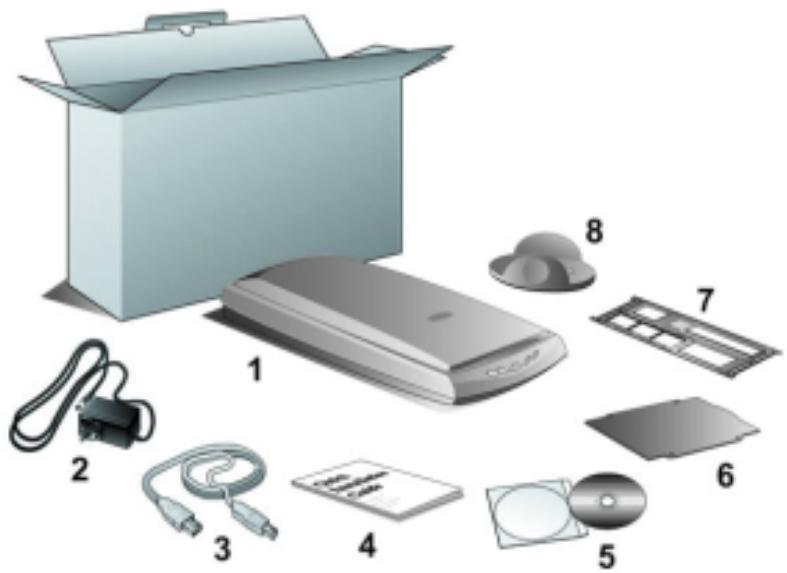
- The Scanner3
- Power Adapter (24V 550mA)
- USB Cable
- Quick Installation Guide
-
Setup / Application CD-ROM includes the following software applications4
-
Scanner Setup Program
Genius TWAIN Program - NewSoft Presto! PageManager (Photo Management Software)
- NewSoft Presto! ImageFolio (Imaging Editing Software)
- NewSoft Presto! Mr. Photo (Web Photo Software)
-
Bridgewell Page abc (Web Editing Software)
ABBYY FineReader Sprint (Text Recognition Software)
Adobe Acrobat Reader (PDF Product Manuals Reading Program)
Cardiris 2.51LE (Trial Version)
This User's Guide (Electronic Version) -
Reflective Document Mat
- Negative and Positive Film Holder
- Base Stand
Chapter I. Installing Genius Scanner
Before installing your scanner, please verify that you have all of the proper components. A list of the package contents is provided in this guide.
Software Requirements
Your scanner comes with the software of NewSoft Presto! ImageFolio, ABBYY FineReader, NewSoft Presto! PageManager, NewSoft Mr. Photo, Bridgewell Page abc, Adobe Acrobat Reader, the scanner's driver, Scanner Utility, and Genius TWAIN Program. All of these software applications use approximately 160 megabytes of hard disk space after they are installed into your computer. To ensure ample room for the installation, as well as for scanning and saving images, a minimum of 250 megabytes of hard disk space is recommended.
Hardware Requirements
This scanner connects to your computer through the Universal Serial Bus (USB) which supports hot Plug and Play. To determine whether your computer is USB-capable, you must check the rear of your PC to locate a USB jack that looks the same as the one pictured below. Note that on some computers, the USB port at the rear of the computer may be occupied and additional ports may be found on the monitor or keyboard. If you are having trouble in locating the USB port on your computer, please refer to the hardware manual that came with your computer.
Installing and Setting up the Scanner
Step 1. Hassle-Free Lock Mechanism
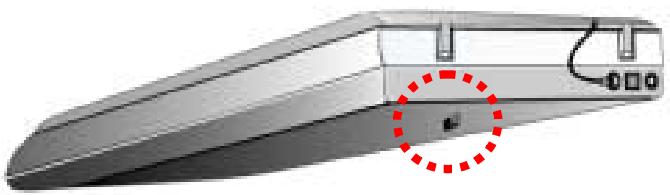
This scanner has an automatic locking mechanism to hold the scanning head in place during transportation. When the locking switch (located on the scanner's underside) is pressed, it automatically unlocks the scanning head; when not pressed, it automatically locks up the scanning head again.
Always place your scanner on a flat and smooth surface before proceeding the scanner setup or any scanning task.
Note: When you need to move the scanner, do keep the locking switch NOT PRESSED to ensure accurate and problem-free use of your scanner.
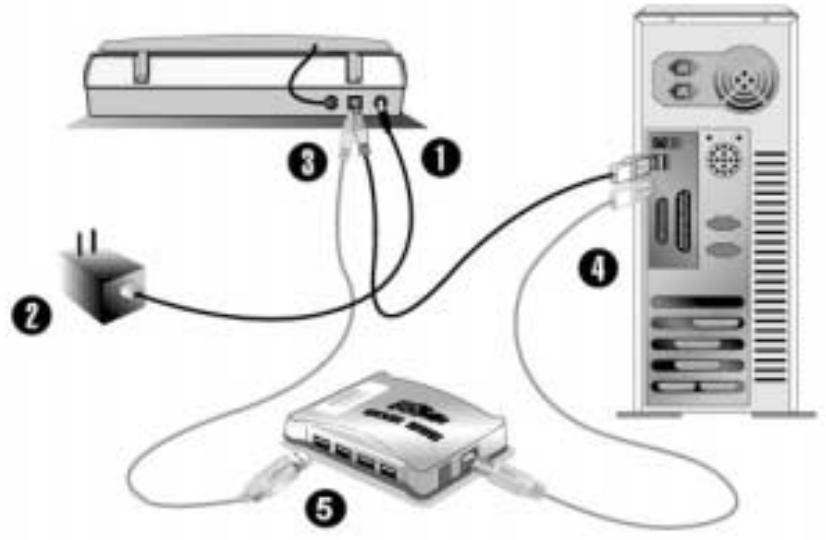
Step 2. Connecting the Genius Scanner to Your Computer
- Plug the power adapter into the scanner's power receptor.
- Plug the other end of the power adapter into a standard AC power outlet.
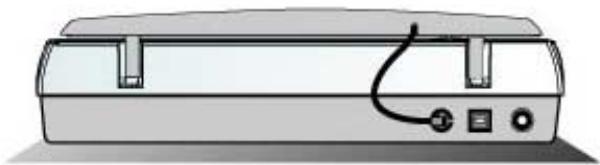
- Plug the square end (Type B connector) of the included USB cable to the USB port at the rear of the scanner. You can find a USB sign below the USB connector at the rear of the scanner.
- Plug the rectangular end (Type A connector) of the USB cable to the USB port on the back of your computer.
Note: If there is another USB device connected to the computer, connect the scanner to an available USB port.
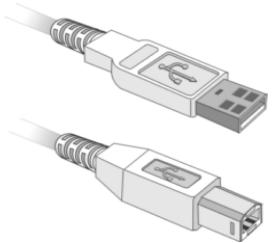
Type A Connector
Type B Connector
- If you plan to connect your scanner to a USB hub5, make sure that the hub is connected to the USB port in your computer. Next, connect the scanner to the USB hub.
Note: If you do not have a USB port available, you might need to buy a USB port.

Attention
When possible, we recommend using the 4 foot (1.2 meters) USB cable provided with your scanner. If you wish to use a different USB cable, make sure that it is a fully rated twisted-pair USB cable and has a Type A connector at one end and a Type B plug on the other.
Step 3. Installing the Software
- If the USB components on your computer are functioning correctly, they will automatically detect the scanner causing the "Add New Hardware Wizard" or "Found New Hardware Wizard" to be launched.
2. For Windows 98/Me
a. Click on the NEXT button when the "Add New Hardware Wizard" window is displayed.
b. Select "SEARCH FOR THE BEST DRIVER FOR YOUR DEVICE [RECOMMENDED]" and click on the NEXT button.
c. The next window will ask you where to search to find the drive. Select "CD-ROM drive", and deselect "Floppy disk drives" if it is checked
d. Insert the Setup/Application CD-ROM, included with your scanner, into your CD-ROM drive and then click on the NEXT button.
e. The next window will display the location of the USBSCAN.INF file. Click on the NEXT button.
3. For Windows 2000/XP
a. Insert the Setup/Application CD-ROM, included with your scanner, into your CD-ROM drive.
b. Select "INSTALL THE SOFTWARE AUTOMATICALLY [RECOMMENDED]" and click on the NEXT button.
c. During the process of the installation, a message "Windows Logo authorization required" or "Digital Signature required" might be prompted. Please ignore it, and click on "CONTINUE ANYWAY" to continue the installation without any misgiving at your scanner functioning.
d. When the system completes the installation, click on the "FINISH" button.
- Follow the on-screen instructions to install all software that your new USB scanner requires.
- After the software is installed, close all open applications and click on the FINISH button to restart your computer.
Software Setup Troubleshooting
Carefully review the steps outlined in this guide and the Quick Installation Guide that accompanied your scanner.
If you are still having problems, please check that:
- You have 250MB of free space on your hard disk drive.
The scanner is plugged in and has power. - You are using the USB cable supplied with the scanner.
- The square end of the USB cable is plugged into the rear of the scanner.
- The rectangular end of the USB cable is plugged into the back of your computer.
If you deviated from the installation procedures defined in this manual, please unplug the USB cable from the scanner and reinstall the software from the CD-ROM. To reinstall your scanner's software, click START, RUN, then type D:\Install (where D represents the letter of your CD-ROM drive). Carefully follow all the installation instructions presented in the Setup Wizard. Reboot your computer when prompted, and plug the USB cable back into the scanner while your computer is still turned on.
If you still need support, you can contact Genius at any office listed on the last page of this guide during normal business hours in that area.
Installing Additional Software
Your scanner is TWAIN compliant and functions with virtually all available TWAIN compatible program. If you purchase additional program to be used with your scanner, please make sure that it conforms to the TWAIN standard.
Uninstalling the Scanner
Windows XP/Me/2000/98 provides an Uninstall Wizard for uninstalling your scanner software driver and application programs:
Uninstall from the "Start Menu" (Uninstall Wizard)
- From the Windows Start menu, select Programs, and then the model name of the scanner you have installed.
- From the drop-down menu, select Uninstall.
- A window will pop up, asking you to confirm the deletion of the selected application and all of its components. Click OK and the UninstallShield program will run automatically and delete the scanner software driver.
- Once completed, restart Windows.
Chapter II. Usage and Maintenance
Operating the Scanner
Your scanner accepts documents as small as business cards and as large as letter-sized documents. However, some software programs have limitations as to the information they can handle. The capacity of the computer's memory and free space on your hard drive can also limit the physical size of the document that you scan.
There are two different ways to operate the scanner:
- From within an image-editing program that can acquire images from the scanner.
- By using the Genius Scan Manager program that is automatically installed as your scanner software.
Your scanner needs to be driven by some type of software program. Since all documents or images (whether text or pictures) that are acquired from the scanner are treated by your computer as images, most scanning will probably be done from an image-editing program where you can view, edit, save and output the scanned images. An image-editing program has been bundled with your scanner on the included Setup/Application CD-ROM. It will allow you to alter and correct any scanned images by using a variety of filters, tools and effects.
What about scanning text documents and editing them in a word processor? This is the role of Optical Character Recognition (OCR) software. OCR software converts the image files that are created from scanning text documents into text files that can be viewed, edited and saved by word processors. An OCR program has also been bundled on the included Setup/Application CD-ROM, and if you wish to use the scanner in this way you should install the OCR software that is included.
Genius Scan Manager program is a program that allows you to conveniently scan images and text without the need to work directly within any image-editing application (i.e. Presto! ImageFolio). Genius Scan Manager program also includes features to allow you to use your scanner as fax ^6 and copy machines ^7 . Refer to Chapter III of this User's Guide for details about how to use this Scan Manager program with your scanner buttons.
Testing the Scanner
The following test procedure checks to see if the scanner is properly functioning with your computer and the scanning program. Before testing your scanner, check to make sure that all connections are securely fastened.
To properly test your scanner, please perform the following steps:
- Open the scanner's document cover and place a picture onto the scanner glass headfirst and face-down.
- Gently close the document cover.
- Next, open the scanner's image-editing program. Click on the Windows START button and then PROGRAMS, PRESTO! IMAGEFOLIO, and then PRESTO! IMAGEFOLIO.
- When Presto! ImageFolio opens, click on FILE and then SELECT SOURCE. In the window that opens, choose Genius Scanner (the model name of your scanner). Click on the SELECT button to close the window. This procedure allows Presto! ImageFolio to gain access to the scanner.
- Within Presto! ImageFolio, click on FILE, ACQUIRE and then choose ACQUIRE.
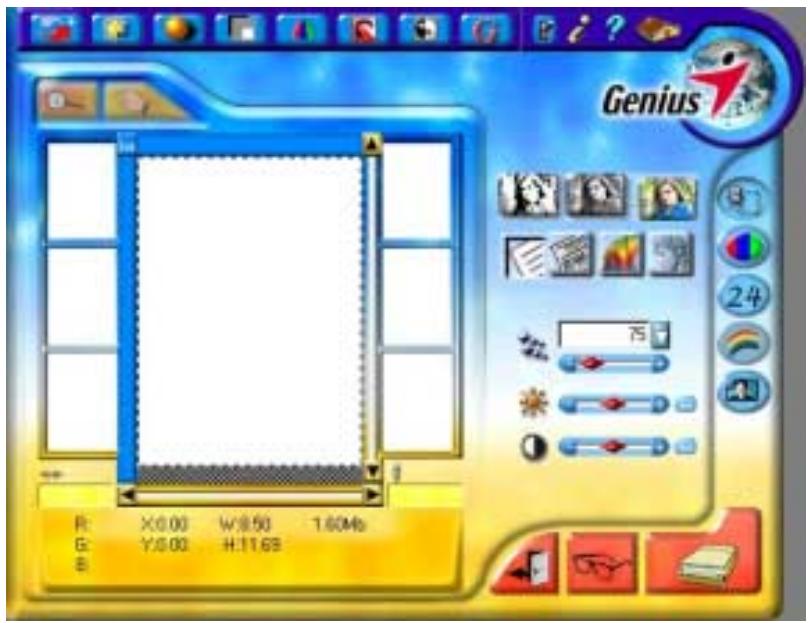
- The Genius TWAIN window will open.
- If an image appears on your screen, your scanner is working properly. If the image doesn't appear to your liking, you might need to adjust some settings in the Genius TWAIN window. To learn how to adjust scanner settings, please refer to the Genius Help by clicking the Help button in the Genius TWAIN window.
Scan and Image Editing
Genius scanner provides two different ways for scanning:
From "SCAN" Hotkey --
- Open the document cover. Place a picture headfirst and face down onto the scanner glass and close the document cover.
- Press the "Scan" hot key button on the scanner.
- After the Presto! PageManager software is launched, the Genius TWAIN window will appear and start to prescan automatically.
- Select the appropriate scan mode and resolution, if desired. To proceed the scanning task, click the SCAN button from Genius TWAIN window.
- The scanned image will be saved into Presto! PageManager software after the scan completes.
- Click the CLOSE button to close the Genius TWAIN window and you may review the scanned image under the folder of INBOX in PageManager software.
From image-editing software --
- Open the document cover. Place a picture headfirst and face down onto the scanner glass and then close the document cover.
- Open Presto! ImageFolio, and click on FILE, ACQUIRE, and then choose ACQUIRE to open the Genius TWAIN window.
- Select the appropriate scan mode and resolution, if desired. To proceed scanning task, click the SCAN button from Genius TWAIN window.
- When you complete the scanning task, click the CLOSE button to close the Genius TWAIN window, and you may review the scanned image in Presto! ImageFolio software
Scanning the Films
Your scanner provides an easier and quicker way to scan transparent materials such as slides, positive or negative film. With the special designed Negative and Positive Film Holder supplied with your scanner, you may have a very different experience in proceeding scanning task. Read the following instructions carefully to learn how to scan the films.
Installing the Transparency Adapter
The transparency adapter is located on the underside of the scanner lid and is a necessary tool when scanning slides or negatives. The transparency adapter already comes installed in your scanner model. To activate it, simply plug it in as shown below.
Using the Negative and Positive Film Holders
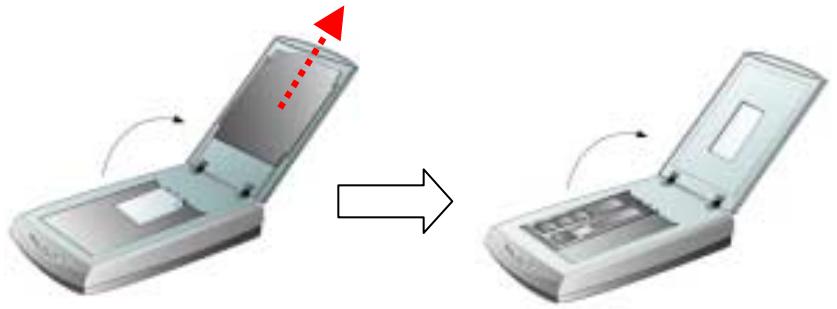
- Remove the reflective document mat. Hold the top of the mat, and gently pull it upward until it is separated from the document cover.
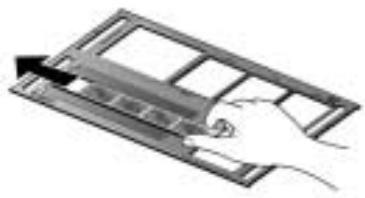
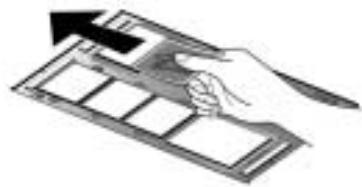
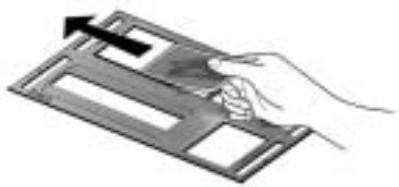
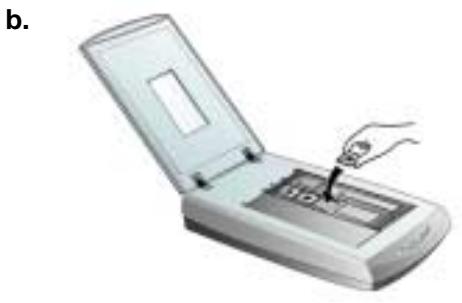
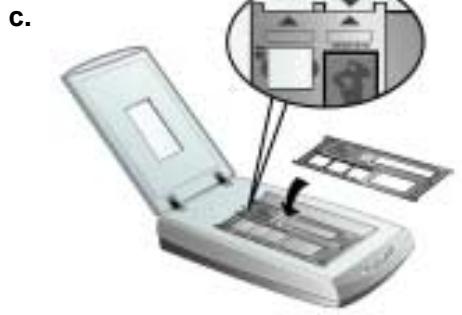
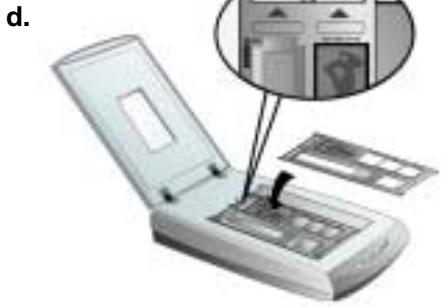
- Insert a filmstrip or a 120/220 film into the proper compartment on the film holder. Adjust the position of the inserted film, so that the desired image appears in the view window.
Caption
a. Filmstrip
b. 35mm Slides
c. 120/220 film : 6x 4.5 cm / 6x6 cm
d. 120/220 film : 6x7 cm / 6x8 cm / 6x9 cm
a.
b.
C.
d.
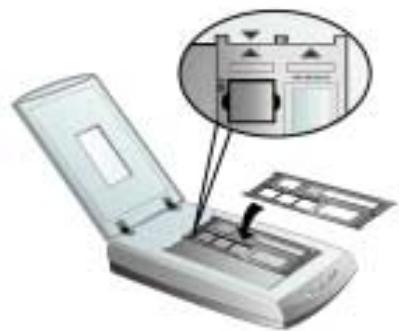
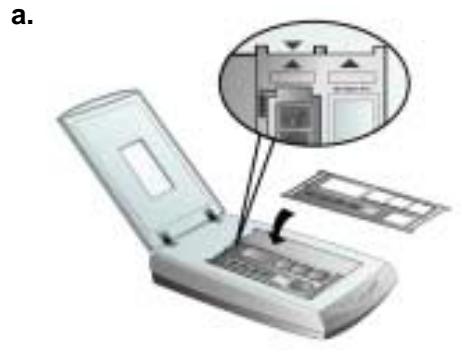
- Place the film holder on the scanner glass, and align the positioning aids of the film holder to fit into the indentations at the upper right-hand or left-hand corner of the scanner glass. Ensure that the ready-to-be-scanned film compartment must be positioned on the center of the scanner glass, and the arrow sign of the particular film compartment must be in alignment with the inverse-arrow sign carved on the scanner housing.

Attention
Note: If you are scanning 35mm slides, place the film holder on the scanner first, and then place the slides in the holder.
- Select POSITIVE FILM or NEGATIVE FILM as the scan source by clicking the SCAN SOURCE button on the Genius TWAIN window.
- Select 35mm, 120/220 (6x6 cm) film, or 120/220 (6x9 cm) film as the scan size.
- Click on the PREVIEW IMAGE icon to preview the image.
- Adjust the scanning border, if necessary.
- Click on the SCAN IMAGE icon to start scanning the image.
Important Notes about Scanning Film
- Do not cover any small compartment below each arrow sign on the film holder because that it is necessary for calibration.
-
Always replace the reflective document mat onto the scanner's document cover after you finish scanning the films.
-
Make sure the film is properly loaded into the film holder and the film holder is correctly positioned on the scanner glass.
- Make sure the proper SCAN SOURCE and SCAN SIZE are selected before proceeding the scanning task.
- It is recommended to use a higher resolution (such as 600dpi for 35mm films, or 300dpi for 120/220 films) when you proceed the film scanning task to prevent the scan images from losing the quality while you enlarge the size of the images.
Scanner Utility Program
The Scanner Utility Program can help you get your new scanner up and running. In addition, it contains a number of other features to help you tailor and control the scanner.
Most significantly, the Scanner Utility Program checks to make sure that the scanner software is properly installed and the scanner and computer are communicating with each other.
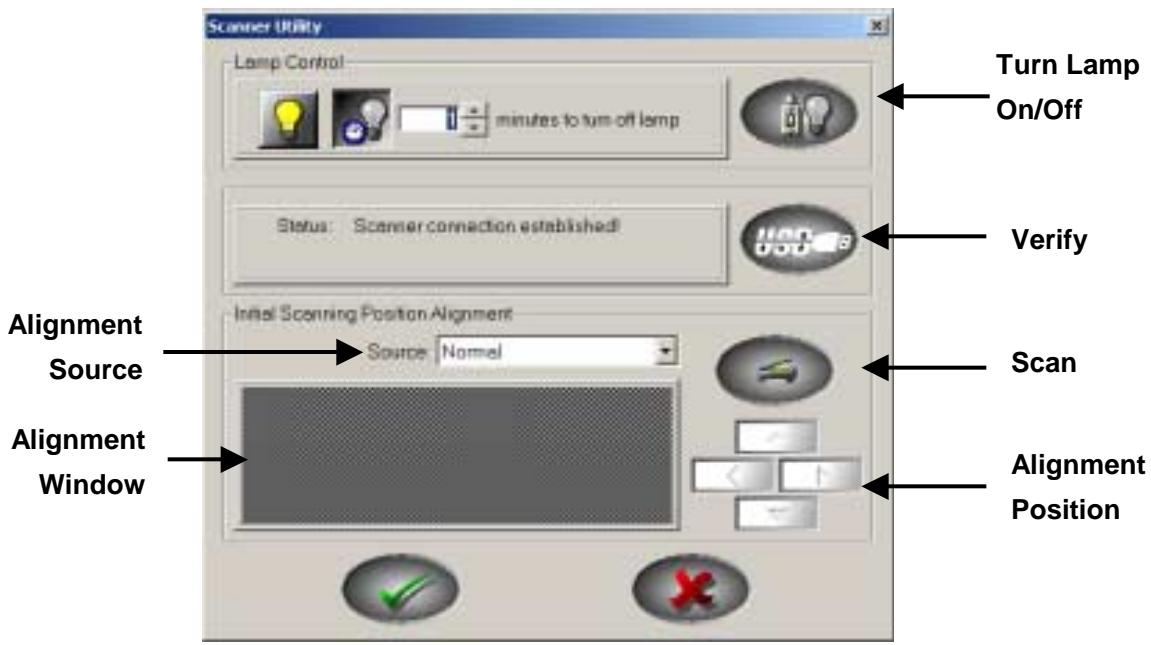
Two other features of the Scanner Utility program are the scanning lamp controls and the scanning position alignment utility. The Scanner Utility allows you to turn the scanning lamp on and off, and define an idle time for the scanning lamp to automatically turn itself off. Also, it allows you to define the exact position on the scanning glass where scanning will begin. The scanner lock was designed to hold the scanning lamp in place during shipping, but some refinement of the initial scanning position may still be necessary.

Attention
The Scanner Utility program does NOT affect the quality of scanned images. It is only used to establish a connection with the scanner. Settings that affect the scanned image (i.e., color, size, readability, clarity, etc.) can be found in the scanner software programs and especially the TWAIN interface.
Connection Status
The first step to take when troubleshooting connection problems with your scanner is to check all physical connections. Make sure your scanner is plugged in and the USB cable is fit snugly into the rear of your scanner and computer.
Secondly, determine the status of your USB hardware and software configuration. To do this, please run the Scanner Utility program as described below:
- Click on the START button, and then choose PROGRAMS, Genius Scanner (the model name of your scanner) and then SCANNER UTILITY.
- Once the Scanner Utility window is open, locate and click on the USB button shown below:

This will check the status of your USB hardware and software configuration.
- If there is a problem with the installation, the following message will appear:
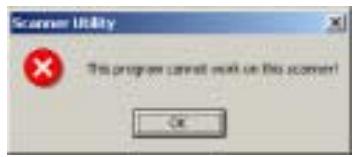
- If the connection is OK, the following window will be displayed:
Status: Scanner connection established!

Aligning the Scanner
In most cases, the scanner doesn't need to be aligned but there are instances when the alignment might be required. You need to align the scanner only if parts of the scanned document are missing from any of its edges. For example, the heading of a document might be missing from the top edge after the document has been scanned.
To align the scanner, follow the steps below:
- Place a photograph on the top right side of the scanner glass (near the back of the scanner). Please note that only part of the photograph will be scanned.
-
Select NORMAL from the ALIGNMENT SOURCE drop down menu.
-
Click on the SCAN button. Part of the photograph will be displayed in the ALIGNMENT window.
-
Click on the ALIGN POSITION buttons until the top left corner of the scanned photograph aligns with the top left corner of the preview window.
-
Click on the check mark button when the alignment has been completed.

Lamp Control
The scanner's lamp may be turned ON and OFF manually in the Scanner Utility program. While there, you can also set a timer to turn the lamp off after the scanner has been idle for a designated amount of time.
To do this, click on the Windows START button and choose PROGRAMS, Genius Scanner (the model name of your scanner), SCANNER UTILITY. In the window that opens, find the Lamp Control section shown below:
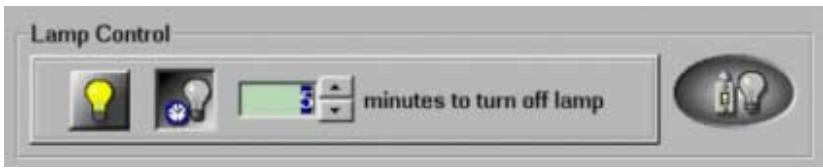
Click on the On/Off switch at the far right of the section to immediately turn the scanning lamp on or off.
You may also set the default time for the lamp to automatically turn off after a scan by clicking the up or down arrows next to the area that reads "minutes to turn off lamp."
Maintenance
To keep your scanner working smoothly, take a moment to review the following maintenance tips.
- Avoid using the scanner in a dusty environment. When it is not in use, keep the scanner covered. Dust particles and other foreign objects may damage the unit.
- Do not attempt to disassemble the scanner. There is danger of an electrical shock and opening your scanner will void your warranty.
- Do not subject the scanner to excessive vibration. It may damage the internal components.

- Be sure not to bump or knock the scanner glass as it is fragile and could break.
- Clean the scanner glass by lightly spraying a non-abrasive glass cleaner onto a soft lint-free cloth. Then, wipe the glass thoroughly with the cloth. DO NOT SPRAY CLEANER DIRECTLY ONTO THE SCANNER GLASS. Excess liquid residue may fog or damage the scanner.
- Your scanner operates best in temperatures between 10^ to 40^ ( 50^ to 104^ ).
Removing the Document Cover
The document cover has been designed for easy removal so that larger items, such as bound books, can be placed on the scanner glass. To remove the cover, open it all the way. Place your other hand firmly at the back of the scanner and lift the document cover, separating it from the back of the scanner. To replace the cover, simply slide it back into place.
Chapter III. How to Use Quick Function Buttons
This scanner is featured with five function buttons on the front panel to make your scanning experience more convenient and efficient.
Each button launches a specialized utility designed to make scanning quick and easy while giving you complete control over the scanning process.

Attention
Before using the function buttons on the scanner, please ensure that the required application software has been installed completely.
"SCAN" Button
Ensure that the "NewSoft Presto! PageManager" software is installed before using the Scan hotkey; otherwise the automatic scan and file saving function will not work properly.
To Set up the Default Application Program
- Open the "Scan Manager Setting" window by clicking on the Windows START button and choose PROGRAM, Genius Scanner (the model name of your scanner), KYESCAN.
- Click the icon on the bottom right corner of the screen to open the "Scan Manager Setting" window.
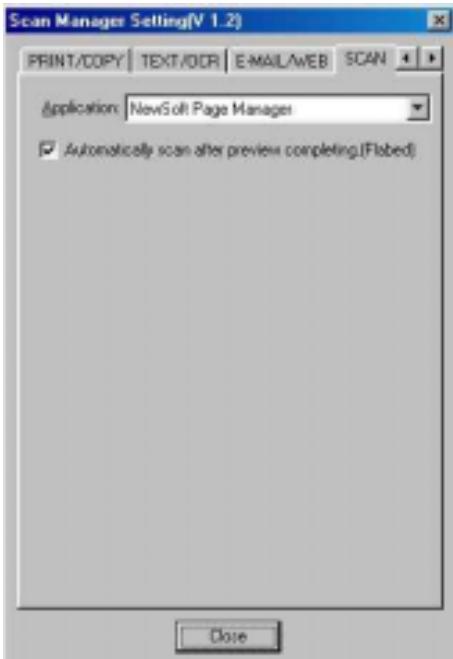
- Click on the "SCAN" tab in the "Scan Manager Setting" window.
- Choose "NewSoft PageManager" or other application in the "Application" drop-down menu.
- Click on "Close" to complete setting.
Note: If you check "Automatically scan after preview completing (flatbed)", your scanner will start scanning directly after prescanning completes.
To Use the "SCAN" Button
- Place a document or picture face down on the scanning glass.
- Press the "SCAN" Button on the scanner.
Note: Skip to step 5, if you have checked "Automatically scan after preview completing (flatbed)" within Scan Manager.
- The "PageManager" will be launched with the "Genius TWAIN" displayed on the screen.
- Press Scan button on the Genius TWAIN window to start scanning.
- The scanned file will be saved automatically under the folder of "INBOX" in "PageManager" software.
- To scan another image, press the Scan button on the Genius TWAIN window again. Repeat the above steps until all the scanning tasks are completed.
"E-MAIL/WEB" Button
Ensure that you have already installed the "E-mail program" (supporting MAPI protocol) or "Bridgewell Page abc" software in your computer before using the "E-mail/Web button" as the "E-mail button" or the "Web button".
To Set a Default Simple MAPI Client (i.e. Outlook Express)
- Choose Program in the Start Menu.
- Select "Outlook Express."
- In the drop-down menu of Tools, select options Select "Make Outlook Express as my default email program" and "Make Outlook Express as my default Simple MAPI client."
To Set Up the " E-MAIL/WEB " Button
"Scan to E-mail" Function
- Open the "Scan Manager Setting" window by clicking on the Windows START button and choose PROGRAM, Genius Scanner (the model name of your scanner), KYESCAN.
- Click the icon on the bottom right corner of the screen to open the "Scan Manager Setting" window.
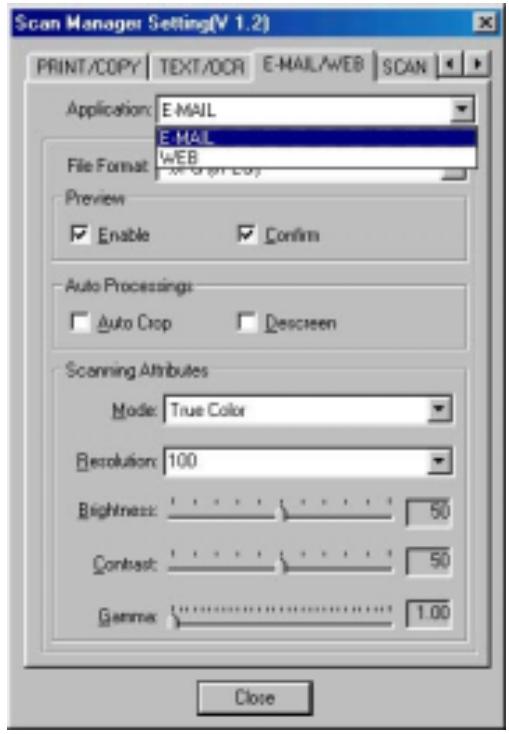
- Click on the "E-MAIL/WEB" tab in the "Scan Manager Setting" window.
- Choose "E-mail" as the in the drop-down "Application" menu.
- Check "Enable" and "Confirm" under "Preview" if you require the system to automatically generate a preview image before proceeding scan.
- Adjust or select proper scanning attributes, if necessary.
- Click on "Close" to complete setting.
"Scan to Web" Function
- Open the "Scan Manager Setting" window by clicking on the Windows START button and choose PROGRAM, Genius Scanner (the model name of your scanner), KYESCAN.
- Click the icon on the bottom right corner of the screen to open the "Scan Manager Setting" window.
- Click on the "E-MAIL/WEB" tab in the "Scan Manager Setting" window.
- Choose "Page abc" software in the drop-down "Application" menu.
- Check "Enable" and "Confirm" under "Preview" if you require the system to automatically generate a preview image before proceeding scan.
- Adjust or select proper scanning attributes, if necessary.
- Click on "Close" to complete setting.
To Use the " E-MAIL/WEB " Button
As "Scan to E-mail" Function
- Place a document or picture face down on the scanning glass.
- Press the "E-MAIL/WEB" Button on the scanner.
Note: Skip to step 5, if you did not have "Enable" and "Confirm" checked under "Preview" in Scan Manager.
- The scanner will start prescanning automatically.
- Click on the "Mail" button in the "PRESCAN" window to start scanning.
- Click on "Yes" button to continue scanning the next page.
- Click on "No" button when you finish scanning. At the meanwhile, your mail system will be opened, and the scanned images will be transferred as attachments of a new mail.
As "Scan to Web" Function
- Place a document or picture face down on the scanning glass.
- Press the "E-MAIL/WEB" Button on the scanner.
Note: Skip to step 5, if you did not have “Enable” and “Confirm” checked under “Preview” in Scan Manager.
- The scanner will start prescanning automatically.
- Click on the "Scan to Web" button in the "PRESCAN" window to start scanning.
- Click on "Yes" button to continue scanning the next page.
- Click on "No" button when you finish scanning. At the meanwhile, the scanned image files will be transferred into "Page abc" Web Editing software.
Please install and set up ABBYY FineReader Sprint 4.0 OCR software before using this function.
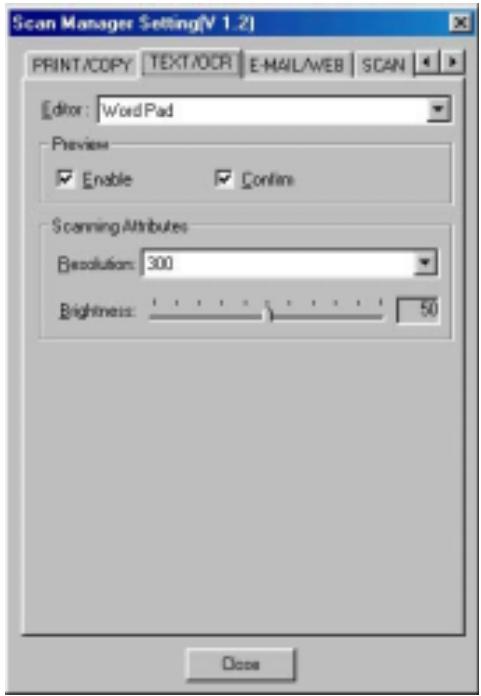
To Set Up Editor
- Open the "Scan Manager Setting" window by clicking on the Windows START button and choose PROGRAM, Genius Scanner (the model name of your scanner), KYESCAN.
- Click the icon on the bottom right corner of the screen to open the "Scan Manager Setting" window.
- Click on the "TEXT/OCR" tab in the "Scan Manager Setting" window.
- Choose a proper word processor in the drop-down "Editor" menu.
- Check "Enable" and "Confirm" under "Preview" if you require the system to automatically generate a preview image before proceeding scan.
- Adjust or select proper scanning attributes for scanning Reflection Object, if necessary.
- Click on "Close" to complete setting.
To Use the “TEXT/OCT” Button
- Place a typewritten text document face down on the scanning glass.
-
Press the "TEXT/OCR" Button on the scanner Note: Skip to step 5, if you did not have "Enable" and "Confirm" checked under "Preview" in Scan Manager.
-
The scanner will start rescanning automatically.
- Click on the "OCR" button in the "PRESCAN" window to start scanning.
- Click on "Yes" button to continue scanning the next page.
- Click on "No" button when you finish scanning.
- Word processing software will be launched and the recognized text will be transferred to the default word processing software.
"PRINT/COPY" Button
Ensure to install and set up a printer driver before using this function.
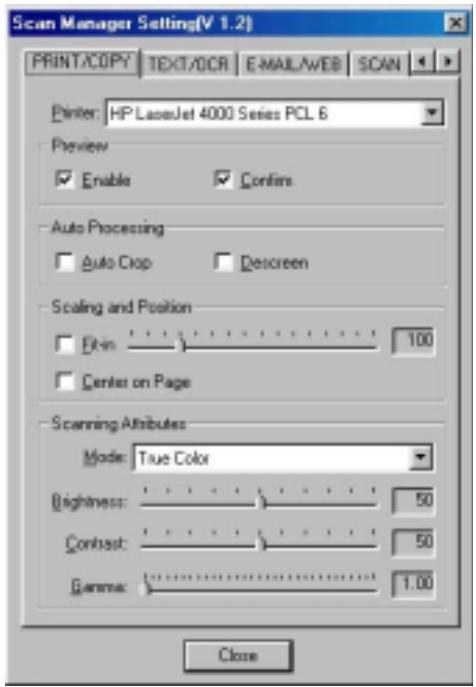
To Set Up Printer
- Open the "Scan Manager Setting" window by clicking on the Windows START button and choose PROGRAM, Genius Scanner (the model name of your scanner), KYESCAN.
- Click the icon on the bottom right corner of the screen to open the "Scan Manager Setting" window.
- Click on the "PRINT/COPY" tab in the "Scan Manager Setting" window.
- Select a proper printer from the drop-down "PRINTER" menu.
- Check "Enable" and "Confirm" under "Preview" if you require the system to automatically generate a preview image before proceeding scan.
- Adjust or select proper scanning attributes for scanning Reflection Object
- Click "Close" to complete setting.
To use "PRINT/COPY" Button
- Place a document or picture face down on the scanning glass.
- Press the "PRINT/COPY" Button on the scanner
Note: Skip to step 5, if you did not have "Enable" and "Confirm" checked under "Preview" in Scan Manager.
- The scanner will start prescanning automatically.
- Click on the "Print" button in the "PRESCAN" window to start scanning.
- Click on "Yes" button to continue scanning the next page.
- Click on "No" button when you finish scanning.
- The scanned images will printed out from your printer.
"FILE/FAX" Button
Ensure that you have already installed the PC Fax software or “NewSoft PageManager” software in your computer before using the “FILE/FAX” button as the “FILE” button or the “FAX” button
To Set Up the Software for "FILE/FAX" button
"FILE" Function
- Open the "Scan Manager Setting" window by clicking on the Windows START button and choose PROGRAM, Genius Scanner (the model name of your scanner), KYESCAN.
- Click the icon on the bottom right corner of the screen to open the "Scan Manager Setting" window.
- Click on the "FILE/FAX" tab in the "Scan Manager Setting" window.
- Choose File Software ("Scan Manager") in drop-down "Application" menu.
- Check "Enable" and "Confirm" under "Preview" if you require the system to automatically generate a preview image before proceeding scan.
- Adjust or select proper scanning attributes, if necessary.
- Click "Close" to complete setting.
"FAX" Function
- Open the "Scan Manager Setting" window by clicking on the Windows START button and choose PROGRAM, Genius Scanner (the model name of your scanner), KYESCAN.
- Click the icon on the bottom right corner of the screen to open the "Scan Manager Setting" window.
- Click on the "FILE/FAX" tab in the "Scan Manager Setting" window.
-
Choose PC Fax software in drop-down "Application" menu.
-
Check "Enable" and "Confirm" under "Preview" if you require the system to automatically generate a preview image before proceeding scan.
- Adjust or select proper scanning attributes for scanning Reflection Object.
- Click "Close" to complete setting.

To use "FILE/FAX" Button
As "Scan to File" function
- Place a document or picture face down on the scanning glass.
- Press the "FILE/FAX" Button on the scanner,
Note: Skip to step 5, if you did not have "Enable" and "Confirm" checked under "Preview" in Scan Manager.
- The scanner will start prescanning automatically.
- Click on the "Scan to Album" button in the "PRESCAN" window to start scanning.
- Click on "Yes" button to continue scanning the next page.
- Click on "No" button when you finish scanning.
- The Scanned Images will be filed into the default folder of "PageManager".
As "Scan to Fax" function
- Place a document or picture face down on the scanning glass.
- Press the "FILE/FAX" Button on the scanner.
Note: Skip to step 5, if you did not have "Enable" and "Confirm" checked under "Preview" in Scan Manager.
- The scanner will start prescanning automatically.
- Click on the "Fax" button in the "PRESCAN" window to start scanning.
- Click on "Yes" button to continue scanning the next page.
- Click on "No" button when you finish scanning.
- Fax Application Window will be opened. Following the screen instructions to proceed fax transmission.
Appendix A: Specifications
Genius Scanner - HR7X Slim
| Genius Scanner - HR7X Slim | |
| Physical dimensions | 435 x 265 x 73 mm |
| Weight | 2.5 Kgs (5.51 Lbs) |
| Operating Temperature | 10°C to 40°C (50°F to 104°F) |
| Max. Scan Area | Reflective: 8.5 x 11.69 in. (216 mm x 297 mm) Transparency: Positive or negative films of 35 mm filmstrip, 3 pcs 35 mm slides or 120/220 film (max. 6 x 9 cm) |
| Scan Method | Single-Pass |
| Scan Modes | 48 bit Color 8 bit Grayscale 1 bit Line-Art (Black & White) |
| Resolution | Optical 1200 dpi (24000 dpi software interpolated) |
| Scanning Materials | Reflective color or black-and-white originals, 35 mm slides, 35mm filmstrip, 120/220 film (max. 6 x 9 cm) |
| Protocols | TWAIN Compliant |
| Connection | USB Port |
| Lamp type | Cold Cathode Lamp |
| Power adapter | Power Output DC 24V, 550mA |
| Power Consumption | Operation: 13.2 watts maximum Idle: 6 watts |
| EMI | FCC Class B |
| Genius Scanner - HR6X Slim | |
| Physical dimensions | 435 x 265 x 73 mm |
| Weight | 2.5 Kgs (5.51 Lbs) |
| Operating Temperature | 10°C to 40°C (50°F to 104°F) |
| Max. Scan Area | Reflective: 8.5 x 11.69 in. (216 mm x 297 mm) Transparency: Positive or negative films of 35 mm filmstrip, 3 pcs 35 mm slides or 120/220 film (max. 6 x 9 cm) |
| Scan Method | Single-Pass |
| Scan Modes | 48 bit Color 8 bit Grayscale 1 bit Line-Art (Black & White) |
| Resolution | Optical 600 dpi (19200 dpi software interpolated) |
| Scanning Materials | Reflective color or black-and-white originals, 35 mm slides, 35mm filmstrip, 120/220 film (max. 6 x 9 cm) |
| Protocols | TWAIN Compliant |
| Connection | USB Port |
| Lamp type | Cold Cathode Lamp |
| Power adapter | Power Output DC 24V, 550mA |
| Power Consumption | Operation: 13.2 watts maximum Idle: 6 watts |
| EMI | FCC Class B |
Appendix B: Customer Service and Warranty
If you encounter problems with your scanner, please review the installation instructions and troubleshooting suggestions contained in this guide.
For further assistance call our customer support phone number listed on the last page of this guide. To avoid any delay, please have the following information available before calling:
- Scanner name and model number
- Scanner serial number (located at rear of scanner near port connectors)
A detailed description of the problem - Your computer manufacturer and its model number
The speed of your CPU (Pentium 133, etc.) - Your current operating system and BIOS (optional)
- Name of program package(s), version or release number and manufacturer of the program
- Other USB devices installed
We are continuously enhancing the performance of our product drivers. To check for the updated device driver you may visit our Web Site. (Please refer to the section of "Contacting Genius" on the last page of this manual.)
This Statement of Limited Warranty applies only to the options you originally purchase for your use, and not for resale, from an authorized reseller.
If you transfer this product to another user, warranty service is available to that user for the remainder of the warranty period. You should give your proof of purchase to that user.
We warrant that this machine will be in good working order and will conform to its functional descriptions in the documentation provided. Upon provision of proof of purchase, replacement parts assume the remaining warranty of the parts they replace.
Before presenting this product for warranty service, you must remove all programs, data and removable storage media. Products returned without program will be replaced without program.
This Limited Warranty service does not provide for carry-in exchange when the problem results from accident, disaster, vandalism, misuse, abuse, unsuitable environment, program modification, Electro Static Discharge (ESD) damage, another machine or non-merchant modification for this product.
If this product is an optional feature, this Limited Warranty applies only when the feature is used in a machine for which it was designed.
If you have any questions about your Limited Warranty, contact Genius.
THIS LIMITED WARRANTY REPLACES ALL OTHER WARRANTYES, EXPRESS OR IMPLIED, INCLUDING, BUT NOT LIMITED TO, THE IMPLIED WARRANTYES OF MERCHANTABILITY AND FITNESS FOR A PARTICULAR PURPOSE. HOWEVER, SOME LAWS DO NOT ALLOW THE EXCLUSION OF IMPLIED WARRANTYES. IF THESE LAWS APPLY, THEN ALL EXPRESS AND IMPLIED WARRANTYES ARE LIMITED IN DURATION TO THE WARRANTY PERIOD. NO OTHER WARRANTYES APPLY AFTER THAT PERIOD.
Some jurisdictions do not allow limitations on how long an implied warranty lasts, so the above limitation may not apply.
Under no circumstances are we liable for any of the following:
- Third party claims against you for losses or damages.
- Loss of, or damage to, your records or data; or
- Economic consequential damages (including lost profits or savings) or incidental damages, even if we are informed of their possibility.
Some jurisdictions do not allow the exclusion or limitations of incidental or consequential damages, so the above limitation or exclusion may not apply to you.
This Limited Warranty gives you specific legal rights, and you may also have other rights that vary from jurisdiction to jurisdiction.
This equipment has been tested and found to comply with the limits for a Class B digital device, pursuant to part 15 of the FCC rules. These limits are designed to provide reasonable protection against harmful interference in a residential installation.
This equipment generates, uses and can radiate radio frequency energy and, if not installed and used in accordance with the instructions, may cause harmful interference to radio communications. However, there is no guarantee that interference will not occur in a particular television reception (which can be determined by turning the equipment off and on), the user is encouraged to try to correct the interference by one or more of the following measures:
Reorient or relocate the receiving antenna.
Increase the separation between the equipment and receiver.
Connect the equipment to an outlet on a circuit different from that which the receiver is connected.
Shielded interconnect cables and shielded power cord which are supplied with this equipment must be employed with this equipment to ensure compliance with the pertinent RF emission limits governing this device.
Consult the dealer or an experienced radio/TV technician for help if the conditions persist.
Changes or modifications not expressly approved by the manufacturer or authorized service center could void the users authority to operate this equipment.
Contacting Genius
USA & CANADA
KYE International Corp.
Latin America
Suite 110, 8400 NW 25th St.,
Miami, FLORIDA 33162, U.S.A.
Tel: 305-468-9250
Fax:305-468-9251
Web Site: http://www.genius-kye.com
EUROPE
KYE Systems UK Ltd.
Unit 4, 131 Beddington Lane,
Croydon, Surrey. CR0 4TD, UK
Tel: (44) 208 664 2727 (sales)
(44) 208 664 2739 (Tech. Support)
Fax:(44)2086642721(sales)
(44) 208 664 2740(Tech. Support)
Web Site: http://www.kye.co.uk
ASIA PACIFIC
KYE Systems Corp.
No.492, Sec. 5, Chung Hsin Rd., San Chung,
Taipei Hsien, 241, Taiwan, R.O.C.
Tel: (886) 2 2995-6645
Fax:(886)22995-6649
Web site: http://www.geniusnet.com.tw
EUROPE
KYE Systems Europe GmbH
Karl Benz Str. 9
D-40764 Langenfeld, Germany
Tel: (49) 21 73 9743-44
Fax:(49)2173-9743-17
Web Site: genius@kye.me.uunet.de
ASIA PACIFIC
KYE Systems H.K. Corp. Ltd.
Unit 01, 17^th Floor, Aitken Vanson Centre, No.61
Hoi Yuen Road, Kwun Tong, Kowloon, Hong Kong
Tel : (852)2342 3813
Fax:(852)23419517
Web Site: http://www.geniusnet.com.hk
ASIA PACIFIC
KYE Systems (M) SDN BHD
NO. 2, Jalan BK 1/12, Kinrara Industrial Park
Bandar Kinrara, 6 1/2 Miles, Jalan Puchong,
58200 Kuala Lumpur, Malaysia
Tel: (603) 575 1355
Fax:(603)5756362/6962
Web site: sales_kye@kye-systems.com.my