
F610 - Clavier informatique GENIUS - Notice d'utilisation et mode d'emploi gratuit
Retrouvez gratuitement la notice de l'appareil F610 GENIUS au format PDF.


| Type de produit | Clavier informatique avec touches macro programmables |
| Marque | Genius |
| Modèle | F610 |
| Connexion | Filaire USB |
| Nombre de touches | 104 touches standard + touches macro dédiées |
| Touches macro programmables | Oui, via le logiciel Macro Key Manager |
| Logiciel inclus | Macro Key Manager |
| Compatibilité système | Windows 2000, XP, Vista, 7, 8, 10 |
| Longueur du câble | Environ 1,5 mètre |
| Dimensions (L x P x H) | Environ 440 x 140 x 25 mm |
| Poids | Environ 600 g |
| Alimentation | Via port USB |
| Consommation électrique | Faible, alimenté par USB |
| Matériau | Plastique ABS |
| Type de touches | Membrane |
| Rétroéclairage | Non spécifié, probablement absent |
| Fonctions principales | Saisie de texte, raccourcis programmables via macro keys |
| Entretien et nettoyage | Nettoyer avec un chiffon doux et sec. Ne pas utiliser de produits chimiques. |
| Sécurité | Utiliser dans un environnement sec. Éviter les liquides. |
| Pièces détachées et réparabilité | Non prévu par le fabricant. Le clavier n'est pas conçu pour être réparé par l'utilisateur. |
FOIRE AUX QUESTIONS - F610 GENIUS
Questions des utilisateurs sur F610 GENIUS
0 question sur cet appareil. Repondez a celles que vous connaissez ou posez la votre.
Poser une nouvelle question sur cet appareil
Téléchargez la notice de votre Clavier informatique au format PDF gratuitement ! Retrouvez votre notice F610 - GENIUS et reprennez votre appareil électronique en main. Sur cette page sont publiés tous les documents nécessaires à l'utilisation de votre appareil F610 de la marque GENIUS.
MODE D'EMPLOI F610 GENIUS
Macro Key Manager User Manual
Introduction
Macro Key Manager is a kind of special tablet application software. Through Macro Key Manager, you can set up the keyboard events (Copy=“Ctrl+C”) or hyperlinks which you use mostly. And then, save it as your favorite macro key profile.
We have several default profiles. Part of macro keys are default macro keys which the settings are fixed already and can not be modified. Other macro keys are
Non-default macro keys and the setting of which can be defined and modified. However, if these default profiles can not meet your requirements, you can create new profiles by yourself.
Due to the keyboard events are not unified in different software, we provide the function of "open.exe" to enable the macro key manager profile according to the right software. If you do not set the "open.exe", the macro key manager may work unexpectedly in different software.
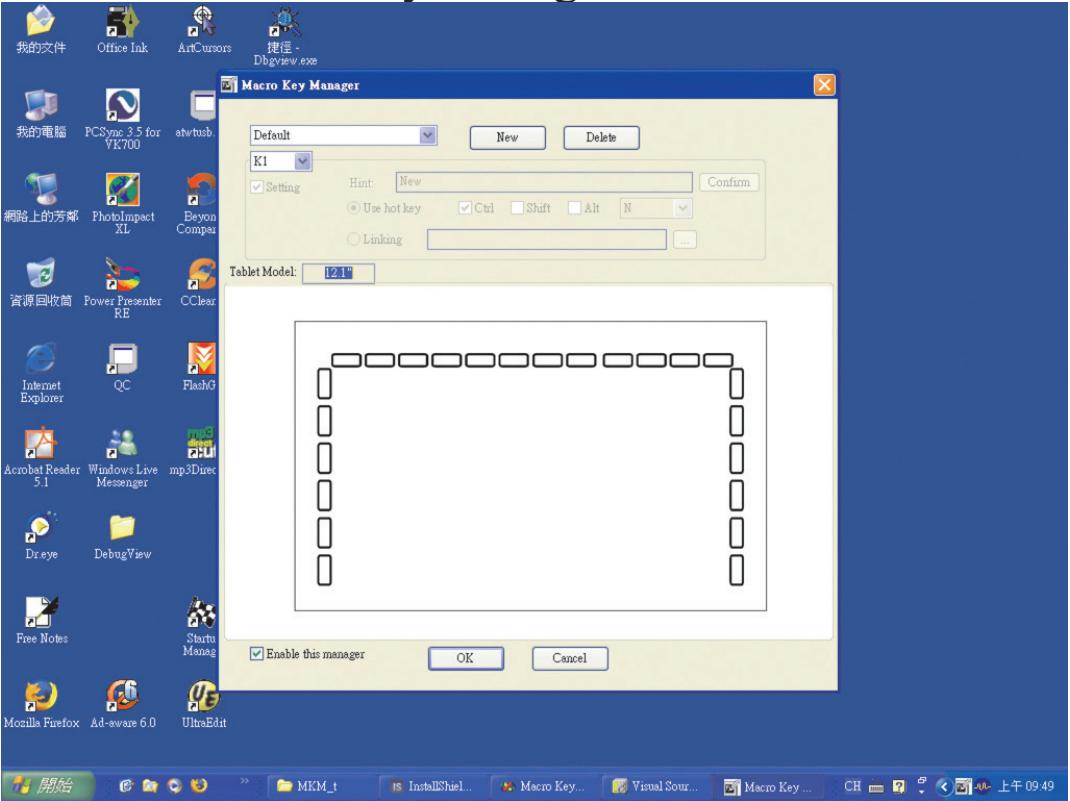
Macro Key Manager Control Panel Introduction
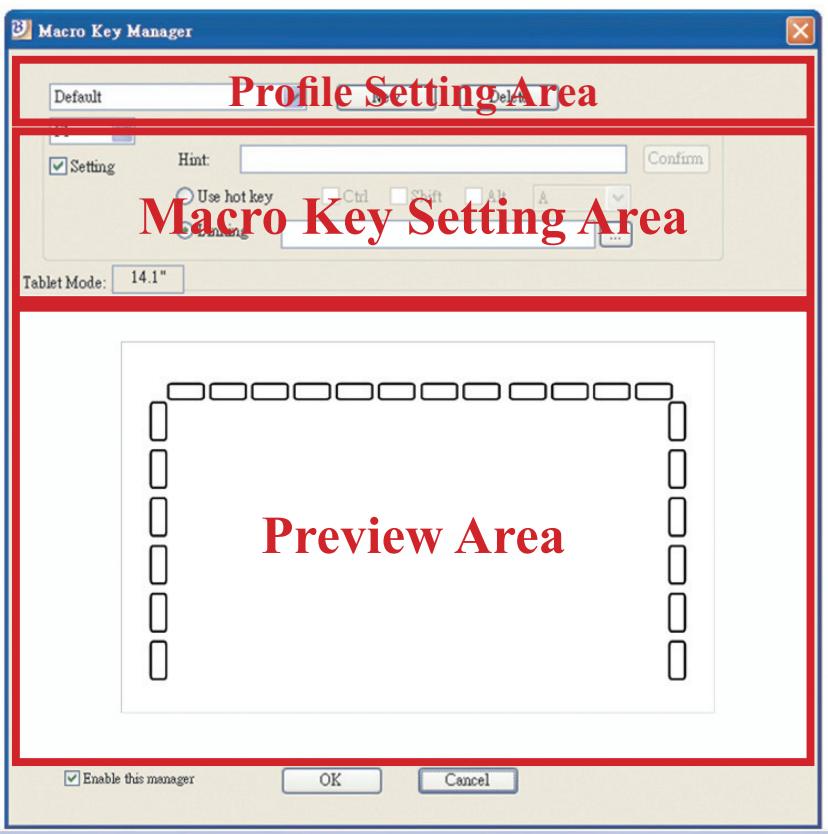
- Profile Setting Area
You can select, create or modify macro key profiles
Macro Key Setting Area
You can set the function of an individual Macro Key here. There are two kinds of setting. One is keyboard event setting and the other is hyperlink setting. Also, you have to name the hint as you like to finish setting process.
Preview Area
You can see the tablet image and the macro keys of your tablet. By hovering to the macro key, the macro key hint will pop up next to the key.
Installation
Once you install "Macro Key Manager" and plug the tablet
to your PC, the icon “” will be showed in System Tray. However, you can choose to disable the Macro Key Manager by click the right button. Once you disable Macro Key Manager or un Plug your tablet from PC, the original icon will
be changed into icon “
— How to Set up a New Profile
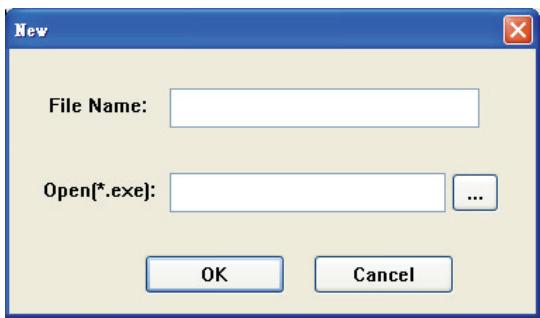
- Click “New” and name the profile.
- If a profile is set for particular software, click the browser icon. If not, please skip this process and click “OK” to finish setting a new profile.
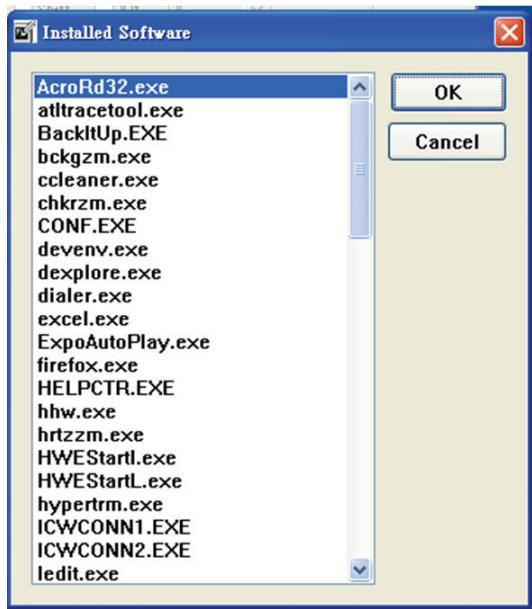
- All installed software is showed. Click the right software. Click “OK”
- Click “OK” to finish this setting.
— How to Modify a Profile
- select the profile you want to modify
- following macro key setting steps to modify
- click "OK"
— How to Delete a Profile
- select the profile you want to delete
- click “Delete”
— How to Set Up Macro Key Function

a. click “ Setting” to enable the setting function
b. key-in the name you want to be as the macro key function hint (necessary)
c. define the function as hot key or hyperlink
d. click “ Confirm ”
Setting:
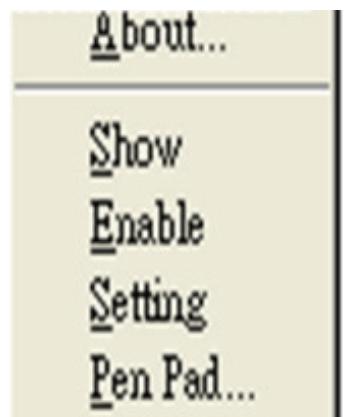
Hover the cursor to the macro key manager icon in the system tray, and then click the right button.
Windows 2000/XP/Vista Basic
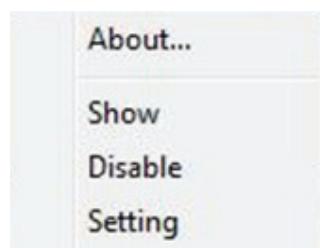
Above Windows Vista Premium
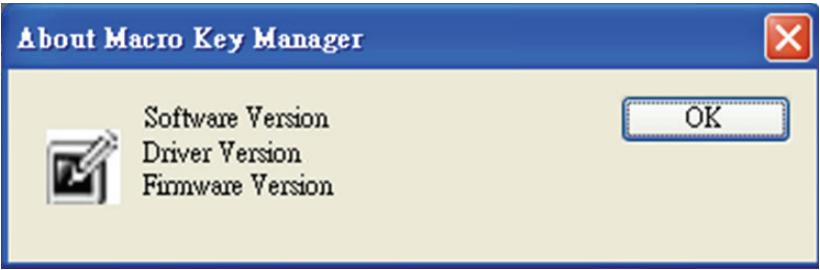
ABOUT
Showing Macro Key Manager Version , Driver Version and
Firmware Version
Show
Show the Macro Key Manager User Interface.
Setting
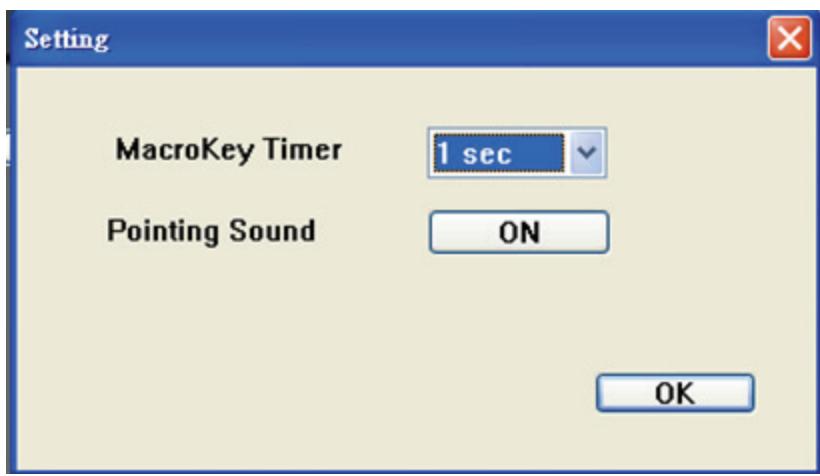
Macro Key Time
You can set timer for how long macro key function will work. There are four different choices-- 0, 1, 1.5 and 3 seconds can be your alternatives which mean that only when you use a pen to point the macro key area for 0, 1, 1.5, or 3 seconds, the macro key works.
Pointing Sound:
You can choose to get the pointing sound or not while the pen tip is pointing on the tablet.
Pen Pad (only in Windows 2000/XP/Vista basic)
This is tablet driver. Please reference the driver usage with driver manual.
Start Use
After setting profiles process, you can start to use macro key manager now.
Please select the profile you want to use and click “OK” and then this selected profile will be the active profile always.
PEN PAD DRIVER
Using the pen
— Pen
The pen is used as a normal handwriting pen. On the "About" tab, make sure the "Tracking Mode" is set to "Pen".
— Side Button
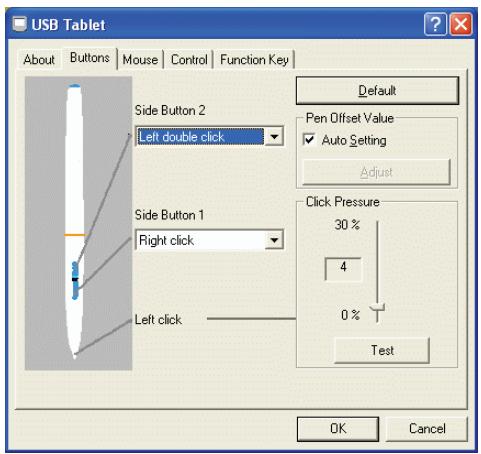
on the “Buttons” tab, click on “Side Button 1” to customize the side button.
Default settings
Side Button 1 = right click
Side Button 2 = left clickThe
Pen Point = left click
— Pen Offset Value
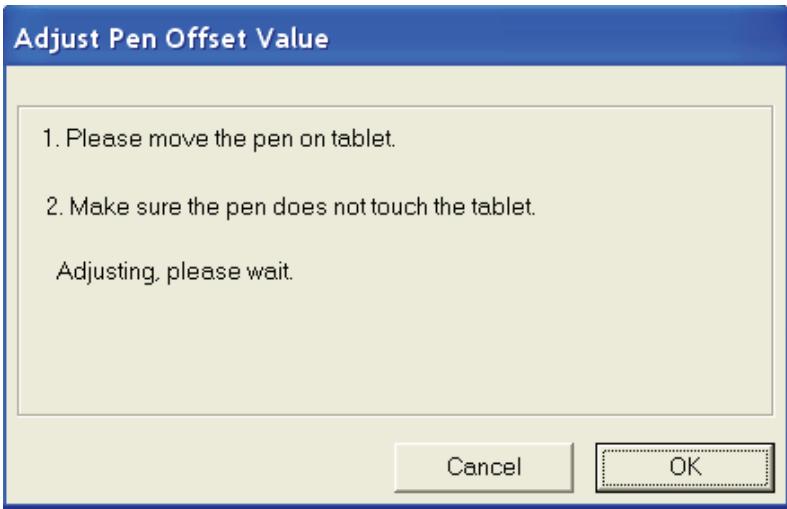
When using the tablet, if you want to use a new pen without restarting the computer, you need to perform the “Pen Offset Value” setting.
- On the "Buttons" tab, uncheck the "Auto Setting" box to remove the former value.
- Click the “Adjust” button. Then follow the on-screen instructions for adjustment. Tap the “OK” button when the “OK” message appears.
- Check the "Auto Setting" box for your computer to detect the new pen offset value automatically when restarted.
- Click Pressure
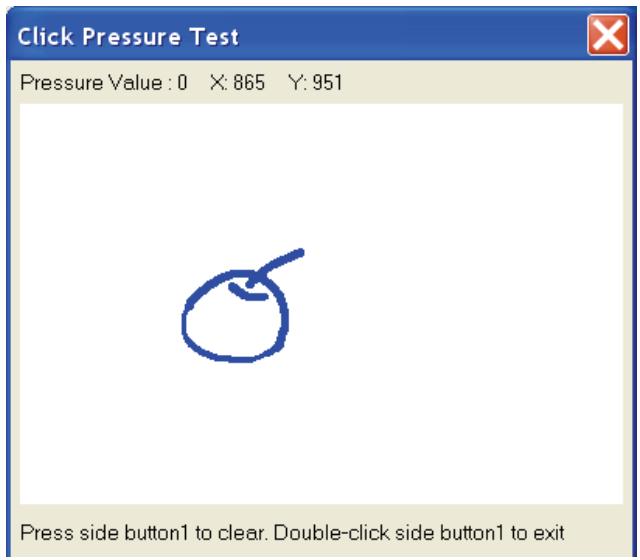
- On the “Buttons” tab, move the slider up and down to adjust the pen pressure from 0 to 30 (0 is the lightest, and 30 is the heaviest).
- Click the “Test” button to launch the “Click Pressure Test” writing area. Then you can test if the setting is correct.
- Macro Key Manager User Manual
- Introduction
- Macro Key Manager Control Panel Introduction
- Installation
- — How to Set up a New Profile
- — How to Modify a Profile
- — How to Delete a Profile
- — How to Set Up Macro Key Function
- Setting:
- ABOUT
- Show
- Setting
- Macro Key Time
- Pointing Sound:
- Pen Pad (only in Windows 2000/XP/Vista basic)
- Start Use
- PEN PAD DRIVER
- Using the pen
- — Pen
- — Side Button
- — Pen Offset Value
- - Click Pressure
Marque : GENIUS
Modèle : F610
Catégorie : Clavier informatique