
DVB-T31 - Récepteur DVB-T GENIUS - Notice d'utilisation et mode d'emploi gratuit
Retrouvez gratuitement la notice de l'appareil DVB-T31 GENIUS au format PDF.


| Type de produit | Récepteur DVB-T numérique terrestre |
| Marque | GENIUS |
| Modèle | DVB-T31 |
| Dimensions (approx.) | 130 × 80 × 25 mm |
| Poids (approx.) | 200 g |
| Alimentation | 5 V DC via adaptateur secteur fourni |
| Consommation électrique | Env. 5 W |
| Fonctions principales | Réception TNT HD, EPG, Télétexte, Antenne active incluse, OSD multilingue, Sortie audio numérique, Contrôle parental, Liste de favoris |
| Connectivité | Péritel (SCART), Sortie audio numérique (SPDIF), Antenne (connecteur IEC) |
| Contenu de l'emballage | Récepteur, télécommande, piles AAA×2, câble SCART, cordon d'alimentation, antenne numérique |
| Langues de l'OSD | Multilingue (sélectionnable) |
| Entretien et nettoyage | Débrancher l'appareil avant nettoyage. Utiliser un chiffon doux et sec. Ne pas utiliser de produits chimiques. |
| Sécurité | Utiliser uniquement l'adaptateur fourni. Ne pas exposer à l'humidité. Débrancher en cas d'orage. |
| Pièces détachées et réparabilité | Les pièces de rechange (télécommande, adaptateur) sont disponibles auprès du fabricant. Aucune réparation par l'utilisateur n'est prévue. |
| Informations générales | Appareil destiné à un usage domestique. Conforme aux normes CE. |
FOIRE AUX QUESTIONS - DVB-T31 GENIUS
Questions des utilisateurs sur DVB-T31 GENIUS
0 question sur cet appareil. Repondez a celles que vous connaissez ou posez la votre.
Poser une nouvelle question sur cet appareil
Téléchargez la notice de votre Récepteur DVB-T au format PDF gratuitement ! Retrouvez votre notice DVB-T31 - GENIUS et reprennez votre appareil électronique en main. Sur cette page sont publiés tous les documents nécessaires à l'utilisation de votre appareil DVB-T31 de la marque GENIUS.
MODE D'EMPLOI DVB-T31 GENIUS
1. General Information
TVGo DVB-T31 is a digital terrestrial TV set top box that lets you watch digital TV from your TV and provides high quality digital audio output for Hi-fi systems or home theaters. Also, the EPG (Electronic Program Guide) and Teletext provide you more information on TV programs. TVGo DVB-T31 is no doubt the choice to fulfill your desire for digital entertainment on the go!
1.1. Features
Watch free-to-air DVB-T TV programs on TV
Supports Digital Audio for inputting digital speaker
Supports EPG(Electronic Program Guide) and Teletext
Include Active antenna
Multi-language OSD
1.2. Package Contents
| TVGo DVB-T31 | Quick Guide |
| Remote Control | AAA batteries*2 |
| SCART cable | Power Cord |
| Digital Antenna | |
1.3. Remote Control
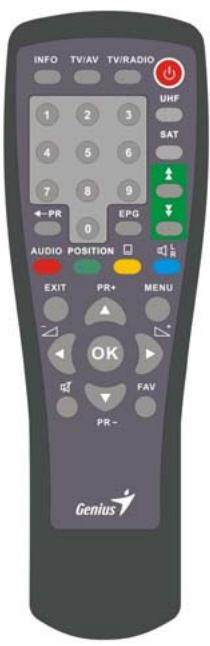
| Key | Function |
| O | Turns power ON/OFF of the DSR. |
| M | When watching a channel, mutes the sound. |
| 0~9 | Enter number of the required menu item or Select a channel number to watch. |
| TV/RADIO | Switch between TV and Radio mode. |
| ← PR | Switches back to previous channel. |
| FAV | Display favourite channel list. |
| INFO | Shows information of the current channel. |
| MENU | Press this key one time to run menu on screen, and call command box. |
| ↑↓ | Moves up/down a page in the channel list. |
| OK, LIST | Executes the selected item in the menu screen, or enters the desired value in any input mode |
| SAT | Display the satellite list or searched channel. |
| PR+,PR- | When watching a channel, change channels, or moves to the next higher or lower item in the menu. |
| - + | When watching a channel, adjust the volume, or move to the left or right item in menu. |
| EXIT | Returns to the previous menu on the menu screen or escape from the menu. |
| AUDIO | When watching a channel, switches the audio language. |
| EPG | Calls up the EPG (Electronic Program Guide). |
| LRR | Selects the different audio modes. |
| TV/AV | Switches between TV or AV mode. |
| POSITION | Display position bar on the screen to adjust the antenna or for manual search. |
| □ | Switches to teletext or subtitle mode. |
| UHF | Switches to UHF tuning mode. |

Figure 2: Front Panel
| KEY | Function |
| POWER/ | Power ON/OFF |
| ▲▼ | Move left or right on the menu by selecting ▲▼ |
1.4. Rear Panel
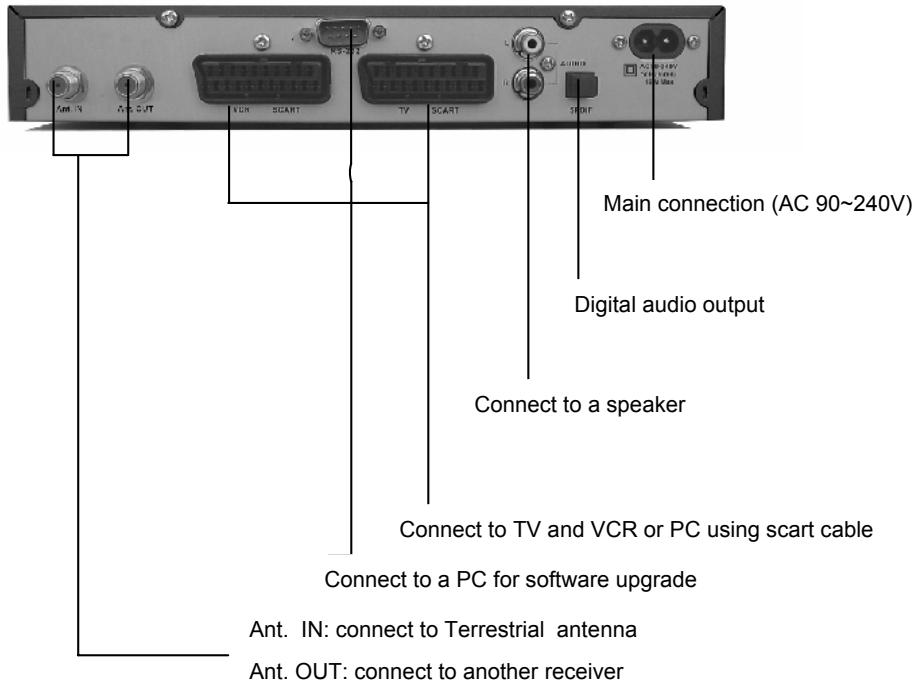
Installation
This section explains the installation of TVGo DVB-T31 Always refer to the manual supplied with the equipment for the installation of outdoor equipment such as the antenna. When adding new equipment, be sure to refer to the related parts of the manual for the installation.
1.5. Connecting to Antenna and TV
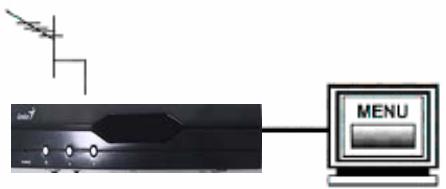
1.6. Connecting to TV using RCA Support
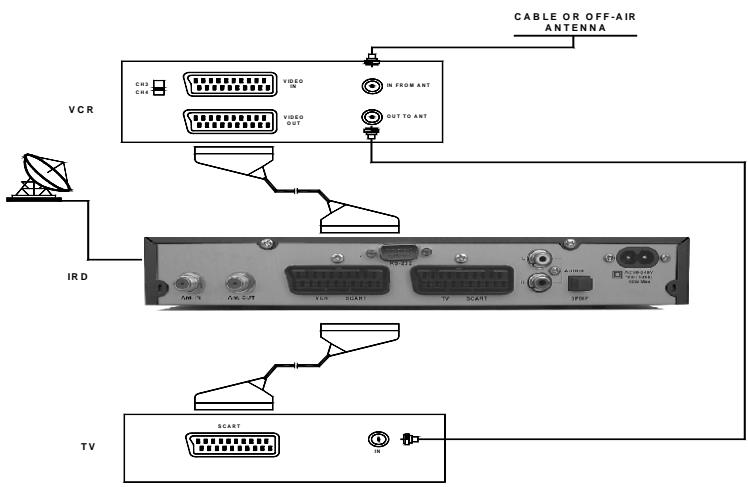
2. Menu Information
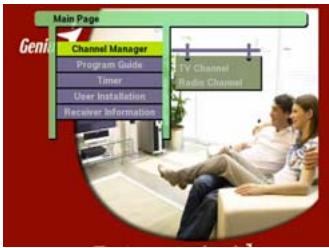
Once TVGo DVB-T31 has been connected correctly to the TV, the following menu will be displayed when the power is turned on.
This menu consists of 5 main sections as shown below
- Channel Manager
Program Guide
Timer - User Installation
Receiver Information
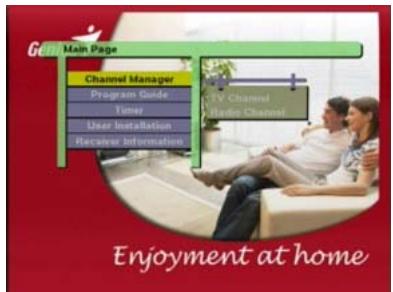
During the installation the OK key confirms a selection and key shows the Drop Down List Box. You can also use the numeric keys on the RCU to enter a numeric value.
PR+, PR- keys allows you to move along the menu bars and all available sub-menus should be displayed. Use the keys to move from left to right on the menu or vice versa.
To leave the menu system at anytime, press EXIT key on the Remote Control.
User Installation
This menu consists of 4 sub-menus as shown below.
- Channel Search
System Setting
Parental Lock
Factory Default
2.1. Channel Search
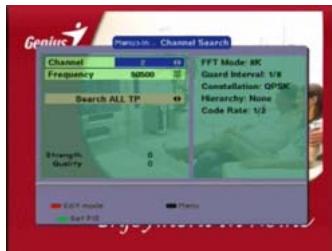
- Channel : Select desired Channel using CH keys. Pressing the OK key will display a Drop-Down List Box which also lets you select the desired channel.
- Frequency : Edit the Frequency.
- Search All Channel : Search all available channels.
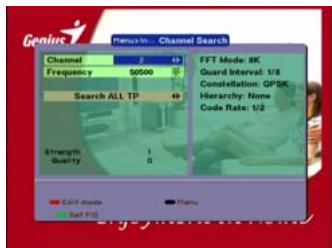
- Search Local Channel : Search for a single channel.
TVGo DVB-T31 will automatically search channels for TV and Radio. During this procedure you can see a list of the previously searched channels in the Searched List Box on the screen.
On completion of searching channels, the cursor will be placed on COMPLETE automatically. Now press OK button.
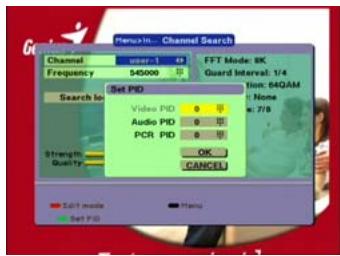
- Set PID: If you want to set PID (Packet Identifier) manually, select TP in the "Channel Search Page" and press MENU key on the RCU to display the command box.
Then select SET PID command and press OK. The set PID menu will be displayed.
Enter the correct value and select OK.
- Delete CH: If you want to delete a Channel, please select the Channel which you want to delete and then press MENU key on the RCU to display the command box. Then select Delete CH command. A confirm message box will be displayed.
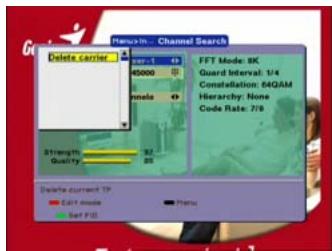
Edit Mode: If you want to edit preprogrammed data such as Frequency, please press EDIT mode key (Red color key) on the RCU to display the command box. You can then move into those columns to change the value.
2.2. System Setting
The System Setting menu allows you to set items depending on your environment.
- OSD Language : Lets you select the desired language.
- Audio Language: Select the desired audio language to be in top priority
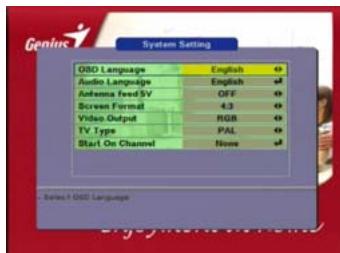
under the condition that this language is supported by the channel.
- Antenna feed 5V: Outputting power for active anntenna (Default is on); for passive antenna, pease selet off.
-
Screen Format: If your TV supports 16:9 screen format and selected channel provides 16:9 format program, select 16:9.
-
Video output: If your SCART supports RGB control, select RGB. Otherwise select CVBS.
- TV type: Select the type according to your TV type.
- Start On Channel: If you press OK key, then the channel list is displayed. You can select one channel from the list.
2.3. Parental Lock
This function allows you to lock the channel with a password in order to prevent children from accessing the channel.
You can also protect your installed data and information using the Install Lock.
How to change the Password
- Enter the current password.
- Select ON of Parental Lock.
- Enter new password.
- Confirm your new password entering new password again.
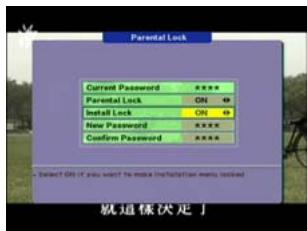
Note: Default password is 0000.
Warning: Once you change the password, please keep it in a safe place
How to use Parent Lock
1. To activate parent lock function, go to the TV channel Manager Page.
2. Press Lock key (Blue color key) on the Remote control
3. Select the channel which you want to Lock.
4. Press OK then symbol is displayed.
-
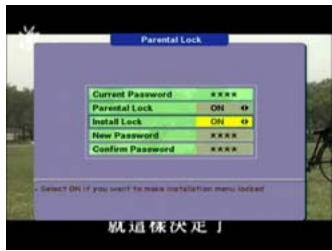
How to use Install Lock Enter the current password.
-
Select ON of Install Lock
- Enter new password
- Confirm your new password by entering new password again
- Exit this menu.
- Select any menu and press OK on the Remote Control.
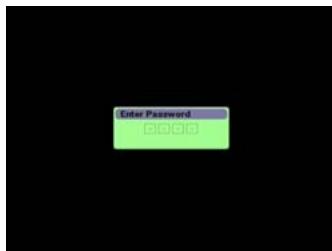
- Then the Enter Password box will be displayed.
- Unless you enter the correct password, you can not run any menu.
Note: Default password is 0000
Warning: Do not forget your password
2.4. Factory Default
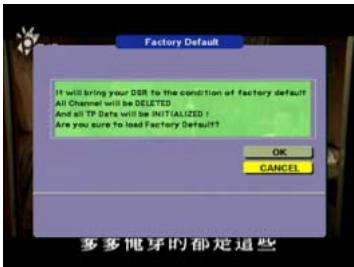
If you want to return TVGo DVB-T31 to factory default, select Factory Default and press the OK key.
Then a warning message will be displayed. To confirm, select OK.
Warning: On selecting factory default you will lose all of data and information, which was previously installed.
2.5. Previous Channel Recall
Press PR key on the remote control to move to the previous channel you watched.
2.6.TV & Radio Mode
While viewing a TV channel, press the TV/RADIO key on the remote control to change between TV and Radio modes.
2.7.TV & VCR Mode
The TV/AV key on the remote control lets you change the mode from satellite to TV or VCR.
Press once to move to the TV mode.
Press twice to move to VCR mode.
General Function
The following describes the basic functions of TVGo DVB-T31 when watching terrestrial TV or listening to terrestrial radio.
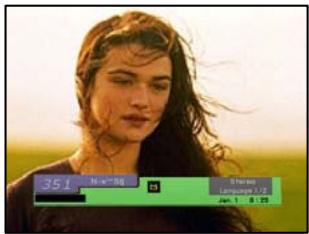
While watching, the current channel information will be shown on the bottom of the screen if you press the INFO button on the Remote control.
2.8. Select Channel
If you want to select channel, use CH key on the front panel or PR+, PR- key on the Remote Control or numeric keys.
In addition to the above function, TVGo DVB-T31 provides more convenient channel change functions.
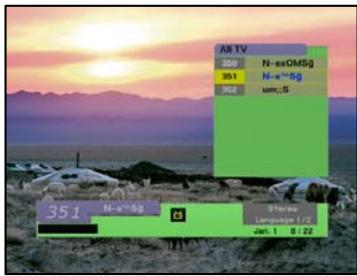
While watching, press OK key on the remote control.
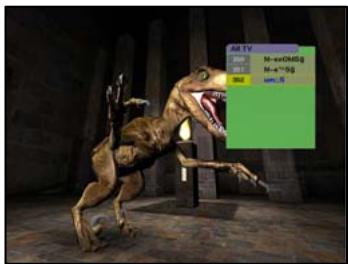
A channel list will be displayed on the right side of the screen. If you press EXIT key, the channel list will disappear.
To select a channel, go up or down on the channel list and place the cursor on a desired channel. Then, press OK key to watch the selected channel.
Channel Information
Every time you change channels, you will receive program information for a few seconds.
While watching the channel you can see the current channel information at anytime by pressing the INFO key on the remote control.
2.9. Volume & Audio Control
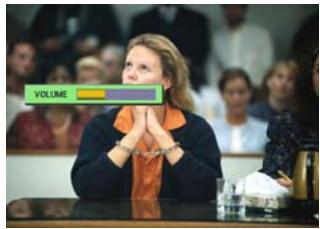
1. Volume Control
To increase or decrease volume, use VOL Keys on the remote control or on the front panel.
Note: TVGo DVB-T31 has 18 volume levels and this can be controlled from the volume level of your TV.
2. Mute
To mute the sound, press button on the remote control. To bring back the normal sound, press this key once again.
3. Audio Control
Press the key repeatedly to select one of three possible Audio settings (Left, Right and Stereo)
The current audio setting will be displayed in the channel information
4. Language Selection
Press the AUDIO key on the remote control repeatedly to select audio-language. This depends on the transmission of audio signal.
2.10. Favourite List
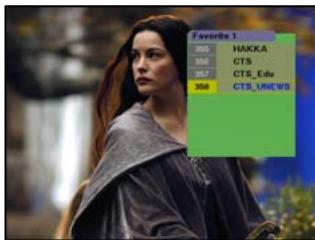
To create a favorite group list press FAV key on the remote control.
You can access the next favorite group when you press FAV key again.
The method to group favorite channels is explained in the Favorite Channel.
3. Channel Manager
This function not only allows you to watch channels but also do a lot of interesting and useful things.
Channel manager consists of TV channel and Radio channel.
Note: The usage of Radio Channel is same as that of TV channel, in this manual only TV Channel manager is explained.
On the left side of the TV channel menu, you can see the channel list. On the right side, you can watch the current channel in small Picture in Graphic (PIG) mode (1/9 size of the normal mode). You can also see channel information under the FIG screen.
When the cursor is moved from one channel to another, the PIG will change accordingly.
You can use those color keys on the remote control as below.
- Delete mode (Red key)
- Favorite mode (Green key)
- Move mode (Yellow key)
- Lock mode (Blue key)
Pressing the MENU key on the remote control will display the command menu.
TV channel manager has 3 commands as shown below;
- Rename Favorite group
- Rename
- Sort
3.2.Favorite Channel
When you select channel manager, default favorite list will be shown on screen as Favorite 1. Select your favorite channel and then press OK key. Then will be marked next to your selected channel name.
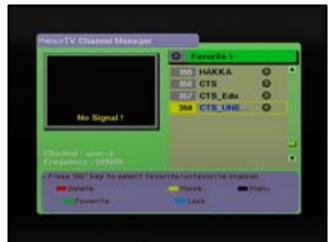
If you want to remove the channel name from the favorite channel list, press OK key once again, then the mark will disappear.
After the selection of favorite channels press EXIT key twice to save data and press FAV key repeatedly to see if each of the favorite groups are properly selected.
-
Represents scrambled channel
How to make a favorite group -
When you enter channel manager, the default favorite group will be shown once on the screen as Favorite 1.
- If you press FAV key on the remote control, a new favorite group will be created as Favorite 2.
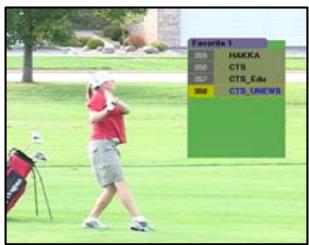
How to edit the name of a Favorite group
- In the favorite mode, press MENU key on the remote control then the command box will be displayed on the screen.
- Select "Rename Favorite group" in the command box.
- You can edit the name by using the keypad.
3.3. Move Channel
In the TV channel manager page, press Move key (Yellow color key) on the remote control
Select a channel by pressing OK key and move the cursor to the location where you want to move the selected channel and press OK key. Then, you will find that the selected channel has moved to the desired location and the number of channels has been changed accordingly.
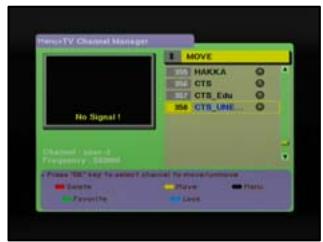
Check whether the channel number has changed on the channel list.
3.4. Lock Channel
In the TV channel manager page, press Lock key (blue color key) on the remote control.
This Lock command allows you to lock the channel. First select the channel, which you want to lock, and press OK key. Then this will be marked beside the selected channel name.
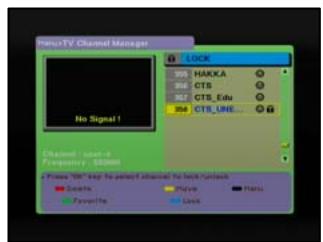
Note: To perform this function, you should set up the Parental Lock first.
Rename Channel
In the Main Page, press MENU key on the remote control, and then select Rename on the command menu.
This Rename command allows you to rename the channel. First select the channel to be renamed and press OK key, then a Keypad dialog box will be displayed. Enter the desired name.
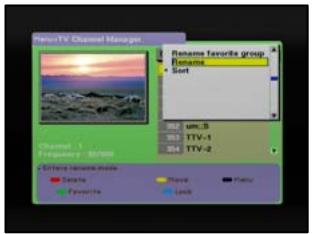
Check whether the channel name is changed on the channel list.
3.5. Delete Channel
In the Channel manager, you can enter Delete CH mode, if you press Delete key on the remote control. Then, if you press Delete key repeatedly, the mode will cycle through Delete channel carrier -> Delete All -> Delete single CH.
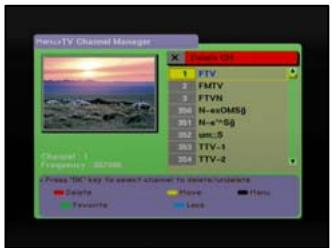
This Delete command allows you to delete the
channel permanently. First select the channels, which you want to delete; the selected channel number will be marked “X”. If you cancel the selection, press OK key again, then the marked number will be back.
If you decide to delete, press EXIT key and then press OK to delete.
Check whether the channel number is deleted on channel list.
Warning: The deleted channel cannot be recovered unless search function is performed again.
3.6. Sort Channel
In the Main Page, press MENU key on the Remote Control, and select Sort on the command menu.
This Sort menu has a sub command and it allows you to sort the channels, as you like.
You can sort the channels by Favorite, Lock, Scramble and CH name. Place the cursor on the desired line, and then press OK key.
Check whether the channels are sorted properly on the channel list.
Note: Radio Channel Manager has the same operation as TV channel Manager
3.7. Sort Channel
In the Main Page, press MENU key on the Remote Control, and select Sort on the command menu.
This Sort menu has a sub command and it allows you to sort the channels, as you like.
You can sort the channels by Favorite, Lock, Scramble and CH name. Place the cursor on the desired line, and then press OK key.
Check whether the channels are sorted properly on the channel list.
Note: Radio Channel Manager has the same operation as TV channel Manager.
4. EPG (Electronic Program Guide)
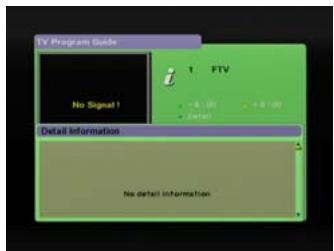
TVGo DVB-T31 provides EPG function for you to get access to the TV Guide (or Radio Guide if you are listening to radio channels) that will show the titles and other information of the current and next programs on different channels. The information is only available from the network to which the channel you are watching.
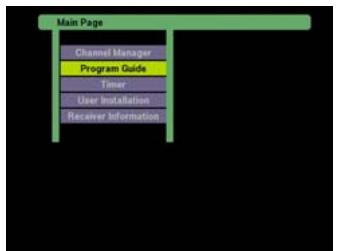
To see the EPG data, press EPG key on your remote control when watching a channel or select Program Guide in the Main Page.
The EPG box will be displayed.
You can see the channel in the FIG screen; channel list on the left side and Program schedule for selected channel will be displayed on the right side. The time related to the program schedule is also displayed
Select one channel and placing the mark on the time of Program name which detail information you want to know. Then you can see blue button, if there is detail information of the channel. Press Detail (Blue color key) key on the remote control, for the detail information box to be displayed.
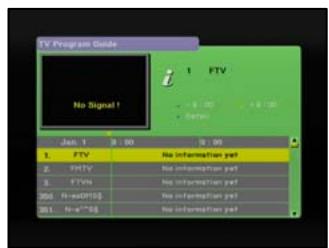
If you want to check the previous or next information of the channel, please press +6:00 key (Yellow color key) or -6:00 key (Green color key) on the remote control.
Press the blue button on the remote controller and more detail of the selected program will be displayed on the screen
Note: A 'No data available' message will be shown if the selected channel does not provide EPG data.
5. Timer
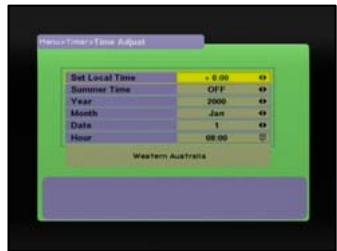
You can adjust the real time and program the timer in various ways.
5.1.Time Adjust
You can get the real time from the program automatically. If the displayed time is not correct, you can adjust the real time using this function.
5.2. Time Reservation
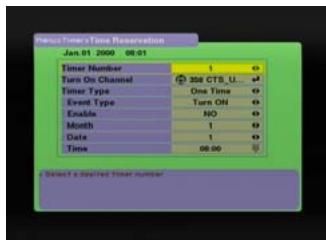
Timer can be activated by "Turn on time" and/or "Turn Off" Option.
Timer allows you to program the various timer functions.
You can set the timer daily, weekly, monthly or once.
- General Information
- Features
- Package Contents
- Remote Control
- Rear Panel
- Installation
- Connecting to Antenna and TV
- Connecting to TV using RCA Support
- Menu Information
- This menu consists of 5 main sections as shown below
- User Installation
- Channel Search
- System Setting
- Parental Lock
- Factory Default
- Previous Channel Recall
- 2.6.TV & Radio Mode
- 2.7.TV & VCR Mode
- General Function
- Select Channel
- Channel Information
- Volume & Audio Control
- Volume Control
- Mute
- Audio Control
- Language Selection
- Favourite List
- Channel Manager
- 3.2.Favorite Channel
- Move Channel
- Lock Channel
- Rename Channel
- Delete Channel
- Sort Channel
- Sort Channel
- EPG (Electronic Program Guide)
- Timer
- 5.1.Time Adjust
- Time Reservation
Marque : GENIUS
Modèle : DVB-T31
Catégorie : Récepteur DVB-T