
N600I - Manuel d\'utilisation NEC - Notice d'utilisation et mode d'emploi gratuit
Retrouvez gratuitement la notice de l'appareil N600I NEC au format PDF.


| Type de produit | Téléphone mobile 3G (UMTS/GSM/GPRS) |
| Marque | NEC |
| Modèle | N600i |
| Dimensions (estimées) | Environ 100 x 50 x 25 mm (fermé) |
| Poids (estimé) | Environ 120 g |
| Alimentation | Batterie Lithium-Ion rechargeable, chargeur secteur |
| Écran principal | LCD couleur |
| Écran externe | LCD secondaire |
| Appareil photo | Intégré, photo et vidéo |
| Mémoire interne | Intégrée, extensible par carte TransFlash (microSD) |
| Connectivité | Bluetooth, i-mode, synchronisation PC |
| Fonctions principales | Appels vocaux et vidéo, SMS, iMail, iMMS, Java, agenda, calculatrice, convertisseur de devises, enregistreur vocal, lecteur multimédia, navigation i-mode |
| Entretien et nettoyage | Utiliser un chiffon antistatique, éviter les liquides, ne pas peindre |
| Sécurité | Code PIN, verrouillage clavier, appels d'urgence 112 |
| Pièces détachées | Batterie, chargeur, carte mémoire, écouteurs (non fournis) |
| Réparabilité | Ne contient pas de pièces réparables par l'utilisateur. Confier à un centre agréé NEC |
| Informations générales | Manuel d'utilisation de 80 pages disponible en téléchargement |
FOIRE AUX QUESTIONS - N600I NEC
Questions des utilisateurs sur N600I NEC
0 question sur cet appareil. Repondez a celles que vous connaissez ou posez la votre.
Poser une nouvelle question sur cet appareil
Téléchargez la notice de votre Manuel d\'utilisation au format PDF gratuitement ! Retrouvez votre notice N600I - NEC et reprennez votre appareil électronique en main. Sur cette page sont publiés tous les documents nécessaires à l'utilisation de votre appareil N600I de la marque NEC.
MODE D'EMPLOI N600I NEC
Copyright Notice
Windows® XP and Windows® 2000 are registered trademarks of Microsoft Corporation in the United States and/or other countries.
This product contains ACCESS Co., Ltd.'s NetFron™ V3.2
Internet browser software. A@eess NetFront
NetFront V3.2 is the trademark or registered trademark of ACCESS Co., Ltd. in Japan and in other countries.
A portion of this software includes software modules developed by the Independent JPEG Group.
You may not alter or reproduce, or remove from this product the Internet browser software contained herein.
Use of the GIF decoder module contained in this product is permitted only as a part of browser software, under a license from Unisys Corporation. For other use, you have to obtain a separate license from Unisys Corporation.
Purchase and/or use of the browser software contained in this product does not authorise your use of any other product or performance of any other method or activity involving use of the LZW patents or GIF technology, unless you are separately licensed in writing by Unisys Corporation.
Java and all Java-based marks are trademarks or registered trademarks of Sun Microsystems, Inc. in the U.S. and other countries.
The Bluetooth® word mark and logos are owned by the Bluetooth SIG, Inc. and any use of such marks by NEC is under license. Other trademarks and trade names are those of their respective owners.
T9® Text Input is a registered trademark of Tegic Communications Inc.
T9 Text Input is licensed under one or more of the following: U.S. Pat. Nos. 5,818,437, 5,953,541, 5,187,480, 5,945,928, 6,011,554, and 6,307,548; Australian Pat. No. 727539; Canadian Pat. No. 1,331,057; United Kingdom Pat. No. 2238414B; Hong Kong Standard Pat. No. HK0940329; Republic of Singapore Pat. No. 51383; Euro.Pat. No. 0 842 463 (96927260.8) DE/DK, FI, FR, IT,NL,PT,ES,SE,GB; Republic of Korea Pat. Nos. KR201211B1 and KR226206B1; and additional patents are pending worldwide.
Licensed by QUALCOMM Incorporated under one or more of the following United States Patents and/or their
counterparts in other nations: 4,901,307, 5,490,165, 5,056,109, 5,504,773, 5,101,501, 5,506,865, 5,109,390, 5,511,073, 5,228,054, 5,535,239, 5,267,261, 5,544,196, 5,267,262, 5,568,483, 5,337,338, 5,600,754, 5,414,796, 5,657,420, 5,416,797, 5,659,569, 5,710,784 and 5,778,338.
Proprietary notice contains Macromedia Flash™ Player technology by Macromedia, Inc., Copyright © 1995-2005 Macromedia, Inc. All rights reserved.
Macromedia, Flash and Macromedia Flash are trademarks or registered trademarks of Macromedia, Inc. in the United States and other countries.
This product features the Macromedia Flash™ Player technology. For further information on the Macromedia Flash Player, visit http://www.macromedia.com/software/ flash/about/.
i-mode and i-mode logos are trademarks or registered trademarks of NTT DoCoMo.
The specifications and information in this manual are subject to change without notice.
Some contents in this manual may not apply to your phone depending upon the software of the phone or your service provider.
Important Safety Information
Emergency services
To make an emergency call
Press 112 followed by the Send key.
When the USIM card is not inserted or when the dial lock function is on, press 112 and the SK1 (SEND) or Enter key. Pressing SK2 (EMRGCY) and SK1 (YES) is also available on the Home screen.
When the keypad lock is on, press 112 and SK1 (YES) or the Enter key.
Refer to page 14 and page 19 for further instructions on emergency calls when the key lock is on.

Ensure that your N600i is switched on and in service. Press the End key to return to the Home screen if needed.
Follow the instructions and do not end the call until told to do so.
Tell the operator which service you require: Police, Ambulance, Fire Brigade, Coastguard or Mountain Rescue Service. Give your location and, if possible, remain where you are to maintain contact.
The 112 emergency number service is available on every digital network service. Note that these can only be used with a valid USIM.
Due to the nature of the cellular system, connection to emergency calls cannot be guaranteed.
General care
A phone contains delicate electronic circuitry, magnets and battery systems. You should treat it with care and pay attention to the following:
-
This phone is fitted with an internal battery that can only be replaced by a qualified service engineer. There is a risk of explosion if the battery is replaced with an incorrect battery type. Dispose of the used battery in accordance with the manufacturer's instructions.
-
Do not allow the phone, battery or accessories to come into contact with liquids or moisture at any time. Do not immerse in liquid.
- Do not paint the phone.
- Do not drop, throw or subject the phone to rough treatment.
- Do not place the phone alongside computer disks, credit cards, travel cards and other magnetic media. The information contained on disks or cards may be affected by the phone.
- Do not leave the phone or the battery in places where the temperature could exceed 60^ , e.g. on a car dashboard or a window sill, behind glass in direct sunlight, etc.
- Do not remove the battery while the phone is switched on.
Take care not to allow metal objects, such as coins or key rings to contact or short-circuit the battery terminals. - Do not dispose of batteries in a fire. Dispose of Li-ION batteries at a Li-ION recycling point. For more specific battery and power supply information, see page 11 and page 13.
- Do not put the battery in your mouth, as battery electrolytes may be toxic if swallowed.
- Do not attempt to dismantle the phone or any of its accessories.
- Do not put a battery into a microwave oven, dryer or high-pressure container.
- Do not let the battery come into direct contact with an electric outlet or cigarette lighter charger. Use only authorised charger units.
- Do not pierce the battery with a sharp object such as a needle.
-
When the battery is thrown away, be sure it is nonconducting by applying vinyl tape to the (+) and (-) terminals.
-
Do not disassemble or modify the battery.
- Do not solder the battery directly.
- Stop using the battery if you detect any abnormalities, such as odour, discolouration or heat during use, charge or storage.
- Do not use the phone with a damaged or misshapen battery.
- In the unlikely event of a battery leak, take care to keep the battery discharge away from your eyes or skin. If the leakage does come into contact with the eyes or skin, please flush thoroughly in clean water and consult a doctor.
- Remove a worn out battery immediately.
- The handset itself may become warm when the handset is used for an extended period of time or when the video functions are used. Also, it may become warm while the battery is being charged.
- When a phone is set to Vibration mode, the vibration can sometimes cause your phone to move. Be careful not to place the phone near heat sources (such as a heater) or too close to the edge of the table.
- Use an anti-static cloth to clean the phone. Do not use an ordinary dry cloth or electrostatically charged cloth. Do not use chemical or abrasive cleaners as these could damage the case.
- Remember to recycle the cardboard packaging supplied with this phone.
- Remember to make backup copies of all important data on your phone.
- Do not leave the battery pack empty or disconnected for a long time, otherwise some data may be initialised.
-
Take care not to put your phone in your back pocket and then sit on it. Also, do not put your phone at the bottom of a bag where it may subject to excessive weight or pressure. Doing so may damage the LCD and camera lens and cause them to malfunction.
Hold the phone away from your ear when you - Play video/music on the Multimedia Player -
Play the ringtone through the speaker. It may damage, or irritate your ears.
Safety
The use of mobile phones is not allowed in some radiation-sensitive areas, such as hospitals, research centres and aircraft. Ensure that you switch off your phone in these areas. If in doubt, remove the battery.
Aircraft safety
Switch off your phone and remove its battery when inside or near an aircraft. The use of phones in aircraft is illegal. It may be dangerous to the operation of the aircraft and it may disrupt the mobile network. Failure to observe this instruction may lead to suspension or denial of mobile network services to the offender or legal action or both.
Do not use the phone on the ground without the permission of the ground staff.
Hospital safety
Switch off your phone and remove its battery in areas where the use of phones is prohibited. Follow the instructions given by the respective medical centre regarding the use of mobile phones on their premises.
General safety
- Observe "Turn off mobile" signs, such as those near petrol stations, chemicals or explosives and switch off your phone.
- If you have a heart condition, be careful with the call vibration or tone volume settings.
- Do not allow children to play with the phone, charger or batteries.
-
Do not use the phone where blasting is in progress.
-
The operation of some medical electronic devices, such as hearing aids and pacemakers, may be affected if you use a mobile phone next to them. Observe any warning signs and the manufacturer's recommendations.
- Your phone contains metal which may cause a skin irritation, a rash or eczema.
Road safety
- You MUST exercise proper control of your vehicle at all times. Give your full attention to driving.
- Observe all local safety regulations regarding the use of mobile phones while driving.
- Pull off the road and park before making or answering a call.
- You MUST NOT stop on the hard shoulder of a motorway to answer or make a call, except in an emergency.
- Switch off your phone at a refuelling point, such as a petrol station, even if you are not refuelling your own car.
- Do not store or carry flammable or explosive materials in the same compartment as a radio transmitter.
- Electronic vehicle systems, such as anti-lock brakes, speed control and fuel injection systems are not normally affected by radio transmissions. The manufacturer of such equipment can advise if it is adequately shielded from radio transmissions. If you suspect vehicle problems caused by radio transmissions, consult your dealer and do not switch on the phone until it has been checked by qualified approved installers.
- Check if local laws and/or regulations restrict the use of phones while driving.
Vehicles equipped with an airbag
An airbag inflates with great force. Do not place objects, including either installed or portable wireless equipment, in the area over the airbag or in the airbag deployment area. If in-vehicle wireless
equipment is improperly installed and the airbag inflates, serious injury could result.
Third party equipment
The use of third party equipment, batteries, cables or accessories, not made or authorised by NEC, may invalidate the warranty of your phone and also adversely affect the phone's operation.
Service
The phone, batteries and charger contain no user-serviceable parts. We recommend that your NEC phone is serviced or repaired by an NEC authorised service centre. Please NEC for advice.
Efficient use
The phone has an external antenna. For optimum performance with minimum power consumption, please do not cover the external antenna area with your hand. Covering the external antenna affects call quality, may cause the phone to operate at higher power levels than needed and may shorten talk and standby times.
Radio frequency energy
Your phone is a low-power radio transmitter/receiver. When it is turned on, it intermittently receives and transmits radio frequency (RF) energy (radio waves). The system that handles the call controls the power level at which the phone transmits.
Exposure to radio frequency energy
- The phone is designed not to exceed the limits for exposure to RF energy set by national authorities and international health agencies.* These limits are part of comprehensive guidelines and establish permitted levels of radio wave exposure for the general population. The guidelines were developed by independent scientific organisations such as ICNIRP
(International Commission on Non-ionizing Radiation Protection) through periodic and thorough evaluation of scientific studies. The limits include a substantial safety margin designed to assure the safety of all persons, regardless of age and health and to account for any variations in measurements.
- *Examples of radio frequency exposure guidelines and standards that the phone is designed to conform to:
- ICNIRP, Guidelines for limiting exposure to time-varying electric, magnetic and electromagnetic fields (up to 300 GHz)-International Commission on Non-Ionizing Radiation Protection (ICNIRP). Health Physics, vol.74. pp, 494-522, April 1998.
99/519/EC, EU Council Recommendation on the limitation of exposure of the general public to electromagnetic fields 0 Hz-300 GHz. Official Journal of the European Communities, July 12, 1999.
ANSI/IEEE C95.1-1992. "Safety levels with respect to human exposure to radio frequency electromagnetic fields, 3kHz to 300 GHz". The Institute of Electrical and Electronics Engineers Inc., New York, 1991.
FCC Report and Order, ET Docket 93-62, FCC 96-326, Federal Communications Commission (FCC), August 1996. - Radiocommunications (Electromagnetic Radiation Human Exposure) Standard 1999, Australian Communications Authority (ACA), May 1999.
Copyright Notice
The video/audio recordings you make/download are protected by copyright laws. They are for personal use only and must not be otherwise used without the permission of the copyright owner.
Disposing of your used NEC product In the European Union


EU-wide legislation as implemented in each Member State requires that used electrical and electronic products carrying the mark (left) must be disposed of separately from normal household waste. This includes mobile telephones or electrical accessories, such as chargers or
headsets. When you dispose of such products, please follow the guidance of your local authority and/or ask the shop where you purchased the product.
The mark on the electrical and electronic products only applies to the current European Union Member States.
Outside the European Union
If you wish to dispose of used electrical and electronic products outside the European Union, please contact your local authority and ask for the correct method of disposal.
Contents
Copyright Notice
Important Safety Information PL-1
Contents
Getting Started 1
Manual conventions 1
Reading the titles 1
Display information 1
Main LCD 1
Sub LCD 2
Overview of Menu functions 2
Keypad operations 4
Introduction 8
Overview of N600i 8
Setting up your N600i 9
How to insert or remove the USIM card or TransFlash
memory card 9
To insert the USIM card 10
To insert the TransFlash memory card 10
Charging the Battery 11
To Insert the Battery 11
To Charge the Battery Using the Charger 11
Cautions on charger plug 12
Low Battery Alarm 13
Switching your N600i on and off 13
To Switch On 13
To Switch Off 13
Power Saver 13
Setting the Clock 13
To Set the Clock 13
Entering your PIN Code 13
To Enter your PIN Code 13
Check your own number 14
Locking your N600i 14
To turn the keypad lock on or off 14
To set the side key lock on or off 14
Understanding the Menu 15
Menu functions 15
To display the Main Menu 15
To highlight a Menu option 15
To change the desktop icons or main menu icons 15
Menu options 16
My Menu 16
Home screen 17
Shortcuts 17
Dialing 17
Options 17
Phone (M1) 18
Making a voice call 18
To make a call using the Contact list 18
To make a call from Incoming calls list 18
To make a call from Outgoing calls list 19
To make a call from Missed calls list 19
For emergency calls 19
For speed call 19
For one touch dial 19
For pause dial 19
Receiving a Voice Call 20
To reject the call 20
When you miss a call 20
During a Voice Call 20
To Switch to a Grouptalk 20
To end the call 20
To put a call on hold 20
To search the contact list 20
To mute the microphone 21
To disconnect from a call waiting service 21
To switch between the active line and the holding line 21
To talk handsfree 21
To send a message 21
To record a Call memo 21
To activate Settings 21
Making a Video Call 22
Receiving a Video Call 22
To make a video call using the contact list 22
To Make a video call from Incoming calls list 22
To Make a video call from Outgoing calls list .... 22
To Make a video call from the Missed calls list .... 22
To Reject the incoming video call 22
During a Video Call 23
To set the handsfree mode 23
To zoom in/out 23
To turn the microphone on/off (send/not send your voice to the other party) 23
To turn your camera on/off (send/not send your image to the other party) 23
To change the screen display mode 23
To change the picture quality 23
To change the night mode 23
To set the contrast mode 23
To set the lighting mode 23
To set the call time duration information 23
To adjust the speaker volume 23
Call Logs 24
Messages (M2) 25
Message Services 25
To use SMS message 25
To create and send a new message 26
To read a message 26
To organise messages 27
To use iMail/iMMS message 28
To create and send a new iMail 28
To create and send a new iMMS 29
To set the iMail/iMMS settings 30
File manager (M3) 32
Memory/Memory card 32
JavaTM (M4) 34
How to run software 34
JavaTM Option menu 34
Prog backlight 35
Contacts (M5) 36
Contact Entries 36
To add a new entry to the contact list 36
To edit an entry stored 36
To edit a contact group 37
To Copy, Move or Delete the entries 37
To display the contact memory status 37
To write a message from a contact list 37
To send the Contact data 38
Multimedia centre (M6) 39
Capture 39
To take a photo/make a video 39
Recording sound 40
To use the voice recorder 40
Viewing an image 41
To use the image viewer 41
To view an image file 42
Playing video and audio 42
To play a video or audio file 42
Playlists 43
External connection (M7) 44
Bluetooth® (M71) 44
To use a Bluetooth device 44
To register a Bluetooth device 45
Synchronisation 46
To use Synchronisation 46
Memory card (M73) 47
Settings (M8) 48
Handset profile (M81) 48
Screen settings (M82) 49
Calls (M83) 50
Date and Time (M84) 53
Language (M85) 54
Security (M86) 54
Network setup (M87) 56
Clear settings (M88) 57
Toolbox (M9) 58
Scheduler 58
To set appointment 58
To Do 59
To add a new To Do task 59
To edit To Do tasks 59
To delete To Do tasks 59
Options 59
Alarm clock 60
To Edit an Alarm 60
To Change alarm clock status 60
To delete Alarms 60
Notepad 61
To create a new Notepad entry 61
To edit a Notepad entry 61
To delete a Notepad entry 61
Options 61
62
To use the calculator 62
To use the currency converter 62
Call memo 62
To listen to a call memo 62
To delete a call memo 62
Text Entry 63
To start messaging 63
To change the input mode 63
Multitap Text (ABC) Input 64
Numeric Input 64
T9® Text Input 64
Symbol Input 65
Symbol input menu 65
Multi symbol input menu 65
Options 65
i-mode 67
Index 68
Getting Started
Before you start, this section describes the manual conventions, display information and the keypad shortcuts to understand this user manual well. Reading this section first helps you how to use and enjoy N600i.
Manual conventions
The following markers are used throughout the user's manual to attract your attention:
This type of paragraph will contain information worth noting.
This type of paragraph will contain important information.
This type of description will contain procedures to operate your phone.
Reading the titles
Some titles in this manual contain information on how to access the functions. In these titles, M stands for (MENU) the numbers indicate the menu shortcut numbers.
Display information
Main LCD
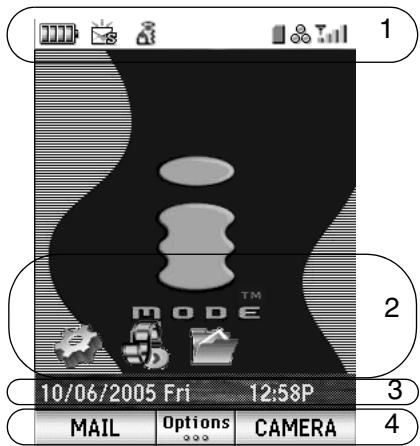
| No | ||
| 1 | Status icon area | Displays the application's status icon. |
| 2 | Desktop icon area | Displays the shortcut icons. |
| 3 | Helpline area | Displays the date and time, and helpline. |
| Softkey area | Displays SK1, SK2 and Options. |
Sub LCD
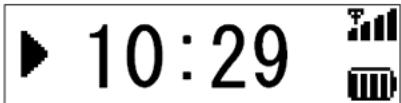
N600i is equipped with the sub LCD to view information without opening the main unit. The sub LCD shows the useful information such as the clock display (normal/simple)(see page 49), the play time while a video or audio file is running (see page 42), an incoming call or alarm notification and the volume setting.
The following shows the examples for display:
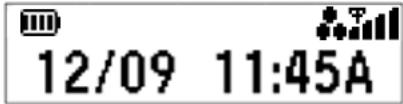
Example of the clock display
This is a normal sub LCD screen.
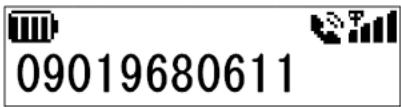
Example of the text display
This is shown when an event occurs, such as alarm, incoming calls and receiving mails.
Example of the media player
This is shown when the media player is performing.
Overview of Menu functions
N600i provides nine main menus on the Menu screen and the following shows the location in this User Manual for your reference.
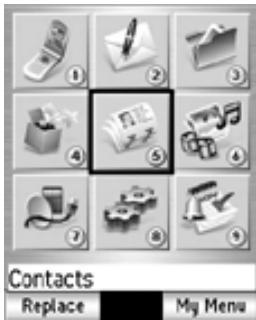
| No | Top menu | 2nd level menu | Page |
| 1 | Phone (M1) | - | 18 |
| 2 | Messages (M2) | SMS | |
| New SMS | 25 | ||
| Inbox | |||
| Draft | |||
| Sent | |||
| My folders | |||
| CB message | |||
| Settings | |||
| iMail/IMMS | |||
| Compose iMail | 28 | ||
| Compose iMMS | |||
| Inbox | |||
| Sent | |||
| Draft | |||
| Check for new mail | |||
| Manual retrieval | |||
| Mail settings | |||
| 3 | File manager (M3) | Memory | 32 |
| Memory card | |||
| 4 | Java™ (M4) | - | 34 |
| 5 | Contacts (M5) | Add contact | 36 |
| Handset contacts | |||
| USIM contacts | |||
| Manage contacts | 37 | ||
| Contact groups | |||
| Other folders | |||
| Settings | |||
| No | Top menu | 2nd level menu | Page |
| 6 | Multimedia centre (M6) | Take photo | 39 |
| Make video | |||
| Record sound | |||
| View images | |||
| Play video | |||
| Play music | |||
| Play sound | |||
| 7 | External connection (M7) | Bluetooth | 44 |
| Synchronisation | 46 | ||
| Memory card | 47 | ||
| 8 | Settings (M8) | Handset profile | 48 |
| Screen settings | 49 | ||
| Calls | 50 | ||
| Date and time | 53 | ||
| Language | 54 | ||
| Security | 54 | ||
| Network setup | 56 | ||
| Clear settings | 57 | ||
| 9 | Toolbox (M9) | Scheduler | 58 |
| To Do | 59 | ||
| Alarm clock | 60 | ||
| Notepad | 61 | ||
| Calculator | 62 | ||
| Call memo | 62 |
Keypad operations
Shortcut keys can help you access some things more easily. The following table shows the keypad operations including shortcut keys that are available and explains what you can use them for in various modes. The word "long" means pressing and holding a key.
| Mode | Key | Function |
| In Home screen | SK1 | Displays the iMail/iMMS mail screen |
| SK1 (long) | Displays the SMS mail screen | |
| SK2 | Activates the camera function | |
| SK2 (long) | Activates the video function | |
| Up | Displays the Handset profile screen | |
| Down | Displays the Contact list | |
| Left | Incoming calls list | |
| Right | Missed calls list | |
| Outgoing calls list | ||
| Enter | Activates the desktop | |
| i-mode (■) | Displays the i-mode screen | |
| i-mode (▲)(long) | Displays the JAVA application list | |
| (MENU) | Displays the Main menu | |
| ( long) | Power off | |
| 0 (long) | Enters + for international call | |
| Options | Displays the Options menu list | |
| In Menu screen | SK2 | Displays the My Menu screen |
| * | Sets the keypad lock to On | |
| # | Sets the side key lock to On/Off |
| Mode | Key | Function |
| While dialling | SK1 | Makes a video call to the entered number |
| SK2 | Saves the entered number to the contact list | |
| UP | Moves the cursor up | |
| Down | Moves the cursor down | |
| Left | Moves the cursor to the left | |
| Right | Moves the cursor to the right | |
| C | Makes a voice call to the entered number | |
| i-mode ( ) | Activates the browser | |
| ( ) | Displays the Main menu | |
| ( ) | Returns to standby mode | |
| ( ) (long) | Power off | |
| CLR | Deletes one digit | |
| CLR (long) | Repeats deletion | |
| 0 (long) | Enters + for international calls | |
| # (long) | Enters p (pause)This function is not available in cases that no numbers are pressed or # will be entered right after p. | |
| Options | Displays the Options menu list | |
| While receiving | SK1 | Answers the call |
| SK2 | Ignores the call | |
| UP | Turns the ringtone volume up | |
| Down | Turns the ringtone volume down | |
| ( long) | Answers the call | |
| ( long) | Switches handsfree on/off | |
| ① | Rejects a call | |
| ① (long) | Rejects a call and turns the power off | |
| Options | Displays the Options menu list | |
| CLR | Mutes the ringtone | |
| Other than above | Answers a call (when Any key answer is on) | |
| During a call | SK1 | Holds the call |
| SK2 | Displays the Contact list | |
| Up | Turns the volume up | |
| Down | Turns the volume down | |
| Left | Incoming calls list | |
| Right | Missed calls list | |
| ( long) | Outgoing calls list | |
| i-mode ( ) | Activates the browser | |
| ( ) | Displays the Main menu/My Menu | |
| ① | Ends the call | |
| ① (long) | Ends the call and turns the power off | |
| 0 ( long) | Enters + for international calls | |
| Options | Displays the Options menu list |
| Mode | Key | Function |
| Text entry using multitap mode | SK1 | Switches to numeric mode (and, if pressed again, switches to T9® mode) |
| SK2 | Cancels text editing | |
| Options | Displays the Options menus | |
| Enter | Completes text editing and closes the text editing screen | |
| \(\rightarrow\) | Returns to the Home screen | |
| \(\widehat{\mathbb{O}}\) | Discards the text and closes messages | |
| \(\widehat{\mathbb{O}}\) (long) | Power off | |
| \(\text{CLR}\) | Characters remain in the text box: Deletes one character to the left of the cursor No character is in the text box: Cancels the deletion and returns to the saved data | |
| \(\text{CLR}\) (long) | In Delete mode: Continues deleting backward from the cursor In Backspace mode: Continues deleting forward from the cursor | |
| 0-9 (long) | Enters 0-9 | |
| 1 | Inserts basic symbols | |
| 0 | Inserts a space, 0 or basic symbols | |
| \(\#\) | Displays the symbol menu | |
| \(\#\) (long) | Displays the multi symbol menu | |
| \(*\) | Specifies the character and switches between lower case, shift and caps lock mode | |
| \(*\) (long) | Activates the Copy/Cut/Others function | |
| Text entry using T9® mode | SK1 | Switches to Multitap mode (and, if pressed again, switches to numeric mode) A last candidate is displayed: Goes to Multitap mode temporarily (and returns to T9 mode by entering a space or pressing the Right key) |
| SK2 | No unconfirmed entry: Quits text editing Unconfirmed entry: Displays the next T9 combination Last combination(3/3): Returns to the first(1/3) combination | |
| Options | Displays the Options menu | |
| Enter | No unconfirmed entry: Completes text editing Unconfirmed entry: Enters the current T9 candidate | |
| * | Switches between the upper case and lower case. | |
| ① | Discards the text and closes messages | |
| ①(long) | Power off | |
| CLR | Characters remain in the text box: Deletes one character to the left of the cursor No character is in the text box: Ends the text entry screen | |
| CLR (long) | In Delete mode: Continues deleting backward from the cursor In Backspace mode: Continues deleting forward from the cursor | |
| 0-9 (long) | Enters 0-9 | |
| 0 | Inserts a space |
| Mode | Key | Function |
| Text entry using T9® mode | # | Displays the symbol menu |
| # (long) | Displays the multi symbol menu | |
| * | No unconfirmed entry: Specifies the character and switches between lower case, shift and caps lock mode Unconfirmed entry: Changes the highlighted word between ABC, Abc and abc formats | |
| * (long) | Activates the Copy/Cut/Others function | |
| Text entry using numeric mode | SK1 | Switches to T9® mode (and then, if pressed again, switches to Multitap mode) |
| SK2 | Cancels text editing | |
| Options | Displays the Options menus | |
| Enter | Completes text editing and closes the text editing screen | |
| ① | Discards the text editing and closes the message function | |
| ① (long) | Power off | |
| CLR | Characters remain in the text box: Deletes one character to the left of the cursor No character is in the text box: Cancels the deletion and return to the saved data | |
| CLR (long) | In Delete mode: Continues deleting backward from the cursor In Backspace mode: Continues deleting forward from the cursor | |
| 0 (long) | Inserts + | |
| Text entry using numeric mode | # | Displays the symbol menu (Depend on each input field) |
| # (long) | Displays the multi symbol menu | |
| * (long) | Activates the Copy/Cut/Others function |
Introduction
Your N600i combines a wide range of features in a technologically advanced phone, capable of operating on UMTS (Universal Mobile Telecommunication System), also known as 3G, GSM (Global System for Mobile Communications) or 2G and GPRS (General Packet Radio Service) or 2.5G.
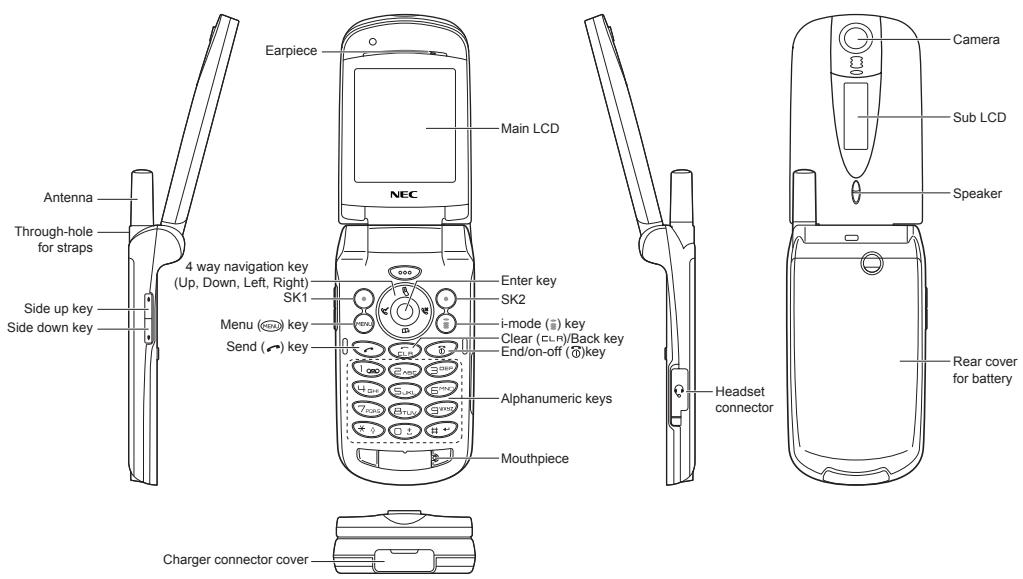
Overview of N600i
3G allows much greater data speeds than 2G/2.5G networks and enables you to make video calls, send multimedia messages, view photos and videos and much more.
Setting up your N600i
This section explains how to prepare your phone for use. Before you use your phone you must do the following:
- Insert a valid USIM (Universal Subscriber Identity Module) card
- Insert the TransFlash™ memory card
Charge the battery - Set the date and time
TransFlash memory card is shipped with N600i.
How to insert or remove the USIM card or TransFlash memory card
Your N600i includes the USIM card that must be inserted into your phone, and TransFlash memory card that is used as an external storage media.
TransFlash package includes an adapter with which you can transfer the data in TransFlash to PC.
The USIM card and TransFlash memory card holders are located underneath the battery. If the USIM card is removed, then the phone becomes unusable until a valid USIM is inserted.
Always disconnect the charger and other accessories from your phone before inserting and removing your USIM card.
Ensure that the power is off. If the power is on, press and hold until power is off.
Handle with care for insertion or remove of the USIM card and TransFlash memory card
The following diagram shows how to Insert/remove the USIM card or TransFlash memory card. Look at carefully and follow this instruction.
Slide and remove the battery cover.
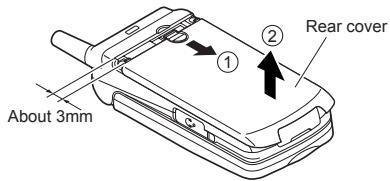
If the battery is inserted, remove this.
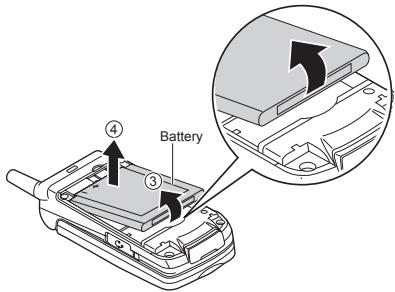
To insert the USIM card
Insert the USIM card into the USIM card holder and slide the card forward until you hear the locking clip click.
When removing the card, slide it downward with the locking clip pushing down (6)
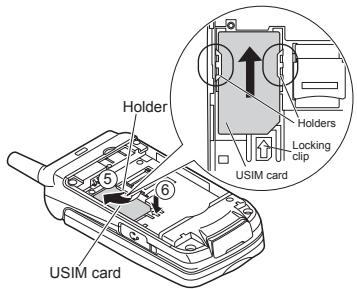

Make sure that the USIM card is properly inserted (gold plated contacts facing down, and notch to the right).
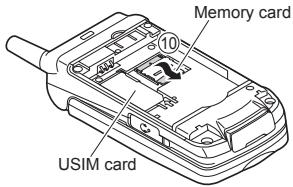
To insert the TransFlash memory card
To insert the TransFlash memory card, slide the metal cover forward and lift open.
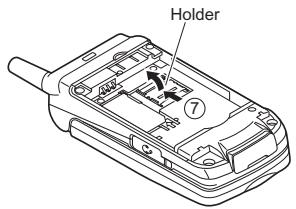
Insert the TransFlash memory card with the gold plated contacts facing down.
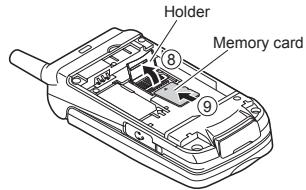

Make sure that the TransFlash memory card is properly inserted.

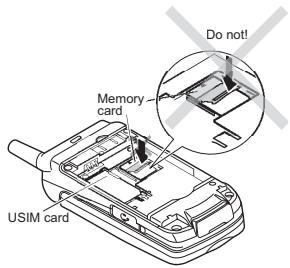
Lower the metal cover on the memory card, and slide downward to lock it.

Do not force close the metal cover leaving any interspace between the cover and the memory card, or the TransFlash memory card may be damaged.
Charging the Battery
To Insert the Battery
When fitting the battery, face the outside cover of the battery towards you. Place the top of the battery into position and push the lower section of the battery into place.
Set the battery.
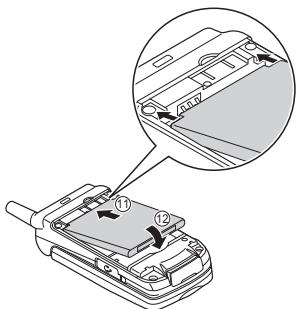
Return the battery cover.
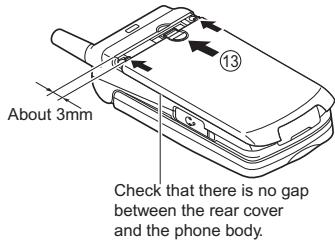

Handle with care for setting the battery.
You can charge the battery whenever you wish without affecting the performance of the phone.
Your N600i automatically switches off if the battery charge is too low.
Batteries have a life cycle. If you find that the amount of times you have to charge the battery is increasing dramatically, the battery life may be coming to an end. Use only the NEC original or approved batteries. Unapproved batteries can impair the performance of the phone and invalidate the warranty.
When the battery is not being used for a long period of time, remove it from your N600i and store in a cool, dry place.
A battery that has not been used for a long period of time needs to be completely discharged and then recharged two or three times before reaching full capacity.
To Charge the Battery Using the Charger
Insert the battery into the phone (see To Insert the Battery in this section).
Connect the charger plug to your N600i charger connector.
Plug the charger into a mains socket. The LED indicator on your N600i lights up while charging is in progress and goes off when charging is completed.
After charging is completed, unplug the charger from the charger connector.
When the phone is being used, the battery level may decrease even if the phone remains connected to the charger.
The battery must be charged at room temperature. Ensure that your phone is switched off. If the phone temperature is high, wait until it returns to a normal temperature.
The recommended battery charge time is approximately two hours.
Stop charging the battery if charging is not completed within five hours. Remove the charger from the phone and connect it again to restart the charging.
The LED indicator may take a few minutes to light up after the phone starts charging an empty battery.
Cautions on charger plug

Do not wrench the charger plug (AC adapter) when you plug or unplug it. Otherwise damage may occur on the charger plug or your N600i.
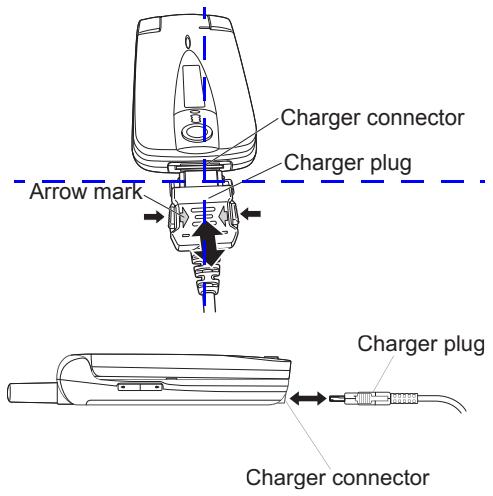
Correct
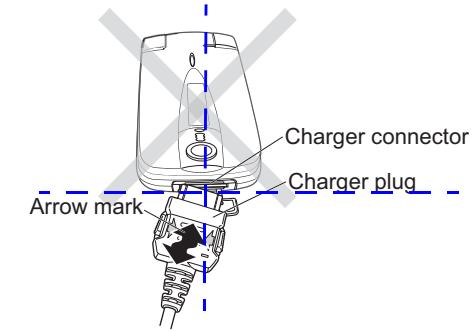
Incorrect
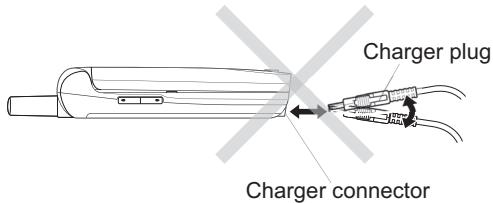

Make sure to connect or disconnect the charger plug (AC adapter) in the following manner: Press and hold the latches on both sides of the charger plug and push or pull gently and vertically from the charger connector.

Handle with care for the charger plug.
Low Battery Alarm
The battery power has 4 levels and is indicated by the following icons,

Battery level 1

Battery level 2

Battery level 3

Battery level full
When the battery power becomes lower, the battery level 1 icon (red) appears. After a while a beep sound also warns you.

When the battery runs out, the above image appears and blinks. There also sounds an audible alarm. The phone switches off automatically afterwards. If the low battery alarm occurs during a call, the call will be disconnected after approximately 60 seconds.
The volume level of the low battery alarm depends on the settings of the ringtone volume on standby and the earpiece volume during a call.
Switching your N600i on and off
To Switch On
After inserting the USIM card (see page 9) and the inserting/charging the battery (see page 11), press the key until the phone switches on (approximately two seconds).
To Switch Off
In Standby mode, press and hold the 0 key until the phone powers down. There may be some delay while the phone switches off. Do not attempt to switch the phone on again during this time.
Power Saver
The power saver function turns the screen off when the phone is left idle for a certain period of time. You can turn the screen back on by pressing any key.
Setting the Clock
When using your N600i for the first time you are prompted to set the current date and time.
To Set the Clock
Press the MENU key, select the Settings icon, select Date and time and Set date and time.
Enter the current date and time. Refer to Date and time on page 53 for details.
Entering your PIN Code
If you want to secure information in your phone, you can activate your PIN code so that the phone cannot be used without entering the PIN as you switch on your phone. (For information about how to activate PIN codes, refer to Security on page 54.)
PIN1 and PIN2 numbers are usually supplied with your USIM card. If not, or you have lost them, contact your local representatives.
To Enter your PIN Code
Ensure that your USIM card is in your N600i and that the battery is charged.
Press and hold the key until power is on.
If the Password screen is displayed, enter your PIN1. The code you enter appears as asterisks (串)
If you make a mistake while entering your PIN, delete the wrong number by pressing the CLR key.
Press the SK1 (OK).
If you are connecting onto another network, the name of another operator appears.
Check your own number
To check your own number, press the Menu key and press 0 from the Home screen.
Locking your N600i
N600i provides you with the key lock function which prevents your phone from being used except for answering voice/video calls (see Security (M86)).
When your phone is locked, you cannot switch it off. Remember to unlock it first.
To turn the keypad lock on or off
Press (MENU) and the key to set the keypad lock on.
When your phone is locked, press (MENU) and the key to set the keypad lock off.
The following animation prompts you to unlock the key.


For emergency calls, see For emergency calls (page 19).
To set the side key lock on or off
Press (MENU) and the # key to set the side key lock on.
When side key is locked, press (MEN) and the # key to set the side key lock off.
Understanding the Menu
This section describes how to use the menus.
By selecting icons, menus, submenus, options menus or building your own shortcuts, you can access the numerous functions and their settings.
- Icon list
An icon is a graphic image that links to a category of functions or a particular function.
- Menu list
Your N600i's functions are reached through a system of menus. You can select a menu item by scrolling up or down and pressing the Enter key. Alternatively, press the item's corresponding number. If there are more than nine items in a menu, not all of the choices are visible on the same screen. You can scroll up or down to view the next screen. You can reach the main menu by pressing the MENU key.
- Options menu list (Press Options when available.)
This is a dynamic menu. That is, the options available depend on the function you are using. The Options menu indicator (three white dots appear below the time display at the bottom, centre of the screen) shows when an Options menu is available. Press Options to access the menu.
Menu functions
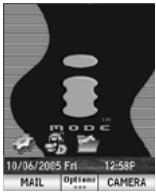
Home screen
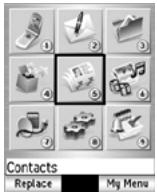
Menu screen
To display the Main Menu

You can switch the Home screen to the Menu screen by pressing (MENU), and the Menu screen to the Home screen by pressing or the CLR key.
To highlight a Menu option
Press the 4-way navigation key (Up, Down, Left and Right) or the icon ID number (1 to 9).
To change the desktop icons or main menu icons
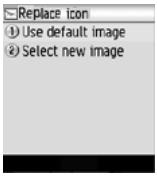
Press SK1 (Replace) and select 1 (Menu skin) on the Menu screen.
Select 2 (Select new image) and set your favorite image from My photos.
If you want to change to the default icons, select 1 (Use default image).
Menu options
For your understanding, setting the wallpaper is described as an example.
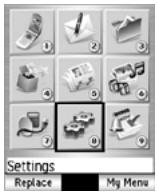
Press (MENU) to display the Menu screen.
Use the Up, Down, Left and Right keys to highlight 8 (Settings). Whenever an icon is highlighted it has a box around it and the icon name appears at the bottom of the display.
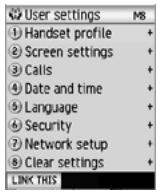
Press the Enter key and the User settings menu is displayed.
Use the Up and Down keys to highlight 2 (Screen settings) and press the Enter key, or, alternatively press 2.
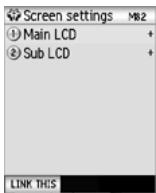
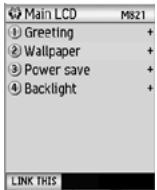
Select and press 1 (Main LCD) to go to the Main LCD screen.
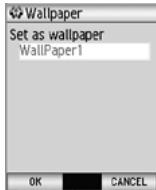
Use the Up and Down keys to highlight Wallpaper and press the Enter key, or, alternatively press 2.
Press SK1 (OK) and the image is set as wallpaper and the screen returns to the Screen settings list menu.
My Menu
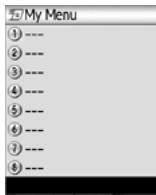
My Menu
You can create shortcuts to an application or a function that you frequently use on the Home screen or in the My Menu screen. Whenever you can create a shortcut to an application/function, the Link this menu is available on SK1. From SK1, you can select where to add the shortcut, on the Home screen (Add to Home) or in the My Menu list (Add to My Menu).
Home screen shortcut
You can also create shortcut icons to applications/ functions on the Home screen. Pressing the Enter key followed by the 4-way navigation keys (Up, Down, Left and Right) on the Home screen highlights the shortcuts. Press the Enter key to select the highlighted shortcut to activate the application/function.
My Menu
My Menu is your customised list of shortcuts to applications/functions. Pressing the MENU key twice on the Home screen or pressing the SK2 (My Menu) on Main Menu displays the My Menu screen. Highlight the required shortcut by pressing the Up and Down keys and then press Enter key to activate the application/function.
You can create shortcuts and also delete items 1 to 8 on the My Menu screen.
The My Menu screen varies depending on the region.
Home screen
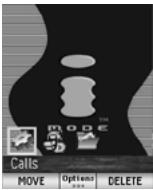
You can activate various functions and settings and customise your Home screen. You can do the following from the Home screen.
Shortcuts
To activate a Home screen shortcut Press the Enter key on the Home screen. Use the navigation keys to move to the desired shortcut and press the Enter key to select.
- To move a Home screen shortcut
- Select the Home screen shortcut, press SK1 (Move).
- Highlight the new place and press SK1 (Place).
To delete a Home screen shortcut Select the Home screen shortcut, press the SK2 (Delete).
Dialing
- To paste the copied phone number onto the Home screen (dialler is activated)
After you copy a phone number, return to the Home screen and press Options and select Paste. The copied phone number is pasted on the dialer.
To save the input/copied phone number in Contact list After you input/copy a phone number on the Home screen, press the SK2 (Add). - To send a message to the input/copied phone number After you enter/copy a phone number, press Options and select Send message.
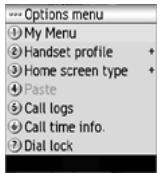
Options
- To access My Menu
- Press Options and select 1 (My menu) menu. See My Menu in this section.
- To change the active phone profile
- Press Options and select 2 (Handset profile), or press the Up key on the Home screen. Select a profile option. See Handset profile (M81) (page 48) in Settings (M8) for details.
- To set the Home screen type
- Press Options and select Home screen type. Select Standard or Show calendar (the monthly view calendar).
- To display the call logs
- Press Options and select 5 (Call logs). See Call Logs (page 24) in Phone (M1) for details.
- To display call time information
- Press Options and select 6 (Call time info.) Select an item to display the desired information. See Calls (M83) (page 50) in Settings (M8) for details.
- To set the dial lock function
- Press Options and select 7 (Dial lock). See Locking your N600i (page 14) or Security (M86) (page 54) for details.
To turn the key lock on/off, press (MENU) and the # key. See Locking your N600i (page 14) for details.
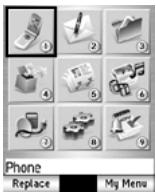
Choose any one to start Phone.
MENU 1
- Select 1 (Phone) on the Menu screen to press the Enter key.
Press the phone number on the Home screen.
N600i provides you with the voice call and video call services. This section guides you how to make/ receive a voice/video call through the following step by step:
Making a voice call
Receiving a Voice Call
During a Voice Call
Making a Video Call
Receiving a Video Call
During a Video Call
- Call Logs
Video call is only available in 3G coverage.
When using the headset, you can start/end a voice call using the switch on the microphone.
When the USIM card installed in your N600i supports the SIM toolkit, the USIM card menu icon is displayed instead of the Phone.
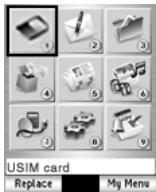
Making a voice call
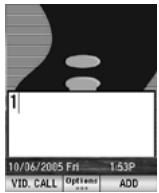
1 (Phone) or press the phone number on the Home screen.
Enter the phone number using the keypad.
To correct mistakes, press the CLR key briefly to delete the last number or press and hold the CLR key to clear all the numbers.
Press to start the call.
Press to end the call.
Pressing or is the final operation to start or end the call for every steps in this section.
To make a call using the Contact list
(5) Contacts to display the contact list. Search and select the addressee's phone number.
You can press the Down key on the Home screen as well.
See Contacts (M5) for details.
To make a call from Incoming calls list
Press the Left key on the Home screen to display Incoming calls.
Select the phone number on the list.
You can also press Options on the Home screen, and press 5 (Call logs), then 2 (Incoming calls). See Incoming calls (page 24) for details.
To make a call from Outgoing calls list
Press on the Home screen to display Outgoing calls. Select the phone number on the list.
You can also press Options on the Home screen, and press 5 (Call logs), then 1 (Outgoing calls). See Outgoing calls (page 24) for details.
To make a call from Missed calls list
Press the Right key on the Home screen to display Missed calls. Select the phone number on the list.
You can also press Options on the Home screen, and press 5 (Call logs), then 3 (Missed calls).
See Missed calls (page 24) for details.
For emergency calls
Even if the phone is locked, you can make emergency calls only to the designated numbers. Follow the steps below to make emergency calls while the key lock is set. Your N600i is unlocked temporarily for the emergency call. (For details about the key lock, see Locking your N600i (page 14) or Security (M86) (page 53).)
When the Keypad lock is turned on,
Enter the emergency number 112 and the confirmation screen is displayed.
Press SK1 (YES) to make an emergency call or SK2 (NO) to cancel a call.
The screen below is displayed until you enter the designated emergency number correctly.

When the Dial lock or Auto lock is turned on,
Enter the emergency number 112 and the emergency call screen is displayed.
Press SK1 (SEND) or the Enter key to make an emergency call, or SK2 (CANCEL) to cancel a call.
Besides 112 input, pressing SK2 (EMRGCY) and SK1 (YES) is also available on the Home screen.
For speed call
Enter a contact memory number from 2 to 99 and press to call the phone number registered for the memory number in the main unit (not the USIM card).
To turn on/off the speed dial function, press (MENU) to select Settings, Calls, Advanced settings, and then select Speed dial.
If more than one phone number is registered for a memory number, the first number is used to make a call.
See the Calls (M83) (page 50) section in Settings (M8) for details.
For one touch dial
Pressing and holding a key from 2 to 9 calls the number registered in the One touch dial list.
To register or edit the number in the One touch dial list, press (MENU) to select 5 (Contacts), 7 (Settings), and 1 (One touch dial). You can register phone numbers to 2 to 9 in the list. Voicemail number is preset as 1 and cannot be moved or deleted.
For pause dial
Enter the phone number, then press and hold # to insert a pause (displayed as P).
Input the numbers to call, inserting pauses where necessary. Press to dial the input numbers. When the other party answers the call, the next number is automatically dialed in 3 seconds. Then, all succeeding numbers are automatically dialed every 3 seconds.
Receiving a Voice Call
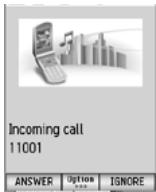
Press or SK1 (ANSWER) when you receive a voice call.
You can also answer a call by pressing Options and 1 (Answer call) when receiving a voice call
When Any key answer function is activated, you can press any key to answer the call except SK2 (IGNORE), (MEN), i-mode (key, Up or Down key (including the side key), the _ and Options. (See the section of Calls (M83) page 50); Any key answer: (page 50) for details.)
When Active flip function is activated, you can answer the call only by opening your N600i. (See the section of Calls (M83); Active flip: (page 50) for details.)
When the Calling Line Identification (CLI) function has been activated by the caller, the registered image is displayed. (See the section of Calls (M83); Portrait Display: (page 52) for details.)
When the headset is connected, pressing the headset switch also answers the call.
To reject the call
Press , SK2 (IGNORE) or 2 (Ignore call) in the Options menu while receiving a call.
When you miss a call
If you miss a call, it is shown as a missed call by an icon on the Home screen. The missed call is saved to the missed calls list. When you display Missed calls, the icon disappears.
During a Voice Call
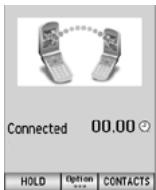
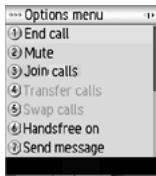
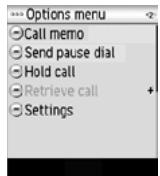
Depending on the conditions, some options may be greyed out and not be available
To Switch to a Grouptalk
(When there are six calls on-line and 7th call are held call)
Press Options and Join calls.
Press Options, Drop or Split Call. Pressing the SK1 (SPLIT) splits the selected caller from the Grouptalk and the SK2 (DROP) drops the selected caller from the Grouptalk.
To end the call
Press to end the call.
Pressing Options to select 1 (End call) is available.
To put a call on hold
Press SK1 (HOLD) or press Options, while talking, to select Hold call. The call will be put on hold.
Options menu contains 2 pages. Use the Right/ Left key to go to the other page.
To retrieve the call, press SK1 (RETRIEVE) or press Options, while holding, to select Retrieve call.
To search the contact list
Press SK2 (CONTACTS) to display the Contacts list. See Contacts (M5) for details.
To mute the microphone
Press Options and select 2 (Mute).
To adjust the earpiece volume, press the Up and Down key (including the side key) to adjust the volume while on a call.
To disconnect from a call waiting service
Press Options and select 4 (Transfer calls).
If you have two lines connected (one is active and another one is holding), using this function enables you to disconnect two lines and to connect for these two lines.
To switch between the active line and the holding line
Press SK1 (SWAP) or select 5 (Swap calls) from the Options menu.
You can switch between the active line and the holding line.
To talk handsfree
Press Options and select Handsfree on. The speaker turns on and you can talk handsfree.
To send a message
Pressing Options and select 7 (Send message) enables you to send the message.
To record a Call memo
Press Options and select Call memo to start recording the conversation.
To stop the recording, press the Enter key.
Both your voice and the other party's voice are recorded. (20 seconds max.) Five call memos can be recorded in the phone. A call memo is displayed with its date and time of recording

Always ask the other party's permission to record.
You cannot attach call memos to messages.
To activate Settings
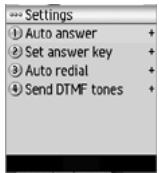
Press Options and select Settings to change the following functions during talking:
- Auto answer:
Sets On or Off for automatic answering.
- Set answer key:
Selects 1 (Use any key) or 2 (Send key only) as the call answering key.
- Auto radial:
Sets On or Off for automatic radial.
- Send DTMF tones:
Sets On or Off for sending the Dual Tone Multi Frequency (DTMF) signals.
Making a Video Call
When making a Video Call to a Video Capable phone, follow the steps below:
MENU 1 (Phone) on the Menu screen or to enter the phone number and press SK1 (VID. CALL).
You can enter the phone number on the Home screen as well.
Hold the camera towards you and talk. Adjust the camera position if necessary.
Handsfree is set by default for video calls.
Press to end the call.
For setting the options of video calls, see Video calls (page 51).
Receiving a Video Call
Press or SK1 (ANSWER) to answer and send the captured image from the active camera to the other party.
You can also answer a video call by pressing Options and 1 (Answer (video)) or 2 (Answer (no video))
To answer the video call without sending your image, press the SK2 (NOVIDEO). The alternative photo is sent to the other party.
To make a video call using the contact list
- 5 (Contacts) on the Menu screen to display the Contact list.
You can press the Down key on the Home screen as well.
Search and select the addressee's phone number.
Press SK1 (VID. CALL) to dial the phone number.
To Make a video call from Incoming calls list
Press the Left key on the Home screen to display Incoming calls.
You can also press Options on the Home screen, and press 5 (Call Logs), then 2 (Incoming calls).
Search and select the addressee's phone number.
Press SK1 (VID. CALL) to dial the phone number.
To Make a video call from Outgoing calls list
Press on the Home screen to display Outgoing calls.
Search and select the addressee's phone number.
Press the SK1 (VID. CALL) to dial the phone number. (However, only a voice call is made for emergency numbers.)
To Make a video call from the Missed calls list
Press the Right key on the Home screen to display Missed calls.
You can also press Options on the Home screen, and press 5 (Call logs), then 3 (Missed calls).
Search and select the addressee's phone number.
Press SK1 (VID. CALL) to dial the phone number.
To Reject the incoming video call
Press ① or press Options and select Ignore.
During a Video Call
To set the handsfree mode
Press Options, Other settings and select Handsfree on or Handsfree off.
When the handsfree option is on, the microphone sensitivity increases, and the other party's voice can be heard from the speaker.
To zoom in/out
Press the Right key to zoom in or the Left key to zoom out.
To turn the microphone on/off (send/not send your voice to the other party)
Press SK1 (MUTE/UNMUTE) to switch the microphone on and off.
Alternatively, press Options, Other settings and Mute settings. Select Mute or Unmute.
To turn your camera on/off (send/not send your image to the other party)
Press SK2 (SHOW ME) to switch the camera on. When the camera is on, press SK2 (IN/OUT) to switch the camera direction.
Alternatively, press Options, and then select either Use live video or Use photo instead (whichever is displayed).
To change the screen display mode
Press Options, Other Settings and then Screen mode. Select My side is smaller (to display your image on the smaller window), My side is larger (to display your image on the larger window), Other side only (to display only the other party's image) or My side only (to display only your image).
Pressing SK2 (IN/OUT) is also available to change the screen mode during a video call.
To change the picture quality
Press Options and Picture quality. Select Standard, Better picture (image quality has the priority) or Faster movement (capturing movement has the priority).
To change the night mode
Press Options and Night mode on or off.
To set the contrast mode
Press Options and Contrast settings. Select any from the following:
- Much brighter
Brighter
Standard - Darker
- Much darker
To set the lighting mode
Press Options and Lighting settings. Select Sunny, Cloudy, Automatic or Indoors.
To set the call time duration information
Press Options, Other settings and Show call length. Select Show call length or Do not show.
To adjust the speaker volume
Press the Up and Down keys.
Call Logs
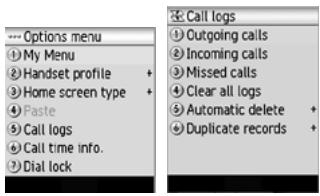
Press Options on the Home screen to select 5 (Call logs).
Call logs are lists of call records such as incoming/ outgoing/missed calls. Up to 20 entries are saved in each call log. You can make a call using these logs, and do the following from Call logs on the Options menu.
| No | Call logs | |
| 1 | Outgoing calls | Displays the calls you made. Pressing on the Home screen is also available to see this menu. |
| 2 | Incoming calls | Displays the calls you received. Pressing the Left key on the Home screen is also available to see this menu. |
| 3 | Missed calls | Displays the calls you missed. Pressing the Right key on the Home screen is also available to see this menu. |
| 4 | Clear all logs | Deletes all the call log data. |
| 5 | Automatic delete | Sets the automatic deletion function Enable/Disable. This function automatically deletes the call logs when you switch off the phone. |
| Duplicate records | Selects whether to allow multiple records to/from the same number to be made on the log or not. Select Allow or Do not allow. | |
If you miss a call, it is shown as a missed call by an icon on the Home screen. After you display Missed calls the icon disappears.

Depending on the conditions, some options may be greyed out and not be available
You can do the following operations when displaying the call records (outgoing/incoming/missed calls). On a call record, press Options.
| No | Options menu | |
| 1 | Send message | Activates the message function. |
| 2 | Delete this record | Delete the highlighted call record. |
| 3 | Clear this log | Deletes all the call records on the log. |
| 4 | Clear all logs | Deletes all the call log data. |
| 5 | Use number | Enters the phone number of the record you select on the Home screen. You do not need to press the same number again. You can make a call to the phone number by pressing |
Depending on the conditions, some options may be greyed out and not be available
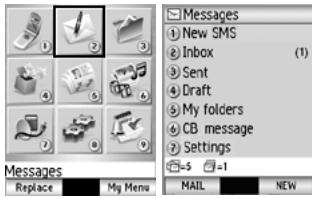
Choose any one to start Messages.
MENU 2
Select 2 (Messages) on the Menu screen to press the Enter key.
Press SK1 (MAIL) on the Home screen.
Message Services
N600i provides the following three message services:
SMS
This service allows you to send short messages (160 half-pitch characters max.) to one or more phone numbers. To send an SMS message, the destination phone number must be a mobile phone with an SMS service subscription.
iMail
This service allows you to send a message to not only other mobile phones but also to PCs and other devices that uses Email addresses. You can attach files from Pictures, Videos and Sounds in My data. Mail facility is available from the Mail screen under the i-mode facility. For details on the mail service, see page 28.
iMMS
This service allows you to send messages of a slideshow of text and multimedia files. When you receive an MMS message, you will be notified by a message from the MMS centre. You can either automatically or manually receive the contents of an MMS message. MMS facility is available from the Mail screen under the i-mode facility. For details on the mail service, see page 28.
For how to enter texts, see Text Entry (page 63).
To use SMS message

(MENU)
2 (Messages) to open the Messages screen.

You can switch between SMS and iMail/iMMS using the SK1 key.
SMS
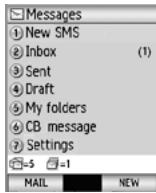
| No | Messages | |
| 1 | New SMS | Allows you to create the SMS message. |
| 2 | Inbox | Displays the received message list. |
| 3 | Sent | Displays the sent message list. |
| 4 | Draft | Displays the incomplete message list. |
| 5 | My folders | Display a list of folders to store the messages. You can create up to 10 folders. |
| 6 | CB message | Displays the Cell Broadcast message list. The Cell Broadcast (CB) messages such as weather, reports and news are distributed from the network. Broadcast message is a network-dependent service. Please contact your local provider for details. |
| 7 | Settings | Change the message settings. |

Depending on the conditions, some options may be greyed out and not be available.
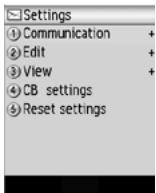
Press 7 (Settings) on the Messages screen and the following menus are available
| No | Settings | ||
| 1 | Communication | ||
| 1 | Status report | Sets to send the status report or not. Request report and No report request are available. | |
| 2 | Validity period | Selects the period of time SMS is stored on the server while trying to deliver the SMS message. | |
| 3 | SMS centre | Edits the SMS message centre address. This address is saved in the USIM card. | |
| 4 | SMS over GPRS | Sets GPRS or GSM to transmit SMS. | |
| 2 | Edit | ||
| 1 | Signature setting | Turns the automatic signature insertion function on/off and edits the signature. | |
| 2 | Quote indicator | Edits the quoted reply mark. | |
| 3 | View | ||
| 1 | Scrolling | Selects the number of lines scrolled when you press the Up or Down key. | |
| 2 | Font size | Sets the font size (Large, Medium, Small). | |
| 4 | CB settings RFroadcast message is a network-dependent service. Please contact your local provider for details. | ||
| 1 | Index settings | Sets up to 6 indexes for the CB messages. | |
| CB language | Selects the language for the CB message. | ||
| 5 | Reset settings | Cleared the settings set under Settings. | |
To create and send a new message
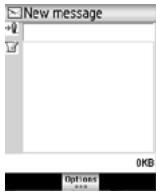
Press 1 (New SMS) or SK2 (NEW) on the Messages screen, and follow the steps below:
1 Select the addressee field on the New message screen and press the Enter key to display the address list screen.
- Press the Enter key to put the addresses, or choose Options to select Open Contacts for entering the phone numbers from the Contacts. (Up to 5 addresses are available for entries.)
2 Select the text entry field to enter the message and press the Enter key.
3 Press the SK1 (SEND) to send the message. The message is sent and saved in the Sent folder.
To set the addressee from the contact entries; Press the SK2 (FIND) on the addressee entry box and select the addressee's phone number.
To save an unfinished and unsent message; Press the SK2 (SAVE). The message is saved in Draft.
To read a message
2 (Messages) and select 2 ( Inbox). Follow the steps below:
1 Select the message.
2 Press the Enter key and the message contents are displayed.
To filter the received messages by a condition; Press Options and select 7 (Filter view). the following options are available: Show all, Read messages, Unread messages, USIM card, Handset memory, Send failed, Unsent.
To sort the messages; Press Options and select 6 (Sort messages). You can use By date (date ascending), By date (date descending), By address (address ascending), By address (address descending).
To move a message; Select the message and press the Options to select 3 (Move message). Select the move destination (USIM card memory is available.), and then press the Enter key.
To delete a message/all messages; Select the message on the Inbox screen and press the SK2 (DELETE). Press the SK1 (YES) to delete the message. Or select the message on the Inbox screen and press Options. Select 4 (Delete)/5 (Delete all) and press the Enter key.
To call back to the sender of an SMS message; Display the SMS message, press Options and select 5 (Call sender).
To make a call to a phone number in the message text; Select the message, press the Enter key to display the message. The phone number is highlighted. (If there is more than one phone number, highlight using the Up and Down keys.) Press the Enter key, and select a voice or video call. Then the phone number is displayed on the screen. You can make a voice or video call after pressing SK1 (YES) on the confirmation screen.
To display a URL in the message text Select the message to press the Enter key to display the message text. The URL is highlighted. Press Options to select 7 (Use the selection), then 4 (Open in browser).
To display status reports; (Sent folder only) Press Options and select 6 (View report).
To organise messages
When the memory allocated for the message function is full, your N600i cannot receive new messages until you move or delete the old messages. Therefore, to prevent the message memory from being full, we recommend that you regularly move the messages to USIM, or delete unnecessary messages.
Creating folders
To manage your message data, create folders under 5 (My folders). You can move the messages in Inbox to a new folder and rename the folder to indicate the category (e.g. Business, Family or Friends). Also, you can set addresses to a folder, to automatically distribute the received messages from the specified addresses.
To create a folder under My folders, start the SMS message service. (MENU) 2 (Messages), pressing SK1 twice on the Home screen or selecting 4 (SMS) after pressing i-mode (key) Follow the steps below:
1 Select 5 (My folders).
2 Press the SK1 (NEW) to create a new folder, and then enter the folder name.
Moving messages
Moving is permitted from USIM to the phone.
In iMail/iMMS message service, when a message without the message text downloaded is included in the moving target, an error message is displayed and the operation fails. Or when attachments are not downloaded first, a confirmation message is displayed before the operation.
Deleting folders/messages
To delete a folder, select the folder and press the SK2 (DELETE) or press Options and select Manage folders, Delete folder.
To delete the whole folder, select a folder, press Options and select Delete folder.
To use iMail/iMMS message
Press SK1 (MAIL) on the Messages screen.
Or press the i-mode ( ) key on the Home screen and 2 (Mail).
You can switch between SMS and iMail/iMMS using SK1.
iMail/iMMS
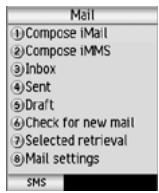
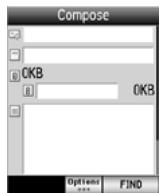
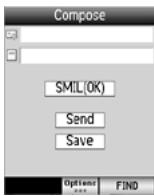
Compose iMail
Compose iMMS
| No | Messages | |
| 1 | Compose iMail | Allows you to create the iMail message. |
| 2 | Compose iMMS | Allows you to create the iMMS message. |
| 3 | Inbox | Displays the received message list. |
| 4 | Sent | Displays the sent message list. |
| 5 | Draft | Displays the incomplete message list. |
| 6 | Check for new mail | Checks whether a new mail is coming. |
| 7 | Selected retrieval | Sets to receive the iMail/iMMS message manually. |
| 8 | Mail settings | Change the settings |
To create and send a new iMail
Press 1 (Compose iMail) and follow the steps below to create a new iMail.
1 Set the addressee.
- Highlight the To field to press the Enter key. Put the key in the destination and press the Enter key.
To refer to the Contacts; Press Options and Open Contacts to retrieve the destination
To send the mail to more than one addressee; Press Options and 3 (Add address) on the Compose screen.
2 Key in the subject.
- Highlight the Subject field and press the Enter key. Put the key in the subject and press the Enter key.
3 Key in the message.
- Highlight the Message field and press the Enter key. Put the key in the message and press the Enter key.
4 Attach a file if necessary.
- Highlight the Attachment field and press the Enter key. Select a file to attach from the My data screen
You can attach files up to 299 KB in total, or 10 files.
To send the mail, highlight Send and press the Enter key.
To save the mail, highlight Save and press the Enter key.
To delete the currently edited mail, press Options and Delete text.
| No | Settings | |
| 1 | Send | Sends the mail. |
| 2 | Save | Saves the mail being edited to the draft folder. |
| 3 | Add Address | Adds one address input field (To) and displays the sub menus (1 to 6). |
| 1 | Open Contacts | |
| 2 | Enter Address | |
| 3 | Change to To | |
| 4 | Change to Cc | |
| 5 | Change to Bcc | |
| 6 | Remove address | |
| 4 | Address menu | Displays the same menu as Add Address for the hilighted address. |
| 5 | Attachment menu | |
| 1 | Attach file | |
| 2 | Attach bookmark | |
| 3 | Remove attachment | |
| 4 | Open file | |
| No | Settings | |
| 6 | Attach signature | Attaches a signature. |
| 7 | Delete text | Deletes the message of the mail being edited. |
| 8 | Delete mail | Deletes the new mail currently edited. |
To create and send a new iMMS
Press 2 (Compose iMMS) and follow the steps below to create a new iMMS.
To send the mail, highlight Send and press the Enter key.
To save the mail, highlight Save and press the Enter key.
Press Options under theCompose iMMS menu and the following menus are available.
| No | Settings | ||
| 1 | Send | Sends the mail. | |
| 2 | Save | Saves the currently created MMS. | |
| 3 | Add address | Adds one address input field (To) and displays the sub menus (1 to 6). | |
| 1 | Open Contacts | Adds the destination directly from the phonebook. | |
| 2 | Enter Address | Allows direct input of the address. | |
| 3 | Change to To | Changes the address status to TO. | |
| 4 | Change to Cc | Changes the address status to Cc. | |
| 5 | Change to Bcc | Changes the address status to Bcc. | |
| 6 | Remove address | Deletes the address input field or information. | |
| No | Settings | ||
| 4 | Address menu | ||
| 1 | Open Contacts | Adds the destination directly from the phonebook. | |
| 2 | Enter Address | Allows direct input of the address. | |
| 3 | Change to To | Changes the address status to TO. | |
| 4 | Change to Cc | Changes the address status to Cc. | |
| 5 | Change to Bcc | Changes the address status to Bcc. | |
| 6 | Remove address | Deletes the address input field or information. | |
| 5 | Attachment menu | Selects the size in which the image/video is displayed. | |
| 1 | Attach bookmark | Attaches bookmarks. | |
| 2 | Remove attachment | Deletes the attached file. | |
| 6 | Delete mail | Deletes the message. | |
To set the iMail/iMMS settings
Press 8 (Mail settings) on the Mail screen and the following menus are available
| No | Settings | ||
| 1 | Communication | ||
| 1 | Auto receive | Sets to receive the iMail/iMMS message automatically. If this option is set, Selected retrieval is set to off. | |
| 2 | Selected retrieval | Sets to receive the iMail/iMMS message manually. On/Off options are available and if this option is set to On, Auto-receive is set to off. | |
| 3 | Get attachment | Sets to receive the attachment files. Image, Audio, Video and PIM are available. | |
| 2 | Edit | ||
| 1 | Edit signature | Turns the automatic signature insertion function on/off and edits the signature. | |
| 2 | Edit quotation | Edits the quoted reply mark. | |
| 3 | View | ||
| 1 | Scrolling | Selects the number of lines scrolled when you press the Up or Down key. | |
| 2 | Font size | Sets the font size (Large, Medium, Small). | |
| 3 | List display | Sets to display the subject in 1 line and the address and name in 1 or 2 lines. | |
| 4 | Folder security | Sets the password to the folder. | |
| 5 | Auto play | Sets the Audio, Video and SMIL files to play automatically. | |
| 6 | Pasted data | Sets to enable or disable the JAVA data attached to the received mail. | |
| 4 | Check settings | You can check the iMail/iMMS message settings. | |
| No | Settings | |
| 5 | Reset settings | Clears the settings set under Settings. |
File manager (M3)
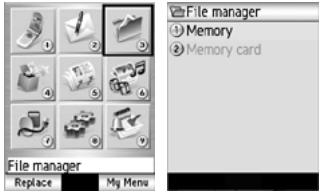
Choose any one to start File manager.
MENU 3
Select 3 (File manager) on the Menu screen to press the Enter key.
You can manage all of your captured and downloaded files from the File manager function.
You can run files that have supported formats, copy, move, delete and sort them as well as previewing image files (thumbnails), showing file properties, creating shortcut and attaching files to messages. In addition, you can create uniquely-named folders to manage the files.
Memory/Memory card
The following shows the folders under Memory or Memory card (TransFlash memory card) and the information that may help your file management.
N600i provides two memory storage places, Memory and Memory card, and each has the following folders.
| No | Memory/Memory card | |
| 1 | Video files | Stores the downloaded and captured video files. Five user folders can be created under Video files with up to 100 files. My videos is the default folder. |
| 2 | Image files | Stores the downloaded and captured image files. Five user folders can be created under Image files with a total of 100 files. My photos is the default folder. |
| 3 | Music files | Stores the downloaded audio files. Five user folders can be created under Music files with up to 100 files. |
| 4 | Sound files | Stores the downloaded and captured voice files. |
| 5 | Other files | Stores the downloaded files with formats other than the above four types of files. Text files are stored here too. (You can activate the viewer by selecting a text file.) Up to 100 files can be stored under this folder. No user folders can be created in this folder. vCalendar and vCard files are also stored in Other files. |
To manage your files, the following options are available.
| No | Options menu | |
| 1 | Send as message | Sends the highlighted file attached to a message. Downloaded files with copyrighted settings cannot be sent from the phone. |
| 2 | New folder | Creates a new folder in the selected folder: Video files/Image files/Music files/Sound files/Other files. The default folder name starts "New". Folder names must be unique. |
| 3 | Rename | Renames the file/folders. Two options are available; one can be edited by users and the other can automatically be renamed with the contents title for the audio/video files. Up to 127 single-byte characters can be used for a file name. For a folder name, up to eight single-byte characters can be specified. You cannot rename files that are with copyrighted settings. |
| 4 | Copy | Copies the highlighted file/multiple files/folders to another folder. Up to 100 files can be selected at one time. |
| 5 | Move | Moves the highlighted file/multiple files/ to another folder. Maximum of 100 files can be selected at one time. |
| 6 | Delete | Deletes the highlighted file/multiple files/folders. Up to 100 files can be selected at one time. When an open file is included in the selected files to delete, the delete operation does not complete. |
| No | Options menu | |
| 7 | File properties | Displays the file information of the highlighted file: date, size, title (displayed if any), file name (always displayed), attribute, copy permission, message transfer permission and play restriction information. |
| 8 | Switch memory | Switches between Handset and Memory card. |
| 9 | Sort files | Sorts the files in order of file name (By name), date (By date) and file size (By size). (Files are displayed in file name order by default.) |
| 10 | Thunnails | Switches to/from list display (Show list) or thumbnail (Show thumbnail) display. |
| 11 | Memory status | Displays the amount of free/used memory space in the handset in bytes. |
| 12 | link this | Create shortcut on the Home screen and in the My Menu list. Select Add to Home or Add to My Menu. Pressing SK1 (LINK THIS) on the list screen also creates a shortcut for the selected file. |

Depending on the conditions, some options may be greyed out and not be available
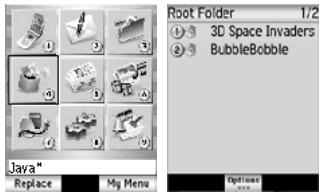
Choose any one to start JavaTM.
MENU 4
Select 4 (Java) on the Menu screen to press the Enter key.
You can download Java™ applications (games etc.) from i-mode sites and run them on your phone.
How to run software
To run a software (Java™ application), perform the following.
Press (MENU) 4 (Java).
Highlight an application containing the software you want to run and press the Enter key.
When you display the J a v a t e^TM applications list screen for the first time after downloading a program(s), it may take a while for your phone to verify the program(s). A message will be displayed during this process, and you may activate the program(s) after it is completed.

After downloading the software, always make sure that you check the downloaded program is displayed in the Applications screen.

Do not remove the battery while the software is running as data to that point may not be saved.
While the software is active, the Java™ operation icon is displayed.
Java™ Option menu
If an application is highlighted, the following options are available for use.
Press Options on the Java menu.
| No | Menu | |
| 1 | Create Folder | Displays the text box to prompt an input for the new folder name. |
| 2 | Move To Folder | Displays the folder list screen to select the destination folder. |
| 3 | Upgrade | Upgrades an application. |
| 4 | Delete | Deletes the selected application. |
| 5 | Delete All | Deletes all applications and all folders. |
| 6 | Sort | Displays the menu screen to select the sort criteria. |
| 7 | Properties | Displays the property screen. |
| 8 | Certificate | Displays the certificate screen. |
| 9 | Network Setting | Displays the network connection setting screen. |
| 10 | i-Appli To Setting | Displays iAppliTo setting screen. |
| 11 | Icon Info Setting | Displays the icon information setting screen. |
| 12 | AutoStart Setting | Displays the automatic start setting screen. |
| 13 | Show Desc Setting | Displays the ADF setting screen. |
| 14 | AutoStart Failure | Displays the record screen for the automatic start failure. |
| 15 | Trace Info | Displays the trace information screen. |
| 16 | System Info | Displays the system information screen. |

Depending on the conditions, some options may be greyed out and not be available.
If a folder is highlighted, the following options are available for use.
Press Options on the Java menu.
| No | Menu | |
| 1 | Create Folder | Displays the text box to prompt an input for the new folder name. |
| 2 | Delete Folder | Deletes the selected folder. |
| 3 | Rename Folder | Renames the selected folder. |
| 4 | Delete All | Deletes all applications and all folders. |
| 5 | Sort | Displays the menu screen to select the sort criteria. |
| 6 | Show Desc Setting | Displays the ADF setting screen. |
| 7 | AutoStart Failure | Displays the record screen for the automatic start failure. |
| 8 | Trace Info | Displays the trace information screen |
| 9 | System Info | Displays the system information screen. |

Depending on the conditions, some options may be greyed out and not be available
Sort menu is as follows.
Press Options on the Java menu.
| No | Sort | |
| 1 | Name (Ascending) | Sorts by name. (ascending order) |
| 2 | Name (Descending) | Sorts by name. (descending order) |
| 3 | Execute Time↑ | Sorts by recent execution date and time. (ascending order) |
| 4 | Execute Time↓ | Sorts by recent execution date and time. (descending order) |
| No | Sort | |
| 5 | Create Time↑ | Sorts by downloaded date and time. (ascending order) |
| 6 | Create Time↓ | Sorts by downloaded date and time. (descending order) |
| 7 | Used Memory↑ | Sorts by application size. (ascending order) |
| 8 | Used Memory↓ | Sorts by application size. (descending order) |
| 9 | Execute Count↑ | Sorts by executed counts. (ascending order) |
| 10 | Execute Count↓ | Sorts by executed counts. (descending order) |

Depending on the conditions, some options may be greyed out and not be available
Prog backlight
You can set the backlight mode of your phone.
If you set your phone to follow the normal backlight setting, the current power save settings will be active
When the software is not running, the backlight operation depends on your phone's backlight settings.
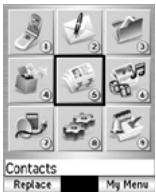
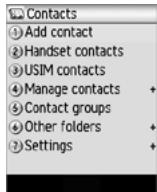
Choose any one to start Contacts.
MENU 5
Select 5 Contacts) on the Menu screen to press the Enter key.
This section describes how to work with Contacts.
Contact Entries
Up to 500 entries can be registered in the handset contact list. Up to 254 entries can be read from the USIM contact list, depending on your USIM card.
To add a new entry to the contact list
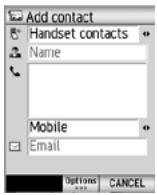
Press 1 (Add contact) on the Contacts screen.
You can also open the Add contact screen by pressing Options on the Handset contacts or USIM contacts screen.
To start Handset contacts or USIM contacts, press 2 (Handset contacts) or 3 (USIM contacts) on the Contacts screen
Or press Down on the Home screen, then Options and select Add contact.
Fill in data on the displayed Add contact screen and press SK1 (OK). The data you entered is saved as a contact entry.
Add contact provides the following fields to be entered:
- Folder field to be stored:
Handset contacts (500 entries max.)
USIM contacts (254 entries max.)
Own no. (10 entries max.) for your phone number
Mailbox (4 entries max.) for voice/video mail centre
Ignored (100 entries max.) for call rejection
Fixed (30 entries max.) for call restriction
Name field
- Phone number and type field
- Email address field
To edit an entry stored
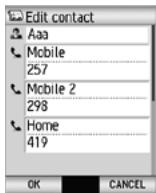
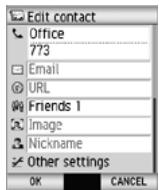
Press 2 (Handset contacts) or 3 (USIM contacts) on the Contacts screen.
You can also choose the folders from 6 (Other folders) which provides Own no., Mailbox, Services, Ignored and Fixed.
Select the entry and press Options.
Pressing the Enter key twice is also available after selecting the entry.
Edit the profile and press SK1 (OK).
To edit a contact group
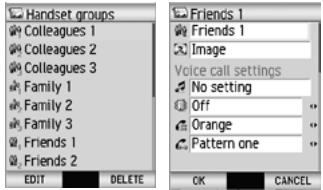
Press 5 (Contact groups) on the Contacts screen and select a contact group name to press SK1 (EDIT).
You can edit data only when containing one or more entries in one group.
Fill in the profile data.
You can edit the group name, set a group image and select ringtones, illumination color and vibration patterns for incoming voice calls, video calls or messages from a member of that group.
To Copy, Move or Delete the entries
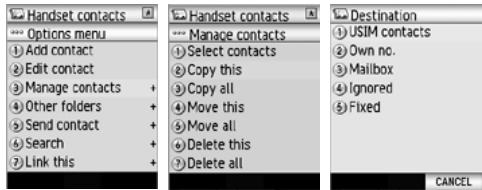
Choose the folder (Handset contacts, USIM contacts or other folders) containing the entry to be handled, and select it to press Options.
Select 3 (Manage contacts) and choose any one you want to perform from 2 to 7.
Select the destination folder to copy or move the entry, and press the Enter key.
If you want to perform Copy all, Move all or Delete all, pressing 4 (Manage contacts) is also available.
To display the contact memory status
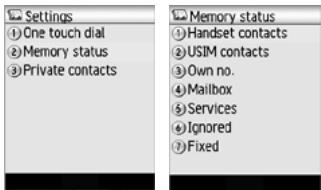
Press 7 (Settings) and select 2 (Memory status).
Select any one you want to check the status from 1 to 7.
To write a message from a contact list
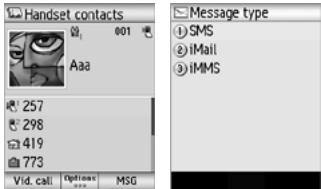
Select the entry then press the Enter key.
Highlight the phone number or email address and press SK2 (MAIL). You can send the message by SMS, iMail or iMMS.
To send the Contact data
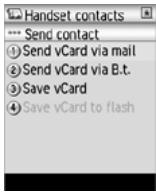
Select the entry.
Press Options to select 5 (Send contact), and choose a message type you want to send from 1 to 4.

You can only send contact data which is stored on the Handset contacts list.
The following shows the data that you can enter under a name in the Handset contacts or USIM contacts lists
Upper and lower cells describe Handset contacts and USIM contacts, respectively.
| No | Add contact | |
| 1 | Name | (32 single-byte characters max.) |
| Can be registered, edited and deleted. | ||
| 2 | Nickname | (32 single-byte characters max.) |
| - | ||
| 3 | Image | One image file |
| - | ||
| 4 | Phone number | Up to four phone numbers (32 digits max. for each) Up to 33 digits can be entered per phone number when it includes the international code "+" . |
| One or two phone numbers (This item can be registered, edited and deleted.) | ||
| 5 | Up to 3 email addressesThough an email address can contain up to 90 single-byte characters when you register the Contact entry, it is limited to 50 single-byte characters when you send video calls. | |
| Only one email address with up to 90 single-byte characters | ||
| 6 | URL | One homepage address (256 single-byte characters max). |
| - | ||
| 7 | Handset groups | Choose from 16 groups |
| - | ||
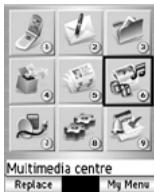
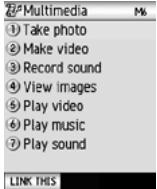
Choose any one to start Multimedia centre.
MENU 6
Select 6 (Multimedia centre) key on the Menu screen to press the Enter.
This section describes how to use multimedia centre on your N600i to capture and play back multimedia files. You can also use it to play back files that have been downloaded or sent to you.
Capture
To take a photo/make a video
(1) (MENU) 6 (Multimedia centre) or press SK2 (CAMERA) on the Home screen.
Press 1 (select Take photo) to take a photo, or press 2 (select Make video) to make video.
Press SK1 to switch between Photo and Video
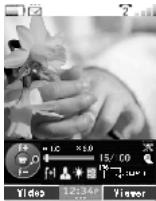
Take photo
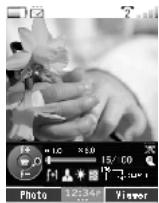
Make video
To start recording, press the Enter key.
To turn the zoom function on/off, press the Right or Left key.
To adjust the exposure rate, press the Up or Down key.
To stop recording, press the Enter key again.
The capture complete screen appears. You can do the following from this screen.
- Press SK1 (SEND) to send the file attached to iMail/iMMS.
To return to the capture preview to take a new photo or make a new video, press SK2 (BACK).
you can use the options of Send as message, Rename and Delete.
To understand the Option settings for your N600i's camera, read the following table.
| Setting items | Camera function | |
| Video | Photo | |
| Recording mode | PHOTO VIDEO | |
| Zoom | OFF/ON | OFF/ON |
| Inward camera | 2 levels max. | 2 levels max. (QCIF and SQCIF are only available for zooming.) |
| Outward camera | 8 levels max. | 8 levels max. (no zooming for SXGA) |
| Exposure compensation | +2, +1, 0, -1, -2 | |
| Camera direction | IN (Inward camera) OUT (Outward camera) | |
| File size limit | (File size) 300KB Unlimited (external memory) | |
| Size | (Capture size)QCIF (176 x 144)SQCIF (128 x 96) | (Capture size)Inward camera:·CIF (352 x 288)·QCIF (176 x 144·CLI and icon (160 x 160)·SQCIF(128 x 96)·Wall Paper (240 x 272)Outward camera:·SXGA (1280 x 1024)·VGA (640 x 480·CIF (352 x 288)·QCIF (176 x 144)·CLI and icon (160 x 160)·SQCIF (128 x 96)·Wall Paper (240 x 272) |
| Picture quality | HighStandardEconomy | HighStandardEconomy |
| Night mode | OFFON | |
| Lighting settings | SunnyCloudAutomaticIndoors | |
| Self timer | - | Self timer on (10 sec fix.)Self timer off |
| Sound settings | Video with sound Video only | - |
| Display size | Do not enlarge enlarge | |
| Memory location | Handset Card | |
| Setting items | Camera function | |
| Video | Photo | |
| Shutter sound | Shutter sound 1Shutter sound 2Shutter sound 3 | |
Recording sound
The voice recorder feature allows you to record a message while you are not online. The recording time is 180 seconds (or 300KB). The recorded voice is automatically saved as an AMR file which can be attached to iMail/IMMS.
To use the voice recorder
Press 3 (Record sound).
To start recording, press the Enter key
To stop recording, press the Enter key again.
After the recording complete screen appears, press SK1 (SEND) to send the recorded voice file attached to iMail/iMMS or the SK2 (BACK) to go back to the start recording screen.
If N600i stores several recorded files, pressing SK2 (PLAY) plays sound sequentially from the latest file.
Viewing an image
The image viewer function of Multimedia centre allows you to view JPEG, GIF, PNG, BMP, WBMP and SWF image files. The image files can be captured by the phone, downloaded from a browser or received attached to a message. N600i allows you to view all the files in a selected file.
To use the image viewer
Press 4 (View images) or select View images on the Multimedia screen
The following Options menu are available for View images.
| No | Options menu | |
| 1 | Set as wallpaper | Sets the selected image as wallpaper. All supported image files are available for setting. |
| 2 | Visual effects | Apply visual effects to the displayed image. Select Negative image, Sepia tone, Mirror image, Soften image, Sharpen image or Emboss. If the animation GIF is displayed or the slideshow is set to ON, this option cannot be selected. Press SK1 (SAVE) to save the change to the image or SK2 (UNDO) to cancel the change. Visual effects is available only when the SQCIF (128x96) and QCIF (176x144) size images are displayed. |
| 3 | Edit name | Edits the file name. |
| 4 | Delete | Deletes the selected file. |
| 5 | Playlist | Selects the playlist. |
| 6 | File properties | Displays information about the file |
| No | Options menu | |
| 7 | Image settings | Display settings: Selects to display the image in Default size or Fit to screen. Slideshow timing: Sets the interval between each image for one to 30 seconds. The Enter key is available to pause or play a slideshow. Repeat settings: Turns the repeat function on/off and selects the repeat target. Select Repeat on or Repeat off. This function repeats the playlists on the View image. This function is also valid for Slideshows. Slideshow: Turns on/off the slideshow function that displays all images in the folder. Select Slideshow on or Slideshow off. Play again: Replays from the first frame when selected (only when the Flash file (.swf) is playing). |
To view an image file
Display the image file list screen from View images.
- Select an image file from the file list. To select a playlist, select an image file from the file list and select Playlist from the Options menu.
Use the Right key (next) or Left key (previous) to display the file.
Using the Up key enlarges the screen in full scale mode. Using the Down key returns to the normal scale.
Full scale mode is only available when setting the Slideshow function to Slideshow off.
To attach the file to a message, press SK1 (SEND).
SK1 (SEND) is not displayed when the attached file is larger than 299KB file or is prohibited for transfer.
To edit the file name, press Option to select Rename.
To end View image, press Clear.
Playing video and audio
You can play the following type of files captured by the phone, downloaded from a browser or received attached to a message. N600i allows you to play all the files in a selected file.
Video files; MPEG4, WMV and H.263
Audio files; AAC, WMA, MP3, WAV (PCM), MIDI and AMR
If you download a file using the browser or receive/send a message while playing video/audio, the sound may be interrupted.
To play a video or audio file
Press 5 (select Play video) or 6 (select Play music) to display the video or audio file list screen.
To select a playlist, select a video or audio file from the file list and select Playlist from the Options menu.
Do any of the following:
- To pause the file, press the Enter key.
-
To stop the file, press and hold the Enter key while playing.
-
To fast forward, press and hold the Right key while playing or pausing.
- To rewind, press and hold the Left key while playing or pausing.
- To skip to the next or previous file, press the Right key (next) or Left key (previous).
- To repeat, press Options to select Repeat settings and Repeat on.
- To control the sound volume, press the Up or Down key, and the side key as well.
To send the file as a message, press SK1 (SEND).
SK1 (SEND) is not displayed when the attached file is larger than 299KB file or is prohibited for transfer.
Some files may be with copyrighted settings and thus cannot be sent out of the phone.
- To replay a file from the beginning after you start playing, press the Left key.
Note that you can only do this if the play time is two seconds or more.
The following Options menu are available for Playing video and audio.
| No | Options menu | |
| 1 | Ringtone | Changes the ringtone settings for each phone mode: Standard profile, Meeting profile, Outdoor profile and Car profile. Ringtones are available in each mode for Voice call, Message received and Video call. |
| 2 | Mute settings | Turns the mute function on/off. This function turns off N600i's speaker and the headset. |
| 3 | Rename | Edits the file name. |
| 4 | Delete | Deletes the selected file. |
| 5 | Playlist | Selects the playlist. |
| 6 | File properties | Displays information about the file |
| 7 | (For video files)Video settings | Fit mode: You can enlarge the video size to fit on the video frame.When enlarging the video size,stop the video first and change the setting.Repeat settings: Turns the repeat function on/off and selects the file to be repeated. Select Repeat on or Repeat off.Play all videos: Sequential plays all video files in the folder. |
| (For audio files)Music settings | Repeat settings: Turns the repeat function on/off and selects the file to be repeated. Select Repeat on or Repeat off.Play all music: Sequential plays all audio files in the folder.Change animation: You can choose and select an animation from 4 items. | |
Playlists
You can create a list of images, video or audio files to play successively and save them as a playlist. You can create 20 playlists, each containing up to 20 files in the phone memory and 50 playlists, each containing up to 100 files in the memory card. You can add a new playlist by pressing SK1 (ADD).
The following operations are available for the playlists under View image, Play video, Play music and Play sound.
| No | Options menu | |
| 1 | Add new playlist | Adds a new playlist when you press SK1 (ADD) or select Add new playlist from the Options menu. |
| 2 | Edit playlist | Adds a file to a playlist or deletes a file from a playlist. Select Edit playlist from the Options menu and press SK1 (ADD) to add a file or SK2 (DELETE) to delete a file. |
| 3 | Switch memory | Switches between the handset memory and the memory card. |
| 4 | Edit playlist name | Edits the highlighted file name in the playlists. |
| 5 | Delete | Deletes the selected playlists. If no playlist is available, Delete cannot be selected. |
| 6 | Delete all | Deletes all the playlists. If no playlist is available, Delete all cannot be selected. |
In addition, the following submenus are available for playlists in each of the options above: Add file, File properties (displaying the file information depending on the file type), Sort playlist files (ascending or descending order By name / , By date / and By size / , Move file, Delete and Delete all.
You can store the Playlist data. Using SK2 or Options menu switches between Handeset and Card.
External connection (M7)
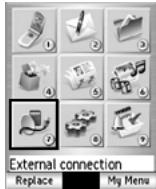
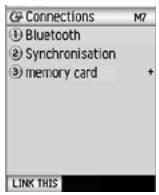
Choose any one to start External connection.
MENU 7
Select 7 (External connection) on the Menu screen to press the Enter key.
N600i provides you with the functions of Bluetooth, Synchronisation and Memory card as an external connection.
Bluetooth® (M71)
Using this function allows you to connect an external Bluetooth supported device to N600i. The following services are available:
- Dial-up connection
Connecting N600i to a PC via Bluetooth technology enables the PC to use N600i just like a modem to establish a dial-up connection to an Internet service provider. - Data transfer (Only one Contacts data is available.) You can transfer the Contacts data to another Bluetooth device such as PC, PDA and N600i.
- Headset/handsfree connection
- You can make/receive a call using a Bluetooth headset or handsfree kit
When the Bluetooth headset connection is available, pressing and holding the Enter key enables you to switch the sound path between the handset and the Bluetooth headset.
Data transfer is performed as follows:
For sending data from N600i
- Select the Contacts data to be sent on your N600i.
- Search the available device and select the target.
- Bluetooth connection is established
- Data transfer starts.
For receiving the Contacts data on N600i
- Select Discoverable (see the next section) to set your N600i to standby mode
- Data is sent from the target device.
- The save confirmation screen appears.
- Press SK1 (YES) to save the transferred data into Contacts.
For data transmission, nothing special is set on PC.
To use a Bluetooth device
Press 1 (Bluetooth) on the Connections screen and the Bluetooth screen appears. Use those menus to connect the external devices.
| No | Bluetooth | |
| 1 | Discoverable | Sets standby mode for connection from an external device. |
| 2 | Headset | Connects or disconnects to/from NEC headset. This menu appears after registration. |
| 3 | PC | Connects or disconnects to/from a PC. This menu appears after registration. |
| 4 | Handsfree kit | Connects or disconnects to/from a handsfree kit. This menu appears after registration. |
Press Options and the following functions are available.
| No | Options | |
| 1 | Information | Displays information on the selected device. |
| 2 | Search | Searches for nearby Bluetooth devices to register. |
| 3 | Pairing standby | Changes the handset status to bonding wait status in which the handset waits for the authentication from other devices in order to register the devices. |
| 4 | Terminal Info. | Displays the Bluetooth information of the handset. The device name can be edited, in which case, the edited device name is displayed at the other party's Bluetooth device. |
| 5 | Remove device | Deletes the registered devices from the list. |
| 6 | Stop all | Disconnects all Bluetooth connections. |
| 7 | Timeout settings | Sets the timeout values. The default is as follows: Discoverable: 0 minutes Search: 10 seconds Paring timer: 5 minutes |

Depending on the conditions, some options may be greyed out and not be available
To register a Bluetooth device
If the external device is not yet registered on the Bluetooth screen, register it by the following procedures:
-
Searching the device from N600i
-
Press Options to execute Search
Available devices are found and displayed.
- Select the target device from the searched list
- Enter a passkey on N600i.
Enter the same passkey to the target device.
-
Relevant device is registered after authentication is complete
-
Operating N600i from the target device
-
Execute Pairing standby to put N600i in standby mode.
- A passkey screen appears when receiving registration request from the target device
- Enter a passkey.
- Each device is registered after authentication is complete
Passkey is the Bluetooth PIN code for the remote device.
A passkey is a number from 1 to 16 digits.

Before Bluetooth can communicate with a PC, ensure the Bluetooth Driver is installed.

There may be Bluetooth devices that cannot be connected to your N600i

Depending on the connection status, a Bluetooth device may not function correctly. In such a case, retry operation from the device side, or switch your N600i off and on.
Synchronisation
It is possible to synchronise your Calendar, Contacts and To Do lists locally between your N600i and a PC using USB connection.
Contacts are treated as vCard files and Calendar and To Do list entries as vCalendar files.
N600i enables operation with the NEC Mobile Suite (NMS) which is an interface to interact with the Phone.
The NEC Mobile Suite contains four modules that deal with specific type of data, the Backup/Restore,
the MRM - Multimedia Resource Manager, the PIM - Personal Information Manager and the PIM
Synchronisation. For details, refer to the NEC Mobile Suite N600i User Guide provided with your N600i.
To use Synchronisation
Press 2 (Synchronisation) on the Connectors screen and the Synchronisation screen appears.
Select any one from Server one to ten and press SK1 (START).
Server one (Contacts), Server two (Scheduler) and Server three (To Do) are already set as default.
Press Options and the following functions are available.
| No | Options | |
| 1 | Synchron- nise | Starts the synchronisation of updated data with the selected server. |
| 2 | Server set- tings | Displays the synchronisation server settings for the selected server. |
| 3 | Synchron- nise all | Starts the synchronisation of all data with the selected server. |
| 4 | Copy settings | Copies the settings of the selected server. |
| 5 | Delete | Deletes the selected server information. When Server one to Server three is selected, this operation returns the settings to default values. |
| No | Options | |
| 6 | Name format | Provides the following items to set the rules for vCard import/export.Import /export order:Sets which of the first name and family name comes first on imported/exported data.Imported name format:Sets whether or not to insert a space between the first name and family name on imported data.Export without space to:Sets in which of the first or family name a single name (with no space) should be exported. |
You can edit the Synchronisation settings by using the SK2 (SETTINGS) key
| No | Options | |
| 1 | Profile name | Sets the profile name. Server one to Server ten are displayed as default names (with no settings). |
| 2 | Server name | Sets the server name. |
| 3 | Authentica- tion | (Not required) |
| 4 | User name | (Not required) |
| 5 | Password | (Not required) |
| 6 | User database | Selects the server database from Contacts, Calendar or To Do. |
| 7 | Server database | Sets the server database name |
For Server name, User database (selectable from Contacts, Scheduler and To Do) and Server database have their own default values that are configured to perform specific synchronisation operations.
Memory card (M73)
If you insert the TransFlash memory card into your N600i, you can use it as an external file system.
Press 3 (Memory) on the Connectors screen and The Synchronisation screen appears.
Press Options and the following functions are available.
| No | Options | |
| 1 | Status | Displays the current memory status. Usable memory space (Free) and used memory space (Used) can be viewed for the Memory and Memory card individually. |
| 2 | Format | Initializes the TransFlash memory card. |
| 3 | Check memory | Checks the TransFlash memory card. |
| 4 | USB memory mode | Sets N600i as a USB memory storage. Visible from PC: Enables a USB memory use. Invisible from PC: Enables a USB memory use. |
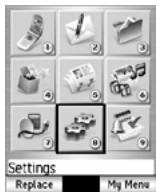
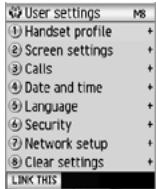
Choose any one to start Settings.
MENUE 8
Select 8 (Settings) on the Menu screen to press the Enter key.
This section describes how to change the settings on your N600i.
Handset profile (M81)
Press 1 (Handset profile) on the User settings screen. The Profile screen appears.
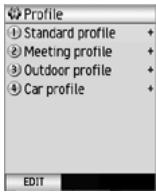
Handset Profile allows you to change the handset operation mode to suit different situations: Standard profile, Meeting profile (quiet surroundings), Outdoor profile (when carrying your N600i in a pocket or a bag) and Car profile (while travelling in a car). You can also customise each profile to make it more useful.
To see and change the settings of a profile, focus on the profile you want and press SK1 (EDIT).
You can also change the active handset profile from the Home Screen. Press the Up key on the Home screen, or press Options and 2 (Handset profile) to select a profile option.
The following settings are provided:
| No | Standard/Meeting/Outdoor/Car profile | |
| 1 | Volume | Adjusts the ringing volume and alarm volume levels from Silent to Level 6 (loud). |
| 2 | ringtones | Selects the ringtone for incoming voice calls, video calls and messages |
| 3 | Illumination | Sets the illumination (colour and pattern) for voice calls, video calls and messages. |
| 4 | Vibration pattern | Selects the vibration pattern (Pattern one to three and Vibration off). |
| 5 | Other settings | Key tones: Turns on/off keystroke sounds. Coverage tone: Turns the coverage tone on/off. Auto answer: Turns the auto answer function on/off. When the headset is attached, this function automatically answers the call 5 seconds after the call is first received. Valid for all incoming calls. |
Screen settings (M82)
Press 2 (Screen settings) on the User settings screen and the Screen settings screen appears.
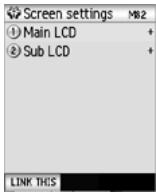
Screen settings provides two options of Main LCD and Sub LCD.
For setting the main LCD, press 1 (Main LCD) on the Screen settings screen.
For setting the sub LCD, press 2 (Sub LCD) on the Screen settings screen.
Main LCD options:
| No | Main LCD | |
| 1 | Greeting | Pre-installed and downloaded files can be set for the following:Power on animation:Selects a screen animation displayed when N600i is turned on.An image captured with the built-in camera can also be set.Power on tone:Selects a tone that sounds when you turn on your N600i.Power off image:Selects an image that is displayed when you turn off your N600i. |
| 2 | Wallpaper | Selects the Home screen image. |
| 3 | Power save | Sets how long your phone can remain idle before going into power save mode, in a range from 1 to 20 minutes. The default setting is 5 minutes. |
| No | Main LCD | |
| 4 | Backlight | Backlight: Sets the backlight brightness (High backlight, Medium backlight and Low backlight) and on/off (Backlight off). Backlight time: Sets the backlight lighting duration between 5 and 60 seconds. The default is 15 seconds. Backlight control: Sets the Java backlight value. User setting only (system dependence) and Application control (software dependence) are provided. |
Sub LCD options:
| No | Sub LCD | |
| 1 | Small screen | Sets to view the following three operations on the sub LCD. Incoming call display: On/Off New message display: On/Off Playback display: On/Off |
| 2 | Clock style | Sets the clock type; Normal clock and Simple clock. |
| 3 | Backlight | Sets Backlight (On/Off) and Backlight time (2 to 60 seconds; 15 sec is the default). |
Calls (M83)
Press 3 (Calls) on the User settings screen and the Calls screen appears.
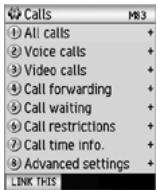
This function allows you to change various settings for the call functions as shown below.
| No | Calls | |
| 1 | All calls | Receiver volume: Sets the volume level from Level 1 to 6 for receiving calls. Send caller ID: Sets the caller ID indication. Send notifies the receiver of your caller ID and Withhold lets you make calls without displaying your caller ID. Caller ID info.: Accesses the network to check the status of the current ID notification settings. Any key answer: Selects On or Off. This lets you use any key to answer a call, except for SK2 (IGNORE), Up, Down, End key and the Options key. Headset: Selects the ringtone output from the phone. • Speaker rings too: Sets the ringtone to be played from both the earphones on the headset and the speaker. • Handsfree only: Sets the ringtone to be played only from the earphones. Fixed dialling: On/Off Turns the fixed dialing function on/off. This lets you dial the set number only. |
| 2 | Voice calls | Auto radial: Sets the automatic radial function to On or Off. If your call fails, N600i automatically redials the call. Active flip: You can connect the line with your N600i open when receiving a call. ALS line: Switches two lines. |
| 3 | Video calls | Sets the settings for video calls. Camera settings • Screen mode: Selects the displayed images (other side/my side) and their screen sizes from My side is smaller, Other side only, My side is larger and My side only. • Picture quality: The quality of the image captured by N600i can be selected from Standard, Better picture (priority given to the image quality), and Faster movement (priority given to capturing movement). • Night mode: On/Off Turns the night mode function on or off. Video call options • Video settings: Sets Use live video or Use photo instead. • Show timer: On/Off Turns on/off the call time of the current video call. • Voice if no video: On/Off Turns the automatic fallback function on/off. This function switches to a voice call when a video call cannot connect for some reasons. Video call photo: Selects an image (VGA, CIF and QCIF) to be sent instead of using the camera image to the other party of a video call. |
| No | Calls | |
| 4 | Call forward-ing | Allows you to set up a number for forwarding calls to. Available for Voice calls/Video calls/Fax calls. Available under these conditions: All calls/If no answer/If busy/If unreachable.Forwarding SetupCheck: Shows the current service status.Update: Updates the service status.Find: The telephone number registered is copied from Contacts.Forwarding off: Turns off a call forwarding setting of Voice calls, Video calls, and Fax calls individually. To activate this setting, press the SK1 (UPDATE).All forwarding off:Turn off all call forwarding setup of Voice calls, Video calls, and Fax calls.Auto check: Automatically checks for your diverts. |
| 5 | Call waiting | Turns the call waiting service on/off. Shows the current status of call waitingCHECK:Shows the current service status. |
| 6 | Call restrictions | Turns the call restriction service on/off, makes an enquiry and displays the current service status.Out-Voice callsOut-Video callsNo restrictions:Turns off the outgoing restrictions service.Internet. if not home:Outgoing international calls except those to the home country.International calls:Outgoing international calls. |
| (6) | (Call restrictions) | ·All calls: All outgoing calls except emergency calls. In-Voice calls In-Video calls ·No restrictions: Turns off the incoming restrictions service. ·Incoming if roaming: Incoming calls when outside the home country. Rejects all incoming calls while roaming except for callback after an emergency call ·All calls: All incoming calls except for callback after an emergency call. Change password: Changes the password. SK1(CHECK): Shows the current service status. |
| 7 | Call time info | Displays and sets the call time information. Current call time: Allows you to change the call time display setting. Select Current call, Outgoing calls, All calls or OFF. Under the following items, the call time information is displayed in All calls, Outgoing calls and Incoming calls. Summary list: Displays summary information for calls. Voice calls: Displays voice call information. Video calls: Displays video call information. Reset call timer: Reset the call time to zero. |
| No | Calls | |
| 8 | Advanced | Dial pause setting: Edits a string of keypad characters (up to 128 single-byte characters) for pause dialling. This function enables sending out of numbers while calling with pauses inserted. For example, after entering a number with the touch tone service, you can send out the numbers you entered beforehand. Pause dial entry function is useful for sending messages to a pager, etc. You can only use keypad characters (0-9, # and) and pause (press and hold the # key: displayed as p). A pause at the beginning cannot be registered. A pause at the end is deleted when registered. Registered pause dial entry can only be used while calling. Sent out pause dial entries are not saved in the Outgoing calls list. Portrait Display: Displays the caller line identification (CLI) picture in the contact list when making and receiving calls. Ignore if no ID: Turns no caller ID rejection function on/off. Rejects any calls received without caller ID notification. Voicemail: Sets voicemail clearance type by checking the check boxes. Send tones: Turns the send tone on/off. Speed dial: Turn the Fast dial and Speed dial functions on/off. |
Date and Time (M84)
Press 4 (Date and time) on the User settings screen and the Date and time screen appears.
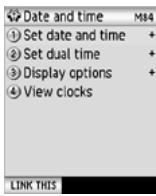
Date and time allows you to select the date and clock display formats, set the home/dual time, time difference from GMT, turn the summer time function on/off and view the current time of both clocks.
| No | Date and time | |
| 1 | Set date and time | The following settings are provided for Home time. Date: Sets the date for the home time. Enter month, date and year separated with the slash according to the order in Date format setting (e.g. 05/05/2005 when the Date format setting is dd/mm/yyyy). Time: Sets the time. Enter the current time using the 24 hour display (e.g. 21:45 for 9:45 p.m.) or using the 12 hour display (e.g. PM 9:45 for 9:45 p.m.) depending on your Time format setting. Summer time: Sets whether the current status of the home/dual time is summer time or not. You cannot use this when your Home time is not set. Zone: Set the time difference between home time and GMT. Selects the city name in your home area from the Time zone list. |
| No | Date and time | |
| 2 | Set dual time | The following settings are provided for Dual time. Summer time: Sets whether the current status of the home/dual time is summer time or not. You cannot use this when your Home time is not set. Zone: Set the time difference between home time and GMT. Selects the city name in your home area from the Time zone list. |
| 3 | Display options | Time format: Sets the time display format to either 12 hour display or 24 hour display. Clock display: Sets the clock display to Home, Dual time or Home and Dual time. Date format: Sets the date display format to either one of six: dd/mm/yyyy (e.g. 01/07/2005) dd.mm/yyyy (e.g. 01.07.2005) mm/dd/yyyy (e.g. 07/01/2005) mm.dd/yyyy (e.g. 07.01.2005) yyyy/mm/dd (e.g. 2005/07/01) yyyy.mm.dd (e.g. 2005.07.01) Always display clock: Displays the clock all time at the bottom of the screen. |
| 4 | View clocks | Shows the current time for Home time and Dual time. |
Language (M85)
Press 5 (Language) on the User settings screen and the Language screen appears.
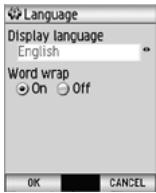
Language allows you to select the language for display and turn wordwrap function on/off.
| No | Date and time | |
| 1 | Display Language | Selects the display language. All text in your N600i is displayed in the selected language. You cannot change the language while an application is running. |
| 2 | Word wrap | Turns the wordwrap function in text fields on/off. You cannot change Word wrap settings while an application is running. |
Security (M86)
Press 6 (Security) on the User settings screen and the Security screen appears.
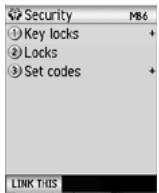
Security settings allow you to set lock function and code number settings.
| No | Security | |
| 1 | Key locks | Sets the keypad/side key lock. Keypad lock (Menu+*): Disables keypad operation. During keypad lock, the following operations are not available: • Receiving a message (SMS, iMail and iMMS) • Setting Dial lock • Key tone (If pressing any key, key tone is not sounded.) Even in the keypad lock state, the following operations are available: • Emergency calls (See page 19.) • Answering a voice/video call • Power saving • Alarm (If pressing any key, an alarm sound is stopped.) Side lock (Menu+#): On/Off Turns the side key lock on or off. During side key lock, no side key operation is available when the phone is folded. |
| 2 | Locks | Sets the Dial lock, Auto lock and i-mode lock functions. Every time you change the Locks setting, entering the handset code is required. If you enter the incorrect handset codes three times in a row, Dial lock forces your N600i into the lock condition for 30 minutes. However, if you turn off the power during the forced dial lock and then turn on it again, N600i extends the lock for more 30 minutes. Dial lock: This cancels any key operation except for making emergency calls, answering a call with the Send key, rejecting a call with the End key, using the End key to turn the N600i on/off, turning off the alarm with any key and adjusting the volume of the earpiece. You can also turn Dial lock on/off from the Home screen. Press Options on the Home screen and select 7 (Dial lock). Auto lock: Turns on/off the automatic lock function. With Auto lock on, the phone is protected by Dial lock automatically when you switch on your phone. i-mode lock: Turns i-mode lock on/off. If this setting is enabled, no i-mode operations including iMail/iMMS messages are available. |
| No | Security | |
| 3 | Set codes | Sets the codes for PIN1, PIN2, handeset and private PIN. Activate PIN1: PIN1 is used to power on your N600i. Selects Enable or Disable. New PIN1: Changes the PIN1 number. Enter the current PIN, the new PIN (4-8 digits) and then the new PIN again for confirmation. New PIN2: Changes the PIN2 number. Enter the current PIN, the new PIN (4-8 digits) and then the new PIN again for confirmation. Unlock PIN2: unlocks the lock condition. The PUK2 input screen appears by using this function. This function is available only when you enter your PIN incorrectly three times in a row and the USIM card is locked. You can unlock it by using your PIN Unlock Key (PUK). New handset code: Changes the handset code required to confirm important actions, such as deleting all Contact list entries. This requires the Code Number to prevent accidental mistakes. To change the handset code, enter a new code (4 digits), then enter the new code again for confirmation. When you buy your N600i, the Code Number is set to 0000. New private PIN: Changes the private PIN number. Input the current password for the private PIN, the new password (4-8 digits) and then the new password again for confirmation. |
| (3) | (Set codes) | Entry of the handset code (4 digits) is required for the first setting of New private PIN. You need this password to change any call restrictions on your N600i. |
Network setup (M87)
Press 7 (Network setup) on the User settings screen and the Network setup screen appears.
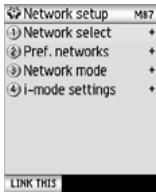
Network setup allows you to change various settings related to the mobile phone network.
| No | Security | |
| 1 | Network select | Provides the functions of Automatic and Manual for selecting the network operator (PLMN; public land mobile network) automatically/manually. When Automatic is selected, N600i automatically searches and selects PLMN with RAT indicator in order of priority. When Manual is selected, a list of valid PLMNs is displayed. Select a PLMN with RAT indicator from the list. Your N600i establishes a connection to that PLMN. If this connection is unsuccessful, a message requesting another selection is displayed. |
| No | Security | |
| 2 | Pref. networks | Displays the list of PLMNs saved in the USIM card, updates the PLMN list with RAT indicator, adds and deletes PLMN entries and changes the entry display order. USIM list can contain up to 50 PLMN entries. Add, Sort, Replace, Delete and Registration status are provided under the Options menu. To change the search priority and the entry display order: Press SK1 (MOVE) on PLMN List. On PLMN Priority, select the PLMN with RAT indicator to move, move the cursor to destination and press the Enter or SK1. |
| 3 | Network mode | Selects the mode of operation for the N600i: Automatic: N600i automatically selects the available service. GSM only: The service area is manually set only to the 2G coverage. When the USIM card installed in your N600i supports the 2GSIM, this option may be greyed out and not be available. |
| 4 | i-mode settings | Sets the server profile that is information required to use the i-mode service. Two factory-default options and one user-editable option are provided. You cannot view or edit the setting value for the factory-default options. Default settings 1: Default settings 2: Both contain server information at factory default. If you choose this function, entering the handset code is required. |
| (4) | (i-mode settings) | User settings:You can set the following profiles:1 Access pointSets the access point name (99 chars max.).2 i-mode serverSets the IP address for i-mode gateway (0.0.0.0 to 255.255.255.255 can be set.).3 Portal serverSets the portal server URL (128 chars max.).4 Mail• Mail Sets the mail server URL (128 chars max.)• 2nd mail serverSets the mail server URL for MMS on i-mode protocol (128 chars max.).Confirmation siteSets the URL confirmation for the selective mail retrieval (128 chars max.).5 User dataSets User name and Password.6 Port number• HTTP numberSets the HTTP proxy port number.SLL numberSets the SSL proxy port number. |
Clear settings (M88)
Press 8 (Clear settings) on the User settings screen and the Clear settings screen appears.
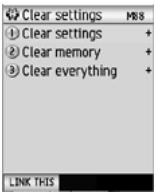
Clear settings function allows you to reset the settings you have made and clear the phone's memory.
| No | Security | |
| 1 | Clear settings | Reset all the settings to the default settings. If you choose this function, entering the handset code is required. When the battery charge is low, you cannot execute this operation. |
| 2 | Clear memory | Clear all user data. If you choose this function, entering the handset code is required. When the battery charge is low, you cannot execute this operation. |
| 3 | Clear everything | Reset all the settings to the default settings and clears all the memory. If you choose this function, entering the handset code is required. When the battery charge is low, you cannot execute this operation. |
Toolbox (M9)
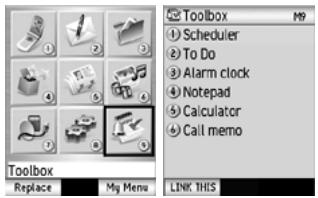
Choose any one to start Toolbox.
MENU 9
Select 9 (Toolbox) on the Menu screen to press the Enter key.
This section describes how to use your N600i to help manage your time and tasks.
You can use your N600i at home or work as a calendar with appointments and To Do lists, as an alarm clock, as a calculator and much more. There are six features available in the Toolbox:
Scheduler
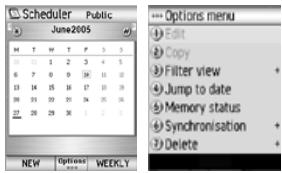
Press 1 (Scheduler) on the Toolbox screen.
Calendar tool has four entry types: Appointment, Multiday event, Special occasion and Days off. You can save up to 200 calendar entries.
To set appointment
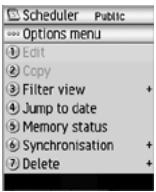
The following options are available:
| No | Options menu | |
| 1 | Edit | Selects an item you want to change and edit it. |
| 2 | Copy | Copies the item. |
| 3 | Filter view | Selects the appointment type from All, Private or Public. |
| 4 | Jump to date | Finds and jump to the date you enter |
| 5 | Memory status | Informs the event and remaining counts. (200 max.) |
| 6 | Synchroni-sation | You can send calendar entries as a message or convert them stored in the phone to vCalendar format for transferring between the N600i and a PC. Select options from Send as message, Save vCalendar and Synchronisation. Ataching calendar entries in the vCalendar format is not available for the SMS message service. Those entries are sent as an inline text. |
| 7 | Delete | Select the calendar entry you want to delete and press the Enter key. Delete event and Delete day off are available. |

Depending on the conditions, some options may be greyed out and not be available
To Do
Press 2 (To Do) on the Toolbox screen.
This feature allows you to set up To Do tasks that should be finished by a certain date. You can save up to 200 To Do entries.
To add a new To Do task
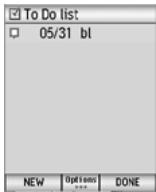
In To Do list, press SK1 (NEW), or press Options and select New to open the new task screen. Press the Enter key on each field to select and edit.
To edit To Do tasks
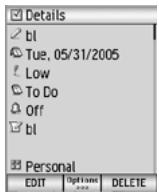
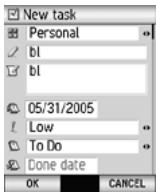
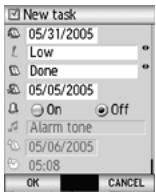
On the To Do list screen, highlight the To Do entry to edit, press Option and select Edit. When displaying the Details screen, press SK1 (EDIT).
Edit the task details. After editing, press SK1 (OK). The To Do entry is overwritten.
To delete To Do tasks
Select a task to be deleted on the To Do list and press the Enter key. The Details screen appears and press SK2 (DELETE).
Or you can also delete a task by pressing Options, select 7 (Delete) and 1 (This task).
If you want to delete the tasks you have done or delete all tasks, select 2 (Delete done tasks) or 3 (Delete all).
Options
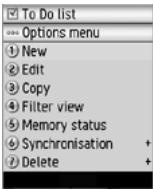
Pressing Options enables operations for the following functions:
| No | Options menu | |
| 1 | New | Adds a new task. |
| 2 | Edit | Edits the task you select. |
| 3 | Copy | Copies the task you select. |
| 4 | Filter view | Sets the criteria to search the tasks you want to find. Three categories are provided;Status: All/To Do/DoneDue: Deadline/PriorityType: All/Personal/Office/Study/Travel/Shopping/Preparations/Sport/Housework/Other. |
| 5 | Memory status | Informs the event and remaining counts. (200 max.) |
| 6 | Synchroni-sation | You can send Do tasks as a message or convert them stored in the phone to Calendar format for transferring between the N600i and a PC. attached Do tasks in the Calendar format is not available for the SMS message service. Those entries are sent as an inline text. Select options from Send as message, Save Calendar and Synchronisation. |
| 7 | Delete | Deletes the task you select. The following three options are available: 1 This task 2 Delete done tasks 3 Delete all |

Depending on the conditions, some options may be greyed out and not be available
Alarm clock
Press 3 (Alarm clock) on the Toolbox screen.
Select the alarm clock to set up to 5 alarms from Alarm 1 to Alarm 5 and press the Enter key. You can set a recurring alarm to ring at a specific time on several days of the week. The Alarm tone will only sound if the phone is switched on.
To Edit an Alarm
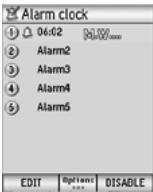
To edit your alarm clock setting, press SK1 (EDIT) and edit.
To Change alarm clock status
You can change alarm clock status on/off/disable on the Alarm clock list screen. Select an alarm on the list and do the following
To change the alarm clock status from On to Disable, press SK2 (DISABLE).
To change the alarm clock status from On to Off, press SK2 twice (SK2 (DISABLE) -> SK2 (OFF))
Disable cancels the next alarm but does not cancel a recurring alarm.
Off deactivates the set alarm.
Disable is available only for recurring alarms and cannot be set for alarms without the Repeat setting.
To delete Alarms
(One alarm) Select an alarm clock from Alarm1 to Alarm5. Press Option, select Delete and press the Enter key. Select Delete and press the Enter key.
(All alarms) Press Options menu, select Delete and press the Enter key. Select Delete all and press the Enter key.
Notepad
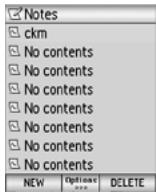
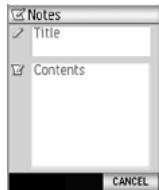
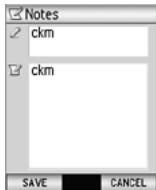
Press 4 (Notepad) on the Toolbox screen.
The Notepad feature allows you to keep notes and other useful information, such as agendas and minutes of meetings, shopping lists and other items you need to remember. You can save up to 8 text notes.
To create a new Notepad entry
Select No contents and press the SK1 (NEW) or Enter key.
Enter a title (up to 32 single-byte characters including spaces) and press the Enter key.
Enter a text message (up to 512 single-byte characters) and press the Enter key.
To edit a Notepad entry
Select a notepad entry to be edited on the Notes screen and press the Enter key. Or press Options and select 2 (Edit).
Select Note title and press the Enter key. Enter a title (up to 32 single-byte characters including spaces) and press the Enter key.
Select Note contents and press the Enter key. Edit a text message (up to 512 single-byte characters) and press the Enter key.
To delete a Notepad entry
Select a notepad entry to be deleted on the Notes screen and press SK2 (DELETE). Then choose SK1 (YES) or SK2 (NO).
- Or press Options and select 3 (Delete). Select 1 (Delete) or 2 (Delete all) to press the Enter key and choose SK1 (YES) or SK2 (NO).
Options
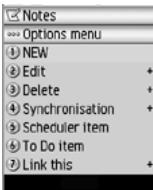
Pressing Options enables operations for the following functions.
| No | Options menu | |
| 1 | New | Adds a new title. |
| 2 | Edit | Edits the title you select. Choose the following options. 1 Note title 2 Note contents |
| 3 | Delete | Deletes the entry you select. The following two options are available: 1 Delete 2 Delete all |
| 4 | Synchroni-sation | You can transfer the notepad entries between the N600i and a PC via OBEX. Select options from Send as message and Back up vNote. Trasferring the vNote format is not available for the message service. |
| 5 | Scheduler item | Set the following title you edit to Scheduler. 1 Appointment 2 Special occasion 3 Multiday event 4 Days off |
| 6 | To Do item | Sets the title you create as a To Do list. |
| 7 | Link this | Add to Home Add to My Menu |
Calculator
Press 5 (Calculator) on the Toolbox screen.
N600i provides the built-in calculator and currency converter which can be switched using the SK2 key.
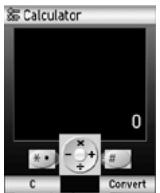
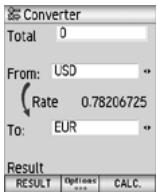
To use the calculator
Open the Calculator screen and use the following keys:
- Use the Right key as + key
Use the Left key as -key
Use the Up key as x key - Use the Down key as / key
- Use the Enter key as = key
- Use the # key to enter a decimal point
- Use SK1 as the CLR key or to clear the figure
- Use the # key as +/- switch key
- Use SK2 to switch to the currency converter
When switching from the currency converter to the calculator, the cash amount value of the currency converter is displayed in the totals area of the calculator unless the currency calculation result is displayed.
To use the currency converter
This feature allows you to convert an amount of money in one currency to another currency by using either the exchange rate which is built in or one you enter.
If you want to set currency rates, press Options and select 1 (Set rate). To edit the name of the listed currency, press Options and select 2 (Edit name).
The following example shows how to convert 100 Pounds Stering to Euros.
Open the Converter screen by using SK2 to switch between Calculator and Converter.
1 To enter amount of money, select Total and enter 100.
2 To select the base currency, highlight the From: field and choose GBP using the Left or Right key.
3 To select the currency to convert to, highlight the To: field and choose EUR using the Left or Right key.
4 To modify exchange rate, press Options and select 1 (Set rate) to enter the rate in the Rate field. Then press SK1 (OK).
5 To get calculation result, press SK1 (RESULT).
Call memo
Press 6 (Call memo) on the Toolbox screen.
The Call memo feature allows you to record a short audio message (up to 20 seconds) during a call. You can use a Call memo to temporarily store phone numbers, addresses or reminders. You can save up to five call memos in your N600i.
To record a call memo during a call, press Option and select Call memo to start recording the conversation.
You cannot attach a call memo to messages.
To listen to a call memo
Select a call memo to play the Call memo screen.
Press SK1 (PLAY) to start playing.
To delete a call memo
Select any call memo to delete on the Call memo screen.
Press SK2 (DELETE) to delete it.
Text Entry
This section describes how to enter and edit text. There are four types of text entry:
- Multitap Text (ABC) Input: Where you press each key as many times as needed to display the character you want.
- Numeric Input: Where you enter numbers.
- T9® Text Input: Where intuitive texting predicts the word you are trying to enter.
- Symbol Input: Where you enter symbols, Greek characters, or characters with accents.
T9® Text Input is covered by the United Kingdom Pat. No. 2238414B, Euro. Pat. No. 0 842 463 (96927260.8) and other patents pending.
The maximum number of characters allowed in an item or a field is defined as the number of single-byte characters that can be input. When entering double byte characters such as accents (ē, i, o, etc.) or triple byte characters such as the Euro symbol (€), the maximum number of characters varies accordingly.
To start messaging
Press any one of the following keys
- SK1 (MAIL) on the Home screen.
- MENU 2 (Messages).
- i-mode ( ) key on the Home screen and 2 (Mail).
Choose SMS or iMail/iMMS using SK1. (See Messages (M2) for details.)
- Select the text entry field and press the Enter key to start inputting text.
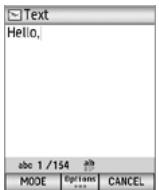
SMS
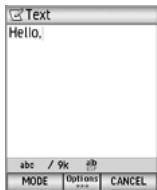
iMail/iMMS
To change the input mode
Every SK1 (MODE) you press changes the text entry mode to Multitap Text Input, Numeric Input and T9 Text Input in order.
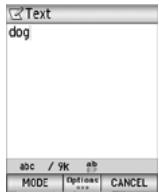
Multitap Text Input
Numeric Text Input
T9 Text Input
To insert symbols, press the # key to switch to the Insert symbols screen to use Symbol input menu, or press and hold the # key to use Multi symbol input menu. Pressing Options, 1 (Insert object) and 1 (Insert symbols) is also available for Multi symbol input menu. (See Symbol Input in this section for details.)
Press the ÷ideontimes key to switch lower case, upper case (shift) and Caps lock.
Multitap Text (ABC) Input
The following example shows how to enter the word "dog" in a text message:
1 To enter "d": Press the (3DEF) key once, then "d" appears.
2 To enter "o": Press the (6MNO) key three times, then "o" appears.
3 To enter "g": Press the (4GHI) key once, then "g" appears.
Press the Right key to move to the next character position.
Enter the 0 key to select and insert a space.
Numeric Input
Here is the example to enter "364" in a text message after changing to the Numeric Input mode.
1 To enter "3": Press the (3DEF) key; then "3" appears.
2 Enter "6": Press the (6MNO) key; then "6" appears.
3 Enter "4". Press the (4GHI) key; then "4" appears.
You can also enter numbers using the multitap and the T9® text input modes by pressing and holding the keys.
T9® Text Input
In the T9® text Input mode, you press each key only once, even if the character you want is not the first character on the key.
When you press the keys, different words are suggested. If the word you want is not suggested, you can edit the word and register it in the dictionary for access the next time.
The following example shows how to enter the word "fog" in a text message:
1 To enter "fog": Press the (3DEF) (6MNO) (4GHI) keys. The word "dog" should appear.
2 To convert and select the word you want: Press the Up and Down keys until the word "fog" appears. Then press the Right or Enter key to enter the displayed word or the 0 key to select and insert a space.
3 If the word you want is not suggested, edit the word and register it by using the Multitap Input Mode: Switch to the Multitap Input Mode by pressing SK1 (MODE) and enter "fog". The word is registered in the dictionary. If you enter the (3DEF) (6MNO) (4GHI) keys in T9 Text Input Mode the next time, you can select the word fog.
When the last word candidate is displayed, the SK1 key is changed to Spell. If you could not find the word you want to enter from the candidates, you can display the text entry screen in the Multitap Input Mode by pressing the SK1 (SPELL) key and can register the word you want to add to the candidates.
The T9® word prediction is a feature that helps you type faster and easier. It suggests words you have already used. To accept a predicted word, press the Right or Enter key.
Symbol Input
To input symbol(s), two menus are available: Symbol input menu and Multi symbol input menu.
By using the Symbol input menu, you can quickly select a symbol and return to text editing, while in the Multi symbol input menu, you can select up to 12 symbols at a time.
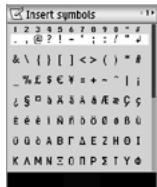
Symbol input menu
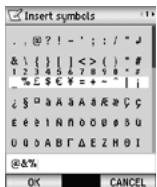
Multi symbol input menu
Symbol input menu
To open the Symbol input menu, press the # key in any input modes.
The Symbol input menu is displayed as follows:
Highlight the line in which the symbol you want is located. You can move the highlighted line by using the 4-way navigation key.
Find the keypad number displayed above the symbol and press the key. The temporary symbol menu disappears after inserting a symbol.
You can cancel the temporary symbol menu by pressing the key.
Multi symbol input menu
To open the Multi symbol input menu, press and hold the # key in any input modes.
Input one or more symbols using the same operation as in the Symbol input menu as described in Symbol input menu above. To complete symbol input and return to text editing, press SK1 (OK). To cancel symbol input, press SK2 (CANCEL).
Options
Press Options on the Text entry field and the following functions are available.
| No | Settings | ||
| 1 | Insert object | Inserts the symbols or pictographs. | |
| 1 | Insert symbols | (Refer to Symbol Input in this section.) | |
| 2 | Insert pictograph | Inserts the pictographs. | |
| 2 | Input method | Selects the input mode. | |
| 1 | T9 | (Refer to Multitap Text (ABC) Input, Numeric Input and T9® Text Input in this section.) | |
| 2 | ABC | ||
| 3 | 123 | ||
| 3 | Copy/cut/other | You can copy, cut, delete or replace a block of text. Before performing this function, move the cursor to the starting point using the 4-way navigation key to specify the starting point on the text entry field. Pressing and holding the * key also starts this function. After the block of text is selected, pressing SK1 to copy or SK2 to cut the block is available. You can also use Options to choose the functions from Copy, Cut, Delete, Replace or New selection. Pressing Options and Replace allows you to replace the selected text by the text on the clip board. | |
| No | Settings | |
| 4 | Paste | You can paste cut/copied text after using the Copy or Cut function. Before performing this function, move the cursor using the 4-way navigation key to a specific point. Pressing and holding the * key enables use of SK2 (PASTE) to paste cut/copied text You can paste copied/cut text into other applications. |
| 5 | Editing options | Sets Write mode (Insert/Overwrite) and Clear mode (Backspace or Delete). In Backspace mode, you can delete characters before the cursor. In Delete mode, you can delete characters after the cursor. |
| 6 | New line | Inserts a new line in the text. Before performing this function, move the cursor to the insertion point of the new line. Pressing the # key twice also inserts a new line. |
| 7 | T9 language | Selects a language for T9® Text Input. Seven types of language are available (English, Italian, German, French, Spanish, Greek and Dutch). |

Depending on the conditions, some options may be greyed out and not be available
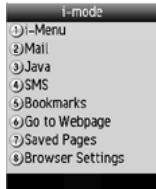
Press i-mode ( ) key.
You can enjoy browsing the webpages by using i-mode function. This section describes how to operate the i-mode menu. The following options are provided:
| No | Settings | |
| 1 | i-Menu | Accesses the webpages. |
| 2 | Starts the iMail and iMMS message service. See To use iMail/IMMS message (page 28) for details. | |
| 3 | Java | Starts the Java application. See Java™ (M4) for details. |
| 4 | SMS | Starts the SMS message function. See To use SMS message (page 25) for details. |
| 5 | Bookmarks | Lists the bookmarked web pages you record. Up to 100 bookmarks can be stored. |
| 6 | Go to webpage | You can enter the URL (Input Address), view the last URL you visit (Last Address) or lists the URLs you have entered (Past Input). |
| 7 | Saved pages | Lists the webpages you saved as an offline file. Up to 10 pages can be stored. (The number of pages vary depending on the page size.) |
| No | Settings | |
| 8 | Browser Settings | 1Home: Enable/Disable Sets the URL as a home.2View: Sets the viewer you like.The following options are available:· Font size: Normal/Large· Images: On/Off (to display the images or not)· Table Layout: Just Fit/Smart Fit· Wrap Text: On/Off· CSS: On/Off· Screen Scroll: Selects the number of lines per scroll from 1 line/3 line/5 line.3Certificates: Lists the certificates. Certificate information (Certificate info) and a certificate validation (Valid/Invalid) are available as option.4Others:· Request Timeout: sets the communication timeout interval from 60 seconds/90 seconds/Disabled.· Send Terminal Info: On/Off· Auto Play: On/Off· Sound Effect: On/Off5Check settings: Displays all the options set for the browser settings.6Reset settings: Restores the default settings.7Reset Data: Resets the initial data. |
A
Alarm clock 60
Auto answer 21
B
Bluetooth® (M71) 44
C
Calculator 62
Call Logs 24
Call memo 21, 62
Calls (M83) 50
Camera direction 39
Camera function 39
Capture 39
Charge the battery 9
Charging the Battery 11
Clear settings (M88) 57
Contact Entries 36
Contact list 22
Contacts (M5) 3, 36
Copy, Move or Delete the entries 37
D
Date and Time (M84) 53
Deleting folders/messages 27
Display information 1
Display size 40
Display the contact memory status 37
DTMF 21
During a Voice Call 20
E
Edit a contact group 37
Edit an entry 36
Emergency calls 19
End the call 20
Enter your PIN Code 13
Exposure compensation 39
External connection (M7) 3, 44
F
File manager (M3) 3, 32
File size limit 39
G
GPRS 8
Grouptalk 20
GSM 8
H
Handset profile (M81) 48
Handsfree 21
1
iMail 67
iMail/iMMS 3
iMail/iMMS message 28
i-Menu 67
iMMS 67
i-mode 67, 68
Insert the Battery 11
Insert the TransFlash memory card 10
J
JavaTM (M4) 3, 34
K
Keypad shortcuts 4
L
Language (M85) 54
Lighting settings 40
Low Battery Alarm 13
M
Main LCD 1
Make a video call from Incoming calls list 22
Make a video call from Outgoing calls list 22
Making a Video Call 22
Making a voice call 18
Manual conventions 1
Memory location 40
Memory/Memory card 32
Menu functions 2
Message Services 25
Messages (M2) 3, 25
Miss a call 20
Missed calls list 22
Moving messages 27
Multimedia centre (M6) 3, 39
Multitap Text (ABC) Input 64
Mute the microphone 21
N
Network setup (M87) 56
New entry to the contact list 36
New iMail 28
New iMMS 29
New message 26
Night mode 40
Notepad 61
Numeric Input 64
0
One touch dial 19
Organise messages 27
Overview of N600i 8
P
Pause dial 19
Phone (M1) 3, 18
Picture quality 40
Playing video and audio 42
Playlists 43
Power Saver 13
Prog backlight 35
R
Read a message 26
Receiving a Video Call 22
Receiving a Voice Call 20
Recording mode 39
Recording sound 40
Redial 21
Reject the call 20
Reject the incoming video call 22
Run software 34
s
Scheduler 58
Screen settings (M82) 49
| Search the contact list 20 | W |
| Security (M86) 54 | Write a message from a contact list 37 |
| Self timer 40 | |
| Send the Contact data 38 | Z |
| Set the Clock 13 | Zoom 39 |
| Set the date and time 9 | |
| Settings (M8) 3, 48 | |
| Shutter sound 40 | |
| Size 40 | |
| SMS 3, 67 | |
| SMS message 25 | |
| Sound settings 40 | |
| Speed call 19 | |
| Sub LCD 2 | |
| Switch Off 13 | |
| Switch On 13 | |
| Symbol Input 65 | |
| Synchronisation 46 | |
| T | |
| T9® Text Input 64 | |
| Take a photo/make a video 39 | |
| Text Entry 63 | |
| To Do 59 | |
| Toolbox (M9) 3, 58 | |
| TransFlash™ memory card 9 | |
| U | |
| UMTS 8 | |
| USIM 9 | |
| V | |
| Viewing an image 41 | |
| Voice recorder 40 |
- Copyright Notice
- Important Safety Information
- Emergency services
- To make an emergency call
- General care
- Safety
- Aircraft safety
- Hospital safety
- General safety
- Road safety
- Vehicles equipped with an airbag
- Third party equipment
- Service
- Efficient use
- Radio frequency energy
- Exposure to radio frequency energy
- Disposing of your used NEC product In the European Union
- Outside the European Union
- Contents
- Important Safety Information PL-1
- Getting Started 1
- Introduction 8
- Understanding the Menu 15
- Phone (M1) 18
- Messages (M2) 25
- File manager (M3) 32
- JavaTM (M4) 34
- Contacts (M5) 36
- Multimedia centre (M6) 39
- External connection (M7) 44
- Settings (M8) 48
- Toolbox (M9) 58
- Text Entry 63
- i-mode 67
- Index 68
- Getting Started
- Manual conventions
- Reading the titles
- Display information
- Main LCD
- Sub LCD
- Overview of Menu functions
- Keypad operations
- Introduction
- Overview of N600i
- Setting up your N600i
- How to insert or remove the USIM card or TransFlash memory card
- To insert the USIM card
- To insert the TransFlash memory card
- Charging the Battery
- To Insert the Battery
- To Charge the Battery Using the Charger
- Cautions on charger plug
- Low Battery Alarm
- Switching your N600i on and off
- To Switch On
- To Switch Off
- Power Saver
- Setting the Clock
- To Set the Clock
- Entering your PIN Code
- To Enter your PIN Code
- Check your own number
- Locking your N600i
- To turn the keypad lock on or off
- To set the side key lock on or off
- Understanding the Menu
- - Icon list
- - Menu list
- - Options menu list (Press Options when available.)
- Menu functions
- To display the Main Menu
- To highlight a Menu option
- To change the desktop icons or main menu icons
- Menu options
- My Menu
- Home screen shortcut
- Home screen
- Shortcuts
- Dialing
- Options
- Making a voice call
- To make a call using the Contact list
- To make a call from Incoming calls list
- To make a call from Outgoing calls list
- To make a call from Missed calls list
- For emergency calls
- For speed call
- For one touch dial
- For pause dial
- Receiving a Voice Call
- To reject the call
- When you miss a call
- During a Voice Call
- To Switch to a Grouptalk
- To end the call
- To put a call on hold
- To search the contact list
- To mute the microphone
- To disconnect from a call waiting service
- To switch between the active line and the holding line
- To talk handsfree
- To send a message
- To record a Call memo
- Always ask the other party's permission to record.
- To activate Settings
- Making a Video Call
- Receiving a Video Call
- To make a video call using the contact list
- To Make a video call from Incoming calls list
- To Make a video call from Outgoing calls list
- To Make a video call from the Missed calls list
- To Reject the incoming video call
- During a Video Call
- To set the handsfree mode
- To zoom in/out
- To turn the microphone on/off (send/not send your voice to the other party)
- To turn your camera on/off (send/not send your image to the other party)
- To change the screen display mode
- To change the picture quality
- To change the night mode
- To set the contrast mode
- To set the lighting mode
- To set the call time duration information
- To adjust the speaker volume
- Call Logs
- Depending on the conditions, some options may be greyed out and not be available
- Message Services
- SMS
- iMail
- iMMS
- To use SMS message
- To create and send a new message
- To read a message
- To organise messages
- Creating folders
- Moving messages
- Deleting folders/messages
- To use iMail/iMMS message
- iMail/iMMS
- To create and send a new iMail
- To create and send a new iMMS
- To set the iMail/iMMS settings
- File manager (M3)
- Memory/Memory card
- How to run software
- Java™ Option menu
- Prog backlight
- Contact Entries
- To add a new entry to the contact list
- To edit an entry stored
- To edit a contact group
- To Copy, Move or Delete the entries
- To display the contact memory status
- To write a message from a contact list
- To send the Contact data
- Capture
- To take a photo/make a video
- Recording sound
- To use the voice recorder
- Viewing an image
- To use the image viewer
- To view an image file
- Playing video and audio
- To play a video or audio file
- Playlists
- External connection (M7)
- Bluetooth® (M71)
- To use a Bluetooth device
- To register a Bluetooth device
- Synchronisation
- To use Synchronisation
- Memory card (M73)
- Handset profile (M81)
- Screen settings (M82)
- Calls (M83)
- Date and Time (M84)
- Language (M85)
- Security (M86)
- Network setup (M87)
- Clear settings (M88)
- Toolbox (M9)
- Scheduler
- To set appointment
- To Do
- To add a new To Do task
- To edit To Do tasks
- To delete To Do tasks
- Alarm clock
- To Edit an Alarm
- To Change alarm clock status
- To delete Alarms
- Notepad
- To create a new Notepad entry
- To edit a Notepad entry
- To delete a Notepad entry
- Calculator
- To use the calculator
- To use the currency converter
- Call memo
- To listen to a call memo
- To delete a call memo
- Text Entry
- To start messaging
- To change the input mode
- Multitap Text (ABC) Input
- Numeric Input
- T9® Text Input
- Symbol Input
- Symbol input menu
- Multi symbol input menu
- A
- B
- C
- D
- E
- F
- G
- H
- 1
Marque : NEC
Modèle : N600I
Catégorie : Manuel d\'utilisation