
TUNGSTENE - PDA PALM - Notice d'utilisation et mode d'emploi gratuit
Retrouvez gratuitement la notice de l'appareil TUNGSTENE PALM au format PDF.

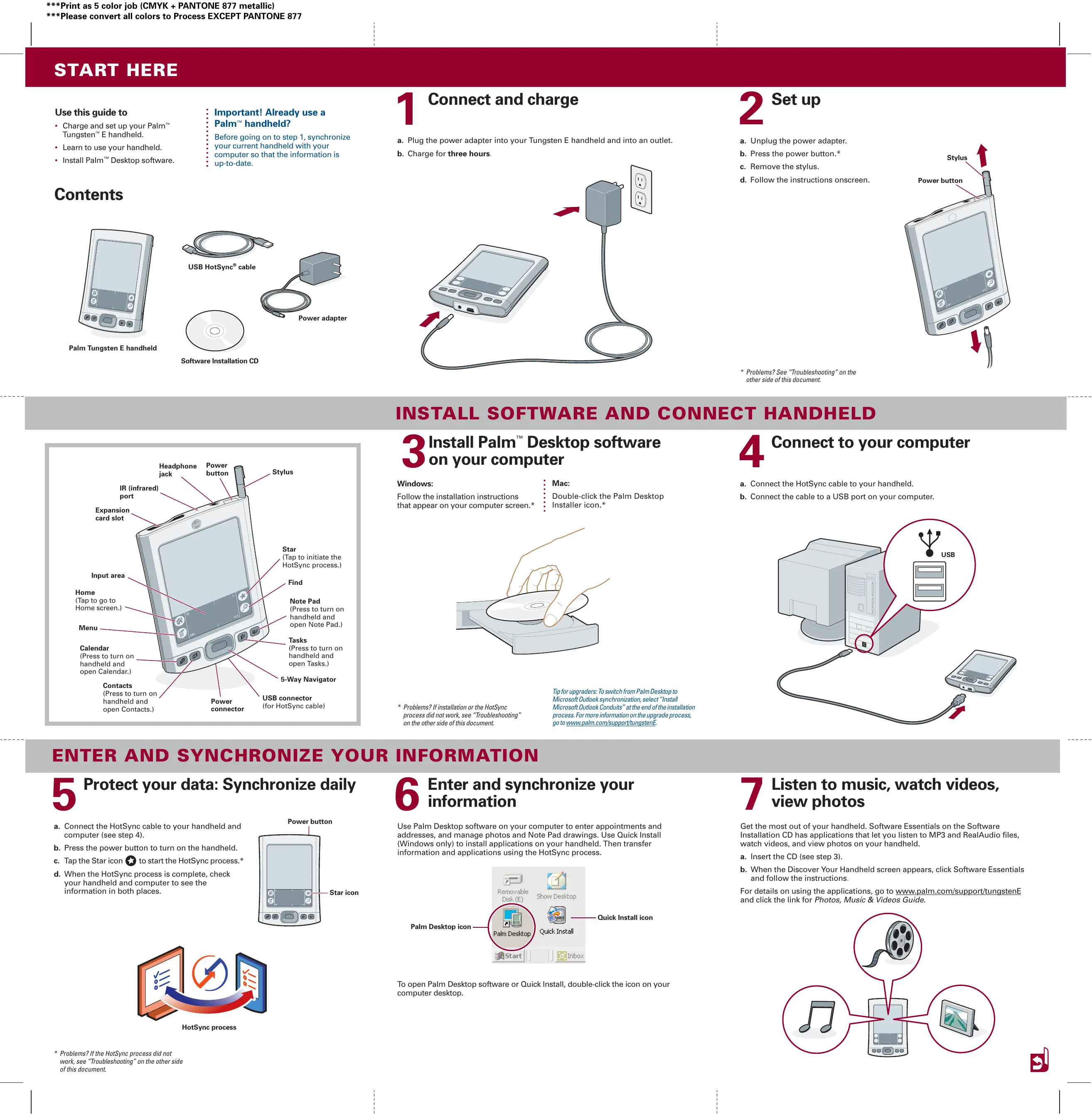
| Type de produit | Assistant numérique personnel (PDA) |
| Marque | PALM |
| Modèle | Tungsten E |
| Dimensions | 114 x 79 x 15 mm |
| Poids | 128 g |
| Écran | Écran tactile couleur 160 x 160 pixels |
| Processeur | 126 MHz |
| Mémoire RAM | 16 Mo |
| Système d'exploitation | Palm OS |
| Alimentation | Batterie lithium-ion rechargeable, charge via adaptateur secteur ou câble USB |
| Autonomie | Environ 5 heures d'utilisation |
| Fonctions principales | Synchronisation avec Palm Desktop, gestion d'agenda, contacts, tâches, notes, lecture audio/vidéo, affichage photos |
| Connectivité | Port USB, port infrarouge |
| Accessoires fournis | Câble HotSync USB, adaptateur secteur, CD-ROM logiciel, stylet |
| Entretien et nettoyage | Nettoyer avec un chiffon doux et sec, éviter l'humidité |
| Sécurité | Effectuer des sauvegardes régulières via le logiciel Palm Desktop |
| Pièces détachées et réparabilité | Réinitialisation matérielle possible via le bouton de réinitialisation au dos ; pièces détachées disponibles en ligne (adaptateur, câble, stylet) |
| Informations générales | Palm OS, compatible Windows et Mac ; plus d'informations sur palm.com/support |
FOIRE AUX QUESTIONS - TUNGSTENE PALM
Questions des utilisateurs sur TUNGSTENE PALM
0 question sur cet appareil. Repondez a celles que vous connaissez ou posez la votre.
Poser une nouvelle question sur cet appareil
Téléchargez la notice de votre PDA au format PDF gratuitement ! Retrouvez votre notice TUNGSTENE - PALM et reprennez votre appareil électronique en main. Sur cette page sont publiés tous les documents nécessaires à l'utilisation de votre appareil TUNGSTENE de la marque PALM.
MODE D'EMPLOI TUNGSTENE PALM
Use this guide to
- Charge and set up your Palm™ Tungsten™ E handheld.
- Learn to use your handheld.
Install Palm™ Desktop software.
Important! Already use a Palm™ handheld?
Before going on to step 1, synchronize your current handheld with your
computer so that the information is up-to-date.
Contents
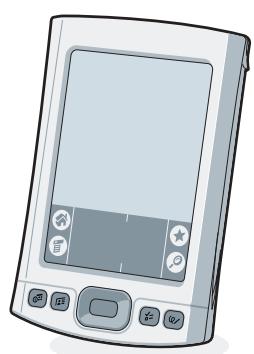
Palm Tungsten E handheld
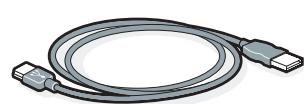
USB HotSync cable
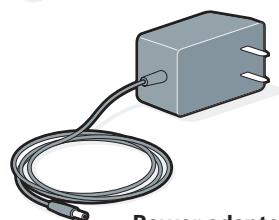
Power adapter

Software Installation CD
1 Connect and charge
a. Plug the power adapter into your Tungsten E handheld and into an outlet.
b. Charge for three hours.
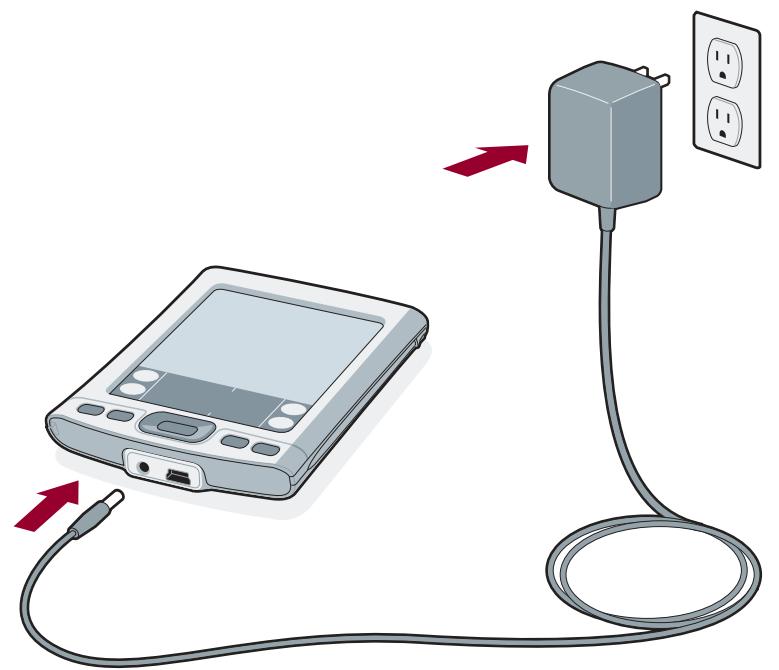
2 Set up
a. Unplug the power adapter.
b. Press the power button.*
c. Remove the stylus.
d. Follow the instructions onscreen.
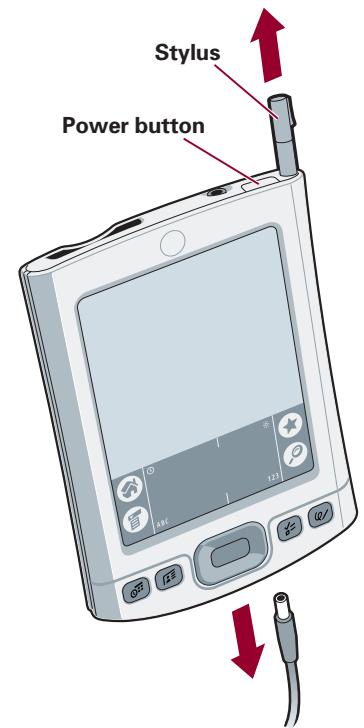
* Problems? See "Troubleshooting" on the other side of this document.
INSTALL SOFTWARE AND CONNECT HANDHeld
3 Install Palm™ Desktop software on your computer
Windows:
Follow the installation instructions that appear on your computer screen.*
Mac:
Double-click the Palm Desktop Installer icon.*
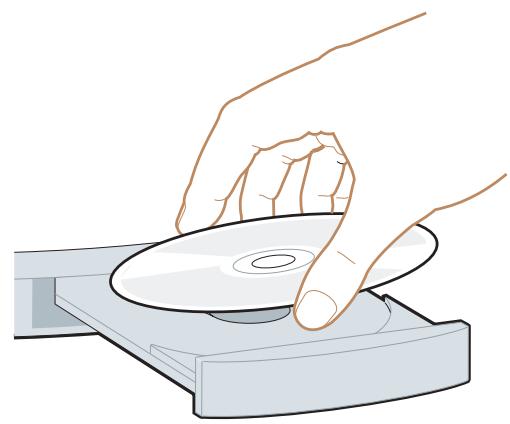
* Problems? If installation or the HotSync process did not work, see "Troubleshooting" on the other side of this document.
Tip for upgraders: To switch from Palm Desktop to Microsoft Outlook synchronization, select "Install Microsoft Outlook Conduits" at the end of the installation process. For more information on the upgrade process, go to www.palm.com/support/tungstenE.
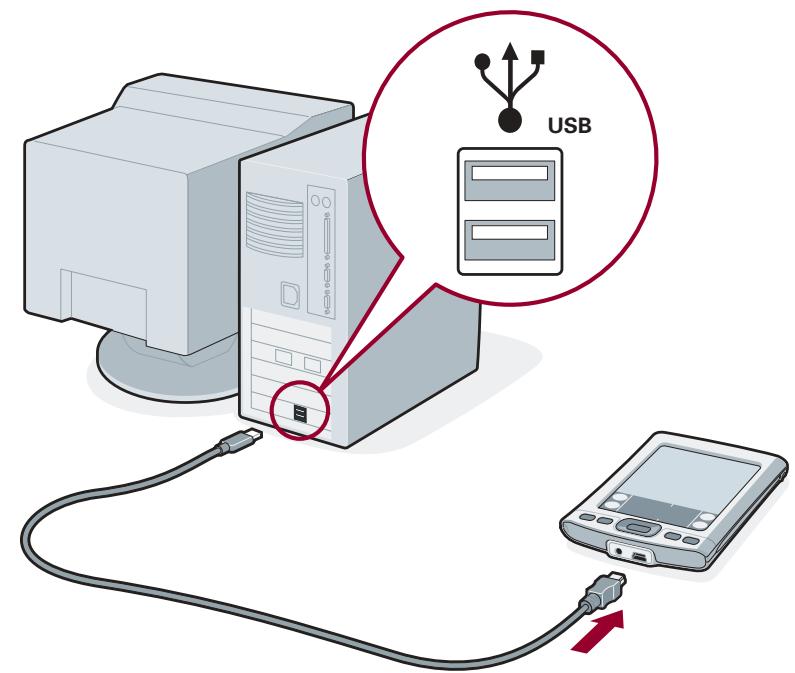
4 Connect to your computer
a. Connect the HotSync cable to your handheld.
b. Connect the cable to a USB port on your computer.
ENTER AND SYNCHRONIZE YOUR INFORMATION
5 Protect your data: Synchronize daily
a. Connect the HotSync cable to your handheld and computer (see step 4).
b. Press the power button to turn on the handheld.
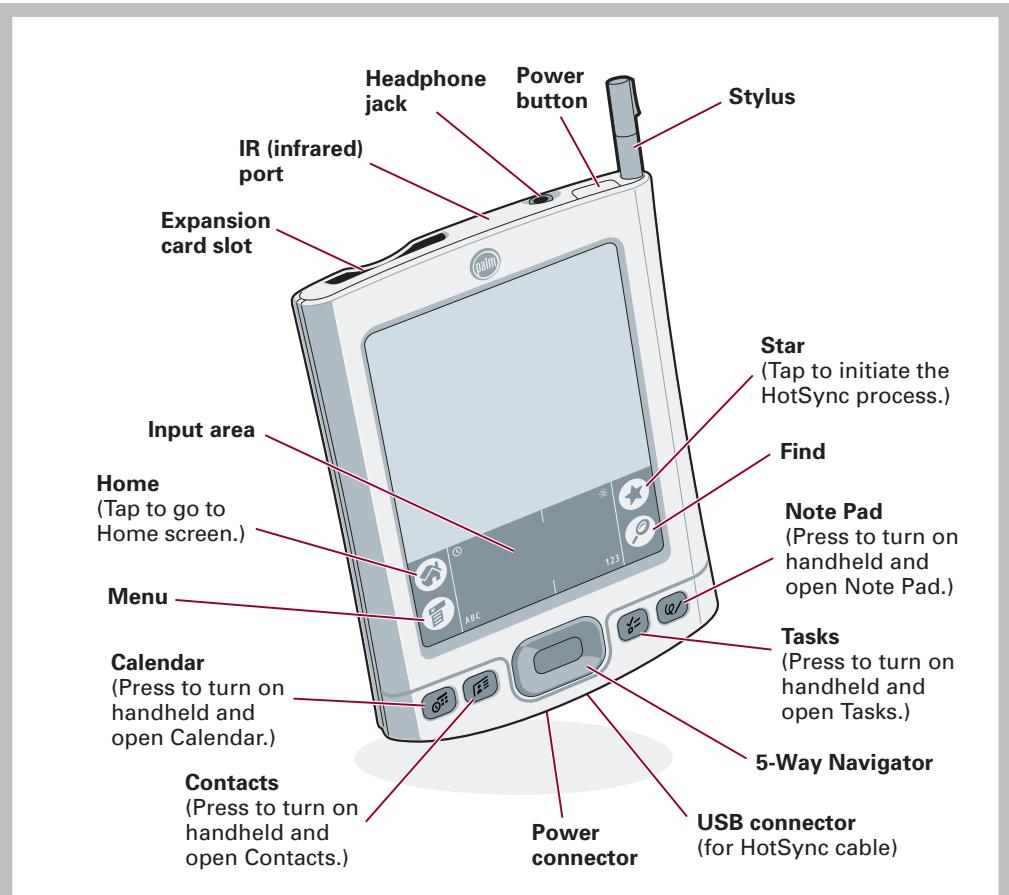
c. Tap the Star icon to start the HotSync process.*
d. When the HotSync process is complete, check your handheld and computer to see the information in both places.
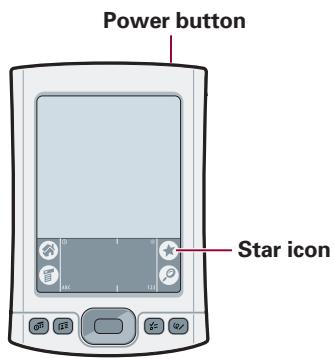

HotSync process
- Problems? If the HotSync process did not work, see "Troubleshooting" on the other side of this document.
6 Enter and synchronize your information
Use Palm Desktop software on your computer to enter appointments and addresses, and manage photos and Note Pad drawings. Use Quick Install (Windows only) to install applications on your handheld. Then transfer information and applications using the HotSync process.
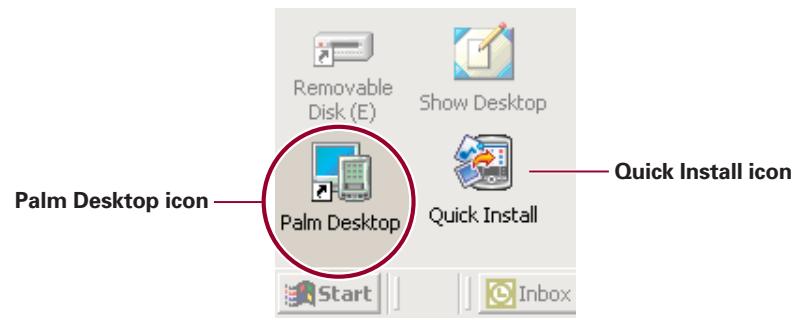
To open Palm Desktop software or Quick Install, double-click the icon on your computer desktop.
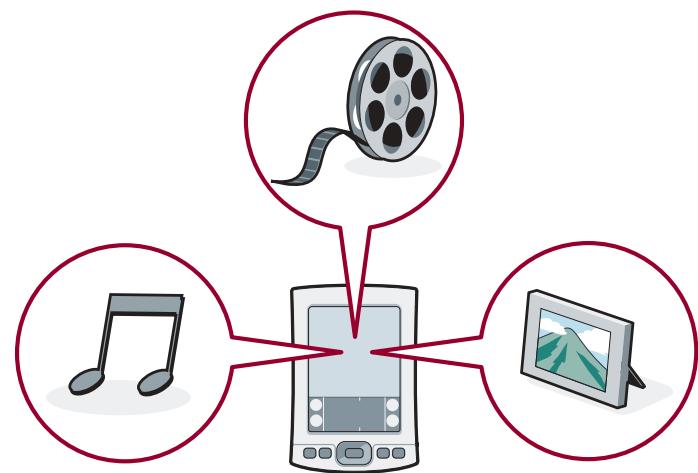
7 Listen to music, watch videos, view photos
Get the most out of your handheld. Software Essentials on the Software Installation CD has applications that let you listen to MP3 and RealAudio files, watch videos, and view photos on your handheld.
a. Insert the CD (see step 3).
b. When the Discover Your Handheld screen appears, click Software Essentials and follow the instructions.
For details on using the applications, go to www.palm.com/support/tungstenE and click the link for Photos, Music & Videos Guide.
> Your handheld does not turn on when you press the power button, or your handheld does not respond when you tap it
- Press the Calendar, Contacts, Tasks, or Note Pad button to see if you can turn on your handheld that way.
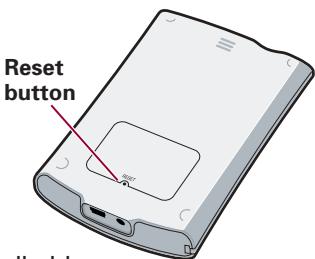
- Perform a soft reset: Unscrew the top of the stylus to reveal the reset tool (or use an unfolded paper clip or similar object without a sharp tip). Gently press the reset button inside the hole on the back panel of your handheld.
- Make sure the power adapter is plugged securely into a working electric outlet and is firmly connected to the handheld. (If no outlet is available, your handheld can also be charged through the USB cable, but this takes much longer.)
Note: Your handheld does not have an indicator light to indicate that your handheld is being charged.
- Charge for another three full hours.
- If your handheld now turns on, check the charging-battery icon to ensure that your handheld is being charged:
a. Connect the handheld to an outlet and turn it on.
b. Tap Home
c. Look for the lightning bolt on the battery icon at the top of the screen.

d. If you do not see the lightning bolt, repeat steps 3 and 4.
For more information, go to www.palm.com/support.
- Palm™ Desktop Installer does not automatically appear after you put the CD-ROM into the drive
Windows:
- Click the Start button.
- Select Run from the Start menu.
-
Click Browse to locate the drive with the Palm Desktop software CD-ROM.
-
Double-click the autorun.exe file on the Palm Desktop software CD-ROM.
Mac
- Double-click the CD-ROM icon on the Mac desktop to open the Palm Desktop software CD-ROM.
- Double-click the Palm Desktop Installer icon.
For more information, go to www.palm.com/support.
HotSync® process does not begin
Check that the USB cable is connected securely to your handheld and to a working USB port of your desktop computer.
Windows:
-
Make sure the HotSync icon appears in the Windows system tray. If not:
a. Click the Start button and select Programs.
b. Select Palm Desktop, and then select HotSync Manager. -
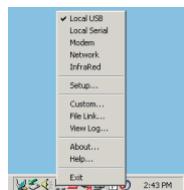
Check the connection type:
a. Click the HotSync icon.
b. Make sure there is a check mark next to Local USB. To insert a check mark, click the menu item.
HotSync icon

Mac:
- Make sure the Transport Monitor of the HotSync Manager is enabled:
a. Double-click the HotSync Manager icon in the Palm folder.
b. In the HotSync Controls tab, click Enabled.
- Make sure the USB connection is working:
a. Disconnect and then reconnect the USB cable.
b. Restart your computer.
For more information, go to www.palm.com/support.
HotSync process does not begin after tapping the Star icon
Make sure your handheld is on, and then try the following:
-
Tap the Home icon
-
Locate and tap the HotSync icon
-
In the HotSync application, make sure of the following:
-
Your username (established when you installed Palm Desktop software) is in the upper-right corner.
- Local is highlighted. If it isn't highlighted, tap Local.
- The phrase Cradle/Cable appears. If Cradle/Cable does not appear, tap whatever word is there, and then tap Cradle/Cable in the list that drops down.
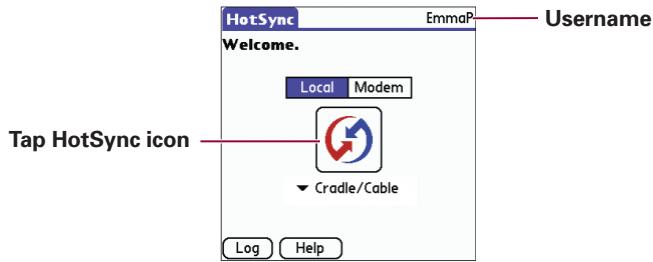
- To start the HotSync process, tap the HotSync icon in the middle of the handheld screen.
For more information, go to www.palm.com/support.
FIND MORE INFORMATION
Read the Handbook
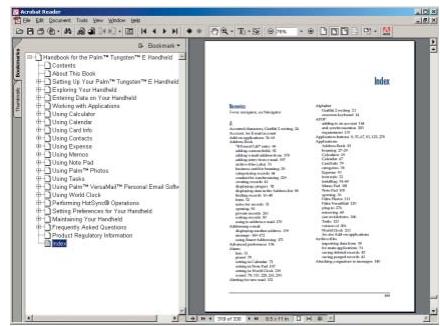
The Handbook opens in Adobe Acrobat Reader on your computer. If you do not have Acrobat Reader, you can install it from the Palm™ Desktop software CD-ROM.
Windows:
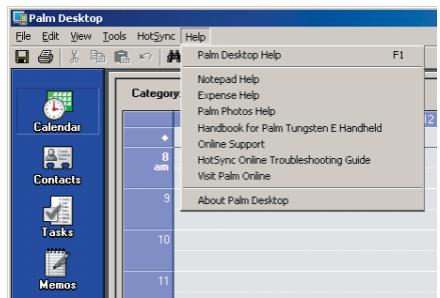
In Palm Desktop software, click Help in the menu bar. Then select the menu item for the Handbook.
Mac:
Look in the Applications:Palm: Documentation folder, and double-click TungstenE_Handbook.pdf.
www.palm.com/tungstenE
In one convenient location, find tips on getting the maximum benefit from your handheld, get your favorite accessories, download more software, and communicate with other Palm™ handheld users.
> Symptoms caused by third-party applications
Some third-party applications may not have been upgraded to be compatible with your new Palm™ handheld. If a third-party application is NOT compatible, the following symptoms may occur on your handheld after you perform a HotSync operation:
Device freeze
Device freeze or reset when an application is opened
Slow performance
- Unusual screen display
- Difficulties using handheld features
Uneven sound quality
- Fatal reset
For detailed information on issues with third-party-application compatibility, check with the third-party vendor.
For more information, go to www.palm.com/support.
Palm, Inc.
400 N. McCarthy Blvd.
Milpitas, CA 95035
Copyright
© 2003 Palm, Inc. All rights reserved. HotSync, the Palm logo, and the Palm Powered logo are registered trademarks of Palm, Inc. Palm and Tungsten are trademarks of Palm, Inc. Other product and brand names may be trademarks or registered trademarks of their respective owners. Palm, Inc. uses the MPEG Layer-3 audio decoding technology trademarks under express license from Fraunhofer IIS and Thompson.
Disclaimer and Limitation of Liability
Palm, Inc. assumes no responsibility for any damage or loss resulting from the use of this guide.
Palm, Inc. assumes no responsibility for any loss or claims by third parties which may arise through use of this software. Palm, Inc. assumes no responsibility for any damage or loss caused by deletion of data as a result of malfunction, dead battery, or repairs. Be sure to make backup copies of all important data on other media to protect against data loss.
IMPORTANT
Please read the End User Software License Agreement with this product before using the accompanying software program(s). Using any part of the software indicates that you accept the terms of the End User Software License Agreement.
Music files are for your personal use only. Palm, Inc. does not endorse the illegal usage of copyrighted material.
Software Download Available
Palm™ Desktop software is supplied on a CD-ROM disc. Check www.palm.com/Desktop for updates and new versions of the software.
Agency Compliance Information
Product regulatory and compliance information can be found in the Handbook file located on the product CD-ROM.

POWERED

READ THIS FIRST
- Use this guide to
- Important! Already use a Palm™ handheld?
- Contents
- Connect and charge
- Set up
- INSTALL SOFTWARE AND CONNECT HANDHeld
- Install Palm™ Desktop software on your computer
- Windows:
- Mac:
- Connect to your computer
- ENTER AND SYNCHRONIZE YOUR INFORMATION
- Protect your data: Synchronize daily
- Enter and synchronize your information
- Listen to music, watch videos, view photos
- > Your handheld does not turn on when you press the power button, or your handheld does not respond when you tap it
- - Palm™ Desktop Installer does not automatically appear after you put the CD-ROM into the drive
- Mac
- HotSync® process does not begin
- HotSync process does not begin after tapping the Star icon
- FIND MORE INFORMATION
- Read the Handbook
- www.palm.com/tungstenE
- > Symptoms caused by third-party applications
- Palm, Inc.
- Copyright
- Disclaimer and Limitation of Liability
- IMPORTANT
- Software Download Available
- Agency Compliance Information
- READ THIS FIRST
Marque : PALM
Modèle : TUNGSTENE
Catégorie : PDA