
CRUZER TAG - Clé USB SANDISK - Notice d'utilisation et mode d'emploi gratuit
Retrouvez gratuitement la notice de l'appareil CRUZER TAG SANDISK au format PDF.


| Type de produit | Clé USB |
| Marque | SanDisk |
| Modèle | Cruzer Tag |
| Capacité de stockage | 32 Go (varie selon version) |
| Interface | USB 2.0 (rétrocompatible USB 1.1) |
| Vitesse de transfert | Jusqu'à 5 Mo/s en lecture, 3 Mo/s en écriture (estimation) |
| Dimensions (L x l x H) | Environ 45 x 15 x 10 mm |
| Poids | Environ 10 g |
| Matériau | Plastique ABS |
| Couleur | Noir (selon version) |
| Connecteur | USB Type-A mâle |
| Indicateur LED | Oui, clignote lors du transfert de données |
| Systèmes d'exploitation compatibles | Windows XP/Vista/7/8/10, Mac OS X 10+, Linux |
| Alimentation | Alimenté via le port USB (port à haute puissance requis) |
| Fonctions principales | Stockage et transfert de données, plug-and-play |
| Formatage par défaut | FAT32 (pour compatibilité multi-OS) |
| Température de fonctionnement | 0 °C à 45 °C |
| Certifications | CE, FCC, RoHS |
| Entretien et nettoyage | Essuyer avec un chiffon doux et sec. Ne pas immerger. |
| Pièces détachées et réparabilité | Aucune pièce détachée disponible. Appareil non réparable. |
| Garantie | Garantie limitée de 2 ans (vérifier conditions) |
| Informations générales | Utilisation : stockage nomade, photos, documents, musique. Retrait sécurisé requis pour éviter perte de données. |
FOIRE AUX QUESTIONS - CRUZER TAG SANDISK
Questions des utilisateurs sur CRUZER TAG SANDISK
0 question sur cet appareil. Repondez a celles que vous connaissez ou posez la votre.
Poser une nouvelle question sur cet appareil
Téléchargez la notice de votre Clé USB au format PDF gratuitement ! Retrouvez votre notice CRUZER TAG - SANDISK et reprennez votre appareil électronique en main. Sur cette page sont publiés tous les documents nécessaires à l'utilisation de votre appareil CRUZER TAG de la marque SANDISK.
MODE D'EMPLOI CRUZER TAG SANDISK
SanDiskCruzerTM USB Flash DriveQuick Start Guide
MINIMUM SYSTEM REQUIREMENTS:
- Storage only: Windows® XP, Windows Vista®, Mac OS® 10+ and Linux
- USB 2.0 port required for high-speed data transfer
- Requires high-power USB hub port
DISCONNECTING
You don't need to shut down your computer to disconnect the USB Flash Drive, but to avoid losing data you should never remove the device from the USB port while the LED is flashing. If a drive window is open, close any associated windows before attempting to remove your USB Flash Drive.
Windows® Operating System
Use the "Safe to Remove Hardware" hotplug icon in the notification area of the taskbar to safely remove the device before unplugging. The notification area is to the right of the taskbar where you usually see the current time displayed.
- In the notification area, right-click on the "safe to remove hardware" hotplug icon.
- Select the device you want to unplug, and then click Stop.
- When Windows notifies you that it is safe to do so, unplug the USB Flash Drive from your computer.
Mac OS® Operating system Software
- Drag the removable disk to the desktop Trash icon.
- Unplug your USB Flash Drive.
(Note: LED may stay illuminated)
Disposal Instructions
Do not dispose of this device with unsorted household waste. Improper disposal may be harmful to the environment and human health. Please refer to your local waste authority for information on return and collection systems in your area.
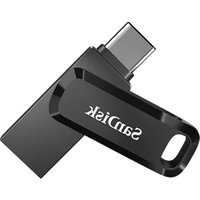


Marque : SANDISK
Modèle : CRUZER TAG
Catégorie : Clé USB