
GA310 - Accessoire de jeu vidéo SWEEX - Notice d'utilisation et mode d'emploi gratuit
Retrouvez gratuitement la notice de l'appareil GA310 SWEEX au format PDF.


| Type de produit | Volant de jeu avec vibration |
| Marque | SWEEX |
| Modèle | GA310 (RS-100) |
| Angle de braquage | 270 degrés |
| Vibration | Double vibration (si le jeu le supporte) |
| Modes de fonctionnement | Numérique, Analogique, Négatif |
| Nombre de boutons | 12 boutons d'action |
| Fonction de relocalisation des boutons | Oui |
| Sensibilité du volant | Réglable (Faible, Moyenne, Haute) |
| Pédales incluses | Oui (accélérateur et frein) |
| Levier de vitesse inclus | Oui (haut/bas et reverse) |
| Alimentation | USB (via port PC) |
| Compatibilité | PC |
| Installation | CD-ROM inclus avec pilotes |
| Entretien | Éviter températures extrêmes, humidité, poussière |
| Sécurité | Ne pas ouvrir - pas de pièces réparables à l'intérieur |
| Garantie | 2 ans dans l'UE (hors accessoires et logiciels) |
| Contenu du package | Volant, pédales, fixations de table, CD-ROM |
| Enregistrement produit | www.sweex.com/productregistration |
FOIRE AUX QUESTIONS - GA310 SWEEX
Questions des utilisateurs sur GA310 SWEEX
0 question sur cet appareil. Repondez a celles que vous connaissez ou posez la votre.
Poser une nouvelle question sur cet appareil
Téléchargez la notice de votre Accessoire de jeu vidéo au format PDF gratuitement ! Retrouvez votre notice GA310 - SWEEX et reprennez votre appareil électronique en main. Sur cette page sont publiés tous les documents nécessaires à l'utilisation de votre appareil GA310 de la marque SWEEX.
MODE D'EMPLOI GA310 SWEEX
GA310 Vibration Steering Wheel RS-100
Important!
- Do not expose the Vibration Steering Wheel RS-100 to extreme temperatures. Do not place the device in direct sunlight or in the direct vicinity of heating elements.
- Do not use the Vibration Steering Wheel RS-100 in extremely moist or dusty surroundings.
- Protect the device against powerful shocks and falls - they may damage the internal electronics.
- Never attempt to open the device yourself, there are no serviceable parts inside. Opening the device will cause the warranty to lapse.
Package contents
In this package you will find:
Vibration Steering Wheel RS-100
- Pedal
Table clamps
CD-ROM with manual
If you find that any of the package contents are missing, please return the package to the sales point where it was bought.
Terminology list
Twelve input buttons
- Three function modes: DIGITAL/ANALOG/NEG
- Adjustable steering sensitivity (Low, Middle, High)
- Button Relocation feature
270 degree steering angle
- Dual vibration feature (If the games support vibration).
Buttons Layout
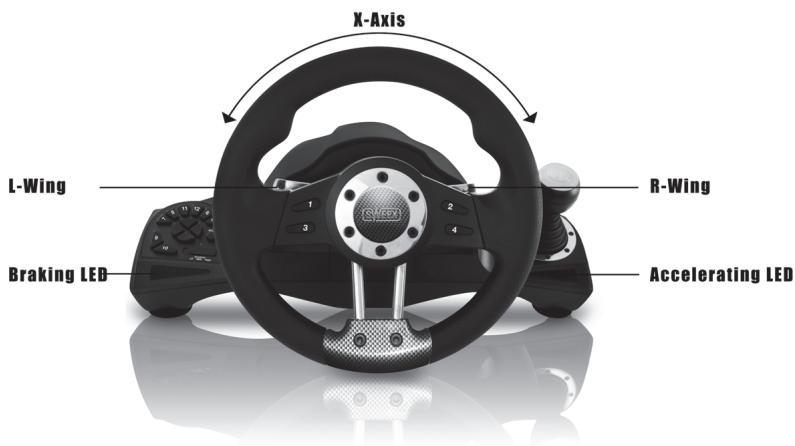
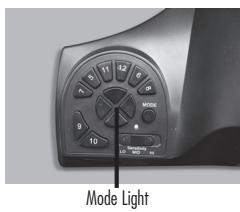
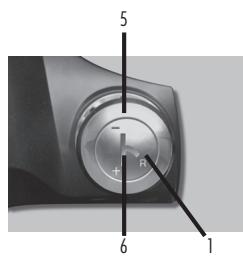
| Mode light | Button | Blinking Analog mode | On | Off Digital mode |
| Action Key | 3 | Y+ | 3 | 3 |
| 2 | 2 | 2 | 2 | |
| 4 | Y- | 4 | 4 | |
| 1 | 1 | 1 | 1 | |
| 8 | 8 | 8 | 8 | |
| 7 | Z axis | 7 | 7 | |
| 6 | 8 | 6 | 6 | |
| 5 | Z axis | 5 | 5 | |
| 12 | No Function | 12 | No function | |
| 11 | No Function | 11 | No function | |
| D-PAD | UP | POV Up | POV Up | Y+ |
| DOWN | POV Down | POV Down | Y- | |
| LEFT | POV Left | POV Left | X- | |
| RIGHT | POV Right | POV Right | X+ | |
| Function Key | 10 | 10 | 10 | 10 |
| 9 | No Function | 9 | 9 | |
| X axis | X axis | X axis | ||
| L-Wing | L-Wing | POV Up | 5 | 5 |
| R-Wing | R-Wing | POV Down | 6 | 6 |
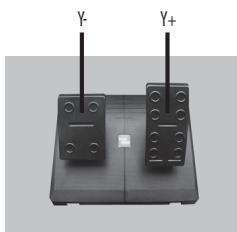
| L-Pedal | L-Pedal | Y- | Y- | Y- |
| R-Pedal | R-Pedal | Y+ | Y+ | Y+ |
| MODE | MODE | Mode | MODE | Mode |
| Gear Stick | Up | POV Down | 6 | 6 |
| Down | POV Up | 5 | 5 | |
| Reverse | 1 | 1 | 1 |
Installation
You can press the "Mode" button to select the correct configuration for your game. There are 3 modes: Led on, Led off and Led flashing.
PC
- Insert the Sweeex CD-Rom into your computer
- Double click the "Install Driver" button
- Follow the instructions to install the Steering Wheel
- Connect the Steering Wheel to a USB Port on the PC
- Select 'Game Controllers' in the Control Panel to calibrate the steering wheel properties
Button relocation
The Steering Wheel incorporates a very useful feature called Button Relocation to re-map any control button to the most convenient and useful button configuration for the user.
- Press and hold buttons 9 and 10 for 3 seconds till the green led illuminates
- Press the button that you wish to relocate the function to, the LED starts to flash.
- Press the button with the function you wish to be relocated, the LED turns OFF, the relocation is complete
- Repeat the above steps to relocate further control buttons
NOTE.:
a. Once power off, all the program setting will be cleared
b. Please ensure that Button Relocations are deleted before changing to a different driving game, otherwise the controls may not match the new game being played.
To Clear a Button Relocation (Remap)
- Press and hold the program button (or start and select) for 3 seconds till the green led illuminates
- Press the desired button to delete the Button Relocation, the LED starts to flash
- Re-press the button, the LED is OFF, deletion is complete
- Repeat the above steps to clear any other Button Relocations
Troubleshooting
The Steering Wheel does not locate in the neutral centre:
Do not turn the Wheel when connecting the wheel to your pc or when you are switching on your pc with the wheel connected. If the Wheel is not at its neutral (centre) position when the console is turned on, then the position that it is held at will be read as the new neutral (centre) position, and this may cause the unit to operate incorrectly. To reset to the neutral position, unplug the wheel from your pc, leave the Wheel centralized, and plug the wheel back.
The buttons and wheel do not match my game
Check Steering Wheel "Mode" button. If the game does not support the mode that you have set, try to select another mode to suit the game. And if needed reset your console.
The gearshift or Pedals do not work
Press the Mode button to ensure the correct mode has been selected.
Or
Check if the buttons have been relocated.
Warranty
Thank you for purchasing this Sweeex product. Sweeex devotes ample attention and care to the quality, reliability, functionality, durability and user friendliness of all its products. In this way Sweeex distinguishes itself in the market and can we convince you as a buyer to continue purchasing products of the Sweeex brand. We wish you a lot of pleasure with your purchase.
An important extra advantage for you is the possibility of product registration.
You can register the product you purchased online on www.sweex.com/productregistration.
By registering your product Sweeex offers you a number of important yet equally useful advantages.
For example, if you wish so, you are regularly informed by us of the latest developments in our assortment by means of a digital newsletter.
Where applicable, you also automatically receive the latest drivers and/or firmware from us for the product you purchased to preserve or improve the compatibility and the performance.
Moreover, our support desk can assist you faster in case of possible support questions about the product if you registered the product.
Sweex warranty conditions.
2-year standard warranty within the EU
In a standard manner a warranty period of 2 years as from the purchase date is available for this Swee x product within the EU.
Should you wish to invoke this warranty within the first 2 years after the purchase then you can directly apply to the point of sale where you purchased the product for the conditions and procedures.
Matters that are excluded from the warranty
The warranty of Sweex only covers manufacturing defects. Excluded from the warranty are accessories like batteries, rechargeable batteries and also supplied software, where applicable.
The liability of Sweex is limited to the costs of repair and/or replacement of the product covered by the warranty.
The standard warranty is null and void if the product has been opened, changes have been made, physical damage was caused to the product and if the product is used for another purpose than for which it is originally meant.
All brand names and associated rights mentioned in this manual are and remain the sole property of the rightful claimant.