
IP001 - Téléphone SWEEX - Notice d'utilisation et mode d'emploi gratuit
Retrouvez gratuitement la notice de l'appareil IP001 SWEEX au format PDF.

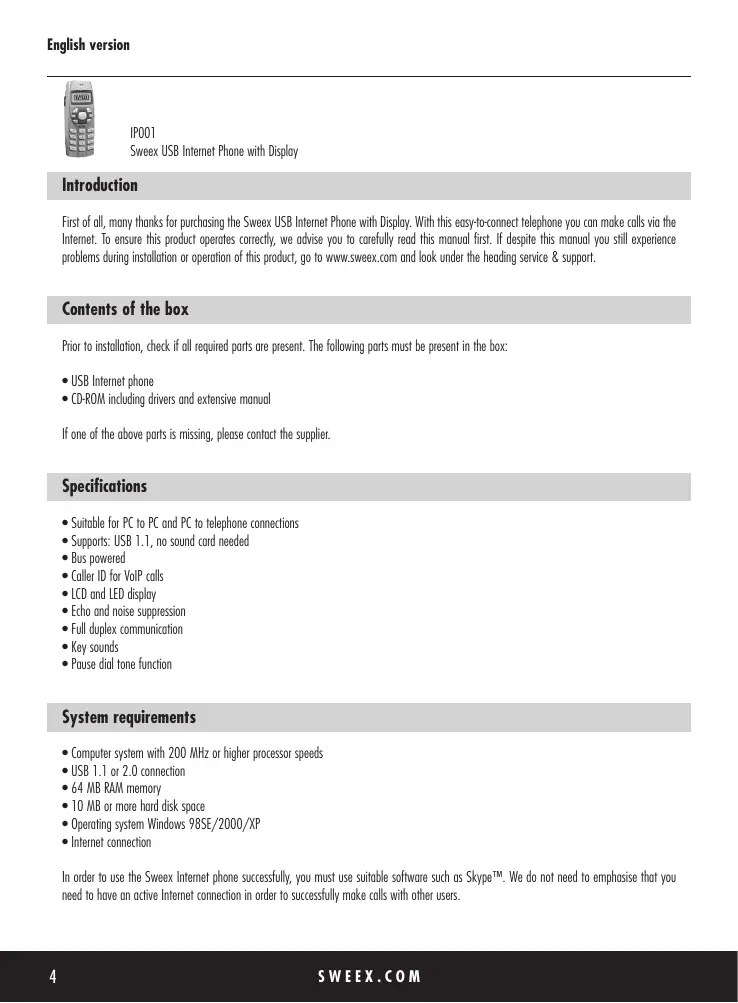

| Type de produit | Téléphone USB Internet avec écran |
| Marque | Sweex |
| Modèle | IP001 |
| Catégorie | Téléphone |
| Alimentation | Via port USB (bus-powered) |
| Connexion | USB 1.1 (compatible USB 2.0) |
| Affichage | Écran LCD et LED |
| Fonctions principales | Appels PC à PC et PC à téléphone, identification d'appel VoIP, suppression d'écho et bruit, communication full duplex, touches sonores, fonction de pause, répertoire de contacts, liste d'appels, 21 sonneries, volume réglable |
| Configuration système requise | Processeur 200 MHz ou supérieur, 64 Mo RAM, 10 Mo d'espace disque, Windows 98SE/2000/XP, connexion Internet |
| Contenu du coffret | Téléphone USB, CD-ROM avec pilotes et manuel |
| Compatibilité logicielle | Skype™, SkyWin |
| Garantie | 3 ans (hors logiciel et batteries) |
FOIRE AUX QUESTIONS - IP001 SWEEX
Questions des utilisateurs sur IP001 SWEEX
0 question sur cet appareil. Repondez a celles que vous connaissez ou posez la votre.
Poser une nouvelle question sur cet appareil
Téléchargez la notice de votre Téléphone au format PDF gratuitement ! Retrouvez votre notice IP001 - SWEEX et reprennez votre appareil électronique en main. Sur cette page sont publiés tous les documents nécessaires à l'utilisation de votre appareil IP001 de la marque SWEEX.
MODE D'EMPLOI IP001 SWEEX
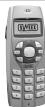
IP001
Sweex USB Internet Phone with Display
Introduction
First of all, many thanks for purchasing the Sweex USB Internet Phone with Display. With this easy-to-connect telephone you can make calls via the Internet. To ensure this product operates correctly, we advise you to carefully read this manual first. If despite this manual you still experience problems during installation or operation of this product, go to www.sweex.com and look under the heading service & support.
Contents of the box
Prior to installation, check if all required parts are present. The following parts must be present in the box:
- USB Internet phone
CD-ROM including drivers and extensive manual
If one of the above parts is missing, please contact the supplier.
Specifications
- Suitable for PC to PC and PC to telephone connections
Supports: USB 1.1, no sound card needed - Bus powered
- Caller ID for VoIP calls
- LCD and LED display
- Echo and noise suppression
Full duplex communication
Key sounds - Pause dial tone function
System requirements
- Computer system with 200 MHz or higher processor speeds
- USB 1.1 or 2.0 connection
- 64 MB RAM memory
- 10 MB or more hard disk space
- Operating system Windows 98SE/2000/XP
- Internet connection
In order to use the SweeX Internet phone successfully, you must use suitable software such as Skype™. We do not need to emphasise that you need to have an active Internet connection in order to successfully make calls with other users.
Important! Prior to connecting the Sweeex USB Internet Phone to the computer, you must first install the SkyWin software provided.
The developments in the fields of hardware and software follow each other in rapid succession. We therefore advise you to ensure that the operating system you use is up-to-date before you start the installation. This update is easy to carry out by starting up "Internet Explorer" and selecting the option "Windows Update" in the "Extra" menu.
Installing the drivers
Insert the driver software CD-ROM provided in the CD-ROM or DVD player. The CD will start playing automatically and the Installation Screen will appear on your screen.
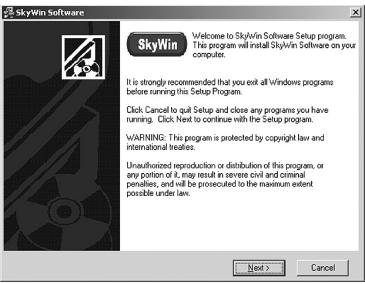
Follow these instructions if the CD does not start playing automatically: Go to the Start Menu and select the option 'Run'. Type in X:\Setup, X being the drive letter of the CD or DVD player. Click on Next to start the installation process.
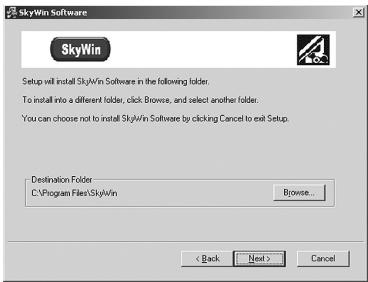
By default, the software is installed in the folder C:\Program Files\SkyWin. We advise you to accept this folder and to continue with the installation process. Click Next again.
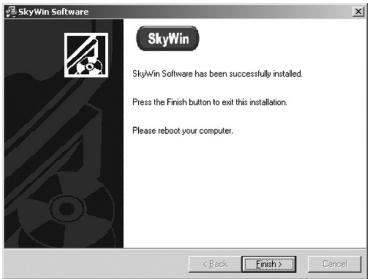
Click on Finish to complete the installation process. In order to activate any changes made, the computer must then be restarted.
After the computer has been restarted, a pop-up window may appear. This depends on whether or not the Skype™ software has already been installed.
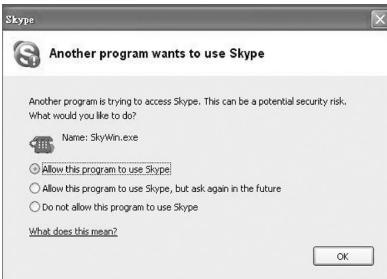
Choose the option Allow this program to use SkypeTM and click on OK.
Removing the drivers
If ever you need to remove the drivers from the computer, follow these instructions:
Windows XP Classic display
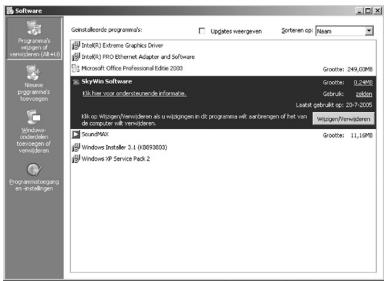
In the Start Menu, select the options Settings - Configuration Screen - Add or Remove Programs. In the list that subsequently appears, select SkyWin Software.
Windows XP display
In the Start Menu, select the options Configuration Screen - Software. In the list that subsequently appears, select SkyWin Software and click on 'Change/Remove'.
Connecting the Sweex USB Internet phone
As soon as the drivers have been installed and the computer has been restarted, the Sweex USB Internet phone can be connected to an available USB port. Windows will automatically recognise the telephone and activate the correct drivers. If all goes well, the time will appear in the phone's display.
To ensure that the SweeX USB Internet phone functions correctly, you must check the sound settings of Skype™. Start Skype™ and select Settings in the Actions Menu.
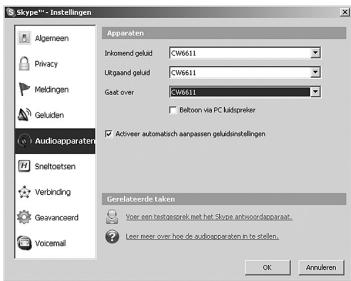
On the left, select Audio Devices and for Incoming, Outgoing and Via, select the Sweex USB Internet phone (CW6611 or USB audio device).
Using the Sweex USB Internet phone to make calls

In order to call another Skype user, you must select this user on the Contacts page and then click on the call button. Alternatively you can give the contact a speed dial number. This way, you can directly call someone with the Sweex USB Internet phone.
In order to call a land line or mobile number, you need SkypeOut. In order to be able to use this option, you must first buy call credit. Once you have SkypeOut call credit, you must follow the instructions below to make a call.
First key in 011 to indicate that a SkypeOut call must take place. Then key in the country code. Note: when you want to make a call to a Dutch phone number while in the Netherlands, you must still enter the country code. The country code is followed by the area code, leaving out the 0. Then you key in the subscriber's number.
SkypeOut
011
Country code
31
Area code
15
Subscriber's number
7501750
To answer a call
When the SweeX USB Internet phone rings to indicate an incoming call, you press to answer the call or to reject the call.
Setting the functions
When no call is made, press the key to open the function menu. You have four options within this menu:
- Contacts
- Miss list
- Call list
- Options
Contacts
As soon as this menu option appears in the display, you press the key again. You can now use the Up and Down keys to browse through the list of contacts. If a contact is Online, the online symbol will appear in the display. By pressing the Info key, detailed information about the contact will appear. By pressing the key, the contact will be called.
Missed calls
As soon as this menu option appears in the display, you press the key again to view any missed calls. You can use the Up and Down keys to browse through the list. Press the key to leave this function.
Call list
As soon as this menu option appears in the display, you press the key again to view any received calls. You can use the Up and Down keys to browse through the list.
Options
As soon as this menu option appears in the display, you press the key again to view the various options and to change them. You can use the Up and Down keys to browse through the list of options. Press the to select and change a function. If you want to save the settings, you use the key again.
The available options are:
VOL SET Setting the call volume. The Up key is used to increase the volume; the Down key is used to lower the volume. The highest volume setting is 7.
RING VOL This is used to set the ring volume. This is also done using the Up and Down keys.
NAME SET This setting is used to indicate whether or not contacts must be displayed with their user name or an alias.
KEY TONE This option can be ON or OFF. When the option is ON, you will hear a beep as soon as a key is pressed.
RING SET With this option you can select one of 21 different ring tones.
HOLD SET This option gives you the opportunity to set 10 different hold tones as soon as you put a call on hold. This option can be also be switched on or off.
Frequently asked questions
Question 1
The voice is played back via the computer's sound card instead of the Sweex USB Internet phone.
Solution
In Skype™, go to the Actions Menu > Settings > Audio Devices. Then set the options Incoming Sound, Outgoing Sound and Via to USB Audio Device or CW6611.
Question 2
I cannot hear a voice when music is played via the computer.
Solution
Go to Configuration Screen > Sounds and Audio Devices > Audio. Under the options Playing Back Sound and Recording Sound, set your sound card as the default device.
Warranty
All articles that are carried under the name Sweex have a 3-year term of guarantee. Only the Sweex Digital photo and video cameras have a 2-year term of guarantee. We do not provide support or warranty for the supplied software or (rechargeable) batteries.
Settlement of guarantee only takes place via the dealer where you have purchased the product in question.