
TBW-106UB - Adaptateur USB Wi-Fi TRENDNET - Notice d'utilisation et mode d'emploi gratuit
Retrouvez gratuitement la notice de l'appareil TBW-106UB TRENDNET au format PDF.


| Type de produit | Adaptateur Bluetooth USB |
| Marque | TRENDNET |
| Modèle | TBW-106UB |
| Dimensions | 19,0 x 12,0 x 5,5 mm |
| Poids | Environ 2 g |
| Alimentation | 5 V CC via port USB |
| Interface | USB 2.0 |
| Norme Bluetooth | Bluetooth v2.0 + EDR |
| Classe | Classe I (portée jusqu'à 100 m en espace libre) |
| Débit de données | Jusqu'à 3 Mbit/s |
| Fréquence | 2,4 – 2,483 GHz |
| Étalement du spectre | FHSS (Frequency Hopping Spread Spectrum) |
| Modulation | GFSK (1 Mbit/s), π/4-DQPSK (2 Mbit/s), 8DPSK (3 Mbit/s) |
| Nombre maximal de périphériques connectés | 7 |
| Fonctions principales | Transfert de fichiers, connexion réseau, imprimante, casque, clavier/souris, accès à Internet, synchronisation |
| Systèmes d'exploitation compatibles | Windows Vista / XP / 2000 / ME / 98SE |
| Logiciel inclus | IVT BlueSoleil (multilingue) |
| Sécurité | Authentification par code PIN, chiffrement des données, gestion des appareils appairés |
| Entretien et nettoyage | Aucun entretien particulier. Nettoyer avec un chiffon doux et sec. Ne pas utiliser de liquides. |
| Pièces détachées et réparabilité | Ne contient aucune pièce réparable par l'utilisateur. Garantie de 2 ans. |
| Informations générales | Conforme à la FCC (Partie 15) et au marquage CE (classe B). |
FOIRE AUX QUESTIONS - TBW-106UB TRENDNET
Questions des utilisateurs sur TBW-106UB TRENDNET
0 question sur cet appareil. Repondez a celles que vous connaissez ou posez la votre.
Poser une nouvelle question sur cet appareil
Téléchargez la notice de votre Adaptateur USB Wi-Fi au format PDF gratuitement ! Retrouvez votre notice TBW-106UB - TRENDNET et reprennez votre appareil électronique en main. Sur cette page sont publiés tous les documents nécessaires à l'utilisation de votre appareil TBW-106UB de la marque TRENDNET.
MODE D'EMPLOI TBW-106UB TRENDNET
TRENDNET
User's Guide
Federal Communication Commission Interference Statement
This equipment has been tested and found to comply with the limits for a Class B digital device, pursuant to Part 15 of the FCC Rules. These limits are designed to provide reasonable protection against harmful interference in a residential installation.
This equipment generates, uses and radiates radio frequency energy and, if not installed and used in accordance with the instructions, may cause harmful interference to radio communications. However, there is no guarantee that interference will not occur in a particular installation. If this equipment does cause harmful interference to radio or television reception, which can be determined by turning the equipment off and on, the user is encouraged to try to correct the interference by one of the following measures:
Reorient or relocate the receiving antenna.
Increase the separation between the equipment and receiver.
Connect the equipment into an outlet on a circuit different from that to which the receiver is connected.
Consult the dealer or an experienced radio/TV technician for help.
FCC Caution: To assure continued compliance, any changes or modifications not expressly approved by the party responsible for compliance could void the user's authority to operate this equipment. (Example - use only shielded interface cables when connecting to computer or peripheral devices).
This device complies with Part 15 of the FCC Rules. Operation is subject to the following two conditions:
(1) This device may not cause harmful interference, and
(2) This device must accept any interference received, including interference that may cause undesired operation.
CE Mark Warning
This is a Class B product. In a domestic environment, this product may cause radio interference, in which case the user may be required to take adequate measures.

Table Contents
Introduction. 1
Bluetooth Technology 1
About the Micro-Bluetooth USB Adapter 1
Product Features 1
Package Contents 2
System Requirements 2
Installation of the Bluetooth Software 3
BlueSoleil 6
Local Bluetooth Device 6
Remote Bluetooth Devices. 7
Icons: 7
Icon Meanings: 8
Operations: 8
Bluetooth Service Buttons of Remote Device 8
Local Service Status. 9
Local Service List. 10
11
File Menu: 11
View Menu: 11
My Bluetooth Menu: 12
My Services Menu: 12
Tools Menu: 12
Bluetooth status Icon 15
Find Remote Devices 16
Connect and Disconnect 17
Connect via Shortcuts 17
Remote Device Status 18
Remote Device Properties 19
Hardware Configuration 20
Properties Configuration 21
Pair/Un-pair Devices 24
Paired Devices Management 25
Local Services Security 26
FAQ 28
What can Bluetooth do? 28
How can I find my Bluetooth device information? 28
What is my Bluetooth device name, and how to change it? 28
Can't find the remote device services? 29
How Bluetooth passkey works? If I change the fixed passkey, will it affect the paired devices? 29
How to protect my services from other's unauthorized usage? 29
Specification 30
Limited Warranty 31
Introduction
Thank you for purchasing the Micro-Bluetooth USB Adapter (Model: TBW-106UB). This Adapter will allow you to connect with other Bluetooth devices.
Bluetooth Technology
Bluetooth is a short range wireless communication technology. It allows wireless connections between Bluetooth devices such as cellular phones, headsets, desktop and notebooks computers, mouse, keyboards and printers. Bluetooth refers to a worldwide standard designed to operate in the internationally recognized ISM frequency band (2.4 GHz - 2.48 GHz). Within the ISM band, Bluetooth transmissions hop between 79 separate frequencies 1,600 times every second. Bluetooth communication range is about 10 meters for class II or 100 meters for class I.
About the Micro-Bluetooth USB Adapter
The Micro-Bluetooth USB Adapter (Model TBW-106UB) networks Bluetooth enabled devices such as cell phones, keyboards and headsets.
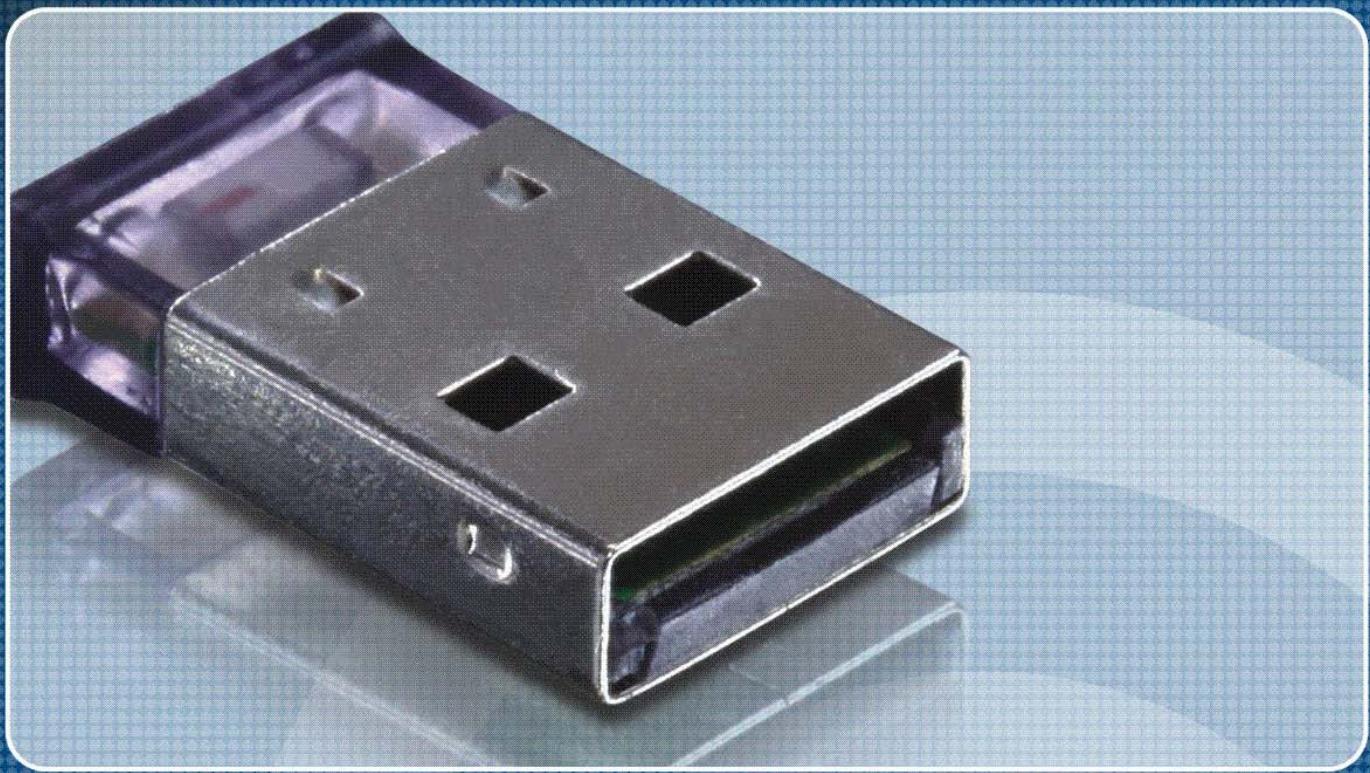
The size of a penny, simply plug this micro-device into an available USB port on your laptop or desktop and experience exceptional Bluetooth connectivity.
Connect as many as 7 Bluetooth devices at distances of up to 100m (328ft). Enhanced Data Rate (EDR) technology transfers your data quickly. Adaptive Frequency Hopping (AFH) minimizes interference from other wireless technologies. This compact device also provides secure encrypted data communication.
Product Features
This micro-device is about the size of a penny
Turn your laptop or desktop computer into a Bluetooth enabled workstation
Connect Bluetooth enabled devices such as cell phones and headsets
Experience crystal clear sound quality for distances of up to 100m (328ft)
Connect Bluetooth-enabled devices such as printers, headsets, audio/video devices and mobile phones
Compliant with Class I Bluetooth v2.0 specifications
Enhanced Data Rate (EDR) support
Bluetooth IVT software technology
Adaptive Frequency Hopping (AFH) support
Enhanced SCO (ESCO) for crisp and clear voice quality
Compatible with Windows Vista/98SE/ME/2000/XP and Media Center Edition operating systems
Communicates wirelessly up to 100 meters (328ft.) (depends on environment)
Trouble free Plug & Play installation
Compatible with IVT BlueSoleil Software
Package Contents
The box should contain the following items:
TBW-106UB
CD-ROM (Driver & User's Guide)
Multi-Language Quick Installation Guide
If any item is found missing or damaged, please contact your local reseller for replacement.
System Requirements
CD-ROM drive
Computer With An Available USB 1.1 or 2.0 Port
CPU: Pentium 300MHz or Above
Memory: 256 MB or Above
Hard Drive Space: 50MB or Above
Windows 98SE/Me/2000/XP/Vista
Installation of the Bluetooth Software
Install the driver and software located on the CD BEFORE plugging in the Bluetooth USB Adapter into your computer.
Insert the Bluetooth Driver/Software CD into your CD-ROM drive. The setup screen will appear,
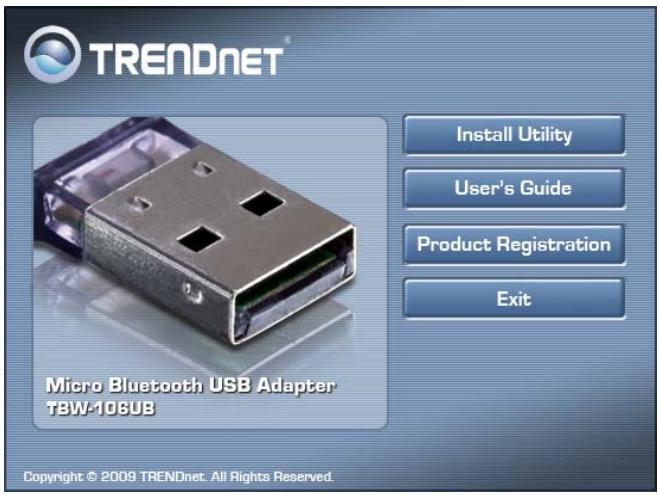
Click "Install Utility" to install the Bluetooth USB Adapter driver and software. Follow the InstallShield wizard instructions to complete the installation, if the installation CD does not automatically start. Please browse your CD drive and double click on the "Set-up.exe".
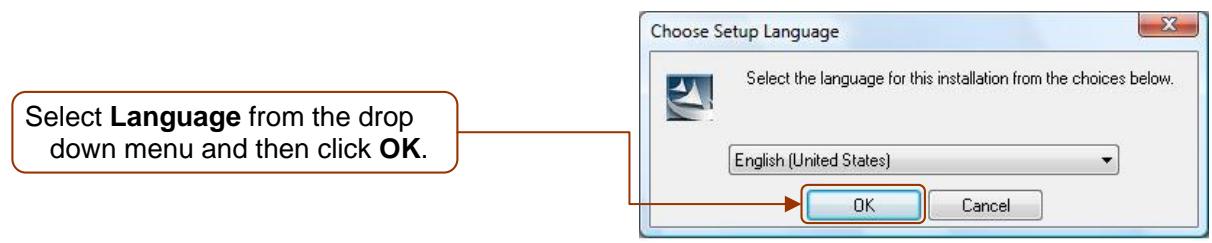

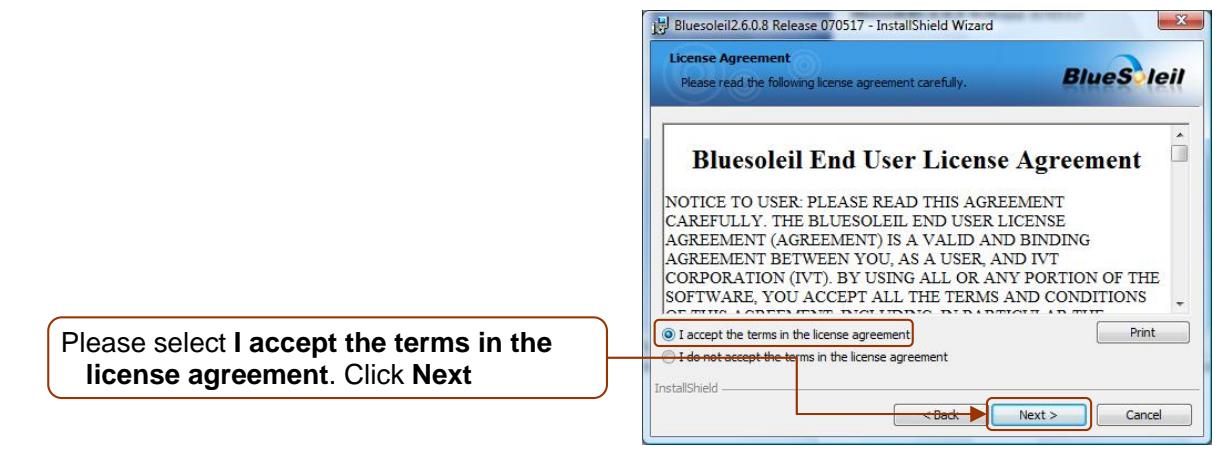
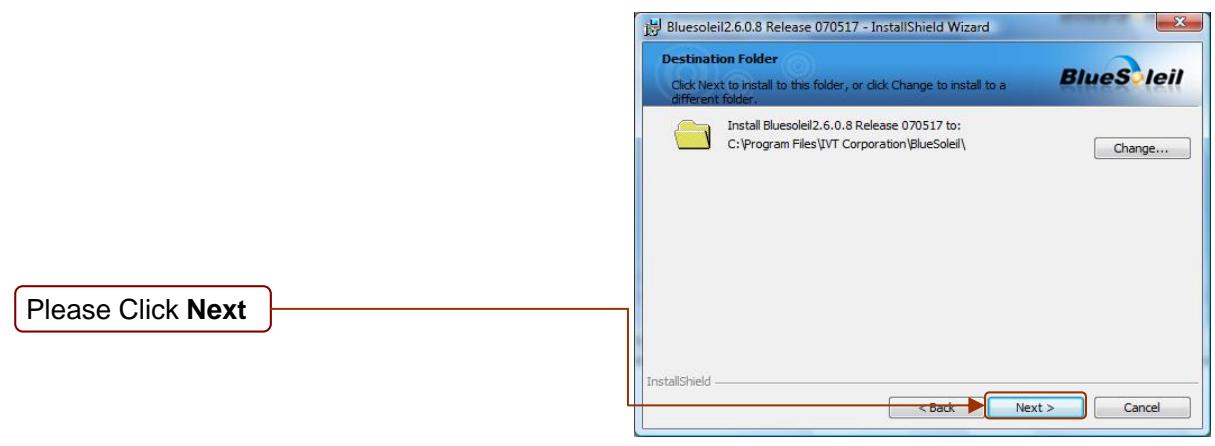
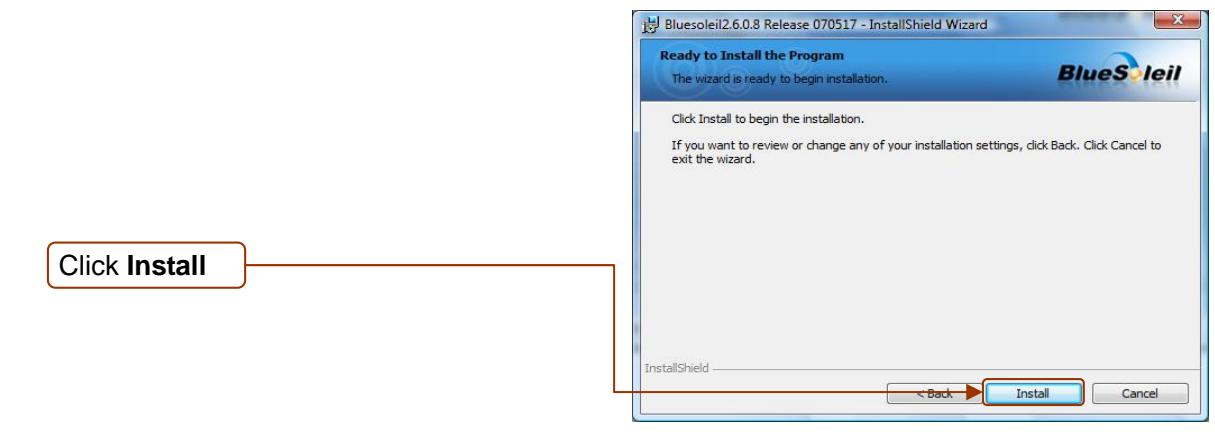
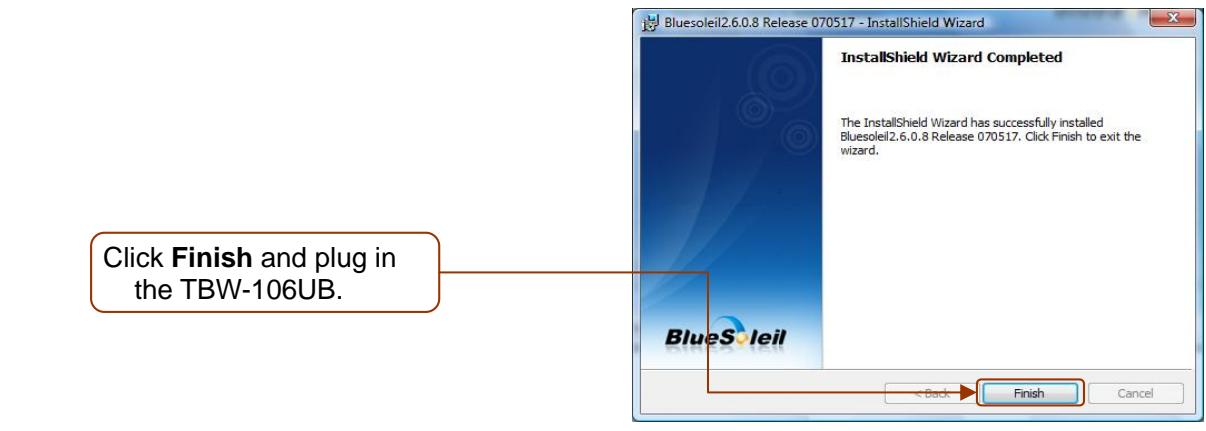
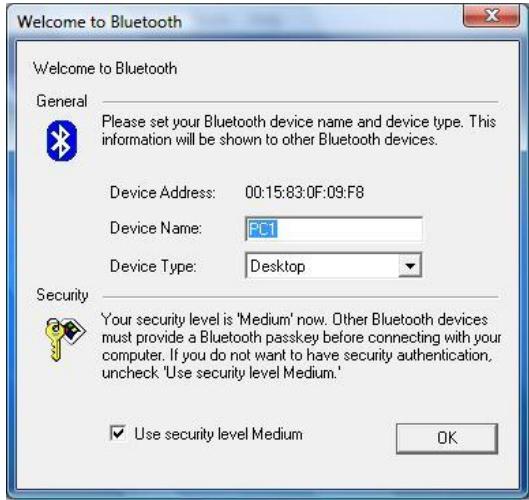
After the completion of the driver installation, the Welcome to Bluetooth screen will appear. Assign your Windows system a unique device name and device type. This name will be displayed to other Bluetooth devices. In most cases, you should leave the security setting checked. Click OK.
After the completion of the driver and utility installation, the "IVT BlueSoleil" item will be added to Windows Start Menu Programs group.
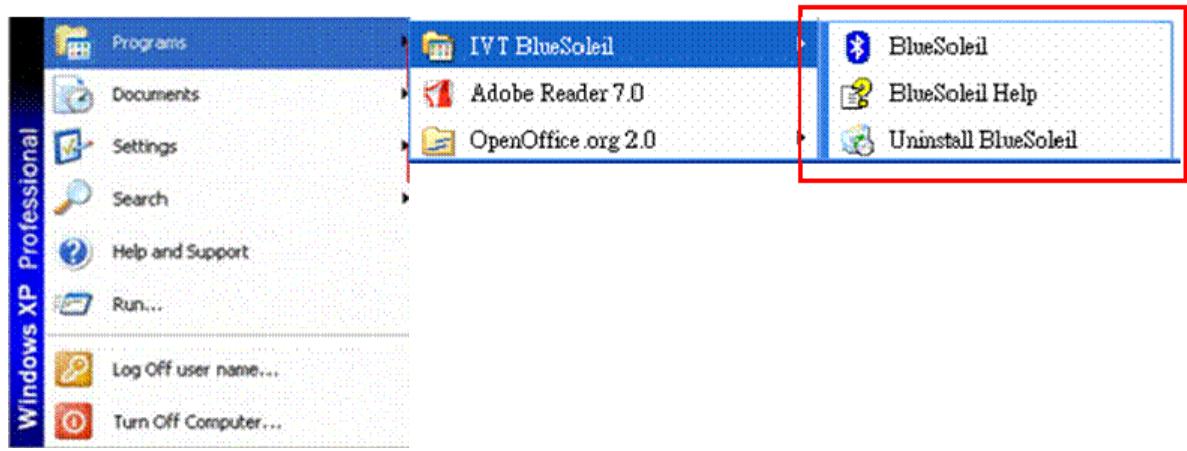
- BlueSoleil: Main program
- BlueSoleil Help: BlueSoleil EDR Edition Online Help
- Uninstall BlueSoleil: Removes BlueSoleil driver
BlueSoleil
BlueSoleil is a Windows based software from IVT that allows your Bluetooth®-enabled desktop or notebook computer to connect wirelessly to other Bluetooth-enabled devices. BlueSoleil allows Windows users to wirelessly access a wide variety of Bluetooth-enabled digital devices, such as cameras, mobile phones, headsets, printers, and GPS receivers. You can also form networks and exchange data with other Bluetooth-enabled devices.
In order to connect and share services via Bluetooth wireless technology, two devices must support the same Bluetooth Profile(s) as well as opposite device roles (i.e., one must be the server, and the other must be the client). Bluetooth-enabled devices often support multiple profiles, and can perform different device roles simultaneously.
BlueSoleil supports the following Bluetooth profiles:
| Bluetooth Functions (Profiles) | Client | Server |
| AV Headphone* | ✓ | ✓ |
| Basic Image Profile | ✓ | ✓ |
| Dial-Up Networking | ✓ | |
| Fax | ✓ | |
| File Transfer | ✓ | ✓ |
| Headset* | ✓ | ✓ |
| Human Interface Device | ✓ | |
| LAN access | ✓ | ✓ |
| Object Push | ✓ | ✓ |
| Personal Area Networking | ✓ | ✓ |
| Printer | ✓ | |
| Serial Port | ✓ | ✓ |
| Synchronization | ✓ | ✓ |
Local Bluetooth Device
The Local Bluetooth enabled device, known as "My Device", represents the user's computer that is running BlueSoleil.
Icon:

Operations:
- Hover mouse to display the local Bluetooth device's name or address (if without name).
- Click on the red ball to start or stop searching for Bluetooth devices in range.
- Right-click on the red ball to display a pop-up menu of related operations (e.g., General Inquiry, My Services, Security, etc.).
Remote Bluetooth Devices
Remote devices are other Bluetooth enabled devices that are in the Bluetooth radio range of your local device. BlueSoleil uses different icons to indicated different types of remote devices.
Icons:
| Devices | Icon | Devices | Icon | ||||
| Personal Computer | Laptop | ||||||
| Modem | Mobile | ||||||
| PDA | LAN Access Point | ||||||
| Keyboard | Mouse | ||||||
| Microphone | HiFi Audio | ||||||
| Loud Speaker | Headset | ||||||
| Printer | Scanner | ||||||
| FAX | Camera | ||||||
| Game bar | Server | ||||||
| Unknown device | |||||||
Icon Meanings:
Remote devices can be in any of three states, which BlueSoleil indicates with different colors.
- White- Idle. The normal state of the device.
- Yellow- Selected. You have selected the device.
- Green- Connected. The device is connected to your computer.
Operations:
- Single-click on the icon to select.
- Double-click on the icon to search for the services supports by the remote Bluetooth device.
- Right-click on the icon to display a pop-up menu of related operations (e.g. Refresh Services, Pair Devices, Connect, etc.).
Bluetooth Service Buttons of Remote Device
Service buttons at the top of the Main Window represent a range of Bluetooth services potentially supported by Remote Devices.
| Services | Button Image | Services | Button Image |
| PAN | DUN | ||
| SPP | Advanced Audio | ||
| FTP | SYNC | ||
| OPP | HCRP | ||
| HID | FAX | ||
| BIP | Headset |
Icon Meanings:
There are 3 states for the service icons, indicated by different colors.
- White- Idle. The normal state.
- Yellow- Available. The Bluetooth service is available on the selected remote device.
- Green- Connected. The Bluetooth service is active in a connection with the remote device.
Operations:
- Hover your mouse over the service icon to display the name of the service.
- Single-click on the service icon to connect.
- Right-click on the service icon to display a pop-up menu of related operations.
Local Service Status
The local service status can be viewed from the Local Service Status dialog box.
Right click whichever local service icon in service window and select the Status... on the pop-up menu.
The Local Service Status dialog will be displayed.
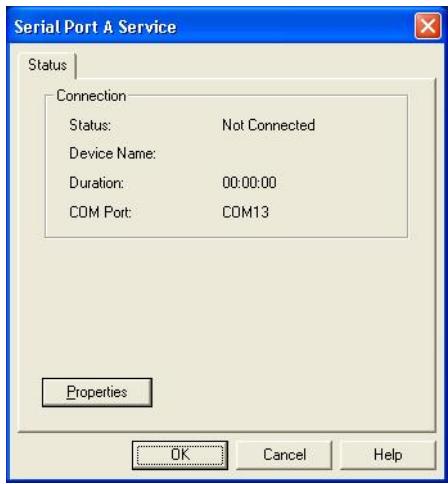
Figure1: Local Service Status (e.g. Serial Port A service)
Connection:
Status: Whether the local service is connected.
Device Address: Display the Bluetooth address of remote device which connect to the service.
Duration: The time elapsed since the connection was set up.
COM Port: The virtual Bluetooth COM ports connected by remote device.
PAN Service Status dialog is different from others.
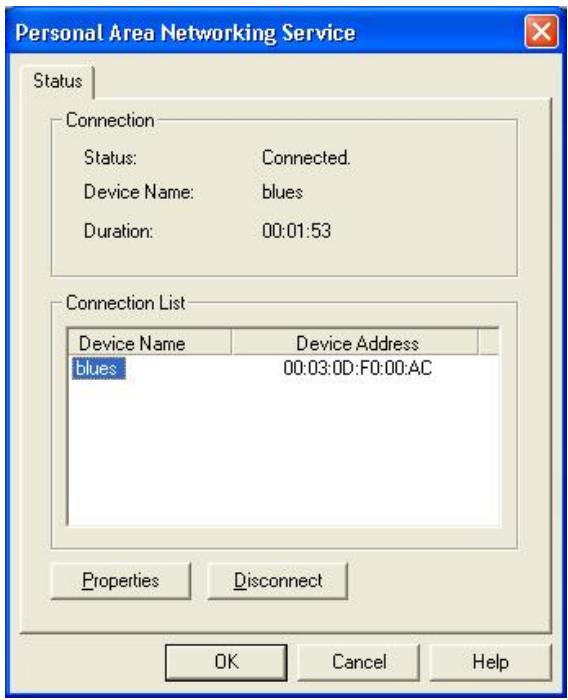
Figure2: Local Service Status (PAN)
Connection:
Status: Whether the local service is connected.
Device Name: Display the name of remote device which connects to the service.
Duration: The time elapsed since the connection was set up.
Connection List:
Display the names and addresses of remote devices which connect to the PAN Service.
Local Service List
The Local Service List displays all the Bluetooth services supported by the local computer. Use this screen to start/stop services.
| Services | Icons | Services | Icons |
| PAN | SPP |
| OPP | ←→ | →← | FTP | →←→ |
| SYNC | ←→ | →← | BIP | ←→→→ |
| Audio Sink | ←→ | →← |
Icon Meanings:
There are 3 states for the local Bluetooth services, indicated by different icon colors.
- White- Idle. The service has not been started.
- Yellow- Started. The local Bluetooth service has been started.
- Green- Connected. Some remote device has connected to the service.
Operations:
- Single-click on the icon to select the service.
- Double-click on the icon to Start/Stop a service.
- Right-click to display a pop-up menu of related operations.
Menus
BlueSoleil contains the following six menus:
File Menu:
- Hide --- Hide the BlueSoleil window. Connections can still run when the window is hidden.
- Always on Top --- Keep BlueSoleil window always on top.
- Exit --- Exit BlueSoleil.
Note: You can also exit BlueSoleil by right-clicking on the task tray icon at the bottom of your screen. In the pop-up menu, click Exit.
View Menu:
-
Main Window --- Show the BlueSoleil Main Window.
Service Window --- Show the BlueSoleil Service Window. -
Arrange Devices --- Arrange all remote devices by Device Name, Device Address or Device Type.
- Refresh Devices --- Refresh the list of remote devices detected by BlueSoleil.
Note: If you select Refresh Devices, the list of previously detected devices will not be cleared. To initiate a new device search that will first clear the list, press F5.
My Bluetooth Menu:
- Bluetooth Device Discovery --- Search for other Bluetooth enabled devices in range.
- Bluetooth Service Discovery --- Browse for the services of the selected remote device.
- Security --- Configure the security setting of the local device (e.g. passkey requirement, data encryption, etc.).
- Properties --- Configure the properties of the local device (e.g. device name, accessibility, etc.).
My Services Menu:
- Starts Service --- Start the selected local Bluetooth service.
- Stop Service --- Stop the selected local Bluetooth service.
- Status --- View the status of the selected local Bluetooth service.
- Properties --- Configure the properties of the local Bluetooth services (e.g., automatic connections, shared file locations, etc.).
Tools Menu:
- Find Device --- Click to find a device, by either of two search criteria. (Figure 1)
By Bluetooth Device Address:
Enter a Bluetooth device address, in standard format: (xx:xx:xx:xx:xx:xx), and click on the Find button. The device with the specified address will appear highlighted in the Main Window.
By Name:
Check the By Name checkbox, enter the Name of the device, and click on the Find button. The device with the specified name will appear highlighted in the Main Window.
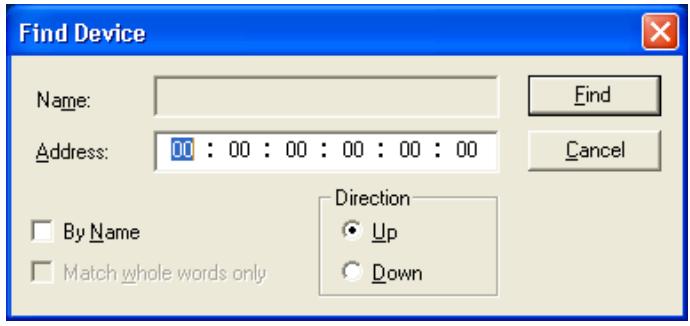
Figure 1 Find Device
- Add New Device --- Add a remote device by entering its Bluetooth device address. (Figure 2)
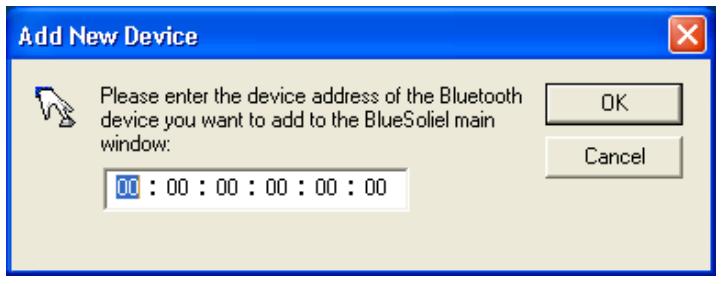
Figure 2 Add New Bluetooth Device
- Add Device From History --- Add a remote device from history list. (Figure 3)
(1) Add: Add the selected device to the Main Window.
(2) Delete: Delete the selected device from the history list.
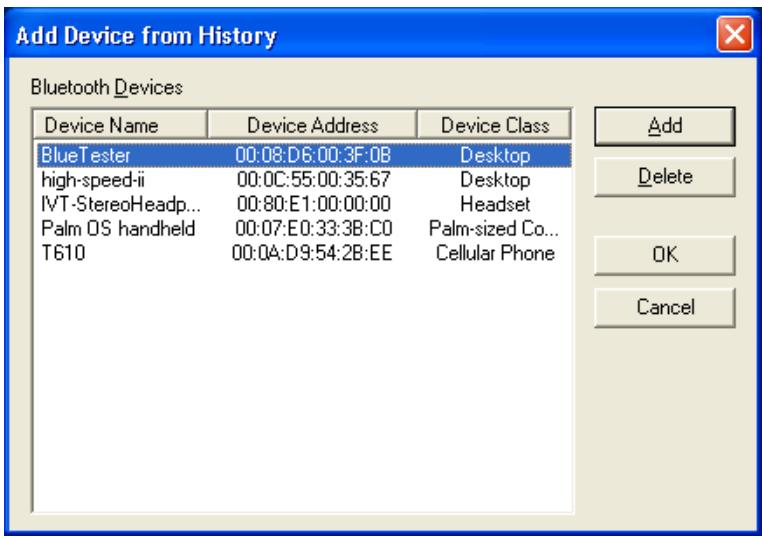
Figure 3 Add Device from History
- Configurations-> Quick Connect --- If desired, assign a remote device to automatically connect with whenever an application opens a specified Bluetooth serial port.
(1) Assign: Assign a device to the selected port.
(2) Remove: Remove the Auto-Connection device assignment for the selected port.
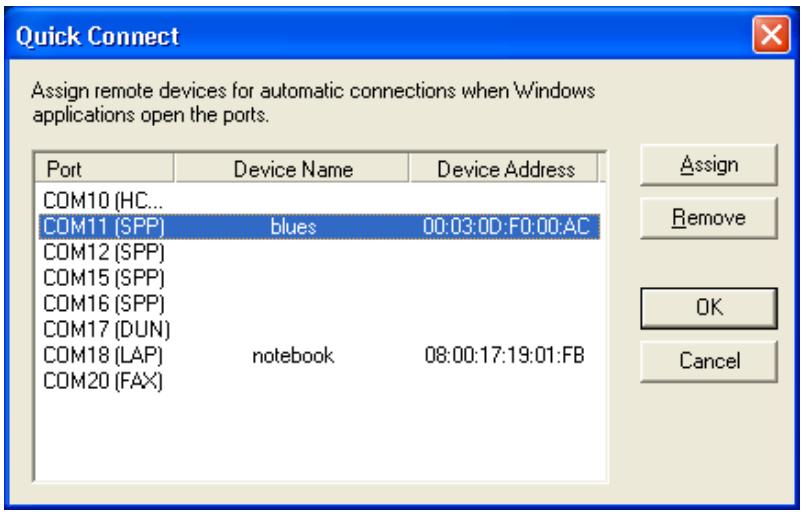
Figure 4 Quick Connect
- Configurations->Unplug HID --- Remove Human Interface Devices from BlueSoleil. (Figure 5)
Unplug: Unplug the selected HID device.
When you first connect the HID device to your computer, BlueSoleil sets up the devices so that they will automatically reconnect in case the connection is ever broken. After you unplug an HID device, it will no longer automatically reconnect to your computer.
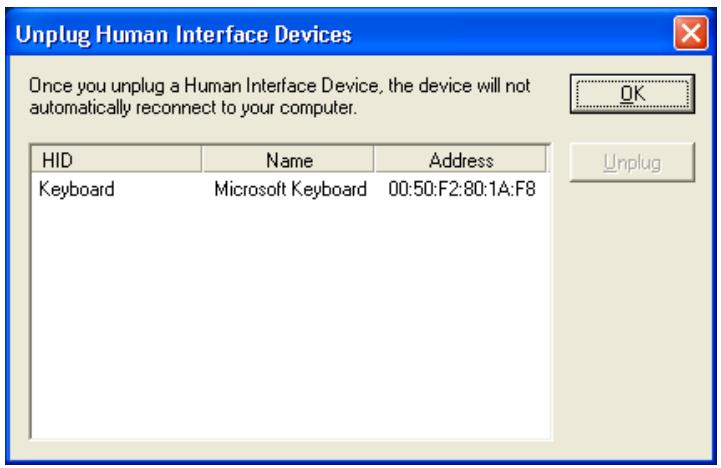
Figure 5 Unplug HID Device
- My Bluetooth Device --- Advanced hardware configuration, recommended for advanced users only. Please refer to Hardware Configuration for more details.
- Options --- Enable/Disable some other features like making BlueSoleil starts up with Windows, auto-checking online update or enable/disable prompts when doing some operations by checking/unchecking the related option.
Startup:
(1) Start BlueSoleil when I start Windows --- BlueSoleil will start up with Windows if this
option is enabled.
(2) Check for updates automatically --- A prompt will pop up to inform user checking update from BlueSoleil web site once BlueSoleil starting up.
Note: The checking update function is enabled by default.
。 Others:
(1) Prompt me before adding a "Quick Connect" item --- Inquiry if adding a new Quick Connect item once establishing a new outgoing SPP connection.
(2) Prompt me before stopping a service to connect out --- Inquiry if stopping local service before connecting out. It only applies to PAN and Synchronization profiles.
(3) Support VoIP Instant Messengers --- Inquiry if supporting VoIP function.
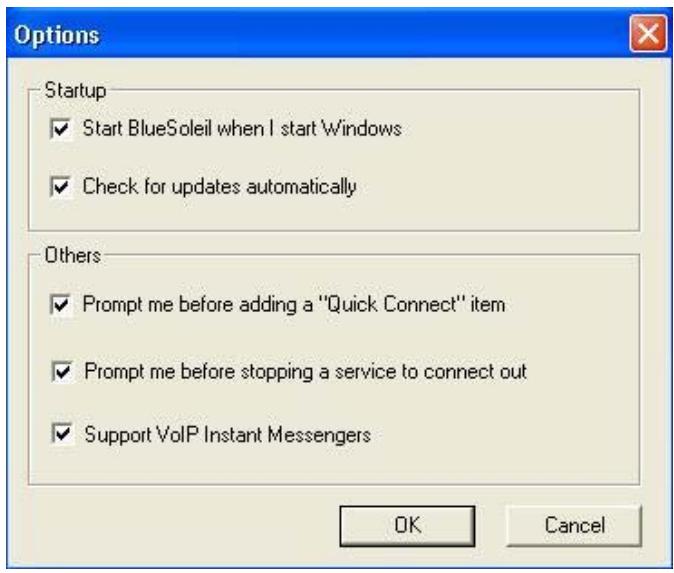
Figure 6: Options
Help Menu:
- Contents and Index --- Access BlueSoleil Online Help.
- Check for Update --- Access BlueSoleil web site to check if any update available.
- Online Support --- Find a solution or report a problem online.
- About BlueSoleil --- Information about your version of BlueSoleil.
Bluetooth status Icon
There are there statuses of Bluetooth icon in the system tray.
Icon Meaning:

--- BlueSoleil starts up, but Bluetooth is not active.

--- BlueSoleil starts up and Bluetooth is active.

--- There are existing Bluetooth connections.
Right-click Popped-up Menu:
- Display --- Display the BlueSoleil main window on the desktop.
Show messages --- Check whether to display the tip messages on the right corner. - Support VoIP --- Check if BlueSoleil supports VoIP function.
- Exit --- Exit BlueSoleil program.
Find Remote Devices
To set up a Bluetooth connection, the remote device must be found first. There are 3 ways to find remote devices in BlueSoleil.
Inquire Device:
- Single-click the red ball in the main window to start inquiry.
- Bluetooth devices within the radio range will be shown around the center ball.
- Wait for a few seconds until the names of all the devices are obtained.
Add Device from History List:
The devices which had been found or connected can be added from the history device list directly.
- Select menu Tools | Add Device from History.... The History dialog box pops up.
- Select the device from the list and click button Add, the device will be added to the main window.
Add a New Device by Entering Device Address:
If the device cannot be found by Inquiring, you can enter the device address to add the device.
- Select menu Tools | Add New Device.... The Add New Device dialog pops up.
- Enter the Bluetooth device address and click button OK, the device will be added to the main window.
Connect and Disconnect
Connect:
- Select a remote device and double click it to browse its services.
Bluetooth passkey may be asked if security level of either side is set to high and they are not paired devices.
After service browsing, the services the remote device supports are highlighted by changing the color of the service buttons on the top of the main window.
- Single click one of the service button to connect.
After connection is setup, the remote device and the service button will turn green.
Note: Users can right click the remote device icon or the service button to pop up operation menu for connection.
Disconnect:
Method 1: Select the remote device, right click the service button. On the popup menu, select Disconnect.
Method 2: Right click the device icon. On the pop-up menu, select Disconnect | (the connection you want to disconnect).
Method 3: For FTP and Synchronization connection, close the operation window, the connection will be disconnected.
Method 4: Disconnect from the remote device directly.
Method 5: If the local Bluetooth device is removed or the remote device is powered off, all the connections will be disconnected. If the remote device moves out of the radio range, all the connections with the remote device will be disconnected in 1 minute.
Connect via Shortcuts
After a connection is set up, users can generate a shortcut on Windows desktop. Users can connect later using the shortcut without device inquiry and service browsing steps.
Shortcuts apply to Personal Area Networking, Dial-Up network, Headset and AV.
Steps
- Save shortcut
After connected, right click the device icon; select the Save Connection as Shortcut on the popup menu.
- Execute the shortcut on desktop.
Remote Device Status
The remote device status can be viewed from the Remote Device Status dialog box.
Right click the remote device icon and select the Status... on the popup menu. The Remote Device Status dialog box will be displayed.
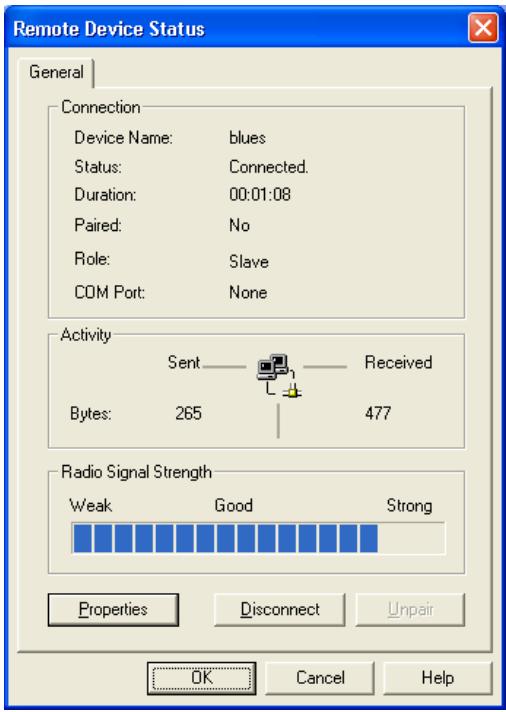
Figure 1 Remote Device Status
- Connection:
Device Name: The remote Bluetooth device's name.
Status: Whether the remote device is connected to the local device.
Duration: The time elapsed since the connection was set up.
Paired: Whether this device is paired with the local device.
Role: The Bluetooth Master/Slave role of the remote device for this connection.
COM Port: The virtual Bluetooth COM ports used for the connection(s), especially for DUN, FAX, SPP, and LAP.
Activity:
The amount of the data sent and received.
Radio Signal Strength:
This is the RSSI of the remote device. This index indicates the radio quality between the
remote device and the local device. If the radio signal is too weak, the data transferring speed will be slow.
Properties Button:
Display the remote device's properties.
- Disconnect Button:
Disconnect one of the connection(s) between the remote device and the local device.
Unpaired Button:
Remove the paired relationship between the remote device and the local device.
Remote Device Properties
The remote device's properties can be viewed from the Remote Device Properties dialog box.
Right click the remote device icon and select the Properties... on the popup menu. The Remote Device Properties dialog will be displayed.
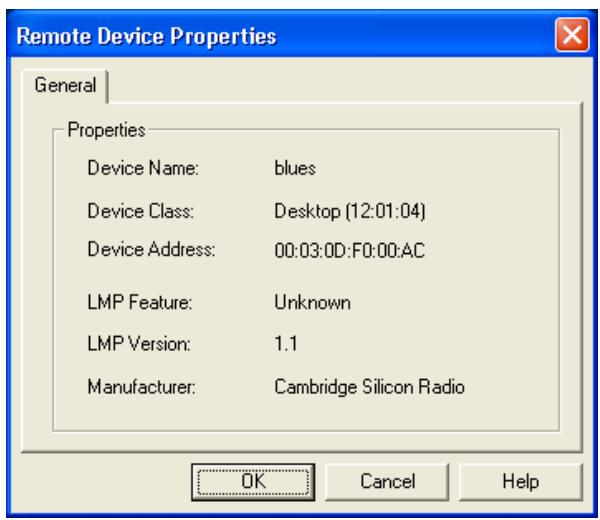
Figure 1 Remote Device Property Dialog
Device Name: The remote Bluetooth device's name.
Device Class: The remote device's device class. Bluetooth devices are classified by device type, such as Desktop, Laptop, Headset, LAN Access Point, and other enabled devices.
Device Address: The remote device's Bluetooth device address.
LMP Feature: The features that the remote device supports.
LMP Version: The version of the LMP firmware of the remote device.
Manufacturer: The manufacturer of the remote device.
Hardware Configuration
BlueSoleil supports the following kinds of Bluetooth radio adapters: USB, CompactFlash card (UART or BCSP).
To access the hardware configuration screens, click Tools | My Bluetooth Device...,
- Bluetooth Device
Select the type of Bluetooth enabled device that you plan to use, either a USB adapter or a CompactFlash (CF) card. (Figure 1).
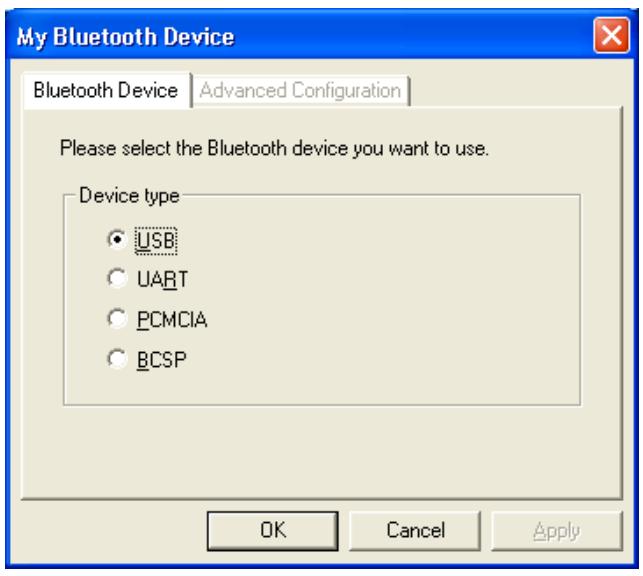
Figure 1 Select Bluetooth Device
Advanced Configuration
The Advanced Configuration page will be enabled only if you selected CF card in the Bluetooth Device screen. Use the Advanced Configuration screen to configure detailed parameters including COM Port, Baud Rate, Byte Size, Parity, Stop Bits, and Flow Control.
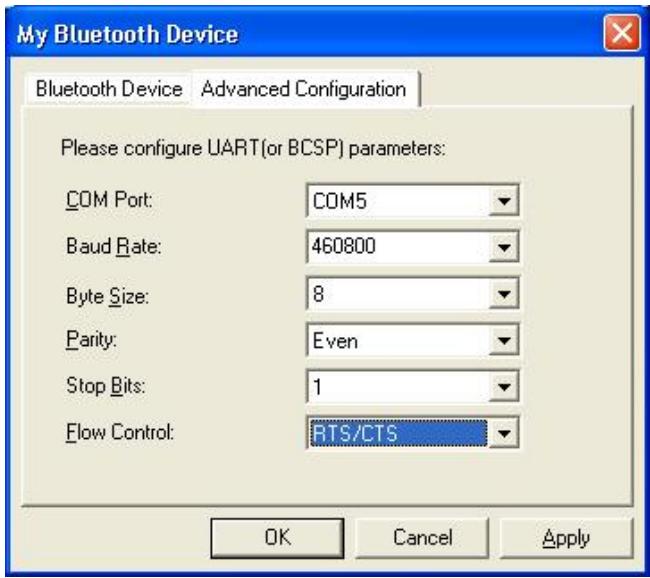
Figure 2 Advanced Configurations for UART Hardware Device
Properties Configuration
To configure the properties of your local device, click My Bluetooth | Device Properties...
General:
Device Name
The local device's name, which will be shown to other Bluetooth enabled devices.
Device Type
The device's type of your local computer (i.e., Desktop, Laptop or Server)
Device Address
The address of the local device; Every Bluetooth enabled device has a unique address.
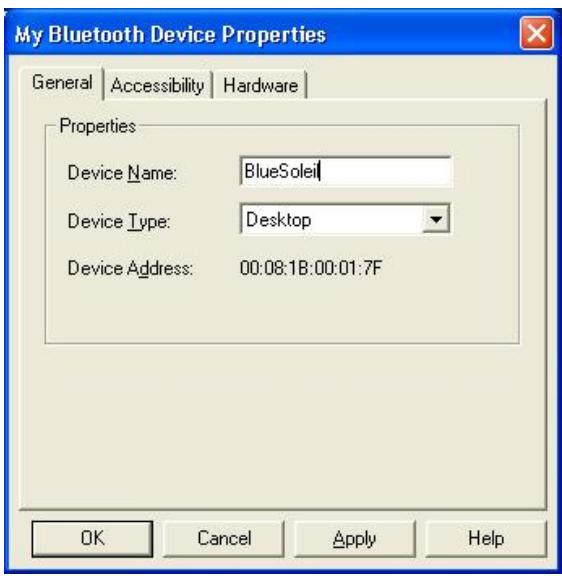
Figure 1 General Properties Page
Accessibility:
Connecting Mode
- Connectable: Permits other Bluetooth enabled devices to connect with your computer.
- Non-Connectable: Prohibits other Bluetooth enabled devices from connecting with your computer.
Discovery Mode
- General Discoverable: Permits other Bluetooth enabled devices to detect your computer.
- Limited Discoverable: Permits other Bluetooth enabled devices to detect your computer with Limited Inquiry.
Non-Discernible: Prohibits other Bluetooth enabled devices from detecting your computer.
Bonding Mode (Pairing Mode)
- Accepts Bonding: Allow other Bluetooth enabled devices to pair with your computer. If the other device initiates a pairing procedure with your computer, each device must enter the same passkey before they will be paired.
- Does Not Accept Bonding: Rejects pairing attempts initiated by other Bluetooth enabled devices.
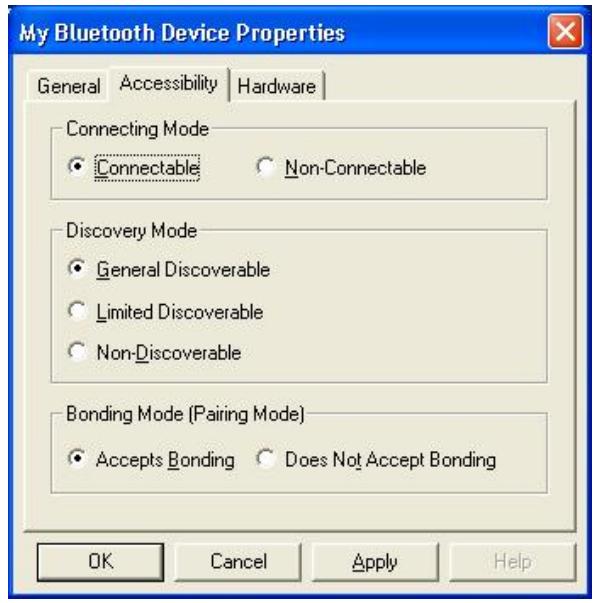
Figure 2 Accessibility Properties Page
Hardware:
View information about your Bluetooth hardware.
- Manufacturer: The manufacturer of the local Bluetooth device.
- HCI Version: The HCI version of the local Bluetooth device.
- HCI Revision: The HCI revision of the local Bluetooth device.
LMP Version: The LMP version of the local Bluetooth device. - LMP Subversion: The LMP subversion of the local Bluetooth device.
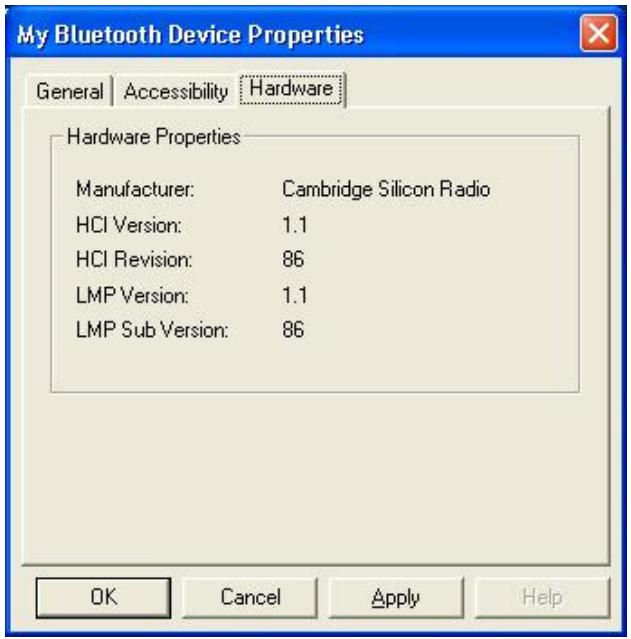
Figure 3 Hardware Properties Page
Pair / Un-pair Devices
Once a remote device has paired with your computer by exchanging passkeys, passkeys will no longer be required for further connections between your computer and the device.
How to pair with another device
- Automatically
If a passkey is required for connection, the devices will be paired automatically the first time they successfully exchange passkeys and connect. After a device has successfully paired with your computer, the remote device icon in the Main Window will have a red checkmark next to it.
Manually
In the Main Window, right click on the device icon, and in the pop-up menu, select Pair Device. In the Enter Bluetooth Passkey dialog, enter the same passkey that you enter on the remote device. After a device has successfully paired with your computer, the remote device icon will have a red checkmark next to it.
How to un-pair with another device:
Manually
In the Main Window, right-click on the device icon, and in the pop-up menu, selects Unpaired. The red checkmark next to the device icon will disappear.
General Security:
To access the security configuration screen, click My Bluetooth | Security...
Security Level:
Low
If checked, other devices will be able to access your device freely without entering a passkey. However, if the remote device requires a passkey to connect, then both devices need to exchange passkeys.
Medium
The medium level is service level security; you can assign the appropriate level of access for each specific service.
High
If checked, passkeys must be exchanged for every incoming and outgoing connection, unless the two devices have already paired in the past.
Bluetooth Passkey:
- Set Default Passkey
Use this setting to set a default passkey for all connections. BlueSoleil will use this passkey whenever one is required.
Data Encryption:
- Enable Data Encryption
If checked, the data transmitted will be encrypted.
Paired Devices Management
To access the device security configuration screen, click My Bluetooth | Security and click on the Devices tab.
Paired Devices List Box
This screen lists devices which have already paired with the local device.
Remove Pairing Button
Click to remove the pairing relationship between the selected device and the local device.
Authorize Services Button
Click to select which services you authorize the selected paired device to use. A list of local services will appear. Select the services you wish to allow the remote device to use, and then click OK.
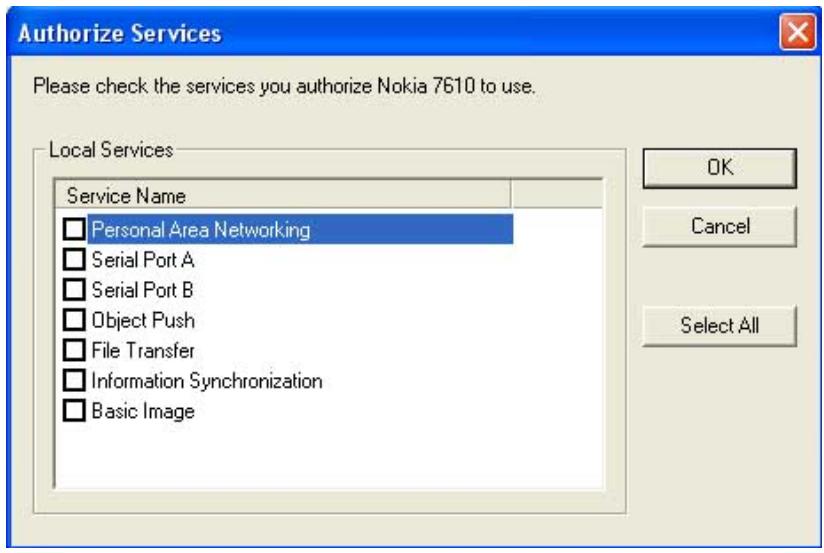
Figure 1 Authorization Services
Note:
- The screen will only list the local services that require authentication. The local services that do not require authentication can be accessed freely.
- The Authorization button is enabled only when the Security Level is set to Medium.
Local Services Security
To access the local services security configuration screen, click My Bluetooth | Security and click on the Services tab. You can only configure security for local services when the Security Level is set to Medium.
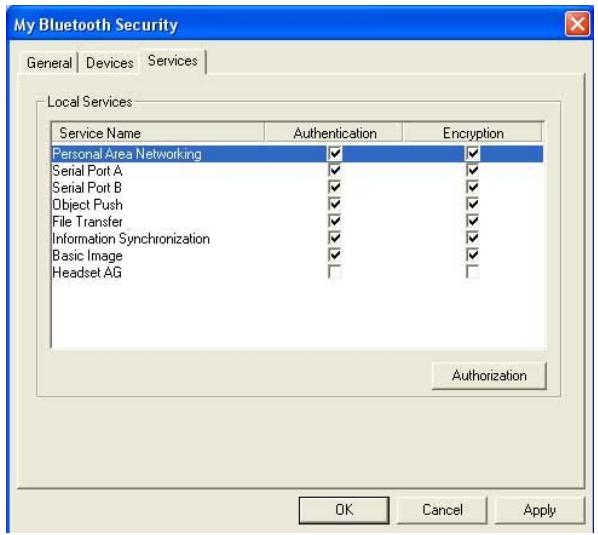
Local Services:
Authentication
If checked, a passkey is required whenever a remote device attempts to connect with this service.
- Encryption
If checked, data transmitted between devices for this service will be encrypted.
Authorization Button:
Click to select the devices you wish to allow to use the selected service.
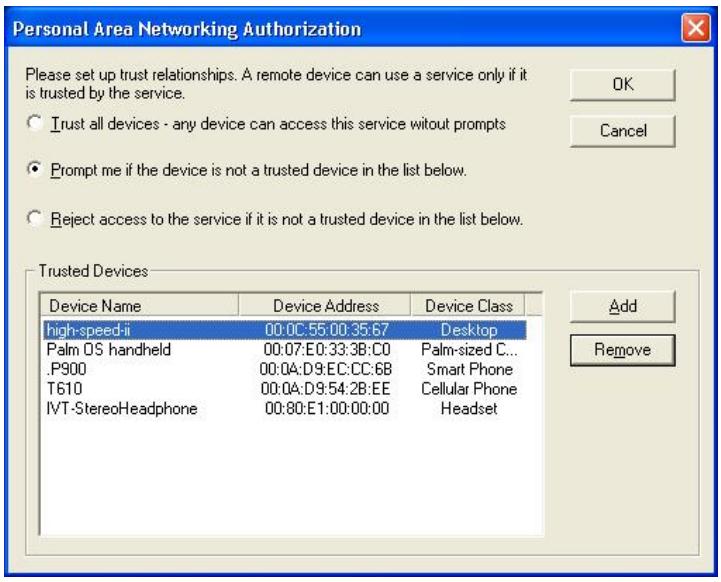
In the Service Authorization screen, enter the following settings:
- Trusted Devices
Select to trust devices listed in this screen to use the selected service on your device. A device can freely access the service from your local device when trusted. Click Add/Remove to edit the device list.
- Trust all devices
Connection requests will be accepted from every device.
- Prompt to user if the device is not a trusted device of this service
If a non-trusted device attempts to access the service, a dialog will appear to allow you to accept or reject the connection.
- Reject the device to use the service if it is not a trusted device of this service
If a non-trusted device attempts to access the service, the connection will be rejected automatically without informing the user.
Notes: If a device is trusted for a service, it may connect to this service on your local device without informing you.
FAQ
What can Bluetooth do?
- Dial-up to Internet wirelessly via Bluetooth modem or Bluetooth mobile phone.
- Connect to LAN via LAN Access devices or PAN bridges.
- Share Internet connection to other Bluetooth computers.
- Connect computers wirelessly via PAN, LAP, SPP or FTP.
- Print documents wirelessly to Bluetooth printer.
How can I find my Bluetooth device information?
Right click my device -> Select Properties.... In the My Bluetooth Device dialog box, there are device name, device address, device manufacturer, device HCI and LMP (Link Manager Protocol) versions and editions.
What is my Bluetooth device name, and how to change it?
My Bluetooth device name is the name of USB dongle inserted to my computer. It is your Bluetooth identifier and will be shown to other Bluetooth devices. You can change it in the My Bluetooth Device dialog box by modifying Device Name in the General Property sheet.
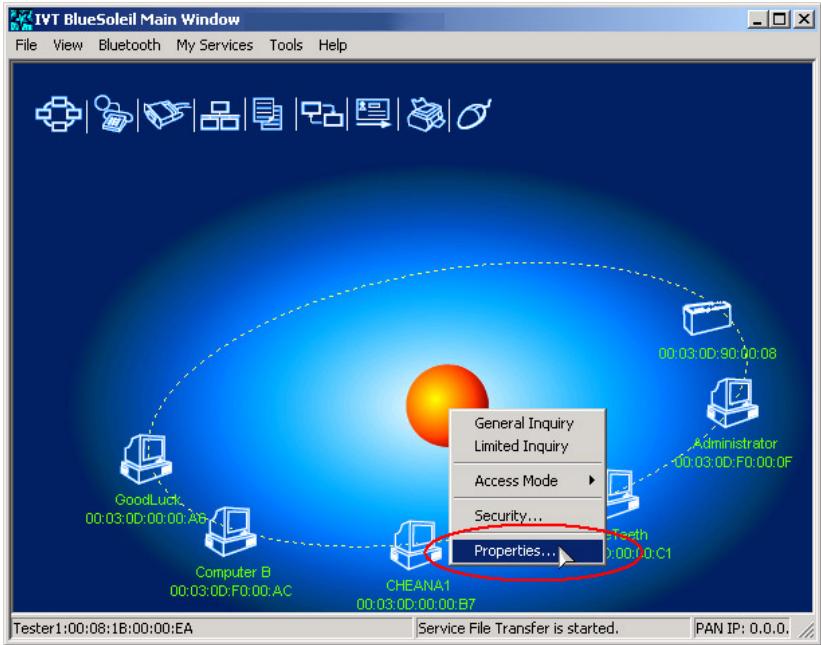
Figure 1 right click My Device and select Properties
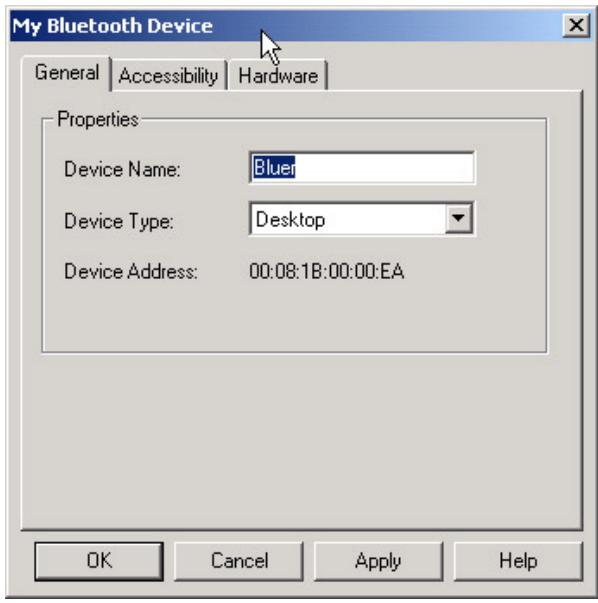
Figure 2 My Bluetooth Device dialog
Can't find the remote device services?
- Verify whether the remote device is within the radio range.
- Verify that whether the remote device is in connectable mode. If the remote device is set to non-connectable, other devices cannot connect to it, and service cannot be found.
- Check whether the remote device has connections already.
Currently, some Bluetooth devices do not support scatter net. That is, the device has limitations in supporting connection among multi-devices at the same time. It is recommended that users try to connect point to point if the connection cannot be set up.
- Verify whether both sides have input the right Bluetooth passkey if any side is at security level High.
The Bluetooth passkey must be the same at both sides. If both sides have set Fixed Passkey (the default passkey) and the passkeys are different, the connection cannot be set up with the authentication failure error.
How Bluetooth passkey works? If I change the fixed passkey, will it affect the paired devices?
Bluetooth passkey is used in authentication procedure for Bluetooth security purpose. When remote device connects to your computer, he has to offer the same Bluetooth passkey as what you input. If the Bluetooth passkeys from two sides are same, connection can be setup. A paired relationship is established on both sides. There is no need to input passkey for the next time of connection. Any side can delete the paired relationship. Changing fixed passkey will not affect the existed paired relationship.
How to protect my services from other's unauthorized usage?
- Set Security Level to High.
- Do not start the services you are not using.
- If you start PAN or LAP service, do not share your important folders in the windows explorer. When other Bluetooth computers connect to your computer via PAN or LAP, your shared windows folder will be able to be accessed to other computers.
Specification
| General Radio | Bluetooth Class I: 70 ~ 100 meters (in open space) Carrier Frequency: 2.4 ~ 2.483GHz Data Rate: Up to 3Mbps (The maximum operating range depends on the environmental factors.) |
| Bluetooth Standard | Bluetooth v2.0 + EDR |
| Spread Spectrum | FHSS (Frequency Hopping Spread Spectrum) |
| Modulation Method | GFSK (1Mbps), #D/4-DOPSK (2Mbps) 8DPSK (3Mbps) |
| I/O Interface | USB V2.0 |
| Input Power | DC 5V, USB Power |
| Sensitivity | -82 dBm (typical), GFSK |
| RF Output Power | 13 dBm (typical), GFSK |
| System Support | Windows Vista/XP/2000/ME/98SE (The product is driven by the bundled IVT BlueSoleil Bluetooth software or Windows XP SP2 Bluetooth stack) |
| Dimensions | 19.0 x 12.0 x 5.5 mm (0.75 x 0.47 x 0.22 in.) |
| LED Indicator | Single LED (activity/connection) |
| Advantage Functions | Serial Port Profile Dial Up Networking Profile File Transfer Profile Human Interface Device Profile Hardcopy Cable Replacement Profile Headset Profile Object Push Profile Synchronization Profile LAN Access Profile (only available in Windows) FAX Profile (only available in Windows) |
| Bounded Bluetooth Software | IVT BlueSoleil (Language Supported: English, Simplified Chinese, Traditional Chinese, Japanese, Korean, French, Italian, German, Spanish) |
Limited Warranty
TRENDnet warrants its products against defects in material and workmanship, under normal use and service, for the following lengths of time from the date of purchase.
| TBW-106UB | 2 Year Limited Warranty |
If a product does not operate as warranted above during the applicable warranty period, TRENDnet shall, at its option and expense, repair the defective product or deliver to customer an equivalent product to replace the defective item. All products that are replaced will become the property of TRENDnet. Replacement products may be new or reconditioned.
TRENDnet shall not be responsible for any software, firmware, information, or memory data of customer contained in, stored on, or integrated with any products returned to TRENDnet pursuant to any warranty.
There are no user serviceable parts inside the product. Do not remove or attempt to service the product through any unauthorized service center. This warranty is voided if (i) the product has been modified or repaired by any unauthorized service center, (ii) the product was subject to accident, abuse, or improper use (iii) the product was subject to conditions more severe than those specified in the manual.
Warranty service may be obtained by contacting TRENDnet office within the applicable warranty period for a Return Material Authorization (RMA) number, accompanied by a copy of the dated proof of the purchase. Products returned to TRENDnet must be pre-authorized by TRENDnet with RMA number marked on the outside of the package, and sent prepaid, insured and packaged appropriately for safe shipment.
WARRANTIES EXCLUSIVE: IF THE TRENDNET PRODUCT DOES NOT OPERATE AS WARRANTED ABOVE, THE CUSTOMER'S SOLE REMEDY SHALL BE, AT TRENDNET'S OPTION, REPAIR OR REPLACEMENT. THE FOREIGNING WARRANTY AND REMEDIES ARE EXCLUSIVE AND ARE IN LIEU OF ALL OTHER WARRANTYES, EXPRESSED OR IMPLIED, EITHER IN FACT OR BY OPERATION OF LAW, STATUTORY OR OTHERWISE, INCLUDING WARRANTY OF MERCHANTABILITY AND FITNESS FOR A PARTICULAR PURPOSE. TRENDNET NEITHER ASSUMES NOR AUTHORIZES ANY OTHER PERSON TO ASSUME FOR IT ANY OTHER LIABILITY IN CONNECTION WITH THE SALE, INSTALLATION, MAINTENANCE OR USE OF TRENDNET'S PRODUCTS.
TRENDNET SHALL NOT BE LIABLE UNDER THIS WARRANTY IF ITS TESTING AND EXAMINATION DISCLOSE THAT THE ALLED DEFECT IN THE PRODUCT DOES NOT EXIST OR WAS CAUSED BY CUSTOMER'S OR ANY THIRD PERSON'S MISUSE, NEGLECT, IMPROPER INSTALLATION OR TESTING, UNAUTHORIZED ATTEMPTS TO REPAIR OR MODIFY, OR ANY OTHER CAUSE BEYOND THE RANGE OF THE INTENDED USE, OR BY ACCIDENT, FIRE, LIGHTNING, OR OTHER HAZARD.
LIMITATION OF LIABILITY: TO THE FULL EXTENT ALLOWED BY LAW TRENDNET ALSO EXCLUDING FOR ITSELF AND ITS SUPPLIERS ANY LIABILITY, WHETHER BASED IN CONTRACT OR TORT (INCLUDING NEGLIGENCE), FOR INCIDENTAL, CONSEQUENTIAL, INDIRECT, SPECIAL, OR PUNITIVE DAMAGES OF ANY KIND, OR FOR LOSS OF REVENUE OR PROFITS, LOSS OF BUSINESS, LOSS OF INFORMATION OR DATE, OR OTHER FINANCIAL LOSS ARISING OUT OF OR IN CONNECTION WITH THE SALE, INSTALLATION, MAINTENANCE, USE, PERFORMANCE, FAILURE, OR INTERRUPTION OF THE POSSIBILITY OF SUCH DAMAGES, AND LIMITS ITS LIABILITY TO REPAIR, REPLACEMENT, OR REFUND OF THE PURCHASE PRICE PAID, AT TRENDNET'S OPTION. THIS DISCLAIMER OF LIABILITY FOR DAMAGES WILL NOT BE AFFECTED IF ANY REMEDY PROVIDED HEREIN SHALL FAIL OF ITS ESSENTIAL PURPOSE.
Governing Law: This Limited Warranty shall be governed by the laws of the state of California.
Note: AC/DC Power Adapter, Cooling Fan, Cables, and Power Supply carry 1-Year Warranty
Product Warranty Registration
Please take a moment to register your product online. Go to TRENDnet's website at http://www.trendnet.com/register
- TRENDNET
- Federal Communication Commission Interference Statement
- CE Mark Warning
- Table Contents
- Introduction. 1
- Installation of the Bluetooth Software 3
- FAQ 28
- Introduction
- Bluetooth Technology
- About the Micro-Bluetooth USB Adapter
- Product Features
- Package Contents
- System Requirements
- Installation of the Bluetooth Software
- BlueSoleil
- Local Bluetooth Device
- Icon:
- Operations:
- Remote Bluetooth Devices
- Icon Meanings:
- Bluetooth Service Buttons of Remote Device
- Local Service Status
- Connection:
- Connection List:
- Local Service List
- Menus
- File Menu:
- View Menu:
- My Bluetooth Menu:
- My Services Menu:
- Tools Menu:
- 。 Others:
- Help Menu:
- Bluetooth status Icon
- Icon Meaning:
- Right-click Popped-up Menu:
- Find Remote Devices
- Inquire Device:
- Add Device from History List:
- Add a New Device by Entering Device Address:
- Connect and Disconnect
- Connect:
- Disconnect:
- Connect via Shortcuts
- Remote Device Status
- Remote Device Properties
- Hardware Configuration
- - Bluetooth Device
- Advanced Configuration
- Properties Configuration
- General:
- Accessibility:
- Connecting Mode
- Discovery Mode
- Bonding Mode (Pairing Mode)
- Hardware:
- Pair / Un-pair Devices
- How to pair with another device
- - Automatically
- Manually
- How to un-pair with another device:
- General Security:
- Security Level:
- Low
- Medium
- Bluetooth Passkey:
- Data Encryption:
- Paired Devices Management
- Paired Devices List Box
- Remove Pairing Button
- Authorize Services Button
- Note:
- Local Services Security
- - Encryption
- Authorization Button:
- - Trusted Devices
- - Trust all devices
- - Prompt to user if the device is not a trusted device of this service
- - Reject the device to use the service if it is not a trusted device of this service
- FAQ
- What can Bluetooth do?
- How can I find my Bluetooth device information?
- What is my Bluetooth device name, and how to change it?
- Can't find the remote device services?
- How Bluetooth passkey works? If I change the fixed passkey, will it affect the paired devices?
- How to protect my services from other's unauthorized usage?
- Specification
- Limited Warranty
- Product Warranty Registration
Marque : TRENDNET
Modèle : TBW-106UB
Catégorie : Adaptateur USB Wi-Fi