
PRESTIGE 841C - Routeur ZYXEL - Notice d'utilisation et mode d'emploi gratuit
Retrouvez gratuitement la notice de l'appareil PRESTIGE 841C ZYXEL au format PDF.


| Type de produit | Routeur VDSL (modem de terminaison de ligne) |
| Marque | ZYXEL |
| Modèle | PRESTIGE 841C |
| Dimensions (L x P x H) | 18 cm x 12,6 cm x 3 cm |
| Alimentation | 12 V CC, 1,2 A |
| Consommation électrique | 6 W |
| Interface réseau | 1 port Ethernet 10/100 Mbps auto-négociation |
| Port VDSL | RJ-11 |
| Port console | RS-232 (9 broches) |
| Splitter intégré | POTS/ISDN |
| Modes VDSL supportés | 10Base-S, ANSI (998), ETSI (997) |
| Débit montant maximal | 18,75 Mbps |
| Débit descendant maximal | 16,67 Mbps |
| Distance maximale | 1,5 km (5 000 pieds) |
| Gestion | Interface en ligne de commande (CLI) via console |
| Voyants LED | PWR, LAN 10M, LAN 100M, VDSL |
| Normes de certification | FCC Classe B, CE, VCCI Classe B |
| Garantie | 2 ans |
| Entretien | Nettoyer avec un chiffon sec et doux. Débrancher avant nettoyage. |
| Sécurité | Utiliser uniquement l'adaptateur fourni. Ne pas exposer à l'humidité. |
FOIRE AUX QUESTIONS - PRESTIGE 841C ZYXEL
Questions des utilisateurs sur PRESTIGE 841C ZYXEL
0 question sur cet appareil. Repondez a celles que vous connaissez ou posez la votre.
Poser une nouvelle question sur cet appareil
Téléchargez la notice de votre Routeur au format PDF gratuitement ! Retrouvez votre notice PRESTIGE 841C - ZYXEL et reprennez votre appareil électronique en main. Sur cette page sont publiés tous les documents nécessaires à l'utilisation de votre appareil PRESTIGE 841C de la marque ZYXEL.
MODE D'EMPLOI PRESTIGE 841C ZYXEL
P841C
Central-Side VDSL Modem
May 2002
Version 1.00
User's Guide
ZyXEL
TOTAL INTERNET ACCESS SOLUTION
Copyright
Copyright © 2002 by ZyXEL Communications Corporation
The contents of this publication may not be reproduced in any part or as a whole, transcribed, stored in a retrieval system, translated into any language, or transmitted in any form or by any means, electronic, mechanical, magnetic, optical, chemical, photocopying, manual, or otherwise, without the prior written permission of ZyXEL Communications Corporation.
Published by ZyXEL Communications Corporation. All rights reserved.
Disclaimer
ZyXEL does not assume any liability arising out of the application or use of any products, or software described herein. Neither does it convey any license under its patent rights nor the patents rights of others. ZyXEL further reserves the right to make changes in any products described herein without notice. This publication is subject to change without notice.
Trademarks
Trademarks mentioned in this publication are used for identification purposes only and may be properties of their respective owners.
ZyXEL Limited Warranty
ZyXEL warrants to the original end user (purchaser) that this product is free from any defects in materials or workmanship for a period of up to two (2) years from the date of purchase. During the warranty period and upon proof of purchase, should the product have indications of failure due to faulty workmanship and/or materials, ZyXEL will, at its discretion, repair or replace the defective products or components without charge for either parts or labor and to whatever extent it shall deem necessary to restore the product or components to proper operating condition. Any replacement will consist of a new or re-manufactured functionally equivalent product of equal value, and will be solely at the discretion of ZyXEL. This warranty shall not apply if the product is modified, misused, tampered with, damaged by an act of God, or subjected to abnormal working conditions.
Note
Repair or replacement, as provided under this warranty, is the exclusive remedy of the purchaser. This warranty is in lieu of all other warranties, express or implied, including any implied warranty of merchantability or fitness for a particular use or purpose. ZyXEL shall in no event be held liable for indirect or consequential damages of any kind of character to the purchaser.
To obtain the services of this warranty, contact ZyXEL's Service Center for your Return Material Authorization number (RMA). Products must be returned Postage Prepaid. It is recommended that the unit be insured when shipped. Any returned products without proof of purchase or those with an out-dated warranty will be repaired or replaced (at the discretion of ZyXEL) and the customer will be billed for parts and labor. All repaired or replaced products will be shipped by ZyXEL to the corresponding return address, Postage Paid. This warranty gives you specific legal rights, and you may also have other rights that vary from country to country.
Interference Statements andWarnings
FCC Interference Statement
This device complies with Part 15 of the FCC rules. Operation is subject to the following two conditions:
(1) This device may not cause harmful interference.
(2) This device must accept any interference received, including interference that may cause undesired operations.
FCC Warning
This equipment has been tested and found to comply with the limits for a Class B digital device, pursuant to Part 15 of the FCC Rules. These limits are designed to provide reasonable protection against harmful interference in a commercial environment. This equipment generates, uses, and can radiate radio frequency energy and, if not installed and used in accordance with the instruction manual, may cause harmful interference to radio communications. Operation of this equipment in a residential area is likely to cause harmful interference in which case the user will be required to correct the interference at his own expense.
CE Mark Warning:
This is a Class B product. In a domestic environment this product may cause radio interference in which case the user may be required to take adequate measures.
Taiwanese BCIQ A Warning:
警舌便用者:
這是中類的資款產品。在居住的環境中便用時,
可能造成射换十换,在這種情況下,
便用者皆报矣求探取某些適富的封策
VCCI Class B Warning
C装置、有处理装置等空波管告日一国会:CC;C基津
()
C
近援下侧扎为c、受信序自引记才<求。
默書中
Certifications
Refer to the product page at www.zyxel.com.
Customer Support
If you have questions about your ZyXEL product or desire assistance, contact ZyXEL Communications Corporation offices worldwide, in one of the following ways:
Contacting Customer Support
When you contact your customer support representative, have the following information ready:
Product model and serial number.
Firmware version information.
Warranty information.
Date you received your product.
Brief description of the problem and the steps you took to solve it.
| METHOD LOCATION | E-MAIL: SUPPORT SALES | TELEPHONE FAX | WEB SITE FTP SITE | REGULAR MAIL |
| WORLDWIDE | support@zyxel.com.tw sales@zyxel.com.tw | +886-3-578-3942 +886-3-578-2439 | www.zyxel.com www.europe.zyxel.com ftp.europe.zyxel.com | ZyXEL Communications Corp., 6 Innovation Road II, Science-Based Industrial Park, HsinChu, Taiwan 300, R.O.C. |
| NORTH AMERICA | support@zyxel.com sales@zyxel.com | +1-714-632-0882 800-255-4101 +1-714-632-0858 | www.zyxel.com ftp.zyxel.com | ZyXEL Communications Inc., 1650 Miraloma Avenue, Placentia, CA 92870, U.S.A. |
| SCANDINAVIA | support@zyxel.dk sales@zyxel.dk | +45-3955-0700 +45-3955-0707 | www.zyxel.dk ftp.zyxel.dk | ZyXEL Communications A/S, Columbusvej 5, 2860 Soeborg, Denmark. |
| GERMANY | support@zyxel.de sales@zyxel.de | +49-2405-6909-0 +49-2405-6909-99 | www.zyxel.de | ZyXEL Deutschland GmbH. Adenauerstr. 20/A4 D-52146 Wuerselen, Germany. |
| MALAYSIA | support@zyxel.com.my sales@zyxel.com.my | +603-795-44-688 +603-795-34-407 | www.zyxel.com.my | Lot B2-06, PJ Industrial Park, Section 13, Jalan Kemajuan, 46200 Petaling Jaya Selangor Darul Ehsan, Malaysia |
Table of Contents
Copyright
ZyXEL Limited Warranty..
Interference Statements andWarnings iv
Customer Support .
Preface ix
Chapter 1 Getting to Know the P841C. 1-1
1.1 Features 1-1
1.2 Application Example 1-1
Chapter 2 Hardware Connections 2-1
2.1 Front Panel 2-1
2.2 Back Panel 2-1
Chapter 3 Configuring the P841C 3-1
3.1 Additional Installation Requirements 3-1
3.2 Login Screen 3-1
3.3 Commands 3-2
3.4 System Related Commands 3-2
Chapter 4 VDSL- Related Commands 4-1
4.1 Introduction 4-1
Chapter 5 Ethernet-related Commands 5-1
5.1 Introduction 5-1
Chapter 6 Troubleshooting 6-1
6.1 VDSL LED. 6-1
6.2 Data Transmission 6-1
6.3 Intermittent VDSL LED 6-2
6.4 Data Rate 6-2
6.5 Password 6-2
6.6 Connecting to an Ethernet Switch 6-2
Power Adapter Specifications .
Index C
List of Figures
Figure 1-1 Campus Application 1-2
Figure 2-1 P841C Front Panel. 2-1
Figure 2-2 P841C Back Panel 2-2
Figure 3-1 Login Screen. 3-1
Figure 3-2 Login Screen. 3-1
Figure 3-3 Wrong Password 3-2
Figure 3-4 Change Password Command 3-2
Figure 3-5 Exit Command. 3-3
Figure 3-6 P841C Help Commands 3-3
Figure 3-7 Sys Status Command 3-5
Figure 3-8 Upgrading Firmware First Warning 3-5
Figure 3-9 Upgrade Firmware Last Warning. 3-6
Figure 3-10 Example Xmodem Upload 3-6
Figure 4-1 VDSL Mode. 4-1
Figure 4-2 VDSL Upstream Rate 4-2
Figure 4-3 VDSL Downstream Rate 4-3
Figure 4-4 VDSL Auto Flag 4-3
Figure 4-5 VDSL Status Example 4-4
Figure 4-6 VDSL Initialization Messages 4-6
Figure 4-7 VDSL Monitor. 4-6
Figure 4-8 VDSL Show Command 4-7
Figure 5-1 Ethernet Status. 5-2
Figure 5-2 Ethernet Speed. 5-3
Figure 5-3 Ethernet Flow Control 5-3
Figure 5-4 Ethernet Monitor Status 5-4
Figure 5-5 Enet Monitor Statistics 5-4
List of Tables
Table 2-1 P841C LED Descriptions 2-1
Table 2-2 P841C Rear Panel Connectors 2-2
Table 3-1 P841C Help Commands.. 3-4
Table 3-2 Sys Status Command 3-5
Table 4-1 VDSL Default Values. 4-1
Table 4-2 VDSL Mode. 4-1
Table 4-3 VDSL Mode, Frequency Ranges and Rates 4-2
Table 4-4 VDSL Rates 4-3
Table 4-5 VDSL Status Counters 4-5
Table 4-6 VDSL Show Command. 4-7
Table 5-1 Ethernet Status Counters. 5-2
Table 5-2 Enet Monitor Statistics. 5-4
Table 6-1 Troubleshooting the VDSL LED. 6-1
Table 6-2 Troubleshooting Data Transmission. 6-1
Table 6-3 Troubleshooting a Non-Constant VDSL LED 6-2
Table 6-4 Troubleshooting the SYNC-rate. 6-2
Table 6-5 Troubleshooting the Password 6-2
Table 6-6 Troubleshooting Connecting to an Ethernet Switch. 6-2
Preface
Congratulations on your purchase of the Prestige 841C Central-Side VDSL Modem.
This preface introduces you to the Prestige 841C and discusses the organization and conventions of this user's guide. It also provides information on other related documentation.
About VDSL
VDSL (Very high bit rate Digital Subscriber Line) is one type of DSL with very high data rates. The service can be asymmetrical or symmetrical and can be used on the same wire as the POTS (Plain Old Telephone Service) network and ISDN in conjunction with voice services.
About the P841C
The Prestige 841C is the ideal VDSL Line Termination (LT) modem for telephone companies. It maps one Ethernet link to one VDSL link effectively extending Ethernet service up to 1.5km The Prestige 841C attains speeds ranging from 1.56 Mbps to 16.67 Mbps upstream and 4.17 Mbps to 16.67 Mbps downstream at distances of up to 1.5Km (5,000 feet) over ordinary telephone lines.
General Syntax Conventions
- "Enter" means for you to type one or more characters and press the carriage return. "Select" or "Choose" means for you to select one from the predefined choices.
- For brevity's sake, we will use "e.g." as shorthand for "for instance", and "i.e." as shorthand for "that is" or "in other words" throughout this manual.
- The Prestige 841C may be referred to as the P841C throughout this manual.
Related Documentation
ZyXEL Web Site
The ZyXEL web site at www.zyxel.com contains an online glossary of networking terms and a download library with additional support documentation.
Chapter 1 Getting to Know the P841C
This chapter describes the key features, benefits and applications of your P841C.
The P841C is a VDSL Line Termination (LT) modem that is the perfect partner for the P841 VDSL subscriber modem. It maps traffic from one VDSL (Very high bit rate Digital Subscriber Line) subscriber to one 10/100M Ethernet that connects to a computer or LAN switch. It has built-in POTS/ISDN splitters and a console port for local management.
1.1 Features
Compact Design With Integrated Splitters
The P841C is just 18cm× 12.6cm× 3cm (Width, Depth, Height) in size. Because of built-in POTS/ISDN splitters, you do not have to allocate extra space for external splitters that separate voice-band and DSL signals.
10/100 Mbps Fast Ethernet Port
The 10/100 Mbps Fast Ethernet port allows you to connect it to a LAN switch.
VDSL Modes and Rates
The P841C supports the following DSLAM VDSL modes.
- 10BaseS mode giving upstream rates from 1.56 Mbps to 18.75 Mbps and downstream rates of 4.17 Mbps Kbps to 16.67 Mbps.
ANSI Mode giving upstream rates from 1.56 Mbps to 6.25 Mbps and downstream rates of 4.17 Mbps to 16.67 Mbps.
ETSI Mode giving upstream rates from 1.56 Mbps to 6.25 Mbps and downstream rates of 4.17 Mbps to 12.50Mbps.
Management
Command-line interface
System Monitoring
System status (link status, rates, statistics counters)
1.2 Application Example
The following diagram depicts a typical application of the P841C VDSL line termination modem working together with the P841 VDSL subscriber modem in a campus setting. With the built-in splitters, VDSL service can coexist with voice service on the same line.
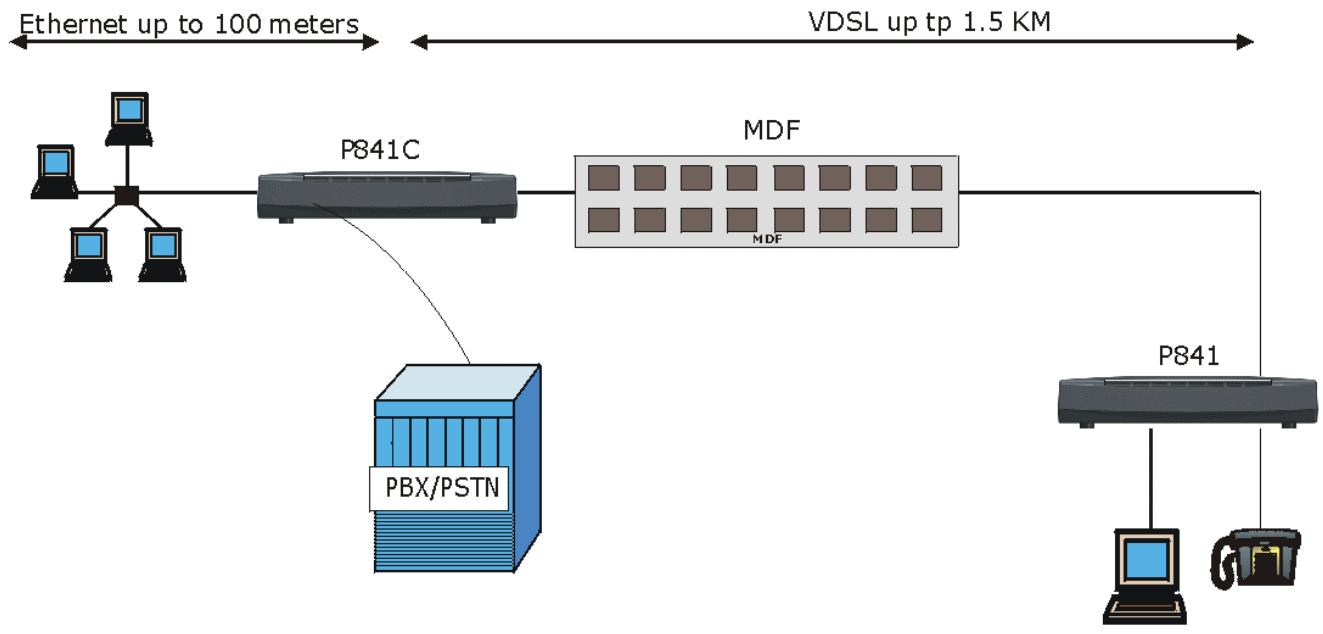
Figure 1-1 Campus Application
Chapter 2 Hardware Connections
This chapter gives a brief introduction to the P841C hardware.
2.1 Front Panel
The following figure shows the front panel of the P841C.
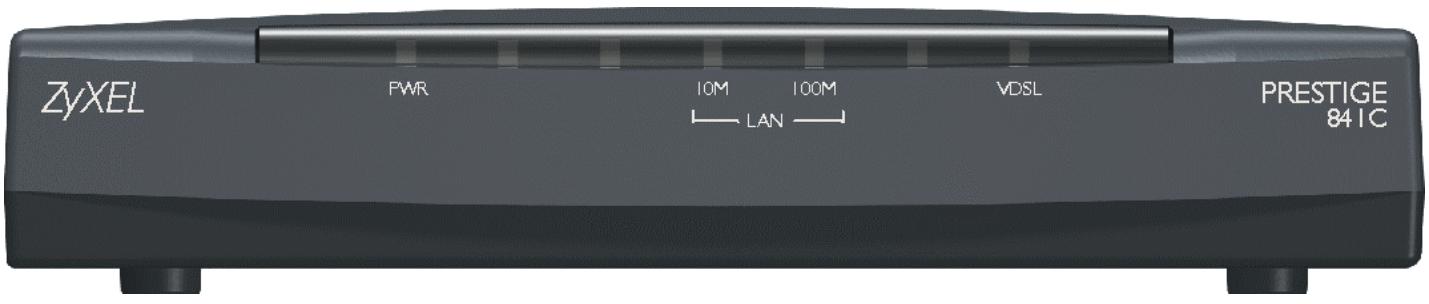
Figure 2-1 P841C Front Panel
2.1.1 Front Panel LEDs
The following table describes the LED indicators on the front panel of the P841C.
Table 2-1 P841C LED Descriptions
| LED | COLOR | STATUS | DESCRIPTION |
| PWR | Green | ONOFF | The system is turned on.The system is off. |
| LAN 10 M | Green | BlinkingONOFF | The system is transmitting/receiving to/from a 10 Mbps Ethernet network.The link to a 10 Mbps Ethernet network is up.The link to a 10 Mbps Ethernet network is down. |
| LAN 100 M | Yellow | BlinkingONOFF | The system is transmitting/receiving to/from a 100 Mbps Ethernet network.The link to a 100 Mbps Ethernet network is up.The link to a 100 Mbps Ethernet network is down. |
| VDSL | Green | BlinkingONOFF | The system is transmitting/receiving to/from the VDSL modem.The link to the VDSL modem is up.The link to the VDSL modem is down. |
2.2 Back Panel
The following figure shows the back panel of the P841C.
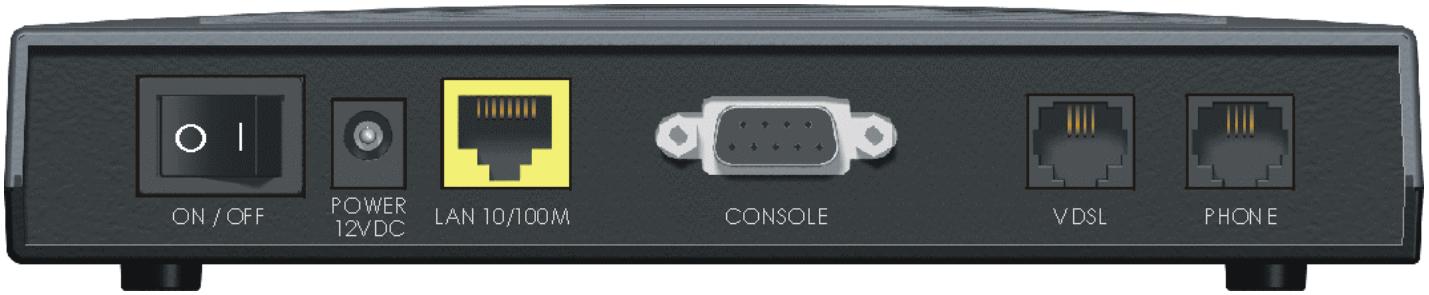
Figure 2-2 P841C Back Panel
2.2.1 Rear Panel Connectors
Table 2-2 P841C Rear Panel Connectors
| CONNECTER | DESCRIPTION |
| POWER12VDC | Make sure you are using the correct power sourceConnect the female end of the power adapter to the power receptacle on the rear panel of your P841C. Connect the other end of the adapter to a power outlet. |
| LAN 10/100M | The Ethernet interface is an RJ-45 connector. Use a crossover Ethernet cable to connect to a hub or WAN switch. Use a straight-through Ethernet cable to connect to a computer. |
| CONSOLE | The CONSOLE port is an RS-232 port for configuration of the P841C. Connect the male 9-pin end of the console cable to the console port of the P841C. Connect the other end (either a female 25-pin or female 9-pin) to a serial port (COM1, COM2 or other COM port) of your computer. You can use an extension RS-232 cable if the enclosed one is too short. |
| VDSL | Connect one end of a phone cable to the RJ-11 VDSL port and then connect the other end to the telephone wall jack that connects to the subscriber's VDSL modem (P841). |
| PHONE | The line from the subscriber's carries both VDSL and voice signals. The P841C has a built-in splitter that separates the high frequency VDSL signal from the voice band signal and feeds the VDSL signal to the P841C, while the voice band signal is diverted to the PHONE port. Connect one end of a phone cable to the RJ-11 PHONE port and then connect the other end to a PBX (Private Branch eXchange) or PSTN (Public Switched Telephone Network). |
Chapter 3 Configuring the P841C
This chapter shows you how to configure and maintain your P841C using the command line interface.
3.1 Additional Installation Requirements
In addition to the contents of the package, you need the following hardware and software components to configure your device:
- A computer with a 10/100M Ethernet NIC (Network Interface Card)
- A computer with terminal emulation software configured to the following parameters:
VT100 terminal emulation
9600 bps
No parity, 8 data bits, 1 stop bit
No flow control
3.2 Login Screen
When you turn on your P841C, it performs several internal tests as it initializes. A login screen appears with copyright and VDSL information prompting you to enter the password, as shown in the next figure. You need a password to configure the P841C.
The default password when the P841C is shipped is "1234".
ZyXEL(R) Prestige 841C VDSL-LT Modem Version V1.00(DH.0)b2 | 3/20/2002
Copyright (c) ZyXEL Communications Corp 2001-2002. All rights reserved.
VDSL Modem Code Version: 0x50
VDSL Mode: 10BaseS(0)
Reset VDSL Chip...
Password:
Figure 3-1 Login Screen
For your first login, enter the default password “1234”. As you enter the password, the screen displays an “*” for each character you type. You see the P841C prompt after a successful login.
Password: **** P841C>
Figure 3-2 Login Screen
If you type a wrong password, you will see the following screen.
P841C>***
Wrong Password!
Figure 3-3 Wrong Password
You should change the default password using the passwd command.
3.3 Commands
3.3.1 General Command Conventions
References to “LT” and “NT” are common throughout the commands. “LT” means Line Termination (unit), which is the P841C VDSL central office side modem. “NT” means Network Termination (unit), which is the subscriber’s VDSL modem (P841).
3.3.2 Command Syntax Conventions
- Command keywords are in regular courier font and should be typed in as they appear or in abbreviated form (see the next section).
- Optional fields (parameters) in a command are enclosed in “[]” brackets. For example,
P841C> vdsl active [on|off]
- The “|” symbol is shorthand for the word “or”. For example, vds1 debug [on|off]
3.4 System Related Commands
Help, exit, passwd, sys and fwupgrade are the system related commands.
3.4.1 Passwd Command
passwd
Use this command to change the login password. The default password when shipped is "1234".

Figure 3-4 Change Password Command
Type your new password (up to 15 characters) in the New Password field and press [ENTER]. To confirm, retype the same password in the Retype New Password field. As you enter the password, the screen displays an “*” for each character you type. You see the P841C prompt after a successful password change.
ZyXEL recommend you change your password after your very first login. Store your new password in a secure place for later reference in case you forget it.
3.4.2 Exit Command
exit
Enter this command to log out. You will then have to re-enter your password to log in again.
P841C>exit
Password:
Figure 3-5 Exit Command
System Timeout
Please note that if there is no activity for longer than five minutes after you log in, your P841C will automatically log you out. When you are logged out, press [ENTER] to bring up the password prompt.
3.4.3 help (or ?) Command
Type help or ? to show all available P841C commands as displayed in the next screen.
P841C>? sys - display system status help or ? - show this screen exit -logoutpasswd - change login password fwupgrade - upgrade firmware vdsl uprate [x] - set/show VDSL uprate vdsl downrate [y] - set/show VDSL downrate vdsl auto [on|off] - set/show VDSL auto rate selection flag vdsl load [lt|nt] - load VDSL modem code vdsl reset - reset VDSL chip vdsl reconnect - force VDSL reconnect vdsl status - show VDSL connect status vdsl clear - clear VDSL connect status vdsl debug [on|off] - set/show VDSL debug flag vdsl monitor [on|off] - set/show VDSL monitor flag vdsl show - show VDSL parameters setting vdsl mode (mode) - set/show VDSL mode vdsl active [on|off] - active/deactive VDSL port vdsl autoupg [on|off] - set/show EEPROM auto upgrade flag enet status - show ENET counters enet clear - clear ENET counters enet speed (lt|nt) (speed) - set/show NT ENET speed enet fctrl (lt|nt) [on|off] - set/show NT ENET full duplex flow control enet monitor [on|off] - set/show ENET monitor flag
Figure 3-6 P841C Help Commands
Table 3-1 P841C Help Commands
| FIELD | DESCRIPTION |
| System-related Commands | |
| sys | Entering this command displays the system status. |
| help or ? | Entering this command shows the Help screen displayed |
| exit | Enter this command to log out of command mode. |
| passwd | Enter this command to change the login password. |
| fwupgrade | Enter this command to upgrade the P841C firmware. |
| VDSL-related Commands | |
| vDSL uprate [x] | Type this command to set the VDSL upstream rate to speed “x” or show the current upstream speed (without “x”). |
| vDSL downrate [y] | Type this command to set the VDSL downstream rate to speed “y” or show the current downstream speed (without “y”). |
| vDSL auto [on|off] | Type this command to turn the VDSL auto flag on or off or show the current VDSL auto flag status (without “on” or “off”). |
| vDSL load [lt|nt] | This command causes the P841C to load new VDSL modem code into LT (P841C) or NT (P841). If LT is specified, the P841C will load the VDSL modem code into the VDSL chip. If NT is specified, P841C will load the VDSL modem code into the P841 VDSL chip. |
| vDSL reset | Issue this command to cause a software reset to the VDSL Chip. The VDSL link disconnects temporarily while resetting. |
| vDSL reconnect | Issue this command to cause the P841C to reconnect the VDSL link. |
| vDSL status | Issue this command to show the VDSL connection status. |
| vDSL clear | Issue this command to clear the VDSL connection status counters. |
| vDSL debug [on|off] | Type this command to show the VDSL debug flag status (without “on” or “off”) or turn on/off the VDSL debug flag. When this flag is set (on), VDSL debug messages are displayed. |
| vDSL monitor [on|off] | Type this command to show the VDSL monitor flag status (without “on” or “off”) or turn on/off the VDSL monitor flag. When this flag is set (on) and the VDSL link is up, VDSL parameters are displayed every three seconds. |
| vDSL show | This command displays your P841C settings. |
| vDSL write (lt|nt) addr value - | Write variables to VDSL chipset registers. |
| vDSL mode (mode) | This command displays the VDSL mode if you don’t type a mode and sets it if you do. |
| vDSL active [on|off] | Use this command to activate or deactivate VDSL. |
| vDSL autoupg [on|off] | Type this command to show the VDSL auto upgrade status (without “on” or “off”) or turn on/off auto upgrade. When auto upgrade is on, the P841C will check the subscriber's modem VDSL version and automatically upgrade it if it is an earlier version than the P841C's. |
| Ethernet-related Commands | |
| enet status | Type this command to display P841C and the subscriber's VDSL modem's Ethernet statistics (if link is up). |
| enet clear | Type this command to clear P841C and the subscriber's VDSL modem's Ethernet statistics (if link is up). |
Table 3-1 P841C Help Commands
| FIELD | DESCRIPTION |
| enet speed (lt|nt) (speed) | Type this command to set the Ethernet port speed of the P841C (you must type “lt”) or P841 (“nt”). P841C speed is displayed if you just type “enet speed”. |
| enet fctrl (lt|nt) [on|off] | Type this command to set the Ethernet port full duplex flow control of the P841C (you must type “lt”) or P841 (“nt”). P841C full duplex flow control is displayed if you just type “enet fctrl”. |
| enet monitor [on|off] | Display P841C and the subscriber's VDSL modem's Ethernet statistics (if link is up) if this flag is on. |
3.4.4 Sys Status Command
Type sys to display the following system status parameters.
firmware version = V1.00(DH.0)b3 | 3/26/2002
VDSL modem code version = 0x50
sys uptime = 27782 ms (0:00:27.782)
Figure 3-7 Sys Status Command
Table 3-2 Sys Status Command
| FIELD | DESCRIPTION |
| firmware version | This field shows the P841C firmware version and the date it was created. |
| vdsl modem code version | This field shows the VDSL driver version. |
| sys uptime | This field displays in milliseconds (and hours, minutes, seconds) how long the system has been up. |
3.4.5 Firmware Upgrade Command
fwupgrade
Follow these steps for a successful firmware upgrade.
Step 1. Type fwupgrade to begin the firmware upgrade process via XMODEM.
P841C>fwupgrade
This operation will overwrite the old firmware! Continue? (Y/N)
Figure 3-8 Upgrading Firmware First Warning
Step 2. Type "Y" to continue the upgrade process.
Step 3. You now see the next screen warning you not to abort the upload process after the Xmodem file transfer begins. If you want to quit the firmware upgrade process and you have NOT yet started the file transfer process (using a Terminal emulation program), then restart the P841C now to exit.
You MUST NOT abort this operation after XMODEM data transfer begins.
Otherwise the device will be damaged.
Restart your device before XMODEM transfer begins to quit the upgrade process.
Figure 3-9 Upgrade Firmware Last Warning
Step 4. Launch your terminal emulation program (see next example). You should have already downloaded the firmware and unzipped it on your computer. The firmware file has a "bin" extension. Begin the file transfer. DO NOT interrupt it – wait until the file transfer process finishes.
If you abort the upload after the transfer begins, your device will be seriously damaged!
Example Xmodem Firmware Upload Using HyperTerminal
Click Transfer, then Send File to display the following screen.
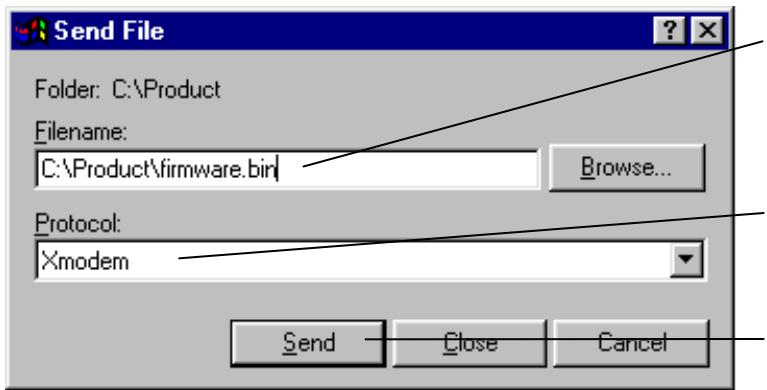
Figure 3-10 Example Xmodem Upload
Type the firmware file's location, or click
Browse to look for it. The firmware file has a "bin" extension.
Choose the Xmodem protocol.
Finally, click Send.
Chapter 4
VDSL- Related Commands
This chapter shows you how to configure VDSL using Commands.
4.1 Introduction
VDSL-related commands supported by the P841C are shown in Table 3-1. The default values for the following VDSL parameters are:
Table 4-1 VDSL Default Values
| VDSL PARAMETER | DEFAULT VALUE |
| VDSL Mode | 0 = 10BaseS mode |
| VDSL Active | On |
| VDSL Upstream Rate | 12Mbps |
| VDSL Downstream Rate | 12Mbps |
4.1.1 VDSL Mode Command
vds1 mode (mode)
This command displays the VDSL mode if you don't type a mode and sets it if you do. Use the "vdsl reset" or "vdsl recon" command to make VDSL reconnect after you set the mode; it does not do this automatically. The modes are listed in the next table.
P841C>vdsl mode
vdsl mode: 10BaseS(0)
Figure 4-1 VDSL Mode
Table 4-2 VDSL Mode
| MODE NUMBER | MODE TYPE |
| 0 | 10BaseS mode |
| 1 | ANSI Mode (ANSI/ETSI Band Plan 998) |
| 2 | ETSI Mode (ETSI Band Plan 997) |
The band plan is different for each mode even though the speed may be the same. The following table summarizes transmission rates and frequency ranges for each VDSL mode supported by the P841C.
Table 4-3 VDSL Mode, Frequency Ranges and Rates
| VDSL MODE | FREQ. RANGE (Hz) | RATE (Mbps) | |||||
| 10 Base-S | |||||||
| Upstream | 4.0M | 7.9M | 1.56 | 6.25 | 9.38 | 12.50 | 18.75 |
| Downstream | 900K | 3.0M | 4.17 | 6.25 | 8.33 | 12.50 | 16.67 |
| ANSI Mode (ANSI/ETSI Band Plan 998) | |||||||
| Upstream | 4.0M | 5.0M | 1.56 | 3.13 | 6.25 | ||
| Downstream | 900K | 3.0M | 4.17 | 6.25 | 8.33 | 12.50 | 16.67 |
| ETSI Mode (ETSI Band Plan 997) | |||||||
| Upstream | 4.0M | 5.0M | 1.56 | 3.13 | 6.25 | ||
| Downstream | 900K | 2.7M | 4.17 | 6.25 | 9.38 | 12.50 | |
4.1.2 VDSL Active Command
vds1 active [on|off]
Use this command to activate or deactivate the VDSL driver.
4.1.3 VDSL Uptake and Downrate Commands
Use the following commands to view and set VDSL upstream and downstream rates. Rates vary according to VDSL mode selected – see Table 4-4 and section 4.1.1.
Upstream Rates
vds1 uprate [uptrate]
"uprate" is an integer from 0 to 4 as defined in the next table. This command sets the upstream VDSL rate if you set a rate and displays the rate if you don't. If you set a new rate, you must use "vdsl reset" or "vdsl reconnect" command to reconnect.
P841C>vdsl uprate
vdsl upstream rate: 1562500 bps (0)
Figure 4-2 VDSL Upstream Rate
Downstream Rates
vds1 downrate [downrate]
"downrate" is an integer from 0 to 4 defined in the next table. This command sets the upstream VDSL rate if you set a rate and displays the rate if you don't. If you set the rate, you must use "vdsl reset" or "vdsl reconnect" command to make VDSL reconnect.
P841C>vdsl downrate
vdsl downstream rate: 4166667 bps (0)
Figure 4-3 VDSL Downstream Rate
Table 4-4 VDSL Rates
| UPRATE/DOWN RATE | UPSTREAM RATE | DOWNSTREAM RATE |
| 10BaseS Mode | ||
| 0 | 1.56Mbps | 4.17Mbps |
| 1 | 6.25Mbps | 6.25Mbps |
| 2 | 9.38Mbps | 8.33Mbps |
| 3 | 12.50Mbps | 12.50Mbps |
| 4 | 18.75Mbps | 16.67Mbps |
| ANSI Mode (ANSI/ETSI Band Plan 998) | ||
| 0 | 1.56Mbps | 4.17Mbps |
| 1 | 3.13Mbps | 6.25Mbps |
| 2 | 6.25Mbps | 8.33Mbps |
| 3 | 12.50Mbps | |
| 4 | 16.67Mbps | |
| ETSI Mode (ETSI Band Plan 997) | ||
| 0 | 1.56Mbps | 4.17Mbps |
| 1 | 3.13Mbps | 6.25Mbps |
| 2 | 6.25Mbps | 9.38Mbps |
| 3 | 12.50Mbps | |
4.1.4 VDSL Auto Command
vds1 auto [on|off]
This command turns the VDSL auto flag on or off. Type vds1 auto to show the current VDSL auto flag status (without "on" or "off"). When this flag is on, the P841C automatically negotiates upstream and downstream rates up to the values set using the upstream and downstream commands just described.
P841C>vdsl auto vdsl auto flag: on
Figure 4-4 VDSL Auto Flag
4.1.5 VDSL Load Command
vds1 load [lt|nt]
This command makes the P841C loads new VDSL modem code into the P841C (LT) or P841 (NT). If "LT" is specified, the P841C will load the VDSL modem code into the P841C. If "NT" is specified, the P841C will load the VDSL modem code into the P841. The VDSL connection should automatically reconnect after the new VDSL modem code has been successfully loaded.
4.1.6 VDSL Reset Command
vds1 reset
This command causes a software reset to the VDSL Chip (local or remote). The VDSL link first disconnects before the channel resets.
4.1.7 VDSL Reconnect Command
vdsl reconnect
This command forcibly causes the P841C to reconnect the VDSL link.
4.1.8 VDSL Status Command
vdsl status
This command shows the VDSL status register values as shown in the next example. Information in these fields is mainly for debugging purposes.
SNR, MSE and RS_ERR are polled every three seconds. Total RS_ERR are counted during the connection. SNR, MSE, RS_ERR and Total_RS_ERR are cleared after the VDSL is link up.
P841C>vdsl status
VDSL Parameters:
LINK_STAT = 0x00 DISC = 0 Modem Code = (0x50,N/A)
VDSL Line Quality Status:
US = QAM 4/Int 32, Rate = 1562500 bps, fc = 4467773 Hz
DS = QAM 16/Int 24, Rate = 4166666 bps, fc = 1831054 Hz
US SNR = 0.00 0.00 0.00 0.00 0.00 0.00 0.00 dB
US MSE = 0.00 0.00 0.00 0.00 0.00 0.00 0.00 0.00 dB
DS SNR = 0.00 0.00 0.00 0.00 0.00 0.00 0.00 0.00 dB
DS MSE = 0.00 0.00 0.00 0.00 0.00 0.00 0.00 0.00 dB
Average US SNR = 0.00dB US MSE = 0.00dB US Noise Margin = -9.00dB
Average DS SNR = 0.00dB DS MSE = 0.00dB DS Noise Margin = -9.00dB
US RS_ERR = 0 0 0 0 0 0 0 0
US Total RS_ERR = 0
DS RS_ERR = 0 0 0 0 0 0 0 0
DS Total RS_ERR = 0
LT Power Parameters:
TXPWR = 0x32d, POCO = 0x0, POWER = 5.70 dBm, PSD = -55.27 dBm/Hz
Figure 4-5 VDSL Status Example
Table 4-5 VDSL Status Counters
| FIELD | DESCRIPTION |
| VDSL Parameters: All these fields except for DISC are displayed in hexadecimal format. | |
| LINK STAT | This field displays the link status. The link is up if this field displays 0xac or 0xae; otherwise the link is down. |
| DISC | This is a VDSL Disconnect counter. |
| Modem Code | This field displays information about the modem code. |
| VDSL Line Quality Status | |
| US | This is the VDSL UpStream rate. The constellations are QAM 4, QAM 8, QAM 16, QAM 64, QAM 256 where QAM (Quadrature Amplitude Modulation) defines how many bits there are per symbol; for example QAM 4 means 2 bits per symbol (22), QAM 8, 3 bits (23) per symbol and so on. Int (Interpolation) defines how fast the symbols go through the line. It is equal to 25.0MHz / baud rate, so for example, Int 8 = 25.0 / 8 Mbaud. Rate is the VDSL raw speed and Fc is the carrier frequency. |
| DS | This is the VDSL DownStream rate. |
| SNR | The higher the SNR (Signal-to-Noise Ratio) number, the better. SNR (Signal-to-Noise Ratio is the ratio of the amplitude of the desired signal to the amplitude of noise signals at a given point in time). |
| MSE | This is the Minimum Square Error. The minimum mean-square error (also known as MMSE) performance measure is a popular metric for optimal signal processing. |
| RS_ERR | This is the count of bit errors detected and corrected by Reed-Solomon code. Reed-Solomon codes are block-based error correcting codes and are used to correct errors in many systems. |
| LT and NT Power Parameters | |
| TXPWR | This field displays transmission power information in hexadecimal format. |
| POCO | Port Output Control registers provide the control bit information. |
| POWER | This is the power measured in dBm (decibel milliwatts). It is the product of TXPWR and POCO. |
| PSD | This is the Power Spectrum Density (power divided by bandwidth). |
4.1.9 VDSL Clear Command
vds1 clear
This command clears the VDSL status counters.
4.1.10 VDSL Debug Command
vds1 debug [on|off]
This command turns the VDSL auto flag on or off or just shows the current VDSL auto flag status (without "on" or "off"). When this flag is on, the P841C displays each stage (state) of the VDSL link initialization process. When the VDSL link is up, no messages are displayed until the VDSL line is disconnected.
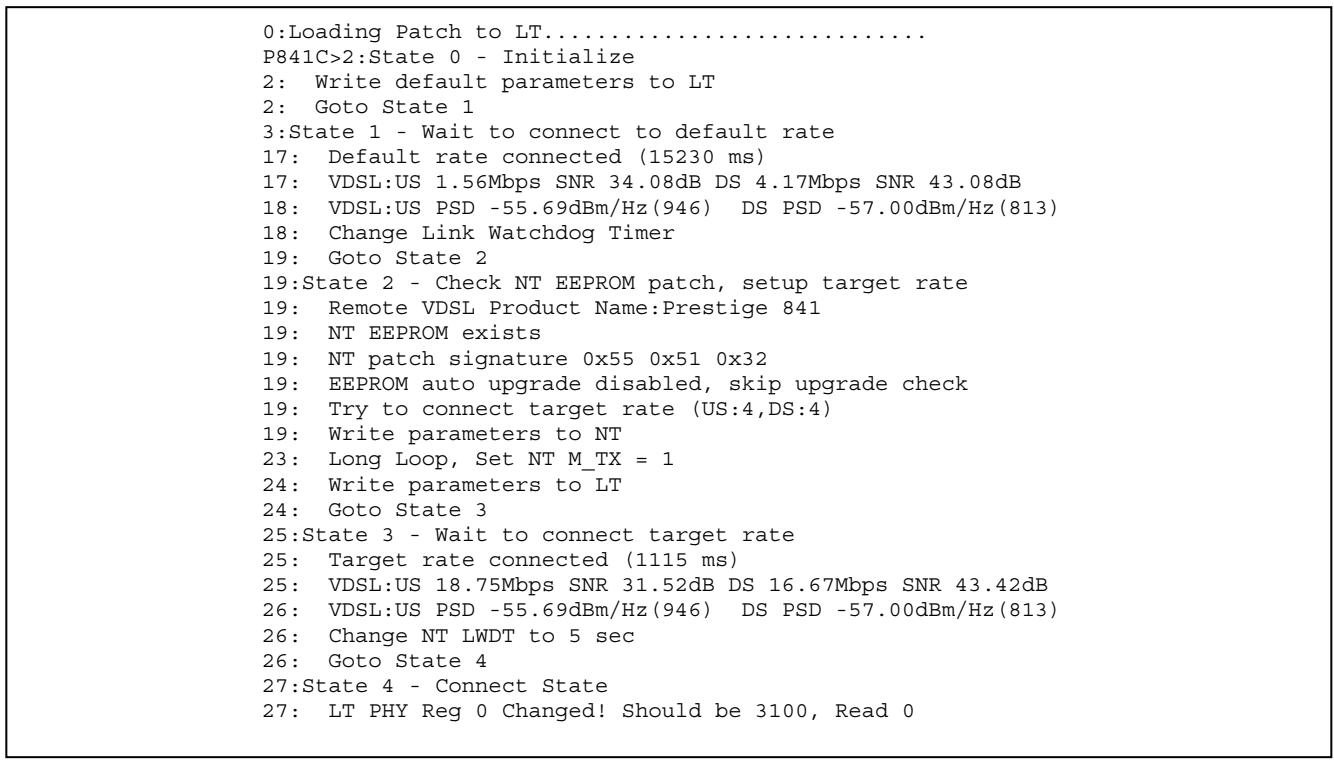
Figure 4-7 VDSL Monitor
Figure 4-6 VDSL Initialization Messages
These messages are for debugging purposes only. If you are having problems initializing the VDSL connection, capture this screen and send it to your nearest customer support.
4.1.11 VDSL Monitor Command
vds1 monitor [on|off]
Type this command to show the VDSL monitor flag status (without "on" or "off") or turn on/off the VDSL monitor flag. When this flag is set (on) and the VDSL link is up, VDSL parameters are automatically displayed every five seconds seconds.
P841C> vds1 monitor on
P841C>124:US 18.75M SNR 31.85dB RSERR 0 DS 16.67M SNR 41.08dB RSERR 0 DISC 0
127:US 18.75M SNR 31.89dB RSERR 0 DS 16.67M SNR 41.30dB RSERR 0 DISC 0
130:US 18.75M SNR 31.92dB RSERR 0 DS 16.67M SNR 41.27dB RSERR 0 DISC 0
133:US 18.75M SNR 31.78dB RSERR 0 DS 16.67M SNR 40.97dB RSERR 0 DISC 0
136:US 18.75M SNR 31.88dB RSERR 0 DS 16.67M SNR 41.10dB RSERR 0 DISC 0
139:US 18.75M SNR 31.96dB RSERR 0 DS 16.67M SNR 41.01dB RSERR 0 DISC 0
142:US 18.75M SNR 31.67dB RSERR 0 DS 16.67M SNR 41.20dB RSERR 0 DISC 0
Refer to Table 4-5 for more information on these fields.
4.1.12 VDSL Show Command
vdsl show
This command displays your P841C settings as shown in the next example.
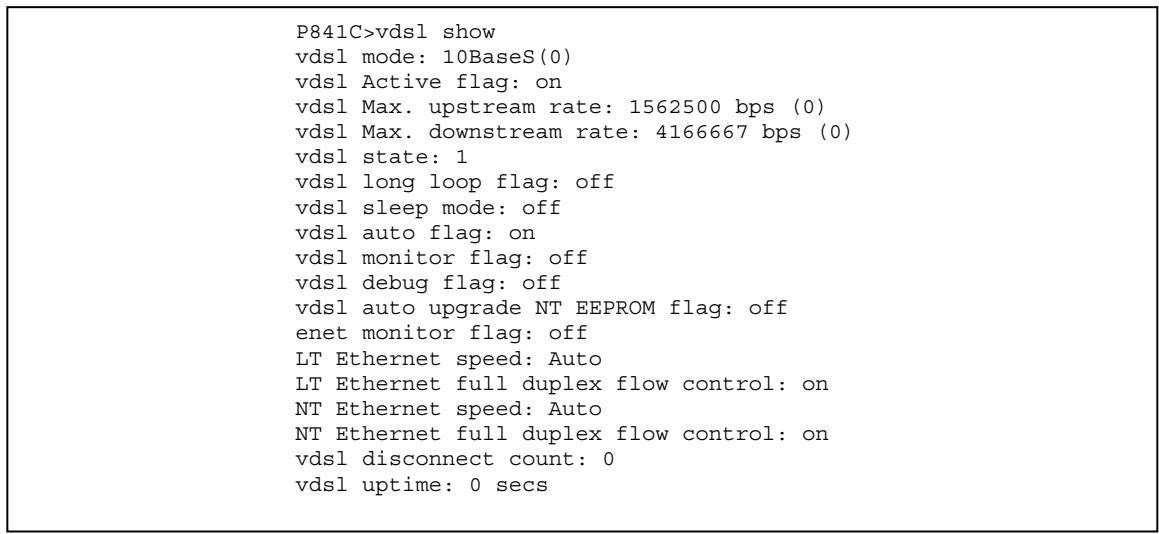
Figure 4-8 VDSL Show Command
Table 4-6 VDSL Show Command
| FIELD | DESCRIPTION | EXAMPLE |
| vDSL mode | This field displays the VDSL mode. | 10BaseS(0) |
| vDSL Active flag | This field displays if the VDSL driver is active. | on |
| vDSL Max. upstream rate | This field displays the maximum upstream rate configured. | 1562500 bps (0) |
| vDSL Max. downstream rate | This field displays the maximum upstream rate configured. | 4166667 bps (0) |
| vDSL state | This field displays the VDSL state. VDSL goes through several states before the VDSL link is up. For more information on states, see the VDSL debug command. | 1 |
| vDSL long loop flag | This flag comes on when the distance from the P841C to the subscriber VDSL modem (P841) is greater than a certain distance (1 Km using 24 AWG (American Wire Gauge)). When this happens, interleaving is enabled so as to prevent bursty errors; however this decreases throughput. | off |
| vDSL sleep mode | Sleep mode means the VDSL chip is in power save mode. This happens when vDSL Active is “off”. | off |
| vDSL auto flag | This field shows the current VDSL auto flag status (“on” or “off”). When this flag is on, the P841C will automatically negotiate upstream and downstream rates up to the values set using the upstream and downstream commands. | on |
| vDSL monitor flag | This field shows the current VDSL monitor flag status (“on” or “off”). When this flag is on and the VDSL link is up, the P841C will automatically VDSL parameters every three seconds. For more information, see the VDSL monitor command. | off |
| vDSL debug flag | This field shows the current VDSL debug flag status (“on” or “off”). When this flag is on, the P841C will automatically display messages during each stage (state) of the VDSL initialization process. For more information, see the VDSL debug command. | off |
| vDSL auto upgrade NT | This field shows the VDSL auto upgrade status (“on” or “off”). | off |
| vDSL auto upgrade NT EEPROM flag | This field shows the VDSL auto upgrade status (“on” or “off”). When auto upgrade is on, the P841C will check the subscriber's modem VDSL version and automatically upgrade it if it is an earlier version than the P841C's. | off |
| enet monitor flag | This field shows the Ethernet monitor flag status (“on” or “off”). If this flag is on and the link is up) the P841C display P841C and the subscriber's VDSL modem's Ethernet statistics. | off |
| LT Ethernet speed | This field shows the P841C Ethernet port speed. | Auto |
| LT Ethernet full duplex flow control | This field shows the P841C Ethernet port flow control status (“on” or “off”). | on |
| NT Ethernet speed | This field shows the P841 (subscriber's VDSL modem) Ethernet port speed. | Auto |
| NT Ethernet full duplex flow control | This field shows the P841 (subscriber's VDSL modem) Ethernet port flow control status (“on” or “off”). | on |
| vDSL disconnect count | This field displays how many times VDSL connection has been disconnected. | 0 |
| vDSL uptime | This field displays how long the VDSL link has been up. | 0 secs |
4.1.13 VDSL Autoupg Command
vds1 autoupg [on|off]
Type this command to show the VDSL auto upgrade status (without "on" or "off") or turn on/off auto upgrade. When auto upgrade is on, the P841C will check the subscriber's modem VDSL modem code version and automatically upgrade it if it is an earlier version than the P841C's.
Chapter 5 Ethernet-related Commands
This chapter shows you how to configure Ethernet.
5.1 Introduction
The P841C has one 10/100Mbps auto-sensing Ethernet port. There are two factors related to Ethernet: speed and duplex mode. In 10/100Mbps Fast Ethernet, the speed can be 10Mbps or 100Mbps and the duplex mode can be half duplex or full duplex. The auto-negotiation capability makes one Ethernet port able to negotiate with a peer automatically to obtain the connection speed and duplex mode that both ends support.
When auto-negotiation is turned on, the Ethernet port of the P841C negotiates with the peer automatically to determine the connection speed and duplex mode. If the peer Ethernet port does not support auto-negotiation or turns off this feature, the P841C determines the connection speed by detecting the signal on the cable and using half duplex mode. When the P841C's auto-negotiation is turned off, an Ethernet port uses the pre-configured speed and duplex mode when making a connection, thus requiring you to make sure that the settings of the peer Ethernet port are the same in order to connect.
Default Settings
The factory default settings for the Ethernet port of the P841C are:
Speed: Auto
Duplex: Auto
Flow control: On for full duplex and off for half-duplex
Use a crossover Ethernet cable to connect the P841C to a switch. Use a straight-through Ethernet cable to connect to a computer.
Ethernet-related commands supported by the P841C are shown in Table 3-1.
5.1.1 Enet Status Command
enet status
Type this command to display P841C and the subscriber's VDSL modem's Ethernet statistics (if link is up).
P841C>enet status
LT PHY: LSI 80225
LT Ethernet speed: Link Down!
LT Ethernet Counters:
ALGM_ERR = 0 SINGLE_COL = 0 MUL_COL = 0
LATE_COL = 0 EXC_COL = 0 MACRX_ERR = 0 CS_ERR = 0
FTL_ERR = 0 FCS_ERR = 0 OTO = 0 ORO = 0
BCF = 0 RXPAUS = 0 TXPAUS = 0 TXBCNT = 0
RXBCNT = 0 TXDEF = 0
NT Ethernet Counters:
ALGM_ERR = 0 SINGLE_COL = 0 MUL_COL = 0
LATE_COL = 0 EXC_COL = 0 MACRX_ERR = 0 CS_ERR = 0
FTL_ERR = 0 FCS_ERR = 0 OTO = 0 ORO = 0
BCF = 0 RXPAUS = 0 TXPAUS = 0 TXBCNT = 0
RXBCNT = 1 TXDEF = 0
Figure 5-1 Ethernet Status
Table 5-1 Ethernet Status Counters
| COUNTER | MEANING |
| ALGM_ERR | This is the number of frames received with alignment errors (odd number of nibbles). |
| SINGLE_COL | A count of successfully transmitted frames for which transmission is inhibited by exactly one collision. |
| MUL_COL | A count of successfully transmitted frames for which transmission was inhibited by more than one collision. |
| LATE_COL | The number of times that a collision was detected on a particular interface later than 512 bit-times into the transmission of a packet. |
| EXC_COL | A count of frames for which transmission failed due to excessive collisions. Excessive collision is defined as the number of maximum collisions before the retransmission count is reset. |
| MACRX_ERR | This counter contains the number of frames received that were less than 64 bytes. These frames are discarded. |
| CS_ERR | The number of times that the carrier sense condition was lost or never asserted when attempting to transmit a frame on a particular interface. |
| FTL_ERR | This counter contains the number of frames received that were more than maximum length (1536 bytes). These frames are discarded. |
| FCS_ERR | Frame Check Sequence Errors. |
| OTO | A count of data and padding octets of frames that are successfully transmitted. |
| ORO | A count of data and padding octets of frames that are successfully received. |
| BCF | A count of frames that are successfully received and are directed to the broadcast group address. |
| RXPAUS | The number of received PAUSE packets. |
| TXPAUS | The number of PAUSE packets transmitted. |
| TXBCNT | This counter indicates the number of valid data frames that have been transferred over the transmit channel. |
| RXBCNT | This counter indicates the number of valid data frames that have been transferred over the receive channel. |
| TXDEF | A count of frames for which the first transmission attempt was delayed because the Ethernet media was busy. |
5.1.2 Enet Clear Command
enet clear
Type this command to clear P841C and the subscriber's VDSL modem's Ethernet statistics (if link is up).
5.1.3 Enet Speed (lt|nt) (speed) Command
enet speed (lt|nt) (speed)
Type this command to set the Ethernet port speed of the P841C (with "lt") or P841 (with "nt"). P841C speed is displayed if you just type "enet speed".
P841C>enet speed
enet speed(LT) : Auto
Figure 5-2 Ethernet Speed
| Speed index number | Speed/Flow Control |
| 0 | Auto Negotiation |
| 1 | 10 Mbits/s, Half Duplex |
| 2 | 10 Mbits/s, Full Duplex |
| 3 | 100Mbits/s, Half Duplex |
| 4 | 100Mbits/s, Full Duplex |
5.1.4 Enet full duplex Fctrl (lt|nt) [on|off] Command
enet full duplex fctrl (lt|nt) [on|off]
Type this command to set the Ethernet port flow control or show the Ethernet port flow control status (without "on" or "off"). By default, flow control is on for full duplex Ethernet connections and off for half duplex Ethernet connections.
P841C>enet fctrl
enet full duplex flow control(LT): on
Figure 5-3 Ethernet Flow Control
5.1.5 Enet Monitor [on|off] Command
enet monitor [on|off]
When this flag is on this command automatically displays the P841C (and the subscriber's VDSL modem's Ethernet statistics if the link is up) every five seconds. Enter the command without "on" or "off" to just show the Ethernet monitor status.
P841C>enet monitor enet monitor flag: off
Figure 5-4 Ethernet Monitor Status
P841C>enet mon on
P841C>108:Enet(LT):Tx(F:0 B:0 S:0) Rx(F:681 B:85833 S:1950)
109:Enet(NT):Tx(F:694 B:90140 S:2709) Rx(F:0 B:0 S:0)
113:Enet(LT):Tx(F:0 B:0 S:0) Rx(F:815 B:117449 S:6323)
114:Enet(NT):Tx(F:828 B:119529 S:5877) Rx(F:0 B:0 S:0)
118:Enet(LT):Tx(F:0 B:0 S:0) Rx(F:876 B:125667 S:1643)
119:Enet(NT):Tx(F:884 B:126557 S:1405) Rx(F:0 B:0 S:0)
123:Enet(LT):Tx(F:0 B:0 S:0) Rx(F:934 B:134174 S:1701)
124:Enet(NT):Tx(F:943 B:134941 S:1676) Rx(F:0 B:0 S:0)
128:Enet(LT):Tx(F:0 B:0 S:0) Rx(F:980 B:138422 S:849)
P841C>enet mon off
129:Enet(NT):Tx(F:989 B:139256 S:863) Rx(F:0 B:0 S:0)
Figure 5-5 Enet Monitor Statistics
Table 5-2 Enet Monitor Statistics
| LABEL | DESCRIPTION |
| LT | The P841C VDSL modem. |
| NT | The subscriber's VDSL modem (P841). |
| TxF and RxF | Transmitting and Receiving Frame count. |
| TxB and RxB | Transmitting and Receiving Byte count. |
| TxS and RxS | Transmitting and Receiving Throughput in Bytes per second. |
Chapter 6
Troubleshooting
This chapter covers potential problems and possible remedies. After each problem description, some steps are provided to help you diagnose and solve the problem.
6.1 VDSL LED
The VDSL LED is not on.
Table 6-1 Troubleshooting the VDSL LED
| STEPS | CORRECTIVE ACTION |
| 1 | Disconnect the phone wire coming from the VDSL port of the P841C and connect the subscriber's VDSL modem or router directly to the VDSL port of the P841C using a different telephone wire. If the LED turns on, check for a problem with the building's phone wire. |
| 2 | Set the VDSL modem to “auto-negotiate”. If this is not possible, set it to 100 Mbps, half duplex mode. |
| 3 | Use the VDSL commands to reset and reconnect the VDSL channel (see sections 4.1.6 and 4.1.7). |
| 4 | Log into the P841C, enter the VDSL debug command (see section 4.1.10), take screen shots of this information and send it to your nearest customer support representative. |
| 5 | If the LED remains off, contact the distributor. |
6.2 Data Transmission
The VDSL LED is on, but data cannot be transmitted.
Table 6-2 Troubleshooting Data Transmission
| STEPS | CORRECTIVE ACTION |
| 1 | Disconnect the phone wire coming from the VDSL port of the P841C and connect the VDSL modem or router directly to the VDSL port of the P841C using a different telephone wire. If data can be transmitted, check for a problem with the building's phone wire. |
| 2 | Check to see that you are using the correct VDSL mode (see section 4.1.1). |
| 3 | Use the VDSL commands to reset and reconnect the VDSL channel (see sections 4.1.6 and 4.1.7). |
| 4 | Connect the VDSL modem or router to another P841C (VDSL port). If the VDSL modem or router works with a different P841C, then there may be a problem with the original P841C. Contact the distributor. |
| 5 | If using a different P841C does not work, try a different subscriber VDSL modem or router with the original P841C. |
| 6 | Log into the P841C, enter the VDSL status command (see section 4.1.8) and the VDSL debug command (see section 4.1.10), take screen shots of this information and send it to your nearest customer support representative. |
6.3 Intermittent VDSL LED
A VDSL LED turns on and off intermittently.
Table 6-3 Troubleshooting a Non-Constant VDSL LED
| STEPS | CORRECTIVE ACTION |
| 1 | Disconnect the phone wire coming from the VDSL port of the P841C and connect the subscriber's VDSL modem or router directly to the VDSL port of the P841C using a different telephone wire. If the VDSL LED stays on, check for a problem with the building's phone wire. |
| 2 | Use the VDSL commands to reset and reconnect the VDSL channel (see sections 4.1.6 and 4.1.7). |
6.4 Data Rate
The SYNC-rate is not the same as the configured rate.
Table 6-4 Troubleshooting the SYNC-rate
| STEPS | CORRECTIVE ACTION |
| 1 | Disconnect the phone wire coming from the VDSL port of the P841C and connect the subscriber's VDSL modem or router directly to the VDSL port of the P841C using a different telephone wire. If the rates match, the regular phone wire quality may be limiting the speed. |
| 2 | Use the VDSL commands to reset and reconnect the VDSL channel (see sections 4.1.6 and 4.1.7). |
| 3 | Log into the P841C, enter the VDSL status command (see section 4.1.8) and the VDSL debug command (see section 4.1.10), take screen shots of this information and send it to your nearest customer support representative. |
6.5 Password
I forgot the password to my P841C.
Table 6-5 Troubleshooting the Password
| STEPS | CORRECTIVE ACTION |
| 1 | Contact your distributor for a “generic password”. Tell them your product serial number (located on the sticker on the bottom of the P841C) and firmware version you are using (see section 3.4.4). |
6.6 Connecting to an Ethernet Switch
The P841C cannot connect to an Ethernet switch.
Table 6-6 Troubleshooting Connecting to an Ethernet Switch
| STEPS | CORRECTIVE ACTION |
| 1 | Check your cable connections. Use a crossover Ethernet cable to connect to a hub or an Ethernet switch. (Use a straight-through Ethernet cable to connect to a computer.) |
| 2 | The factory default settings for the Ethernet port of the P841C are: |
Table 6-6 Troubleshooting Connecting to an Ethernet Switch
| STEPS | CORRECTIVE ACTION |
| ➢ Speed: Auto ➢ Duplex: Auto ➢ Flow control: On for full duplex and off for half-duplex If the P841C's auto-negotiation is turned off, an Ethernet port uses the pre-configured speed and duplex mode when making a connection, thus requiring you to make sure that the settings of the switch Ethernet port are in the same order to connect. |
Power Adapter Specifications
| NORTH AMERICA | |
| AC Power Adapter model AD48-1201200DUY | AC Power Adapter model DV-121A2-5720 |
| Input power: AC120Volts/60Hz/0.25A | Input power: AC120Volts/60Hz/27VA |
| Output power: DC12Volts/1.2A | Output power: DC12Volts/1.2A |
| Power consumption: 6 W | Power consumption: 6 W |
| Safety standards: UL, CUL (UL 1950, CSA C22.2 No.234-M90) | Safety standards: UL, CUL (UL 1310, CSA C22.2 No.223-M91) |
| EUROPE | UNITED KINGDOM |
| AC Power Adapter model AD-1201200DV | AC Power Adapter model AD-1201200DK |
| Input power: AC230Volts/50Hz/0.2A | Input power: AC230Volts/50Hz/0.2A |
| Output power: DC12Volts/1.2A | Output power: DC12Volts/1.2A |
| Power consumption: 6 W | Power consumption: 6 W |
| Safety standards: TUV, CE (EN 60950) | Safety standards: TUV, CE (EN 60950, BS7002) |
| JAPAN | AUSTRALIA AND NEW ZEALAND |
| AC Power Adapter model JOD-48-1124 | AC Power Adapter model AD-1201200DS or AD-121200DS |
| Input power: AC100Volts/ 50/60Hz/ 27VA | Input power: AC240Volts/50Hz/0.2A |
| Output power: DC12Volts/1.2A | Output power: DC12Volts/1.2A |
| Power consumption: 6 W | Power consumption: 6 W |
| Safety standards: T-Mark (Japan Dentori) | Safety standards: NATA (AS 3260) |
Index
1
10 Base-S 4-8
10Base-S 4-7, 4-9
10Base-S Mode 1-1
A
ALGM_ERR 5-2
ANSI Mode 1-1
ANSI/ETSI Plan 998. 4-8
B
Back Panel. 2-1
Band plan 4-7
BCF 5-2
C
CE. iv
Certification . iv
Class B iv
CONSOLE 2-2
Contacting Customer Support.
Copyright
CS_ERR 5-2
Customer Support.
D
Data Rate 6-2
Data Transmission 6-1
Declaration of Conformity iv
Default Settings
Ethernet 5-1
DISC 4-11
Disclaimer
DS 4-11
Duplex 5-1, 5-3, 6-3
E
enetfctrl 3-5
enet monitor 3-5, 5-3
enet speed. 3-5, 5-3
enet status. 3-4, 5-1
Ethernet Switch 6-2
ETSI Mode 1-1
ETSI Plan 997 4-8, 4-9
EXC_COL. 5-2
Exit 3-3
F
FCC. iv
FCC Rules. iv
FCS_ERR. 5-2
Federal Communications Commission (FCC) Interference Statement .iv
Firmware Upgrade 3-5
Flow control 2-1, 5-1, 6-3
Front Panel 2-1
Front Panel Connectors. 2-2
Front Panel LEDs. 2-1
FTL_ERR. 5-2
fwupgrade 3-2, 3-4, 3-5
H
help. 3-3
I
Intermittent VDSL LED 6-2
Introducing the SMT 3-1
L
LAN 10/100M. 2-2
LATE_COL 5-2
Line Termination (LT) ix, 1-1
LINK STAT 4-11
Login Screen 3-1
long loop. 4-13
M
MACRX_ERR. 5-2
Modem Code 4-11
MSE 4-11
MUL_COL 5-2
N
Network Interface Card 3-1
NIC. See Network Interface Card
NT (Network Termination 3-2
0
ORO 5-2
OTO 5-2
P
P841 1-1
P841C ix
Passwd 3-2
Password. 3-1, 3-2, 6-2
PHONE. 2-2
POCO 4-11
POWER. 4-11
Power Adapter. A
PSD 4-11
PWR 2-1
R
Rear Panel Connections
Rear Panel 2-2
reconnect 3-4
Related Documentation ix
repair iii
RS_ERR 4-11
RXBCNT. 5-2
RXPAUS 5-2
S
Service.. 3
Services
SINGLE_COL. 5-2
sleep mode. 4-13
SNR 4-11
Splitters
Integrated Splitters 1-1
SYNC-rate 6-2
Syntax Conventions.. ix
Sys Status 3-5
system related commands.. 3-2
System Timeout. 3-3
T
Terminal emulation 3-1
Terminal Emulation. 3-1
TXDEF. 5-2
TXBCNT. 5-2
TXPAUS. 5-2
TXPWR. 4-11
U
US. 4-11
V
VDSL 1-1
VDSL ix
vdsl active 3-2, 3-4, 4-8
vdsldebug. 3-2,3-4,4-11,4-13
vdsldnoverrate 3-4
VDSL LED. 6-1
vdsl mode 3-4, 4-7, 4-13
VDSL Mode. 4-7, 4-8
VDSL Modes 1-1
VDSL Rates 4-8, 4-9
vdsl show 3-4, 4-12
vdsl status. 3-4, 4-10
vdsl uprate. 3-4
VT100 3-1
Z
ZyXEL Limited Warranty .iii
Note. iii
ZyXEL Web Site ix
- P841C
- Central-Side VDSL Modem
- Copyright
- Copyright © 2002 by ZyXEL Communications Corporation
- Disclaimer
- Trademarks
- ZyXEL Limited Warranty
- Note
- Interference Statements andWarnings
- FCC Interference Statement
- FCC Warning
- CE Mark Warning:
- Taiwanese BCIQ A Warning:
- VCCI Class B Warning
- Certifications
- Customer Support
- Contacting Customer Support
- Table of Contents
- Chapter 1 Getting to Know the P841C. 1-1
- Chapter 2 Hardware Connections 2-1
- Chapter 3 Configuring the P841C 3-1
- Chapter 4 VDSL- Related Commands 4-1
- Chapter 5 Ethernet-related Commands 5-1
- Chapter 6 Troubleshooting 6-1
- Power Adapter Specifications .
- Index C
- List of Figures
- List of Tables
- Preface
- About VDSL
- About the P841C
- General Syntax Conventions
- Related Documentation
- Chapter 1 Getting to Know the P841C
- Features
- Compact Design With Integrated Splitters
- 10/100 Mbps Fast Ethernet Port
- VDSL Modes and Rates
- Management
- System Monitoring
- Application Example
- Chapter 2 Hardware Connections
- Front Panel
- Front Panel LEDs
- Back Panel
- Rear Panel Connectors
- Chapter 3 Configuring the P841C
- Additional Installation Requirements
- Login Screen
- The default password when the P841C is shipped is "1234".
- Figure 3-1 Login Screen
- Figure 3-2 Login Screen
- Commands
- General Command Conventions
- Command Syntax Conventions
- System Related Commands
- Passwd Command
- ZyXEL recommend you change your password after your very first login. Store your new password in a secure place for later reference in case you forget it.
- Exit Command
- System Timeout
- help (or ?) Command
- Sys Status Command
- Firmware Upgrade Command
- Figure 3-9 Upgrade Firmware Last Warning
- Example Xmodem Firmware Upload Using HyperTerminal
- Chapter 4
- VDSL- Related Commands
- Introduction
- VDSL Mode Command
- VDSL Active Command
- VDSL Uptake and Downrate Commands
- Upstream Rates
- Downstream Rates
- VDSL Auto Command
- VDSL Load Command
- VDSL Reset Command
- VDSL Reconnect Command
- VDSL Status Command
- VDSL Clear Command
- VDSL Debug Command
- VDSL Monitor Command
- VDSL Show Command
- VDSL Autoupg Command
- Chapter 5 Ethernet-related Commands
- Introduction
- Default Settings
- Enet Status Command
- Enet Clear Command
- Enet Speed (lt|nt) (speed) Command
- Enet full duplex Fctrl (lt|nt) [on|off] Command
- Enet Monitor [on|off] Command
- Chapter 6
- Troubleshooting
- VDSL LED
- Data Transmission
- Intermittent VDSL LED
- Data Rate
- Password
- Connecting to an Ethernet Switch
- Index
Marque : ZYXEL
Modèle : PRESTIGE 841C
Catégorie : Routeur