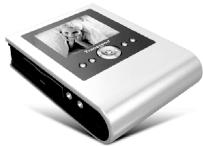
TS25PSP20G - Lecteur multimédia portable TRANSCEND - Notice d'utilisation et mode d'emploi gratuit
Retrouvez gratuitement la notice de l'appareil TS25PSP20G TRANSCEND au format PDF.


| Type de produit | Lecteur multimédia portable / album photo numérique |
| Marque | Transcend |
| Modèle | TS25PSP20G |
| Capacité de stockage | 20 Go (disque dur micro 1,8 pouce) |
| Écran | LCD couleur haute résolution 2,5 pouces (294 x 228 pixels) |
| Formats d'image supportés | JPEG |
| Formats vidéo supportés | M-JPEG (.avi, .mov) |
| Formats audio supportés | MP3 |
| Fonctions principales | Visionneuse de photos, lecteur MP3, lecteur de cartes mémoire, disque dur externe, enregistrement de mémos vocaux, diaporama, zoom/rotation photo, sortie TV |
| Interfaces | USB 2.0 Hi-Speed, prise A/V (NTSC/PAL), prise écouteurs, port IrDA (télécommande) |
| Lecteur de cartes mémoire | CompactFlash Type I/II, Microdrive, SmartMedia, SD, miniSD (avec adaptateur), MMC, RS-MMC (avec adaptateur) – deux emplacements |
| Télécommande | Fournie |
| Alimentation | Batterie lithium-ion rechargeable intégrée 2200 mAh, charge via adaptateur secteur (5 heures pour charge complète, autonomie 4~5 heures) |
| Dimensions (L x l x h) | 111,4 x 83,7 x 24,5 mm |
| Poids | 231 g (avec batterie) |
| Langues du menu | 11 langues : anglais, français, allemand, italien, portugais, russe, espagnol, japonais, coréen, chinois simplifié, chinois traditionnel |
| Température d'utilisation | 0°C à 60°C |
| Entretien et nettoyage | Ne pas utiliser de chiffon humide ; éviter l'humidité et les champs magnétiques |
| Sécurité | Utiliser uniquement l'adaptateur fourni ; volume casque limité à 100 dB ; verrouillage des touches |
| Pièces détachées / réparabilité | Batterie remplaçable (certifiée Transcend) ; ne pas ouvrir le boîtier sous peine d'annulation de garantie |
FOIRE AUX QUESTIONS - TS25PSP20G TRANSCEND
Questions des utilisateurs sur TS25PSP20G TRANSCEND
0 question sur cet appareil. Repondez a celles que vous connaissez ou posez la votre.
Poser une nouvelle question sur cet appareil
Téléchargez la notice de votre Lecteur multimédia portable au format PDF gratuitement ! Retrouvez votre notice TS25PSP20G - TRANSCEND et reprennez votre appareil électronique en main. Sur cette page sont publiés tous les documents nécessaires à l'utilisation de votre appareil TS25PSP20G de la marque TRANSCEND.
MODE D'EMPLOI TS25PSP20G TRANSCEND
Digital Album User's Manual
Introduction
Thank you very much for purchasing Transcend's Digital Album. It is your ideal portable storage choice to cherish your photos and MP3 collection. Your Digital Album can be used in different ways:
- As a digital photo viewer
As a multi-card reader
As a digital music player - As a portable hard disk
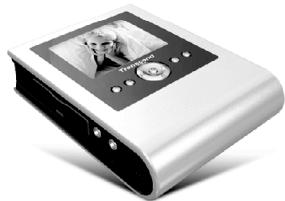
With its large-scale capacity and compact design, not only are you able to store all of your photos and music, but you can also show them off wherever you go. Display your photos from either the 2.5" high-resolution color LCD panel or connect your Digital Album to a TV via the TV-out port. You can also add a voice memo to specific photos and folders, making sure you remember the details of your photo collection.
This handheld entertainment center makes transferring files from your computer easy with its multi-card reader slots and USB2.0 port. Easily fitting into a jacket pocket or purse, your Digital Album is ideal for taking to a party, consolidating all the pictures from everyone's digital camera, and then showing them on the big screen TV.
Specifications
2.5" High Resolution Color LCD Panel (294 x 228 pixels)
1.8" Micro Hard Disk (20G)
Fully compatible with USB 2.0 Hi-Speed specification
Multi-Card Reader: Support CompactFlash Type I/II, Microdrive, SmartMedia, Secure Digital, miniSD (with adapter), MultiMediaCard, RS-MMC (with adapter)
A/V Out Function (NTSC/PAL)
Add Voice Memo to photos and folders
Supports JPEG/M-JPEG/MP3
Rechargeable lithium battery (lasts approx. 4~5 hours on a full charge)
Remote control
Dimension: 111.4mm× 83.7mm× 24.5mm
Weight: 231g (with battery)
Caution: Safety Instructions
Use the following safety guidelines to help ensure your own personal safety and to help protect your Digital Album and working environment from potential damage.
For Use
- Avoid using or placing this product in an environment above 60^ or below 0^ .
- Do not allow this product to become damp or wet from water or any other liquids.
- Do not place this product in a strong magnetic field environment.
- Do not place this product in any unstable or vibrating environment.
- Do not use a damp/wet cloth to wipe or clean the exterior case and/or the LCD panel.
- Only the AC adapter specified by this product can be used.
- Do not use or store your Digital Album in the environments listed below:
-Direct sunlight
-Next to the air conditioner, electric heater or the other heat sources
-In a closed car that is directly under the sun
For Transporting
- Do not pack this product into luggage without proper padded support. Other items in the luggage may damage the Digital Album without the proper padded support.
- Avoid squeezing the product to prevent damage to the LCD panel.
- Avoid placing objects onto the Digital Album to prevent damage.
Storage
PLEASE BACK UP YOUR DATA REGULARLY. TRANSCEND CANNOT BE HELD RESPONSIBLE FOR POSSIBLE LOSS OF DATA.
Power
- Please change the DC adapter switch type according to your country voltage setting.
- Only use the Transcend provided DC adapter approved for use with the Digital Album. Use of another DC adapter may cause a fire or explosion.
- Before you connect the Digital Album to an electrical outlet, check the DC adapter voltage rating to ensure that the required voltage and frequency match the available power source.
- To remove the Digital Album from all power sources, turn the Digital Album off and disconnect the DC adapter from the electrical outlet.
- Be sure that nothing rests on your DC adapter's power cable and that the cable is not located where it can be tripped over or stepped on.
AudioWarnings
- Repeated or regular use of headphones or earphones at volume levels above 80 decibels can give a false impression that the audio level is not enough. End users may try to progressively increase the volume control therefore risking a dangerous level for the ears.
- To protect your health and your hearing, keep the volume from your MP3 player to below 80 decibels and do not use for an extended period of time. Stop use if symptoms like headaches, nausea, or hearing disorders occur.
- Your MP3 player is limited to a volume level of 100 decibels.
- Both the MP3 player and the earphones are compliant to the French regulation concerning musical Walkmans (24th July 1998 Order).
- Before using other headphones, confirm that its technical features are similar to the original
Product Overview
Front View
Side View
Rear View
Side View
Top View
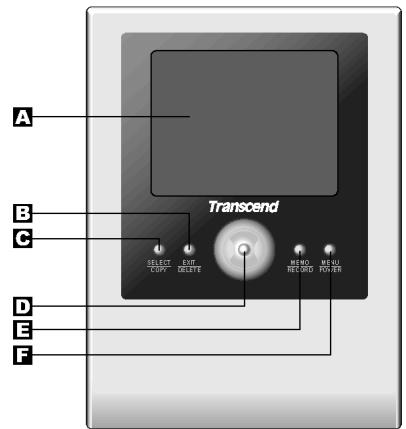
Front View
A 2.5" LTPS LCD Panel - Colorful display interface
Exit/DeleteButton-PressExit/DeleteButtonto return to the previous view,stop playing music
- Press and hold Exit/Delete Button for deleting files
Select/Copy Button - Press Select/Copy Button to accept your choice (copy & delete only)
- Press and hold Select/Copy Button for copying files from one drive to another
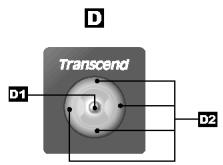
Multi-Functional Button -
Enter/Play Button: Execute selected functions, display selected photos or play music
Up/Down/Right/Left Button: Press to select the files or folders
Memo/Record Button - Press the Memo button to add a voice memo to folders and/or photos
F Menu/Power Button - Press and hold the power/menu button for 4-5 seconds to turn the Digital Album on and off. While the Digital Album is on, press the menu button to pop up the Menu option
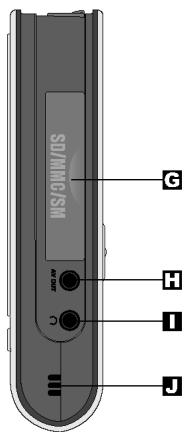
Side View
Multi Memory Card Slot - Supports SM, RS-MMC, MMC, miniSD, SD memory cards
A/V Out Port - Connect A/V cable
1 Earphone Port - Attach the earphones/speakers
Speaker - Speaker for playing music or recorded memo
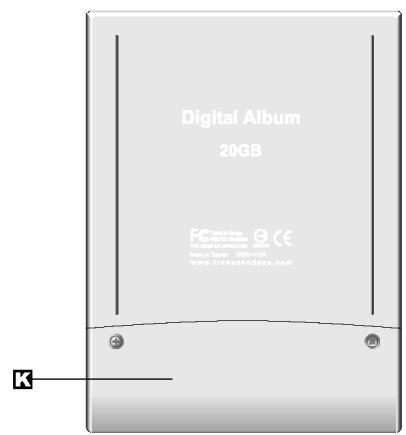
Rear View
Battery Slot - Rechargeable Battery Slot
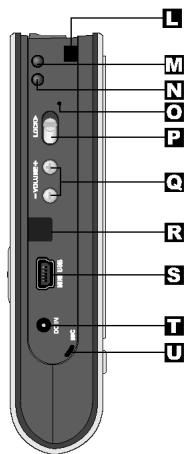
Side View
L Hand Strap Hole - Attach the hand strap
M Power LED Indicator - Blue color to confirm the power is on
N Battery LED Indicator - Red indicates the battery is in charge, green indicates the battery finished charging
Reset Switch - If your Digital Album stops responding, perform a reset
Button Lock Switch - Move this to lock the buttons when you want to prevent them from being pressed accidentally. (Note: When your Digital Album is locked, you cannot turn your Digital Album on or off)
Volume Buttons - Press the buttons to increase or decrease the volume
R IrDA Port - Interface to receive commands from remote controller
USB2.0/1.1 Port - Connect your Digital Album to your computer
DC Adapter Port - Connect the DC Adapter
MIC - Integrated microphone allows you to record voice memo to your folder and photo
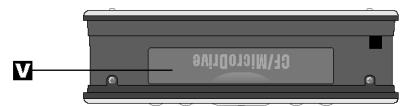
Top View
V CF/MicroDrive Slot - Supports CF Type I/II, MicroDrive
Setup
System Requirements
To connect your Digital Album to a computer, the system requirements are:
- Desktop or notebook computer with a USB port
-
One of the following operating systems:
-
Windows 98/98SE
-
Windows 2000 SP3 or later (No driver needed)
-
Windows Me/XP (No driver needed)
Mac OS X 10.1.2 or later (No driver needed)
Driver Installations
Windows® 98/98SE:
- Power on the computer. Verify the USB port is enabled and working properly. (Do not plug your Digital Album into the USB port at this time.)
- Insert the Driver CD into the CD-ROM drive.
- If the CD doesn't auto-start, then execute Setup.exe in the
:\Driver\Windows98 for Windows 98. The setup menu will appear. - After selecting the Win 98 Driver button from the setup menu, the InstallShield Wizard will guide you through the installation process.
- Restart your computer to complete the driver installation.
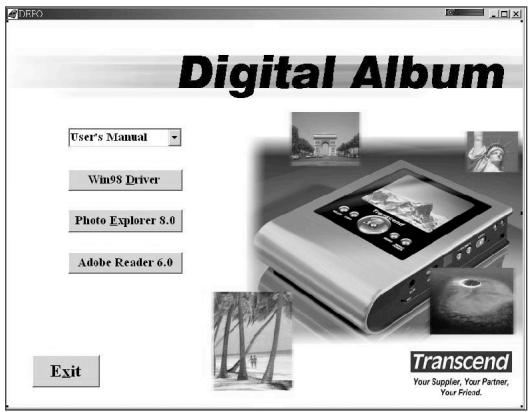
Fig1: Driver Installation Setup Page
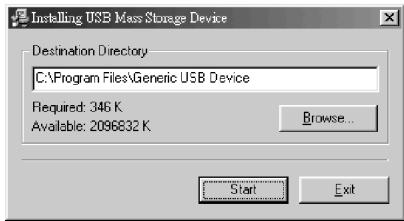
Fig2: Installation Wizard
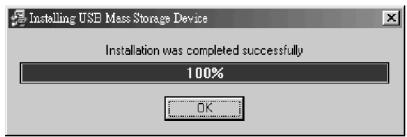
Fig3: Installation Complete
Connecting to a Computer
Using the USB cable provided, connect your Digital Album to a computer to transfer photo, audio or other data files Note: If your computer operating system is Windows 98, please install the driver first.
- Connect the smaller end of the USB cable to the USB port on your Digital Album.
- Connect the larger end of the USB cable to the USB port on your computer.
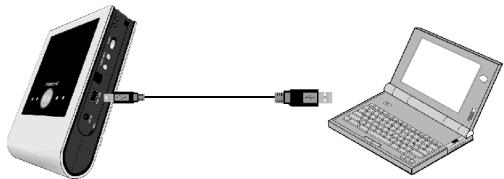
Fig4: Connecting to a Computer
Charging the Battery
Your Digital Album has an integrated, rechargeable, lithium-ion battery (2200 mAh). An international compatible charger is provided for charging the lithium battery. Before you use your Digital Album for the first time, you must charge the battery for at least 12 hours.
- Connect the DC header of the adapter cable to the DC adapter port on your Digital Album.
- Connect the power cord of the adapter cable to an electrical outlet. The Battery LED indicator on your Digital Album will become red. This means that the charger is charging the lithium battery.
- Once the Battery LED indicator turns to green, the battery of your Digital Album has finished charging and now is in fully charged status.
- It normally takes approximately 5 hours to completely recharge the battery.
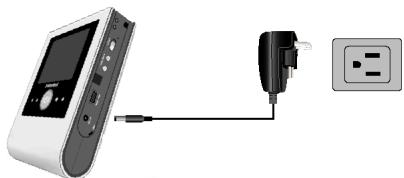
Fig5: Connecting to a DC Adapater
Performing a Reset
If your Digital Album stops responding, perform a reset. Files that are being transferred may be lost but the other data is normally retained.
To perform a reset, insert the end of a thin object, such as a straightened paper clip, into the reset switch. After the action, the Digital Album will turn off immediately, and then you can press the Power/Menu Button to turn on your Digital Album again.
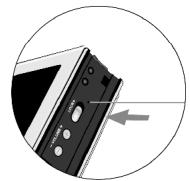
Fig6:Performing a Reset
Operation
Turning On/Off the Power
Power On: Press & Hold the Power/Menu Button for 4-5 seconds to turn on your Digital Album. You will see the default Welcome Page.
Power Off: Press & Hold the Power/Menu Button for 4-5 seconds to turn off your Digital Album while it is on.
Power Save Mode: The Digital Album supports the auto power save function. If the Digital Album is idle for a certain time, it will enter the power save mode automatically. You can set up your power save mode time in Menu. (The default Power Save time is disabled).
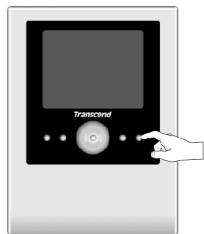
Fig7: Press and hold to turn on/off power
Lock
Move the Lock Switch to lock or unlock the buttons on your Digital Album. Lock the buttons when you want to prevent them from being pressed accidentally.
Note: When your Digital Album is locked, you cannot turn your Digital Album on or off.
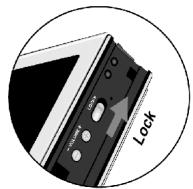
Fig8: Lock Button
Browsing Folders and Files
There are two ways to view your photo files:
-
List Mode
-
Thumbnail Mode
To change the way you list your files, activate Menu to choose the appropriate mode.
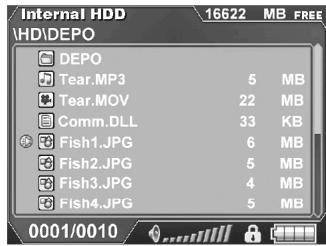
Fig9: List Mode
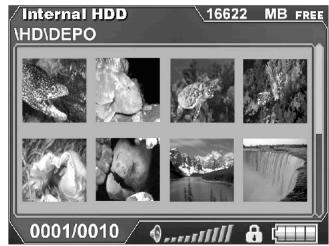
Fig10: Thumbnail Mode
- Press the Multi-Functional Button to select the file you want.
- Press and hold the UP or Down Button to scroll between pages.
- Press the Select/Copy Button to accept your choice of file or folders (copy & delete only).
- Press the Enter/Play Button to play the selected file/folder.
- Press the Exit/Delete Button to return to the previous view.
File Management: Copying Files / Folders
Copy Single File/Folder
- Press the Multi-Functional Button to select the file or folder to be copied.
- Press and hold the Select/Copy Button to copy a selected file or folder.
- The Message window - "Select Copy Destination" will pop up.
- Select your destination storage and press the Enter/Play Button. (If you want to cancel this operation, simply press the Exit/Delete Button.)
- The Message Window - "Copy Processing" will pop up. The copying action is processing now.
Warning: Do NOT remove your Memory Card while data is being transferred to avoid files from being lost.
- The Message window - "Copy Complete" will pop up. Press any key to close this Message window. The copying process is finished.
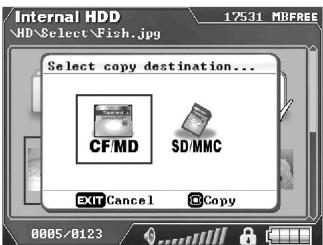
Fig 11: Select Copy Destination
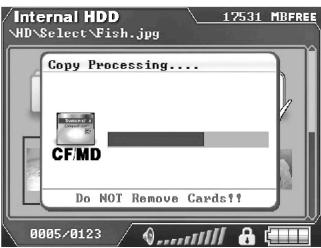
Fig 12: Copy Processing
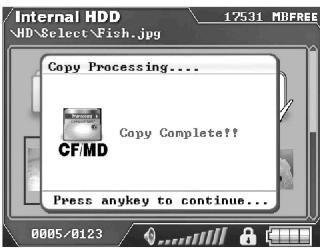
Fig 13: Copy Complete
Copy Multiple Files/Folders
Note: Only available in File List Mode and Thumbnail Mode.
- Press the Multi-Functional Button to select the files or folders to be copied.
- Press the Select/Copy Button to select or deselect files or folders.
- Press and hold the Select/Copy Button and follow the same procedures as Copying Single File/Folder introduced above.
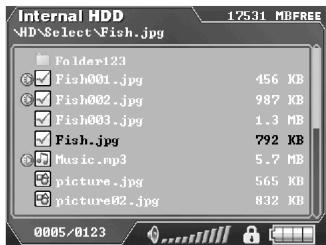
Fig 14: List Mode - Select Files
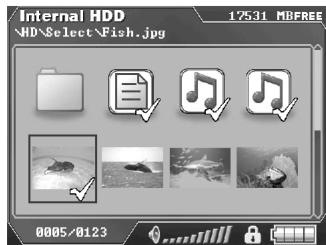
Fig 15: Thumbnail - Select Files
File Management: Deleting Files/Folders
Delete Single File/Folder
- Press and hold the Exit/Delete Button to delete a selected file or folder.
- The Message window - "Do you really want to delete?" will pop up. Press the Enter/Play Button for "Yes" or Press the Exit/Delete Button for "No".
- The Message window - "Delete Processing" will pop up. The deleting action is processing now.
Warning: Do NOT remove your Memory Card while data is being transferred to avoid files from being lost.
- The Message window - "Delete Complete" will pop up. Press any key to close this Message window. The deleting process is finished.
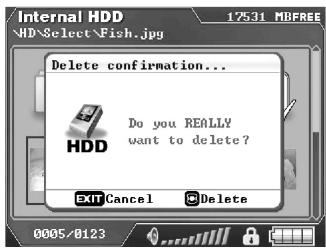
Fig 16: Delete Confirmation
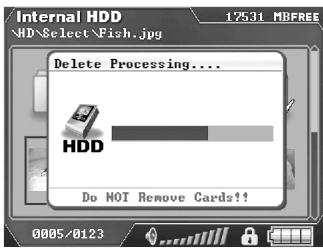
Fig 17: Delete Processing
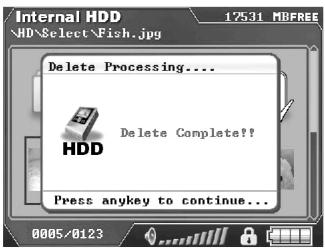
Fig 18: Delete Complete
Delete Multiple Files/Folders
Note: Only available in File List Mode and Thumbnail Mode.
- Press the Multi-Functional Button to select the files or folders to be deleted.
- Press the Select/Copy Button to select or deselect files or folders.
- Press and hold the Exit/Delete Button and follow the same procedures as Deleting Single File/Folder introduced above.
Viewing Photos
- While browsing files, press the Multi-Functional Button to choose a photo file.
- Press the Enter/Play Button to display the selected photo.
Note: If the photo has a voice memo icon attached, press the Memo/Record Button to listen.
3. Press the Exit/Delete Button to return to the previous view.
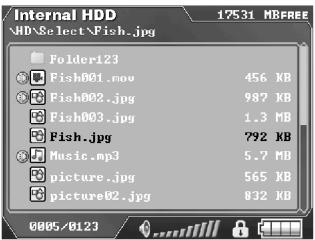
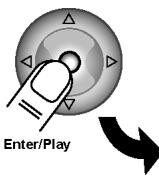

Fig 19:Viewing Photo

O EXIT DELETE
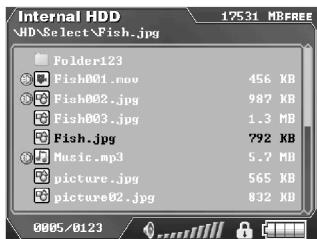
Fig 20: Return to the Browsing Mode
Automatic Slide Show
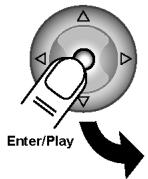
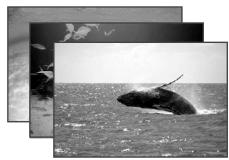
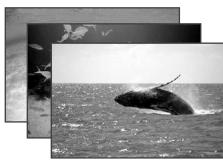
- While viewing photos, press the Enter/Play Button again to begin the auto slideshow.
- If you want to change the speed of slideshow, press the Select/Copy Button to change the speed of slideshow.
- Press the Enter/Play Button to stop the slideshow or press the Exit/Delete to return to file browsing mode.

EXIT DELETE
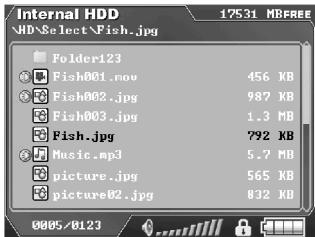
Fig 22: Return to the Browsing Mode
Fig 21: Auto Slide Show
Zooming and Rotating Photo
While you are viewing a single photo, you can examine the photo using "Zoom" or "Rotate".
Zoom
- While viewing the photo, press the Power/Menu Button.
- The Menu will pop up. Press the Up or Down Button to select the "Zoom" option. (Q, The icon will indicate the Digital Album is now in Zoom mode.)
- Press the Enter/Play Button to zoom in the displayed photo.
- Repeatedly pressing the Enter/Play Button will toggle the view from 50% 100% , and then return to the original size.
- Moving the photo: After you zoom into the selected photo, press the Multi-Functional Buttons to move the photo around for better viewing.
- Press the Exit/Delete Button to exit the Zoom mode. (The Zoom icon will disappear.)
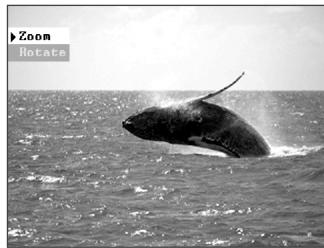
Fig 23:Zoom Menu
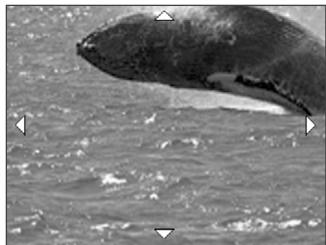
Fig 24:Zoom in
Up/Down/Right/Left
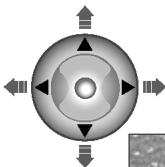
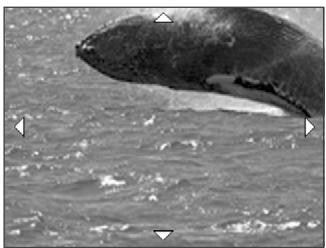
Fig 25: Move the picture

O EXIT DELETE
Fig 26: Return to the Browsing Mode
Rotate
- While viewing a photo, press the Power/Menu Button.
- The Menu will pop up. Press the Up or Down Button to select the "Rotate" option. (The icon will indicate the Digital Album is now in Rotate mode.)
- Press the Enter/Play Button to rotate the displayed photo.
- Repeatedly pressing the Enter/Play Button will rotate the picture clockwise from 90^ , 180^ , 270^ , and then back to the original orientation.
- Press the Exit/Delete Button to exit the Rotate mode. (The Rotate icon will disappear.)
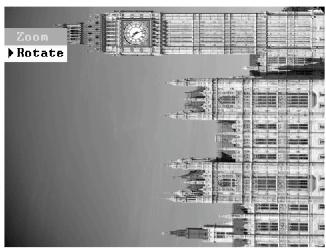
Fig 27: Rotate Menu
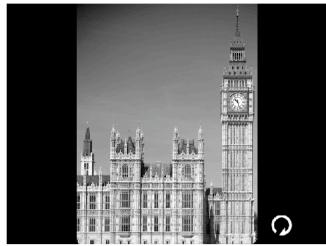
Fig 28: Rotate Picture
Recording a Voice Memo for Your Photo or Folder
You can attach a 10 second voice memo to your photo as a reminder about the details of the photo or to a specific folder to record the content details of the folder.
- Press the Multi-Functional Button to select a photo file or a folder, which you would like to attach a voice memo.
- Press and hold the Memo/Record Button until the Message Window - "Do you want to make a voice memo?" pops up. Press the Enter/Play Button for "Yes" or Press the Exit/Delete Button for "No".
- The recording time is limited to 10 seconds. After 10 seconds, the message window - "Do you want to save the memo?" will pop up. Press the Enter/Play Button to Save or Press the Exit/Delete Button to Cancel.
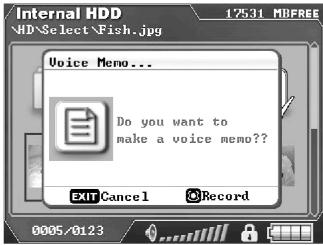
Fig 29: Record Memo
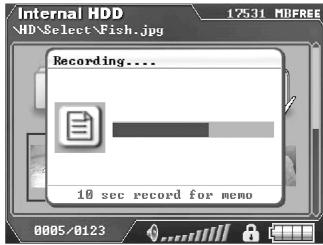
Fig 30: Memo Recording
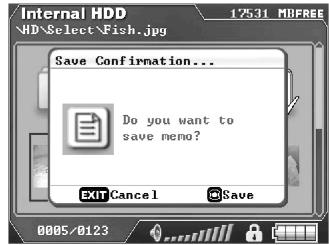
Fig 31: Memo Save Confirmation
Playing a Voice Memo from Your Photo or Folder
- Press the Multi-Functional Button to select a photo file or a folder with a voice memo icon
- Press the Memo/Record Button to listen to the attached voice memo.
Note: If you select a photo without a voice memo icon and press the Memo/Record Button, nothing will happen.
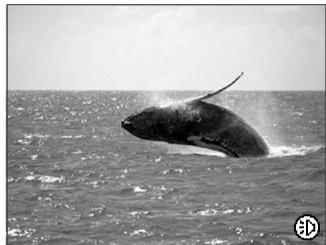
Fig 32: Memo icon
Playing M-JPEG Movie Files
- Press the Multi-Functional Button to a M-JPEG file (.avi or .mov). In the Thumbnail Mode, the first frame of M-JPEG file will show as a thumbnail.
- Press the Enter/Play Button to display the M-JPEG movie file.
- Press the Enter/Play Button again to pause the M-JPEG movie file.
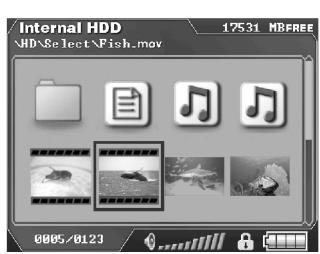
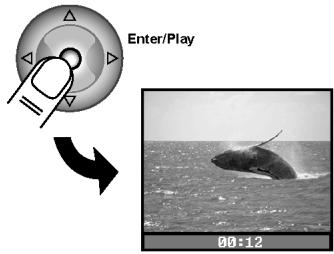
Fig 33: Playing M-JPEG Movie Files
Playing MP3 Audio Files
- Press the Multi-Functional Button to select a MP3 music file (.mp3).
- Press the Enter/Play Button to play the selected MP3 music file.
- Press the Volume Buttons to increase or decrease the volume.
- Press the Enter/Play Button to stop playing the MP3.
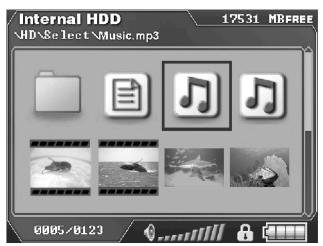
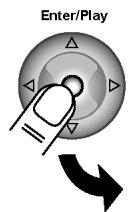
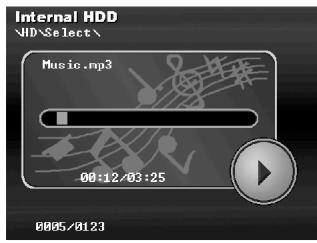
Fig 34:Playing MP3 Audio Files
As a Portable Hard Disk
- Use the USB cable included in the package to connect the Digital Album to the USB port of your PC
- A new USB mass-storage device will be found and then the Digital Album will be used as a new drive under your operating system.
- You can modify the folder and files on your PC, and then upload them into your Digital Album through the USB connection.
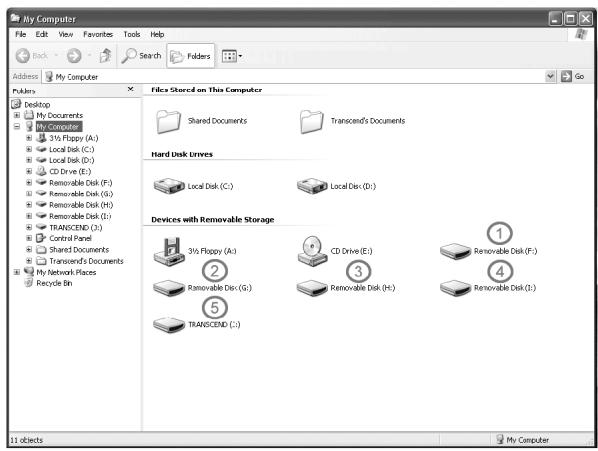
Fig 35: Memory Card Drives(1-4) and Hard Disk(5) in File Manager
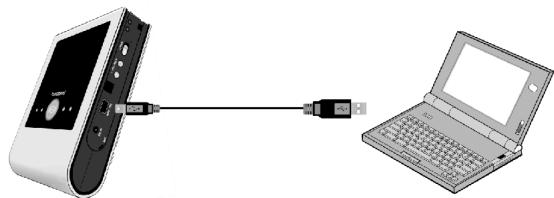
Fig 36: Connecting to a computer
As a Multi-Card Reader
Your Digital Album supports existing standard memory cards including:
- Compact Flash (CF) Type I / II
- Microdrive
- SmartMedia Card (SM)
- MultiMedia Card (MMC)
- RS-MMC (with adapter)
- Secure Digital (SD)
miniSD (with adapter)
Note: MultiMedia Card, RS-MMC, Secure Digital, miniSD, SmartMedia use the same slot on your Digital Album. Compact Flash Type I/II and MicroDrive use the other same slot on your Digital Album. Each slot can only use one type of media at a time.
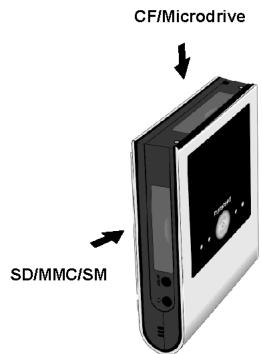
Fig 37: Support Different Memory Cards
Viewing Movies/Photos from a TV or Projector
- Use the A/V cable included in the package to connect the Digital Album to the A/V port of your TV or projector.
- Plug one end with yellow connector into the Video-In port and red connector into the Audio-In port of your TV or projector.
- Plug the other end of the A/V cable into the A/V Port of your Digital Album.
- Press the Power/Menu Button and verify the Power LED indicator is blue.
- Insert the memory card into the appropriate memory card slot and your Digital Album will slideshow the available MP3, JPEG photos or M-JPEG movies stored in the memory card.
Note: If there isn't any memory card inserted before or after booting, your Digital Album will display your MP3 music, JPEG photos or M-JPEG movies stored in the built-in Hard Disk.
- Press the Power/Menu Button to select other functions (e.g. Rotate function)
- The operation is the same as you use from the LCD panel on the device.
Note: If you remove the A/V cable, the system will turn off the Digital Album automatically.
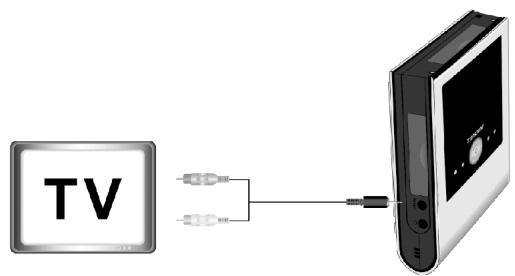
Fig 38: Connecting to a TV or a Projector
Formatting Hard Disk or Memory Cards
- Press the Multi-Functional Button to select the device icon on your Welcome page.
- Press Menu/Power Button to pop up Menu.
- Press the Multi-Functional Button to select Format function
- Press Enter/Play Button to execute Format function.
- The Message window "Do you really want to format?" pops up. Press the Enter/Play Button for "Yes" or Press the Exit/Delete Button for "No".
- The Message window - "Format Processing" will pop up. The formatting action is processing now.
- The Message window - "Format Complete" will pop up. Press any key to close this message window. The formatting process is finished.
Warning: Please be aware formatting action will cause all of your files stored in the selected device disappear.
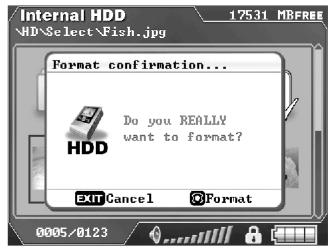
Fig 39: Format Menu
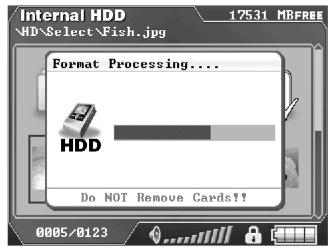
Fig 40: Format Processing
Setting Menu Operation
Menu Operations
- Press the Power/Menu Button to open the settings menu.
- To select an item, press the Up or Down Button to select the item you want and then press the Enter/Play Button to change the value.
- Press the Power/Menu Button again to cancel the setting menu operation.
Menu Introduction
Backlight Control | Adjusts the time to automatically turn off the LCD backlight
Always On (Default): Backlight will not be turned off automatically.
- 30 seconds: Backlight will be turned off after idling for 30 seconds.
- 60 seconds: Backlight will be turned off after idling for 60 seconds.
- 90 seconds: Backlight will be turned off after idling for 90 seconds.
Power Save Adjusts the time to automatically turn off the Digital Album power
- Disable (Default): The Digital Album will not be turned off automatically.
- 1 Minute: Power will be turned off after idling for 1 minute.
- 2 Minutes: Power will be turned off after idling for 2 minutes.
- 5 Minutes: Power will be turned off after idling for 5 minutes.
TV Out Format Adjusts the TV system
- NTSC: Changes the Video-out signal to the NTSC TV system signal.
PAL: Changes the Video-out signal to the PAL TV system signal.
Language Change the setting menu languages. Supports 11 different languages
- English (Default)
Italian
-
Portuguese
-
Simplified Chinese
French
Japanese
Russian
Traditional Chinese
German
Korean
- Spanish
Browsing Mode Adjusts the style of listing files
- File List: File listing mode for displaying files.
- Thumbnail (Default): Thumbnail mode for displaying files.
File Filter Filters out files for ease of use
- No Filter (Default): List files without filtering.
- Audio Files Only: List only MP3 audio files.
- Photo Files Only: List only JPEG photo files.
- Multimedia Files: List only M-JPEG movie files.
Format Format the selected device
Firmware Update You can download the latest firmware from Transcend website to upgrade the functions of your Digital Album
Zoom and Rotate are only available while browsing photos
Zoom: Switch to zoom mode, which you can zoom in and zoom out of the current photo you are viewing.
Rotate: Switch to rotate mode, in which you can rotate the orientation of the current photo you are viewing
FAQ
This section covers common problems or questions you might encounter while using your Transcend Digital Album. Do not try to open the case of your Digital Album else you will void the warranty. If a fault occurs, check the points listed below first. If you are unable to solve the problem with this information, please consult your dealer or service center.
Q: What if I run out of my battery power?
A: If you see battery icon on your screen, please recharge your battery by using the adapter. See the Charging the Battery Section in Setup Chapter.
Warning: You cannot use the USB connection to recharge the battery. You can only use the adapter to recharge the battery.
Q: How do I change the battery for my Digital Album? (This will not void the warranty)
A: Verify that you are using a Transcend certified battery.
- Remove the screw and then the battery cover
- Unplug the battery wire from the connector.
- Replace the battery.
- Reattach the battery cover. Insert the screw to secure the battery cover.
Please contact your dealer or service center if you are not sure you can replace the battery by yourself.
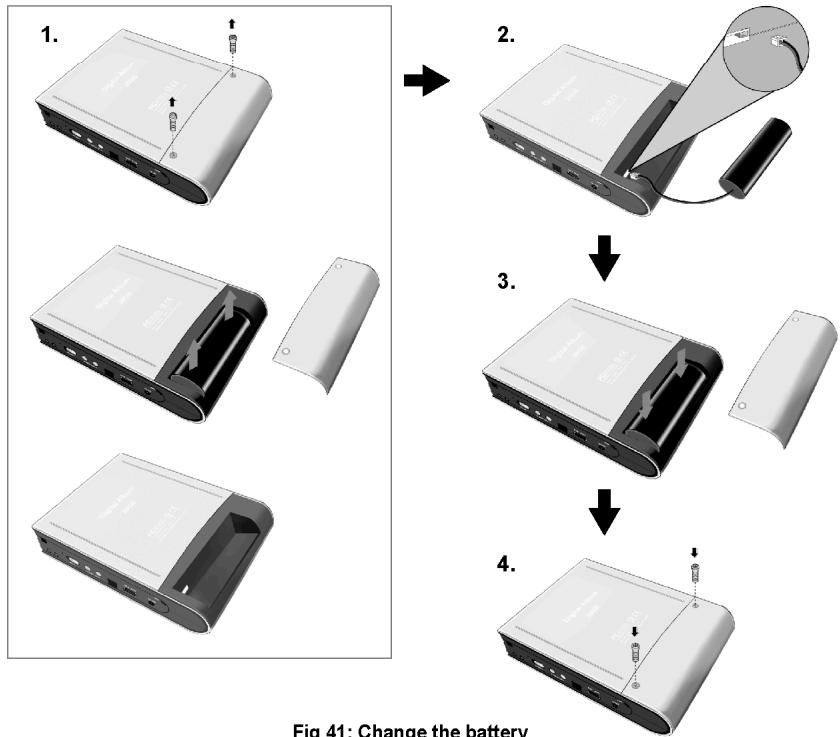
Fig 41: Change the battery
Q: I cannot turn my Transcend Digital Album on.
A: You may not be holding down the Power button long enough. Please press and hold the Power button for at least 4-5 seconds. If that doesn't solve the problem, the Digital Album may be out of power, you can connect the adapter to the Digital Album, then turn on the Digital Album.
Q: I was using my Transcend Digital Album, now all the buttons are flashing and the Transcend Digital Album is not responding.
A: The Transcend Digital Album's operating system may be locked or the lock switch is in the locked position.
- Move the switch to the unlocked position.
- If the above doesn't solve the problem, try the Reset process described in the "Performing a Reset" section under the Setup chapter.
Q: When I listen to music tracks, I hear a lot of noise or drop-outs.
A: The track you are listening to was not recorded or encoded properly. Verify that the music track sounds the same when you play it from the Transcend Digital Album and from your computer.
Q: I want to delete all the files on my Transcend Digital Album, but I cannot find the option in the main menu.
A: Press the Exit/Stop Button to move to the folder, and then press the Delete Button to delete the folder and all the files within it. If you want to delete all of the files in the hard disk or the memory cards, use the Format function.
Q: Transcend Digital Album hangs/lags/stalls.
A: Whenever the Transcend Digital Album hangs; you can follow the Reset process described in the "Performing a Reset" section under the Setup chapter.
Q: I have connected the Digital Album to the computer, but the Digital Album does not appear as a new drive under my operating system.
A: Make sure that the battery is installed correctly and that there is enough power in it. Verify the Digital Album power is turned on. If not, turn it on and then connect the Digital Album to the computer again. Please make sure that the driver has been installed if your operating system is Win98.
Ordering Information
Digital Album
| Transcend P/N | Capacity | Note |
| TS25PSP20G | 20GB | 20GB 1.8" HDD Inside |