
TS0GSJ25B - Clé USB TRANSCEND - Notice d'utilisation et mode d'emploi gratuit
Retrouvez gratuitement la notice de l'appareil TS0GSJ25B TRANSCEND au format PDF.


| Type de produit | Disque dur externe SSD |
|---|---|
| Capacité de stockage | 64 Go |
| Interface | USB 3.1 Gen 1 |
| Vitesse de lecture | Jusqu'à 410 Mo/s |
| Vitesse d'écriture | Jusqu'à 400 Mo/s |
| Dimensions approximatives | 100 x 62 x 13 mm |
| Poids | 80 g |
| Compatibilités | Windows, macOS, Linux |
| Type de batterie | Non applicable (alimentation par USB) |
| Fonctions principales | Sauvegarde de données, transfert rapide de fichiers |
| Entretien et nettoyage | Essuyer avec un chiffon doux, éviter l'humidité |
| Pièces détachées et réparabilité | Non spécifié, produit scellé |
| Garantie | 3 ans |
FOIRE AUX QUESTIONS - TS0GSJ25B TRANSCEND
Questions des utilisateurs sur TS0GSJ25B TRANSCEND
0 question sur cet appareil. Repondez a celles que vous connaissez ou posez la votre.
Poser une nouvelle question sur cet appareil
Téléchargez la notice de votre Clé USB au format PDF gratuitement ! Retrouvez votre notice TS0GSJ25B - TRANSCEND et reprennez votre appareil électronique en main. Sur cette page sont publiés tous les documents nécessaires à l'utilisation de votre appareil TS0GSJ25B de la marque TRANSCEND.
MODE D'EMPLOI TS0GSJ25B TRANSCEND
USB2.0
StoreJet™ 2.5
User's Manual
Version 1.1.8)

Transcend
Table of Contents
Introduction 1
Package Contents. 1
Features 2
System Requirements 2
Safety Precautions 3
General Use 3
Backing Up Data 3
Transporting. 3
Power 3
Reminders 4
Product Overview 5
Installing a Hard Drive 6
Driver Installation 8
Driver Installation for Windows ^ 2000, XP and Vista. 8
Driver Installation for Mac OS 9.0, or Later 8
Driver Installation for Linux Kernel 2.4, or Later. 8
Connecting to a Computer 9
Disconnecting from a Computer 11
Removing the StoreJetTM 2.5 in Windows ^ 2000, XP and Vista 11
Removing the StoreJetTM 2.5 in Mac OS 9.0, or Later 11
Remove the StoreJetTM 2.5 in LinuxTM Kernel 2.4, or Later. 11
Formatting the Hard Drive 12
Windows® 2000/XP 12
Windows VistaTM 13
Troubleshooting 17
StoreJetTM 2.5 IDE series 19
StoreJetTM 2.5 SATA series 20
Transcend Limited Warranty 21
Introduction
Congratulations on purchasing Transcend's StoreJet™ 2.5. This tiny, Ultra-portable, Hi-Speed USB storage device is the perfect data management system for uploading, downloading, storing and transferring your vital data and information. With a huge storage capacity and Hi-Speed USB 2.0 data transfer rates, the compact StoreJet™ 2.5 is ideal for storing and transferring your files, folders, documents, photos, music and e-work between it and any desktop, or notebook computer. In addition, the StoreJet™ 2.5 comes with a very useful software (please see the Software User's Manual for detailed instructions) pack that can (used in Windows®) increase your productivity. The User's Manual and accompanying Software User's Guide are written to help you get the most from your new device, please read both in detail before using the StoreJet™ 2.5.
Package Contents
The StoreJet™ 2.5 package includes the following items:
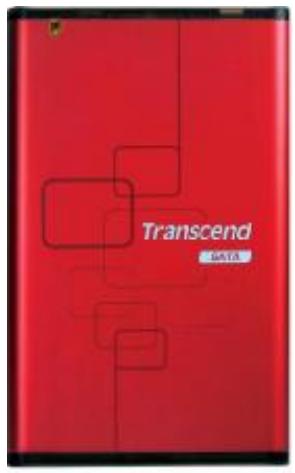
- StoreJet™ 2.5
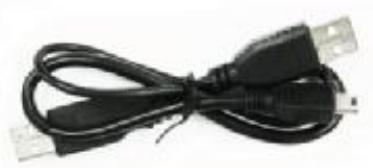
- Mini USB to USB A-Type cable (USB Y cable)
- Quick Instruction Guide
Features
Hi-Speed USB 2.0 compliant and USB 1.1 backwards compatible
- Easy Plug and Play installation
- Optional 2.5" Hard Disk Drive
- Ultra-Portability
OneTouch Auto-Backup function
- Powered via the USB port. No external power or battery needed
Hi-Speed data transfer rates up to 480Mbits per second
- Additional StoreJet Software pack: StoreJet™ elite (helps you manage your data)
- LED indicates the status of power on, data transfer activity
System Requirements
Desktop or notebook computer with a working USB port.
One of following Operating Systems (OS):
- Windows® 2000
- Windows® XP
Windows® Vista
Mac™ OS 9.0, or later
LinuxTM Kernel 2.4, or later
Safety Precautions
These usage and safety guidelines are IMPORTANT! Please follow them carefully.

Your StoreJet™ 2.5 is connected to a computer using a Mini USB (on the StoreJet™) to USB A-Type (on a Desktop, Notebook) cable. Please ensure that you connect the cable ends to the ports correctly.
General Use
- Carefully unpack the contents of the StoreJet™ 2.5 package.
- During operation, avoid exposing your StoreJet™ 2.5 to extreme temperatures above 55^ , or below 5^ .
- Do not drop your StoreJet™ 2.5.
- Do not allow your StoreJet™ 2.5 to become damp or wet from water or any other liquids.
- Do not use a damp/wet cloth to wipe or clean the exterior case.
- Do not use or store your StoreJet™ 2.5 in any of the listed environments:
Direct sunlight
o Next to an air conditioner, electric heater or other heat sources
In a closed car that is in direct sunlight
Backing Up Data
- Transcend does NOT take any responsibility for data loss, or damage during operation. If you decide to store data on your StoreJet™ 2.5 we strongly advise that you regularly backup the data to a computer, or other storage medium.
- To ensure High-Speed USB 2.0 data transfer rates when using your StoreJet™ 2.5 with a computer, please check that the computer has the relevant USB drivers. If you are unsure about how to check this, please consult the computer or motherboard User's Manual for USB driver information.
Transporting
- Do not pack your StoreJet™ 2.5 into luggage without the proper padded support. Other items in the luggage may damage your StoreJet™ 2.5 if it does not have the proper protection.
- Avoid squeezing your StoreJet™ 2.5 to prevent damage to the internal HDD.
- Avoid placing objects onto your StoreJet™ 2.5 to prevent damaging it.
Power
- The StoreJet™ 2.5 is powered directly via a computer USB port; however, the power supplied by the USB port on some older computers is below the required 5V DC power. In this instance, please connect the other USB A-Type connector from the provided USB Y cable to a USB port on the computer, this will provide the additional power necessary to run the drive.
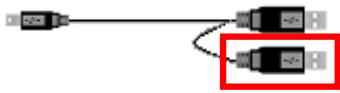
The other USB A-Type connector is used to provide additional power.
- Please use the Mini USB to USB A-Type cable that came with the StoreJet™ 2.5 to connect it
to a computer, and always ensure that the cable you are using is in good condition. NEVER use a cable that is frayed or damaged.
- Ensure nothing is resting on the USB cable and that the cable is not located where it can be tripped over or stepped on.
Reminders
Always follow the procedures in the "Disconnecting from a Computer" section to remove your StoreJet™ from a computer.
Product Overview
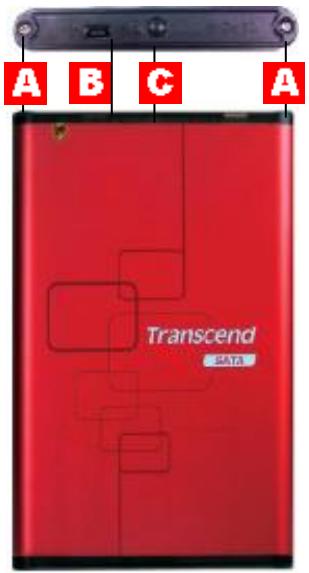
Figure 1. StoreJet 2.5
A Screws x 2
B Mini USB Port
OneTouch Auto-Backup Button
Installing a Hard Drive
Installing a Hard Drive
If you purchased a StoreJet™ 2.5 that does not have a Hard Disk Drive already installed, please read this section, otherwise you can skip to the "Driver Installation" section.
- Open the StoreJet™ 2.5 by removing the two screws from either side of the top cover, as indicated in the diagram.
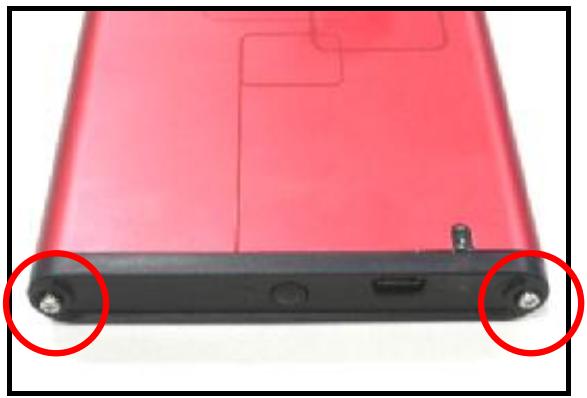
Figure 2. Remove the screws from the top cover
- Remove the cover revealing a control board adapter; this converts the IDE/SATA interface connector of the hard drive to a Mini USB 2.0 interface. Slide out the control board.
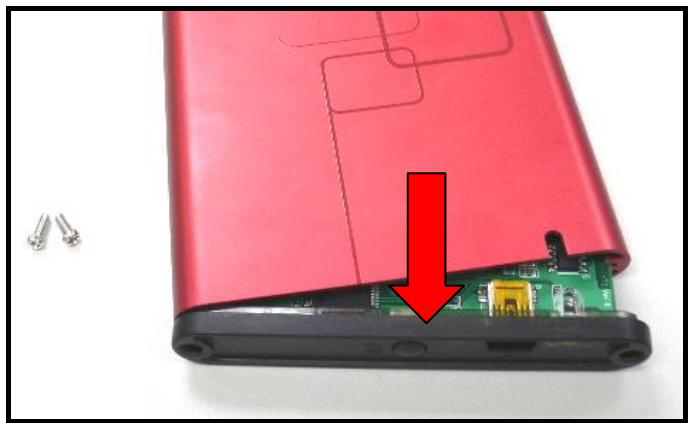
Figure 3. Remove the top cover revealing the IDE/SATA adapter
- Carefully line up and plug in the IDE/SATA connector on the control board to the hard drive. Do NOT force the IDE/SATA connector into the hard drive and do NOT insert the connector at an angle, otherwise you may damage it.
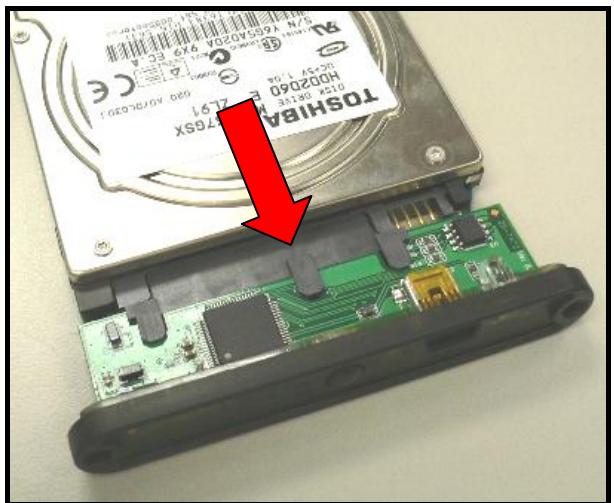
Figure 4. Connect the hard drive to the IDE/SATA adapter
- Carefully reinsert the IDE/SATA adapter and its connected 2.5" hard drive into the StoreJet™ 2.5 and reattach the screws to the top cover.
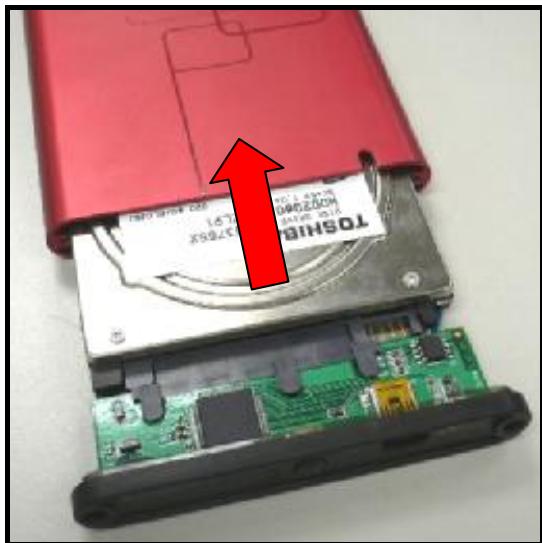
Figure 5. Reinsert the adapter plus drive and reattach the screws
Driver Installation
Driver Installation for Windows ^ 2000, XP and Vista
No drivers are required. These Windows® Operating Systems have built-in drivers to support the StoreJet™ 2.5. Plug your StoreJet™ into an available USB port and Windows will install the necessary files. A new Local Disk drive with a newly assigned drive letter representing the StoreJet™ 2.5 will appear in the My Computer window.
Driver Installation for Mac™ OS 9.0, or Later
No drivers are required. Plug your StoreJet™ 2.5 into an available USB port and your computer will automatically detect it.

Figure 6. Mac Driver Installation
Driver Installation for Linux™ Kernel 2.4, or Later
No drivers are required. Plug your StoreJet™ 2.5 into a USB port and mount it.
- First create a directory for the StoreJet™ 2.5.
Example: mkdir /mnt/Storejet
- Then, mount the StoreJet™ 2.5.
Example: mount -a -t mdos /dev/sda1 /mnt/Storejet
Connecting to a Computer
If you want to use the StoreJet™ 2.5 as an External Hard Disk Drive to upload/download data to, or from your computer you will need to connect it to a USB port on the computer using the provided
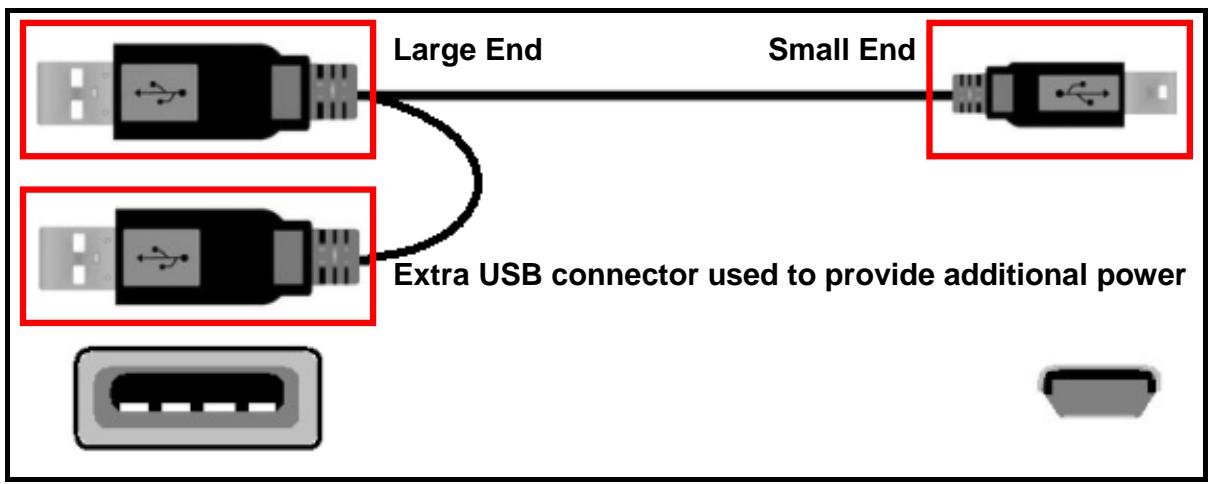
Figure 7. Mini USB to USB A-Type Cable (USB Y cable)
- Plug the small end of the USB Y cable into the Mini USB port on the StoreJet™ 2.5.
-
Plug the large end of the cable into an available USB port on your desktop, or notebook computer.
-
On some older computers, the power supplied by the USB port is below the required 5V DC power. In this instance, please connect the other USB A-Type connector from the provided USB Y cable to another USB port on the computer. This will provide the additional power necessary to run the drive.
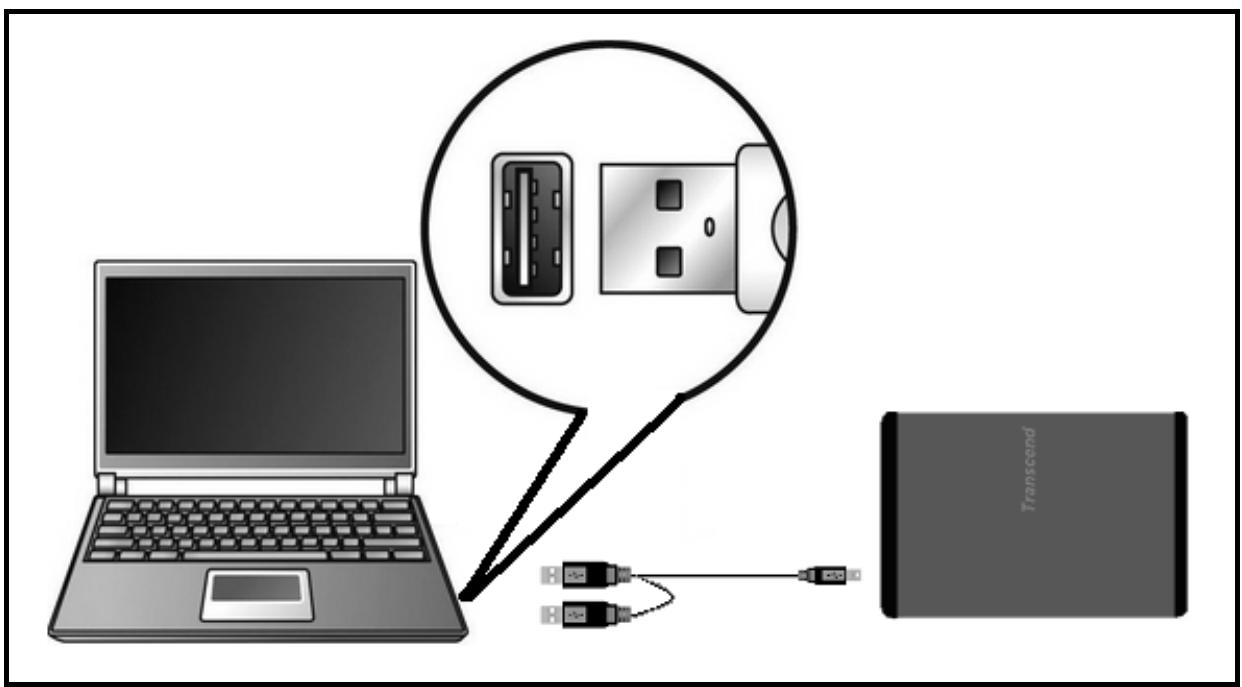
Figure 8. Connecting to a Computer
- When the StoreJet™ 2.5 is successfully connected to a computer the StoreJet™'s Power LED will light up, a new Local Disk drive with a newly assigned drive letter will appear in the My Computer window and a Hardware icon will appear on the Windows System Tray. The StoreJet™ 2.5's internal hard drive comes formatted for FAT32.
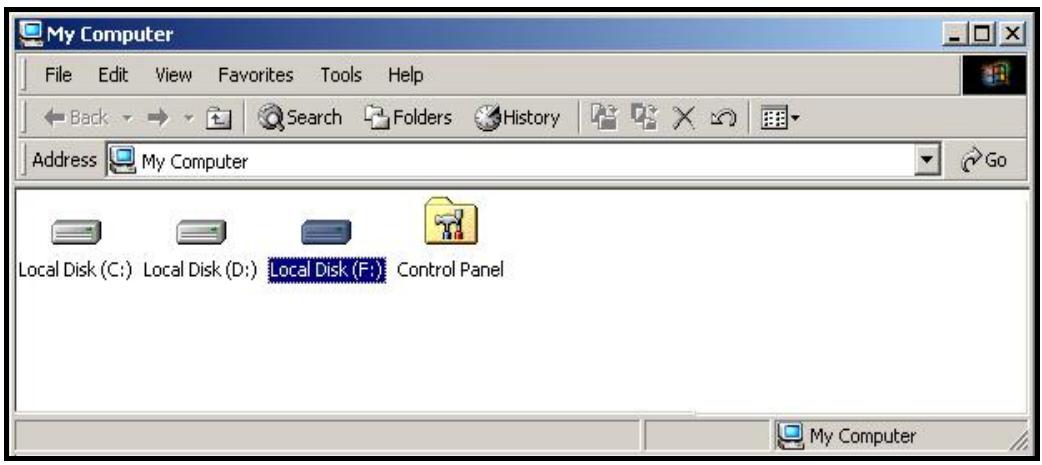
Figure 9. *F: is an example drive letter, the letter in your "My Computer" window may differ
- At this stage the StoreJet™ 2.5 is a Peripheral device and is powered by the computer's USB port. You can use the StoreJet™ 2.5 as an external hard drive in conjunction with your computer to upload/download data. You can download data to the StoreJet™ 2.5 simply by dragging and dropping files, or folders onto the Local Disk drive letter that represents the StoreJet™ 2.5.
- If you have setup the bundled Transcend StoreJet™ elite you can press the StoreJet™ 2.5's OneTouch "Backup Button" once to Backup your data.
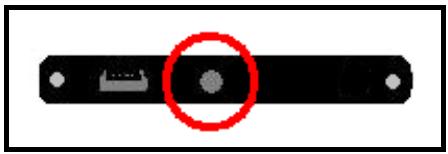
Figure 10. OneTouch Auto-Backup Button
- Please be advised, if you are using the StoreJet™ 2.5 with a notebook computer, it is better to run the notebook using AC power. The reason for this is that the notebook's battery will run out of power more quickly because the StoreJet™ 2.5 needs to draw power from the USB port.

NEVER disconnect the StoreJet™ from a Computer when its LED is flashing.
Removing the StoreJet™ 2.5 in Windows ^ 2000, XP and Vista
- Select the Hardware icon on the system tray.
- The Safely Remove Hardware pop-up window will appear. Select it to continue.

Figure 11. Safely Remove Hardware
- A window will appear stating, "The 'USB Mass Storage Device' device can now be safely removed from the system."
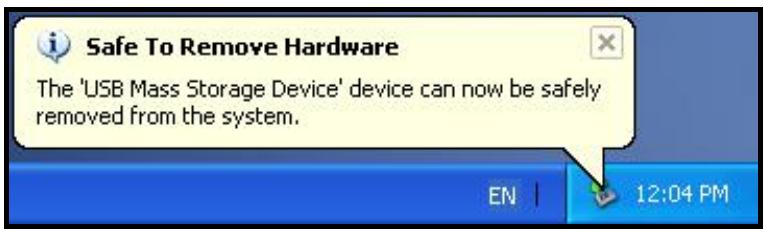
Figure 12. Safe to Remove Hardware

WARNING! To prevent data loss, always use this procedure to remove the StoreJet™ from Windows® 2000, XP and Vista.
Removing the StoreJet™ 2.5 in Mac™ OS 9.0, or Later
Drag and drop the Disk icon that represents your StoreJet™ 2.5 into the trashcan. Then unplug your StoreJet™ 2.5 from the USB port.
Remove the StoreJet™ 2.5 in Linux™ Kernel 2.4, or Later
Execute umount /mnt/Storejet to un-mount the device. Then unplug your StoreJet™ 2.5 from the USB port.
Formatting the Hard Drive

WARNING! Formatting the disk will erase all of the data on your StoreJet 25.
You must have Administrator Rights to format in Windows 2000, XP, or Vista.
Windows® 2000/XP
- Download the StoreJet Format Utility from Transcend's online Download Center at http://www.transcendusa.com/Support/DLCenter/index.asp (the software can be located by selecting "Storage Devices -> StoreJet Drives -> any StoreJet product -> any StoreJet model)
- When the download is complete, extract the downloaded ZIP file to your computer's hard drive (not the StoreJet 25) and run the StoreJetFormatter.exe application.
- Plug the StoreJet 25 into an available USB port on a Windows® 2000/XP computer.
- Unplug all other USB storage devices from your computer. This is to prevent accidental format of a different USB drive.
- In the StoreJet Format Utility window, click the "Refresh" button.
- The program will automatically detect the StoreJet 25 drive.
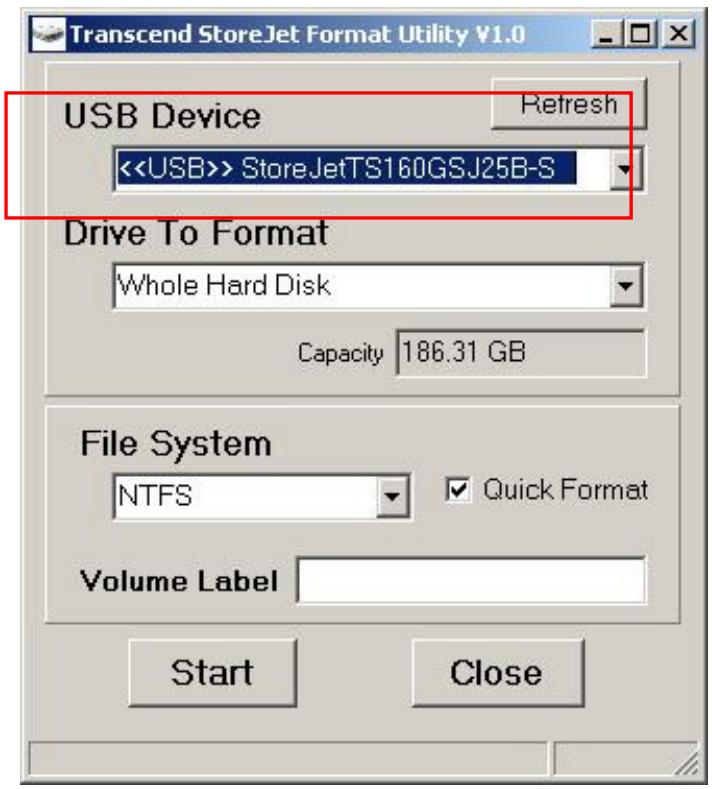
- Press "Start".
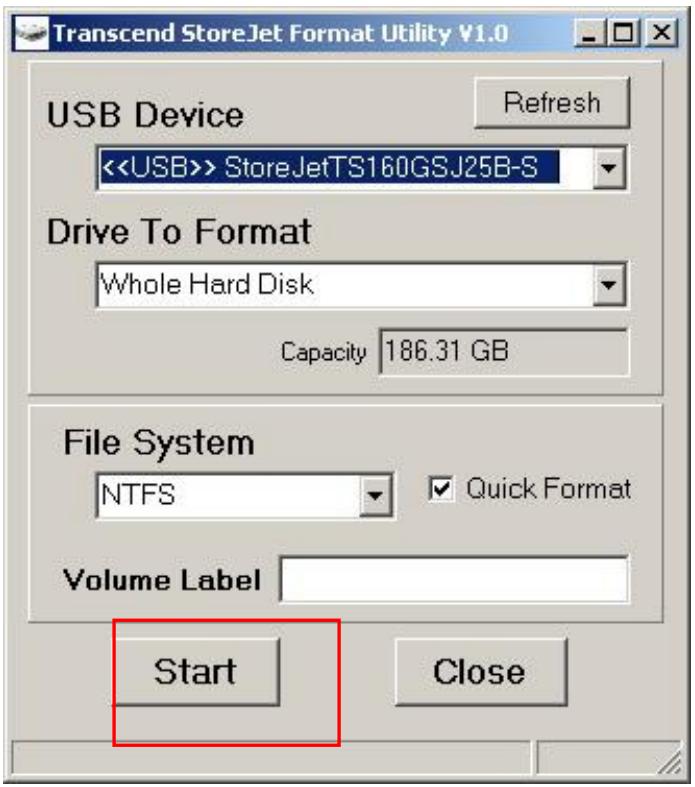
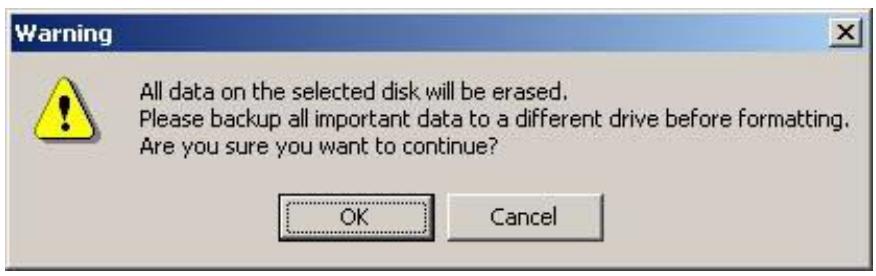
- A confirmation window will appear. Press OK to begin formatting the drive.
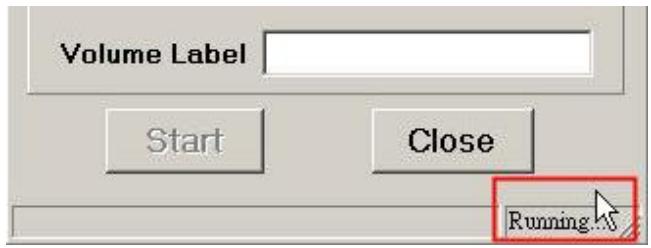
- The format process may take a few minutes. When complete, an “O.K.” message will appear in the bottom right hand corner of the window.
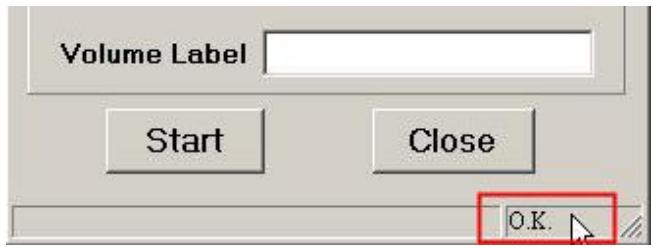
- Click the "Close" button to finish and exit.
Windows Vista™
- Download the StoreJet Format Utility from Transcend's online Download Center at http://www.transcendusa.com/Support/DLCenter/index.asp (the software can be located by selecting "Storage Devices -> StoreJet Drives -> any StoreJet product -> any StoreJet model)
- When the download is complete, extract the downloaded ZIP file to your computer's hard drive (not the StoreJet 25).
- Plug the StoreJet 25 into an available USB port on your Windows Vista™ computer.
- Unplug all other USB storage devices from your computer. This is to prevent accidental format of a different USB drive.
- Right-click "StoreJetFormatter.exe" and select "Run as Administrator."
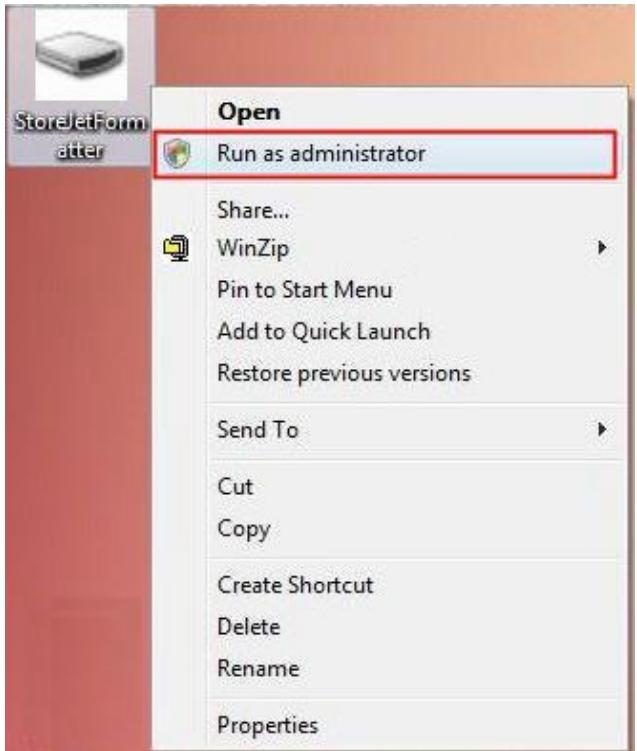
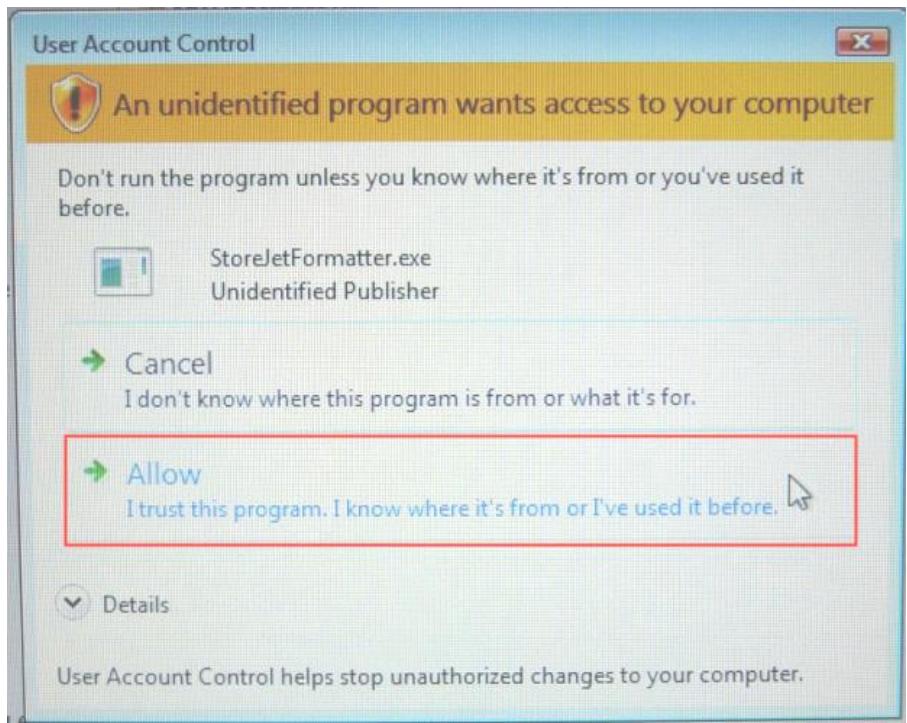
- The User Account Control window will appear. Select "Allow" to continue.
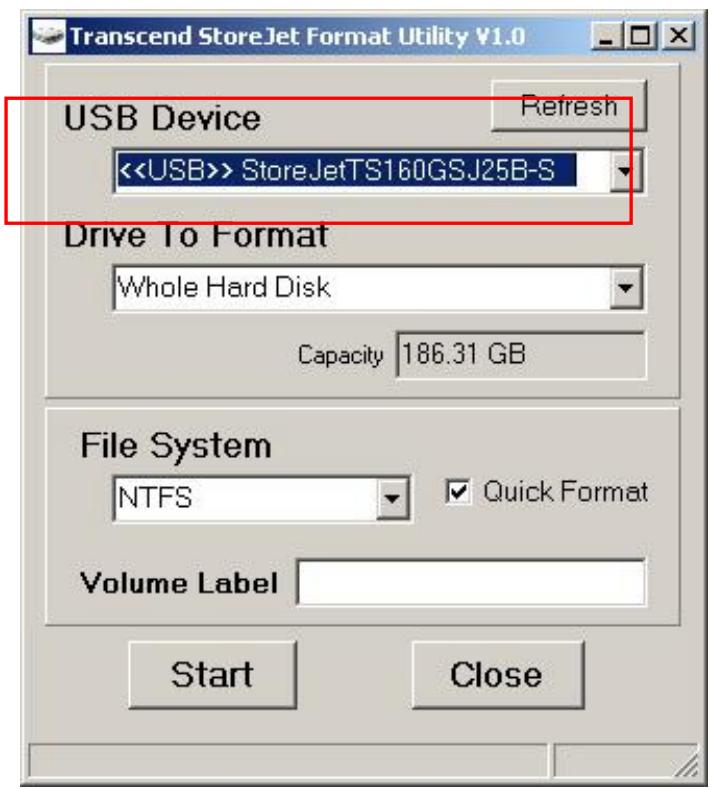
- In the StoreJet Format Utility window, click the "Refresh" button.
- The program will automatically detect the StoreJet 25 drive.
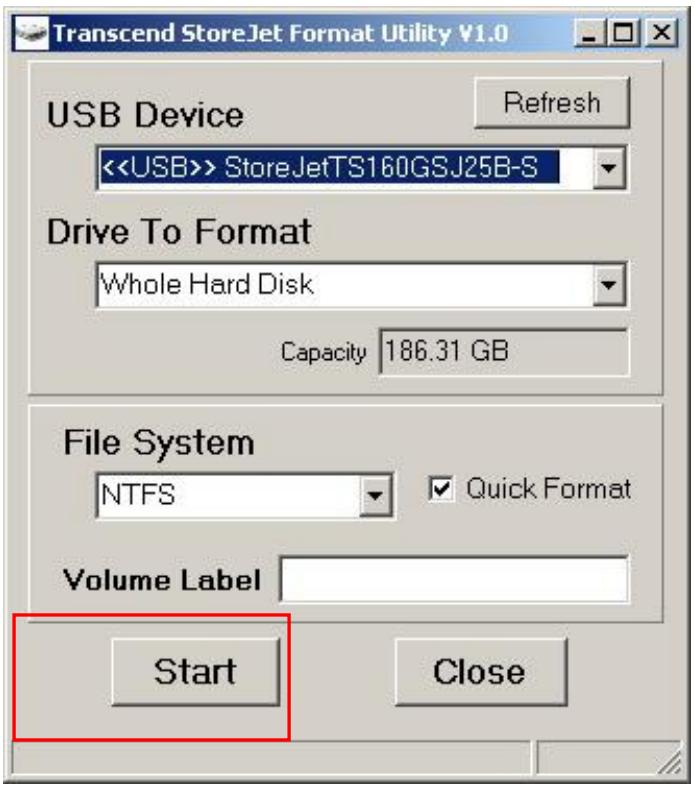
9. Press "Start".
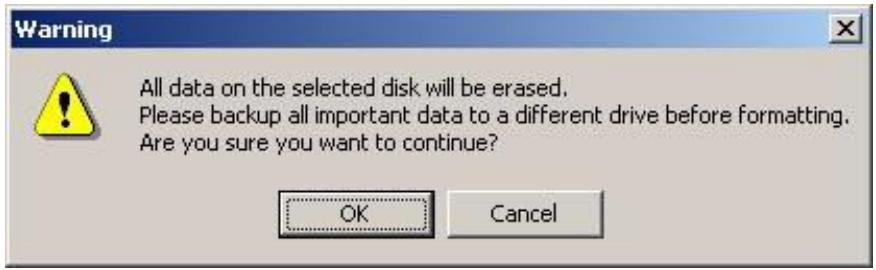
- A confirmation window will appear. Press OK to begin formatting the drive.
- The format process may take a few minutes. When complete, an "O.K." message will appear in the bottom right-hand corner of the window.
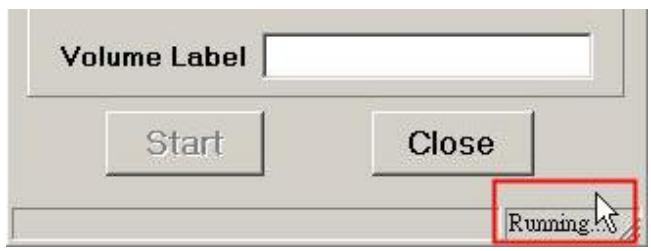
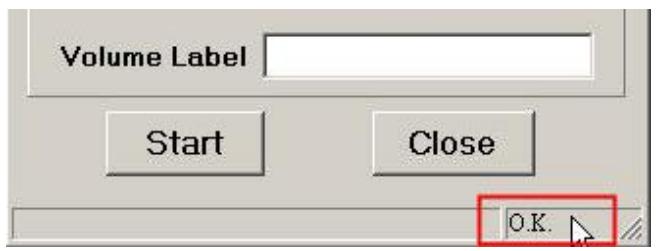
Figure 15: Format Complete
- Click the "Close" button to finish and exit.
Troubleshooting
If a problem occurs with your StoreJet™ 2.5, please first check the information listed below before taking your StoreJet™ 2.5 for repair. If you are unable to solve a problem from the following hints, please consult your dealer, service center, or local Transcend branch office. We also have FAQ and Support services on our websites.
Software CD cannot auto-run in Windows®
Go to the Device Manager in the Control Panel and enable the Auto-Insert function of the CD-ROM drive. Alternatively, you can manually run the "StoreJet.EXE" file on the driver CD.
Operating system cannot detect the StoreJet™ 2.5
Check the following:
- Is your StoreJet™ 2.5 properly connected to the USB port? If not, unplug it and plug it in again. If it is properly connected, try using another available USB port.
- Are you using the USB cable that came in the StoreJet™ 2.5 pack? If not, try using the Transcend USB cable to connect the StoreJet™ to the computer.
- The StoreJet™ 2.5 is powered directly via a computer USB port; however, the power supplied by the USB port on some older computers is below the required 5V DC power. In this instance, please connect the other USB A-Type connector from the USB Y cable to a USB port on the computer. This will provide the additional power necessary to run the drive.
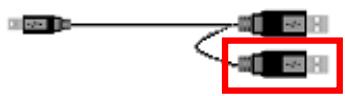
The other USB A-Type connector is used to provide additional power.
- Is your StoreJet™ 2.5 connected to the Mac™ keyboard? If yes, unplug it and plug it into an available USB port on your Mac™ Desktop.
- Is the USB port enabled? If not, refer to the user's manual of your computer (or motherboard) to enable it.
My computer does not recognize the StoreJet™ 2.5
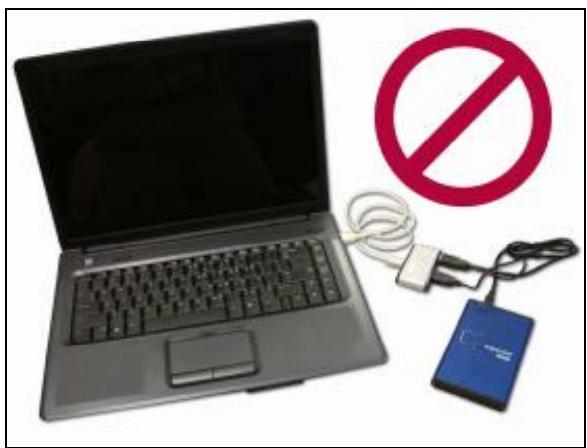
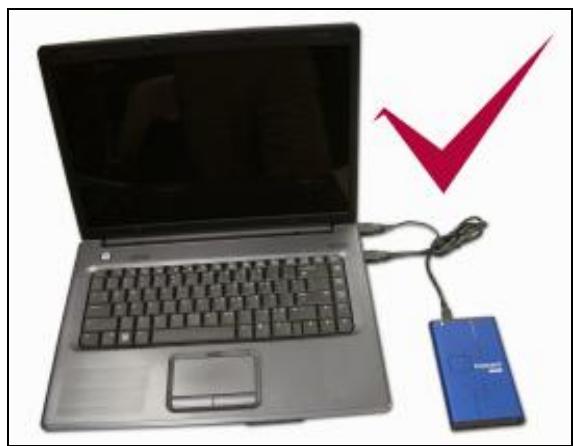
- A single USB port may not provide enough power for the StoreJet™ 2.5 to function. Make sure you plug both large ends of the USB cable directly into your computer's USB ports.
- Avoid using a USB HUB to connect the StoreJet™ 2.5.
Cannot Power ON
Check the following:
- Check that your StoreJet™ 2.5 is properly connected to the USB port on the computer.
- Check that the USB port is working properly. If not, try using an alternative USB port.
Cannot back up my Mac™
The StoreJet™ 2.5's internal hard drive comes formatted for FAT32. If you want to backup a Mac computer you will need to format the drive for HFS+ using the Mac Disk Utility.
Cannot detect the StoreJet™ 2.5 in Linux
The StoreJet™ 2.5's internal hard drive comes formatted for FAT32. Linux CANNOT support the NTFS file system, please reformat the hard drive to the FAT file system.
StoreJet™ 2.5 IDE series Specifications
Size (L x W x H): 129 mm × 79.9 mm × 13 mm
Weight: 88g (without hard drive)
Storage Media: 2.5-inch IDE Hard Disk Drive
- Power Supply: 5V DC supplied from the USB port(s)
Max. Transfer Speeds: 480Mbits per second
- Operating Temperature: 5^ C ( 41^ F ) to 55^ C ( 131^ F )
- Certificates: CE, FCC, BSMI
Warranty: 2-years
Ordering Information
| Device Description | Memory Size | Transcend P/N |
| StoreJet™ 2.5 Silver | 0GB | TS0GSJ25S |
| StoreJet™ 2.5 Red | 0GB | TS0GSJ25R |
StoreJet™ 2.5 SATA series Specifications
| I | Size (L x W x H): | 129 mm × 79.9 mm × 13 mm |
| I | Weight: | 186g (with hard drive) |
| I | Storage Media: | 2.5-inch SATA Hard Disk Drive |
| I | Power Supply: | 5V DC supplied from the USB port(s) |
| I | Max. Transfer Speeds: | 480Mbits per second |
| I | Operating Temperature: | 5°C (41°F) to 55°C (131°F) |
| I | Certificates: | CE, FCC, BSMI |
| I | Warranty: | 2-years |
Ordering Information
| Device Description | Memory Size | Transcend P/N |
| StoreJet™ 2.5 SATA Silver | 0GB | TS0GSJ25S-S |
| StoreJet™ 2.5 SATA Blue | 0GB | TS0GSJ25B-S |
| StoreJet™ 2.5 SATA Red | 0GB | TS0GSJ25R-S |
| StoreJet™ 2.5 SATA 160GB Blue | 160GB | TS160GSJ25B-S |
| StoreJet™ 2.5 SATA 250GB Silver | 250GB | TS250GSJ25S-S |
Transcend Limited Warranty
"Above and Beyond" is the standard we set ourselves for customer service at Transcend. We consistently position ourselves to be significantly above the industry norm, which is all part of our commitment to Customer Satisfaction.
Please do not break or remove the warranty sticker on your Transcend products, as this will void your product warranty.
All Transcend information, Inc. (Transcend) products are warranted and tested to be free from defects in material and workmanship and to conform to the published specifications. During the warranty period should your Transcend StoreJet™ 2.5 fail under normal use in the recommended environment due to improper workmanship or materials, Transcend will repair the product or replace it with a comparable one. This warranty is subject to the conditions and limitations set forth herein.
Duration of Warranty: The Transcend StoreJet™ 2.5 is covered by this warranty for a period of two (2) years from the date of purchase. Proof of purchase including the date of purchase is required to collect on the warranty. Transcend will inspect the product and decide whether to repair or replace it. Transcend reserves the right to provide a functional equivalent product, or a refurbished replacement product.
Limitations: This warranty does not apply to product failure caused by accidents, abuse, mishandling, improper installation, alteration, acts of nature, improper usage, or problems with electrical power. In addition, opening or tampering with the product casing, or any physical damage, abuse or alteration to the product's surface, including all warranty or quality stickers, product serial or electronic numbers will also void the product warranty. Transcend is not responsible for recovering any data lost due to the failure of a hard drive device. Transcend's StoreJet™ 2.5 must be used with devices that conform to the recommended industry standards. Transcend will not be liable for damages resulting from a third party device that causes the Transcend StoreJet™ 2.5 to fail. Transcend shall in no event be liable for any consequential, indirect, or incidental damages, lost profits, lost business investments, lost goodwill, or interference with business relationships as a result of lost data. Transcend is also not responsible for damage or failure of any third party equipment, even if Transcend has been advised of the possibility. This limitation does not apply to the extent that it is illegal or unenforceable under applicable law.
Disclaimer: The foregoing limited warranty is exclusive. There are no other warranties, including any implied warranty of merchantability or fitness for a particular purpose. This warranty is not affected in any part by Transcend providing technical support or advice.
Online Registration: To expedite the warranty service, please register your Transcend Product within 30 days of purchase.
Register online at http://www.transcendusa.com/registration
- The specifications mentioned above are subject to change without notice.

Transcend Information, Inc.
www.transcendusa.com
*The Transcend logo is a registered trademark of Transcend Information, Inc.
*All logos and marks are trademarks of their respective companies.