
BP4000HDV7100 - Lave-linge BLAUPUNKT - Notice d'utilisation et mode d'emploi gratuit
Retrouvez gratuitement la notice de l'appareil BP4000HDV7100 BLAUPUNKT au format PDF.
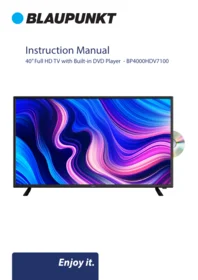


| Type de produit | Téléviseur Full HD 40 pouces avec lecteur DVD intégré |
| Marque | Blaupunkt |
| Modèle | BP4000HDV7100 |
| Taille de l'écran | 40 pouces (101,6 cm) |
| Résolution | 1920 x 1080 pixels (Full HD) |
| Format d'image | 16:9 |
| Connecteurs | 3 x HDMI dont HDMI 1 ARC, VGA, YPbPr, vidéo composite, audio L/R, entrée PC audio, optique, USB, antenne RF, écouteurs |
| Lecteur de disques | DVD et CD intégré |
| Formats USB pris en charge | Vidéo : avi, mpg, ts, mov, mkv, dat, mp4, vob ; audio : mp3, aac ; photo : jpg, jpeg, bmp, png |
| Enregistrement USB | PVR et fonction Time-Shift sur clé USB formatée en FAT32 |
| Tuner | TNT (DTV) et TV analogique (ATV) |
| Dimensions avec pied | 911,5 x 224,8 x 568,1 mm (L x P x H) |
| Dimensions sans pied | 911,5 x 76,2 x 524,6 mm (L x P x H) |
| Poids net | 6,14 kg |
| Poids brut | 8,7 kg |
| Alimentation | 110-240 V ~ 50/60 Hz |
| Consommation électrique | 90 W max |
| Montage mural | Norme VESA 200 x 200 mm (fixation non fournie) |
| Entretien et nettoyage | Débrancher avant nettoyage ; utiliser un chiffon sec, sans produits chimiques ni liquides |
| Sécurité | Ancrage mural recommandé pour éviter tout basculement ; ne pas exposer à l'humidité |
| Pièces détachées et réparabilité | Réparation par un service agréé uniquement ; assistance via info@ayonz.com |
| Accessoires fournis | Télécommande, pied et vis de fixation |
FOIRE AUX QUESTIONS - BP4000HDV7100 BLAUPUNKT
Questions des utilisateurs sur BP4000HDV7100 BLAUPUNKT
0 question sur cet appareil. Repondez a celles que vous connaissez ou posez la votre.
Poser une nouvelle question sur cet appareil
Téléchargez la notice de votre Lave-linge au format PDF gratuitement ! Retrouvez votre notice BP4000HDV7100 - BLAUPUNKT et reprennez votre appareil électronique en main. Sur cette page sont publiés tous les documents nécessaires à l'utilisation de votre appareil BP4000HDV7100 de la marque BLAUPUNKT.
MODE D'EMPLOI BP4000HDV7100 BLAUPUNKT
Instruction Manual
40" Full HD TV with Built-in DVD Player - BP4000HDV7100

CONTENTS
| General Safety | 4 |
| Installation | 8 |
| Controls and Connections | 10 |
| Remote Control | 12 |
| Basic Operations | 15 |
| Recording | 16 |
| Media | 17 |
| Menus | |
| Channel Settings | 18 |
| Tuning Settings | 19 |
| Picture Settings | 20 |
| Sound Settings | 21 |
| Lock Settings | 22 |
| Time Settings | 23 |
| Setup Settings | 24 |
| FAQs | 25 |
| Specifications | 26 |
| Customer Support | 28 |
GENERAL SAFETY
Read this manual thoroughly before you start using the TV.
Store this manual, the completed warranty card, your receipt and the product packaging. The safety precautions instructions reduces the risk of fire, electric shock and injury when correctly complied to.
Please follow all instructions and take notice of all warnings.

The cover (or back) of the unit should not be removed to prevent risk of electric shock. This unit must be serviced by a qualified service personnel only.


The lightning flash with symbol within the triangle is intended to warn you of a non-insulated dangerous voltage in the product's enclosure that could be of sufficient magnitude to generate a risk of electric shock to persons.
The exclamation point within the triangle is intended to warn you to the presence of important operating and maintenance instructions in the documents included with the product.
IMPORTANT INFORMATION
The lightning flash symbol within the triangle is intended to warn you of non-insulated dangerous voltage the product's enclosure that could be of sufficient magnitude to generate a risk of electric shock to persons.
- Using Cabinets or stands recommended by the manufacturer of the television.
- Only using furniture that can safely support the Products.
- Ensure the Product is not overhanging the edge of the supporting furniture.
- Do not place the product on a high furniture without securing both the furniture and the product to a stable support.
- Do not place the product on cloth or other conductive materials.
- Warn children of the dangers of climbing on furniture to reach the television or its controls and to call for an adult to assist.
GENERAL SAFETY INSTRUCTIONS (Cont.)
IMPORTANT INFORMATION
- Do not expose this appliance to rain or moisture as it may result in fire or an electric shock hazard
- Do not temper or change or modify the product in any way.
- Only use Accessories outlined and recommended by the manufacturer.
- Please do not expose the product to splashing or water contact
- Please do not place any object on top of the product including objects filled with liquids such as vases.
- Danger of explosion if battery is incorrectly placed. Replace with same or equivalent type.
Installation
Please follow instruction when installing this product in accordance with the instruction manual. This product must be positioned in a sufficiently stable location, it can be potentially hazardous due to falling and can cause injury, particularly to children if it positioned incorrectly.
- Before installing this TV set, make sure your outlet voltage corresponds to the voltage stated on the product rating label
- Do not use a damaged power cord, plug or loose outlet. Doing so may cause an electric shock.
- Do not plug several devices into the same outlet. Doing so may cause the outlet to overheat and start a fire. Make sure the outlet is readily accessible during operation of the equipment.
- Do not bend, twist or kink the power cord excessively.
- Do not allow anything to rest on or roll over the power cord and antenna cable. Doing so may cause a fire or an electric shock.
- Do not run the power cord near heat-producing appliances such as radiators, stoves or irons. The excessive heat could melt the insulation and expose live wires, resulting in fire or electric shock.
- Unplug this TV during lightning storms or when unused for long periods of time. Not doing so may result in fire or electric shock.
- Do not cover the ventilation openings of the product with items such as newspapers, tablecloths, curtains etc or insert objects into the slots available on the products. As this could result in the product temperature rising and could cause a fire.
- If you notice any unusual odors or smoke around the unit, immediately disconnect the unit from the outlet and contact the service center. Failure to do so may result in fire or electric shock.
- When not using the unit for long periods of time or when you are moving the unit please ensure to disconnect the power cord from the wall socket.
GENERAL SAFETY INSTRUCTIONS (Cont.)
- Please beware that Dust could accumulate over time on the unit and cause it to generate heat and or deteriorate insulation, which in turn may result in an electrical fire.
- The product is not intended for use by persons (including children) with reduced physical, sensory or mental capabilities, or young children of any age, They must be supervised product by a person responsible for their safety.
- Batteries from the remote control must be only removed by an adult, the adult must ensure to keep them out of reach of infants and children. Seek medical attention immediately if a child has swallowed a battery.
- Batteries (battery pack or batteries installed) shall not be exposed to excessive heat such as sunshine, fire or the like.
- To maintain the product do not use any chemical or cleaning agent or wet cloth, please only ensure to utilize a dry cloth to wipe it down from marks or dust and only after unplugging the product from the power socket.
- Please ensure to contact our call center for any repair or service required for the products.
WARNING!
It is STRONGLY RECOMMENDED that you ANCHOR this product.
Toppling furniture and TV's can cause serious injury or death.
TO HELP AVOID ANY SERIOUS OR FATAL INJURY, WE STRONGLY RECOMMEND THAT THIS PRODUCT BE PERMANENTLY FIXED TO THE WALL OR OTHER SUITABLE SURFACE. FIXING DEVICES ARE NOT INCLUDED SINCE DIFFERENT SURFACE MATERIALS REQUIRE DIFFERENT ATTACHMENTS. PLEASE SEEK PROFESSIONAL ADVICE IF YOU ARE IN DOUBT WHAT FIXING DEVICE TO USE.
If a television is not positioned in a sufficiently stable location, it can be potentially hazardous due to falling. Many injuries, particularly to children, can be avoided by taking simple precautions such as:
• Using cabinets or stands recommended by the manufacturer of the television.
- Only using furniture that can safely support the television.
- Ensuring the television is not overhanging the edge of the supporting furniture.
- Not placing the television on tall furniture (for example, cupboards or bookcases) without anchoring both the burniture and the television to a suitable support.
- Not standing the television on cloth or other materials placed between the television and supporting furniture.
- Educating children about the dangers of climbing on furniture to reach the television or its controls.
GENERAL SAFETY INSTRUCTIONS (Cont.)
Please make sure upon positioning this product, the place is:
- Not wet or damp and Well ventilated
- Away from direct sunlight or heaters.
• Away from splashes or food. - Protected from excessive dust or grease.
- Do not install this equipment in a confined space such as a bookcase or similar unit.
- Do not install the TV set near heat sources such as radiators, stoves or other audio visual equipment that produce heat.
- Do not place containers with liquids, if liquid falls inside the products it may result in short-circuit, fire or electric shock.
- Do not place small metallic objects on top of the unit. Metal object falls inside the product it may result in short-circuit, fire or electric shock.
- Do not use or store flammable or combustible materials near the unit. Doing so may result in fire or explosion. Do not place any naked flame sources, such as lit candles, cigarettes or incense sticks on top of the TV set.
- The antenna must be installed away from high-voltage power line,
- Please contact an antenna professional installer to install the antenna to avoid incorrect installation which could result in fire, electric shock or serious injury.
• Install the unit at a reasonable distance from the wall to ensure sufficient ventilation. - If mains plug or an appliance coupler is used as the disconnect device, the disconnect device shall remain readily operable.

HIGH DEFINITION MULTIMEDIA INTERFACE
"HDMI, the HDMI logo and High-Definition Multimedia Interface are trademarks or registered trademarks of HDMI Licensing LLC."
INSTALLATION
Install the stand as described below, or if you want to mount it to a wall, please contact a professional installer.
Please ensure the TV is not plugged into the wall socket and furthermore we recommend to get another person to assist in the following task.
Attaching the stand
Step 1
Place a soft cushioned material on top of a flat surface to prevent damaging the screen panel. Then place the TV screen flat on top, with the screen side facing down, as illustrated on the right.
Step 2
Align the stand leg to the installation point, as illustrated below
Step 3
Tighten the screws (supplied) with a screwdriver to affix the stand to the panel, as illustrated on the right.

CAUTION!
Do not apply excessive force as this may damage the screw holes.
INSTALLATION (Cont.)
Wall-Mounting Instructions
Please ensure the TV is not plugged into the wall socket and furthermore we recommend to get another person to assist in the following task.
- We recommend you use a professional installer as we assume no liability for any eventual damage to the product or injury to yourself if you mount the TV on your own.
BACK OF TV
VESA WALL PATTERN - 200 (w) x 200 (h)

NOTE: If you are wall-mounting the TV, this should be done by a qualified installer.
CONTROLS AND CONNECTIONS

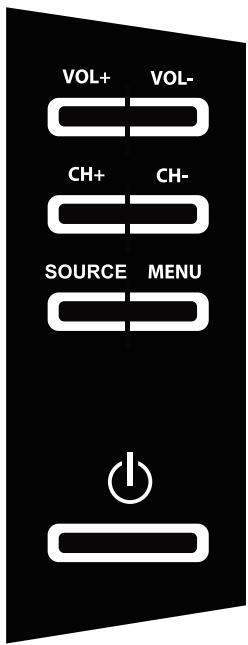
CONTROLS AND CONNECTIONS (Cont.)
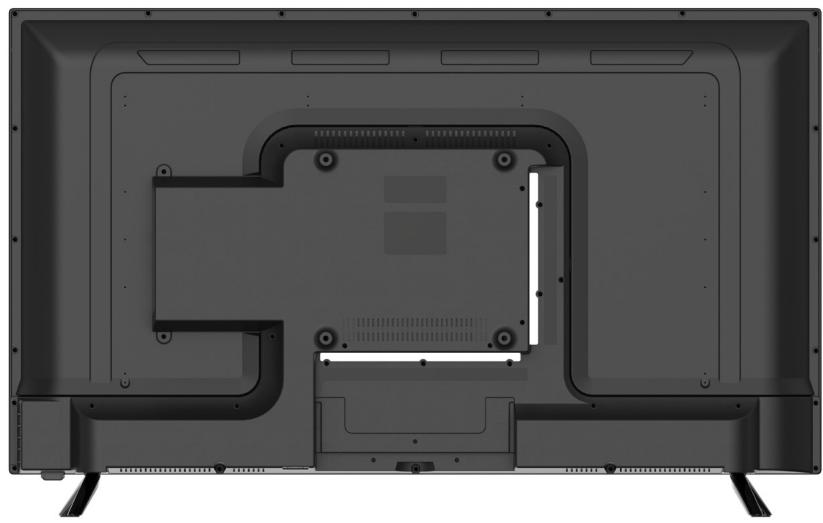

- HDMI 2
- HDMI 3
- OPTICAL 8. PC AUDIO INPUT
- YPbPr 9. VIDEO
- USB1 & 2 10. AUDIO LEFT & RIGHT
- EARPHONE 11. ANTENNA (RF)
- VGA 12. HDMI 1 (ARC)
USB connection
Insert a USB storage device into the USB port to record, playback of video/music/photo

REMOTE CONTROL
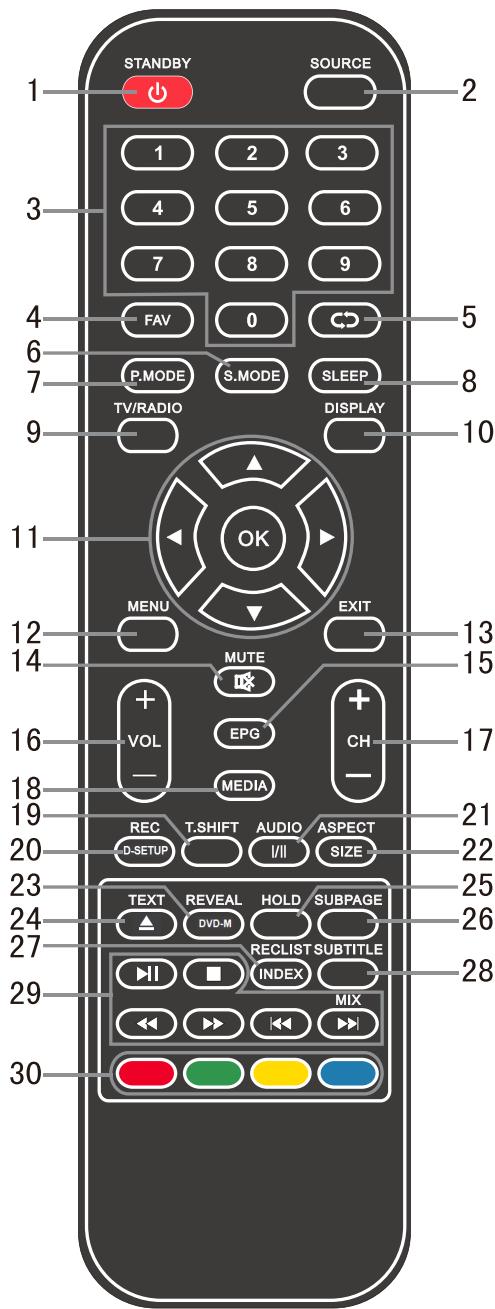
1. STANDBY button
Turns the television on from the stand-by mode.
2. SOURCE button
Press to select the desired input.
3. Numerical buttons 0-9
Press 0-9 to directly select a TV channel while watching the TV.
In teletext mode enter the page number, etc.
4. FAV button
Show the favourite channel list.
5. ⊆ button
Button for switching to the previously watched channel.
6. SMODE button
Repeatedly press to select a sound mode.
7. PMODE button
Repeatedly press to select a picture mode.
8. SLEEP button
Set the automatic shut off time for the television.
9. TV/RADIO button
Switching between the television and radio modes.
10. DISPLAY button
Button for displaying the source and information about channels.
11. ▲/▼/◄/►/OK buttons
Used for navigating in a menu on the screen and for setting up the television according to your preferences.
12. MENU button
In TV mode it displays the LCD television's main menu.
13. EXIT button
Function for exiting a menu or a screen.
14. MUTE button
Press to mute the sound. Press it again to renew the sound or press VOL +.
15. EPG button
Press to show/hide the electronic program guide.
16. VOL +/- buttons
Press to increase/decrease the volume.
17. CH +/- buttons
Press to switch between individual channels.
18. MEDIA button
Press to switch to the Media (USB) mode.
19. T.SHIFT button
It is used to start recording with a time shift (i.e. time shift). Function is only available in the DTV mode.

REMOTE CONTROL (Cont.)
20. REC button
Used to start recording (only in DTV mode).
D-SETUP: Show DVD setup menu
21. AUDIO button
DTV/MEDIA mode: select a background sound, if available.
ATV mode: select a sound mode: Stereo/Dual I/II/Mono.
Other sources: select the left / right channel
22. SIZE button
Change the size of display in Teletext mode.
23. REVEAL button
Press REVEAL to display or hide hidden teletext information (depends on the broadcast).
DVD-M: Go to the DVD menu with the last function you used.
24. TEXT button
Turn teletext on or off.
▲: Eject or loads the disk from DVD module.
Note: The teletext function is optional and the availability of buttons depends on the model. Teletext information fully depends on the operator of the channel.
25. HOLD button
Freezes the current picture in the Teletext.
26. SUBPAGE button
Press to enter a teletext subpage.
27. RECLIST button
Enter the list of recordings
INDEX: In DTV mode, access the listing of recorded programs.
28. SUBTITLE button
Button for showing / hiding subtitles in the bottom part of the screen, if they are available.
29. ▶II/■/◄◄/►►/I◄◄/►►I/MIX buttons
▶II: start / pause playback, start timeshift recording function.
■: Stop recording / playback.
◀: Fast rewind
▶▶: Fast forward
◀◀: Skip to previous track
▶▶▶: Skip to next track
MIX: TV picture and teletext content are simultaneously displayed on the screen.
30. RED, GREEN, YELLOW, BLUE button:
corresponds to various colour functions in the menu or teletext.
REMOTE CONTROL (Cont.)
Using the Remote Control
- Battery should normally last for about one year.
- Do not mix old and new batteries in the remote
- Do not use different types of battery
- If you do not intend to use the unit for a long time, please remove batteries from the remote to avoid accident.
- Keep batteries away from children and pets.
- Never throw batteries into a fire.
- Do not drop, or impact the remote control as it void warranty immediately.
- The remote control operate at a range of 5 to 6M effectively
- Do not expose the remote control sensor to a bright light.
BASIC OPERATIONS
SELECTING AN INPUT SOURCE
- Press the SOURCE button on the remote control, to display the input source list.
- Press the ▲/▼ buttons to select the input source, and then press OK to confirm.
- You can access connected USB drives by selecting MEDIA.
NOTE: The first time you use this TV, make sure to go through the first time installation and auto-search for all the DTV channels.

RECORDING
NOTE: Before you can record with this TV, make sure you have the USB you wish to use formatted as a FAT32 USB storage device. Then insert the device into your TV.
- Insert your USB device into the USB Port
- When watching Digital TV, Press the RECORD button on the remote control to start recording. Press record again to remove information bar.
- Press RECORD again or the STOP button to display information about recording.
- Select "POWER OFF" to stop recording and turn off the TV.
- Press the EXIT button to cancel the dialog box and continue recording.
To Watch a Recorded Program:
Press the INDEX button on the remote control to see list of recorded programs. Use the ▲/▼ buttons to find and select a recorded file.
Time-Shift Function
The time-shift function allows you to pause the Live TV signal, then resuming at your own convenience. (Make sure you have a formatted FAT32 USB storage device in your TV for time-shift function to work).

MEDIA
MEDIA PLAYBACK
- First insert a USB Device into the TV
- Press "MEDIA" on the remote control.
- Use the directional arrow keys to go through folders within your USB device to access Photo's, Music, Movies or text.
- Press the EXIT button to return to previous page


MENUS (cont.)
CHANNEL SETTINGS
To access CHANNEL settings, press the MENU button and go to CHANNEL.

MENUS (cont.)
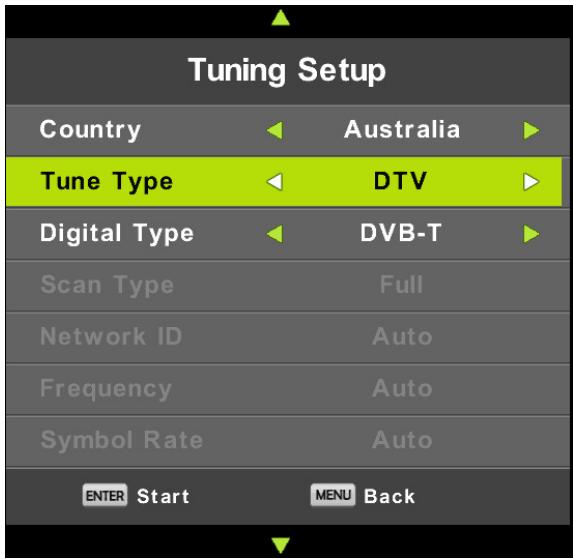
TUNING SETUP
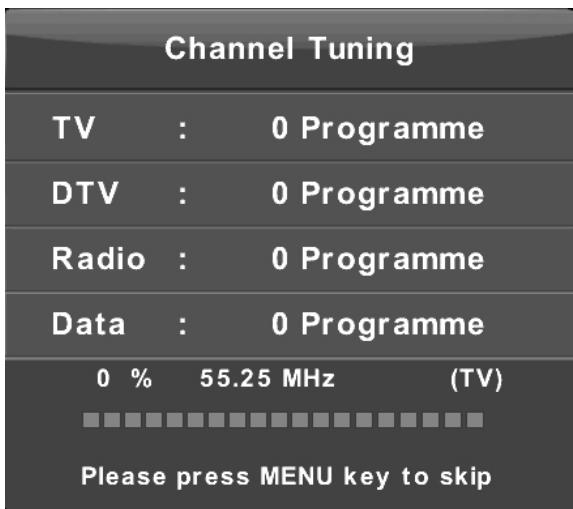
To auto scan your TV to find your local channels, make sure the Antenna (RF) cable is connected to the TV. Then proceed to tune your TV by following the below.
Make sure to select your country “Australia”, then go to tune type and change the “TUNE TYPE” to only “DTV”.
Press OK to commence Auto Scanning.
MENUS (cont.)
PICTURE SETTINGS
To access Picture settings, press the MENU button and go to picture.

Picture Mode: You can select the type of picture which best corresponds to your viewing requirements. Contrast, Brightness, Colour, Tint and Sharpness can be adjusted when the picture mode is set to personal.
Contrast: Adjust the white level of the picture.
Brightness: Adjust darkness of black sections in the picture.
Colour: Adjust the color intensity of the picture.
Tint: Adjust the hue of the picture. (Only in the NTSC mode)
Sharpness: Object edges are enhanced for picture detail.
Color Temperature: Select the color temperature that you feel comfortable.
Noise Reduction: Reduces the picture noise in a weak broadcast signal.
MENUS (Cont.)
SOUND SETTINGS
To access Sound settings, press the MENU button and go to Sound.

Sound Mode: You can select a sound mode to suit your personal preferences. Treble and Bass can be adjusted when the sound mode is set to personal.
Treble: Adjust the high frequency sounds.
Bass: Adjust the low frequency sounds.
Balance: Adjust the level of sound coming from the left and right speakers.
Auto Volume Level: Auto Volume automatically remains on the same level of volume if you change programmes. Because each broadcasting station has its own signal conditions, volume adjustment may be needed every time when the channel is changed. This feature allows users to enjoy stable volume levels by making automatic adjustments for each program.
SPDIF Mode: You can select the SPDIF Mode PCM/Auto or Off.
AD Switch: You can select the AD Switch On or Off. To increase the volume of the Audio description (AD). Amblyopia function for the blind, the tracks will be mixed describe the current screen. It need codestream to support.
MENUS (Cont.)
LOCK MENU
To access LOCK settings, press the MENU button and go to Lock.
Default password is “0000”, then you can set your own password to lock the TV.
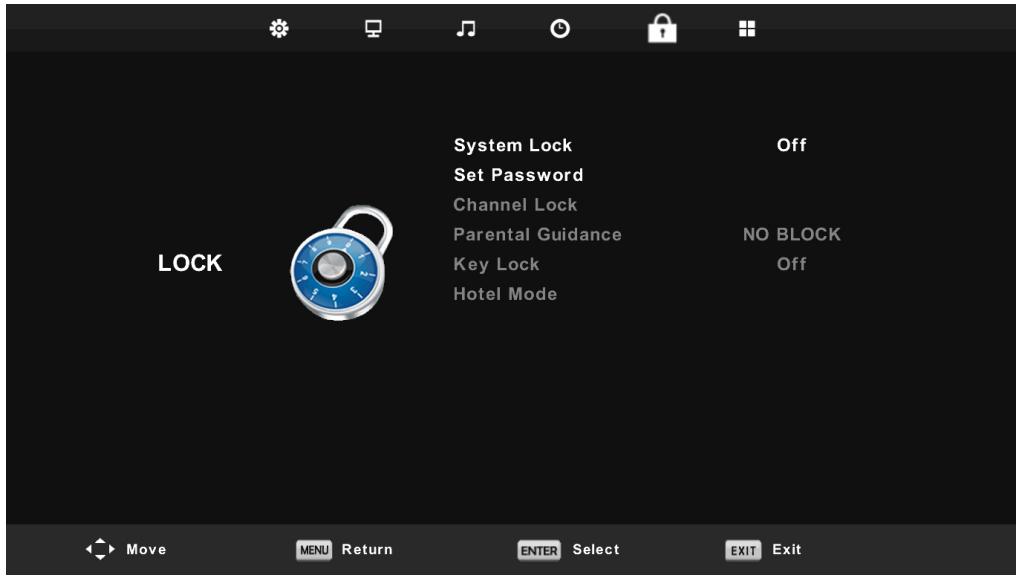
System Lock : The feature can prevent unauthorized operating the TV set, unless entering 4-digit password.
The default password is 0000.
NOTE:
If you forget your password, the super password of 1225 still is valid.
Set Password: Press the ENTER button to access the submenu.
You can set your private password. Press the number buttons on the remote control to set the new password. When the new password has been input twice, the setting is finished successfully.
Channel Lock (In ATV/DTV mode): Press the green button to lock the available channel you want. Press the green button again to unlock it. To watch a locked channel, enter your 4 digit password number when input screen displays.
Parental Guidance: Press the ▲/▼ buttons to select Parental Guidance.
This feature can prevent children watching adult's TV programmes, according to the rating limit set.
Key Lock: Set to prevent it from being used by young children, or other unexpected using, When Key Lock's statue is on, you can't use the Key panel button
Hotel Mode: Press the ▲/▼ buttons to select Hotel Mode, then press ENTER button to enter Hotel mode.
MENUS (Cont.)
TIME SETTINGS
To access TIME settings, press the MENU button and go to TIME.

Clock: Display either the DTV signal stream time or set the system time.
Time Zone: Press ▲/▼/◄/► buttons to select time zone.
Sleep Timer: Select the time to turn the TV to standby mode automatically.
Auto Standby: Select the time in hours (off, 3H, 4H, 5H) that you want the TV to remain on after your last operation.
Tips: The remote control does not make any operation in the hypothesis time, it will close down automatically. If you do any operation, it will reset the time.
OSD Timer: Select the time in seconds (5s, 15s, 30s) that you want the On-Screen Menu remains display after your last operation.
Summer Time: Press ▲/▼ buttons to select Summer Time, then press ◀/▶ to select. (Options: On, Off, Auto)
NOTE:
◆ The Clock will change with the area which you have selected in the Time zone.
MENUS (Cont.)
SETUP SETTINGS
To access Setup settings, press the MENU button and go to SETUP.

Language: Select your preferred On Screen Display language.
TT Language: Press the ▲/▼ buttons to select the Teletext language.
Audio Languages: Press the ▲/▼/◄/► buttons to select the Audio languages.
Subtitle Language: Press the ▲/▼/◄/► buttons to select the Subtitle language.
Hearing Impaired: Press ▲/▼ buttons to select Hearing Impaired, press the ◀/▶ buttons to select On/Off.
PVR File System: PVR file system.
Aspect Ratio: You can select the picture size which best corresponds to your viewing requirements.
Blue Screen: Set the background color to blue or black when having no input signal.
First Time Installation: This is a guide to help you to setup the TV.
Reset: Recall the default setting.
Software Update (USB): Update the software using the USB memory device. Please be careful not to disconnect the power or remove the USB drive until updates are complete.
HDMI CEC: Press ▲/▼ buttons to select HDMI CEC, press ENTER to enter sub-menu.
| CEC Control | Press ◀/▶ buttons to turn the CEC Control On or Off. |
| Device Auto Power Off | Press ◀/▶ buttons to turn the Auto Power On or Off. |
| TV Auto Power On | Press ◀/▶ buttons to turn the TV Auto Power On or Off. |
| Device List | Display devices that are connected to TV. |
| Device Menu | Press ENTER button to open the main menu of device. |
GENERAL PROBLEMS WITH TV SET
If any issues persist, please contact us at info@ayonz.com
| Symptoms | Possible Reason | Solutions |
| No picture, no sound, and no indicator light on | 1.The power cord is not plugged in2.The power is off | 1.Plug the power cord in2.Turn the power on |
| Picture and sound with abnormality | 1.Contrast, sharpness, and color are set improperly2.Color system is set improperly3.Sound system is set improperly | 1.Adjust the value of Contrast, sharpness, and colour2.Set the Color system to the country broadcasting standard3.Set the Sound system to the country broadcasting standard |
| Picture is spotted or with snow | Signal source is low-grade or the signal cord is in a lower quality | Use the qualified signal cord |
| No picture, no sound and indicator light is green/blue | Volume is in the minimum value or TV is in mute mode. | Adjust the value of volume |
| The signal cable is not correctly connected. | Connect the signal cable correctly | |
| Blue screen, AV is displayed | There is no signal input or the video cable is not connected or incorrectly connected | Connect the video cable correctly |
| No sound | There is no audio signal input or audio cable is not connected correctly | Connect the audio cable correctly |
| The remote control does not work | Batteries are improperly installed or exhausted | 1.Make sure the positive and the negative polarities are correct.2.Check if there is a loose contact between the batteries and the springs3.Replace the batteries |
SPECIFICATIONS
| Display Device | 40” Full HD TV WITH BUILT-IN DVD PLAYER |
| Resolution | 1920 x 1080 |
| Display Colours | 16.7M |
| Contrast ratio: | 5000 : 1 |
| Aspect Ratio | 16 : 9 |
| Multimedia Playback Format under USB Mode | Movie: avi/mpg/ts/mov/mkv/dat/mp4/vob |
| Music: mp3/aac | |
| Photo: jpg/jpeg/bmp/png | |
| Supported Discs | DVD, CD |
| Power Source | 110-240V ~ 50/60Hz |
| Power Consumption | 90W Max. |
| USB | 5V == max. 500mA |
| Dimensions | With stand: 911.5 (w) × 224.8 (d) × 568.1 (h) mm |
| Without stand: 911.5 (w) × 76.2 (d) × 524.6 (h) mm | |
| Weight | Net: 6.14 kg |
| Gross: 8.7 kg |
REGION CODE SETTING
All DVD discs are coded by the sales territory. Please note the built-in DVD player is set to Region 0 coding by the factory, which cannot be changed. This is in compliance with DVD patent requirements.

The region number for the built-in DVD player is 0

BLAUPUNKT
CUSTOMER HELPLINE:
info@ayonz.com
DISTRIBUTED BY:
Ayonz Pty Ltd
- INSTRUCTION MANUAL
- CONTENTS
- GENERAL SAFETY
- IMPORTANT INFORMATION
- GENERAL SAFETY INSTRUCTIONS (CONT.)
- INSTALLATION
- WARNING
- IT IS STRONGLY RECOMMENDED THAT YOU ANCHOR THIS PRODUCT
- PLEASE MAKE SURE UPON POSITIONING THIS PRODUCT, THE PLACE IS
- ATTACHING THE STAND
- STEP
- CAUTION
- INSTALLATION (CONT.)
- WALL-MOUNTING INSTRUCTIONS
- BACK OF TV
- CONTROLS AND CONNECTIONS
- CONTROLS AND CONNECTIONS (CONT.)
- USB CONNECTION
- REMOTE CONTROL
- STANDBY BUTTON
- SOURCE BUTTON
- NUMERICAL BUTTONS
- FAV BUTTON
- ⊆ BUTTON
- SMODE BUTTON
- PMODE BUTTON
- SLEEP BUTTON
- TV/RADIO BUTTON
- DISPLAY BUTTON
- ▲/▼/◄/►/OK BUTTONS
- MENU BUTTON
- EXIT BUTTON
- MUTE BUTTON
- EPG BUTTON
- VOL +/- BUTTONS
- CH +/- BUTTONS
- MEDIA BUTTON
- T.SHIFT BUTTON
- REMOTE CONTROL (CONT.)
- REC BUTTON
- AUDIO BUTTON
- SIZE BUTTON
- REVEAL BUTTON
- TEXT BUTTON
- HOLD BUTTON
- SUBPAGE BUTTON
- RECLIST BUTTON
- SUBTITLE BUTTON
- II/■/◄◄/►►/I◄◄/►►I/MIX BUTTONS
- RED, GREEN, YELLOW, BLUE BUTTON
- USING THE REMOTE CONTROL
- BASIC OPERATIONS
- SELECTING AN INPUT SOURCE
- RECORDING
- TO WATCH A RECORDED PROGRAM
- TIME-SHIFT FUNCTION
- MEDIA
- MEDIA PLAYBACK
- MENUS (CONT.)
- CHANNEL SETTINGS
- TUNING SETUP
- PICTURE SETTINGS
- SOUND SETTINGS
- LOCK MENU
- NOTE
- TIME SETTINGS
- SETUP SETTINGS
- GENERAL PROBLEMS WITH TV SET
- SPECIFICATIONS
- REGION CODE SETTING
- BLAUPUNKT
Marque : BLAUPUNKT
Modèle : BP4000HDV7100
Catégorie : Lave-linge