
MRS1608 - Enregistreur numérique ZOOM - Notice d'utilisation et mode d'emploi gratuit
Retrouvez gratuitement la notice de l'appareil MRS1608 ZOOM au format PDF.

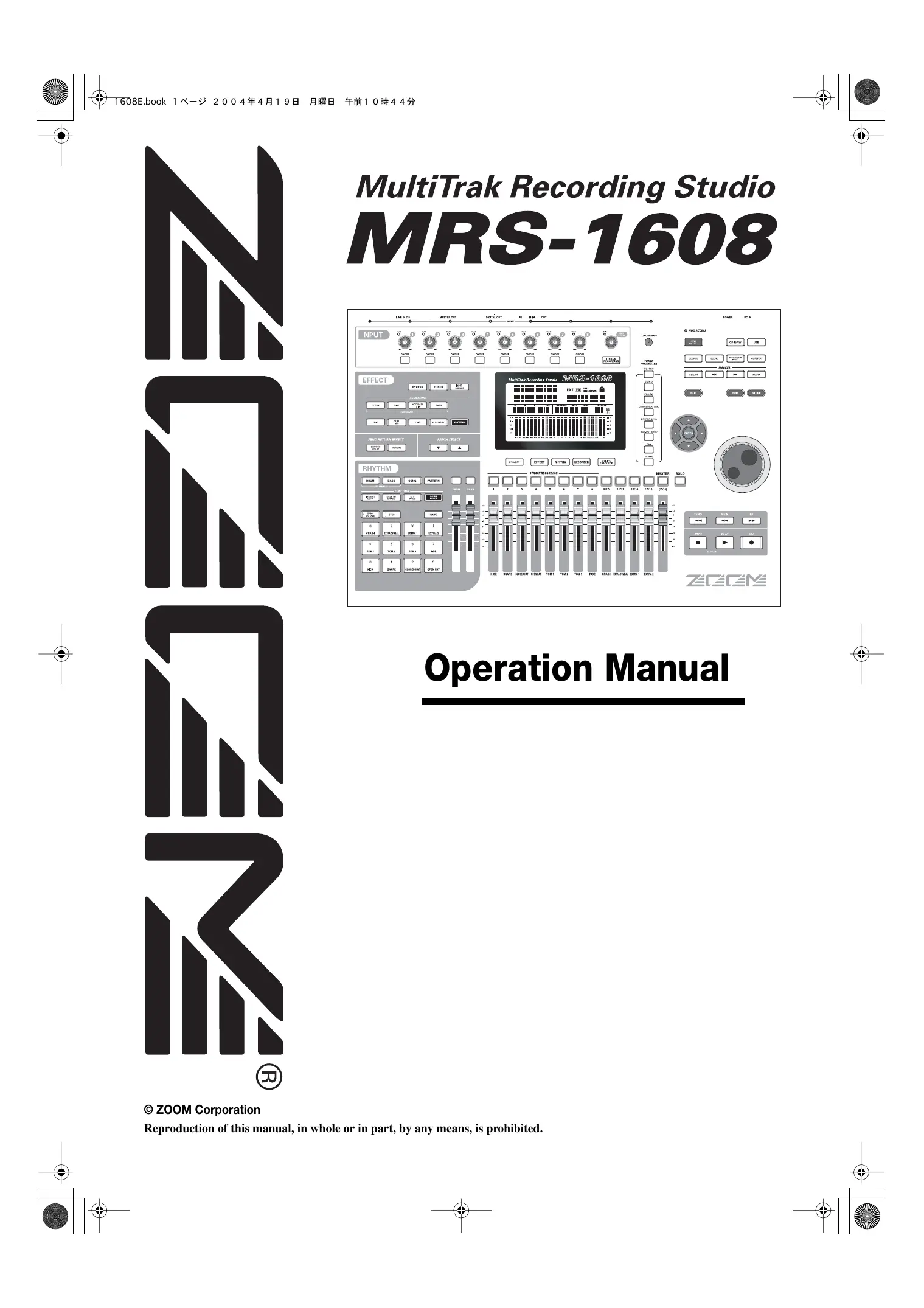

| Type de produit | Enregistreur numérique multipiste |
| Marque | ZOOM |
| Modèle | MRS-1608 |
| Dimensions | 482 x 107 x 385 mm (montable en rack 2U) |
| Poids | Environ 5,5 kg |
| Alimentation | Adaptateur secteur 12V DC fourni |
| Nombre de pistes audio | 16 pistes (8 mono + 4 stéréo) + 1 piste master stéréo |
| Prise virtuelles par piste | 10 (V-takes) |
| Enregistrement simultané | Jusqu'à 8 pistes |
| Section rythmique intégrée | 475 motifs rythmiques, 10 kits de batterie, programmes de basse |
| Échantillonneur (Pad Sampler) | Oui, avec 1000 échantillons max. |
| Effets intégrés | Effet insert (9 algorithmes, 320 patches) + effet d'envoi/retour (réverbération et chorus/delay) |
| Graveur CD-R/RW | Intégré (ou optionnel CD-02) |
| Connectique analogique | Entrées : 2 jack Guitare/Basse (Hi-Z), 8 entrées ligne sur RCA, sorties : Master stéréo (RCA), Sub out stéréo (RCA) |
| Connectique numérique | Sortie optique S/PDIF |
| MIDI | Entrée, sortie, Thru |
| Support de stockage | Disque dur interne (capacité non spécifiée, estimé 40 Go) |
| Formats audio importables | WAV, AIFF (via CD-ROM ou USB en option) |
| Entretien et nettoyage | Nettoyer avec un chiffon doux et sec ; ne pas utiliser de solvants |
| Sécurité | Utiliser uniquement l'adaptateur fourni ; ne pas ouvrir le boîtier ; éviter l'humidité et la chaleur excessive |
| Pièces détachées et réparabilité | Contactez ZOOM ou un revendeur agréé pour les pièces (ex. adaptateur, CD-ROM) |
| Informations générales | Station de production musicale complète : enregistrement, mixage, création de CD audio |
FOIRE AUX QUESTIONS - MRS1608 ZOOM
Questions des utilisateurs sur MRS1608 ZOOM
0 question sur cet appareil. Repondez a celles que vous connaissez ou posez la votre.
Poser une nouvelle question sur cet appareil
Téléchargez la notice de votre Enregistreur numérique au format PDF gratuitement ! Retrouvez votre notice MRS1608 - ZOOM et reprennez votre appareil électronique en main. Sur cette page sont publiés tous les documents nécessaires à l'utilisation de votre appareil MRS1608 de la marque ZOOM.
MODE D'EMPLOI MRS1608 ZOOM
MultiTrak Recording Studio MRS-1608
Operation Manual
USAGE AND SAFETY PRECAUTIONS
SAFETY PRECAUTIONS
In this manual, symbols are used to highlight warnings and cautions for you to read so that accidents can be prevented. The meanings of these symbols are as follows:

This symbol indicates explanations about extremely dangerous matters. If users ignore this symbol and handle the device the wrong way, serious injury or death could result.

This symbol indicates explanations about dangerous matters. If users ignore this symbol and handle the device the wrong way, bodily injury and damage to the equipment could result.
Please observe the following safety tips and precautions to ensure hazard-free use of the MRS-1608.
- Power requirements

The MRS-1608 is powered by the supplied AC adapter. To prevent malfunction and safety hazards, do not use any other kind of AC adapter.
When using the MRS-1608 in an area with a different line voltage, please consult your local ZOOM distributor about acquiring a proper AC adapter.
- About grounding

Depending on installation conditions, a slight electrical charge may be felt when touching a metal part of the MRS-1608. If you wish to avoid this, ground the unit by connecting the ground screw on the rear panel to a good external ground.
To prevent the risk of accidents, never use one of the following for grounding:
Water pipe (risk of electric shock)
Gas pipe (risk of explosion)
- Telephone wiring ground or lightning arrestor (risk of lightning stroke)
- Environment

Avoid using your MRS-1608 in environments where it will be exposed to:
- Extreme temperature
- High humidity, moisture, or splashing water
- Excessive dust or sand
- Excessive vibration or shock
Handling

Never place objects filled with liquids, such as vases, on the MRS-1608 since this can cause electric shock.

The MRS-1608 is a precision instrument. Do not exert undue pressure on the keys and other controls. Also take care not to drop the unit, and do not subject it to shock or excessive pressure.
- Alterations

Never open the case of the MRS-1608 or attempt to modify the product in any way since this can result in damage to the unit.
- Connecting cables and input and output jacks

You should always turn off the power to the MRS-1608 and all other equipment before connecting or disconnecting any cables. Also make sure to disconnect all cables and the AC adapter before moving the MRS-1608.
Volume

Do not use the MRS-1608 at a loud volume for a long time since this can cause hearing impairment.
CD-R/RW Drive

Never look directly in the laser beam projected from the optical pickup of the CD-R/RW drive since your sight can be damaged.
Usage Precautions
- Electrical interference
For safety considerations, the MRS-1608 has been designed to provide maximum protection against the emission of electromagnetic radiation from inside the device, and protection from external interference. However, equipment that is very susceptible to interference or that emits powerful electromagnetic waves should not be placed near the MRS-1608, as the possibility of interference cannot be ruled out entirely.
With any type of digital control device, the MRS-1608 included, electromagnetic interference can cause malfunctioning and can corrupt or destroy data. Care should be taken to minimize the risk of damage.
- Cleaning
Use a soft, dry cloth to clean the MRS-1608. If necessary, slightly moisten the cloth. Do not use abrasive cleanser, wax, or solvents (such as paint thinner or cleaning alcohol), since these may dull the finish or damage the surface.
- Backup
The data of MRS-1608 can be lost because of malfunction or incorrect operation. Backup your data.
Copyrights
Except for personal use, unauthorized recording from copyrighted sources(CDs, records, tapes, video clips, broadcast material and so on) is prohibited.
ZOOM Corporation does not bear any liability for injunctions regarding the copyright law infringement.
Please keep this manual in a convenient place for future reference.
MIDI is a registered trademark of Association of Musical Electronics Industry(AMEI).
All other trademarks and registered trademarks are the property of their respective owners.
All trademarks and registered trademarks mentioned in this manual are for identification purposes only and are not intended to infringe on the copyrighted properties of their respective owners.
Contents
USAGE AND SAFETY PRECAUTIONS . . . 2
Introduction 7
Introducing the MRS-1608 9
Recorder 10
Rhythm section 10
Mixer 11
Effects 11
Parts of the MRS-1608 12
Top panel 12
Rear panel 14
Front panel 14
Connections 15
Installing the CD-R/RW Drive 17
Power On/Off 19
Turning power on 19
Turning power off (shutdown) 19
Listening to a Demo Song 20
Selecting the demo song 20
Playing the demo song 20
Let's Record 21
Quick Tour 22
Step 1: Preparations. 22
1.1 Creating a new project 22
1.2 Selecting the rhythm pattern to use 23
Step 2: Recording the first track 24
2.1 Adjusting input sensitivity 24
2.2 Applying the insert effect 25
2.3 Selecting a track and recording 26
Step 3:Overdebbing 28
3.1 Making settings for input sensitivity and insert effect 28
3.2 Selecting a track and recording 28
Step 4: Mixing 29
4.1 Turning off the input and rhythm section .29
4.2 Adjusting volume, panning, and EQ 29
4.3 Applying the send/return effect 31
4.4 Applying the insert effect to a track 32
Step 5: Mixdown 33
5.1 Using the mastering insert effect 33
5.2 Mixdown on the master track 34
Reference [Recorder] 35
V-takes 35
About V-takes 35
Switching V-takes 35
Assigning V-take names 36
Moving to a desired point in the song (locate function) 37
Playing back the same passage repeatedly (A-B repeat function) 37
Finding a desired location (scrub-preview function) 38
Using scrub-preview 38
Changing the scrub direction and duration 38
Re-recording only a specified region
(punch-in/out function) 39
Using manual punch-in/out. 39
Using auto punch-in/out 40
Recording several tracks on a master track
(mixdown function) 41
About the master track 41
Master track mixdown steps 41
Playing the master track 41
Combining multiple tracks on one or two tracks
(bounce function) 42
How bounce works 42
Making bounce settings 42
Executing bounce recording 43
Recording the drum/bass sound
(rhythm recording) 44
Selectingdrum/basstrack as recording source 44
Recording 44
Recording on 8 tracks simultaneously
(8-track recording mode) 45
About 8-track recording 45
Assigning an input signal to a track 45
Marker function 46
Setting a mark 46
Locating a mark 47
Deleting a mark 47
Making settings for pre-count operation 48
Reference [Track Editing] 49
Editing a range of data 49
Basic steps for range editing 49
Copying a specified range of data 50
Moving a specified range of data 51
Erasing a specified range of data 52
Trimming a specified range of data 52
Fade-in/fade-out of a specified data range 53
Reversing a specified range of audio data 54
Changing the duration of a specified range of data 54
Compensating the pitch of a specified range 55
Generating a 3-part harmony from a specified range of audio data 57
Generating a 1-part harmony from a specified range of audio data 59
Editing using V-takes 61
Basic steps for V-take editing 61
Erasing a V-take 62
Copying a V-take 62
Moving a V-take 63
Exchanging V-takes 63
Importing a V-take from another project 64
Track capture and swap 65
Capturing a track 65
Swapping track data and captured data 66
Reference [Phrase Looping] 67
Which kind of phrases can be used? 67
Loading a phrase 68
Basic phrase loading steps 68
Importing a phrase from the current project 69
Importing a WAV/AIFF file 70
Importing a phrase from a different project 71
Adjusting phrase parameters 71
Copying a phrase 73
Deleting a phrase 73
Writing a phrase loop to a track 73
Using FAST input for the phrase loop 74
Writing a phrase loop to a track 75
Reference [Mixer] 77
About the mixer 77
Assigning input signals to recording tracks . . . 78
Adjusting the signal for each track (track parameters) 80
Linking two tracks (stereo link) 82
Assigning an input/track signal to the SUB-OUT jack 82
Using the solo function 84
Saving/recalling mixer settings (scene function) 84
Saving a scene 84
Recalling a scene 85
Switching scenes automatically 85
Deleting certain parameters from a scene 86
Reference [Rhythm] 87
About the rhythm section 87
Drum kits and bass programs 87
Rhythm patterns 88
Rhythm song 88
Rhythm pattern mode and rhythm song mode 88
Synchronizing the recorder section and rhythm section 88
Playing rhythm patterns 89
Selecting a rhythm pattern 89
Changing the tempo 89
Changing the drum kit / bass program 90
Selecting the sound or scale to play with the pads 91
Creating an original rhythm pattern 93
Preparations 93
Drum sequence real-time input 94
Bass sequence real-time input 95
Drum sequence step input 96
Bass sequence step input 98
Entering rhythm pattern chord information 100
Changing the drum/bass sequence volume level 101
Assigning a name to a rhythm pattern 101
Editing rhythm patterns 102
Copying a rhythm pattern 102
Deleting a rhythm pattern 103
Creating a rhythm song 103
Selecting a rhythm song 103
Entering pattern information using step input 104
Using FAST for pattern information input 106
Entering chord information 108
Entering other information 109
Playing a rhythm song 111
Editing a rhythm song 111
Copying a specified range of measures 111
Transposing the entire rhythm song 112
Copying a rhythm song 112
Deleting the rhythm song 113
Assigning a name to a rhythm song 113
Creating your own drum kit 114
Changing the sound and settings for each pad . . . 114
Assigning a name to a drum kit 116
Copying a drum kit 116
Adjusting the volume of each pad with the faders 117
Importing rhythm patterns and rhythm songs from another project 117
Editing various settings of the rhythm section 118
Basic procedure 118
Changing the length of the pre-count 119
Changing the metronome volume 119
Adjusting the sensitivity of the pads 120
Checking the remaining amount of memory 120
Swapping the left/right pan position 120
Reference [Pad Sampler] 121
How the pad sampler works 121
Material that can be imported into the sample pool 122
Importing a sample 122
Basic steps for sample importing 122
Importing part of a track/V-take 123
Importing a WAV/AIFF file 124
Setting various sample parameters 125
Editing a sample 126
Copying a sample 126
Deleting a sample 127
Editing a specified range of a sample 127
Creating sampler programs 128
Creating a new sampler program 128
Assigning samples to pads 129
Editing a sampler program 131
Assigning a name to a sampler program 131
Copying a sampler program 131
Deleting a sampler program 132
Using the pads to play the pad sampler 133
Playing the pad sampler sounds in a rhythm pattern 134
Recording pad sampler play on an audio track 135
Importing a sampler program from another project 136
Reference [Effects] 138
About the effects 138
Insert effect 138
Send/return effect 138
Using the insert effect 139
About insert effect patches 139
Changing the insert location of the insert effect . . . 140
Selecting the patch for the insert effect 141
Editing the insert effect patches 142
Storing/swapping insert effect patches 145
Editing the name of an insert effect patch 145
Applying the insert effect only to the monitor signal 146
Using the send/return effect 147
About the send/return effect patches 147
Selecting a send/return effect patch 147
Editing a send/return effect patch 147
Storing/swapping send/return effect patches 148
Editing the name of a send/return effect patch . . .149
Importing patches from another project 149
Reference [Creating a CD] 151
About creating an audio CD 151
About CD-R/RW discs 151
Creating an audio CD 152
Creating an audio CD by project 152
Creating an audio CD by album 153
Using the marker function to separate tracks 155
Including a playlist in an album 156
Playing an audio CD 157
Finalizing a CD-R/RW Disc 158
Erasing a CD-RW disc 159
Loading an audio CD into a project 160
Backup and restore 161
Saving a single project to CD-R/RW disc 161
Saving all projects to CD-R/RW disc 162
Loading a project from CD-R/RW disc 163
Reference [Projects] 165
About projects 165
Project operations 165
Basic procedure 165
Loading a project 166
Creating a new project 166
Checking the project size/available hard disk capacity 167
Duplicating a project 167
Erasing a project 168
Changing the project name 168
Protecting a project 169
Reference [MIDI] 170
About MIDI 170
What you can do using MIDI 170
Making MIDL-related settings 171
Basic procedure 171
Setting the drum kit/bass program MIDI channel 171
Turning Timing Clock messages on or off 172
Turning Song Position Pointer messages on or off 172
Turning Start/Stop/Continue messages on or off 172
Turning Program Change messages on or off 173
Turning MIDI Time Code (MTC) messages on or off 173
Using the SMF player 174
Reading an SMF into a project 174
Selecting the SMF output destination 175
SMF playback 176
Reference [Other Functions] 177
Playing several projects continuously (sequence play) 177
Creating a playlist 177
Playlist playback 178
Using the tuner function 179
Using the chromatic tuner 179
Using other tuned types 180
Changing the function of the foot switch 181
Preventing digital copying of a master disc or master tape 182
Switching the level meter display type 182
Using an option card to connect to a computer 183
Hard disk maintenance 184
Basic maintenance procedure 184
Test/restore integrity of data on internal hard disk (ScanDisk) 184
Returning system file data to factory default (Factory Initialize) 185
Returning the entire hard disk to the factory default (All Initialize) 185
Hard disk maintenance using the supplied CD-ROM 186
Specifications 187
Troubleshooting 188
Problems during playback 188
Problems during recording 188
Problems with effects 189
Problems with the rhythm section 189
Problems with MIDI 189
Problems with CD-R/RW drive 190
Other problems 190
Appendix 191
Effect Parameters 191
Insert Effect 191
Send/return Effect 201
Effect Patch 202
Insert Effect 202
Send/return Effect 208
Rhythm Pattern 209
Drum Kits 211
Bass Programs 211
Instruments 212
MIDI note number chart 214
Phrases 215
MRS-1608 Hard Disk Contents 217
Compatibility with MRS Series 217
MIDI implementation 218
MIDI implementation chart 219
INDEX 220
Introduction
Thank you for selecting the ZOOM MRS-1608 MultiTrak Recording Studio (simply called the “MRS-1608” in this manual). The MRS-1608 is a fascinating product with the following features.
■ Brings together everything you need for complete music production
The MRS-1608 provides all the functionality you need for professional music production: hard disk recorder, drum/bass machine, sampler, digital mixer, effects, CD-R/RW drive and more. From creating the rhythm tracks to multitrack recording, mixdown, and burning an audio CD, the MRS-1608 lets you do it all.
■ Recorder with 16 tracks x 10 virtual takes
The recorder section provides 16 audio tracks (mono x 8, stereo x 4), plus a stereo master track for mixdown. Because each track has ten virtual tracks (V-takes), you can record multiple takes for important parts such as vocals or guitar solos and select the best take later. A full range of editing functions is provided, allowing you to copy or move audio data. Special functions including time stretch/compression and pitch compensation are also available.
■ Versatile input/output configuration allows simultaneous recording in 8 channels
The MRS-1608 features 3 inputs on the front and rear panels feeding a total of 8 channels. The unit can accommodate a wide range of sources, including high-impedance instruments such as guitar and bass, dynamic or condenser mics, as well as synthesizers and other line-level devices.
Normally, any two input signals will be selected for recording, but an 8-track recording mode for simultaneous recording of up to 8 signals is also available. This is great for multi-miking of drum sets or for capturing the performance of an entire band.
On the output side, there are analog and digital (optical) stereo outputs as well as a STEREO SUB-OUT connector that can carry a separate mix. Possible applications include monitoring during recording and use as a send output for an external effect.
■ Bounce function allows ping-pong recording of 16 tracks simultaneously
The bounce function makes it easy to consolidate multiple tracks into one or two tracks with just a few keystrokes. Play all 16 tracks, add the drum + bass sound, and bounce the result onto two empty V-takes.
If you select the master track as bounce target, internal mixdown is possible without using up any of the regular audio tracks.
■ Rhythm section can be used to provide guide rhythm or accompaniment
The rhythm section provides more than 400 types of accompaniment patterns from the internal drum sound generator. What's more, you can create your own original patterns using real-time or step input. Patterns can be used as a guide rhythm during recording, or programmed together with chords to create an entire rhythm song. In addition to conventional step input, the MRS-1608 features an innovative concept called FAST developed by ZOOM which lets you quickly build songs with various repetition patterns.
■ Phrase loop function for pasting audio material
Using recorded audio data or audio files picked up from a CD-ROM disc, you can create "phrase loops" for example of drum licks and guitar riffs. The playback order and repetition count of loop material can be programmed with the FAST method and written to any V-take as audio data.
■ Pad sampler lets you play audio material with the pads
Parts of an audio track or an audio file imported from CD-ROM can be assigned to the pads and played like a percussion set. This is useful to add sound effects to a song or play a rhythm pattern with unique character.
■ Mixer section supporting automated operation
The internal digital mixer can handle the playback signal from the audio tracks plus the drum and bass sound. The level, panning, and EQ settings of each channel can be saved as separate "scenes". A saved scene can be switched automatically at a desired point in a song.
■ Versatile effects
In terms of internal effects, the MRS-1608 provides an "insert effect" that can be inserted into a specified signal route, and a "send/return effect" that is used via the mixer send/return loop. The effects can be used in a variety of ways, either modifying the tone in real time while recording a track or during track playback.
■ CD-R/RW drive lets you create audio CDs or backups
The MRS-1608 CD model with integrated CD-R/RW drive lets you write audio data saved on the master track onto a CD-R/RW disc, to produce an audio CD. This is convenient to back up data that you have recorded.
The version of the MRS-1608 without internal CD-R/RW drive lets you install the optional drive CD-02 later, giving you the same functionality as the integrated model.
In order to take full advantage of the MRS-1608's versatile functions and to ensure trouble-free enjoyment, please read this manual carefully.
Keep this manual in a safe place together with the warranty card.
Introducing the MRS-1608
The MRS-1608 is internally divided into the following five sections.
Recorder
Records and plays back audio signals.
Rhythm section
Uses the internal drum/bass sound source to play rhythms.
- Mixer
Mixes the signals from the recorder and the drum/bass sound source into a stereo signal, for output via the output jacks and for mixdown on dedicated master tracks.
Effects
Process input signals, recorder playback signals, or drum/ bass sound source signals in various ways, to achieve various sound characteristics.
- CD-R/RW drive
Allows creating an audio CD or backing up recorded contents. Also serves for importing audio material from a CD or CD-ROM inserted in the drive.
The following diagram shows the relationship and signal flow between each section.
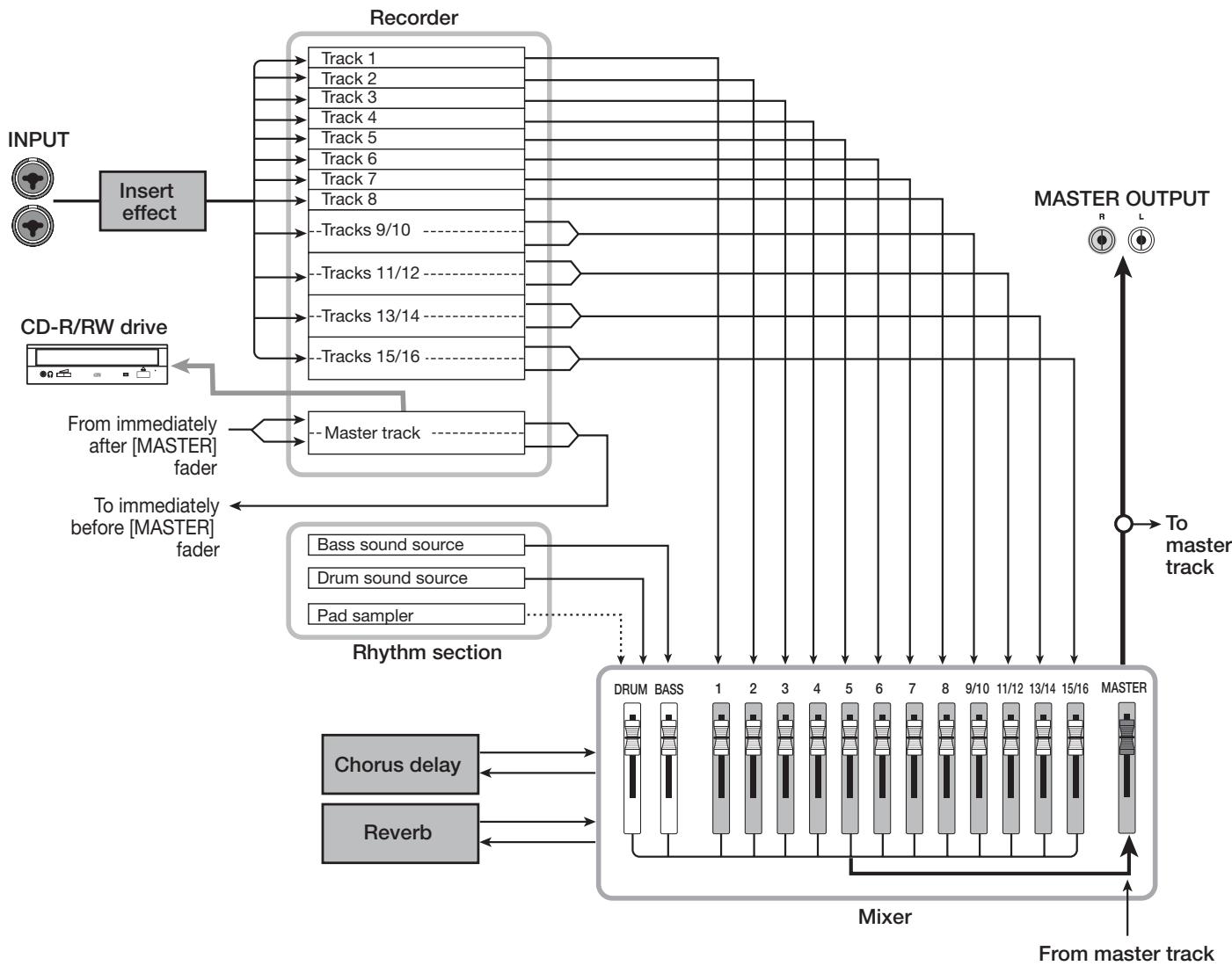
Recorder
The recorder section of the MRS-1608 has 16 audio tracks: eight mono tracks (tracks 1 - 8 ) and four stereo tracks (tracks 9/10 - 15/16 ). (A "track" is a separate section for recording audio data.) Up to 8 tracks can be recorded simultaneously and up to 16 tracks can be played back simultaneously.
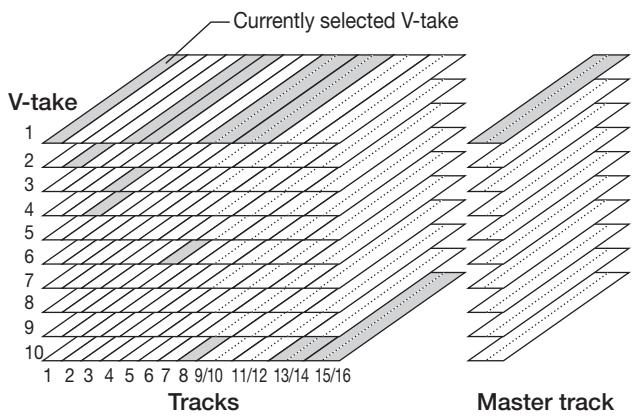
Each of the tracks has ten switchable virtual tracks (called "V-takes"). For each track, one V-take can be selected for recording/playback.
The recorder section also provides a set of stereo tracks which are separate from the normal record/play tracks 1 - 16. This is called the master track. The master track is dedicated for mixdown and for holding the material used to create an audio CD.
Rhythm section
The MRS-1608 contains a rhythm section that operates in sync with the recorder. It offers 511 accompaniment patterns (called "rhythm patterns") that use the internal drum/bass sound generator. (Over 400 patterns are preprogrammed at the factory.) You can use these patterns as they are, modify them in part, or create entirely new patterns from scratch.
HINT
The drum/bass sound sources can be played with the pads on the top panel or with a MIDI keyboard or similar.
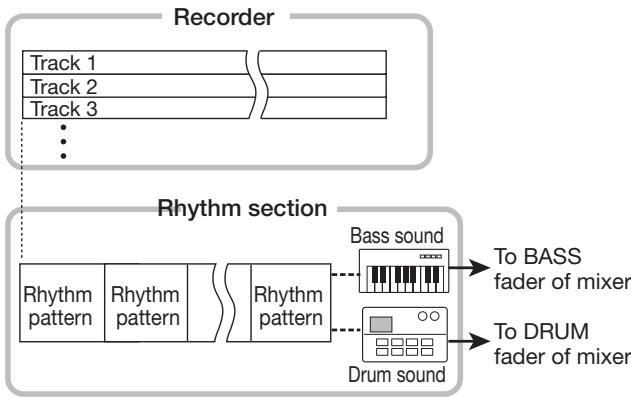
You can arrange rhythm patterns in the desired order of playback, and program chords and tempo to create the rhythm accompaniment for an entire song. (This is called a "rhythm song") Up to 10 rhythm songs can be created, among which one is selected for editing/playback.
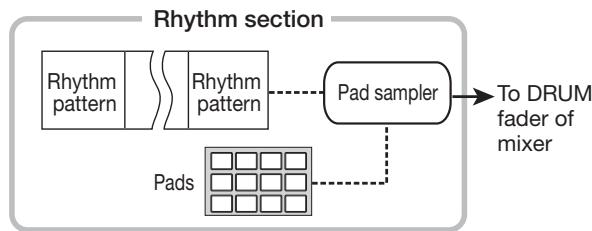
The rhythm section can also be played using the "pad sampler" instead of the drum/bass sound sources. The pad sampler uses parts of an audio track or an audio file imported from CD-ROM and lets you play these with the pads or in a rhythm pattern/rhythm song.
This makes it possible to incorporate special sounds in a rhythm pattern/rhythm song and to create your own original sounds.
HINT
You can process the drum/bass sound and pad sampler output sound with the insert effect and record it on a recorder track.
Mixer
The signals from audio tracks 1 - 16, and the drum and bass sounds (drum track/bass track) are sent to separate mixer channels for individual adjustment of volume and tone and to create a stereo mix.
For each track, parameters such as volume, panning, and 3-band EQ can be controlled independently.
Effects
The MRS-1608 provides two types of effects: insert effect and send/return effect. These effects which can be used simultaneously have the characteristics described below.
Insert effect
This effect can be inserted at one of the following three points in the signal path.
(1) Immediately after the INPUT jack
(2) A desired channel of the mixer
(3) Immediately before the [MASTER] fader
In the default condition, position (1) (immediately after INPUT jack) is selected.
When the setting is changed to (2), only a selected track or drum/bass sound is processed by the effect.
When the setting is changed to (3), the final stereo mix can be processed. This setting is suitable for processing the signal of the entire song during mixdown.
Send/return effect
This effect is internally connected to the send/return loop of the mixer section. There are two types of send/return effect, reverb and chorus/delay, which can be used simultaneously.
The send level of each mixer channel adjusts the depth of the send/return effect. Raising the send level will produce a deeper reverb or chorus/delay effect for that channel.
Parts of the MRS-1608
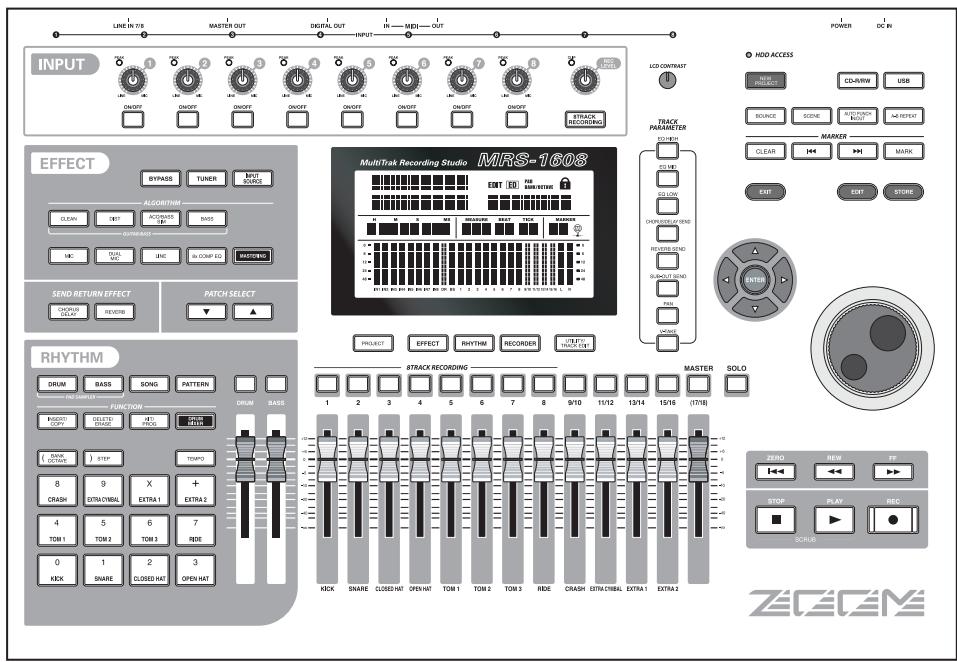
Top panel
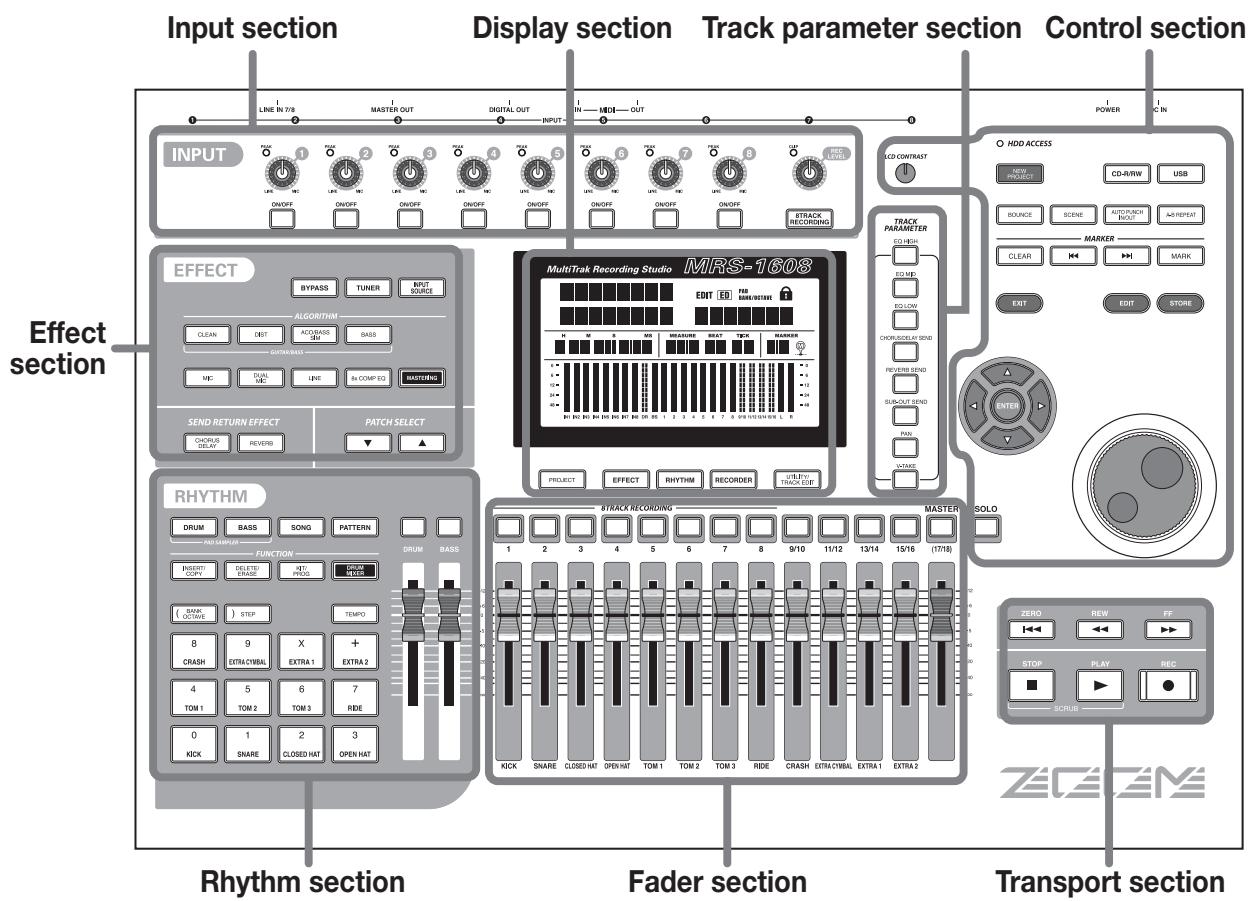
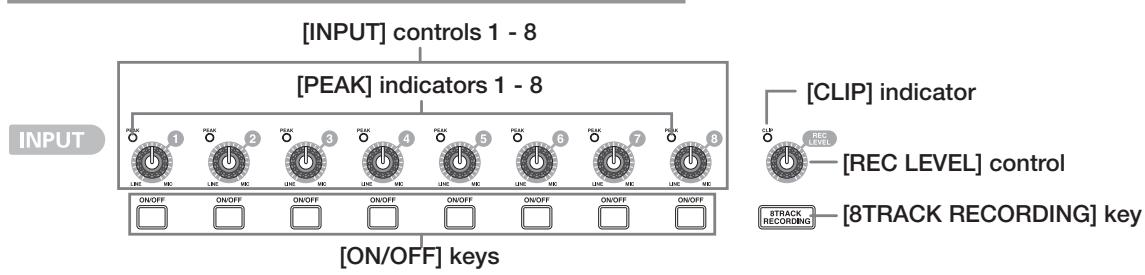
Input section
Effect section
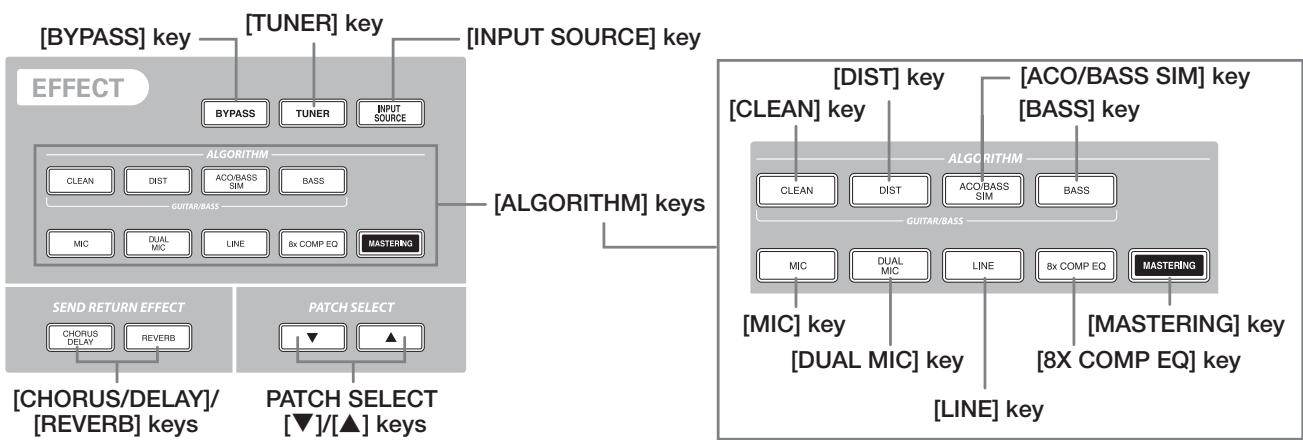
Rhythm section
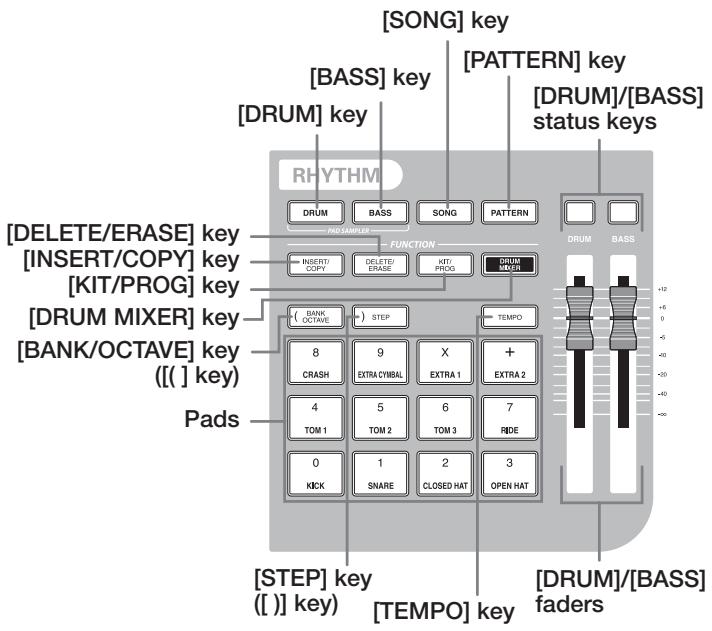
Display section
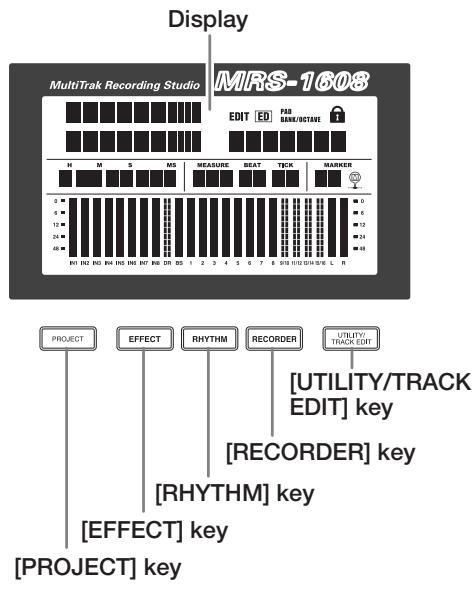
Track parameter section
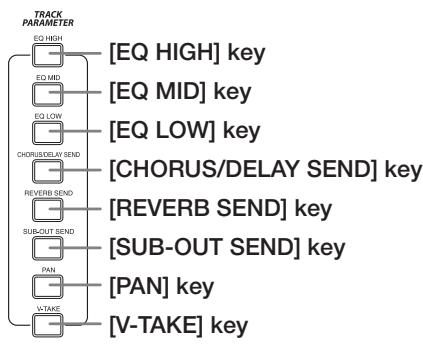
Control section
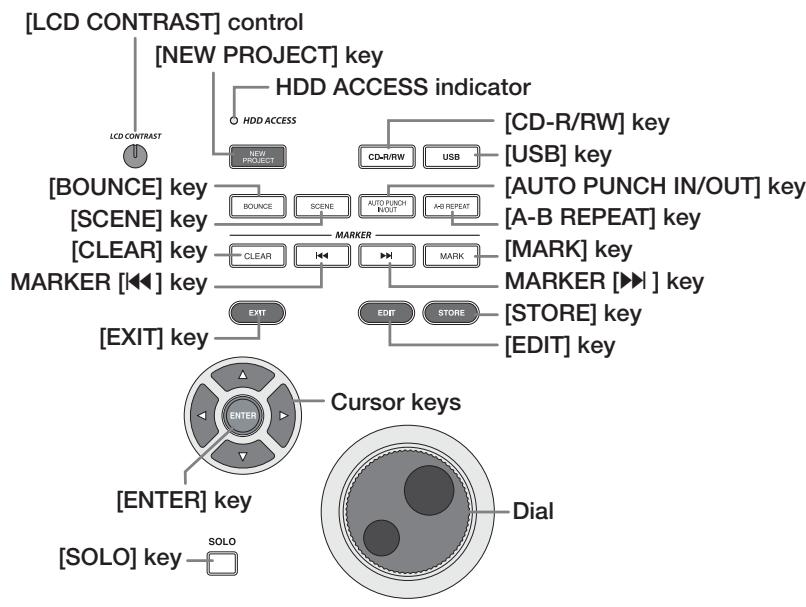
Fader section
Status keys (1-8, 9/10 - 15/16, [MASTER])
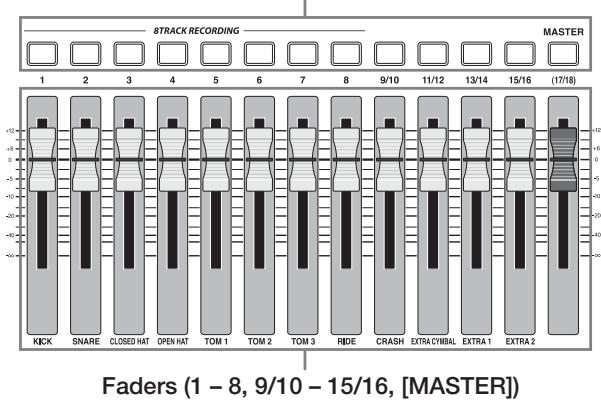
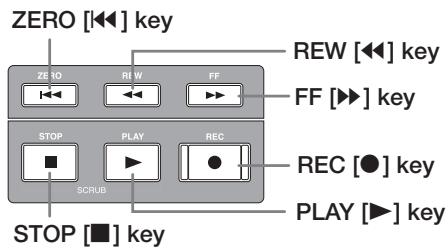
Transport section
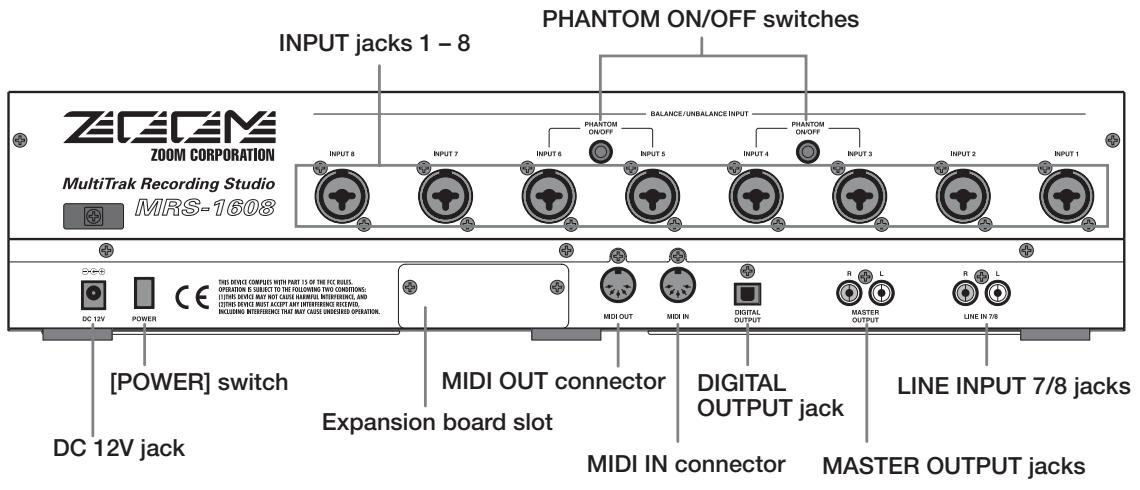
Rear panel
Front panel
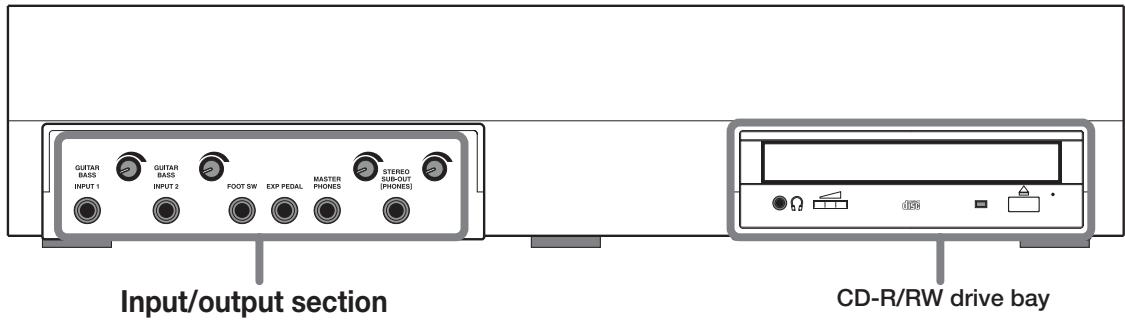
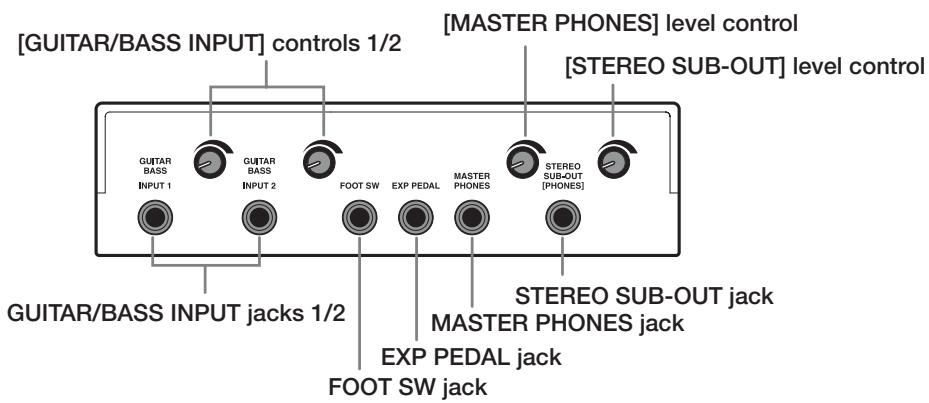
Input/output section
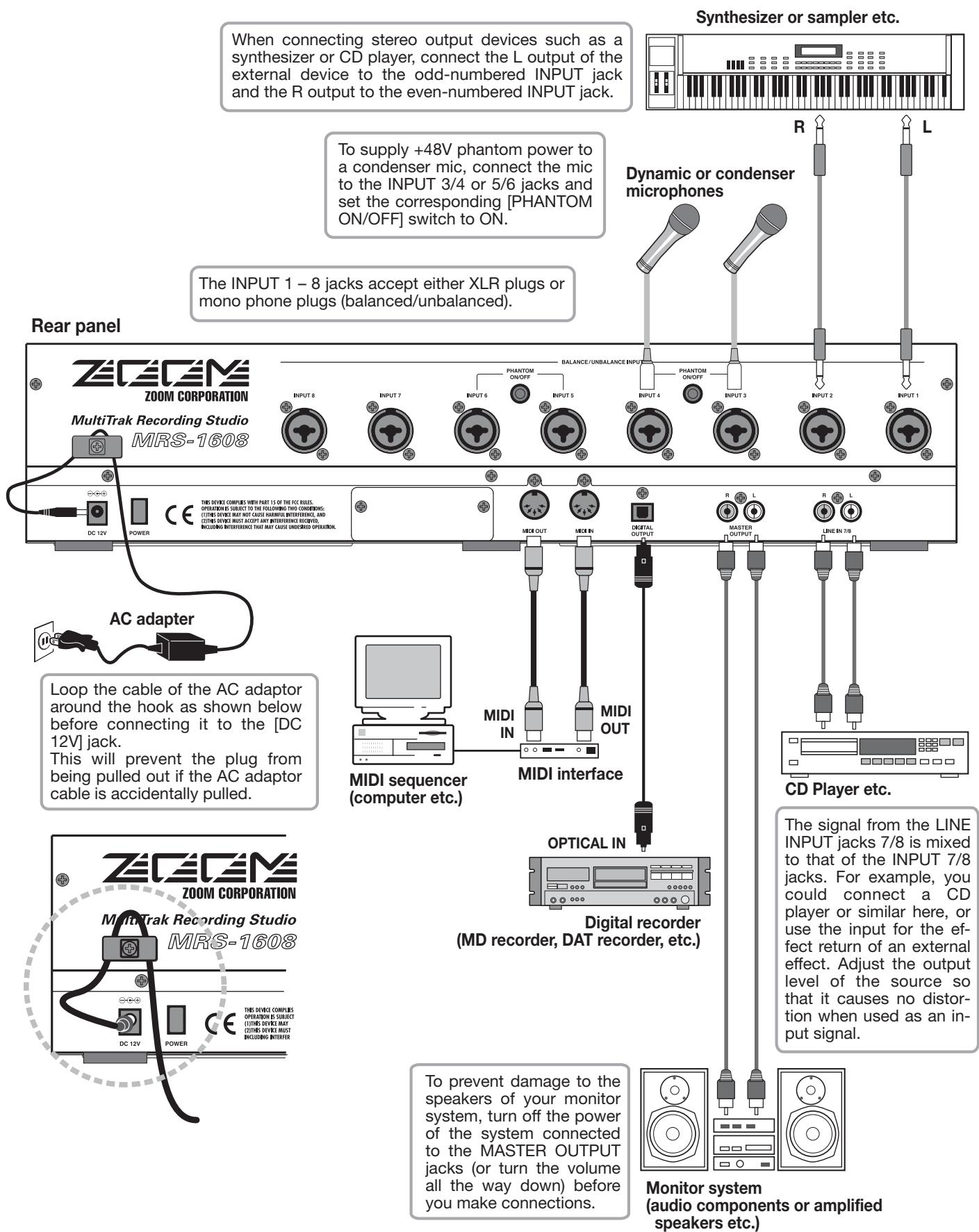
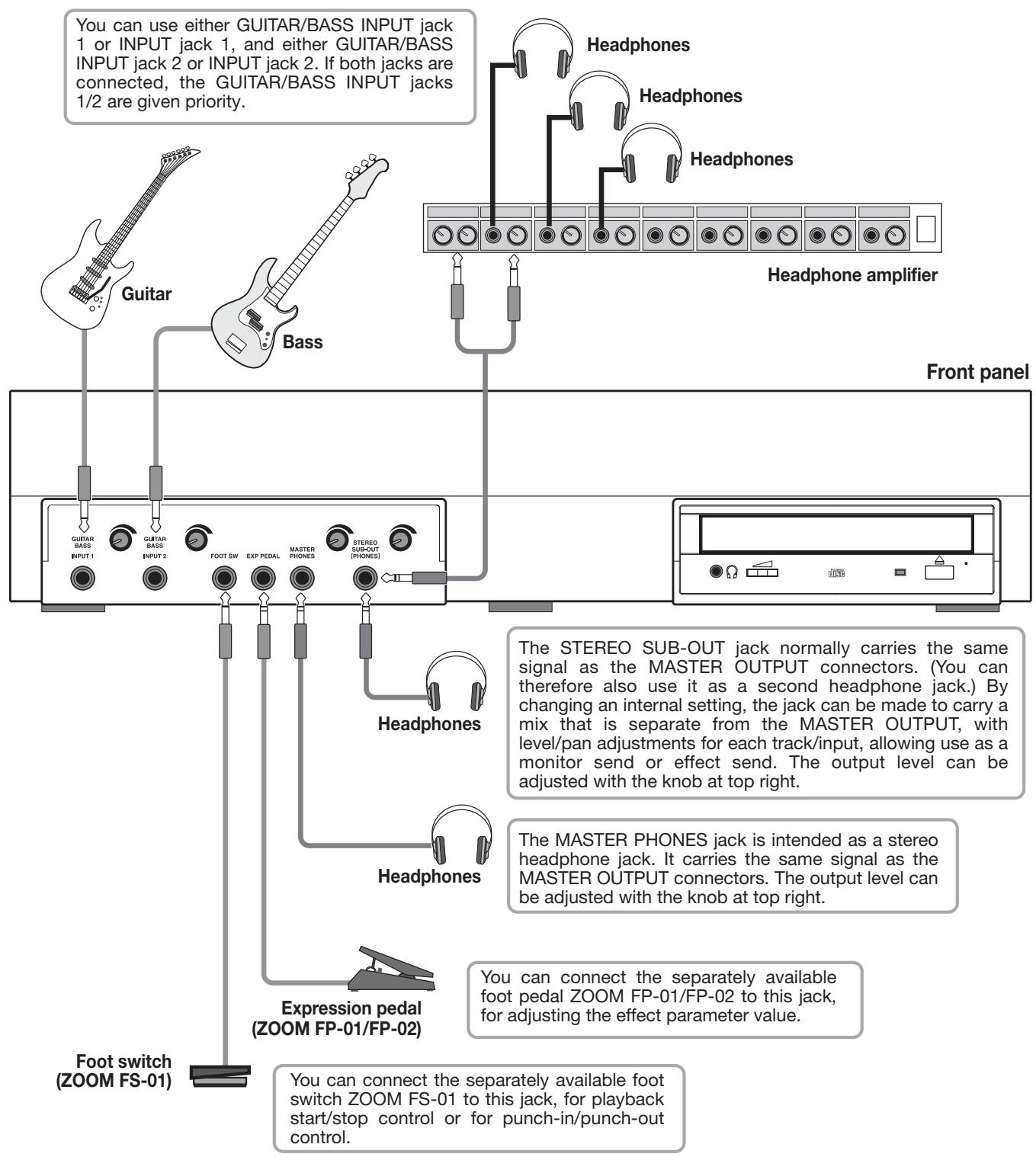
Connections
Connect your instrument, microphone, audio devices, and MIDI devices as shown in the following diagram.
Installing the CD-R/RW Drive
To install the separately available CD-R/RW drive into the MRS-1608 model without preinstalled CD-R/RW drive, proceed as follows.

Caution
Before installing the drive, make sure that all cables and the AC adapter are disconnected.
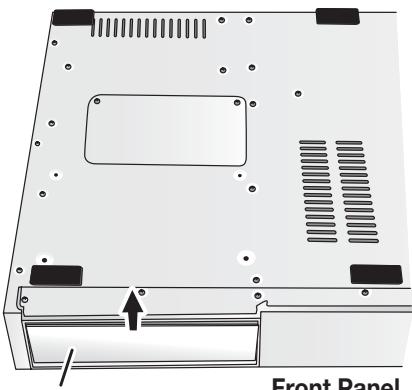
Blank panel
- Turn the MRS-1608 over and remove the blank panel from the drive mounting section of the front panel.
To remove the blank panel, pull out the groove in the center.
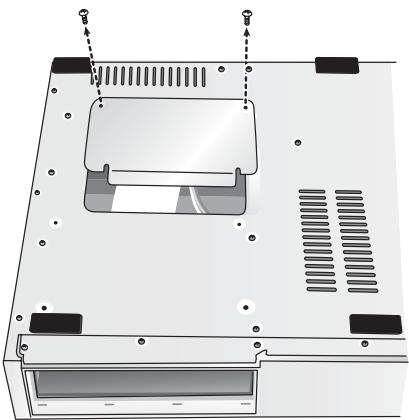
- Remove the fastening screws of the bottom plate, and remove the bottom plate.
Slide the bottom plate towards the rear to remove. Take care not to lose the screws, as these will be needed again for reassembly.
-
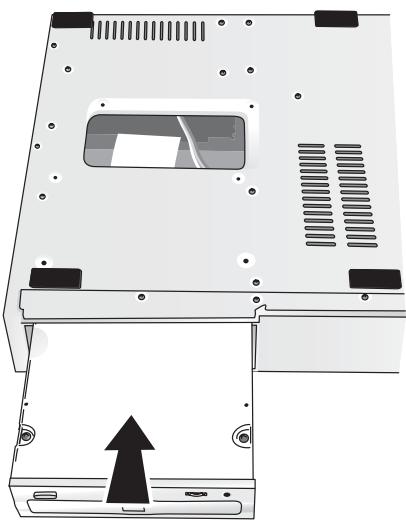
Turn the CD-R/RW drive over and insert it into the drive mount bay.
-
Plug the power cable and flat cable from the main unit into the respective connectors on the CD-R/RW drive.
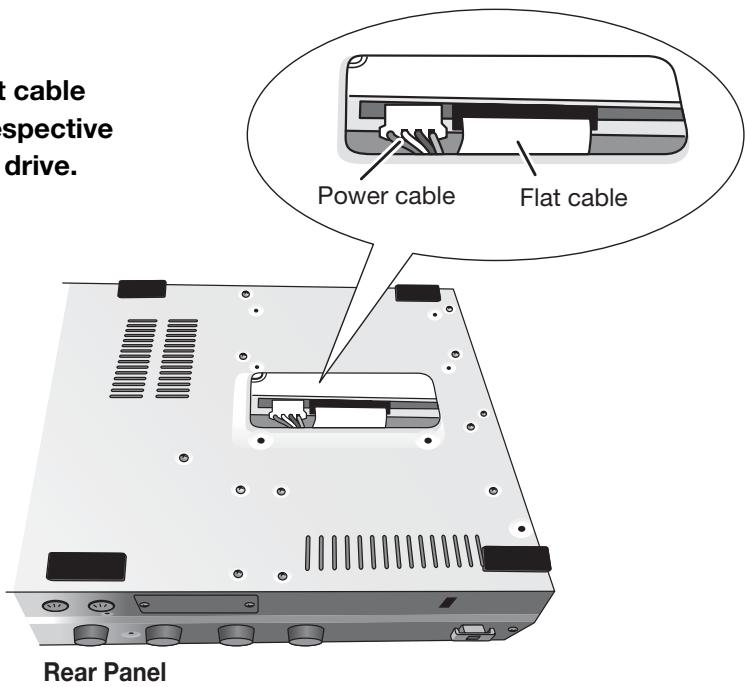
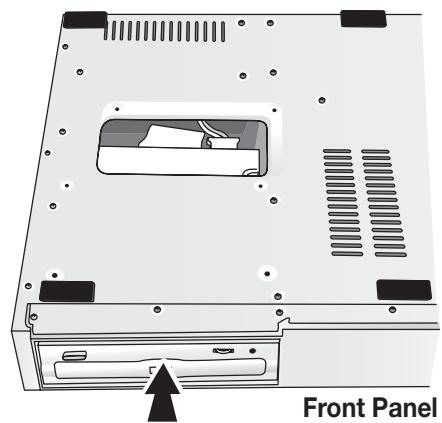
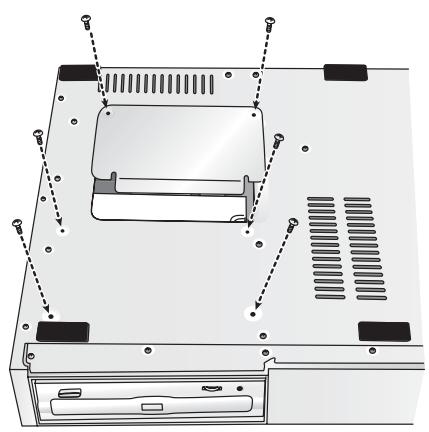
- Push the CD-R/RW drive all the way into the bay, so that the screw holes on the bottom of the MRS-1608 and the screw holes of the CD-R/RW drive are aligned.
- Fasten the CD-R/RW drive with the four supplied panhead screws. Then reattach the bottom plate with the screws removed in step 2.
NOTE
- Use only the dedicated CD-R/RW drive CD-01 or CD-02 made by ZOOM Corporation.
- ZOOM Corporation will not accept any responsibility for damage or third-party claims arising from using any other drive.
Power On/Off
This section explains the procedure for turning the MRS-1608 on and off.
Turning power on
- Make sure that the MRS-1608 and peripheral equipment is turned off.
- Make sure that AC adapter, instrument, and monitor system (or headphones) are correctly connected to the MRS-1608. (For information on connections, refer to page 15.)
At this time, the volume setting of the connected instrument and monitor system should be minimum.
When a synthesizer or other electronic instrument is connected, turn power to that device on before the MRS-1608.
3. Press the [POWER] switch on the rear panel.
Power to the MRS-1608 comes on, the unit performs a self-test, and system settings are read. Wait until the following indication appears on the display. This is called the "main screen".
| H | M | S | MS | MEASURE | BEAT | TICK | MARKER |
4. Turn on the connected monitor system.
Turning power off (shutdown)
- Turn power to the monitor system off.
- Press the [POWER] switch on the rear panel of the MRS-1608.
The indication "GOODBYE SEE YOU!" appears on the display, and the unit is turned off.
When a synthesizer or other electronic instrument is connected, turn power to that device off after the MRS-1608.

Caution
- You must use this method to turn off the power of the MRS-1608. Never turn off the power by disconnecting the AC adaptor plug from the [DC 12V] jack or by unplugging the AC adaptor from the AC power outlet.
- In particular, you must never turn the power off by unplugging the AC adaptor while the HDD ACCESS indicator is lit. Doing so may damage the internal hard disk, causing all data to be lost permanently.
Listening to a Demo Song
When shipped from the factory, the internal hard disk of the MRS-1608 contains two demo songs. To listen to them, proceed as follows.
Selecting the demo song
On the MRS-1608, song data are managed in units called "projects". A project encompasses recorded audio data, rhythm and effect settings, and other information. When you load a project, the complete state in which that song was saved will be reproduced.
To load a demo song project from the hard disk, proceed as follows.
1. From the main screen, press the [PROJECT] key in the display section.
The indication "PROJECT SELECT" appears on the display.
2. Press the [ENTER] key.
Projects stored on the hard disk are shown in the lower part of the display.
![ZOOM MRS1608 - Press the [ENTER] key. - 1](/content/2025/01/152285/images/a91ff70256aa84b7f838268b59546660ee2f492f36594fbaa18a45e89a3685e7.jpg)
3. Turn the dial to select the demo song.
Project numbers 000 - 002 are the demo songs.
HINT
Project number 1 contains a demo song that uses the phrase loop function ( p.67) . If desired, you can load elements from that demo song while working on another project.
4. Press the [ENTER] key.
The HDD ACCESS indicator lights up and the selected project is loaded. When the respective project display appears on the main screen, the demo song has been loaded.
Playing the demo song
After loading, play the demo song as follows.
1. Turn down the volume of the monitor system.
When headphones are connected, turn down the [MASTER PHONES] level control.
2. Press the PLAY [▶] key in the transport section.
Playback of the demo song starts.
![ZOOM MRS1608 - Press the PLAY [▶] key in the transport section. - 1](/content/2025/01/152285/images/94537b465542a2364bdddad660790340a6e9008d8809ec480d3d95183363ef4e.jpg)
3. Adjust the monitor system volume setting (or the [MASTER PHONES] level control) to a comfortable volume.
4. To adjust the volume of the individual tracks, use the respective faders.
The volume of the rhythm section can be adjusted with the [DRUM]/[BASS] faders. To adjust the volume of the entire song, use the [MASTER] fader.
5. To switch individual tracks on or off, press the respective status key.
When the status key is out, the track is muted. When the key is lit in green, the muted is canceled.
6. To stop the demo song, press the STOP [■] key.
NOTE
The demo song is write-protected. Even if you change the mix by adjusting fader or pan settings, the changes will not be stored. To retain any changes you have made, cancel the write-protect setting first ( p. 169).
Let's Record
This section demonstrates the basic recording procedure of the MRS-1608. As an example, it explains how to record a guitar connected to the GUITAR/BASS INPUT jack 1 on track 1.
1. Press the [NEW PROJECT] key and then press the [ENTER] key.
A new project is created, and the recording standby condition is activated.
2. Press the [ON/OFF] key for input 1 so that the key lights up.
The jack to which the guitar is connected is now active.
![ZOOM MRS1608 - Press the [ON/OFF] key for input 1 so that the key lights up. - 1](/content/2025/01/152285/images/30fbb8e8f997e4802fda673f0950ea0b42bc6b3efdeace44817b8dab72d07c68.jpg)
3. While playing your guitar, adjust the [GUITAR/BASS INPUT] control 1 to adjust the input sensitivity.
Make the adjustment so that the [PEAK] indicator flickers slightly when you play your instrument at its loudest volume.
![ZOOM MRS1608 - While playing your guitar, adjust the [GUITAR/BASS INPUT] control 1 to adjust the input sensitivity. - 1](/content/2025/01/152285/images/350171d9672988aadec80806e7853e4fffb2043d2818c55ef94f0f5300031c53.jpg)
4. While playing your guitar, adjust the recording level by turning the [REC LEVEL] control.
If the [CLIP] indicator lights up at high playing levels, you should turn down the recording level. The lower part of the display shows the current signal level.
![ZOOM MRS1608 - While playing your guitar, adjust the recording level by turning the [REC LEVEL] control. - 1](/content/2025/01/152285/images/b7ac3142145d57de644ce2ef6ec129d92ea0f7cfe5135b9432064b3f48c83c9b.jpg)
![ZOOM MRS1608 - While playing your guitar, adjust the recording level by turning the [REC LEVEL] control. - 2](/content/2025/01/152285/images/bcb1e9e96bdd2e37f90314d01fc755d5bb18c1c033642290bfd4cf562280d79d.jpg)
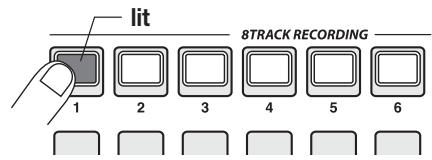
5. Repeatedly press status key 1 until the key is lit in red.
A track for which the status key is lit in red is in recording standby mode.
6. Operate the fader for track 1 to adjust the input signal monitor level.
HINT
When you press the PLAY [▶] key in a new project, a rhythm pattern will start to play in sync with the audio track. If the rhythm accompaniment is not desired, lower the [DRUM]/[BASS] faders or repeatedly press the respective status key until it goes out.
7. To start recording, press the PLAY [▶] key while holding down the REC [●] key.
A four-beat pre-count is heard, and recording starts. Play your instrument to record.
![ZOOM MRS1608 - To start recording, press the PLAY [▶] key while holding down the REC [●] key. - 1](/content/2025/01/152285/images/6555d02438590141fc66d0c766c1f63624e1669505f7d37c015c86549a44afb3.jpg)
8. When recording is complete, press the STOP [■] key.
The REC [ ] key and PLAY [ ] key go out, and recording stops.
9. To check the recorded contents, press the ZERO [4] key and then press the PLAY [▶] key.
10. To cancel the recording condition, press the status key 1 so that the key is lit in green.
Quick Tour
Now let's use your MRS-1608 to do some serious recording. This Quick Tour describes the five steps that cover the entire process of recording tracks and completing a song.
■ Step 1: Preparations
Shows how to create a new project, select a guide rhythm, and perform other steps necessary for recording.
■ Step 2: Recording the first track
Shows how to record the first track while using the insert effect.
■ Step 3: Overdubbing
Shows how to record further tracks while listening to a track already recorded (overdubbing).
■ Step 4: Mixing
Shows how to adjust the level, panning, and EQ of each track, apply the send/return effect, and mix the recorded tracks down to a pair of stereo tracks.
■ Step 5: Mixdown
Finally the completed stereo mix is recorded on the master track to create the finished song.
Step 1: Preparations
1.1 Creating a new project
On the MRS-1608, song data are managed in units called "projects". To start recording with the MRS-1608, you must first create a project.
- Connect the instrument to record and the monitoring system to the MRS-1608 ( p. 15).
- Turn power on in the order MRS-1608 monitoring system.
When the MRS-1608 starts up, the last handled project is automatically loaded.
3. Press the [NEW PROJECT] key in the control section.
When you press the [NEW PROJECT] key at the main screen, the display indication changes as follows, and a new project can be created.
![ZOOM MRS1608 - Press the [NEW PROJECT] key in the control section. - 1](/content/2025/01/152285/images/012303c16af969072adff50457d3631c18346203b9fb5f96029fb5ebddb24e2e.jpg)
You can create a new project. You can also assign a name to the project.
HINT
- When creating a new project, the lowest free project number is automatically selected.
- It is also possible to create a new project from the project menu ( p. 166).
4. Press the [ENTER] key.
A new project is created, and the main screen appears. While this screen is displayed, you can perform various recorder actions such as recording and playback.
![ZOOM MRS1608 - Press the [ENTER] key. - 1](/content/2025/01/152285/images/58c38bf01d3e9b86c980c59107f4da449cadd3d7267cf89efb0b957d458f6fe3.jpg)
PRJ002 PRJ002
HINT
- When selecting a different project or creating a new project, the project you were working on up to that point is automatically saved.
- When performing the shutdown procedure for the MRS-1608 ( p.19), the last project is automatically saved.
1.2 Selecting the rhythm pattern to use
The MRS-1608 has a built-in rhythm function that operates in sync with the recorder. This lets you use drum sounds (drum kits) and bass sounds (bass programs) to create repeated rhythm patterns of several measures. By combining various patterns, you can create the rhythm accompaniment for an entire song (rhythm song).
1. Verify that the [DRUM]/[BASS] status keys are lit in green. Then set the [DRUM]/[BASS] faders and the [MASTER] fader to 0 (dB).
![ZOOM MRS1608 - Verify that the [DRUM]/[BASS] status keys are lit in green. Then set the [DRUM]/[BASS] faders and the [MASTER] fader to 0 (dB). - 1](/content/2025/01/152285/images/426d970d9f94d4f96cf01c1dc615d21a6ed073789770a9f802cdb1d2981a2c0e.jpg)
The output signal of the drum kit/bass program (drum track/ bass track) is sent to the respective fader of the mixer section. Like the regular tracks, these tracks also have status keys and faders for switching between playback and mute and for adjusting the signal level.
2. Press the [PATTERN] key in the rhythm section.
The [PATTERN] key lights up and the currently selected rhythm pattern is shown on the display.
![ZOOM MRS1608 - Press the [PATTERN] key in the rhythm section. - 1](/content/2025/01/152285/images/6c0a15c3eb417f65386c80b38919a06f5525ac1dfb85a67ee64824679046f6e5.jpg)
While this screen is shown, the [RHYTHM] key in the display section is flashing. This indicates that currently the
rhythm section is being set up.
While the [RHYTHM] key is flashing or out, the recorder and the rhythm section are always synchronized ( p. 87).
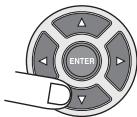
3. Turn the dial or use the cursor up/down keys to select a pattern to use as guide rhythm.
001#518
METRO44
PAD BANK/OCTAVE
BANK:1
Up to 511 rhythm patterns can be used in a project. 475 of these are preprogrammed. (For the other patterns, "EMPTY" is shown.)
When you turn the dial to select another rhythm pattern while a pattern is playing, the new pattern will start after the current pattern has finished. When you select a new pattern with the cursor up/down keys, the new pattern begins playing immediately.
In this example, we will select a simple rhythm pattern as guide rhythm for use during recording. If you select for example the rhythm pattern number 510, a quarter-note metronome sound is heard.
4. Press the PLAY [▶] key in the transport section.
![ZOOM MRS1608 - Press the PLAY [▶] key in the transport section. - 1](/content/2025/01/152285/images/10e7f1fcfb22bb7c942b560cc11938442a084193b10ee2ebcc15a61eddae70b4.jpg)
The selected rhythm pattern is played repeatedly, in sync with the recorder operation. The [TEMPO] key flashes according to the current tempo setting.
HINT
- If you press and light the [RHYTHM] key while the recorder is stopped, you can play the rhythm pattern by itself.
-
During play, the pads corresponding to the currently produced sound of the drum kit/pitch of the bass program are flashing. You can also tap the pads to play the drum sounds/bass notes.
-
To change the tempo, press the [TEMPO] key in the rhythm section and then turn the dial to change the tempo value shown on the display.
The tempo value can be set in 0.1 BPM steps.
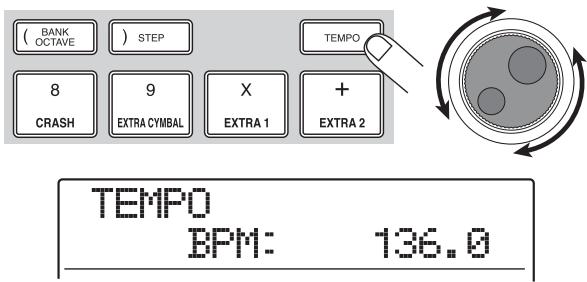
When the setting is complete, press the [EXIT] key to return to the previous screen.
HINT
You can also set the tempo by tapping the [TEMPO] key repeatedly ( p.89).
- Use the [DRUM]/[BASS] faders to adjust the volume of the drum/bass track.
If bass sound is not desired, turn the [BASS] fader all the way down.
- To stop playback, press the STOP [■] key.
- To return to the main screen, press the [EXIT] key several times.


Step 2: Recording the first track
In this step, you record the first track while listening to the guide rhythm of the rhythm section. As an example we describe how to record an electric guitar on track 1 with the insert effect.
2.1 Adjusting input sensitivity
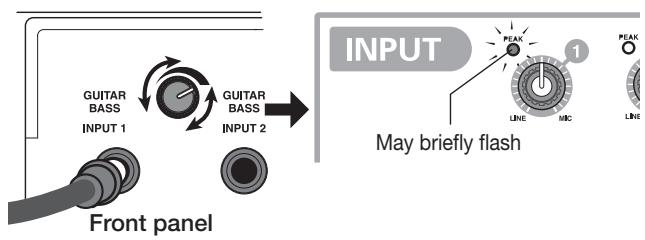
- Connect an instrument to the GUITAR/BASS INPUT jack 1 ( p. 15).
To connect a guitar or bass, use the front panel GUITAR/ BASS INPUT jacks 1/2. To connect a synthesizer or other component with line-level stereo output, use the rear panel INPUT 1 - 8 jacks.
HINT
You can use either GUITAR/BASS INPUT jack 1 or INPUT jack 1, and either GUITAR/BASS INPUT jack 2 or INPUT jack 2. If both jacks are connected, the GUITAR/BASS INPUT jacks 1/2 are given priority.
- From the main screen, press the input 1 [ON/OFF] key so that the key lights up in red.
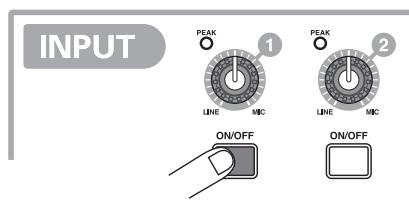
The [ON/OFF] keys 1 - 8 in the input section control the status of inputs 1 - 8 . When a key is lit, the corresponding input is turned on.
HINT
To record the output of a synthesizer or other stereo component in stereo, connect the L and R output to a pair of odd/even-numbered INPUT jacks, and press the corresponding [ON/OFF] keys so that both keys are lit.
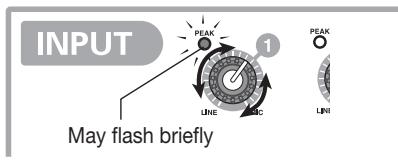
- While playing the instrument, use the [GUITAR/BASS INPUT] control 1 to adjust sensitivity.
When the instrument is connected to GUITAR/BASS INPUT 1/2, use the [GUITAR/BASS INPUT] control 1/2. When the instrument is connected to INPUT 1 - 8, use the [INPUT] control 1 - 8 to adjust the input sensitivity.
Adjust the control so that the [PEAK] indicator in the input
section lights up occasionally when you play the instrument at the loudest level.
- When using the GUITAR/BASS INPUT jack
- When using the INPUT jack
4. While playing the instrument, use the [REC LEVEL] control to adjust the recording level.
The [REC LEVEL] control modifies the signal level going to the recorder (after passing the insert effect). Watch the IN1 level meter in the lower left of the display and set the level as high as possible, but avoid settings that cause the 0 dB indicator segment to light during play peaks.
![ZOOM MRS1608 - While playing the instrument, use the [REC LEVEL] control to adjust the recording level. - 1](/content/2025/01/152285/images/2c853ff10cc22e8e4c11b2143a9d6122abd238f588befb5bbfb046e786f2ba16.jpg)
![ZOOM MRS1608 - While playing the instrument, use the [REC LEVEL] control to adjust the recording level. - 2](/content/2025/01/152285/images/79eee1734dbd8a5729211bb0e597022a0384021c379ad571a760b74211c71842.jpg)
If the recording level setting is too high, the [CLIP] indicator of the [REC LEVEL] control lights up.
2.2 Applying the insert effect
The signal supplied to the MRS-1608 can be modified with the insert effect. This effect can be applied to the input, to any track, or immediately before the [MASTER] fader. The insert effect actually is a multi-effect unit that contains a number of single effects (effect modules) such as compressor, distortion, and delay, connected in series.
The following steps show how to select an algorithm and
apply the insert effect to the guitar signal connected to the GUITAR/BASS INPUT jack.
1. Press the [INPUT SOURCE] key in the effect section.
![ZOOM MRS1608 - Press the [INPUT SOURCE] key in the effect section. - 1](/content/2025/01/152285/images/b22f67610d65b6bf55674c108af7a4cab71c0d4c83a7ef1447f833cd6b94626a.jpg)
The insert position of the insert effect is indicated on the second line of the display. The default is "IN" (INPUT). If another setting is currently selected, turn the dial to select "IN".
2. Use the [ALGORITHM] keys in the effect section to select the desired algorithm.
A combination of effect modules that can be used simultaneously is called an "algorithm". The MRS-1608 has 9 algorithms which are controlled by the [ALGORITHM] keys in the effect section.
![ZOOM MRS1608 - Use the [ALGORITHM] keys in the effect section to select the desired algorithm. - 1](/content/2025/01/152285/images/c6a7b021f6b53f02a34cc40fad3352cd70f10b51a3dbbb4832758a4f24f8a6e3.jpg)
The following selections are available.
CLEAN
DIST
- ACO/BASS SIM
BASS
These algorithms are suitable for recording guitar/bass.
MIC
An algorithm suitable for vocals and other microphone recordings.
DUAL MIC
An algorithm with two entirely separate mono input and mono output channels.
8x COMP EQ
An algorithm with 8 separate input/output channels. Different high-pass filter, compressor, and EQ settings are possible for each channel.
LINE
An algorithm suitable mainly for recording line-level output
instruments such as synthesizer or electric piano.
MASTERING
An algorithm suitable for processing the final stereomixdown signal.
When you select an algorithm, the respective key lights up and a patch (effect program) using the selected algorithm is shown on the display.
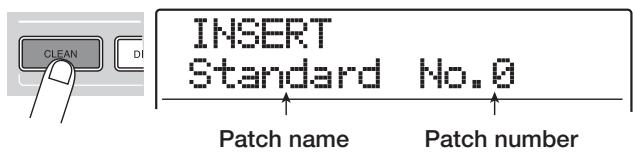
NOTE
The 8x COMP EQ algorithm can only be inserted in the input if the 8-track recording function ( p. 45) is active.
3. Turn the dial to select the patch.
A total of 320 patches are available for the insert effect. You can edit these patches if desired to alter the sound or the effect depth.
The patches available for each algorithm are listed below.
| Algorithm | Patch number range |
| CLEAN | 0 – 29 |
| DIST | 0 – 49 |
| ACO/BASS SIM | 0 – 19 |
| BASS | 0 – 19 |
| MIC | 0 – 49 |
| DUAL MIC | 0 – 49 |
| 8x COMP EQ | 0 – 19 |
| LINE | 0 – 49 |
| MASTERING | 0 – 29 |
HINT
When "EMPTY" is shown as the patch name, the patch is empty. Selecting such a patch will have no effect.
4. While playing your instrument at the maximum level, readjust the recording level and make sure that the [REC LEVEL] indicator does not light.
The recording level may change according to the selected patch. To prevent clipping, readjusting the [REC LEVEL] control may be necessary.
5. To return to the main screen, press the [EXIT] key several times.
HINT
To record without using the insert effect, press the [BYPASS] key in the effect section. The key lights up and the insert effect is bypassed.
2.3 Selecting a track and recording
Now we will record the guitar sound (with the insert effect applied) on track 1.
1. From the main screen, repeatedly press the status key 1 until the key is lit in red.
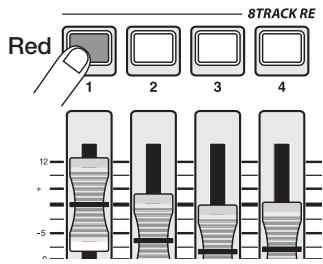
The status keys are used to select the recording track and to switch muting for each track on and off. Each time you press a status key, the key will cycle through the following states.
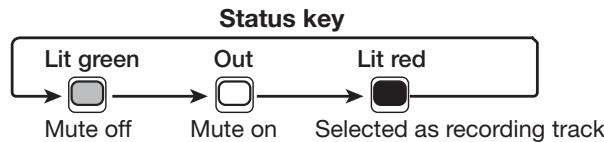
When status key 1 is red, track 1 is in the recording standby condition, and the input signal is assigned to track 1. The signal routing will change as follows.
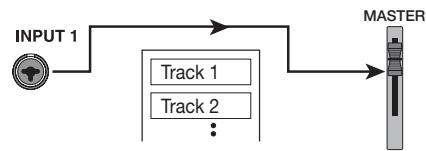
When a recording track has not been selected
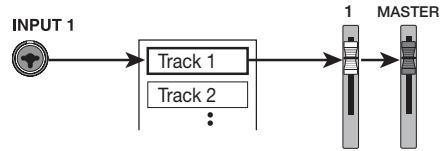
When a recording track (track 1) has been selected
When you press status keys 9/10 - 15/16 , a pair of stereo tracks is selected as recording target. Except for the recording target V-take selection and phase setting, the
parameters for left/right stereo tracks are set to the same values. This is useful for recording from stereo sources such as synthesizers or CD players.
HINT
- Normally, you can select up to two tracks simultaneously. To select two mono tracks, press the first status key of an odd/ even-numbered pair so that it is lit in red, and then hold down that key and press the other key so that it also is lit in red.
- Even if the input signal is mono, selecting a pair of stereo tracks as target will ensure that the left/right spread added by certain insert effect settings is preserved in recording.
-
You can also record 8 tracks simultaneously ( p. 45).
-
Set fader 1 and the [MASTER] fader to 0 dB. Then adjust the volume of the monitoring system while playing your instrument.
- To begin recording, press the ZERO [←] key to return to the beginning of the song. Then hold down the REC [●] key and press the PLAY [▶] key.
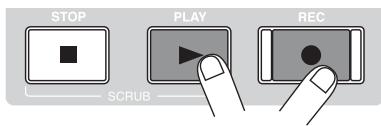
The REC [●] key and PLAY [▶] key light up, and a precount of 4 beats is heard. Then recording will begin. Record your instrument playing while listening to the guide rhythm from the rhythm section.
HINT
- The number and the style of the pre-count clicks can be changed ( p. 48).
-
If the input signal is distorted, refer to step 2.1 to adjust the input sensitivity and recording level.
-
When you have finished recording, press the STOP [■] key.
The REC [ ] key and PLAY [ ] key will go out, and
recording will stop. The indication "wait..." is briefly shown on the display, and then the main screen reappears.
NOTE
The duration of the "wait..." period may differ. Never turn power to the unit off while "wait..." is being shown on the display. Otherwise recorded data may be lost and damage to the unit may occur.
- To listen to the recorded content, press the ZERO [4] key to return to the beginning of the song, and then press the PLAY [▶] key.
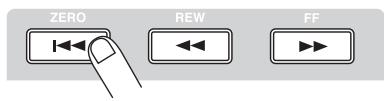
The track will be played back together with the selected guide rhythm from the rhythm section.
HINT
- You can specify a position in hours/minutes/seconds/ milliseconds and move directly to that point ( p. 37).
-
By setting marks at the desired points, you can quickly jump to these points ( p. 46).
-
To stop playback, press the STOP [■] key.
To redo the recording, repeat steps 3 - 5.
- When you are satisfied with the recorded content, press status key 1 until it is lit in green.
The recording standby condition of track 1 is canceled.
HINT
- Recorded content can be copied, deleted, or edited ( p. 49).
- By switching to another V-take for the track, you can record again on the track without erasing the current recording ( p.35) .
Basic operation of transport keys
REW [ ] key: Moves the current position back in 1-second steps. Movement speed can be increased by holding down the REW [ ] key and pressing the FF [ ] key.
FF [▶] key: Moves the current position forward in 1-second steps. Movement speed can be increased by holding down the FF [▶] key and pressing the REW [←] key.
ZERO [key]: Returns the recorder to the start position (counter zero position).
STOP [■] key: Stops the recorder.
REW 1
FF
PLAY [▶] key: Starts recorder playback from the current position.
REC [●] key: If you press the PLAY [▶] key while holding down this key, recording starts. Pressing the key during playback causes punch-in and pressing the key during recording causes punch-out.
Step 3: Overdubbing
In this step, you will learn how to record another instrument on track 2, while listening to the content you recorded in step 2. Adding parts in this way is called "overdubbing".
3.1 Making settings for input sensitivity and insert effect
As in step 2, adjust input sensitivity and recording level, and make settings for the insert effect.
- Connect the next instrument you want to record, and press the [ON/OFF] key so that it is lit in red.
- Adjust input sensitivity and recording level in the same way as in step 2.1.
- Select the algorithm and patch for the insert effect in the same way as in step 2.2.
- When the setting is complete, press the [EXIT] key to return to the main screen.
3.2 Selecting a track and recording
Now you're ready to record the second instrument on track 2, while playing the content of track 1 and the guide rhythm.
1. Repeatedly press status key 2 until the key is lit in red.
Track 2 is now in the recording standby condition. Verify that the status key 1 and the [DRUM]/[BASS] status keys are lit in green.
2. Set the [MASTER] fader to 0 dB and use fader 2 to adjust the monitoring level.
If necessary, set the recorder to playback and operate faders 1/2 and the [DRUM]/[BASS] faders to adjust the monitor level balance between tracks.
- To begin recording, press the ZERO [←] key to return to the beginning of the song. Then hold down the REC [●] key and press the PLAY [▶] key.
After the pre-count, recording on track 2 will begin. Record your instrument playing while listening to the guide rhythm and track 1. - When you have finished recording track 2, press the STOP [■] key.
The indication "wait..." is briefly shown on the display, and then the main screen reappears.
5. To listen to the recorded content, press the ZERO [↓] key to return to the beginning of the song, and press the PLAY [▶] key.
The guide rhythm of the rhythm section and tracks 1/2 will be played back. Adjust faders 1/2 as necessary to adjust the level balance.
6. To stop playback, press the STOP [■] key.
HINT
To redo the recording, repeat steps 3 - 5. You can also start rerecording from partly into the track and use the punch-in/ punch-out function to redo a limited passage only ( p. 39).
7. When you are satisfied with the recorded content, press status key 2 until it is lit in green.
You can now record more tracks in the same way.
HINT
The maximum number of tracks that can be recorded is 16. But even when all 16 tracks have been filled, you can still use the bounce function (also called ping-pong recording) to move the contents from multiple tracks onto 1 or 2 tracks. Then you can select another V-take for the bounce source tracks and record more ( p. 35).
Step 4: Mixing
When you have finished recording all tracks, you can use the built-in mixer to adjust parameters such as volume level, EQ (equalizer), and panning (stereo left/right positioning) to create a pair of stereo tracks.
4.1 Turning off the input and rhythm section
In order to keep unwanted signals from being included in the mix, you should turn off the input and the guide rhythm from the rhythm section.
- To mute the rhythm section, press the [DRUM]/[BASS] status keys so that the keys go out.
- To mute the input, press the [ON/OFF] key for the input where the instrument is connected, so that the key goes out.
HINT
If desired, you can add the drum kit/bass program sound and/or sound from input signals to the mix.
4.2 Adjusting volume, panning, and EQ
Adjust the volume, panning, and equalization for each track by controlling the track parameters of the built-in mixer.
- To adjust the volume balance between tracks, operate faders 1 - 8, and faders 9/10 - 15/16.
By operating faders of a pair of stereo tracks, you can adjust the left/right balance.
- To adjust the EQ and panning for each track, press the respective key in the track parameter section.
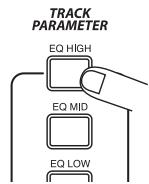
- Use the cursor left/right keys or the status keys to select the track for which you want to make a setting.
While the track parameter display is shown, the status keys and cursor left/right keys can be used to select a track. The status key for the currently selected track is lit in orange.
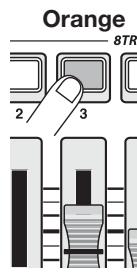
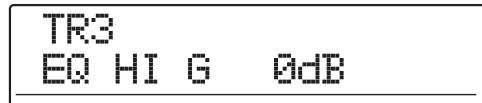
- Turn the dial to select the setting value.
TR3 EQHI G +6dB
- Use the cursor up/down keys or the keys in the track parameter section to select a track parameter, and adjust other parameters in the same way.
When a parameter is displayed, pressing the corresponding key in the track parameter section toggles the parameter between on and off.
The parameters that can be selected for tracks 1 - 8 and tracks 9/10 - 15/16 are listed in the table on the next page.
HINT
- In the default condition of a project, the SUB-OUT SEND LVL and SUB-OUT SEND PAN parameters are turned off. For information on how to control these parameters, see page 82.
- Some track parameters (level, EQ, panning/balance, send/return effect intensity etc.) can also be used for the drum/bass track and input signals.
Track parameter list
| Parameter | Corresponding key | Display | Setting range | Description |
| EQ HI GAIN | [EQ HIGH] key | EO HI G | -12 - +12dB | Adjusts high frequency range boost/ cut. |
| EQ HI FREQUENCY | EO HI F | 500 - 18000(Hz) | Adjusts center frequency for high frequency range boost/cut. | |
| EQ MID GAIN | [EQ MID] key | EO MID G | -12 - +12dB | Adjusts mid frequency range boost/ cut. |
| EQ MID FREQUENCY | EO MID F | 40 - 18000(Hz) | Adjusts center frequency for mid frequency range boost/cut. | |
| EQ MID Q-FACTOR | EO MID Q | 0.1 - 1.0 | Adjusts the Q value (bandwidth) for mid-frequency EQ. | |
| EQ LOW GAIN | [EQ LOW] key | EO LO G | -12 - +12dB | Adjusts low frequency range boost/ cut. |
| EQ LOW FREQUENCY | EO LO F | 40 - 1600(Hz) | Adjusts center frequency for low frequency range boost/cut. | |
| CHORUS/DELAY SEND LEVEL | [CHORUS/DELAY SEND] key | CHO SEND | 0 - 100 | Adjusts signal volume sent to chorus/ delay effect. |
| REVERB SEND LEVEL | [REVERB SEND] key | REV SEND | 0 - 100 | Adjusts signal level sent to reverb effect. |
| SUB-OUT SEND ON/OFF | [SUB-OUT SEND] key | SUB SEND | ON/OFF | Selects whether the STEREO SUB- OUT jack carries the same signal as the MASTER OUTPUT jacks. This parameter can be selected only for the master track. |
| SUB-OUT SEND LEVEL | SUB SEND LVL | 0 - 127 | Adjusts the level of the signal sent from tracks 1 - 16, drum/bass track, and input to the STEREO SUB-OUT jack. This parameter is not shown when the SUB-OUT SEND ON/OFF parameter for the master track is ON. | |
| SUB-OUT SEND PAN | SUB SEND Pan | L100 - 0 - R100 | Adjusts the panning value of the signal sent from tracks 1 - 16, drum/ bass track, and input to the STEREO SUB-OUT jack. This parameter is not shown when the SUB-OUT SEND ON/OFF parameter for the master track is ON. | |
| PAN | [PAN] key | PAN | L100 - 0 - R100 | Adjusts panning for the track. For stereo tracks, this adjusts the left/right balance. |
| V-TAKE | [V-TAKE] key | TR x-y | x=1 - 16 y=1 - 10 | Selects V-take to use for the track. x is the track number and y is the V-take number. |
| FADER | None | FADER | 0 - 127 | Adjusts the current volume. |
| STEREO LINK | ST LINK | ON/OFF | Links the parameters for two mono tracks (→p. 82). | |
| INVERT | INVERT | ON/OFF | Selects whether the output signal phase is inverted. OFF means normal phase and ON means inverted phase. |
4.3 Applying the send/return effect
The track signals sent to the internal mixer can be processed by an effect that is connected internally to the send/return loop of the mixer. (This is called a send/return effect.) The MRS-1608 incorporates two kinds of send/return effects (chorus/delay and reverb).
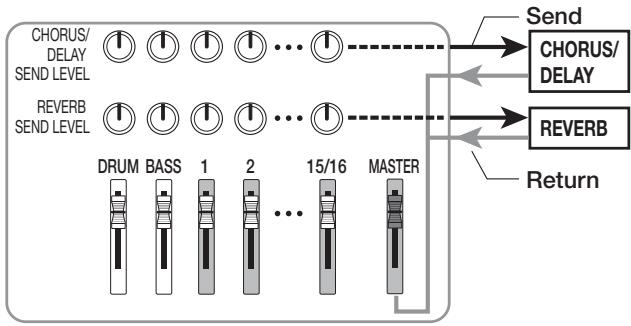
The intensity of the send/return effect can be adjusted for each track by using the send level parameter (which controls the signal level that is sent to the effect). Increasing this parameter will result in stronger effect action. This section describes how to select the send/return effect type and adjust the send level for each track.
Selecting the send/return effect patch
1. From the main screen, press the [CHORUS/DELAY] key or [REVERB] key in the effect section.
Press the [CHORUS/DELAY] key to select a chorus/delay patch, or the [REVERB] key to select a reverb patch.
The display will indicate the patch that is currently selected for the effect you selected. For example, a screen such as shown below appears when the [REVERB] key is pressed.
![ZOOM MRS1608 - From the main screen, press the [CHORUS/DELAY] key or [REVERB] key in the effect section. - 1](/content/2025/01/152285/images/8215a6b1136b531b861709de1d3244eeae852b7b5e7f13d858cd5461a07c86d4.jpg)
2. Turn the dial to select a patch.
Each send/return effect has 30 preprogrammed patches (numbered 0 - 29). If desired, you can edit these patches to modify the effect further ( p. 147).
- Select the patch for the other send/return effect in the same way.
- To return to the main screen, press the [EXIT] key several times.
HINT
In the project default condition, the send level for the send/return effect is set to zero for each track. Therefore you need to raise the setting to verify the sound produced by the effect.
Adjusting the send/return effect intensity for each track
5. From the main screen, press the [CHORUS/ DELAY SEND] key or [REVERB SEND] key in the effect section, to set the respective level.
The display will indicate the send level that is currently set for the effect. For example, a screen such as shown below appears when the [REVERB SEND] key is pressed.
![ZOOM MRS1608 - From the main screen, press the [CHORUS/ DELAY SEND] key or [REVERB SEND] key in the effect section, to set the respective level. - 1](/content/2025/01/152285/images/8d9fd420982039c694acf023b063899adff08059a9d7507058dd0ec783ef3c93.jpg)
- Use the cursor left/right keys or the status keys to select the track for which you want to adjust the send level.
- While playing the song, turn the dial to adjust the send level value.
- Adjust the send level for other tracks in the same way.
- Adjust the intensity of the other send/return effect in the same way.
- To return to the main screen, press the [EXIT] key several times.
4.4 Applying the insert effect to a track
You can apply the insert effect to the output of any track, so that it post-processes the output signal of the track.
Changing the algorithm/insert position of the insert effect
1. Use the [ALGORITHM] key in the effect section to select the algorithm you want to use.
When applying the insert effect to a track, the selected algorithm determines the number of tracks for which the effect can be used.
- When 8x COMP EQ is selected
The effect can be used on the output of eight continuous tracks (1 - 8 or 9 - 16).
- When an algorithm other than 8x COMP EQ is selected
The effect can be used on a maximum of two mono tracks or one stereo track.
2. Press the [INPUT SOURCE] key in the effect section.
The currently selected insert position appears on the display.
![ZOOM MRS1608 - Press the [INPUT SOURCE] key in the effect section. - 1](/content/2025/01/152285/images/2abbfa71bbc1432cca6bc81646deadfe5b8be49f911f566c98d2cbb4bc0f6ebc.jpg)
3. Turn the dial to bring up the track to which you want to apply the insert effect on the second line of the display.
The status key of the selected track lights up in orange.
- When 8x COMP EQ algorithm is selected
You can select eight continuous tracks (TR 1 - 8 or TR 9 - 16) as insert location. Also if you have selected track TR 9 - 16, you can set different high-pass filter, compressor, and EQ values for odd/even-numbered tracks.
IN SRC TR1-8
- When an algorithm other than 8x COMP EQ is selected
You can select one of eight mono tracks (TR 1 - TR 8) or two mono tracks/one stereo track (TR 1/2 - TR 15/16) as insert location.
IN SRC TR1
HINT
The insert position can also be selected with the status keys. To select a mono track x 2, hold down one status key while pressing the other one.
Selecting the patch for the insert effect
4. Press the [ALGORITHM] key selected in step 1 once more.
The currently selected patch is shown on the display.
5. While playing the song, turn the dial to select the patch to use.
The insert effect can now be used to post-process the specified track. When the effect is applied, the track output level may change. Use the respective fader to readjust the level as necessary.
HINT
When the 8x COMP EQ algorithm is selected, settings and effect on/off switching can be done individually for each track ( p.142).
6. When you have checked the effect, stop the song and press the [EXIT] key to return to the main screen.
HINT
If the insert effect is applied to the track output, it is not possible to also apply it to the input or before the [MASTER] fader. However, by using the bounce function ( p.42) to record the track/V-take on another empty V-take, you can turn the post-processed effect sound into audio data and then apply the insert effect at another position.
Step 5: Mixdown
When the mix is ready, you can transfer it onto two tracks to create the finished song. This is referred to as "mixdown". There are two ways of doing this: use the MASTER OUTPUT or DIGITAL OUTPUT connectors and record the song on an external recorder, or use the internal master track of the MRS-1608 to record.
The master track is a dedicated pair of stereo tracks that is separate from the normal audio tracks. When you select the master track as recording track, the signal after the [MASTER] fader is recorded. The content recorded on the master track can later be used as source material for creating an audio CD.
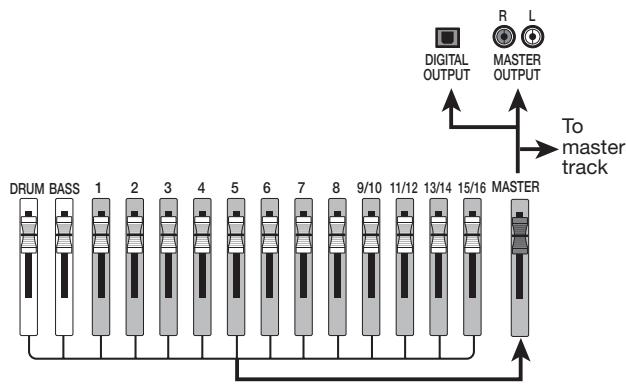
This section explains the mixdown procedure when you select the second method, i.e. recording on the master track.
5.1 Using the mastering insert effect
By applying the insert effect immediately before the [MASTER] fader, you can process the stereo mix signal for mixdown. If you select the MASTERING algorithm at this time, you can use the mastering effect for processing the stereo mix.
NOTE
While the insert effect is inserted immediately before the [MASTER] fader, you cannot use the effect for processing during recording or for post-processing of a track.
To apply the insert effect to the stereo mix, proceed as follows.
Changing the insert position of the insert effect
- From the main screen, press the [INPUT SOURCE] key in the effect section.
The current insert effect position is shown on the display.
- Turn the dial to bring up the indication "MASTER" on the second line of the display.
IN SRC MASTER
Now the insert effect is inserted immediately before the [MASTER] fader.
- Press the [EXIT] key.
The unit returns to the main screen.
Selecting a patch for the insert effect
- Press the [MASTERING] key in the effect section.
The insert effect algorithm is switched to MASTERING. The display shows the currently selected patch.
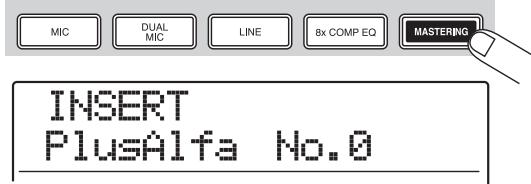
- While playing the song, turn the dial to select the patch.
If desired, you can edit the patch to modify the effect further ( p. 142).
NOTE
If the signal sounds distorted when the mastering effect is applied, make sure that there is no distortion in the playback sound of individual tracks, and lower all fader settings as necessary.
- When you have verified that the sound is as desired, press the [EXIT] key.
The unit returns to the main screen.
5.2 Mixdown on the master track
After mastering effect settings have been completed, record the final mix on the master track.
- Press the ZERO [4] key to return to the beginning of the song.
- Press the PLAY [▶] key to play the song, and check the level after the [MASTER] fader.
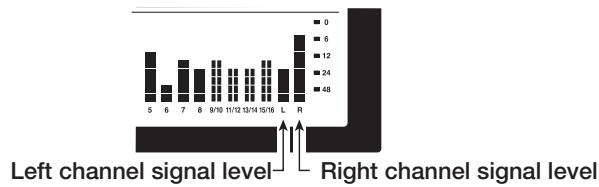
The signal level after the [MASTER] fader can be checked by observing the level meter in the lower right of the display. If the 0 dB segment lights up during play, turn down the [MASTER] fader to perform fine adjustment.
After checking the level, press the STOP [■] key.
- Repeatedly press the [MASTER] status key so that the key lights up in red.
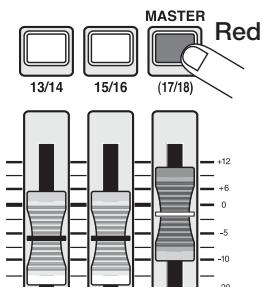
The master track can now be recorded.
- Move to the recorder start position. Then hold down the REC [●] key and press the PLAY [▶] key.
Recording on the master track starts.
- When recording is completed, press the STOP [■] key.
- To play the master track, repeatedly press the [MASTER] status key until it is lit in green.
While the [MASTER] status key is lit in green, the master track can be played. All other status keys go out and the signals from other tracks are muted. The insert and send/return effects are also disabled.
- Return to the beginning of the song, and press the PLAY [▶] key.
The master track is played back. To stop playback, press the STOP [■] key. - To return the MRS-1608 to normal operation, repeatedly press the [MASTER] status key until it is out.
Muting of other tracks is canceled, and the status keys revert to the original condition.
HINT
- Like the other tracks, the master track also has 10 V-takes.
- You can play the master tracks of multiple projects in succession (→ p. 177).
- The contents of the master track can be edited later ( p. 49).
Reference [Recorder]
This chapter explains the functions and operation steps of the recorder section.
V-takes
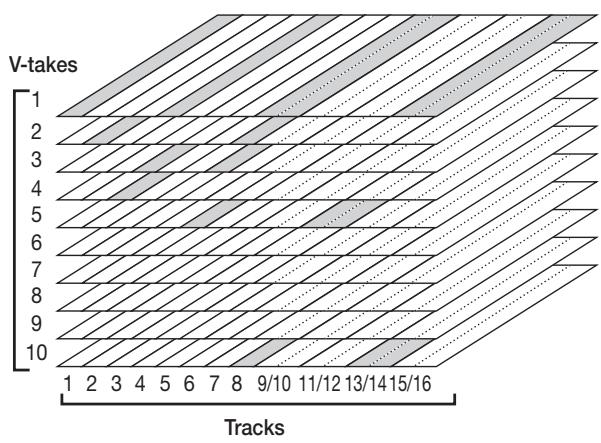
About V-takes
Each track 1 - 16 of the recorder contains ten virtual tracks, called "V-takes". For each track, you can select one such take, which will be used for recording and playback. For example, you can switch V-takes as you record multiple vocal or guitar solos on the same track, and later compare them and select the best V-take.
Switching V-takes
Here's how to switch the V-take used by each track 1-16.
1. From the main screen, press the [V-TAKE] key in the track parameter section.
The key lights up, and the track number, V-take number, and V-take name appear on the display.
![ZOOM MRS1608 - From the main screen, press the [V-TAKE] key in the track parameter section. - 1](/content/2025/01/152285/images/f58f56ed044349cc76969d6f6eb01b19f09faac969f31a019736d39157e9d219.jpg)
HINT
-
If you select a V-take on which nothing is recorded, the indication “NO DATA” appears.
-
If you select the master track, "M" is shown as the track number.
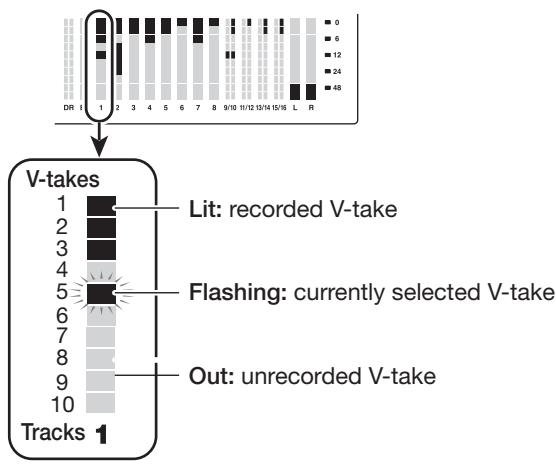
While the above display indication is shown, the V-take condition for each track is indicated by the segments of the level meter. A lit segment denotes a recorded V-take and an unlit segment denotes an unrecorded V-take. The flashing segment indicates the currently selected V-take for each track.
2. Use the cursor left/right keys to select a track.
TR2-1 GTR2-1
HINT
You can also select the track with the status keys. For stereo tracks (9/10 - 15/16), each push of the status key toggles between the odd and even numbered track. Pressing the [MASTER] status key selects the master track.
3. Turn the dial to select the V-take.
For stereo tracks, you can select a different V-take for the odd and even numbered track.
4. Repeat steps 2-3 as necessary, to select a V-take for each track.
5. To return to the main screen, press the [EXIT] key.
The [V-TAKE] key goes out.
Assigning V-take names
A V-take that has been recorded will be automatically assigned a default name, according to the following pattern. (xx denotes the track number, and yy the V-take number.)
GTRxx-yy
V-take recorded through CLEAN, DIST, or ACO/BASS SIM algorithm of insert effect
BASxx-yy
V-take recorded through BASS algorithm of insert effect
MICxx-yy
V-take recorded through MIC algorithm of insert effect
DULxx-yy
V-take recorded through DUAL MIC algorithm of insert effect
LINxx-yy
V-take recorded through LINE algorithm of insert effect
8INxx-yy
V-take recorded through 8x COMP EQ algorithm of insert effect
MASxx-yy
V-take recorded through MASTERING algorithm of insert effect
BYPxx-yy
V-take recorded without passing through insert effect
BOUxx-yy
V-take recorded using the bounce function or rhythm recording
LP_xx_yy
Phrase written to V-take using the phrase loop function ( p.67)
HRMxx-yy
V-take recorded using the harmony generate function or duo harmony function.
HINT
When the phrase loop function is used to write a phrase to the master track, the name "LP_MS_yy" is assigned.
To change a V-take name, proceed as follows.
1. From the main screen, press the [V-TAKE] key in the track parameter section.
The key lights up, and the track number, V-take number, and V-take name appear on the display.
TR3-2 GTR3-2
NOTE
Only the name of the V-take currently selected for a track can be changed.
2. Use the cursor left/right keys to select the track whose V-take name you want to edit.
TR2-2 GTR2-1
NOTE
If you select a V-take on which nothing is recorded, the indication “NO DATA” appears and the name cannot be edited.
3. Press the [EDIT] key.
The first character of the V-take name flashes.
This indicates that you can change the V-take name.
4. Use the cursor left/right keys to move the flashing section to the character you want to change.
5. Turn the dial to select a character.
The following characters can be selected.
Numerals: 0-9
Letters: A-Z, a-z
Symbols: (space)! “ # $ % & ‘ ( ) * + , - . / :
$$ ; < > = ? @ [ ] ^ {\wedge} _ {-} ^ {\prime} {} | \text {¥} \leftrightarrow $$
6. Repeat steps 4 - 5 until the name is as desired.
7. When you have finished editing the name, press the [EXIT] key.
The new name is accepted and the unit returns to the condition of step 2. If necessary, you can edit the names of other V-takes.
8. To return to the main screen, press the [EXIT] key.
The [V-TAKE] key goes out.
HINT
If the contents of a V-take are fully erased, the name reverts to "NO DATA".
Moving to a desired point in the song (locate function)
You can specify a location within the song in time units (minutes/seconds/milliseconds) or in measure units (measure/beat/tick) units, and move to that location.
| Hours | Seconds | Measures | Ticks | MARKER |
| H | M | MS | MEASURE | BEAT |
| 0 | 10 | 12660 | 307 | 2 |
| 00 | ||||
| Minutes | Millisecond | Beats | ||
HINT
If you use the marker function ( p.46) to set marks for recorder positions, you can use the locate function to move among marks.
- Verify that the recorder is stopped.
- Use the cursor left/right keys from the main screen to move the flashing part to the unit you want to change.
For example, to change the minutes, cause the segment marked "M" to flash.
| H | M | S | MS | MEASURE | BEAT | TICK | MARKER |
| 0 | 10 | 12 | 668 | 307 | 2 | 0 | 00 |
- Turn the dial to change the value shown for the flashing part.
When you change the displayed value, the recorder immediately moves to the new location. Pressing the PLAY [▶] key starts playback from that point.
HINT
The measure/beat/tick indication changes according to the current rhythm section tempo and beat.
Playing back the same passage repeatedly (A-B repeat function)
A-B repeat is a function that repeatedly plays back a desired region of the song. This is useful to listen to the same region repeatedly, for example during practice.
- Move to the point at which you want to begin repeat playback, and press the [A-B REPEAT] key in the control section.
The key flashes, and the repeat start location (point A) is specified.
HINT
The A/B point can be specified either during playback or when the recorder is stopped.
- Move to the point at which you want to end repeat playback, and press the [A-B REPEAT] key once more.
The [A-B REPEAT] key will change from flashing to constantly lit, and the repeat end location (point B) is set.
NOTE
- To redo the A/B point setting, press the [A-B REPEAT] key so that it goes out, and then repeat the procedure from step 1.
-
If you specify a point B that is located earlier than point A , the region from points B A will be played repeatedly.
-
To begin repeat playback, press the PLAY [▶] key.
Repeat playback will begin when you press the PLAY [▶] key while the [A-B REPEAT] key is lit. When the point B is reached, the recorder jumps to point A, and playback continues.
4. To stop repeat playback, press the STOP [■] key.
Even after pressing the STOP [■] key to stop playback, you can perform repeat playback again as many times as desired, as long as the [A-B REPEAT] key is still lit.
- To turn off repeat playback, press the [A-B REPEAT] key.
The key goes out, and repeat playback will be turned off. The A/B point locations also will be cleared.
Finding a desired location (scrub/preview function)
The MRS-1608 provides a "scrub" function that lets you search for a desired location while repeatedly playing a short region before or after the current point. This is convenient to accurately find the point at which a specific sound starts or stops.
When the scrub function is on, you can use the "preview function" that plays 0.7 seconds before and after the current point. By using the scrub and preview functions together, you can find the desired location quickly and accurately.
Using scrub-preview
1. To perform scrub playback, hold down the STOP [■] key from the main screen and press the PLAY [▶] key.
The keys light up, and a short region (40 milliseconds by default) following the current location will play back repeatedly.
Immediately after activating the scrub function, audio track 1 will be selected as target for scrub playback.
![ZOOM MRS1608 - To perform scrub playback, hold down the STOP [■] key from the main screen and press the PLAY [▶] key. - 1](/content/2025/01/152285/images/779432fcea926e831bcf78685f6f965c2450a8fdc5292440b896f750a3504776.jpg)
When the scrub function is on, the display indication changes as follows.
SCRUB FRM 40ms
2. Use the status keys to select the track(s) for scrub playback.
Up to four tracks can be selected simultaneously for scrub playback. (Stereo track pairs are counted as two tracks.) Scrub playback is toggled on and off for a track by repeatedly pressing the respective status key. If you attempt to select more than four tracks, scrub playback will be carried out for the last four tracks only.
3. To move the scrub playback position, use the cursor left/right keys to cause the millisecond indication or the tick indication on the counter to flash. Then turn the dial to find the desired location.
During scrub playback, the current location can be moved forward or backward in milliseconds or ticks.
4. To use the preview function to hear the region before the current location, press the REW [←] key. To hear the region after the current location, press the FF [▶] key.
If you press the REW [←] key, a region of 0.7 seconds prior to the current location will play (ending at the current location). If you press the FF [▶] key, a region of 0.7 seconds following the current location will play (beginning at the current location). This is called "preview playback". When preview playback ends, scrub playback will resume.
![ZOOM MRS1608 - To use the preview function to hear the region before the current location, press the REW [←] key. To hear the region after the current location, press the FF [▶] key. - 1](/content/2025/01/152285/images/865602c8ae5364a1c69e262f6c809585a139bb16ff4a1423775b8977a7a8b3fd.jpg)
5. To cancel the scrub function, press the STOP [■] key.
The PLAY [▶] and STOP [■] keys go out.
Changing the scrub direction and duration
When the scrub function is on, you can change the direction of scrub playback (whether it will play the region before or after the current location), and the length of the scrub playback section.
1. From the main screen, hold down the STOP [■] key and press the PLAY [▶] key.
This turns the scrub function on, and the direction and duration of scrub playback are shown on the display.
![ZOOM MRS1608 - From the main screen, hold down the STOP [■] key and press the PLAY [▶] key. - 1](/content/2025/01/152285/images/3c035f700d92903c99074353cdfb5232ab4d1b4b4a0ec0cb91cd333431aacf42.jpg)
2. To change the length of scrub playback, use the cursor left/right keys to cause the scrub playback length setting to flash, and turn the dial.
You can select 40, 80, 120, 160, or 200 (ms) as the length of scrub playback.
HINT
You can also use the cursor up/down keys to change the scrub playback length.
3. To change the direction of scrub playback, use the cursor left/right keys to cause the scrub playback direction indication to flash, and turn the dial.
If you select "TO", scrub playback will begin from an earlier point and end at the current location. If you select "FRM", scrub playback will begin from the current location.
To exit the scrub function, press the STOP [■] key.
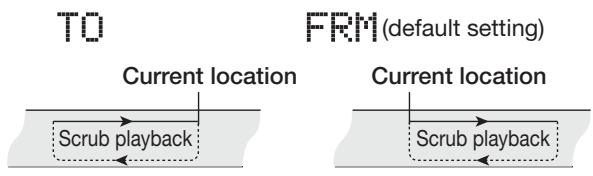
Re-recording only a specified region (punch-in/out function)
Punch-in/out is a function that lets you re-record just a specified region of a previously recorded track. The action of switching a currently-playing track to record mode is called "punch-in", and the action of switching back from recording to playback is called "punch-out".
The MRS-1608 provides two ways to do this. You can use the panel keys or a foot switch (ZOOM FS-01, sold separately) to punch-in/out manually ("manual punch-in/out"), or you can cause punch-in/out to occur automatically at previously specified points ("auto punch-in/out").
NOTE
When the 8-track recording function ( p. 45) is active, punch-in/out cannot be used.
Using manual punch-in/out
To perform manual punch-in/out, proceed as follows.
HINT
-
To use a foot switch for punch-in/out, connect the separately available ZOOM FS-01 to the FOOT SW jack on the front panel.
-
In the default condition of the MRS-1608, the foot switch is set to control recorder playback/stop. To use the foot switch to punch-in/out, you must first change the foot switch setting ( p. 181).
- Repeatedly press the status key of the track on which you want to perform punch-in/out, until the key is lit in red.
- Raise the fader of this track to a suitable position.
- Use the [ON/OFF] key to select the input, and then play your instrument connected to the INPUT jack and use the [INPUT] control and [REC LEVEL] control to adjust the recording level.
- Locate a point several measures before the intended punch-in point, and press the PLAY [▶] key to begin recorder playback.
- When you come to the punch-in point, press the REC [●] key (or press the foot switch).
The REC [] key lights up, and track recording begins from that location.
- When you come to the intended punch-out point, press the REC [●] key (or the foot switch) once more.
The REC [ ] key goes out, and the MRS-1608 switches from recording to playback.
- To stop the recorder, press the STOP [■] key.
- To check the newly recorded content, locate to a point before the punch-in point, and press the PLAY [▶] key.
Using auto punch-in/out
Auto punch-in/out is a function that lets you specify beforehand the region to be re-recorded. Punch-in will occur automatically when you reach the starting location (In point), and punch-out will occur automatically when you reach the ending location (Out point). This is convenient when you cannot operate the MRS-1608 because you are playing the instrument yourself, or when very fast playback/ record switching is required.
In order to perform auto punch-in/out, you must first specify the In point (the point where the recorder switches from playback to record) and Out point (the point where the recorder switches from record to playback), and then perform the recording operation.

- Raise the fader of the track on which you want to perform punch-in/out to a suitable position.
- Use the [ON/OFF] key to select the input, and then play your instrument connected to the INPUT jack and use the [INPUT] control and [REC LEVEL] control to adjust the recording level.
- Locate the point at which you want to punch-in, and press the [AUTO PUNCH IN/OUT] key.
The key flashes. This sets the "In point" at which recording will begin.
4. Locate the point at which you want to punch-out, and press the [AUTO PUNCH IN/OUT] key once more.
The key changes from flashing to solidly lit. This sets the "Out point" at which recording will end.
HINT
To specify the in/out points precisely, it is convenient to use the scrub function ( p.38) to find the locations and assign a mark ( p.46) beforehand at the desired locations.
-
Use the Locate function to go to a spot before the In point.
-
Repeatedly press the status key for the track on which you want to perform punch-in/out, until the key flashes red.
NOTE
If the current location is between the In point and Out point, the status key (and the REC [●] key if during recording) will be lit red. In this case, use the locate function once again to go to a point that is earlier than the In point.
- To rehearse the auto punch-in/out process, press the PLAY [▶] key.
The recorder will begin playing. When you reach the In point, the track on which you are punching-in/out will be muted. When you reach the Out point, muting will be defeated. (You will always be able to monitor the input signal during this time.) Performing this action will not delete or record anything on the track.
When you have finished rehearsing, move again to a location earlier than the In point.
HINT
To change the positions of the In point or Out point, press the [AUTO PUNCH IN/OUT] key so that the key goes out, and then repeat steps 3 - 7.
- To actually perform auto punch-in/out, hold down the REC [●] key and press the PLAY [▶] key.
The recorder will begin playing. When you reach the In point, recording will begin automatically (punch-in). When you reach the Out point, recording will end automatically, and playback will resume (punch-out).
-
When you have finished recording, press the STOP [■] key.
-
To listen to the recorded result, repeatedly press the status key for the track on which you recorded, until the key is lit green. Then move to a location earlier than the In point, and press the PLAY [▶] key.
To re-do the punch-in/punch-out recording, repeat steps 5-9.
- When you are satisfied with the recording, press the [AUTO PUNCH IN/OUT] key so that the key goes out.
The auto punch-in/out function is turned off, and the In point and Out point settings are cleared.
Recording several tracks on a master track (mixdown function)
This section explains how to play recorded audio tracks as well as drum/bass track sounds and record them as a stereo mix on a master track (mixdown).
About the master track
The master track is a set of stereo tracks that are separate from the normal tracks 1 - 16. The most common use of the master track is as a track on which the end result of a mixdown process is recorded. The contents of the master track can then be used to create an audio CD.
When you switch the master track to the recording condition, the signal after passing the [MASTER] fader (the same signal as available from the MASTER OUTPUT jacks) is sent to the master track.
The MRS-1608 offers one master track for each project. Similar to the regular tracks 1 - 16, the master track also has ten virtual tracks (V-takes). This allows you to record different mixes on several V-takes and select the optimum take later.
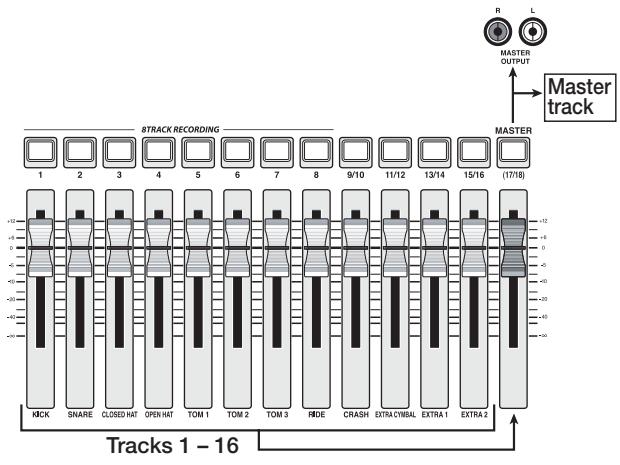
HINT
It is possible to play the master tracks of several projects recorded on the hard disk in succession (→ p. 177).
Master track mixdown steps
Here's how to mix recorder tracks and the rhythm section sound onto two stereo channels and record these on the master track.
- If required, refer to page 35 and select the desired V-take for the master track.
- From the main screen, press the [MASTER] status key repeatedly until the key is lit in red.
The master track is now ready for recording.
- Start recorder playback and adjust the mixing balance of the various tracks.
The individual track level settings as well as the insert effect and send/return effect settings all have an influence on the signal that is sent to the master track. Adjust levels while watching the L/R level meter, and make sure that no signal clipping occurs.
- To carry out the mixdown operation, press the ZERO [ ] key to return to the beginning of the song, and then press the PLAY [ ] key while holding down the REC [ ] key.
Recording on the master track starts.
- When recording is complete, press the STOP [■] key.
HINT
You can start the mixdown operation from a point within the song. Only the data in the recorded range are overwritten.
Playing the master track
To play the recorded master track, proceed as follows.
- From the main screen, press the [MASTER] status key repeatedly until the key is lit in green.
The master track is now ready for playback. In this mode, all other tracks are muted, and all effects are switched off.
HINT
While the [MASTER] status key is lit in green, the transport section keys except for the REC [●] key operate normally.
- Press the ZERO [←] key to return to the beginning of the song, and then press the PLAY [▶] key.
Playback of the master track starts. You can use the [MASTER] fader to adjust the playback volume.
- To stop recorder playback, press the STOP [■] key.
- To cancel the master track playback mode, press the [MASTER] status key so that the key goes out.
Muting for all tracks is canceled, and the unit returns to normal operation. Status keys that were automatically turned off are returned to the previous condition.
Combining multiple tracks on one or two tracks (bounce function)
How bounce works
"Bounce" is a function that mixes the sound from the audio tracks and drum/bass tracks, and records them on one or two tracks. (This is sometimes called "ping-pong recording".) For example, you might bounce the contents of tracks 1 - 14 onto tracks 15/16 and then switch the V-takes of tracks 1 - 14 to record new versions of your performance.
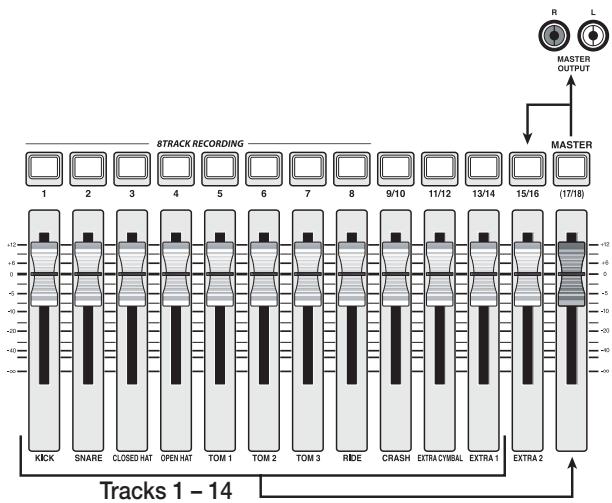
HINT
-
You can mix the signals from the INPUT jacks into the bounce recording.
-
If you select only one mono track as the bounce destination, the signal mixed to mono will be recorded.
- If necessary, you can play back all tracks 1 - 16, and bounce the signal onto an empty V-take of a selected track.
Making bounce settings
Before using the bounce function, you may have to make certain settings.
Specifying playback/mute for the recording track(s)
By default, the bounce destination recording track(s) will be muted. To play back a track while you bounce-record onto another V-take of that track, use the following procedure to change the internal setting so that the recording track(s) will also play back.
- From the main screen, press the [UTILITY/TRACK EDIT] key.
The indication "UTILITY TR EDIT" appears on the display.
- Use the cursor left/right keys to bring up the indication "UTILITY BOUNCE" on the display, and press the [ENTER] key.
- Use the cursor left/right keys to bring up the indication "BOUNCE REC TRACK" on the display, and press the [ENTER] key.
The current setting is shown.
RECTRACK MUTE
The indications have the following meaning.
- MUTE: The recording track(s) will be muted (default setting).
-
PLAY: The recording track(s) will play back.
-
To play the bounce target track, turn the dial to change the setting to "PLAY".
- To return to the main screen, press the [EXIT] key several times.
Selecting the recording destination V-take
By default, the result of the bounce operation will be recorded on the V-take that is currently selected for the recording track(s). To play back a track while bouncing onto another V-take of that track, you can use the following procedure to change the recording destination V-take.
1. From the main screen, press the [UTILITY/TRACK EDIT] key.
The indication "UTILITY TR EDIT" appears on the display.
2. Use the cursor left/right keys to bring up the indication "UTILITY BOUNCE" on the display, and press the [ENTER] key.
3. Use the cursor left/right keys to bring up the indication "BOUNCE REC TAKE" on the display, and press the [ENTER] key.
The current setting is shown.
REC TAKE CURRENT
The indications have the following meaning.
CURRENT:
The bounce result will be recorded on the V-take currently selected for the recording track (default setting).
1-10:
The bounce result will be recorded on the V-take of the recording track with the specified number.
4. Turn the dial to specify the recording destination V-take.
5. To return to the main screen, press the [EXIT] key several times.
Executing bounce recording
This example explains how to bounce the contents of tracks 1 - 16 and the drum/bass tracks onto V-take 10 of tracks 15/16.
- Refer to "Making bounce settings" and set the bounce target track to "PLAY".
- Refer to "Making bounce settings" and select V-take 10 for the bounce target track.
- From the main screen, press the status keys of tracks 15/16 repeatedly, so that the keys are lit in red.
Tracks 15/16 are now ready for recording.
4. Press the [BOUNCE] key in the control section.
The key lights up and the bounce function for the target tracks is turned on. Other tracks and effects function normally.
5. Set the recorder to playback and adjust the mixing balance of the various tracks.
The individual track level settings as well as the insert effect and send/return effect settings all have an influence on the mixed signal that is sent to the bounce target tracks.
Adjust levels while watching the L/R level meter, and make sure that no signal clipping occurs.
6. Move the recorder to the beginning and start recording.
Recording on tracks 15/16 starts.
7. When recording is complete, press the STOP [■] key.
HINT
- To check the result of the bounce operation, select the V-take for the bounce target tracks and mute the other tracks. Note that the track parameters will continue to be valid. To monitor the unprocessed sound, return the track volume and EQ settings for the bounce target tracks to the default condition. When bouncing in stereo to two mono tracks, set the Pan parameter for the odd-numbered track to L 100 and for the even-numbered track to R 100.
- If only the signal from the drum track or bass track is recorded, refer to "Selecting drum/bass track as recording
source" on page 44 and select "MASTER" as source.
8. To turn off the bounce function, press the [BOUNCE] key.
The [BOUNCE] key goes out, and the bounce function is canceled.
Recording the drum/bass sound (rhythm recording)
The MRS-1608 allows you to record the drum track or bass track sound of the rhythm section onto any track. This function is called "rhythm recording". By recording a rhythm song or rhythm pattern on an audio track, you can then combine this with another song or pattern as played by the rhythm section.
To use the rhythm recording function, proceed as follows.
Selecting drum/bass track as recording source
While using the bounce function, select the drum/bass track as recording source signal.
1. From the main screen, press the [UTILITY/TRACK EDIT] key in the display section.
The indication “UTILITY TR EDIT” appears on the display.
2. Use the cursor left/right keys to bring up the indication "UTILITY BOUNCE" on the display, and press the [ENTER] key.
3. Use the cursor left/right keys to bring up the indication "BOUNCE REC SRC" on the display, and press the [ENTER] key.
The display indication changes as follows.
REC SRC MASTER
In this condition, you can select the recording source signal. The following choices are available.
- MASTER
Signal immediately before [MASTER] fader (default setting)
- DRUM TR
Drum track
BASS TR
Bass track
4. Turn the dial to select "DRUM TR" or "BASS TR" as recording source.
5. Press the [EXIT] key several times to return to the main screen.
Recording
While playing the audio tracks, you can now record the rhythm section play on any audio track.
1. Press the [BOUNCE] key.
The key lights up.
2. Repeatedly press the status key for the track on which you want to record, until the key is lit in red.
In this condition, the signal of the track selected in step 4 of "Selecting drum/bass track as recording source" will be recorded.
HINT
To record drum tracks in stereo, select two tracks as recording destination. If only one track is selected, the recording will be in mono.
3. Verify that the [RHYTHM] key is out, and that the rhythm song or rhythm pattern that you want to record is selected, or that the sounds that you want to play are assigned to the pads.
4. Set the recorder to playback and adjust the drum/bass track output level.
Adjust levels while watching the level meter, and make sure that no signal clipping occurs.
5. Move to the start point of the recorder, and start recording.
The rhythm pattern/rhythm song play is recorded on the audio track. If you hit the pads during recording, this sound will also be captured. When play is complete, stop the recorder. To cancel the bounce function and return to the normal condition, switch the recording source back to "MASTER", as described in "Selecting drum/bass track
as recording source".
HINT
It is also possible to use a MIDI keyboard or similar device instead of the pads to play drum/bass sounds.
6. Press the [BOUNCE] key.
The key goes out.
Recording on 8 tracks simultaneously (8-track recording mode)
This section explains how to use the 8-track recording mode which allows up to eight tracks to be recorded simultaneously.
About 8-track recording
In 8-track recording mode, the signals from the INPUT jacks 1 - 8 (or from GUITAR/BASS INPUT jacks 1/2 instead of INPUT jacks 1/2 ) can be recorded directly onto tracks 1 - 8 . This is convenient to record the performance of an entire band in a single session, using separate tracks for the various parts, or for picking up a drum performance with multiple mics.
In 8-track recording mode, inputs 1 - 8 and tracks 1 - 8 correspond to each other. When the status key of a track is lit in red, the signal of that input can be recorded on the track. When the status key is out or lit in green, the signal from the respective input is sent directly to a point immediately before the [MASTER] fader.
The insert and send/return effects are available also in 8-track recording mode.
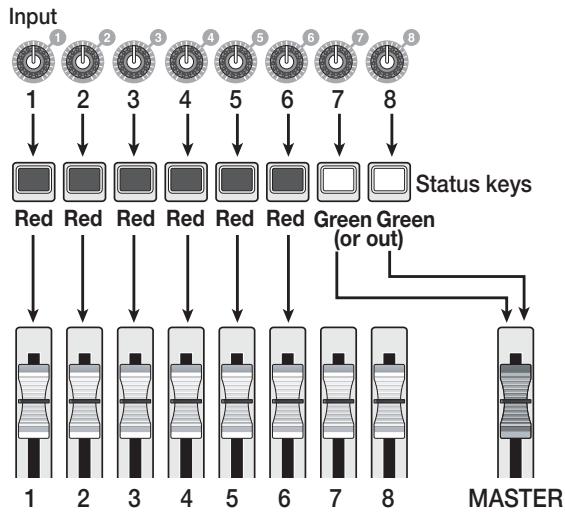
NOTE
- In 8-track recording mode, recording on tracks 9 / 10 - 15 / 16 is not possible. To perform overdubbing on a mono track after you have recorded tracks 1 - 8 , you must move the recorded takes to tracks 9 - 16 first ( p. 63).
- In 8-track recording mode, the auto punch-in/out and bounce functions are not available.
Assigning an input signal to a track
After adjusting the level of the signals from the INPUT jacks 1 - 8 or the GUITAR/BASS INPUT jacks 1/2, the signals are sent to tracks 1 - 8 in the recorder section.
- Verify that the instruments or microphones to be recorded are connected to the INPUT jacks 1 - 8 or GUITAR/BASS INPUT jacks 1/2.
NOTE
You can use either GUITAR/BASS INPUT jack 1 or INPUT jack 1, and either GUITAR/BASS INPUT jack 2 or INPUT jack 2. If both jacks are connected, the GUITAR/BASS INPUT jacks 1/2 are given priority.
- Press the [8TRACK RECORDING] key in the input section.
The key lights up and the MRS-1608 switches to 8-track recording mode. - Press the [ON/OFF] keys for the INPUT jacks 1 - 8.
When pressed, a key lights up, and the corresponding input is active.
4. While the instruments are played, adjust the [INPUT] controls to obtain a suitable input sensitivity level.
When using the GUITAR/BASS INPUT jacks 1/2, perform the adjustment with the [GUITAR/BASS INPUT] control 1/2 on the front panel.
5. To use an insert effect, press the [INPUT SOURCE] key in the effect section, and press the [ON/OFF] key for the input to which you want to apply the effect.
The respective [ON/OFF] key lights up orange, and the insert effect is applied. When 8x COMP EQ is selected as algorithm for the insert effect, all channels can be processed by the effect. Otherwise, two selected channels can be effect-processed.
HINT
In the default condition of a project, a patch suitable for guitar/bass playing is selected as insert effect. If necessary, select a different patch ( p. 139).
6. While the instruments are played, use the [REC LEVEL] control to adjust the recording level.
Set the recording level as high as possible, but avoid settings that cause the [CLIP] indicator to light. The current signal level can be checked with the level meters IN1 - IN8.
7. Repeatedly press the status keys for the tracks (1 - 8) to be recorded so that the keys are lit in red.
Up to eight status keys can be activated simultaneously. When a track is switched to the recording standby condition, the signal from the input mixer will be sent to the corresponding recording track.
If the [ON/OFF] key for a track is ON but the corresponding status key is lit green (or is off), the respective input will not be recorded.
8. Move to the start point of the recorder, and start recording.
When recording is finished, stop the recorder.
9. To cancel the 8-track recording condition, press the [8TRACK RECORDING] key.
The key goes out.
Marker function
This function lets you set marks at any recorder position, and return to the mark using a simple operation. Up to 100 marks can be set.
HINT
- It is also possible to switch mixer settings or effect setting groups (scenes) at a marked position ( p, 84) .
- When creating an audio CD, marks can be used to provide index information. This will allow the CD player to access specific points within tracks ( p. 155).
Setting a mark
Here's how to assign a mark at the desired location in a song.
1. Locate the point to which you want to assign a mark.
HINT
- A mark can be assigned either during playback or when stopped.
- You can use the scrub function ( p. 38) to locate the position with high precision.
2. Press the [MARK] key in the control section.
A mark will be assigned to the current location. The mark number will appear in the MARKER field of the counter.
![ZOOM MRS1608 - Press the [MARK] key in the control section. - 1](/content/2025/01/152285/images/238ea7553c9f473a8fd3079c0028758c219bf92009a990c1f4445cd6fcb34d5c.jpg)
The MARKER field shows the number of the mark at the current position or the closest preceding mark. When the current position matches the mark, a marker symbol appears to the right of the mark number.
The mark number is assigned automatically in ascending order from the beginning of the song. If you add a new mark between two existing marks, the subsequent marks will be renumbered.
![ZOOM MRS1608 - Press the [MARK] key in the control section. - 2](/content/2025/01/152285/images/47d1c106fae7dd082169266a87f8e89086115bdadd5111c67ead25534ad63c6b.jpg)
HINT
Mark number 00 is already set at the beginning of the song (the counter zero location). This cannot be changed.
Locating a mark
Here's how to move to the location of a mark. This can be done in two ways: you can use key operations, or specify the mark number directly.
Using keys to locate
1. From the main screen, press either the MARKER [←] or [▶] key in the control section.
Each time you press the key, the unit jumps to the next mark before or after the current location.
![ZOOM MRS1608 - From the main screen, press either the MARKER [←] or [▶] key in the control section. - 1](/content/2025/01/152285/images/1b9d2d0c9495cebc3acede9a77d4c145558a1d3d68cea9581e7f9af95d5447be.jpg)
Specifying the mark number to locate
1. From the main screen, use the cursor left/right keys to cause the mark number on the counter to flash.
2. Turn the dial to select the desired mark number.
As soon as the number is changed, the recorder jumps to that number.
Deleting a mark
Here's how to delete a mark that you assigned.
1. Locate the mark that you want to delete.
A mark can only be deleted when it exactly matches the current location. Make sure that the mark symbol is shown. If not, use the MARKER [▲] / [▲] keys to jump to the exact marker point.
2. Press the [CLEAR] key in the control section.
The selected mark will be deleted, and subsequent marks will be renumbered.
NOTE
- A deleted mark cannot be recovered.
- It is not possible to delete mark number “00” located at the beginning of the song.
Making settings for pre-count operation
In the default condition of a project, a pre-count of four beats is heard before the start of recording. The number of beats and the pre-count volume can be changed as follows.
1. From the main screen, press the [UTILITY/TRACK EDIT] key in the display section.
The indication “UTILITY TR EDIT” appears on the display.
2. Use the cursor left/right keys to bring up the indication "UTILITY PreCount" on the display, and press the [ENTER] key.
The display indication changes as follows.
PreCount COUNT
3. To change the number of pre-count beats, press the [ENTER] key. Then turn the dial to make the selection.
OFF
The pre-count is turned off.
1-8
A pre-count of 1 - 8 beats is heard.
SPECIAL
A special pre-count as follows is heard.

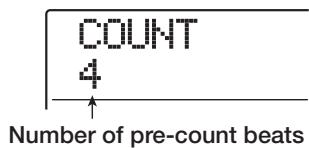
When the setting is complete, press the [EXIT] key to return to the screen of step 2.
4. To change the volume of the pre-count, use the cursor left/right keys to bring up the indication "PreCount VOLUME" on the display, and press the [ENTER] key.
The display indication changes as follows. Turn the dial to set the volume (0 - 15).
![ZOOM MRS1608 - To change the volume of the pre-count, use the cursor left/right keys to bring up the indication "PreCount VOLUME" on the display, and press the [ENTER] key. - 1](/content/2025/01/152285/images/dfb32aebfc5cdf05ce69fc33a524435fedef846a7c0aaa2bc1556c81f6b3600b.jpg)
5. When the setting is complete, press the [EXIT] key to return to the main screen.
If you initiate the recording procedure in this condition, the selected number of pre-count beats will be heard at the selected volume.
Reference [Track Editing]
This section explains how to edit audio data contained on tracks 1 - 16 of the recorder section. There are two major types of editing functions: specifying a range within a track for editing, and editing an entire V-take.
Editing a range of data
The procedure for specifying a range within a track and then performing an editing action is explained below.
Basic steps for range editing
When performing editing for a specified range of data, some steps are similar for each action. These are as follows.
1. From the main screen, press the [UTILITY/TRACK EDIT] key in the display section.
The indication “UTILITY TR EDIT” appears on the display.
UTILITY TR EDIT
2. Press the [ENTER] key.
The track edit menu containing various editing commands appears on the display.
TR EDIT COPY
3. Use the cursor left/right keys to select the desired command from the following options.
COPY
Copy a specified range of audio data.
- MOVE
Move a specified range of audio data.
- ERASE
Erase a specified range of audio data.
TRIM
Retain only a specified range of audio data and erase the rest.
FADE I/O (Fade-in/out)
Perform fade-in/fade-out over a specified audio data
interval.
- REVERSE
Reverse a specified range of audio data.
- TimStrch (Time Stretch/Compress)
Change the duration of the entire audio data on a track without changing the pitch.
- PitchFix
Apply pitch compensation to a specified range of audio data.
HARMONY+ (Harmony Generate)
Add 3-part harmony to a specified range of audio data.
- DUO HARM (Duo Harmony)
Add 1-part harmony to a specified range of audio data.
4. Press the [ENTER] key.
The screen for selecting the track and V-take for editing appears.
The display shown below is an example for selecting the COPY command in step 3.
Copy Src TR 1-1
5. Use the cursor up/down keys or the status keys and the dial to select the track (1 - 16, MASTER) and V-take number.
Copy Src TR 5-1
On this screen, V-takes that are not currently selected can also be selected for editing.
For commands other than PitchFix, HARMONY+, and DUO HARM, when track 16 is selected, turning the dial further to the right lets you select odd/even track pairs (track 1/2, track 15/16 etc.) or the master track (shown as "M").
Copy Src TR 1/2
NOTE
- You can also press the status keys for two adjacent odd/even-numbered mono tracks together to select these tracks.
- Repeatedly pressing the status keys for stereo tracks selects the odd-numbered track, even-numbered track, and stereo track in sequence.
- When a single track has been selected as editing source for a command other than HARMONY+ and DUO HARM, the editing target will also be a single track.
- When two tracks or the master track have been selected as editing source, the editing target will also be two tracks or the master track. The currently selected V-take for each track will be the target.
6. Press the [ENTER] key.
The subsequent steps will differ, depending on which command was selected. See the sections for the respective commands.
7. When the editing command has been executed, repeatedly press the [EXIT] key to return to the main screen.
NOTE
After executing an edit command for rewriting the audio data on a track, the original data cannot be restored. To retain the condition before editing, use the capture and swap functions ( p. 65) for that track.
Copying a specified range of data
You can copy the audio data of a specified range to a specified position on a specified track/V-take. This action will overwrite the existing data at the destination location. The copy source data will be unchanged.
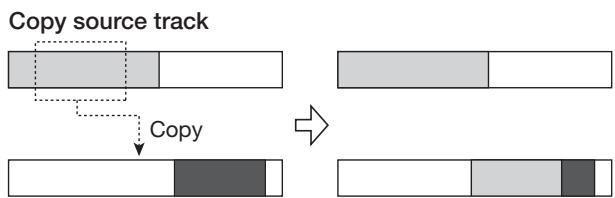
Copy target track
1. Refer to steps 1 - 6 of "Basic steps for range editing" to select the copy source track/V-take, and press the [ENTER] key.
The display indication changes as follows. In this condition, you can specify the copy start point.
![ZOOM MRS1608 - Refer to steps 1 - 6 of "Basic steps for range editing" to select the copy source track/V-take, and press the [ENTER] key. - 1](/content/2025/01/152285/images/cb976291060f83f205a7790459ebaa15df7d895459a374e446192770fbb924b9.jpg)
The edit range start point is shown on the counter in hours, minutes, seconds, milliseconds, and in measures, beats, and ticks.
2. Use the cursor left/right keys to move the flashing section of the counter, and turn the dial to specify the copy start point.
The point can be specified in hours/minutes/seconds/ milliseconds, or in measures/beats/ticks. When a value is specified, the other units also reflect the new location.
By causing a mark number to flash, you can also specify edit points using the markers.
NOTE
If you specify a point where no audio data exist, the second line of the display shows * symbol.
3. Press the [ENTER] key.
The display changes to "Copy Src END". This screen lets you specify the copy range end point.
![ZOOM MRS1608 - Press the [ENTER] key. - 1](/content/2025/01/152285/images/95124c62e5341f87ef18fb89e392ea5e2b5fc93663234755ca2cb5d40f47390f.jpg)
4. Use the same procedure as in step 2 to specify the copy range end point.
If you press the PLAY [▶] key at this point, the specified range will be played.
5. Press the [ENTER] key.
The display now shows "Copy Dst TR xx-yy" (where xx is the track number and yy the V-take number).
![ZOOM MRS1608 - Press the [ENTER] key. - 1](/content/2025/01/152285/images/a53698571ab6cfdd20632098c264c880f09080dc181bf803ff52fd0d6ff6ce64.jpg)
6. Specify the copy destination track/V-take in the same way as when selecting the copy source, and press the [ENTER] key.
The display indication changes as follows.
| Copy Dist TO | ||||||
| H | M | S | MS | MEASURE | BEAT | TICK |
| 0 | 213 | 0 | 058 | 3 | 0 | 0 |
- Specify the copy destination start point in the same way as for the copy source, and press the [ENTER] key.
The indication "COPY SURE?" appears on the display. - To execute the copy operation, press the [ENTER] key.
When the copy operation is completed, the unit returns to the track edit menu.
By pressing the [EXIT] key instead of the [ENTER] key, you can cancel the operation and back up one step at a time.
HINT
To paste the same range repeatedly, use the phrase loop function ( p. 67).
Moving a specified range of data
You can move the audio data of a specified range to a specified position on a specified track/V-take. This action will overwrite the existing data at the destination location. The move source data will be erased.
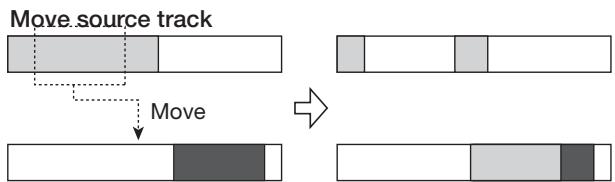
Move target track
- Refer to steps 1 - 6 of "Basic steps for range editing" to select the move source track/V-take, and press the [ENTER] key.
The display indication changes to "Move Src START".
| Move Src START | |||||||
| H | M | S | MS | MEASURE | BEAT | TICK | MARKER |
| 0 | 0 | 0 | 0 | 001 | 1 | 0 | 00 |
- Use the cursor left/right keys to move the flashing section of the counter, and turn the dial to specify the move start point.
- Press the [ENTER] key.
The display indication changes to "Move Src END".
| Move Src END | ||||||
| H | M | S | MS | MEASURE | BEAT | TICK |
| 0 | 042230 | 032 | 4 | 12 | 00 | |
- Use the same procedure as in step 2 to specify the move range end point.
If you press the PLAY [▶] key at this point, the specified range will be played.
- Press the [ENTER] key.
The display changes to let you specify the move destination track/V-take.
Move Dist TR 1-1
- Specify the move destination track/V-take in the same way as when selecting the move source track/V-take, and press the [ENTER] key.
The display changes to the screen for specifying the move destination start point.
| Move Dist TO | ||||||
| H | M | S | MS | MEASURE | BEAT | TICK |
| 0 | 042230 | 032 | 4 | 12 | 00 | |
- Specify the move destination start point in the same way as for the move source, and press the [ENTER] key.
The indication "MOVE SURE?" appears on the display. - To execute the move operation, press the [ENTER] key once more.
When the move operation is completed, the unit returns to the track edit menu.
By pressing the [EXIT] key instead of the [ENTER] key, you can cancel the operation and back up one step at a time.
Erasing a specified range of data
You can erase the audio data of a specified range and return the range to the non-recorded condition.

1. Refer to steps 1 - 6 of "Basic steps for range editing" to select the track/V-take for erasing, and press the [ENTER] key.
The indication "Ers Src START" appears on the display.
![ZOOM MRS1608 - Refer to steps 1 - 6 of "Basic steps for range editing" to select the track/V-take for erasing, and press the [ENTER] key. - 1](/content/2025/01/152285/images/802f3c0a0962fa1c450fbc7af8e5b58301646c83cdfe7b7912137455fd17849f.jpg)
2. Use the cursor left/right keys to move the flashing section of the counter, and turn the dial to specify the erase start point.
3. Press the [ENTER] key.
The display indication changes to "Ers Src END".
![ZOOM MRS1608 - Press the [ENTER] key. - 1](/content/2025/01/152285/images/b61f2abef31d5a5007f9d97986a9ca84a91e87b6e992f79fc2760314cb68373d.jpg)
4. Use the same procedure as in step 2 to specify the erase range end point.
If you press the PLAY [▶] key at this point, the specified range will be played.
5. Press the [ENTER] key.
The indication "ERASE SURE?" appears on the display.
6. To execute the erase operation, press the [ENTER] key.
When the erase operation is completed, the unit returns to the track edit menu.
By pressing the [EXIT] key instead of the [ENTER] key, you can cancel the operation and back up one step at a time.
Trimming a specified range of data
You can erase the audio data of a specified range and adjust the data start/end point (trimming). For example, when preparing to burn the master track onto a CD-R/RW disc, you might want to remove unwanted portions at the start and the end of the V-take that will be used.

NOTE
When data before a specified section are erased (trimmed), the remaining audio data will move up by that amount.
Therefore the timing may become mismatched with regard to other tracks.
1. Refer to "Basic steps for range editing" to select the track/V-take from which you want to trim data, and press the [ENTER] key.
The indication "Trim Src START" appears on the display.
![ZOOM MRS1608 - Refer to "Basic steps for range editing" to select the track/V-take from which you want to trim data, and press the [ENTER] key. - 1](/content/2025/01/152285/images/5908c745bda588cbc7d7a969a4b4f1452e68647e34cb43c3b6046dd3b569d25c.jpg)
2. Use the cursor left/right keys to move the flashing section of the counter, and turn the dial to specify the trimming range start point.
All data before the point specified here will be erased.
3. Press the [ENTER] key.
The display indication changes to "Trm Src END".
![ZOOM MRS1608 - Press the [ENTER] key. - 1](/content/2025/01/152285/images/2fa6edc2197d61c3388eec653aad1c88fc316e9e1fbd117c54db924c16e36905.jpg)
4. Specify the trimming end point using the same procedure as in step 2.
All data after the point specified here will be erased. If you press the PLAY [▶] key, the specified range will
be played.
5. Press the [ENTER] key.
The indication "TRIM SURE?" appears on the display.
6. To execute the trimming operation, press the [ENTER] key.
When the trimming operation is completed, the unit returns to the track edit menu.
By pressing the [EXIT] key instead of the [ENTER] key, you can cancel the operation and back up one step at a time.
Fade-in/fade-out of specified data range
You can fade in or fade out the audio data over a specified range.

NOTE
The fade-in/out command does not simply alter the track volume. Rather, it rewrites the waveform data and is therefore not reversible once executed.
1. Refer to steps 1 - 6 of "Basic steps for range editing" to select the track/Vtake for fade-in or fade-out, and press the [ENTER] key.
The indication "Fade Src START" appears on the display.
| Fade Src START | |||||||
| H | M | S | MS | MEASURE | BEAT | TICK | MARKER |
| 0 | 0 | 0 | 0 | 001 | 1 | 0 | 00 |
2. Use the cursor left/right keys to move the flashing section of the counter, and turn the dial to specify the fade-in or fade-out start point.
3. Press the [ENTER] key.
The display indication changes to "Fade Src END".
| Fade Src END | ||||||
| H | M | S | MS | MEASURE | BEAT | TICK |
| 0 | 024 | 230 | 018 | 2 | 12 | 00 |
4. Use the same procedure as in step 2 to specify the fade-in or fade-out end point.
5. Press the [ENTER] key.
The indication "Fade Src CURVE" appears on the display.
Fade Src
CURVE IN-1
6. Turn the dial to select the fade-in or fade-out curve.
Curves IN-1 to IN-3 are for fade-in, and curves OUT-1 to OUT-3 are for fade-out. The three different kinds of curves look as follows.
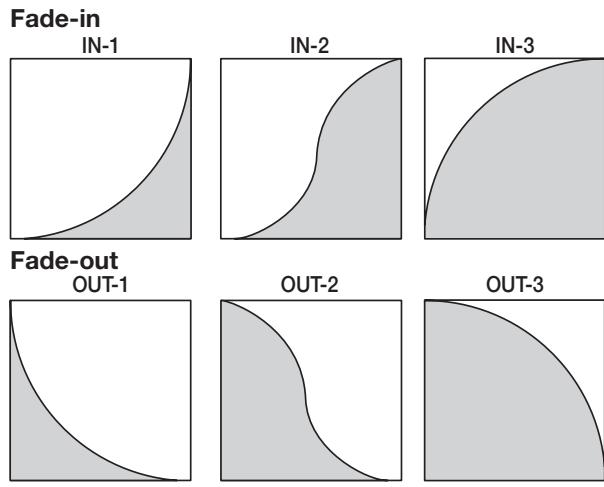
7. Press the [ENTER] key.
The indication "FADE I/O SURE?" appears on the display.
8. To execute the fade-in/fade-out operation, press the [ENTER] key once more.
When the fade-in/fade-out operation is completed, the unit returns to the track edit menu.
By pressing the [EXIT] key instead of the [ENTER] key, you can cancel the operation and back up one step at a time.
Reversing a specified range of audio data
You can reverse the order of a specified range of audio data.

1. Refer to steps 1 - 6 of "Basic steps for range editing" to select the track/V-take for reversing, and press the [ENTER] key.
The indication "Rvrs Src START" appears on the display.
![ZOOM MRS1608 - Refer to steps 1 - 6 of "Basic steps for range editing" to select the track/V-take for reversing, and press the [ENTER] key. - 1](/content/2025/01/152285/images/4c9bcd18f4ea0935f2f2d9a66635e49b77986eb9bcf3f3dcd1822437157553bb.jpg)
2. Use the cursor left/right keys to move the flashing section of the counter, and turn the dial to specify the reversing start point.
3. Press the [ENTER] key.
The display indication changes to "Rvrs Src END".
![ZOOM MRS1608 - Press the [ENTER] key. - 1](/content/2025/01/152285/images/032ffab0e25ff927cc78f19d8e458c2d2453ff53703900f3c9a878ae5eac6528.jpg)
4. Use the same procedure as in step 2 to specify the reversing end point.
If you press the PLAY [▶] key, the specified range will be played.
5. Press the [ENTER] key.
The indication "REVERSE SURE?" appears on the display.
6. To execute the reversing operation, press the [ENTER] key.
When the reverse operation is completed, the unit returns to the track edit menu.
By pressing the [EXIT] key instead of the [ENTER] key, you can cancel the operation and back up one step at a time.
Changing the duration of a specified range of data
You can change the duration of the specified range of audio data on a track without changing the pitch (time stretch/compress). The stretched or compressed data can be written over the old data on the same track or pasted on another track while leaving the source data unchanged.
Time stretch/compress

NOTE
- The editing start point for time stretch/compress is always from the beginning of the V-take.
- The point where you stop playback when checking out the time stretch/compress effect becomes the editing end point.
1. Refer to steps 1 - 6 of "Basic steps for range editing" to select the track/V-take for time stretch/compress, and press the [ENTER] key.
The indication "TmStrDst" appears on the display. In this condition, you can select a track/V-take on which to place the audio data after time stretch/compress.
![ZOOM MRS1608 - Refer to steps 1 - 6 of "Basic steps for range editing" to select the track/V-take for time stretch/compress, and press the [ENTER] key. - 1](/content/2025/01/152285/images/9c19c55c80477f8863b66f792ac94e454f7c49bfaf9855bfd61e914dd2af59da.jpg)
2. Use the cursor up/down keys and the dial to select the destination track/V-take, and press the [ENTER] key.
The display indication changes as follows.
![ZOOM MRS1608 - Use the cursor up/down keys and the dial to select the destination track/V-take, and press the [ENTER] key. - 1](/content/2025/01/152285/images/d91f8a5cfb14504ab17f29c9c27f3b3a22ef94d20f208e3923cf87efe66394a1.jpg)
This screen lets you specify the ratio for time stretch/ compress in two units, as listed below.
- Stretch ratio (%)
Expresses the length of the track after time stretch/compress.
- Tempo (BPM)
Sets the tempo (beats per minute) after time stretch/ compress, using the tempo set in the rhythm song as reference. In the default condition, the current tempo of the rhythm section is shown.
3. Use the cursor left/right keys to select the unit for making the time stretch/compress setting.
The selected unit flashes.
4. Turn the dial to make the time stretch/compress setting.
When you change one item, the other item also changes accordingly.
The setting range of 50% - 150% for the stretch/compress ratio cannot be exceeded.
5. Press the PLAY [▶] key.
The stretched/compressed track is played from the beginning of the V-take.
If you continue playback to the end of the V-take, all audio data of that track/V-take are stretched or compressed.
HINT
It is also possible to change the stretch/compress ratio during playback.
6. At the point where you want the time stretch/compress function to end, press the STOP [■] key.
The indication "TimStrch SURE?" appears on the display.
7. To execute the time stretch/compress operation, press the [ENTER] key.
When the time stretch/compress operation is completed, the unit returns to the track edit menu.
By pressing the [EXIT] key instead of the [ENTER] key, you can cancel the operation and back up one step at a time.
HINT
To apply time stretch/compress only to a part of the song such as a drum pattern or guitar riff, use the copy function and trimming function to create a V-take of the desired length first.
Compensating the pitch of a specified range
This editing command lets you specify a KEY and SCALE and align all audio data in a specified range to the nearest note in that scale (PitchFix). Instead of the scale, it is also possible to use a phrase from a bass sequence as reference for pitch compensation.
HINT
The edited audio data after pitch compensation will overwrite the existing data.
NOTE
For pitch shift to operate correctly, the audio data should represent single notes recorded without applying delay, reverb, chorus, or other effects.
1. Refer to steps 1 - 6 of "Basic steps for range editing" to select the track/V-take for pitch compensation, and press the [ENTER] key.
The indication "PitchFix KEY" appears on the display. In this condition, you can select the key for the scale to be used for pitch compensation.
![ZOOM MRS1608 - Refer to steps 1 - 6 of "Basic steps for range editing" to select the track/V-take for pitch compensation, and press the [ENTER] key. - 1](/content/2025/01/152285/images/a1d31e19822ad3b5b43fc77a5c28a511bf112cea313457468fa1815a7fb5e7cd.jpg)
HINT
You can only select a single mono track or one track of a stereo pair as source track for PitchFix.
2. Turn the dial to select the key.
The selection range for the key is C-B (in semitone steps) and "BassSeq".
When you select "BassSeq", the pitch of the audio track will be detected and transposed to the nearest note specified by the bass sequence or by actually hitting a pad. The upper limit for pitch detection is two octaves above center A.
For example, if you use an audio track recorded with long tones and apply PitchFix using a bass sequence with a short rhythm, you will get an interesting effect with strong modulation.
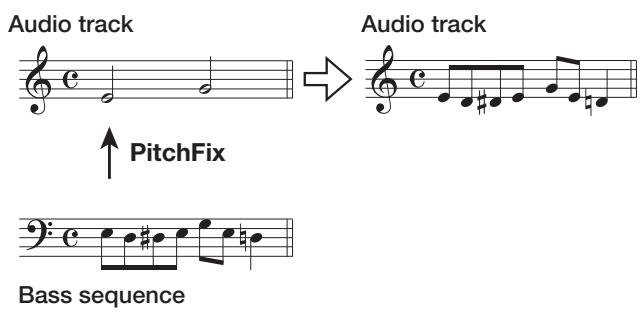
HINT
- When you select "BassSeq", step 3 is not necessary.
- When you select "BassSeq" for pitch compensation, the note in the octave closest to the source material is selected. If the source and the bass track pitch are far apart, the results may be unpredictable.
3. Use the cursor left/right keys to bring up the indication "PitchFix SCALE" on the display, then turn the dial to select the scale type.
The scale type selections are "Major", "Minor", and "Chrmic" (Chromatic). When you select Chromatic, pitch compensation is performed to the nearest semitone.
PitchFix
SCALE
Major
The following illustrations show pitch compensation for the same melody, using D Major and Chromatic.
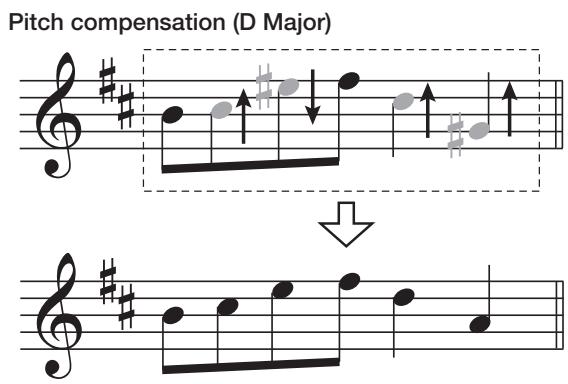
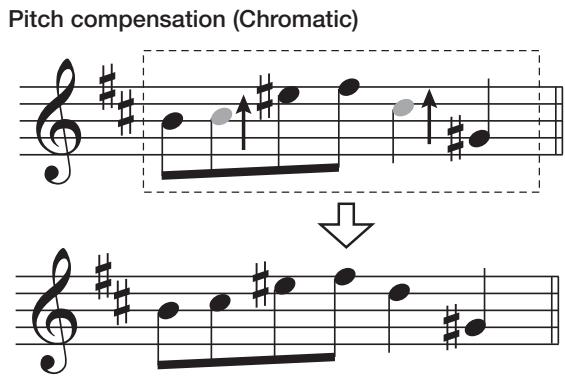
4. Use the cursor left/right keys to bring up the indication "PitchFix SPEED" on the display, then turn the dial to select the speed with which the pitch is adjusted. The setting range is 0 - 30.
Smaller values result in faster compensation speed. For a natural effect, select a fairly high value.
PitchFix
SPEED
10
HINT
By selecting a very high pitch compensation speed, you can produce a robotic voice from a vocal source.
5. Press the cursor down key to cause the counter indication to flash. Then use the cursor left/right keys and the dial to specify the start point for pitch compensation.
You can also use the MARKER [| | / [ ] keys, ZERO [key, and REW [ ] / FF[ ] keys to locate the point. By pressing the PLAY [ ] key at this point, you can check out the editing result.
6. To start pitch compensation, hold down the REC [●] key and press the PLAY [▶] key.
Recording starts with the pitch compensation applied. If you have selected "BassSeq" in step 2, you can check the bass track level on the level meter in the display.
By using the cursor left/right keys during recording, you can call up and edit the parameter values set in steps 2 - 5. If you press the [BYPASS] key, the pitch compensation effect is bypassed. (This will also be reflected in the recording.)
HINT
The manual and automatic punch-in/punch-out functions can also be used at this point.
7. When recording has progressed to the point where you want pitch compensation to stop, press the STOP [■] key.
The indication "PitchFix SURE?" appears on the display.
8. To carry out pitch compensation, press the [ENTER] key.
The audio data of the specified range are overwritten, and the unit returns to the track edit menu.
By pressing the [EXIT] key instead of the [ENTER] key, you can cancel the operation and back up one step at a time.
Generating a 3-part harmony from a specified range of audio data
You can use chord information programmed in the rhythm pattern/rhythm song to shift the pitch of the audio data and create a 3-part harmony (chord root/third/fifth). Whether the rhythm pattern or rhythm song is used as source of chord information depends on the mode selected for the rhythm section (rhythm pattern mode or rhythm section mode).
The pitch-shifted audio data can be either added to the source material or written to another track/V-take.
For example, when G Major C Major D Major are programmed in a rhythm song, the following harmony is created.
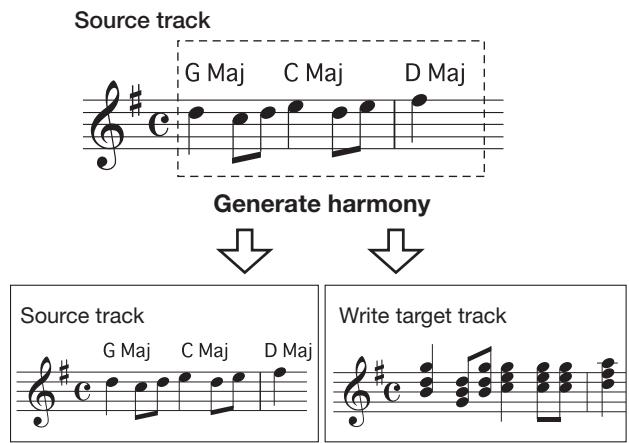
HINT
- Depending on the pitch of the source material and the rhythm pattern/rhythm song setting, the results of this command may be unpredictable.
- When generating harmony using the rhythm song, chords must be programmed for the rhythm song beforehand.
- When “-- (no conversion)” is programmed as chord type in the rhythm song, no harmony can be created at this point.
- When generating harmony using chord information of the rhythm pattern, the harmony is created for the same chord throughout.
NOTE
For the harmony generate function to work properly, the audio data should represent single notes recorded without applying delay, reverb, chorus, or other effects.
1. Select the rhythm pattern or rhythm song to be used for harmony generation.
When the selection is finished, press the [EXIT] key to return to the main screen.
NOTE
Make sure that the selected rhythm pattern/rhythm song comprises suitable chord information.
2. Refer to steps 1 - 6 of "Basic steps for range editing" to select the track/V-take for harmony generation, and press the [ENTER] key.
The indication "Hmny Dst" appears on the display. In this condition, you can select the target destination for writing the harmony.
Henny Dst TR 1-1
HINT
You can only select a single mono track or one track of a stereo pair as source track for Harmony Generate.
3. Use the cursor up/down keys and the dial/ status keys to select the track/V-take to be used as destination.
If you specify the same track/V-take as the source, the harmony data will be added to the original data and the V-take will be overwritten. You can also specify a stereo track or two mono tracks as destination.
HINT
During parameter setting and harmony generation, the status key of the source track is lit in green and the status key of the destination track in red. If the source track/V-take is also selected as destination, the status key is lit in orange.
4. Press the [ENTER] key.
The display indication changes as follows.
HARMONY+
SOURCE
LVL 108
From this screen, you can set the volume and panning for the source and the harmony parts. The parameter for the edit source is "SOURCE". The parameter for the chord root is called "CHORUS 1", the parameter for the third
"CHORUS 2", and the parameter for the fifth "CHORUS 3".
5. Verify that "SOURCE LVL" is shown on the second line of the display, and turn the dial to set the volume for the edit source.
The setting range is 0 - 127. A setting of 100 results in an unchanged level.
HINT
When the SOURCE LVL parameter is set to zero, the edit source will be muted, and only the generated harmony parts are written to the track.
6. To set the pan value for the edit source, use the cursor left/right keys to bring up the indication “SOURCE Pan” on the display, and then turn the dial to adjust panning for the source.
The setting range is L100 (fully left) - 0 (center) - R100 (fully right).
HARMONY+
SOURCE
Pan
NOTE
When the destination is a mono track, the pan setting will have no effect.
7. Use the cursor left/right keys and the dial to adjust the level and panning for the harmony parts (CHORUS 1 - 3) in the same way.
By setting the LVL parameter to zero, you can mute the respective part.
8. To adjust the speed with which the created harmony parts will reach the target pitch, use the cursor left/right keys to bring up the indication “HARMONY+ FEELING” on the display and turn the dial.
The setting range for the FEELING parameter is 0 - 30. The larger the value, the smoother the transition to the harmony.
HARMONY+
FEELING 7
- Press the cursor down key to cause the counter indication to flash. Then use the cursor left/right keys and the dial to specify the start point for harmony generation.
You can also use the MARKER [ ] / [ ] keys, ZERO [key, and REW [ ] / FF[ ] keys to locate the point.
HINT
The manual and automatic punch-in/punch-out functions can also be used at this point.
- To start harmony generation, hold down the REC [●] key and press the PLAY [▶] key.
Recording starts. The display indication changes as follows.
| HARMONY+ | |||||
| CHORD C Maj | |||||
| H | M | S | MS | MEASURE | BEAT TICK |
| 0 | 012910 | 00744 | 6 | 00 | |
When the second line of the display reads "CHORD", the chord of the current rhythm pattern/rhythm song is shown. By using the cursor left/right keys, you can display and edit the parameters of steps 5 - 8.
HINT
When playing the harmony, the drum/bass track will also be played. Use the faders as required to adjust the level.
- When recording has progressed to the point where you want harmony generation to stop, press the STOP [■] key.
The indication “HARMONY+ SURE?” appears on the display.
- To carry out harmony generation, press the [ENTER] key.
The audio data of the specified range are written. When the process is complete, the unit returns to the track edit menu.
By pressing the [EXIT] key instead of the [ENTER] key, you can cancel the operation and back up one step at a time.
Generating a 1-part harmony from a specified range of audio data
You can specify a KEY and SCALE and shift the pitch of the audio data by a third up or down to create a 1-part harmony. This is called the Duo Harmony function.
The pitch-shifted audio data can be either added to the source material or written to another track/V-take.
For example, when KEY = C and SCALE = Major is specified, and shift upwards is selected for the Duo Harmony function, the following harmony will be created.
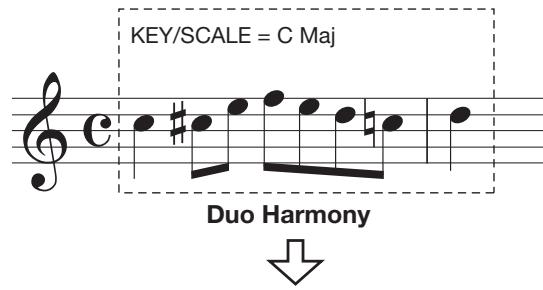
Source track
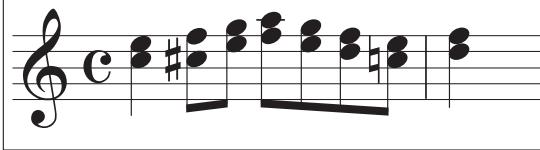
Write target track
NOTE
For the Duo Harmony function to work properly, the audio data should represent single notes recorded without applying delay, reverb, chorus, or other effects.
- Refer to steps 1 - 6 of "Basic steps for range editing" to select the track/V-take for harmony generation, and press the [ENTER] key.
The indication "DHmnyDst" appears on the display. In this condition, you can select the target destination for writing the created harmony.
DHmnyIst
TR 1-1
NOTE
You can only select a single mono track or one track of a stereo pair as source track for Duo Harmony.
2. Use the cursor up/down keys and the dial/ status keys to select the track/V-take to be used as destination.
If you specify the same track/V-take as the source, the harmony data will be added to the original data and the V-take will be overwritten. You can also specify a stereo track or two mono tracks as destination.
3. Press the [ENTER] key.
The display indication changes as follows. From this screen, you can set the key to be used as reference for the harmony.
![ZOOM MRS1608 - Press the [ENTER] key. - 1](/content/2025/01/152285/images/8a6f854324644c6499bca854152d563242b6560e7f354a3397234ecb572b3683.jpg)
4. Turn the dial to select the key.
The setting range is C - B (in semitone steps).
5. Use the cursor left/right keys to bring up the indication "DUO HARM SCALE" on the display. Then turn the dial to select the scale type and the pitch shift direction. The following settings are available.
- Maj Up: Create harmony a major third up
- Min Up: Create harmony a minor third up
- Maj Dn: Create harmony a major third down
- Min Dn: Create harmony a minor third down
DJO HARM
SCALE
Maj Up
6. Use the cursor left/right keys to bring up the indication “FEELING” on the display. Then turn the dial to select the speed with which the created harmony will reach the target pitch.
The setting range is 0 - 30 . The larger the value, the smoother the transition to the harmony.
DIO HARM
FEELING 7
7. Use the cursor left/right keys to bring up the indication “SOURCE LVL” on the display, and turn the dial to set the volume for the edit source.
The setting range is 0 - 127. A setting of 100 results in an unchanged level.
DIO HARM
SOURCE
LVL 100
HINT
When the SOURCE LVL parameter is set to zero, the edit source will be muted, and only the generated harmony is written to the track.
8. To set the pan value for the edit source, use the cursor left/right keys to bring up the indication “SOURCE Pan” on the display, and then turn the dial to adjust panning for the source.
The setting range is L100 (fully left) - 0 (center) - R100 (fully right).
DIOHARM
SOURCE
Pan 0
NOTE
When the destination is a mono track, the pan setting will have no effect.
9. Adjust the level and panning for the harmony part in the same way, by bringing up the indication "CHORUS LVL" or "CHORUS Pan" on the display.
10. Press the cursor down key to cause the counter indication to flash. Then use the cursor left/right keys and the dial to specify the start point for Duo Harmony generation.
You can also use the MARKER [ ] / [ ] keys, ZERO [key, and REW [ ] / FF[ ] keys to locate the point.
The Duo Harmony part will be added to the range where recording steps were carried out. By pressing the PLAY
[+] key at this point, you can check the editing result.
HINT
The manual and automatic punch-in/punch-out functions can also be used at this point.
- To start Duo Harmony generation, hold down the REC [●] key and press the PLAY [▶] key.
- When recording has progressed to the point where you want harmony generation to stop, press the STOP [■] key.
The indication "DUO HARM SURE?" appears on the display.
13. To confirm the operation, press the [ENTER] key.
The editing result is written to the track. When the process is complete, the unit returns to the track edit menu.
By pressing the [EXIT] key instead of the [ENTER] key, you can cancel the operation and back up one step at a time.
Editing using V-takes
Recorded audio data can also be edited in V-take units. This is convenient to exchange the data on two V-takes or delete a V-take that is no longer needed. The procedure is explained in this section.
Basic steps for V-take editing
When editing audio data in V-take units, some steps are similar for each action. These are as follows.
- From the main screen, press the [V-TAKE] key in the track parameter section.
The key lights up, and a screen for selecting the V-take appears on the display.
TR1-1 GTR1-1
While this screen is shown, the level meter section of the display indicates the V-take selection and the presence or absence of audio data by the segment flashing/lit/out status.
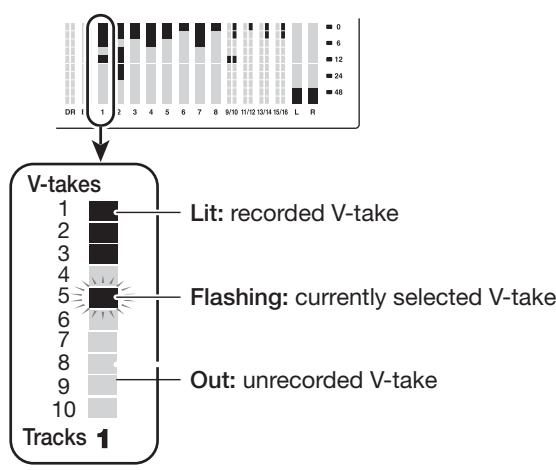
- Use the cursor left/right keys and the dial to select a track and V-take.
The status key for the currently selected track is lit in orange. Alternatively, you can press a status key to select a track.
It is also possible to select the master track. In this case, the track number indication shows "M".
HINT
Pressing the status key for a stereo track repeatedly selects the odd-numbered track and even-numbered track in sequence.
3. Press the [UTILITY/TRACK EDIT] key in the display section.
A menu for editing audio data in V-take units appears on the display.
4. Repeatedly press the [UTILITY/TRACK EDIT] key to call up the desired command. The following editing commands are available.
- ERASE
Erase the audio data on a specified track/V-take.
COPY
Copy the audio data of a specified track/V-take to another track/V-take.
- MOVE
Move the audio data of a specified track/V-take to another track/V-take.
EXCHG (Exchange)
Exchange the audio data of a specified track/V-take with the data of another track/V-take.
IMPORT
Import any track/V-take from another project saved on the hard disk.
HINT
If necessary, you can also change your selection of track and V-take from this screen.
5. Press the [ENTER] key.
The subsequent steps will differ, depending on which command was selected in step 4. See the sections for the respective commands.
6. When the editing command has been executed, repeatedly press the [EXIT] key to return to the main screen.
NOTE
After executing an edit command for rewriting the audio data on a track, the original data cannot be restored. To retain the
condition before editing, use the capture and swap functions ( p.65) for that track.
Erasing a V-take
You can erase the audio data on a specified V-take. The V-take is returned to the non-recorded condition.

- Refer to steps 1 - 5 of "Basic steps for V-take editing" to select the track/V-take to erase and to bring up the indication "ERASE" on the display. Then press the [ENTER] key.
The indication "ERASE SURE?" appears on the display.
2. To execute the erase operation, press the [ENTER] key once more.
When the erase operation is completed, the unit returns to the V-take selection menu.
By pressing the [EXIT] key instead of the [ENTER] key, you can cancel the operation and back up one step at a time.
Copying a V-take
You can copy the audio data of a specified V-take to any other V-take. This action will overwrite any existing data on the destination V-take. The data on the copy source V-take will be unchanged.
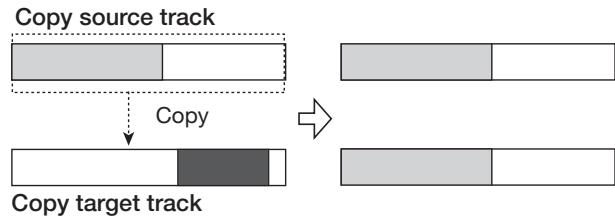
- Refer to steps 1 - 5 of "Basic steps for V-take editing" to select the track/V-take to copy and to bring up the indication "COPY" on the display. Then press the [ENTER] key.
A screen for selecting the copy destination track/V-take appears on the display.
COPY TO TR 4-1
2. Use the cursor left/right keys and the dial to select the destination track/V-take, and press the [ENTER] key.
The indication "COPY SURE?" appears on the display. If audio data exist at the copy destination, the indication "OverWrt?" is shown. When the copy operation is performed, these data will be overwritten.
3. To execute the copy operation, press the [ENTER] key once more.
When the copy operation is completed, the unit returns to the V-take selection menu.
By pressing the [EXIT] key instead of the [ENTER] key, you can cancel the operation and back up one step at a time.
Moving a V-take
You can move the audio data of a specified V-take to any other V-take. This action will overwrite any existing data on the destination V-take. The data on the move source V-take will be erased.
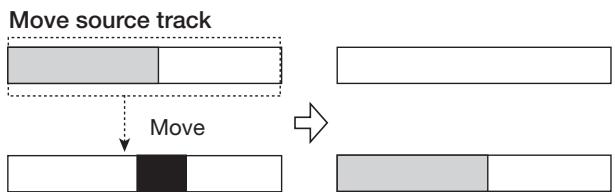
Move destination track
1. Refer to steps 1 - 5 of "Basic steps for V-take editing" to select the track/V-take to move and to bring up the indication "MOVE" on the display. Then press the [ENTER] key.
A screen for selecting the move destination track/V-take appears on the display.
MOVE TO TR 1-1
2. Use the cursor left/right keys and the dial to
select the destination track/V-take, and press the [ENTER] key.
The indication "MOVE SURE?" appears on the display. If audio data exist at the move destination, the indication "OverWrt?" is shown. When the move operation is performed, these data will be overwritten.
3. To execute the move operation, press the [ENTER] key once more.
When the move operation is completed, the unit returns to the V-take selection menu.
By pressing the [EXIT] key instead of the [ENTER] key, you can cancel the operation and back up one step at a time.
Exchanging V-takes
You can exchange the audio data of two specified V-takes.
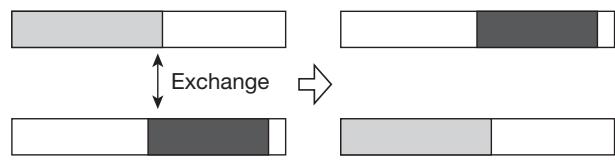
1. Refer to steps 1 - 5 of "Basic steps for V-take editing" to select the exchange source track/V-take. Bring up the indication "EXCHG" on the display and press the [ENTER] key.
The exchange destination track/V-take is shown on the display.
EXCHG TO TR 1-1
2. Use the cursor left/right keys and the dial to select the exchange destination V-take, and press the [ENTER] key.
The indication "EXCHG SURE?" appears on the display.
3. To carry out the exchange operation, press the [ENTER] key once more.
When the exchange operation is completed, the unit returns to the V-take selection menu.
By pressing the [EXIT] key instead of the [ENTER] key, you can cancel the operation and back up one step at a time.
Importing a V-take from another project
You can import any V-take from another project into a specified track/V-take of the current project. Any audio data on the destination V-take are overwritten by the imported V-take.
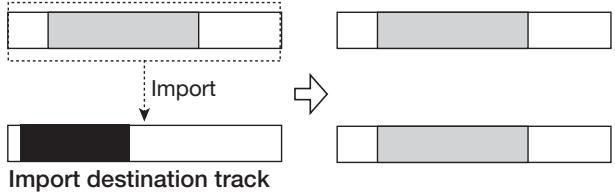
Track in import source project
1. Refer to steps 1 - 5 of "Basic steps for V-take editing" to select the import destination track/V-take and to bring up the indication "IMPORT" on the display. Then press the [ENTER] key.
The name of the import source project is shown on the display.
![ZOOM MRS1608 - Refer to steps 1 - 5 of "Basic steps for V-take editing" to select the import destination track/V-take and to bring up the indication "IMPORT" on the display. Then press the [ENTER] key. - 1](/content/2025/01/152285/images/a2bf411f06ae5430bee312a00706c105db99669937ada7cef05e5a13e125cd63.jpg)
2. Turn the dial to select the import source project, and press the [ENTER] key.
A track/V-take in that project is shown. While this screen is shown, the level meter section of the display indicates the status of the V-take in the source project by the segment flashing/lit/out status.
![ZOOM MRS1608 - Turn the dial to select the import source project, and press the [ENTER] key. - 1](/content/2025/01/152285/images/23bdcb71593e6f22d28dd42cd1e458568cfd3efee608c58e4ff82ef569411244.jpg)
3. Use the cursor left/right keys and the dial to select the track/V-take to import.
When an unrecorded track/V-take is selected, the indication "NO DATA" is shown instead of the V-take name.
4. Press the [ENTER] key.
The indication "IMPORT SURE?" appears on the display. If audio data exist at the import destination, the indication "OverWrt?" is shown. When the import operation is performed, these data will be overwritten.
5. To execute the import operation, press the [ENTER] key once more.
When the import operation is completed, the unit returns to the V-take selection menu.
By pressing the [EXIT] key instead of the [ENTER] key, you can cancel the operation and back up one step at a time.
Track capture and swap
You can capture the audio data of any track and temporarily store them on the hard disk. Later you can swap the captured data with the current data of the track. This lets you save the state of a track before an editing operation. If the result of the operation is not as desired, you can then easily restore the track to its previous state.
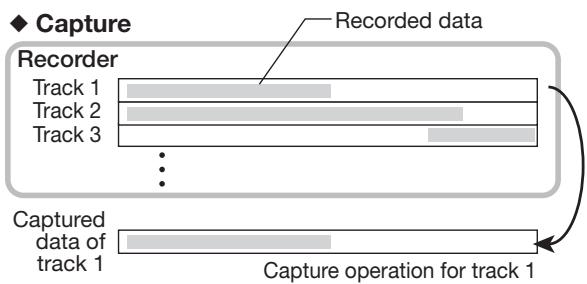
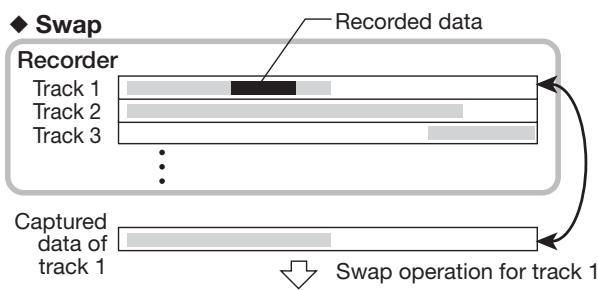
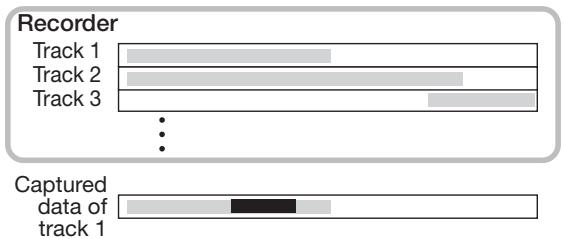
NOTE
- Capture is performed on a track by track basis.
- Captured track data will be erased from the hard disk when another project is loaded or when the power is turned off.
Capturing a track
You can capture the audio data of any specified track.
1. From the main screen, press the [UTILITY/TRACK EDIT] key in the display section.
The indication "UTILITY TR EDIT" appears on the display.
2. Use the cursor left/right keys to bring up the indication "UTILITY CAP/SWAP" on the display, and press the [ENTER] key.
The display indication changes as follows.
CAPTURE TR1
3. Use the status keys or the dial to select the track to capture.
The status key for the currently selected track is lit in orange. It is also possible to select the master track. In this case, the indication shows "MASTER" and the [MASTER] status key is lit.
HINT
A track for which an unrecorded V-take is selected cannot be captured.
4. Press the [ENTER] key.
The indication "CAPTURE SURE?" appears on the display.
5. To carry out the capture operation, press the [ENTER] key once more.
When capture is completed, the indication "SWAP TRxx" (where xx is the track number) appears on the display. This indicates that the track has been captured and can be swapped if necessary.
By pressing the [EXIT] key instead of the [ENTER] key, you can cancel the operation and back up one step at a time.
6. To return to the main screen, press the [EXIT] key several times.
HINT
By repeating steps 3 - 5, you can capture multiple tracks.
Swapping track data and captured data
You can swap the current data of a track with the captured data.
- From the main screen, press the [UTILITY/TRACK EDIT] key in the display section.
The indication "UTILITY TR EDIT" appears on the display. - Use the cursor left/right keys to bring up the indication "UTILITY CAP/SWAP" on the display, and press the [ENTER] key.
- Use the status keys or the dial to select a track that was captured.
When you select a captured track, the indication "SWAP" appears on the display.
SWAP
TR1
HINT
If you select a track that was not captured, the indication "CAPTURE" appears.
- Press the [ENTER] key.
The indication "SWAP SURE?" appears on the display.
- To carry out the swap operation, press the [ENTER] key once more.
When the operation is completed, the audio data of the selected track will have been replaced by the previously captured audio data.
By pressing the [EXIT] key instead of the [ENTER] key, you can cancel the operation and back up one step at a time.
HINT
By performing the swap operation once more, you can return the track contents to the previous condition.
- To return to the main screen, press the [EXIT] key several times.
Reference [Phrase Looping]
The MRS-1608 lets you handle part of a recorded track or an audio file on CD-ROM as a phrase that can be loaded and played freely, in a preprogrammed sequence or for a specified number of times. The result can be written to any track/V-take. This function is called "phrase looping". For example, you could use a commercially available sampling CD to pick up drum loops in any desired order, and use these to create a rhythm track.
This section describes the steps for phrase looping.
Which kind of phrases can be used?
The MRS-1608 can manage up to 100 phrases in one project. The phrases are stored on the hard disk in an area called the "phrase pool". The following kinds of data can be used as a phrase.
(1) Any track/V-take in the currently loaded project
You can select any track/V-take in the currently loaded project and specify a range to be used as a phrase.
(2) Audio file on CD-ROM/R/RW
You can load a stereo or mono audio file (8-bit or 16-bit AIFF or WAV file with sampling frequency 8 - 48kHz ) from a CD-ROM/R/RW disc inserted in the CD-R/RW drive and use it as a phrase. If the optional UIB-02 card is installed in the MRS-1608, you can also copy audio files from the hard disk of a computer to the hard disk of the MRS-1608 and then use such files as a phrase.
NOTE
- After loading, all audio files are played with a sampling frequency of 44.1kHz . If necessary, files with other sampling frequencies can be converted (resampled) to 44.1kHz .
- Discs that do not comply to ISO 9660 Level 2 specifications will not be recognized.
- CD-R or CD-RW discs that have not been finalized will not be recognized.
(3) Phrase from another project
You can load any phrase from a project stored on the internal hard disk of the MRS-1608.
HINT
It is not possible to directly load an audio track from an audio CD as a phrase. You must first read it into a track 1 - 16 of the MRS-1608 ( p. 160) and then load the audio track into the phrase pool.
Once you have loaded phrases into the phrase pool, you can specify various parameters such as playback range and volume level, and then you can specify a playback sequence and number of times each phrase is played. The result can then be written to any track/V-take as a phrase loop.
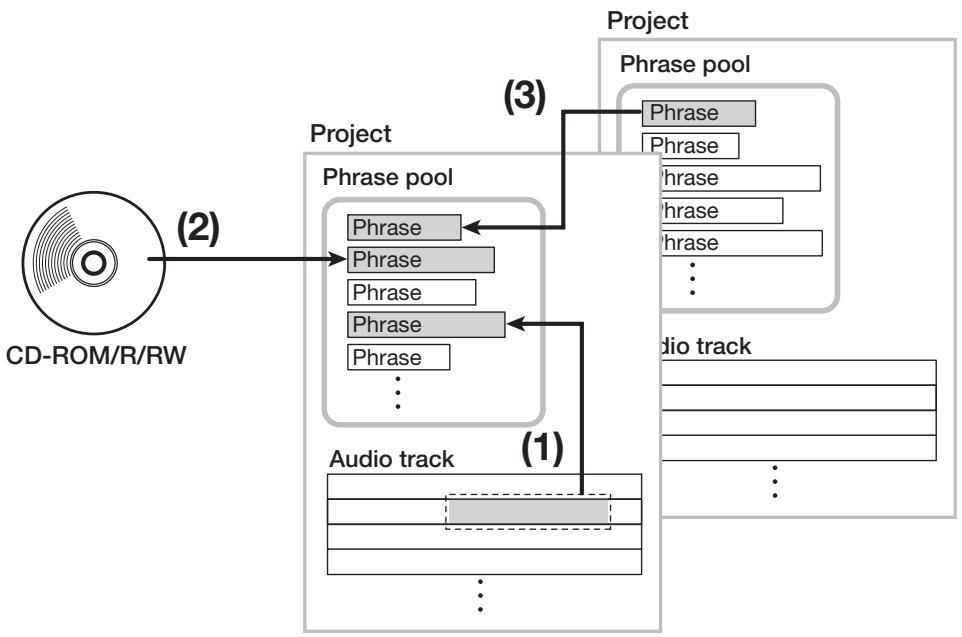
Loading a phrase
This section describes how to load a phrase into the phrase pool.
Basic phrase loading steps
When loading phrases, some steps are similar for each type.
1. From the main screen, press the [UTILITY/TRACK EDIT] key in the display section.
The indication "UTILITY TR EDIT" appears on the display.
UTILITY TR EDIT
2. Use the cursor left/right keys to bring up the indication "UTILITY PHRASE" on the display, and press the [ENTER] key.
A screen for selecting the phrase appears on the display.
![ZOOM MRS1608 - Use the cursor left/right keys to bring up the indication "UTILITY PHRASE" on the display, and press the [ENTER] key. - 1](/content/2025/01/152285/images/d29568ca7b9499150bb1a01f07f077997f37ecc8c2b680b2e910ce3fdfb6e165.jpg)
HINT
The phrase number 0 is preprogrammed as a rest of 1 measure (4/4 beat). This phrase cannot be overwritten.
3. Turn the dial to select a number into which the phrase should be loaded.
If you select an empty phrase number, the display shows "EMPTY".
NOTE
If you select a number into which a phrase is already loaded, the previous phrase will be erased and replaced by the new phrase.
4. Press the [UTILITY/TRACK EDIT] key once more.
The phrase utility menu for loading phrases and creating phrase loops appears on the display.
5. Use the cursor left/right keys to bring up the indication "PHRASE IMPORT" on the display, and press the [ENTER] key.
The menu for selecting the import source appears on the display.
IMPORT TAKE
6. Use the cursor left/right keys to select one of the following, and press the [ENTER] key.
- TAKE
Import a specified range of audio data from any track/V-take in the currently loaded project.
WAV/AIFF
Import an audio file (WAV/AIFF) from a CD-ROM/R/ RW disc inserted in the CD-R/RW drive or from the internal hard disk.
- PHRASE
Import a phrase from the phrase pool of another project saved on the hard disk.
The subsequent steps will differ, depending on the type of source selected for the phrase.
See the sections for the respective commands.
After the import operation was carried out, the phrase menu appears again on the display. If desired, you can import another phrase. Up to 100 phrases can be included in a project (with a duration of 1 second - 30 minutes per phrase).
To return to the main screen, press the [EXIT] key several times.
HINT
The name “PHxxx-yy” is automatically assigned to the loaded phrase (where xxx is the current project number and yy the phrase number).
Importing a phrase from the current project
You can specify a range from any track/V-take of the current project and use it as a phrase.
1. Refer to steps 1 - 6 of "Basic phrase loading steps" to select "TAKE" as import source. Then press the [ENTER] key.
The indication "ImprtSrc TRxx-yy" (where xx is the track number and yy the V-take number) appears on the display. In this condition, you can select the import source.
2. Use the dial or the status keys to select the track, and use the cursor up/down keys to select the V-take number.
ImprSrc TR 16-1
When track 16 is selected, turning the dial further to the right selects tracks in odd-numbered/even-numbered pairs or the master track. (Pressing two status keys for odd/even-numbered tracks together selects the tracks as two mono tracks.) When a stereo track, two mono tracks, or the master track is selected, the phrase can be imported in stereo.
HINT
By repeatedly pressing the status key of a stereo track, you can select the odd-numbered track, even-numbered track, and stereo track.
3. Press the [ENTER] key.
The display indication changes to "ImprSrc START". In this condition, you can specify the start point for the data range to be imported.
| ImportSrc START | |||||||
| H | M | S | MS | MEASURE | BEAT | TICK | MARKER |
| 0 | 0 | 0 | 0 | 001 | 1 | 0 | 00 |
4. Use the cursor left/right keys to move the flashing section of the counter, and turn the dial to specify the start point.
By moving the flashing section to the MEASURE/BEAT/TICK or MARKER field on the display, you can specify the point as a measure, beat, tick, or as a mark number.
HINT
- By holding down the STOP [■] key and pressing the PLAY [▶] key, you can perform scrub playback of the V-take of the specified track ( p. 38).
- The playback range of the phrase loop can be fine-tuned also after importing. Therefore it is best to choose a somewhat wider range here.
- If you specify a point where there are no audio data, the second line of the display shows * symbol.
5. Press the [ENTER] key.
The display indication changes as follows.
| ImportSrc END | ||||||
| H | M | S | MS | MEASURE | BEAT | TICK |
| 0 | 0 | 2 | 10 | 002 | 2 | 24 |
6. Specify the end point of the range in the same way as described in step 4.
If you press the PLAY [▶] key, the specified range will be played.
7. When you have fully specified the import source, press the [ENTER] key.
The indication "IMPORT SURE?" appears on the display.
IMPORTSURE?
8. To carry out the import process, press the [ENTER] key again.
The phrase is imported. When the import process is completed, the phrase menu appears again.
By pressing the [EXIT] key instead of the [ENTER] key, you can cancel the operation and back up one step at a time.
Importing a WAV/AIFF file
You can import an audio file (WAV/AIFF) from a CD-ROM or CD-R/RW disc inserted in the CD-R/RW drive or from the internal hard disk.
Before doing this, the following preparations are necessary.
- When importing from the CD-R/RW drive
Insert a CD-ROM or CD-R/RW disc containing audio files into the CD-R/RW drive.
- When importing from the internal hard disk
Copy audio files from a computer into a folder named "WAV_AIFF" immediately under the root directory (top level folder) of the internal hard disk.
The files must have the extension“.WAV” (for WAV files) or“.AIF” (for AIFF files).
NOTE
- To copy audio files to the internal hard disk, the optional UIB-02 card is necessary. For information on using the option card, see page 183.
- Any sub folders in the WAV_AIFF folder are not recognized by the MRS-1608.
- The following procedure will not allow you to first listen to the audio files. Confirm file content and file name before you start the procedure.
1. Refer to steps 1 - 6 of "Basic phrase loading steps" to select "WAV/AIFF" as import source. Then press the [ENTER] key.
The indication “IMPORT CD-ROM” appears on the display. You can now select the source device.
IMPORT CD-ROM
2. Use the cursor left/right keys to select the source device: "CD-ROM" (CD-R/RW drive) or "IntHDD" (internal hard disk), and press the [ENTER] key.
The unit searches for WAV/AIFF files on the specified device. When files are found, their names are listed on the display.
![ZOOM MRS1608 - Use the cursor left/right keys to select the source device: "CD-ROM" (CD-R/RW drive) or "IntHDD" (internal hard disk), and press the [ENTER] key. - 1](/content/2025/01/152285/images/c00957749158bd5e20cec70a3d4509a398119fac033444e83938e816ef6c2937.jpg)
HINT
If you select CD-ROM as source without a disc in the drive, the indication "IMPORT Ins Disc" appears on the display and the tray of the CD-R/RW drive opens. To continue, insert a disc containing audio files and press the [ENTER] key.
3. Turn the dial to select the audio file to import.
When accessing a disc in the CD-R/RW drive which has audio files in a certain folder, turn the dial to display the folder name. When a folder is selected, the indication "Folder" is shown in the right side of the display.
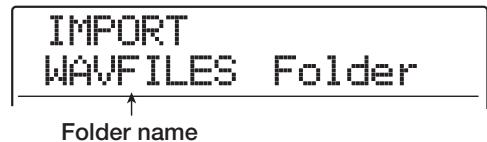
When you press the [ENTER] key in this condition, the files inside the selected folder are displayed. Turn the dial to select the desired file. By pressing the [EXIT] key, you can return to the next higher level.
4. When the file has been selected, press the [ENTER] key.
Depending on the sampling frequency of the imported audio file, the following applies.
Sampling frequency 44.1 kHz
The indication "IMPORT SURE?" appears on the display. When you press the [ENTER] key, the audio file is imported. When the process is complete, the phrase menu appears again.
Sampling frequency other than 44.1 kHz
When you press the [ENTER] key, a selection screen for conversion to 44.1kHz (resampling) appears.
WAV/AIFF Resample OH
Turn the dial to select resampling on/off. When you press the [ENTER] key, the indication "WAV/AIFF SURE?" appears. Press the [ENTER] key once more to start the
import process. When the process is complete, the phrase menu appears again.
By pressing the [EXIT] key instead of the [ENTER] key, you can cancel the operation and back up one step at a time.
HINT
The name “PHxxx-yy” is automatically assigned to the loaded phrase (where xxx is the current project number and yy the phrase number).
NOTE
Imported audio files are always played with a sampling frequency of 44.1kHz . If resampling was disabled during the import process, a file with a different sampling frequency will play back with a different pitch and tempo.
Importing a phrase from a different project
You can import any phrase contained in the phrase pool of another project stored on the hard disk.
NOTE
- When you import a phrase from the phrase pool of another project, you cannot specify a range. If necessary, edit the phrase playback point after importing the phrase.
- The following procedure will not allow you to first listen to the phrase. Confirm name and number of the phrase before you start the procedure.
1. Refer to steps 1 - 6 of "Basic phrase loading steps" to select "PHRASE" as import source. Then press the [ENTER] key.
The indication "PRJ SEL xxx" (where xxx is the project name) appears on the display. You can now select the source project.
![ZOOM MRS1608 - Refer to steps 1 - 6 of "Basic phrase loading steps" to select "PHRASE" as import source. Then press the [ENTER] key. - 1](/content/2025/01/152285/images/e479cd50d491ddf0606a25f9e30fe71fdfdb3c293bc78fa5c376b036233083a2.jpg)
2. Turn the dial to select the source project, and press the [ENTER] key.
The display now shows the screen for selecting phrases in that project.
![ZOOM MRS1608 - Turn the dial to select the source project, and press the [ENTER] key. - 1](/content/2025/01/152285/images/19c8b934751adc1779e02f58b7e1b7cf5560e8d6d905523698a6c82f14c33181.jpg)
HINT
If the selected project does not contain any phrases, the indication “NO DATA” appears on the display for several seconds, and then the previous screen returns.
3. Turn the dial to select the phrase, and press the [ENTER] key.
The indication "IMPORT SURE?" appears on the display.
4. To carry out the import process, press the [ENTER] key once more.
The phrase is imported. When the import process is completed, the phrase menu appears again.
By pressing the [EXIT] key instead of the [ENTER] key, you can cancel the operation and back up one step at a time.
Adjusting phrase parameters
Once you have imported a phrase into the phrase pool, you will need to specify parameters such as playback range and number of measures.
1. From the main screen, press the [UTILITY/TRACK EDIT] key in the display section.
The indication "UTILITY TR EDIT" appears on the display.
2. Use the cursor left/right keys to bring up the indication "UTILITY PHRASE" on the display, and press the [ENTER] key.
The phrase screen appears on the display.
![ZOOM MRS1608 - Use the cursor left/right keys to bring up the indication "UTILITY PHRASE" on the display, and press the [ENTER] key. - 1](/content/2025/01/152285/images/7e492234c889d607f41c28d19fa3c52925b711abb4c6f5f5cf1ddd3daf14355a.jpg)
No.0
3. Turn the dial to select the phrase that you want to edit.
When you press the PLAY [▶] key, the selected phrase is played. If you select a number where no phrase is
imported, the indication “EMPTY” appears instead of the phrase name.
4. Press the [EDIT] key.
A parameter of the selected phrase appears.
PHRASE
MEAS X02 No.1
5. Use the cursor up/down keys to call up the parameter you want to edit.
MEAS xXX (XX = 01 - 99)
This parameter specifies to how many measures the playback range of the phrase corresponds. The parameter lets you compress or expand the playing duration of the phrase to match the tempo setting of the rhythm section. The setting range is 1 - 99 measures.
TIMSIG
This specifies the time signature of the phrase. In combination with the MEAS x parameter, it determines the length of the phrase. The setting range is 1 (1/4) - 8 (8/4).
START
Specifies the playback start point of the phrase in milliseconds. In the default condition, this is the beginning of the imported data.
END
Specifies the playback end point of the phrase in milliseconds. In the default condition, this is the end of the imported data.
- NAME
Specifies a name for the phrase.
LVL
Specifies the phrase playback level in the range of ± 24 dB.
HINT
If you do not intend to match the phrase to a rhythm song, there is no need to set the MEAS x and TIMSIG parameters.
6. Use the dial and the cursor left/right keys to adjust the setting value.
- Adjusting MEAS x/TIMSIG/LVL
Turn the dial to set the numerical value.
- Adjusting START / END
Use the cursor left/right keys to cause the counter value to flash, and turn the dial to set the value.
- Adjusting NAME
Use the cursor left/right keys to move the flashing section to the character to edit, and turn the dial to select the character.
HINT
You can use the PLAY [▶] key to check the phrase during editing.
7. Repeat steps 5 - 6 to complete the phrase.
If desired, press the [EXIT] key several times to return to the phrase screen, and edit another phrase.
8. To return to the main screen, press the [EXIT] key several times.
Copying a phrase
You can copy a phrase to any other phrase number. Any phrase at the copy destination will be overwritten (erased). This is convenient to use one phrase as a starting point and save it with different parameter settings.
- From the main screen, press the [UTILITY/TRACK EDIT] key in the display section.
The indication "UTILITY TR EDIT" appears on the display. - Use the cursor left/right keys to bring up the indication "UTILITY PHRASE" on the display, and press the [ENTER] key.
The phrase screen appears.
PHRASE
REST
No.0
- Turn the dial to select the copy source.
- Press the [INSERT/COPY] key in the rhythm section.
The screen for specifying the copy destination phrase number appears.
COPY TO
PH000-03
No.3
- Turn the dial to select the phrase number for the copy destination, and press the [ENTER] key.
The indication "COPY SURE?" appears on the display.
NOTE
If a phrase already exists at the copy destination number, it will be erased and replaced by the copy source phrase. Take care not to accidentally delete a phrase.
- To carry out the copy process, press the [ENTER] key once more.
The phrase is copied, and the phrase screen appears again. By pressing the [EXIT] key instead of the [ENTER] key, you can cancel the operation and back up one step at a time.
Deleting a phrase
You can return a phrase to the blank (empty) condition as follows.
NOTE
Once deleted, a phrase cannot be restored. Use this function with care.
- From the main screen, press the [UTILITY/TRACK EDIT] key in the display section.
The indication "UTILITY TR EDIT" appears on the display. - Use the cursor left/right keys to bring up the indication "UTILITY PHRASE" on the display, and press the [ENTER] key.
The phrase screen appears.
- Turn the dial to select the phrase to delete.
- Press the [DELETE/ERASE] key in the rhythm section.
The indication "DELETE SURE?" appears on the display.
5. To carry out the delete process, press the [ENTER] key once more.
The phrase is deleted, and the phrase screen appears again. By pressing the [EXIT] key instead of the [ENTER] key, you can cancel the operation and back up one step at a time.
Writing a phrase loop to a track
Phrases contained in a phrase pool can be played in a specified order, repeated automatically, and written as a phrase loop to a specified track/V-take. After writing the phrase loop, the target track/V-take will contain actual audio data which can then be played and edited in the same way as regular audio data.
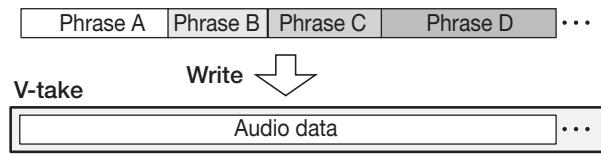
Using FAST input for the phrase loop
When creating a phrase loop, the FAST (Formula Assisted Song Translator) method developed by ZOOM can be used to specify phrase sequence and number of plays.
The keys and pads of the rhythm section are used for FAST input, as described below.
[]key
Enters the closing bracket ")" used for linking several phrases.
[]key
Enters the opening bracket "(" used for linking several phrases.
[x] pad
Enters the "x" that specifies the repetition of a phrase.
![ZOOM MRS1608 - [x] pad - 1](/content/2025/01/152285/images/da9c3346235898863ff98d896b8bc61196728ceee3e07fe6be0a771827b4c234.jpg)
Pads 0 - 9
Specify phrase numbers and repetition count.
[+] pad
Enters the "+" for lining up phrases.
The basic rules for creating a phrase loop are as follows.
- Select the phrase
Use pads 0 - 9 to select a phrase number from 0 - 99.
Line up phrases
Use the "+" symbol to line up phrases. For example, entering 0 + 1 + 2 will result in the following phrase sequence being written.

Repeat phrases
Use the "x" symbol to specify phrase repetitions. "x" takes precedence over "+" For example, entering 0 + 1 × 2 + 2 will result in the following phrase sequence being written.

- Link multiple phrases
Use the “(” and “)” symbols to link a group of phrases for repetition, and then use the “x” symbol to specify the repetition count. For example, entering (1 + 2) × 2 + 3 will result in the following phrase sequence being written.

An example for entering the formula 0 + (1 + 2) × 8 is shown below.
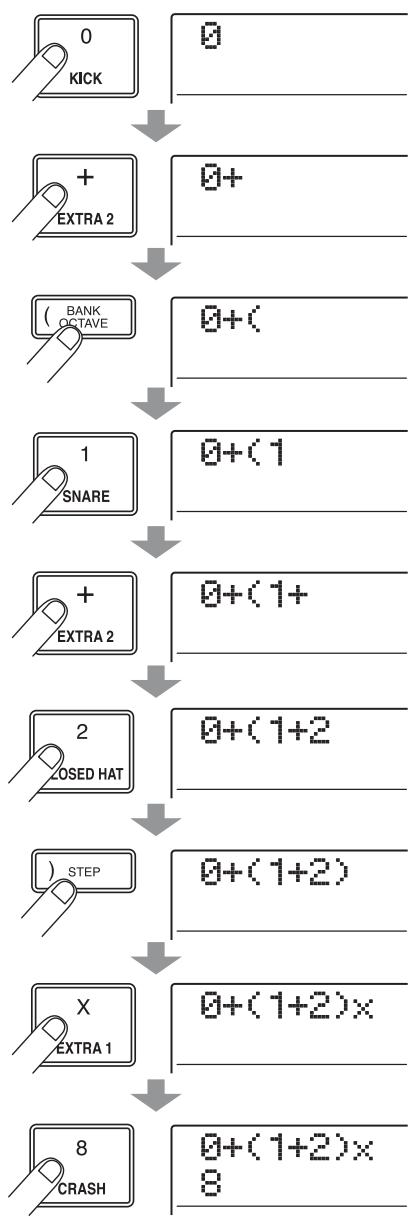
HINT
If the formula does not fit on two lines, the indication scrolls by one character each. If you use the cursor keys to move the input position, the line scrolls accordingly.
If you make a mistake during input, correct it as follows.
- Inserting a number or symbol
Use the cursor left/right keys to move the flashing position to where you want to insert a new number/ symbol. Then enter the new number/symbol.
- Deleting a number or symbol
Use the cursor left/right keys to move the flashing position to the number or symbol that you want to delete. Then press the [DELETE/ERASE] key.
When formula input is completed, specify the track/V-take to which the phrase loop is to be written as audio data.
HINT
- The entered formula will be stored as part of the project also after writing the phrase loop. This allows you to later call up the formula, edit it, and write the data again.
- After writing the phrase loop, it is not possible to write only a part of the data or add a phrase to the loop. To make changes, enter the new formula from the beginning to the end and then perform the writing operation.
Writing a phrase loop to a track
This section explains how to create a phrase loop and write it as audio data to a specified track/V-take.
1. From the main screen, press the [UTILITY/TRACK EDIT] key in the display section.
The indication "UTILITY TR EDIT" appears on the display.
2. Use the cursor left/right keys to bring up the indication "UTILITY PHRASE" on the display, and press the [ENTER] key.
The phrase screen appears.
PHRASE
REST
No.0
3. Press the [UTILITY/TRACK EDIT] key once more.
The phrase utility menu appears on the display.
PHRASE IMPORT
4. Use the cursor left/right keys to bring up the indication "PHRASE CREATE" on the display, and press the [ENTER] key.
The display indication changes as follows. This screen lets you select a track/V-take for writing the phrase loop.
CREATE TR 1-1
5. Use the cursor up/down keys or the status keys and the dial to select the track/V-take to which to write the phrase.
CREATE TR16-1
When track 16 is selected, turning the dial further to the right selects tracks in odd-numbered/even-numbered pairs (1/2, 7/8 etc.) or the master track. (Pressing two status keys for odd/even-numbered tracks together selects the tracks as two mono tracks.) When a stereo track, two mono tracks, or the master track is selected, the V-take currently selected for the two specified tracks or the master track becomes the writing target.
NOTE
- By repeatedly pressing the status key of a stereo track, you can select the odd-numbered track, even-numbered track, and stereo track.
- If the phrase is mono and the selected write target track is stereo, the same data will be written to both tracks.
- If the phrase is stereo and the write target track is mono, the left and right channels of the phrase will be mixed when the data are written to the track.
- When a V-take which already contains audio data is selected, the existing data will be completely erased and overwritten by the new audio data.
6. When you have selected a track/V-take, press the [ENTER] key.
A screen for selecting the phrase loop number for formula input appears.
CREATE LOOP01
HINT
Ten phrase loops (LOOP01 - LOOP10) can be created.
7. Turn the dial to select the desired phrase loop number, and press the [ENTER] key.
FAST input is now possible.
8. Use the keys and pads of the rhythm section to enter the formula for creating the loop.
For information on entry procedures, refer to page 74.
+(1+2)x 8
9. When formula input is completed, press the [ENTER] key.
The following screen appears on the display. This screen lets you select whether to match phrase playback to the rhythm section measure/tempo.
ADJUST OFF
10. Turn the dial to select one of the following methods.
ADJUST OFF
When you select this setting, the selected phrase is played continuously, independent of the rhythm song bar lines and tempo. (Default setting)
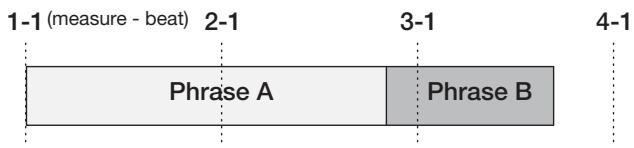
ADJUST BAR
When you select this setting, phrase playback start is
aligned to the measure start of the rhythm song. If one measure of the phrase (phrase playback range divided by number of measures specified by MEAS x parameter) is longer than one measure of the rhythm song, the phrase is switched when the number of measures specified by the MEAS x parameter has played, without waiting for the end of the phrase. If one measure of the phrase is shorter than one measure of the rhythm song, there will be a blank until the measure where playback switches to the next phrase.
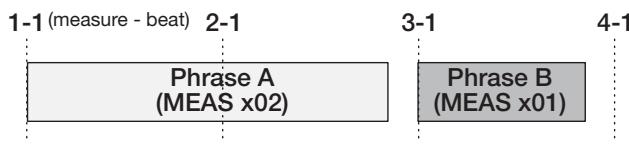
ADJUST BAR & LEN
When you select this setting, the phrase length is adjusted so that the measures of the rhythm song and the phrase are matched. (Pitch will not change.)
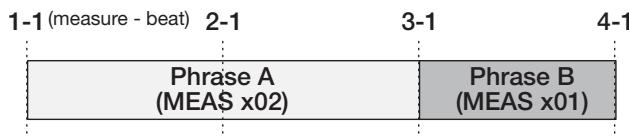
NOTE
- When selecting ADJUST BAR or ADJUST BAR & LEN, verify that the MEAS x parameter for each phrase is set to a suitable number of measures. If the setting is inappropriate, the rhythm song and phrase will not synchronize properly.
- If ADJUST BAR & LEN is selected and the expansion/contraction ratio exceeds a certain range (50 - 150%), the indication “Out of Range” appears, and the results may not be as expected.
11. Press the [ENTER] key.
The indication "CREATE SURE?" appears on the display.
12. To carry out the phrase loop writing process, press the [ENTER] key once more.
The phrase loop is written. When the process is completed, the display reverts to the phrase screen.
By pressing the [EXIT] key instead of the [ENTER] key, you can cancel the operation and back up one step at a time.
13. To return to the main screen, press the [EXIT] key several times.
Reference [Mixer]
This section explains the functions and operation of the two mixer types built into the MRS-1608.
About the mixer
The mixer of the MRS-1608 is divided into two sections: an "input mixer" that processes the input signals from the INPUT jacks, and a "track mixer" that processes the signals from the audio tracks and the drum/bass track of the recorder section. Details of each mixer are described below.
Input mixer
Adjusts the sensitivity for signals from the INPUT jacks and GUITAR/BASS INPUT jacks and assigns these signals to the recorder tracks.
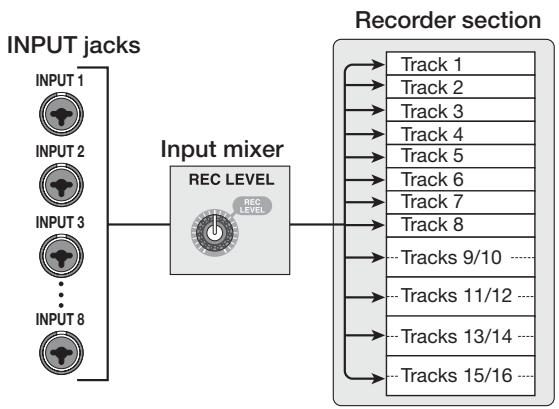
The input mixer serves to adjust the following parameters.
- Input signal sensitivity
- Input signal recording level
- Input signal phase
- Level of signal sent to STEREO SUB-OUT jack
If an input signal is not assigned to a track (recording track not selected), the input signal will be sent straight to the [MASTER] fader. In this condition, the following parameters can be adjusted.
- Input signal panning
- Send/return effect intensity
HINT
In the 8-track recording mode, you can set the panning value and send level for each input.
Track mixer
Serves to process the playback signals of the recorder tracks 1 - 16 and the sound of the drum/bass track, and to mix these signals to stereo. The mixer allows you to adjust the volume with faders and set panning and EQ for each track.
The track mixer lets you adjust the following parameters for each track.
- Track volume
- Track panning
- Track phase
- V-take used for the track (audio tracks only)
- High frequency range EQ boost/cut amount, turnover frequency
- Mid frequency range EQ boost/cut amount, turnover frequency, and bandwidth
- Low frequency range EQ boost/cut amount, turnover frequency
- Send/return effect intensity
- Signal level sent to STEREO SUB-OUT jack
- Stereo link ( p. 82) settings (audio tracks 1 - 8 only)
HINT
Audio tracks 9/10 - 15/16 and the drum track are stereo channels. For these, parameter settings except phase and V-take number (audio tracks only) are linked for the L/R channels.
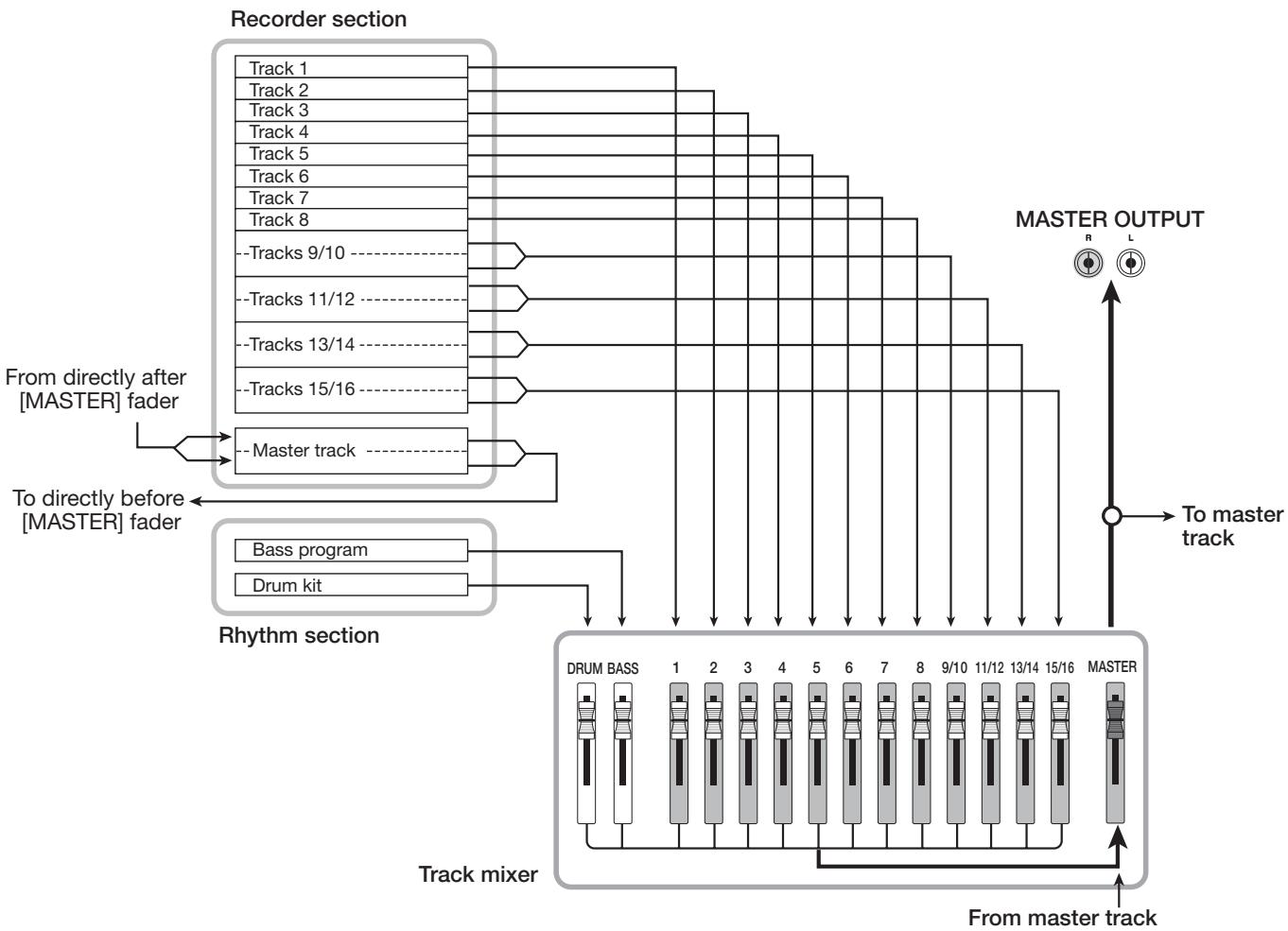
Assigning input signals to recording tracks
This section explains how to adjust the sensitivity for signals input from the INPUT jacks 1 - 8 and GUITAR/ BASS INPUT jacks 1/2, and how to send them to tracks in the recorder section.
- Make sure that the instrument or mic that you want to record is connected to the respective INPUT or GUITAR/BASS INPUT jack.
NOTE
You can use either GUITAR/BASS INPUT jack 1 or INPUT jack 1, and either GUITAR/BASS INPUT jack 2 or INPUT jack 2. If both jacks are connected, the GUITAR/BASS INPUT jacks 1/2 are given priority.
2. From the main screen, press the [ON/OFF] key of the input to which the instrument or microphone is connected, so that the key is lit in red.
Input selection is performed with the [ON/OFF] keys in the input section. If you press an [ON/OFF] key while another
key is already lit, the previous key goes out and the new key lights up. While the key is lit, the input is active.
Normally, up to two keys can be activated simultaneously. To activate two inputs, hold down one [ON/OFF] key and then press the other key. It is also possible to press two nonadjacent [ON/OFF] keys together.
HINT
When the [8TRACK RECORDING] key is activated, the 8-track recording mode becomes active, and up to eight inputs can be used simultaneously. Each input can then be switched on or off individually.
- While playing your instrument, turn the [INPUT] control or the [GUITAR/BASS INPUT] control for the input selected in step 2, to adjust the input sensitivity.
Make adjustments so that the [PEAK] indicator flickers slightly when you play your instrument at its loudest volume. - If you will be recording the sound through the insert effect, press the [INPUT SOURCE] key in the effect section and turn the dial to set the insert position for the effect to IN.
When the setting is complete, press the [EXIT] key to return to the main screen.
HINT
- With the default settings of a project, the insert effect is inserted into the input mixer, and a patch suitable for guitar/bass recording is selected.
-
To record without sending the sound through the insert effect, press the [BYPASS] key in the effect section to bypass the insert effect.
-
Press one of the [ALGORITHM] keys in the effect section to select the desired algorithm, and then use the PATCH SELECT [] / [] keys or the dial to select the patch to be used.
INSERT
MRS-DRV
No.0
- While playing your instrument, adjust the recording level by turning the [REC LEVEL] control.
The [REC LEVEL] control adjusts the signal level before it is sent to the recording track (i.e., after it has passed through the insert effect). The [CLIP] indicator will light if the level is too high. Set the recording level as high as possible, but avoid settings that cause the [CLIP] indicator to light.
HINT
- The level of the signal sent to the recording track will change according to the settings of the insert effect parameters. If you switch insert effect patches or edit the parameters, you should once again check whether the recording level is appropriate.
-
The precise value of the [REC LEVEL] control parameter can be checked by pressing any key in the track parameter section and then pressing the cursor down key, so that the value of "REC LVL" is shown.
-
Repeatedly press the status key for the recording destination track until the key is lit in red.
The input signal from the input mixer will be sent to the recording track. You can select record mode for up to two mono tracks (1 - 8) or one stereo track (9/10 - 15/16).
When selecting two mono tracks, only odd/even pairs can be selected (1/2, 3/4, 5/6, 7/8). To select two tracks,
repeatedly press the status key for one track until the key is lit in red, and then hold the key while pressing the status key for the other track.
The signal flow from the input mixer to the track will change as follows, depending on the number of inputs and recording tracks.
- Mono track selected as recording track
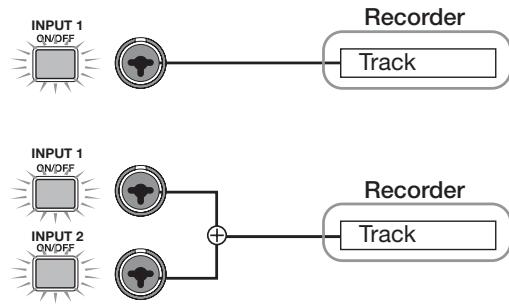
- Stereo track or two mono tracks selected as recording track
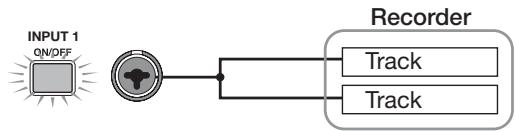
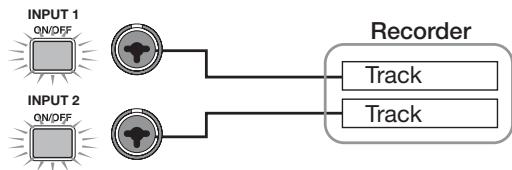
- No track selected as recording track
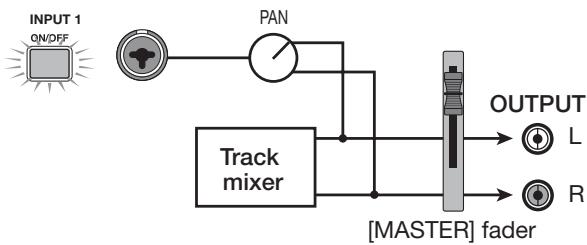
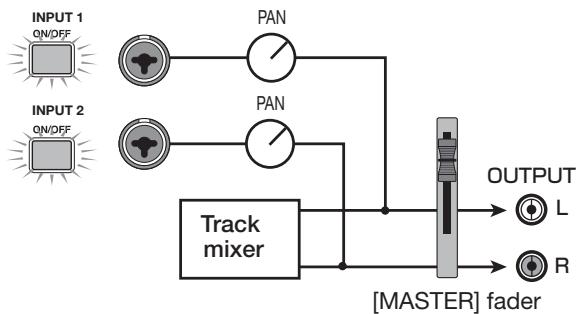
NOTE
- The diagrams above show the signal flow when the insert effect has not been inserted into the input mixer. When the insert effect is inserted, the signal flow will change, depending on the number of input and output channels of the effect ( p.141) .
- In 8-track recording mode ( p. 45), the signals from inputs 1 - 8 are sent to tracks 1 - 8.
HINT
- When no recording track is selected, the input signals are sent directly to the [MASTER] fader. The pan controls of the input mixer can be used to adjust the panning value of the signal sent to the [MASTER] fader. (When a recording track is selected, the pan setting of the input mixer has no effect on the signal.)
- By using the bounce function, you can apply the send/return effect to the input signal for recording ( p. 42).
Adjusting the signal for each track (track parameters)
The input mixer and track mixer let you adjust various aspects for each track (called track parameters), such as panning and send/return effect intensity. This section describes how to adjust track parameters.
1. Press any key in the track parameter section.
Pressing any of the keys in the track parameter section brings up the respective track parameter on the display. The keys that are active for the target track/input light up. Keys for inactive parameters and for parameters not included in that track/Input are out.
2. Use the cursor left/right keys or the status keys and [ON/OFF] keys to select the track/ input.
HINT
- To select a single track from a pair of stereo tracks (such as track 9 or track 10), press the status key repeatedly.
-
In 8-track recording mode, eight inputs can be used simultaneously. In this case, you can select the input with the respective [ON/OFF] key and adjust track parameters for each input (except for the record level). The display will show the number of the input (INPUT 1, INPUT 7, etc.)
-
Use the cursor up/down keys to select the track parameter you want to adjust. For a list of available parameters, see the table on the next page.
For track parameters which have dedicated keys, you can select the parameter directly by pressing the key.
-
Turn the dial to adjust the value.
-
For parameters where on/off can be selected (marked with an asterisk in the table on the next page), repeatedly press the respective key in the track parameter section until the key is out.
Each push of the key toggles between lit (on) and out (off).
For example, when switching high-range EQ from on to off, the display indication changes as follows. Pressing the respective key once more restores the previous condition.
- On condition
TR1 EQHI G 0dB
- Off condition
TR1 EQHI OFF
6. Repeat steps 3 - 5 until all desired parameters are adjusted.
If required, you can use the cursor left/right keys, status keys and [ON/OFF] keys in this condition to change to another track/input and adjust other parameters.
7. To return to the main screen, press the [EXIT] key.
Track parameter list
| Parameter | Display | Setting range | Description | Track 1-8 | Track 9-16 | Master track | Drum/bass track | Input 1-8 |
| EQ HI GAIN (*) | EQ HI G | -12 - +12dB | Adjusts high-frequency boost or cut in the range from -12 to +12 dB. This parameter is only shown when HI EQ is on. | O | O | O | ||
| EQ HI FREQUENCY (*) | EQ HI F | 500 - 18000(Hz) | Adjusts turnover frequency for high-frequency boost/cut. This parameter is only shown when HI EQ is on. | O | O | O | ||
| EQ MID GAIN (*) | EQ MID G | -12 - +12dB | Adjusts mid-frequency boost or cut in the range from -12 to +12 dB. This parameter is only shown when MID EQ is on. | O | O | O | ||
| EQ MID FREQUENCY (*) | EQ MID F | 40 - 18000(Hz) | Adjusts turnover frequency for mid-frequency boost/cut. This parameter is only shown when MID EQ is on. | O | O | O | ||
| EQ MID Q-FACTOR (*) | EQ MID Q | 0.1 - 1.0 | Adjusts the Q value (bandwidth) for mid-frequency EQ. This parameter is only shown when MID EQ is on. | O | O | O | ||
| EQ LOW GAIN (*) | EQ LO G | -12 - +12dB | Adjusts low-frequency boost or cut in the range from -12 to +12 dB. This parameter is only shown when LOW EQ is on. | O | O | O | ||
| EQ LOW FREQUENCY (*) | EQ LO F | 40 - 1600(Hz) | Adjusts turnover frequency for low-frequency boost/cut. This parameter is only shown when LOW EQ is on. | O | O | O | ||
| CHORUS/DELAY SEND LEVEL (*) | CHO SEND | 0 - 100 | Adjusts the chorus/delay effect send level for the track/input. | O | O | O | O | |
| REVERB SEND LEVEL (*) | REV SEND | 0 - 100 | Adjusts the reverb effect send level for the track/Input. | O | O | O | O | |
| SUB-OUT SEND ON/OFF (*) | SUB SEND | ON/OFF | Selects whether the signal at the MASTER OUTPUT jacks (master track signal) is also supplied to the STEREO SUB-OUT jack. | O | ||||
| SUB-OUT SEND LEVEL (*) | SUB SEND LVL | 0 - 127 | Adjusts the level of the signal sent from the track/Input to the STEREO SUB-OUT jack (→ p. 82). | Δ | Δ | Δ | Δ | |
| SUB-OUT SEND PAN (*) | SUB SEND Pan | L100 - 0 - R100 | Adjusts panning for the signal sent from the track/Input to the STEREO SUB-OUT jack | Δ | Δ | Δ | Δ | |
| PAN (*) | PAN | L100 - 0 - R100 | Adjusts the panning value of the track/Input signal. For stereo tracks, the parameter adjusts the left/right level balance. | O | O | O | O | |
| V-TAKE | TR x-y | x=1 - 16 y=1 - 10 | Selects the V-take to use for the track (→ p. 35). x stands for the track number and y for the V-take number. | O | O | O | ||
| FADER | FADER | 0 - 127 | Adjusts the current volume level. | O | O | O | O | |
| REC LVL | REC LVL | 0 - 127 | Adjusts the recording level. | O | ||||
| STEREO LINK | ST LINK | ON/OFF | Controls the stereo link function for linking two mono tracks (→ p. 82). | O | ||||
| INVERT | INVERT | ON/OFF | Allows inverting the track/Input phase. When set to off, the phase is normal. When set to on, the phase is inverted. | O | O | O | O |
(*) symbol: denotes a parameter that can be switched on and off directly with a key in the track parameter section.
O: Valid parameter for this track/Input
: The triangle denotes a parameter that is only displayed when the SUB-OUT SEND LVL ON/OFF parameter for the master track is off.
Linking two tracks (stereo link)
In the MRS-1608, the parameters of adjacent odd-numbered/even-numbered mono tracks (1/2, 3/4, 5/6, 7/8) can be linked, resulting in a pair of stereo tracks. (This function is referred to as "stereo link".) The setting procedure is as follows.
- Press any key in the track parameter section.
- Press the status key of one of the mono tracks that you want to stereo-link.
- Repeatedly press the cursor down key, until the following indication appears.
This is the STEREO LINK parameter screen.
TR7
STLINK
OFF
- Turn the dial to switch the setting ON.
Stereo linking will be enabled immediately, so that the selected track and the adjacent odd-numbered/even-numbered track are linked. To defeat stereo linking, return the setting to OFF. - To return to the main screen, press the [EXIT] key.
HINT
- To adjust the volume of stereo-linked tracks, use the odd-numbered fader. (The even-numbered fader will have no effect.)
- The PAN parameter of two stereo-linked tracks will function as a balance parameter that adjusts the volume balance between the tracks.
- Also when stereo-link is on, the phase parameter and V-take selection parameter can be set individually for each track.
Assigning an input/track signal to the SUB-OUT jack
In the default condition of a project, the STEREO SUB-OUT jack carries the same signal as the MASTER OUTPUT jacks. Therefore it can be used as an extra headphone jack. If required, the signal level and panning of the signal sent to the STEREO SUB-OUT jack can be controlled individually for each input or track, creating a mix that is different from that of the MASTER OUTPUT jacks. This is convenient to create a monitoring mix or to send only the signal from a specific track/Input to an external effect.
HINT
- For the audio tracks and drum/bass track, the signal immediately before the fader is sent to the STEREO SUB-OUT jack.
- For inputs 1 - 8, the signal after the [REC LEVEL] control is sent to the STEREO SUB-OUT jack.
1. Connect a monitor system or external effect to the STEREO SUB-OUT jack.
Use the [STEREO SUB-OUT] control to adjust the signal at the STEREO SUB-OUT jack to a suitable level.
HINT
For connection to a system with stereo inputs, use a Y cable (stereo plug x 1 + mono plug x 2). If you connect the two mono plugs of the Y cable to separate effects, the STEREO SUB-OUT jack functions as two AUX OUT jacks. In this case, you can set the panning value of the signal sent from the track/Input to the STEREO SUB-OUT jack fully to L or R to select the send target.
2. Press the [MASTER] status key and then the [SUB-OUT SEND] key in the track parameter section.
The indication “MASTER SUB SEND” appears on the display.
In the default condition of a project, the master track SUB-OUT SEND ON/OFF parameter is ON, so that the STEREO SUB-OUT jack carries the same signal as the MASTER OUTPUT jacks.
In this condition, the signal from other tracks or inputs cannot be sent directly to the STEREO SUB-OUT jack.
MASTER
SUBSENDON
While the SUB-OUT SEND ON/OFF parameter of the master track is ON, the indication "xxx SUB SEND MASTER" (where xxx is the track/Input name) will be shown when another track or input is called up. For this track/Input, the SUB-OUT SEND parameter cannot be modified.
3. Turn the dial to set the parameter to OFF.
In this condition, the signal level to be sent from each track/input to the STEREO SUB-OUT jack can be adjusted individually.
HINT
- You can also switch between ON and OFF by pressing the [SUB-OUT SEND] key.
- By selecting ON, you can return to the original condition at any time.
4. Use the cursor left/right keys and status keys to select the track/Input, and turn the dial to adjust the level of the signal sent to the STEREO SUB-OUT jack.
When the project is in the default condition, the SUB-OUT SEND LVL parameter is set to zero for all tracks/ inputs. A setting of 100 will result in a unity gain (0 dB) signal being sent to the STEREO SUB-OUT jack.
TR1
SUBSEND LVL 100
5. Press the cursor down key until the following indication appears. Then turn the dial to set the panning value of the signal sent to the STEREO SUB-OUT jack.
The panning value setting range is L100 (fully left) - 0 (center) - R100 (fully right). By pressing the cursor up key, you can return to the condition of step 4.
TR2
SUBSENDPAN R32
6. Repeat steps 4 - 5 to adjust the output level for all track/Input signals sent to the STEREO SUB-OUT jack.
You can set the SUB-OUT SEND parameter for a track/ input to OFF by pressing the [SUB-OUT SEND] key repeatedly so that the key goes out. This is useful to temporarily take that track/Input out of the mix. Pressing the key again turns it ON and restores the original condition.
7. To return to the main screen, press the [EXIT] key.
Using the solo function
If desired, you can mute all other tracks except one during playback of the recorder section. This is called the "solo function". It is convenient to fine-tune the parameters for a certain track.
- From the main screen, perform playback of the recorder section and press the [SOLO] key.
The key lights up.
NOTE
Also when the [SOLO] key is lit, the input signals are always mixed. If necessary, turn inputs off by pressing the respective [ON/OFF] key.
- Press the status key (except [MASTER] status key) for the track that you want to monitor alone.
The status key lights up in green, and only the corresponding track is heard. You can use the fader of the track to adjust the volume.
HINT
- For stereo tracks, both tracks are monitored.
-
While the [SOLO] key is lit, two mono tracks that are stereolinked will be played individually.
-
To cancel the solo function, press the [SOLO] key once more.
The key goes out.
Saving/recalling mixer settings (scene function)
The current mixer and effect settings can be saved as a so-called "scene" in a special area of memory, and recalled either manually or automatically whenever desired. This is convenient to compare various mixes, or to automate mix operations.
A scene contains the following data.
- Track parameters (except for stereo link on/off and currently selected V-take number)
- The state of all status keys (play/mute)
- Insert effect patch number/input source
- Send/return effect (chorus/delay, reverb) patch number
- Fader settings
Up to 100 different scenes per project can be stored. Scene data stored in memory are saved on the internal hard disk as part of the currently selected project.
Saving a scene
This section explains how to save the current settings as a scene.
- Press the [SCENE] key in the control section.
- Turn the dial to select the scene number (0 - 99) in which the data will be saved.
If you select a number where scene data are already saved, the existing data will be erased and overwritten by the new data.
- Press the [STORE] key.
The first character of the scene name flashes. In this condition, you can specify a name for the scene.
HINT
The default name is "SCENExxx" (where xxx is the scene number).
- Use the cursor left/right keys to move the flashing section, and turn the dial to select a character.
Repeat this until the name is as desired. For information on available characters, refer to page 36.
- To carry out the store process, press the [STORE] key or the [ENTER] key.
The current mixer and effect settings will be saved as a scene. When the process is completed, the unit returns to the screen of step 2. To cancel the process, you can press the [EXIT] key instead of these keys to return to the previous screen.
- Press the [EXIT] key to return to the main screen.
Recalling a scene
This section explains how to recall a scene that was saved to memory.
- Press the [SCENE] key in the control section.
The display indicates the scene number that will be recalled.
- Turn the dial to select the desired scene to recall.
HINT
By pressing the [EDIT] key after selecting a scene, you can edit the name of the scene. Refer to steps 4 - 5 of "Saving a scene" to edit the name.
- To recall the selected scene, press the [ENTER] key.
The scene is recalled, the indication "CALL" appears on the display, and the unit returns to the condition of step 1. If you press the [EXIT] key instead of the [ENTER] key, the action is canceled and the main screen returns.
Switching scenes automatically
The MRS-1608 allows you to assign a scene to a mark ( p. 46) that was placed at a desired location in the song. This can be used to switch scenes automatically. For example, you could change the mixing balance or effect settings as the song progresses.
- Move to the point in the song where you want to change the mix, and press the [MARK] key in the control section.
A mark is entered at this point. Repeat this step to enter marks at all other points where you want to change the mix. - Save the mix setting to be used at the start of the song as well as all other mix settings to be used in the middle of the song as scenes.
- While the recorder is stopped, press the ZERO [4] key in the transport section to move to the recorder start position.
The beginning of the song (counter zero location) already contains the mark number 00. You can assign the starting scene to this mark. - Press the [MARK] key.
When you press the [MARK] key at a location where a mark symbol is shown, a screen will appear in which you can assign a scene to the corresponding mark.
| MARK ED SCENE | ---- | ||
| H M S MS MEASURE BEAT TICK MARKER ∅ 0 5 50 80 3 24 ∅ ∅ ∅ | --- | ||
NOTE
If you press the [MARK] key at a location where no mark symbol is shown, a new mark will be assigned to that location.
- Turn the dial to select the number of the scene you want to assign to this mark, and press the [ENTER] key.
The scene will be assigned to the mark.

HINT
To cancel a scene assignment, turn the dial until the display indicates " -- ".
- Use the MARKER [ ] / [ ] keys to locate the next mark at which you want the mix to change, and assign a scene in the same way.
- When all desired scenes have been assigned, move to the start position of the recorder, and start playback.
Each time the song reaches a mark to which a scene has been assigned, the settings of that scene will be recalled.
- Press the [EXIT] key to return to the main screen.
Deleting certain parameters from a scene
If desired, you can disable a group of parameters saved in a scene. Such parameters will not change even if the scene is changed. The following groups of parameters can be specified and made active or inactive.
| Group | Item |
| TRACK PARAMETER | EQ HI |
| EQ MID | |
| EQ LO | |
| CHO SEND | |
| REV SEND | |
| PAN | |
| Play/mute | |
| INSERT EFFECT | Patch number |
| Input source | |
| CHORUS/DELAY | Patch number |
| REVERB | Patch number |
| ALL FADER | Fader position |
| MASTER FADER | [MASTER] fader position |
For example, after you have programmed a sequence of automatic scene changes, you may want to disable only the TRACK PARAMETER group and set the EQ and
panning parameters manually for each track.
- Press the [SCENE] key in the control section, and then press the [UTILITY/TRACK EDIT] key in the display section.
The following screen appears on the display. In this condition, you can select whether the scene controls the fader action.
PERMISSN
A11Fader ON
- Turn the dial to set fader permission to ON or OFF.
Except for the fader, scene control for the other groups can be enabled or disabled by pressing one of the keys listed below, in the condition of step 1.
- TRACK PARAMETER group
Any status key except [MASTER] status key
- INSERT EFFECT group
Any [ALGORITHM] key
- CHORUS/DELAY group
[CHORUS/DELAY] key
- REVERB group
[REVERB] key
- MASTER FADER group
[MASTER] status key
When a group is enabled, the respective key is lit, and when the group is disabled, the key is flashing.
HINT
- The on/off setting for the TRACK PARAMETER group can be made for each track individually.
-
You can use the cursor up/down keys to enable or disable all groups together except MASTER FADER group.
-
When the setting is complete, repeatedly press the [EXIT] key.
The main screen returns.
The settings made here are stored as part of the project.
Reference [Rhythm]
This section explains the functions and operation of the built-in rhythm section of the MRS-1608.
About the rhythm section
The rhythm section of the MRS-1608 uses internal drum sounds and bass sounds to generate rhythm accompaniment. It can be used instead of a metronome by playing simple rhythm patterns, or you can program a sequence of rhythm patterns and chord progression into the rhythm accompaniment for an entire song.
The rhythm section is made up of the following components.
Drum kits and bass programs
The sound created by the rhythm section is produced by a "drum kit" and a "bass program".
The drum kit is a combination of 36 drum/percussion sounds such as kick, snare, hihat, and conga. A combination of drum/percussion sounds and drum kits for use within a project is called a "drum sound set". A drum sound set contains over 80 drum/percussion sounds and 15 - 17 drum kits. From such a drum sound set, you may also select desired sounds and create your own drum kits.
You can select one of these drum kits and play it manually with the pads on the top panel, or you can use it as a sound source for rhythm accompaniment.
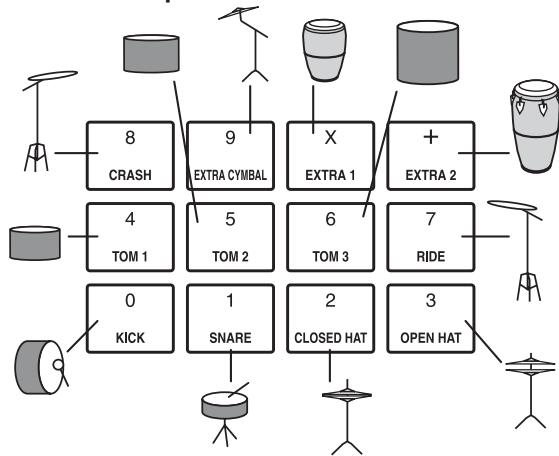
Drum kit example
A bass program is a single bass sound, such as an electric bass or acoustic bass, which can be played as a scale with the pads on the top panel. The MRS-1608 has 13 bass
programs. You can choose one of these and play a scale, with the pads, or use it as a sound source for rhythm accompaniment.
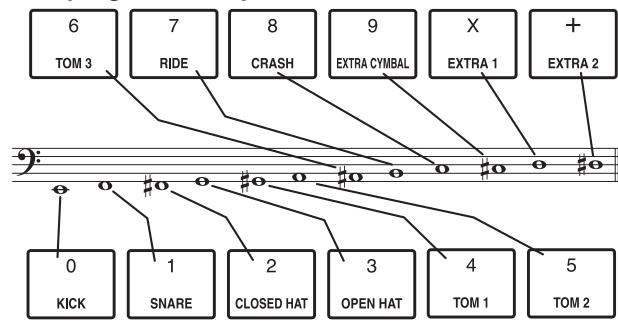
Bass program example
The output signal from the drum kit (stereo) and the output signal from the bass program (mono) are sent to the corresponding fader of the internal mixer, where you can independently adjust the volume, panning (balance), EQ, and other parameters and apply send/return effects.
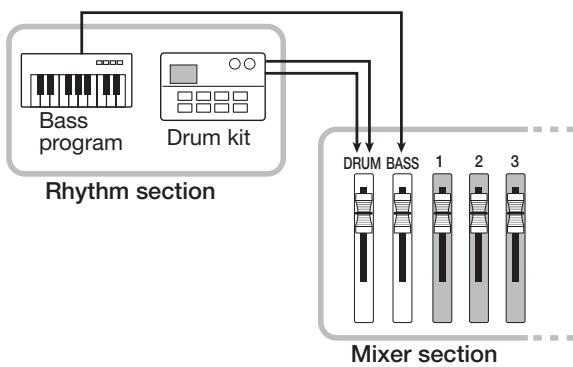
NOTE
While using the pad sampler ( p. 121), the drum kit/bass program sound is not available.
Rhythm patterns
A project can contain accompaniment patterns with drum/bass performance data for up to 99 measures each. This is called a rhythm pattern. The MRS-1608 has 511 such patterns. Inside each rhythm pattern, the area that holds the drum performance data is called the "drum sequence", and the area that holds the bass performance data is called the "bass sequence".
In the default condition, a project contains preprogrammed rhythm patterns in numbers 000 - 472, 509 - 510. You can edit a portion of a rhythm pattern, or use an empty slot to create an entirely original rhythm pattern. The rhythm patterns you modify or create are saved on the hard disk as part of the project.
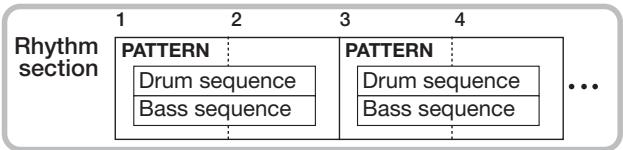
Rhythm song
Multiple rhythm patterns arranged in a desired order of playback are collectively called a "rhythm song". Besides the rhythm pattern data, a rhythm song comprises information about various aspects such as chord, tempo, and beat to create the accompaniment for an entire song. Up to 10 rhythm songs can be programmed in one project.
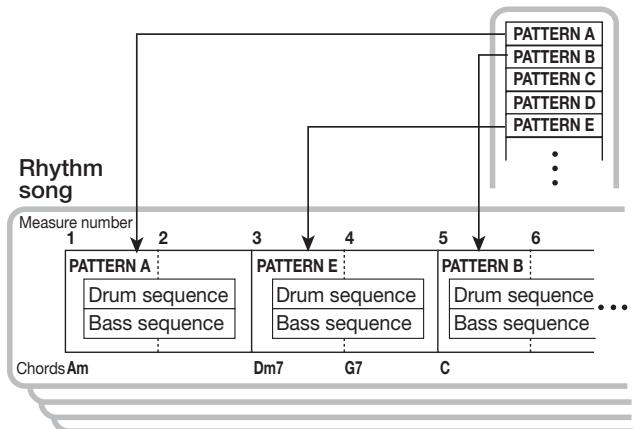
Rhythm pattern mode and rhythm song mode
The rhythm section can operate in one of two modes: "rhythm pattern mode", in which you can create and play rhythm patterns, and "rhythm song mode", in which you can create and play a rhythm song. One of these two modes will always be selected.
The rhythm pattern mode is selected by pressing the [PATTERN] key and the rhythm song mode by pressing the [SONG] key. The selected key lights up.
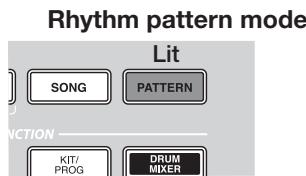
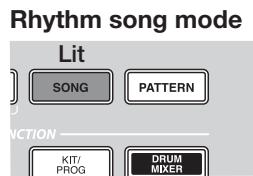
Synchronizing the recorder section and rhythm section
In the default condition of the MRS-1608, the rhythm section will operate in sync with the recorder section. When you operate the transport section to start the recorder section running, the rhythm pattern or rhythm song will also begin playing. If desired, the rhythm section can be disconnected from the recorder section and used independently.
To see whether the recorder is synchronized with the rhythm section, check the lit/out status of the [RHYTHM] key in the display section. When operation is synchronized, this key will be out. When the key is pressed so that it lights up, the recorder is separated and the rhythm section operates on its own.
To restore the original condition, press the [RECORDER] key or the [EXIT] key.
Playing rhythm patterns
This section explains how to play rhythm patterns, how to change the tempo, and how to change the drum kit or bass program.
Selecting a rhythm pattern
This section explains how to select and play one of the 511 rhythm patterns.
1. From the main screen, press the [PATTERN] key in the rhythm section, so that the key lights up.
The rhythm pattern selection screen appears. In this condition, the following information is displayed.
![ZOOM MRS1608 - From the main screen, press the [PATTERN] key in the rhythm section, so that the key lights up. - 1](/content/2025/01/152285/images/b0eaefcde7e2fd5277fa326d9b815ef143c0b633e0b64dbd7fa16ff19743a521.jpg)
HINT
- When you press the [PATTERN] key from the main screen, the [RHYTHM] key in the display section flashes. This indicates that the rhythm section is synchronized with the recorder.
- The right side of the display shows the pad bank (combination of drum sounds playable with the pads) or octave (bass program register).
2. Turn the dial to select the rhythm pattern that you want to play.
In the default condition of a project, patterns are programmed in rhythm pattern numbers 000 - 472, 509 - 510.
3. Press the PLAY [▶] key.
The selected rhythm pattern will begin playing repeatedly. If you press the PLAY [▶] key while the [RHYTHM] key is flashing, the recorder also starts to run when you start playback of the rhythm pattern.
4. To mute the performance of the drum track or bass track, repeatedly press the respective status key, so that it goes out.
The corresponding track will be muted. To defeat muting, repeatedly press the same status key again until it is lit in green.
5. To stop rhythm pattern playback, press the STOP [■] key.
The PLAY [ ] key goes out.
6. To play the rhythm pattern by itself, press the [RHYTHM] key in stop mode, so that the key is lit.
The recorder section and rhythm section are disconnected.
7. To return to the main screen, press the [EXIT] key several times.
HINT
During rhythm pattern playback, it is also possible to play rhythm section sounds by hitting the pads.
Changing the tempo
You can change the tempo of the rhythm pattern.
HINT
The tempo set here applies to all rhythm patterns. A rhythm song for which no tempo information is programmed also will use this tempo.
1. Press the [PATTERN] key so that the key lights up.
The rhythm pattern selection screen appears.
HINT
You can change the tempo in playback or stop mode.
2. Press the [TEMPO] key.
The display indication changes as follows.
TEMPO BPM: 120.0
3. Turn the dial to adjust the tempo.
The tempo can be adjusted over a range of 40.0 - 250.0 (BPM).
4. To change the tempo manually, hit the [TEMPO] key repeatedly at the desired tempo.
The average of the key press intervals is determined and set as the new tempo.
5. To return to the main screen, press the [EXIT] key several times.
NOTE
If you record on the audio tracks while listening to the rhythm pattern, and then later change the tempo, the audio track content and the rhythm pattern will no longer be synchronized. Be sure to decide on the tempo first.
Changing the drum kit / bass program
You can change the drum kit/bass program used by the rhythm section.
Changing the drum kit
1. Press the [DRUM] key.
You can now use the pads to play a drum kit.
2. To change the drum sound set, press the [RHYTHM] key and then the [UTILITY/ TRACK EDIT] key.
The rhythm utility menu appears.
UTILITY SoundSel
3. Verify that the indication "UTILITY SoundSel" is shown on the display, and then press the [ENTER] key.
The display changes as follows.
SoundSel STANDARD
Sound set name
NOTE
This screen will not appear when the pad sampler is being used.
4. Turn the dial to select a drum sound set from the following choices, then press the [ENTER] key.
Available drum sound sets are:
STANDARD
Dry drum and percussion sounds suitable for a variety of styles.
ANALOG
Drum/percussion sounds for hip-hop, techno, house and other styles that use analog rhythm machines.
CLASSIC
Drum/percussion sounds in the style of ZOOM standalone rhythm machines.
When you press the [ENTER] key, the respective drum sound set is loaded, and a screen for selecting a rhythm pattern or rhythm song appears.
5. To select a drum kit, press the [KIT/PROG] key in the rhythm section.
The currently selected drum kit is shown on the display.
![ZOOM MRS1608 - To select a drum kit, press the [KIT/PROG] key in the rhythm section. - 1](/content/2025/01/152285/images/3c2c8d0e968831893733698829e02f04100af9b625b4895aed4692cd4bd86fc9.jpg)
HINT
If you operate the cursor up/down keys while selecting a drum kit, the combination of sounds playable by the pads (pad bank) will be switched.
6. Turn the dial to select the desired drum kit.
The drum kit becomes active immediately. For a list of drum kits that can be selected, refer to the appendix at the end of this manual.
7. To return to the main screen, press the [EXIT] key several times.
Changing the bass program
- Press the [BASS] key.
You can now use the pads to play a bass program.
- Press the [KIT/PROG] key in the rhythm section.
The currently selected bass program is shown on the display.
![ZOOM MRS1608 - To return to the main screen, press the [EXIT] key several times. - 1](/content/2025/01/152285/images/f988b645171c7adb5be9e9ef2d9b678ec7198ed5a3b3fb4cbe9cadab5ca28297.jpg)
HINT
If you operate the cursor up/down keys while selecting a bass program, the octave playable by the pads will be switched.
- Turn the dial to select the desired bass program.
The bass program becomes active immediately. For a list of bass programs that can be selected, refer to the appendix at the end of this manual.
- To return to the main screen, press the [EXIT] key several times.
Selecting the sound or scale to play with the pads
Using the pads on the top panel, you can manually play a drum kit or bass program. This section explains how to select the drum sound combination or the bass program octave/scale to assign to the pads.
HINT
The drum kit/bass program can always be played with the pads, regardless of the lit/flashing/out status of the [RHYTHM] key.
Playing a drum kit with the pads
When playing a drum kit, you can switch between three pad banks (combination of drum sounds), giving you a total of 36 sounds.
- From the main screen, press the [DRUM] key.
The key lights up, and a drum kit to play can be selected. In the default condition of a project, pad bank 1 is selected.
- Use the [BANK/OCTAVE] key in the rhythm section to switch the pad bank.
If you press the [BANK/OCTAVE] key while a drum kit is selected, the pad bank selection screen appears.
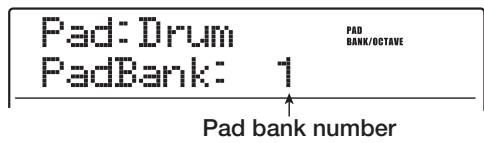
- Turn the dial to select the desired pad bank (1 - 3).
The sounds assigned to the pads are switched immediately.
- Hit the pads to play.
Switch the [DRUM] status key between on and off as necessary, and use the [DRUM] fader to adjust the volume.
- To play a specific pad repeatedly (roll play), press the [STEP] key in the rhythm section to bring up the following indication on the display.
When you turn the dial at this screen, the interval for roll play can be set as follows.
- 2 / 4 - 8 / 4 . . . . quarter note x 2 - 8
1/3 . half triplet note
3/8 dotted quarter note - 1/4 . . . . . . . . . . . . . . . . . . . . . . . . . . . . . . . . . . . . . . . . . . . . . . . . . . . . . . . . . . . . . . . . . . . .
- quarter note (default)
3/16 .dotted eighth note
1/6 .quarter triplet note
1/8 .eighth note
1/12 .eighth triplet note
1/16 . . . . . . . . . . . . . . . . . . . . . . . . . . . . . . . . . . . . . . . . . . . . . . . . . . . . . . . . . . . . . . . . . . . . . . . . . . . . . . .
1/24 . . . sixteenth triplet note
1/32 . thirty-second note - HI 1 tick (1/48 of quarter note)
When you hit a pad while pressing the [STEP] key, the pad plays repeatedly at the specified interval (roll play). For example, you can repeat a kick drum at quarter note intervals, or play a hihat in sixteenth note units.
To stop roll play, release the pad.
If you release the [STEP] key first, roll play continues also when you release the pad. To stop roll play in this case, press the pad once more.
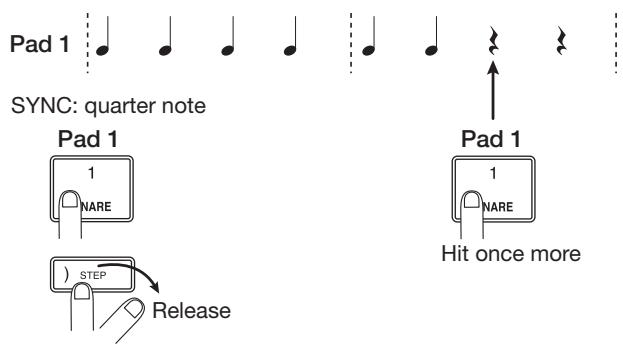
You can also set a different interval for different pads. For example, when you select a quarter note interval for pad 1 and an eighth note interval for pad 2, the following play results.
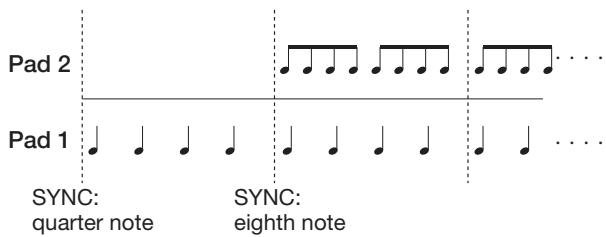

Pad 2
To return to the previous screen, press the [EXIT] key.
HINT
The roll play function is also convenient during rhythm pattern real-time input.
- To return to the main screen, press the [EXIT] key.
Playing a bass program with the pads
When playing a bass program, you can specify a scale and octave, which will change the pitch of the sounds assigned to the pads.
1. From the main screen, press the [BASS] key.
The key lights up, and a bass program to play can be selected.
2. Use the [BANK/OCTAVE] key in the rhythm section to switch the scale and octave to play with the pads.
If you press the [BANK/OCTAVE] key while a bass program is selected, the currently active scale type, key, and octave are shown on the display. By changing these values, you can change the pitch of the sounds assigned to the pads.
![ZOOM MRS1608 - Use the [BANK/OCTAVE] key in the rhythm section to switch the scale and octave to play with the pads. - 1](/content/2025/01/152285/images/6f99ca701931a23467d5107bed833f44726709eecc4dfd275aa0b283d12faeaf.jpg)
3. To change the key of the scale, use the cursor up/down keys.
The setting range is C - B in semitone steps. The key specified here is the note that will be played by pad 1.
4. To change the type of the scale, use the cursor left/right keys.
The scale type selections are CHROMATC (chromatic), MAJOR, and MINOR.
For example, when the key of "E" is selected, the pitch of the pads changes as follows depending on the scale type selection.
CHROMATC
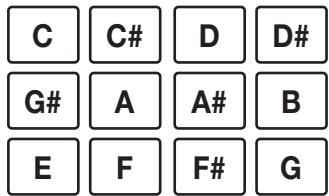
MAJOR
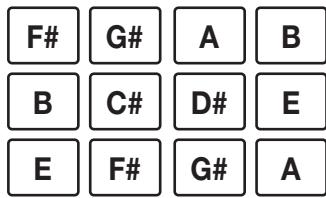
MINOR
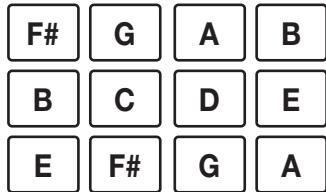
5. Turn the dial to change the octave to be played by the pads.
The octave of the pads can be selected in four steps (1 - 4). For example, a change from 1 to 2 will shift the pitch being assigned to the pads up by 1 octave.
Any change in a setting takes effect immediately.
6. Hit the pads to play.
Switch the [BASS] status key between on and off as necessary, and use the [BASS] fader to adjust the volume.
7. To return to the main screen, press the [EXIT] key.
Creating an original rhythm pattern
This section explains how you can create your own original rhythm patterns. There are two ways of doing this: real-time input where you record your play on the top panel pads, and step input where play is stopped and you enter the sounds one by one.
Preparations
Before starting to record, you must make various settings for the rhythm pattern, such as number of measures and time signature, and quantize value (shortest unit for recording). By default, an empty rhythm pattern has a 4/4 time signature and a duration of 2 measures.
NOTE
After you have started the rhythm pattern input procedure, you can no longer change the time signature and number of measures. Be sure to make these settings beforehand.
1. From the main screen, press the [PATTERN] key.
The rhythm pattern selection screen appears on the display.
2. Press the [RHYTHM] key.
The key lights up, and creating and editing a rhythm pattern becomes possible.
3. Turn the dial to select an empty rhythm pattern.
The indication "EMPTY" appears on the display when an empty pattern is selected.
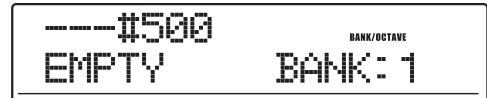
HINT
If there is no empty rhythm pattern, erase an unneeded pattern ( p. 103).
4. Press the [EDIT] key.
The rhythm pattern edit menu appears.
EDIT QUANTIZE
5. To set the quantize value, make sure the indication "EDIT QUANTIZE" is shown on the display, and press the [ENTER] key.
The display indication changes as follows. The quantize value is the smallest note unit for recording a pattern. When performing real-time input, your play is recorded using the note steps selected here.
The default setting is "16" (a sixteenth note).
QUANTIZE 16
6. Turn the dial to select one of the following quantize values. Then press the [EXIT] key.
4....Quarter note
8....Eighth note
12....Eighth triplet note
16....Sixteenth note (default)
24....Sixteenth triplet note
32....Thirty-second note
Hi . . . . 1 tick (1/48 of quarter note)
When you press the [EXIT] key, the rhythm pattern edit menu appears again.
HINT
The quantization setting applies to all rhythm patterns.
7. To set the rhythm pattern time signature, use the cursor left/right keys to bring up the indication "EDIT TimSig" on the display, and press the [ENTER] key.
The current time signature setting appears on the display.
![ZOOM MRS1608 - To set the rhythm pattern time signature, use the cursor left/right keys to bring up the indication "EDIT TimSig" on the display, and press the [ENTER] key. - 1](/content/2025/01/152285/images/72efe13073c5f91ceab62f924a6c6e4c280b434d1489e96adc2d5b58f3838603.jpg)
8. Turn the dial to select the beat, and then press the [EXIT] key to return to the rhythm pattern edit menu.
The setting range is 1 - 8 (1/4 - 8/4).
9. To set the length (number of measures) of the rhythm pattern, use the cursor left/right keys to select the indication "EDIT BarLen", and press the [ENTER] key.
The current length of the pattern is shown as number of measures.
![ZOOM MRS1608 - To set the length (number of measures) of the rhythm pattern, use the cursor left/right keys to select the indication "EDIT BarLen", and press the [ENTER] key. - 1](/content/2025/01/152285/images/9e3c77cba07f8c878bf19837cbb8698a0fdf081757b45f18573fd87fd0389c61.jpg)
10. Turn the dial to select the desired setting.
The setting range is 1-99 measures.
11. When the setting is complete, press the [EXIT] key to return to the rhythm pattern selection screen.
Drum sequence real-time input
For real-time input of a drum sequence, you play the rhythm pattern on the pads of the MRS-1608.
1. At the rhythm pattern screen, select an empty rhythm pattern number.
If the [RHYTHM] key is flashing, press it so that it is constantly lit.
2. Press the [DRUM] key so that the key lights up.
In this condition, you can play the drum kit with the pads. Your play will be recorded as a drum sequence.
3. As necessary, press the [BANK/OCTAVE] key to switch pad banks.
4. Hold down the REC [●] key and press the PLAY [▶] key.
A four-beat pre-count is heard, and rhythm pattern recording starts.
HINT
The beat and the volume of the pre-count clicks can be changed ( ,118)
5. While listening to the metronome, tap the pads.
Your performance on the pads will be recorded as a drum sequence according to the quantization setting. The intensity with which you hit the pads will also be recorded.
When you reach the end of the pattern, the unit automatically returns to the first measure, and real-time input continues.
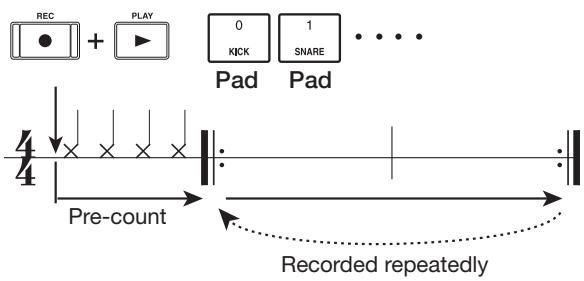
If you press the REC [] key during recording, the REC [] key will flash, and recording will be temporarily suspended. In this state you can tap the pads to check which sound is assigned to each pad. Recording resumes when you press the REC [] key once more.
HINT
- During real-time input, you can press the [DRUM] or [BASS] key to switch the target sequence for recording.
- Instead of tapping the pads, you can also input a pattern in real time by using a MIDI controller connected to the MRS-1608's MIDI IN connector. For a list of pads and corresponding note numbers, refer to the appendix at the end of this manual.
- After concluding real-time input, you can change the quantize setting and then record on top of the existing sequence. (Changing the quantize value will not affect the existing playing information.)
6. To edit the recorded contents during real-time input, proceed as follows.
- To erase the performance of a specific pad
While holding down the [DELETE/ERASE] key, press the pad whose sound you want to erase. While you are holding down both keys, the performance of the corresponding pad is erased from the rhythm pattern.
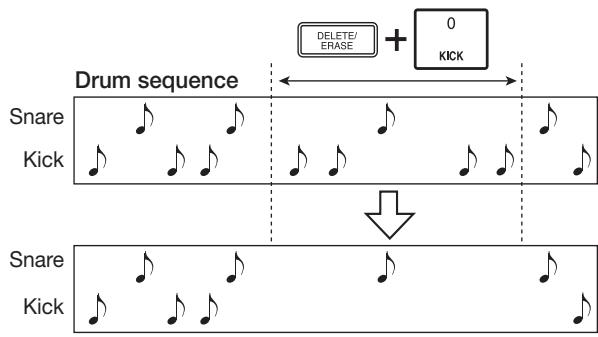
To erase the performance of all pads
While holding down the [DELETE/ERASE] key, press the [DRUM] status key. While you are holding down both keys, the performance of all pads is erased from the drum sequence.
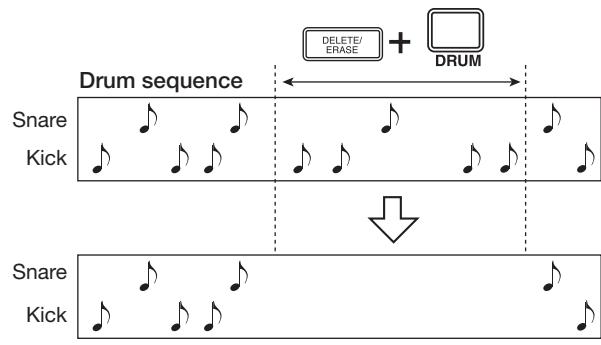
7. When you have finished real-time recording, press the STOP [■] key.
Rhythm pattern recording will stop. Press the PLAY [▶] key to hear the pattern that you recorded.
NOTE
- When you select an empty pattern and record it, the pattern name "Pat xxx" (where xxx is the pattern number) is automatically assigned. You can edit this pattern name as necessary ( p. 101).
- You can use step input to add playing information to a rhythm pattern recorded with real-time input.
Bass sequence real-time input
For real-time input of a bass sequence, you play the pads of the MRS-1608.
1. At the rhythm pattern screen, select an empty rhythm pattern number.
If the [RHYTHM] key is flashing, press it so that it constantly lit.
- Press the [BASS] key so that the key lights up. In this condition, you can play the bass program with the pads. Your play will be recorded as a bass sequence.
- As necessary, press the [BANK/OCTAVE] key to switch the scale and octave of the bass program.
- Hold down the REC [●] key and press the PLAY [▶] key.
A four-beat pre-count is heard, and rhythm pattern recording starts.
HINT
The beat and the volume of the pre-count clicks can be changed ( p. 118).
5. While listening to the metronome, tap the pads.
Your performance on the pads will be recorded as a bass sequence according to the quantization setting. The intensity with which you hit the pads will also be recorded. When you reach the end of the pattern, the unit automatically returns to the first measure, and real-time input continues.
If you press the REC [] key during recording, and recording will be temporarily suspended. In this state you can tap the pads to check which note is assigned to each pad, and you can also switch the octave. Recording resumes when you press the REC [] key once more.
HINT
- During real-time input, you can press the [DRUM] or [BASS] key to switch the target sequence for recording.
Instead of tapping the pads, you can also input a pattern in real time by using a MIDI controller connected to the MRS-1608's MIDI IN connector. - After concluding real-time input, you can change the quantize setting and then record on top of the existing sequence. (Changing the quantize value will not affect the existing playing information.)
6. To edit the recorded contents during real-time input, proceed as follows.
To erase the performance of a specific pad
While holding down the [DELETE/ERASE] key, press the pad whose pitch you want to erase. While you are holding down both keys, the performance of the corresponding pad is erased from the rhythm pattern.
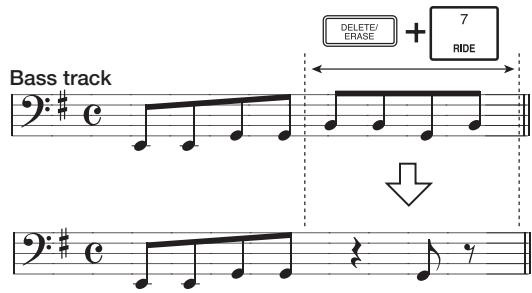
To erase the performance of all pads
While holding down the [DELETE/ERASE] key, press the [BASS] status key. While you are holding down both keys, the performance of all pads is erased from the bass sequence.
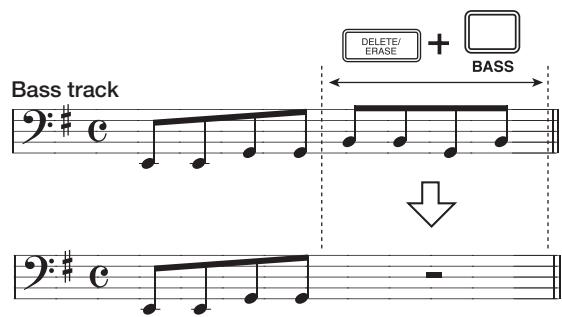
7. When you have finished real-time recording, press the STOP [■] key.
Rhythm pattern recording will stop. Press the PLAY [▶] key to hear the pattern that you recorded.
NOTE
- You can use step input to add playing information to a rhythm pattern recorded with real-time input.
Drum sequence step input
For step input, you enter each note separately, while the MRS-1608 is in the stop condition. This makes it easy to enter even complex drum patterns or bass lines that might be difficult to achieve with real-time input.
For drum sequence step input, you specify the step length (interval to next note or rest) using the quantize value. Then you enter notes and rests.
When you hit a pad and then press the [STEP] key, playing (note) information is entered at that point, and the step advances by an interval corresponding to the current quantize value. The intensity with which you hit the pad is also recorded.
If you only press the [STEP] key, no playing information is entered, but the step advances by an interval corresponding to the current quantize value. This becomes a rest (see illustration below).
1. At the rhythm pattern screen, select an empty rhythm pattern number.
If the [RHYTHM] key is flashing, press it so that it is constantly lit.
2. Press the [DRUM] key.
In this condition, drum kit sounds are assigned to the pads on the top panel.
3. As necessary, press the [BANK/OCTAVE] key to select the pad bank which contains the sound you want to input.
When the setting is complete, press the [EXIT] key to return to the previous screen.
4. Press the REC [●] key.
The key lights up and the display indication changes as follows. In this condition, step input is possible.
![ZOOM MRS1608 - Press the REC [●] key. - 1](/content/2025/01/152285/images/510c2131efc1cd0fd0f51c01a63cb8eb3f31f47c7d3ec9f1fd39ce056cca41b2.jpg)
The first line of the display shows the quantize value, and the counter shows the current position is shown in measures/beats/ticks.
5. Use the cursor up/down keys to select the quantize value.
This setting becomes the length of the note you want to enter. The setting can be changed at any time during step input.
4....Quarter note
8....Eighth note
12....Eighth triplet note
16....Sixteenth note (default)
24....Sixteenth triplet note
32....Thirty-second note
Hi . . . .1 tick (1/48 of quarter note)
HINT
The quantize value setting is linked to the quantize setting for real-time input. If you change one setting, the other will also change.
6. To enter a note, hit the pad corresponding to the note, and then press the [STEP] key.
The note is recorded, and the unit advances by one step, corresponding to the quantize value set in step 5. Before hitting the pad, you can also use the [BANK/OCTAVE] key to switch the pad bank for a different sound.
![ZOOM MRS1608 - To enter a note, hit the pad corresponding to the note, and then press the [STEP] key. - 1](/content/2025/01/152285/images/93e710875080cc11bf427094663df42ec1e310bb67d24d5f5352eab4ece5d9da.jpg)
HINT
- The intensity with which you hit the pad is also recorded in the drum sequence.
- If you hit several pads during input, multiple sounds will be recorded at the same position.
7. To enter a rest, press only the [STEP] key.
If you press the [STEP] key by itself, the position advances by one step (duration of quantize value) but no play information is recorded.
![ZOOM MRS1608 - To enter a rest, press only the [STEP] key. - 1](/content/2025/01/152285/images/8fa601e21a49524819c268c09b3af822d32c78e62c889bc396ef05398e20be6c.jpg)
| H | M | S | MS | MEASURE | BEAT | TICK | MARKER |
| 001 | 3 | 0 |
8. Repeat steps 6 - 7 while changing the step length as necessary, to enter the desired rhythm pattern.
When you reach the end of the pattern, the unit automatically returns to the first measure, letting you enter more instrument sounds.
When you use the [STEP] key to move step by step through a recorded rhythm pattern, the pad recorded at the respective position lights up.
9. To erase an entered note, repeatedly press the [STEP] key to move to the position that you want to erase. Then hold down the [DELETE/ERASE] key and press the respective pad.
The note recorded at that point is erased, and the pad goes out.
NOTE
When searching for a note to erase, set the quantize value to the same value as the smallest value used during recording, or to a smaller value. Otherwise the start of a note may be missed.
10. When you have finished step input, press the STOP [■] key.
The REC [ ] key goes out and the rhythm pattern selection screen appears again.
By pressing the PLAY [▶] key you can check the rhythm pattern that you recorded.
11. To return to the main screen, press the [EXIT] key several times.
Bass sequence step input
Compared to the drum sequence step input, the step input procedure for a bass sequence is somewhat more complex, because there are the additional elements of "pitch" and "duration". As in drum track step input, you specify the step length (interval to next note or rest) using the quantize value, and you use the pads and the [STEP] key to enter notes and rests. But when you input a note, you must also specify the duration parameter. This parameter allows you to vary the actual duration for each note, while keeping the step length the same (see diagram below).
It is also possible to set the duration to a longer value than the step length. In this case, the note will overlap the next note, which can be used to achieve an arpeggio-like effect.
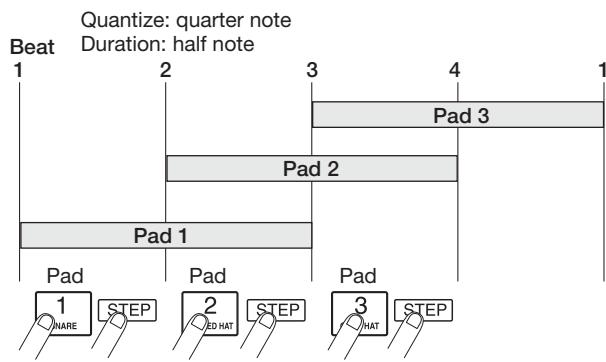
- At the rhythm pattern screen, select an empty rhythm pattern number.
- Press the [BASS] key and select a bass sequence.
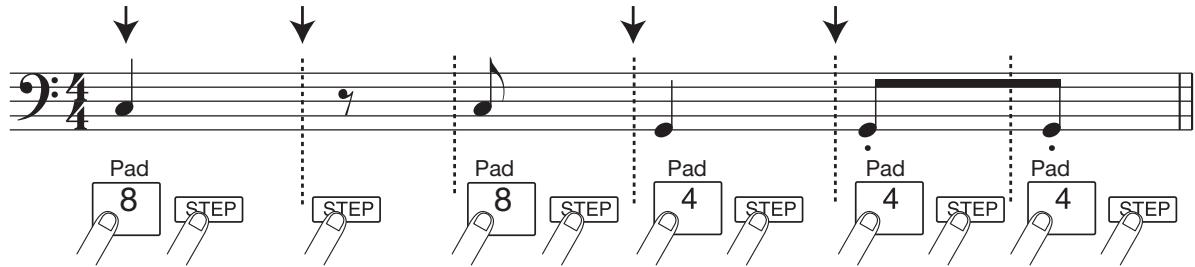
Bass sequence step input
Quantize: quarter note
Duration: quarter note
Quantize: 8th note
Duration: 8th note
Quantize: quarter note
Duration: quarter note
Quantize: 8th note
Duration: 16th note
3. As necessary, press the [BANK/OCTAVE] key to select the octave for step input.
When the setting is complete, press the [EXIT] key to return to the previous screen.
4. Press the REC [●] key.
The display indication changes as follows. In this condition, step input is possible.
![ZOOM MRS1608 - Press the REC [●] key. - 1](/content/2025/01/152285/images/ca9ea4bb8ef6a7e143084a1bd425fee9095539a119e291c6d79d4631a390d6d0.jpg)
The first line of the display shows the quantize value, and the second line the duration value.
5. Use the cursor up/down keys to select the quantize value.
The value selected here becomes the duration of 1 step.
6. Turn the dial to select the duration value, as listed below.
The duration is specified as “ x yy”, i.e. as multiples of a quarter note. Depending on the value of “yy”, the actual duration becomes as follows.
1-8....quarter note x 1-8
3/2 . . . . dotted quarter note
3/4 . . .dotted 8th note
1/2 . . . . .8th note
1/3 . . . . . . 8th note triplet
1/4 . . . . 16th note
1/6 . . . . . 16th note triplet
1/8.....32nd note
1/12 . . . 32nd note triplet
1/16 . . . .64th note
1/24 . . .64th note triplet
7. To enter a note, hit the pad corresponding to the note, and then press the [STEP] key.
The note is recorded, and the unit advances by the step duration set in step 5. You can also use the [BANK/OCTAVE] key to select a different octave before hitting a pad.
![ZOOM MRS1608 - To enter a note, hit the pad corresponding to the note, and then press the [STEP] key. - 1](/content/2025/01/152285/images/32ca33f95f164da70c1c57e4430c0ff45b971980eebc990b754542bdd14ababa.jpg)
HINT
- The intensity with which you hit the pad is also recorded on the bass sequence.
- By hitting several pads during input, you can create a chord. The maximum number of simultaneous sounds in the rhythm section is 24 (drum + bass).
8. To enter a rest, press only the [STEP] key.
If you press the [STEP] key by itself, the position advances by one step (duration of quantize value) but no play information is recorded.
![ZOOM MRS1608 - To enter a rest, press only the [STEP] key. - 1](/content/2025/01/152285/images/02b10d57ab187d383d55aee5e0661da2ec476a54d5889e7a08ac4271b03c57d4.jpg)
9. Repeat steps 7 - 8 while changing the quantize value and duration as necessary, to enter the desired bass pattern.
When you reach the end of the pattern, the unit automatically returns to the first measure, letting you continue the input.
10. To erase an entered note, repeatedly press the [STEP] key to move to the position that you want to erase. Then hold down the [DELETE/ERASE] key and press the respective pad.
The note recorded at that point is erased, and the pad goes out.
NOTE
When searching for a note to erase, set quantize to the same value as the smallest value used during recording, or to a smaller value. Otherwise the start of a note may be missed.
11. When you have finished step input, press the STOP [■] key.
The REC [ ] key goes out and the rhythm pattern selection screen appears again. By pressing the PLAY [▶] key you can check the rhythm pattern that you recorded.
- To return to the main screen, press the [EXIT] key several times.
Entering rhythm pattern chord information
When you have recorded a rhythm pattern, and you later set the chord information (root + chord type), the bass phrase in a rhythm song will be transformed based on the original chord information of that rhythm pattern.
HINT
For patterns not used in a rhythm song or for which no bass sequence is input, this procedure is not necessary.
1. From the main screen, press the [PATTERN] key in the rhythm section.
The rhythm pattern selection screen appears, and the [RHYTHM] key flashes.
2. Turn the dial to select the pattern for which to specify chord information (root/type), and press the [RHYTHM] key so that the key is constantly lit.
In this condition you can create and edit rhythm patterns.
3. Press the [EDIT] key.
The rhythm pattern edit menu appears on the display.
EDIT QUANTIZE
4. Use the cursor left/right keys to bring up the indication "EDIT OrgRoot" on the display, and press the [ENTER] key.
This screen allows you to specify the root for the selected rhythm pattern.
OrgRoot E Chord root
5. Turn the dial to select the root for the chord.
The available range is C - B (default setting: E). When setting chord information for a rhythm song, the root specified here will become the default.
6. When the setting is complete, press the [EXIT] key.
The setting is entered and the rhythm pattern edit menu appears again.
7. Use the cursor left/right keys to bring up the indication "EDIT OrgChord" on the display, and press the [ENTER] key.
This screen allows you to specify the chord type for that rhythm pattern.
OrgChord MAJOR
8. Turn the dial to select the chord.
For the chord type, you can select MAJOR or MINOR. For example, if you have entered a bass phrase with an E minor chord in mind, set the root to "E" and the chord type to "MINOR".
9. When the setting is complete, press the [EXIT] key.
The setting is entered and the rhythm pattern edit menu appears again.
10. To return to the main screen, press the [EXIT] key several times.
Changing the drum/bass sequence volume level
The playback volume of the drum sequence and bass sequence can be adjusted with the [DRUM] and [BASS] faders. If necessary, the volume levels can also be individually programmed for each rhythm pattern.
1. From the main screen, press the [PATTERN] key so that the key lights up.
The rhythm pattern selection screen appears, and the [RHYTHM] key flashes.
2. Turn the dial to select the rhythm pattern for which to specify level information, and press the [RHYTHM] key.
The [RHYTHM] key is now constantly lit, and the unit is in the condition for creating and editing rhythm patterns.
3. Press the [EDIT] key.
The rhythm pattern edit menu appears on the display.
EDIT QUANTIZE
4. Use the cursor left/right keys to bring up the indication "EDIT Dr LEVEL" on the display, and press the [ENTER] key.
This screen allows you to specify the drum sequence volume.
Dr LEVEL 15
The display shows the current volume setting (0 - 15).
5. Turn the dial to select the desired setting, and then press the [EXIT] key.
The setting is entered, and the rhythm pattern edit menu appears again.
6. Use the cursor left/right keys to bring up the indication "EDIT Bs LEVEL" on the display, and press the [ENTER] key.
This screen allows you to specify the bass sequence volume.
B\$ LEVEL 15
The display shows the current volume setting (0 - 15).
7. Turn the dial to select the desired setting, and then press the [EXIT] key.
The setting is entered, and the rhythm pattern edit menu appears again.
8. To return to the main screen, press the [EXIT] key several times.
Assigning a name to a rhythm pattern
When an empty rhythm pattern is selected for input, the pattern name "Pat xxx" (where xxx is the pattern number) is automatically assigned. You can edit this pattern name as necessary.
1. From the main screen, press the [PATTERN] key so that the key lights up.
The rhythm pattern selection screen appears, and the [RHYTHM] key flashes.
2. Turn the dial to select the pattern and press the [RHYTHM] key.
The [RHYTHM] key is now constantly lit, and a rhythm pattern can be created or edited.
3. Press the [EDIT] key.
The rhythm pattern edit menu appears on the display.
EDIT QUANTIZE
4. Use the cursor left/right keys to bring up the indication "EDIT NAME" on the display, and press the [ENTER] key.
In this condition, you can edit the rhythm pattern name.
NAME Pat 500
- Use the cursor left/right keys to move the flashing position to the character you want to change, and turn the dial to select a character.
For information on available characters, refer to page 36.
- Repeat step 5 until the name is as desired.
- To return to the main screen, press the [EXIT] key several times.
Editing rhythm patterns
This section explains how to copy existing rhythm patterns or erase them to return them to the blank condition.
Copying a rhythm pattern
You can copy a rhythm pattern to another pattern number. This is useful to create variations of a rhythm pattern.
- From the main screen, press the [PATTERN] key so that the key lights up.
The rhythm pattern selection screen appears, and the [RHYTHM] key flashes. - Turn the dial to select the rhythm pattern you want to copy, and press the [RHYTHM] key.
The [RHYTHM] key is now constantly lit, and a rhythm pattern can be created or edited.
- Press the [INSERT/COPY] key in the rhythm section.
The display indication changes as follows. In this condition, you can select the copy destination rhythm pattern number.
Copy destination rhythm pattern number
HINT
- An empty pattern is shown with an "E" to the right of the number.
-
When you select an existing rhythm pattern as destination, it will be overwritten with the content of the copy source.
-
Turn the dial to select the number of the rhythm pattern to use as copy destination, and press the [ENTER] key.
The indication "COPY SURE?" appears on the display.
5. To execute the copy process, press the [ENTER] key once more.
When the copy operation is completed, the display returns to the rhythm pattern selection screen, with the
copy destination rhythm pattern as the selected pattern.
By pressing the [EXIT] key instead of the [ENTER] key, you can cancel the operation and back up one step at a time.
- To return to the main screen, press the [EXIT] key several times.
Deleting a rhythm pattern
This section explains how to delete all data from a specified rhythm pattern, returning it to the blank state.
- From the main screen, press the [PATTERN] key so that the key lights up.
The rhythm pattern selection screen appears, and the [RHYTHM] key flashes.
- Turn the dial to select the rhythm pattern you want to delete, and press the [RHYTHM] key.
The [RHYTHM] key is now constantly lit, and a rhythm pattern can be created or edited.
- Press the [DELETE/ERASE] key in the rhythm section.
The indication "DELETE SURE?" appears on the display.
- To execute the delete process, press the [ENTER] key.
When the delete operation is completed, the display returns to the rhythm pattern selection screen.
By pressing the [EXIT] key instead of the [ENTER] key, you can cancel the operation and back up one step at a time.
- To return to the main screen, press the [EXIT] key several times.
Creating a rhythm song
The MRS-1608 allows you to save up to 10 rhythm songs per project. Out of these, one is selected for editing or playing.
One rhythm song can have up to 999 rhythm pattern measures. By specifying the rhythm pattern playing sequence and adding chord and tempo information, you can create a rhythm song.
The following two methods are available for entering rhythm pattern information.
- Step input
With this method, you create rhythm patterns one by one by specifying a pattern and the number of measures. Input can be performed at any point in the song. It is also possible to switch to another pattern while the previous pattern is still playing. This mode is suitable for specifying patterns in detail.
FAST (Formula Assisted Song Translator)
This method uses simple formulas to specify rhythm pattern playback from start to end. The result is written to the song in a single operation. Because input midway through a song is not possible with this method, it is most suitable for cases where the configuration of the entire song has been decided beforehand.
HINT
There is no difference in the completed rhythm song due to input method that was used, i.e. a song will be the same, regardless of whether it was created using step input or the FAST method. If necessary, you can first create a rough version of a song using FAST and then perform detailed editing using step input.
Selecting a rhythm song
Select the rhythm song for editing or playing as follows.
HINT
In the default condition of a project, all rhythm songs are empty.
- From the main screen, press the [SONG] key in the rhythm section.
The key lights up, and the rhythm song selection screen appears. The display shows the following information.
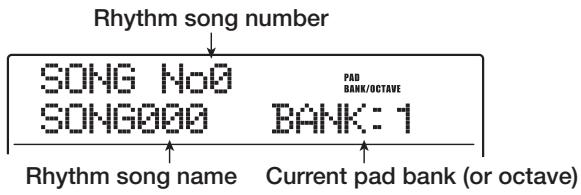
When the rhythm song is empty, the indication "EMPTY" is shown in the rhythm song name field.
HINT
- When you press the [SONG] key at the main screen, the [RHYTHM] key in the display section flashes. This indicates that the rhythm section and the recorder are synchronized.
- By pressing the [RHYTHM] key so that it is constantly lit, you can separate the operation of the rhythm section and the recorder.
-
Rhythm song creation and editing is possible only when the [RHYTHM] key is constantly lit.
-
Turn the dial to select a rhythm song number from 0 - 9.
- To return to the main screen, press the [EXIT] key several times.
Entering pattern information using step input
This section explains how to input rhythm pattern data into an empty rhythm song by specifying the rhythm pattern number and number of measures.
- From the main screen, press the [SONG] key and then the [RHYTHM] key.
Both keys light up, and the rhythm song selection screen appears.
- Press the REC [●] key in the transport section.
The key lights up and the display indication changes as follows. In this condition, you can perform rhythm song step input.
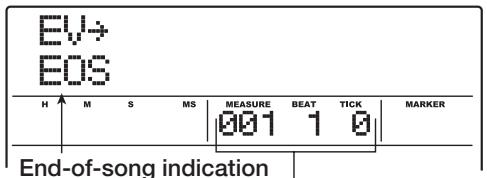
Current measure/beat/tick in rhythm song
The indication “EOS” (End of Song) shows the position where the rhythm song ends. For an empty song, “EOS” will be located at the beginning. Therefore nothing happens if you play the song.
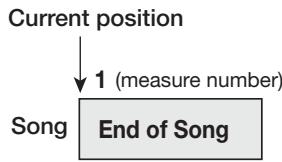
- Use the cursor up/down keys to bring up the indication “←PTN” on the first line of the display.
During step input, the cursor up/down keys serve to bring up various kinds of information about events that are programmed at the current point. The following items can be selected.
| Parameter | Description |
| EV → | Event information at current point |
| PTN | Rhythm pattern number |
| TimSig | Time Signature |
| ROOT | Chord root |
| CHORD | Chord type |
| TEMPO | Tempo |
| DrVOL | Drum sequence volume |
| BsVOL | Bass sequence volume |
| DrKIT | Drum kit number |
| BsPRG | Bass program number |
HINT
When an item other than “ EV ” is selected and no information is input for the current position, the arrow “ ” is shown before the item name (for example: “ PTN”). This indicates that information input at a preceding point continues to be valid.
- Press the [INSERT/COPY] key to bring up the indication "INSERT?" on the first line of the display.
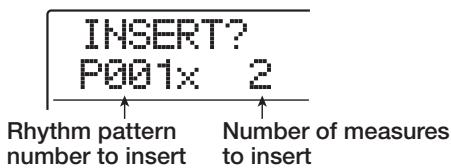
In this condition, you can insert rhythm pattern information.
- Turn the dial to select the rhythm pattern that you want to insert.
- Use the cursor up/down keys to specify the number of measures to insert.
If you specify more measures than the original length of the rhythm pattern, the rhythm pattern will be repeated. If you specify fewer measures, the song will switch to the next rhythm pattern before the current pattern has finished playing.
- To finalize the setting, press the [ENTER] key.
The rhythm pattern information will be input at the current location, and the display reverts to the original screen. The "EOS" indication is moved back by the number of measures that were inserted.
By pressing the PLAY [▶] key while this display is shown, you can check the rhythm pattern entered at the current point.
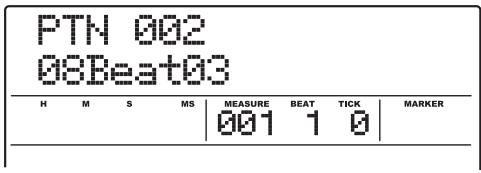
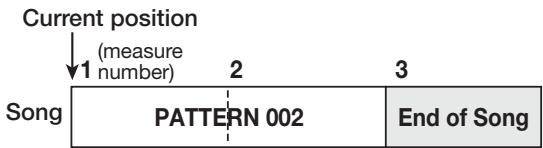
- Repeatedly press the cursor right key to move to the measure number for which "EOS" is shown.
During step input, you can use the cursor left/right keys to move the input position in measure units. When you reach the end of the song, the indication "EOS" is shown on the second line of the display.
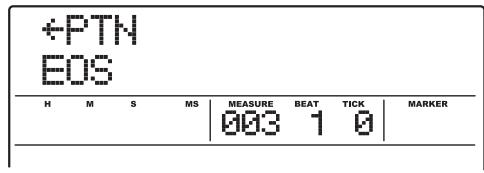
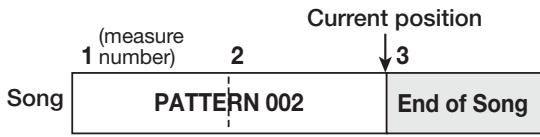
HINT
- The REW [←] and FF [▶] keys in the transport section can be used to move the current position in beat units.
-
When “ EV ” is shown on the display, turning the dial moves the current position in sixteenth note units. By bringing up the “ EV ” indication to move to a point within a measure and then using the cursor up/down keys to display event information, you can enter event information in sixteenth note units ( p. 108).
-
Repeat steps 4 - 8 to enter all required pattern information.
- When all required pattern information has been entered, press the STOP [■] key.
The REC [ ] key goes out and the rhythm song selection screen appears again. If you press the PLAY [] key, the created rhythm song will be played.
To edit the entered rhythm pattern information, proceed as follows.
- Selecting a different rhythm pattern
Use the cursor left/right keys to move to the point where the respective rhythm pattern information is input, and then turn the dial to select the new rhythm pattern.
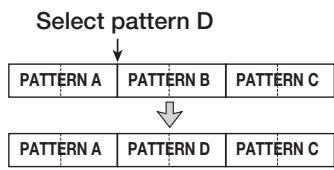
By turning the dial at a point where no rhythm pattern information is input (" PTN" is shown), you can add new rhythm pattern information for this point.
In any case, the newly selected rhythm pattern information will be valid until the point where the next rhythm pattern information is input.
- Inserting a rhythm pattern in a song
Move to the point you want to insert the rhythm pattern, and perform steps 4 - 7. A new rhythm pattern is inserted at the current location, and all subsequent patterns are shifted back by the duration of the inserted pattern.
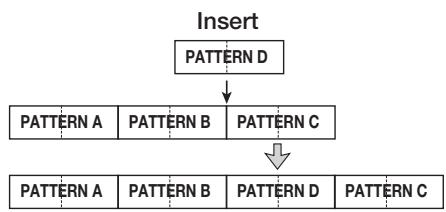
- Deleting entered rhythm pattern information
Use the cursor left/right keys to move to the position of the rhythm pattern information that you want to delete, and press the [DELETE/ERASE] key. When rhythm pattern information was deleted, the previous pattern will remain valid until the point where the next rhythm pattern information is input.
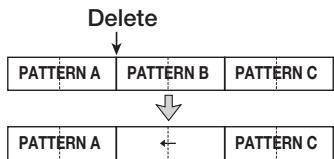
- Deleting a specific measure
Use the cursor left/right keys to move to the start position of the measure that you want to delete. Press the cursor up key to bring up the indication “EV→” on the display, and press the [DELETE/ERASE] key. (The confirmation “DELETE?” appears.) Press the [ENTER] key. The measure at the current position is deleted, and subsequent rhythm pattern information moves forward. When a measure at the beginning of a rhythm pattern (for example first measure of a 2-measure pattern) is deleted, that measure only is deleted, and the indication changes to “← PTN” for the second measure.
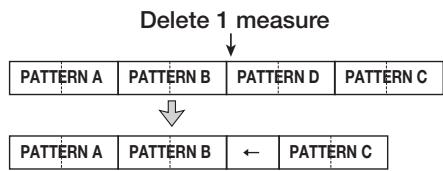
Using FAST for pattern information input
The FAST (Formula Assisted Song Translator) method developed by ZOOM uses simple formulas to specify rhythm pattern playback from start to end. The following keys and pads can be used for numeric input.
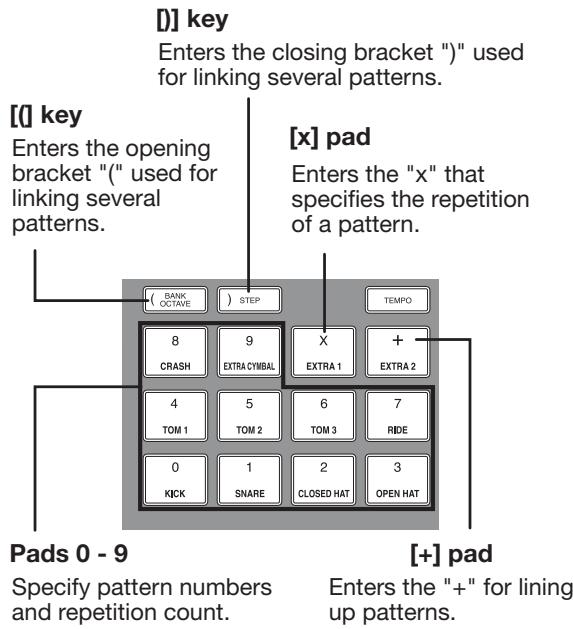
The basic rules for creating a rhythm pattern sequence are as follows.
Line up patterns
Use the "+" symbol to line up rhythm patterns.
For example, entering 0 + 1 + 2 will result in the following rhythm pattern play sequence.

Repeat patterns
Use the "x" symbol to specify pattern repetitions. "x" takes precedence over "+"
For example, entering 0 + 1 × 2 + 2 will result in the following rhythm pattern play sequence.

Repeat multiple patterns
Use the “(” and “)” symbols to link a group of patterns for repetition. Formulas enclosed in brackets take
precedence over other formulas.
For example, entering 0 + (1 + 2) × 2 + 3 will result in the following rhythm pattern play sequence.
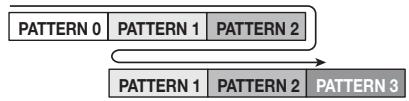
An example for creating the rhythm pattern sequence (0 + 1) × 4 + 2 is shown below.
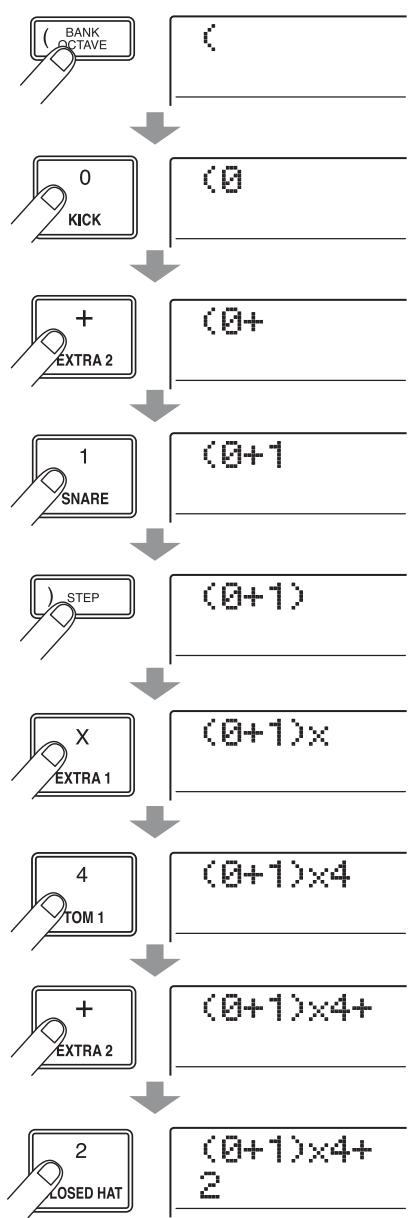
HINT
- If the formula does not fit on two lines, the indication scrolls by one character each. If you use the cursor left/right keys to move the input position, the line scrolls left and right accordingly.
- For FAST input, leading zeros are omitted. For example, pattern 001 is shown as “1”, and pattern 050 as “50”.
- The formula entered with FAST input is saved as part of a project. By calling up the formula later, you can edit it or use it to write the song.
NOTE
- The FAST method can only write a song in one go, from beginning to end. Entering rhythm patterns partly into the song is not possible.
-
To edit a rhythm song that was written with this method, edit the formula and then write the entire song again, or use step input.
-
Press the [SONG] key and then the [RHYTHM] key to switch the rhythm section to rhythm song mode.
- Press the [EDIT] key.
The rhythm song mode edit menu appears.
3. Use the cursor left/right keys to bring up the indication "EDIT FAST" on the display, and press the [ENTER] key.
FAST input is now possible.
4. Use the keys and pads of the rhythm section to enter the formula for creating the rhythm song.
Formula input principles are explained on page 106.
If you make a mistake during input, correct it as follows.
- Inserting a number/formula
Use the cursor left/right keys to move the flashing section, and enter the new numeral or symbol. - Deleting a number/formula
Use the cursor left/right keys to cause the numeral or symbol that you want to delete to flash, and press the [DELETE/ERASE] key.
5. When formula input is completed, press the [ENTER] key.
The display indication changes as follows. In this condition, you can select the rhythm song number in which you want to write the song.
![ZOOM MRS1608 - When formula input is completed, press the [ENTER] key. - 1](/content/2025/01/152285/images/632da248d7ddea496f7aeec585bbe784c9be60d9969278b5a6f5f04f25981749.jpg)
6. Turn the dial to select the target rhythm song, and press the [ENTER] key.
The write operation is carried out, and the rhythm song edit menu appears again.
To check the result, press the [EXIT] key to return to the rhythm song selection screen, select the rhythm song that you have written, and press the PLAY [ ] key.
7. To return to the main screen, press the [EXIT] key several times.
Entering chord information
This section explains how to add chord information (root and chord type) data to the rhythm song that you have created by inputting rhythm pattern data. When playing a rhythm song for which chord information was input, the bass sequence will change according to the chord progression.
HINT
- If the original root of the rhythm pattern and the root specified for the rhythm song are different, the bass sequence phrase will be transposed according to the root input for the rhythm song.
- If the original chord type of the rhythm pattern and the chord type specified for the rhythm song are different, the bass sequence phrase will be converted according to the chord type input for the rhythm song. (Depending on the phrase, there may be no change.)
1. Verify that the [SONG] key and [RHYTHM] key are lit.
If a key is not lit, press it so that it lights up. Use the ZERO [ ] key to align the current position with the beginning of the rhythm song.
2. Press the REC [●] key.
The [REC] key lights up and rhythm song step input becomes possible.
3. Use the cursor up/down keys to bring up the indication "ROOT" on the first line of the display.
At a point where rhythm pattern information is already input, the chord information "E--" (root: E, chord type: no conversion) is automatically assigned.
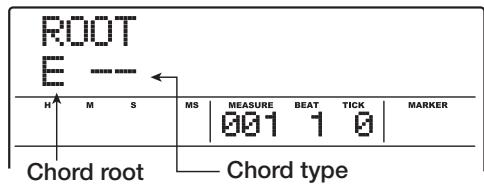
4. Turn the dial to specify the note name (C - B) that will be the root of the chord.
The following screen shows an example of changing the chord root to A.
5. To specify the chord type, press the cursor down key once to bring up the indication "CHORD" on the first line of the display.
6. Turn the dial to select the chord type.
You can choose from the following chord types.
| Display | Description | Display | Description |
| ---- | No conversion | 744 | 7th Suspended 4th |
| Major | Major Triad | 344 | Suspended 4th |
| Minor | Minor Triad | m7b5 | Minor 7th flat 5 |
| Dominant | Dominant 7th | m6 | Minor 6th |
| Minor | Minor 7th | 6 | Major 6th |
| Major | Major 7th | m9 | Minor 9th |
| Augment | Augment | m9 | Major 9th |
| Diminish | m7 | Minor Major 7th | |
The following screen shows an example of when the chord type has been changed to "M7".
By pressing the PLAY [▶] key in this condition, you can check the rhythm pattern with the new chord information.
7. Move to the location at which you want to input the next chord data, and input chord data
in the same way as described in steps 3 - 6.
You can move the input location within a rhythm song in the following ways.
- Moving in steps of a measure
Use the cursor left/right keys to move to the beginning of the preceding or following measure.
- Moving in steps of a beat
Use the REW [4] / FF [▶] keys to move to the beginning of the preceding or following beat.
- Moving in steps of a sixteenth note
Repeatedly press the cursor up key to bring up the indication “ EV ” on the display, and turn the dial to move forward or backward in 12-tick (16th note) units.
If necessary, you can also input chord information at a point within a measure, as shown below (smallest unit: sixteenth note). For example, to enter chord information in sixteenth note units, bring up the indication “ EV ” on the first line of the display, turn the dial to move current point, and then bring up the chord information input screen again.
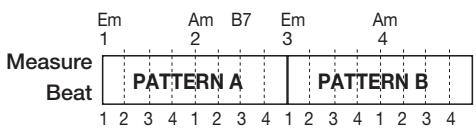
HINT
At a point where no chord information is input, “←” is shown to the left of the “ROOT” or “CHORD” indication. This means that the immediately preceding information continues to be valid.
8. Input the remaining chord data in the same way.
If you have made a mistake or want to make a change, proceed as follows.
To change chord information
Move to the location at which the chord data is input, use the cursor up/down keys to switch the display to "ROOT" or "CHORD", and turn the dial to change the chord information.
- To delete chord information
Move to the location at which the chord data is input, use the cursor up/down keys to switch the display to “ROOT” or “CHORD”, and press the [DELETE/ERASE] key. The chord data (root and chord) will be deleted, and the display will change to “←ROOT” or “←CHORD”.
9. When you have finished, press the STOP [■] key.
The unit returns to the rhythm song selection screen. By pressing the PLAY [▶] key in this condition, you can check the rhythm song with the new chord information.
To return to the main screen, press the [EXIT] key several times.
Entering other information
A rhythm song contains information about rhythm patterns, chord, tempo, beat etc. in a matrix configuration, as shown at the bottom of this page. This is called event information. When the rhythm song is in the input condition (REC [●] key lit), you can move the current position with the cursor keys etc. and use the cursor up/down keys to call up and enter or edit event information.
1. Verify that the [SONG] key and [RHYTHM] key are lit.
![ZOOM MRS1608 - Verify that the [SONG] key and [RHYTHM] key are lit. - 1](/content/2025/01/152285/images/fd3a60a9e34b583513699bc18b6a438de29cb9c427c532166a6b5d5def5c1d1b.jpg)
If a key is not lit, press it so that it lights up. Use the ZERO [1] key to align the current position with the beginning of the rhythm song.
2. Press the REC [●] key.
The [REC] key lights up and rhythm pattern input for the rhythm song becomes possible.
3. Press the cursor up key repeatedly to bring up the indication “ EV ” on the first line of the display.
This screen lets you check which event information is entered at the current point. The symbol after “EV→” (such as “Pt” or “TS”) denotes the type of event.
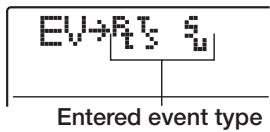
Available events and their symbols are listed in the table below.
| Type of event | Symbol | Content | Range |
| Ptn | Rhythm pattern number | 000 – 510 | |
| TimSig | Time signature | 1 – 8(1/4 – 8/4) | |
| ROOT | Chord root | C – B | |
| CHORD | Chord type | --, Maj, m, 7, m7, M7, aug, dim, 7sus4, sus4, m7b5, m6, 6, m9, M9, mM7 | |
| Tempo | Tempo | 40.0 – 250.0 | |
| DrVOL | Drum sequence volume | 0 – 15 | |
| BsVOL | Bass sequence volume | 0 – 15 | |
| DrKIT | Drum kit | See appendix | |
| BsPRG | Bass program | See appendix |
NOTE
- If no tempo information is input for the rhythm song, the tempo currently set for the rhythm section will be used. To ensure that a rhythm song will always play with the same tempo, be sure to enter tempo information at the beginning of the song.
- Time signature information can be entered only at the beginning of a measure.
4. Move to the location at which you want to input a new event.
For details on how to move the current location, refer to page 108.
5. Use the cursor up/down keys to select the type of event that you want to input.
If the event you select here has been input at the current location, its value will be displayed.
DrVOL 15
If there is no corresponding event, the display will indicate “ xxx” (where xxx is the event name). This indicates that the previously input event information is still valid.
TEMFO
6. Turn the dial to input the event value.
7. Input the remaining events in the same way.
To input more information for the same type of event, you can move the current position in measures or beats while the event input screen is displayed.
If you make a mistake or want to change the information, the events can be edited in the following ways.
- To change an event setting
Display the event you want to change, and turn the dial to alter the setting.
To delete event information
Display the event you want to delete, and press the [DELETE/ERASE] key.
8. When you have finished, press the STOP [■] key.
The REC [ ] key goes out, and the rhythm song selection screen appears again. To return to the main screen, press the [EXIT] key several times.
Playing a rhythm song
This section explains how to play one of the 10 rhythm songs that were created by inputting rhythm pattern and chord information.
1. From the main screen, press the [SONG] key.
The key lights up and the rhythm song selection screen appears.
![ZOOM MRS1608 - From the main screen, press the [SONG] key. - 1](/content/2025/01/152285/images/ce309e9d007c46b55c065f770758249cf306ff0e6d095e238ad6a8e485bb4c94.jpg)
2. Turn the dial to select the song, and then press the PLAY [▶] key.
The rhythm song will begin playing. If something has been recorded on the audio tracks, those tracks will play back simultaneously. The display shows information about the rhythm pattern number, chord type, and other information at the current location.
![ZOOM MRS1608 - Turn the dial to select the song, and then press the PLAY [▶] key. - 1](/content/2025/01/152285/images/67f2ff9a93b2dfcc852cc64d7a7d9bf55d8e527b1d1e33a269e2def655a2e6a7.jpg)
3. To stop the rhythm song, press the STOP [■] key.
4. To play the rhythm section independently, press the [RHYTHM] key while stopped, so that the key lights up.
The rhythm section will be disconnected from the recorder section. The pad bank or scale/ octave setting will be shown at the right side of the display. (Which one is shown depends on the currently selected sound.)
![ZOOM MRS1608 - To play the rhythm section independently, press the [RHYTHM] key while stopped, so that the key lights up. - 1](/content/2025/01/152285/images/24bfbb363a053f68b941d116c7f8b0d42fe98bc6e9f14c8299cad0a1112931d4.jpg)
5. To return to the main screen, press the [EXIT] key several times.
HINT
It is also possible to play a drum kit or bass program by hitting the pads during rhythm song playback.
Editing a rhythm song
This section explains how to edit a rhythm song that you have created.
Copying a specified range of measures
Part of a rhythm song can be copied in measures and inserted into another location. This is convenient when you want to repeat a portion of a rhythm song.
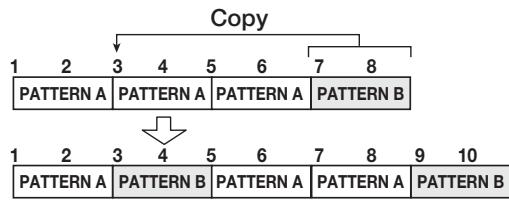
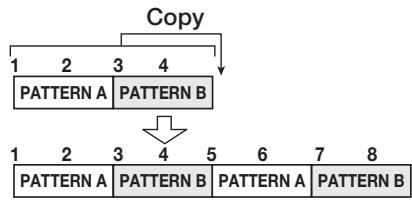
1. From the main screen, press the [SONG] key so that the key is lit.
2. Press the [RHYTHM] key.
The key lights up, and a rhythm song can be created or edited.
3. Press the REC [●] key.
4. Press the [INSERT/COPY] key two times.
The following screen appears.
![ZOOM MRS1608 - Press the [INSERT/COPY] key two times. - 1](/content/2025/01/152285/images/596d70254e60fb9c2a2fa225a968c99f2fae9533dbbc932e6431f647df44a507.jpg)
5. Turn the dial to select the copy source start measure, and press the [ENTER] key.
The display indication changes as follows, letting you specify the copy source end point.
![ZOOM MRS1608 - Turn the dial to select the copy source start measure, and press the [ENTER] key. - 1](/content/2025/01/152285/images/c099ed88769393d3efed659e9b245f6588fa2e93de7af21add513850f54fe237.jpg)
6. Turn the dial to select the copy source end measure, and press the [ENTER] key.
The screen for selecting the copy destination appears.
![ZOOM MRS1608 - Turn the dial to select the copy source end measure, and press the [ENTER] key. - 1](/content/2025/01/152285/images/0cd1cee34ff15d2362308bc92e924fa86708ab465b19176d0410cda4cbcd4d5e.jpg)
7. Turn the dial to select the copy destination start measure.
8. To execute the copy process, press the [ENTER] key.
When the copy is executed, the "EOS" marker is shifted back by the number of copied measures.
By pressing the [EXIT] key instead of the [ENTER] key, you can cancel the operation and back up one step at a time.
9. Press the STOP [■] key.
The unit returns to the rhythm song selection screen.
Transposing the entire rhythm song
You can transpose the bass sequence of the rhythm song in semitone units.
NOTE
When the transpose function is used, the chord information (root) entered for the rhythm song will be rewritten. To return to the previous state, perform transpose once more in the opposite direction.
1. From the main screen, press the [SONG] key so that the key is lit.
2. Press the [RHYTHM] key.
The key lights up, and a rhythm song can be created or edited.
3. Press the [EDIT] key.
The rhythm song edit menu appears.
EDIT TRANSPOS
4. Use the cursor left/right keys to bring up the indication "TRANSPOS" on the display, and press the [ENTER] key.
The display indication changes as follows.
![ZOOM MRS1608 - Use the cursor left/right keys to bring up the indication "TRANSPOS" on the display, and press the [ENTER] key. - 1](/content/2025/01/152285/images/f2ddf9fe151fc82c69786526324916dd784c2a56f176e5776b3e8ee19752f315.jpg)
5. Turn the dial to select the transpose setting (-6 - 0 - +6) , and press the [ENTER] key.
The default setting is 0 (no transpose operation). When you select for example a setting of +6 , the rhythm song will be transposed by six semitones up.
When you press the [ENTER] key, the indication "TRANSPOS SURE?" appears on the display.
6. Press the [ENTER] key once more to execute the transpose operation.
The transpose operation is carried out, and the rhythm song edit menu appears again.
By pressing the [EXIT] key instead of the [ENTER] key, you can cancel the operation and back up one step at a time.
Copying a rhythm song
You can copy the contents of any rhythm song in a project to any other rhythm song number. This is useful to create variations of a song.
NOTE
When you execute the copy, the contents of the destination rhythm song will be completely erased and overwritten by the copy source rhythm song. Take care not to accidentally erase a song that you wish to keep.
- From the main screen, press the [SONG] key so that the key is lit.
- Press the [RHYTHM] key.
The key lights up, and a rhythm song can be created or edited.
3. Turn the dial to select the copy source rhythm song.
4. Press the [INSERT/COPY] key.
The display indication changes as follows. In this condition, you can select the rhythm song to be used as copy target.
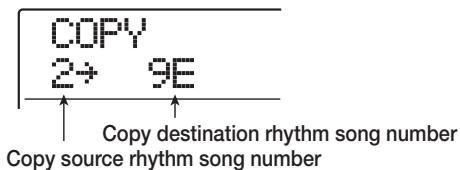
HINT
An empty rhythm song is shown with an “E” to the right of the number.
- Turn the dial to select the copy destination rhythm song, and press the [ENTER] key.
The indication "COPY SURE?" appears on the display. - To execute the copy process, press the [ENTER] key once more.
When the copy operation is completed, the unit returns to the rhythm song selection screen, with the destination rhythm song being selected.
By pressing the [EXIT] key instead of the [ENTER] key, you can cancel the operation and back up one step at a time.
Deleting the rhythm song
This section explains how to delete the entire rhythm song, resetting it to a blank state.
HINT
Once you delete the rhythm song, it cannot be recovered.
Use this operation with care.
-
From the main screen, press the [SONG] key so that the key is lit.
-
Press the [RHYTHM] key.
The key lights up, and a rhythm song can be created or edited. - Turn the dial to select the rhythm song to delete.
- Press the [DELETE/ERASE] key.
The indication "DELETE SURE?" appears on the display.
- Press the [ENTER] key to delete the rhythm song.
When the delete operation is completed, the unit returns to the rhythm song selection screen.
By pressing the [EXIT] key instead of the [ENTER] key, you can cancel the operation and back up one step at a time.
Assigning a name to a rhythm song
You can edit the name of any rhythm song as follows.
- From the main screen, press the [SONG] key so that the key is lit.
- Press the [RHYTHM] key.
The key lights up, and a rhythm song can be created or edited.
- Turn the dial to select the rhythm song whose name you want to edit, and press the [EDIT] key.
The rhythm song edit menu appears.
EDIT TRANSPOS
- Use the cursor left/right keys to bring up the indication "EDIT NAME" on the display, and press the [ENTER] key.
The rhythm song name is shown. The flashing section indicates the character that can be changed.
NAMESONG000
- Use the cursor left/right keys to move the flashing section, and turn the dial to select a character.
For information on available characters, refer to page 36. - Repeat step 5 until the name is as desired.
- When the name has been input, press the [EXIT] key.
The rhythm song name is changed, and the display returns to the rhythm song edit menu. To return to the main screen, press the [EXIT] key several times.
Creating your own drum kit
You can create your own original drum kit by assigning sounds with specific settings for volume, pitch, panning, etc. to the pads and giving the kit a unique name. It is also possible to copy an existing drum kit and edit only a part of it. The drum kit can then be saved on the hard disk as part of the project.
Changing the sound and settings for each pad
You can specify the sound, volume, pitch, panning and other parameters for each pad to create your very own drum kit.
- From the main screen, press the [RHYTHM] key so that the key lights up.
Creating a drum kit is possible both in rhythm pattern mode and rhythm song mode.
- Press the [DRUM] key in the rhythm section, and then the [KIT/PROG] key.
The name of the drum kit selected for editing appears on the display.
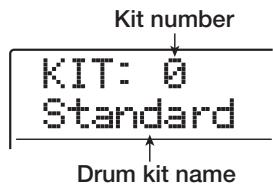
- Turn the dial to select the drum kit that you want to edit, and press the [EDIT] key.
The menu for editing individual pad settings appears.
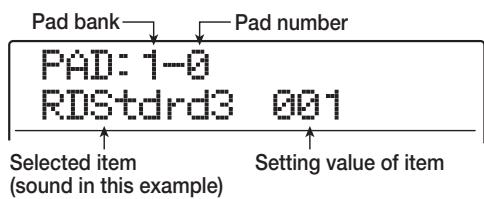
- If necessary, press the [BANK/OCTAVE] key and use the dial to switch the pad bank.
To return to the original display, press the [EXIT] key.
5. Use the cursor left/right keys to select an item to set. The following items are available.
- Instrument sound
Lets you select a single drum/percussion sound from the currently selected drum sound set to assign to a pad. For a list of numbers and corresponding sound names, refer to the appendix at the end of this manual.
PITCH
Adjusts the pitch of the drum/percussion sound for the pad. The setting range is -7.9 - 0 (reference pitch) - 7.9, in steps of 0.1 (1/10 of a semitone).
LEVEL
Adjusts the output level for the pad. The setting range is 0 - 15.
HINT
When you press the [DRUM MIXER] key at the drum kit selection screen, you can use faders 1 - 8 and 9/10 - 15/16 to set the LEVEL parameter ( p. 117).
- PAN (Panning)
Adjusts the left/right stereo position (panning) for the pad. The setting range is L63 (far left) - 0 (center) - R63 (far right).
HINT
The panning value set here is valid regardless of the track parameter pan setting. When you set the track parameter pan to left/right, the left/right volume balance changes while the positioning of each pad is retained.
GROUP (Pad group)
Selects the type of sound produced when pads are hit in succession (PL/MN) and the group to which the pad belongs (0 - 7) . The setting range is PL0 - PL7 and MN0 - MN7. When PL is selected, hitting same pad in succession will produce overlapping sound, i.e. the previous sound continues while the next one starts. When MN is selected, the previous sound stops when the next one starts.
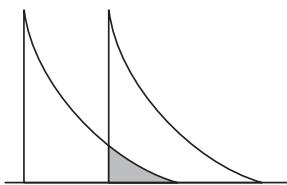
GROUP=PL
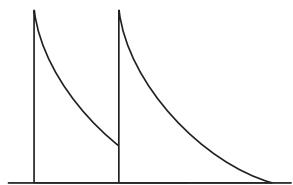
GROUP=MN
The numbers 0 - 7 specify the group to which the pad belongs ( 0 = no group, 1 - 7 : respective group). Pads in the same group cannot produce sound at the same time. For example, if you assign an open hi-hat sound and closed hi-hat sound to two pads in the same group, the open hi-hat sound will cease when you play the closed hi-hat sound, resulting in realistic action.
- REV SEND (Reverb send)
Sets the reverb send level for each pad. The setting range is 0 - 127. This setting is independent from the reverb send level setting made as part of the track parameters.
NAME (Drum kit name)
Lets you change the name of the drum kit ( 116).
6. Press the pad for which you want to make a setting.
The setting for the pad appears on the display. For example, if PAN is selected as parameter and you press pad 3, the display indication changes as follows.
PAD:1-3
PnH
L16
7. Turn the dial to select a setting value.
8. Repeat steps 5 - 7 as necessary to edit other pads.
9. When the setting is complete, press the [EXIT] key.
The unit returns to the drum kit selection screen. The created drum kit is saved as part of the project.
HINT
You can also copy all the settings for a pad to another pad. To do this, press the [INSERT/COPY] key while a parameter for the copy source pad is displayed. Then select the pad bank and pad to which you want to copy the settings, and press the [ENTER] key.
Assigning a name to a drum kit
You can assign a name to a drum kit.
- From the main screen, press the [RHYTHM] key so that the key lights up.
- Press the [DRUM] key in the rhythm section, and then the [KIT/PROG] key.
The drum kit selection screen appears on the display.
- Turn the dial to select the drum kit (0 - 126) whose setting you want to change, and press the [EDIT] key.
The menu for making settings for each pad appears.
- Use the cursor left/right keys to bring up the name of the drum kit on the display.
NAME Standard
- Use the cursor left/right keys to move the flashing section, and turn the dial to select a character.
For information on available characters, refer to page 36. - Repeat step 5 until the name is as desired.
- When the name has been input, press the [EXIT] key.
The drum kit name is changed, and the display returns to the drum kit selection menu. To return to the main screen, press the [EXIT] key several times.
Copying a drum kit
You can copy the currently selected drum kit to another kit number. This is useful to create variations of a drum kit.
NOTE
If the number selected as copy destination already contains a drum kit, it will be overwritten. Use this operation with care.
- From the main screen, press the [RHYTHM] key so that the key lights up.
- Press the [DRUM] key in the rhythm section, and then the [KIT/PROG] key.
The drum kit selection screen appears on the display.
-
Turn the dial to select the drum kit that you want to copy.
-
Press the [INSERT/COPY] key.
The display indication changes as follows. In this condition, you can select the drum kit number to be used as copy destination.
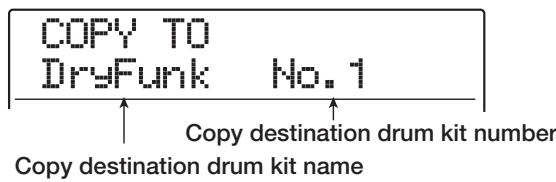
-
Turn the dial to select the drum kit number to be used as copy destination.
-
To execute the copy, press the [ENTER] key.
The drum kit setting is copied, and the display returns to the drum kit selection menu. To return to the main screen, press the [EXIT] key several times.
By pressing the [EXIT] key instead of the [ENTER] key, you can cancel the operation and back up one step at a time.
Adjusting the volume of each pad with the faders
While playing a rhythm song or rhythm pattern, you can adjust the volume for each pad in the currently selected drum kit by using the faders. This is useful to adjust the volume of each instrument before mixdown.
- From the main screen, press the [RHYTHM] key so that the key lights up.
- Press the [DRUM] key in the rhythm section, and then the [KIT/PROG] key.
The drum kit selection screen appears on the display.
3. Press the [DRUM MIXER] key.
The key lights up and the display shows the currently selected pad bank, pad number, and volume setting.
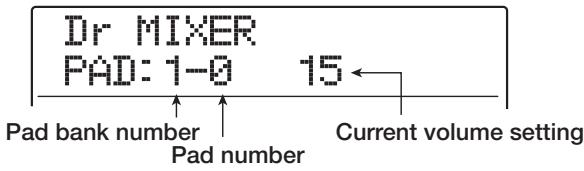
- While playing the rhythm song/rhythm pattern, operate the faders to adjust the respective volume for each pad.
While the [DRUM MIXER] key is lit, the 12 faders of the fader section are assigned to pads 0 - 9 , x, + .
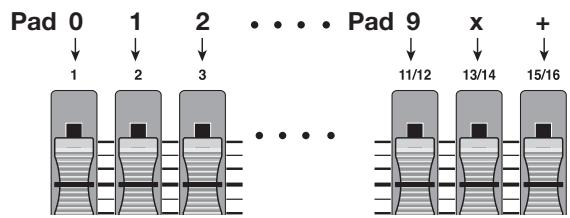
When you move a fader, the corresponding pad is selected for adjustment, and the volume changes. If necessary, switch the pad bank with the [BANK/OCTAVE] key.
- To return to the main screen, press the [EXIT] key several times.
The new volume setting for the drum kit is saved.
HINT
The volume for each pad in the sampler program ( p. 121) can be set in the same way.
Importing rhythm patterns and rhythm songs from another project
This section explains how to selectively or globally import rhythm pattern data and rhythm song data from another project that was saved on the hard disk.
NOTE
The import process will overwrite existing rhythm patterns/ rhythm songs in the currently selected project. Take care not to accidentally overwrite rhythm pattern or rhythm song data that you want to keep.
- From the main screen, press the [RHYTHM] key so that the key lights up.
- Press the [UTILITY/TRACK EDIT] key.
The rhythm utility menu for making various rhythm section settings appears.
- Use the cursor left/right keys to bring up the indication "UTILITY IMPORT" on the display, and press the [ENTER] key.
The display indication changes as follows.
- Use the cursor left/right keys to select ALL (import all rhythm patterns and rhythm songs) or PATTERN (import a specific rhythm pattern), and press the [ENTER] key.
In this condition, you can select the source project from which to import.
Project name
Project number
5. Turn the dial to select the source project, and press the [ENTER] key.
The subsequent steps differ, depending on which selection was made in step 4.
- When ALL was selected
Verify that the indication "IMPORT SURE?" is shown on the display. Proceed to step 7.
- When PATTERN was selected
The source rhythm pattern is shown on the display. Turn the dial to select the desired rhythm pattern, and press the [ENTER] key. You can now select the target pattern. Proceed to step 6.
6. Turn the dial to select the import target, and press the [ENTER] key.
The indication "SURE?" appears on the display.
7. To carry out the import process, press the [ENTER] key.
When all patterns/songs have been imported, the rhythm pattern or rhythm song selection screen appears again. If a single pattern was imported, the display of step 5 returns again.
To return to the main screen, press the [EXIT] key several times.
By pressing the [EXIT] key instead of the [ENTER] key, you can cancel the operation and back up one step at a time.
Editing various settings of the rhythm section
This section explains how to edit various settings that affect the entire rhythm section, such as adjusting the pad sensitivity or adjusting the volume of the metronome.
Basic procedure
The basic procedure for editing the rhythm section settings is the same for most items, as described below.
HINT
This procedure can be carried out either in rhythm pattern mode or rhythm song mode.
1. From the main screen, press the [RHYTHM] key so that the key lights up.
Depending on the current operation mode of the rhythm section, the rhythm pattern selection screen or rhythm song selection screen appears.
2. Press the [UTILITY/TRACK EDIT] key.
The rhythm utility menu for making various rhythm section settings appears.
UTILITY SoundSel
HINT
When the pad sampler function is being used, the indication "UTILITY SPL PRG" appears instead of the above screen.
3. Use the cursor left/right keys to select one of the following items to edit, and press the [ENTER] key.
SoundSel
Select the drum sound set to be used by the rhythm section ( p.90)
- COUNT
Change the length of the pre-count that is heard during real-time input of a rhythm pattern.
- ClickVol
Change the volume level of the metronome that is heard
during real-time input of a rhythm pattern.
PAD SENS
Change the pad sensitivity which determines the volume level in relation to the force with which the pad is struck.
MIDI
Make MIDI-related settings ( p. 170).
IMPORT
Import rhythm patterns and rhythm songs from another project saved on the hard disk ( p. 117).
- MEMORY
Check the remaining amount of rhythm pattern and rhythm song memory.
- SAMPLE
Import and edit source material to be used for the pad sampler function ( p.121)
- POSITION
Selects whether the drum sound pan setting applies as seen from the drummer or from the listener.
4. Turn the dial to edit the setting.
The screen display and operation will be different for each item. For details, refer to the sections that follow.
HINT
For information on drum sound set selection, MIDI setting, importing, and the pad sampler function, refer to the respective sections.
5. When the setting procedure is complete, press the [EXIT] key several times to return to the main screen.
Changing the length of the pre-count
You can change the length of the pre-count that is heard when you record a rhythm pattern in real time. Perform steps 1 - 3 of "Basic procedure" to bring up the indication "UTILITY COUNT", and press the [ENTER] key. Then turn the dial to choose one of these settings.
COUNT 4
OFF
The pre-count is turned off.
1-8
A pre-count of 1 - 8 beats is heard (default: 4).
SPECIAL
The following special pre-count is heard.

Changing the metronome volume
You can change the volume of the metronome that is heard when you record a rhythm pattern in real time. Perform steps 1 - 3 of "Basic procedure" to bring up the indication "UTILITY ClickVol", and press the [ENTER] key. Then turn the dial to set the volume (0 - 15).
ClickVol 10
Adjusting the sensitivity of the pads
You can specify the volume that is produced according to the force with which you hit the pads (pad sensitivity). Perform steps 1 - 3 of "Basic procedure" to bring up the indication "UTILITY PAD SENS", and press the [ENTER] key. Then turn the dial to choose one of these settings.
PAID SENS NORMAL
- SOFT
The volume will be soft, regardless of how strongly you tap the pad.
MEDIUM
The volume will be medium, regardless of how strongly you tap the pad.
LOUD
The volume will be loud, regardless of how strongly you tap the pad.
LITE
Maximum sensitivity. Even light taps will produce a loud volume.
NORMAL
Normal sensitivity (default setting).
HARD
Low sensitivity. Strong tapping is needed to produce a loud volume.
EX HARD
Lowest sensitivity. Very strong tapping is needed to produce a loud volume.
Checking the remaining amount of memory
The remaining amount of recording memory for rhythm patterns and rhythm songs will be displayed as a percentage (\%). Perform steps 1 - 3 of "Basic procedure" to bring up the indication "UTILITY MEMORY", and press the [ENTER] key. This screen is for display only. There is no setting that can be edited.
MEMORY 45%
Swapping the left/right pan position
The pan setting for the drum sound can be set to apply as seen from the drummer or from the listener. Perform steps 1 - 3 of "Basic procedure" to bring up the indication "UTILITY POSITION", and press the [ENTER] key. Then select one of the following settings.
- PLAYER
Left/right pan setting applies as seen from the player (drummer).
- LISTENER
Left/right pan setting applies as seen from the listener (audience).
Reference [Pad Sampler]
This section explains the pad sampler function which lets you import short sound passages from audio tracks or a CD-ROM and assign these to the pads for playing.
How the pad sampler works
The pad sampler is a function which lets you assign material from audio tracks or a CD-ROM to the pads of the MRS-1608 for playing. This can be used to add effect sounds to a song or play a rhythm pattern/rhythm song with your original sounds.
The material (samples) used for the pad sampler can be taken from an audio track or from an audio file on a CD-ROM. The samples are stored on the hard disk of the MRS-1608 in a special area called the "sample pool". A maximum of 1000 samples can be stored. The playback range can be set individually for each sample (see illustration below).
To use the pad sampler, samples are loaded from the sample pool into memory and assigned to the pads of the MRS-1608. Up to 36 samples with a combined playing time of 22 second (converted to mono) can be used at one time. A combination of such assigned samples is called a sampler program. The sampler program contains information about assigning samples to pads, as well as information about level, pan, pitch and other parameters. In the MRS-1608, you can create up to 10 sampler programs per project.
The created sampler programs are stored as part of a project.
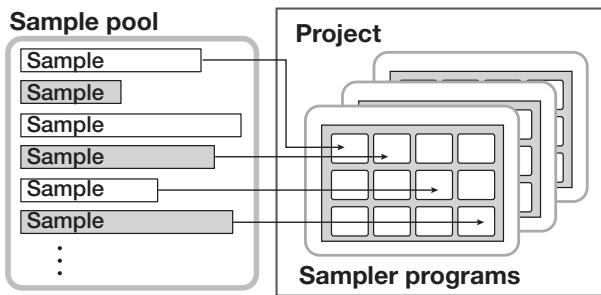
The pad sampler can also be played by a drum sequence instead of the pads. (However, while the pad sampler is being used, the drum kit and bass program are unavailable.)
The output signal of the pad sampler is sent to the [DRUM] fader of the mixer. Like a regular drum track, it can be controlled by the status key and fader, and track parameters can be used to modify the signal.
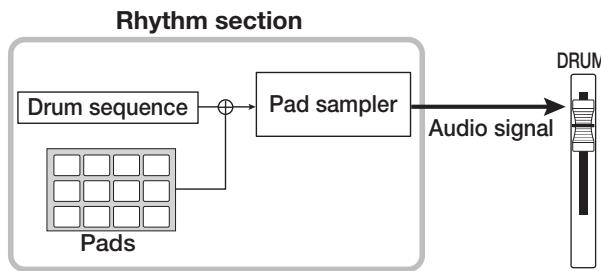
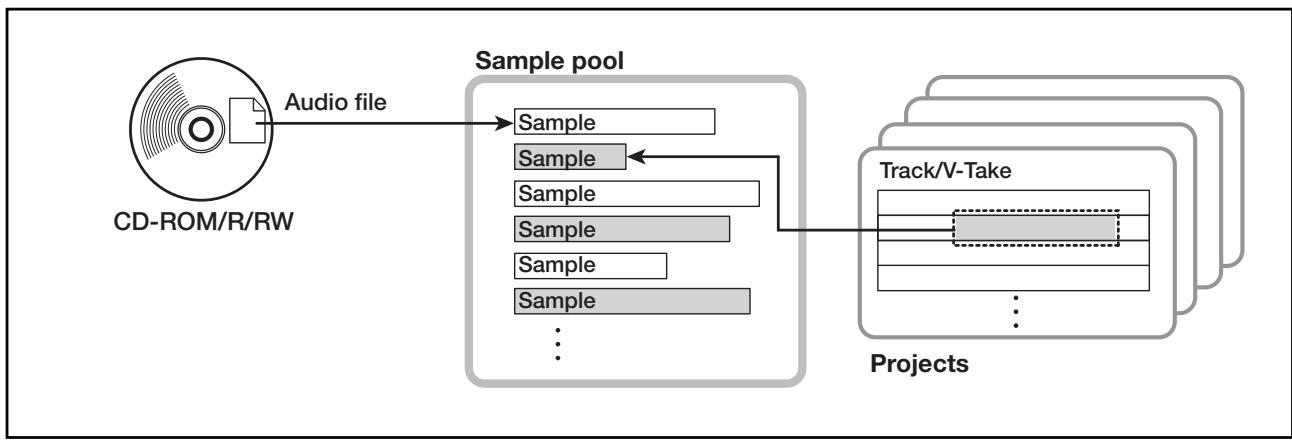
Material that can be imported into the sample pool
The following types of audio material can be imported into the sample pool.
(1) Any audio track from the currently loaded project
You can select any track/V-take from the currently loaded project and specify a range for use as a sample.
(2) Audio file stored on CD-ROM/R/RW disc
A stereo or mono audio file (sampling frequency 8 - 48 kHz, 8-bit or 16-bit WAV/AIFF file) stored on a CD-ROM/R/RW disc can be used as a sample.
NOTE
- All audio files will be played at a sampling frequency of 44.1 kHz. When using an audio file that was recorded with a different sampling frequency, convert it to 44.1 kHz during importing, as required.
- Discs not compliant with the ISO 9660 Level 2 standard cannot be used.
- CD-R/RW discs with unfinalized sessions cannot be used.
Importing a sample
This section explains how to import samples into the sample pool.
Basic steps for sample importing
When acquiring samples for use with the pad sampler, some steps are similar for each source.
1. From the main screen, press the [RHYTHM] key in the display section.
The key lights up, and the rhythm section can be used independently.
2. Press the [UTILITY/TRACK EDIT] key in the display section.
The rhythm utility menu for making various rhythm section settings appears.
3. Use the cursor left/right keys to bring up the indication "UTILITY SAMPLE" on the display, and press the [ENTER] key.
A screen for selecting the sample appears on the display.
![ZOOM MRS1608 - Use the cursor left/right keys to bring up the indication "UTILITY SAMPLE" on the display, and press the [ENTER] key. - 1](/content/2025/01/152285/images/7c57c88e3bf42f0a67803954baf573197f4858cd4c8e92abf716757b48d55c20.jpg)
4. Turn the dial to select the sample number to be used as import destination.
When the sample number is empty, the indication "EMPTY" is shown in the sample name field.
NOTE
If you select the number of an existing sample, its contents will be overwritten by the new sample.
5. Press the [UTILITY/TRACK EDIT] key once more.
The sample utility menu for sample importing and editing appears.
SAMPLE IMPORT
6. Verify that "SAMPLE IMPORT" is shown on the display and press the [ENTER] key.
You can now select the type of import source.
IMPORT TAKE
7. Use the cursor left/right keys to select one of the following, and press the [ENTER] key.
- TAKE
Import a specified range of audio data from any track/V-take in the currently loaded project.
WAV/AIFF
Import an audio file (WAV/AIFF) from a CD-ROM/R/ RW disc inserted in the CD-R/RW drive or from the internal hard disk.
The subsequent steps differ, depending on which selection was made. For details, see the respective section.
When the import process is completed, the sample selection screen appears again. If necessary, import more samples. The maximum number of samples that can be imported is 1000.
To return to the main screen, press the [EXIT] key several times.
HINT
The imported samples are automatically assigned a name, using the pattern "SAMPLxxx" (where xxx is the sample number).
Importing part of a track/V-take
You can specify a range on any track/V-take in the currently loaded project and import this as a sample.
1. Refer to steps 1 - 7 of "Basic steps for sample importing" to bring the indication "TAKE" onto the display. Then press the [ENTER] key.
The display now shows "ImprtSrc TR xx-yy" (where xx is the track number and yy the V-take number). In this condition, you can select the track/V-take to use as import source.
2. Use the dial or the status keys to select the track, and use the cursor up/down keys to select the V-take.
ImprSrc TR 16-1
When track 16 is selected, turning the dial further to the right lets you select odd/even track pairs or the master track. If you press the adjacent status keys of an odd-numbered and even-numbered track in succession, "mono track x 2" is selected.
HINT
Repeatedly pressing the status keys for stereo tracks selects the odd-numbered track, even-numbered track, and stereo track in sequence.
3. Press the [ENTER] key.
The display now shows "ImprSrc START". This lets you specify the import start position.
| ImportSrc START | |||||||
| H | M | S | MS | MEASURE | BEAT | TICK | MARKER |
| 0 | 0 | 0 | 0 | 001 | 1 | 0 | 00 |
4. Use the cursor left/right keys to move the flashing section of the counter, and turn the dial to specify the import start point.
By moving the flashing section to the MEASURE/BEAT/TICK or MARKER field on the display, you can specify the point as a measure, beat, tick, or as a mark number.
HINT
- By holding down the STOP [■] key and pressing the PLAY [▶] key, you can perform scrub playback of the specified range (→ p. 38).
- The sample playback range can be fine-tuned also after importing.
- If you specify a point where there are no audio data, the second line of the display shows * symbol.
5. Press the [ENTER] key.
The display indication changes as follows.
| ImportSrc END | |||||||
| H | M | S | MS | MEASURE | BEAT | TICK | MARKER |
| 0 | 0 | 2 | 10 | 002 | 2 | 24 | 00 |
6. Specify the end point in the same way as in step 4.
If you press the PLAY [▶] key at this point, the range between the specified start and end points is played.
7. When the import source has been specified, press the [ENTER] key.
The indication "IMPORT SURE?" appears on the display.
8. To carry out the import process, press the [ENTER] key once more.
When the import process is completed, the unit returns to the sample selection screen. By pressing the [EXIT] key instead of the [ENTER] key, you can cancel the operation and back up one step at a time.
Importing a WAV/AIFF file
You can import an audio file (WAV/AIFF) from a CD-ROM or CD-R/RW disc inserted in the CD-R/RW drive or from the internal hard disk.
Before doing this, the following preparations are necessary.
- When importing from the CD-R/RW drive
Insert a CD-ROM or CD-R/RW disc containing audio files into the CD-R/RW drive.
- When importing from the internal hard disk
Copy the audio files from a computer into a folder named "WAV_AIFF" immediately under the root directory (top level folder) of the internal hard disk.
The files must have the extension“.WAV” (for WAV files) or“.AIF” (for AIFF files).
NOTE
- To copy audio files to the internal hard disk, the optional UIB02 card is necessary. For information on using the option card, see page 183.
- Any sub folders in the WAV_AIFF folder are not recognized by the MRS-1608.
- The following procedure will not allow you to first listen to the audio files. Confirm file content and file name before you start the procedure.
1. Refer to steps 1 - 7 of "Basic steps for sample importing" to bring the indication "WAV/AIFF" onto the display. Then press the [ENTER] key.
The display now shows "IMPORT CD-ROM", and you can select the source device.
IMPORT CD-ROM
2. Use the cursor left/right keys to select the source device: "CD-ROM" (CD-R/RW drive) or "IntHDD" (internal hard disk), and press the [ENTER] key.
The unit searches for WAV/AIFF files on the specified device. When files are found, their names are listed on the display.
IMPORT LOOP.WAV
File name
HINT
If you select CD-ROM as source without a disc in the drive, the indication “IMPORT Ins Disc” appears on the display and the tray of the CD-R/RW drive opens. To continue, insert a disc containing audio files and press the [ENTER] key.
3. Turn the dial to select the audio file to import.
When accessing a disc in the CD-R/RW drive which has audio files in a certain folder, turn the dial to display the folder name. When a folder is selected, the indication "Folder" is shown in the right side of the display.
IMPORT WAVFILES Folder
Folder name
When you press the [ENTER] key in this condition, the files inside the selected folder are displayed. Turn the dial to select the desired file. By pressing the [EXIT] key, you can return to the next higher level.
4. When the file has been selected, press the [ENTER] key.
Depending on the sampling frequency of the imported audio file, the following applies.
Sampling frequency 44.1 kHz
The indication "IMPORT SURE?" appears on the display. When you press the [ENTER] key, the audio file is imported. When the process is complete, the sample selection screen appears again.
Sampling frequency other than 44.1 kHz
When you press the [ENTER] key, a selection screen for conversion to 44.1kHz (resampling) appears.
WAV/AIFF Resample ON
Turn the dial to set resampling to ON or OFF. When you press the [ENTER] key, the indication "WAV/AIFF SURE?" appears. Press the [ENTER] key once more to start the import process. When the process is complete, the sample selection screen appears again.
By pressing the [EXIT] key instead of the [ENTER] key, you can cancel the operation and back up one step at a time.
HINT
The name "SAMPLExxx" is automatically assigned to the imported sample (where xxx is the sample number).
NOTE
Imported audio files are always played with a sampling frequency of 44.1kHz . If resampling was turned off during the import process, a file with a different sampling frequency will play back with a different pitch and tempo.
Setting various sample parameters
Samples imported into the sample pool have parameters such as playback range and sample name that can be set.
1. From the main screen, press the [RHYTHM] key in the display section.
The key lights up, and the rhythm section can be used independently.
2. Press the [UTILITY/TRACK EDIT] key in the display section.
The rhythm utility menu for making various rhythm section settings appears.
3. Use the cursor left/right keys to bring up the indication "UTILITY SAMPLE" on the display, and press the [ENTER] key.
A screen for selecting the sample appears on the display.
![ZOOM MRS1608 - Use the cursor left/right keys to bring up the indication "UTILITY SAMPLE" on the display, and press the [ENTER] key. - 1](/content/2025/01/152285/images/158e43832e5e49ecb2b5783ec91e2032f546121ca89e5ba45265096c100e97c2.jpg)
4. Turn the dial to select the sample whose parameters you want to adjust.
When you press the PLAY [▶] key, the currently displayed sample is played. When the sample number is empty, the indication “EMPTY” is shown in the sample name field.
5. Press the [EDIT] key.
A parameter of the selected sample is displayed.
![ZOOM MRS1608 - Press the [EDIT] key. - 1](/content/2025/01/152285/images/1ab2fd3504c91f2093073a19e185579ff0a8c307f52d6b65bd141063ee85a398.jpg)
6. Use the cursor up/down keys to call up the parameter that you want to adjust.
START
Specifies the playback start point of the sample in milliseconds. In the default condition, this is the beginning of the sample.
END
Specifies the playback end point of the sample in milliseconds. In the default condition, this is the end of the sample (max. 22 seconds).
NAME
Specifies the name of the sample.
SIZE
Indicates the size of the currently displayed sample.
7. Use the dial and the cursor keys to adjust the setting.
- Setting START/END
Use the cursor left/right keys to move the flashing section on the display, and turn the dial to adjust the value.
- Setting NAME
Use the cursor left/right keys to move the flashing section to the character you want to change, and turn the dial to select the new character.
HINT
- If you press the PLAY [▶] key while setting a parameter, the sample is played.
- The SIZE parameter is for information only and cannot be changed. If you press the cursor left/right keys, you can select the unit between KB (kilobytes) and ms (milliseconds).
8. Repeat steps 6 - 7 to adjust all desired parameters.
You can also press the [EXIT] key to return to the sample selection screen, and then select another sample for parameter adjustment.
9. To return to the main screen, press the [EXIT] key several times.
Editing a sample
This section describes how you can copy and delete samples in the sample pool, and how you can perform waveform data editing on a specified range of a sample.
Copying a sample
You can copy a sample into any other sample number. If a sample exists at the copy destination number, it will be overwritten. This is useful to create identical samples with different start and end points.
1. From the main screen, press the [RHYTHM] key in the display section.
The key lights up, and the rhythm section can be used independently.
2. Press the [UTILITY/TRACK EDIT] key in the display section.
The rhythm utility menu appears.
3. Use the cursor left/right keys to bring up the indication "UTILITY SAMPLE" on the display, and press the [ENTER] key.
A screen for selecting the sample appears on the display.
![ZOOM MRS1608 - Use the cursor left/right keys to bring up the indication "UTILITY SAMPLE" on the display, and press the [ENTER] key. - 1](/content/2025/01/152285/images/dd7a2c9a69168aecdecd0132417e0aded7bf1b6c5307e3d615c88885af8613f5.jpg)
4. Turn the dial to select the sample you want to copy.
5. Press the [INSERT/COPY] key in the rhythm section.
The copy destination sample number display appears.
![ZOOM MRS1608 - Press the [INSERT/COPY] key in the rhythm section. - 1](/content/2025/01/152285/images/15b9f6a625661eafc2b26218c51f1fde05c4564939764c6eb3b31a7f46a4de6f.jpg)
6. Turn the dial to select the copy destination sample number, and press the [ENTER] key.
The indication "COPY SURE?" appears on the display.
HINT
The copy process will overwrite the existing sample at the destination number. Take care not to accidentally overwrite a sample that you want to keep.
7. To execute the copy process, press the [ENTER] key.
When the copy operation is completed, the unit returns to the sample selection screen.
By pressing the [EXIT] key instead of the [ENTER] key, you can cancel the operation and back up one step at a time.
Deleting a sample
You can delete a sample from the sample pool as follows.
NOTE
Once deleted, a sample cannot be restored. Use this function with care.
1. From the main screen, press the [RHYTHM] key in the display section.
The key lights up, and the rhythm section can be used independently.
2. Press the [UTILITY/TRACK EDIT] key in the display section.
The rhythm utility menu appears.
3. Use the cursor left/right keys to bring up the indication "UTILITY SAMPLE" on the display, and press the [ENTER] key.
A screen for selecting the sample appears on the display.
![ZOOM MRS1608 - Use the cursor left/right keys to bring up the indication "UTILITY SAMPLE" on the display, and press the [ENTER] key. - 1](/content/2025/01/152285/images/ce4347b2a342dca3790a9e5addb075374c305156f0783006b71904f03aa2f445.jpg)
4. Turn the dial to select the sample you want to delete.
5. Press the [DELETE/ERASE] key in the rhythm section.
The indication "DELETE SURE?" appears on the display.
6. To execute the delete process, press the [ENTER] key.
When the delete operation is completed, the unit returns to the sample selection screen.
By pressing the [EXIT] key instead of the [ENTER] key, you can cancel the operation and back up one step at a time.
Editing a specified range of a sample
You can specify a range of a sample and then perform waveform editing functions such as reversing, fade-in/ out.
1. From the main screen, press the [RHYTHM] key in the display section.
The key lights up, and the rhythm section can be used independently.
2. Press the [UTILITY/TRACK EDIT] key in the display section.
The rhythm utility menu appears.
3. Use the cursor left/right keys to bring up the indication "UTILITY SAMPLE" on the display, and press the [ENTER] key.
A screen for selecting the sample appears on the display.
4. Turn the dial to select the sample you want to edit, and then press the [UTILITY/TRACK EDIT] key once more.
The sample utility menu appears.
5. Use the cursor left/right keys to bring up the indication "SAMPLE SPL EDIT" on the display, and press the [ENTER] key.
In this condition, you can select an editing command.
SPL EDIT REVERSE
The following commands are available.
- REVERSE
Reverse a specified range of audio data.
- FADE I/O (Fade-in/out)
Perform fade-in/fade-out over a specified audio data interval.
6. Use the cursor left/right keys to select the command, and press the [ENTER] key.
The subsequent steps are the same as described for the respective editing commands in the track editing section of this manual.
For REVERSE, see page 54. For FADE I/O, see page 53. The only difference is that the range can only be specified in minutes/seconds/milliseconds.
Creating sampler programs
Creating a new sampler program
To use samples that you have imported, you must first create a blank sampler program in an unused program number, as described below.
1. From the main screen, press the [RHYTHM] key in the display section.
The key lights up, and the rhythm section can be used independently. Depending on the current operation status of the rhythm section, the rhythm pattern or rhythm song selection screen appears.
2. Press the [DRUM] key and [BASS] key in the rhythm section simultaneously.
Both keys light up, and the pad sampler can be used.
3. Press the [UTILITY/TRACK EDIT] key.
The rhythm utility menu appears.
UTILITY
SPL PRG
4. Verify that the indication "UTILITY SPL PRG" is shown, and press the [ENTER] key.
The sampler program menu for various sampler program functions appears.
SPL PRG
SELECT
HINT
The sampler program menu only appears when the pad sampler can be used.
5. Use the cursor left/right keys to bring up the indication "SPL PRG NEW" on the display, and press the [ENTER] key.
The indication "PRG NEW SURE?" appears.
6. To create a new program, press the [ENTER] key.
When the sampler program has been created, the unit returns to the rhythm pattern or rhythm song selection
screen. To return to the main screen, press the [EXIT] key several times.
By pressing the [EXIT] key instead of the [ENTER] key, you can cancel the operation and back up one step at a time.
Assigning samples to pads
To assign samples to pads for the sampler program, proceed as follows. You can also set the volume and panning for each pad.
- From the main screen, press the [RHYTHM] key in the display section, and then press the [DRUM] key and [BASS] key in the rhythm section simultaneously.
Both keys light up, and the pad sampler can be used.
- Press the [UTILITY/TRACK EDIT] key.
The rhythm utility menu appears.
UTILITY SPL PRG
- Verify that the indication "UTILITY SPL PRG" is shown, and press the [ENTER] key.
The sampler program menu appears.
SPL PRG SELECT
- Verify that the indication "SPL PRG SELECT" is shown, and press the [ENTER] key.
The display changes as follows. You can now select a sampler program to load into the pad sampler.
PRG SEL
SPL PRG0 PRG:0
- Turn the dial to select the sampler program, and press the [ENTER] key.
The selected sampler program is loaded into the pad sampler. When loading is complete, the unit returns to the rhythm pattern or rhythm song selection screen.
NOTE
An unused program number cannot be selected. To create a sampler program from scratch, you must first create a new program ( p. 128).
- Press the [KIT/PROG] key in the rhythm section.
When you press the [KIT/PROG] key at the rhythm pattern or rhythm song selection screen, a menu for making settings for each pad appears.
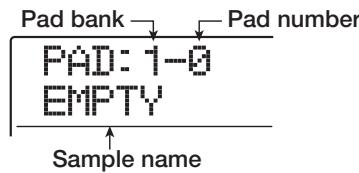
If no sample has been assigned to the displayed pad, the sample name field shows "EMPTY".
HINT
In a newly created sampler program, all pads assignments will be empty.
- Use the cursor up/down keys to select a pad bank, and press the pad to which you want to assign a sample.
The pad is selected. For example, if you press pad 2, of pad bank1, the following indication will appear.
PAD:1-2
EMPTY
- To make a setting for this pad, press the [INSERT/COPY] key in the rhythm section.
The indication "SPL LOAD" appears on the display, and you can select a sample to assign to the pad.
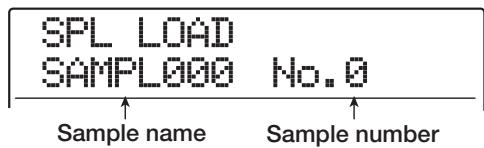
9. Turn the dial to select the sample that you want to assign to the pad, and press the [ENTER] key twice.
To hear the sample, you can press the PLAY [▶] key at this point.
The assignment process is carried out, and the unit returns to the screen of step 6.
HINT
After you have pressed the [ENTER] key once, the indication "LOAD OK?" is shown. The size of the sample is shown on the second line of the display. You can use the cursor up/ down keys to switch the indication between the size and the play time of the sample.
10. To adjust various parameters for the pad, use the cursor left/right keys to select a parameter from the following options, and turn the dial to adjust it.
PITCH
Fine-tunes the pitch of the sample for the pad. The setting range is -7.9 - 0 (reference pitch) - + 7.9 , in steps of 0.1 (1/10 of a semitone).
LEVEL
Adjusts the output level for the pad. The setting range is 1-15.
PAN (Panning)
Adjusts the left/right stereo position (panning) for the pad. The setting range is L63 (far left) - 0 (center) - R63 (far right).
HINT
The panning value set here is independent of the track parameter pan setting. When track panning is shifted to left or right, the relative arrangement for each pad will be retained while the entire sound is moved left or right.
GROUP
Selects the type of sound produced when pads are hit in succession (PL/MN) and the group to which the pad belongs (0 - 7) . The setting range is PL0 - PL7 and MN0 - MN7. For an explanation of this setting, see page 114.
- REV SEND (Reverb send)
Sets the reverb send level for each pad. The setting range is 0 - 127. This setting is independent from the reverb send level setting made as part of the track parameters.
NAME (Program name)
Lets you change the name of the sampler program.
- MEMORY REMAIN
Indicates the remaining amount of memory for the pad sampler, in terms of capacity or play time. Use the cursor up/down keys to switch between kB (kilobytes) and ms (milliseconds).
HINT
- The MEMORY REMAIN parameter is for information only and cannot be changed.
- You can also use the cursor left/right keys to bring up the sample name and select another sample. Then press the [INSERT/COPY] key again.
- Normally, a sample will play to the end when its pad is hit. To end the sample earlier, proceed as follows. Set the LEVEL parameter for another pad to zero and set its MN0 - MN9 parameter to the same group as the pad whose sound you want to stop. Then hit the second pad at the point where you want to stop the sample.
11. Repeat steps 7 - 10 to assign samples to other pads.
One sampler program can have a maximum total playing time of 22 seconds (about 2 megabytes). If the indication "SPL FULL" appears while you are assigning samples, the maximum memory capacity is reached. In such a case, delete unneeded sample assignments as described below.
12. To cancel the sample assignment of a pad, select the pad and press the [DELETE/ERASE] key. Then press the [ENTER] key.
When you press the [DELETE/ERASE] key, the indication "SURE?" appears on the second line of the display. Pressing the [ENTER] key proceeds with the operation.
HINT
When a sample is deleted, the pad reverts to the default settings for each parameter.
13. To return to the main screen, press the [EXIT] key several times.
The created sampler program is automatically stored on the hard disk.
HINT
You can copy a sampler program to another program number, or delete the sampler program. For details, see the next section.
Editing a sampler program
You can change the name of a sampler program or copy it to another program. The sampler program editing procedure is described below.
Assigning a name to a sampler program
You can assign a name to a sampler program as follows.
- From the main screen, press the [RHYTHM] key, so that the key lights up.
- Press the [DRUM] and [BASS] keys in the rhythm section simultaneously.
Both keys light up. In this condition, the pad sampler can be used.
- Press the [UTILITY/TRACK EDIT] key and then press the [ENTER] key twice.
You can now select a sampler program to load into the pad sampler.
4. Turn the dial to select the sampler program to which you want to assign a name, and press the [ENTER] key.
The sampler program is loaded, and the unit returns to the rhythm pattern or rhythm song selection screen.
5. Press the [KIT/PROG] key.
The menu for making sampler program settings appears.
PAD:1-0 SAMPL000
- Use the cursor left/right keys to bring up the program name on the display.
NAME SPL PRG1
- Use the cursor left/right keys to move the flashing section to the character you want to change, and turn the dial to select the new character.
For information on available characters, refer to page 36. - Repeat step 7 until the name is as desired.
- When input is complete, press the [EXIT] key.
The new name is saved, and the sampler program selection screen appears again.
To return to the main screen, press the [EXIT] key several times.
Copying a sampler program
You can copy a sampler program in the current project to an unused program number, as follows.
HINT
If all program numbers are used up, the indication “PRG FULL” appears, and the copy process cannot be carried out. Delete unneeded sampler programs before proceeding.
- From the main screen, press the [RHYTHM] key, so that the key lights up.
- Press the [DRUM] and [BASS] keys in the rhythm section simultaneously.
Both keys light up. In this condition, the pad sampler can be used.
3. Press the [UTILITY/TRACK EDIT] key.
The display changes as follows.
UTILITY SPL PRG
- Verify that the indication "UTILITY SPL PRG" is shown, and press the [ENTER] key.
The sampler program menu appears.
SPL PRG SELECT
- Use the cursor left/right keys to bring up the indication "SPL PRG COPY" on the display, and press the [ENTER] key.
The sampler program that will be used as copy source appears on the display.
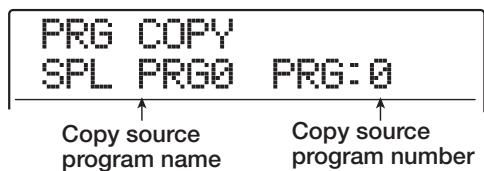
- Turn the dial to select the desired sampler program, and press the [ENTER] key.
The sampler program that will be used as copy destination appears on the display.
- Turn the dial to select the sampler program to be used as copy destination and press the [ENTER] key.
The indication "PRG COPY SURE?" appears on the display. - To execute the copy process, press the [ENTER] key.
When the copy operation is completed, the unit returns to the rhythm pattern or rhythm song selection screen.
To return to the main screen, press the [EXIT] key several times.
Deleting a sampler program
You can delete an unneeded sampler program as follows.
NOTE
A deleted sampler program cannot be restored. Use this operation with care.
- From the main screen, press the [RHYTHM] key, so that the key lights up.
- Press the [DRUM] and [BASS] keys in the rhythm section simultaneously.
Both keys light up. In this condition, the pad sampler can be used.
- Press the [UTILITY/TRACK EDIT] key.
The display changes as follows.
UTILITY SPL PRG
- Verify that the indication "UTILITY SPL PRG" is shown, and press the [ENTER] key.
The sampler program menu appears.
SPL PRG SELECT
- Use the cursor left/right keys to bring up the indication "SPL PRG DELETE" on the display, and press the [ENTER] key.
The sampler program that will be deleted appears on the display.
- Turn the dial to select the sampler program to delete, and press the [ENTER] key.
The indication "SPL DEL SURE?" appears on the display. - To execute the delete process, press the [ENTER] key.
When the delete operation is completed, the unit returns to the rhythm pattern or rhythm song selection screen.
To return to the main screen, press the [EXIT] key several times.
NOTE
If you delete all programs, the program number 0 will be automatically created.
Using the pads to play the pad sampler
You can select a sampler program, them play it with the pads.
- From the main screen, press the [DRUM] and [BASS] keys in the rhythm section simultaneously.
Both keys light up. In this condition, the pad sampler can be used.
NOTE
- While the pad sampler is active, the drum kit and bass program cannot be used.
-
By pressing only the [DRUM] key or [BASS] key, you can return to the normal condition in which a drum kit and bass program can be played.
-
Press the [RHYTHM] key so that the key lights up, and then press the [UTILITY/TRACK EDIT] key.
The indication "UTILITY SPL PRG" appears on the display
3. Press the [ENTER] key twice.
After you have pressed the [ENTER] key once, the sampler program menu appears. When you press the [ENTER] key once more while "SPL PRG SELECT" is shown, the display changes as follows.
PRG SEL
SPL PRG1 PRG:1
- Turn the dial to select the program to play, and press the [ENTER] key.
The selected sampler program is loaded into the pad sampler. When loading is complete, the unit returns to the rhythm pattern or rhythm song selection screen.
- To switch the pad bank, press the [BANK/OCTAVE] key.
The pad bank selection screen appears.
PAD:SMPL
PAD BANK/OCTAVE
PadBank: 1
- Turn the dial to select the desired pad bank (1 - 3).
The sound assigned to the pads is switched immediately. When the setting is complete, press the [EXIT] key to return to the original screen.
- Hit the pads to play the assigned samples.
You can switch the function on and off by pressing the [DRUM] status key, and you can use the [DRUM] fader to adjust the pad sampler level.
HINT
Instead of tapping the pads, you can also use a MIDI controller connected to the MRS-1608's MIDI IN connector. The MIDI channel setting and the assignment of MIDI note numbers to pads is the same as for the drum kit.
- To play the sample of a pad continuously, hold down the [STEP] key and then press the pad.
If you hit a pad while holding the [STEP] key, the roll play function is activated which plays a sound in repetition with only a single hit of the pad. To stop roll play, release the pad. If you release the [STEP] key first, roll play continues also when you release the pad. To stop roll play in this case, hit the pad once more.
For details on the roll play function, see page 91.
To return to the previous screen, press the [EXIT] key.
HINT
The roll play function can also be used during real-time input of a rhythm pattern.
- To return to the main screen, press the [EXIT] key.
Playing the pad sampler sounds in a rhythm pattern
This section explains how you can use the pad sampler sounds during real-time input and for playback of a rhythm pattern.
HINT
- You can also use a pattern created in this way in a rhythm song.
- The intensity with which you hit the pads will also be recorded.
NOTE
The pad sampler and drum kit/bass program cannot be used concurrently. To use a rhythm pattern or rhythm song with drum/bass together with the pad sampler, record the rhythm pattern play on an audio track first ( p. 44).
- From the main screen, press the [DRUM] and [BASS] keys in the rhythm section simultaneously.
The rhythm section sound is switched to the pad sampler. - Press the [PATTERN] key in the rhythm section, and press the [RHYTHM] key in the display section.
Both keys light up, and rhythm pattern input and editing becomes possible. The display shows the currently selected rhythm pattern.
004#00
PAD BANK/OCTAVE
08Beat01
BANK:1
- Turn the dial to select an empty rhythm pattern.
- Press the ZERO [←] key to return to the beginning of the rhythm pattern.
If necessary, adjust the number of measures, time signature, and the quantize setting of the rhythm pattern ( p. 93).
5. If necessary, use the [BANK/OCTAVE] key and the dial to select the pad bank.
After selecting the pad bank, press the [EXIT] key to return to the previous screen.
- Press the PLAY [▶] key while holding down the REC [●] key.
A pre-count of four beats is heard, and then rhythm pattern recording starts.
- While listening to the metronome, tap the pads.
Your performance of the pad sampler will be recorded as a drum sequence.
By pressing the REC [ ] key during recording, you can pause the recording to rehearse and switch pad banks. Press the REC [ ] key again to continue.
HINT
Instead of tapping the pads, you can also use a MIDI controller connected to the MRS-1608's MIDI IN connector.
- To edit the recorded contents during real-time input, proceed as follows.
To erase the performance of a specific pad
While holding down the [DELETE/ERASE] key, press the pad whose assigned sample sound you want to erase. While you are holding down both keys, the information for the corresponding pad is erased from the rhythm pattern.
To erase the performance of all pads
While holding down the [DELETE/ERASE] key, press the [DRUM] status key. While you are holding down both keys, the performance of all pads is erased.
- When you have finished real-time recording, press the STOP [■] key.
The rhythm pattern stops.
- To play the resulting rhythm pattern, press the ZERO [←] key to return to the beginning of the rhythm pattern, and then press the PLAY [▶] key.
When the contents of the pattern are as desired, press the STOP [■] key to stop the rhythm pattern, and then press the [EXIT] key several times to return to the main screen.
HINT
Creating a rhythm pattern using drum sequence step input is also possible.
Recording pad sampler play on an audio track
You can record your pad sampler play on an audio track. This is useful to add effect sounds in real time while listening to other audio tracks.
NOTE
- When a programmed rhythm pattern/rhythm song is selected while recording is carried out, the contents will be played back and the pad sampler sounds will be activated by the rhythm pattern or rhythm song. To record only your pad play, select an empty rhythm pattern/rhythm song.
-
The pad sampler and drum kit/bass program cannot be used concurrently. To use a rhythm pattern or rhythm song with drum/bass together with the pad sampler, record the rhythm pattern play on an audio track first ( p. 44).
-
From the main screen, press the [UTILITY/TRACK EDIT] key.
The indication "UTILITY TR EDIT" appears on the display.
- Use the cursor left/right keys to bring up the indication "UTILITY BOUNCE" on the display, and press the [ENTER] key.
The display indication changes as follows.
BOUNCEREC TAKE
- Use the cursor left/right keys to bring up the indication "BOUNCE REC SRC" on the display, and press the [ENTER] key.
In this condition, you can select the bounce recording source.
REC SRC
MASTER
- Turn the dial to change the setting to "DRUM TR", and press the [EXIT] key several times to return to the main screen.
When you carry out bounce recording in this condition, you can record the pad sampler signal (drum track) onto any audio track.
- Press the [DRUM] and [BASS] keys in the rhythm section simultaneously to activate the pad sampler.
- Select the sampler program you want to play.
For details, see "Using the pads to play the pad sampler" ( p. 133).
- Press the [EXIT] key several times to return to the main screen.
- Repeatedly press the status key of the audio track on which to record, until the key is lit in red.
- Press the [BOUNCE] key in the control section so that the key is lit in red.
- Press the PLAY [▶] key while holding down the REC [●] key to start bounce recording.
Four pre-count clicks are heard, and then bounce recording starts.
- Hit the pads to play.
The pad sampler signal is recorded directly on the audio track.
You can switch the pad bank as necessary, and use the roll play function to periodically repeat sample sounds ( p 133).
12. To stop recording, press the STOP [■] key.
13. To check the recorded result, press the ZERO [←] key to return to the recorder start position, and then press the PLAY [▶] key.
14. When the recording is as you want it, press the [BOUNCE] key so that the key goes out. Then perform steps 1 - 4 to return the recording source setting to "MASTER".
Importing a sampler program from another project
If desired, you can import a sampler program that was created for another project into the current project. To do this, proceed as follows.
HINT
The imported program will overwrite the sampler program currently selected for the pad sampler. To keep a current program, create a new, empty program first and then import the sampler program from the other project.
- From the main screen, press the [RHYTHM] key in the display section, so that the key lights up.
- Press the [DRUM] and [BASS] keys in the rhythm section simultaneously.
Both keys light up. In this condition, the pad sampler can be used.
- Press the [UTILITY/TRACK EDIT] key.
The display changes as follows.
UTILITY SPL PRG
- Verify that the indication "UTILITY SPL PRG" is shown, and press the [ENTER] key.
The sampler program menu appears.
SPL PRG SELECT
- Use the cursor left/right keys to bring up the indication "SPL PRG IMPORT" on the display, and press the [ENTER] key.
The display changes as follows. In this condition, you can select the project from which to import the sampler program.
6. Turn the dial to select the project, and press the [ENTER] key.
A sampler program from the selected project is shown.
![ZOOM MRS1608 - Turn the dial to select the project, and press the [ENTER] key. - 1](/content/2025/01/152285/images/4ee8a93ba2cb9e8b42a57cf94b5ee9a03b0481214fac5179ea96592a3170bc0a.jpg)
7. Turn the dial to select the sampler program to import, and press the [ENTER] key.
The indication "IMPORT SURE?" appears on the display.
8. To carry out the import process, press the [ENTER] key.
When importing is complete, the unit returns to the rhythm pattern or rhythm song selection screen. To return to the main screen, press the [EXIT] key several times.
Reference [Effects]
This section explains the functions and operation of the effect section built into the MRS-1608.
About the effects
The MRS-1608 has two types of effects, an "insert effect" and a "send/return effect". The two types can be used simultaneously. The characteristics of these effects are described below.
Insert effect
The insert effect is used by inserting it into a specific point in the signal route. You can select one of the following locations at which to apply the effect.
(1) Input mixer
(2) Any track of the track mixer
(3) Immediately before the [MASTER] fader
For example, if you insert the effect into the input mixer, the input signal is processed by the effect and the result is recorded on a track of the recorder. Alternatively, if you
insert the effect into a channel of the track mixer, the effect processes the playback signal from an audio track or the drum/bass track.
By selecting a position immediately before the [MASTER] fader, you can use the effect to process the final mix before recording on the master track.
Send/return effect
The send/return effect is internally connected to the send/ return loop of the mixer section. The MRS-1608 has two types of send/return effects, reverb and chorus/delay, and these two can be used simultaneously.
The send levels of the input mixer or track mixer adjust the effect depth of the send/return effect. Raising the send level will send the corresponding signal to the input of the effect, and the signal processed by the effect will be returned immediately before the [MASTER] fader, and mixed with the other signals.
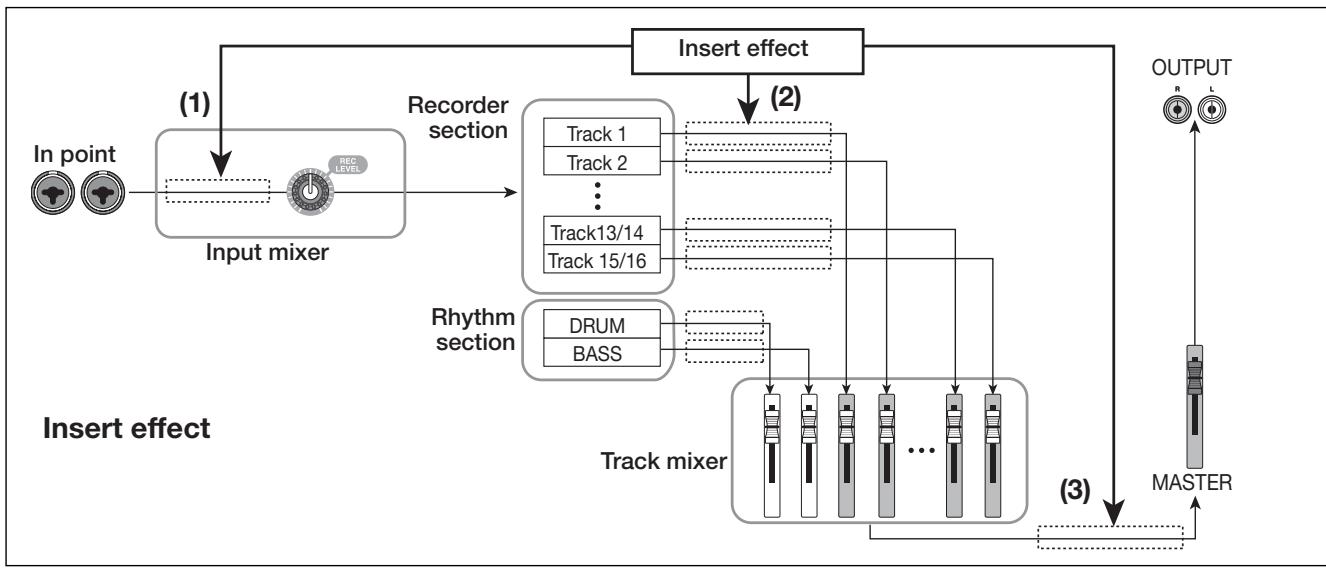
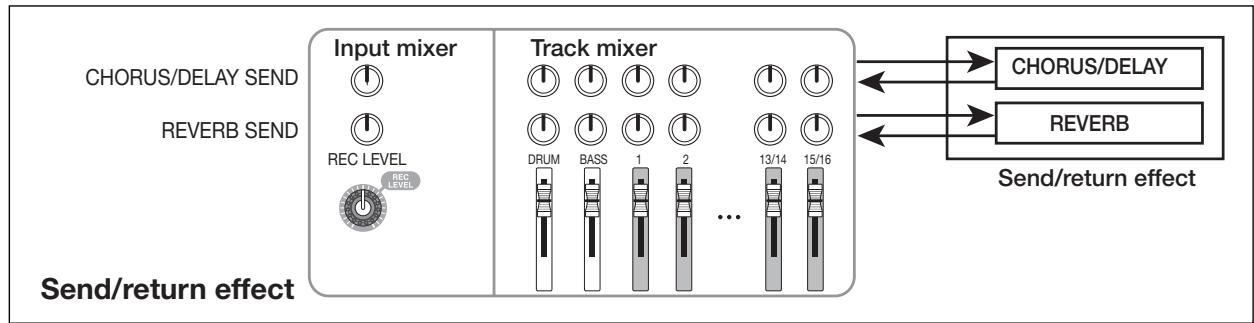
Using the insert effect
This section explains how to select the position for the insert effect, how to select a patch, and how to edit the patch.
About insert effect patches
The insert effect is a multi-effect unit that contains a number of single effects such as compressor, distortion, and delay, connected in series. Each of these separate effects is called an "effect module".
A combination of effect modules that can be used simultaneously is called an "algorithm".
The MRS-1608 offers the following algorithms.
CLEAN
DIST
- ACO/BASS SIM
BASS
An algorithm suitable for recording guitar/bass.
MIC
An algorithm suitable for microphone recording of vocals etc.
DUAL MIC
An algorithm with two entirely separate channels for mono
input x 2 and mono output x 2.
8x COMP EQ
This is an algorithm with eight separate inputs/outputs. Separate high-pass filter (HPF), compressor, and EQ settings are possible for each channel.
LINE
An algorithm suitable for recording line-level output instruments such as synthesizer or electric piano.
- MASTERING
An algorithm suitable for processing the final stereo mix signal.
The arrangement of effect modules and the signal flow for each algorithm is shown in the diagram below.
HINT
- Depending on the selected algorithm, the input/output configuration of the effect will differ. For some insert position settings, two input signals or the stereo output of an effect may be mixed to mono ( p. 141).
- With the 8x COMP EQ algorithm, the VOL PDL module is shared by all eight channels.
Each effect module comprises two aspects, namely the effect type and the effect parameters. Effect type and parameter settings for an effect module are collectively referred to as a "patch".
| Algorithm | Effect module arrangement | Input/output type | |||||
| CLEAN DIST ACO/BASS SIM BASS | COMP | PRE AMP/DRIVE | ZNR | EQ | VOL PDL | MODULATION/DELAY | Mono → Stereo |
| MIC | COMP/LIM | MIC PRE+DE-ESSER | ZNR | EQ | VOL PDL | MODULATION/DELAY | |
| DUAL MIC | COMP/LIM | MIC PRE | ZNR | EQ | VOL PDL | DELAY | Mono x 2 → Mono x 2 |
| COMP/LIM | MIC PRE | ZNR | EQ | DELAY | |||
| 8x COMP EQ | HPF | COMP/LIM | EQ | VOL PDL | * VOL PDL applies to all inputs | Mono x 8 → Mono x 8 | |
| HPF | COMP/LIM | EQ | |||||
| HPF | COMP/LIM | EQ | |||||
| HPF | COMP/LIM | EQ | |||||
| HPF | COMP/LIM | EQ | |||||
| LINE | COMP/LIM | ISOLATOR | ZNR | EQ | VOL PDL | MODULATION | Stereo → Stereo |
| MASTERING | 3BAND COMP LO-FI | NORMALIZE | ZNR | EQ | VOL PDL | DIMENSION RESONANCE | |
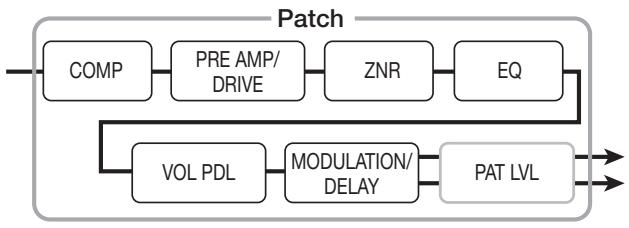
A project contains 320 patches, which are organized according to the nine algorithms. You can instantly switch insert effect settings simply by selecting the appropriate algorithm, and then selecting a patch.
The table below shows the number of patches for each algorithm.
| Algorithm | Patches (preprogrammed patches) |
| CLEAN | 30 (22) |
| DIST | 50 (42) |
| ACO/BASS SIM | 20 (10) |
| BASS | 20 (10) |
| MIC | 50 (31) |
| DUAL MIC | 50 (30) |
| 8X COMP EQ | 20 (10) |
| LINE | 50 (30) |
| MASTERING | 30 (21) |
Changing the insert location of the insert effect
In the default condition of a project, the insert effect is applied to the input mixer. However, you may change the insert location as necessary. The following possibilities are available.
| Display | Insert position |
| IN | Input mixer |
| IN1 - IN3 | One of the input mixer inputs |
| IN1-8 | All of the input mixer inputs |
| DRUM | Drum track output |
| BASS | Bass track output |
| TR1 - TR8 | Any output of track 1 - 8 |
| TR1/2 - TR15/16 | Any output of stereo track or mono track x 2 |
| TR1-8 | All outputs of track 1 - 8 |
| TR9-16 | All outputs of track 9 - 16 |
| MASTER | Immediately before [MASTER] fader |
NOTE
- One of the input mixer outputs IN1 - IN8 can only be selected if the 8-track recording function is enabled.
- TR1-8 and TR9-16 are only available when the 8x COMP EQ algorithm is selected.
- IN1-8 can only be selected when the 8-track recording function is enabled and the 8x COMP EQ algorithm is selected.
- If you switch to the 8x COMP EQ algorithm after selecting the insert position, the position will change to IN, TR1-8, or TR9-16 (depending on the immediately preceding setting).
Insertion to input mixer (recording on one or two tracks)
- On the main screen, verify that the [ON/OFF] key for the desired input is lit in red. Then press the [INPUT SOURCE] key in the effect section.
The current insert position is shown on the display.
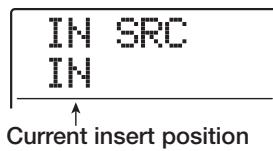
- Verify that "IN" is selected.
If another position is selected, turn the dial to select "IN". (You can also do this by pressing an [ON/OFF] key.) When the input mixer is selected as insert position, all [ON/ OFF] keys are lit in orange. In this condition, the effect will apply to the one or two inputs as selected in step 1.
NOTE
If the 8-track recording function is inactive, you cannot select the input mixer as insert position, even when the 8x COMP EQ algorithm was selected.
- Press the [EXIT] key to return to the main screen.
Insertion to input mixer (recording on 8 tracks simultaneously)
In 8-track recording mode, the insert effect can be applied to the input of any channel 1 - 2 or 8 channels.
- Verify that the 8-track recording function is enabled and that the [ON/OFF] keys for inputs 1 - 8 are lit in red ( p. 45).
2. Press the [INPUT SOURCE] key.
The current insert position is shown on the display.
3. Turn the dial to select the input to use as insert position.
If the 8-track recording function is enabled, operation will be different, depending on the selected algorithm.
- When 8x COMP EQ algorithm is selected
Select IN1-8. In this condition, all input [ON/OFF] keys are lit in orange, and the effect is applied to inputs 1 - 8.
HINT
Effects in individual channels of the 8x COMP EQ algorithm can be turned on or off individually.
- When another algorithm is selected
Select the input from IN1 - IN8 (input 1 - input 8) to which you want to apply the effect. (The input [ON/OFF] key of the selected input lights up in orange.) You can also use the input [ON/OFF] keys to select the input. By pressing two [ON/OFF] keys together, you can select a combination of any two inputs. (Non-adjacent inputs can also be selected.)
The lower numbered input is assigned to the L channel and the higher numbered input to the R channel.
HINT
If you have selected two inputs for the effect, the inputs will be shown together on the display, in the format "INx/y" (where x/y is the respective input number).
4. When the insert position selection is completed, press the [EXIT] key.
The main screen returns.
Insertion to track output/immediately before [MASTER] fader
1. At the main screen, press the [INPUT SOURCE] key in the effect section.
The current insert position is shown on the display.
2. Turn the dial to select the insert position.
The status key of the selected track or the [MASTER] status key lights up in orange. These keys can also be used to select the insert position. If you press the adjacent status keys of an odd-numbered and even-numbered input in succession, "mono track x 2" is selected.
3. When the insert position selection is completed, press the [EXIT] key to return to the main screen.
Selecting the patch for the insert effect
This section explains how to select the patch for the insert effect.
1. Press one of the [ALGORITHM] keys in the effect section. Select the key that corresponds to the desired algorithm.
The respective key lights up, and the display shows the insert effect patch select screen.
![ZOOM MRS1608 - Press one of the [ALGORITHM] keys in the effect section. Select the key that corresponds to the desired algorithm. - 1](/content/2025/01/152285/images/6c6efafe7d5b65bac9a70d4796db12d033bd55adc5f5fc2b34a802edf2c5b209.jpg)
To select a patch for the insert effect, you must first specify the algorithm (effect module combination). When you press any [ALGORITHM] key, the first line of the display shows "INSERT", and the second line shows a patch included in the selected algorithm.
![ZOOM MRS1608 - Press one of the [ALGORITHM] keys in the effect section. Select the key that corresponds to the desired algorithm. - 2](/content/2025/01/152285/images/121f19eabd62adccfce69718686c5feed7257493cf7f05eca98c307613e0df87.jpg)
NOTE
If you switch from another algorithm to the 8x COMP EQ algorithm, the position will change to IN1 - 8, TR1 - 8, or TR9 - 16 (depending on the immediately preceding setting). Make sure once more that the desired insert position is selected.
HINT
- Even if the 8-track recording function is disabled, the 8x COMP EQ algorithm can process the output of tracks 1 - 8 or 9 - 16 of the track mixer. This is useful to individually process the output of 8 tracks during mixdown.
- While making settings for the insert effect or send/return effect, the [EFFECT] key in the display section is lit. When you press the key at the main screen, the patch select screen for the most recently used effect comes up.
2. Use the PATCH SELECT [] / [] keys or turn the dial to select the patch.
The new patch is called up immediately.
HINT
The indication "EMPTY" appears instead of the patch name if the patch is empty. Selecting such a patch will not have an effect.
3. To temporarily turn the insert effect off, press the [BYPASS] key in the effect section.
The [BYPASS] key lights up, and the insert effect is bypassed. Pressing the [BYPASS] key once more enables the effect again.
4. To return to the main screen, press the [EXIT] key.
The flow of the signal that passes through the insert effect will change as shown below, depending on the insert location and the destination of the signal after passing the effect.
- Using mono input insert effect on mono input/mono track
- Using stereo input (or mono input x 2) insert effect on mono input/mono track
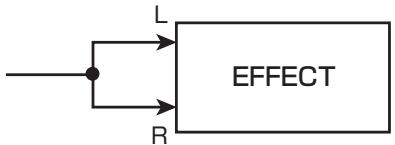
- Using stereo input (or mono input x 2) insert effect on stereo input/stereo track
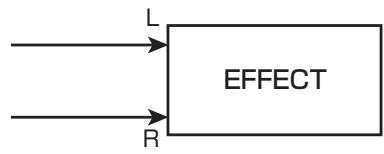
- Using mono input insert effect on stereo input/stereo track
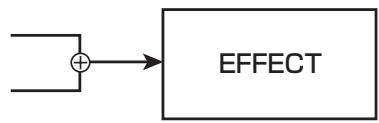
- Sending insert effect output to stereo track or [MASTER] fader
![ZOOM MRS1608 - - Sending insert effect output to stereo track or [MASTER] fader - 1](/content/2025/01/152285/images/1f6a2104859b6445e30e1e5efbac0b26a132db5ed2a31d8bf7946dfb45235e23.jpg)
- Sending insert effect output to mono track
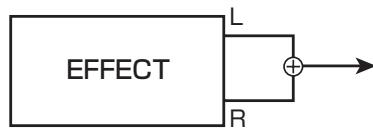
HINT
With the 8x COMP EQ algorithm, the 8 channel signals are processed separately by the HPF/compressor and EQ effects. Input and output for each channel therefore is always mono.
Editing the insert effect patches
The effect modules of the insert effect have various effect parameters that can be adjusted to make detailed changes to the character of the effect. By editing the effect parameters, you can obtain the desired sonic result.
For some effect modules, you can also change the effect type. For example the MODULATION/DELAY effect module of the MIC algorithm provides 18 effect types such as chorus, flanger, phaser, etc. (When you change the effect
type, the effect parameter arrangement also changes.)
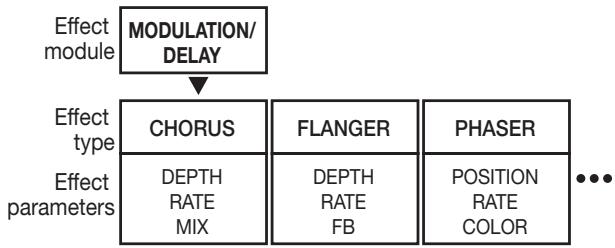
This section explains how to edit the effect type and effect parameters for the currently selected patch.
1. Use the [ALGORITHM] keys to select the algorithm, and then use the PATCH SELECT []/[] keys or the dial to select the patch to edit.
It is not possible to later change the algorithm of a patch. For this reason, you must first begin by selecting a patch that uses the desired algorithm, even to create a patch from the beginning.
HINT
The indication "EMPTY" appears instead of the patch name if the patch is empty. By editing such a patch, you can create a patch from the beginning.
2. Press the [EDIT] key.
The first line of the display will indicate the effect module type, followed by "EDIT". This means that the patch can now be edited.
![ZOOM MRS1608 - Press the [EDIT] key. - 1](/content/2025/01/152285/images/ae55f7f9c54a064323b0da109c0d5f19dc7a3fd78bdbf2c1a7f3d1b2f1f26e3d.jpg)
3. Use the cursor left/right keys to select the effect module to edit.
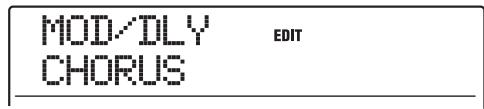
The indication shown on the first line for the various effect modules is as follows.
HINT
- To edit the ZNR/VOL PDL module, bring up the indication "TOTAL" on the first line of the display.
- In the DUAL MIC algorithm, the modules assigned to the L and R channels can be edited separately. The indication “L” on the first line of the display means that the module for the left channel is selected. The indication “R” means that the module for the right channel is selected.
- The 8x COMP EQ algorithm has one high-pass filter, compressor, and EQ per channel, with individual on/off control. The number of the channel currently selected for operation is shown on the first line of the display.
| Algorithm | Module indication | |||||||
| CLEAN DIST ACO/BASS sim BASS | COMPRESS | → | PRE/DRV | → | 3BandEq | → | MOD/DLY | → |
| COMP | → | PRE AMP/DRIVE | → | EQ | → | MOD/DLY | → | |
| MODULATION/DELAY | → | |||||||
| MIC | COMP/LIM | → | MIC PRE | → | 3BandEq | → | MOD/DLY | → |
| COMP/LIM | → | MICPRE+DE-ESSER | → | EQ | → | MOD/DLY | → | |
| MODULATION/DELAY | → | |||||||
| DUAL MIC | COMP L | → | MicPre L | → | EQ L | → | DELAY L | → |
| COMP/LIM | → | MICPRE | → | EQ | → | DELAY | → | |
| 8x COMP EQ | HPF1 | → | HPF2 | → | ···· | → | HPF8 | → |
| TOTAL VOL PDL, PAT LVL | ||||||||
| LINE | COMP/LIM | → | ISOLATOR | → | 3BandEq | → | MOD/DLY | → |
| COMP/LIM | → | ISOLATOR | → | EQ | → | MODULATION/DELAY | → | |
| MASTERING | CMP/LoFi | → | NORMZR | → | 3BandEq | → | DIM/RESO | → |
| 3BAND COMP/LO-FI | → | NORMALIZER | → | EQ | → | DIMENSION/ RESONANCE | → | |
NOTE
- The indications shown in the table on the previous page are for the condition where the effect module is on. When the effect module is off, the indication “-OFF-” is shown on the second line.
- The 8x COMP EQ algorithm does not include a ZNR module.
4. To change the effect type of the currently selected effect module, turn the dial.
For effect modules which comprise multiple effect types, the name of the currently selected effect type is shown on the second line of the display. When you turn the dial in this condition, the effect type changes.
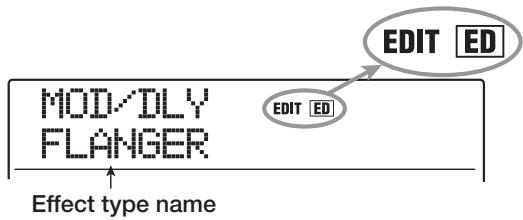
HINT
If the contents of a patch have been changed, the "EDIT" indicator in the upper part of the display will change to "EDITED". When the setting is returned to the original condition, the indicator reverts to "EDIT".
5. Use the cursor up/down keys to select the effect parameter that you want to edit.
The following diagram shows an example of what appears on the display when you have selected the DEPTH parameter of the "FLANGER" effect.
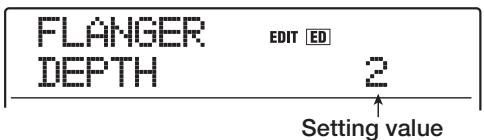
HINT
To reselect the effect type, repeatedly press the cursor up key to bring up the effect type name, and then turn the dial.
6. Turn the dial to change the setting value.
For details on the effect types that can be selected for each effect module and on the effect parameters of each type, refer to the information in the appendix of this manual.
7. To toggle the effect module on or off, bring up the indication for the module on the display, and then press the [ENTER] key.
When the effect module is turned off, the indication “-OFF-” is shown on the second line of the display. Pressing the same key once more returns the module to the active condition.
FLANGEROFF
EDIT ED
HINT
In the 8xCOMP EQ algorithm, the effects in the respective channels cannot be switched on or off together in a single step. However, when the setting for the respective effect is shown, simply pressing the [ENTER] key will toggle the effect between on and off.
NOTE
The modules included in TOTAL cannot be turned off.
- Repeat steps 3 - 7 as necessary to edit other modules.
- To adjust the patch level (the final volume of the patch), press the [TOTAL] key, use the cursor left/right keys to bring up the indication "TOTAL PAT LVL", and turn the dial.
The patch level can be adjusted in the range from 1 to 30.
TOTAL PAT LVL
EDIT ED 23
10. When you have finished editing, press the [EXIT] key.
The insert effect patch select screen appears again.
NOTE
Keep in mind that if you select another patch without first storing the edited patch, the changes will be lost. To keep the results of your editing session, refer to the following section.
Storing/swapping insert effect patches
A patch that you have edited can be stored in any location of the same algorithm. You can also store an existing patch in another location to create a copy of that patch. Interchanging the position of patches (swapping) is also possible.
1. At the insert effect patch select screen, press the [STORE] key.
The currently selected patch goes into the store standby condition. In this condition, you can perform the store or swap operation.
![ZOOM MRS1608 - At the insert effect patch select screen, press the [STORE] key. - 1](/content/2025/01/152285/images/5ae522d38cca3863d9123ccf6773caa94f55db0c8d3adf30555e67c10c7c3c81.jpg)
- Use the cursor left/right keys to bring up the indication "STORE TO" or "SWAP TO".
- Turn the dial to select the number of the patch to store/swap.
- To carry out the store/swap operation, press the [STORE] key.
When the store/swap operation is completed, the insert effect patch select screen appears again.
By pressing the [EXIT] key instead of the [STORE] key, you can cancel the operation and back up one step at a time.
HINT
- Patches that you have stored are saved on the hard disk as part of the project.
- Patch data included in an already existing project can be loaded into the current project ( p. 149).
Editing the name of an insert effect patch
This section explains how to edit the name of the currently selected patch.
- Use the [ALGORITHM] keys to select the algorithm which contains the patch whose name you want to change. Then use the PATCH SELECT []/[] keys or the dial to select the patch.
- Press the [EDIT] key.
The currently selected patch can be edited.
- Use the cursor left/right keys to bring up the indication "TOTAL PAT LVL" on the display.
- Repeatedly press the cursor down key to bring up the indication "PAT NAME" on the display.
The name of the selected patch can now be edited.
The flashing section indicates the character that can be changed.
- Use the cursor left/right keys to move the flashing section, and turn the dial to select a character.
For information on available characters, refer to page 36.
- Repeat step 5 as necessary to complete the new name.
- To confirm the new name, press the [STORE] key in the control section twice.
The patch is stored under the new name, and the insert effect patch select screen appears again.
NOTE
Keep in mind that the name will revert to the previous name if you switch to another patch without storing the edited patch name.
Applying the insert effect only to the monitor signal
Normally, when the insert effect is applied to the input mixer, the signal processed by the effect will be recorded on the track. If necessary, however, you can apply the insert effect only to the monitor signal, and record the unprocessed input signal on the track. For example when recording the unprocessed sound of a vocal performance, the vocalist may be more comfortable singing if an insert effect suitable for mic recording is applied to the monitor signal.
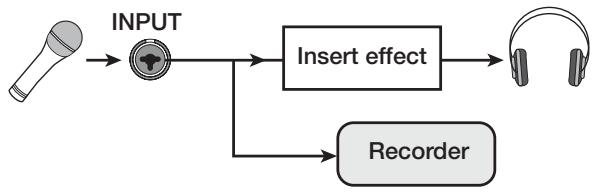
- Set the insert effect position to the input mixer.
- At the main screen, press the [UTILITY/ TRACK EDIT] key in the display section.
The indication "UTILITY TR EDIT" appears on the display.
UTILITY TR EDIT
- Use the cursor left/right keys to bring up the indication "UTILITY REC SRC" on the display, and press the [ENTER] key.
The display indication changes as follows.
REC SRC
WET
You can now select one of the following two signal types to be recorded on the track.
WET
The input signal that has passed through the insert effect will be recorded on the track (default setting).
DRY
Only the unprocessed input signal will be recorded on the track. Even in this case, however, the insert effect will be applied to the signal appearing at the MASTER OUTPUT jacks.
4. Turn the dial to change the setting to "DRY".
5. When you have finished adjusting settings, press the [EXIT] key several times.
The unit returns to the main screen.
NOTE
The "UTILITY REC SRC" setting is stored for each project. Before you begin recording other parts, be sure to change the setting back to "WET".
Using the send/return effect
This section explains how to select and edit patches for the send/return effect (chorus/delay, reverb).
About the send/return effect patches
The "reverb" and "chorus/delay" send/return effects are separate and independent.
Reverb and chorus/delay each have an effect type that determines the general sound of effect, and various parameters that let you adjust the sonic character. Settings for the effect type and parameters, together with a name, are collectively called send/return effect "patches".
A newly created project contains 30 reverb patches and 30 chorus/delay patches. You can instantly switch reverb or chorus/delay settings simply by choosing the effect and then selecting a patch.
The number of patches available for each effect is as follows.
| Effect | Patch number (preprogrammed patches) |
| REVERB | 30 (22) |
| CHORUS/DELAY | 30 (18) |
Selecting a send/return effect patch
This section explains how to select a reverb or chorus/delay patch.
1. Press the [REVERB] key or [CHORUS/DELAY] key in the effect section.
When you press a key, a patch select screen for the respective effect appears.
For example, when you have selected a reverb effect patch, the following indication appears.
![ZOOM MRS1608 - Press the [REVERB] key or [CHORUS/DELAY] key in the effect section. - 1](/content/2025/01/152285/images/f90550e771dfd37c70c33b0e2d925f08e2475e584c262b1efb6fafe71bd8da1e.jpg)
2. Use the PATCH SELECT [] / [] keys or the dial to select the patch.
As you turn the dial, new patches will be recalled immediately. If the track mixer REVERB SEND LEVEL or CHORUS/DELAY SEND LEVEL parameter settings are raised, you can press the PLAY [▶] key to play back the song, and listen to the result of the newly selected patch.
HINT
- For details on track mixer operations, refer to p. 80.
- The lit/out status of the [REVERB] or [CHORUS/DELAY] key shows the on/off status of that module. Each push of the key toggles the status.
3. To return to the main screen, press the [EXIT] key.
Editing a send/return effect patch
This section explains how to edit a send/return effect patch.
- Press the [REVERB] key or [CHORUS/DELAY] key in the effect section.
- Use the PATCH SELECT [] / [] keys or the dial to select the patch to edit.
SEND CHO DeepCho No.7
3. Press the [EDIT] key.
The display will indicate "EDIT", and a screen will appear in which you can edit the patch. When the [EDIT] key is pressed, the effect type selected for that send/return effect is shown.
![ZOOM MRS1608 - Press the [EDIT] key. - 1](/content/2025/01/152285/images/21327539ca68976933f1ebd1aaaa196726518e4a423ada9fe71ab0ff9a4e2f0c.jpg)
4. To change the effect type, turn the dial.
When the effect type is changed, the effect parameters will also change accordingly.
HINT
If the contents of a patch have been changed, the "EDIT" indicator in the upper part of the display will change to "EDITED". When the setting is returned to the original condition, the indicator reverts to "EDIT".
5. Use the cursor up/down keys to select the effect parameter that you want to edit.
The first line of the display shows the effect type, and the second line shows the name and current value of the effect parameter.
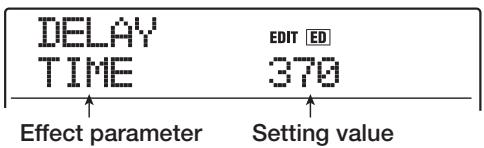
HINT
To change the effect type, repeatedly press the cursor up key to display the effect type name, and then turn the dial.
6. Turn the dial to change the setting.
For details on the effect types that can be selected for reverb or chorus/delay, and on the range of each effect parameter, refer to the appendix at the end of this manual.
7. Repeat steps 5 - 6 as necessary to edit other effect parameters.
8. When you have finished editing, press the [EXIT] key.
The send/return effect patch select screen appears again.
NOTE
Keep in mind that if you select another patch without first storing the edited patch, the changes will be lost. To keep the results of your editing session, refer to the following section.
Storing/swapping send/return effect patches
A patch that you have edited can be stored in any location of the same send/return effect. You can also store an existing patch in another location to create a copy of that patch. Interchanging the position of patches (swapping) is also possible.
1. At the send/return effect patch select screen, press the [STORE] key.
The currently selected patch goes into the store standby condition. In this condition, you can perform the store or swap operation.
![ZOOM MRS1608 - At the send/return effect patch select screen, press the [STORE] key. - 1](/content/2025/01/152285/images/de0feea6a10df7516d4f9ece1e296ce34331319ecfc86fe26e68820f2b22a5f9.jpg)
2. Use the cursor left/right keys to bring up the indication "STORE TO" or "SWAP TO".
3. Turn the dial to select the number of the patch to store/swap.
4. To carry out the store/swap operation, press the [STORE] key.
When the store/swap operation is completed, the send/return effect patch select screen appears again.
HINT
- Patches that you have stored are saved on the hard disk as part of the project.
- Patch data included in an already existing project can be loaded into the current project ( p. 149).
Editing the name of a send/return effect patch
This section explains how to edit the name of the patch that is currently selected for a send/return effect.
- Press the [REVERB] key or [CHORUS/DELAY] key in the effect section, then use the PATCH SELECT []/[] keys or the dial to select the patch to edit.
- Press the [EDIT] key, and repeatedly press the cursor down key to bring up the indication "PAT NAME".
The name of the selected patch can now be edited. The flashing character can be changed.
PAT NAME DeepCho
- Use the cursor left/right keys to move the flashing section to the character to edit, and turn the dial to select the new character.
For information on available characters, refer to page 36. - Repeat step 3 as necessary to complete the new name.
- To confirm the new name, press the [STORE] key in the control section twice.
The patch is stored under the new name, and the send/return effect patch select screen appears again.
Importing patches from another project
If required, you can import all patches or specified patches of the insert effect or send/return effect from another project that is already saved on the hard disk.
NOTE
Keep in mind that importing patches in this way will overwrite patches in the current project. Take care not to accidentally erase patches that you wish to keep.
- Press the [UTILITY/TRACK EDIT] key to bring up the indication "UTILITY IMPORT" on the display, and then press the [ENTER] key.
The display indication changes as follows.
IMPORT ALL
- Use the cursor left/right keys to select ALL (import all patches) or PATCH (import a single patch), and press the [ENTER] key.
In this condition, you can select the project from which to import.
IMPORT PRJ005
PRJ 005
- Turn the dial to select the import source project, and press the [ENTER] key.
The subsequent steps differ, depending on which selection was made in step 2.
- When ALL was selected
Verify that the indication "IMPORT SURE?" is shown on the display, and proceed to step 5.
- When PATCH was selected
The import source patch appears on the display. Use the dial and the [ALGORITHM]/[REVERB]/[CHORUS/DELAY] keys to select the patch and press the [ENTER] key. You can now select the import destination patch. Proceed to step 4.
4. Turn the dial to select the import destination, and press the [ENTER] key.
The indication "SURE?" appears on the display.
5. To carry out the import process, press the [ENTER] key.
All patches or the specified patch of the selected project will be imported. When all patches have been imported, the insert effect or send/return effect selection screen appears again.
If a single patch was imported, the screen of step 3 appears again.
By pressing the [EXIT] key instead of the [ENTER] key, you can cancel the operation and back up one step at a time.
Reference [Creating a CD]
This section describes how to use the CD-R/RW drive in the MRS-1608 to create an audio CD or store a project from the hard disk onto a CD-R/RW disc.
NOTE
- This section does not apply to MRS-1608 models without integrated CD-R/RW drive.
- Mixed-mode CDs or copy-controlled CDs cannot be played or read.
About creating an audio CD
The MRS-1608 lets you write the contents of the master track of any project to a CD-R/RW disc in CD-DA (audio data) format. The result is an audio CD that can be played in a CD player.
There are two ways of writing audio data on a CD-R/RW disc, as described below.
Writing by project
This method writes the master track of a single project to the disc. When using this method, it is possible to add audio data later, until the CD-R/RW disc has been finalized.
Writing by album
This method involves first creating a list for the audio CD (called an "album") which contains information about master tracks from various projects that are to be included. The CD-R/RW is then written in one operation, and finalizing is automatically performed, so that no more audio data can be added later.
HINT
"Finalizing" a CD-R/RW disc refers to the procedure of making it playable on an ordinary CD player besides the MRS-1608. After it has been finalized, no more data can be added to a CD-R/CD-RW disc.
NOTE
- The waveform data of the currently selected V-take of the master track are recorded as is on the audio CD. To cut off blank portions before or after the audio material, you can use the trimming function ( p. 52).
- If the V-take is less than 4 seconds long, the master track cannot be written.
About CD-R/RW discs
When creating an audio CD, you can select either CD-R or CD-RW discs as media. The features of the two disc types are described below.
CD-R
This media type allows only one-time recording or adding of data. Once data have been written, they cannot be changed or erased. CD-R discs are typically available in 650 MB and 700 MB capacities.
To newly write audio data of the MRS-1608 to disc, a blank CD-R is required. As long as the disc has not been finalized, it is possible to add further audio data up to the maximum capacity of the disc. After being finalized, the disc can be played on an ordinary CD player.
CD-RW
This media type allows recording, adding, and bulk- erasing of data. CD-RW discs are also typically available in 650MB and 700MB capacities.
To newly write audio data of the MRS-1608 to disc, a blank or completely erased CD-RW is required. As long as the disc has not been finalized, it is possible to add audio data up to the maximum capacity of the disc. Even when finalized, some CD players may not be able to play CD-RW discs.
| Disc | Write | Add data | Erase |
| CD-R | Once only | Yes | No |
| CD-RW | Many times (after erasing) | Yes | Yes |
NOTE
When using commercially available pre-formatted CD-RW discs, perform an erase operation first, as described on page 159.
Creating an audio CD
This section describes how to create an audio CD using a completed project as source material.
Creating an audio CD by project
You can write the contents of the master track of the current project to a CD-R/RW disc. When creating an audio CD by project, you can select any desired V-take of the master track as source.
1. Insert a CD-R/RW disc into the integrated CD-R/RW drive.
To newly write audio data, use a blank CD-R/RW disc or a CD-RW disc that has been completely erased.
Even when audio data are present, adding data is possible as long as the disc has not been finalized.
2. Select the project to be used as write source.
NOTE
Before starting the procedure, use the trimming function on the V-take to make sure that it does not include unwanted blank portions at the beginning and end (→ p. 52).
3. From the main screen, press the [CD-R/ RW] key in the control section.
The CD-R/RW menu for various disc related functions appears.
CD-R/RW AUDIO CD
4. Verify that "CD-R/RW AUDIO CD" is shown on the display and press the [ENTER] key.
The display indication changes as follows.
AUDIO CD BURN CD
5. Verify that the indication "AUDIO CD BURN CD" is shown on the display, and press the [ENTER] key.
The indication "BURN CD TIME" is shown, along with the duration of the master track (V-take) that is currently selected for writing.
By pressing the PLAY [▶] key at this point, you can listen to the contents of the V-take.
![ZOOM MRS1608 - Verify that the indication "AUDIO CD BURN CD" is shown on the display, and press the [ENTER] key. - 1](/content/2025/01/152285/images/ff2f2d7b5e9cbf70b869f7843b7cda11a47f2378e24095f0543dfa613a3ed9e1.jpg)
HINT
When you press the cursor down key, the second line of the display shows "REMAIN", and the remaining write time on the inserted CD-R/RW disc appears on the counter. Press the cursor up key to return to the previous indication.
6. To change the V-take to be used as source material, press the [EDIT] key.
When the key is pressed, the display indication changes as follows.
![ZOOM MRS1608 - To change the V-take to be used as source material, press the [EDIT] key. - 1](/content/2025/01/152285/images/5a71a4c7f0f52535d1da8c9ba845a646ae76752998d5d6ef3aa18b77c618182b.jpg)
NOTE
Unrecorded V-takes of the master track cannot be selected.
By turning the dial in this condition, you can select the V-take. To return to the condition of step 5, press the [EXIT] key. If necessary, listen to the V-take to verify that the correct V-take is selected.
7. Press the [ENTER] key twice.
When you press the key once, the indication "CD Trkxx WRITE?" appears, and when you press the key the second time, the indication changes to "CD Trkxx SURE?" (where xx is the track number). When adding to a CD-R/RW disc, this indication lets you check which track of the project will be written.
| CD Trk01 SURE? | ||||||
| M | N | S | MS | MEASURE | BEAT | TICK |
| Ø | 327 | 320 | ||||
8. To carry out the write process, press the [ENTER] key once more.
By pressing the [EXIT] key instead of the [ENTER] key, you can cancel the operation and back up one step at a time.
During the write process, the indication "wait..." is shown on the display. The counter indicates the progress status of the write process. When writing is complete, the display shows "CD Trkxx COMPLETE" (where xx is the track number).
9. To return to the main screen, press the [EXIT] key several times.
By repeating steps 2 - 8, you can add audio data to the disc.
HINT
- When adding tracks, a blank of 2 seconds will automatically be inserted between tracks on the disc.
- As long as the finalizing operation has not been performed, the CD-R/RW disc cannot be played on an ordinary CD player. (For information on how to play an unfinalized CD-R/RW disc on the MRS-1608, refer to page 157.)
Creating an audio CD by album
This method involves creating a list for the audio CD (called an "album") which combines multiple projects saved on the hard disk. The CD-R/RW disc is then written in a single operation. With this method, the disc will be automatically finalized.
When recording by album, the V-take last selected for the master track of each project will be selected as source material.
There are two methods for recording by album:
- Track-at-once (TAO)
The master track of each project selected for the album is written in a separate operation. When a CD-R written with track-at-once is played on a CD player, a pause of 2 seconds will occur between tracks.
- Disc-at-once (DAO)
The master tracks of all projects selected for the album are written in a single operation. When a CD-R written with disc-at-once is played on a CD player, there will be no pause between tracks. If necessary, you can use marks set in the project as PQ subcode information (specifying track start/stop position and other items) to split up a single project into multiple tracks.
HINT
You can include playlist information created with the sequence play function in the album ( p. 156).
NOTE
Before starting the procedure, use the trimming function on the V-takes to be used as source material.
1. Insert a CD-R/RW disc into the integrated CD-R/RW drive.
Use a blank CD-R/RW disc or a CD-RW disc that has been completely erased.
2. Verify that the V-takes you want to use for the audio CD are selected for the master tracks of the projects.
3. From the main screen, press the [CD-R/ RW] key in the control section.
The CD-R/RW menu appears.
4. Verify that "CD-R/RW AUDIO CD" is shown on the display and press the [ENTER] key.
The display indication changes as follows.
AUDIO CD BURN CD
5. Use the cursor left/right keys to bring up the indication "AUDIO CD ALBUM" on the display, and press the [ENTER] key.
In this condition, you can select the write method.
ALBUM BurnType DAO
6. Turn the dial to select "DAO" (disc-at-once) or "TAO" (track-at-once), and press the [ENTER] key.
The screen for registering projects for the album appears.
| END OF ALBUM | Track 1 | ||||||
| H | M | S | MS | MEASURE | BEAT | TICK | MARKER |
The indication "END OF ALBUM" denotes the end of the album list of projects. When the album display is first called up, no project has been registered, therefore the indication "END OF ALBUM" appears.
7. Turn the dial to select the project to be used as track 1 of the album.
The indication "END OF ALBUM" moves up to the next track (track 2 in this example), and the screen changes as follows.
Project number/Project name
Number and name of project to write as a track
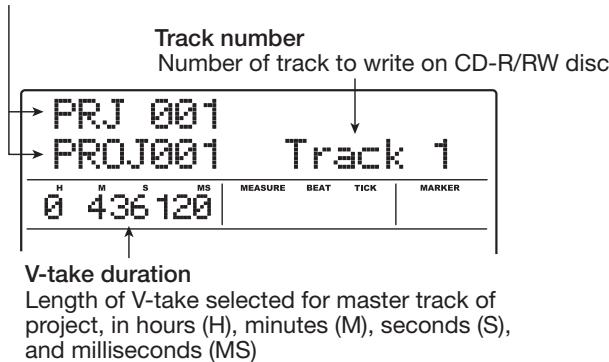
Pressing the PLAY [▶] key in this condition will play the master track of the currently displayed project.
NOTE
- A project for whose master track an unrecorded V-take is selected cannot be chosen as source material. Make sure that a V-take that you want to use is selected.
- If the master track data for projects included in an album have been deleted, the album returns to the blank state.
8. When the project for track 1 has been selected, use the cursor right key to move to track 2.
The display indication changes as follows.
| END OF ALBUM | Track 2 |
9. Turn the dial to select the project to be used as track 2 of the album.
10. In the same way, select projects for track 3 and subsequent tracks.
The maximum allowable number of tracks is 99, provided that there is enough free capacity on the disc.
HINT
When you press the cursor down key, the second line of the display shows "REMAIN", and the remaining write time on the inserted CD-R/RW disc appears on the counter. Press the cursor up key to return to the previous indication.
- To change projects in an album
Use the cursor left/right keys to select the track number for which you want to change the project, and use the dial to select another project.
- To insert projects in an album
Use the cursor left/right keys to select the track number where you want to insert a project. Press the [INSERT/ COPY] key in the rhythm section. The indication "INSERT?" appears on the display. In this condition, use the dial to select another project, and press the [ENTER] key. (Subsequent tracks are renumbered.)
- To delete a project from an album
Use the cursor left/right keys to select the track number you want to delete. Press the [DELETE/ERASE] key in the rhythm section. The indication "DELETE SURE?" appears on the display. To delete the project from the album, press the [ENTER] key. (Subsequent tracks are renumbered.)
To delete all projects from an album
On the album screen, press the [DELETE/ERASE] key in the rhythm section and then the cursor down key. The indication "ALL DEL SURE?" appears on the display. To delete all projects from the album, press the [ENTER] key.
- To switch the V-take for the master track
Press the [EXIT] key repeatedly to return to the main screen. Load the project for which you want to switch the V-take, and select the V-take for the master track. Then return to the album screen.
11. When you have stored all desired projects in the album, press the [ENTER] key twice.
The display indication changes as follows.
ALBUM SURE?
HINT
If you press the [ENTER] key once more, the indication "xx Tracks BURN?" (where xx is the number of tracks) appears on the display. You can check the total number of tracks that will be written to the disc from this screen.
12. To carry out the write process, press the [ENTER] key once more.
By pressing the [EXIT] key instead of the [ENTER] key, you can cancel the operation and back up one step at a time.
When writing begins, the indication "wait..." appears on the display. The counter indicates the progress status of the write process.
When the write process is completed, the disc is ejected automatically, and the message "ALBUM NEXT?" appears on the screen. To write another disc with the same content, insert a blank CD-R/RW disc or a CD-RW disc which has been completely erased, and press the [ENTER] key. To terminate the process, press the [EXIT] key.
13. To return to the main screen, press the [EXIT] key several times.
Using the marker function to separate tracks
When you create an audio CD using the disc-at-once method, marker information included in the project can be used to generate PQ subcode information (specifying track start/stop position and other items) to split up a single project into multiple tracks. Marker-based track separation can be enabled or disabled for each project. For example, when a project contains a number of songs that were recorded live, you can set a mark at the beginning of each song, so that these will be recorded as different tracks on the CD. This will enable easy searching and jumping between tracks.
NOTE
To use the marker-based track separation function, at least two marks (including the project start mark 00) must be set.
1. Load the project that you want to split into multiple tracks, and set marks at the points where the tracks should be separated.
Marker-based track separation can only be enabled or disabled for the entire project. Delete any unnecessary marks beforehand.
2. Perform steps 1 - 6 of "Creating an audio CD by album", select the disc-at-once (DAO) write method, and bring up the album screen.
- Use the cursor left/right keys and the dial to register projects for the album.
- Use the cursor left/right keys to select a project that is to be divided into multiple tracks.
- Press the [MARK] key in the control section.
Marks contained in this project will be used as PQ subcodes. The indication "PQ" and a marker icon appear in the MARKER field on the display. By pressing the
[MARK] key again, you can return to the previous condition. The marker enable/disable selection can be made at any time while the album screen is shown.
If the mark function is enabled for the project registered as track 1 of the audio CD, the following indication appears.
| PRJ 001 PROJ001 Track 1 | ||||||
| H | M | S | MS | MEASURE | BEAT | TICK |
| ∅ | 436 | 128 | ||||
When you divide a project, the number of tracks on the album will increase, and tracks corresponding to subsequent projects will be renumbered.
For example four marks are set for the project, the tracks on the audio CD will be allocated as follows.
| Audio CD track numbers | Project 1 (marker-based separation enabled) | Project 2 (marker-based separation disabled) | |||
| Track 1 | Track 2 | Track 3 | Track 4 | Track 5 | |
The subsequent steps for creating the audio CD are as described in the previous section.
NOTE
- If the tracks have not been separated as expected, press the [EXIT] key repeatedly to return to the main screen, and check whether marker information has been created properly for the project.
- If marks are too close together, the indication "ERROR Track is Short" appears on the display, and marker-based separation cannot be enabled for that project.
- The maximum number of tracks per album is 99. If you attempt to enable marker-based separation for a project and this causes the number of tracks to exceed 99, the indication "ERROR Too Many Track" appears, and marker-based separation cannot be enabled.
Including a playlist in an album
The MRS-1608 lets you register the master tracks of multiple projects in a list (gallery) for continuous playback in a sequence ( p. 177). It is possible to include playlist information when creating an audio CD by album.
HINT
You can create up to ten playlists, but only one can be included in an album.
- Perform steps 1 - 6 of "Creating an audio CD by album", and bring up the album screen on the display.
| END OF ALBUM | Track 1 | ||||||
| H | M | S | MS | MEASURE | BEAT | TICK | MARKER |
- Press the [UTILITY/TRACK EDIT] key in the display section.
The display indication changes as follows. In this condition, you can select the playlist (1 - 10) to include in the album.
| IMPORT PlayList LIST 1 |
| ↑ Playlist number |
- Turn the dial to select the playlist, and press the [ENTER] key.
The indication "IMPORT SURE?" appears on the display.
IMPORTSURE?
- To import the playlist information, press the [ENTER] key.
The procedure is carried out, and the album screen returns.
HINT
After importing playlist information, you can edit the album as normal.
Playing an audio CD
To play an audio CD inserted in the CD-R/CD-RW drive, proceed as follows. This method can also be used to audition a CD-R/CD-RW disc which has not been finalized yet.
NOTE
- A CD-R/CD-RW disc which has not been finalized can only be played with this method.
- Mixed-mode CDs or copy-controlled CDs cannot be played.
1. Insert an audio CD in the CD-R/RW drive.
2. From the main screen, press the [CD-R/ RW] key in the control section.
The CD-R/RW menu appears.
3. Verify that the indication "CD-R/RW AUDIO CD" is shown on the display, and press the [ENTER] key.
The display indication changes as follows.
AUDIO CD BURN CD
4. Use the cursor left/right keys to bring up the indication "AUDIO CD PLAYER", and press the [ENTER] key.
The CD player screen for audio CD playback appears. The second line of the display shows the track number and playback method for the inserted audio CD. If a nonfinalized disc is inserted, a * symbol is shown.
Track number The number of the currently selected track on the audio CD is shown.
![ZOOM MRS1608 - Use the cursor left/right keys to bring up the indication "AUDIO CD PLAYER", and press the [ENTER] key. - 1](/content/2025/01/152285/images/5717ae31928076c02223250f66fddeb0935267ee6f6f94a30c89e45ad601d6cd.jpg)
Current position in track
The location in the current track is shown here in hours (H), minutes (M), and seconds (S).
Playback method Indicates the currently selected audio CD playback method: DIGITAL or ANALOG
5. Use the REW [←] and FF [▶] keys in the transport section to select the track to be played.
The FF [▶] key selects the next track and the REW [▲] key selects the previous track.
6. Use the cursor up/down keys to select the playback method for the audio CD.
The following two methods are available.
- DIGITAL (Digital playback)
The digital audio signal of the CD is read by the MRS-1608 in the digital domain and becomes available as an audio signal at the rear panel MASTER OUTPUT jacks, DIGITAL OUTPUT connectors, and front panel MASTER PHONES jack. (Default setting)
The audio CD playback volume can be adjusted with the [MASTER] fader.
- ANALOG (Analog playback)
The audio signal of the CD is reproduced via the headphone outputs of the CD-R/RW drive. Adjust the volume with the volume control of the drive.
7. To start playback of the audio CD, press the PLAY [▶] key.
Playback of the selected track starts. When the track is finished, playback continues with the next track. During audio CD playback, all faders except for the [MASTER] fader as well as the EQ, reverb, chorus/delay, and pan settings are disabled.
- For track selection and for controlling playback stop/pause, use the transport section keys.
- PLAY [▶] key
Playback of the selected track starts. Pressing the key during playback sets the system to pause mode.
STOP [■] key
Playback stops, and the system returns to the beginning of the current track.
FF [▶] key
Playback stops, and the system jumps to the beginning of the next track.
- REW [4] key
Playback stops, and the system jumps to the beginning of the previous track.
- To return to the main screen, press the [EXIT] key several times.
Finalizing a CD-R/RW Disc
"Finalizing" a CD-R/RW disc to which audio data were written refers to the procedure of turning it into a finished audio CD. When a CD-R disc has been finalized, it will be playable on an ordinary CD player. (A CD-RW may not be playable on an ordinary CD player even after it has been finalized.)
After a disc has been finalized, no more tracks can be added to it.
- Insert the disc to finalize into the CD-R/RW drive.
- From the main screen, press the [CD-R/ RW] key in the control section.
The CD-R/RW menu appears.
- Verify that the indication "CD-R/RW AUDIO CD" is shown on the display, and press the [ENTER] key.
The display indication changes as follows.
AUDIO CD
BURN CD
- Use the cursor left/right keys to bring up the indication "AUDIO CD FINALIZE", and press the [ENTER] key.
The display indicates the total number of tracks on the CD-R/RW disc. The counter indicates the total playing time of all tracks on the disc (including pauses) in hours (H), minutes (M), and seconds (S).
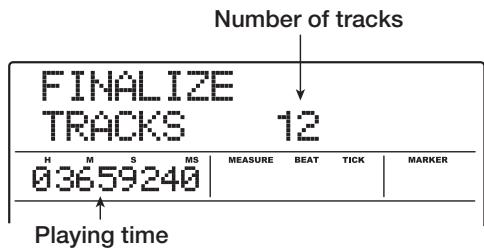
- Press the [ENTER] key.
The indication "FINALIZE SURE?" appears on the display.
- To carry out the finalizing process, press the [ENTER] key once more.
The finalizing process starts. When the process is finished, the display shows "FINALIZE COMPLETE". - To return to the main screen, press the [EXIT] key several times.
HINT
A CD-RW disc can be returned to the blank condition also after finalizing, by erasing all data.
Erasing a CD-RW disc
The entire information on a CD-RW disc (audio data or backup data) can be erased, thereby returning the disc to the blank state.
- Insert the disc to erase into the CD-R/RW drive.
- From the main screen, press the [CD-R/ RW] key in the control section.
The CD-R/RW menu appears.
- Verify that the indication "CD-R/RW AUDIO CD" is shown on the display, and press the [ENTER] key.
HINT
Erasing a CD-RW disc is also possible from the backup menu ( p.161). After you bring up the indication “BACKUP CDRW ERS” on the display and press the [ENTER] key, the disc can be erased in the same way as described below.
4. Use the cursor left/right keys to bring up the indication "AUDIO CD CDRW ERS" on the display, and press the [ENTER] key.
The display indication changes as follows.
CDRWERS NORMAL
- Use the cursor up/down keys to select one of the following CD-RW disc erase methods.
- NORMAL (Default setting)
Information from all areas of the disc is erased. This takes longer than the QUICK erase operation, but all contents of the disc are reliably erased. This method is recommended. (Required time is max. 74 minutes for a 650MB disc and 80 minutes for a 700MB disc.)
- QUICK
Only the track information on the CD-RW disc is erased. This requires less time than the NORMAL erase operation.
6. Press the [ENTER] key.
The display now shows the indication "CDRW ERS SURE?".
7. To carry out the erase process, press the [ENTER] key once more.
The erasing operation starts. When the operation is finished, the display shows "CDRW ERS COMPLETE". By pressing the [EXIT] key instead of the [ENTER] key, you can cancel the operation and back up one step at a time.
8. To return to the main screen, press the [EXIT] key several times.
Loading an audio CD into a project
The MRS-1608 can read audio data from an audio CD inserted in the CD-R/RW drive and record these data on any track/V-take of the internal recorder. The data can then be played and edited in the same way as other tracks. This is convenient to use drum or guitar phrases from a sampling CD.
Data can be read only as entire audio CD tracks. Specifying a range is not possible. To use only a part of a track, perform trimming of unwanted portions after loading ( p.52).
NOTE
- The audio data are written to the currently selected V-take of the target track. If required, select the appropriate V-take beforehand.
- Material subject to copyright (CD, analog record, tape, video, broadcast, etc.) is subject to legal restrictions regarding copying.
- Mixed-mode CDs or copy-controlled CDs cannot be loaded.
1. Insert the disc from which to load audio data into the CD-R/RW drive.
- Perform steps 2 - 5 of "Playing an audio CD" ( p. 157) to bring up the CD player screen and select the desired track of the CD.
3. Press the REC [●] key.
The display indication changes as follows. In this condition, you can select the target for the audio data.
READ DST TR 1/2
4. Use the status keys or the dial to select the track for recording the data.
Only odd-numbered/even-numbered pairs of mono tracks (1/2, 3/4, 5/6, 7/8), stereo tracks (9/10 - 15/16), or the master track (MASTER) can be selected.
5. Press the [ENTER] key.
The recording destination is selected, and the indication "READ CD SURE?" appears on the display. When the track already contains data, the indication "OverWrt?" is shown. This indicates that existing data will be overwritten when the operation is carried out.
6. To carry out the read process, press the [ENTER] key.
Loading data from the audio CD starts. When loading is complete, the unit returns to the CD player screen.
By pressing the [EXIT] key instead of the [ENTER] key, you can cancel the operation and back up one step at a time.
7. To return to the main screen, press the [EXIT] key several times.
Backup and restore
This section explains how you can use the CD-R/RW drive in the MRS-1608 to back up a project to a CD-R/ RW disc and how to restore a project from a disc backup. You can either create backups for individual projects or save all projects in a common operation.
Saving a single project to CD-R/RW disc
You can select any project and save it on a CD-R/RW disc for backup.
HINT
If the size of the project is larger than the capacity of the CD-R/RW disc, you can create a backup spanning multiple volumes.
1. Insert a CD-R/RW disc into the CD-R/RW drive.
To back up a project, use a blank CD-R/RW disc or a CD-RW disc that has been completely erased.
2. From the main screen, press the [CD-R/ RW] key in the control section.
The CD-R/RW menu appears.
3. Use the cursor left/right keys to bring up the indication "CD-R/RW BACKUP" on the display, and press the [ENTER] key.
The display indication changes as follows.
BACKUP SAVE
4. Verify that the indication "BACKUP SAVE" is shown on the display, and press the [ENTER] key.
The display indication changes as follows. In this condition, you can select the project to be backed up.
![ZOOM MRS1608 - Verify that the indication "BACKUP SAVE" is shown on the display, and press the [ENTER] key. - 1](/content/2025/01/152285/images/f8d6fabf439176a14153f68d848ce24f0c3cc92f3a17e2254c1e7f333c29e629.jpg)
5. Turn the dial to select the project, and press the [ENTER] key.
This selects the project that will be backed up. The display now shows the space required for the backup in MB (megabytes).
PRJ SIZE 108MB
6. Press the [ENTER] key.
The name of the folder to be used for backup appears. A folder is a hierarchical unit that will be created on the backup media when the backup is executed. All data for one project are stored in the same folder.
When the backup is executed, a new folder is created on the CD-R/RW disc with the name "PROJxxx" (where xxx is the project number). This name can be edited.
FdrName PROJ001
7. To change the store destination folder name, use the cursor left/right keys to move the flashing section, and then turn the dial to change the character.
The following characters can be used.
Numerals: 0-9
Letters: A-Z
Symbols: (underscore)
8. Press the [ENTER] key.
The indication "SAVE SURE?" appears on the display.
9. To execute the backup, press the [ENTER] key. To cancel, press the [EXIT] key instead.
When backup starts, the indication "DISCxxx BURNING (where xxx is the disc number) appears on the display. When the backup is finished, the display shows "SAVE COMPLETE".
If the project size is larger than the capacity of one CD-R/RW disc, the disc will be ejected after it has been filled up, and the display indication changes as follows.
CHANGE DISC002
When this message is shown, insert the next CD-R/RW disc and press the [ENTER] key. The backup operation resumes. If more than two discs are required, the above steps will be repeated.
NOTE
When a backup spans several discs, the discs must be used in the same order for restore. Be sure to note the disc number on the case and label of the disc.
HINT
When the disc has been ejected, it is possible to abort the backup operation. To do this, press the [EXIT] key while the indication “CHANGE DISCxxx” (where xxx is the disc number) is shown. The indication will change to “SAVE CANCEL?” Press the [ENTER] key to terminate the process.
10. To return to the main screen, press the [EXIT] key several times.
Saving all projects to CD-R/RW disc
You can save all projects on the hard disk to CD-R/RW media for backup.
If the total size of all projects is larger than the capacity of one CD-R/RW disc, the backup will automatically extend over multiple volumes, with lower-numbered projects being placed on lower-numbered discs.
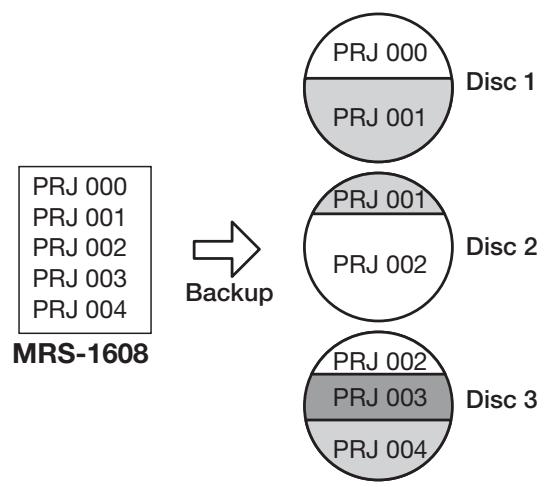
NOTE
Also if all projects were saved in one operation, restoring will be on a single-project basis.
1. Insert a CD-R/RW disc into the CD-R/RW drive.
To back up projects, use a blank CD-R/RW disc or a CD-RW disc that has been completely erased.
2. From the main screen, press the [CD-R/ RW] key in the control section.
The CD-R/RW menu appears.
3. Use the cursor left/right keys to bring up the indication "CD-R/RW BACKUP" on the display, and press the [ENTER] key.
The display shows the indication "BACKUP SAVE".
4. Use the cursor left/right keys to bring up the indication "BACKUP ALL SAVE" on the display, and press the [ENTER] key.
The display shows the space required for the backup of all projects in MB (megabytes).
SIZE 1137MB
5. Press the [ENTER] key.
The display indication changes as follows.
ALL SAVE
SURE?
6. To execute the backup, press the [ENTER] key. To cancel, press the [EXIT] key instead.
When you press the [ENTER] key, backup starts from the project with the lowest number. The display shows the disc number, the project number, and the indication "BURNING".
![ZOOM MRS1608 - To execute the backup, press the [ENTER] key. To cancel, press the [EXIT] key instead. - 1](/content/2025/01/152285/images/1dca2b4352d8f798696c369c49487a55b1ab5290896e712df4f6897e7968941f.jpg)
When the backup is finished, the display indication changes to "ALL SAVE COMPLETE".
If the backup size is larger than the capacity of one CD-R/RW disc, the disc will be ejected after it has been filled up, and the display indication changes as follows.
CHANGE DISC002
PRJ 085
Number of project that has been only partly backed up
The right side of the display shows the number of the project that has been only partly backed up. Insert the next CD-R/RW disc and press the [ENTER] key. The backup operation resumes. If more than two discs are required, the above steps will be repeated.
NOTE
When a full backup spans several discs, restoring a single project requires you to first insert the disc on which it is saved. Be sure to note the disc number and the projects saved on the disc on the case and label of the disc.
HINT
When the disc has been ejected, it is possible to abort the backup operation. To do this, press the [EXIT] key while the indication “CHANGE DISCxxx” (where xxx is the disc number) is shown. The indication will change to “ALL SAVE CANCEL?” Press the [ENTER] key to terminate the process.
- To return to the main screen, press the [EXIT] key several times.
Loading a project from CD-R/RW disc
To restore a project saved on CD-R/RW disc to the hard disk of the MRS-1608, proceed as follows.
NOTE
Also when you have backed up all projects in a single operation, restore is performed only for single projects.
- From the main screen, press the [CD-R/ RW] key in the control section.
The CD-R/RW menu appears.
- Use the cursor left/right keys to bring up the indication "CD-R/RW BACKUP" on the display, and press the [ENTER] key.
The display shows the indication "BACKUP SAVE".
- Use the cursor left/right keys to bring up the indication "BACKUP LOAD" on the display, and press the [ENTER] key.
The tray of the CD-R/RW drive opens and the display indication changes as follows.
LOAD InsDisc1
- Insert the CD-R or CD-RW where the project is saved into the CD-R/RW drive.
Insert the correct disc for the stored content.
- If project was backed up as single project
Insert disc number 1.
- If project was backed up as part of a full backup of all projects
Insert the disc where the project is stored. (If there are multiple discs, insert the first disc that contains data of the desired project.)
NOTE
If the backup of the project spans multiple discs, be sure to insert the first disc that contains data of the desired project first. If you insert another disc, the project data will not be read correctly.
5. Press the [ENTER] key.
The name of the project on the disc, and the number which is to be assigned to the project are shown on the display.
![ZOOM MRS1608 - Press the [ENTER] key. - 1](/content/2025/01/152285/images/24616fface3e6e188e5662ed44a73bfd1f969cd87546b1c1529c2eaa52e91314.jpg)
HINT
When being restored to the MRS-1608, an empty project number is automatically assigned to the project. Even if a project with the same name already exists on the hard disk, it will not be overwritten.
6. To check the name of the folder from which the project will be read, press the cursor down key.
The second line of the display shows the folder name. Press the cursor up key to restore the original display.
7. Turn the dial to select the project to load, and press the [ENTER] key.
The indication "LOAD SURE?" appears on the display.
8. To execute the load operation, press the [ENTER] key. To cancel, press the [EXIT] key instead.
When you press the [ENTER] key, the indication "Wait..." appears on the display. When the operation is finished, the display indication changes to "LOAD COMPLETE", and the CD-R/RW disc is ejected.
If the backup spans multiple discs, the CD-R/RW disc will be automatically ejected after the data have been loaded, and the display indication changes as follows.
CHANGE DISC002
When this message is shown, insert the next CD-R/RW disc, and press the [ENTER] key. The load operation resumes. Repeat this operation until the last disc of the project has been read.
NOTE
If the backup of the project spans multiple discs, be sure to insert the discs in the correct order. Otherwise the project data will not be read correctly.
HINT
When the disc has been ejected, it is possible to abort the load operation. To do this, press the [EXIT] key while the indication “CHANGE DISCxxx” (where xxx is the disc number) is shown. The indication will change to “LOAD CANCEL?”. Press the [ENTER] key to terminate the process.
9. To return to the main screen, press the [EXIT] key several times.
Reference [Projects]
This section describes how to perform operations for entire projects.
About projects
On the MRS-1608, the data needed to reproduce a song you create are managed in units called "projects". By loading a project from the hard disk, you can always go back to exactly the same condition that existed when the project was saved. A project contains the following information.
- Audio data recorded on V-takes 1 - 10 of tracks 1 - 16 and the master track
- Numbers of selected V-takes for each track
- Mixer section settings
- Settings saved in scene numbers 0 - 99
- Scene parameter enabled/disabled settings
- Numbers and settings of patches currently selected for insert effect/send return effects
Rhythm patterns
Rhythm songs - Numbers of drum kit/bass program currently selected for drum/bass track
- Sampler programs for pad sampler
Samples used by sampler programs
Audio data in phrase pool - Playlist contents
- Other required files
NOTE
On the MRS-1608, recording/playback operations can be performed only for the currently loaded project. It is not possible to perform functions for multiple projects simultaneously.
Project operations
This section explains operations such as loading or saving a project. The procedure is the same for most project operations. The basic procedure is as follows.
Basic procedure
1. From the main screen, press the [PROJECT] key.
The project menu appears on the display, allowing you to select the desired project operation.
PROJECT SELECT
HINT
When you press the [PROJECT] key, the current project is automatically saved on the hard disk.
2. Use the cursor left/right keys to select one of the following operations.
- PROJECT SELECT
Load a previously saved project from the internal hard disk.
PROJECT NEW
Create a new project.
PROJECT SIZE
View the size of the currently loaded project.
- PROJECT COPY
Duplicate a specified project on the hard disk.
PROJECT ERASE
Erase a specified project from the hard disk.
PROJECT NAME
Edit the name of the currently loaded project.
PROJECT PROTECT
Switch the protection status of the currently loaded project on or off.
PROJECT SEQ PLAY
Continuously play the master tracks from several projects saved on the hard disk ( p.177)
3. Press the [ENTER] key to execute the operation (or change the setting) that you selected.
For details on the procedure, refer to the sections that follow.
4. To return to the main screen, press the [EXIT] key several times.
Depending on which selection was made in step 2, the main screen may return automatically.
Loading a project
You can select a project that was saved on the hard disk, and load it.
1. Refer to steps 1 - 2 of "Basic procedure" to bring up the indication "PROJECT SELECT" on the display. Then press the [ENTER] key.
The name and number of the project to be loaded are shown on the display.
![ZOOM MRS1608 - Refer to steps 1 - 2 of "Basic procedure" to bring up the indication "PROJECT SELECT" on the display. Then press the [ENTER] key. - 1](/content/2025/01/152285/images/b66f10664c26ccf77ff88c5f3c50fd962a86c6c370150af88e4749b85b9bdc5f.jpg)
2. Turn the dial to select the desired project.
3. Press the [ENTER] key to load the project.
When loading is completed, the unit returns to the main screen. By pressing the [EXIT] key instead of the [ENTER] key, you can cancel the operation and back up one step at a time.
HINT
When power to the MRS-1608 is turned on, the project that was last worked on will be loaded automatically.
Creating a new project
This operation creates a new project.
1. Refer to steps 1 - 2 of "Basic procedure" to bring up the indication "PROJECT NEW" on the display. Then press the [ENTER] key.
The project to create is shown on the display.
![ZOOM MRS1608 - Refer to steps 1 - 2 of "Basic procedure" to bring up the indication "PROJECT NEW" on the display. Then press the [ENTER] key. - 1](/content/2025/01/152285/images/1b3c7eba7572187676e100cd17ed407f43cf585594bafd4ad94afd60386de6da.jpg)
The number of the newly created project is assigned automatically, choosing the lowest free project number, and a default name of "PRJxxx" (where xxx is the project number) will be assigned.
The first character of the project name flashes. This indicates that you can change the project name.
2. If necessary, edit the project name.
To change the project name, use the cursor left/right keys to move the flashing section to the character you want to change, and turn the dial to select the new character. The project name can also be edited later ( p. 168).
3. Press the [ENTER] key to create the project.
After the new project has been created, it is loaded automatically, the unit returns to the main screen. By pressing the [EXIT] key instead of the [ENTER] key, you can cancel the operation and back up one step at a time.
HINT
If the recorder is stopped and the main screen is shown, you can call up the screen of step 1 simply by pressing the [NEW PROJECT] key.
Checking the project size/ available hard disk capacity
This operation displays the size of the currently loaded project, the available capacity of the internal hard disk, and the remaining recording time.
- Refer to steps 1 - 2 of "Basic procedure" to bring up the indication "PROJECT SIZE" on the display. Then press the [ENTER] key.
- Use the cursor up/down keys to select the desired screen from one the following options.
- REMAIN (MB units)
This shows the remaining space on the internal hard disk in MB (megabyte) units.
REMAIN 027920MB
- REMAIN (h/m units)
The approximate recordable time (converted into one track) is shown in hours (h), minutes (m), and seconds.
REMAIN 92h12m11
- PRJ SIZ (MB units)
This shows the size of the currently loaded project in MB (megabyte) units.
PRJ SIZE 000175MB
- PRJ SIZ (h/m units)
This shows the size of the currently loaded project (converted into one track) in hours (h), minutes (m), and seconds.
PRJ SIZE 00h34m47
To return to the main screen, press the [EXIT] key several times.
NOTE
- These screens are for display only, and contain no items that can be edited.
- The remaining recordable time is an approximation. Use it for general reference only.
Duplicating a project
This operation copies a specified project that is saved on the hard disk.
- Refer to steps 1-2 of "Basic procedure" to bring up the indication "PROJECT COPY" on the display. Then press the [ENTER] key.
The name and number of the project to copy is shown on the display.
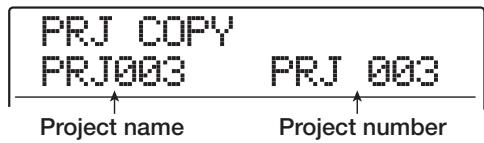
- Turn the dial to select the copy source project, and press the [ENTER] key.
The screen for selecting the copy destination project appears on the display.
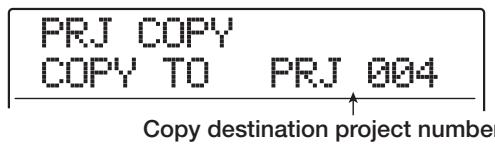
- Turn the dial to select the copy destination project number, and press the [ENTER] key.
The indication "PRJ COPY SURE?" appears on the display.
- Press the [ENTER] key to copy the project.
When copying is completed, the unit automatically returns to the main screen of the copy destination project. By pressing the [EXIT] key instead of the [ENTER] key, you can cancel the operation and back up one step at a time.
Erasing a project
This operation erases the specified project from the hard disk.
- Refer to steps 1 - 2 of "Basic procedure" to bring up the indication "PROJECT ERASE" on the display. Then press the [ENTER] key.
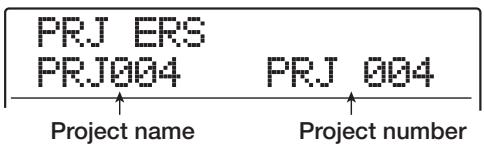
- Turn the dial to select the project, and press the [ENTER] key.
The indication "PRJ ERS SURE?" appears on the display. - Press the [ENTER] key to erase the project.
When erasing is completed, press the [EXIT] key to return to the main screen.
NOTE
- Once a project has been erased, it cannot be recovered. Use this operation with care.
- A project for which protect is ON cannot be erased. Set protect to OFF and then repeat the procedure.
- If you erase a project that is currently loaded, the lowest-numbered project will automatically be loaded after the erase operation has been completed.
Changing the project name
This operation lets you edit the name of the currently loaded project.
- Refer to steps 1-2 of "Basic procedure" to bring up the indication "PROJECT NAME" on the display. Then press the [ENTER] key.
The current project name is shown on the display.
PRJ NAME PRJ003
- Use the cursor left/right keys to move the flashing section to the character you want to change, and turn the dial to select the new character.
For information on available characters, refer to page 36. To return to the main screen after editing the name, press the [EXIT] key several times.
Protecting a project
This operation lets you write-protect the currently loaded project, which disables project storing and editing. When protect is ON, the following operations will be impossible.
Erasing a project
- Editing or recording on the recorder
- Changing the V-take
- Editing a patch (including module on/off)
- Recording or editing a rhythm pattern or rhythm song
- Saving/deleting scenes, making marker settings, etc.
- Creating a phrase loop
- Creating sample data for the pad sampler function
1. Refer to steps 1-2 of "Basic procedure" to bring up the indication "PROJECT PROTECT" on the display. Then press the [ENTER] key.
The screen for setting the protect status to ON/OFF is shown on the display.
PRJ PRT OFF
2. Turn the dial to select ON (protect enabled) or OFF (protect disabled).
When a project is loaded for which protect is ON, a lock symbol is shown in the top right of the display.
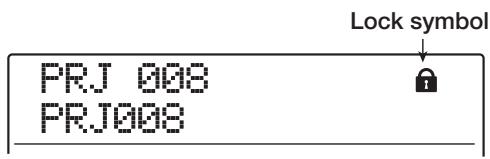
A change in the protect status becomes active immediately. To return to the main screen after making the setting, press the [EXIT] key several times.
NOTE
A project that is not protected will be automatically saved when power is turned off or when another project is loaded. If you have finished a song, we recommend to turn protect ON. This will prevent inadvertently saving changes caused by operation steps that you have taken after finishing the song.
Reference [MIDI]
This section explains the MIDI-related settings and functions of the MRS-1608.
About MIDI
MIDI (Musical Instrument Digital Interface) is a standard that allows messages such as performance data (collectively called "MIDI messages") to be exchanged between devices such as electronic musical instruments and computers.
The MRS-1608 supports MIDI and is equipped with the following two MIDI connectors.

MIDI OUT

MIDI IN
- MIDI IN connector
Serves for receiving MIDI messages sent from an external MIDI device. This connector is used mainly to receive Note messages from an external MIDI device in order to play the drum kit, bass program, or pad sampler.
- MIDI OUT connector
Serves for transmitting MIDI messages from the MRS-1608. Note messages that represent the content played by a rhythm pattern or rhythm song are transmitted from this connector, as well as synchronization information for use by an external MIDI device.
What you can do using MIDI
On the MRS-1608, you can use MIDI for the following functions.
Receive and send play information
You can use an external MIDI keyboard or a computer to send play information (Note On/Off messages) to the MIDI IN connector of the MRS-1608, to play various sounds of the rhythm section. When creating a rhythm pattern, you can use an external MIDI keyboard instead of the pads on the MRS-1608 to input play information.
You can send Note On/Off messages from the MRS-1608 when hitting the pads or when playing a rhythm song/ rhythm pattern. These can be used to play an external MIDI sound source.
- Send sync information
The MIDI OUT connector of the MRS-1608 can supply MIDI Timing Clock (MIDI Clock) and MIDI Time Code (MTC) information to a MIDI sequencer or other external MIDI device. Playback and other transport operations as well as locate operations can be synchronized.
- Send/receive program change information
The MRS-1608 can receive Program Change messages from an external MIDI device to switch the sound of the rhythm section. The MRS-1608 can also send out Program Change messages when the sound is switched, allowing an external device to perform synchronized switching.
- Send/receive control change information
Via the MIDI IN connector, the MRS-1608 can receive Control Change messages from an external MIDI device to control the level of the drum/bass track. Via the MIDI OUT connector, the MRS-1608 can send out Control Change messages according to drum/bass level information contained in a rhythm song.
- SMF playback
The MRS-1608 can read SMFs (Standard MIDI Files) from a CD-ROM/R/RW disc and load the contents into a project. Once loaded, an SMF can use internal or external sound sources and perform playback in sync with the recorder section or rhythm section (SMF player function).
Making MIDI-related settings
This section explains how to make MIDI-related settings. The procedure is the same for most settings. The basic steps are as follows.
Basic procedure
- Press the [RHYTHM] key in the display section, and then press the [UTILITY/TRACK EDIT] key.
The rhythm utility menu for making various rhythm section settings appears.
- Use the cursor left/right keys to bring up the indication "UTILITY MIDI" on the display.
UTILITY MIDI
- Press the [ENTER] key.
The display indication changes as follows. In this condition, you can select MIDI-related setting items.
MIDI DRUM CH
- Use the cursor left/right keys to select one of the following items.
DRUM CH
Set the MIDI channel for the drum kit.
BASS CH
Set the MIDI channel for the bass program.
CLOCK
Turn Timing Clock transmission on/off.
SPP
Turn Song Position Pointer transmission on/off.
COMMAND
Turn Start/Stop/Continue message transmission on/off.
- PRG CHG
Turn Program Change transmission on/off.
MTC
Turn MIDI Time Code transmission on/off.
HINT
- For information on the SMF playback procedure, see page 174.
- While MTC transmission is enabled, Timing Clock, Song Position Pointer, and Start/Stop/Continue messages are disabled.
-
Control Change transmission is always enabled, except when the drum kit/bass program send/receive channel is off.
-
Press the [ENTER] key to display the setting of the selected item, and turn the dial to change the setting.
For details on each item, refer to the following explanation. - When you have finished making settings, press the [EXIT] key several times to return to the main screen.
Setting the drum kit/bass program MIDI channel
You can specify the MIDI channels for the drum kit and bass program.
Refer to steps 1 - 4 of "Basic procedure" to bring up the indication "MIDI DRUM CH" or "MIDI BASS CH" on the display and press the [ENTER] key. Then turn the dial to select one of the following settings.
DRUM CH 10CH
1-16CH
Select one of MIDI channels 1 - 16 (default: DRUM CH=10CH, BASS CH=9CH)
OFF
Channel messages (Note On/Off, Program Change, Control Change and other messages) will not be sent or received.
If you specify a MIDI channel (1 - 16) for the drum kit or bass program, you can transmit Note On/Off messages from an external MIDI device on that MIDI channel to play the sounds of the MRS-1608.
Also, when you play back a rhythm pattern or rhythm song on the MRS-1608, the drum/bass track playing information will be transmitted as Note On/Off messages.
Turning Timing Clock messages on or off
This setting specifies whether the MIDI synchronization message Timing Clock will be transmitted.
Refer to steps 1 - 4 of "Basic procedure" to bring up the indication "MIDI CLOCK" on the display and press the [ENTER] key. Then turn the dial to select one of the following settings.
CLOCK ON
ON (Transmission on)
Timing Clock information will be transmitted when the MRS-1608 is running (default setting).
OFF (Transmission off)
Timing Clock information will not be transmitted.
Timing Clock will be output according to the tempo of the rhythm pattern/rhythm song that is playing. In order for the external MIDI device to play back in synchronization at an appropriate tempo, you will need to specify the tempo of the rhythm pattern/rhythm song. Also, to synchronize the measure indication at the MRS-1608 and the MIDI device, the time signature of the rhythm pattern/rhythm song must be set.
NOTE
Timing Clock information will be transmitted even if the drum/bass tracks are muted ([DRUM]/[BASS] status keys are out).
HINT
- When using MIDI Timing Clock messages transmitted from the MRS-1608 to synchronize the operation of an external MIDI device, you should also turn on transmission for Song Position Pointer and Start/Stop/Continue messages as well as Timing Clock.
- When transmitting Timing Clock from the MRS-1608, it is recommended to turn the drum kit/bass program MIDI channels OFF. Synchronization may become unstable if MIDI Timing Clock and other MIDI messages are being transmitted simultaneously.
Turning Song Position Pointer messages on or off
You can specify whether Song Position Pointer messages will be transmitted. Song Position Pointer is a MIDI message that indicates the current position as a beat count from the start. Normally it is used in conjunction with Timing Clock.
Refer to steps 1 - 4 of "Basic procedure" to bring up the indication "MIDI SPP" on the display and press the [ENTER] key. Then turn the dial to select one of the following settings.
SPP OH
ON (Transmission on)
MIDI Song Position Pointer messages will be transmitted when a locate operation is performed on the MRS-1608 (default setting).
OFF (Transmission off)
Song Position Pointer messages will not be transmitted.
Turning Start/Stop/Continue messages on or off
You can specify whether Start/Stop/Continue messages will be transmitted. Start/Stop/Continue are MIDI messages that control the transport of a device, causing it to run or stop. Normally these messages are used in conjunction with Timing Clock.
Refer to steps 1 - 4 of "Basic procedure" to bring up the indication "MIDI COMMAND" on the display and press the [ENTER] key. Then turn the dial to select one of the following settings.
COMMAND ON
ON (Transmission on)
The appropriate Start/Stop/Continue message will be transmitted when the MRS-1608 stops or begins running (default setting).
OFF (Transmission off)
Start/Stop/Continue messages will not be transmitted.
Turning Program Change messages on or off
You can specify whether Program Change messages will be transmitted. Program Change are MIDI messages that changes a sound number of MIDI device such as synthesizer. Refer to steps 1 - 4 of "Basic procedure" to bring up the indication "MIDI PRG CHG" on the display and press the [ENTER] key. Then turn the dial to select one of the following settings.
PRG CHG ON
ON (Transmission on)
When the sound of the rhythm section is switched at the MRS-1608, a Program Change message for the respective MIDI channel is sent out (default setting).
OFF (Transmission off)
Program Change messages will not be transmitted.
HINT
There is no item for turning Program Change receive on or off. This function is always enabled, except when the drum kit/bass program channel is off.
Turning MIDI Time Code (MTC) messages on or off
You can specify whether MIDI Time Code (MTC) messages used for synchronization will be transmitted.
Refer to steps 1 - 4 of "Basic procedure" to bring up the indication "MIDI MTC" on the display and press the [ENTER] key. Then turn the dial to select one of the following settings.
MTC 38
24 (24 frames/second)
25 (25 frames/second)
29.97 (29.97 frames/second, non-drop)
30 (30 frames/second, non-drop)
When the MRS-1608 is running, MTC messages with the respective frame per second setting are sent out.
OFF (Transmission off)
MTC messages will not be transmitted.
MTC message output is based on recorder time information. When using MTC to synchronize MIDI devices, the MRS-1608 always functions as MTC master. Set up the other device to operate as MTC slave which receives MTC messages and functions accordingly.
An example for synchronizing the MRS-1608 with a sequencer is shown below.
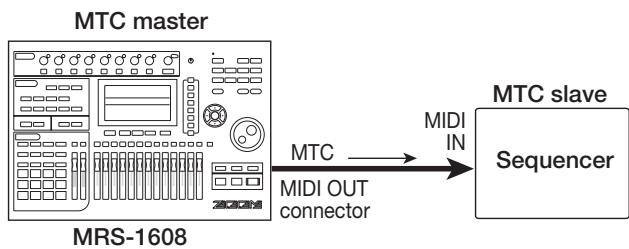
HINT
- MTC allows more precise synchronization than MIDI Timing Clock messages.
- When MTC transmission is enabled, Timing Clock, Song Position Pointer, and Start/Stop/Continue messages will all be disabled.
Using the SMF player
Using the SMF player function, the MRS-1608 can read Format 0 SMF (Standard MIDI Files) from a CD-ROM/R/ RW disc and load the contents into a project. Once loaded, an SMF can perform playback in sync with the recorder section or rhythm section, using the sounds of the rhythm section or MIDI sound sources connected to the MIDI OUT connector.
This section explains how to use the SMF playback function.
HINT
"Format 0" is a type of SMF that contains all MIDI channel playing information in a single track.
NOTE
The following files cannot be read.
- Format 1 or Format 2 SMF
- Files located on a CD-ROM/R/RW disc not complying to the ISO 9660 Level 2 standard
- Files on a CD-R/RW disc which has not been finalized
Reading an SMF into a project
By performing the following steps, you can read an SMF from a CD-ROM/R/RW disc and load it in a project. The maximum number of SMFs per project is 100.
1. Insert the CD-ROM or CD-R/RW disc containing the SMF into the CD-R/RW drive.
2. From the main screen, press the [UTILITY/ TRACK EDIT] key in the display section.
The indication "UTILITY TR EDIT" appears on the display.
3. Use the cursor left/right keys to bring up the indication "UTILITY SMF" on the display, and press the [ENTER] key.
The menu screen for SMF selection and playback appears.
SMF IMPORT
- Verify that "SMF IMPORT" is shown on the display, and press the [ENTER] key.
The names of SMFs on the CD-ROM/R/RW disc are shown.
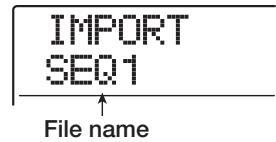
- Turn the dial to select the SMF to import.
NOTE
If the desired file is not shown, check whether the file is in Format 0.
6. To execute the import process, press the [ENTER] key.
When import is completed, the disc is ejected from the CD-R/RW drive. To import other SMFs, repeat steps 1 - 6.
- To return to the main screen, press the [EXIT] key several times.
HINT
By using the option board UIB-02, it is possible to directly import SMFs from a computer into a project. To do this, the SMF must be copied to the PROJxxx folder (where xxx is the project number).
Selecting the SMF output destination
When playing an SMF, you can select whether to send the entire playing information to an external sound source or to play certain channels with the internal sound sources of the MRS-1608. The SMF output destination is specified using the following two parameters.
- SMF ChToDrum
Selects which MIDI channel (1 - 16) of the SMF playing information is directed to the internal drum kit of the MRS-1608. Information for the channel selected here will not be present at the MIDI OUT connector. When this parameter is set to OFF, no playing information is sent to the drum kit.
- SMF ChToBass
Selects which MIDI channel (1 - 16) of the SMF playing information is directed to the internal bass program of the MRS-1608. Information for the channel selected here will not be present at the MIDI OUT connector. When this parameter is set to OFF, no playing information is sent to the bass program.
The diagram below shows a setting example for using the MRS-1608 as an SMF player and using external sound sources. In this example, the SMF playing information is sent only to the MIDI OUT connector.
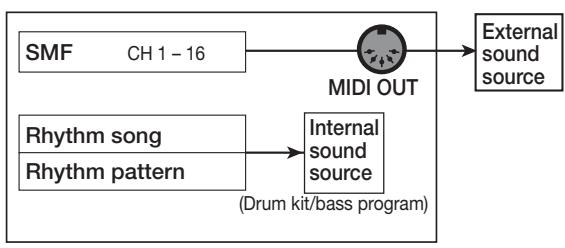
NOTE
When an SMF is played in the above condition, the rhythm song or rhythm pattern of the MRS-1608 will be played at the same time. If you do not want to play the drum/bass sound, set the [DRUM]/[BASS] status keys to OFF or select an empty rhythm song/rhythm pattern.
The next diagram shows a setting example for using the MRS-1608 as an SMF player with a combination of internal and external sound sources. In this example, MIDI channel 9 of the SMF playing information is sent to the bass program, MIDI channel 10 to the drum kit, and the other MIDI channels to the MIDI OUT connector.
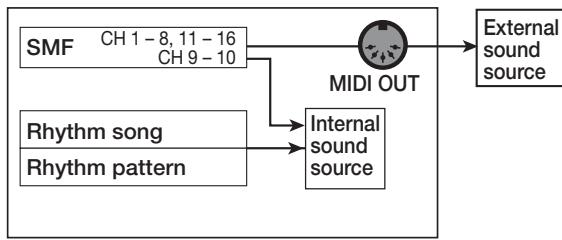
NOTE
- When an SMF is played in the above condition, the SMF playing information and the rhythm song or rhythm pattern information of the MRS-1608 will be sent to the internal drum kit/bass program at the same time. To use the drum kit/bass program only for the SMF, you must first select an empty rhythm song/rhythm pattern.
- If the SMF contains Program Change or Control Change messages, these will alter the corresponding parameters of the internal sound sources (tone, volume, pitch). (Pitch Bend messages affect only the bass program.)
1. From the main screen, press the [UTILITY/TRACK EDIT] key in the display section.
The indication "UTILITY TR EDIT" appears on the display.
2. Use the cursor left/right keys to bring up the indication "UTILITY SMF" on the display, and press the [ENTER] key.
The SMF menu appears on the display.
3. Use the cursor left/right keys to bring up the indication "ChToDrum" or "ChToBass" on the display, and press the [ENTER] key.
If "ChToDrum" was selected, the display indication changes as follows.
ChToDrum 10CH
4. Turn the dial to select OFF or 1 - 16, and then press the [EXIT] key.
HINT
The factory default setting is "10" (MIDI channel 10) for the ChToDrum parameter and "9" (MIDI channel 9) for the ChToBass parameter.
5. Make the setting for the other parameter in the same way.
6. To return to the main screen, press the [EXIT] key.
SMF playback
You can select any SMF imported into a project and play it as follows.
NOTE
- When playing an SMF, the rhythm section tempo will be disregarded, and playback starts with the timing programmed in the SMF. However, if a tempo change event is programmed somewhere in the rhythm song, this tempo change will become active. To use the SMF tempo throughout, you should first select an empty rhythm song.
- If the time signature information of the SMF and the rhythm section is different, the audio track position and SMF position may be different when locating in measures/beats/ticks.
1. From the main screen, press the [UTILITY/TRACK EDIT] key in the display section.
The utility menu appears.
- Use the cursor left/right keys to bring up the indication "UTILITY SMF" on the display, and press the [ENTER] key.
The indication "UTILITY TR EDIT" appears on the display. - Use the cursor left/right keys to bring up the indication "SMF OUTPUT" on the display, and press the [ENTER] key.
In this condition, you can decide whether to enable SMF playback.
OUTPUT ON
- Verify that the setting is ON, and press the [EXIT] key.
In the default condition of a project, the setting is ON. If it was set to OFF, turn the dial to select ON.
- Use the cursor left/right keys to bring up the indication "SMF FILE SEL" on the display.
SMF FILE SEL
- Press the [ENTER] key.
In this condition, you can select an SMF imported into the project for playback.
FILE SEL
SEQ1
HINT
If required, you can delete the selected SMF from the project. To do this, select the SMF to delete and then press the [DELETE/ERASE] key in the rhythm section. The indication "SURE?" appears. Press the [ENTER] key to delete.
- Turn the dial to select the SMF for playback, and press the [ENTER] key.
The file is selected, and the display returns to the SMF menu. - To return to the main screen, press the [EXIT] key several times.
- To play the SMF, press the PLAY [▶] key.
The SMF is played in conjunction with the recorder section/ rhythm section.
Reference [Other Functions]
This section explains various other functions of the MRS-1608.
Playing several projects continuously (sequence play)
The MRS-1608 lets you line up the master tracks from multiple projects saved on the hard disk and play them continuously in a specified order (sequence play). This is handy to record several projects on an external device such as a MD recorder.
To use sequence play, you create a playlist which specifies the order of projects. (Up to 10 different playlists can be created.) You can also import playlist information into an album used for creating an audio CD.
Creating a playlist
Register projects in a playlist as follows.
- Verify that the V-take you want to play is selected for each project's master track.
- From the main screen, press the [PROJECT] key in the display section.
The project menu for various project related functions appears.
PROJECT SELECT
- Use the cursor left/right keys to bring up the indication "PROJECT SEQ PLAY" on the display, and press the [ENTER] key.
The display shows the screen for selecting a playlist. If there are no existing playlists, the display shows "EMPTY".
| SEQ PLAY LIST 1 EMPTY | ||||||
| H | M | S | MS | MEASURE | BEAT TICK | MARKER |
- Turn the dial to select the playlist for which you want to register projects, and press the [EDIT] key.
The screen for registering projects in the playlist appears. The indication "END OF LIST" denotes the end of the playlist. When the playlist is empty, the indication "END OF LIST" appears at the beginning of the list.
| END OF LIST NO.1 | ||||||
| H | M | S | MS | MEASURE | BEAT | TICK |
- Turn the dial to select the project to register at the beginning of the project.
The display indication changes as follows.
V-take duration
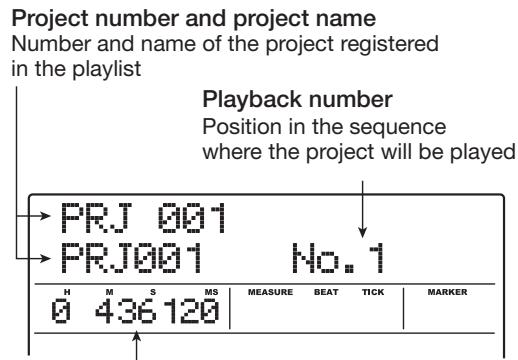
Length of the V-take selected for the master track of the project, in hours (H), minutes (M), seconds (S), and milliseconds (MS)
NOTE
- Projects in which an unrecorded V-take is selected for the master track cannot be registered in a playlist. If the name of a desired project does not appear on the display, check the V-take selected for the master track.
- If the V-take is less than 4 seconds long, the master track cannot be registered in the playlist.
6. Press the cursor right key.
The display indication changes as follows. (The END OF LIST indication has moved to the second position.) In this condition, you can select the second project to play.
END OF
LIST
No.2
7. Turn the dial to select the next project to play.
Use the same procedure to select projects for subsequent positions.
A maximum of 99 projects can be registered in a playlist.
- To change projects in a playlist
Use the cursor left/right keys to select the position number for which you want to change the project, and use the dial to select another project.
- To insert a project in a playlist
Use the cursor left/right keys to select the position number where you want to insert a project. Press the [INSERT/COPY] key in the rhythm section. The indication “INSERT?” appears on the display. In this condition, use the dial to select another project, and press the [ENTER] key. (Subsequent projects are renumbered.)
- To delete a project from a playlist
Use the cursor left/right keys to select the position number you want to delete. Press the [DELETE/ERASE] key in the rhythm section. The indication "DELETE SURE?" appears on the display. To delete the project from the playlist, press the [ENTER] key. (Subsequent projects are renumbered.)
- To delete all projects from a playlist
On the playlist registration screen, press the [DELETE/ERASE] key in the rhythm section and then the cursor down key. The indication "ALL DEL SURE?" appears on the display. To delete all projects from the playlist, press the [ENTER] key.
- To switch the V-take for the master track
Press the [EXIT] key repeatedly to return to the main screen. Load the project for which you want to switch the V-take, and select the V-take for the master track. Then return to the playlist registration screen.
- When you have registered all desired projects in the playlist, press the [EXIT] key several times to return to the main screen.
HINT
The playlist contents are stored automatically.
NOTE
If the master track data for projects included in a playlist have been deleted from the hard disk, the playlist returns to the blank state.
Playlist playback
Select the playlist for continuous project playback as follows.
1. From the main screen, press the [PROJECT] key in the display section.
The project menu appears.
2. Use the cursor left/right keys to bring up the indication "PROJECT SEQ PLAY" on the display, and press the [ENTER] key.
The display shows the screen for selecting a playlist. The counter in the bottom of the display shows the total playback time of all projects in the playlist.
![ZOOM MRS1608 - Use the cursor left/right keys to bring up the indication "PROJECT SEQ PLAY" on the display, and press the [ENTER] key. - 1](/content/2025/01/152285/images/f38bead544e7ecee38b317a20066750988dbd0afda42224c378135116beeca64.jpg)
Total playing time of projects
3. Turn the dial to select the desired playlist.
4. Press the PLAY [▶] key.
Projects are played in the order as registered in the playlist. The display indication changes as follows.
![ZOOM MRS1608 - Press the PLAY [▶] key. - 1](/content/2025/01/152285/images/35b2836147e709585d27a3d504b09c9cefb51419c40ed434bc4c8217fe302750.jpg)
Use the [MASTER] fader to adjust the playback volume. When a project has played through, the next project is
automatically loaded and played.
During project playback, the following keys can be used to select a track, pause play, or locate a certain point.
- PLAY [▶] key
Starts playback from the beginning of the current project.
- STOP [■] key
Interrupts project playback and returns to the start of the current project.
ZERO [K] key
Returns to the project registered for playback position 1.
FF [>>] key
Playback stops, and the system jumps to the beginning of the next project.
- REW [4] key
Playback stops, and the system jumps to the beginning of the previous project.
When playback of the last project is completed, the recorder stops.
- To return to the main screen, press the [EXIT] key several times.
Using the tuner function
The MRS-1608 incorporates a versatile tuner that can also accommodate 7-string guitar and other unconventional tunings. This section explains how to use the tuner function.
Using the chromatic tuner
The chromatic tuner which can automatically detect pitch in semitone steps operates as follows.
- Connect the instrument that you want to tune to one of the INPUT jacks 1 - 8 or the GUITAR/BASS INPUT jacks 1/2.
- From the main screen, press the [ON/OFF] key for the input to which the instrument is connected, so that the key is lit in red.
HINT
If two or more inputs are activated, the respective input signals will be mixed and sent to the tuner. You should set all inputs not required for tuning to OFF.
3. Press the [TUNER] key in the effect section.
The insert effect and send/return effect are bypassed, and the built-in tuner is activated. If this is the first time that the function is used, the chromatic tuner will be selected.
Currently selected tuner type
CHROMATC
- Play the note that you want to tune.
The pitch is automatically detected, and the display shows the nearest note name (C, C#, D, D#, E...). The display also indicates by how much the current pitch is different from the correct pitch.
CHROMATC
A
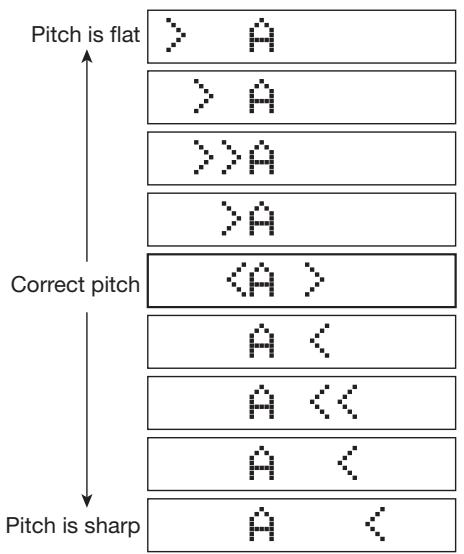
5. Adjust the pitch until the “<>” indication encloses the desired note.
6. To change the reference pitch of the tuner, turn the dial during tuner operation.
The reference pitch of the tuner is set to center A = 440 Hz by default. The reference pitch can be adjusted over the range of 435 - 445 Hz, in 1-Hz steps. When the value was changed, the original display will return after a while.
CALIB 448Hz
HINT
-
The reference pitch selected here will remain in effect until you return the setting to the original value.
-
When you change the reference pitch of the tuner, the pitch of the rhythm section bass program will also change accordingly.
- The reference pitch setting is saved individually for each project.
7. When you have finished using the tuner function, press the [EXIT] key.
The tuner is turned off, and the insert effect and send/ return effect will revert to the original condition.
Using other tuner types
The MRS-1608 allows various other tuning types besides chromatic tuning, including standard tuning for guitar and bass, and various special tuning functions.
For these types it is necessary to first select a string number and then tune the strings one by one.
- Connect the guitar or bass that you want to tune to one of the GUITAR/BASS INPUT jacks 1/2. Press the [ON/OFF] key for the input to which the instrument is connected, so that the key is lit in red.
2. Press the [TUNER] key in the effect section, and use the cursor left/right keys to select the tuner type.
While the tuner function is active, the cursor left/right keys serve to switch the tuner type. Tuner types and notes for each string are listed in the table below.
| Tuner type | GUITAR | BASS | OPEN A | OPEN D | OPEN E | OPEN G | DADGAD | |
| String number/ note name | String91 | E | G | E | D | E | D | D |
| String92 | B | D | C# | A | B | B | A | |
| String93 | G | A | A | F# | C# | G | G | |
| String94 | D | E | E | D | E | D | D | |
| String95 | A | B | A | A | B | G | A | |
| String96 | E | E | D | E | D | D | ||
| String97 | B | |||||||
For example, when you select the tuner type "GUITAR", the display shows the following information.
![ZOOM MRS1608 - Press the [TUNER] key in the effect section, and use the cursor left/right keys to select the tuner type. - 1](/content/2025/01/152285/images/e6b99bfd94740470b013f7318014906ff0fad6eec783decb36ecb13156a8bcf1.jpg)
- Play the indicated string as an open string, and perform tuning.
- Use the cursor up/down keys to select other string numbers.
Tune the other strings in the same way.
5. To quit the tuning function, press the [EXIT] key.
The tuner is turned off, and the insert effect and send/return effect will revert to the original condition.
HINT
If required, you can change the reference pitch (A = 440Hz)
The procedure is the same as for the chromatic tuner.
Changing the function of the foot switch
With the default settings of a project, a foot switch connected to the FOOT SW jack can be used to control play/stop of the recorder. To use the foot switch to control manual punch-in/out recording ( p.39), use the following procedure to change the internal setting.
- From the main screen, press the [UTILITY/TRACK EDIT] key in the display section.
The indication "UTILITY TR EDIT" appears on the display. - Use the cursor left/right keys to bring up the indication "UTILITY SYSTEM" on the display, and press the [ENTER] key.
The display indication changes as follows.
SYSTEM FOOT SW
- Make sure the indication "SYSTEM FOOT SW" is shown on the display, and press the [ENTER] key.
The function currently assigned to the foot switch will be displayed.
FOOT SW
PLY_STP
- Turn the dial to select "PLY_STP" or "PUNCH IO".
The settings are as follows.
- PLY_STP
Each push of the foot switch toggles between play and stop of the recorder section.
PUNCH IO
The foot switch can be used to perform manual punch-in/ out. Pressing the foot switch has the same effect as pressing the REC [●] key.
- To return to the main screen, press the [EXIT] key several times.
Preventing digital copying of a master disc or master tape
When mixing down to a DAT recorder, MD recorder or similar via the DIGITAL OUTPUT jacks, you can prevent digital copies (third-generation copies) from being made from your completed master disc or tape onto another digital recorder. The procedure is as follows.
1. From the main screen, press the [UTILITY/TRACK EDIT] key in the display section.
The indication "UTILITY TR EDIT" appears on the display.
2. Use the cursor left/right keys to bring up the indication "UTILITY SYSTEM" on the display, and press the [ENTER] key.
The display indication changes as follows.
SYSTEM FOOT SW
3. Use the cursor left/right keys to bring up the indication "UTILITY D PRTCT" on the display, and press the [ENTER] key.
The current setting for digital copying will be displayed.
ID PRTCT OFF
The settings have the following meaning.
- OFF (default setting)
Digital copying from your master tape to another digital recorder is permitted.
ON
SCMS (Serial Copy Management System) data will be added to the digital signal that is output from the [DIGITAL OUTPUT] jack. It will not be possible to make digital copies (third-generation copies) from a master tape or master disc that contains this data.
4. Turn the dial to select the "ON" setting.
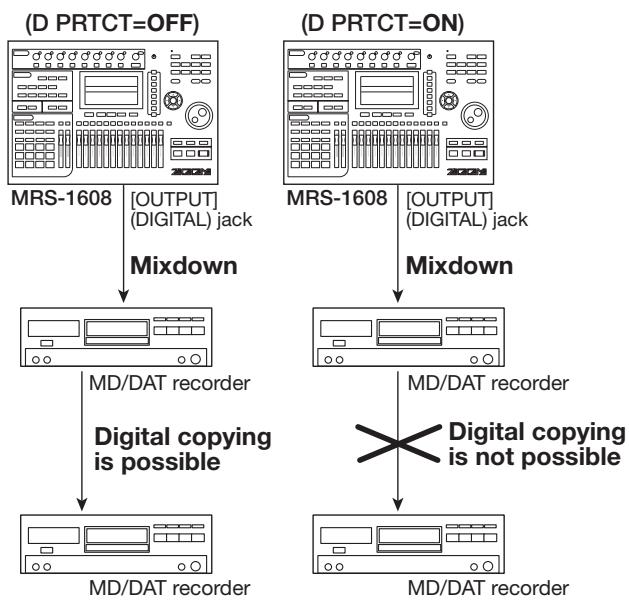
5. To return to the main screen, press the [EXIT] key several times.
Switching the level meter display type
The level meter below the display can indicate the level of the signal after passing through the level controls/faders (post-fader) or the signal before passing through the level controls/faders (pre-fader). You can change the setting as follows.
HINT
When sending the signal of a given track输入 to the STEREO SUB-OUT jack, the signal before the fader is sent. By switching the level meter to the pre-fader setting, you can monitor the signal level sent to the STEREO SUB-OUT jack.
1. From the main screen, press the [UTILITY/TRACK EDIT] key in the display section.
The indication "UTILITY TR EDIT" appears on the display.
2. Use the cursor left/right keys to bring up the indication "UTILITY SYSTEM" on the display, and press the [ENTER] key.
The display indication changes as follows.
SYSTEM FOOT SW
3. Use the cursor left/right keys to bring up the indication "UTILITY LVL MET" on the display, and press the [ENTER] key.
The current level meter setting will be displayed.
LVL MET POST
The settings have the following meaning.
- POST (default setting)
The meter shows the level of the signal after passing through the faders and [REC LEVEL] control.
PRE
The meter shows the level of the signal before passing through the faders and [REC LEVEL] control.
4. Turn the dial to change the setting.
5. To return to the main screen, press the [EXIT] key several times.
Using an option card to connect to a computer
If the optional USB board UIB-02 is installed in the MRS-1608, the internal hard disk of the MRS-1608 can be recognized by a computer (Windows/Macintosh) as an external hard disk. This allows audio data transferring, project backup etc. To make this possible, connect the computer and MRS-1608 with a USB cable and switch the MRS-1608 to USB mode, as described below.
HINT
The UIB-02 supports Windows (98/98SE/Me/2000/XP) and MacOS (9.1/9.2/MacOS X). Depending on the computer and the operating system, driver installation may be required. For details, see the on-line manual supplied with the UIB-02.
1. Verify that the recorder is stopped. Then connect the option board to a USB port on the computer, using a USB cable.
2. From the main screen, press the [USB] key in the control section.
The display changes as follows.
UIB MODE SURE?
3. Press the [ENTER] key.
The indication "UIB WORKING" appears on the display, and the MRS-1608 switches to UIB mode.
UIB WORKING
When UIB mode is activated, the computer automatically recognizes the internal hard disk of the MRS-1608 and goes into the on-line state.
For details on operation, see the on-line manual supplied with the UIB-02.
4. To terminate the connection, cancel the online state at the computer.
5. To cancel the UIB mode at the MRS-1608, press the [EXIT] key.
The indication "HDD scan..." is shown, and the MRS-1608 returns to normal mode.
HINT
It is also possible to set the MRS-1608 to the on-line state when turning the unit on. Hold down the [USB] key while turning power to the MRS-1608 on. When you press the [ENTER] key, the MRS-1608 and computer will be in the on-line state ("I/F WORKING" is shown). To start up in normal mode, cancel the on-line state and press the [EXIT] key.
Hard disk maintenance
This section describes how to test and restore the integrity of data on the internal hard disk, and how to perform other hard disk maintenance functions.
Basic maintenance procedure
The procedure for hard disk maintenance is the same for most operations. The basic steps are described below.
1. Turn power to the MRS-1608 off. While holding down the [CLEAR] key, turn power on again.
The MRS-1608 starts up in "ROM utility mode" which serves for performing special functions.
ROM UTY MRS-1608
2. Press the [MARK] key in the control section.
The indication "ExtFunc Select" appears on the display.
ExtFunc +Select+
3. Use the cursor left/right keys to select the desired command.
The following commands are available.
- ScanDisk
Test and repair the integrity of data stored on the internal hard disk.
- Init Fac (Factory Initialize)
Restore system files and various data necessary for operation. Data created by the user will not be erased.
- Init ALL (All Initialize)
Format the hard disk and restore system files and various data necessary for operation. All existing projects will be erased.
4. Press the [ENTER] key to execute the command.
Subsequent display indications and operation steps differ for the individual commands. See the respective section below.
5. When the command has been executed, turn the unit off and then turn it on again.
The MRS-1608 will operate in normal mode.
Test/restore integrity of data on internal hard disk (ScanDisk)
This action serves to test and restore data on the internal hard disk. Perform this procedure when operation of the MRS-1608 has become unstable.
NOTE
ScanDisk may not be able in all cases to restore damaged files. To guard against data loss, it is recommended to regularly back up data from the hard disk onto CD-R/RW discs.
1. Refer to steps 1 - 3 of "Basic maintenance procedure" to bring up the indication "ScanDisk" on the display. Then press the [ENTER] key.
The ScanDisk menu for selecting the testing method appears.
AutoRepr ENT
-
Use the cursor left/right keys to select the ScanDisk function.
-
AutoRepr (Auto Repair)
This function tests all files on the hard disk and automatically repairs damaged files.
- ChekFile (Check File)
This function only tests all files, but does not automatically repair them. If a problem is found, a message is displayed on the screen.
- To execute the selected function, press the [ENTER] key.
ScanDisk starts. By pressing the [EXIT] key instead of the [ENTER] key, you can cancel the operation and return to the condition of step 1.
NOTE
Once ScanDisk has started, it cannot be interrupted by the user. Never turn power to the unit off while ScanDisk is running. Otherwise the hard disk may be destroyed.
- When ScanDisk is completed, press the [EXIT] key.
The unit returns to the condition of step 1.
Returning system file data to factory default (Factory Initialize)
This action restores only the system files and other data necessary for operation of the MRS-1608. Projects created by the user are not affected by this operation. Try this procedure if operation of the MRS-1608 is still unstable after running ScanDisk.
- Refer to steps 1 - 3 of "Basic maintenance procedure" to bring up the indication "Init Fac" on the display. Then press the [ENTER] key.
The indication "Init Fac Sure?" appears on the display to confirm the operation.
Init Fac Sure?
- To restore the system data, press the [ENTER] key once more.
The factory initialize process starts. When it is complete, the unit returns to the condition of step 1.
By pressing the [EXIT] key instead of the [ENTER] key, you can cancel the operation and return to the condition of step 1.
Returning the entire hard disk to the factory default (All Initialize)
This action formats the hard disk and restores system files and various data necessary for operation. All existing projects including demo song data will be erased.

Caution
-
Once erased, user-created projects cannot be restored. Use this function with extreme care.
To preserve projects, back them up to CD-R/RW disc first ( p. 161). -
Refer to steps 1 - 3 of "Basic maintenance procedure" to bring up the indication "Init ALL" on the display. Then press the [ENTER] key.
The indication “Init ALL Sure?” appears on the display to confirm the operation.
Init ALL Sure?
- To carry out the initialization process, press the [ENTER] key once more.
The all initialize process starts. When it is complete, the unit returns to the condition of step 1.
By pressing the [EXIT] key instead of the [ENTER] key, you can cancel the operation and return to the condition of step 1.
Hard disk maintenance using the supplied CD-ROM
Using the CD-ROM supplied with the MRS-1608, the following functions can be performed.
Restoring the factory default condition (RECOVER)
This action restores all data including the demo song to the condition in which the unit was originally shipped from the factory. All projects created by the user will be erased.

Caution
- Once erased, user-created projects cannot be restored. Use this function with extreme care.
- To preserve projects, back them up to CD-R/RW disc first ( p. 161).
Factory initialize (VER UP)
This action restores system files and all data necessary for MRS-1608 operation onto the hard disk.
- Insert the supplied CD-ROM into the CD-R/ RW drive and press the rear-panel [POWER] switch to turn the MRS-1608 on.
- Use the cursor left/right keys to select "RECOVER?" or "VER UP?", and press the [ENTER] key.
The indication "Sure?" appears on the display. - To carry out the respective operation, press the [ENTER] key once more.
When maintenance is completed, the indication "Done" appears. Remove the CD-ROM from the CD-R/RW drive and restart the MRS-1608.
To cancel the operation, press the [POWER] switch before pressing the [ENTER] key to turn the unit off.
Specifications
| ● Recorder | Hard disk drive | 3.5-inch, E-IDE type | |
| Physical track | 16 | A/D conversion | 24-bit, 64-times oversampling |
| Virtual take | 160 (10 V-takes per track) | D/A conversion | 24-bit, 128-times oversampling |
| Drum track | 1 (stereo) | Sampling frequency | 44.1 kHz |
| Bass track | 1 | Signal processing | 24-bit |
| Simultaneous recording track | 8 | Frequency response | 20Hz - 20kHz ±1 dB(10-kilohm load) |
| Simultaneous playback track | 19 (16 audio + stereo drum + bass) | S/N ratio | 93 dB (IHF-A) |
| Recording data format | 16-bit linear (non-compressed) | Dynamic range | 97 dB (IHF-A) |
| Maximum recording time | Approx. 3 hours/GB (in mono track) | THD+N | 0.02% (400-Hz, 10-kilohm load) |
| Project | 1000 | Diaplay | 122 x 65 mm custom LCD (with backlight) |
| Marker | 100 points per project | ||
| Locator | Hour/minute/second/milisecond, measure/beat/tick | Guitar/bass input | 2 x standard mono phone jackInput impedance 500 kilohm |
| Track editing | Copy, move, erase, exchange, trim, fade-in/out, reverse, time stretch, pitch fix, harmony generate, duo harmony | Balanced/unbalanced input | 8x XLR/standard phone combo jack(Balanced operation)Input impedance 1 kilohm, pin 2 hot(Unbalanced operation)Input impedance 50 kilohm |
| Punch in/out | Manual, auto | ||
| Other function | Bounce, scrub/preview,A-B repeat, capture/swapspeech looping | ||
| Line input | RCA phono jacks (L/R)Input impedance 10 kilohm | ||
| ● Mixer | |||
| Fader | 15 | ||
| Level meter indication | Post-fader/pre-fader, fader value monitorable | Phantom power supply | Rated input level -10 dBm |
| Track parameter | Equaliser, effect send, panning (balance), sub-output send | Input level | 48 V (on/off switch) |
| Equaliser | 3-band | Master output | RCA phono jacks (L/R) |
| Effect send | Chorus/delay, reverb | Output impedance 1 kilohm | |
| Stereo linking | Tracks 1/2, 3/4, 5/6, 7/8 selectable | Rated output level -10 dBm | |
| Scene | 100 scenes per project | Headphones output | Standard stereo phone jack |
| 50 mW into 32-ohm load | |||
| Sub output | Standard stereo phone jack | ||
| ● Effect | 50 mW into 32-ohm load | ||
| Algorithm | 9 (CLEAN, DIST, ACO/BASS SIM, BASS, MIC, DUAL MIC, LINE, 8x COMP EQ, MASTERING) | Digital output | S/P DIF, optical (20-bit) |
| MIDI | IN, OUT | ||
| Control input | FS01 connector, FP02 connector | ||
| Patch | 320 for insert , 60 for send/return | Expansion board slot | 1 |
| Module | 6 for insert, 2 for send/return | ||
| Tuner | Chromatic, guitar, bass, open A/D/E/G, D modal | Dimension | 490 (W) x 450 (D) x 125 (H) mm |
| Weight | 7.8 kg (CD-R/RW drive installed) | ||
| 7.3 kg (CD-R/RW driveuninstalled) | |||
| ● Rhythm | |||
| Voice | 24 (drum + bass) | Power supply | DC12 V, 3 A (supplied AC adaptor AD-0011) |
| Sound source principle | 16-bit, linear PCM | Power consumption | 30 W (12 V, 2.5 A) typical |
| Drum kit | 50 | Supplied accessory | Operation manual, AC adaptor/cable, CD-ROM, screws for CD-R/RW drive |
| Drum sound | 36 per kit (12 pad x 3 bank) | ||
| Bass program | 13 | ||
| Pad | 12 (velocity sensitive) | Optional accessory | Foot switch FS01 |
| Resolution | 48 PPQN | Expression pedal FP02 | |
| Beat | 1/4 - 8/4 | USB interface board UIB-02 | |
| Rhythm pattern | 511 patterns per project | CD-R/RW drive CD-02 | |
| Rhythm song | 10 songs per project | ||
| Measure | 999 measures per song, 99 measures per pattern | * 0 dBm = 0.775 Vrms | |
| Note/event | Approx. 20 000 notes per song | * Design and specifications are subject to change without notice. | |
| Tempo | 40.0 - 250.0 BPM | ||
Troubleshooting
If there are problems during operation of the MRS-1608, check the following points first.
Problems during playback
No sound, or sound is very weak
- Check the connections to your monitor system, and the volume setting of the system.
- Make sure that the status keys in the mixer section are lit in green and that the faders are raised. If a key is out, press it to make it light up in green.
- Make sure that the master fader is raised.
- If a scene with the volume lowered has been assigned to a mark, the volume will automatically be lowered when that mark is reached. Delete the scene that is assigned to the mark ( p. 85).
- The recorder will not operate when the [RECORDER] key is out. Press the [RECORDER] key so that the key is lit.
Operating the fader does not affect the volume
On channels for which stereo link is turned on, the fader of the even-numbered channel will have no effect. Either turn stereo link off ( p. 82), or operate the fader of the odd-numbered channel.
The display indicates "Don't Play" and playback is not possible
The recorder will not operate in the current screen. Press the [EXIT] key several times to switch to the main screen.
No sound from input signal, or sound is very weak
- Make sure that the respective [ON/OFF] key of the input is lit.
- Make sure that the respective [INPUT] control or the [GUITAR/BASS INPUT] control is raised.
- Make sure that the [REC LEVEL] control is raised. If it is raised, temporarily turn it down and then up again.
The indication "Stop Recorder" is shown on the display, and operation is not possible.
The current operation is not possible while the recorder is operating. Press the STOP [■] key to stop the recorder.
Problems during recording
Cannot record on a track
- Make sure that you have selected a recording track.
- Check whether you have run out of free space on the hard disk ( p. 167).
- Recording is not possible if the project is write-protected. Either turn protect off ( p. 169), or use a different project.
- While the 8-track recording function ( p. 45) is active, recording on tracks 9/10 - 15/16 and the master track is not possible. To record on these tracks, turn off 8-track recording.
The signal from an instrument or mic connected to an INPUT jack is not available
When instruments/mics are connected to jacks with the same number on both the front panel and rear panel (INPUT 1 and GUITAR/BASS INPUT 1, or INPUT 2 and GUITAR/BASS INPUT 2), the front panel jack has priority.
The recorded sound is distorted
- Check whether the input sensitivity setting ([INPUT] and [GUITAR/BASS INPUT] controls) and recording level setting ([REC LEVEL] control) are appropriate.
- Lower the fader so that the 0 (dB) dot of the level meter does not light.
- If the EQ gain of the track mixer is set extremely high, the sound may be audiably distorted even if the fader is lowered. Set the EQ to an appropriate value.
- When the insert effect is applied to the input, check whether the effect output level (patch level) setting is appropriate.
Problems with effects
Insert effect cannot be inserted
When the 8x COMP EQ algorithm is selected, the selection of insert points is limited ( p. 140).
Insert effect does not apply
- Make sure that the [BYPASS/TUNER] key is out.
- Make sure that the insert effect is sent to the desired location ( p.140) .
Send/return effect does not apply
- Make sure that the [CHORUS/DELAY] or [REVERB] key is lit. If it is out, press the key several times to make it light.
- Make sure that the send level for each track is raised ( p. 80).
Problems with the rhythm section
Cannot hear the rhythm pattern playback
- Make sure that the [DRUM]/[BASS] status keys are lit in green.
- Make sure that the [DRUM]/[BASS] faders are raised. If the faders are already raised, lower them and then raise them once more.
- Make sure that you have not selected a blank rhythm pattern (pattern name "EMPTY").
- Make sure which is selected as playback sound, a drum kit/bass program, or the pad sampler. A sound that is not selected will not play.
- If the pad sampler is selected as playback sound, make sure that samples are assigned to the pads.
Cannot hear the rhythm song play back
- In the case of a new project, all rhythm songs will be empty, so you will hear no sound. Either create a new rhythm song, or load a project for which a rhythm song has been created.
- When using Control Change signals sent from an external MIDI device, the drum or bass volume may be lowered. Set the MIDI channels for drum and bass to OFF or check the setting at the external MIDI device.
No sound when you tap the pads
If the pad sensitivity has been set to "SOFT", loud sounds will not be produced even when you tap the pad strongly. Change the pad sensitivity setting ( p.120)
Cannot record or edit a rhythm pattern/ rhythm song
- When the [RHYTHM] key is out or blinking, it is not possible to record or edit a rhythm pattern or rhythm song. Press the [RHYTHM] key so that the key is lit.
- If the display indicates "SEQ FULL", the rhythm section memory has been used to maximum capacity. Delete unneeded rhythm patterns to free up memory.
Sounds recorded in the rhythm pattern do not play
Sounds that exceed the maximum polyphony (24 sounds for drum kit + bass program; 24 sounds for pad sampler) will not be played. Either delete some of the notes that have been recorded, or stay within the maximum polyphony when you record.
Cannot play pad sampler
When an empty sampler program was selected, no samples will be assigned to the pads. Select one of the preset sampler programs.
Cannot add samples to pad sampler
If the display indicates "SPL FULL", the pad sampler memory has been used to maximum capacity. Delete unneeded samples to free up memory.
Problems with MIDI
The MRS-1608's drum kit/bass program sounds cannot be played from external MIDI device
- Make sure that the MIDI cable is correctly connected from the MIDI OUT connector of the external device to the MRS-1608's MIDI IN connector.
- Make sure that the MIDI send channels of the external device match the MIDI receive channels for drum kit/ bass program at the MRS-1608.
- During rhythm pattern step input, an external MIDI device cannot be used.
Cannot synchronize with external MIDI device
- Make sure that the MIDI cable is correctly connected from the MIDI OUT connector of the MRS-1608 to the MIDI IN connector of the external device.
- Synchronization with an external MIDI device is only possible by using the MIDI clock or MTC output from the MRS-1608. The MRS-1608 cannot synchronize to a MIDI clock or MTC supplied by an external device.
- When synchronizing on the timing clock (MIDI clock), make sure that output is enabled for Timing Clock, Song Position Pointer, and Start/Stop/Continue
messages at the MRS-1608 ( p. 172).
- When synchronizing on the MTC (MIDI Time Code), make sure that MTC output is enabled at the MRS-1608 ( p. 173).
- Make sure that the external MIDI device is set to receive MIDI clock or MTC and synchronize to it.
- Make sure that the external MIDI device is in playback mode.
Cannot load SMF from CD-ROM or CD-R/RW disc
- Make sure that the SMF is Format 0 and that the file name and extension are appropriate.
- An SMF located on an unfinalized CD-R/RW cannot be loaded.
Cannot play SMF
Make sure that the SMF playback setting is "ON" ( p. 176).
Problems with CD-R/RW drive
Cannot play audio CD created with MRS-1608 on ordinary CD player
- Check whether the disc was finalized.
- On some older CD players, CD-R/RW discs will not play properly as audio CDs, even if the disc was finalized.
- Discs created using CD-RW media may not be playable on an ordinary CD player.
Cannot write audio data to CD-R/RW disc
If the disc was already finalized, no more data can be added to it.
Cannot perform backup
Check whether audio data have already been written to the CD-R/RW disc. Such a disc cannot be used for backup.
Cannot read a backup spanning several discs
When a project backup spans several discs, insert disc number 1. When the entire hard disk was backed up, insert the first disc that contains data of the desired project.
Other problems
Cannot save a project
The project cannot be saved if the protect setting is on.
Turn protect off ( p.169)
Cannot read an audio file from CD-ROM or CD-R/RW
- Check whether the audio file has the correct extension (.WAV or .AIF).
- An audio file from a CD-R/RW that has not been finalized cannot be read.
Cannot record on an external recorder connected to the DIGITAL OUTPUT jack
- Check whether the digital input has been selected as recording source on the external recorder. Also make sure that the external recorder has locked to the sampling frequency of the input signal.
- Make sure that the external recorder supports the S/P DIF audio format.
Cannot create a new project or copy a project
If the display indicates "PRJ FULL", the project memory has been used to maximum capacity. Delete unneeded projects to free up memory.
One of the following messages is shown when attempting to execute a command
CD FULL
There is not enough free space on the CD-R/RW disc.
INSERT DISCxxx
Insert the disc with the number xxx.
NO AUDIO
The disc in the CD-R/RW drive is not an audio disc.
NO DATA
The specified data do not exist.
NO DISC
No disc is inserted in the CD-R/RW drive.
NortELPHK
The CD-R/RW disc is not empty.
NOT CD-R
The disc inserted in the CD-R/RW drive is not a CD-R/ RW disc.
HDD FULL
There is not enough free space on the internal hard disk.
Appendix
Effect Parameters
Insert Effect
CLEAN, DIST, ACO/BASS SIM, BASS algorithm
COMP module
| Type | Parameter | ||
| COMPRESS | SENS | ATTACK | LEVEL |
| Keps the dynamic range consistent. | |||
Parameter description
| Parameter | Setting range | Description |
| SENS | 0 – 10 | Adjusts the compression input sensitivity. |
| ATTACK | 0 – 10 | Adjusts the compression attack speed. |
| LEVEL | 1 – 8 | Adjusts the module output level. |
PRE AMP/DRIVE module
| Type | Parameter | |||||
| J-CLN | Clean sound that models a transistor combo amp. | |||||
| US-CLN | Clean sound that models a built-in type vacuum tube amp. | |||||
| US-DRV | Drive sound that models a built-in type vacuum tube amp. | |||||
| TWEED | Model of a small built-in vacuum tube combo amp with dry distortion. | |||||
| CLASS A | Unique crunch sound that models a British-style combo amp. | |||||
| UK-CRU | Crunch sound that models a British-style vacuum tube stack amp. | |||||
| UK-DRV | Drive sound that models a British-style vacuum tube stack amp. | |||||
| CMB 335 | Models a vacuum tube combo amp characterized by long sustain. | |||||
| MTL PNL | High-gain drive sound that models a vacuum tube stack amp. | |||||
| BLK BTM | Model of a vacuum tube stack amp, characterized by fat bass and delicate distortion. | |||||
| MD LEAD | Drive sound that models a high-gain amp suitable for lead guitar. | |||||
| FZ-STK | 60's sound typical of a Fuzz unit played through an amp stack. | |||||
| TE BASS | Model of a bass amp with a distinctively clean low-mid range. | |||||
| FD BASS | Model of a bass amp with vintage-style drive. | |||||
| GAIN | TONE | LEVEL | ||||
| Parameters for type J-CLN to FD BASS are the same. | ||||||
| SNS BASS | Trebly drive sound for bass. | |||||
| CR+CAB | Combination of crunch and cabinet simulator. | |||||
| TS+CAB | Combination of vintage overdrive and cabinet simulator. | |||||
| GV+CAB | Combination of vintage distortion and cabinet simulator. | |||||
| MZ+CAB | Combination of metal-style distortion and cabinet simulator. | |||||
| 9002+CAB | Combination of the Zoom 9002 distortion and cabinet simulator. | |||||
| GAIN | TONE | LEVEL | CABINET | SPEAKER | DEPTH | |
| Parameters for type SNS BASS to 9002+CAB are the same. | ||||||
| ACO SIM | TOP | BODY | LEVEL | CABINET | SPEAKER | DEPTH |
| Transforms the sound of an electric guitar into an acoustic-guitar-like tone. | ||||||
| E-AcPRE | COLOR | TONE | LEVEL | CABINET | SPEAKER | DEPTH |
| Pre-amp for electroacoustic guitar. | ||||||
| BASS SIM | TONE | LEVEL | ||||
| Transforms the sound of an electric guitar into a bass-guitar-like tone. | ||||||
| CABINET | CABINET | SPEAKER | DEPTH | |||
| Simulation of the cabinet of a guitar/bass amp. | ||||||
Parameter description
| Parameter | Setting range | Description |
| GAIN | 1 - 30 | Adjusts the amount of gain. |
| TONE | 0 - 10 | Adjusts the tone. |
| LEVEL | 1 - 8 | Adjusts the module output level. |
| CABINET | Selects the cabinet type | |
| COMBO | Combo-type cabinet. | |
| BRIGHT | Produces a brighter tone than Combo. | |
| FLAT | Cabinet with a flat response. | |
| STACK | Stack-type cabinet. | |
| BsCombo | Combo-type cabinet for bass. | |
| BsStack | Stack-type cabinet for bass. | |
| SPEAKER | Selects the loudspeaker type. | |
| Gt 12x1 | Combo-type guitar amp with one 12 inch speaker. | |
| Gt 12x2 | Combo-type guitar amp with two 12 inch speakers. | |
| Gt 10x1 | Combo-type guitar amp with one 10 inch speaker. | |
| GtStack | Stack-type guitar amp with four 10 inch speakers. | |
| Gt Wall | Multiple stack-type amps placed together. | |
| Bs 15x1 | Combo-type bass amp with one 15 inch speaker. | |
| BsStack | Stack-type bass amp with four 6.5 inch speakers. | |
| DEPTH | 0 - 10 | Adjusts the cabinet resonance of the speaker. |
| TOP | 1 - 30 | Adjusts the resonance of the strings. |
| BODY | 0 - 10 | Adjusts the resonance of the body. |
| COLOR | 1 - 4 | Adjusts the character of the electroacoustic guitar preamp. |
3 BAND EQ module
| Type | Parameter | |||
| 3BandEQ | HIGH | MID | LOW | LEVEL |
| Three-band equalizer. | ||||
Parameter description
| Parameter | Setting range | Description |
| HIGH | -12 – 12 | Boosts/cuts the high-frequency range. |
| MID | -12 – 12 | Boosts/cuts the mid-frequency range. |
| LOW | -12 – 12 | Boosts/cuts the low-frequency range. |
| LEVEL | 1 – 8 | Adjusts the module output level. |
MODULATION/DELAY module
| Type | Parameter | ||||
| CHORUS | DEPTH | RATE | MIX | ||
| Adds pulsation and spaciousness to the sound. | |||||
| V-CHORUS | DEPTH | RATE | MIX | ||
| Simulates the warm sound of a vintage effect. | |||||
| FLANGER | DEPTH | RATE | FB | ||
| Produces a unique, undulating sound. | |||||
| PHASER | POSITION | RATE | COLOR | ||
| Produces a swooshing sound. | |||||
| TREMOLO | DEPTH | RATE | CLIP | ||
| Periodically varies the level of the sound. | |||||
| AUTO WAH | FLT TYPE | POSITION | RESONANC | SENS | |
| Gives a varying wah sound that depends on the picking intensity. | |||||
| PITCH | SHIFT | TONE | BALANCE | ||
| Modifies the pitch of the direct sound. | |||||
| SLOW-ATK | POSITION | TIME | CURVE | ||
| Creates a “violin playing” sound with soft attack. | |||||
| VIBE | DEPTH | RATE | BALANCE | ||
| Automatic vibrato effect. | |||||
Parameter description
| STEP | DEPTH | RATE | RESONANC | |||
| Changes the sound with step-like filter characteristics. | ||||||
| RING MOD | POSITION | RATE | BALANCE | |||
| Produces a metallic sound. | ||||||
| CRY | POSITION | RESO | SENS | |||
| Talking-modulator-like effect. | ||||||
| EXCITER | FREQ | DEPTH | LowBoost | |||
| Gives the sound more focus and spatial definition. | ||||||
| AIR | SIZE | TONE | MIX | |||
| Simulates the air ambience of the room, giving the sound spatial depth. | ||||||
| WIDE | TIME | WET LVL | DRY LVL | |||
| Simulates a stereo recording with two microphones. | ||||||
| DELAY | TIME | FB | MIX | |||
| Delay effect with a delay time of up to 10 seconds. | ||||||
| ECHO | TIME | FB | MIX | |||
| Delay effect with warm sound, up to 10 second delay time. | ||||||
| FIX-WAH | FLT TYPE | POSITION | FREQ | R MODE | R WAVE | R SYNC |
| Changes the wah frequency in sync with rhythm tempo. | ||||||
| ARRM-PIT | TYPE | TONE | R WAVE | R SYNC | ||
| Changes the pitch in sync with rhythm tempo. | ||||||
| Parameter | Setting range | Description |
| DEPTH | EXCITER: 0 - 30 | Adjusts the depth of the effect. |
| Others: 0 - 10 | ||
| RATE | TREMOLO: 1 - 30, T 4 - T 1/8 | Adjusts the speed of the effect. The “T x” setting results in sync with the rhythm tempo. |
| FLANGER, PHASER: 1 - 30, T 4x4 - T 1/8 | ||
| Others: 1 - 30 | ||
| MIX | 0 - 30 | Adjusts the mix amount of the effect. |
| FB | FLANGER: -10 - 10 | Adjusts the amount of feedback. |
| DELAY, ECHO: 0 - 10 | ||
| POSITION | AFTER, BEFORE | Selects the module location from AFTER; after the 3 BAND EQ module and BEFORE; before the PRE AMP/DRIVE module. |
| COLOR | Specifies the type of phase tone. | |
| 4Stage | 4-stage phaser | |
| Invert4 | 4-stage phaser with inverted feedback | |
| 8Stage | 8-stage phaser | |
| Invert8 | 8-stage phaser with inverted feedback | |
| CLIP | 0 - 10 | Emphasizes the effect. |
| FLT TYPE | BPF, LPF | Specifies the filter type. |
| RESONANC | AUTO WAH, CRY: 1 - 10 | Adjusts the effect character intensity. |
| STEP: 0 - 10 | ||
| SENS | -10 - -1, 1 - 10 | Adjusts the effect sensitivity. |
| SHIFT | -24.0 - 12.0 | Adjust the pitch shift amount. The value “1.0” corresponds to semitone. |
| TONE | 0 - 10 | Adjusts the tone. |
| BALANCE | 0 - 30 | Adjusts the balance between the direct sound and effect sound. |
| TIME | SLOW-ATK: 1 - 30 | Adjusts the attack speed. |
| WIDE: 1 - 64 | Adjusts the delay time in 1-ms steps. The “T x” setting results in sync with the rhythm tempo. | |
| DELAY, ECHO: 1 - 10000, T 4x4 - T 1/4 | ||
| CURVE | 0 - 10 | Adjusts the attack curve. |
| FREQ | EXCITER: 1 - 5 | Adjusts the frequency. |
| FIX-WAH: 1 - 50 | Adjusts wah effect center frequency. | |
| LowBoost | 0 - 10 | Emphasizes the low frequency range. |
| SIZE | 1 - 10 | Adjusts the spatial width. |
| WET LVL | 0 - 30 | Adjusts the mix amount of the effect sound. |
| DRY LVL | 0 - 30 | Adjusts the mix amount of the direct sound. |
ZNR module
| R MODE | Selects the changing width. | |
| OFF | Frequency stays constant. | |
| PEDAL | Use the expression pedal to change the frequency. | |
| UP | Minimum→maximum | |
| DOWN | Maximum→minimum | |
| HI | Setting value → maximum | |
| LO | Minimum→setting value | |
| R WAVE | Selects the control waveform. | |
| Up Saw | Rising sawtooth wave | |
| Up Fin | Rising fin wave | |
| DownSaw | Falling sawtooth wave | |
| DownFin | Falling fin wave | |
| TRI | Triangle wave | |
| TRIXTRI | Second power triangle wave | |
| SINE | Sine wave | |
| SQUARE | Square wave | |
| R SYNC | Adjusts the control waveform cycle. | |
| 1/2 | Eighth note | |
| 1 | Quarter note | |
| 2 | Half note | |
| 3 | Dotted half note | |
| 1b - 4b | 1 measure - 4 measures | |
| TYPE | Selects the pitch change type. | |
| 1 | Semitone lower → original | |
| 2 | Original → semitone lower | |
| 3 | Doubling → detune + original | |
| 4 | Detune + original → doubling | |
| 5 | Original → 1 octave higher | |
| 6 | 1 octave higher → original | |
| 7 | Original → 2 octaves lower | |
| 8 | 2 octaves lower → original | |
| 9 | 1 octave lower + origina → 1 octave higher + original | |
| 10 | 1 octave higher + original → 1 octave lower + original | |
| 11 | Perfect 5th lower + original → perfect 4th higher + original | |
| 12 | Perfect 4th higher + original → perfect 5th lower + original | |
| 13 | 0 Hz + original → 1 octave higher | |
| 14 | 1 octave higher → 0 Hz + original | |
| 15 | 0 Hz + original → 1 octave higher + original | |
| 16 | 1 octave higher + original → 0 Hz + original |
| Type | Parameter |
| ZNR | THRESHOLD |
| Cuts noise during performance pauses. |
Parameter description
| Parameter | Setting range | Description |
| THRESHOLD | OFF, 1 – 30 | Adjusts the sensitivity. Set this high as far as the attacks or decays sound natural. |
VOL PDL module
| Type | Parameter |
| VOL PDL | MIN VOL |
| You can use the expression pedal to control the volume. |
Parameter description
| Parameter | Setting range | Description |
| MIN VOL | 0 – 10 | Specifies the minimum volume. |
MIC algorithm
COMP/LIM module
| Type | Parameter | |||
| COMPRESS | THRESHOLD | RATIO | ATTACK | LEVEL |
| Keeps the dynamic range consistent. | ||||
| LIMITER | THRESHOLD | RATIO | RELEASE | LEVEL |
| Controls the signal peeks. | ||||
Parameter description
| Parameter | Setting range | Description |
| THRESHOLD | -24 - 0 | Adjusts the sensitivity. |
| RATIO | COMP: 1 - 26 | Adjusts the compression degree of the signal. |
| LIMIT: 1 - 54, ∞ | ||
| ATTACK | 0 - 10 | Adjusts the compression attack speed. |
| LEVEL | 0 - 12 | Adjusts the module output level. |
| RELEASE | 0 - 10 | Adjusts the time between the threshold and compression finish. |
MIC PRE module
| Type | Parameter | |||
| MIC PRE | COLOR | TONE | LEVEL | DE-ESSER |
| Preamp for external microphone. | ||||
Parameter description
| Parameter | Setting range | Description |
| COLOR | Adjust the frequency response. | |
| FLAT | Flat response | |
| HPF | Low cut | |
| AcoGt | Acoustic guitar characteristics | |
| HPF Aco | Acoustic guitar characteristics with low cut | |
| Vocal | Vocal characteristics | |
| HPF Vo | Vocal characteristics with low cut | |
| TONE | 0 - 10 | Adjusts the tone. |
| LEVEL | 1 - 8 | Adjusts the module output level. |
| DE-ESSER | 0 - 10 | Adjusts the cut amount of vocal sibilants. |
3 BAND EQ module
See the CLEAN, DIST, ACO/BASS SIM, BASS algorithm.
MODULATION/DELAY module
| Type | Parameter | |||
| CHORUS | DEPTH | RATE | MIX | |
| Adds pulsation and spaciousness to the sound. | ||||
| V-CHORUS | DEPTH | RATE | MIX | |
| Simulates the warm sound of a vintage effect. | ||||
| FLANGER | DEPTH | RATE | FB | |
| Produces a unique, undulating sound. | ||||
| PHASER | RATE | COLOR | ||
| Produces a swooshing sound. | ||||
| TREMOLO | DEPTH | RATE | CLIP | |
| Periodically varies the level of the sound. | ||||
| PITCH | SHIFT | TONE | BALANCE | |
| Modifies the pitch of the direct sound. | ||||
| SLOW-ATK | TIME | CURVE | ||
| Creates a “violin playing” sound with soft attack. | ||||
| VIBE | DEPTH | RATE | BALANCE | |
| Automatic vibrato effect. | ||||
| STEP | DEPTH | RATE | RESONANC | ||
| Changes the sound with step-like filter characteristics. | |||||
| RING MOD | RATE | BALANCE | |||
| Produces a metallic sound. | |||||
| CRY | RESONANC | SENS | |||
| Talking-modulator-like effect. | |||||
| EXCITER | FREQ | DEPTH | LowBoost | ||
| Gives the sound more focus and spatial definition. | |||||
| AIR | SIZE | TONE | MIX | ||
| Simulates the air ambience of the room, giving the sound spatial depth. | |||||
| DELAY | TIME | FB | MIX | ||
| Delay effect with a delay time of up to 10 seconds. | |||||
| ECHO | TIME | FB | MIX | ||
| Delay effect with warm sound, up to 10 second delay time. | |||||
| DOUBLING | TIME | TONE | MIX | ||
| Doubling effect with a delay time of up to 100 milliseconds. | |||||
| FIX-WAH | FLT TYPE | FREQ | R MODE | R WAVE | R SYNC |
| Changes the wah frequency in sync with rhythm tempo. | |||||
| ARRM-PIT | TYPE | TONE | R WAVE | R SYNC | |
| Changes the pitch in sync with rhythm tempo. | |||||
Regarding the parameter description, see the CLEAN, DIST, ACO/BASS SIM, BASS algorithm.
ZNR module
VOL PDL module
See the CLEAN, DIST, ACO/BASS SIM, BASS algorithm.
DUAL MIC algorithm
COMP/LIM module
MIC PRE module
See the MIC algorithm.
(Same with the MIC algorithm except that there is not the parameter "DE-ESSER" in MIC PRE module)
3 BAND EQ module
| Type | Parameter | |||
| EQ L/R | HIGH | MID | LOW | LEVEL |
| Three-band equalizer. | ||||
Parameter description
| Parameter | Setting range | Description |
| HIGH | -12 – 12 | Boosts/cuts the high-frequency range. |
| MID | -12 – 12 | Boosts/cuts the mid-frequency range. |
| LOW | -12 – 12 | Boosts/cuts the low-frequency range. |
| LEVEL | 1 – 8 | Adjusts the module output level. |
DELAY module
| Type | Parameter | |||
| DELAY L/R | TIME | FB | MIX | |
| Delay effect with a delay time of up to 5 seconds. | ||||
| ECHO L/R | TIME | FB | MIX | |
| Delay effect with warm sound, up to 5 second delay time. | ||||
| DOUBLE L/R | TIME | TONE | MIX | |
| Doubling effect with a delay time of up to 100 milliseconds. | ||||
Parameter description
| Parameter | Setting range | Description |
| TIME | DOUBLING: 1 – 100 | Adjusts the delay time in 1-ms steps. The “T x” setting results in sync with the rhythm tempo. |
| DELAY, ECHO: 1 – 5000, T 4x4 – T 1/4 | ||
| FB | 0 – 10 | Adjusts the amount of feedback. |
| MIX | 0 – 30 | Adjusts the mix amount of the effect. |
| TONE | 0 – 10 | Adjusts the tone. |
ZNR module
VOL PDL module
See the CLEAN, DIST, ACO/BASS SIM, BASS algorithm.
LINE algorithm
COMP/LIM module
See the MIC algorithm.
ISOLATOR module
| Type | Parameter | ||||
| ISOLATOR | XOVER LO | XOVER HI | MIX HIGH | MIX MID | MIX LOW |
| Divides the signal into three frequency bands, and specifies the mix amount each. | |||||
Parameter description
| Parameter | Setting range | Description |
| XOVER LO | 50 – 16000 | Adjusts the frequency for bass/midrange division. |
| XOVER HI | 50 – 16000 | Adjusts the frequency for midrange/treble division. |
| MIX HIGH | OFF, -24 – 6 | Adjusts the treble mix amount. |
| MIX MID | OFF, -24 – 6 | Adjusts the midrange mix amount. |
| MIX LOW | OFF, -24 – 6 | Adjusts the bass mix amount. |
3 BAND EQ module
See the CLEAN, DIST, ACO/BASS SIM, BASS algorithm.
MODULATION/DELAY module
| Type | Parameter | ||
| CHORUS | DEPTH | RATE | MIX |
| Adds pulsation and spaciousness to the sound. | |||
| FLANGER | DEPTH | RATE | FB |
| Produces a unique, undulating sound. | |||
| PHASER | RATE | COLOR | |
| Produces a swooshing sound. | |||
| TREMODO | DEPTH | RATE | CLIP |
| Periodically varies the level of the sound. | |||
| PITCH | SHIFT | TONE | BALANCE |
| Modifies the pitch of the direct sound. | |||
| RING MOD | RATE | BALANCE | |
| Produces a metallic sound. | |||
| DOUBLING | TIME | TONE | MIX |
| Doubling effect with a delay time of up to 100 milliseconds. | |||
| DELAY | TIME | FB | MIX |
| Delay effect with a delay time of up to 5 seconds. | |||
| ECHO | TIME | FB | MIX |
| Delay effect with warm sound, up to 5 second delay time. | |||
Parameter description
| Parameter | Setting range | Description |
| DEPTH | 0 - 10 | Adjusts the depth of the effect. |
| RATE | TREMOLO: 1 - 30, T 4 - T 1/8 | Adjusts the speed of the effect. The “T x” setting results in sync with the rhythm tempo. |
| FLANGER, PHASER: 1 - 30, T 4x4 - T 1/8 | ||
| Others: 1 - 30 | ||
| MIX | 0 - 30 | Adjusts the mix amount of the effect. |
| FB | FLANGER: -10 - 10 | Adjusts the amount of feedback. |
| DELAY, ECHO: 0 - 10 | ||
| COLOR | 1 - 4 | Specifies the type of phase tone. |
| CLIP | 0 - 10 | Emphasizes the effect. |
| SHIFT | -24.0 - 12.0 | Adjust the pitch shift amount. The “dt” setting results in a detune effect. |
| TONE | 0 - 10 | Adjusts the tone. |
| BALANCE | 0 - 30 | Adjusts the balance between the direct sound and effect sound. |
| TIME | DOUBLING: 1 - 100 | Adjusts the delay time in 1-ms steps. The “T x” setting results in sync with the rhythm tempo. |
| DELAY, ECHO: 1 - 5000, T 4x4 - T 1/4 |
ZNR module
VOL PDL module
See the CLEAN, DIST, ACO/BASS SIM, BASS algorithm.
8x COMP EQ algorithm
Module 1-8
| Unit | Type | Parameter | |||
| HPF1 - 8 | HPF | FREQ | |||
| Filter passing the high frequency signal through. | |||||
| COMP1 - 8 | COMPRESS | THRESHOLD | RATIO | ATTACK | LEVEL |
| Keeps the dynamic range consistent. | |||||
| LIMITER | THRESHOLD | RATIO | RELEASE | LEVEL | |
| Controls the signal peeks. | |||||
| EQ1 - 8 | EQ | HIGH | MID | LOW | LEVEL |
| Three-band equalizer. | |||||
Parameter description
| Parameter | Setting range | Description |
| FREQ | 0 - 10 | Sets the cut-off frequency. |
| THRESHOLD | -24 - 0 | Adjusts the sensitivity. |
| RATIO | COMP: 1 - 26 | Adjusts the compression degree of the signal. |
| LIMIT: 1 - 54, ∞ | ||
| ATTACK | 0 - 10 | Adjusts the compression attack speed. |
| LEVEL | COMPRESS, LIMITER: 0 - 12 | Adjusts the unit output level. |
| EQ: 1 - 8 | ||
| RELEASE | 0 - 10 | Adjusts the time between the threshold and compression finish. |
| HIGH | -12 - 12 | Boosts/cuts the high-frequency range. |
| MID | -12 - 12 | Boosts/cuts the mid-frequency range. |
| LOW | -12 - 12 | Boosts/cuts the low-frequency range. |
MASTERing algorithm
3 BAND COMP/Lo-Fi module
| Type | Parameter | |||||||
| MLT CMP | XOVER LO | XOVER HI | SENS HI | SENS MID | SENS LOW | MIX HIGH | MIX MID | MIX LOW |
| Divides the signal into three frequency bands, and specifies the compression and the mix amount each. | ||||||||
| Lo-Fi | CHARACTER | COLOR | DISTORTN | TONE | EFX LVL | DRY LVL | ||
| Degrades the audio quality of the sound. | ||||||||
Parameter description
| Parameter | Setting range | Description |
| XOVER LO | 50 – 16000 | Adjusts the frequency for bass/midrange division. |
| XOVER HI | 50 – 16000 | Adjusts the frequency for midrange/treble division. |
| SENS HI | 0 – 24 | Adjusts the compressor input sensitivity for the treble range. |
| SENS MID | 0 – 24 | Adjusts the compressor input sensitivity for the midrange. |
| SENS LOW | 0 – 24 | Adjusts the compressor input sensitivity for the bass range. |
| MIX HIGH | OFF, -24 – 6 | Adjusts the treble mix amount. |
| MIX MID | OFF, -24 – 6 | Adjusts the midrange mix amount. |
| MIX LOW | OFF, -24 – 6 | Adjusts the bass mix amount. |
| CHARA | 0 – 10 | Specifies the character of the filter. |
| COLOR | 1 – 10 | Adjusts the color. |
| DIST | 0 – 10 | Adjusts the degree of distortion. |
| TONE | 0 – 10 | Adjusts the tone. |
| EFX LVL | 0 – 30 | Adjusts the mix amount of the effect sound. |
| DRY LVL | 0 – 30 | Adjusts the mix amount of the direct sound. |
NORMALIZER module
| Type | Parameter |
| NORMLZR | GAIN |
| Set the input level of the 3 BAND COMP/Lo-Fi module. |
Parameter description
| Parameter | Setting range | Description |
| GAIN | -12 – 12 | Adjusts the level. |
3 BAND EQ module
See the CLEAN, DIST, ACO/BASS SIM, BASS algorithm.
DIMENSION/RESONANCE module
| Type | Parameter | ||||||
| DIMENSN | RISE 1 | RISE 2 | |||||
| Produces spatial width. | |||||||
| RESONNC | DEPTH | FreqOFST | RATE | TYPE | RESONANC | EFX LVL | DRY LVL |
| A resonance filter with LFO. | |||||||
Parameter description
| Parameter | Setting range | Description |
| RISE 1 | 0 – 30 | Adjusts the emphasizing degree of the stereo component. |
| RISE 2 | 0 – 30 | Adjusts the spaciousness that includes the monaural component. |
| DEPTH | 0 – 10 | Adjusts the depth of the effect. |
| FreqOFST | 1 – 30 | Adjusts the LFO offset. |
| RATE | 1 – 30, T 4x4 – T 1/8 | Adjusts the speed of the effect. The “T x” setting results in sync with the rhythm tempo. |
| TYPE | HPF, LPF, BPF | Specifies the filter type. |
| RESONANC | 1 – 30 | Adjusts the effect character intensity. |
| EFX LVL | 0 – 30 | Adjusts the mix amount of the effect sound. |
| DRY LVL | 0 – 30 | Adjusts the mix amount of the direct sound. |
ZNR module
VOL PDL module
See the CLEAN, DIST, ACO/BASS SIM, BASS algorithm.
Send/return Effect
CHORUS/DELAY module
| Type | Parameter | |||||
| CHORUS | LFO TYPE | DEPTH | RATE | PRE DLY | EFX LVL | |
| Adds pulsation and spaciousness to the sound. | ||||||
| DELAY | TIME | FB | DAMP | PAN | EFX LVL | REV SEND |
| Delay effect with a delay time of up to 10 seconds. | ||||||
Parameter description
| Parameter | Setting range | Description |
| LFO TYPE | MONO, STEREO | Selects the LFO phase: Mn (monaural) or St (stereo). |
| DEPTH | 0 - 10 | Adjusts the depth of the effect. |
| RATE | 1 - 30 | Adjusts the speed of the effect. |
| PRE DLY | 1 - 30 | Adjusts the pre-delay time. |
| EFX LVL | 0 - 30 | Adjusts the mix amount of the effect sound. |
| TIME | 1 - 10000, T 4x4 - T 1/4 | Adjusts the delay time in 1-ms steps. The “T x” setting results in sync with the rhythm tempo. |
| FB | 0 - 10 | Adjusts the amount of feedback. |
| DAMP | 0 - 10 | Adjusts the cut amount of the delay sound's high range. |
| PAN | LEFT10 - L1, CENTER, RIGHT1 - RIGHT10 | Adjusts the stereo position of the delay sound. |
| REV SEND | 0 - 30 | Adjusts the send level of the delay sound to reverb. |
REVERB module
| Type | Parameter | |||||
| HALL | PRE DLY | DECAY | EQ HIGH | EQ LOW | E/R MIX | LEVEL |
| Simulates the acoustics of a concert hall. | ||||||
| ROOM | PRE DLY | DECAY | EQ HIGH | EQ LOW | E/R MIX | LEVEL |
| Simulates the acoustics of a room. | ||||||
| SPRING | PRE DLY | DECAY | EQ HIGH | EQ LOW | EFX LVL | |
| Simulates a spring type reverb machine. | ||||||
| PLATE | PRE DLY | DECAY | EQ HIGH | EQ LOW | EFX LVL | |
| Simulates a plate reverb. | ||||||
Parameter description
| Parameter | Setting range | Description |
| PRE DLY | 1 – 100 | Adjusts the pre-delay time. |
| DECAY | 1 – 30 | Adjusts the reverb time. |
| EQ HIGH | -12 – 6 | Adjusts the high range level of the effect sound. |
| EQ LOW | -12 – 6 | Adjusts the low range level of the effect sound. |
| E/R MIX | 0 – 30 | Adjusts the volume of early reflections. |
| EFX LVL | 0 – 30 | Adjusts the mix amount of the effect sound. |
Effect Patch
Insert Effect
CLEAN algorithm
| No. | Name | Comment |
| 0 | Standard | Basic sound touched up for recording |
| 1 | J-Chorus | JC clean sound |
| 2 | Phaser | Emulates a vintage phase effect |
| 3 | DryComp | Line input clean sound with a hint of doubling |
| 4 | RiffCLN | Rock'n roll sound bringing out differences between guitars |
| 5 | WideCLN | Wide clean sound with crunch |
| 6 | PunchCLN | Airy sound with a punch |
| 7 | Arpeggio | Clean sound for arpeggios |
| 8 | CleanCH | Clean channel sound of an American-made vintage tube amp |
| 9 | 50sRNB | Tremolo sound for rhythm & blues |
| 10 | StrmBeat | Basic sound for strummed backing |
| 11 | CompCIn | Natural compression sound |
| 12 | 12-Clean | Clean sound with an upper octave mixed in |
| 13 | Funky | Funky cutting sound |
| 14 | FDR-CIn | Clean sound of American-made vintage tube amp |
| 15 | Rockbily | Rockabilly sound with short delay |
| 16 | NYFusion | Clean sound for direct-line recording |
| 17 | Wet-Rhy | Cutting sound for ballads |
| 18 | JazzTone | Clean sound for jazz |
| 19 | DeepFLG | Clean flanging sound |
| 20 | ARRMWah | Clean wah sound using FIX-WAH |
| 21 | Kaitei | Mellow echoed sound for arpeggios or lead |
| 22 - 25 | EMPTY |
DIST algorithm
| No. | Name | Comment |
| 0 | MRS-Drv | Full distortion with rich sustain |
| 1 | RCT-BG | High-gain amp sound of American-made “Rectifier” series |
| 2 | CrnchCmp | Crunch sound with a touch of compression |
| 3 | 9002Lead | ZOOM 9002 sound |
| 4 | F-Tweed | Sound of a small, American-made vintage tube amp |
| 5 | BlackPnl | Heavy metal sound of “5100 series” American-made stack amp |
| 6 | MatchCru | Crunch sound of a modern class-A amp |
| 7 | Sticky | Tight crunch sound |
| 8 | HardPick | Hard crunch sound |
| 9 | RockDrv | Straight rock drive sound |
| 10 | Duplex | Spacious lead sound with dual overlay effect |
| 11 | MadBass | Distortion bass sound for high range chord playing and lead |
| 12 | Straight | Versatile, straight lead sound |
| 13 | JetSound | Versatile jet sound |
| 14 | Combo-BG | Overdrive sound with detailed long sustain |
| 15 | FDR-Twin | Clean sound of American-made vintage tube amp |
| 16 | Beatle | Class-A type Mersey Beat sound |
| 17 | WildFuzz | Vintage fuzz box |
| 18 | JBSTYLE | Octaver for guitar and bass unison riffs |
| 19 | Pitch-5 | Even single notes sound like power chords |
| 20 | BRT-Drv | Great sound of British “900 series” stack amp |
| 21 | Soldan | High-gain amp sound for single coil half-tone settings |
| 22 | MatchDrv | Drive sound of a modern class-A amp |
| 23 | Snake | Heavy metal sound with a solid bottom |
| 24 | Crunch | Ensemble of “800” series crunch and delay |
| 25 | Ballad | Warm lead sound |
| 26 | Metal-X | Metal sound with subtle overtones |
| 27 | DP-Drv | 1970's hard rock sound |
| 28 | WetDrive | Simple wet overdrive sound |
| 29 | Mellow | Lead sound with a sweet tone |
| 30 | MultiDst | Strong all-round sound |
| 31 | Bright | Crisp sound |
| 32 | Melody | Tastefully seasoned sound for melodies |
| 33 | V-Blues | Vintage blues sound |
| 34 | BlueFngr | Bluesy sound for finger picking |
| 35 | HDR-Drv | Wet hard rock sound |
| 36 | Cry-Lead | Zoom's original “cry effect” sound |
| 37 | ZakWah | Lead sound with auto-wah |
| 38 | LA-Std | L.A. studio-style big chorus sound |
| 39 | TheRing | Ring modulator simulation |
| 40 | JimVib | Remade famous vibrato |
| 41 | Creamy | Mild fuzz |
| 42 - 49 | EMPTY |
ACO/BASS SIM algorithm
| No. | Name | Comment |
| 0 | AcoSIM 1 | Simulates unadorned acoustic guitar sound |
| 1 | AcoSIM 2 | Simulates acoustic guitar with beautiful chorus |
| 2 | AcoSIM 3 | Shimmering detuned sound with no modulation |
| 3 | FullSize | Simulates acoustic guitar with full-sized body |
| 4 | Light12 | Light 12-string guitar sound |
| 5 | BsSIM 1 | Simulates a tight picked bass |
| 6 | BsSIM 2 | Chorus bass simulation for melody lines |
| 7 | BsSIM 3 | Auto-wah bass simulation |
| 8 | FlngBass | Flanging sound often used in 1980's fusion |
| 9 | UniSolo | Guitar and bass unison sound |
| 10 - 15 | EMPTY |
BASS algorithm
| No. | Name | Comment |
| 0 | BS-Pick | Tight sound for playing with a pick |
| 1 | BS-Od | Retro distortion sound |
| 2 | BS-Drv | Hard distortion sound |
| 3 | BS-Fingr | All-round sound for finger picking |
| 4 | BS-Slap | Crisp slap sound |
| 5 | BS-Comp | Sound with attack, controlled by picking dynamics |
| 6 | BS-Edge | Tight sound with an edge |
| 7 | BS-Solo | Chorus sound for melodies |
| 8 | BS-Octve | Sound with an upper octave mixed in |
| 9 | BS-Wah | Funky bass with auto-wah |
| 10 - 19 | EMPTY |
MIC algorithm
| No. | Name | Comment |
| Vo-Stnd | Standard vocal effect | |
| 1 | Vo-Rock | Rock vocal effect |
| 2 | Vo-Balld | Ballade vocal effect with detuned chorus |
| 3 | Vo-Echo | Vocal echo |
| 4 | Vo-PreC1 | Smooth, listenable sound for condenser mics |
| 5 | Vo-PreC2 | Adds depth for condenser mics |
| 6 | Vo-PreD1 | Improves definition for dynamic mics |
| 7 | Vo-PreD2 | Makes sound fatter and wetter |
| 8 | Vo-Robot | Robot voice as in SF movies |
| 9 | AG-Live | Sound for mic recording with a live feel, not only for guitar |
| 10 | AG-Bright | Bright and crisp sound for mic recording |
| 11 | AG-Solo | Gorgeous solo sound |
| 12 | AG-Edge | Acoustic guitar recording sound with enhanced edge |
| 13 | AG-Strum | Acoustic guitar recording sound for strumming |
| 14 | ForWind | Sound with distinctive mid-range |
| 15 | ForBrass | Crisp-sounding short delay |
| 16 | ForPiano | Enhances depth and definition |
| 17 | AG-Mix 1 | Enhanced sound for strumming |
| 18 | AG-Mix 2 | Enhanced sound for arpeggio |
| 19 | SweeperX | Adds sharp sweep to one-shot percussion |
| 20 | FXgroove | Rhythm machine sound |
| 21 | Lo&Hi | Boosts highs and lows and attenuates midrange |
| 22 | Lo-Boost | Emphasizes low end by pitch shifter |
| 23 | FanFan | Sound like talking into a fan |
| 24 | Alien | Space creature sound for vocal |
| 25 | TapeComp | Simulates analog multi-track recording |
| 26 | Duet?? | Adds a child voice to female vocal or a female voice to male vocal |
| 27 | Active | Emphasizes attack |
| 28 | Psyche | Vocal gimmick effect in psychedelic style |
| 29 | DeepDLY | Delay for vocals, useful when cutting shouts or sound |
| 30 | HeGas | Duck voice after inhaling helium gas |
| 31 - 49 | EMPTY |
DUAL MIC algorithm
| No. | Name | Comment | Recommended L/R input |
| Vo/Vo 1 | For duets | Vocals | |
| 1 | Vo/Vo 2 | Chorus for main vocal | Vocals |
| 2 | Vo/Vo 3 | For harmony | Vocals |
| 3 | AG/Vo 1 | Creates a street-like character | Acoustic guitar/Vocal |
| 4 | AG/Vo 2 | Different from AG/Vo 1 in vocal character | Acoustic guitar/Vocal |
| 5 | AG/Vo 3 | Aggressively modifies vocal character | Acoustic guitar/Vocal |
| 6 | ShortDLY | Short delay sound with effective doubling | Microphones |
| 7 | FatDrum | For drum recording with single point stereo mic | Microphones |
| 8 | BothTone | Tuned for male on L channel and female on R channel | Vocals |
| 9 | Condenser | Simulates condenser mic sound with dynamic mic input | Vocals |
| 10 | DuoAttack | Chorus for lead vocals with emphasized attack | Vocals |
| 11 | Warmth | Warm sound with prominent midrange | Vocals |
| 12 | AM Radio | Simulates AM monaural radio | Vocals |
| 13 | Pavilion | Narration sound at expo booths | Vocals |
| 14 | TV News | TV newscaster sound | Vocals |
| 15 | F-Vo/Pf1 | For female vocal piano ballads | Vocal/Piano |
| 16 | Jazz Duo1 | Simulates jazz session LP with lo-fi sound | Vocal/Piano |
| 17 | Cntmprry | All-round clear sound | Vocal/Piano |
| 18 | Jazz Duo2 | Jazz Duo 1 for male vocal | Vocal/Piano |
| 19 | Ensemble | For guitar with strong attack and mellow piano | Acoustic guitar/Piano |
| 20 | Enhanced | Enhances clear, strong outline for ballads | Acoustic guitar/Vocal |
| 21 | Warmy | Moderates overbright ambience | Acoustic guitar/Vocal |
| 22 | Strum+Vo | Smooth fat sound with midrange compensation | Acoustic guitar/Vocal |
| 23 | FatPlus | Spruces up a thin midrange | Acoustic guitar/Vocal |
| 24 | Arp+Vo | Overall solid sound | Acoustic guitar/Vocal |
| 25 | ClubDuo | Simulates live sound in small club | Acoustic guitars |
| 26 | BigShape | Enhances overall clarity | Acoustic guitars |
| 27 | FolkDuo | Fresh and clean sound | Acoustic guitars |
| 28 | GtrDuo | Suitable for guitar duos | Acoustic guitars |
| 29 | Bright | Bright and sharp outlook | Acoustic guitars |
| 31 - 49 | EMPTY |
LINE algorithm
| No. | Name | Comment |
| Syn-Lead | For synthesizer single note lead | |
| 1 | OrganPha | Phaser for synthesizer/organ |
| 2 | OrgaRock | Boomy distortion for rock organ |
| 3 | EP-Chor | Beautiful chorus for electric piano |
| 4 | ClavFlg | Wah for clavinet |
| 5 | Concert | Concert hall effect for piano |
| 6 | Honkey | Honky-tonk piano simulation |
| 7 | PowerBD | Gives a bass drum more power |
| 8 | DrumFlg | Conventional flanger for drum |
| 9 | LiveDrum | Simulates outdoor live doubling |
| 10 | JetDrum | Phaser for 16-beat hi-hat |
| 11 | AsianKit | Changes a standard kit to an Asian kit |
| 12 | BassBost | Emphasizes low range |
| 13 | Mono->St | Gives spaciousness to a monaural source |
| 14 | AM Radio | AM radio simulation |
| 15 | WideDrms | Wide stereo effect for internal drums |
| 16 | DanceDrm | Reinforces bass for dance rhythms |
| 17 | Octaver | Adds one-octave lower sound |
| 18 | Percushn | Gives air, presence, and stereo spread to percussion |
| 19 | MoreTone | Distortion with emphasized midrange body |
| 20 | SnrSmack | Emphasizes snappy snare sound |
| 21 | Shudder! | Sliced sound for techno tracks |
| 22 | SwpPhase | Phaser with powerful resonance |
| 23 | DirtyBiz | Lo-fi distortion using ring modulator |
| 24 | Doubler | Doubling for vocal track |
| 25 | SFXlab | Forced SFX sound for synthesizer |
| 26 | SynLead2 | Old-style jet sound for synthesizer lead |
| 27 | Tekepiko | For sequence phrases or single note muted guitar |
| 28 | Soliner | Simulates analog strings ensemble |
| 29 | HevyDrum | For hard rock drums |
| 30 - 49 | EMPTY |
8x COMP EQ algorithm
| No. | Name | Comment | Recommended input 1 - 8 | |
| 0 | For vocal band | For vocal band | 1 | Guitar amp |
| 2 | Bass amp | |||
| 3 | Vocal | |||
| 4 | Chorus | |||
| 5 - 6 | Drum | |||
| 7 - 8 | Keyboard | |||
| 1 | Inst | For jazz or fusion band | 1 - 2 | Guitar amp |
| 3 | Bass amp | |||
| 4 | Piano | |||
| 5 - 6 | Drum | |||
| 7 - 8 | Keyboard | |||
| 2 | AcoBand | For acoustic band | 1 | Acoustic bass |
| 2 | Piano | |||
| 3 | Vocal | |||
| 4 | Chorus | |||
| 5 - 6 | Acoustic guitar | |||
| 7 - 8 | Percussion | |||
| 3 | 1ManBand | For private recording studio | 1 - 2 | Guitar |
| 3 | Bass | |||
| 4 | Keyboard | |||
| 5 | Vocal | |||
| 6 | Chorus | |||
| 7 - 8 | Sequence | |||
| 4 | StdDrum | Standard sound for recording each sound of drum kit | 1 | Bass drum |
| 2 | Snare drum | |||
| 5 | VtgDrum | 1970s drum sound with enhanced hi-hat | 3 | Hi-hat |
| 4 | High tom | |||
| 6 | EhcdDrum | Punchy compression drum sound | 5 | Mid tom |
| 6 | Low tom | |||
| 7 - 8 | Overhead mic | |||
| 7 | Percus | Suitable for recording individual percussion sound | 1 - 2 | Various percussion |
| 3 - 4 | Cymbal/bell | |||
| 5 - 6 | Headed percussion | |||
| 7 - 8 | Overall percussion | |||
| 8 | CompLtr | Versatile, mellow sound | 1 - 8 | |
| 9 | A Capla | For a cappella group | 1 - 2 | Female vocal |
| 3 - 4 | Male vocal | |||
| 5 - 6 | Vocal duo | |||
| 7 - 8 | Overall vocal | |||
| 10 - 19 | EMPTY | |||
MASTERing algorithm
| No. | Name | Comment |
| PlusAlfa | Enhances the overall power | |
| 1 | All-Pops | Conventional mastering |
| 2 | StWide | wide-range mastering |
| 3 | DiscoMst | For club sound |
| 4 | Boost | For hi-fi finish |
| 5 | Power | Powerful low range |
| 6 | Live | Adds a live feel |
| 7 | WarmMst | Adds a warm feeling |
| 8 | TightUp | Adds a hard feeling |
| 9 | 1930Mst | Mastering with 1930's sound |
| 10 | LoFi Mst | Lo-fi mastering |
| 11 | BGM | Mastering for background music |
| 12 | RockShow | Makes a rock style mix live |
| 13 | Exciter | Lo-fi mastering with slight distortion in mid and upper range |
| 14 | Clarify | Emphasizes high-end range |
| 15 | VocalMax | Brings vocals to the foreground |
| 16 | RaveRez | Special sweep effect using sharp filter |
| 17 | FullComp | Strong compression over full frequency range |
| 18 | ClearPWR | Power tuning with emphasized midrange |
| 19 | ClearDMS | Enhances clarity and spaciousness |
| 20 | Maximizr | Boosts overall sound pressure level |
| 21 - 29 | EMPTY |
Send/return Effect
CHORUS/DELAY
| No. | Name | Comment |
| 0 | Vocal | Chorus adding color to vocals |
| 1 | GtChorus | Chorus for weak guitar sound |
| 2 | Doubling | Versatile doubling |
| 3 | Echo | Showy analog-style delay |
| 4 | Delay3/4 | Dotted-8th-note delay in sync with rhythm tempo |
| 5 | Delay3/2 | Dotted-quarter-note delay in sync with rhythm tempo |
| 6 | FastCho | Fast-rated chorus |
| 7 | DeepCho | Versatile deep chorus |
| 8 | ShortDLY | Versatile short delay |
| 9 | DeepDBL | Deep doubling |
| 10 | SoloLead | Keeps fast phrases tight |
| 11 | WarmyDly | Simulates warm analog delay |
| 12 | EnhanCho | Enhancer using phase shift doubling |
| 13 | Detune | For instruments with strong harmonics such as electronic piano or synthesizer |
| 14 | Natural | Chorus with low modulation for backing |
| 15 | Whole*4 | 4 x whole-note delay in sync with rhythm tempo |
| 16 | Delay2/3 | Half-triplet-note delay in sync with rhythm tempo |
| 17 | Delay1/4 | 16th-note delay in sync with rhythm tempo |
| 18 - 29 | EMPTY |
REVERB
| No. | Name | Comment |
| 0 | TightHal | Hall reverb with a hard tonal quality |
| 1 | BrgtRoom | Room reverb with a hard tonal quality |
| 2 | SoftHall | Hall reverb with a mild tonal quality |
| 3 | LargeHal | Simulates the reverberation of a large hall |
| 4 | SmallHal | Simulates the reverberation of a small hall |
| 5 | LiveHous | Simulates the reverberation of a club |
| 6 | TrStudio | Simulates the reverberation of a rehearsal studio |
| 7 | DarkRoom | Room reverb with a mild tonal quality |
| 8 | VcxRev | Tuned to enhance vocals |
| 9 | Tunnel | Simulates the reverberation of a tunnel |
| 10 | BigRoom | Simulates the reverberation of a gym |
| 11 | PowerSt. | Gate reverb |
| 12 | BritHall | Simulates the bright reverb of a concert hall |
| 13 | BudoKan | Simulates the reverberation at Budokan in Tokyo |
| 14 | Ballade | For slow ballads |
| 15 | SecBrass | Reverb for brass section |
| 16 | ShortPla | Short reverb |
| 17 | RealPlat | Spring reverb simulation |
| 18 | Dome | Reverb of a Domed-stadium |
| 19 | VinSprin | Simulates analog spring reverb |
| 20 | ClearSpr | Clear reverb with short reverb time |
| 21 | Dokan | Simulates the reverberation of a clay pipe |
| 22 - 29 | EMPTY |
Rhythm Pattern
In "Song" columns (No. 35 - 234), normal patterns and fill-in ones are gathered up on a style basis to ease rhythm song programming.
| No. | Name | Measure |
| Variation | ||
| 0 | 08Beat01 | 4 |
| 1 | 08Beat02 | 4 |
| 2 | 08Beat03 | 4 |
| 3 | 08Beat04 | 4 |
| 4 | 08Beat05 | 4 |
| 5 | 08Beat06 | 4 |
| 6 | 08Beat07 | 4 |
| 7 | 08Beat08 | 4 |
| 8 | 08Beat09 | 4 |
| 9 | 08Beat10 | 4 |
| 10 | 08Beat11 | 4 |
| 11 | 08Beat12 | 4 |
| 12 | 16Beat01 | 4 |
| 13 | 16Beat02 | 2 |
| 14 | 16Beat03 | 4 |
| 15 | 16Beat04 | 4 |
| 16 | 16Beat05 | 4 |
| 17 | 16Beat06 | 4 |
| 18 | 16Beat07 | 2 |
| 19 | 16Beat08 | 2 |
| 20 | 16Beat09 | 4 |
| 21 | 16Beat10 | 4 |
| 22 | 16Beat11 | 4 |
| 23 | 16Beat12 | 4 |
| 24 | 16FUS01 | 2 |
| 25 | 16FUS02 | 2 |
| 26 | 16FUS03 | 4 |
| 27 | 16FUS04 | 2 |
| 28 | 04JAZZ01 | 4 |
| 29 | 04JAZZ02 | 4 |
| 30 | 04JAZZ03 | 4 |
| 31 | 04JAZZ04 | 4 |
| 32 | DANCE | 2 |
| 33 | CNTRY | 2 |
| 34 | 68BLUS | 4 |
| No. | Name | Measure |
| Song | ||
| 35 | ROCKs1VA | 2 |
| 36 | ROCKs1Va | 1 |
| 37 | ROCKs1FA | 1 |
| 38 | ROCKs1VB | 2 |
| 39 | ROCKs1Vb | 1 |
| 40 | ROCKs1FB | 1 |
| 41 | ROCKs2VA | 2 |
| 42 | ROCKs2Va | 1 |
| 43 | ROCKs2FA | 1 |
| 44 | ROCKs2VB | 2 |
| 45 | ROCKs2Vb | 1 |
| 46 | ROCKs2FB | 1 |
| 47 | ROCKs3VA | 1 |
| 48 | ROCKs3FA | 1 |
| 49 | ROCKs3VB | 1 |
| 50 | ROCKs3FB | 1 |
| 51 | ROCKs4VA | 2 |
| 52 | ROCKs4Va | 1 |
| 53 | ROCKs4FA | 1 |
| 54 | ROCKs4VB | 2 |
| 55 | ROCKs4Vb | 1 |
| 56 | ROCKs4FB | 1 |
| 57 | HRKs1VA | 1 |
| 58 | HRKs1FA | 1 |
| 59 | HRKs1VB | 1 |
| 60 | HRKs1FB | 1 |
| 61 | HRKs2VA | 2 |
| 62 | HRKs2Va | 1 |
| 63 | HRKs2FA | 1 |
| 64 | HRKs2VB | 2 |
| 65 | HRKs2Vb | 1 |
| 66 | HRKs2FB | 1 |
| 67 | MTLs1VA | 1 |
| 68 | MTLs1FA | 1 |
| 69 | MTLs1VB | 1 |
| 70 | MTLs1FB | 1 |
| 71 | FUSs1VA | 2 |
| 72 | FUSs1Va | 1 |
| 73 | FUSs1FA | 1 |
| 74 | FUSs1VB | 2 |
| 75 | FUSs1Vb | 1 |
| 76 | FUSs1FB | 1 |
| 77 | FUSs2VA | 2 |
| 78 | FUSs2Va | 1 |
| 79 | FUSs2FA | 1 |
| 80 | FUSs2VB | 2 |
| 81 | FUSs2Vb | 1 |
| 82 | FUSs2FB | 1 |
| 83 | FUSs3VA | 2 |
| 84 | FUSs3Va | 1 |
| 85 | FUSs3FA | 1 |
| 86 | FUSs3VB | 2 |
| 87 | FUSs3Vb | 1 |
| 88 | FUSs3FB | 1 |
| 89 | INDTs1VA | 2 |
| 90 | INDTs1Va | 1 |
| 91 | INDTs1FA | 1 |
| 92 | INDTs1VB | 2 |
| 93 | INDTs1Vb | 1 |
| 94 | INDTs1FB | 2 |
| 95 | POPs1VA | 2 |
| 96 | POPs1Va | 1 |
| 97 | POPs1FA | 1 |
| 98 | POPs1VB | 2 |
| 99 | POPs1Vb | 1 |
| 100 | POPs1FB | 1 |
| 101 | RnBs1VA | 2 |
| 102 | RnBs1Va | 1 |
| 103 | RnBs1FA | 1 |
| 104 | RnBs1VB | 2 |
| 105 | RnBs1Vb | 1 |
| 106 | RnBs1FB | 1 |
| 107 | RnBs2VA | 2 |
| 108 | RnBs2Va | 1 |
| 109 | RnBs2FA | 1 |
| 110 | RnBs2VB | 2 |
| 111 | RnBs2Vb | 1 |
| 112 | RnBs2FB | 1 |
| 113 | MTNs1VA | 2 |
| 114 | MTNs1Va | 1 |
| 115 | MTNs1FA | 1 |
| 116 | MTNs1VB | 2 |
| 117 | MTNs1Vb | 1 |
| 118 | MTNs1FB | 1 |
| 119 | FUNKs1VA | 2 |
| 120 | FUNKs1Va | 1 |
| 121 | FUNKs1FA | 1 |
| 122 | FUNKs1VB | 2 |
| 123 | FUNKs1Vb | 1 |
| 124 | FUNKs1FB | 1 |
| 125 | FUNKs2VA | 2 |
| 126 | FUNKs2Va | 1 |
| 127 | FUNKs2FA | 1 |
| 128 | FUNKs2VB | 2 |
| 129 | FUNKs2Vb | 1 |
| 130 | FUNKs2FB | 1 |
| 131 | HIPs1VA | 2 |
| 132 | HIPs1Va | 1 |
| 133 | HIPs1FA | 1 |
| 134 | HIPs1VB | 2 |
| 135 | HIPs1Vb | 1 |
| 136 | HIPs1FB | 1 |
| 137 | HIPs1VC | 2 |
| 138 | HIPs1Vc | 1 |
| 139 | HIPs1VD | 2 |
| 140 | HIPs1Vd | 1 |
| 141 | HIPs2VA | 2 |
| 142 | HIPs2Va | 1 |
| 143 | HIPs2VB | 2 |
| 144 | HIPs2Vb | 1 |
| 145 | HIPs2FB | 1 |
| 146 | HIPs2VC | 2 |
| 147 | HIPs2Vc | 1 |
| 148 | HIPs2VD | 2 |
| 149 | DANCs1VA | 1 |
| 150 | DANCs1FA | 1 |
| 151 | DANCs1VB | 1 |
| 152 | DANCs1FB | 1 |
| 153 | DANCs2VA | 2 |
| 154 | DANCs2Va | 1 |
| 155 | DANCs2FA | 1 |
| 156 | DANCs2VB | 2 |
| 157 | DANCs2Vb | 1 |
| 158 | DANCs2FB | 1 |
| 159 | HOUSs1VA | 1 |
| 160 | HOUSs1FA | 1 |
| 161 | HOUSs1VB | 1 |
| 162 | HOUSs1FB | 1 |
| 163 | TECHs1VA | 1 |
| 164 | TECHs1FA | 1 |
| 165 | TECHs1VB | 1 |
| 166 | TECHs1FB | 1 |
| 167 | DnBs1VA | 2 |
| 168 | DnBs1Va | 1 |
| 169 | DnBs1FA | 1 |
| 170 | DnBs1VB | 2 |
| 171 | DnBs1Vb | 1 |
| 172 | DnBs1FB | 1 |
| 173 | TPs1VA | 1 |
| 174 | TPs1FA | 1 |
| 175 | TPs1VB | 1 |
| 176 | TPs1FB | 1 |
| 177 | AMBs1VA | 2 |
| 178 | AMBs1Va | 1 |
| 179 | AMBs1FA | 1 |
| 180 | AMBs1FB | 1 |
| 181 | BALDs1VA | 2 |
| 182 | BALDs1Va | 1 |
| 183 | BALDs1FA | 1 |
| 184 | BALDs1VB | 2 |
| 185 | BALDs1Vb | 1 |
| 186 | BALDs1FB | 1 |
| 187 | BLUSs1VA | 2 |
| 188 | BLUSs1Va | 1 |
| 189 | BLUSs1FA | 1 |
| 190 | BLUSs1VB | 2 |
| 191 | BLUSs1Vb | 1 |
| 192 | BLUSs1FB | 1 |
| 193 | CNTRs1VA | 2 |
| 194 | CNTRs1Va | 1 |
| 195 | CNTRs1FA | 1 |
| 196 | CNTRs1VB | 2 |
| 197 | CNTRs1Vb | 1 |
| 198 | CNTRs1FB | 1 |
| 199 | JAZZs1VA | 2 |
| 200 | JAZZs1Va | 1 |
| 201 | JAZZs1FA | 1 |
| 202 | JAZZs1VB | 2 |
| 203 | JAZZs1Vb | 1 |
| 204 | JAZZs1FB | 1 |
| 205 | AFROs1VA | 2 |
| 206 | AFROs1Va | 1 |
| 207 | AFROs1FA | 1 |
| 208 | AFROs1VB | 2 |
| 209 | AFROs1Vb | 1 |
| 210 | AFROs1FB | 1 |
| 211 | REGGs1VA | 2 |
| 212 | REGGs1Va | 1 |
| 213 | REGGs1FA | 1 |
| 214 | REGGs1VB | 2 |
| 215 | REGGs1Vb | 1 |
| 216 | REGGs1FB | 1 |
| 217 | LATNs1VA | 2 |
| 218 | LATNs1Va | 1 |
| 219 | LATNs1FA | 1 |
| 220 | LATNs1VB | 2 |
| 221 | LATNs1Vb | 1 |
| 222 | LATNs1FB | 1 |
| 223 | LATNs2VA | 2 |
| 224 | LATNs2Va | 1 |
| 225 | LATNs2FA | 1 |
| 226 | LATNs2VB | 2 |
| 227 | LATNs2Vb | 1 |
| 228 | LATNs2FB | 1 |
| 229 | MidEs1VA | 2 |
| 230 | MidEs1Va | 1 |
| 231 | MidEs1FA | 1 |
| 232 | MidEs1VB | 2 |
| 233 | MidEs1Vb | 1 |
| 234 | MidEs1FB | 1 |
| No. | Name | Measure |
| Standard | ||
| 235 | ROCK01 | 2 |
| 236 | ROCK02 | 2 |
| 237 | ROCK03 | 2 |
| 238 | ROCK04 | 2 |
| 239 | ROCK05 | 2 |
| 240 | ROCK06 | 2 |
| 241 | ROCK07 | 2 |
| 242 | ROCK08 | 2 |
| 243 | ROCK09 | 2 |
| 244 | ROCK10 | 2 |
| 245 | ROCK11 | 4 |
| 246 | ROCK12 | 2 |
| 247 | ROCK13 | 2 |
| 248 | ROCK14 | 2 |
| 249 | ROCK15 | 2 |
| 250 | ROCK16 | 2 |
| 251 | ROCK17 | 2 |
| 252 | ROCK18 | 2 |
| 253 | ROCK19 | 2 |
| 254 | ROCK20 | 2 |
| 255 | ROCK21 | 2 |
| 256 | ROCK22 | 2 |
| 257 | ROCK23 | 2 |
| 258 | ROCK24 | 2 |
| 259 | ROCK25 | 2 |
| 260 | ROCK26 | 2 |
| 261 | ROCK27 | 2 |
| 262 | ROCK28 | 2 |
| 263 | HRK01 | 2 |
| 264 | HRK02 | 2 |
| 265 | HRK03 | 2 |
| 266 | HRK04 | 2 |
| 267 | HRK05 | 2 |
| 268 | HRK06 | 2 |
| 269 | HRK07 | 2 |
| 270 | MTL01 | 2 |
| 271 | MTL02 | 2 |
| 272 | MTL03 | 2 |
| 273 | MTL04 | 2 |
| 274 | THRS01 | 2 |
| 275 | THRS02 | 2 |
| 276 | PUNK01 | 2 |
| 277 | PUNK02 | 2 |
| 278 | FUS01 | 2 |
| 279 | FUS02 | 2 |
| 280 | FUS03 | 2 |
| 281 | FUS04 | 2 |
| 282 | FUS05 | 2 |
| 283 | FUS06 | 2 |
| 284 | FUS07 | 2 |
| 285 | FUS08 | 2 |
| 286 | POP01 | 2 |
| 287 | POP02 | 2 |
| 288 | POP03 | 2 |
| 289 | POP04 | 2 |
| 290 | POP05 | 2 |
| 291 | POP06 | 2 |
| 292 | POP07 | 2 |
| 293 | POP08 | 2 |
| 294 | POP09 | 2 |
| 295 | POP10 | 2 |
| 296 | POP11 | 2 |
| 297 | POP12 | 2 |
| 298 | RnB01 | 2 |
| 299 | RnB02 | 2 |
| 300 | RnB03 | 2 |
| 301 | RnB04 | 2 |
| 302 | RnB05 | 2 |
| 303 | RnB06 | 2 |
| 304 | RnB07 | 2 |
| 305 | RnB08 | 2 |
| 306 | RnB09 | 2 |
| 307 | RnB10 | 2 |
| 308 | FUNK01 | 2 |
| 309 | FUNK02 | 2 |
| 310 | FUNK03 | 2 |
| 311 | FUNK04 | 2 |
| 312 | FUNK05 | 2 |
| 313 | FUNK06 | 2 |
| 314 | FUNK07 | 2 |
| 315 | FUNK08 | 2 |
| 316 | FUNK09 | 2 |
| 317 | FUNK10 | 2 |
| 318 | FUNK11 | 2 |
| 319 | FUNK12 | 2 |
| 320 | HIP01 | 2 |
| 321 | HIP02 | 2 |
| 322 | HIP03 | 2 |
| 323 | HIP04 | 2 |
| 324 | HIP05 | 2 |
| 325 | HIP06 | 2 |
| 326 | HIP07 | 2 |
| 327 | HIP08 | 2 |
| 328 | HIP09 | 2 |
| 329 | HIP10 | 2 |
| 330 | HIP11 | 2 |
| 331 | HIP12 | 2 |
| 332 | HIP13 | 2 |
| 333 | HIP14 | 2 |
| 334 | HIP15 | 2 |
| 335 | HIP16 | 2 |
| 336 | HIP17 | 2 |
| 337 | HIP18 | 2 |
| 338 | HIP19 | 2 |
| 339 | HIP20 | 2 |
| 340 | HIP21 | 2 |
| 341 | HIP22 | 2 |
| 342 | HIP23 | 2 |
| 343 | DANC01 | 2 |
| 344 | DANC02 | 2 |
| 345 | DANC03 | 2 |
| 346 | DANC04 | 2 |
| 347 | DANC05 | 2 |
| 348 | DANC06 | 2 |
| 349 | HOUS01 | 2 |
| 350 | HOUS02 | 2 |
| 351 | HOUS03 | 2 |
| 352 | HOUS04 | 2 |
| 353 | TECH01 | 2 |
| 354 | TECH02 | 2 |
| 355 | TECH03 | 2 |
| 356 | TECH04 | 2 |
| 357 | TECH05 | 2 |
| 358 | TECH06 | 2 |
| 359 | TECH07 | 2 |
| 360 | TECH08 | 2 |
| 361 | TECH09 | 2 |
| 362 | TECH10 | 2 |
| 363 | DnB01 | 2 |
| 364 | DnB02 | 2 |
| 365 | DnB03 | 2 |
| 366 | DnB04 | 2 |
| 367 | DnB05 | 2 |
| 368 | DnB06 | 2 |
| 369 | TRIP01 | 2 |
| 370 | TRIP02 | 2 |
| 371 | TRIP03 | 2 |
| 372 | TRIP04 | 2 |
| 373 | AMB01 | 2 |
| 374 | AMB02 | 2 |
| 375 | AMB03 | 2 |
| 376 | AMB04 | 2 |
| 377 | BALD01 | 2 |
| 378 | BALD02 | 2 |
| 379 | BALD03 | 2 |
| 380 | BALD04 | 2 |
| 381 | BALD05 | 2 |
| 382 | BALD06 | 2 |
| 383 | BALD07 | 2 |
| 384 | BALD08 | 2 |
| 385 | BALD09 | 2 |
| 386 | BALD10 | 2 |
| 387 | BALD11 | 4 |
| 388 | BLUS01 | 2 |
| 389 | BLUS02 | 2 |
| 390 | BLUS03 | 2 |
| 391 | BLUS04 | 2 |
| 392 | BLUS05 | 2 |
| 393 | BLUS06 | 2 |
| 394 | CNTR01 | 2 |
| 395 | CNTR02 | 2 |
| 396 | CNTR03 | 2 |
| 397 | CNTR04 | 2 |
| 398 | JAZZ01 | 2 |
| 399 | JAZZ02 | 2 |
| 400 | JAZZ03 | 2 |
| 401 | JAZZ04 | 2 |
| 402 | JAZZ05 | 2 |
| 403 | JAZZ06 | 2 |
| 404 | JAZZ07 | 4 |
| 405 | SHFL01 | 2 |
| 406 | SHFL02 | 2 |
| 407 | SHFL03 | 2 |
| 408 | SHFL04 | 2 |
| 409 | SHFL05 | 2 |
| 410 | SKA01 | 2 |
| 411 | SKA02 | 2 |
| 412 | SKA03 | 2 |
| 413 | SKA04 | 2 |
| 414 | REGG01 | 2 |
| 415 | REGG02 | 2 |
| 416 | REGG03 | 2 |
| 417 | REGG04 | 2 |
| 418 | AFRO01 | 2 |
| 419 | AFRO02 | 2 |
| 420 | AFRO03 | 2 |
| 421 | AFRO04 | 2 |
| 422 | AFRO05 | 2 |
| 423 | AFRO06 | 2 |
| 424 | AFRO07 | 2 |
| 425 | AFRO08 | 2 |
| 426 | LATN01 | 2 |
| 427 | LATN02 | 2 |
| 428 | LATN03 | 2 |
| 429 | LATN04 | 2 |
| 430 | LATN05 | 2 |
| 431 | LATN06 | 2 |
| 432 | LATN07 | 2 |
| 433 | LATN08 | 2 |
| 434 | LATN09 | 2 |
| 435 | LATN10 | 2 |
| 436 | LATN11 | 2 |
| 437 | LATN12 | 2 |
| 438 | BOSSA01 | 4 |
| 439 | BOSSA02 | 4 |
| 440 | SAMBA01 | 4 |
| 441 | SAMBA02 | 4 |
| 442 | MidE01 | 2 |
| 443 | MidE02 | 2 |
| 444 | MidE03 | 2 |
| 445 | MidE04 | 2 |
| 446 | INTRO01 | 1 |
| 447 | INTRO02 | 1 |
| 448 | INTRO03 | 1 |
| 449 | INTRO04 | 1 |
| 450 | INTRO05 | 1 |
| 451 | INTRO06 | 1 |
| 452 | INTRO07 | 1 |
| 453 | INTRO08 | 1 |
| 454 | INTRO09 | 1 |
| 455 | INTRO10 | 1 |
| 456 | INTRO11 | 1 |
| 457 | INTRO12 | 1 |
| 458 | INTRO13 | 1 |
| 459 | INTRO14 | 1 |
| 460 | INTRO15 | 1 |
| 461 | INTRO16 | 1 |
| 462 | INTRO17 | 1 |
| 463 | INTRO18 | 1 |
| 464 | ENDING01 | 1 |
| 465 | ENDING02 | 1 |
| 466 | ENDING03 | 1 |
| 467 | ENDING04 | 1 |
| 468 | ENDING05 | 1 |
| 469 | ENDING06 | 1 |
| 470 | ENDING07 | 1 |
| 471 | COUNT | 2 |
| 472 | AllMute | 1 |
| 473I 508 | EMPTY | 0 |
| 509 | METRO34 | 1 |
| 510 | METRO44 | 1 |
Drum Kits
STANDARD
| No. | Name |
| 0 | Standard |
| 1 | DryFunk |
| 2 | Basic |
| 3 | Tight |
| 4 | Funk 1 |
| 5 | Reggae 1 |
| 6 | Analog 1 |
| 7 | Analog 2 |
| 8 | Snap |
| 9 | Pop |
| 10 | Brush |
| 11 | Reggae 2 |
| 12 | Loose |
| 13 | Funk 2 |
| 14 | Percuss |
| 15 | SFX |
| 16 | Minor7 |
| 17 | Major7 |
ANALOG
| No. | Name |
| 0 | Punch |
| 1 | Near |
| 2 | Room 1 |
| 3 | Analog 1 |
| 4 | Analog 2 |
| 5 | Room 2 |
| 6 | HipHop 1 |
| 7 | HipHop 2 |
| 8 | HipHop 3 |
| 9 | Techno 1 |
| 10 | Techno 2 |
| 11 | Techno 3 |
| 12 | Percuss |
| 13 | SFX |
| 14 | Minor7 |
| 15 | Major7 |
CLASSIC
| No. | Name |
| 0 | LiveRock |
| 1 | Standrd1 |
| 2 | EpicRock |
| 3 | Modern 1 |
| 4 | Live 1 |
| 5 | Live 2 |
| 6 | Studio |
| 7 | Standrd2 |
| 8 | Epic 1 |
| 9 | Epic 2 |
| 10 | Modern 2 |
| 11 | Modern 3 |
| 12 | Brush |
| 13 | Benddown |
| 14 | Percuss |
| 15 | SFX |
Bass Programs
| No. | Name |
| 0 | Finger |
| 1 | Pick |
| 2 | Slap |
| 3 | AcostcBS |
| 4 | Synth BS |
| 5 | TechnoBS |
| 6 | BSHrmnic |
| 7 | TechAnlg |
| 8 | AnaTouch |
| 9 | Lo Sine |
| 10 | HrmnicBS |
| 11 | Saw Wave |
| 12 | Square |
Instruments
STANDARD
| Category | No. | Name |
| Kick | 000 | BDTight |
| 001 | BDAcsk1 | |
| 002 | BDAcsk2 | |
| 003 | BDClsic1 | |
| 004 | BDClsic2 | |
| 005 | BDStdrd1 | |
| 006 | BDStdrd2 | |
| 007 | BDStdrd3 | |
| 008 | BDDgAna1 | |
| 009 | BDDgAna2 | |
| Snare | 100 | SDHigh1 |
| 101 | SDHigh2 | |
| 102 | SDBrush | |
| 103 | SDAnalgM | |
| 104 | SDAnalgS | |
| 105 | SDDgAnaS | |
| 106 | SDPower | |
| 107 | SDSnap1 | |
| 108 | SDSnap2 | |
| 109 | SDFunk1 | |
| 110 | SDFunk2 | |
| 111 | SDStndrd | |
| 112 | SDRegae | |
| Tom | 200 | TMLive1 |
| 201 | TMLive2 | |
| 202 | TMLive3 | |
| 203 | TMDry1 | |
| 204 | TMDry2 | |
| 205 | TMDry3 | |
| 206 | TM808_1 | |
| 207 | TM808_2 | |
| 208 | TM808_3 | |
| 209 | TMAco1 | |
| 210 | TMAco2 | |
| 211 | TMAco3 | |
| 212 | TMSynth | |
| 213 | TMPopHi | |
| 214 | TMPopHi2 | |
| 215 | TMPopMid | |
| 216 | TMPopLo2 | |
| Hi-hat | 300 | CHH 14' |
| 301 | CHH 14'2 | |
| 302 | OHHLive | |
| 303 | CHHClear | |
| 304 | OHHClear | |
| 305 | CHHAnalg | |
| 306 | CHHDgAna | |
| 307 | OHHAna | |
| 308 | FHHAco |
| Cymbal | 400 | CYMCrsh1 |
| 401 | CYMCrsh2 | |
| 402 | CYMSpls1 | |
| 403 | CYMSpls2 | |
| 404 | CYMRide1 | |
| 405 | CYMRide2 | |
| 406 | CYMCup | |
| Extra | 500 | EXRim1 |
| 501 | EXRim2 | |
| 502 | EXCwbel | |
| 503 | EXClap1 | |
| 504 | EXClap2 | |
| 505 | EXMute | |
| Global | 600 | High Q |
| 601 | Sticks | |
| 602 | MtrClick | |
| 603 | MtrBell | |
| 604 | Tambrin | |
| 605 | Vibslap | |
| 606 | HiBongo | |
| 607 | LoBongo | |
| 608 | MthHiCong | |
| 609 | HiConga1 | |
| 610 | LoConga | |
| 611 | HiTimbal | |
| 612 | LoTimbal | |
| 613 | HiAgogo | |
| 614 | LoAgogo | |
| 615 | Cabasa | |
| 616 | Maracas | |
| 617 | Claves | |
| SFX | 700 | Gamelan |
| 701 | Odaiko | |
| 702 | ChuDaiko | |
| 703 | Oedo | |
| 704 | Temple | |
| 705 | Engine | |
| 706 | Sonar | |
| 707 | Minor7 | |
| 708 | Major7 |
ANALOG
| Category | No. | Name |
| Kick | 000 | BDHard |
| 001 | BDReso | |
| 002 | BDAnalg1 | |
| 003 | BDAnalg2 | |
| 004 | BDDgAna1 | |
| 005 | BDDgAna2 | |
| 006 | BDPunch | |
| 007 | BDAttack | |
| Snare | 100 | SDDryHi |
| 101 | SDAnalgM | |
| 102 | SDAnalgS | |
| 103 | SDDgAnaM | |
| 104 | SDDgAnaS | |
| 105 | SDAttack | |
| 106 | SDPower | |
| 107 | SDRoom | |
| Tom | 200 | TM808_1 |
| 201 | TM808_2 | |
| 202 | TM808_3 | |
| 203 | TMGate1 | |
| 204 | TMGate2 | |
| 205 | TMGate3 | |
| 206 | TMElect1 | |
| 207 | TMElect2 | |
| 208 | TMElect3 | |
| 209 | TMSynth | |
| 210 | TMPopHi | |
| 211 | TMPopMid | |
| 212 | TMPopLo | |
| Hi-hat | 300 | CHHLive |
| 301 | OHHLive | |
| 302 | CHHClear | |
| 303 | OHHClear | |
| 304 | CHHAnalg | |
| 305 | OHHAnalg | |
| 306 | CHHDgAna | |
| 307 | OHHDgAna | |
| 308 | FHHAco | |
| Cymbal | 400 | CYMCrsh1 |
| 401 | CYMCrsh2 | |
| 402 | CYMCrsh3 | |
| 403 | CYMSpls1 | |
| 404 | CYMSpls2 | |
| 405 | CYMRide2 | |
| 406 | CYMCup1 | |
| Extra | 500 | EXRim1 |
| 501 | EXRim2 | |
| 502 | EXCwbel1 | |
| 503 | EXCwbel2 | |
| 504 | EXClap1 | |
| 505 | EXClap2 | |
| 506 | EXClv808 | |
| 507 | EXSnp909 | |
| 508 | EXMute | |
| Global | 600 | High Q |
| 601 | Sticks | |
| 602 | MtrClick | |
| 603 | MtrBell | |
| 604 | Tambrin | |
| 605 | Vibslap | |
| 606 | HiBongo | |
| 607 | LoBongo | |
| 608 | MthHiCong | |
| 609 | HiConga1 | |
| 610 | LoConga | |
| 611 | HiTimbal | |
| 612 | LoTimbal | |
| 613 | HiAgogo | |
| 614 | LoAgogo | |
| 615 | Cabasa | |
| 616 | Maracas | |
| 617 | Claves | |
| SFX | 700 | Gamelan |
| 701 | Odaiko | |
| 702 | ChuDaiko | |
| 703 | Oedo | |
| 704 | Temple | |
| 705 | Engine | |
| 706 | Sonar | |
| 707 | Minor7 | |
| 708 | Major7 |
CLASSIC
| Category | No. | Name |
| Kick Snare | 000 | BDLive |
| 001 | BDStudio | |
| 002 | BDMute | |
| 003 | BDHuge | |
| 004 | BDStage | |
| 005 | BDDry | |
| 006 | BDRiso | |
| 007 | BDDep1 | |
| 008 | BDDep2 | |
| 009 | BDBend | |
| 010 | BDAcstk | |
| 100 | SDLive1 | |
| 101 | SDLive2 | |
| 102 | SDDry | |
| 103 | SDDryHi | |
| 104 | SDSnappy | |
| 105 | SDReso | |
| 106 | SDBrush1 | |
| 107 | SDBrush2 | |
| 108 | SDBrush3 | |
| 109 | SDDep | |
| Tom | 200 | TMLive1 |
| 201 | TMLive2 | |
| 202 | TMLive3 | |
| 203 | TMStdio1 | |
| 204 | TMStdio2 | |
| 205 | TMStdio3 | |
| 206 | TMDry1 | |
| 207 | TMDry2 | |
| 208 | TMDry3 | |
| 209 | TMAmbi1 | |
| 210 | TMAmbi2 | |
| 211 | TMAmbi3 | |
| 212 | TMHard1 | |
| 213 | TMHard2 | |
| 214 | TMHard3 | |
| 215 | TMAco1 | |
| 216 | TMAco2 | |
| 217 | TMAco3 | |
| 218 | TMBend1 | |
| 219 | TMBend2 | |
| 220 | TMBend3 | |
| 221 | TMSynth | |
| Hi-hat | 300 | CHHLive |
| 301 | OHHLive | |
| 302 | CHHStdio | |
| 303 | CHHClear | |
| 304 | OHHClear | |
| 305 | FHHAco1 | |
| 306 | CHHBend | |
| 307 | OHHBend |
| Cymbal | 400 | CYMCrsh1 |
| 401 | CYMCrsh2 | |
| 402 | CYMSpls2 | |
| 403 | CYMCrshB | |
| 404 | CYMRide1 | |
| 405 | CYMRide2 | |
| 406 | CYMRideB | |
| 407 | CYMCup1 | |
| 408 | CYMCup2 | |
| Extra | 500 | EXRim1 |
| 501 | EXRim2 | |
| 502 | EXRim3 | |
| 503 | EXCwbel1 | |
| 504 | EXTmbriB | |
| 505 | EXClap1 | |
| 506 | EXClapB | |
| 507 | EXMute | |
| Global | 600 | High Q |
| 601 | Sticks | |
| 602 | MtrClick | |
| 603 | MtrBell | |
| 604 | Tambrin | |
| 605 | Vibslap | |
| 606 | HiBongo | |
| 607 | LoBongo | |
| 608 | MthHiCong | |
| 609 | HiConga1 | |
| 610 | LoConga | |
| 611 | HiTimbal | |
| 612 | LoTimbal | |
| 613 | HiAgogo | |
| 614 | LoAgogo | |
| 615 | Cabasa | |
| 616 | Maracas | |
| 617 | Claves | |
| SFX | 700 | Gamelan |
| 701 | Odaiko | |
| 702 | ChuDaiko | |
| 703 | Oedo | |
| 704 | Temple | |
| 705 | Engine | |
| 706 | Sonar | |
| 707 | Minor7 | |
| 708 | Major7 |
MIDI note number chart
| Note number | |||
| Pad | Bank 1 | Bank 2 | Bank 3 |
| 0/KICK | 36 | 35 | 61 |
| 1/SNARE | 38 | 40 | 60 |
| 2/CLOSED HAT | 42 | 44 | 68 |
| 3/OPEN HAT | 46 | 54 | 67 |
| 4/TOM 1 | 50 | 48 | 64 |
| 5/TOM 2 | 47 | 45 | 62 |
| 6/TOM 3 | 43 | 41 | 63 |
| 7/RIDE | 51 | 52 | 59 |
| 8/CRASH | 49 | 57 | 70 |
| 9/EXTRA CYMBOL | 53 | 55 | 69 |
| X/EXTRA 1 | 37 | 56 | 65 |
| +/EXTRA 2 | 39 | 58 | 66 |
| Note# | Instrument name | Bank 1 | Bank 2 | Bank 3 |
| 31 | Sticks | |||
| 32 | ||||
| 33 | Metronome Click | |||
| 34 | Metronome Bell | |||
| 35 | Kick Drum 2 | PAD 0 | ||
| 36 | Kick Drum 1 | PAD 0 | ||
| 37 | Side Stick | PAD X | ||
| 38 | Snare Drum 1 | PAD 1 | ||
| 39 | Hand Clap | PAD + | ||
| 40 | Snare Drum 2 | PAD 1 | ||
| 41 | Low Tom2 | PAD 6 | ||
| 42 | Closed Hi-Hat | PAD 2 | ||
| 43 | Low Tom 1 | PAD 6 | ||
| 44 | Pedal Hi-Hat | PAD 2 | ||
| 45 | Mid Tom 2 | PAD 5 | ||
| 46 | Open Hi-Hat | PAD 3 | ||
| 47 | Mid Tom 1 | PAD 5 | ||
| 48 | High Tom 2 | PAD 4 | ||
| 49 | Crash Cymbal 1 | PAD 8 | ||
| 50 | Hi Tom 1 | PAD 4 |
| Note# | Instrument name | Bank 1 | Bank 2 | Bank 3 |
| 51 | Ride Cymbal 1 | PAD 7 | ||
| 52 | Claves | PAD 7 | ||
| 53 | Ride Bell | PAD 9 | ||
| 54 | Tambourine | PAD 3 | ||
| 55 | Splash Cymbal | PAD 9 | ||
| 56 | Cowbell | PAD X | ||
| 57 | Crash Cymbal 2 | PAD 8 | ||
| 58 | Vibraslap | PAD + | ||
| 59 | Ride Cymbal 2 | PAD 7 | ||
| 60 | High Bongo | PAD 1 | ||
| 61 | Low Bongo | PAD 0 | ||
| 62 | Mute High Conga | PAD 5 | ||
| 63 | Open High Conga | PAD 6 | ||
| 64 | Low Conga | PAD 4 | ||
| 65 | High Timbale | PAD X | ||
| 66 | Low Timbale | PAD + | ||
| 67 | High Agogo | PAD 3 | ||
| 68 | Low Agogo | PAD 2 | ||
| 69 | Cabasa | PAD 9 | ||
| 70 | Maracas | PAD 8 |
Phrases
| No. | Name | Comments | |||
| Rhythm | Drum Loops | 1 | 1 | Ry-01-1A | Drum loop 1 |
| 2 | Ry-01-1B | Drum loop 2 | |||
| 3 | Ry-01-1C | Drum fill 1 | |||
| 4 | Ry-01-1D | Drum variation 1 | |||
| 5 | Ry-01-1E | Drum fill 2 | |||
| 6 | Ry-01-1F | Drum variation 2 | |||
| 7 | Ry-01-1G | Drum end | |||
| 2 | 8 | Ry-01-2A | Drum intro | ||
| 9 | Ry-01-2B | Drum loop 1 | |||
| 10 | Ry-01-2C | Drum loop 2 | |||
| 11 | Ry-01-2D | Drum break | |||
| 12 | Ry-01-2E | Drum variation 1 | |||
| 13 | Ry-01-2F | Drum fill | |||
| 14 | Ry-01-2G | Drum variation 2 | |||
| Beats Variation | 15 | Ry-02-1A | Drum loop 1 | ||
| 16 | Ry-02-1B | Drum loop 2 | |||
| Breakbeats | 17 | Ry-03-1A | Drum loop 1 | ||
| 18 | Ry-03-1B | Drum loop 2 | |||
| 19 | Ry-03-1C | Drum loop 3 | |||
| 20 | Ry-03-1D | Drum loop 4 | |||
| 21 | Ry-03-1E | Drum loop 5 | |||
| Latin Loops | 1 | 22 | Ry-04-1A | Percussion loop 1 | |
| 23 | Ry-04-1B | Percussion loop 2 | |||
| 24 | Ry-04-1C | Percussion loop 3 | |||
| 25 | Ry-04-1D | Percussion loop 4 | |||
| 2 | 26 | Ry-04-2A | Percussion loop 1 | ||
| 27 | Ry-04-2B | Percussion loop 2 | |||
| 28 | Ry-04-2C | Percussion loop 3 | |||
| 29 | Ry-04-2D | Percussion loop 4 | |||
| 3 | 30 | Ry-04-3A | Percussion loop 1 | ||
| 31 | Ry-04-3B | Percussion loop 2 | |||
| Asian Loops | 32 | Ry-05-1A | Asian percussion loop 1-1 | ||
| 33 | Ry-05-1B | Asian percussion loop 1-2 | |||
| 34 | Ry-05-1C | Asian percussion loop 1-3 | |||
| 35 | Ry-05-1D | Asian percussion loop 2 | |||
| 36 | Ry-05-1E | Asian percussion loop 3 | |||
| Songs | Hardcore Loop | 1 | 37 | Sg-01-1A | Industrial drum loop |
| 38 | Sg-01-1B | Industrial break | |||
| 39 | Sg-01-1C | Industrial G & B break | |||
| 40 | Sg-01-1D | Industrial guitar | |||
| 2 | 41 | Sg-01-2A | Big beat drum loop | ||
| 42 | Sg-01-2B | Big beat bass loop | |||
| 43 | Sg-01-2C | Big beat FX loop | |||
| Control Variations | 1 | 44 | Sg-02-1A | Hiphop track 1-1 | |
| 45 | Sg-02-1B | Hiphop track 1-2 | |||
| 2 | 46 | Sg-02-2A | Hiphop track 2-1 | ||
| 47 | Sg-02-2B | Hiphop track 2-2 | |||
| Drum Bass Loops | 1 | 48 | Sg-03-1A | Drum loop | |
| 49 | Sg-03-1B | Bass loop | |||
| Reggae Variations | 1 | 50 | Sg-04-1A | Dub drum loop | |
| 51 | Sg-04-1B | Dub bass loop | |||
| 52 | Sg-04-1C | Dub guitar loop | |||
| 2 | 53 | Sg-04-2A | Dub drum loop | ||
| 54 | Sg-04-2B | Dub bass loop | |||
| 55 | Sg-04-2C | Dub guitar solo loop | |||
| Bass | in A | 56 | EB-01-1A | Old funk loop 1 |
| 57 | EB-01-1B | Old funk loop 2 | ||
| in B | 58 | EB-02-1A | Old-school bass loop 1 | |
| 59 | EB-02-1B | Old-school bass loop 2 | ||
| in C | 60 | EB-03-1A | Old House bass loop | |
| 61 | EB-03-1B | Pops bass loop | ||
| in D | 62 | EB-04-1A | Funk bass loop 1 | |
| 63 | EB-04-1B | Funk bass loop 2 | ||
| in E | 64 | EB-05-1A | Dark bass loop 1-1 | |
| 65 | EB-05-1B | Dark bass loop 1-2 | ||
| in G | 66 | EB-06-1A | Funk bass loop 1-1 | |
| 67 | EB-06-1B | Funk bass loop 1-2 | ||
| Guitar | 68 | Gt-01-1A | Acoustic guitar loop on A maj | |
| 69 | Gt-01-1B | Acoustic guitar loop on A min | ||
| 70 | Gt-01-1C | Electric guitar loop on C min | ||
| 71 | Gt-01-1D | Rockabilly guitar loop on A min | ||
| 72 | Gt-01-1E | Funk guitar loop on A7#9 | ||
| 73 | Gt-01-1F | Funk guitar loop on D min9 | ||
| 74 | Gt-01-1G | Hard rock guitar loop on B min | ||
| 75 | Gt-01-1H | Rock guitar loop on A min | ||
| Analog | Synth Bass | 76 | AG-01-1A | Analog bass loop 1 |
| 77 | AG-01-1B | Synth bass loop 1 | ||
| 78 | AG-01-1C | Synth bass loop 2 | ||
| 79 | AG-01-1D | Synth bass loop 3 | ||
| 80 | AG-01-1E | Analog bass loop 2 | ||
| 81 | AG-01-1F | Analog bass loop 3 | ||
| 82 | AG-01-1G | Synth bass loop 4 | ||
| Synth Rhythm | 83 | AG-02-1A | Synth loop 1 | |
| 84 | AG-02-1B | Synth loop 2 | ||
| 85 | AG-02-1C | Synth loop 3 | ||
| 86 | AG-02-1D | Synth loop 4 | ||
| 87 | AG-02-1E | Synth loop 5 | ||
| 88 | AG-02-1F | Synth loop 6 | ||
| Synth Textures | 89 | AG-03-1A | String & synth loop | |
| 90 | AG-03-1B | String loop 1 | ||
| 91 | AG-03-1C | String loop 2 | ||
| 92 | AG-03-1D | String loop 3 | ||
| FX Loops | 93 | FX-01-1A | Fx loop 1 | |
| 94 | FX-01-1B | Fx loop 2 | ||
| 95 | FX-01-1C | Fx loop 3 | ||
| 96 | FX-01-1D | Fx loop 4 | ||
With the factory default settings, project 001 contains these phrases.
MRS-1608 Hard Disk Contents
The hard disk in the MRS-1608 is composed of two partitions called "MRS-USR" and "MRS-FAC".
The "MRS-FAC" partition contains files to perform hard disk maintenance. Never attempt to manipulate the files in this partition.
Do not rename the "MRS-USR" files and folders unnecessarily since the MRS-1608 will not recognise the renamed files or folders.
The "MRS-USR" contains the following files and folders.
- PRJINIT folder
Contains various data read when creating a new project.
PRJDATA.INI
Project data
RHYTHM.SEQ
Rhythm pattern/rhythm song data
xxxxxxxx.ZSD
Drum kits/bass program data
SAMPLERO.ZSP
Sample data
SYS folder
Contains the system-related files.
MAC_PRM.INI
Number of most recently edited project
BURNLIST.CDT
Album data
SEQPLYxx.LST
Play list data
PROJxxx folder
Contains various data for each project.
TRACKx_y.DAT or TRACKxxy.DAT
Audio data for each track/V-take
(x or xx; 0-15 corresponding to track number 1-16, y; 0-9
to V-take number 1-10)
PHRASExx.PH
Audio data for each phrase (mono or stereo left channel)
(xx; 00-99 corresponding to phrase number)
PHRASExx.PHR
Audio data for each phrase (stereo right channel)
(xx; 00-99 corresponding to phrase number)
LOOPxx.LSQ
Expression data entered to create phrase loop
RHYTHM.FST
Expression data entered to create rhythm song with FAST method
PRJDATA.INI
Project setting data
RHYTHM.SEQ
Rhythm pattern/rhythm song data
xxxxxxxx.ZSD
Drum kits/bass program/sampler program data
SAMPLERx.ZSP
Sample data
SAMPLER folder
Contains sample data.
SAMPLxxx.SP
Audio data for each sample (mono or stereo left channel)
(xxx; 000-999 corresponding to sample number)
SAMPLxxx.SPR
Audio data for each sample (stereo right channel)
(xxx; 000-999 corresponding to sample number)
WAV_AIFF folder
Stores WAV/AIFF files. Used when importing phrases from the internal hard disk.
To operate this folder, install the optional USB board and copy WAV/AIFF files from a computer to this folder.
SYSTEM.ZEX
MRS-1608 system file
Compatibility with MRS Series
The MRS-1608 can exchange project data with the MRS series (MRS-1044, MRS-1266, and MRS-802).
The following data can be read on all models of the series.
- Audio data for each track/V-take
Rhythm pattern/rhythm song data
- Other data such as effect patch data and mixer settings cannot be read. When a project is loaded, the default settings of the destination model will apply.
MIDI implementation
1. Recognized Messages
| Status | 1st | 2nd | Description |
| 8nH | kk | vv | Note Off kk: note number vv: velocity will be ignored |
| 9nH | kk | 00H | Note Off kk: note number |
| 9nH | kk | vv | Note On kk: note number ( See NOTE 1 ) vv: velocity |
| BnH | 07H | vv | Channel Volume vv: volume value |
| BnH | 0BH | vv | Channel Expression vv: expression value |
| BnH | 78H | xx | All Sounds Off |
| BnH | 79H | xx | Reset All Controllers |
| BnH | 7BH | xx | All Notes Off |
| CnH | pp | Program Change pp: program number | |
| EnH | ll | hh | Pitch Bend Change hhl: pitch bend value |
2. Transmitted Messages
| Status | 1st | 2nd | Description |
| 8nH | kk | 40H | Note Off kk: note number |
| 9nH | kk | 00H | Note Off kk: note number |
| 9nH | kk | vv | Note On kk: note number vv: velocity |
| BnH | 07H | vv | Channel Volume vv: volume value |
| BnH | 7BH | 00H | All Notes Off |
| CnH | pp | Program Change pp: program number | |
| F1H | dd | MTC Quarter Frame dd: data | |
| F2H | sl | sh | Song Position Pointer shsl: song position |
| F8H | Timing Clock | ||
| FAH | Start | ||
| FBH | Continue | ||
| FCH | Stop |
3. System Exclusive Messages
No SysEx messages are recognized/transmitted.
MIDI implementation chart
[HardDisk Recorder
Model MRS-1608
MIDI Implementation Chart
Date : 10 Feb. 2004
Version: 1.00
| Function ... | Transmitted | Recognized | Remarks | ||
| Basic Channel Default Changed | 1-16,OFF 1-16,OFF | 1-16,OFF 1-16,OFF | Memorized | ||
| Mode Default Messages Altered | 3 x **** **** **** | 3 x | |||
| Note Number | True voice | 12-75 **** **** **** | 12-75 | ||
| Velocity Note ON Note OFF | o x | o x | |||
| After Key's Touch Ch's | x x | x x | |||
| Pitch Bend | x | o | |||
| Control Change | 7 | 7 11 120 121 | Volume Expression All Sounds Off Reset All Controls | ||
| Prog Change | True # | o **** **** **** | o 0-127 | ||
| System Exclusive | x | x | |||
| System Common | Qtr Frame Song Pos Song Sel Tune | o o x x x | x x x x x | ||
| System Real Time | Clock Commands | o o | x x | ||
| Aux Mes-sages | Local ON/OFF All Notes OFF Active Sense Reset | x o x x x | x o x x | ||
| Notes | MTC quarter frame message is transmitted. | ||||
Mode 1 : OMNI ON, POLY
Mode 2 : OMNI ON, MONO
o : Yes
Mode 3 : OMNI OFF, POLY
Mode 4 : OMNI OFF, MONO
x : No
INDEX
Symbols and numerals
( 74,106
) 74,106
- 74,106
X 74,106
8x COMP EQ. 139
8-track recording mode 45
A
A-B repeat function 37
Adjusting the volume
Pad (Drum kit) 114
Pad (Sampler program). 129
Phrase 71
Pre-count (Recorder). 48
Pre-count (Rhythm section) 118
Rhythm pattern 88, 93
Rhythm song. 88, 103
Track 29,80
AIFF file
Importing a WAV/AIFF file (Pad sampler) 124
Importing a WAV/AIFF file (Phrase) 70
Album 153
Algorithm 139, 141
ALGORITHM key 12, 141
All initialize 185
Audio CD
Analog playback 157
Creating an audio CD 152
Digital playback. 157
Importing an audio CD into a project 160
Auto punch-in/out 40
B
Backup 161
Bass program 87, 90
Bass sequence 88
MIDI channel 171
Real-time input 95
Step input 98
Bass track. 11, 23
Bounce 42
BsPRG 109
BsVOL. 109
C
Capture 65
CD-R/RW disc 151
Finalizing a CD-R/RW disc 158
Importing a project from CD-R/RW disc. 163
Saving a single project on CD-R/RW disc .161
Saving all projects on CD-R/RW disc 162
CD-R/RW drive related troubleshooting
information 190
CD-R/RW drive
Installing the CD-R/RW drive 17
CD-RW disc. 151
Erasing a CD-RW disc. 159
Chord information
Rhythm pattern 100
Rhythm song 108
CHORD
Creating a 1-part harmony from a range of audio data. .59
Creating a 3-part harmony from a range of audio data. .57
Entering chord information (Rhythm song) 108
Chorus/delay 147
Chromatic
Pitch compensation for a range 55
Selecting a sound or scale to play with pads . . .91
Using the chromatic tuner. 179
Connections 15
Control Change 170
Control section 13
Copy
Copying a drum kit 116
Copying a phrase 73
Copying a project 167
Copying a range of data (Track editing) 50
Copying a range of measures (Rhythm song)...111
Copying a rhythm pattern 102
Copying a rhythm song. 112
Copying a sample 126
Copying a sampler program 131
Copying a V-take. 62
Preventing digital copying. 182
Creating a CD 151
Creating an audio CD by album 153
Creating an audio CD by project. 152
Including playlist information in an album. 156
Playing an audio CD 157
Using the marker function to separate tracks...155
D
Delete
Deleting a phrase 73
Deleting a rhythm pattern 103
Deleting a rhythm song. 113
Deleting a sample 127
Deleting a sampler program 132
Deleting unneeded parts before and after a section (Track editing). 52
Demo song 20
Digital copy 182
Display section 13
DrKIT 109
Drum kit. 87
Adjusting the level of each drum sound with the faders 117
Assigning a name to a drum kit. 116
Changing the drum kit. 90
Changing the sound and other settings for
each pad. 114
Copying a drum kit 116
Creating your own drum kit. 114
MIDI channel 171
Drum sequence 88
Drum sound set 87, 90
Drum track 11, 23
DrVOL 109
DUO HARM. 59
Duration 98
E
Effect. 138
Importing patch from another project. 149
Effect module 139
Effect parameter. 139, 142
Effect patch 202
Effect related troubleshooting information 189
Effect section 12
EQ HIGH key. 29, 80
EQ LOW key 29,80
EQ MID key. 29,80
Erase
Erasing a project 168
Erasing a range of data (Track editing) 52
Erasing a V-take 62
Erasing bass sequence play 95
Erasing drum sequence play. 94
Erasing rhythm song events 109
EV 104
Event. 104, 109
F
Factory initialize 185
Fade-in/out
Editing a range of a sample 127
Performing fade-in/out for a range of data .53
Fader section 13
FAST input 74, 106
Finalize 158
Folder 70,124,161,217
Foot switch. 181
Front panel 14
Connections 16
H
Hard disk
Contents of hard disk 217
Hard disk maintenance. 184
HARMONY+ 57
#
Import
Importing a drum sound set 90
Importing a patch from another project 149
Importing a phrase 68
Importing a project 166
Importing a project from CD-R/RW disc. 163
Importing a rhythm pattern/rhythm song from another project 117
Importing a sample 122
Importing a sampler program 133
Importing a sampler program from another project136
Importing a SMF into a project 174
Importing a V-take from another project 64
Importing an audio CD into a project 160
In point. 40
Input mixer 77
Input section 12
Input sensitivity 24, 78
Input/output section 14
Insert effect 138, 139
Applying the insert effect only to the monitor signal 146
Changing the insert position 140
Changing the patch name. 145
Editing a patch 142
Selecting a patch. 141
Signal flow. 139
Storing/swapping a patch. 145
#
Level meter 182
Locate function 37
M
Major/Minor
Entering chord information for a pattern. 100
Pitch compensation for a range 55
Selecting a sound or scale to play with pads . . .91
Manual punch-in/out. 39
Mark. 46
Marker function 46
Deleting a mark 47
Shifting a marker position 47
Storing a mark. 46
Using the marker function to separate tracks...155
Master track 10,33,41
Master track playback. 41
Performing mixdown onto the master track . . . .41
Mastering effect 33
MEAS x 71
Metronome 119
MIDI 170
Changing MIDI settings. 171
Control Change. 170, 171
MIDI channel for drum kit/bass program 171
MIDI Time Code (MTC) 173
Program Change. 173
Song Position Pointer 172
Start/Stop/Continue 172
TimingClock. 172
MIDI channel 171
MIDI implementation. 218
MIDI implementation chart 219
MIDI IN jack. 170
MIDI OUT jack 170
MIDI related troubleshooting information 189
Mixdown 33,41
Mixer 11, 29, 77
Move
Moving a range of data. 51
Moving a V-take 63
MRS series compatibility 217
N
Note on/off 170
0
Octave
Selecting a sound or scale to play with pads 89, 90
Option card. 183
OrgChord 100
OrgRoot 100
Out point. 40
Overdubbing 28
P
Pad bank. 89
Pad sampler 121
Sampler program 121
Using a rhythm pattern to play the pad sampler. 134
Using the pads to play the pad sampler. 133
Pad
Changing the pad sensitivity. 118
Changing the sound and other settings for each pad. 114
Group 114
Panning. 29, 80
Patch
Insert effect 139
Send/return effect 147
Phrase loop 67
Adjusting the parameters of a phrase. 71
Copying a phrase 73
Deleting a phrase 73
Importing a phrase from another project 71
Importing a phrase from the current project . . . . .69
Importing a WAV/AIFF file 70
Writing a phrase loop to a track 73
Phrase pool 67
PitchFix. 55
Playback related troubleshooting information . . 188
Playlist 177
Power-off 19
Power-on 19
Pre-count
Changing the pre-count duration (Rhythm section) 119
Making settings for pre-count operation (Recorder) 48
Program Change. 170, 173
Project 165
PTN 104 PTN 104
Punch-in/out 39
Auto punch-in/out 40
Manual punch-in/out 39
Q
Quantize 93, 96, 98
R
Real-time input
Bass sequence real-time input 95
Drum sequence real-time input. 94
Rear panel 14
Connections 16
Recorder 10,35
Recording level 24, 78
Recording related troubleshooting information 188
Recording
Let's record 21
Mixdown 33
Overdubbing 28
Recording the first track 24
Register 91
Repeat playback 37
Reverb 147
Reverse
Reversing a range of audio data (Track editing) . .54
Rhythm pattern 87
Assigning a name to a rhythm pattern 101
Changing the drum/bass sequence volume level. 101
Copying a rhythm pattern 102
Entering chord information 100
Erasing a rhythm pattern. 103
Real-time input 94, 95
Selecting a rhythm pattern 89
Step input 96, 98
Rhythm pattern mode. 87
Rhythm recording function. 44
Rhythm related troubleshooting information. 189
Rhythm section. 10, 13, 87
Changing the metronome volume. 119
Changing the pad sensitivity. 120
Changing the pre-count duration 119
Checking the remaining memory amount. 120
Rhythm song 87
Assigning a name to a rhythm song 113
Copying a measure 111
Copying a rhythm song 112
Deleting a rhythm song 113
Entering chord information 108
Entering other information. 109
Entering pattern information using FAST input 106
Entering pattern information using step input 104
Importing from another project 117
Selecting a rhythm song 103
Transposing the entire rhythm song 112
Rhythm song mode 87
ROOT 108, 109
S
Sample 121, 122
Copying a sample 126
Deleting a sample 127
Editing a range of a sample 127
Importing a sample 122
Making various sample settings 125
Sample pool 121, 122
Sampler program 121
Assigning a name to a sampler program 131
Copying a sampler program 131
Creating a sampler program 128
Deleting a sampler program 132
Importing a sampler program from another project. 136
Using a rhythm pattern to play a sampler program 134
Using the pads to play a sampler program. 133
Save
Saving a single project on CD-R/RW disc .161
Saving all projects on CD-R/RW disc 162
Scandisc. 184
Scene 84
Automatically switching scenes 85
Calling up a scene. 85
Eliminating a specific parameter from a scene...86
Saving a scene 84
SCMS 182
Scrub-preview function 38
Send/return effect 138, 147
Changing the name of a send/return effect patch. 149
Editing a send/return effect patch. 147
Patch. 147
Selecting a send/return effect patch. 147
Store/swap a send/return effect patch 148
Shutdown 19
SMF (Standard MIDI File)
Importing SMF into a project 174
Playback 176
Selecting output destination 175
SMF player 174
Solo function 84
Song Position Pointer 172
Specifications. 187
Start/Stop/Continue 172
Status keys 26
Step input
Rhythm pattern 94, 95
Rhythm song 104
Stereo link 82
STEREO SUB-OUT jack 16,82
Stretch/Compress
Stretching/compressing a range of data (Track editing). 54
SUB-OUT jack. 82
Swap 66
T
Tempo 89
Changing the tempo 89
Tempo information. 109
Tick 37
TimingClock. 172
Timsig 93
Top panel. 12
Track 10
Track editing 49
Track mixer 77
Linking 2 tracks. 82
Scene function 84
Solo function 84
Supplying a selected input/track signal to the SUB-OUT jack .82
Track parameter 80
Track parameter section. 13
Transport section 13
Tuner function 179
Using other tuned types. 180
Using the chromatic tuner. 179
U
UIB-02 183
USB 183
V
V-take. 35
Assigning a name to a V-take 36
Copying a V-take. 62
Erasing a V-take 62
Exchanging V-takes. 63
Importing a V-take from another project 64
Moving a V-take 63
Switching the V-take. 35
W
WAV file
Importing a WAV/AIFF file (Pad sampler) 124
Importing a WAV/AIFF file (Phrase) 70
Write
FAST input. 74, 106
Track editing 49
Writing a phrase to a track 73
The FCC regulation warning (for U.S.A.)
This equipment has been tested and found to comply with the limits for a Class B digital device, pursuant to Part 15 of the FCC Rules. These limits are designed to provide reasonable protection against harmful interference in a residential installation. This equipment generates, uses, and can radiate radio frequency energy and, if not installed and used in accordance with the instructions, may cause harmful interference to radio communications. However, there is no guarantee that interference will not occur in a particular installation. If this equipment does cause harmful interference to radio or television reception, which can be determined by turning the equipment off and on, the user is encouraged to try to correct the interference by one or more of the following measures:
- Reorient or relocate the receiving antenna.
- Increase the separation between the equipment and receiver.
- Connect the equipment into an outlet on a circuit different from that to which the receiver is connected.
- Consult the dealer or an experienced radio/TV technician for help.

ZOOM CORPORATION
NOAH Bldg., 2-10-2, Miyanishi-cho, Fuchu-shi, Tokyo 183-0022, Japan
PHONE: +81-42-369-7116 FAX: +81-42-369-7115
Web Site: http://wwwzoomo.co.jp
- MultiTrak Recording Studio MRS-1608
- Operation Manual
- USAGE AND SAFETY PRECAUTIONS
- SAFETY PRECAUTIONS
- - Power requirements
- - About grounding
- - Environment
- Handling
- - Alterations
- - Connecting cables and input and output jacks
- Volume
- CD-R/RW Drive
- Usage Precautions
- - Electrical interference
- - Cleaning
- - Backup
- Copyrights
- Contents
- USAGE AND SAFETY PRECAUTIONS . . . 2
- Introduction 7
- Introducing the MRS-1608 9
- Parts of the MRS-1608 12
- Connections 15
- Installing the CD-R/RW Drive 17
- Power On/Off 19
- Listening to a Demo Song 20
- Let's Record 21
- Quick Tour 22
- Step 2: Recording the first track 24
- Step 3:Overdebbing 28
- Step 4: Mixing 29
- Step 5: Mixdown 33
- Reference [Recorder] 35
- V-takes 35
- Moving to a desired point in the song (locate function) 37
- Playing back the same passage repeatedly (A-B repeat function) 37
- Finding a desired location (scrub-preview function) 38
- Re-recording only a specified region
- (punch-in/out function) 39
- Recording several tracks on a master track
- (mixdown function) 41
- Combining multiple tracks on one or two tracks
- (bounce function) 42
- Recording the drum/bass sound
- (rhythm recording) 44
- Recording on 8 tracks simultaneously
- (8-track recording mode) 45
- Marker function 46
- Making settings for pre-count operation 48
- Reference [Track Editing] 49
- Editing a range of data 49
- Editing using V-takes 61
- Track capture and swap 65
- Reference [Phrase Looping] 67
- Reference [Mixer] 77
- Reference [Rhythm] 87
- Playing rhythm patterns 89
- Creating an original rhythm pattern 93
- Editing rhythm patterns 102
- Creating a rhythm song 103
- Playing a rhythm song 111
- Editing a rhythm song 111
- Creating your own drum kit 114
- Adjusting the volume of each pad with the faders 117
- Importing rhythm patterns and rhythm songs from another project 117
- Editing various settings of the rhythm section 118
- Reference [Pad Sampler] 121
- How the pad sampler works 121
- Material that can be imported into the sample pool 122
- Importing a sample 122
- Editing a sample 126
- Creating sampler programs 128
- Editing a sampler program 131
- Using the pads to play the pad sampler 133
- Playing the pad sampler sounds in a rhythm pattern 134
- Recording pad sampler play on an audio track 135
- Importing a sampler program from another project 136
- Reference [Effects] 138
- About the effects 138
- Using the insert effect 139
- Introduction
- ■ Brings together everything you need for complete music production
- ■ Recorder with 16 tracks x 10 virtual takes
- ■ Versatile input/output configuration allows simultaneous recording in 8 channels
- ■ Bounce function allows ping-pong recording of 16 tracks simultaneously
- ■ Rhythm section can be used to provide guide rhythm or accompaniment
- ■ Phrase loop function for pasting audio material
- ■ Pad sampler lets you play audio material with the pads
- ■ Mixer section supporting automated operation
- ■ Versatile effects
- ■ CD-R/RW drive lets you create audio CDs or backups
- Introducing the MRS-1608
- Recorder
- Rhythm section
- - Mixer
- Effects
- - CD-R/RW drive
- Recorder
- HINT
- Mixer
- Insert effect
- Send/return effect
- Parts of the MRS-1608
- Top panel
- Input section
- Effect section
- Display section
- Track parameter section
- Control section
- Fader section
- Transport section
- Rear panel
- Front panel
- Input/output section
- Connections
- Installing the CD-R/RW Drive
- Caution
- NOTE
- Power On/Off
- Turning power on
- Press the [POWER] switch on the rear panel.
- Turn on the connected monitor system.
- Turning power off (shutdown)
- Listening to a Demo Song
- Selecting the demo song
- From the main screen, press the [PROJECT] key in the display section.
- Press the [ENTER] key.
- Turn the dial to select the demo song.
- Press the [ENTER] key.
- Playing the demo song
- Turn down the volume of the monitor system.
- Press the PLAY [▶] key in the transport section.
- Adjust the monitor system volume setting (or the [MASTER PHONES] level control) to a comfortable volume.
- To adjust the volume of the individual tracks, use the respective faders.
- To switch individual tracks on or off, press the respective status key.
- To stop the demo song, press the STOP [■] key.
- Let's Record
- Press the [NEW PROJECT] key and then press the [ENTER] key.
- Press the [ON/OFF] key for input 1 so that the key lights up.
- While playing your guitar, adjust the [GUITAR/BASS INPUT] control 1 to adjust the input sensitivity.
- While playing your guitar, adjust the recording level by turning the [REC LEVEL] control.
- Repeatedly press status key 1 until the key is lit in red.
- Operate the fader for track 1 to adjust the input signal monitor level.
- To start recording, press the PLAY [▶] key while holding down the REC [●] key.
- When recording is complete, press the STOP [■] key.
- To check the recorded contents, press the ZERO [4] key and then press the PLAY [▶] key.
- To cancel the recording condition, press the status key 1 so that the key is lit in green.
- Quick Tour
- ■ Step 1: Preparations
- ■ Step 2: Recording the first track
- ■ Step 3: Overdubbing
- ■ Step 4: Mixing
- ■ Step 5: Mixdown
- Step 1: Preparations
- Creating a new project
- Press the [NEW PROJECT] key in the control section.
- Selecting the rhythm pattern to use
- Verify that the [DRUM]/[BASS] status keys are lit in green. Then set the [DRUM]/[BASS] faders and the [MASTER] fader to 0 (dB).
- Press the [PATTERN] key in the rhythm section.
- Turn the dial or use the cursor up/down keys to select a pattern to use as guide rhythm.
- Press the PLAY [▶] key in the transport section.
- Step 2: Recording the first track
- Adjusting input sensitivity
- - When using the GUITAR/BASS INPUT jack
- - When using the INPUT jack
- While playing the instrument, use the [REC LEVEL] control to adjust the recording level.
- Applying the insert effect
- Press the [INPUT SOURCE] key in the effect section.
- Use the [ALGORITHM] keys in the effect section to select the desired algorithm.
- CLEAN
- DIST
- - ACO/BASS SIM
- BASS
- MIC
- DUAL MIC
- 8x COMP EQ
- LINE
- MASTERING
- Turn the dial to select the patch.
- While playing your instrument at the maximum level, readjust the recording level and make sure that the [REC LEVEL] indicator does not light.
- To return to the main screen, press the [EXIT] key several times.
- Selecting a track and recording
- From the main screen, repeatedly press the status key 1 until the key is lit in red.
- Basic operation of transport keys
- Step 3: Overdubbing
- Making settings for input sensitivity and insert effect
- Selecting a track and recording
- Step 4: Mixing
- Turning off the input and rhythm section
- Adjusting volume, panning, and EQ
- Applying the send/return effect
- Selecting the send/return effect patch
- From the main screen, press the [CHORUS/DELAY] key or [REVERB] key in the effect section.
- Turn the dial to select a patch.
- Adjusting the send/return effect intensity for each track
- From the main screen, press the [CHORUS/ DELAY SEND] key or [REVERB SEND] key in the effect section, to set the respective level.
- Applying the insert effect to a track
- Changing the algorithm/insert position of the insert effect
- Use the [ALGORITHM] key in the effect section to select the algorithm you want to use.
- - When 8x COMP EQ is selected
- - When an algorithm other than 8x COMP EQ is selected
- Press the [INPUT SOURCE] key in the effect section.
- Turn the dial to bring up the track to which you want to apply the insert effect on the second line of the display.
- - When 8x COMP EQ algorithm is selected
- Selecting the patch for the insert effect
- Press the [ALGORITHM] key selected in step 1 once more.
- While playing the song, turn the dial to select the patch to use.
- When you have checked the effect, stop the song and press the [EXIT] key to return to the main screen.
- Step 5: Mixdown
- Using the mastering insert effect
- Mixdown on the master track
- Reference [Recorder]
- V-takes
- About V-takes
- Switching V-takes
- From the main screen, press the [V-TAKE] key in the track parameter section.
- Use the cursor left/right keys to select a track.
- Turn the dial to select the V-take.
- Repeat steps 2-3 as necessary, to select a V-take for each track.
- To return to the main screen, press the [EXIT] key.
- Assigning V-take names
- GTRxx-yy
- BASxx-yy
- MICxx-yy
- DULxx-yy
- LINxx-yy
- 8INxx-yy
- MASxx-yy
- BYPxx-yy
- BOUxx-yy
- LP_xx_yy
- HRMxx-yy
- Use the cursor left/right keys to select the track whose V-take name you want to edit.
- Press the [EDIT] key.
- Use the cursor left/right keys to move the flashing section to the character you want to change.
- Turn the dial to select a character.
- Repeat steps 4 - 5 until the name is as desired.
- When you have finished editing the name, press the [EXIT] key.
- To return to the main screen, press the [EXIT] key.
- Moving to a desired point in the song (locate function)
- Playing back the same passage repeatedly (A-B repeat function)
- Finding a desired location (scrub/preview function)
- Using scrub-preview
- To perform scrub playback, hold down the STOP [■] key from the main screen and press the PLAY [▶] key.
- Use the status keys to select the track(s) for scrub playback.
- To move the scrub playback position, use the cursor left/right keys to cause the millisecond indication or the tick indication on the counter to flash. Then turn the dial to find the desired location.
- To use the preview function to hear the region before the current location, press the REW [←] key. To hear the region after the current location, press the FF [▶] key.
- To cancel the scrub function, press the STOP [■] key.
- Changing the scrub direction and duration
- From the main screen, hold down the STOP [■] key and press the PLAY [▶] key.
- To change the length of scrub playback, use the cursor left/right keys to cause the scrub playback length setting to flash, and turn the dial.
- To change the direction of scrub playback, use the cursor left/right keys to cause the scrub playback direction indication to flash, and turn the dial.
- Re-recording only a specified region (punch-in/out function)
- Using manual punch-in/out
- Using auto punch-in/out
- Recording several tracks on a master track (mixdown function)
- About the master track
- Master track mixdown steps
- Playing the master track
- Combining multiple tracks on one or two tracks (bounce function)
- How bounce works
- Making bounce settings
- Specifying playback/mute for the recording track(s)
- RECTRACK MUTE
- Selecting the recording destination V-take
- From the main screen, press the [UTILITY/TRACK EDIT] key.
- Use the cursor left/right keys to bring up the indication "UTILITY BOUNCE" on the display, and press the [ENTER] key.
- Use the cursor left/right keys to bring up the indication "BOUNCE REC TAKE" on the display, and press the [ENTER] key.
- CURRENT:
- 1-10:
- Turn the dial to specify the recording destination V-take.
- Executing bounce recording
- Press the [BOUNCE] key in the control section.
- Set the recorder to playback and adjust the mixing balance of the various tracks.
- Move the recorder to the beginning and start recording.
- When recording is complete, press the STOP [■] key.
- To turn off the bounce function, press the [BOUNCE] key.
- Recording the drum/bass sound (rhythm recording)
- Selecting drum/bass track as recording source
- From the main screen, press the [UTILITY/TRACK EDIT] key in the display section.
- Use the cursor left/right keys to bring up the indication "BOUNCE REC SRC" on the display, and press the [ENTER] key.
- REC SRC MASTER
- - MASTER
- - DRUM TR
- BASS TR
- Turn the dial to select "DRUM TR" or "BASS TR" as recording source.
- Press the [EXIT] key several times to return to the main screen.
- Recording
- Press the [BOUNCE] key.
- Repeatedly press the status key for the track on which you want to record, until the key is lit in red.
- Verify that the [RHYTHM] key is out, and that the rhythm song or rhythm pattern that you want to record is selected, or that the sounds that you want to play are assigned to the pads.
- Set the recorder to playback and adjust the drum/bass track output level.
- Move to the start point of the recorder, and start recording.
- Press the [BOUNCE] key.
- Recording on 8 tracks simultaneously (8-track recording mode)
- About 8-track recording
- Assigning an input signal to a track
- While the instruments are played, adjust the [INPUT] controls to obtain a suitable input sensitivity level.
- To use an insert effect, press the [INPUT SOURCE] key in the effect section, and press the [ON/OFF] key for the input to which you want to apply the effect.
- While the instruments are played, use the [REC LEVEL] control to adjust the recording level.
- Repeatedly press the status keys for the tracks (1 - 8) to be recorded so that the keys are lit in red.
- Move to the start point of the recorder, and start recording.
- To cancel the 8-track recording condition, press the [8TRACK RECORDING] key.
- Marker function
- Setting a mark
- Locate the point to which you want to assign a mark.
- Press the [MARK] key in the control section.
- Locating a mark
- Using keys to locate
- From the main screen, press either the MARKER [←] or [▶] key in the control section.
- Specifying the mark number to locate
- From the main screen, use the cursor left/right keys to cause the mark number on the counter to flash.
- Turn the dial to select the desired mark number.
- Deleting a mark
- Locate the mark that you want to delete.
- Press the [CLEAR] key in the control section.
- Making settings for pre-count operation
- Use the cursor left/right keys to bring up the indication "UTILITY PreCount" on the display, and press the [ENTER] key.
- To change the number of pre-count beats, press the [ENTER] key. Then turn the dial to make the selection.
- OFF
- 1-8
- SPECIAL
- To change the volume of the pre-count, use the cursor left/right keys to bring up the indication "PreCount VOLUME" on the display, and press the [ENTER] key.
- When the setting is complete, press the [EXIT] key to return to the main screen.
- Reference [Track Editing]
- Editing a range of data
- Basic steps for range editing
- Use the cursor left/right keys to select the desired command from the following options.
- COPY
- - MOVE
- - ERASE
- TRIM
- FADE I/O (Fade-in/out)
- - REVERSE
- - TimStrch (Time Stretch/Compress)
- - PitchFix
- HARMONY+ (Harmony Generate)
- - DUO HARM (Duo Harmony)
- Use the cursor up/down keys or the status keys and the dial to select the track (1 - 16, MASTER) and V-take number.
- Press the [ENTER] key.
- When the editing command has been executed, repeatedly press the [EXIT] key to return to the main screen.
- Copying a specified range of data
- Refer to steps 1 - 6 of "Basic steps for range editing" to select the copy source track/V-take, and press the [ENTER] key.
- Use the cursor left/right keys to move the flashing section of the counter, and turn the dial to specify the copy start point.
- Press the [ENTER] key.
- Use the same procedure as in step 2 to specify the copy range end point.
- Press the [ENTER] key.
- Specify the copy destination track/V-take in the same way as when selecting the copy source, and press the [ENTER] key.
- Moving a specified range of data
- Erasing a specified range of data
- Refer to steps 1 - 6 of "Basic steps for range editing" to select the track/V-take for erasing, and press the [ENTER] key.
- Use the cursor left/right keys to move the flashing section of the counter, and turn the dial to specify the erase start point.
- Use the same procedure as in step 2 to specify the erase range end point.
- To execute the erase operation, press the [ENTER] key.
- Trimming a specified range of data
- Refer to "Basic steps for range editing" to select the track/V-take from which you want to trim data, and press the [ENTER] key.
- Use the cursor left/right keys to move the flashing section of the counter, and turn the dial to specify the trimming range start point.
- Specify the trimming end point using the same procedure as in step 2.
- To execute the trimming operation, press the [ENTER] key.
- Fade-in/fade-out of specified data range
- Refer to steps 1 - 6 of "Basic steps for range editing" to select the track/Vtake for fade-in or fade-out, and press the [ENTER] key.
- Use the cursor left/right keys to move the flashing section of the counter, and turn the dial to specify the fade-in or fade-out start point.
- Use the same procedure as in step 2 to specify the fade-in or fade-out end point.
- Turn the dial to select the fade-in or fade-out curve.
- Press the [ENTER] key.
- To execute the fade-in/fade-out operation, press the [ENTER] key once more.
- Reversing a specified range of audio data
- Refer to steps 1 - 6 of "Basic steps for range editing" to select the track/V-take for reversing, and press the [ENTER] key.
- Use the cursor left/right keys to move the flashing section of the counter, and turn the dial to specify the reversing start point.
- Use the same procedure as in step 2 to specify the reversing end point.
- To execute the reversing operation, press the [ENTER] key.
- Changing the duration of a specified range of data
- Refer to steps 1 - 6 of "Basic steps for range editing" to select the track/V-take for time stretch/compress, and press the [ENTER] key.
- Use the cursor up/down keys and the dial to select the destination track/V-take, and press the [ENTER] key.
- - Stretch ratio (%)
- - Tempo (BPM)
- Use the cursor left/right keys to select the unit for making the time stretch/compress setting.
- Turn the dial to make the time stretch/compress setting.
- Press the PLAY [▶] key.
- At the point where you want the time stretch/compress function to end, press the STOP [■] key.
- To execute the time stretch/compress operation, press the [ENTER] key.
- Compensating the pitch of a specified range
- Refer to steps 1 - 6 of "Basic steps for range editing" to select the track/V-take for pitch compensation, and press the [ENTER] key.
- Turn the dial to select the key.
- Use the cursor left/right keys to bring up the indication "PitchFix SCALE" on the display, then turn the dial to select the scale type.
- Use the cursor left/right keys to bring up the indication "PitchFix SPEED" on the display, then turn the dial to select the speed with which the pitch is adjusted. The setting range is 0 - 30.
- Press the cursor down key to cause the counter indication to flash. Then use the cursor left/right keys and the dial to specify the start point for pitch compensation.
- To start pitch compensation, hold down the REC [●] key and press the PLAY [▶] key.
- When recording has progressed to the point where you want pitch compensation to stop, press the STOP [■] key.
- To carry out pitch compensation, press the [ENTER] key.
- Generating a 3-part harmony from a specified range of audio data
- Select the rhythm pattern or rhythm song to be used for harmony generation.
- Refer to steps 1 - 6 of "Basic steps for range editing" to select the track/V-take for harmony generation, and press the [ENTER] key.
- Use the cursor up/down keys and the dial/ status keys to select the track/V-take to be used as destination.
- Verify that "SOURCE LVL" is shown on the second line of the display, and turn the dial to set the volume for the edit source.
- To set the pan value for the edit source, use the cursor left/right keys to bring up the indication “SOURCE Pan” on the display, and then turn the dial to adjust panning for the source.
- Use the cursor left/right keys and the dial to adjust the level and panning for the harmony parts (CHORUS 1 - 3) in the same way.
- To adjust the speed with which the created harmony parts will reach the target pitch, use the cursor left/right keys to bring up the indication “HARMONY+ FEELING” on the display and turn the dial.
- Generating a 1-part harmony from a specified range of audio data
- Use the cursor up/down keys and the dial/ status keys to select the track/V-take to be used as destination.
- Turn the dial to select the key.
- Use the cursor left/right keys to bring up the indication "DUO HARM SCALE" on the display. Then turn the dial to select the scale type and the pitch shift direction. The following settings are available.
- Use the cursor left/right keys to bring up the indication “FEELING” on the display. Then turn the dial to select the speed with which the created harmony will reach the target pitch.
- Use the cursor left/right keys to bring up the indication “SOURCE LVL” on the display, and turn the dial to set the volume for the edit source.
- To set the pan value for the edit source, use the cursor left/right keys to bring up the indication “SOURCE Pan” on the display, and then turn the dial to adjust panning for the source.
- Adjust the level and panning for the harmony part in the same way, by bringing up the indication "CHORUS LVL" or "CHORUS Pan" on the display.
- Press the cursor down key to cause the counter indication to flash. Then use the cursor left/right keys and the dial to specify the start point for Duo Harmony generation.
- Editing using V-takes
- Basic steps for V-take editing
- Press the [UTILITY/TRACK EDIT] key in the display section.
- Repeatedly press the [UTILITY/TRACK EDIT] key to call up the desired command. The following editing commands are available.
- EXCHG (Exchange)
- IMPORT
- When the editing command has been executed, repeatedly press the [EXIT] key to return to the main screen.
- Erasing a V-take
- To execute the erase operation, press the [ENTER] key once more.
- Copying a V-take
- Use the cursor left/right keys and the dial to select the destination track/V-take, and press the [ENTER] key.
- To execute the copy operation, press the [ENTER] key once more.
- Moving a V-take
- Refer to steps 1 - 5 of "Basic steps for V-take editing" to select the track/V-take to move and to bring up the indication "MOVE" on the display. Then press the [ENTER] key.
- Use the cursor left/right keys and the dial to
- select the destination track/V-take, and press the [ENTER] key.
- To execute the move operation, press the [ENTER] key once more.
- Exchanging V-takes
- Refer to steps 1 - 5 of "Basic steps for V-take editing" to select the exchange source track/V-take. Bring up the indication "EXCHG" on the display and press the [ENTER] key.
- Use the cursor left/right keys and the dial to select the exchange destination V-take, and press the [ENTER] key.
- To carry out the exchange operation, press the [ENTER] key once more.
- Importing a V-take from another project
- Refer to steps 1 - 5 of "Basic steps for V-take editing" to select the import destination track/V-take and to bring up the indication "IMPORT" on the display. Then press the [ENTER] key.
- Turn the dial to select the import source project, and press the [ENTER] key.
- Use the cursor left/right keys and the dial to select the track/V-take to import.
- To execute the import operation, press the [ENTER] key once more.
- Track capture and swap
- Capturing a track
- Use the cursor left/right keys to bring up the indication "UTILITY CAP/SWAP" on the display, and press the [ENTER] key.
- Use the status keys or the dial to select the track to capture.
- To carry out the capture operation, press the [ENTER] key once more.
- To return to the main screen, press the [EXIT] key several times.
- Swapping track data and captured data
- Reference [Phrase Looping]
- Which kind of phrases can be used?
- Any track/V-take in the currently loaded project
- Audio file on CD-ROM/R/RW
- Phrase from another project
- Loading a phrase
- Basic phrase loading steps
- UTILITY TR EDIT
- Use the cursor left/right keys to bring up the indication "UTILITY PHRASE" on the display, and press the [ENTER] key.
- Turn the dial to select a number into which the phrase should be loaded.
- Press the [UTILITY/TRACK EDIT] key once more.
- Use the cursor left/right keys to bring up the indication "PHRASE IMPORT" on the display, and press the [ENTER] key.
- IMPORT TAKE
- Use the cursor left/right keys to select one of the following, and press the [ENTER] key.
- - TAKE
- WAV/AIFF
- - PHRASE
- Importing a phrase from the current project
- Refer to steps 1 - 6 of "Basic phrase loading steps" to select "TAKE" as import source. Then press the [ENTER] key.
- Use the dial or the status keys to select the track, and use the cursor up/down keys to select the V-take number.
- Use the cursor left/right keys to move the flashing section of the counter, and turn the dial to specify the start point.
- Specify the end point of the range in the same way as described in step 4.
- When you have fully specified the import source, press the [ENTER] key.
- To carry out the import process, press the [ENTER] key again.
- Importing a WAV/AIFF file
- - When importing from the CD-R/RW drive
- - When importing from the internal hard disk
- Refer to steps 1 - 6 of "Basic phrase loading steps" to select "WAV/AIFF" as import source. Then press the [ENTER] key.
- Use the cursor left/right keys to select the source device: "CD-ROM" (CD-R/RW drive) or "IntHDD" (internal hard disk), and press the [ENTER] key.
- Turn the dial to select the audio file to import.
- When the file has been selected, press the [ENTER] key.
- Sampling frequency 44.1 kHz
- Sampling frequency other than 44.1 kHz
- Importing a phrase from a different project
- Refer to steps 1 - 6 of "Basic phrase loading steps" to select "PHRASE" as import source. Then press the [ENTER] key.
- Turn the dial to select the source project, and press the [ENTER] key.
- Turn the dial to select the phrase, and press the [ENTER] key.
- To carry out the import process, press the [ENTER] key once more.
- Adjusting phrase parameters
- Turn the dial to select the phrase that you want to edit.
- Press the [EDIT] key.
- Use the cursor up/down keys to call up the parameter you want to edit.
- MEAS xXX (XX = 01 - 99)
- TIMSIG
- START
- END
- - NAME
- LVL
- Use the dial and the cursor left/right keys to adjust the setting value.
- - Adjusting MEAS x/TIMSIG/LVL
- - Adjusting START / END
- - Adjusting NAME
- Repeat steps 5 - 6 to complete the phrase.
- To return to the main screen, press the [EXIT] key several times.
- Copying a phrase
- Deleting a phrase
- Writing a phrase loop to a track
- Using FAST input for the phrase loop
- []key
- [x] pad
- [+] pad
- - Select the phrase
- Line up phrases
- Repeat phrases
- - Link multiple phrases
- - Inserting a number or symbol
- - Deleting a number or symbol
- Press the [UTILITY/TRACK EDIT] key once more.
- Use the cursor left/right keys to bring up the indication "PHRASE CREATE" on the display, and press the [ENTER] key.
- Use the cursor up/down keys or the status keys and the dial to select the track/V-take to which to write the phrase.
- When you have selected a track/V-take, press the [ENTER] key.
- Turn the dial to select the desired phrase loop number, and press the [ENTER] key.
- Use the keys and pads of the rhythm section to enter the formula for creating the loop.
- When formula input is completed, press the [ENTER] key.
- Turn the dial to select one of the following methods.
- ADJUST OFF
- ADJUST BAR
- ADJUST BAR & LEN
- Press the [ENTER] key.
- To carry out the phrase loop writing process, press the [ENTER] key once more.
- To return to the main screen, press the [EXIT] key several times.
- Reference [Mixer]
- About the mixer
- Input mixer
- Track mixer
- Assigning input signals to recording tracks
- Adjusting the signal for each track (track parameters)
- Press any key in the track parameter section.
- Use the cursor left/right keys or the status keys and [ON/OFF] keys to select the track/ input.
- Repeat steps 3 - 5 until all desired parameters are adjusted.
- Linking two tracks (stereo link)
- Assigning an input/track signal to the SUB-OUT jack
- Connect a monitor system or external effect to the STEREO SUB-OUT jack.
- Press the [MASTER] status key and then the [SUB-OUT SEND] key in the track parameter section.
- Turn the dial to set the parameter to OFF.
- Use the cursor left/right keys and status keys to select the track/Input, and turn the dial to adjust the level of the signal sent to the STEREO SUB-OUT jack.
- Press the cursor down key until the following indication appears. Then turn the dial to set the panning value of the signal sent to the STEREO SUB-OUT jack.
- Repeat steps 4 - 5 to adjust the output level for all track/Input signals sent to the STEREO SUB-OUT jack.
- To return to the main screen, press the [EXIT] key.
- Using the solo function
- Saving/recalling mixer settings (scene function)
- Saving a scene
- Recalling a scene
- Switching scenes automatically
- Deleting certain parameters from a scene
- Reference [Rhythm]
- About the rhythm section
- Drum kits and bass programs
- Rhythm patterns
- Rhythm song
- Rhythm pattern mode and rhythm song mode
- Synchronizing the recorder section and rhythm section
- Playing rhythm patterns
- Selecting a rhythm pattern
- From the main screen, press the [PATTERN] key in the rhythm section, so that the key lights up.
- Turn the dial to select the rhythm pattern that you want to play.
- Press the PLAY [▶] key.
- To mute the performance of the drum track or bass track, repeatedly press the respective status key, so that it goes out.
- To stop rhythm pattern playback, press the STOP [■] key.
- To play the rhythm pattern by itself, press the [RHYTHM] key in stop mode, so that the key is lit.
- To return to the main screen, press the [EXIT] key several times.
- Changing the tempo
- Press the [PATTERN] key so that the key lights up.
- Press the [TEMPO] key.
- Turn the dial to adjust the tempo.
- To change the tempo manually, hit the [TEMPO] key repeatedly at the desired tempo.
- Changing the drum kit / bass program
- Changing the drum kit
- Press the [DRUM] key.
- To change the drum sound set, press the [RHYTHM] key and then the [UTILITY/ TRACK EDIT] key.
- Verify that the indication "UTILITY SoundSel" is shown on the display, and then press the [ENTER] key.
- Turn the dial to select a drum sound set from the following choices, then press the [ENTER] key.
- STANDARD
- ANALOG
- CLASSIC
- To select a drum kit, press the [KIT/PROG] key in the rhythm section.
- Turn the dial to select the desired drum kit.
- Selecting the sound or scale to play with the pads
- Playing a bass program with the pads
- From the main screen, press the [BASS] key.
- Use the [BANK/OCTAVE] key in the rhythm section to switch the scale and octave to play with the pads.
- To change the key of the scale, use the cursor up/down keys.
- To change the type of the scale, use the cursor left/right keys.
- CHROMATC
- MAJOR
- MINOR
- Turn the dial to change the octave to be played by the pads.
- Hit the pads to play.
- Creating an original rhythm pattern
- Preparations
- From the main screen, press the [PATTERN] key.
- Press the [RHYTHM] key.
- Turn the dial to select an empty rhythm pattern.
- EDIT QUANTIZE
- To set the quantize value, make sure the indication "EDIT QUANTIZE" is shown on the display, and press the [ENTER] key.
- QUANTIZE 16
- Turn the dial to select one of the following quantize values. Then press the [EXIT] key.
- To set the rhythm pattern time signature, use the cursor left/right keys to bring up the indication "EDIT TimSig" on the display, and press the [ENTER] key.
- Turn the dial to select the beat, and then press the [EXIT] key to return to the rhythm pattern edit menu.
- To set the length (number of measures) of the rhythm pattern, use the cursor left/right keys to select the indication "EDIT BarLen", and press the [ENTER] key.
- Turn the dial to select the desired setting.
- When the setting is complete, press the [EXIT] key to return to the rhythm pattern selection screen.
- Drum sequence real-time input
- At the rhythm pattern screen, select an empty rhythm pattern number.
- Press the [DRUM] key so that the key lights up.
- As necessary, press the [BANK/OCTAVE] key to switch pad banks.
- Hold down the REC [●] key and press the PLAY [▶] key.
- While listening to the metronome, tap the pads.
- To edit the recorded contents during real-time input, proceed as follows.
- - To erase the performance of a specific pad
- To erase the performance of all pads
- When you have finished real-time recording, press the STOP [■] key.
- Bass sequence real-time input
- To erase the performance of a specific pad
- Drum sequence step input
- Press the [DRUM] key.
- As necessary, press the [BANK/OCTAVE] key to select the pad bank which contains the sound you want to input.
- Press the REC [●] key.
- Use the cursor up/down keys to select the quantize value.
- To enter a note, hit the pad corresponding to the note, and then press the [STEP] key.
- To enter a rest, press only the [STEP] key.
- Repeat steps 6 - 7 while changing the step length as necessary, to enter the desired rhythm pattern.
- To erase an entered note, repeatedly press the [STEP] key to move to the position that you want to erase. Then hold down the [DELETE/ERASE] key and press the respective pad.
- When you have finished step input, press the STOP [■] key.
- To return to the main screen, press the [EXIT] key several times.
- Bass sequence step input
- As necessary, press the [BANK/OCTAVE] key to select the octave for step input.
- Turn the dial to select the duration value, as listed below.
- To enter a note, hit the pad corresponding to the note, and then press the [STEP] key.
- To enter a rest, press only the [STEP] key.
- Repeat steps 7 - 8 while changing the quantize value and duration as necessary, to enter the desired bass pattern.
- To erase an entered note, repeatedly press the [STEP] key to move to the position that you want to erase. Then hold down the [DELETE/ERASE] key and press the respective pad.
- When you have finished step input, press the STOP [■] key.
- Entering rhythm pattern chord information
- From the main screen, press the [PATTERN] key in the rhythm section.
- Turn the dial to select the pattern for which to specify chord information (root/type), and press the [RHYTHM] key so that the key is constantly lit.
- Use the cursor left/right keys to bring up the indication "EDIT OrgRoot" on the display, and press the [ENTER] key.
- Turn the dial to select the root for the chord.
- When the setting is complete, press the [EXIT] key.
- Use the cursor left/right keys to bring up the indication "EDIT OrgChord" on the display, and press the [ENTER] key.
- Turn the dial to select the chord.
- When the setting is complete, press the [EXIT] key.
- To return to the main screen, press the [EXIT] key several times.
- Changing the drum/bass sequence volume level
- From the main screen, press the [PATTERN] key so that the key lights up.
- Turn the dial to select the rhythm pattern for which to specify level information, and press the [RHYTHM] key.
- Use the cursor left/right keys to bring up the indication "EDIT Dr LEVEL" on the display, and press the [ENTER] key.
- Dr LEVEL 15
- Turn the dial to select the desired setting, and then press the [EXIT] key.
- Use the cursor left/right keys to bring up the indication "EDIT Bs LEVEL" on the display, and press the [ENTER] key.
- B\$ LEVEL 15
- Turn the dial to select the desired setting, and then press the [EXIT] key.
- Assigning a name to a rhythm pattern
- Turn the dial to select the pattern and press the [RHYTHM] key.
- Use the cursor left/right keys to bring up the indication "EDIT NAME" on the display, and press the [ENTER] key.
- NAME Pat 500
- Editing rhythm patterns
- Copying a rhythm pattern
- Deleting a rhythm pattern
- Creating a rhythm song
- Selecting a rhythm song
- Entering pattern information using step input
- - Inserting a rhythm pattern in a song
- - Deleting entered rhythm pattern information
- - Deleting a specific measure
- Using FAST for pattern information input
- Line up patterns
- Repeat patterns
- Repeat multiple patterns
- When formula input is completed, press the [ENTER] key.
- Turn the dial to select the target rhythm song, and press the [ENTER] key.
- Entering chord information
- Verify that the [SONG] key and [RHYTHM] key are lit.
- Press the REC [●] key.
- Use the cursor up/down keys to bring up the indication "ROOT" on the first line of the display.
- Turn the dial to specify the note name (C - B) that will be the root of the chord.
- To specify the chord type, press the cursor down key once to bring up the indication "CHORD" on the first line of the display.
- Turn the dial to select the chord type.
- Move to the location at which you want to input the next chord data, and input chord data
- in the same way as described in steps 3 - 6.
- - Moving in steps of a measure
- - Moving in steps of a beat
- - Moving in steps of a sixteenth note
- Input the remaining chord data in the same way.
- To change chord information
- - To delete chord information
- When you have finished, press the STOP [■] key.
- Entering other information
- Press the cursor up key repeatedly to bring up the indication “ EV → ” on the first line of the display.
- Move to the location at which you want to input a new event.
- Use the cursor up/down keys to select the type of event that you want to input.
- Turn the dial to input the event value.
- Input the remaining events in the same way.
- - To change an event setting
- To delete event information
- When you have finished, press the STOP [■] key.
- Playing a rhythm song
- From the main screen, press the [SONG] key.
- Turn the dial to select the song, and then press the PLAY [▶] key.
- To stop the rhythm song, press the STOP [■] key.
- To play the rhythm section independently, press the [RHYTHM] key while stopped, so that the key lights up.
- Editing a rhythm song
- Copying a specified range of measures
- From the main screen, press the [SONG] key so that the key is lit.
- Press the REC [●] key.
- Press the [INSERT/COPY] key two times.
- Turn the dial to select the copy source start measure, and press the [ENTER] key.
- Turn the dial to select the copy source end measure, and press the [ENTER] key.
- Turn the dial to select the copy destination start measure.
- To execute the copy process, press the [ENTER] key.
- Press the STOP [■] key.
- Transposing the entire rhythm song
- Use the cursor left/right keys to bring up the indication "TRANSPOS" on the display, and press the [ENTER] key.
- Turn the dial to select the transpose setting (-6 - 0 - +6) , and press the [ENTER] key.
- Press the [ENTER] key once more to execute the transpose operation.
- Copying a rhythm song
- Deleting the rhythm song
- Assigning a name to a rhythm song
- Creating your own drum kit
- Changing the sound and settings for each pad
- Use the cursor left/right keys to select an item to set. The following items are available.
- - Instrument sound
- PITCH
- LEVEL
- - PAN (Panning)
- GROUP (Pad group)
- - REV SEND (Reverb send)
- NAME (Drum kit name)
- Press the pad for which you want to make a setting.
- Turn the dial to select a setting value.
- Repeat steps 5 - 7 as necessary to edit other pads.
- Assigning a name to a drum kit
- Copying a drum kit
- Adjusting the volume of each pad with the faders
- Importing rhythm patterns and rhythm songs from another project
- Turn the dial to select the source project, and press the [ENTER] key.
- - When ALL was selected
- - When PATTERN was selected
- Turn the dial to select the import target, and press the [ENTER] key.
- To carry out the import process, press the [ENTER] key.
- Editing various settings of the rhythm section
- Basic procedure
- From the main screen, press the [RHYTHM] key so that the key lights up.
- Press the [UTILITY/TRACK EDIT] key.
- Use the cursor left/right keys to select one of the following items to edit, and press the [ENTER] key.
- SoundSel
- - COUNT
- - ClickVol
- PAD SENS
- MIDI
- - MEMORY
- - SAMPLE
- - POSITION
- Turn the dial to edit the setting.
- When the setting procedure is complete, press the [EXIT] key several times to return to the main screen.
- Changing the length of the pre-count
- Changing the metronome volume
- Adjusting the sensitivity of the pads
- - SOFT
- MEDIUM
- LOUD
- LITE
- NORMAL
- HARD
- EX HARD
- Checking the remaining amount of memory
- Swapping the left/right pan position
- - PLAYER
- - LISTENER
- Reference [Pad Sampler]
- How the pad sampler works
- Material that can be imported into the sample pool
- Any audio track from the currently loaded project
- Audio file stored on CD-ROM/R/RW disc
- Importing a sample
- Basic steps for sample importing
- From the main screen, press the [RHYTHM] key in the display section.
- Press the [UTILITY/TRACK EDIT] key in the display section.
- Use the cursor left/right keys to bring up the indication "UTILITY SAMPLE" on the display, and press the [ENTER] key.
- Turn the dial to select the sample number to be used as import destination.
- Press the [UTILITY/TRACK EDIT] key once more.
- SAMPLE IMPORT
- Verify that "SAMPLE IMPORT" is shown on the display and press the [ENTER] key.
- Use the cursor left/right keys to select one of the following, and press the [ENTER] key.
- Importing part of a track/V-take
- Refer to steps 1 - 7 of "Basic steps for sample importing" to bring the indication "TAKE" onto the display. Then press the [ENTER] key.
- Use the dial or the status keys to select the track, and use the cursor up/down keys to select the V-take.
- ImprSrc TR 16-1
- Use the cursor left/right keys to move the flashing section of the counter, and turn the dial to specify the import start point.
- Specify the end point in the same way as in step 4.
- When the import source has been specified, press the [ENTER] key.
- To carry out the import process, press the [ENTER] key once more.
- Refer to steps 1 - 7 of "Basic steps for sample importing" to bring the indication "WAV/AIFF" onto the display. Then press the [ENTER] key.
- Setting various sample parameters
- Turn the dial to select the sample whose parameters you want to adjust.
- Press the [EDIT] key.
- Use the cursor up/down keys to call up the parameter that you want to adjust.
- NAME
- SIZE
- Use the dial and the cursor keys to adjust the setting.
- - Setting START/END
- - Setting NAME
- Repeat steps 6 - 7 to adjust all desired parameters.
- To return to the main screen, press the [EXIT] key several times.
- Editing a sample
- Copying a sample
- Turn the dial to select the sample you want to copy.
- Press the [INSERT/COPY] key in the rhythm section.
- Turn the dial to select the copy destination sample number, and press the [ENTER] key.
- To execute the copy process, press the [ENTER] key.
- Deleting a sample
- Turn the dial to select the sample you want to delete.
- Press the [DELETE/ERASE] key in the rhythm section.
- To execute the delete process, press the [ENTER] key.
- Editing a specified range of a sample
- Turn the dial to select the sample you want to edit, and then press the [UTILITY/TRACK EDIT] key once more.
- Use the cursor left/right keys to bring up the indication "SAMPLE SPL EDIT" on the display, and press the [ENTER] key.
- SPL EDIT REVERSE
- - FADE I/O (Fade-in/out)
- Use the cursor left/right keys to select the command, and press the [ENTER] key.
- Creating sampler programs
- Creating a new sampler program
- Press the [DRUM] key and [BASS] key in the rhythm section simultaneously.
- Press the [UTILITY/TRACK EDIT] key.
- Verify that the indication "UTILITY SPL PRG" is shown, and press the [ENTER] key.
- Use the cursor left/right keys to bring up the indication "SPL PRG NEW" on the display, and press the [ENTER] key.
- To create a new program, press the [ENTER] key.
- Assigning samples to pads
- Turn the dial to select the sample that you want to assign to the pad, and press the [ENTER] key twice.
- To adjust various parameters for the pad, use the cursor left/right keys to select a parameter from the following options, and turn the dial to adjust it.
- PAN (Panning)
- GROUP
- NAME (Program name)
- - MEMORY REMAIN
- Repeat steps 7 - 10 to assign samples to other pads.
- To cancel the sample assignment of a pad, select the pad and press the [DELETE/ERASE] key. Then press the [ENTER] key.
- Editing a sampler program
- Assigning a name to a sampler program
- Copying a sampler program
- Deleting a sampler program
- Using the pads to play the pad sampler
- Playing the pad sampler sounds in a rhythm pattern
- Recording pad sampler play on an audio track
- Importing a sampler program from another project
- Turn the dial to select the project, and press the [ENTER] key.
- Turn the dial to select the sampler program to import, and press the [ENTER] key.
- To carry out the import process, press the [ENTER] key.
- Reference [Effects]
- About the effects
- Insert effect
- Send/return effect
- Using the insert effect
- About insert effect patches
- - MASTERING
- Changing the insert location of the insert effect
- Press the [INPUT SOURCE] key.
- Turn the dial to select the input to use as insert position.
- - When another algorithm is selected
- When the insert position selection is completed, press the [EXIT] key.
- Insertion to track output/immediately before [MASTER] fader
- At the main screen, press the [INPUT SOURCE] key in the effect section.
- Turn the dial to select the insert position.
- When the insert position selection is completed, press the [EXIT] key to return to the main screen.
- Selecting the patch for the insert effect
- Press one of the [ALGORITHM] keys in the effect section. Select the key that corresponds to the desired algorithm.
- Use the PATCH SELECT [] / [] keys or turn the dial to select the patch.
- To temporarily turn the insert effect off, press the [BYPASS] key in the effect section.
- To return to the main screen, press the [EXIT] key.
- - Using mono input insert effect on mono input/mono track
- - Using stereo input (or mono input x 2) insert effect on mono input/mono track
- - Using stereo input (or mono input x 2) insert effect on stereo input/stereo track
- - Using mono input insert effect on stereo input/stereo track
- - Sending insert effect output to stereo track or [MASTER] fader
- - Sending insert effect output to mono track
- Editing the insert effect patches
- Use the [ALGORITHM] keys to select the algorithm, and then use the PATCH SELECT []/[] keys or the dial to select the patch to edit.
- Press the [EDIT] key.
- Use the cursor left/right keys to select the effect module to edit.
- To change the effect type of the currently selected effect module, turn the dial.
- Use the cursor up/down keys to select the effect parameter that you want to edit.
- Turn the dial to change the setting value.
- To toggle the effect module on or off, bring up the indication for the module on the display, and then press the [ENTER] key.
- When you have finished editing, press the [EXIT] key.
- Storing/swapping insert effect patches
- At the insert effect patch select screen, press the [STORE] key.
- Editing the name of an insert effect patch
- Applying the insert effect only to the monitor signal
- WET
- DRY
- Using the send/return effect
- About the send/return effect patches
- Selecting a send/return effect patch
- Press the [REVERB] key or [CHORUS/DELAY] key in the effect section.
- Use the PATCH SELECT [] / [] keys or the dial to select the patch.
- To return to the main screen, press the [EXIT] key.
- Editing a send/return effect patch
- To change the effect type, turn the dial.
- Turn the dial to change the setting.
- Repeat steps 5 - 6 as necessary to edit other effect parameters.
- When you have finished editing, press the [EXIT] key.
- Storing/swapping send/return effect patches
- At the send/return effect patch select screen, press the [STORE] key.
- Use the cursor left/right keys to bring up the indication "STORE TO" or "SWAP TO".
- Turn the dial to select the number of the patch to store/swap.
- To carry out the store/swap operation, press the [STORE] key.
- Editing the name of a send/return effect patch
- PAT NAME DeepCho
- Importing patches from another project
- IMPORT ALL
- IMPORT PRJ005
- Turn the dial to select the import destination, and press the [ENTER] key.
- To carry out the import process, press the [ENTER] key.
- Reference [Creating a CD]
- About creating an audio CD
- Writing by project
- Writing by album
- About CD-R/RW discs
- CD-R
- CD-RW
- Creating an audio CD
- Creating an audio CD by project
- Insert a CD-R/RW disc into the integrated CD-R/RW drive.
- Select the project to be used as write source.
- From the main screen, press the [CD-R/ RW] key in the control section.
- Verify that "CD-R/RW AUDIO CD" is shown on the display and press the [ENTER] key.
- Verify that the indication "AUDIO CD BURN CD" is shown on the display, and press the [ENTER] key.
- To change the V-take to be used as source material, press the [EDIT] key.
- Press the [ENTER] key twice.
- To carry out the write process, press the [ENTER] key once more.
- Creating an audio CD by album
- - Track-at-once (TAO)
- - Disc-at-once (DAO)
- Verify that the V-takes you want to use for the audio CD are selected for the master tracks of the projects.
- AUDIO CD BURN CD
- Use the cursor left/right keys to bring up the indication "AUDIO CD ALBUM" on the display, and press the [ENTER] key.
- ALBUM BurnType DAO
- Turn the dial to select "DAO" (disc-at-once) or "TAO" (track-at-once), and press the [ENTER] key.
- Turn the dial to select the project to be used as track 1 of the album.
- When the project for track 1 has been selected, use the cursor right key to move to track 2.
- Turn the dial to select the project to be used as track 2 of the album.
- In the same way, select projects for track 3 and subsequent tracks.
- - To change projects in an album
- - To insert projects in an album
- - To delete a project from an album
- To delete all projects from an album
- - To switch the V-take for the master track
- When you have stored all desired projects in the album, press the [ENTER] key twice.
- ALBUM SURE?
- To carry out the write process, press the [ENTER] key once more.
- Using the marker function to separate tracks
- Load the project that you want to split into multiple tracks, and set marks at the points where the tracks should be separated.
- Perform steps 1 - 6 of "Creating an audio CD by album", select the disc-at-once (DAO) write method, and bring up the album screen.
- Including a playlist in an album
- Playing an audio CD
- Insert an audio CD in the CD-R/RW drive.
- From the main screen, press the [CD-R/ RW] key in the control section.
- Verify that the indication "CD-R/RW AUDIO CD" is shown on the display, and press the [ENTER] key.
- Use the cursor left/right keys to bring up the indication "AUDIO CD PLAYER", and press the [ENTER] key.
- Use the REW [←] and FF [▶] keys in the transport section to select the track to be played.
- Use the cursor up/down keys to select the playback method for the audio CD.
- - DIGITAL (Digital playback)
- - ANALOG (Analog playback)
- To start playback of the audio CD, press the PLAY [▶] key.
- - PLAY [▶] key
- STOP [■] key
- FF [▶] key
- - REW [4] key
- Finalizing a CD-R/RW Disc
- Erasing a CD-RW disc
- - NORMAL (Default setting)
- - QUICK
- To carry out the erase process, press the [ENTER] key once more.
- Loading an audio CD into a project
- Insert the disc from which to load audio data into the CD-R/RW drive.
- Use the status keys or the dial to select the track for recording the data.
- To carry out the read process, press the [ENTER] key.
- Backup and restore
- Saving a single project to CD-R/RW disc
- Insert a CD-R/RW disc into the CD-R/RW drive.
- Use the cursor left/right keys to bring up the indication "CD-R/RW BACKUP" on the display, and press the [ENTER] key.
- Verify that the indication "BACKUP SAVE" is shown on the display, and press the [ENTER] key.
- Turn the dial to select the project, and press the [ENTER] key.
- To change the store destination folder name, use the cursor left/right keys to move the flashing section, and then turn the dial to change the character.
- Press the [ENTER] key.
- To execute the backup, press the [ENTER] key. To cancel, press the [EXIT] key instead.
- CHANGE DISC002
- Saving all projects to CD-R/RW disc
- Use the cursor left/right keys to bring up the indication "BACKUP ALL SAVE" on the display, and press the [ENTER] key.
- To execute the backup, press the [ENTER] key. To cancel, press the [EXIT] key instead.
- Loading a project from CD-R/RW disc
- To check the name of the folder from which the project will be read, press the cursor down key.
- Turn the dial to select the project to load, and press the [ENTER] key.
- To execute the load operation, press the [ENTER] key. To cancel, press the [EXIT] key instead.
- Reference [Projects]
- About projects
- Project operations
- From the main screen, press the [PROJECT] key.
- Use the cursor left/right keys to select one of the following operations.
- - PROJECT SELECT
- PROJECT NEW
- PROJECT SIZE
- - PROJECT COPY
- PROJECT ERASE
- PROJECT NAME
- PROJECT PROTECT
- PROJECT SEQ PLAY
- Press the [ENTER] key to execute the operation (or change the setting) that you selected.
- To return to the main screen, press the [EXIT] key several times.
- Loading a project
- Refer to steps 1 - 2 of "Basic procedure" to bring up the indication "PROJECT SELECT" on the display. Then press the [ENTER] key.
- Turn the dial to select the desired project.
- Press the [ENTER] key to load the project.
- Creating a new project
- Refer to steps 1 - 2 of "Basic procedure" to bring up the indication "PROJECT NEW" on the display. Then press the [ENTER] key.
- If necessary, edit the project name.
- Press the [ENTER] key to create the project.
- Checking the project size/ available hard disk capacity
- - REMAIN (MB units)
- - REMAIN (h/m units)
- - PRJ SIZ (MB units)
- - PRJ SIZ (h/m units)
- Duplicating a project
- Erasing a project
- Changing the project name
- Protecting a project
- Refer to steps 1-2 of "Basic procedure" to bring up the indication "PROJECT PROTECT" on the display. Then press the [ENTER] key.
- Turn the dial to select ON (protect enabled) or OFF (protect disabled).
- Reference [MIDI]
- About MIDI
- - MIDI IN connector
- - MIDI OUT connector
- What you can do using MIDI
- Receive and send play information
- - Send sync information
- - Send/receive program change information
- - Send/receive control change information
- - SMF playback
- Making MIDI-related settings
- Setting the drum kit/bass program MIDI channel
- Turning Timing Clock messages on or off
- ON (Transmission on)
- OFF (Transmission off)
- Turning Song Position Pointer messages on or off
- Turning Start/Stop/Continue messages on or off
- Turning Program Change messages on or off
- Turning MIDI Time Code (MTC) messages on or off
- (30 frames/second, non-drop)
- Using the SMF player
- Reading an SMF into a project
- Selecting the SMF output destination
- - SMF ChToDrum
- - SMF ChToBass
- Use the cursor left/right keys to bring up the indication "UTILITY SMF" on the display, and press the [ENTER] key.
- Use the cursor left/right keys to bring up the indication "ChToDrum" or "ChToBass" on the display, and press the [ENTER] key.
- Turn the dial to select OFF or 1 - 16, and then press the [EXIT] key.
- Make the setting for the other parameter in the same way.
- To return to the main screen, press the [EXIT] key.
- SMF playback
- Reference [Other Functions]
- Playing several projects continuously (sequence play)
- Creating a playlist
- PROJECT SELECT
- Press the cursor right key.
- Turn the dial to select the next project to play.
- - To change projects in a playlist
- - To insert a project in a playlist
- - To delete a project from a playlist
- - To delete all projects from a playlist
- Playlist playback
- Use the cursor left/right keys to bring up the indication "PROJECT SEQ PLAY" on the display, and press the [ENTER] key.
- Turn the dial to select the desired playlist.
- Press the PLAY [▶] key.
- Using the tuner function
- Using the chromatic tuner
- Adjust the pitch until the “” indication encloses the desired note.
- To change the reference pitch of the tuner, turn the dial during tuner operation.
- When you have finished using the tuner function, press the [EXIT] key.
- Using other tuner types
- Press the [TUNER] key in the effect section, and use the cursor left/right keys to select the tuner type.
- Changing the function of the foot switch
- Preventing digital copying of a master disc or master tape
- Use the cursor left/right keys to bring up the indication "UTILITY SYSTEM" on the display, and press the [ENTER] key.
- Use the cursor left/right keys to bring up the indication "UTILITY D PRTCT" on the display, and press the [ENTER] key.
- - OFF (default setting)
- ON
- Turn the dial to select the "ON" setting.
- Switching the level meter display type
- SYSTEM FOOT SW
- Use the cursor left/right keys to bring up the indication "UTILITY LVL MET" on the display, and press the [ENTER] key.
- LVL MET POST
- - POST (default setting)
- PRE
- Turn the dial to change the setting.
- Using an option card to connect to a computer
- Verify that the recorder is stopped. Then connect the option board to a USB port on the computer, using a USB cable.
- From the main screen, press the [USB] key in the control section.
- UIB MODE SURE?
- UIB WORKING
- To terminate the connection, cancel the online state at the computer.
- To cancel the UIB mode at the MRS-1608, press the [EXIT] key.
- Hard disk maintenance
- Basic maintenance procedure
- Turn power to the MRS-1608 off. While holding down the [CLEAR] key, turn power on again.
- Use the cursor left/right keys to select the desired command.
- - ScanDisk
- - Init Fac (Factory Initialize)
- - Init ALL (All Initialize)
- Press the [ENTER] key to execute the command.
- When the command has been executed, turn the unit off and then turn it on again.
- Test/restore integrity of data on internal hard disk (ScanDisk)
- Refer to steps 1 - 3 of "Basic maintenance procedure" to bring up the indication "ScanDisk" on the display. Then press the [ENTER] key.
- Returning system file data to factory default (Factory Initialize)
- Returning the entire hard disk to the factory default (All Initialize)
- Hard disk maintenance using the supplied CD-ROM
- Restoring the factory default condition (RECOVER)
- Factory initialize (VER UP)
- Specifications
- Troubleshooting
- Problems during playback
- No sound, or sound is very weak
- Operating the fader does not affect the volume
- The display indicates "Don't Play" and playback is not possible
- No sound from input signal, or sound is very weak
- The indication "Stop Recorder" is shown on the display, and operation is not possible.
- Problems during recording
- Cannot record on a track
- The signal from an instrument or mic connected to an INPUT jack is not available
- The recorded sound is distorted
- Problems with effects
- Insert effect cannot be inserted
- Insert effect does not apply
- Send/return effect does not apply
- Problems with the rhythm section
- Cannot hear the rhythm pattern playback
- Cannot hear the rhythm song play back
- No sound when you tap the pads
- Cannot record or edit a rhythm pattern/ rhythm song
- Sounds recorded in the rhythm pattern do not play
- Cannot play pad sampler
- Cannot add samples to pad sampler
- Problems with MIDI
- The MRS-1608's drum kit/bass program sounds cannot be played from external MIDI device
- Cannot synchronize with external MIDI device
- Cannot load SMF from CD-ROM or CD-R/RW disc
- Cannot play SMF
- Problems with CD-R/RW drive
- Cannot play audio CD created with MRS-1608 on ordinary CD player
- Cannot write audio data to CD-R/RW disc
- Cannot perform backup
- Cannot read a backup spanning several discs
- Other problems
- Cannot save a project
- Cannot read an audio file from CD-ROM or CD-R/RW
- Cannot record on an external recorder connected to the DIGITAL OUTPUT jack
- Cannot create a new project or copy a project
- One of the following messages is shown when attempting to execute a command
- Appendix
- Effect Parameters
- MIC algorithm
- COMP/LIM module
- Parameter description
- MIC PRE module
- BAND EQ module
- MODULATION/DELAY module
- ZNR module
- VOL PDL module
- DUAL MIC algorithm
- LINE algorithm
- 8x COMP EQ algorithm
- MASTERing algorithm
- Effect Patch
- CLEAN algorithm
- DIST algorithm
- CHORUS/DELAY
- REVERB
- Rhythm Pattern
- Drum Kits
- Bass Programs
- Instruments
- MIDI note number chart
- Phrases
- MRS-1608 Hard Disk Contents
- - PRJINIT folder
- SYS folder
- PROJxxx folder
- SAMPLER folder
- WAV_AIFF folder
- SYSTEM.ZEX
- Compatibility with MRS Series
- MIDI implementation
- Recognized Messages
- Transmitted Messages
- System Exclusive Messages
- MIDI implementation chart
- INDEX
- Symbols and numerals
- A
- Adjusting the volume
- AIFF file
- Audio CD
- B
- C
- Chord information
- CHORD
- Chromatic
- D
- Delete
- E
- Erase
- F
- Fade-in/out
- H
- Hard disk
- #
- M
- Major/Minor
- S
- Save
- SMF (Standard MIDI File)
- Step input
- Stretch/Compress
- T
- U
- V
- W
- WAV file
- Write
- The FCC regulation warning (for U.S.A.)
- ZOOM CORPORATION
Marque : ZOOM
Modèle : MRS1608
Catégorie : Enregistreur numérique