
PS-02 - Instrument de musique électronique ZOOM - Notice d'utilisation et mode d'emploi gratuit
Retrouvez gratuitement la notice de l'appareil PS-02 ZOOM au format PDF.


| Type de produit | Station de poche combinant boîte à rythmes/basse, enregistreur multipiste numérique et multi-effets |
| Marque | ZOOM |
| Modèle | PS-02 Palmtop Studio |
| Dimensions | 90 mm (P) x 85 mm (L) x 35 mm (H) |
| Poids | 140 g (hors piles) |
| Alimentation | Adaptateur secteur 9 V CC, 300 mA (ZOOM AD-0006) ou 4 piles AAA (alcalines recommandées) |
| Autonomie des piles | Environ 4 heures avec piles alcalines |
| Fréquence d'échantillonnage | 31,25 kHz |
| Convertisseurs A/N et N/A | 20 bits avec suréchantillonnage 64x (A/N) et 8x (N/A) |
| Microphone intégré | Microphone électret omnidirectionnel |
| Support de stockage | Carte SmartMedia (carte fournie de 8 Mo, extensible jusqu'à 128 Mo) |
| Nombre maximum de morceaux | 100 |
| Motifs rythmiques | 211 motifs de batterie et basse |
| Patches d'effets | 120 (60 preset + 60 utilisateur) |
| Modules d'effets | 6 (Drive, Cab, ZNR, EQ, Mod, Rev) + module TOTAL |
| Nombre d'effets | 50 types d'effets intégrés |
| Pistes audio | 3 pistes (jusqu'à 10 prises par piste) |
| Qualité d'enregistrement | HiFi (haute qualité) ou Long (double durée) |
| Entrées | Prise jack standard (guitare), entrée Aux mini-jack stéréo, microphone intégré |
| Sorties | Prise jack standard stéréo (casque/ligne), sortie écouteurs mini-jack |
| Affichage | Afficheur LCD personnalisé avec rétroéclairage |
| Accessoires fournis | Carte SmartMedia 8 Mo, clip ceinture, adaptateur secteur AD-0006 |
| Entretien et nettoyage | Nettoyer avec un chiffon doux et sec. Ne pas utiliser de solvants ou de produits abrasifs. |
| Sécurité | Utiliser uniquement l'adaptateur spécifié. Ne pas exposer à l'humidité, aux chocs ou aux températures extrêmes. Retirer les piles en cas de non-utilisation prolongée. |
| Informations générales | Appareil conçu pour la pratique, la composition et l'enregistrement d'idées. Permet le bounce numérique, l'auto punch-in/out, et l'import/export de données via SmartMedia. |
FOIRE AUX QUESTIONS - PS-02 ZOOM
Questions des utilisateurs sur PS-02 ZOOM
0 question sur cet appareil. Repondez a celles que vous connaissez ou posez la votre.
Poser une nouvelle question sur cet appareil
Téléchargez la notice de votre Instrument de musique électronique au format PDF gratuitement ! Retrouvez votre notice PS-02 - ZOOM et reprennez votre appareil électronique en main. Sur cette page sont publiés tous les documents nécessaires à l'utilisation de votre appareil PS-02 de la marque ZOOM.
MODE D'EMPLOI PS-02 ZOOM
PS-O2
Palmtop Studio
Operation Manual
Introduction
Thank you for selecting the ZOOM PS-02 Palmtop Studio (simply called the "PS-02" in this manual).
In order to get the most out of this sophisticated product, please read this manual carefully before use.
We recommend that you keep the manual at hand for future reference.
Contents
Safety Precautions 2
Features 3
What the PS-02 Can Do 4
Names and Connectors 8
Quick Guide 10
Listening to the Demo Song 10
Using the Effects 12
Recording an Audio Track 14
About SmartMedia/Operating the Unit on Batteries 16
Operation Guide 17
Select an empty song 17
Program pattern change information 18
Program chord change information 23
Record guitar signals on the audio tracks 27
Finish up the song 36
Reference Guide 40
Song Menu 40
Rhythm Menu 44
Audio Menu 50
Effect Menu 61
Utility Menu 69
Special Operations 75
Troubleshooting 78
Technical Information 79
Specifications 85
INDEX 86
Usage Precautions
Safety Precautions
In this manual, symbols are used to highlight warnings and cautions for you to read so that accidents can be prevented. The meanings of these symbols are as follows:


This symbol indicates explanations about extremely dangerous matters. If users ignore this symbol and handle the device the wrong way, serious injury or death could result.

This symbol indicates explanations about dangerous matters. If users ignore this symbol and handle the device the wrong way, bodily injury and damage to the equipment could result.
Please observe the following safety tips and precautions to ensure hazard-free use of the PS-02.
About power
- Since power consumption of this unit is fairly high, we recommend the use of an AC adapter whenever possible. When powering the unit from a battery, use only an alkaline type.
AC adapter operation
- Be sure to use only an AC adapter which supplies 9 V DC, 300mA and is equipped with a "center minus" plug (Zoom AD-0006). The use of an adapter other than the specified type may damage the unit and pose a safety hazard.
- Connect the AC adapter only to an AC outlet that supplies the rated voltage required by the adapter.
- When disconnecting the AC adapter from the AC outlet, always grasp the adapter itself and do not pull at the cable.
- If the unit is not to be used for a long time, disconnect the AC adapter from the outlet.
Battery operation
Use four IEC R03 AAA 1.5 V batteries (alkaline/manganese).
- The PS-02 cannot be used for recharging. Pay close attention to the labelling of the battery to make sure you choose the correct type.
- If the PS-02 is not to be used for an extended period of time, remove the battery from the unit.
- If batteries leakage has occurred, wipe the battery compartment and the battery

terminals carefully to remove all remnants of battery fluid.
While using the unit, the battery compartment cover should be closed.
Environment
Avoid using your PS-02 in environments where it will be exposed to:
- Extreme temperature
High humidity or moisture - Excessive dust or sand
- Excessive vibration or shock

Handling
- Since the PS-02 is a precision electronic device, avoid applying excessive force to the controls. Do not operate the keys or controls with your foot.
Take care that no foreign objects (coins or pins etc.) or liquids can enter the unit. - Be sure to turn the power to all equipment off before making connections.
- Before moving the unit, turn the power off, and disconnect all cables and the AC adapter.

Alterations
Never open the case of the PS-02 or attempt to modify the product in any way since this can result in damage to the unit.
Features
The PS-02 has the following features.
- Three great functions in one unit
The PS-02 combines a drum/bass machine, a digital multi-recorder, and a multi-effect device in a single compact unit. Tailor the sound of your guitar, program a rhythm track, record guitar and vocal parts, and perform final mixdown, all on the same unit. The PS-02 is a totally new kind of hyper device.
- Versatile effects built in
The impressive palette of 50 built-in effects includes modulation effects, spatial effects, as well as an amp simulator. Up to six effects can be combined in an effect program, and 120 effect programs can be stored in the memory of the unit. The PS-02 is handy as a standalone effect device for guitar or as an effect device for guitar/bass/vocal recording. A Special effect lets you control the sound and spatial ambience during mixdown.
- Program the rhythm track for 100 songs
The PS-02 incorporates more than 200 rhythm patterns using realistic drum and bass sounds. By combining patterns and chords, you can create up to 100 songs, ideal for practice and for composing.
- Integrated 3-track digital recorder
The built-in 3-track recorder lets you record and play a variety of sources including guitar and vocals, as well as the signal from a CD player or from the built-in microphone. Recorded data is stored on SmartMedia for superior convenience. You can for example overlay a guitar and a vocal part with a rhythm track that you created earlier, for use as a professional sounding demo tape. Additional features include auto punch in/out and track bouncing.
- Convenient dual power design
The PS-02 can be powered from the AC adapter or from four IEC R03 (size AAA) batteries. This lets you use the unit anywhere, whether for personal practice, creating arrangements, or for idea recording.
What the PS-02 Can Do
1 Use as a digital multi-track recorder. Simply connect an instrument, select the built-in effects, and record.
Add realistic sounding drum and bass backing, and overlay guitar and vocal parts to create your original song.
The PS-02 is digital MTR (multi-track recorder) using SmartMedia for recording. You can store up to 100 songs on a single SmartMedia card. A song can consist of two rhythm tracks from the built-in rhythm machine (drums and bass) and three audio tracks.
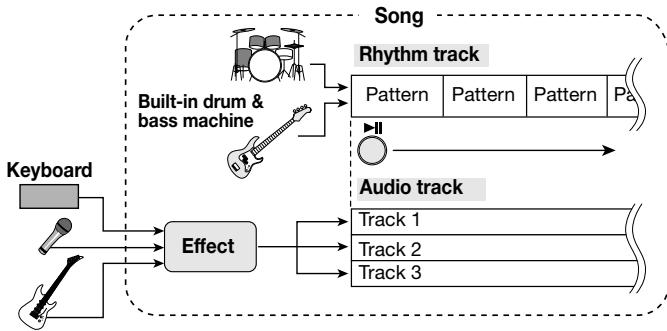
By programming the rhythm track, you can create your original backing material. Then record instruments or vocals on the three audio tracks.
After recording is completed, you can adjust panning and volume for each audio track separately, and you can control the balance of drums, bass, and audio tracks to create the final song.
2 Create rhythm accompaniment without cumbersome input, simply by selecting patterns and chords
Programming the rhythm track could not be easier: simply choose from a wide variety of available rhythm patterns and specify the chords. You'll get the hang of it in a few minutes and create great backing tracks, even without any sequencer experience.
The PS-02 incorporates more than 200 ready-to-use drum and bass rhythm patterns for all sorts of musical genres, including rock, blues, dance music, and many more. Just line up the patterns in the desired order for playing and specify the chords. The result is a solid rhythm track.
Rhythm track
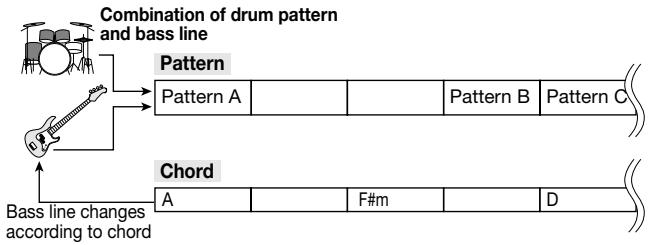
The built-in drum & bass patterns can be updated via SmartMedia. New drum & bass sounds and patterns will be published in future on the ZOOM web site (http://www.zoom.co.jp). This will let you expand your library of sounds and patterns.
3 Digital MTR concept makes possible virtual track (take) function and bounce without affecting the sound quality
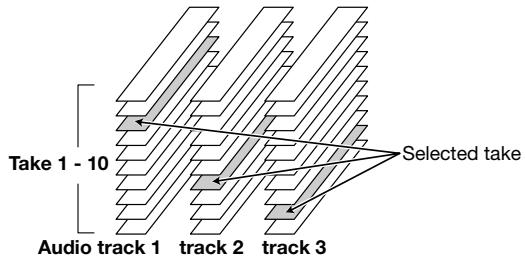
The PS-02 can record up to 10 takes per track, for a total of 30 takes. A bounce function that acts as a digital ping-pong effect is also available, so that the number of record takes is virtually unlimited.
The audio tracks 1 - 3 of the PS-02 each have ten virtual tracks (called "takes"). For recording or playback, you select a take. For example, you might record several takes of a guitar solo and then compare these later to choose the one you like best.
The "bounce function" lets you perform digital collating of several tracks onto tracks 1 and 2.
[Bounce function example]
![ZOOM PS-02 - [Bounce function example] - 1](/content/2025/01/152233/images/c6b0616725f5e7bb0b3ea6da3d99ec478434ebd7b4399b892b39a86de63517f4.jpg)
![ZOOM PS-02 - [Bounce function example] - 2](/content/2025/01/152233/images/e35f85a377d81c6580fa7c0237bf01418c6607bdfddc1cf597f10e388dfa894d.jpg)
4 Truly useful effects section is great for all sorts of applications from recording to mix-down
Using original VAMS technology from ZOOM, amp modeling and other effects of the PS-02 are simply amazing. They are handy not only to record guitar or vocal parts with effect processing, but also for use of the PS-02 as a stand-alone amp simulator or effect device.
The PS-02 has numerous effects built in, allowing you to use up to six effect modules such as DRIVE, CAB (cabinet simulator), MOD (modulation), and REV (reverb) simultaneously.
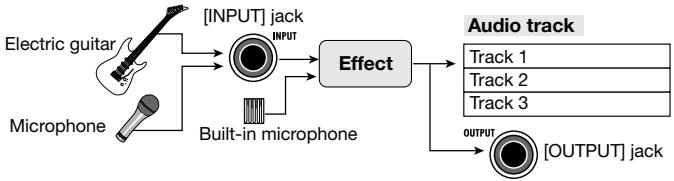
The effect output signal is present not only to the internal recorder but also appears at the OUTPUT jack, so that you can record the processed signal or use the PS-02 as a standalone effect device. The mixdown effect lets you apply special processing on a completed song. Working with the mixed signal consisting of audio track, drums and bass track, you can add ambience or emphasize highs and lows, to get exactly the sound that you're after.
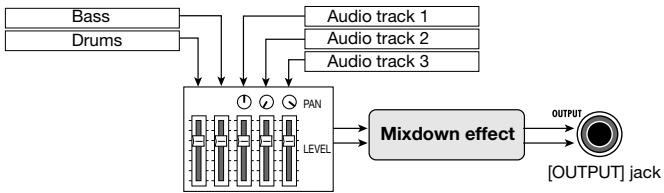
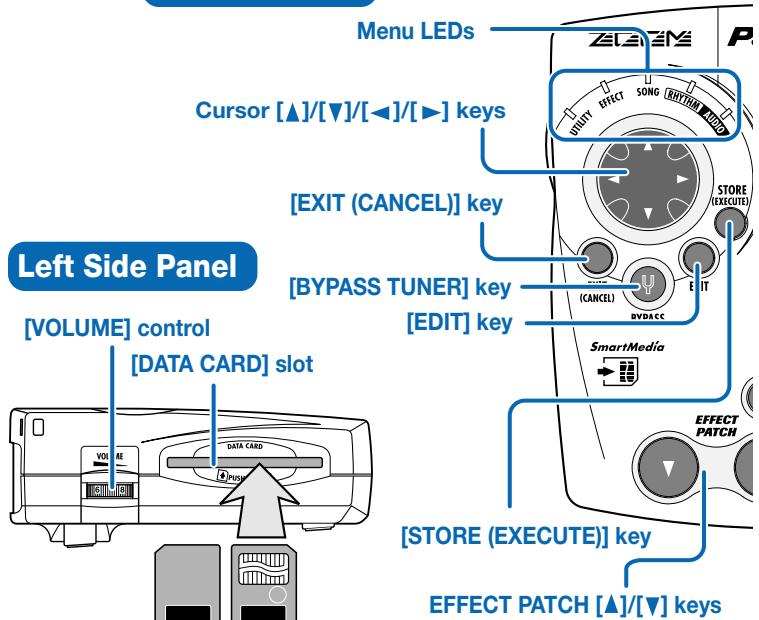
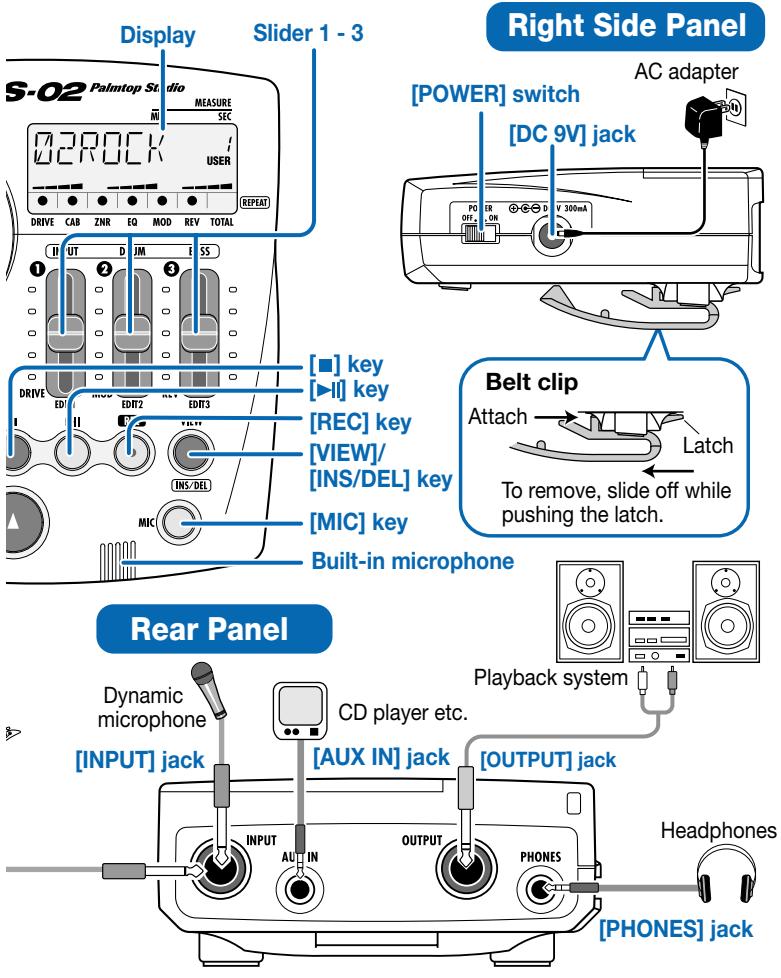
Names and Connectors
Front Panel
Wrong OK
To use the PS02, SmartMedia is required. Before turning on the power, insert the supplied SmartMedia card into the [DATA CARD] slot, as shown in the illustration. Note that the PS-02 will not operate correctly if no SmartMedia card is inserted.
- To insert the card, push it fully into the slot so that it is locked in place.
- To remove the card, first push it in to release the lock, and then pull it out.
Quick Guide (1) Listening to the Demo Song
This section shows how to play the demo song stored on the supplied SmartMedia card.

CAUTION
To use the PS-02, the SmartMedia card is required. Before turning on power to the unit, verify that the supplied SmartMedia card is inserted in the [DATA CARD] slot.
1 Turn on the power
Set the [POWER] switch on the right side panel to ON.
Make sure that the VOLUME control is turned fully down.
Turn on the system in the order PS02 playback equipment.
While the system is being read from the SmartMedia, the indication
"LODING" is shown on the display.
When the read-in process is completed, the PS-02 starts up and
the SONG menu LED lights up.
![ZOOM PS-02 - Set the [POWER] switch on the right side panel to ON. - 1](/content/2025/01/152233/images/bddec1ebc9d30ea96c013bfa3475dfd8c18007688f9643d951d3a8d8532c9f93.jpg)
2 Select a song
Use the cursor [ ] / [ ] keys to select song number 1.
Pressing one of the cursor [ ] / [ ] keys cycles through song numbers 1 - 100. On the supplied SmartMedia card, song number 1 is a demo song using the audio tracks ^+ rhythm tracks.
![ZOOM PS-02 - Use the cursor [ ] / [ ] keys to select song number 1. - 1](/content/2025/01/152233/images/df5628f1de8fd7369dc6d21d303d8a95b2ed1f77ce93280202be6acb154a1263.jpg)
![ZOOM PS-02 - Use the cursor [ ] / [ ] keys to select song number 1. - 2](/content/2025/01/152233/images/f4d1869b4ef2771eea8093c16af53dad419aa8582ffa2c2a883b5d1602d14c82.jpg)
![ZOOM PS-02 - Use the cursor [ ] / [ ] keys to select song number 1. - 3](/content/2025/01/152233/images/b60e8bf56b506e22c720d77128922bf15b9aef229850928744370f78aeb75d16.jpg)
3 Play the song
Press the [>>] key.
The demo song is played back.
![ZOOM PS-02 - Press the [>>] key. - 1](/content/2025/01/152233/images/f1598e1314fa1f03f81f7f058a16a20ad275ffa869f16856c8fb9e6d9d9ad454.jpg)
CAUTION

The card icon ( ) is shown on the display while the PS-02 is accessing the SmartMedia.
If the SmartMedia card was removed or the power was turned off during access, data stored on the card by the user may be lost and the system files may be damaged, leading to an inability to start the unit.
4 Adjust the volume
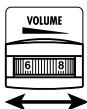
Use the [VOLUME] control on the left side panel to adjust the level of the sound.
5 Stop the song
Press the [ ] key.
Pressing the [▶II] key instead of the [■] key sets the unit to pause mode.
Pressing the [▶II] key once more in pause mode resumes playback of the song from the current position.
Quick Guide (2) Using the Effects
The PS-02 has a capacity for 60 preset patches + 60 user patches for built-in effects. Try switching the patches while playing your instrument, to get a feel for what the unit can do.
1 Switch to the Effect menu
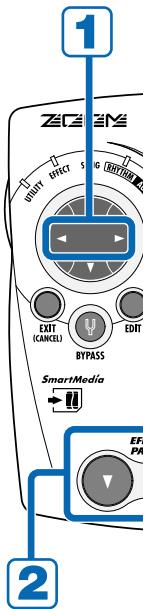
Use the cursor [] / [] keys to cause the EFFECT menu LED to light up.
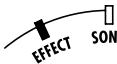
The unit switches to the Effect menu that is used for selecting and editing patches.
2 Switch the patch
Press one of the EFFECT PATCH [] / [] keys.
The unit cycles through user patches 1 - 60 and then through the preset patches 1 - 60.
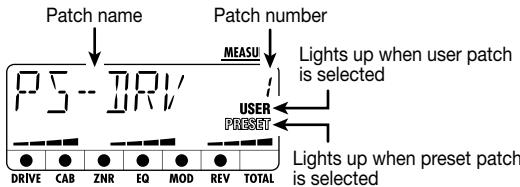

When using the built-in microphone or an external microphone, select a patch where the indication "((\pmb{\varphi}))" (microphone) is shown on the display.
To use the built-in microphone, press the [MIC] key.
A patch where the mic icon ( ) flashes is a mixdown patch. For mixdown only see page 38.
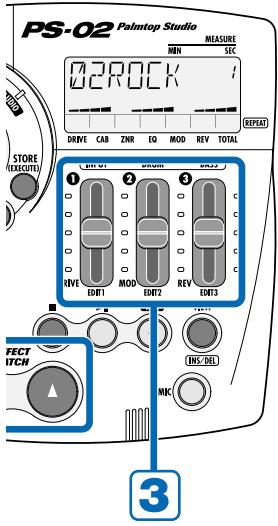
3
Adjust the effect intensity
Operatesladers1-3.
Slides 1 - 3 each allow you to adjust a major effect parameter of the DRIVE/MOD/REV module. When you have edited a patch in this way, you can save it as a user patch, if desired ( page 66).
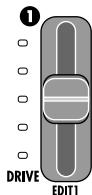
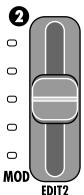
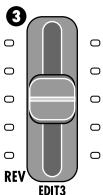
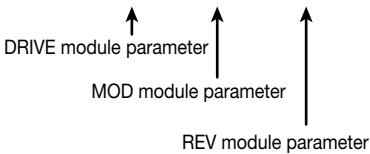

For information on which parameters are assigned to sliders 1 - 3, see page 79 - 83.
Quick Guide (3) Recording an Audio Track
Select a demo song (song number 1 - 50) and effect patch, and record your guitar playing or singing on an audio track, using the demo song as backing.
Switch to the Audio menu
Use the cursor [] / [] keys to cause the AUDIO menu LED to light up.
2 Set PS-02 to recording standby
Press the [REC] key.
The [REC] key flashes and track 1 is in the recording standby condition. In this mode, the dots at the bottom of the display serve to indicate the recording level. The higher the input signal level, the more the lit dots move towards the right.
![ZOOM PS-02 - Press the [REC] key. - 1](/content/2025/01/152233/images/1ecdc10d6a545a48bfe19c3c6c017bef6fe709b9d904ed809f1abe3f355e268a.jpg)
3 Adjust recording level
While playing your instrument, use slider 1 to adjust the recording level.
Adjust the level so that the center area dots light up when you play the instrument.

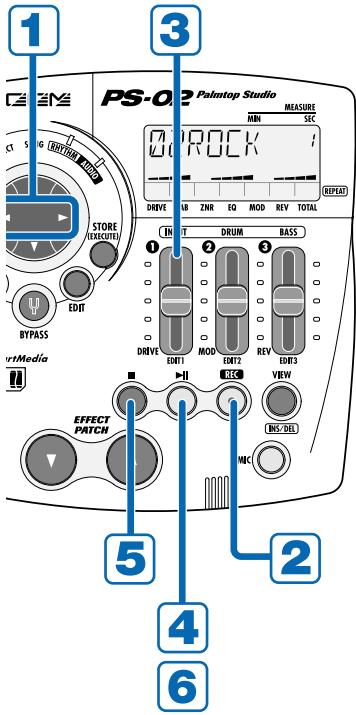
4 Start recording
Press the [▶II] key.
Playback of the song selected in RHYTHM mode starts, and recording on the audio track also starts. Play your instrument while listening to the rhythm track.
5 Stop recording
When you want to stop recording, press the [■] key.

When the SmartMedia becomes full, the indication "FULL" is shown on the display, and further recording is not possible.
6 Play the track
Press the [▶ii] key.
To redo the recording, press the [REC] key and then the [▶■] once more.
For information on how to delete the recorded track, see page 54.
About SmartMedia
SmartMedia contents
Besides the demo song play data and audio data, the SmartMedia card supplied with the PS-02 contains the system data necessary for operation of the PS-02. Note that the PS-02 will only start up when a suitable SmartMedia card is inserted in the [DATA CARD] slot.
SmartMedia work card
When recording with the PS-02, all audio data is stored on SmartMedia. In the condition as shipped from the factory, the supplied SmartMedia card has a certain amount of free space, but for longer recordings, you will need to erase demo songs or use another SmartMedia card (32MB or higher is recommended).
If the system program contained on the original supplied SmartMedia card is accidentally damaged or erased, the PS-02 will not be able to operate normally. It is therefore strongly recommended to format a new SmartMedia card to create a working card. After doing this, store the original supplied SmartMedia card in a safe place.

For information on how to erase a song, see page 43.
For information on how to format a working SmartMedia card, see page 75.
Operating the Unit on Batteries
- Verify that power to the unit is turned off.
- Turn the PS-02 over and open the cover of the battery compartment.
Push the tab down and then slide the cover in the direction.
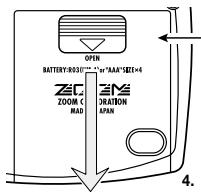
Battery compartment cover
- Insert four IEC R03 (size AAA) batteries (the use of alkaline batteries is recommended) into the compartment, taking care to establish correct +/- orientation.
Four IEC R03 (size AAA) batteries

When the batteries are getting low, the battery indication (BATT) appears on the display. When not using the PS-02, do not forget to turn the unit off to preserve battery power.
Operation Guide
This section describes how to create a song, starting from zero. The process can be divided into four main steps:
- Step 1 (PATTERN)
Program a pattern
(Create drum pattern)
- Step 2 (CHORD)
Program chords on the rhythm track (Create bass chord progression)
- Step 3 (RECORD)
Record audio tracks 1 - 3
- Step 4 (MIXDOWN)
Mix the drum, bass and audio tracks
At the top of each page in the operation guide, you will see a diagram with four blocks corresponding to the four steps. The block shown in black shows your current position in the process.
PATTERN
CHORD
RECORD
MIXDOWN

The explanations in the operation guide assume that there is a certain amount of free space on the SmartMedia. When using the supplied SmartMedia card, erase unneeded songs first ( p. 43).
Select an empty song
To create a new song, you must first select an empty song (or erase an existing song as described on page 43). The example shows how to select the song from song number 51 - 100 on the supplied SmartMedia card.
1.Use the cursor [] / [] keys to cause the SONG menu LED to light up.
The Song menu appears on the display.
![ZOOM PS-02 - 1.Use the cursor [] / [] keys to cause the SONG menu LED to light up. - 1](/content/2025/01/152233/images/1d9a593f0d9e9fe7cc41ce0c87f173bd40461def7a0693d4950709845241c40f.jpg)
![ZOOM PS-02 - 1.Use the cursor [] / [] keys to cause the SONG menu LED to light up. - 2](/content/2025/01/152233/images/3cbbdc9729b3e173884b07c83a1c021a26ed56b1fa430943d90e13488bedab3a.jpg)
If the menu LEDs do not change, press the [EXIT] key several times. If the [REC] key is lit, press the [■] key and then press the [EXIT] key.
2.Use the cursor [ ] / [ ] keys to select a song from number 51 - 100.
When an empty song is selected, the indication "EMPTY" is shown in the song name field.
Program pattern change information
On the rhythm track of the song, you can program information about switching patterns (pattern change information).
In this example, let's program the pattern change information shown in the diagram below.
Measure number Chord change Pattern change


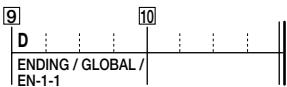
Creating an empty measure (inserting a measure)
When programming the rhythm track from zero, you must first insert the required number of measures (song length) in the rhythm track.
1.Use the cursor [] / [] keys to cause the RHYTHM menu LED to light up.
The display switches to the Rhythm menu. This menu allows you to make various settings for programming the rhythm track.
![ZOOM PS-02 - 1.Use the cursor [] / [] keys to cause the RHYTHM menu LED to light up. - 1](/content/2025/01/152233/images/f06c955c20bae8036bb880a3cd443711d777d65251f9e95b29795726a5c7bea6.jpg)
![ZOOM PS-02 - 1.Use the cursor [] / [] keys to cause the RHYTHM menu LED to light up. - 2](/content/2025/01/152233/images/daa51bce93a71908cabeb54c7e9155a8d58c4fb9d583cc094186302a2767ee26.jpg)
2. Press the [REC] key.
![ZOOM PS-02 - Press the [REC] key. - 1](/content/2025/01/152233/images/b44af98446ea76eee13149512b3f35953dd3806d95d692a96a7ab5dfaea93706.jpg)
![ZOOM PS-02 - Press the [REC] key. - 2](/content/2025/01/152233/images/81a5de8b93b8e261c389d7e5da8294a7bcb55885608fa2e7ca04d399c7a2197a.jpg)
![ZOOM PS-02 - Press the [REC] key. - 3](/content/2025/01/152233/images/e1d87d5d5f26199fb4d2d34030ffdd55b9c7ae59b2c82457c2c2e00d30b79bb6.jpg)
When you select an empty song and press the [REC] key, a 2-measure rhythm track is automatically created. Measure 1 contains the "oo" pattern change information and the "Am" (A Minor) chord change information.
3. Press the cursor [▶] key twice.
With the cursor [] / [] keys you can move backward and forward from the current measure in the rhythm track. By pressing the cursor [] key twice, you move to measure 3, and the indication "END" appears on the display (no measure number is shown in the top right of the display). "END" is special information that marks the end of the rhythm track. In this example, because we want to create a 10-measure rhythm track, 8 more measures must be added.
![ZOOM PS-02 - Press the cursor [▶] key twice. - 1](/content/2025/01/152233/images/8d8d3ca53452ba3db6970a5664fd8570088176396e6fbe196a9dc09a7fbb29ac.jpg)
![ZOOM PS-02 - Press the cursor [▶] key twice. - 2](/content/2025/01/152233/images/98df5320c9e5927a4b22d964fed05608fa23d56042c46641003016da0a59633b.jpg)
4. Press the [INS/DEL] key.
The display for inserting measures appears.
![ZOOM PS-02 - Press the [INS/DEL] key. - 1](/content/2025/01/152233/images/2c59c4ba3858d0dbf98e14992760cff9311431ca486404b2cb1d8680113cf279.jpg)
![ZOOM PS-02 - Press the [INS/DEL] key. - 2](/content/2025/01/152233/images/dae2108819e1c6f872bf3a8c13f9a6b95a201724e762cc08d348072f8da815bd.jpg)
5. Move slider 3 to specify 8 as the number of measures to insert.
- The input range for inserting measures is 1 - 99. To specify the measure number, use slider 2 for the higher digit and slider 3 for the lower digit.
- The rhythm track length can be reduced later by deleting measures ( page 22).

6. Press the [STORE (EXECUTE)] key.
The specified number of measures is added.
![ZOOM PS-02 - Press the [STORE (EXECUTE)] key. - 1](/content/2025/01/152233/images/a2a168ff4b7162c4d1419b262409eb8c6ec4b8fbad276c47f9e4dfac1d67a452.jpg)
To cancel the measure insertion, press the [EXIT (CANCEL)] key.
Entering pattern change information
In the measure where you want to change a pattern, you must insert pattern change information.
- Press the cursor [<] key repeatedly to return to measure 1.
2.Using sliders 1/2/3,select "MAIN08 / ROCK/M8-1-1" as rhythm pattern for measure 1.
Patterns incorporated in the PS-02 are divided into the three elements section/style/variation, which can be selected with slider 1/2/3.
| 1 Section | 2 Style | 3 Variation | ||
| M8 | MAIN08 | 1 | ROCK | 1~8 |
| 2 | HARDRK | 1~8 | ||
| 3 | POP | 1~4 | ||
| 4 | MOTOWN | 1~6 | ||
| 5 | BALLAD | 1~6 | ||
| 6 | SHUFLLE | 1,2 | ||
| F8 | FILL08 | 1 | ROCK | 1~6 |
| 2 | HARDRK | 1~4 | ||
| 3 | POP | 1,2 | ||
| 4 | MOTOWN | 1~3 | ||
| 5 | BALLAD | 1~4 | ||
| 6 | SHUFLLE | 1,2 | ||
In this example, you use sliders 1/2/3 to select MAIN08 / ROCK / M8-1-1 in sequence.

For the rhythm pattern display, the variation name has priority.
The section name and style name are shown only immediately after being selected with slider 1/2.
HINT
- For information on available rhythm patterns, see the "Rhythm Pattern List" on page 83.
- During programming, you can use the [▶II] and [■] key to play and stop the pattern.
- When pattern change information is entered in a measure, that pattern will be repeated until the measure where the next pattern change information is input.
- The EFFECT PATCH [] / [] keys can also be used to change the pattern.
3.Use the cursor [] / [] keys to move to the number of the measure where the pattern should change next ("4" in this example).
For measures where no pattern change information is input, the display shows "PTN<--" as in the illustration below.
![ZOOM PS-02 - 3.Use the cursor [] / [] keys to move to the number of the measure where the pattern should change next ("4" in this example). - 1](/content/2025/01/152233/images/f206b713d74f1a8e45a1b8635d756421d8d6de9e1f4a60911b628724bcd1e10d.jpg)
4.Use slider 3 to enter the pattern change information for measure 4 ("FILL08 / ROCK / F8-1-1" in this example.

When entering a pattern change information where only the variation is different from the immediately preceding pattern, you can omit the style and section input.
5. In the same way, enter pattern change information for measures 5, 8, and 9.
Editing/deleting pattern change information
- To edit entered pattern change information, use the pattern input display and go to the measure number whose contents you want to change. Then use sliders 1 - 3 to specify the desired new pattern.
- To delete entered pattern change information, use the pattern input display and go to the measure number whose contents you want to delete. Then set slider 1 to the full down position.
- The indication "-----" is temporarily shown on the display and then changes to "PTN<--". The selected pattern change information has now been erased.
NOTE
When the pattern change information of measure 1 was deleted, the pattern for playback will be "MAIN08 / ROCK / M8-1-1".
Deleting unneeded measures
- To delete an unneeded measure, use the pattern input display and go to the first measure you want to delete. Then press the [INS/DEL] key twice.
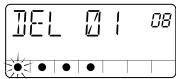
The display for deleting measures is shown.

With each push of the [INS/DEL] key, the display cycles through the following functions: measure insert measure delete pattern input.
2.Use sliders 2/3 to specify the number of measures to delete.
The input range for deleting measures is 1 - 99. To specify the measure number, use slider 2 for the higher digit and slider 3 for the lower digit.
- To carry out the delete process, press the [STORE (EXECUTE)] key.
Starting from the measure specified in step 1, the number of measures specified in step 2 is deleted.

To cancel the delete process, press the [EXIT (CANCEL)] key.
Program chord change information
After the pattern has been input, you should program chord change information following the diagram on page 18. Unlike pattern change information, chord change information can be specified in beat units.
Entering chord change information
1. At the pattern input display, press the cursor [▲] key (or [▼] key).
The display switches to the chord change information input mode.
![ZOOM PS-02 - At the pattern input display, press the cursor [▲] key (or [▼] key). - 1](/content/2025/01/152233/images/d11e296750e6dcaa626ec1d3622cb70d82f42674ea75494696b5f1eba7bb180d.jpg)
![ZOOM PS-02 - At the pattern input display, press the cursor [▲] key (or [▼] key). - 2](/content/2025/01/152233/images/1d3c86c541cfc8d9a22ecc1d63ec486fcb72e2d479312f57294c209163967747.jpg)
While programming the rhythm track, each push of the cursor key toggles between the pattern input display and chord input display.
2.Use the cursor [] / [ ] keys to move to measure 1.
In the initial condition, only the chord change information "Am" (A Minor) is entered in measure 1.
![ZOOM PS-02 - 2.Use the cursor [] / [ ] keys to move to measure 1. - 1](/content/2025/01/152233/images/7e2f61c4befa96723a387d966a86cc8bf33dc7d8eb04c97e04439ef2b8e00d5e.jpg)
3.Use sliders 1/2 to specify the chord for measure 1 ("D" in this example).
In chord input mode, slider 1 specifies the root and slider 2 the type of the chord (Major, Minor, etc.).
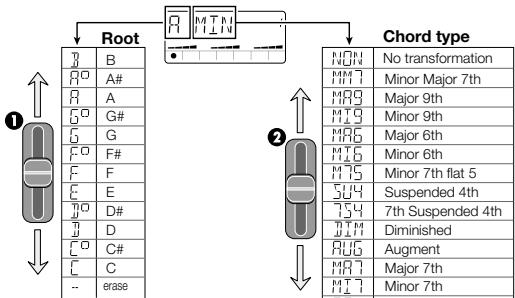
Setting slider 1 to the full down position erases the chord change information


Each pattern is preprogrammed with a dedicated bass phrase which is based on the root of the chord and transposed up or down. For some chords, partial phrase transformation is also employed.
- When a pattern is selected for which only the root is played, or when "NON" has been selected as chord type, only transposition is carried out, without transformation.
- Note that depending on the selected chord, the transformation may result in a bass line that is not well suited for the pattern.
- In the same way as for the pattern change information, when chord change information is entered for a measure, the chord will be played until the point where the next chord change information is entered. For measures where no chord change information was entered, the indication "CHD<--" is shown on the display.
4.Use the cursor [ ] key to move to measure 2.
Next, enter the chord change information "A" (A Major) for beat 3 of measure 2. To enter a chord change information at a point other than the beginning of a measure, first move to the desired measure and then specify the input position in units of single beats. The position within the measure is indicated by flashing dots, as shown below.
![ZOOM PS-02 - 4.Use the cursor [ ] key to move to measure 2. - 1](/content/2025/01/152233/images/2658a4b388cd828d0c9412011305381f0cfc3760f55bb8ec2ac4f2915c1477a7.jpg)
5. Press the EFFECT PATCH [▲] key twice.
![ZOOM PS-02 - Press the EFFECT PATCH [▲] key twice. - 1](/content/2025/01/152233/images/08083f6f7ad803fd224f4aaaeb994a8296db3492e5df8b6bfd3ecb2793af4e7c.jpg)
In chord input mode, the EFFECT PATCH [ ] / [ ] keys serve for moving in 1-beat steps within the measure. The flashing dot that indicates the position within the measure moves to beat 3.
6.Use sliders 1/2 to specify the"A" (A Major) chord.
7. In the same way, enter chord change information for other measures as shown in the diagram on page 18.
Editing/deleting chord change information
- To edit entered chord change information, use the chord input display and go to the position whose contents you want to change. Then use sliders 1/2 to specify the new chord.
- To delete entered chord change information, use the chord input display and go to the position whose contents you want to delete. Then set slider 1 to the full down position.
The indication "CHD<--" appears on the display and the selected chord change information is deleted.

If the pattern change information for measure 1 was deleted, playback will use the "Am" (A Minor) chord.
Listening to the completed rhythm track
- To listen to the completed rhythm track, press the [■] key to terminate chord input mode, and then press the [▶II] key.
2.To adjust the tempo, press the [EDIT] key.
The current tempo (BPM) is displayed.
![ZOOM PS-02 - 2.To adjust the tempo, press the [EDIT] key. - 1](/content/2025/01/152233/images/2fa86fcb9d4af6d716a2db53b5b6ca01bc37a1b0c84d057766f2b929c36d3764.jpg)
3.Use the cursor [ ] / [ ] keys or sliders 1-3 to adjust the BPM value.
The cursor [] / [] keys increase or decrease the BPM value by 1. Sliders 1 - 3 adjust the digit at the respective position.
4. When the tempo is as you want it, press the [EXIT (CANCEL)] key.
5. To stop the rhythm track playback, press the [■] key.
![ZOOM PS-02 - To stop the rhythm track playback, press the [■] key. - 1](/content/2025/01/152233/images/30a00d70b11d58c93dd7acf36134aecd75d89a23e85c2fa91cd1eea3a6f74fcd.jpg)
When the rhythm track or audio track information of the PS-02 was changed, the change is automatically saved on the SmartMedia. There is no need for the user to perform a manual save. (However, when the contents of an effect patch were changed, the change must be saved by the user.)
Record guitar signals on the audio tracks
Now that rhythm track programming is completed, you are ready to record effect processed guitar signals on audio tracks 1 - 3.
Recording rhythm guitar 1
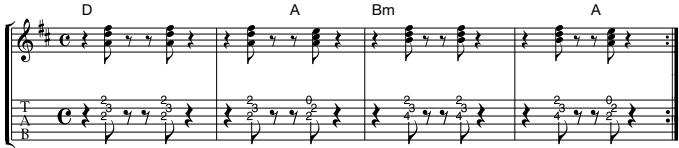
First, let's record some rhythm guitar backing as shown below on audio track 1.
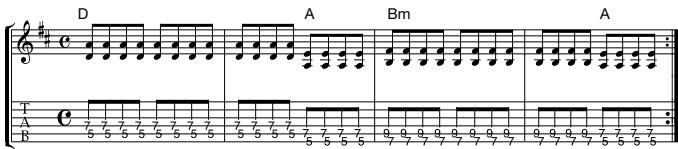
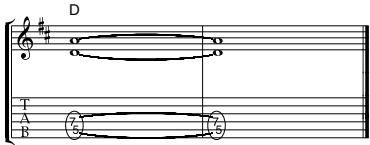
Preparations for recording
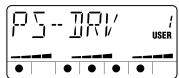
1.Use the cursor [] / [] keys to cause the EFFECT menu LED to light up.
The display switches to the Effect menu. This menu serves for selecting and easy editing of effect patches.
HINT
The Audio menu also allows you to make patch changes.
2.Use the EFFECT PATCH [▲]/[▼] keys to select the effect patch.
In this example, we'll select a distortion patch.
3. Press the [H] key.
The song menu comes up automatically, and the rhythm track is played. While listening to the rhythm track, practice the score example on page 27.
4. To adjust the tempo of the rhythm track, press the cursor [▶]key once to move to the rhythm menu, and then change the tempo.
![ZOOM PS-02 - To adjust the tempo of the rhythm track, press the cursor [▶]key once to move to the rhythm menu, and then change the tempo. - 1](/content/2025/01/152233/images/508fb62812cb05471d7f4d2024b6b9f4c9936c51d1053fd96b1d6693c91a74a6.jpg)
You must decide on the tempo of the rhythm track before starting to record the audio track. If you change the tempo of the rhythm track after recording the audio track, there will be a tempo mismatch between the audio and rhythm tracks.
Recording audio track 1
- Press the [■] key to stop the rhythm track of the song.
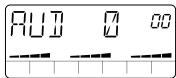
2.Use the cursor cursor [] / [] keys to cause the AUDIO menu LED to light up.
The display switches to the Audio menu. This menu serves for recording and editing of audio tracks.
3. Press the [REC] key.
The display for selecting the track appears. In this mode, the dots at the bottom of the display function as a level meter.
![ZOOM PS-02 - Press the [REC] key. - 1](/content/2025/01/152233/images/b1f217e25111f08834b6f51c778986f60978388abf7dd913669f4182bcaeddfe.jpg)
The higher the input signal level, the more the lit dots move towards the right.
- Verify that the indication "R-1" (audio track 1 selected as recording track) is shown on the display.
If "R-2" or "R-3" is shown, use the cursor [] / [] keys to select audio track 1.
- While playing your guitar, adjust slider 1 so that the center area dots light up when you play the instrument at a high level.
In the recording standby condition, sliders 1 - 3 serve to adjust the recording level in audio tracks 1 - 3. For details, see page 14.
- When you are ready to record, press the [▶II] key.
After a click precount of 4 beats (1 measure), the rhythm track of the song is played, and recording on audio track 1 starts.
![ZOOM PS-02 - Press the [REC] key. - 2](/content/2025/01/152233/images/940899cf8dd290b0a350619421072b8078e57706ce0ff895c6d81baf3ebc4b80.jpg)
The precount duration and sound can be adjusted as desired ( page 72).
- To stop recording, press the [■] key.
![ZOOM PS-02 - Press the [REC] key. - 3](/content/2025/01/152233/images/3e002130dc65668280e327444f89206296b3b63a98d13876acec0f6656dd2a1f.jpg)
- Also after the rhythm track playback is completed, recording on the audio track continues for as long as there is room on the SmartMedia, unless the [■] key is pressed. If you continue to record until the SmartMedia becomes full, the indication "FULL" is shown on the display.
-
If you have used up the SmartMedia capacity by mistake, delete the audio track ( p. 54).
-
To listen to the recorded session, press the [ ] key.
The rhythm track of the song and the recorded audio track 1 are played back from the beginning. To redo the recording, repeat the process from step 3.
![ZOOM PS-02 - Press the [REC] key. - 4](/content/2025/01/152233/images/e8854bdafd23b1371fbec66d56d084faadf174c58aa7a07ae73883df54d29750.jpg)
If desired, you can keep the current take and record another take. For details, see page 53.
Recording rhythm guitar 2
While listening to the rhythm track audio track 1, record another rhythm guitar track on audio track 2.
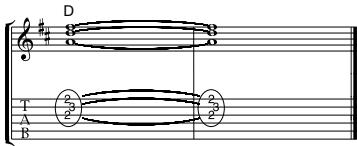
1.Use the cursor [ ] / [ ] keys to cause the EFFECT menu LED to light up, and select an effect patch.
For rhythm guitar 2, let's use a clean type patch.
- Press the [H] key.
The rhythm track of the song and the recorded audio track 1 are played. While listening to these tracks, practice the above score example.

You should never change the tempo of the rhythm track at this stage.
Otherwise there will be a tempo mismatch between the rhythm track and audio track 1.
3.Use the cursor [ ] / [ ] keys to cause the AUDIO menu LED to light up.
4. Press the [REC] key.
The display for selecting the track appears.
5.Use the cursor [ ] / [ ] keys to select audio track 2 for
recording.
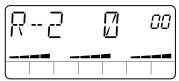
6. While playing your guitar, use slider 2 to adjust the recording level.

The level after effect processing may differ, depending on the selected patch. You should therefore readjust the recording level if you have switched patches.
7. When you are ready to record, press the [▶II] key.
After a precount of 4 beats (1 measure), the rhythm track of the song and audio track 1 are played, and recording on audio track 2 starts.
8.To stop recording,press the [key.
Also after the rhythm track and audio track 1 playback is completed, recording on audio track 2 continues, unless the [■] key is pressed.
9.To listen to the recorded session, press the [▶I] key.
To redo the recording, repeat the process from step 4. For information on how to delete an audio track, see page 54.
Recording the lead guitar
When recording of audio tracks 1 and 2 is completed, record a guitar ad-lib solo on audio track 3.
1.Use the cursor [] / [] keys to cause the EFFECT menu LED to light up, and select an effect patch.
Select any desired patch here.
2. Press the [H] key.
The rhythm track of the song and the recorded audio tracks 1 + 2 are
played. While listening to the backing provided by these tracks, practice the lead part.
3.Use the cursor [] / [] keys to cause the AUDIO menu LED to light, and press the [REC] key.
4.Use the cursor [ ] / [ ] keys to select audio track 3.
![ZOOM PS-02 - Press the [H] key. - 1](/content/2025/01/152233/images/176c13c6e062a92cc566b292abf3b63a3823f80efd3963f2d0b06fd9fd18d668.jpg)
- While playing your guitar, use slider 3 to adjust the recording level.
- When you are ready to record, press the [▶II] key.
After a precount of 4 beats (1 measure), the rhythm track of the song and audio tracks 1 + 2 are played, and recording on audio track 3 starts.
- To stop recording, press the [■] key.
- To listen to the recorded session, press the [▶II] key.
To redo the recording, repeat the process from step 3.
During playback, you can press the [▶II] key to pause the song and then press the [REC] key followed by the [▶II] key to restart recording from that point. However, it is not possible to start recording from a point where nothing is recorded.
![ZOOM PS-02 - Press the [H] key. - 2](/content/2025/01/152233/images/43146782b6a39d17326c1f756ca5ea2e419afd682593d9645706f76d273cff2b.jpg)
- Using the punch-in/punch-out feature, you can rerecord only a part of an audio track ( p. 55).
- If you wish to record more parts, you can use the bounce feature of the PS-02 to combine the contents of the 3 tracks on track 1 - 2 ( p58) .
Recording from a microphone
The previous pages covered recording a guitar signal connected to the [INPUT] jack. Sometimes you may want to record vocals or an acoustic guitar via a microphone. You can use either the built-in microphone of the PS-02 or an external microphone connected to the [INPUT] jack. Proceed as follows.
Preparations
- To use an external microphone, connect the microphone cable to the [INPUT] jack.
2.Use the cursor [] / [] keys to cause the EFFECT menu LED to light.
3.Use the EFFECT PATCH [▲]/[▼] keys to select the patch where the mic icon (( )) is shown on the display.
This patch is designed specially for microphone recording. When using the built-in microphone or an external microphone connected to the [INPUT] jack, this patch must be selected.
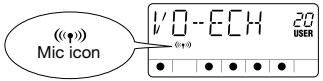

- The "MICPRE" effect type in the DRIVE module is the dedicated microphone input patch.
-
If another patch is selected, the built-in microphone cannot be used, and an external microphone connected to the [INPUT] jack will not be heard with sufficient gain.
-
To use the built-in microphone, press the [MIC] key.
The [MIC] key lights up and the signal from the built-in microphone is used as recording source.

While the [MIC] key is lit, the [INPUT] jack cannot be used. To use an external microphone, omit step 4 and proceed to the next step.
Adjusting the microphone input gain
5. Press the cursor [< ] key to cause the UTILITY menu LED to light up.
The display switches to the Utility. This menu serves for making general PS-02 settings.
![ZOOM PS-02 - Press the cursor [< ] key to cause the UTILITY menu LED to light up. - 1](/content/2025/01/152233/images/818e9d8f0a689949bc90aaeb3b15fbb439f20017fa6c8df10758fe364fac20b7.jpg)
6. Press the [EDIT] key and then use the cursor []/[] keys to bring up the indication "MIC-G" on the display.
The current microphone input gain setting is shown at the top right of the display.
![ZOOM PS-02 - Press the [EDIT] key and then use the cursor []/[] keys to bring up the indication "MIC-G" on the display. - 1](/content/2025/01/152233/images/801b7ab716ec3238528d1a2a66695d41e48a6897685655f99fa5608ef5dbf23a.jpg)
![ZOOM PS-02 - Press the [EDIT] key and then use the cursor []/[] keys to bring up the indication "MIC-G" on the display. - 2](/content/2025/01/152233/images/c4885a110807f67fdfdf73d0eb570527ed85c59293393a59e0daca8ee01927d7.jpg)
This setting is only effective when the microphone input patch is selected.
7.Use the cursor [ ] / [ ] keys or slider 1 to adjust the microphone input gain (Lo or HI).
- When using the built-in microphone
Lo
This is a gain setting for on-mic recording. It is suitable for holding the PS-02 in your hand while doing a vocal, or for placing the PS-02 very close to an acoustic guitar (about 30~cm from the sound hole).
HI
This is a gain setting for off-mic recording, such as when capturing an entire band in a studio.
- When using an external microphone
Lo
This setting is suitable for high-output microphones.
HI
This setting is suitable for low-output microphones.
- When the microphone gain setting is completed, press the [EXIT (CANCEL)] key.
The unit returns to the Utility menu.
- Return to the audio menu, select a track, adjust the recording level, and start recording.
The actual recording procedure is the same as for electric guitar.
Finish up the song
After the recording of audio tracks is completed, you can put the finishing touches on the song, such as adjusting the balance of rhythm track and audio tracks.
Adjusting the rhythm track level balance
You can adjust the volume level of the drums and bass played on the rhythm track as follows.
1.Use the cursor [] / [] keys to cause the RHYTHM menu LED to light up.
The display switches to the Rhythm menu.
- Press the key.
The rhythm track of the song and audio tracks 1 - 3 are played back.
3.Using sliders 2 and 3, adjust the drum/bass level of the rhythm track.
The bar graph in the lower part of the display shows the approximate level balance.
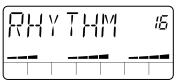

When playing the song while the Rhythm menu is displayed, slider 1 adjusts the level of the input signal.
Adjusting the audio track level balance and panning
You can adjust the level balance and panning (stereo position) of audio tracks 1 - 3 as follows.
Adjusting the level of each audio track
1.Use the cursor [] / [] keys to cause the AUDIO menu LED to light up.
The display switches to the Audio menu.
2. Press the [▶ii] key.
The rhythm track of the song and audio tracks 1 - 3 are played back.
3.Use sliders 1-3 to adjust the audio track 1-3 level balance.
The bar graph in the lower part of the display shows the approximate level balance.
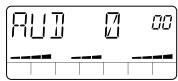
Adjusting the panning of each audio track
4. Press the [EDIT] key.
The display switches to the Audio Edit menu for making audio track settings. You can now adjust the panning.
![ZOOM PS-02 - Press the [EDIT] key. - 1](/content/2025/01/152233/images/73505dbdeb08cca1b341a46ad3130c9aff2b91a4a6877626861cbfa6b35098cc.jpg)
![ZOOM PS-02 - Press the [EDIT] key. - 2](/content/2025/01/152233/images/8cb8e69ca224fe89f981b3b6bdaec9cf6a010405d4707225c3cef4e312b85126.jpg)
Also while the Audio Edit menu is displayed, the [▶H] key and [■] key can be used for song playback/stop.
5.Use sliders 1 - 3 to adjust the panning for audio track 1 - 3 in the range from "10L" (hard left) - "C" (center) - "10r" (hard right).
When slider 1 - 3 is moved, the panning position is shown on the display. The bar graph in the lower part of the display shows the approximate level balance.
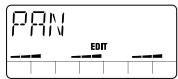
6. When the pan setting is completed, press the [EXIT (CANCEL)] key.
The unit returns to the Audio menu.
Using the mixdown effect
The effects of the PS-02 also include a "mixdown" effect for adding ambience to the entire song (rhythm track + audio track) and for boosting and cutting the upper or lower frequency range. This section shows how to apply the mixdown effect to a completed song.
1.Use the cursor [] / [] keys to cause the EFFECT menu LED to light.
The display switches to the Effect menu.
2.Use the EFFECT PATCH [ ] / [ ] keys to select the patch where the mic icon (( )) flashes on the display.
This patch is the dedicated mixdown patch.
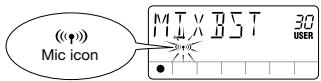

- The "MIXEFX" effect type in the DRIVE module is the dedicated mixdown patch.
- The dedicated mixdown patch cannot be combined with effects from other modules.
-
While the dedicated mixdown patch is selected, the input signal from the [INPUT] jack and the built-in microphone is muted.
-
Press the [▶II] key to play the song.
The song (rhythm track + audio tracks) processed by the mixdown effect is output from the [OUTPUT]/[PHONES] jack.

Moving slider 1 - 3 while the Effect menu is shown lets you easily adjust the intensity of the mixdown effect (Easy Edit).
Adding a name to a song
Finally, give a name to the song you have created.
1.Use the cursor [] / [] keys to cause the SONG menu
LED to light up.
The display switches to the Song menu.

When a blank song was selected and the rhythm track was programmed, the name "SNGxxx" is automatically assigned. ("xxx" is the song number.)
2. Press the [EDIT] key.
The display switches to the Song Edit menu, and the indication "NAME" is shown.
![ZOOM PS-02 - Press the [EDIT] key. - 1](/content/2025/01/152233/images/a525c67522860085b93ecea8ecb29653e13a2e77ff5f27f41823c2a577216aef.jpg)
3. Press the [EDIT] key once more.
The song name can now be edited. The character that is to be edited is flashing.
![ZOOM PS-02 - Press the [EDIT] key once more. - 1](/content/2025/01/152233/images/9cbc377c6f5d6b012a90b9de9d7cb2688278c5c4af48ba140d96a4d2e72fda94.jpg)
4.Use the cursor [] / [] keys to select the character you want to change, and use slider 1 - 3 to edit the character.
Sliders 1 - 3 have the following function.
- Slider 1: A-Z (capital letters)
- Slider 2: 0 - 9 (numerals)
- Slider 3:
/ + / -/ @ (symbols)
5. To confirm the new song name, press the [STORE (EXECUTE)] key.
The unit returns to the condition of step 1.
![ZOOM PS-02 - To confirm the new song name, press the [STORE (EXECUTE)] key. - 1](/content/2025/01/152233/images/476a39935d65a549e0b1f9162a090c817386ffe5cb2aa31dd7587af98133309d.jpg)
To cancel the song name editing process, press the [EXIT (CANCEL)] key.
Reference Guide
This section explains all menus and functions of the PS-02.
Song Menu
The Song menu is the basic menu of the PS-02. It lets you control operations such as start/stop of song playback. From this menu, you can also call up the Song Edit menu which lets you edit song names and delete songs.
To switch to the Song menu from another menu, use the cursor [] /[ ] keys to cause the SONG menu LED to light up (or press the [EXIT (CANCEL)] key repeatedly). When you turn the PS-02 off and then on again, the Song menu will automatically be selected.
Front panel controls and functions (Song menu)
When the Song menu is selected, the front panel controls operate as follows. (Other keys are inactive.)
(1) Display
For the Song menu, the display shows the following information. (Items in [ ] brackets are shown during playback only.)
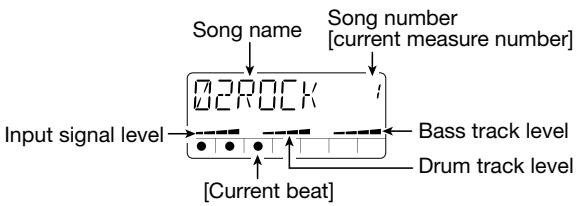
(2) Sliders 1 - 3
- Slider 1
Adjusts the input signal ([INPUT] jack/built-in microphone) level.
- Slider 2
Adjusts the drum track volume level.
- Slider 3
Adjusts the bass track volume level.
(3) [ ] key
Stops the currently playing song.
(4) [B] key
Starts playback of the song from the current position. (If the song is currently playing, the key pauses playback.)
(5) [VIEW] key
Pressing this key during song playback cycles the display through the following functions: Chord name Tempo Pattern name (Form only) Song menu.
(6) [MIC] key
Activates the built-in microphone. (The signal from the [INPUT] jack is muted.)
This key is only active when the "(( )" (mic icon) is shown for the selected patch.
(7) Cursor [<] /[>] keys
Serve to switch the menu.
(8) Cursor [▲]/[▼] keys
- When song is playing/stopped
- Select the song.
- When song playback is paused
Move the play position in the current song backward or forward, in units of 1 measure.
(9) [BYPASS] key
Bypasses (mutes) effect processing.
(10)[EDIT] key
Calls up the Song Edit menu.
(11)Patch [] / [] keys
Serve to switch effect patch numbers (user patches 1 - 60 preset patches 1 - 60 ). Shortly after switching the patch, the display reverts to the Song menu.
Song Edit Menu
Pressing the [EDIT] key at the Song menu while song playback is stopped brings up the Song Edit menu. The Song Edit menu lets you change the name of the currently selected song, or delete the song.
Changing the song name
- At the Song menu, use the cursor [▲]/[▼] keys to select the song whose name you want to change.
- Press the [EDIT] key.
The unit switches to the Song Edit menu, the indication "NAME" appears on the display, and the "EDIT" mark is shown, indicating the Song Edit menu.
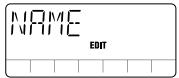
- Press the [EDIT] key once more.
The current song name is displayed, and the first character flashes. This indicates that this character can be changed.
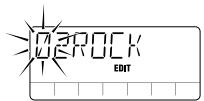
4.Use sliders 1-3 to select the desired character.
Sliders 1 - 3 have the following function.
- Slider 1: A - Z (capital letters)
- Slider 2: 0 - 9 (numerals)
- Slider 3:
/ + / - / @ (symbols)
5.Use the cursor [] / [] keys to move the flashing indication to the next character you want to edit, and edit the rest of the name in the same way.
6. To confirm the edited song name, press the [STORE (EXECUTE)] key.
The unit returns to the Song menu.
![ZOOM PS-02 - To confirm the edited song name, press the [STORE (EXECUTE)] key. - 1](/content/2025/01/152233/images/91b85662f99d21fabe332c540a35dca26b2e686e5559211ff050d0301916f439.jpg)
- To cancel the song name changes, press the [EXIT (CANCEL)] key.
- To return to the Song menu from the Song Edit menu, press the [EXIT (CANCEL)] key.
Deleting a song
- At the Song menu, use the cursor [▲]/[▼] keys to select the song you want to delete.
- Press the [EDIT] key to switch to the Song Edit menu, and press the cursor [▶] key once.
The indication "ERASE" appears on the display.
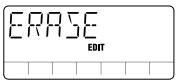
3. Press the [EDIT] key once more.
The "ERASE" indication flashes.
4.To delete the song, press the [STORE (EXECUTE)] key.
The unit returns to the Song menu, and the indication "EMPTY" is shown as the song name.
![ZOOM PS-02 - 4.To delete the song, press the [STORE (EXECUTE)] key. - 1](/content/2025/01/152233/images/9beb5630aa30a7a3a75a9d4cfbc98dfd38f74b356dccc144ba42a3e89b406ee2.jpg)
To cancel the song delete process, press the [EXIT (CANCEL)] key to return to the Song Edit menu.
![ZOOM PS-02 - 4.To delete the song, press the [STORE (EXECUTE)] key. - 2](/content/2025/01/152233/images/a80ed13e2ec0a71f0d54a7b1a7a0e261b8313fe321a51555e7e05ddf6e97301f.jpg)
Proceed with care, because a song cannot be restored after it has been deleted.
Rhythm Menu
The Rhythm menu serves for programming the rhythm track. It also lets you call up the Rhythm Edit menu for adjusting the tempo and selecting the drum kit or bass sound.
To switch to the Rhythm menu from another menu, use the cursor [] / [] keys to cause the RHYTHM menu LED to light up.
Front panel controls and functions (Rhythm menu)
When the Rhythm menu is selected, the front panel controls operate as follows. (Other keys are inactive.)
(1) Display
For the Rhythm menu, the display shows the following information. (Items in [ ] brackets are shown during playback only.)
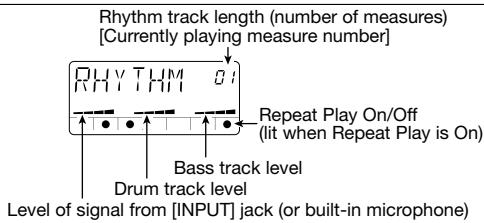
(2) Sliders 1 - 3
- Slider 1 Adjusts the level of the input signal ([INPUT] jack/built-in microphone).
- Slider 2 Adjusts the drum track volume level.
- Slider 3 Adjusts the bass track volume level.
(3) [ ] key
Stops song playback. Also quits the pattern input display or chord input display and returns the unit to the Rhythm menu.
(4) [▶II] key
Starts/pauses song playback (rhythm track + audio tracks).
![ZOOM PS-02 - [ ] key - 1](/content/2025/01/152233/images/89acfcf28a7c834fc7e74ea0304a97a46f7396044d43f6e839de75817f69300d.jpg)
While the song is paused ([▶H] key is flashing), you can use the cursor [▲] ([▼]) key to change the current position. Pressing the [▶H] key then starts playback from the new position.
(5) [REC] key
Pressing the [REC] key while the song is stopped calls up the pattern input display for programming the rhythm track.
![ZOOM PS-02 - [ ] key - 2](/content/2025/01/152233/images/5a8acdcba887b42e962538d316f13cb72fc7e1a1f68718bb2a74393d342bf9f5.jpg)
For details on programming the rhythm track, see the Operation Guide, pages 18 - 26.
(6) [VIEW] key
Pressing this key during song playback cycles the display through the following functions: Chord name Tempo Pattern name (Form only) Rhythm menu.
(7) [MIC] key
Activates the built-in microphone. (The signal from the [INPUT] jack is muted.) This key is only active when the "(( )" (mic icon) is shown for the selected patch.
(8) Cursor [<] /[▶] keys
Serve to switch the menu.
(9) Cursor [▲]/[▼] keys
Move the play position in the current song backward or forward, in units of 1 measure.
(10)[EXIT(CANCEL)]key
Switch the mode in the order Rhythm Edit menu Rhythm menu Song Menu.
(11)[BYPASS] key
Bypasses (mutes) effect processing.
(12)[EDIT] key
Activates the Rhythm Edit menu ( page 46).
(13)Patch [] / [] keys
Serve to switch effect patch numbers (user patches 1 - 60 preset patches 1 - 60 ). Shortly after switching the patch, the display reverts to the Rhythm menu.
Rhythm Edit menu
Pressing the [EDIT] key at the Rhythm menu calls up the Rhythm Edit menu. This menu allows you to adjust the rhythm track tempo, change the drum kit/bass sound, and make other settings for the rhythm track.
Basic operation steps for Rhythm Edit menu
1.From the Rhythm menu, press the [EDIT] key.
This calls up the Rhythm Edit menu. The first item that can be set with the rhythm Edit Menu (BPM) is shown on the display.
![ZOOM PS-02 - 1.From the Rhythm menu, press the [EDIT] key. - 1](/content/2025/01/152233/images/1a911037e7fbf9e9659ec56bfeec6136a2f4ef19a6bb9f33c02cce6764e3368d.jpg)
2.Use the cursor [] / [] keys to select the item you want to set. The following items are available.
- BPM............Adjusts the tempo of the rhythm track.
- KITSEL....:Selects the drum kit to be used for the drum track.
- BASSEL....Selects the bass sound to be used for the bass track.
- REPEAT....Sets repeat play for the rhythm track to On or Off.
- IMPORT....Imports a rhythm track from another song.
- TRANSP....Transposes the rhythm track.
3. After selecting the item, use the cursor [▲]/[▼] keys and the sliders to change the setting (or press the [EDIT] key/[STORE (EXECUTE)] key to execute the function).
The actual setting method is different, depending on the item. For details, see the sections on the respective items.
4. To return to the Rhythm menu, press the [EXIT (CANCEL)] key.
![ZOOM PS-02 - To return to the Rhythm menu, press the [EXIT (CANCEL)] key. - 1](/content/2025/01/152233/images/b441074d44e439b8c33bbed79537fe3632206fd20eb334c06610ac4e034d0379.jpg)
The Rhythm Edit menu can be called while a song is playing or stopped. However, if it is called while a song is playing, items other than "BPM", "KITSEL", or "BASSEL" cannot be selected.
Items on the Rhythm Edit menu
Adjusting the tempo of the rhythm track (BPM)
This item lets you adjust the tempo of the rhythm track.
When "BPMxxx" is shown on the display (where "xxx" is the BPM value), you can use the cursor [] /[▼] keys or sliders 1 - 3 to adjust the tempo as follows.
- Cursor [] / [] keys: Increment or decrement BPM value in steps of 1.
- Sliders 1 - 3: Adjust 100/10/1 digit of BPM value.
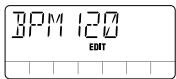

The tempo change applies only to the rhythm track. It does not affect the audio tracks.
Selecting a drum kit for the rhythm track (KITSEL)
This item lets you select a drum kit for the rhythm track.
While the indication "KITSEL" is shown on the display, you can use the cursor [] / [] keys or slider 1 to select the drum kit number (1 - 6) shown at top right. For a listing of drum kits, see page 83.

Selecting a bass sound for the rhythm track (BASSEL)
This item lets you select a bass sound for the rhythm track.
While the indication "BASSEL" is shown on the display, you can use the cursor [ ] / [ ] keys or slider 1 to select the bass sound number (1 - 5) shown at top right. For a listing of bass sounds, see page 83.
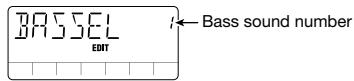
Setting repeat play to On or Off (REPEAT)
This item lets you switch repeat play for the rhythm track On and Off. While the indication "REPEAT" is shown on the display, you can use the cursor [▲]/[▼] keys to toggle the setting shown at right between "on" and "oF".


When repeat play is On, the rhythm track from the first measure to the measure immediately before "END" is automatically repeated. (The audio tracks are not repeated).
Importing the rhythm track from another song (IMPORT)
This item lets you import the rhythm track used by another song to the currently selected song.
While "IMPORT" is shown on the display, press the [EDIT] key and then use the cursor [ ] / [ ] keys to select the number of the song from which you want to import the rhythm track. Press the [STORE (EXECUTE)] key to conclude the process and import the record track.
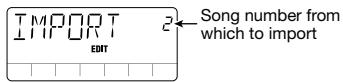

To cancel the import process, press the [EXIT (CANCEL)] key.

When importing is carried out, the rhythm track of the current song will be deleted.
Transposing chord change information (TRANSP)
This item lets you transpose the chord change information of the rhythm track in semitone steps. While the indication "TRANSP" is shown on the display, press the [EDIT] key and then use the cursor [] / [] keys to change the transpose value shown at the top right (-6 - 0 - 6). Press the [STORE (EXECUTE)] key to carry out the transpose process. The chord
change information of the rhythm track will be transposed accordingly.
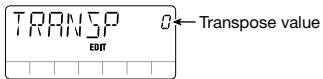

To cancel the transpose process, press the [EXIT (CANCEL)] key.

The transpose change applies only to the rhythm track. It does not affect the audio tracks.
Audio Menu
The Audio menu serves for recording or erasing audio tracks, and for setting various recording options. It also lets you call up the Audio Edit menu for editing the audio tracks.
To switch to the Audio menu from another menu, use the cursor [] / [] keys to cause the AUDIO menu LED to light up.
Front panel controls and functions (Audio menu)
When the Audio menu is selected, the front panel controls operate as follows. (Other keys are inactive.)
(1) Display
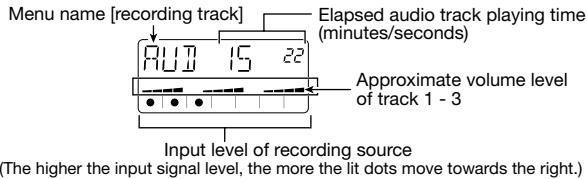
(2) Sliders 1 - 3
Adjust the volume level of audio tracks 1 - 3.
(3) [ ] key
Stops the song.
(4) [B] key
Starts/pauses playback of the song (rhythm track + audio tracks).
![ZOOM PS-02 - [B] key - 1](/content/2025/01/152233/images/bc9f837f4ca9b7812899142d1d5bd56f726ba4fa6c131c774e578a8ac213abc7.jpg)
While the song is paused ([▶H] key is flashing), you can use the cursor [▲] ([▼]) key to change the current position. Pressing the [▶H] key then starts playback from the new position. This function can also be used to start recording from the pause mode.
(5) [REC] key
Pressing the [REC] key in the stop mode sets the unit to standby mode for audio track recording.
(6) [VIEW] key
Pressing this key during playback cycles the display through the
following functions: Chord name Tempo Audio menu. Pressing this key in stop mode cycles the display through the following functions: Track 1 recording option settings Track 2 recording option settings Track 3 recording option settings Audio menu.
![ZOOM PS-02 - [VIEW] key - 1](/content/2025/01/152233/images/6b4ad48a412ae9e2556a8389e8524023ddfeabe8a0e9684c71a4be57f15f95af.jpg)
(7) [MIC] key
Activates the built-in microphone. (The signal from the [INPUT] jack is muted.) This key is only active when the "((\pmb{\varphi}))" (mic icon) is shown for the selected patch.
(8) Patch [] / [] keys
Serve to switch effect patch numbers (user patches 1 - 60 preset patches 1 - 60).
(9) Cursor [<] /[>] keys
Serve to switch the menu.
(10)[EXIT(CANCEL)]key
Switch the mode in the order Audio Edit menu Audio menu Song menu.
(11)[BYPASS] key
Bypasses (mutes) effect processing.
(12)[EDIT] key
Calls up the Audio Edit menu ( page 54).
Setting recording options
The Audio menu lets you make various settings before starting to record, such as selecting the recording track and setting the recording quality. These options are explained below.
1.From the Audio menu, press the [REC] key.
The unit switches to recording standby mode.
2.Use the cursor [] / [] keys to select one of the following items, and then use the cursor [ ] / [ ] keys to make the setting.
- R- Select record track
- CAP Show remaining recording time
GRADE Select recording quality - SOURCE Select recording source
- NEW TK Select whether to use a new take (virtual track)
For details, see the sections on the respective items.
3. When the settings have been made, press the [▶II] key to start recording.
Except for the "NEW TK" option, the settings apply to all songs until the unit is turned off or the setting is changed. (The "NEW TK" option returns to the "n" setting with each new recording process.)
Recording options
Select recording track (R-)
Selects the track on which to record. The indication "R-x" is shown on the display, where "x" is the track number. Use the cursor [▲]/[▼] keys to select the recording track (1/2/3/23).
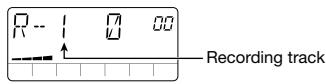

If you select "AU" ([AUX IN] jack) or "Ai" ([INPUT] jack + [AUX IN] jack) as recording source, and select "23" as recording track, recording is carried out in stereo on tracks 2/3.

During stereo recording, track 1 cannot be monitored.
Remaining time (CAP)
Shows the remaining recording capacity in minutes and seconds. This is only a display item, it cannot be changed.
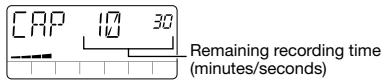
Recording quality (GRADE)
Sets the sound quality grade of the recording. While the indication "GRADE" is shown on the display, use the cursor [] / [] keys to select on of the following two settings.
HF (HiFi) High-quality recording (default setting)
- LG (LONG) Lower-quality recording which yields twice the recording time
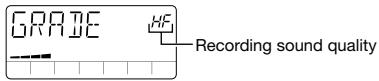

Within a single song, it is possible to select a different grade setting for different audio tracks.
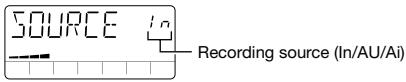
Select recording source (SOURCE)
Selects the recording source. While the indication "SOURCE" is shown on the display, use the cursor [] / [] keys to select one of the following source settings.
- In Signal from [INPUT] jack is used as recording source (default setting)
- AU Signal from [AUX IN] jack is used as recording source
- Ai Signal from [INPUT] jack and [AUX IN] jack is mixed and used as recording source
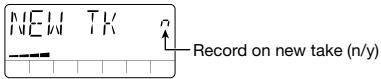
Switch to new take (NEW TK)
Selects whether to use a new take when recording again on the currently selected audio track. While the indication "NEW TK" is shown on the display, use the cursor [] / [] keys to select "n" (overwrite current take when recording; default setting) or "y" (switch to new take when recording).
Erasing an audio track
Recorded audio tracks that are no longer needed can be erased as follows.
1.From the Audio menu, press the [REC] key.
The unit switches to recording standby mode, and the recording track number is shown on the display.
2.Use the cursor [ ] / [ ] keys to select the track to erase.
3. Press the [INS/DEL] key.
The "ERASE" indication flashes on the display.
![ZOOM PS-02 - Press the [INS/DEL] key. - 1](/content/2025/01/152233/images/a20686bbfaff450452721701f757294439567322ffb5926c0f50153fa5dd66f2.jpg)
4. To carry out the erase process, press the [STORE (EXECUTE)] key.
The track is erased, and the unit returns to the recording standby mode.
![ZOOM PS-02 - To carry out the erase process, press the [STORE (EXECUTE)] key. - 1](/content/2025/01/152233/images/717a028a91e66ff66f8a2993206cd52b76c30c7f0f4d209fba8d5ba640e08349.jpg)
To cancel the erase process, press the [EXIT (CANCEL)] key.
When a track was erased with this method, only the currently selected take is erased. To erase other takes, see page 60.
Audio Edit Menu
From the Audio menu, press the [EDIT] key to call up the Audio Edit menu. This menu allows you to set panning options for each track, and to select and erase individual takes. The auto punch-in and punch-out functions and the bounce function are also available from this menu.
Basic operation steps for Audio Edit menu
1.From the Audio menu, press the [EDIT] key.
This calls up the Audio Edit menu.
2.Use the cursor [] / [] keys to select the item you want to set (or execute the respective function). The following items are available.
- PAN (Stereo panning for each track)
While "PAN" is shown on the display, use sliders 1 - 3 to set the stereo panning position for audio tracks 1 - 3. The setting range is "10r" (hard right) - "C" (center) - "10L" (hard left). The display shows the setting for the most recently operated audio track.
P-I/O (Auto punch-in/punch-out function)
"Auto punch-in/punch-out" lets you redo recording on a specified range of the audio tracks. For details, see below.
- BOUNCE (bounce function)
"Bounce" is the capability to collate several audio tracks on track 1 - 2. For details, see page 58.
- TKSEL1 - TKSEL3 (Select take)
While "TKSEL1" - "TKSEL3" is shown on the display, use the cursor [] /[▼] keys to select the take number (1 - 10) to use for audio tracks 1 - 3. (Take numbers for unrecorded takes cannot be selected.)
3. To return to the Audio menu, press the [EXIT (CANCEL)] key.
![ZOOM PS-02 - To return to the Audio menu, press the [EXIT (CANCEL)] key. - 1](/content/2025/01/152233/images/e50a26681d95536e9a9e4fe7c3deff2cd0754c12fe1f7a5bb0090b2e9d0fcb32.jpg)
The Audio Edit menu can be called while a song is playing or stopped. However, if it is called while a song is playing, items other than "PAN" cannot be selected.
Using the auto punch-in/punch-out function
This section explains how to use the auto punch-in/punch-out function to rerecord only part of a track.
1.From the Audio menu, press the [REC] key to set the unit to recording standby mode, and then use the cursor [ ] / [ ] keys to select the track which to rerecord.
2. Press the [■] key to cancel the recording standby mode.
3. Press the [EDIT] key to activate the Audio Edit menu, and
use the cursor [] / [] keys to bring up the indication "P-I/O" on the display.
4. Press the [EDIT] key once more.
The indication "PIx" (where x is the track number) is shown. This allows you to set the punch-in point.
![ZOOM PS-02 - Press the [EDIT] key once more. - 1](/content/2025/01/152233/images/90168e2abe4c3da9d2e245c0f96f5240920257199ff86617866f097485876faa.jpg)
5. Press the [▶II] key to play the song. While listening to the rhythm track and the recorded track, press the [REC] key at the desired punch-in point.
The indication "P-IN" is briefly shown on the display, and the punch-in point is set.
![ZOOM PS-02 - Press the [▶II] key to play the song. While listening to the rhythm track and the recorded track, press the [REC] key at the desired punch-in point. - 1](/content/2025/01/152233/images/3da18b601e69ab9687a65ca1bf62402ebdb3d68c34a393173fd2760c23ad41b5.jpg)
Instead of immediately pressing the [REC] key at the desired punch-in (punch-out) point, you can also press the ▶ key to pause the song, and then later press the [REC] key to set the punch-in (punch-out) point. This method allows you to shift the point in units of 1 second while in pause mode, using the cursor keys.
![ZOOM PS-02 - Press the [▶II] key to play the song. While listening to the rhythm track and the recorded track, press the [REC] key at the desired punch-in point. - 2](/content/2025/01/152233/images/049f34387c69b60259149c1cbd0203a359814ac3ff368bb7f2e664b71ea84c8c.jpg)
While setting or executing the auto punch-in/punch-out function, only the current recording track can be monitored.
6. At the desired punch-out point, press the [REC] key once more.
The indication "P-OUT" is briefly shown on the display, and the punch-out point is set.
![ZOOM PS-02 - At the desired punch-out point, press the [REC] key once more. - 1](/content/2025/01/152233/images/5100955b856a855d7ab05463d90246399b12168d9d3e30d9bbb80be0dff81ee0.jpg)
After setting the punch-in point, it is also possible to stop the song, and later only set the punch-out point by pressing the [▶] key.
7. When the punch-in/punch-out points have been set, press the [■] key to stop the song.
The unit moves to a point 3 seconds before the punch-in point and goes into the auto punch-in/punch-out standby mode. The [ ] key is flashing.
![ZOOM PS-02 - When the punch-in/punch-out points have been set, press the [■] key to stop the song. - 1](/content/2025/01/152233/images/364203877d6cf859cae9e0107abb78c56290ebed8f7765415d9d1eb2b09a3196.jpg)
![ZOOM PS-02 - When the punch-in/punch-out points have been set, press the [■] key to stop the song. - 2](/content/2025/01/152233/images/18c4cf23e51447ed1103dabc1b78872032f1c10790350180bee25b2af11f355c.jpg)
If the interval between the punch-in and punch-out points exceeds the recording capacity of the SmartMedia card, the indication "FULL" will appear and recording will stop when attempting to carry out punch-in/punch-out. Take the recording capacity into consideration when setting the punch-in/punch-out points.
![ZOOM PS-02 - When the punch-in/punch-out points have been set, press the [■] key to stop the song. - 3](/content/2025/01/152233/images/fc558bdfc4686946edc378e160012a82ed973b47ed603bede23bb61c5e518b7b.jpg)
To redo the punch-in/punch-out point setting, press the [EXIT (CANCEL)] key and then repeat the procedure from step 5.
8. To do a practice run for auto punch-in/punch-out, press the [▶II] key. To actually carry out the function, press the [REC] key.
- When [▶II] key was pressed
From a point 3 seconds before the punch-in point, playback of the rhythm track + recorded track starts. Between the punch-in and punch-out points, the recorded track is muted (actual recording is not carried out). - When [REC] key was pressed
From a point 3 seconds before the punch-in point, playback of the rhythm track + recorded track starts. Between the punch-in and punch-out points, recording is carried out. (During playback, the [REC] key is flashing, and during recording, the key is lit.)
9.After passing the punch-out point, press the [ ] key.
The unit returns to a point 3 seconds before the punch-in point. If necessary, press the key to check the recording.
10. When wishing to retain the recording, press the [STORE (EXECUTE)] key.
The recording contents are saved (the indication "PRCING" appears on the display), and the unit returns to the Audio menu.
To redo auto punch-in/punch-out, press the [EXIT (CANCEL)] key.
The auto punch-in/punch-out recording contents are canceled, and the unit returns to the condition of step 7. To return to the Audio menu, press the [EXIT (CANCEL)] key repeatedly.
![ZOOM PS-02 - When wishing to retain the recording, press the [STORE (EXECUTE)] key. - 1](/content/2025/01/152233/images/9bfefef6ade32001a3d4e241dbf4e7ea4fe0a978eb4f1be74eaa96d3c6ddc4bc.jpg)
The time before the punch-in point (preroll time) to which the unit moves automatically can be set with the Utility menu ( page 73).
Using the bounce function
This section explains how to move the contents of several tracks onto 1 or 2 tracks.

The audio tracks created with the bounce function (destination tracks) retain the volume level and pan settings of the original audio tracks (source tracks). (The pan setting is retained only if the destination track setting is "23".) Consequently, audio track mixing should be completed before using the bounce function.
1. Press the [EDIT] key and use the cursor []/[] keys to call up the indication "BOUNCE" on the display.
2. Press the [EDIT] key once more.
The numbers of the bounce source tracks are shown at the top right of the display.
![ZOOM PS-02 - Press the [EDIT] key once more. - 1](/content/2025/01/152233/images/2969ed8dfcb918a33ff9b63b78474d54fcff238eb69df33e3ae0f380db280dda.jpg)
3.Use the cursor [▲]/[▼] keys to select the source tracks from "123/12/23/13", and then press the [STORE (EXECUTE)] key.
The number of the bounce destination track is shown at the top right of the display.
![ZOOM PS-02 - 3.Use the cursor [▲]/[▼] keys to select the source tracks from "123/12/23/13", and then press the [STORE (EXECUTE)] key. - 1](/content/2025/01/152233/images/20cb9acbb1403b0e7489f243875e199652a95707f851bff1780818d0fc5980d9.jpg)
4. Use the cursor [▲]/[▼] keys to select the destination track from "1/2/3/23", and then press the [STORE (EXECUTE)] key.
The confirmation message "SURE?" is shown on the display.
![ZOOM PS-02 - Use the cursor [▲]/[▼] keys to select the destination track from "1/2/3/23", and then press the [STORE (EXECUTE)] key. - 1](/content/2025/01/152233/images/ea37e97b2a8ca2ebde21bf369f7c4e36516a4c0eab2747b047a6b84a75e18ee3.jpg)
The destination track setting "23" can only be selected when the source track setting is "123". In this case, a stereo mix of tracks 1 - 3 is created on tracks 2/3.
5. Press the cursor [▶] key.
A confirmation message asking whether to use a new take for the destination track is shown on the display. To overwrite the current take, select "n" (default setting). To bounce to a new take, select "y".
![ZOOM PS-02 - Press the cursor [▶] key. - 1](/content/2025/01/152233/images/db364bb7dbaac9a74bb7338cfbf41a311871aaa14f28bf203075d1d4f1733b6d.jpg)
![ZOOM PS-02 - Press the cursor [▶] key. - 2](/content/2025/01/152233/images/784d1c32b1e6ac72d50b782d269fcc8187d2aef00749b38e23398b8ce1f49b58.jpg)
Bounce is possible also when the source track and destination track settings overlap. However, when selecting overwrite of the current take, the original recorded content of the source track will be lost. When wishing to retain the content of the source track, select "y".
6. To execute the bounce function, press the [STORE (EXECUTE)] key.
The bounce function is carried out ("BOUNCE" is shown on the display), and the unit returns to the Audio menu. To cancel the bounce function, press the [EXIT (CANCEL)] key.
![ZOOM PS-02 - To execute the bounce function, press the [STORE (EXECUTE)] key. - 1](/content/2025/01/152233/images/4c4cfe74d4fe0cc35f670f93fba20f84d1fb401159f1f5153b89faff2f242384.jpg)
Bounce processing takes a certain amount of time.
[Bounce example]
![ZOOM PS-02 - [Bounce example] - 1](/content/2025/01/152233/images/342e1425a0fc3987784e2375dad63e3e280e3e1b2724284c5360214d5ae53eb8.jpg)
![ZOOM PS-02 - [Bounce example] - 2](/content/2025/01/152233/images/f6e1f5027077d41750d8d5f88c16fe50e9479171ed5d98dea18b723439b73cd0.jpg)
Bounce function precautions
Before executing the bounce function, make sure that there is sufficient recording capacity on the SmartMedia. If there is insufficient capacity, the indication "FULL" appears on the display.
The required recording capacity for the bounce function can be calculated as follows.
(Time from bounce source start to end point) x Number of bounce destination tracks)
If any of the bounce source tracks is recorded with the HiFi (high recording grade) setting, the bounce destination tracks will automatically also use the HiFi setting.
For example, when executing bounce for 3 minutes x 2 tracks = 6 minutes of HiFi recording time will be required.
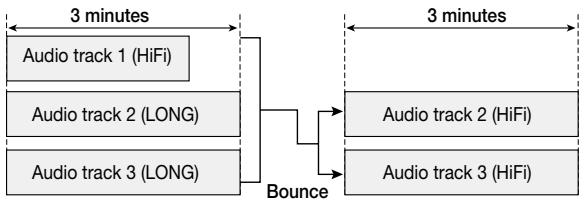
Erasing a take
Recorded takes can be erased as follows, if no longer needed.
1.From the Audio menu, press the [EDIT] key to activate the Audio Edit menu, and then use the cursor [ ] / [ ] keys to call up "TKSEL1" - "TKSEL3" on the display.
2.Use the cursor [ ] / [ ] keys to select the take number (1 - 10) you want to erase. (Unrecorded take numbers cannot be selected.)
3. Press the [INS/DEL] key.
The indication "ERASE" flashes on the display.
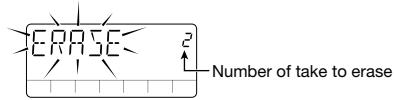
- To erase the take, press the [STORE (EXECUTE)] key.
To cancel the erase process, press the [EXIT (CANCEL)] key.
Effect Menu
The Effect menu serves for selecting effect patches, and for using the easy edit function which lets you quickly adjust major effect parameters. It also lets you call up the Effect Edit menu for detailed editing of effect patches.
To switch from another menu to the Effect menu, use the cursor [] / [] keys to cause the EFFECT menu LED to light up.
Front panel controls and functions (Effect menu)
When the Effect menu is selected, the front panel controls operate as follows. (Other keys are inactive.)
(1) Display
The display of the Effect menu shows the following information.
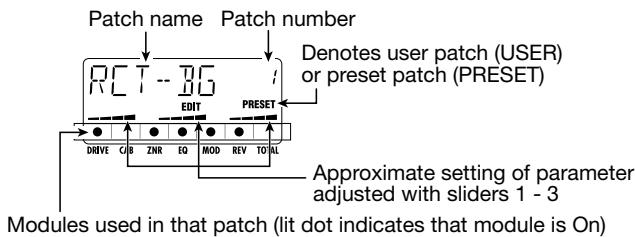
(2) Sliders 1 - 3
Serve to edit a major parameter of the DRIVE, MOD, and REV module (Easy Edit).
(3) [REC] key
Activates the Audio menu from the Effect menu. The unit switches to recording standby mode.
(4) [▶II] key
Activates the Song menu from the Effect menu. The unit begins to play the selected song from the start.
(5) Cursor [<] /[>] keys
Serve to switch the menu.
(6) [STORE (EXECUTE)] key
Serves to store a patch ( page 66).
(7) [EXIT (CANCEL)] key
Cycles through the following modes: Effect Edit menu Effect menu Song menu.
(8) [BYPASS] key
Bypasses (mutes) effect processing and is used for the tuner function ( page 67).
(9) [EDIT] key
Activates the Effect Edit menu (see below).
(10)Patch [] / [] keys
Switch the patch number (user patches 1 - 60 preset patches 1 - 60 ).
Effect Edit menu
Pressing the [EDIT] key from the Effect menu calls up the Effect Edit menu. This menu allows detailed editing of the currently selected patch, and storing of an edited patch as a user patch.
Effect configuration
The PS-02 has six effect modules called DRIVE, CAB, ZNR, EQ, MOD, and REV. In addition, there is the TOTAL module which adds the patch name and patch level setting. The result of processing the sound via these modules is called a "patch".

Within each effect module, you select the effect type and the effect parameters. For some modules, it is also possible to use more than one effect type simultaneously. For example, the MOD (modulation) module has the effect types CHORUS, FLANGE, PHASE, etc. of which you can
select one. The effect parameter setting changes, depending on the selected effect type.
The Effect Edit menu lets you select the On/Off setting for each effect module and change the value of the effect parameters.
Basic operation steps for Effect Edit menu
1.From the Effect menu, use the patch [ ] / [ ] keys to select the patch to edit.
2. Press the [EDIT] key.
The unit switches to the Effect Edit menu, and the indication "EDIT" is shown on the display.
The dot corresponding to the module currently selected for editing flashes, and the name and setting of the parameter that was last edited for that module (or the effect type used by that module) are shown on the display.
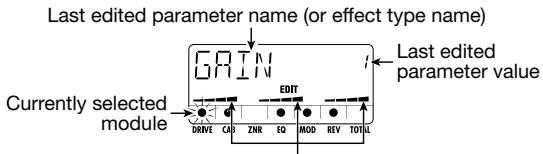
Approximate setting of parameter that can be adjusted with sliders 1 - 3

- If the Edit menu was called immediately after switching patches, the DRIVE TYPE is displayed. If the Edit menu was called after performing Easy Edit, the last edited module is displayed.
- If the currently selected module is Off, the indication "-OFF-" is shown.
3.To select the effect module for editing, use the cursor [] / [] keys.
The flashing dot moves left or right, and the parameter name (or effect type used in the module) shown on the display changes accordingly.

4. To switch the effect type of the currently selected module, use the cursor [] / [] keys.
The DRIVE, MOD, and REV modules comprise several effect types, of which you can select one. (When you select a different effect type, the usable effect parameters change accordingly.) For a listing of modules, selectable effect types, and parameters, see page 79 - 83.
![ZOOM PS-02 - To switch the effect type of the currently selected module, use the cursor [] / [] keys. - 1](/content/2025/01/152233/images/17969e8376bea572f9d9ee45627ce2884db0cc21181476b05e6009d9d0565e05.jpg)
The cursor [] / [] keys have no effect on modules which are currently Off or modules for which there is only one effect type.
5. To change the parameter of the currently selected module, operate sliders 1 - 3.
In the Effect Edit menu, sliders 1 - 3 serve to edit the effect parameters of the currently selected module.
When a slider is moved, the corresponding parameter name and setting value are shown on the display.
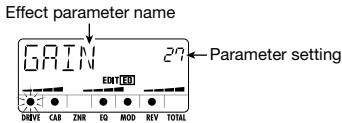

You can also check the setting of the current parameter without moving the slider. To do this, press the [EDIT] key while in the Effect Edit menu. Each push of the key causes the display to cycle through parameter 1 parameter 2 parameter 3 effect type.
6. To toggle the currently selected module between On and Off, press the [BYPASS TUNER] key.
When the effect module is set to Off, the indication "-OFF-" appears on the display.
7. To set the final patch level, use the cursor [] / [] keys to select "P-LVL" of the TOTAL module, and then use slider 1 to make the adjustment (setting value 1 - 30).
8. To stop editing and return to the Effect menu, press the [EXIT (CANCEL)] key.
![ZOOM PS-02 - To stop editing and return to the Effect menu, press the [EXIT (CANCEL)] key. - 1](/content/2025/01/152233/images/9504191eec6c20448e4cd27a4b8298d1655d2f0078a5b1123b2c5bdc758b0ff3.jpg)
If you switch to another effect patch in this condition, any changes you have made to the previous patch will be lost. When wanting to keep the results of your editing session, store the effect patch. For details, see page 66.
Changing the patch name
- At the Effect menu, press the [EDIT] key to call up the Effect Edit menu.
2.Use the cursor [] / [] keys until the first character of the patch name shown on the display flashes.
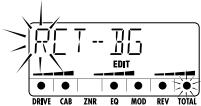
3.Use sliders 1-3 to select the desired character.
Sliders 1 - 3 have the following function.
- Slider 1: A - Z (capital letters)
- Slider 2:0-9 (numerals)
- Slider 3:
/ + / - / @ (symbols)
4.Use the cursor [] / [] keys to move the flashing to the next character you want to edit, and edit the rest of the name in the same way.
5. To return to the Effect menu, press the [EXIT (CANCEL)] key.

If you switch to another effect patch in this condition, any changes you have made to the previous patch will be lost. When wanting to keep the results of your editing session, store the effect patch.
Storing an effect patch
The changes you have made using the Effect Edit menu are only temporary. When you switch patches, the settings will revert to previous condition. If you have made changes you wish to keep, store the patch as follows.
1. At the Effect menu or Effect Edit menu, press the [STORE (EXECUTE)] key.
The display alternately shows the store target patch name and the indication "STORE".
2. To overwrite an existing patch, use the patch [] / [] keys to select the desired patch.
![ZOOM PS-02 - To overwrite an existing patch, use the patch [] / [] keys to select the desired patch. - 1](/content/2025/01/152233/images/aa63b8a745bb04ae97877fa4bbdde2b0ddfaabd76e98f68ffd11246731140a79.jpg)
- Only user patches 1 - 60 can be selected as store target.
- When you have edited one of preset patches 1 - 60, user patch 1 is selected as default store target. You can change this to any patch among the user patches.
3. Press the [STORE (EXECUTE)] key.
The indication "STORE" is shown on the display and the patch is stored. When the store process is complete, the unit returns to the Effect menu.
Special effect types
The DRIVE module of the PS-02 comprises two special effect types called "MIXEFX" and "MICPRE". This section explains how these effect types are used.
MIXEFX
"MIXEFX" is a mixdown effect that lets you tailor the overall song output signal (rhythm track + audio tracks). You can add reverb or emphasize highs and lows.
When you select "MIXEFX" as the effect type of the DRIVE module, only the DRIVE and TOTAL modules can be used. Note that the signal
from the [INPUT] jack, [AUX IN] jack and the built-in microphone also can not be used.
When a patch that uses "MIXEFX" is selected, the "" (mic icon) flashes on the display.
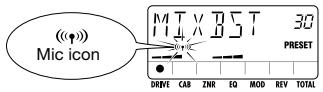
MICPRE
The "MICPRE" effect type lets you use the DRIVE module as a preamplifier for microphone input. The signal can either be from the built-in microphone or a microphone connected to the [INPUT] jack. When you select "MICPRE" as effect type of the DRIVE module, the microphone input gain setting (MIC-G) of the Utility page becomes effective ((\rightarrow) page 71). Therefore, if you select a patch where the "<((\text{↑})>"" (mic icon) lights up while a guitar, synthesizer, or similar instrument is connected, the sound will be distorted due to input overload.
When the "MICPRE" patch is selected, the "< ♀ " (mic icon) appears on the display.
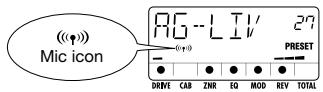
Using the bypass (mute)/tuner function
The PS-02 incorporates an auto-chromatic tuner for guitars. To use the tuner function, the built-in effects must be bypassed (temporarily turned off) or muted (original sound and effect sound turned off).
1. At the Effect, Song, Rhythm, or Audio menu, press the [BYPASS (TUNER)] key.
When you press and immediately release the [BYPASS (TUNER)] key, the unit is set to the bypass condition, and the indication "BYPASS" appears on the display.
If you press the [BYPASS (TUNER)] key for longer than 1 second and then release it, the unit is set to the mute condition, and the indication "MUTE" appears on the display.
2. Play the open string you want to tune, and watch the display.
The PS-02 automatically detects the pitch and the display shows the note which is closest to the current pitch.
| Note | C | C# | D | D# | E | F | F# | G | G# | A | A# | B | Could not detect |
| Display | # | # | # | # | # | # | # | # | # | # | # | # | - |
3. When the display shows the desired note, perform fine tuning of the pitch until a triangle mark is displayed on both sides of the note.
The triangle and dot indication of the display changes as follows, depending on the pitch.

4. When wishing to change the reference pitch of the tuner, use the cursor [] / [] keys.
The current reference pitch is briefly shown on the display. After power to the unit is turned on, the setting is always "440Hz" (center A = 440Hz ).
5. While the reference pitch setting is displayed, you can use the cursor [] / [] keys to change the reference pitch.
The setting range is "435Hz" - "445Hz" in steps of 1 Hz. When you turn the PS-02 off and on again, the reference pitch is reset to "440Hz".
6. Pressing the [BYPASS (MUTE)] key, [EXIT] key, or one of the patch []/[] keys returns you to the original menu.
Utility Menu
The Utility menu lets you make various settings that affect the entire unit.
To switch from another menu to the Utility menu, use the cursor [] / [] keys to cause the UTILITY menu LED to light up. (The menu name "UTILTY" is shown on the display.)
Front panel controls and functions (Utility menu)
When the Utility menu is selected, the front panel controls operate as follows. (Other keys are inactive.)
(1) Display
At the setting screen of the Utility menu, the following information is shown on the display.
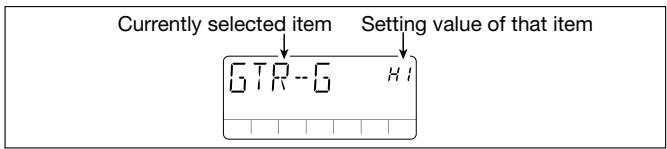
(2) Slider 1
Changes the setting value of the currently selected item.
(3) Cursor [<] /[>] keys
Select the item to be shown on the display.
(4) Cursor [▲]/[▼] keys
Serve to change the value of the currently selected item.
(5) [EXIT (CANCEL)] key
Switch the mode in the order Utility menu setting screen Utility menu name Song menu.
(6) [EDIT] key
Activates the setting screen from the Utility menu name display ( page 70).
How to set items on the Utility menu
Basic operation steps for Utility menu
1. When the Utility menu name "UTILTY" is displayed, press the [EDIT] key.
The first setting item "GTR-G" is displayed.
2.Use the cursor [] / [] keys to select one of the following items.
- GTR-G (Guitar gain): Sets the gain for a guitar/synthesizer connected to the [INPUT] jack.
- MIC-G (Mic gain): Sets the gain for the built-in microphone or a microphone connected to the [INPUT] jack.
- BAKLIT (Backlight): Controls the backlight when operating the PS-02 on batteries.
- PRECNT (Precount): Controls the precount function.
- CNTTYP (Precount type): Sets the precount duration.
- PREROL (P preroll): Sets the preroll time for auto punch-in/punch-out.
- LOAD (Load): Reads specified play/sound character/patch data from the SmartMedia.
- FORMAT (Format): Formats (initializes) a SmartMedia card and creates a work SmartMedia.
3. When the desired item is displayed, use the cursor [] / [] keys, slider 1, [EDIT] key etc. to change the setting. (For details, see the section on the respective item.)
For the setting procedure, see the section on the respective item.
4. When the setting of each item is completed, press the [EXIT (CANCEL)] key.
The unit returns to the Utility menu name display.
Items on Utility menu
- Setting the [INPUT] jack gain (GTR-G)
Sets the gain for a guitar or synthesizer or similar connected to the
[INPUT] jack. While the indication "GTR-G" is displayed, use the cursor []/[] keys or slider 1 to select one of the following settings, to match the connected instrument.
- Lo: For instrument with high output, such as a guitar with built-in preamp or a synthesizer
- HI: For instrument with low output, such as a passive guitar (default setting)
![ZOOM PS-02 - - Setting the [INPUT] jack gain (GTR-G) - 1](/content/2025/01/152233/images/7b33f0050f2b807ec2a7a1589a7d33314827f682bc941aaa27c6bb2bc84b5acb.jpg)
![ZOOM PS-02 - - Setting the [INPUT] jack gain (GTR-G) - 2](/content/2025/01/152233/images/2e5b0ff005c459c139abc4d33da359ccade8f35cf615f577c092e33825782daf.jpg)
When the effect type "MICPRE" is selected for the DRIVE module, this setting is inactive ( page 67).
- Setting the microphone gain (MIC-G)
Sets the gain for the built-in microphone or a microphone connected to the [INPUT] jack. While the indication "MIC-G" is displayed, use the cursor [] / [] keys or slider 1 to select one of the following settings, to match the microphone.
[Using the built-in microphone]
- Lo: This is a gain setting for on-mic recording. It is suitable for holding the PS-02 in your hand while doing a vocal, or for placing the PS-02 very close to an acoustic guitar (about 30cm from the sound hole).
- HI: This is a gain setting for off-mic recording, such as when capturing an entire band in a studio.
[Using an external microphone]
- Lo: This setting is suitable for high-output microphones.
- HI: This setting is suitable for low-output microphones.
![ZOOM PS-02 - [Using an external microphone] - 1](/content/2025/01/152233/images/0153164af124be614d18459b93b4b25c9bfde4592515d1c199fda5679086f630.jpg)
![ZOOM PS-02 - [Using an external microphone] - 2](/content/2025/01/152233/images/6c57c5da2b5d0d5d23fe9fba986e66824dee3eac5a0af123fa3d98f1007d1cdf.jpg)
This setting is only valid when "MICPRE" is selected as effect type for the DRIVE module ( page 67).
- Backlight operation when running on battery power (BAKLIT)
When using the PS-02 on batteries, this setting can be used to control the backlight operation. While the indication "BAKLIT" is displayed, use the cursor [] / [] keys or slider 1 to select one of the following settings.
OF(OFF): Always Off
- At (AUTO): On for 10 seconds when a key or slider is operated (default setting)
- On (ON): Always On
- Precount operation (PRECNT)
Precount is a series of clicks that are heard before starting playback or recording. While the indication "PRECNT" is displayed, use the cursor [] /[▼] keys or slider 1 to select one of the following settings.
- OF (OFF): No precount
- rC (REC): Use precount only during recording (default setting)
- rP (REC/PLAY): Use precount during recording and playback
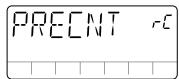
- Select precount number (CNTTYP)
This setting determines the number of clicks that are heard when precount is enabled. While the indication "CNTTYP" is displayed, use the cursor [] / [] keys or slider 1 to select one of the following settings.
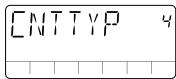
- 2 - 8: Sets number of precount clicks (default setting = 4).
- SP (Special): A special pattern is heard, as shown below.

- Set preroll time for punch-in (PREROL)
This setting determines the number of seconds for which playback is carried out before auto punch-in/punch-out. While the indication "PREROL" is displayed, use the cursor [] / [] eys or slider 1 to set the value.
- 0 - 8: 0 seconds - 8 seconds (default setting = 3 seconds)
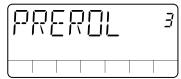
- Loading a file from SmartMedia (LOAD)
This function allows you to load rhythm track data, sound character data, or effect patch data stored on SmartMedia into the PS-02. In future, ZOOM will make available new pattern data and drum & bass sound data at locations such as its web site (http://www.zoom.co.jp).
- Formatting a SmartMedia card (FORMAT)
By formatting the SmartMedia supplied with the PS-02, you can erase all recorded audio data.
Formatting the supplied SmartMedia
By formatting the SmartMedia supplied with the PS-02, you can erase all recorded audio tracks and takes. To do this, proceed as follows.

When you perform the following steps, all recorded audio data are erased from the SmartMedia card and cannot be restored. Use this function with care.
- While the Utility menu name "UTILITY" is displayed, press the [STORE] key.
2.Use the cursor [] / [] keys to bring up the indication "FORMAT" on the display, and then press the [STORE] key.
The confirmation message "SURE?" appears.
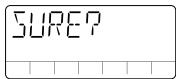
3. To carry out the format process, press the [STORE (EXECUTE)] key.
The indication "FMTING" flashes on the display, and formatting starts. When formatting is completed, the display shows "DONE".
4. Press the [EXIT (CANCEL)] key.
The unit returns to the Utility menu.
![ZOOM PS-02 - Press the [EXIT (CANCEL)] key. - 1](/content/2025/01/152233/images/978579c615683100ce412290c7b3ce266b2f97e4e6f1ebe5fc003585afd395f1.jpg)
- A SmartMedia card formatted as described above can be used to start up the PS-02 and as work card to store recording data.
- When you format the SmartMedia card as described above, rhythm track pattern data + song data, drum & bass sound character data, and patch data currently stored in the memory of the PS-02 are copied to the SmartMedia card.
![ZOOM PS-02 - Press the [EXIT (CANCEL)] key. - 2](/content/2025/01/152233/images/573f3be12455c96e2fc6cc28be5c0b63cf4ef49c8170789d4cc7e9a1ff308795.jpg)
- The above procedure is not suitable for formatting a newly purchased SmartMedia card. For information on how to format a newly purchased SmartMedia card to create a work SmartMedia, see page 75.
- If the PS-02 is operated on battery power and the batteries are exhausted during formatting, the files on the SmartMedia may be damaged. If possible, you should power the PS-02 from the AC adapter during formatting.
Special Operations
This section explains how to format a newly purchased SmartMedia card to create a work SmartMedia, and how to force format a SmartMedia card that has become unreadable.
Creating a Work SmartMedia
If the SmartMedia supplied with the PS-02 is damaged or lost, the system files contained on the card will no longer be accessible, and the PS-02 will no longer be able to start up correctly. Therefore we strongly recommend that you create a work SmartMedia as described below. (32MB or higher is recommended).
- With the supplied SmartMedia inserted in the PS-02, turn power to the PS-02 on.
The PS-02 starts up and the Song menu is displayed.
2.Remove the SmartMedia from the [DATA CARD] slot of the PS-02.
The indication "NOCARD" appears on the display.
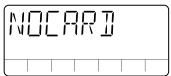
3.Insert a new SmartMedia card into the [DATA CARD] slot of the PS-02.
The indication "FOMAT?" appears on the display.
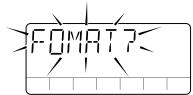

If the indication "LOAD" flashes on the display after the SmartMedia was inserted, the card has already been formatted by the PS-02. Verify whether the desired card was inserted. (Pressing the [STORE (EXECUTE)] key in this condition will cause the PS-02 to start up from this card.)
- To carry out the formatting process, press the [STORE (EXECUTE)] key.
The indication "FMTING" flashes on the display, and formatting starts.
When formatting is completed, the unit switches to the Song menu.
You now have created a working card. From now on, you should use this card and store the original supplied SmartMedia card in a safe place.

- A SmartMedia card formatted as described above can be used to start up the PS-02 and as work card to store recording data.
- When you format the SmartMedia card as described above, rhythm track pattern data + song data, drum & bass sound data, and patch data currently stored in the memory of the PS-02 are copied to the SmartMedia card. (However, recorded audio data are not copied.)
Force Formatting a SmartMedia Card
The formatting procedure described above requires that the PS-02 has started up normally. If for any reason the SmartMedia card has become unreadable, startup itself will not be possible.
In such a case, you can force format the SmartMedia and then copy over the system files, provided that these have been backed up for example on the hard disk of a computer. This will result in a SmartMedia card that is functionally identical to the supplied card.
To perform force formatting, proceed as follows.
- Turn power to the PS-02 off and insert the SmartMedia to force format into the [DATA CARD] slot.
- While holding down the [REC] key and the [STORE (EXECUTE)] key, turn power to the PS-02 on.
The indication "FORMAT" flashes on the display.
- Press the [STORE (EXECUTE)] key.
The confirmation message "SURE?" appears on the display.
- To execute the force format process, press the [STORE (EXECUTE)] key once more.
The indication "FMTING" flashes, and the formatting process starts. To cancel the force format process, turn the PS-02 off. When formatting is completed, turn power to the PS-02 off, remove the SmartMedia and copy the required files to it.
- A SmartMedia card created by this process can only be used for startup if the various system files required by the PS-02 have been backed up (copied) first.
- Take care to not accidentally format the SmartMedia card supplied with the PS-02.
Technical information: SmartMedia file information
The SmartMedia card supplied with the PS-02 contains the following files in the factory default condition.
File name
SYSTEM.SYS
RECORDERSYS
SOUNDS.SYN
UTILITY.UTY
FACSONGS.PTS
SONGS.PTS
PRESET.PCH
FACPATCH.PCH
USER.PCH
Purpose
PS-02 system file
Audio tracks system file
Drum & bass sound character data used for rhythm track
Utility menu setting data
Factory default song (rhythm track) and pattern data
Currently selected song (rhythm track) and pattern data
Preset patch setting data
Factory default user setting data
Currently selected user patch setting data
If you have a computer equipped with a SmartMedia card reader, you should copy the above files to the hard disk of the computer as a backup. This will allow you to restore the files on a force formatted SmartMedia card, if the original SmartMedia card supplied with the PS-02 has become unreadable or has been lost. (For details, see the preceding section.) By copying these files back to the SmartMedia card, you can create a card that is functionally identical to the factory supplied card.
The above files are also available for free download at the web site of ZOOM Corporation. In future, ZOOM will also make available new pattern data and drum & bass sound data (SOUNDS.SYN file) and factory default song (rhythm track) and pattern data (FACSONGS.PTS file) at the web site.
Web site of ZOOM Corporation: http://www.zoom.co.jp
Troubleshooting
| Problem | Remedy |
| Batteries are used up quickly | Are manganese batteries being used? Alkaline batteries are recommended. |
| "CRDERR" (Card Error) is displayed | The contact strip of the SmartMedia may be dirty. Clean it by lightly wiping it with a soft cloth. |
| "NOCARD" is displayed when SmartMedia card is inserted | Card may not be fully inserted. Remove card and insert again. |
| Newly bought SmartMedia card without system data was inserted. Format card and place system data on it (→ page 73). | |
| "FULL" is displayed | Remaining capacity of SmartMedia is insufficient. Erase unneeded audio data (→ page 54, 59, 60). |
| Rhythm and audio track sound is not heard, also when turning slider up | Wrong menu is selected. Change menu and then operate slider. |
| Signal from [INPUT] jack is not heard | MIXEFX effect is being used. |
| Input level slider is turned down. Turn up slider 1 at Song menu. | |
| Sound from [INPUT] jack (guitar etc.) is extremely distorted | MICPRE effect is being used. |
| CAB (Cabinet Simulator) module cannot be used | If amp modeling effect type is selected in DRIVE module, CAB module cannot be used. |
| Cannot record signal from [AUX] jack | "AUX" not selected as recording source (→ page 53). |
| Bouncing to stereo was carried out, but sound stage is narrow | PAN setting was not carried out for bounced tracks (→ page 55). |
| Built-in microphone cannot be used | If MICPRE is not selected for DRIVE module, built-in microphone cannot be used. |
Technical Information
Effect Types and Parameters
DRIVE MODULE
| Amp Modeling Sounds | |||
| TYPE | PARAMETER 1 | PARAMETER 2 | PARAMETER 3 |
| J-CLN | SENS | TONE | LEVEL |
| Clean sound modeled on a transistor combo amplifier | |||
| US-CLN | GAIN | TONE | LEVEL |
| Clean sound modeled on a built-in type tube amplifier | |||
| US-DRV | GAIN | TONE | LEVEL |
| Drive sound modeled on a built-in type tube amplifier | |||
| TWEED | GAIN | TONE | LEVEL |
| Compact combo tube amplifier with dry distortion | |||
| CLASSA | GAIN | TONE | LEVEL |
| British type combo amplifier with unique crunch sound | |||
| UK-CRU | GAIN | TONE | LEVEL |
| Crunch sound of a British tube stack amplifier | |||
| UK-DRV | GAIN | TONE | LEVEL |
| Drive sound of a British tube stack amplifier | |||
| CMB335 | GAIN | TONE | LEVEL |
| Tube combo amplifier with long sustain | |||
| MTLPNL | GAIN | TONE | LEVEL |
| High-gain drive sound of a tube stack amplifier | |||
| BLKBTM | GAIN | TONE | LEVEL |
| Tube stack amplifier with fat bass and detailed distortion | |||
| SLDN | GAIN | TONE | LEVEL |
| High-gain amp drive sound suitable for lead | |||
| FZ-STK | GAIN | TONE | LEVEL |
| Typical sixties sound of stack amplifier with fuzz | |||
| TE_B | SENS | TONE | LEVEL |
| Clean sound with mid/low emphasis for bass | |||
| FDR_B | GAIN | TONE | LEVEL |
| Vintage drive bass amplifier sound | |||
| Distortion / Dynamics Sounds | |||
| SANS_B | GAIN | TONE | LEVEL |
| Trebly drive sound for bass | |||
| COMP | SENS | ATTACK | LEVEL |
| Compressor for level reducing differences | |||
| DYN-CR | GAIN | COMP | LEVEL |
| Combination of vintage compressor and crunch sound | |||
| DYN-TS | GAIN | COMP | LEVEL |
| Combination of vintage compressor and vintage overdrive sound | |||
| DYN-GV | GAIN | COMP | LEVEL |
| Combination of vintage compressor and distortion | |||
| MTZONE | GAIN | TONE | LEVEL |
| Rich sustain with high-gain type distortion | |||
| 9002 | GAIN | COMP | LEVEL |
| Distortion sound modeled on the ZOOM 9002 | |||
| ACOSIM | TOP | BODY | LEVEL |
| Changes the sound of an electric guitar into that of an acoustic guitar. | |||
| MICPRE | LIMIT | COLOR | LEVEL |
| Mic preamplifier for using external or built-in microphone | |||
| Mixdown Effect | |||
| MIXEFX | HIGH | LOW | REVMIX |
| Allows bass/treble balance adjustment and adds reverb for final mixdown. | |||
Shaded sections indicate parameters that can be adjusted with Easy Edit in effect mode.
- The mixdown effect affects only the rhythm track and audio tracks.
- When the mixdown effect is selected, the signal from the INPUT and AUX IN jacks is not used.
- When the mixdown effect is selected, only the DRIVE module can be used.
- Because gain is automatically set for microphone input when MICPRE is selected, the sound will be distorted when a guitar signal or similar is output.
DRIVE MODULE parameter description
| Parameter name | Parameter description | Setting range |
| PARAMETER 1 | ||
| SENS | Adjusts the compression input sensitivity. | 0-10 |
| GAIN | Adjusts the distortion gain. | 1-30 |
| TOP | Adjusts the string sound. | 1-30 |
| LIMIT | Adjusts the limiter sensitivity. | 0-10 |
| HIGH | Adjusts the high-range mixing balance. | -12 - 12 |
| PARAMETER 2 | ||
| TONE | Adjusts the tone quality. | 0-10 |
| ATTACK | Adjusts the compression onset speed. | 0-10 |
| COMP | Adjusts the compression effect depth. | 0-10 |
| BODY | Adjusts the body sound. | 0-10 |
| COLOR | Adjusts the microphone preamplifier sound character. | |
| Flat characteristic, for connection of external microphone | 0 | |
| For use of built-in microphone with acoustic guitar | 1 | |
| For use of built-in microphone with vocals | 2 | |
| LOW | Adjusts the low-range mixing balance. | -12 - 12 |
| PARAMETER 3 | ||
| LEVEL | Adjusts the module output level. | 1-8 |
| REVMIX | Adjusts the reverb mix. | 0-30 |
CABINET SIMULATOR MODULE
| TYPE | PARAMETER 1 | PARAMETER 2 | PARAMETER 3 |
| CABINET SIM | CABINET | SPEAKR | DEPTH |
CABINET SIMULATOR MODULE parameter description
| Parameter name | Parameter description |
| PARAMETER 1 (CABINET) | |
| CM | Combo: Combo type cabinet simulation |
| br | Bright Combo: Brighter sound than with Combo |
| Ft | Flat: Cabinet with flat characteristics |
| St | Stack: Stack type cabinet |
| bC | BassCombo: Combo type cabinet for bass |
| bS | BassStack: Stack type cabinet for bass |
| PARAMETER 2 (SPEAKER) | |
| C1 | COMBO 1: Combo guitar amp with 12-inch speaker x 1 |
| C2 | COMBO 2: Combo guitar amp with 12-inch speaker x 2 |
| C3 | COMBO 3: Combo guitar amp with 10-inch speaker x 1 |
| GS | Gt Stack: Guitar amp stack with 10-inch speaker x 4 |
| GW | Gt Wall: Multiple amp stack sound |
| bC | Bs Combo: Combo type bass amp with 15-inch speaker x 1 |
| bS | Bs Stack: Stack type bass amp with 6.5-inch speaker x 4 |
| PARAMETER 3 | |
| DEPTH | DEPTH Adjusts the speaker cabinet ringing. |
- When an amp modeling type effect is selected for the DRIVE module, the CABINET module cannot be used.
ZNR MODULE
| TYPE | PARAMETER 1 | |
| ZNR | THRESH | ZOOM Noise Reduction (ZNR) is an original technology developed by Zoom to minimize noise in play pauses. |
| Parameter name | Parameter description | Setting range |
| THRESH | Adjusts the Zoom Noise Reduction sensitivity Select a setting that is as high as possible without causing the sound cutoff to become unnatural. | 0-15 |
EQ MODULE (3BAND EQ)
| TYPE | PARAMETER 1 | PARAMETER 2 | PARAMETER 3 | PARAMETER 4 |
| EQ | HIGH | MID | LOW | LEVEL |
| Parameter name | Parameter description | Setting range |
| HIGH | Provides high-range boost/cut. | -12 - 12 |
| MID | Provides mid-range boost/cut. | -12 - 12 |
| LOW | Provides low-range boost/cut. | -12 - 12 |
| EQ LVL | Adjusts the module output level. | 1-8 |
MODULATION MODULE
| TYPE | PARAMETER 1 | PARAMETER 2 | PARAMETER 3 |
| CHORUS | DEPTH | RATE | MIX |
| Stereo chorus with impressive wide spread. | |||
| FLANGE | DEPTH | RATE | FB |
| Pronounced flanger effect produces undulating sound. | |||
| PHASE | POSI | RATE | COLOR |
| Phase shifter produces breathing sound. | |||
| TREMOL | DEPTH | RATE | CLIP |
| Tremolo effect with periodic treble variation. | |||
| A-WAH | POSI | RESO | SENS |
| Wah effect changes with play dynamics. | |||
| PITCH | PITCH | TONE | BALANC |
| Shifts the pitch of the original sound. | |||
| SLOW-A | POSI | TIME | CURVE |
| Makes attacks slower. | |||
| VIBE | DEPTH | RATE | BALANC |
| Vibrato effect. | |||
| STEP | DEPTH | RATE | RESO |
| Creates an auto arpeggio type sound. | |||
| RING-M | POSI | RATE | BALANC |
| Creates a metallic sound. | |||
| CRY | POSI | RESO | SENS |
| Changes the sound like a talking modulator. | |||
| EXCIT | FREQ | DEPTH | LOWBST |
| Enhances the sound outline. | |||
| AIR | SIZE | TONE | MIX |
| Creates a spatial impression with room character. | |||
| WIDE | TIME | WETLVL | DRYLVL |
| Creates a wide sound as if recorded with 2 stereo microphones. | |||
Shaded sections indicate parameters that can be adjusted with Easy Edit in Effect mode.
MODULATION MODULE parameter description
| Parameter name | Parameter description | Setting range |
| PARAMETER 1 | ||
| DEPTH | Adjusts the effect depth. | 0-10 |
| POSI | Swaps the insertion position of DRIVE module and MOD module. bF : MOD → DRIVE AF : DRIVE → MOD | bF |
| AF | ||
| PITCH | Sets the pitch shift in semitone steps. Pitch can be shifted in the range from 1 octave down to 2 octaves up. dt creates a detune effect. | -12 -- 1 |
| dt | ||
| 1-12 | ||
| 24 | ||
| FREQ | Adjusts the frequency. | 1-5 |
| SIZE | Adjusts the spatial expansion. | 1-10 |
| TIME | Adjusts the distance to the mic. | 0-63 |
| PARAMETER 2 | ||
| RATE | Adjusts the speed of the effect. | 1-30 |
| RESO | Gives a special character to the effect. | 1-10 |
| TONE | Adjusts the tone quality. | 0-10 |
| TIME | Adjusts the time until the attack. | 1-30 |
| DEPTH | Adjusts the effect depth. | 0-30 |
| WETLVL | Adjusts the effect sound mixing balance. | 0-30 |
| PARAMETER 3 | ||
| MIX | Adjusts the effect mix. | 0-30 |
| FB | Adjusts the feedback level. | -10 - 10 |
| COLOR | Changes the phase sound type. | 1-4 |
| CLIP | Stresses the effect. | 0-10 |
| SENS | Adjusts the effect sensitivity. | -10 - 10 |
| BALANC | Adjusts the balance between original sound and effect sound. | 0-30 |
| CURVE | Sets the volume level change curve until the attack. | 0-10 |
| RESO | Gives a special character to the effect. | 0-10 |
| LOWBST | Emphasizes the bass. | 0-10 |
| DRYLVL | Adjusts the original sound mix. | 0-30 |
REVERB MODULE
| TYPE | PARAMETER 1 | PARAMETER 2 | PARAMETER 3 |
| HALL | TIME | TONE | MIX |
| Reverb effect which gives a concert hall sound. | |||
| ROOM | TIME | TONE | MIX |
| Reverb effect which gives room sound. | |||
| SPRING | TIME | TONE | MIX |
| Simulates a spring type reverb device. | |||
| PP-DLY | TIME | FB | MIX |
| Ping-pong delay where the sound moves between left and right. | |||
| MN-DLY | TIME | FB | MIX |
| Monaural delay of up to 1 second | |||
| DLYHAL | DLYTIME | DLYMIX | REVMIX |
| Combination of hall reverb and delay | |||
| DLYROM | DLYTIME | DLYMIX | REVMIX |
| Combination of room reverb and delay | |||
| AIR | SIZE | TONE | MIX |
| Creates a spatial impression with room character and depth. | |||
| WIDE | TIME | WET LVL | DRY LVL |
| Creates a wide sound as if recorded with 2 stereo microphones. | |||
Shaded sections indicate parameters that can be adjusted with Easy Edit in Effect mode.
REVERB MODULE parameter description
| Parameter name | Parameter description | Setting range |
| PARAMETER 1 | ||
| TIME(REVERB) | Adjusts the reverb time. | 1-30 |
| TIME(DELAY) | Adjusts the delay time. (TIME = setting value x 10 ms) | 2-170 |
| DLY TIME | Adjusts the delay time. (TIME = setting value x 10 ms) | 1-100 |
| SIZE | Adjusts the size of the simulated space. | 1-10 |
| TIME | Adjusts the distance to the mic. | 0-63 |
| PARAMETER 2 | ||
| TONE | Adjusts the tone quality. | 0-10 |
| FB | Adjusts the feedback level. | 0-10 |
| DLYMIX | Adjusts the delay mix. | 0-15 |
| WETLVL | Adjusts the effect sound mix. | 0-30 |
| PARAMETER 3 | ||
| MIX | Adjusts the reverb and delay mix. | 0-30 |
| REVMIX | Adjusts the reverb mix. | 0-15 |
| DRYLVL | Adjusts the original sound mix. | 0-30 |
Drum Kits/Bass Programs
Drum Kits
| Drum kit numbers | Name |
| 1 | Standard kit |
| 2 | Rock kit |
| 3 | Jazz kit |
| 4 | Analog kit |
| 5 | Power kit |
| 6 | Funk kit |
Bass Programs
| Bass program numbers | Name |
| 1 | Finger bass |
| 2 | Pick bass |
| 3 | Slap bass |
| 4 | Acoustic bass |
| 5 | Synth bass |
Rhythm Edit Pattern Sequence and Display Examples
| Slider 1 | Slider 2 | Slider 3 | |||
| Section | No | Style | Variation | Display | Number |
| MAIN08 (BBEAT) | 1 | ROCK | 1,2,3,4,5,6,7,8 | M8-1-1 | 8 |
| 2 | HARDRK | 1,2,3,4,5,6,7,8 | M8-2-1 | 8 | |
| 3 | POP | 1,2,3,4 | M8-3-1 | 4 | |
| 4 | MOTOWN | 1,2,3,4,5,6 | M8-4-1 | 6 | |
| 5 | BALLAD | 1,2,3,4,5,6 | M8-5-1 | 6 | |
| 6 | SHUFLLE | 1,2 | M8-6-1 | 2 | |
| FILL08 (BBEAT) | 1 | ROCK | 1,2,3,4,5,6 | F8-1-1 | 6 |
| 2 | HARDRK | 1,2,3,4 | F8-2-1 | 4 | |
| 3 | POP | 1,2 | F8-3-1 | 2 | |
| 4 | MOTOWN | 1,2,3 | F8-4-1 | 3 | |
| 5 | BALLAD | 1,2,3,4 | F8-5-1 | 4 | |
| 6 | SHUFLLE | 1,2 | F8-6-1 | 2 |
| MAIN16(16BEAT) | 1 | ROCK | 1,2,3,4,5,6,7,8 | M6-1-1 | 8 |
| 2 | POP | 1,2,3,4 | M6-2-1 | 4 | |
| 3 | SHUFLE | 1,2,3,4, | M6-3-1 | 4 | |
| FILL16(16BEAT) | 1 | ROCK | 1,2,3,4 | F6-1-1 | 4 |
| 2 | POP | 1,2,3 | F6-2-1 | 3 | |
| 3 | SHUFLE | 1,2 | F6-3-1 | 2 |
| MAIN | 1 | R'NR | 1,2,3,4,5,6,7,8 | M-01-1 | 8 |
| 2 | BLUES | 1,2,3,4,5,6,7,8 | M-02-1 | 8 | |
| 3 | R'NB | 1,2,3,4,5,6,7,8 | M-03-1 | 8 | |
| 4 | DISCO | 1,2,3,4 | M-04-1 | 4 | |
| 5 | TECHNO | 1,2 | M-05-1 | 2 | |
| 6 | HIPHOP | 1,2 | M-06-1 | 2 | |
| 7 | FUNK | 1,2 | M-07-1 | 2 | |
| 8 | HALFTM | 1,2 | M-08-1 | 2 | |
| 9 | 4BTJAZ | 1,2 | M-09-1 | 2 | |
| 10 | JAZWLT | 1,2 | M-10-1 | 2 | |
| 11 | CONTRY | 1,2 | M-11-1 | 2 | |
| 12 | BOSSA | 1,2 | M-12-1 | 2 | |
| 13 | LATIN | 1,2,3,4 | M-13-1 | 4 | |
| 14 | REGGAE | 1,2 | M-14-1 | 2 |
| FILL | 1 | R'NR | 1,2,3,4,5 | F-01-1 | 5 |
| 2 | BLUES | 1,2,3,4,5 | F-02-1 | 5 | |
| 3 | R'NB | 1,2,3,4,5 | F-03-1 | 5 | |
| 4 | DISCO | 1,2 | F-04-1 | 2 | |
| 5 | TECHNO | 1 | F-05-1 | 1 | |
| 6 | HIPHOP | 1,2 | F-06-1 | 2 | |
| 7 | FUNK | 1,2 | F-07-1 | 2 | |
| 8 | HALFTM | 1,2 | F-08-1 | 2 | |
| 9 | 4BTJAZ | 1,2 | F-09-1 | 2 | |
| 10 | JAZWLT | 1,2 | F-10-1 | 2 | |
| 11 | CONTRY | 1,2 | F-11-1 | 2 | |
| 12 | BOSSA | 1,2 | F-12-1 | 2 | |
| 13 | LATIN | 1,2 | F-13-1 | 2 | |
| 14 | REGGAE | 1,2 | F-14-1 | 2 |
| INTRO | 1 | 8Beat | 1,2,3,4,5,6,7,8,SHFUL | IN-1-1 | 9 |
| 2 | 16Beat | 1,2,3,5,SHFUL,1,2 | IN-2-1 | 5 | |
| 3 | OTHER | JAZZ,BOSSA,LATIN,BLUES,DANCE | IN-3-1 | 5 | |
| ENDING | 1 | GLOBAL | 1,2,3,4,5 | EN-1-1 | 5 |
| 2 | OTHER | BALLAD,LATIN | EN-2-1 | 2 | |
| OTHER | 1 | METRO | 2/4,3/4,4/4,5/4 | OT-1-1 | 4 |
| 2 | REST | 1/4,2/4,3/4,4/4,5/4 | OT-2-1 | 5 | |
| 3 | DEMO | 0,1,2,3,4,5,6,7,8,9 | OT-3-1 | 10 |
Specifications
Sampling frequency 31.25kHz
A/D conversion
D/A conversion
DSP
Audio recording time
(Mono, converted to 1 track)
31.25kHz
20-bit 64-times oversampling converter
20-bit 8-times oversampling converter
ZOOM original DSP ZFX-2 (internal 24-bit processing)
8 MB
3m12s HiFi
6 m 24 s Long mode
16 MB
7 m 30 s HiFi
15 m 0 s Long mode
32 MB
16 m 11 s HiFi
32 m 23 s Long mode
64 MB
33 m 33 s HiFi
67 m 7 s Long mode
128 MB (support planned)
Approx. 67m HiFi
Approx. 134 m Long mode
Data card
Maximum number of songs
Rhythm patterns
Effect patches
Effect modules
Number of effects
SmartMedia
100
211
Preset 60, User 60, Total 120 patches
6
50
Inputs
Input jacks
Standard phone jack (mono)
Rated input level
GUITAR GAIN LOW -10 dBm
GUITAR GAIN HIGH -16 dBm
MIC GAIN LOW -40 dBm
MIC GAIN HIGH -50 dBm
Input impedance 500 kilohms
Built-in microphone
Non-directional condenser microphone
AUX input
Mini stereo phone jack
Rated input level -10dBm
Input impedance 40 kilohms
Outputs
Output jack
Standard phone jack (stereo)
Rated output level
-10 dBm (with load impedance of 10 kilohms or higher)
Output impedance 1 kilohm or less
Headphones
Mini stereo phone jack
Display
PS-02 original LCD
Power requirements
Supplied AC adapter 9 V DC, 300 mA AD-0006
Batteries IEC R03 (size AAA) x 4
Battery life: 4 hours continuous operation (with alkaline batteries)
Dimensions
Weight
Supplied accessories
90 mm (D) x 85 mm(W) x 35 mm(H)
140g (excluding batteries)
SmartMedia (8 MB)
Belt clip
AC adapter (AD0006)
INDEX
A
Ai 53
At 72
AU 53
Audioeditmenu 54
Audio track volume adjustment 36
Auto punch-in/punch-out 55
B
BAKLIT 70, 72
Bass sound list 83
Bass sound selection 46, 47
BASSEL 46,47
Batteries 16
BOUNCE 55,58
Bounce 6,55,58
BPM 25,46,47
Bypass/mute 67
C
CAP 52
Chord change, editing/deleting 25
Chord change, inputting 23
Chord types 24
CNTTYP 70,72
CRDERR 78
D
Display backlight 70, 72
Drum kit list 83
Drum kit, selecting 46, 47
E
Easy Edit 61
Effect parameters 62
Effect types and parameters (table) 79
F
FOMAT? 75
FORMAT 70,73
Formatting 70, 73, 75, 76
FULL 78
G
GRADE 52, 53
GTR-G 70
Guitar gain 70
H
HF 53
1
IMPORT 46,48
Importing 46, 48
In 53
K
KITSEL 46,47
L
LG 53
LOAD 70, 73
Load function 70, 73
M
Measure, deleting 22
Measure, inserting 18
MIC-G 34,70,71
MICPRE 33,67
Microphone effects 33,67
Microphone gain 34, 70, 71
Microphone, built-in 33
Mixdown effects 7, 38, 66
MIXEFX 66
N
NEW TK 52, 53
NOCARD 78
P
PAN 37,55
Panning 37,55
Patch 62
Patch name, editing 65
Patch switching 12, (41, 51, 62)
Patch, storing 66
Pattern change 18
Pattern change input 20
Pattern change, editing/deleting 21
P-I/O 55
PRECNT 70, 72
Precount 70, 72
PREROL 70, 73
Preroll 70, 73
R
R- 52
rC 72
Recording 27-33
Recording level 14,29,31,32
Recording on a different take 52, 53
Recording options 51
Recording quality selection 52, 53
Recording source selection 52, 53
Recording track selection 52
Remaining recording time 52
REPEAT 46,48
Repeat play 46, 48
Rhythm pattern list 83
Rhythm track 5
Rhythm track volume adjustment 36
rP 72
s
SmartMedia 8,10,11,16
Creating a work card 75
Force-formatting 76
Formatting 70,73
Newly bought card 75
Song 4
Song name, changing 38, 42
Song playback/stop 11
Song, deleting 43
Song,selecting 10
SOURCE 52, 53
SP 72
Stereo recording 52
Store 66
System files 77
System files, downloading 77
T
Take 6
Take, deleting 60
Take,selecting 55
Tempo change 25,46,47
TKSEL 55
Track, deleting 54
TRANSP 46,48
Transposing 46, 48
Tuner 67
Tuner, changing the reference pitch (calibration) 68
V
VAMS 7
VIEW 41, 45, 50
Virtual track 6
- Electrical interference
For safety considerations, the PS-02 has been designed to provide maximum protection against the emission of electromagnetic radiation from inside the device, and protection from external interference. However, equipment that is very susceptible to interference or that emits powerful electromagnetic waves should not be placed near the PS-02, as the possibility of interference cannot be ruled out entirely.
With any type of digital control device, the PS-02 included, electromagnetic interference can cause malfunctioning and can corrupt or destroy data. Care should be taken to minimize the risk of damage.
- Cleaning
Use a soft, dry cloth to clean the PS-02. If necessary, slightly moisten the cloth. Do not use abrasive cleanser, wax, or solvents (such as paint thinner or cleaning alcohol), since these may dull the finish or damage the surface.
Please keep this manual in a convenient place for future reference.

CATCH US IF YOU CAN
- PS-O2
- Palmtop Studio
- Operation Manual
- Introduction
- Contents
- Safety Precautions
- About power
- AC adapter operation
- Battery operation
- Environment
- Handling
- Alterations
- Features
- - Three great functions in one unit
- - Versatile effects built in
- - Program the rhythm track for 100 songs
- - Integrated 3-track digital recorder
- - Convenient dual power design
- What the PS-02 Can Do
- Use as a digital multi-track recorder. Simply connect an instrument, select the built-in effects, and record.
- Create rhythm accompaniment without cumbersome input, simply by selecting patterns and chords
- Rhythm track
- Digital MTR concept makes possible virtual track (take) function and bounce without affecting the sound quality
- [Bounce function example]
- Truly useful effects section is great for all sorts of applications from recording to mix-down
- Names and Connectors
- Front Panel
- Quick Guide (1) Listening to the Demo Song
- Turn on the power
- Set the [POWER] switch on the right side panel to ON.
- Select a song
- Use the cursor [ ] / [ ] keys to select song number 1.
- Play the song
- Press the [>>] key.
- CAUTION
- Adjust the volume
- Stop the song
- Quick Guide (2) Using the Effects
- Switch to the Effect menu
- Switch the patch
- 3
- Adjust the effect intensity
- Operatesladers1-3.
- Quick Guide (3) Recording an Audio Track
- Switch to the Audio menu
- Set PS-02 to recording standby
- Press the [REC] key.
- Adjust recording level
- Start recording
- Stop recording
- Play the track
- About SmartMedia
- SmartMedia contents
- SmartMedia work card
- Operating the Unit on Batteries
- Operation Guide
- PATTERN
- CHORD
- RECORD
- MIXDOWN
- Select an empty song
- 1.Use the cursor [] / [] keys to cause the SONG menu LED to light up.
- 2.Use the cursor [ ] / [ ] keys to select a song from number 51 - 100.
- Program pattern change information
- Creating an empty measure (inserting a measure)
- 1.Use the cursor [] / [] keys to cause the RHYTHM menu LED to light up.
- Press the [REC] key.
- Press the cursor [▶] key twice.
- Press the [INS/DEL] key.
- Move slider 3 to specify 8 as the number of measures to insert.
- Press the [STORE (EXECUTE)] key.
- Entering pattern change information
- HINT
- 3.Use the cursor [] / [] keys to move to the number of the measure where the pattern should change next ("4" in this example).
- 4.Use slider 3 to enter the pattern change information for measure 4 ("FILL08 / ROCK / F8-1-1" in this example.
- In the same way, enter pattern change information for measures 5, 8, and 9.
- Editing/deleting pattern change information
- NOTE
- Deleting unneeded measures
- Program chord change information
- Entering chord change information
- At the pattern input display, press the cursor [▲] key (or [▼] key).
- 2.Use the cursor [] / [ ] keys to move to measure 1.
- 3.Use sliders 1/2 to specify the chord for measure 1 ("D" in this example).
- 4.Use the cursor [ ] key to move to measure 2.
- Press the EFFECT PATCH [▲] key twice.
- 6.Use sliders 1/2 to specify the"A" (A Major) chord.
- In the same way, enter chord change information for other measures as shown in the diagram on page 18.
- Editing/deleting chord change information
- Listening to the completed rhythm track
- 2.To adjust the tempo, press the [EDIT] key.
- 3.Use the cursor [ ] / [ ] keys or sliders 1-3 to adjust the BPM value.
- When the tempo is as you want it, press the [EXIT (CANCEL)] key.
- To stop the rhythm track playback, press the [■] key.
- Record guitar signals on the audio tracks
- Recording rhythm guitar 1
- Preparations for recording
- Press the [H] key.
- To adjust the tempo of the rhythm track, press the cursor [▶]key once to move to the rhythm menu, and then change the tempo.
- Recording audio track 1
- Press the [REC] key.
- Recording rhythm guitar 2
- While playing your guitar, use slider 2 to adjust the recording level.
- When you are ready to record, press the [▶II] key.
- 8.To stop recording,press the [key.
- 9.To listen to the recorded session, press the [▶I] key.
- Recording the lead guitar
- 1.Use the cursor [] / [] keys to cause the EFFECT menu LED to light up, and select an effect patch.
- Press the [H] key.
- Recording from a microphone
- Preparations
- Adjusting the microphone input gain
- Press the cursor [< ] key to cause the UTILITY menu LED to light up.
- Press the [EDIT] key and then use the cursor []/[] keys to bring up the indication "MIC-G" on the display.
- 7.Use the cursor [ ] / [ ] keys or slider 1 to adjust the microphone input gain (Lo or HI).
- Finish up the song
- Adjusting the rhythm track level balance
- Adjusting the audio track level balance and panning
- Press the [▶ii] key.
- 3.Use sliders 1-3 to adjust the audio track 1-3 level balance.
- Adjusting the panning of each audio track
- Press the [EDIT] key.
- 5.Use sliders 1 - 3 to adjust the panning for audio track 1 - 3 in the range from "10L" (hard left) - "C" (center) - "10r" (hard right).
- When the pan setting is completed, press the [EXIT (CANCEL)] key.
- Using the mixdown effect
- Adding a name to a song
- LED to light up.
- Press the [EDIT] key.
- Press the [EDIT] key once more.
- 4.Use the cursor [] / [] keys to select the character you want to change, and use slider 1 - 3 to edit the character.
- To confirm the new song name, press the [STORE (EXECUTE)] key.
- Reference Guide
- Song Menu
- Front panel controls and functions (Song menu)
- Display
- Sliders 1 - 3
- Song Edit Menu
- Changing the song name
- To confirm the edited song name, press the [STORE (EXECUTE)] key.
- Deleting a song
- 4.To delete the song, press the [STORE (EXECUTE)] key.
- Rhythm Menu
- Front panel controls and functions (Rhythm menu)
- [ ] key
- Rhythm Edit menu
- Basic operation steps for Rhythm Edit menu
- 1.From the Rhythm menu, press the [EDIT] key.
- 2.Use the cursor [] / [] keys to select the item you want to set. The following items are available.
- After selecting the item, use the cursor [▲]/[▼] keys and the sliders to change the setting (or press the [EDIT] key/[STORE (EXECUTE)] key to execute the function).
- To return to the Rhythm menu, press the [EXIT (CANCEL)] key.
- Items on the Rhythm Edit menu
- Adjusting the tempo of the rhythm track (BPM)
- Selecting a drum kit for the rhythm track (KITSEL)
- Selecting a bass sound for the rhythm track (BASSEL)
- Setting repeat play to On or Off (REPEAT)
- Importing the rhythm track from another song (IMPORT)
- Transposing chord change information (TRANSP)
- Audio Menu
- Front panel controls and functions (Audio menu)
- [B] key
- [REC] key
- [VIEW] key
- Setting recording options
- 2.Use the cursor [] / [] keys to select one of the following items, and then use the cursor [ ] / [ ] keys to make the setting.
- When the settings have been made, press the [▶II] key to start recording.
- Recording options
- Select recording track (R-)
- Remaining time (CAP)
- Recording quality (GRADE)
- Select recording source (SOURCE)
- Switch to new take (NEW TK)
- Erasing an audio track
- 1.From the Audio menu, press the [REC] key.
- 2.Use the cursor [ ] / [ ] keys to select the track to erase.
- Press the [INS/DEL] key.
- To carry out the erase process, press the [STORE (EXECUTE)] key.
- Audio Edit Menu
- Basic operation steps for Audio Edit menu
- 1.From the Audio menu, press the [EDIT] key.
- 2.Use the cursor [] / [] keys to select the item you want to set (or execute the respective function). The following items are available.
- To return to the Audio menu, press the [EXIT (CANCEL)] key.
- Using the auto punch-in/punch-out function
- Press the [EDIT] key once more.
- Press the [▶II] key to play the song. While listening to the rhythm track and the recorded track, press the [REC] key at the desired punch-in point.
- At the desired punch-out point, press the [REC] key once more.
- When the punch-in/punch-out points have been set, press the [■] key to stop the song.
- To do a practice run for auto punch-in/punch-out, press the [▶II] key. To actually carry out the function, press the [REC] key.
- 9.After passing the punch-out point, press the [ ] key.
- When wishing to retain the recording, press the [STORE (EXECUTE)] key.
- Using the bounce function
- Press the [EDIT] key and use the cursor []/[] keys to call up the indication "BOUNCE" on the display.
- Press the [EDIT] key once more.
- 3.Use the cursor [▲]/[▼] keys to select the source tracks from "123/12/23/13", and then press the [STORE (EXECUTE)] key.
- Use the cursor [▲]/[▼] keys to select the destination track from "1/2/3/23", and then press the [STORE (EXECUTE)] key.
- Press the cursor [▶] key.
- To execute the bounce function, press the [STORE (EXECUTE)] key.
- [Bounce example]
- Bounce function precautions
- Erasing a take
- Effect Menu
- Front panel controls and functions (Effect menu)
- [REC] key
- [▶II] key
- Effect Edit menu
- Effect configuration
- Basic operation steps for Effect Edit menu
- To switch the effect type of the currently selected module, use the cursor [] / [] keys.
- To change the parameter of the currently selected module, operate sliders 1 - 3.
- To toggle the currently selected module between On and Off, press the [BYPASS TUNER] key.
- To set the final patch level, use the cursor [] / [] keys to select "P-LVL" of the TOTAL module, and then use slider 1 to make the adjustment (setting value 1 - 30).
- To stop editing and return to the Effect menu, press the [EXIT (CANCEL)] key.
- Changing the patch name
- Storing an effect patch
- At the Effect menu or Effect Edit menu, press the [STORE (EXECUTE)] key.
- To overwrite an existing patch, use the patch [] / [] keys to select the desired patch.
- Press the [STORE (EXECUTE)] key.
- Special effect types
- MIXEFX
- MICPRE
- Using the bypass (mute)/tuner function
- At the Effect, Song, Rhythm, or Audio menu, press the [BYPASS (TUNER)] key.
- Play the open string you want to tune, and watch the display.
- When the display shows the desired note, perform fine tuning of the pitch until a triangle mark is displayed on both sides of the note.
- When wishing to change the reference pitch of the tuner, use the cursor [] / [] keys.
- While the reference pitch setting is displayed, you can use the cursor [] / [] keys to change the reference pitch.
- Pressing the [BYPASS (MUTE)] key, [EXIT] key, or one of the patch []/[] keys returns you to the original menu.
- Utility Menu
- Front panel controls and functions (Utility menu)
- How to set items on the Utility menu
- Basic operation steps for Utility menu
- When the Utility menu name "UTILTY" is displayed, press the [EDIT] key.
- 2.Use the cursor [] / [] keys to select one of the following items.
- When the desired item is displayed, use the cursor [] / [] keys, slider 1, [EDIT] key etc. to change the setting. (For details, see the section on the respective item.)
- When the setting of each item is completed, press the [EXIT (CANCEL)] key.
- Items on Utility menu
- - Setting the [INPUT] jack gain (GTR-G)
- - Setting the microphone gain (MIC-G)
- [Using the built-in microphone]
- [Using an external microphone]
- - Backlight operation when running on battery power (BAKLIT)
- - Precount operation (PRECNT)
- - Select precount number (CNTTYP)
- - Set preroll time for punch-in (PREROL)
- - Loading a file from SmartMedia (LOAD)
- - Formatting a SmartMedia card (FORMAT)
- Formatting the supplied SmartMedia
- To carry out the format process, press the [STORE (EXECUTE)] key.
- Press the [EXIT (CANCEL)] key.
- Special Operations
- Creating a Work SmartMedia
- Force Formatting a SmartMedia Card
- Technical information: SmartMedia file information
- File name
- Purpose
- Troubleshooting
- Technical Information
- Effect Types and Parameters
- Drum Kits/Bass Programs
- Rhythm Edit Pattern Sequence and Display Examples
- Specifications
- MB (support planned)
- Built-in microphone
- AUX input
- Output jack
- Headphones
- INDEX
- A
- B
- C
- D
- E
- F
- G
- H
- 1
- K
- L
- M
- N
- P
- R
- s
- T
- V
- - Electrical interference
- - Cleaning
Marque : ZOOM
Modèle : PS-02
Catégorie : Instrument de musique électronique