
BR-8 - Enregistreur audio numérique BOSS - Notice d'utilisation et mode d'emploi gratuit
Retrouvez gratuitement la notice de l'appareil BR-8 BOSS au format PDF.


| Type de produit | Enregistreur audio numérique multicanal (8 pistes) |
| Marque | BOSS |
| Modèle | BR-8 |
| Dimensions (approx.) | 400 x 300 x 100 mm |
| Poids (approx.) | 3,5 kg |
| Alimentation | Adaptateur secteur 9 V DC ou piles (non inclus) |
| Nombre de pistes | 8 pistes audio |
| Support de stockage | Disque Zip (formaté sur le BR-8) |
| Fonctions principales | Enregistrement multipiste, mixage, effets intégrés, boîte à rythmes, conversion WAV via logiciel BR-8 Wave Converter |
| Connectique | Entrées micro/ligne, sorties audio, MIDI, port Zip |
| Fonctions avancées | Édition de pistes, nom de piste jusqu'à 8 caractères, protection de chanson |
| Logiciel inclus | BR-8 Wave Converter pour Windows (transfert WAV) |
| Configuration minimale PC | Windows 95/98/Me, processeur Pentium, lecteur Zip (SCSI/USB/ATAPI) |
| Entretien et nettoyage | Nettoyer avec un chiffon doux sec ; éviter les solvants |
| Sécurité | Ne pas exposer à l'humidité, aux chocs ou aux températures extrêmes |
| Pièces détachées et réparabilité | Adaptateur secteur disponible ; réparation par centre agréé BOSS |
| Informations générales | Enregistreur professionnel pour studio domestique, compatible avec logiciels de MAO |
FOIRE AUX QUESTIONS - BR-8 BOSS
Questions des utilisateurs sur BR-8 BOSS
0 question sur cet appareil. Repondez a celles que vous connaissez ou posez la votre.
Poser une nouvelle question sur cet appareil
Téléchargez la notice de votre Enregistreur audio numérique au format PDF gratuitement ! Retrouvez votre notice BR-8 - BOSS et reprennez votre appareil électronique en main. Sur cette page sont publiés tous les documents nécessaires à l'utilisation de votre appareil BR-8 de la marque BOSS.
MODE D'EMPLOI BR-8 BOSS

BR-8
Wave Converter
for Windows
Version 1.0
Owner's manual
Copyright (c) 2001-2002 BOSS CORPORATION All rights reserved. This document may not be modified, duplicated, distributed, or transmitted without the permission of BOSS CORPORATION.
Contents
- Operating requirements
- Preparing the Zip drive
- Installing/uninstalling the software
- Operation
a. Starting the application
b. Exiting the application
c. Selecting a Zip disk
d. Selecting a song
e. Converting BR-8 data into WAV format
f. Converting WAV format files into BR-8 data
g. Inputting the track name
h. Checking the software version
i. Error messages
IMPORTANT NOTES
- Unfortunately, it may be impossible to restore the contents of data that was stored on the Zip disk once it has been lost. BOSS Corporation assumes no liability concerning such loss of data.
- Do not use this software for purposes that could infringe on a copyright held by a third party. BOSS Corporation assumes no responsibility whatsoever with regard to any infringements of third-party copyrights arising through your use of this software.
-
Unauthorized recording, distribution, sale, lending, public performance, broadcasting, or the like, in whole or in part, of a work (musical composition, video, broadcast, public performance, or the like) whose copyright is held by a third party is prohibited by law.
-
Microsoft, Windows, and Windows NT are registered trademarks of Microsoft Corporation.
- Windows® 95 is known officially as: "Microsoft® Windows® 95 operating system."
- Windows® 98 is known officially as: "Microsoft® Windows® 98 operating system."
- Windows NT® is known officially as: "Microsoft® Windows NT® operating system."
- Windows® 2000 is known officially as: "Microsoft® Windows® 2000 operating system."
- Windows® XP is known officially as: "Microsoft® Windows® XP operating system."
- Screen shots reprinted with permission from Microsoft Corporation.
- Pentium is a registered trademark of Intel Corporation.
- All product names mentioned in this document are trademarks or registered trademarks of their respective owners.
Before you begin
Only audio data is converted --- mixer and effect parameters are not converted.
We recommend that you make a backup as a precaution against unexpected destruction of files by the system or driver.
Only Zip disks formatted on the BR-8 can be used.
If a Zip disk has been used by some other system such as Windows, you must first initialize it on the BR-8.
1. Operating requirements
Zip drive (SCSI/ USB/ ATAPI)
CPU 80486 or better (Pentium recommended)
Microsoft Windows 95/ 98/ Me
- Microsoft Windows XP Home/ XP Professional/ 2000 Professional/ NT are not supported.
2. Preparing the Zip drive
(1) Turn off the power of your computer, and connect a Zip drive.
(2) Restart your computer.
- For details on connecting your Zip drive and computer, refer to the manual for your Zip drive or to the manual for your computer.
3. Installing/uninstalling the software
Copy the file named "br8wav.exe" to your hard disk.
In uninstalling, delete the file "br8wav.exe".
- For details on copying, refer to the Windows manual or help function.
4. Operation
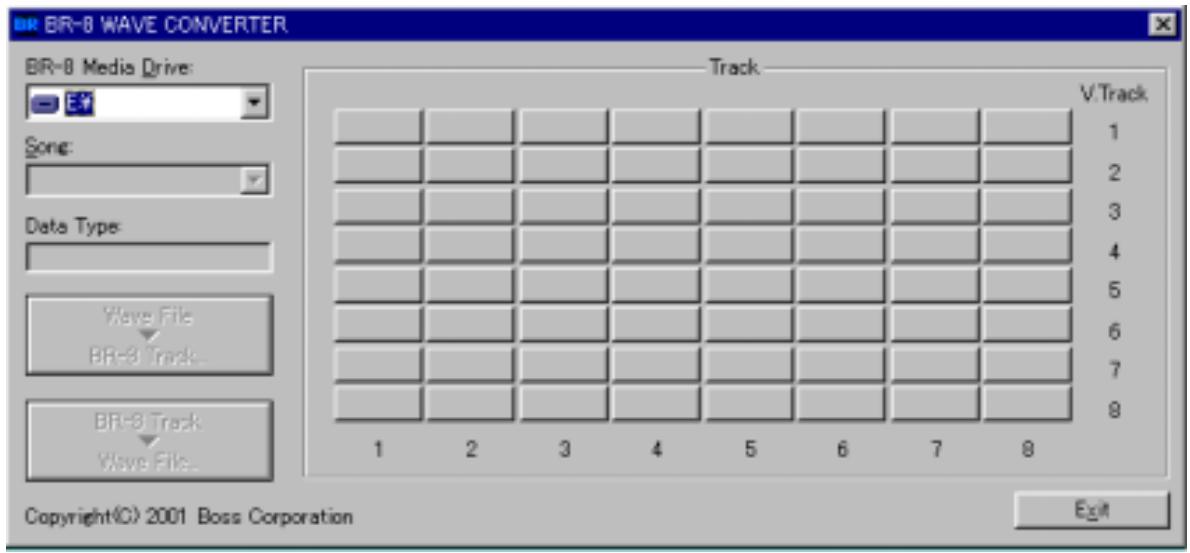
a. Starting the application
Double-click the br8wav.exe icon.
The application will start up.
b. Exiting the application
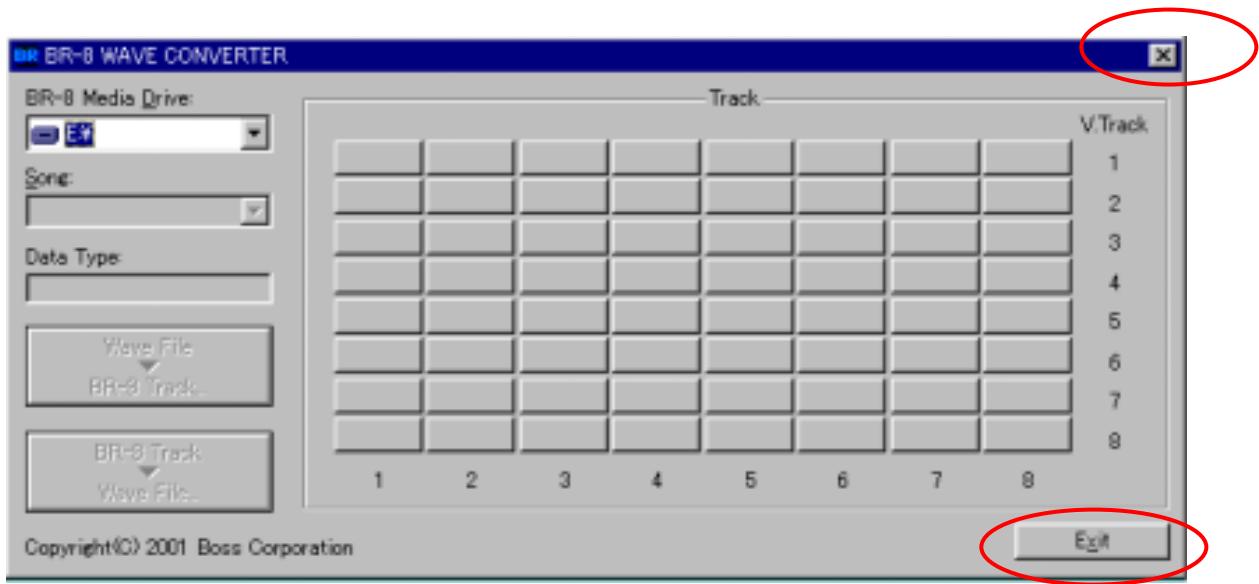
Click either the [X] button located in the upper right of the window, or the [Exit] button located in the lower right of the window. The application will exit.
[ESC] key on your keyboard is also usable.
c. Selecting a Zip disk
If a Zip drive is not selected in [BR-8 Media Drive]: ], select a drive from the popup menu.
If a BR-8 formatted disk is inserted in the selected drive, the song numbers on the disk will be displayed in the window.
- If a BR-8 formatted disk is not inserted in the selected drive, nothing will be displayed in the song name display area.
d. Selecting a song
Select a song from the [Song: ] popup menu.
The contents of the selected song will be displayed in the track select area of the window.
e. Converting BR-8 track data into WAV format
(1) Click the track that you wish to convert into Windows Wave Audio (subsequently referred to as WAV) format.
Clicking a track will cause the color to change as follows.
Track containing audio data : green -> orange
Track not containing audio data: gray -> red
The [BR-8 Track-> Wave File] button will become active.
(2) Press the [BR-8 Track-> Wave File] button. A dialog box will appear.
(3) Select the save location for the file.
(4) In [Filename], specify the filename for saving.
(5) Click [Save], and the file will be saved.
If you decide to abort the conversion, click [Cancel].
- If you select two tracks, a stereo .WAV file will be saved.
(The smaller track number will be saved on the Lch.)
If you select one track, a monaural .WAV file will be saved.
f. Converting a WAV format file into BR-8 data
(1) Click the track on which you wish to store a WAV format file.
Clicking a track will cause the color to change as follows.
Track containing audio data : green -> orange
Track not containing audio data: gray -> red
The [Wave File-> BR-8 Track] button will become active.
- You can select a track in which data has already been recorded.
(The saved data will overwrite the previous data, erasing it.)
(2) Press the [Wave File-> BR-8 Track] button. A dialog box will appear.
(3) Select the name of the file that you wish to load.
(4) Press the "Open" button. The file will be converted into BR-8 format, and will be stored in the specified track.
If you decide to abort the conversion, click [Cancel].
- The time required for loading and conversion will depend on the size of the original file.
- If you specify two tracks when loading a monaural WAV file, the same data will be placed in each of the specified tracks.
- If you specify one track when loading a stereo WAV file, the Lch data will be placed in the specified track.
- The first six characters of the WAV filename (the first eight characters for monaural) will automatically be registered as the track name.
g. Inputting/editing the track name
You can use this software to input/ or edit the track name of each track.
(1) Click the right button on the track whose track name you wish to input or edit.
(2) An input window will appear. Input the desired track name.
- Up to eight characters can be input. Do not input symbols that cannot be displayed on a BR-8.
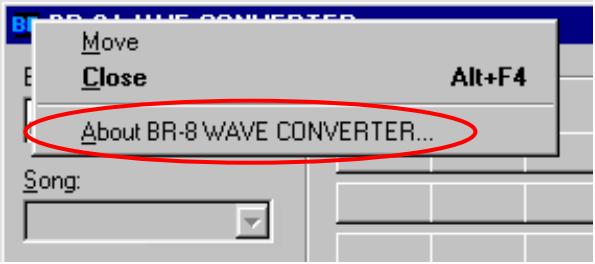
h. Checking the software version
Click the [BR] logo in the title bar.
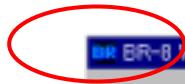
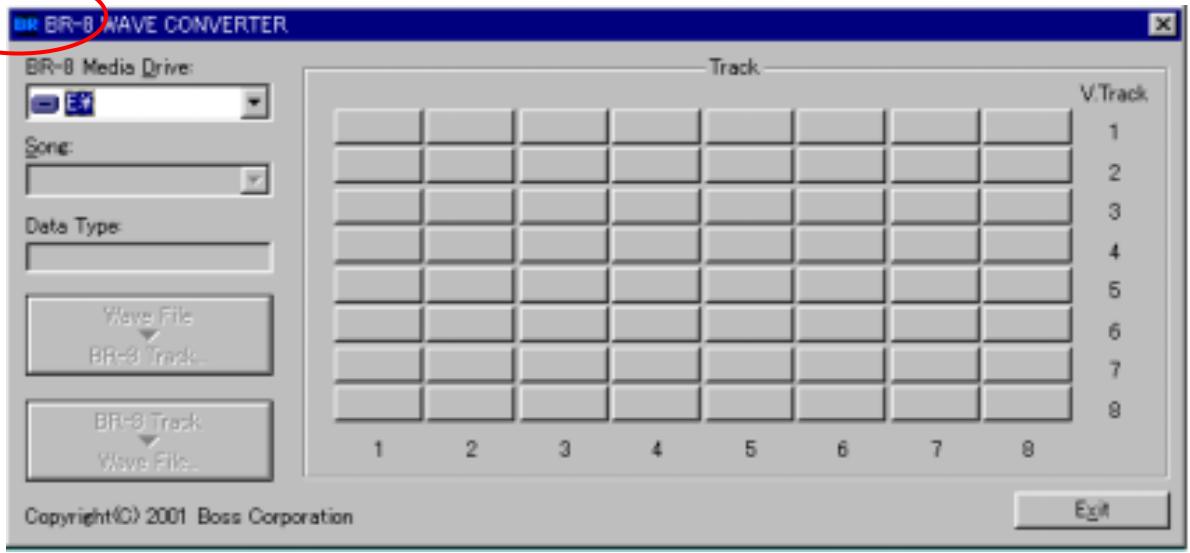
Click [About BR-8 WAVE CONVERTER].
i. Error messages
< "Not BR-8 disk." >
You selected a Zip disk that was not formatted for the BR-8.
Check the Zip disk and try the operation once again.
< "Can't read disk." >
You attempted to read a protected disk. Or, you performed a read operation on a disk that was not ready. Check the Zip disk and try the operation once again.
< "Can't write disk." >
You attempted to write to a protected disk. Or, you performed a write operation on a disk that was not ready. Check the Zip disk and try the operation once again.
"Song protected.">
You attempted to write to a protected song. Turn off song protection on the BR-8 itself, and try the conversion operation once again.
The file you attempted to read was not a PCM format file (PCM, 44.1kHz, 16Bit), and therefore could not be read. Please select a PCM format file to read.
< "No free space on save target disk.">
There is insufficient space on the save destination Zip disk. Increase the amount of free space by erasing unneeded data. Then try the conversion operation once again.
< "Sampling frequency is not 44100 Hz. Can't convert wave file to BR track.">
In the "Wave File-> BR-8 Track" conversion, you selected wave data with a sampling rate of something other than 44.1kHz .
Please load a PCM format file with a sampling rate of 44.1kHz
< "Specified wave is too short (<1 sec.). Can't convert wave file to BR track.">
In the "Wave File->BR-8 Track" conversion, you attempted to convert wave data that was shorter than one second.
The BR-8 cannot handle data with a playback time shorter than one second.
< "Event full. Can't create new event."
In the "Wave File-> BR-8 Track" conversion, the space for playback data is full, and no new playback data can be added.
Use the "SONG OPTIMIZE" operation on the BR-8 to erase unneeded data, and then try the conversion operation once again.
< "Can't display these characters on BR-8." >
In inputting the track name, you input characters that cannot be displayed on the BR-8. Correct the characters.
- BR-8
- Wave Converter
- Owner's manual
- Contents
- IMPORTANT NOTES
- Before you begin
- Operating requirements
- Preparing the Zip drive
- Installing/uninstalling the software
- Operation
- a. Starting the application
- b. Exiting the application
- c. Selecting a Zip disk
- d. Selecting a song
- e. Converting BR-8 track data into WAV format
- f. Converting a WAV format file into BR-8 data
- g. Inputting/editing the track name
- h. Checking the software version
- i. Error messages
Marque : BOSS
Modèle : BR-8
Catégorie : Enregistreur audio numérique