
MERIDIAN COLOR - Gps MAGELLAN - Notice d'utilisation et mode d'emploi gratuit
Retrouvez gratuitement la notice de l'appareil MERIDIAN COLOR MAGELLAN au format PDF.


| Type de produit | GPS de randonnée et navigation |
| Marque | MAGELLAN |
| Modèle | MERIDIAN COLOR |
| Dimensions (H x l x P) | 16,5 x 7,4 x 3,05 cm |
| Poids (avec piles) | 227 g |
| Alimentation | 2 piles AA (jusqu'à 14 h d'autonomie) Alimentation externe 9-35 VDC en option |
| Type d'écran | LCD haute contraste avec rétroéclairage électroluminescent |
| Dimensions de l'écran | 5,59 x 4,44 cm |
| Récepteur | 12 canaux parallèles, antenne quadrifilaire |
| Précision de position | 7 mètres (95% 2D RMS) ; <3 mètres avec WAAS |
| Temps d'acquisition | Environ 15 s à chaud, 1 min à froid |
| Mémoire waypoints utilisateur | Jusqu'à 500 waypoints |
| Cartes détaillées | Support des cartes MapSend via carte SD (non incluse) |
| Fonctions de navigation | Écrans Cartographie, Boussole, Grandes données, Position, Route, Données, Compteur de vitesse, Statut satellites ; itinéraires GOTO, multi-étapes, backtrack |
| Fonctions supplémentaires | Alarme (arrivée, ancre, XTE, perte de signal), simulateur, Soleil/Lune, Pêche/Chasse |
| Indice de protection | Étanche aux intempéries (caoutchouc de protection) |
| Température de fonctionnement | -10°C à 60°C |
| Entretien et nettoyage | Essuyer avec un chiffon doux et sec. Ne pas utiliser de produits agressifs. Retirer les piles si stockage prolongé. |
| Sécurité | Ne pas utiliser en conduisant. Ne pas s'appuyer uniquement sur cet appareil pour la navigation. Utiliser uniquement des câbles et antennes Magellan. |
| Pièces détachées et réparabilité | Piles AA standard, câbles et supports optionnels. Réparation par Magellan (RMA requis). |
FOIRE AUX QUESTIONS - MERIDIAN COLOR MAGELLAN
Questions des utilisateurs sur MERIDIAN COLOR MAGELLAN
0 question sur cet appareil. Repondez a celles que vous connaissez ou posez la votre.
Poser une nouvelle question sur cet appareil
Téléchargez la notice de votre Gps au format PDF gratuitement ! Retrouvez votre notice MERIDIAN COLOR - MAGELLAN et reprennez votre appareil électronique en main. Sur cette page sont publiés tous les documents nécessaires à l'utilisation de votre appareil MERIDIAN COLOR de la marque MAGELLAN.
MODE D'EMPLOI MERIDIAN COLOR MAGELLAN
User Manual
Meridian® Series of GPS Receivers
FOR SAFETY REASONS, THE DRIVER SHOULD NOT USE THIS DEVICE IN A VEHICLE WHILE IN MOTION TO ASSIST THE DRIVER TO NAVIGATE.
Please do not try and change any settings on the Meridian while driving. Come to a complete stop or have your passenger make any changes. Taking your eyes off the road is dangerous and can result in an accident in which you or others could be injured.
USE GOOD JUDGEMENT
This product is an excellent navigation aid, but does not replace the need for careful orienteering and good judgement. Never rely solely on one device for navigating.
USE CARE
The Global Positioning System (GPS) is operated by the U.S. Government, which is solely responsible for the accuracy and maintenance of GPS.
The accuracy of position fixes can be affected by the periodic adjustments to GPS satellites made by the U.S. Government and is subject to change in accordance with the Department of Defense civil GPS user policy and the Federal Radionavigation Plan. Accuracy can also be affected by poor satellite geometry.
USE PROPER ACCESSORIES
Use only Magellan cables and antennas; the use of non-Magellan cables and antennas may severely degrade performance or damage the receiver, and will void the warranty.
LICENSE AGREEMENT
Thales Navigation grants you, the purchaser, the right to use the software supplied in and with Thales Navigation GPS products (the "SOFTWARE") in the normal operation of the equipment. You may make copies only for your own personal use and for use within your organization.
The SOFTWARE is the property of Thales Navigation and/or its suppliers and is protected by United States copyright laws and international treaty provisions; therefore, you must treat this SOFTWARE like any other copyright material.
You may not use, copy, modify, reverse engineer or transfer this SOFTWARE except as expressly provided in this license. All rights not expressly granted are reserved by Thales Navigation and/or its suppliers.
\*\*\*
No part of this guide may be reproduced or transmitted in any form or by any means, electronic or mechanical, including photocopying and recording, for any purpose other than the purchaser's personal use without the prior written permission of Thales Navigation.
© 2002 by Thales Navigation. All rights reserved. Magellan and MapSend are registered trademarks of Thales Navigation, Inc. Meridian is a trademark of Thales Navigation.
Table of Contents
Introduction
About This User Manual 1
Setting Up the Meridian
Installing the Batteries 3
Initialization for First Time Use 4
Optional Setup Functions 7
Basic Operation
Meridian GPS Receiver 8
Turning Power On/Off 9
Turning the Backlight On/Off 9
Adjusting the Contrast 10
Getting a Position Fix 10
Navigational Screens 10
Map Screen 11
Compass Screen 11
Large Data Screen 11
Position Screens 12
Road Screen 12
Data Screen 12
Speedometer Screen 12
Satellite Status Screen 12
Accessing the Navigation Screens 13
Saving a Waypoint 13
Using GOTO Routes 16
Creating a GOTO Route 16
Navigating on a GOTO Route 19
Reference
Power/Backlight/Contrast 20
Turn the Meridian On 20
Turn the Meridian Off 20
Alternate Turn On/Off 20
Using the Display Backlight 21
Adjusting the Display Contrast 21
Selecting NAV Screens 22
Returning to Last Viewed NAV Screen 22
Map Screen 22
Setting the Map Detail 25
Customizing the Map Display 25
Selecting Map Items 25
Turning On/Off Display Waypoints 25
Turning On/Off Track Lines 25
Turning On/Off Topographic Lines 26
Turning On/Off Displayed POI's 26
GloballyTurning Map Items On/Off 26
Setting Up Map Data Fields 27
Setting up Map Data Fields 27
Turning Map Info On/Off 27
Selecting the Map Information 27
Two Data Fields Description 27
Changing the Data Fields 29
Street Information Description 29
Horizontal Profile Description 29
Terrain Projection Description 31
Changing the Map Orientation 32
Selecting Primary Usage 32
Selecting Track Mode 32
Auto vs. Auto Detailed 33
Compass Screen 34
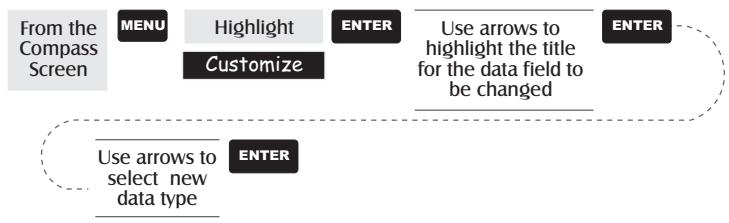
Customizing the Data Fields 35
Large Data Screen 35
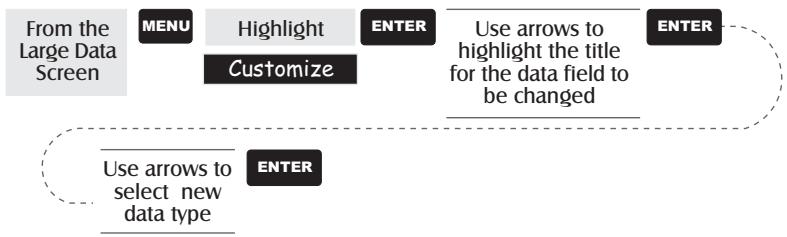
Customizing the Data Fields 36
Position Screen 36
GPS Status Messages 37
Selecting the Position Screen 37
Resetting the Trip Odometer 38
Customizing the Data Fields 38
Selecting Coordinate System, Map Datum and Elevation Mode 38
Road Screen 39
Customizing the Data Fields 39
Data Screen 40
Customizing the Data Fields 40
Speed Screen 41
Customizing the Data Fields 41
Satellite Status Screen 42
Waypoints / Database 43
Accessing Waypoints in the Database 43
Selecting User Waypoints (Alphabetic) 45
Selecting Preloaded Waypoints (Alphabetic) 45
Selecting Uploaded Waypoints (Alphabetic) 45
Selecting User Waypoints (Nearest to Position) 45
Selecting Preloaded Waypoints (Nearest to Position) 45
Selecting Uploaded Waypoints (Nearest to Position) 45
Selecting Waypoints (Nearest to Other Categories) 46
Saving Present Position as a Waypoint 47
Creating New Waypoint Manually 47
Creating New Waypoint with Map Cursor 48
Deleting a User Waypoint 48
Editing a User Waypoint 48
Viewing a Map Object on the Map 49
Viewing a User Waypoint on the Map 49
Saving a Map Object as a User Waypoint 49
Searching for a Street Address 50
Routes 51
Creating a GOTO Route 51
Creating a Backtrack Route 51
Creating a Multileg Route 52
Activating/Deactivating a Route 53
Viewing a Route 54
Editing a Route 54
Inserting a Leg 54
Deleting a Leg 55
Replacing a Leg. 55
Appending a Leg 55
Appending a Newly Created Waypoint to a Route 55
Reversing a Route 56
Deleting a Route 56
Viewing a Route on the Map Screen 56
Creating a Route using Track History 56
Using Vertical Profile 57
Selecting Vertical Profile 57
Track History Description 58
Highlighted Road Vertical Profile Description 58
Route Vertical Profile Description 58
Path Check Description 58
Setup 59
Initializing the Meridian 59
Turning the NAV Screens On/Off 59
Selecting the Coordinate System 60
Selecting a Map Datum 60
Selecting the Elevation Mode 61
Selecting the Time Format 61
Selecting NAV Units 61
Selecting the North Reference 62
Selecting Daylight Savings 62
Power Off Timer 63
Setting the Backlight Timer 63
Turning the Beeper On/Off 64
Selecting NMEA Message 64
Selecting the Baud Rate 64
Changing the Power Key Settings 65
Selecting Languages 65
Clearing Memory 66
Clearing Track History 66
Clearing Wpts/Routes 66
Clearing All Routes 66
Resetting Meridian to Factory Defaults 66
Clearing All Memory in the Meridian 66
Sun/Moon Display 67
Accessing the Sun/Moon Screen 67
Changing the Sun/Moon Date 67
Changing the Sun/Moon Position 67
Fish/Hunt Times Display 68
Accessing the Fish/Hunt Screen 68
Changing the Fish/Hunt Date 68
Changing the Fish/Hunt Position 68
Alarms 69
Setting the Arrival Alarm 69
Setting the Anchor Alarm 69
Setting the XTE Alarm 69
Setting the GPS Fix Alarm 69
Using the Simulator 70
Turning on the Simulator - Auto Mode 70
Turning on the Simulator - User Mode 70
Turning the Simulator Off 70
Using the Card Utilities 71
Save Waypoints and Routes to Memory Card 71
Save Track 71
Loading Waypoints and Routes from Memory Card 71
Loading Track from Memory Card 72
Deleting Files from Memory Card 72
Testing the Memory Card 72
Changing the Detailed Map 73
Formating the Memory Card 73
About Screen. 73
Help Screen 73
Frequently Asked Questions
General 74
Waypoints/Database 75
Navigation Screens 76
Routes 76
Alarms 77
Output Data 77
Appendix
Troubleshooting 78
Waypoint Icons 79
Contacting Magellan 80
Updating Your Meridian 81
Specifications 82
Accessories 83
MapSend Streets 84
Using MapSend® 85
Installing Memory Card 88
Connecting to External Devices 89
WAAS 91
Glossary 92
Introduction
Welcome and congratulations on your purchase of the Magellan Meridian GPS receiver. The Meridian has all the features that a sailor, fisherman, hiker, hunter, or any person involved with outdoor recreational activities has come to expect from a Magellan GPS receiver. In addition to these features, the Meridian offers the ability to display your location on detailed city maps providing you with a complete navigation tool that will last you for years to come.
Magellan has been a leader in the hand-held GPS market since introducing the world's first commercial, hand-held GPS receiver in 1989. Since that time Magellan has continued to equip the outdoorsman and consumer markets with navigational receivers, all the way from the first GPS receiver for under $100 to automotive receivers with turn-by-turn routing capabilities.
Before you begin, make sure that your package includes all of the items listed on the side panel of the box. If any of these items are missing or damaged, please contact Magellan at (866) 737-8604 for replacement items.
Magellan is a registered trademark name of Thales Navigation.
About This User Manual
This User Manual is divided into six chapters; Introduction, Setting Up the Meridian, Basic Operation, Reference Guide, Frequently Asked Questions, and Appendix. Each of these chapters will be explained briefly so you can tell which ones are right for you.
Setting Up the Meridian: This chapter will show you how to prepare the Meridian for use. Instructions will include how to install the batteries and how to set up the Meridian for first time use.
Basic Operation: This chapter provides you with step-by-step instructions for using the basic functions of the Meridian. This chapter will explain getting a position fix, viewing the Map screen, saving a waypoint and using a GOTO. Knowing these four basic steps will enable you to use the Meridian for most things you will want to do.
Reference Guide: Here you will find step-by-step instructions for all of the features found in the Meridian. This chapter is set up in a way that you can quickly and easily find the feature you are looking for.
Frequently Asked Questions: This chapter is aimed at answering some of the more basic questions that you may have about your Meridian, the global positioning system (GPS) and using the Meridian to its fullest. Experienced GPS users will probably not find any new information in this chapter but new GPS users may find many of their questions answered here.
Appendix: Sections containing information about connecting your Meridian to external devices, accessories, troubleshooting and specifications can be found in the Appendix.
Glossary: A glossary is provided explaining some of the terms and abbreviations found in the Meridian and this manual that may not be familiar to all users.
It's time to begin using your Meridian. Don't be overwhelmed with the size of the manual as we have tried to give enough information for the beginning user as well as provide the experienced users with the specifications and features that they are looking for.
The most important thing to us is to be sure that you are completely satisfied with your Meridian and the accompanying documentation. If you have any ideas, suggestions or even a complaint, please pass them along to us through our web site (www.magellangps.com) or by mail.
Setting Up the Meridian
Setting up the Meridian is a simple two-step process: installing the batteries and initializing the Meridian.
Installing the Batteries
The Magellan Meridian uses two AA batteries that are installed from the back through the battery cover. You can expect to get up to 14 hours of usage on two AA batteries with the backlight turned off. Using the
backlight will shorten the battery life
significantly. With the backlight on
continuously, you can expect to get
approximately 6 hours of usage from two AA batteries.
To remove the battery cover, push the two buttons on the cover fully to the left and lift the battery cover away from the receiver.
Insert the new batteries as shown, making
sure that the batteries are installed with the correct
polarity.
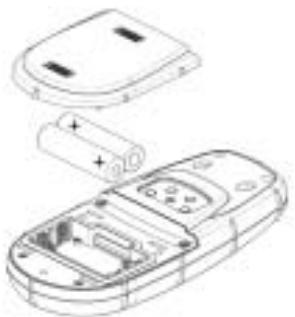
Replace the cover and push the two buttons fully to the right. Verify that the cover is locked in place.

How much time do I have to replace the batteries? Any
waypoints or routes you have created are stored in permanent
memory. Present position and time data is not stored in permanent
memory but will be held in memory for at least 12 hours without
batteries installed.

Always turn the Meridian off before removing the batteries or turning off external power. Failure to do so can cause loss or corruption of data.
Initialization for First Time Use
The Meridian will walk you through the process of setting up the receiver for first time use. This procedure is commonly referred to as "Initializing the Receiver." The purpose of this initialization is to provide the Meridian with a general knowledge of its approximate location.
This may seem a little confusing at first as why does a device that is used to compute its position need to know where it's at? The Meridian uses information from the GPS satellites that orbit the earth and if the Meridian has an approximate idea as to its location, it will refer to the almanac it has in memory to select what satellites are overhead. From this information, the Meridian can then select the satellites that will give it the best information for computing its location. Under normal use, the Meridian will save the last position it calculated and use that position the next time it is turned on. However, when the Meridian is new (or when memory has been completely erased), the Meridian has no last position information. Thus, it can either start polling the satellites to see which ones are overhead or you can provide it with your approximate location allowing the Meridian to begin computing the initial position, known as "first fix."
Note: You can skip the initialization process by pressing the [NAV] key anytime after selecting the language you want the Meridian to use and agreeing to the Warning Page. If the Meridian is able to collect satellite data (i.e., have a clear view of the sky) it will begin to self-initialize. This could take anywhere from 3 to 8 minutes to compute its initial position.
Follow these instructions to initialize the Meridian.
Step 1: Turn the Meridian On
Press [PWR]
The Meridian turns on and displays the start-up screen, followed by the language selection screen.

Step 2: Select Language
Use the Up/Down arrows to move the highlight to the language that you want the screens to be displayed in.
With the desire language highlighted, press [ENTER].
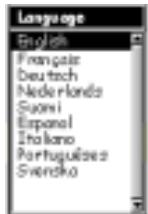
Step 3: AcceptWarnings and Begin Initialization
The Warning Screen is displayed. This screen will be displayed for 10 seconds and if the ENTER key has not been pressed, the Meridian will shut off.
If you understand and agree to the warning presented, press [ENTER].
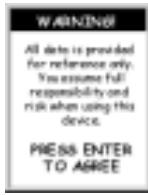
The Meridian displays a message box indicating that the receiver needs to be initialized.

Press [ENTER]
Step 4: Select Your Region and Area
Use the Up/Down arrows to highlight your general region.
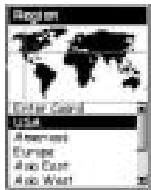
Press [ENTER]
Use the Up/Down arrows to highlight your area.
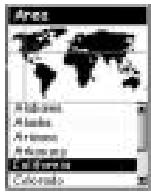
Press [ENTER]
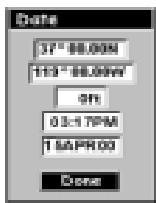
Step 5: Enter the Time and Date
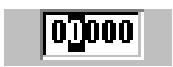
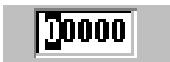
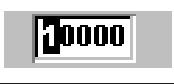
Entering Data. When entering data in the Meridian, you sometimes need to use the arrow keys to enter the values. The following diagram explains how the arrow keys are used.
Editing

moves the cursor block left or right
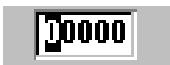
Pressing right arrow results in:

increments the value up or down.
Pressing up arrow results in:
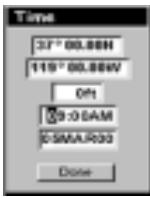
Enter Local Time. The cursor appears in the time field, waiting for you to input your local time. Set your local time using the arrow keys. Be sure that you set the AM/PM indicator.
When the time is correct, press [ENTER].
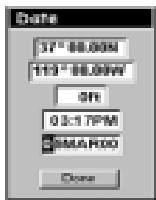
Enter Date. The last piece of information needed is the date. Using the arrow keys, enter the present date.
Press [ENTER].
All the information that the Meridian needs to speed up the process of computing its first fix has been entered and the Done button is highlighted.
To complete the initialization process, press [ENTER].
Step 6: Compute First Fix
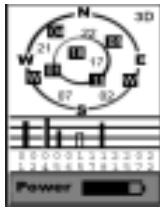
The Satellite Status screen is displayed and the Meridian begins acquiring the data from the satellites. Once the first position fix has been computed you can begin using all of the functions found in your Meridian GPS receiver
Optional Setup Functions
There are two additional options that you may want to set up prior to using your Meridian GPS receiver: Contrast and NAV Units.
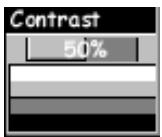
Contrast. To set the contrast, press [MENU]. Use the Up/Down arrows to highlight "Contrast" and press [ENTER].
Use the Left/Right arrows to change the contrast to a level that provides the best display of the four bars displayed below the slider bar. When you are satisfied with the contrast, press [ESC].
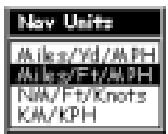
NAV Units. You can select the units of measure that Meridian will use; Miles/Yards/MPH, Miles/Feet/MPH (default), Nautical Miles/Feet/Knots or Kilometers/Kilometers per hour.
To change the Nav Units of Measure press [MENU]. Use the Up/Down arrows to highlight "Setup" and press [ENTER]. Use the
Up/Down Arrows to highlight "NAV Units" and press [ENTER].
Use the Up/Down arrows to highlight the unit of measure that you want and press [ENTER].
Press [ESC] to return to the last screen viewed.
This completes the set up for your Meridian GPS receiver. The next chapter will describe the basic operation and use of the Meridian as a navigation tool.
Basic Operation
For many of you this will be your first introduction into using a GPS receiver as a navigational tool. With all of the features and functions provided with the Meridian, it may seem a bit intimidating at first. Don't worry. There are only a few things you need to know to use the Meridian. They will be discussed here in detail. Other features and functions can be found in the Reference Section of the User Manual.
Meridian GPS Receiver
Quadrifilar Antenna
IN - Zooms in the display of the Map screen. (Press once to zoom in one level, press and hold to quickly move through the zoom levels.)
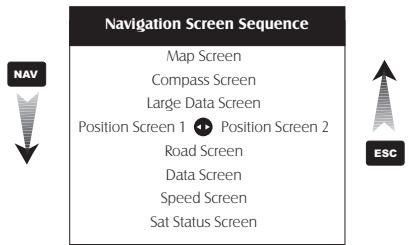
ESC- Cancels the operation of the last button pressed. Also scrolls through the NAV screens in reverse order.
NAV - Accesses the various navigation screens.
GOTO (dual function key)
GOTO is used to create a direct route to any waypoint stored in memory. This key is also used to MARK a position.
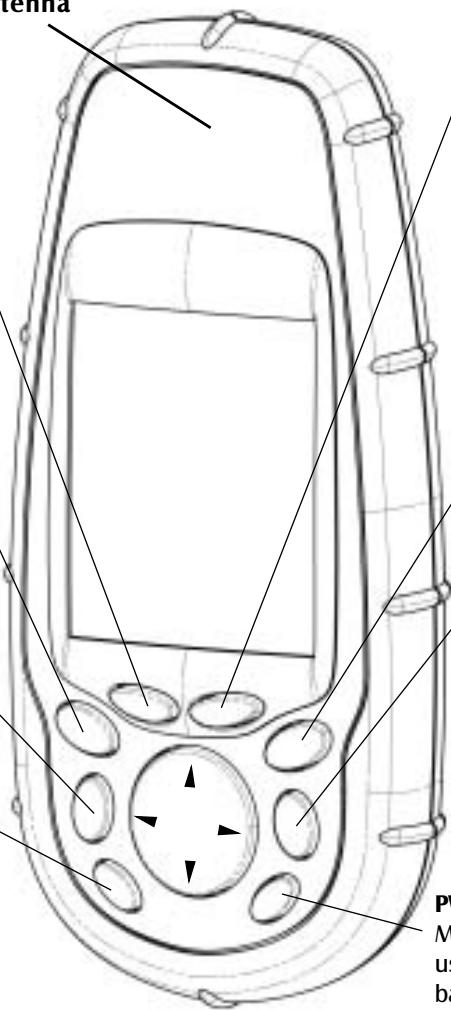
OUT - Zooms out the display of the Map screen. (Press once to zoom out one level, press and hold to quickly move through the zoom levels.)
ENTER-
Confirms data entries or menu selections.
MENU-
Accesses menus for displayed screens. Also provides access to waypoint, route and setup functions.
PWR- Turns the Meridian on/off. Also used to turn the display backlight on/off.
Turning Power On/Off
Tuning the Meridian On
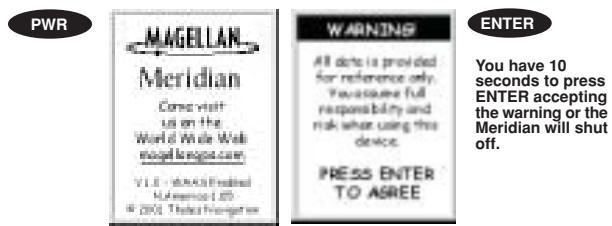
After accepting the warning information, the last navigation screen you were viewing will be displayed. If the last navigation screen view was the Map screen, the last zoom scale setting will be used.
Turning the Meridian Off
Turning the Backlight On/Off
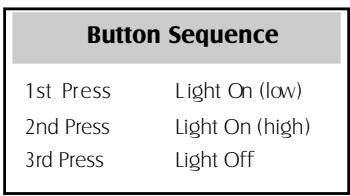
The display backlight can be set to one of three levels (low, high or off).
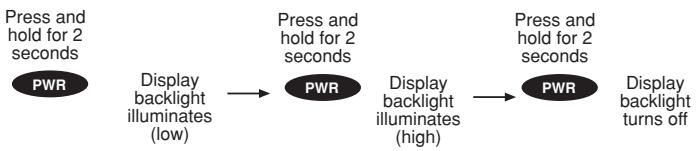

The backlight causes severe drain on the batteries in the Meridian. To prevent accidentally turning the backlight on and leaving it on, the Meridian will turn the backlight off when there have been no buttons pressed for 4 minutes. Pressing on will turn the backlight back on in this instance. You can the time delay for the backlight in Setup.
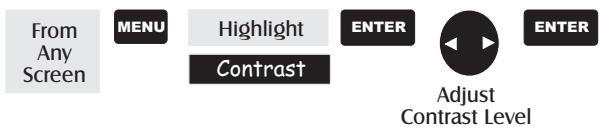
Adjusting the Contrast
from any screen
MENU

Use up/down arrows to highlight Contrast
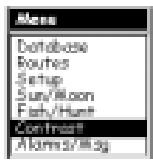
The menu display may differ slightly depending upon which screen it was accessed from.
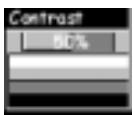
Use left/right arrows to adjust the contrast.
ENTER
Getting a Position Fix
Because the Meridian attains information it needs from satellites orbiting the earth, the antenna needs to have a relatively unobstructed view of the sky. This allows the Meridian to choose from all satellites currently available.

If the view of the sky is poor due to large cliffs or buildings, heavy foliage or other obstructions, the satellite signals can be blocked and the receiver may take longer to compute a position fix.
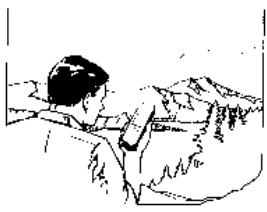
You can observe the signal strength and the satellites being used on the Satellite Status screen (described in the next section).
Holding the Meridian. The receiver is designed to fit comfortably in your hand. Hold the Meridian in the palm of your hand with the antenna pointing towards the sky.
Navigational Screens
The Meridian has nine navigation screens: Map screen, Compass screen, Large Data screen, two Position screens, Road screen, Data screen and Speedometer screen. There is also Sat Status screen which enables you to view how well the Meridian is receiving satellite information. They will be described briefly here. More detailed information on the different screens can be found in the Reference chapter of the User Manual.
Map Screen The Map screen has two modes, position or cursor. In the position mode, your present position is indicated by the large arrow icon in the center of the display. If you are moving, the arrow will point in the direction that you are heading. At the bottom of the screen is the scale for the map displayed and two data fields that can be customized, or turned off, depending upon your needs.
The present position icon will change to an hourglass when the Meridian is unable to compute a position fix due to poor signal reception.
In the Cursor Mode, you are provided with a cursor that can be moved on the map. At the bottom of the display is the information for the position of the cursor relative to your present position. Also any points of interest that the cursor is over will be shown.
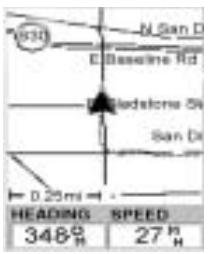
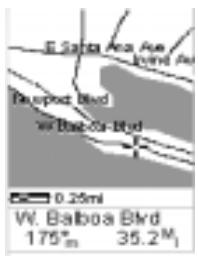
To access the Cursor Mode, press any arrow on the keypad. A crosshair appears that can be moved with the arrow keys.
To return to the Position Mode, press [ESC]. The cursor will disappear and the present position icon will appear centered on the map.
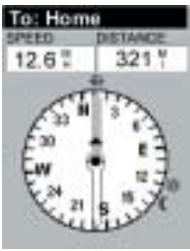
Compass Screen. This is a handy screen to have at your fingertips while you are navigating. It is totally customizable to display the information that is useful to you. The lower portion of the Compass screen not only displays your heading in a graphical manner, but also displays the relationship of the sun, moon and your destination (if navigating on a route) to your heading.
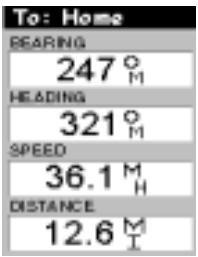
Large Data Screen. The Large Data screen is similar to the Compass screen but here the compass has been removed to allow for large display of the navigation data. Ideal for when you have your Meridian mounted on the dashboard of a boat using the optional swivel mounting bracket. Even from a distance the customizable information can be read with ease.
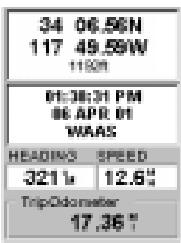
Position Screens. The Position screens 1 and 2 display your present position using the coordinate systems that you have selected in Setup. This screen shows all of the basic position, time and satellite information. Additionally, current navigation information is shown in the bottom half of the screen.
Road Screen. The Road screen presents your route as if you were travelling on a road. When you need to make a turn, the road will graphically display the turn and the direction. Waypoint and destination icons will be displayed relative to your position as they come into view. Above the road is a compass that displays your heading and above that are four customizable data fields.
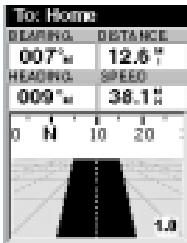
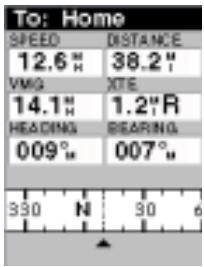
Data Screen. When you need to see a lot of information in one place then you'll appreciate the Data screen. The Data screen provides you with six data fields and an active compass that is the same as the one used on the road screen. You have the option of customizing this screen by selecting what data is displayed in the upper six fields.
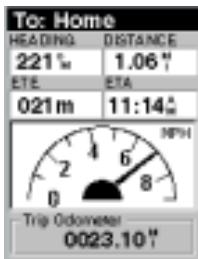
Speedometer Screen. The Speedometer screen displays your speed in a familiar graphical format. There are four additional data fields at the top of the display that can be customized to display the data that you need. The bottom of the screen contains a trip odometer that will record the distance travelled since the last time the odometer was reset.
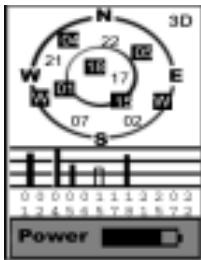
Satellite Status Screen. The Sat Status screen provides you with a graphical display of the satellites in view and which ones are being used to compute the navigation data. The bar graph shows you the relative signal strength being received for each satellite. At the bottom of the display is an indication of the battery life remaining. When you are using external power, it will be indicated here as well.
Accessing the NAV Screens
The NAV key and the ESC key are used to step through the various navigation screens. If you are viewing one of the NAV screens, pressing NAV will take you to the next NAV screen in the list and pressing ESC will take you to the previous NAV screen. If you are not viewing one of the NAV screens, pressing NAV will return you to the last NAV screen viewed.
NOTE: If you are inputting data, pressing NAV will return you to the last navigation screen but your inputs will not be saved.
Saving a Waypoint
First, a few simple definitions. A waypoint is any position on the globe that you have saved into memory. The act of saving the waypoint is commonly called "Marking." So when references are made to marking a waypoint, that simply means to save a position on the globe into memory.
The Meridian has a number of ways to perform this, but the most common are saving your present position, entering the coordinates of a position or saving the position of the cursor while viewing the Map screen. These waypoints can then later be used to create routes or as the destination of a GOTO. (A GOTO is a single leg route that is defined as a route from your present position to any waypoint. I am here and I want to GOTO there.)
Saving Your Present Position as a Waypoint
From any screen, press and hold [GOTO] for 2 seconds and the Mark screen is displayed.
The "Save" button is highlighted and you can press [ENTER] to save the waypoint using the default name and icon.
This will save your present position using a default name (WPTxxx) into memory.
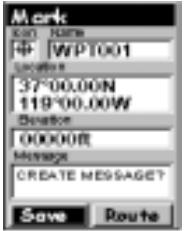
Saving a Your Present Position as a Waypoint with a Custom Icon and Name
The above method is fine if you want to just save your position quickly, but it will be difficult to figure out later which waypoint this is
from a list of waypoints named WPT001, WPT002, etc. For that reason, you may want to change the default name to one of your choosing. You can also select a different icon that will help you find the waypoint when you are using the map screen.
To do this, press and hold [GOTO] for 2 seconds just like you did before. Use the UP/DOWN arrows and notice that the highlight moves from field to field and then back to "Save."
Highlight the Icon field using the UP/DOWN arrows and press [ENTER].
The Icon Select window is displayed. Use the arrow keypad to move from one icon to another with the name of the icon displayed at the top. As a reference tool, all of the icons and their names are listed in the Reference Chapter of the User Manual. When you have highlighted the icon you want to use, press [ENTER].
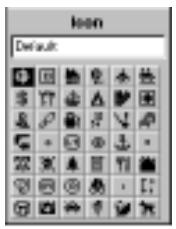
The cursor is now highlighting the Waypoint Name field. With the Name field highlighted, press [ENTER]. The input keyboard is displayed. The very top of the keyboard window shows you what field you are changing, in this case the Name field.
You can now use the arrow keypad to select the character you wish to enter. With the character highlighted, press [ENTER] and the character is appended to the name you are entering and displayed in the field above the keys. (Note: waypoint names can be up to 8 characters in length.)
Arrow keys - Moves the highlight from one key to the next.
Shifts from upper case to lower case or from lower case to upper case characters.

Backspace - Moves the cursor back one space, erasing the last character entered.
Cleared the entire name.
Accepts the name and returns to the Mark screen.
When you have the name the way you want it, highlight "OK" and press [ENTER]. You are returned to the Mark screen with the new name displayed.
Adding a Message to a Waypoint
You can also add a message to waypoints you are creating. There is a memory limit however. You can save up to 500 user-entered waypoints in your Meridian but only 200 waypoint of those can have a message assigned to it.
Adding a message to a waypoint can assist you in identifying the waypoint. If this was a waypoint for a friend's house or business, you could add a phone number or any other information that you find useful.
To add a message to a waypoint you are creating, highlight the Message field using the Up/Down arrows and press [ENTER]. The same keyboard that was used in entering a name is presented allowing you to enter a message. Using the same technique, you can enter a message up to 30 characters in length.

Is there a limit to the number of waypoints I can store in the Meridian? Yes, the Meridian will store up to 500 user waypoints in memory. If you should ever get that many and need to input more, you will have to delete ones that you no longer need to make room.
PRACTICE
Using the techniques described, go outside of your house and turn your Meridian on. If the Meridian has been previously initialized, you will soon be computing position fixes. Press the NAV key until you are viewing the Map screen. When the cursor icon changes from an hourglass to an arrow, the Meridian is computing position fixes. When the icon changes to an arrow, press and hold the [GOTO] button until the Mark screen is displayed. Change the waypoint name to "Home" and save the waypoint. We will use this waypoint in the next discussion on GOTO routes.
Using GOTO Routes
A GOTO route is simply a route with a start point (your present position) and a single destination point (a waypoint you select). All that is required to create a GOTO route is having the destination waypoint saved in memory. This waypoint can be one that you have saved earlier (which is stored in your User Waypoint List) or any of the landmarks that come with the Meridian in its built-in database.
In the previous section, you created a waypoint named "Home". Now suppose you had gone some place else and you wanted your Meridian to guide you back. All you need do is to create a GOTO route and the Meridian will do the rest.
The uses for a GOTO route are endless. You could mark the position of your campsite and always find your way back. Or you could mark the location of a hot fishing spot you found, and next season come back to the exact same spot. Even mark the location of your car in a large parking lot and never have to worry about roaming endlessly looking for your car.
Creating a GOTO Route
Step 1: Accessing GOTO.
Press GOTO. The first thing that has to be done is to select the destination waypoint. This is done by accessing the waypoint database. The first screen is used to select the category of the database that the waypoint is in and how it will be found, alphabetically or nearest to your position, a city or other waypoints.
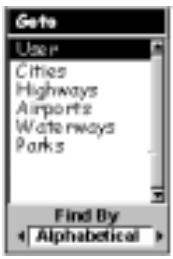
Step 2: Select Category of Waypoints.
Use the Up/Down arrows to move the highlight through the list of waypoint categories. The first category in the list is "User" and these are all of the waypoints that you have entered into your Meridian receiver. The remaining categories are ones that have waypoints which have been preloaded into your Meridian and are stored in permanent memory. If you have the Meridian Marine, you will notice your list is considerably longer than the one shown here as you have additional marine waypoints preloaded into your Meridian. (For this example, select the "User" category.)
Step 3: Select Find By.
There are two options of "Find By": Alphabetical and Nearest To. Selecting Alphabetical will display all the waypoints in the category you select in alphabetic order. Nearest To will display a list of the 20 waypoints nearest to your position or waypoint you select in order of their distance away. This could be used to display the waypoints that are closest to your present position or display the airports that are closest to any city you select. For the purpose of this basic operation, only Alphabetical will be used. For details on Nearest To, see the Reference chapter in the User Manual.
Use the Left/Right arrow until "Alphabetical" is displayed in the Find By field.
Step 4: Select GOTO Destination Waypoint from the User Category.
With "User" highlighted and "Alphabetical" in the Find By field, press [ENTER]. A list of all the waypoints you have entered is displayed. Use the Up/Down arrows to highlight the desired destination, in this case "Home", and press [ENTER].
You are returned to the last NAV screen viewed with some noticeable changes. If you are viewing the Map screen, you will now notice a thick line which is a graphical plot of the
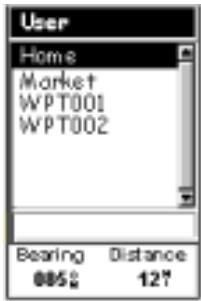
GOTO you just created. Other NAV screens, have changed the header bar to indicate that you are navigating to a destination. Press the NAV key until you are viewing the Compass screen. The header bar now displays "To: Home". Now all of the navigational information displayed is to provide you with the necessary details to get you to your destination, in this case "Home".
Alternate Step 4: Select GOTO Destination Waypoint from Other Categories.
As mentioned earlier, a GOTO can be to any waypoint in memory, either ones you have created or ones that have been loaded into the Meridian. When selecting waypoints other than "User", you are first presented with the keyboard display. The reason for this is there can be thousands of waypoints in the list and using the conventional "scrolling" could take quite a bit of time. By using the keyboard, you will be able to shorten the time by going to a specific point in the list.
(If you have been performing the keypresses as you are reading this, then you are probably viewing one of the NAV screens. In which case, you need to press [GOTO] to continue following along with the text. The first thing you will notice is an alert pop-up asking you if you want to clear the GOTO that is active. With "Yes" highlighted, press [ENTER] to continue.)
With "Cities" highlighted and "Alphabetical" in the Find By field, press [ENTER]. This is a slight variation of the keyboard you have already used. This time the "shift" and "backspace" keys have been replaced with < -> (move cursor left) and > (move cursor right). What you want to do here is to begin typing the name of the city you are looking for.
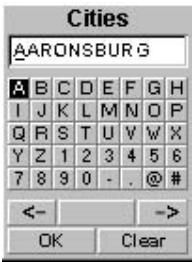
For example, suppose your destination was to be Los Angeles. Use the keypad to highlight the letter "L" and press [ENTER]. Notice how the name is changed to the first city stored in the Meridian's memory that begins with the letter "L" and that the cursor has moved to the next letter in the city name. (You can move the cursor back if you made a mistake by highlighting the "<-" button on the keyboard and press [ENTER].)
Since we are looking for Los Angeles, we need to highlight the "O" next and press [ENTER]. Then the "S" and press [ENTER].
To add a space, highlight the "space bar" and press [ENTER]. (Also, you can use the "-> button to move the cursor to the right if you want to skip the letter the cursor is indicating.)
You don't need to spell out the entire word. The attempt here is to get close to the name so you won't need to scroll very far during the next step. As a guide, entering the first five letters should be sufficient. When you are satisfied with what you have entered, highlight "OK" and press [ENTER].
Tip: There is a hidden shortcut that replaces highlighting "OK" and pressing [ENTER]. When you are satisfied that you have narrowed the search down and want to proceed to the list, press the [IN] key.
The list of all the waypoints for the category you selected, in this case cities, is displayed with the waypoint that was previously selected at the top of the list. Now just use the Up/Down arrows to highlight the waypoint you are looking for and press [ENTER].
For this example, you would highlight Los Angeles, CA and press [ENTER]. The last viewed NAV screen is displayed and the Meridian will begin computing all of the necessary information needed to get you to your destination.
Navigating on a GOTO Route
The Meridian has the ability to provide you with the tools you'll need to navigate to your destination. You have the choice of three customizable screens that display the information that you need in the layout that you desire. Hikers may find the compass screen perfect for them while boaters may prefer the Large Data or Map screen. For you, the Map screen may have all the information you'll ever require.
Press [NAV] until the navigation screen you want is displayed.
If you selected the Map screen, you will see your position icon in the center of the screen with a line drawn for you on the map, graphically displaying the GOTO route.

Note that this route is line of sight (LOS) or "as the crow flies." The Meridian does not compute the route using streets and highways providing a turn-by-turn routing. You'll find very quickly that you can easily use the roads and highways displayed on the Map screen and compare them to the displayed route and get to your destination quickly.

GOTO routes are NOT saved in memory when the Meridian is turned off. If you are navigating on a GOTO route and you need to turn the Meridian off, you will need to reset the GOTO. Routes, however, are stored in memory. If you need to make a GOTO but expect to turn the Meridian off before arriving, you might consider making a 1-leg route using the route menu.
This concludes the basic operation of the Magellan Meridian, but there is so much more. More detail on the mentioned functions, and information on the functions not mentioned can be found in the Reference chapter of the User Manual.
Power / Backlight / Contrast
Turn the Meridian On — Applies power to the Meridian and displays last NAV screen viewed. During power-up the first screen shows the software and map database versions currently loaded in the Meridian. The second screen gives a warning that must be read. After reading the warning press [ENTER] to proceed. (If you do not press [ENTER], the Meridian will shut off after 10 seconds.)

PWR
WABINID

PWR
ENTER
You have 10 seconds to press ENTER accepting the warning or the Meridian will shut off.
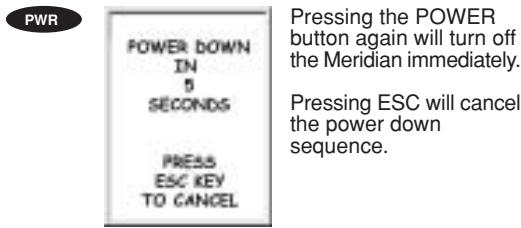
Turn the Meridian Off — Shuts down the Meridian.
Press ESC key to abort before 5 seconds has elapsed.
During the 5 second countdown, pressing the [PWR] key again will shut the Meridian off immediately.
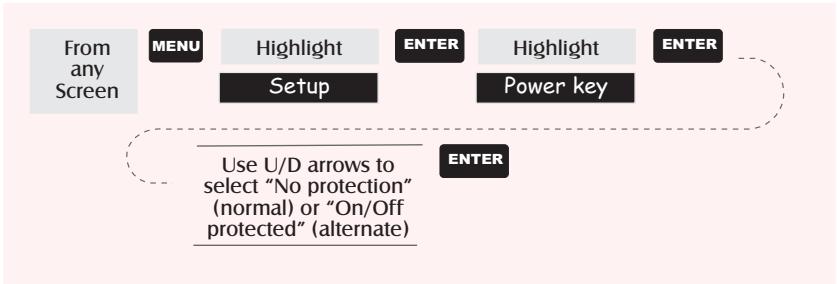
Alternate Power On/Off — If you carry your Meridian in your pocket or other places where the [PWR] button can be accidentally pressed, you may want to consider putting your Meridian in the Alternate On/Off mode.
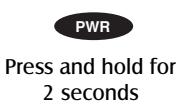
Turning the Meridian On (Alternate) - You must press and hold the [PWR] button down until the first start-up screen is displayed. After the screen is displayed, the Meridian operates normally.
Turning the Meridian Off (Alternate) – To turn the Meridian off, press [PWR]. The countdown sequence will begin and you must press [ENTER] before the sequence ends. If you do not press [ENTER] before the sequence ends, the Meridian returns to the last screen displayed.
Selecting Alternate Power On/Off
Using the Display Backlight — Illuminates the display for easier viewing in dark surroundings. Use only as needed as the backlight causes a large drain on the batteries. An automatic timer will turn the backlight off when a button has not been pressed for a selected duration. (See “Setup” to change the settings for the automatic timer.)
Adjusting the Display Contrast — Sets the contrast of the display for easy viewing in most lighting conditions.
Navigational Screens
Selecting NAV Screens — The [NAV] button provides a means of accessing the navigation screens. (Note: the sequence displayed is when all eight navigation screens are turned on. Screens turned off in Setup will not be displayed.)
Returning to Last Viewed NAV Screen — Pressing the [NAV] button returns the Meridian to the last NAV Screen viewed.
NAV
(Note: if the NAV screen is pressed from a screen where data is being input, the data will not be saved.)
Map Screen
The Map screen is the very heart of the Meridian. The Map screen has two modes: Position and Cursor.
In the Position Mode, the map is centered around your present position with an arrow cursor indicating your position and points in the direction you are heading. A customizable area is presented at the bottom of the display.
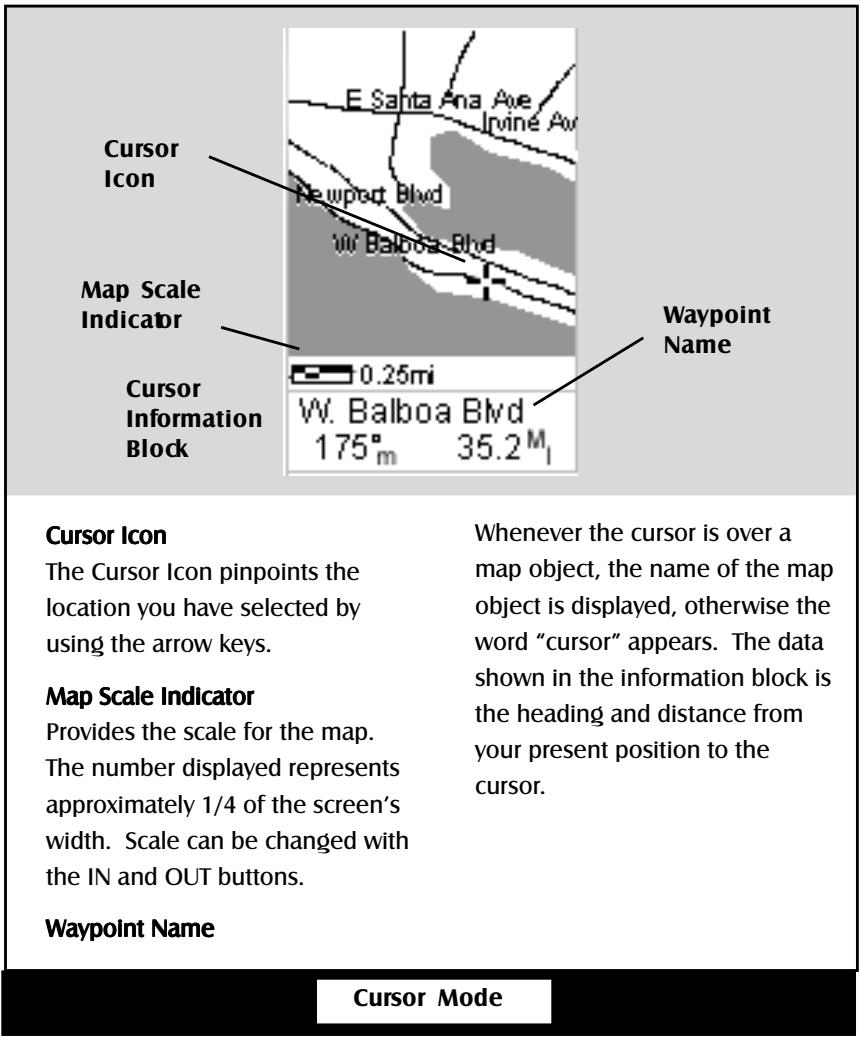
In the Cursor Mode, you are provided with a cursor that can be moved on the map. At the bottom of the display is the information for the position of the cursor relative to your present position. Also any points of interest that the cursor is over will be shown.
To access the Cursor Mode, press any arrow on the keypad. A crosshair appears that can be moved with the arrow keys.
To return to the Position Mode, press [ESC]. The cursor will disappear and the present position icon will appear centered on the map.
Present Position Icon
Map Scale Indicator
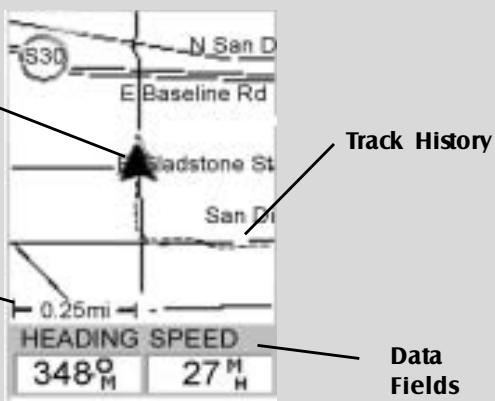
Present Position Icon
The Present Position Icon graphically displays your position on the map. While you are moving it will point in the direction you are heading.
If the Meridian is not computing positions, this icon is replaced with an hourglass icon.
Map Scale Indicator
Provides the scale for the map. The number displayed represents approximately 1/4 of the screen's width. Scale can be changed with the IN and OUT buttons.
Track History
Dotted line on the map displays the history of where you have
travelled since the last time you cleared the Track History (see Clear Memory in the Reference Chapter.)
Data Fields
These fields display navigational information for viewing on the Map screen. They are both customizable with 13 data types possible.
Both of the data fields can be turned on or off allowing more viewable map area.
Both features (customize and turning the data on/off) can be accessed from the MENU button.
Position Mode
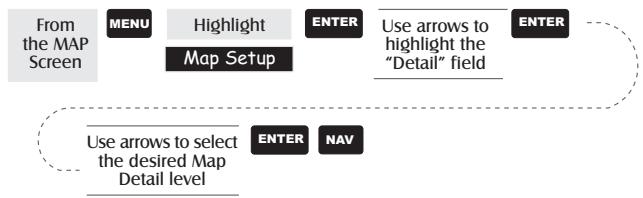
Setting the Map Detail — The detail of the map can be set to highest, high, medium, low or lowest. This changes the zoom level that different map objects (cities, highways, labels, etc.) are displayed. If you have set a zoom level and the display is too cluttered, set the map detail to a lower level; conversely set it to a higher level to view more detail. The default is Medium.
Customizing the Map Display
The Map screen can be customized for your individual needs and requirements. You can select what is being displayed on the map as well as what additional data will be presented at the bottom of the screen. Customization is broken into two parts; what items are displayed on the map and what data fields (if any) are displayed at the bottom of the screen.
Selecting Map Items
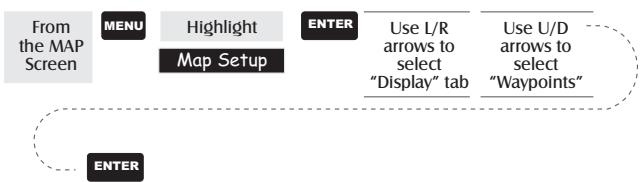
Turning On/Off Display Waypoints — Turns on or off the waypoints on the Map screen. Default is On.
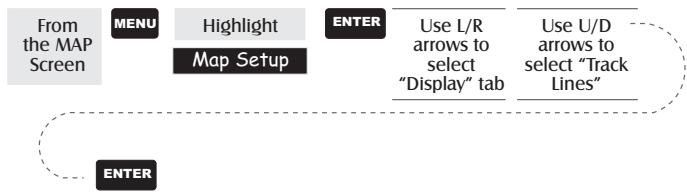
Turning On/Off Track Lines — As you move, your track history is normally displayed on the map screen represented by a dashed line. This function allows you to turn off or on these lines. Default is On.
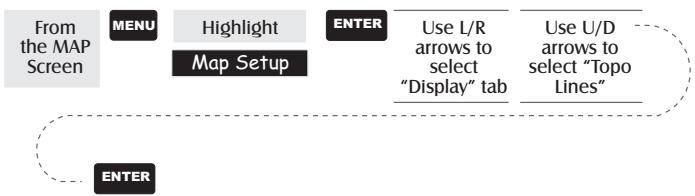
Turning On/Off Topographic Lines — [Available only if a map has been uploaded from a Magellan MapSend Topo for the United States CD-ROM] This function will hide all topo lines and topographic information. Default is On.
Turning On/Off Displayed POI's — [Available only if a map has been uploaded from a Magellan MapSend CD-ROM] Allows you to select which, if any, POIs that have been uploaded from a MapSend product to be displayed. Default is On.
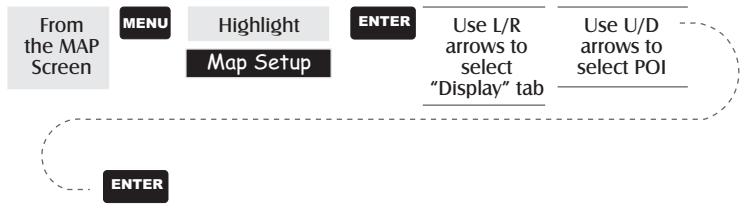
Globally Turn Map Items On/Off — If you have uploaded map data from a MapSend product, you will notice that the list of POIs can be extremely lengthy. To aide you in the customization of the display you can turn everything on or off globally.
To turn off all map items, follow these instructions.
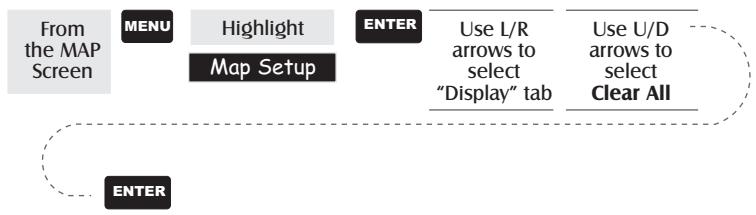
After you have turned off all of the map items, you can go back and just select the POIs that you want to view. Please note that this function will also turn off waypoints, track lines and, if applicable, topo lines. Be sure to turn these back on if you want to see them.
Inversely, to globally turn on all of the map items, follow the above steps but select "Mark All" instead of "Clear All".
Setting Up Map Data Fields — The following options are available ONLY if you are in the Position Mode of the Map screen. If you are in the cursor mode, press the [ESC] key and the display will snap back to the Position Mode with the arrow icon displaying your present position. (If you are not clear on which mode you are in, the simplest way to determine it is to see what cursor is displayed; an arrow indicates Position and a crosshair indicates Cursor. If you press the [ESC] key and the display changes to another NAV Screen you were in the Position Mode and you can press [NAV] to return to the map.
Turning Map Info On/Off — This option allows you to turn on or off the information field that is displayed on the Map screen. Turning this off allows for more of the map to be displayed. Default is "Show Map Info".
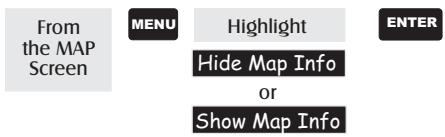
When Map Info is hidden and the map is in the cursor mode, the bearing (BRG) and distance (DIS) to the cursor is shown in the bottom left corner of the map replacing the scale. (Note: if you have uploaded topographic information from Magellan's MapSend Topo for the United States CD-ROM, the elevation at the cursor's location is displayed, not the bearing and distance.) If the cursor happens to be on a map object, the name of the object is displayed.
Selecting the Map Information — This function allows you to select what map information is displayed at the bottom of the screen.
Note: If you select either Horizontal Profile or Terrain Projection and you do not have topographic information loaded a warning screen is displayed.

Two Data Fields Description — This option displays two boxes at the bottom of the map that can display data that you choose. Displaying these data fields is the default for the Meridian.
Possible Map Information Options
Two Data Fields
This option displays two fields at the bottom of the display. These fields are customizable and can be set to any of 13 different data options.
Street Info
This option displays an information block at the bottom of the display showing the name of the street your present position or cursor is on. If in the cursor mode, the bearing and distance from your present position is displayed.
Horizontal Profile
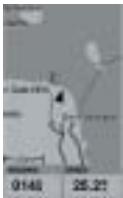
(Available only with MapSend Topographic data loaded into the Meridian.) This displays an information box which graphically depicts the horizon in front of you. The displayed horizon is at the mark displayed on the display perpendicular to your track. Selecting this option automatically sets the display orientation to track up and works only in the Position Mode. Changing to the Cursor Mode will replace the horizontal profile with the cursor data.

Terrain Projection
(Available only with MapSend Topographic data loaded into the Meridian.) This displays an information box which graphically depicts the terrain in front of you. The displayed terrain is approximately from your present position to the edge of the display. Selecting this option automatically sets the display orientation to track up and works only in the Position Mode. Changing to the Cursor Mode will replace the horizontal profile with the cursor data.
See text for additional information on these screens.
Changing the Data Fields - Allows you to change the data that is being displayed to 1 of 13 different data options (bearing, distance, speed, heading, VMG, CTS, ETA, ETE, XTE, turn, elevation, time, or date). Note: If you have selected Hide Map Info, this option will not be available in the menu. Also, you must have the Two Data Fields displayed on the Map screen to be able to customize them. Press [ESC] when you are done to leave the customize mode.
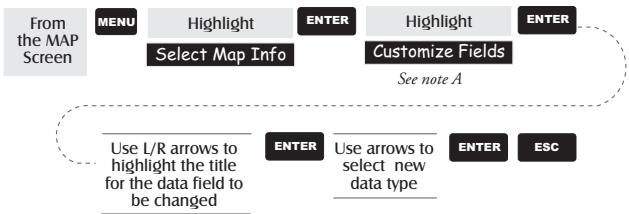
Note A: If there is not a menu option for "Customize Fields", highlight "Two Data Fields" and press ENTER. Then repeat this operation.
Street Information Description — This mode just displays the name of the street close to your present position.
Horizontal Profile Description — (This function requires that map data
has been uploaded from Magellan MapSend Topo for the United States and that your present position as well as the projected horizon falls within the area uploaded.) This mode displays at the bottom of the Map screen a graphical representation of the horizon at a fixed distance from your present position. This fixed distance is equal to the map scale you have
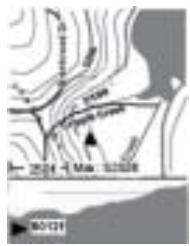
selected for the Map screen, so as you zoom in or out, the horizon displayed will change. In the Horizon Profile mode, you will also notice a line projected out from your present position icon to a shorter perpendicular line. The intersection of the two lines indicates the location on the map where the horizon is being computed.
You should note that when you select Horizontal Profile, your Map Orientation will change to "Track Up" so you may need to change that when you are done viewing the horizontal profile. If you change Orientation to something other than Track Up while viewing the Horizontal Profile, the default Two Data Fields is displayed. Changing the Orientation back to "Track Up" will revert back to the Horizontal Profile.
Available Data Options
Bearing This is the direction to your destination from your present position, in degrees, from North.
Distance This is distance (measured in the Nav Units selected in Setup) to your destination.
Speed This is the rate that you are travelling. The unit of measure is selected in Setup - Nav Units.
Heading This is the direction you are moving (measured in degrees). When the heading and bearing are the same, you are travelling on a direct line to your destination.
VMG (Velocity Made Good). This is the speed that you are getting closer to your destination. If the heading and bearing are the same, then VMG will be the same as Speed since all of the speed that you are travelling is being applied to arriving to your destination. However, if you are off course, your VMG will be less than the speed that you are travelling.
CTS (Course To Steer). This is the angle that you need to turn to put you back on course.
ETA (Estimated Time of Arrival). This the local time that you will arrive at your destination based on the rate of speed that you are moving to your destination. (See VMG.)
ETE (Estimated Time Enroute). This is how long, in time, that it will take you to arrive at your destination based upon your present speed to the destination.
XTE (Cross Track Error). XTE is the perpendicular distance from your present position to the course line you should be on to go to your destination.
Turn This is the direction you need to turn to put you on the shortest distance to your destination from your present position.
Elevation This is the distance above sea level that you are presently at.
Time Local time.
Date Current date.
Also, you must be zoomed in to a scale of 0.80 miles or closer for the horizontal profile to be displayed. Zoom scales higher than 0.80 miles will cause the data displayed to change to the Two Data Fields and will change back to Horizontal Profile as you zoom in to 0.80 miles and below.
Terrain Projection Description — This feature allows you to view the terrain directly ahead of you graphically. It is computed from your present position and extends in a straight line to the top of your display. This provides you with instantaneous information on what terrain elevations are directly in front of you. Your present position and elevation are indicated at the left side of the display. The maximum elevation for the terrain ahead of you is displayed above the graph, next to the map scale indicator. (This function requires that map data has been uploaded from Magellan MapSend Topo for the United States and that your present position as well as the projected horizon falls within the area uploaded.)
Like Horizontal Profile, you must be zoomed in to a scale of 0.80 miles or closer for the projected terrain to be displayed. Zoom scales higher then 0.80 miles will cause the data displayed to change to the Two Data Fields and will change back to Terrain Projection as you zoom in to 0.80 miles and below.
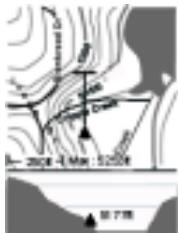
You should note that when you select Terrain
Projection your Map Orientation will change to "Track Up" so you may need to change that when you are done viewing the projected terrain. If you change Orientation to something other than Track Up while viewing the Terrain Projection, the default Two Data Fields is displayed. Changing the Orientation back to "Track Up" will revert back to the projected terrain.
Changing the Map Orientation — You can change how the map is orientated on the screen to either North Up, Course Up or Track Up. Default is North Up.
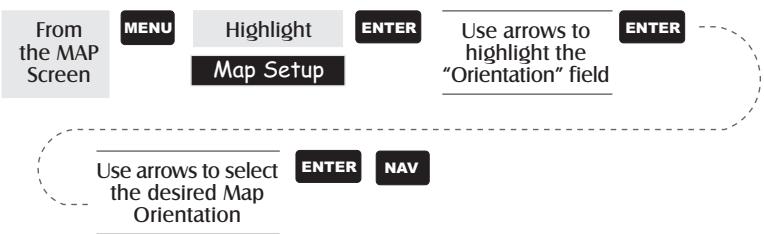
North Up North is at the top of the screen.
Course Up The heading of the active leg of the active route is at the top of the screen. If no route is active, North Up orientation is used until a route is activated.
Track Up Your heading (i.e., the direction you are travelling) is at the top of the screen.
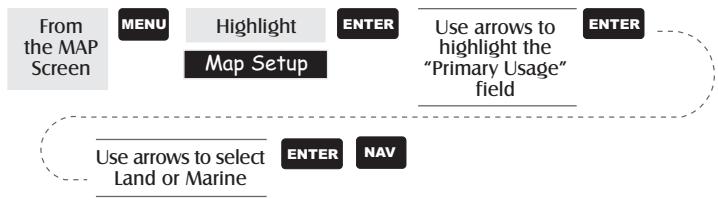
Selecting Primary Usage — The Meridian can be set to either Land or Marine Usage. When in Land (default), the map displays land areas in white and water areas as dark gray. For marine applications it may be desirable to reverse the display, showing water as white and land as dark gray. This will make reading some of the data information on the water easier.
Selecting Track Mode - Allows you to set how often the Meridian stores track points. Setting the mode to "OFF" stops the Meridian from saving any new track points. In "Auto" or "Auto Detailed" mode, the Meridian uses a method for track point storage that maximizes memory. Using Auto, you will see more points on and near turns and less points on straight stretches of the map. You also have the option of selecting fixed intervals for track point storage.
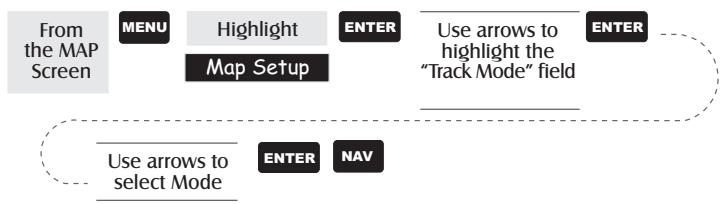
Setting the Track Mode to "OFF" will cause severe limitations to the ability of your Meridian to create a backtrack route. The same temporary waypoints used to create the displayed track are used to compute a backtrack route. Therefore, it is highly recommended that you use the "Auto" Track Mode whenever possible.
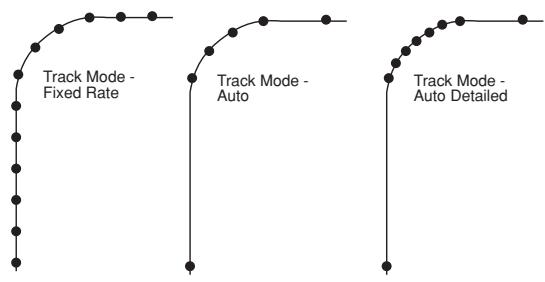
Auto vs. Auto Detailed. You will notice two of the options for the Track Mode are Auto (default) and Auto Detailed. Basically, both options behave the same. While your are travelling in a straight line, only a few track points are taken, but as you turn, the Meridian increases the rate of track points. This allows for a good representation of your track with minimal track points stored. Auto Detailed performs exactly the same as Auto, but has the base rate of track points saved increased. This allows a more detailed track then Auto to be taken, while at the same time saving memory over a fixed rate.
The following is an overly simplified diagram of the three track rate options. In most cases, Auto should meet all of your requirements but if you want more detail on turns and still not clutter memory with excessive track points, select Auto Detailed.
Compass Screen
The Compass Screen is the second in the list of navigation screens your Meridian can present. The two data fields at the top of the display can be customized to display different navigation data types.
Meridian Platinum users should consult the Meridian Platinum Supplement Manual for more information on the compass screen and the use of the Meridian Platinum's electronic compass.
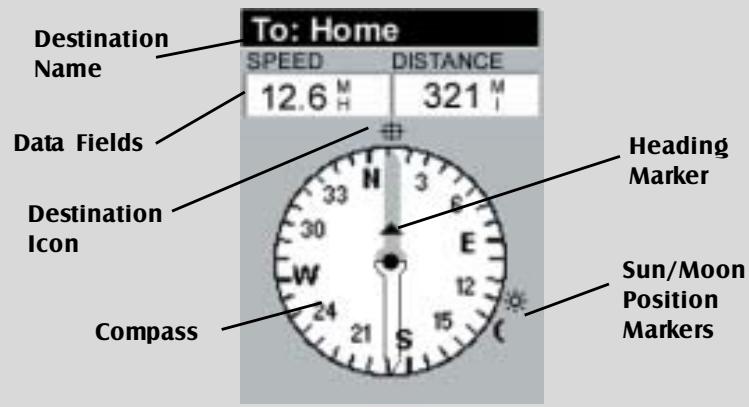
Destination Name
When you are navigating on a GOTO or multileg route, the name of the destination is placed here. For multileg routes, the name displayed is the name of the destination for the leg of the route you are presently navigating on.
Data Fields
Customizable data fields. The data displayed can be selected from 13 different options.Customizing is accessed through the MENU button. Some of the data displayed requires you to be moving to be computed, invalid data is indicated by dashes.
Compass/Heading Marker
Using the compass and the heading marker, you can view your heading information in a familiar manner. Note that you need to be moving for this data to be valid.
Destination Icon
When you are travelling on a route, an icon representing the destination of the leg or GOTO is displayed outside the compass. This provides you with the direction you need to head to arrive at the destination. When you are on course and heading straight for the destination, the destination icon will be lined up with the heading marker.
Customizing the Data Fields — Allows you to change the data that is being displayed to 1 of 13 data options (bearing, distance, speed, heading, VMG, CTS, ETA, ETE, XTE, turn, elevation, time, or date) for any of the two fields. (See explanation of Data Types in the Map Screen section.)
Large Data Screen
Destination Name
To: Home
BEARING
$$ 2 4 7 _ {M} ^ {\circ} $$
HEADING
$$ 3 2 1 _ {M} ^ {o} $$
SPEED
$$ 3 6. 1 _ {H} ^ {M} $$
DISTANCE
$$ 1 2. 6 \begin{array}{c} \mathbb {M} \ \text {I} \end{array} $$
Data Fields
Destination Name
When you are navigating on a GOTO or multileg route, the name of the destination is placed here. For multileg routes, the name displayed is the name of the destination for the leg of the route you are presently navigating on.
Data Fields
Customizable data fields. The data displayed can be selected from 13 different options.
Customizing is accessed through the MENU button. Some of the data displayed requires you to be moving to be computed, invalid data is indicated by dashes.
Customizing the Data Fields — Allows you to change the data that is being displayed to 1 of 13 data options (bearing, distance, speed, heading, VMG, CTS, ETA, ETE, XTE, turn, elevation, time, or date) for any of the four fields. (See explanation of Data Types in the Map Screen section.)
Position Screen
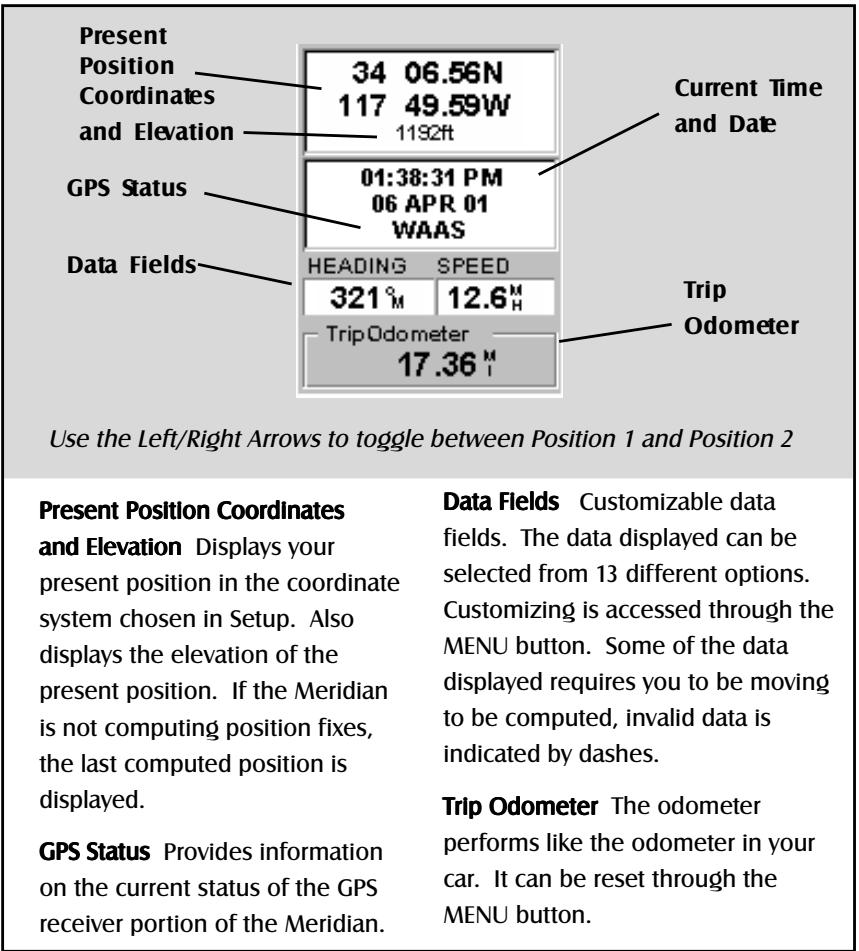
The Position screens 1 and 2 simply display your present position using the coordinate systems that you have selected in Setup. The Position 1 screen shows all of the basic position, time and satellite information, all on one screen. In addition, current navigation information is shown on the bottom half of the screen.
GPS Status Messages — Messages indicating the status of the GPS receiver section of the Meridian are displayed on the Position screen.
| Message | Description |
| Searching - 1st sat | Searching for 1st satellite. |
| Searching - 2nd sat | 1st satellite found; searching for 2nd satellite |
| Searching - 3rd sat | Two satellites are being tracked and searching for a third. |
| Searching - 4th sat | Three satellites are being tracked and searching for the fourth. |
| Collecting Data | All satellites needed for position fix are being tracked and position is being computed. |
| Averaging | Meridian is computing fixes; speed is near 0.0 so position is being averaged. |
| EPE xxft | Estimated Position Error in feet. Meridian is computing fixes while moving. |
| DGPS | Computed fixes are being differentially corrected. |
Since the Meridian is a 12-channel receiver, once the first satellite is found, finding the remaining satellites and computing a fix may take only a few seconds.
Selecting the Position Screen — Allows you to toggle between the two Position screens. This allows the same position to be displayed in different coordinate systems. This is useful when comparing navigation data between devices and charts that use different coordinate systems.
The screen viewed can be changed by pressing the Left or Right arrows while viewing the Position screen.
You can change the coordinate system displayed by following the instructions in Setup - Selecting the Coordinate System.
Resetting the Trip Odometer — Resets the trip odometer to 0000.00.

Customizing the Data Fields — Allows you to change the data that is being displayed to 1 of 13 data options (bearing, distance, speed, heading, VMG, CTS, ETA, ETE, XTE, turn, elevation, time, or date) for any of the two fields. (See explanation of Data Types in the Map Screen section.)
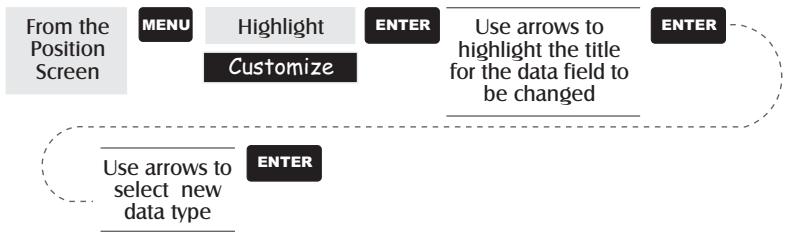
Selecting Coordinate System, Map Datum and Elevation Mode - Allows you to change the coordinate system, map datum and elevation mode for the primary and secondary Position Screens. These functions perform identically to the same functions described in the Setup section of this manual. To access these functions from the Position screen, press [MENU], select the option, press [ENTER] and follow the prompts.
Road Screen
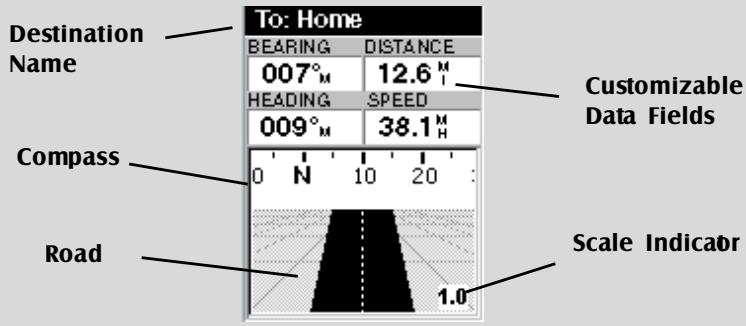
Destination Name
When you are navigating on a GOTO or multileg route, the name of the destination is placed here. For multileg routes, the name displayed is the name of the destination for the leg of the route you are presently navigating on.
Data Fields
Customizable data fields. The data displayed can be selected from 13 different options.
Compass
Displays your heading in a familiar compass format.
Road
This graphically displays the route (GOTO or other routes) that is active. As you move left or right of your intended track, the road will move on the display indicating which way you need to steer to get back on track. Ideally, the road would be centered on the display. Also, you will see upcoming turns in advance allowing you to make necessary preparations.
Scale Indicator
Use Zoom In/Out to change the scale.
Customizing the Data Fields - Allows you to change the data that is being displayed to 1 of 13 data options (bearing, distance, speed, heading, VMG, CTS, ETA, ETE, XTE, turn, elevation, time, or date) for any of the four fields. (See explanation of Data Types in the Map Screen section.)
Data Screen
Destination Name

To: Home

Customizable Data Fields
Compass
Destination Name
When you are navigating on a GOTO or multileg route, the name of the destination is placed here. For multileg routes, the name displayed is the name of the destination for the leg of the route you are presently navigating on.
Data Fields
Customizable data fields. The data displayed can be selected from 13 different options. Customizing is accessed through the MENU button. Some of the data displayed requires you to be moving to be computed, invalid data is indicated by dashes.
Compass
Displays your heading in a familiar compass format.
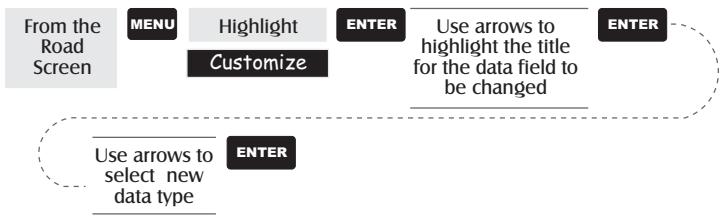
Customizing the Data Fields — Allows you to change the data that is being displayed to 1 of 13 data options (bearing, distance, speed, heading, VMG, CTS, ETA, ETE, XTE, turn, elevation, time, or date) for any of the six fields. (See explanation of Data Types in the Map Screen section.)
Speed Screen
Destination Name
To: Home
HEADING
DISTANCE
221M
1.06
ETE
ETA
021m
11:14
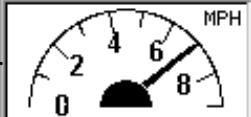
Speedometer
Trip Odometer
0023.10
Customizable Data Fields
Destination Name
When you are navigating on a GOTO or multileg route, the name of the destination is placed here. For multileg routes, the name displayed is the name of the destination for the leg of the route you are presently navigating on.
Data Fields
The data displayed can be selected from 13 different options. Customizing is
accessed through the MENU button. Some of the data displayed requires you to be moving to be computed, invalid data is indicated by dashes.
Speedometer
Displays your speed using a familiar speedometer display. The scale of the speedometer is not adjustable but will change dynamically to best display your speed.
Trip Odometer
It can be reset using the MENU button.
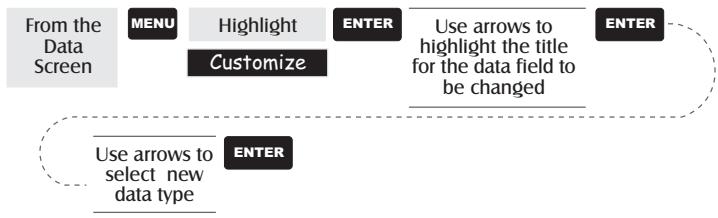
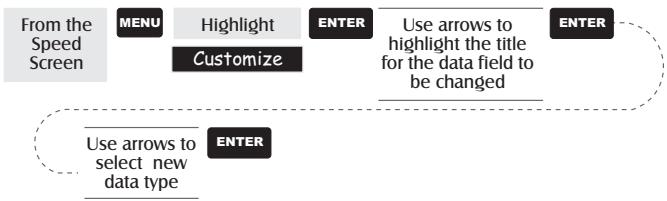
Customizing the Data Fields — Allows you to change the data that is being displayed to 1 of 13 data options (bearing, distance, speed, heading, VMG, CTS, ETA, ETE, XTE, turn, elevation, time, or date) for any of the four fields. (See explanation of Data Types in the Map Screen section.)
Satellite Status Screen
The Satellite Status screen visually displays the satellites being used and the strength of the received signal. Additionally, this screen displays the power source you are connected to and, if internal batteries, how much battery life is remaining. This is a very handy screen when you wish to view how well your Meridian is tracking satellites.
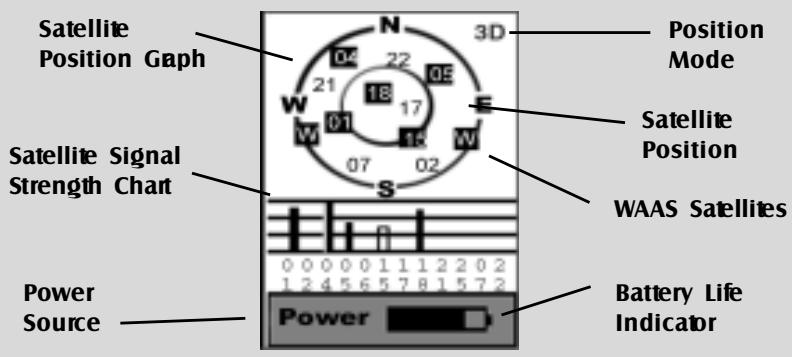
Satellite Position Graph
The two circles indicate satellite elevation as seen from your current position; the outer circle represents the horizon and the inner circle represents 45^ from the horizon. The center of the circle is 90^ from the horizon, or directly overhead.
Satellite Signal Strength Chart
Clear bar indicates that the Meridian is starting to get information from the satellite. Satellites that are being used to compute your position are shown with solid bars. The height of the bar indicates the relative signal strength.
Power Source
Indicates the source of power being used - POWER (Internal Battery) or POWER EXTERNAL.
Position Mode
3D - position computed is
3-dimensional (elevation is being computed).
2D - position computed is
2-dimensional (elevation is not being computed).
Blank - Meridian is not computing a position fix.
Satellite Position
Where the satellite is located relative to your position.
Waypoints / Database
Accessing Waypoints in the Database — All stored waypoints, whether user-input or preloaded, can be found in the Waypoint Database. You will need to access waypoints in the database whenever you are editing waypoints, activating a GOTO route or creating a multileg route.
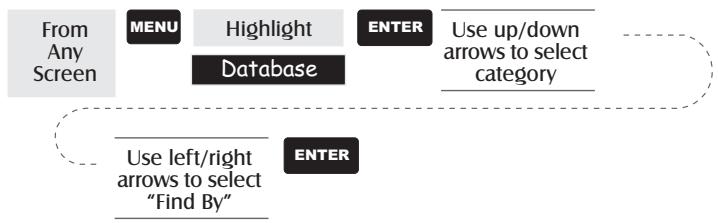
It is very important that you understand how to select waypoints from the database as it is used frequently in the Meridian. The first item to understand is the differences in categories. There are three major types of categories that need to be explained: user, preloaded and uploaded.
User: These are waypoints that you have saved using the MARK function of the receiver. There can be up to 500 user-entered waypoints stored in memory. To select the User category, highlight User in the Database list.
Preloaded: These are waypoints that are included in the base map that was installed by Magellan. The categories of preloaded waypoints are: Cities, Highways, Airports, Waterways and Parks. The Meridian Marine has an additional set of marine preloaded categories: Fixed Navaid, Buoys, Lighthouses, Marinas and Obstructions.
Uploaded: Using any of the MapSend® CD-ROM software you can add detailed maps to your Meridian. Along with the detailed maps, a set of waypoints for a wide variety of categories. If you have uploaded a detailed map, you will notice a black line near the bottom of the database list with the name of the detailed map(s) you have uploaded. To select a category for the detailed map, you need to highlight the name of the uploaded map and press [ENTER]. Then highlight the category from the newly displayed list.
With the category highlighted, you need to select how you want to find the desired waypoint, either by an alphabetic list or using Nearest To.
Alphabetical: With Alphabetical selected in the Find By field, the waypoints will be listed in alphabetical order and you need to scroll through the list until you find the waypoint you need. With "User" selected as the category, you will go directly to the alphabetized list. Since the number of waypoints in the other categories can be in the thousands, the Meridian has provided you with some tools to make the search easier.
Keyboard Search: Before displaying the list of waypoints, the Meridian displays a keyboard that you can enter the first few characters of the waypoint you are looking for. When you highlight "OK" and press [ENTER], (or as a shortcut, press [IN]), you are taken to the alphabetical list with the waypoint you began typing at the top of the display. Anytime you are viewing the list of waypoints, you can re-access the keyboard by pressing [ESC].
Alphabetic Scroll: You can use the [IN] and [OUT] buttons to step up or down the alphabet. If you were viewing waypoints beginning with the letter "A", pressing [OUT] would take you to the first waypoint beginning with "B", and then "C" and so forth. Pressing [IN] does the same function but only in reverse.
Nearest To: The purpose of Nearest To is to provide you with a way to find the 20 waypoints nearest to a waypoint you select.
When Find By is set to Nearest To and [ENTER] is pressed, the Meridian finds the nearest 20 waypoints in the category you selected to your present position.
After you have the display with the 20 closest waypoints to your position, you can change position to any waypoint in the database or to your cursor if you are in the Cursor Mode on your Map screen.
Selecting User Waypoints (Alphabetical)
From Database Screen
Use up/down arrows to highlight "User"
Use left/right arrows to set Find By to Alphabetical
ENTER
Use up/down arrows to highlight waypoint
ENTER
Selecting Preloaded Waypoints (Alphabetical)
From Database Screen
Use up/down arrows to highlight Preloaded Category
Use left/right arrows to set Find By to Alphabetical
ENTER
Use arrow keys to enter first 5+ characters
Highlight "OK"
ENTER
Use up/down arrows to select waypoint
ENTER
Selecting Uploaded Waypoints (Alphabetical)
From Database Screen
Use up/down arrows to highlight uploaded detailed map name
ENTER
Use up/down arrows to highlight category
Use left/right arrows to set Find By to Alphabetical
ENTER
Use up/down arrows to highlight subcategory
ENTER
Use arrow keys to enter first 5+ characters
ENTER
Highlight "OK"
ENTER
Use up/down arrows to select waypoint
ENTER
Selecting User Waypoints (Nearest To Position)
From Database Screen
Use up/down arrows to highlight "User"
Use left/right arrows to set Find By to Nearest To
ENTER
Use up/down arrows to highlight waypoint
ENTER
Selecting Preloaded Waypoints (Nearest To Position)
From Database Screen
Use up/down arrows to highlight Preloaded Category
Use left/right arrows to set Find By to Nearest To
ENTER
Use up/down arrows to select waypoint
ENTER
Selecting Uploaded Waypoints (Nearest To Position)
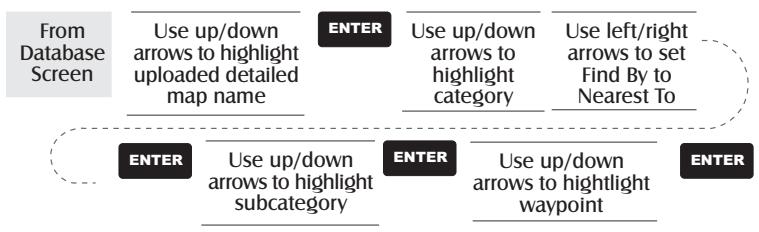
Selecting Waypoints (Nearest To Other Categories)
This will allow you to change the "Nearest To" from Position to any other category in the database. The first step is to follow the instructions provided above for selecting user, preloaded or uploaded waypoints using Nearest To.
In the example here, the category "Waterways" was selected from the preloaded list of categories. Notice that the highlight is on "Position". As you know, you can move the highlight to one of the waypoints in the list by using the up/down arrows. But in this example, we are going to change "Position" to "Dallas, Tx".
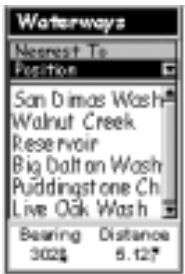
With the highlight still on "Position" press
[ENTER]. (If you already used the arrow keys and
one of the waypoints in the list are highlighted, use the [ESC] button to return the highlight to "Position".)
A drop-down menu is displayed with the options of Position, Cities, Address, Cursor or Other. (The option "Cursor" only appears if the Map screen is in th Cursor Mode.) For this example, highlight "Cities" and press [ENTER].
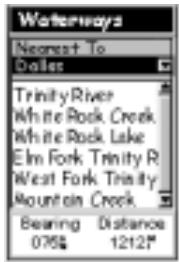
Use the keyboard to enter "DALL" and highlight "OK" and press [ENTER]. Use the up/down arrows to highlight "Dallas, TX" and press [ENTER].
This is the screen that you would see on your Meridian. Here we see the 20 closest waterways to Dallas, TX. If your screen does not appear like the one here and says "No Objects Found", then redo this procedure and be sure to select "Waterways" from the preloaded categories, not from your uploaded categories.
Note that the bearing and distance displayed is from your present position or the last position fix obtained.
Saving Present Position as a Waypoint — Creates and stores your present position into the memory of the Meridian. Stored waypoints can be used in GOTO and route creation. While saving the waypoint, you can edit the icon, name and add a message or you can just save the waypoint using the default name supplied by the Meridian.
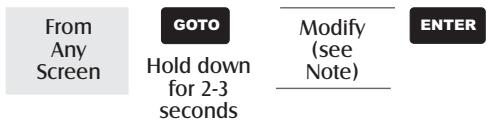
(Note: To modify the icon, name or message use the Up/Down arrows to highlight the field you wish to change and press ENTER. You are then placed into the Edit Mode. Using the method described in "Getting Started" you can personalize the waypoint, making it easy to remember what it is.)
Creating New Waypoint Manually - Allows the creation of a new waypoint with coordinates other than your present position. The coordinates for the new position need to be entered manually.
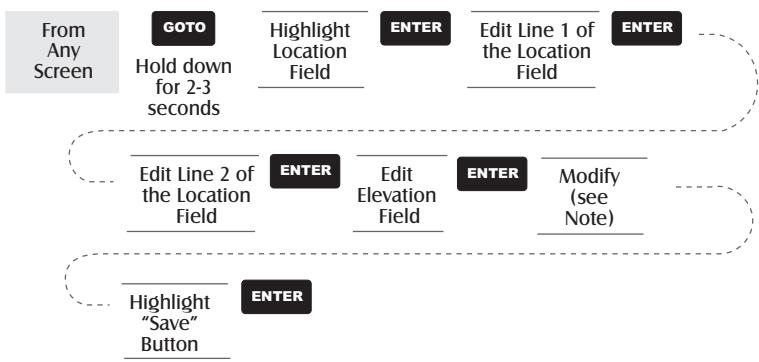
(Note: To modify the icon, name or message use the Up/Down arrows to highlight the field you wish to change and press ENTER. You are then placed into the Edit Mode.)
Creating New Waypoint with Map Cursor — Provides a method of creating a new waypoint with coordinates other than your present position. The new coordinates are computed automatically based on the location of the map cursor.

(Note: To modify the icon, name or message use the Up/Down arrows to highlight the field you wish to change and press ENTER. You are then placed into the Edit Mode.)
Deleting a User Waypoint - Deletes a waypoint that you have created.
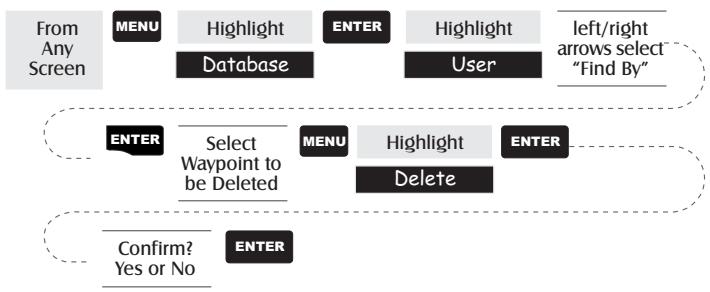
Editing a User Waypoint — Allows you to edit a waypoint that you have already stored in the Meridian's memory.

An alternative method to entering the edit mode is after highlighting the waypoint you wish to modify press MENU. Highlight Edit WPT and press ENTER.
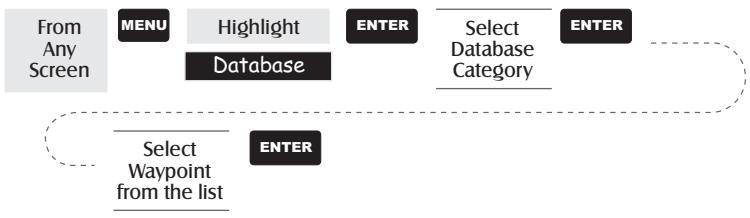
Viewing a Map Object on the Map — Displays on the Map the Map Object you have selected.
Note: This function is for viewing map objects (cities, airports, etc.) only. See Viewing User Waypoints on the Map for instructions on how to perform this feature using User waypoints.
Viewing a User Waypoint on the Map — Locates and displays on the Map the selected User Waypoint.
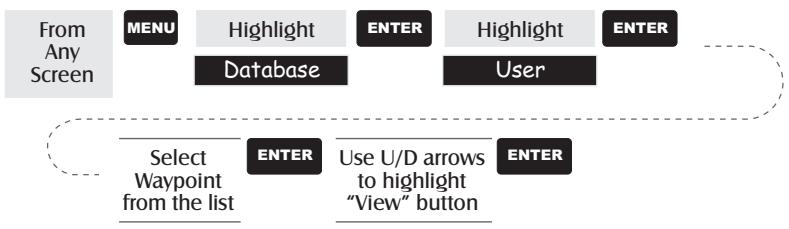
Note: If the waypoint is used in a route you will get a warning that it is in a route after selecting it from the list. This is because the screen that you access the view button can also be used to edit the waypoint and it may be undesirable to edit a waypoint that is being used in a route.
Also note that any edits you make to the waypoint are not saved when you use the View button. You need to highlight the Save button and press ENTER to record your changes.
Saving a Map Object as a User Waypoint — Saves a Map Object as a waypoint to be stored in your User Waypoint List. You would do this should you want to modify the object or if you wanted to use the object as a waypoint in the Sun/Moon or Fish/Hunt functions.
Follow the instructions above for Viewing a Map Object on a Map. Press and hold GOTO for 2-3 seconds. Edit any field of the waypoint that you want and when you are done, highlight "Save" and press ENTER.
Searching for a Street Address — This option allows you to search an uploaded map database for a specific street address. After finding the address, you can save it as a waypoint ("Mark") or view it on the Map Screen.
NOTE: The option is available ONLY if you have uploaded one or more detailed maps from the Magellan MapSend Streets CD-ROM.
Mark. If you select "Mark" and press ENTER, the Edit Waypoint screen is displayed. You can now change any of the attributes for this waypoint. Highlight "Save" and press ENTER to record this waypoint into the memory of the Meridian.
View. Selecting "View" and pressing ENTER returns you to the Map Screen in the Cursor Mode with the cursor on the address you entered. From this point, you can create a waypoint by pressing and holding the GOTO button.
Note: The address search has some limitations and is based upon the map that was uploaded from the MapSend Streets software. While you are entering the address you will notice that the available range is displayed on the screen. Addresses entered must fall within that range.
Also, be sure to include the prefixes (N, E, W, S, etc.) for streets you are searching for. In nearly all cases, if you can't find the street you are looking for, it is probably due to missing or incorrect prefixes.
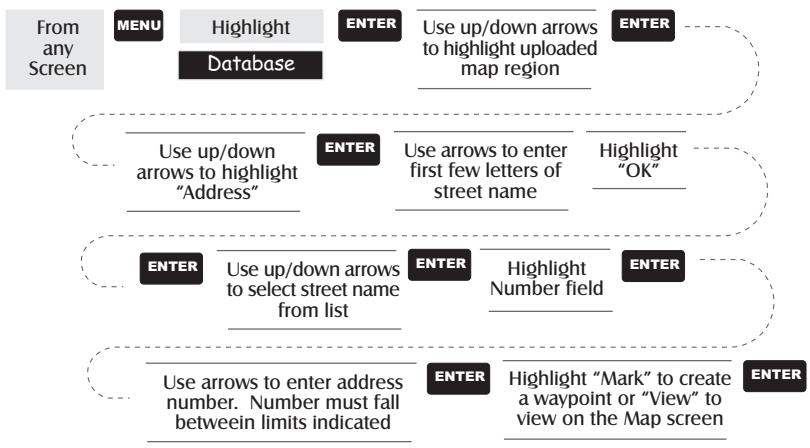
Routes
Creating a GOTO Route — Creates and sets as the active route a 1-leg route with your present position as the starting point and a destination waypoint that you choose from the waypoint database.
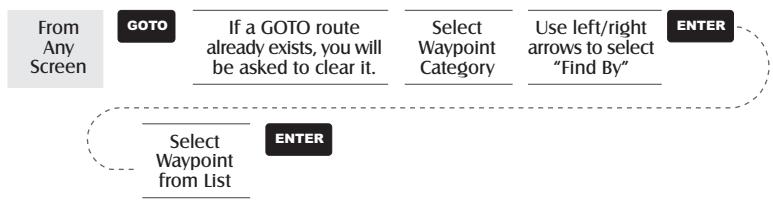
GOTO routes are not saved in memory. When you turn your Meridian off and then back on, the GOTO route is gone. You need to create a new GOTO route if you intend on completing the route.
Also note that when you are selecting the Waypoint Category you are being instructed to select the "Find By". You can select only those waypoints in your general vicinity (Nearest) or all of the waypoints in the category in alphabetical order (Alphabetical).
Creating a Backtrack Route — Creates a route using track information stored in the Meridian to "retrace" your steps. A good example of using a backtrack would be if you were out hiking or jogging with your Meridian turned on and computing position fixes. After 30 minutes you choose to return to where you started, following the same route you just took. All you need do is follow the instructions below and let the Meridian take you there.
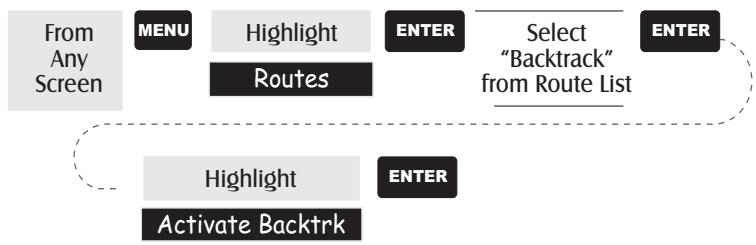
Creating a Multileg Route — Provides the means to create a multileg route that can be stored in memory.
Multileg routes are easily the most complicated function in the Meridian, but once you can visualize what a multileg route (route) is, it becomes very easy to understand and create. If you understand that a GOTO is a 1-leg route with a starting point and a destination point, then imagine a bunch of GOTO's strung together where the destination of one GOTO is the starting point for the next GOTO. That means if you had three GOTO's, one from "A" to "B", another from "B" to "C" and a third from "C" to "D" you could then put them together to make one multileg route. In this example you would have a 3-leg route that went from "A" to "B" to "C" to "D".
These routes have an advantage over GOTO's in that A) the starting point does not have to be your present position, B) they are always in memory and if activated they remain activated, even when you turn the Meridian off and then back on, and C) they can be saved and used over and over again.
(Note: these routes have been termed "multileg" in an effort to make the understanding of them a little clearer, however you could create a 1-leg route and save it in the Meridian's memory.)
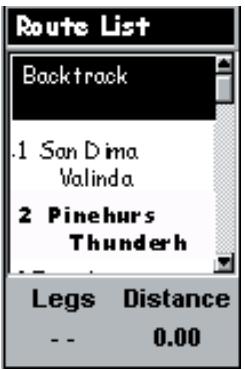
Sample Route List
(Bold route indicates "Active" route)
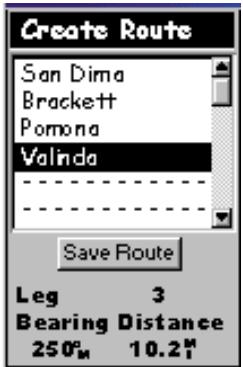
Sample Route Create
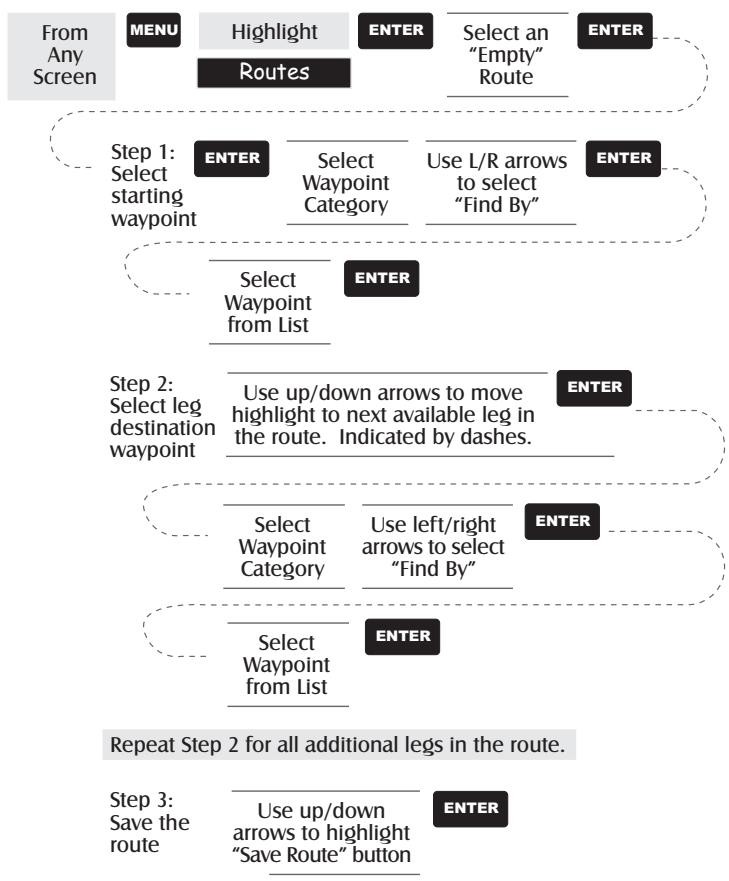
Activating/Deactivating a Route — Enables the activating or deactivating of a stored route. When a route is being used to navigate, it is termed to be "active". When you want to use a route to navigate with, follow these steps to activate it.
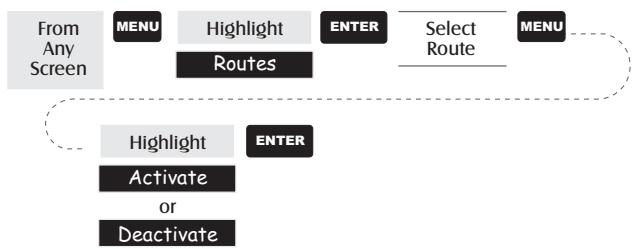
(Note: If the route is active, the Meridian will automatically display "Deactivate Route" in the menu and inversely if the route is not active, "Activate Route" will be displayed.)
Viewing a Route — Allows you to view the legs of a route using the same screen that was used to create the route. Viewing a route can be used if you just wanted to see the components of the route or as a precursor to editing the route.
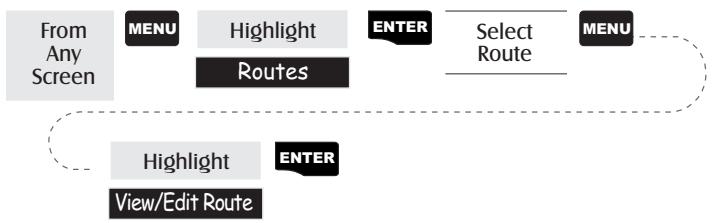
Editing a Route — Enables you to modify an existing route by inserting a leg, deleting a leg or replacing a leg. Follow the instructions above for Viewing a Route and then use the instructions for inserting, deleting, replacing or appending a leg as appropriate.
When you are done with editing the route, use the Up/Down arrows to highlight the "Save Route" button and press ENTER.
Inserting a Leg — Inserts a waypoint in the middle of an existing leg thereby making two legs where there used to be one.
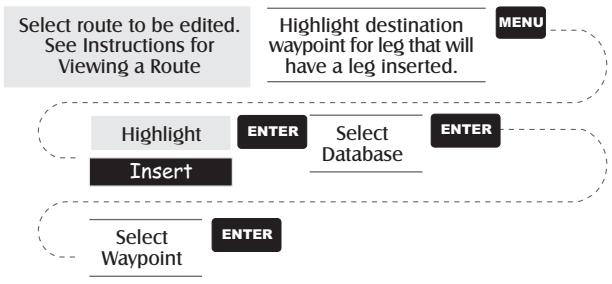
In the example of a route that goes from "A" to "B" to "C" to "D", if you wanted to insert the waypoint "E" between "B" and "C" you would highlight the waypoint "C" and follow the steps to insert waypoint "E". Your route would then be "A" to "B" to "E" to "C" to "D".
Deleting a Leg — Deletes a leg from the route.
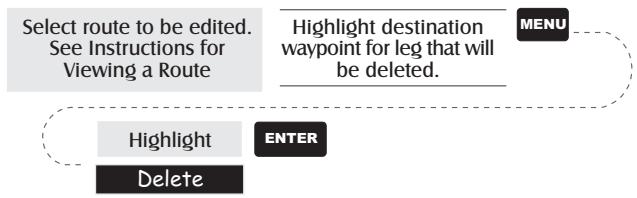
Replacing a Leg — Replaces the destination of an existing leg with a new destination.
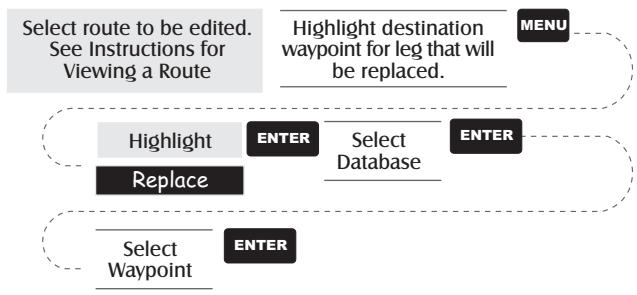
Appending a Leg—Adds a leg to the end of a route.
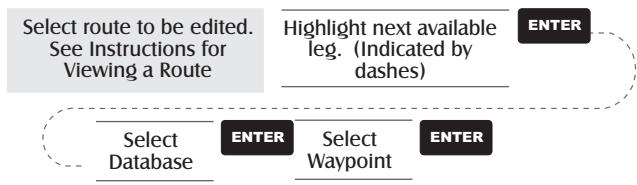
Appending a Newly Created Waypoint to a Route — Allows a newly created waypoint to be appended to any route in memory.
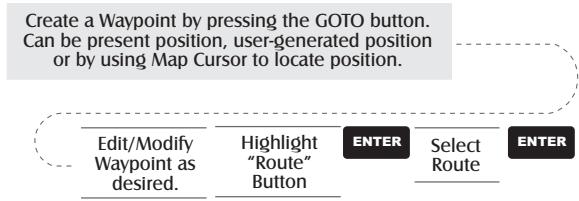
Reversing a Route — Allows any route in memory to be reversed. In the example used earlier of “A” to “B” to “C” to “D”, if this route were reversed it would end up as “D” to “C” to “B” to “A”.
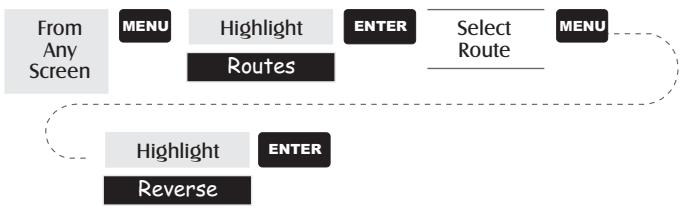
Deleting a Route — Enables the deletion of any route in memory. Useful when you want to add a new route but no “EMPTY” routes are available.
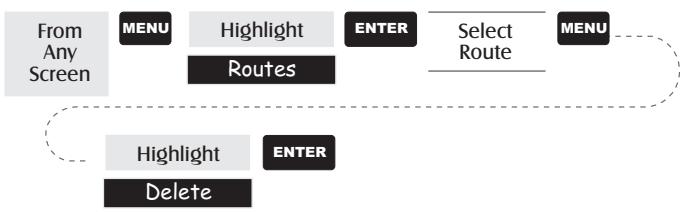
Viewing a Route on the Map Screen — Provides you with a graphical representation of the route selected on the Map screen.
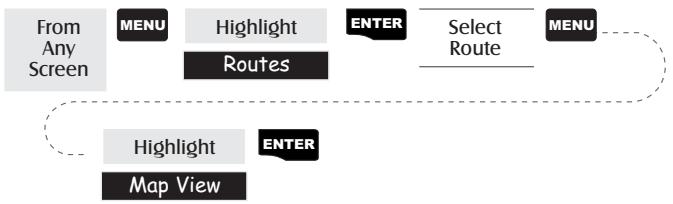
Creating a Route Using Track History — This enables you to automatically create a multileg route using your track history. This route will be saved to your route list with a naming convention of "T01P01 to T01Pxx" where Pxx indicates the number of points in the route.
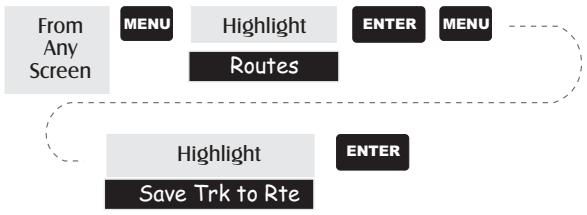
Using Vertical Profile
Vertical Profile displays the elevation as a graphical display for the option you select. Only Track History is available for this function if MapSend Topo for the United States map data is not uploaded. (Path Check is shown as an available function but will not display the vertical profile, however it can be used to graphically create a route. See the information on Path Check for more details.) If a topographic map has been uploaded, you have the additional options of selecting Path Check, Route or Highlighted Road.
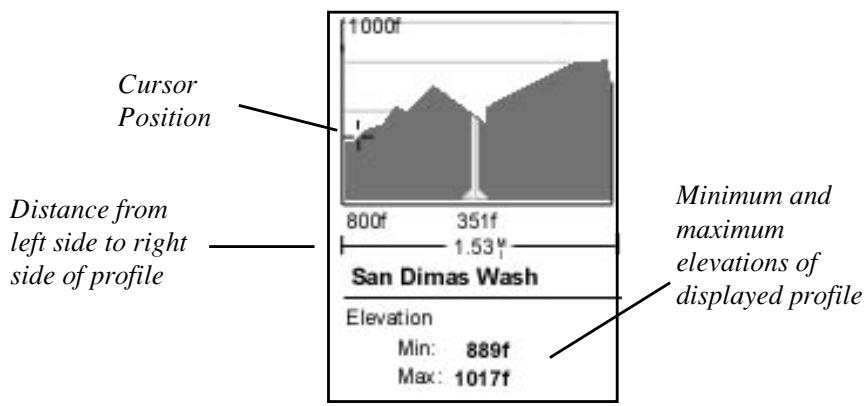
While viewing the vertical profile screen, you can use the left and right arrows to move the profile accordingly. The vertical dashed line in the middle of the profile plot provides the elevation for that point on the profile.
Selecting Vertical Profile — Note, not all options for Vertical Profile are available at all times. For example, if you have a topographical map loaded but the cursor or present position is not on a road, the option "Highlighted road" will not be displayed.

Track History Description — This option displays the vertical profile of the track that is stored in the Meridian. If you have cleared your track, either with the Clear Track option or clearing memory, Track History cannot be accessed.
Highlighted Road Vertical Profile Description — (Available only with map data uploaded from Magellan MapSend Topo for the United States.) If the cursor or your present position is on a road and you have topographic maps loaded, you can view the vertical profile for the road you have selected.
Route Vertical Profile Description — (Available only with map data uploaded from Magellan MapSend Topo for the United States.) If you have at least one route stored in memory, you can view the vertical profile for the route. After selecting Vertical Profile, you will be asked to select the route you want to plot.
Path Check Description — Path check performs two functions. First, it allows you to create a path on the Map screen graphically and then view this path's vertical profile (assuming that you have uploaded a topo map). You can also save this path as a route, allowing an additional method of creating a route.
After selecting Path Check from the Vert. Profile menu, you will be returned to the Map screen where you can begin to lay out your path. Using the arrow keypad, move the cursor to the desired location of the path's beginning and press [GOTO]. Now use the arrow keypad to move to a new location and press [GOTO]. Notice a thick line has been drawn between the two points. Continue moving the cursor and pressing [GOTO] until your path is complete. When it is done, press [ENTER] and the vertical profile for the path is displayed.
When you are done viewing the Vertical Profile of the path you created, press ESC to return to the map screen. Now you can continue adding legs to the path.
Tip: You can convert this path into a stored route by simply pressing the MENU key and selecting the Save To Route option.
Setup
Initializing the Meridian — Enables you to initialize the Meridian should it be needed to speed up satellite acquisition. Two such instances would be travelling over 500 miles with your Meridian turned off or complete loss of memory.
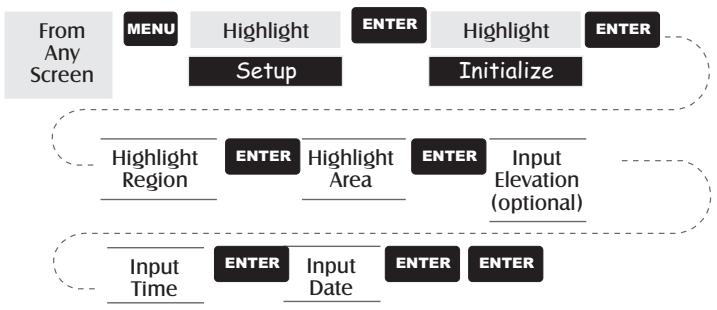
Turning NAV Screens On/Off - Allows you to turn off or on any of the navigation screens you choose.
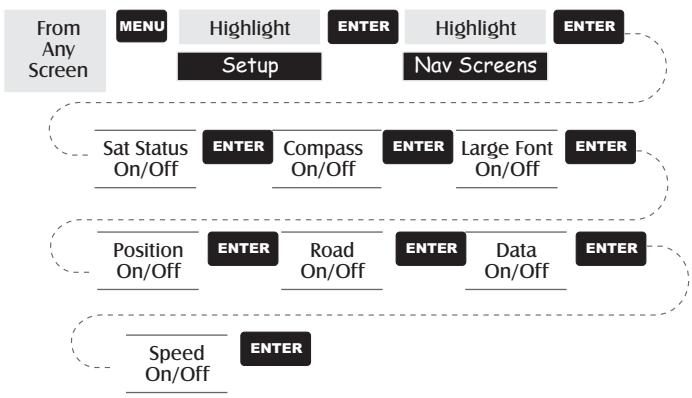
(Note: you must go through the entire sequence of nav screens for your selections to be saved. As an example, if you turn the Sat Status screen off and press ESC before confirming all of the nav screens, your selection will not be saved and the Sat Status screen will still be on.)
Default: All On
Selecting the Coordinate System - Allows you to set the coordinate system that will be used to display the position for the primary or secondary position screen. Available coordinate systems are: Lat/Lon, UTM, OSGB, Irish, Swiss, Swedish, Finnish, German, French, USNG, MGRS, or User Grid.
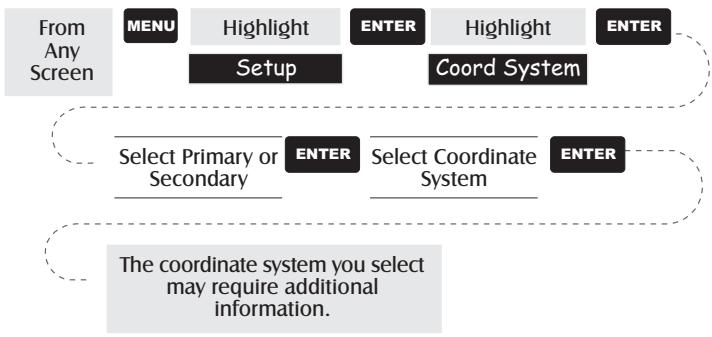
Default: Primary - Lat/Lon DEG.MIN.MMM Secondary - UTM
Selecting a Map Datum - Allows you to set the datum used to compute the coordinates to match the datum used on a map or chart. If you are using a map or chart with your Meridian and the datum do not match, you may find irregularities when comparing the coordinates.

Default: Primary - WGS84 Secondary - WGS84
Selecting the Elevation Mode - Allows you to select the elevation mode used by the Meridian. You may choose between 3D (uses satellite information to compute elevation) or 2D (displays a fixed elevation based upon the elevation entered).
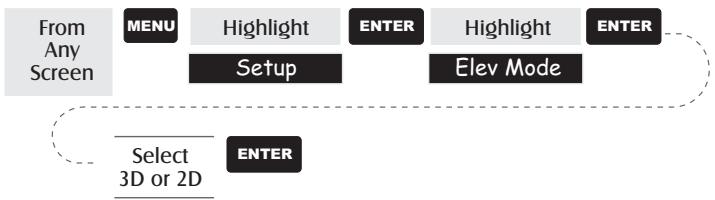
Default: 3D
Selecting the Time Format — Enables you to choose from three different time formats: Local 24 Hr (military time), Local AM/PM or UTC.
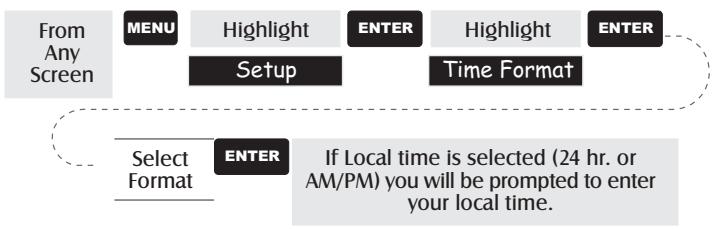
Default: Local AM/PM
Selecting NAV Units - Allows you to select the units of measure that will be used when displaying navigational data. Options are: Miles/MPH, NM/Knots or KM/KPH.
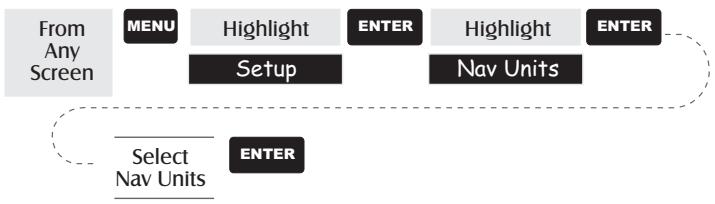
Default: Miles/MPH
Selecting the North Reference — Allows the selection of whether the Meridian uses True North, Magnetic North, Military True or Military Magnetic as its North reference.
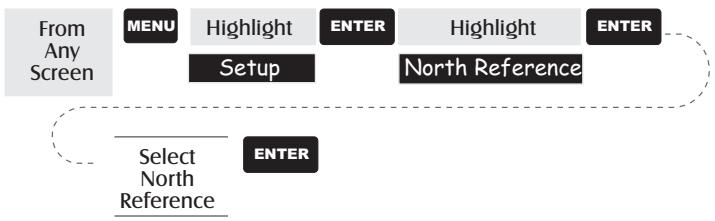
Default: Magnetic
Selecting Daylight Savings — Allows you to select what region you are in which will allow the Meridian to automatically adjust the time displayed to compensate for daylight savings time. You can select United States (daylight savings starts on the first Sunday in April and ends on the last Sunday in October), European Union (daylight savings starts on the last Sunday in March and ends on the last Sunday in October), or you can select Customize which allows you to set the month and day that daylight savings starts and ends in your area.
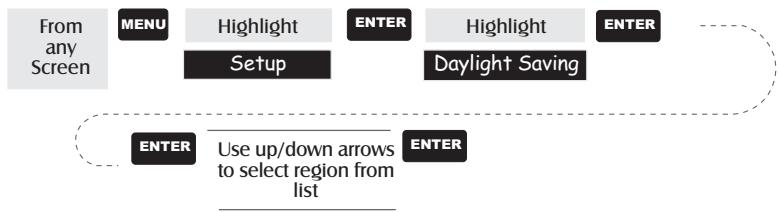
Default: The appropriate daylight savings time (United States or European Union only) will automatically be set by the Meridian during startup when you use the Meridian for the first time.
Power Off Timer — Conserving battery life is important to any GPS user and the power off timer provides another tool in saving battery life. Selecting "On" will allow you to select the mode and how long the Meridian will stay powered on. If the mode you select is "Time", the timer field allows you to select time that the Meridian will remain on before automatically powering off if no keys are pressed. If the mode selected is "Position", the timer field sets how soon the Meridian will be powered down when the position hasn't changed and if no keys have been pressed.
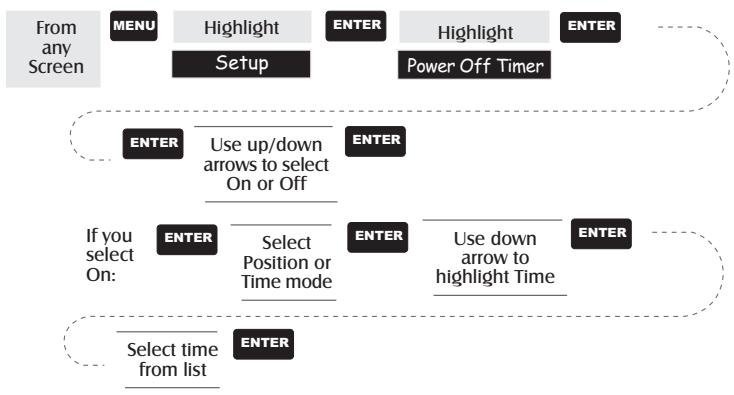
Default: Off
Setting the Backlight Timer — Allows you to set the time interval that will be used to turn off the display backlight when not in use. Times available are: 30 seconds, 1 Minute, 2 Minutes, 4 Minutes, 10 Minutes or Timer Off.
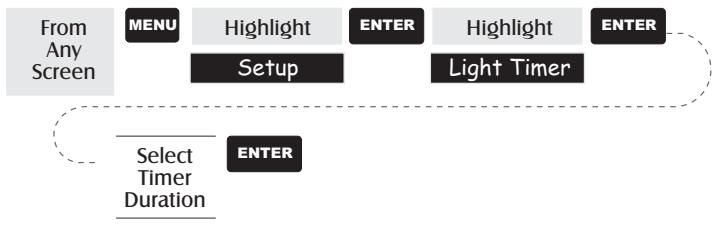
Default: 4 Minutes
Turning the Beeper On/Off — Allows you to select which actions will cause the beeper to sound. You can choose from Off, Keys Only (pressing a key causes a beep), Alarms Only (when an alarm is activated) or Keys & Alarms.
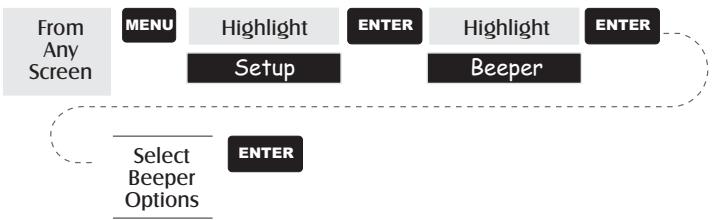
Default: Keys & Alarms
Selecting NMEA Message - Allows the selection of the NMEA message that will be output from the Meridian. Choices are Off, V1.5 APA, V1.5 XTE or V2.1 GSA. Your choice will be dependent upon what message the device you are connecting to needs to receive.
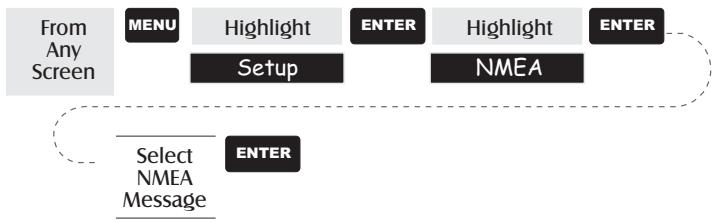
Default: Off
Selecting the Baud Rate — Enables you to set the baud rate of the data being sent out from the Meridian's output port. The baud rate sent out must match the baud rate that the receiving device is set for. You can choose from 1200 baud, 4800 baud, 9600 baud, 19200 baud, 57600 baud or 115200 baud.
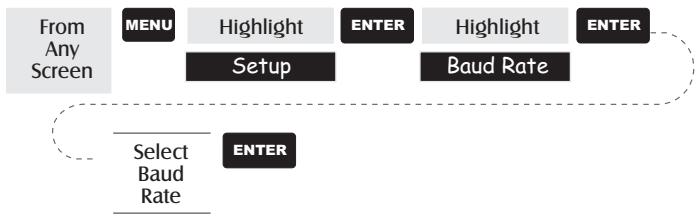
Default: 4800 Baud
Changing the Power Key Settings — Allows you to choose from “No protection” (normal) or “On/Off Protected” (alternate). This will change how the [PWR] operates in turning the Meridian on or off.
No Protection: Turn Meridian On. Press the [PWR] button.
Turn Meridian Off. Press the [PWR] button.
On/Off Protected: Turn Meridian On. Press and hold the [PWR] button until the first screen is displayed.
Turn Meridian Off. Press the [PWR] button and then press [ENTER] before the power off timer is done.
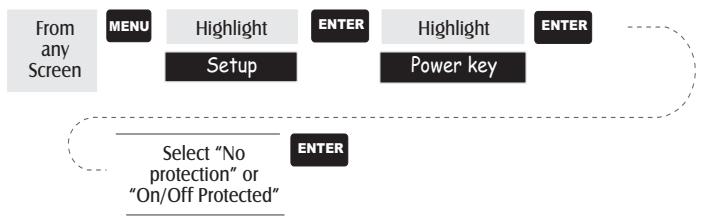
Default: No protection
Selecting Languages — Allows you to select the language that the Meridian will use to display text. You can select from one of nine languages (English, French, German, Swedish, Spanish, Italian, Dutch, Portuguese or Finnish).
TIP: If you change the language setting in the Meridian just to see what it looks like and need to get back to the Language Select screen, follow these instructions. Press NAV until the Satellite Status screen is displayed and press MENU. Select the third item in the list and press ENTER. Press the Up Arrow once and press ENTER. You are back at the Language Select screen.
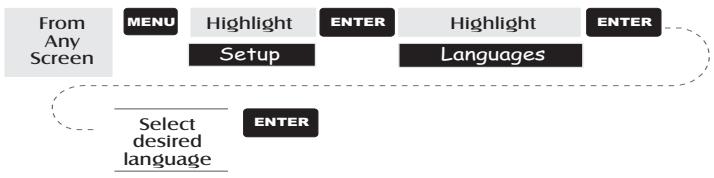
Clearing Memory
All of the Clear functions operate in the same way. The instructions shown apply to all of the Clear options except Clearing All.
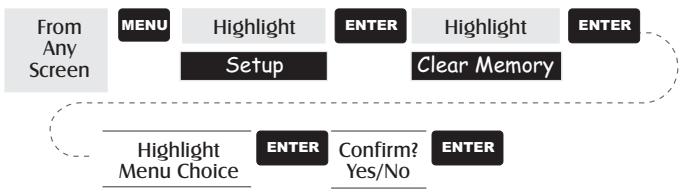
Clearing Track History — This will clear the track history that is displayed on the Map screen from memory.
Clearing Wpts/Routes — This will clear all waypoints and routes from the Meridian's memory.
Clearing All Routes — This clears all routes from the Meridian's memory.
Resetting Meridian to Factory Defaults — Allows you to reset all of the Setup choices to the factory defaults.
Clearing All Memory in the Meridian — This clears all memory from the Meridian. After completing these instructions, the Meridian will shut off. The next time it is turned on, it will prompt you that it needs to be initialized.
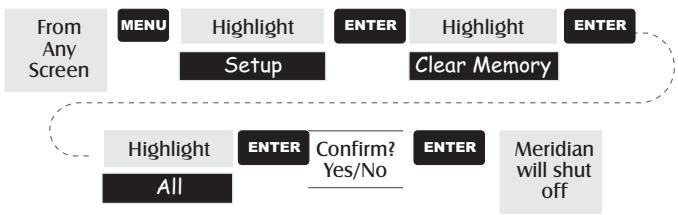
Sun/Moon Display
Accessing the Sun/Moon Screen — The Sun/Moon screen displays the sunrise time, sunset time and lunar phase for any waypoint you have stored in the User category in the waypoint database. All times displayed are local times to your present position.
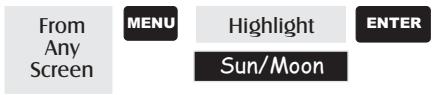
Changing the Sun/Moon Date — Allows you to change the date for the sun/moon information for the position selected.
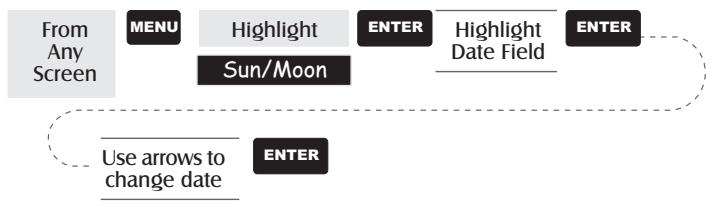
Changing the Sun/Moon Position - Allows you to change the position that you want to view the sun/moon information for. The default is "Position" which is your present position.
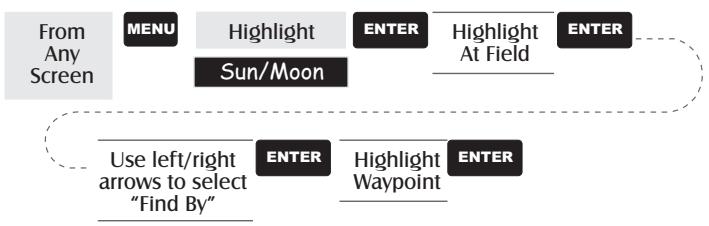
Fish/Hunt Times Display
Accessing the Fish/Hunt Screen — The Fish/Hunt screen displays the best times for fishing or hunting for the position you choose from your User waypoints.
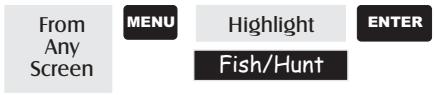
Changing the Fish/Hunt Date - Allows you to change the date for the fishing/hunting information for the position selected.
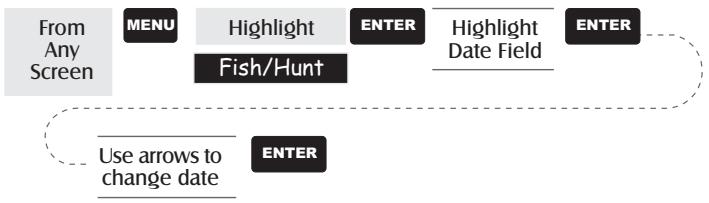
Changing the Fish/Hunt Position - Allows you to change the position that you want to view the fishing/hunting times for. The default is "Position" which is your present position.
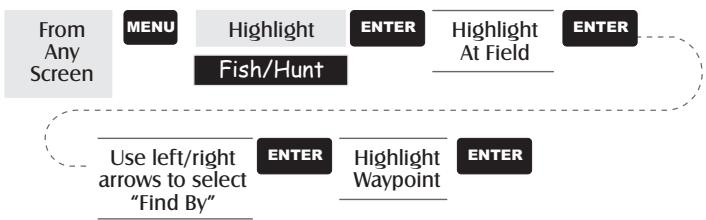
Alarms
All of the Alarm options are set in the same way. The instructions below apply to all of the Alarm settings. When the beeper is turned on for alarms (see Setup - Turning the Beeper On/Off) an audible beep will be sounded for the alarm. A visual alert is displayed for the alarm whether the beeper is turned on or off.
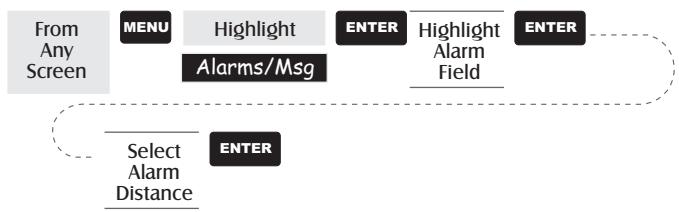
Setting the Arrival Alarm — The arrival alarm alerts you that you have arrived at the destination of your GOTO or to the destination of any leg in a route you are navigating on. This option allows you to set the distance from the destination that the alarm will begin to sound.
Setting the Anchor Alarm — The anchor alarm will sound when you have drifted from your anchor point at a distance you set. An example of its use would be as you set anchor you turn on the anchor alarm to beep at a given distance. With the Meridian still operating and computing fixes you can then go fishing or other activities knowing that if you drift more than the distance you selected, the Meridian will alert you.
Note: DoD applied Selective Availability errors can considerably impact the accuracy of the drift distance.
Setting the XTE Alarm — XTE or cross track errors happen when you are off course for the route you are navigating on. The distance set in the alarm is the distance left or right of the heading you are supposed to be travelling on.
Setting the GPS Fix Alarm — This turns on or off the alarm that can sound whenever the Meridian has lost its ability to compute position fixes due to loss of signal from the satellites. This is handy in that it alerts you that you may need to move to an area that has a clearer view of the sky.
Using the Simulator
Turning on the Simulator - Auto Mode — This turns the simulator on and uses a predefined heading and speed rate.

Turning on the Simulator - User Mode — This turns the simulator on and uses a heading and speed rate that you define.
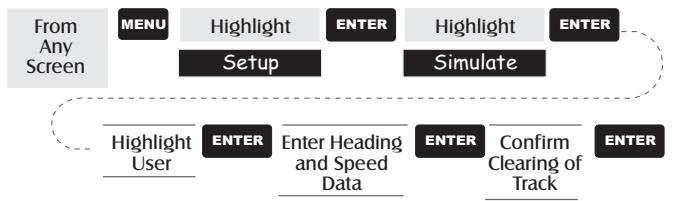
Turning the Simulator Off — Turns the simulator off and returns the Meridian to normal operation.
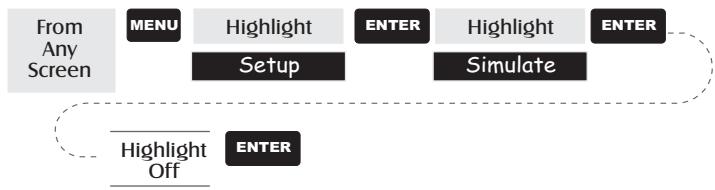
Using the Card Utilities
There are utilities built into the Meridian to assist you in using an optional Secure Digital memory card.
To access the Card Utilities, press [MENU] from any screen and highlight "Card Utilities". Press [ENTER].
Save Waypoints and Routes to Memory Card - After accessing the "Card Utilities menu, highlight "Save WP/Route" and press [ENTER]. Use the keyboard to enter a name for the saved waypoints and routes. Filenames are limited to 8 characters. Highlight "OK" and press [ENTER] when done.
This will place all of your waypoints and routes on the SD card you have inserted in your Meridian. These waypoints and routes are not erased from your Meridian, only stored on the memory card for use later.
Save Track - After accessing the Card Utilities menu, highlight "Save Track" and press [ENTER]. Use the keyboard to enter a name for the saved track. Filenames are limited to 8 characters. Highlight "OK" and press [ENTER] when done.
This will save your present track on the memory card using the filename you provided. This track can be reloaded into your Meridian at a later time.
Loading Waypoints and Routes from Memory Card - After accessing the Card Utilities menu, highlight "Load WP/Route" and press [ENTER]. A list of saved waypoints and routes is displayed using the filenames that you provided when saving the waypoints and routes. Highlight the desired filename and press [ENTER].
How the waypoints and routes are loaded: Loaded waypoints are appended to your existing waypoint list. That is to say, you will retain your existing waypoints and the loaded ones will be added. There are two exceptions. Existing waypoints with the same name as one being loaded will be overwritten. Also, once the limit of 500 waypoints in memory is reached, the loading of waypoints will stop.
Loading of routes is a little trickier and requires some planning, otherwise you may get some unexpected results. Routes are uploaded to the same route number that they had when they were saved and will overwrite any route occupying that route number. If you go to your route list, you will
notice that each route has an identifying number, 1-20. Suppose you created a route in Route 1 and then saved it to your SD card. Next you deleted that route from the Meridian and created a new route using the same Route 1. Now you load the original route from your SD card. The loaded route will replace the newly created one, even if you have "Empty" route slots available.
Loading Track from Memory Card - After accessing the Card Utilities menu, highlight "Load Track" and press [ENTER]. A list of saved tracks is displayed using the filenames that you provided when saving them. Highlight the desired filename and press [ENTER].
Loaded tracks always overwrite any existing track. If you think you might need the existing track, be sure to save it prior to loading a track from the SD card.
Deleting Files from Memory Card - After accessing the Card Utilities menu, highlight "Delete File" and press [ENTER]. A list of all the files found on your SD card is displayed. Highlight the desired filename and press [ENTER]. You will be prompted to verify the deletion.
You will notice all of the waypoint/route and track files that you have saved to this SD card, along with the image (.IMG) files for any detailed maps you have uploaded. The filenames for the detailed maps are not the names that you have supplied for the detailed map, but use instead DETAILxx.IMG.
Testing the Memory Card - After accessing the Card Utilities menu, highlight "Test Card" and press [ENTER]. The SD Card Test screen is displayed with detailed information about the SD card you have installed. To begin the scan of the card, press [ENTER]. Please note that this scan can take a very long time. If you decide not to proceed with the scan, press [ESC] before beginning the scan.
This scan is a read/write scan to free memory space. It will not harm any data that you have stored on your SD card.
Also note that when you access "Test Card", the Meridian does some checking and displays information on the SD card. One of the items displayed is lost clusters. This is for reference only. While the Meridian was checking the SD card, all lost clusters were recovered. This only displays how many were found.
Changing the Detailed Map - After accessing the Card Utilities menu, highlight "Change Map" and press [ENTER]. Use the arrow keys to highlight the map you want to change, Basemap or Detail Map. Press [ENTER]. Select the map from the list and press [ENTER].
Detailed maps are not displayed using the name you supplied when you created the map, but instead use the DETAILxx.IMG filename.
Presently, there are no official additional base maps available for the Meridian, and this option is provided for future expandability.
Formatting the Memory Card - After accessing the "Card Utilities menu, highlight "Format Card" and press [ENTER]. You will be prompted to confirm that you wish to continue with the formatting. This will erase everything on the SD card, so continue only if you are sure that there is no data on the card that you may need later.
When the format is complete, the Meridian will turn off.
About... Screen
The About... screen displays the current status of your Meridian. Using the About... screen you can tell what the version of the software is, the version and memory size of the base map, the number of and total memory size of detailed maps you may have installed using MapSend Streets™, and how much free memory is available.
Help Screen
You can view help tips for Nav Screens, Map, Routes, Setup, Database, User Waypoints and Misc Topics. Each topic has a number of tips available that can be viewed.

Use the "Next" and "Prev" buttons to scroll the Meridian Help Files.
Frequently Asked Questions
General
What is the difference between degrees/minutes/seconds (DEG/MIN/SEC) and degrees/minutes/minutes (DEG/MIN/MMM or DEG/MIN/MM)?
There are different ways in expressing the coordinates computed using Lat/Lon coordinate system. With DEG/MIN/SEC the final set of numbers (SEC) is expressed as 0-59 while DEG/MIN/MM expresses the same value as 0-99 and DEG/MIN/MMM is from 0-999. It would be the same as if you had one clock that expressed time as hour/minutes/seconds and another clock that expressed the same time as hours/minutes/decimals. The accuracy for any of the three is the same. Which you choose is dependent upon your preference or any chart you are using at the same time. (You should always make sure that your Meridian is setup to be the same as any map or chart you may be using.)
What is 2D vs. 3D?
The difference is primarily how many satellites are used to compute the position fix and how elevation is computed. In 2D (two-dimensional) only three satellites are needed for a position fix and elevation is not computed. Any elevation displayed by the Meridian during 2D operation is the elevation you entered. In 3D (three-dimensional), a minimum of four satellites are needed to compute the position and at the same time, elevation is computed by the Meridian.
How long can I expect my Meridian to run on a fresh set of batteries?
Under normal operating conditions you should get up to 14 hours of use while the display backlight is turned off. This duration will drop significantly if you use the display backlight.
How often do I need to initialize the Meridian?
Initializing the Meridian decreases the time it takes to get a position fix during cold start. What is meant by a cold start is that the Meridian has no reference to use as a guide to tell it what satellites should be overhead. Without a reference to start with, the Meridian will have to "search the sky" trying to find any satellite that may be in "view." This takes time and can increase the time it takes to get its first position fix. (Can take 10 minutes in severe conditions.)
So where does this reference come from? Under normal operating conditions, the last position fix computed before the Meridian was turned off is stored into memory and will be used as the reference the next time the Meridian is turned on.
However, if you cleared the memory (see Clearing Memory - All in the Reference Chapter) this stored reference point is removed from memory and you probably will want to initialize the receiver again. Also, if you travel with your Meridian for more than 500 miles with it turned off, it will still have the reference point but it may be too inaccurate to be useful and again, you may want to initialize the Meridian.
Waypoints/Database
What waypoints come preloaded on my Meridian's database?
The Database contains cities, highways, airports, waterways and national parks.
Can I delete preloaded waypoints that I don't use?
No. Waypoints that are preloaded into the Meridian will always be available, even when all of the Meridian's memory has been cleared.
Navigation Screens
Why does my compass not point in the right direction?
The Meridian computes direction by comparing your present position to the last position taken, it requires that you be moving to compute your compass heading. Furthermore, to eliminate error, you must be moving at a minimum of 2.0mph . The exception is the Meridian Platinum, which has an electronic compass which will compute the compass heading below 2.0 mph. This includes computing your compass heading while you are standing still.
Routes
What is a backtrack route?
A backtrack route allows you to "retrace" your steps. As you are moving, the Meridian automatically creates and stores hidden waypoints into memory. These waypoints are the ones that the Meridian will use to retrace your steps. When you create a backtrack route, the Meridian converts these hidden waypoints into User Waypoints.
How do I know which route is active?
Access the route menu by pressing the MENU button and select the option Routes. The route menu lists all of the routes in memory with the active route displayed in bold characters.
Alarms
Why does my Meridian not make an audible beep when I have an alarm active?
Check your setup settings for the Beeper. If the selection is Off or Keys Only, the beeper will not sound for alarms.
Output Data
What is NMEA?
NMEA (National Marine Electronics Association) is the standard used for interfacing marine electronic devices. This standard has also been adapted for use in a variety of third-party mapping software programs.
What are the NMEA message strings?
The Meridian supports version 1.5 and 2.1 of the NMEA 0183 standard.
Additional information on NMEA can be found at on the internet at www.nmea.org, where you can purchase the NMEA Interface Standards. Another excellent source for NMEA standards is a FAQ sheet that is published on the internet by Peter Bennett at vancouver-webpages.com/peter/nmeafq.txt.
My GPS is not communicating with my computer. What can I do?
Check your baud rate and check the baud rate that your software is using. If they don't match, change either the software's or the Meridian's baud rate (See Setup - Changing the Baud Rate.)
Can I interface my Meridian with a Macintosh computer?
Magellan does not supply cabling or software for the Macintosh line of computers. For information on a cable or software that may meet your requirements, visit GPSy at www.gpsy.com on the internet.
Troubleshooting
Receiver will not turn on:
- Check to see if batteries are installed correctly.
- Replace with two new AA alkaline batteries.
Takes more than 10 minutes to get a position fix:
- If there are any obstacles nearby or overhead, move to a new location.
- Make sure that the antenna is pointing up, has a clear view of the sky and is a reasonable distance away from your body.
- Check Satellite Status screen to see where the satellites are and if the receiver is acquiring data.
- If the receiver still does not get a position fix within 10 minutes, you may wish to repeat the initialization procedure.
Receiver turns off unexpectedly
This is commonly caused by excessive static electricity. Turn the receiver back on and it should operate normally. Move the receiver to a new location to avoid a similar occurrence.
Battery life seems shorter than it should be:
- Make sure that you are using two AA alkaline batteries.
- Shorter life span of the batteries can be due to excessive use of the backlight. Turn the backlight off when not needed.
Position coordinates on your receiver do not match the location on your map.
- Make sure that your receiver is set up to use the same datum as your map. The map datum is generally shown in the map legend. See Setup - Changing the Map Datum under Reference for instructions on selecting the map datum in your receiver.
- Check your LAT/LON format. Make sure that the format selected in COORDINATE SYSTEM (DEG/MIN/SEC or DEG/MIN.MM) is in the same format as the map you are using.
Position on map is not exactly on the road.
It could be caused by distance shifts to the map.
Use map data for reference and do not rely completely on it.
Data was not saved or was corrupted.
This can be caused because you removed the batteries or removed external power with the Meridian turned on.
Waypoint Icons
These is a list of the icons and their designator that can be assigned to a waypoint while marking a position or editing a waypoint.

Default

Fuel

Box

Garden

House

Golf

Aerial

Hotel

Airport

Hunt/Fish

Amusement

Large City

ATM

Lighthouse

Auto Repair

Major City

Boating

Marina

Camping

Medium City

Exit Ramp

Museum

First Aid

Obstruction

Fixed Nav Aid

Park

Floating Buoy

Resort

Restaurant

Rock

Scuba

RV Service

Shooting

Sight Seeing

Small City

Sounding

Sports Arena

Tourist Info

Truck Service

Winery

Wreck

Zoo
Contacting Magellan
If after using the troubleshooting section, you are still unable to solve your operation problems, please call Magellan's Technical Service at (866) 737-8604.
Representatives are available Monday through Friday from 7 AM to 5 PM, PST. Faxes can be sent to Customer Service at (909) 394-7070.
If necessary, you can also return your receiver to Magellan for repair. Before returning the receiver you must get a Return Materials Authorization (RMA) from Magellan. To get an RMA, contact a Magellan Technical Service Representative at (800) 707-7845 or you can send an email explaining your reasons to rma@magellangps.com. After receiving the RMA number, ship the receiver by Parcel Post or UPS. Include a description of the problem, your name, address, a copy of your sales receipt and print clearly on the outside of the package the RMA number assigned. If your return ship address is different, please indicate.
With all correspondence, please state the model of your receiver and if calling, please have your receiver with you.
Packages should be sent to:
Thales Navigation
Magellan Products
960 Overland Court
San Dimas, CA 91773
ATTN: Warranty/Repair
Additional information regarding software updates to your Meridian can be found in the Product Support section of the Magellan web site (www.magellangs.com).
Customers outside of the United States should contact the Magellan distributor for your country. A complete listing of Magellan distributors has been supplied with your Meridian.
Magellan® is a registered trademark of Thales Navigation.
Updating Your Meridian
New functions and features are regularly being added to keep your Meridian at the forefront of GPS receivers. Replacing the software in your Meridian is a simple operation that should take only 5 to 10 minutes to accomplish.
- The first thing to do is to find out what software version is presently in your Meridian. Turn the Meridian on and when the first startup screen is displayed, note the software version at the bottom of the display. It will look like "V.3.12 WAAS Enabled". If you missed it while it was loading, don't worry, there is another way. Press [MENU], highlight "About" and press [ENTER]. At the top of the display you will see the revision and date of revision just below the copyright statement.
- Next go to the Magellan web site and check for the latest software release. The address to take you directly to the Meridian updates is:
www.magellangps.com/en/support/products/upgrades/upgrade_meridiangps.asp
Meridian Platinum users should go to:
www.magellangs.com/en/support/products/upgrades/upgrade_meridianplat.asp If the version on the web site is newer then what you have in your Meridian, follow the directions to download the latest software.
- Connect your Meridian to your PC (Windows® 3.1/NT or higher) using the data cable for your Meridian. (Whenever doing any uploads to your Meridian, it is always a good idea to install fresh batteries.)
- Unzip the file that you downloaded in step 2. Turn on your Meridan. Open the folder and double-click on the file magup.exe.
The first thing the application will do is to search for your Meridian on one of the COM ports. After it is found, the application will automatically begin uploading the new software. The display on your Meridian will change to "SOFTWARE DOWNLOAD MODE ACTIVE".
- You will be notified when the upload is complete. Exit the magup application. Your Meridian will turn itself off and power up again. Verify that the software has been uploaded by checking the "About" screen again as you did in step 1.
The software to your Meridian is complete and you can now disconnect the Meridian from the data cable.
Specifications
CHARACTERISTICS
Performance
Receiver 12 parallel-channel technology, tracks up to 12 satellites to compute and update information with quadrifilar antenna
Acquisition Times (under optimal conditions):
Warm approximately 15 seconds
Cold approximately 1 minute
Update Rate 1 second continuous
Accuracy
Position 7 meters, 95% 2D RMS
w/WAAS < 3 meters, 95% 2D RMS
Velocity 0.1 knot RMS steady state
Limits:
Speed 951 mph
Altitude 17,500 meters
Physical:
Size 6.5^ × 2.9^ × 1.2^ [h]× [w]× [d]
16.5cm× 7.4cm× 3.05cm
Weight 8 ounces (227 grams) with 2 AA batteries installed
Display 2.2" x 1.75" [h] x [w]
5.59cm× 4.44cm
high contrast LCD with EL backlit display
Housing Weatherproof construction, wraparound rubber armor
Temp. Range
Operating 14^ to 140^ to (-10^ to 60^)
Storage -4^ to 158^ (-20^ to 70^)
Power:
Source 2 AA alkaline batteries or 9-35 VDC with power cable
Battery Life Up to 14 hours
Accessories
Accessories for your receiver are available from your Magellan dealer or you can order directly from Magellan at (800) 669-4477 (press 3 to place an order).
Swivel Mounting Bracket: Mounts the receiver on a surface, allowing for hands-free operation.
Vehicle Mounting Bracket: Full swivel and tilt for easy viewing in any vehicle.
Bike Mounting Bracket: Mounts the receiver on the handlebars of a bicycle, motorcycle or off-road vehicle.
Carrying Case: The carrying case provides a way of carrying the Meridian on your belt while at the same time protecting it from the elements.
Power/Data Cable (Bare Wires): Allows you to connect your receiver to external power and data.
PC Interface Cable with Cigarette Lighter Adapter: Connects your receiver to your PC for data transfer and to a cigarette lighter for external power.
External Power Cable with Cigarette Lighter Adapter: Allows you to connect the receiver to a cigarette lighter for external power.
PC Cable: Allows you to connect the Meridian to a PC.
MapSend® Streets and Destinations: This CD-ROM allows you to upload detailed street maps as well as extensive sets of POI's to your Meridian receiver.
MapSend® Topo for the United States: This CD-ROM allows you to upload detailed street maps, topographic data as well as POI's to your Meridian receiver. (Available only with United States topographic information.)
Secure Digital (SD) Memory Cards: Available in 8, 16, 32 or 64 MB configurations. Increased the amount of additional map data that can be uploaded to the Meridian receiver.
MapSend Streets
The MapSend Streets CD allows you to load detailed street maps into your Meridian. The maps supplied on the MapSend Streets CD contain full street detail of US or European cities.
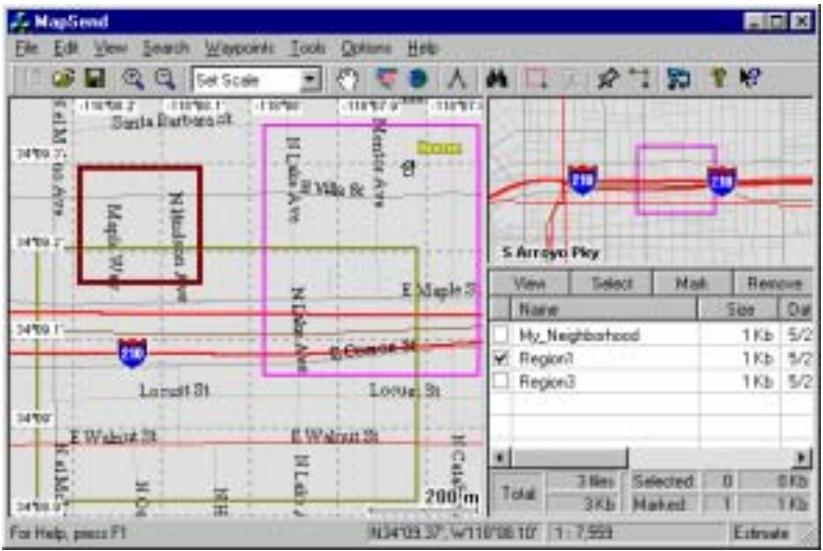
Features
- Enables you to load street maps for any region in the United States or Europe into the Meridian.
-
Allows you to cut any rectangular map region you choose to load into the receiver. Maps are not pre-cut to counties or other boundaries.
-
Creation, management and upload/download of waypoints and routes.
- Allows straight line distance computation on the map.
- Search for map objects (such as cities, lakes, etc.) by name.
Minimum Requirements
- IBM PC AT-486 or compatible
32 MB RAM
VGA Video Card - 60 MB Hard Drive Space
- 8x CD-ROM drive
MS Windows 95/98/NT 4.0 (or higher)
Recommended Requirements
- IBM PC AT-Pentium/300 or compatible
- 64 MB RAM
- True Color Video with 800x600 resolution
- 60 MB Hard Drive Space
- 32x CD-ROM drive
MS Windows 95/98/NT 4.0 (or higher)
Using MapSend
The MapSend® series of CD-ROMs allows you to extend the capabilities of your Meridian GPS receiver and there isn't room here to describe all that you can do. Please refer to the help files in the MapSend for assistance on the features and functions of the software. This brief introduction is provided only to demonstrate the most commonly used function; uploading detailed maps.
Preparation: Make sure that you have a SD card installed in your Meridian. (Detailed maps are saved to the SD card, not in the Meridian.) Install fresh batteries in your Meridian and using the data cable, connect the Meridian to one of the COM ports on your PC.
Run the MapSend application from your PC.
Set Up Map: Using the zoom in and out tools, select the location on the map for the area that you want to get the detailed map from.
In this example, a detailed map from the Southern California area will be selected.
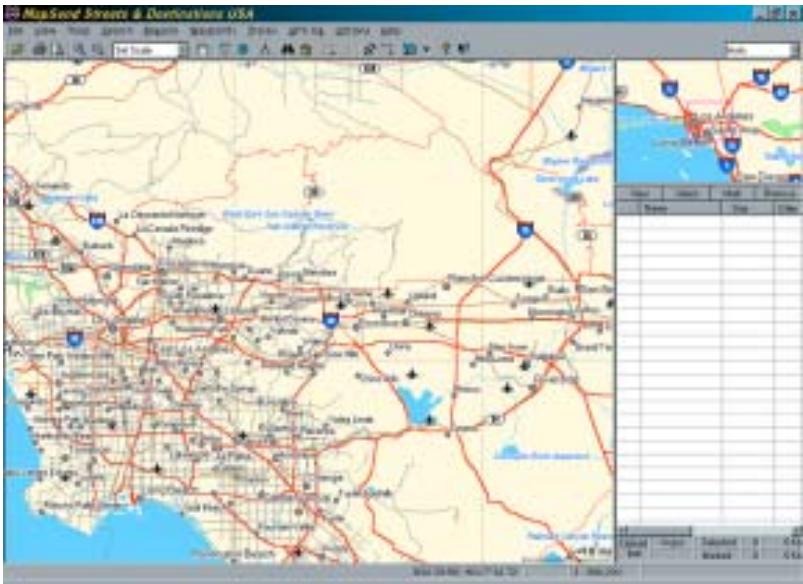
Select Area: Use the "Draw New Region" tool to select the area on the map that you want to upload into your Meridian.
Here is the region selected for this example. Notice that when you move the cursor inside the rectangle, the memory space that this region will occupy on your SD card is displayed.
You can further modify this region. To move the region, place the cursor
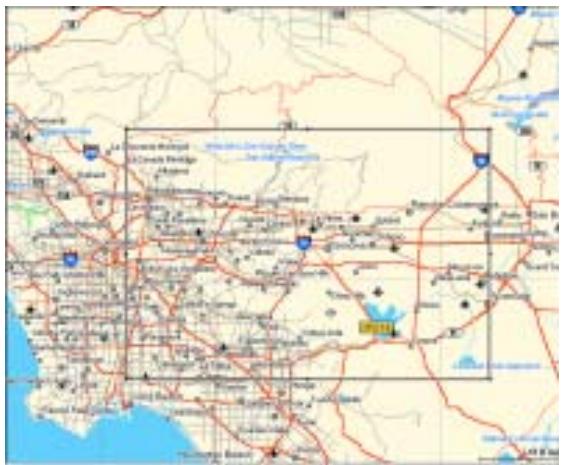
inside the region and with the left mouse button depressed, move the entire region. To change the size of the region, place the cursor on any of the black dots found in the corners or along the sides of the region, press the left mouse button and increase or decrease the size of the defined area.
Cut Region: Select the "Cut Region" tool. You will be prompted to provide
a name for this region. Use a name that will help you identify which part of the country this region is for.
In this example, the name "socal" was used. After supplying the name, this region is added to the region list found at the right of the screen. In the region list, left click on the box in front of the name of the region you want to upload. Notice that the area within the region changes color, giving you a graphical indication of what region(s) are to be uploaded.
Upload Region: Make sure that the Meridian is turned on and click on the "Upload Regions" button. You will be given the option of Upload to GPS Unit, Upload to SD Card Programmer or Store on Hard Drive. Select Upload to GPS Unit and press "Next".
MapSend will then poll the COM ports looking for the Meridian receiver. When the COM port has been found, it will be indicated on the PC screen. Press "Next".
The map region will be uploaded to your Meridian receiver. Now using the Meridian, go to the Map screen and zoom out over the area on the map where you have uploaded the region. Once you have zoomed out far enough, you will see the outline of a box. This box represents the region that you just uploaded. This portion of the map now has detailed street and points of interest information.
Installing Memory Card
The Magellan Secure Digital (SD) Memory Cards can be added to any of the Meridian line of GPS receivers through the battery compartment. Magellan offers the memory cards in 8, 16, 32 and 64MB configurations. The addition of the memory card to your Meridian will increase the amount of data that can be uploaded to the Meridian from any of the Magellan MapSend CD-ROM products.
To Add or Remove the memory card:
- Turn the Meridian off.
- Remove the battery door.
- Remove both of the AA batteries.
- To remove the card, push the card slightly towards the top of the Meridian. You will feel a slight click which is the locking mechanism disconnecting and then you will feel the memory card pushing against your finger. Allow the memory card to slide back towards the battery compartment. Now carefully continue to slide the memory card out of the channel it's in and lift it out.
- To install the card, hold it with two fingers with the label facing you. Place the top of the memory card in the channel provided in the battery compartment. Carefully push the memory card towards the top of the Meridian receiver until you feel it lock into place. Do not force the memory card. Forcing the memory card could cause damage to the card and/or the Meridian receiver.
- Reinstall the batteries into the battery compartment. Be sure to observe the proper polarity.
- Replace the battery compartment door.
- Turn on the Meridian GPS receiver.
Connecting to External Devices
Available as accessories for your GPS receiver are the following cables: External Power Cable with Cigarette Lighter Adapter, Power/Data Cable, Data Cable and PC Cable with Cigarette Lighter Adapter. The instructions given below apply to all cables, unless otherwise stated.
The cable can be connected to the receiver two different ways:
Connecting with the Meridian mounted to the Mounting
Cradle. Place Meridian in the cradle, bottom end first. Snap the Meridian down until the release latch locks it in place. Attach the cable through the opening in the back of the mounting cradle. It is not necessary to tighten the captive screw to the receiver, although you may do so for added security.
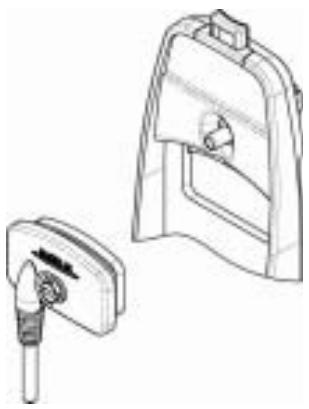
Connecting directly to the Meridian.
Using the captive screw that is attached to the plug, tighten into the back of the receiver.
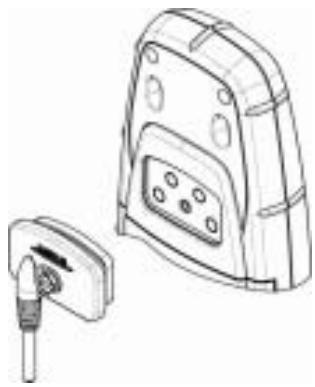
Connecting to an External Power Source
If using the cable that comes with the cigarette lighter adapter, simply connect it to the cigarette lighter outlet. If you wish to make a permanent mount to a power supply, cut the cable between the power supply box and the cigarette lighter adapter. Attach the red (+) and black (-) wires to your external power source. The input voltage range for external power is 9-16 VDC.
Caution: Do not bypass the power supply box or you will damage your unit and void the warranty.
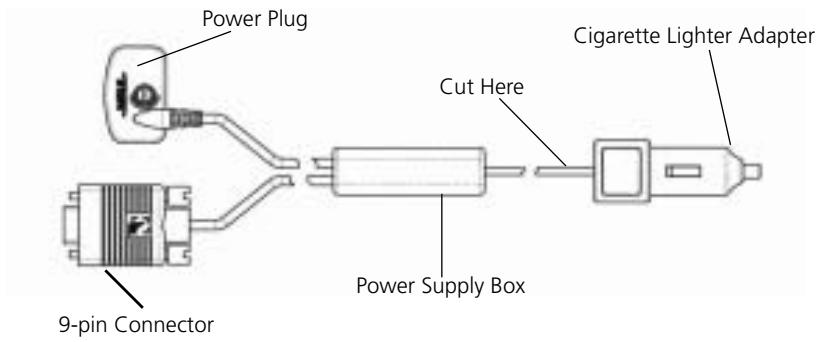
Connecting to a Data Source
Data Connection Pinout (PC and Data cables only)
This is the pinout looking into the 9-pin female connector
Pin 2: Data Out
Pin 3: Data In
Pin 5: Ground
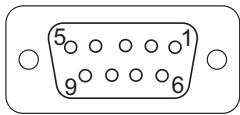
Cable Wiring Color Code
Power
Red: Power +
Black: GND
Data (Power/Data, PC cable & Data cable only)
Yellow: Data In
Orange: Data Out
Black: GND
WAAS
Your Magellan GPS receiver has been upgraded to include the latest WAAS (Wide Area Augmentation System) technology. With WAAS your GPS receiver can compute position locations with an accuracy never before possible in a commercial receiver.
What is WAAS? WAAS is a means of improving the accuracy of GPS beyond the standard civilian signal. WAAS was developed by the FAA to provide the accuracy needed for aircraft to perform approaches for landings. WAAS improves the accuracy of GPS by calculating the errors in the GPS signal at several monitoring stations around the country and then transmitting the error corrections to special WAAS satellites. In turn, these satellites broadcast the error corrections to WAAS-capable GPS receivers around the world.
WAAS is a free service and, with the small exception of two additional satellites displayed on the Satellite Status screen, it will be transparent to you. There is nothing you need do, it's all ready to go.
How accurate will my GPS receiver be with WAAS? The FAA reports that expected accuracy can be improved to around 7 meters vertically and horizontally. Our own testing suggests that Magellan GPS receivers will typically experience accuracy improvements to around 3 meters. You can expect to see this level of accuracy for 95% of the time that you are receiving WAAS signals.
What are some of the problems with WAAS? The signal coverage with WAAS is not global like GPS satellites. In some locations, receiving WAAS signals can be difficult and intermittent. There are two satellites transmitting WAAS for corrections in the Americas and two more over Africa and India providing similar coverage for Europe. These satellites are geostationary, i.e., they stay in the same spot over the Earth equator. The two satellites for the Americas are over the Pacific and Atlantic Oceans. Chances are then, they will probably be near the horizon from where you are using your GPS receiver. This increases the chance that buildings, foliage, terrain and other obstacles could block the WAAS signal.
Also WAAS is a relatively new system and is still in its developmental stage. So on occasion you may experience service outages. Even during these outages, your GPS receiver will still be working, computing position fixes and helping you get to where you want to go using the GPS signals. The only difference is you will not be getting the precision that WAAS was providing. You can expect to see these outages diminish as the system matures and stabilizes.
For more information on WAAS, you can visit the FAA website's section on their WAAS system: http://gps.faa.gov/programs/WAAS/waas.htm
Glossary
Active Leg
The segment of a route currently being traveled.
Altitude
The current elevation above sea level.
BRG
Bearing. The compass direction from your position to a destination, measured to the nearest degree.
Buoy
A navigation aid (usually found in marine charts) that is floating in water. The position can vary due to the magnitude and direction of the current.
COG
Course Over Ground. The direction the receiver is moving. COG can be reported in true or magnetic north values.
Coordinates
A unique numeric or alphanumeric description of the position.
CTS
Course to Steer. The direction you should be traveling in order to return to the course while proceeding towards the destination. It is a "compromise" course bearing that projects from your current position to a point on the courseline midway between a point perpendicular to your position and the current leg destination waypoint.
Datum
Refers to the theoretical mathematical model of the earth's sea level surface. Map makers may use a different model to chart their maps, so position coordinates will differ from one datum to another. The datum for the map you are using can be found in the legend of the map. If you are unsure of which datum to use, use WGS84.
Default
The value or setting automatically chosen by the unit unless otherwise directed. Can be changed in Setup.
DST
Distance. Distance from position to destination.
ETA
Estimated Time of Arrival. The estimated time of day the leg's destination waypoint will be reached.
ETE
Estimated Time Enroute. The estimated time remaining to reach the next waypoint in a route.
HDG
Heading. The direction you are facing, defined as an angle from North.
Latitude
The angular distance north or south of the equator measured by lines encircling the earth parallel to the equator from 0^ to 90^ .
LAT/LON
Coordinate system using latitude and longitude coordinates to define a position on the earth.
Leg (Route)
A segment of a route that has a starting (FROM) waypoint and a destination (TO) waypoint. A route may consist of 1 or more legs. A route that is from waypoint A to waypoint B to waypoint C to waypoint D has three legs with the first being from waypoint A to waypoint B.
Longitude
The angular distance east or west of the prime meridian (Greenwich Meridian) as measured by lines perpendicular to the parallels and converging at the poles from 0^ to 180^ .
Magnetic North
The direction relative to a magnetic compass.
NMEA
National Marine Electronics Association. A professional organization that defines and maintains the standard serial format used by marine electronic navigation equipment and computer interfaces.
OSGB
A coordinate system describing only Great Britain, similar to UTMs. Used with GRB36 datum.
Position fix
Position coordinates as computed by the Meridian.
SOG
Speed Over Ground. The speed at which the receiver is moving.
TMP
Temperature.
True North
The direction to North Pole from an observer's position. The north direction on any geographical meridian.
UTC
Universal Time Coordinated. Formerly referred to as Greenwich Mean Time (GMT).
UTM
Universal Transverse Mercator metric grid system used on most large and intermediate scale land topographic charts and maps.
VMG
Velocity Made Good. The component of the velocity that is in the direction of the destination.
WPT
Waypoint. A location saved in the receiver's memory which is obtained by entering data, editing data, calculating data or saving a current position. Used to create routes.
XTE
Cross Track Error. The perpendicular distance between the present position and the courseline. Given as a distance, right or left, of course when facing the destination.
- User Manual
- Meridian® Series of GPS Receivers
- FOR SAFETY REASONS, THE DRIVER SHOULD NOT USE THIS DEVICE IN A VEHICLE WHILE IN MOTION TO ASSIST THE DRIVER TO NAVIGATE.
- USE GOOD JUDGEMENT
- USE CARE
- USE PROPER ACCESSORIES
- LICENSE AGREEMENT
- \*\*\*
- Table of Contents
- Introduction
- Setting Up the Meridian
- Basic Operation
- Reference
- Power/Backlight/Contrast 20
- Map Screen 22
- Setting Up Map Data Fields 27
- Changing the Map Orientation 32
- Compass Screen 34
- Large Data Screen 35
- Routes 51
- Using Vertical Profile 57
- Setup 59
- Clearing Memory 66
- Sun/Moon Display 67
- Fish/Hunt Times Display 68
- Alarms 69
- Using the Simulator 70
- Using the Card Utilities 71
- Frequently Asked Questions
- Appendix
- About This User Manual
- Installing the Batteries
- Initialization for First Time Use
- Step 1: Turn the Meridian On
- Step 2: Select Language
- Step 3: AcceptWarnings and Begin Initialization
- Step 4: Select Your Region and Area
- Step 5: Enter the Time and Date
- Editing
- Step 6: Compute First Fix
- Optional Setup Functions
- Meridian GPS Receiver
- Quadrifilar Antenna
- ENTER-
- MENU-
- Turning Power On/Off
- Turning the Meridian Off
- Turning the Backlight On/Off
- Adjusting the Contrast
- MENU
- ENTER
- Getting a Position Fix
- Navigational Screens
- Accessing the NAV Screens
- Saving a Waypoint
- Saving Your Present Position as a Waypoint
- Saving a Your Present Position as a Waypoint with a Custom Icon and Name
- Adding a Message to a Waypoint
- PRACTICE
- Using GOTO Routes
- Creating a GOTO Route
- Step 3: Select Find By.
- Step 4: Select GOTO Destination Waypoint from the User Category.
- Alternate Step 4: Select GOTO Destination Waypoint from Other Categories.
- Navigating on a GOTO Route
- Power / Backlight / Contrast
- Selecting Alternate Power On/Off
- NAV
- Map Screen
- Present Position Icon
- Map Scale Indicator
- Track History
- Data Fields
- Customizing the Map Display
- Selecting Map Items
- Possible Map Information Options
- Two Data Fields
- Street Info
- Horizontal Profile
- Terrain Projection
- Available Data Options
- Compass Screen
- Destination Name
- Compass/Heading Marker
- Destination Icon
- Large Data Screen
- To: Home
- Road Screen
- Compass
- Road
- Scale Indicator
- Data Screen
- Customizable Data Fields
- Speed Screen
- Speedometer
- Trip Odometer
- Satellite Status Screen
- Satellite Position Graph
- Satellite Signal Strength Chart
- Power Source
- Position Mode
- Satellite Position
- Waypoints / Database
- Selecting User Waypoints (Alphabetical)
- Selecting Preloaded Waypoints (Alphabetical)
- Selecting Uploaded Waypoints (Alphabetical)
- Selecting User Waypoints (Nearest To Position)
- Selecting Preloaded Waypoints (Nearest To Position)
- Selecting Uploaded Waypoints (Nearest To Position)
- Selecting Waypoints (Nearest To Other Categories)
- Routes
- Using Vertical Profile
- Setup
- Default: 3D
- Default: Local AM/PM
- Default: Miles/MPH
- Default: Magnetic
- Default: Off
- Default: 4 Minutes
- Default: Keys & Alarms
- Default: 4800 Baud
- Clearing Memory
- Sun/Moon Display
- Fish/Hunt Times Display
- Alarms
- Using the Simulator
- Using the Card Utilities
- About... Screen
- Help Screen
- General
- Waypoints/Database
- Navigation Screens
- Output Data
- Troubleshooting
- Receiver will not turn on:
- Takes more than 10 minutes to get a position fix:
- Receiver turns off unexpectedly
- Battery life seems shorter than it should be:
- Position coordinates on your receiver do not match the location on your map.
- Position on map is not exactly on the road.
- Data was not saved or was corrupted.
- Waypoint Icons
- Contacting Magellan
- Updating Your Meridian
- Specifications
- CHARACTERISTICS
- Performance
- Physical:
- Power:
- Accessories
- MapSend Streets
- Features
- Minimum Requirements
- Recommended Requirements
- Using MapSend
- Installing Memory Card
- Connecting to External Devices
- Connecting with the Meridian mounted to the Mounting
- Connecting directly to the Meridian.
- Connecting to an External Power Source
- Connecting to a Data Source
- Cable Wiring Color Code
- WAAS
- Glossary
- ETE
- HDG
- Latitude
- LAT/LON
- Leg (Route)
- Longitude
- Magnetic North
- NMEA
- OSGB
- Position fix
- SOG
- TMP
Marque : MAGELLAN
Modèle : MERIDIAN COLOR
Catégorie : Gps