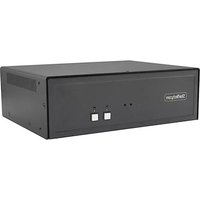
CK4-P102C - Commutateur KVM StarTech.com - Notice d'utilisation et mode d'emploi gratuit
Retrouvez gratuitement la notice de l'appareil CK4-P102C StarTech.com au format PDF.


| Marque | StarTech.com |
| Modèle | CK4-P102C |
| Type de produit | Câble adaptateur |
| Longueur | 1 mètre (estimation) |
| Connecteurs | USB-C mâle vers HDMI femelle (estimation) |
| Dimensions | 10 x 2 x 1 cm |
| Poids | 50 g |
| Alimentation | Alimentation par bus USB |
| Fonctions principales | Transmission vidéo et audio haute résolution |
| Résolution maximale | 3840 x 2160 à 60 Hz (estimation) |
| Systèmes d'exploitation compatibles | Windows, macOS, Linux, Chrome OS |
| Entretien et nettoyage | Utiliser un chiffon sec et non pelucheux |
| Consignes de sécurité | Ne pas plier ni exposer à l'humidité |
| Pièces détachées et réparabilité | Non réparable, pièces non disponibles |
| Garantie | 2 ans (estimation) |
FOIRE AUX QUESTIONS - CK4-P102C StarTech.com
Questions des utilisateurs sur CK4-P102C StarTech.com
0 question sur cet appareil. Repondez a celles que vous connaissez ou posez la votre.
Poser une nouvelle question sur cet appareil
Téléchargez la notice de votre Commutateur KVM au format PDF gratuitement ! Retrouvez votre notice CK4-P102C - StarTech.com et reprennez votre appareil électronique en main. Sur cette page sont publiés tous les documents nécessaires à l'utilisation de votre appareil CK4-P102C de la marque StarTech.com.
MODE D'EMPLOI CK4-P102C StarTech.com
TECHNICAL SPECIFICATIONS WHAT'S IN THE BOX
| VIDEO | |
| Format DisplayPort | |
| Max. Pixel Clock 248 MHz | |
| Input Interface (2) DisplayPort 20-pin | |
| Output Interface (1) DisplayPort 20-pin | |
| Resolution Up to 4K (3840x2160@30Hz) | |
| DDC 5 volts p-p (TTL) | |
| Input Equalization Automatic | |
| Input Cable Length Up to 20 ft. | |
| Output Cable Length Up to 20 ft. | |
| Data Rate 1.65 Gbps | |
| USB | |
| Input Interface (4) USB Type B | |
| Output Interface | (2) USB 1.1 Type A for KM Devices |
| Emulation | USB 1.1 and USB 2.0 Compatible |
| CAC Configurable USB 2.0 Port | |
| AUDIO | |
| Audio Input | (2) 3.5mm stereo audio |
| Audio Output | (1) 3.5mm stereo audio |
| CONTROL | |
| Front Panel | Front panel SELECT buttons |
| OTHER | |
| Power | External 100-240 VAC/ 12VD-C3A @ 36W |
| Dimensions | 8.8" W x 2.63" H x 6.69" D |
| Weight 3.85 lbs | |
| Approvals | NIAP PP 4.0, UL, CE, ROHS Compliant |
| Operating Temp. | +32 to +104°F (0 to +40°C) |
| Storage Temp. | -4 to 140°F (-20 to +60°C) |
| Humidity | Up to 80% (no condensation) |
| VIDEO QTY | DESCRIPTION | |
| CK4-P102C | 1 | Secure 2-Port, SH DP KVM Switch with CAC Port |
| 12VDC3A | 1 | 12V DC, 3A power adapter with center-pin positive polarity. |
| 1 | Quick Start Guide | |
NOTICE
The information contained in this document is subject to change without notice. StarTech.com makes no warranty of any kind with regard to this material, including but not limited to, implied warranties of merchantability and fitness for particular purpose. StarTech.com will not be liable for errors contained herein or for incidental or consequential damages in connection with the furnishing, performance or use of this material. No part of this document may be photocopied, reproduced, or translated into another language without prior written consent from StarTech.com, Ltd.


StarTech.com
Hard-to-find made easy
QUICK START GUIDE

CK4-P102C
Secure 2-Port DisplayPort KVM Switch, NIAP 4, 4K 60Hz, CAC, Made In The USA
EDID LEARN HARDWARE INSTALLATION
The KVM is designed to learn the connected monitor's EDID upon power up. In the event of connecting a new monitor to the KVM, a power recycle is required.
The KVM will indicate to the user the EDID learn process by flashing the front panel's LEDs. Port one green and push button blue LEDs will both begin to flash for about 10 seconds. When the LEDs stop flashing, the EDID learn process is done.
If the KVM has more than one video board (such as dual-head and quad-head models), then the unit will continue to learn the EDIDs of the connected monitors and indicate the progress of the process by flashing the next port selection green and push button blue LEDs respectively.
The monitor must be connected to the video output connector located in the console space at the back of the KVM during the EDID learn process.
If the read EDID from the connected monitor is identical to the current stored EDID in the KVM then the EDID learn function will be skipped.
- Ensure that power is turned off or disconnected from the unit and the computers.
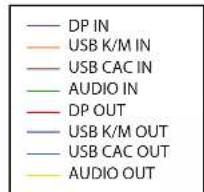
- Use DisplayPort cables to connect the DisplayPort output ports from each computer to the corresponding DP IN ports of the unit.
- Use a USB cable (Type-A to Type-B) to connect a USB port on each computer to the respective USB ports of the unit.
- Optionally, for CAC models, connect a CAC (Common Access Card, Smart Card Reader) to the CAC port in the user console interface.
- Optionally, connect a stereo audio cable (3.5 mm to 3.5 mm) to connect the audio output of the computer(s) to the audio in ports of the unit.
- Connect monitor(s) to the DP OUT console port of the unit using DisplayPort cable(s).
- Connect a USB keyboard and mouse in the two USB console ports.
- Optionally, connect stereo speakers to the audio out port of the unit.
- Finally, power on the secure KVM switch by connecting a 12-VDC power supply to the power connector, and then turn on all the computers.
Note: The computer connected to port 1 will always be selected by default after power up.
Note: You can connect 2 computer to the 2 port KVM.
![graph TD A["Server"] --> B["Monitor"] B --> C["Mouse"] B --> D["PCB"] D --> E["Product Device"] E --> B B --> F["Computer"] F --> G["Desktop"] style A fill:#f9f,stroke:#333 style B fill:#ccf,stroke:#333 style C fill:#cfc,stroke:#333 style D fill:#fcc,stroke:#333 style E fill:#cff,stroke:#333 style F…](/content/2026/07/1483112/images/ef28bbaf07f263702f2ab586925caf41c3c8fb39e2d4a1be98a372bac3758a85.jpg)



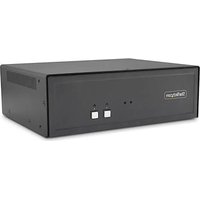

Marque : StarTech.com
Modèle : CK4-P102C
Catégorie : Commutateur KVM