RK8200 - Autoradio PARROT - Notice d'utilisation et mode d'emploi gratuit
Retrouvez gratuitement la notice de l'appareil RK8200 PARROT au format PDF.

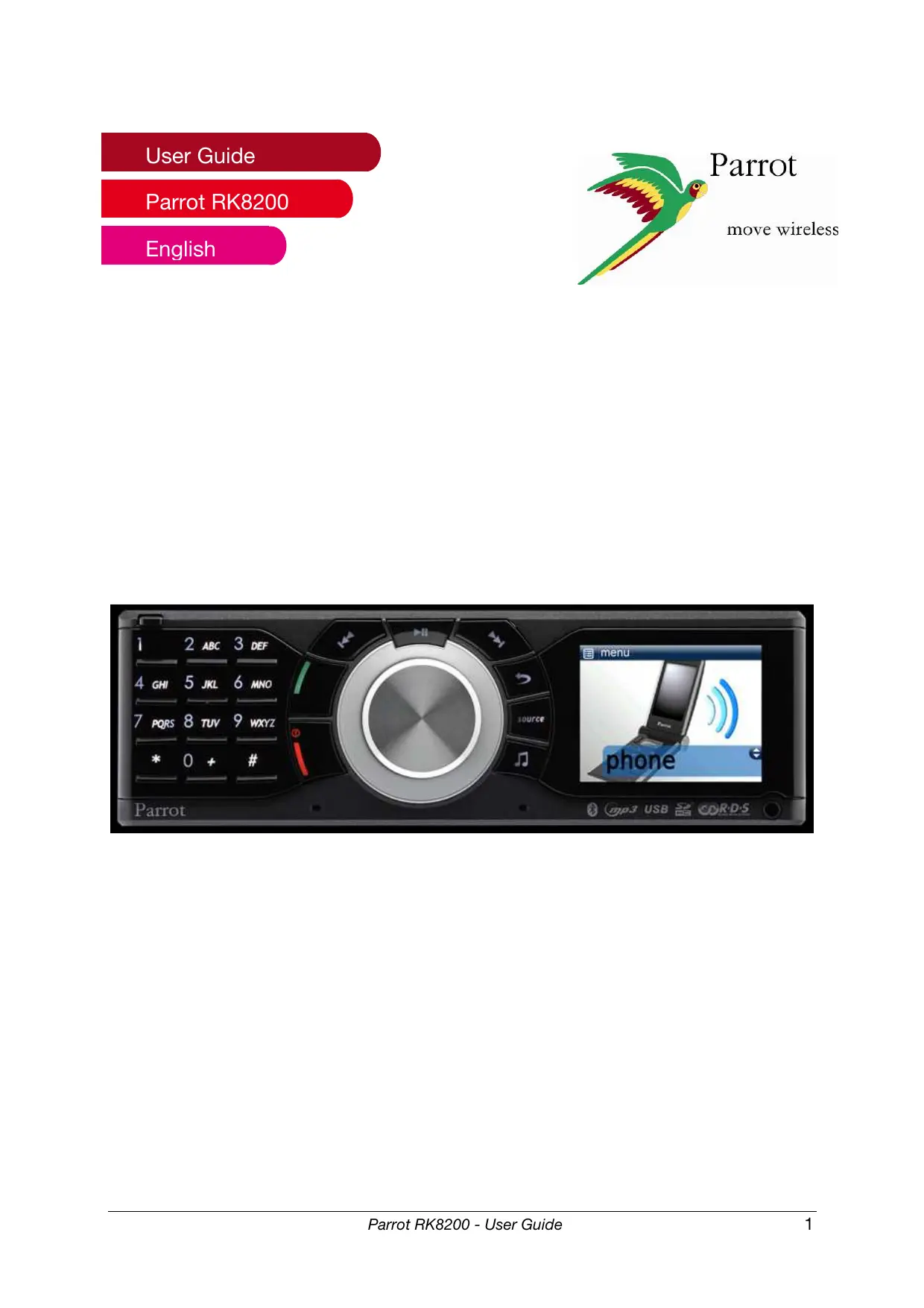

| Type de produit | Autoradio Bluetooth avec kit mains-libres |
| Marque | Parrot |
| Modèle | RK8200 |
| Dimensions du châssis | 180 x 58 x 174 mm |
| Dimensions de la façade | 189 x 59 x 29 mm |
| Poids du châssis | 1038 g |
| Poids de la façade | 132 g |
| Alimentation | 12 V CC (batterie auto), fusible 15 A |
| Amplificateur | 4 x 45 W, impédance min. 4 ohms |
| Écran | TFT 2,4 pouces, 262 144 couleurs |
| Connectivité Bluetooth | Bluetooth v1.2, profils HSP, HFP, A2DP, AVRCP, OPP, PBAP, SYNC jusqu'à 10 mètres |
| Mémoire interne | 1 Go Flash, peut stocker plus de 300 titres MP3 |
| Connectique audio | Entrée ligne avant (Jack), entrée ligne arrière (RCA), connecteur iPod/USB, lecteur SD, sortie pour amplificateur externe |
| Fonctions téléphonie | Appel mains libres, numérotation vocale, répertoire synchronisé, fonctions vitesse |
| Fonctions audio | Streaming Bluetooth (A2DP), radio FM/AM RDS, égaliseur 6 presets, effet Virtuel Super Bass, contrôle de volume automatique |
| Personnalisation | Fonds d'écran personnalisables, thèmes d'affichage, pochette d'album |
| Entretien et nettoyage | Retirer la façade avant le nettoyage ; utiliser un chiffon doux et sec |
| Sécurité | Façade amovible antivol ; arrêt automatique à la coupure du contact |
| Pièces détachées et réparabilité | Microphone externe en option ; faisceau de câbles avec adaptateur ISO ; mise à jour logicielle via USB |
| Informations générales | Kit de montage en façade ; notice disponible en plusieurs langues ; assistance téléphonique et email |
FOIRE AUX QUESTIONS - RK8200 PARROT
Questions des utilisateurs sur RK8200 PARROT
0 question sur cet appareil. Repondez a celles que vous connaissez ou posez la votre.
Poser une nouvelle question sur cet appareil
Téléchargez la notice de votre Autoradio au format PDF gratuitement ! Retrouvez votre notice RK8200 - PARROT et reprennez votre appareil électronique en main. Sur cette page sont publiés tous les documents nécessaires à l'utilisation de votre appareil RK8200 de la marque PARROT.
MODE D'EMPLOI RK8200 PARROT
User Guide
Parrot RK8200
English

Parrot
move wireless
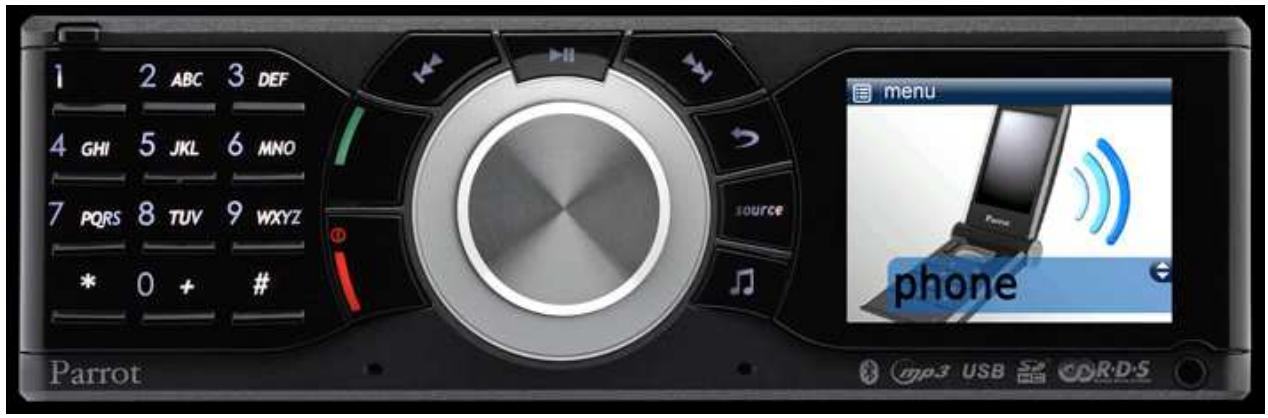
Table of Contents
Introduction 4
Kit content 4
Using the Parrot RK8200 for the 1^st time 5
Using the antitheft system 5
Installing the PARROT RK8200 6
Navigating through the menus 8
Customizing your Parrot RK8200 9
Changing the brightness. 9
Changing the display color 10
Changing the wallpaper 10
- Customizing the wallpaper 10
- Select the display mode of the cover 10
Connecting a phone via Bluetooth 12
Pairing your phone with the Parrot RK8200 12
Connecting your phone to the PARROT RK8200. 12
Disconnecting your phone from the Parrot RK8200. 13
Using the Telephony function 14
Synchronization of the phonebook 14
Receiving a call. 14
Making a call. 14
Using the Parrot RK8200 during a call 15
Using the radial function 16
Using the speed dialing function. 16
Associating a number to a contact 16
- Deleting a speed dialing entry 16
Using the voice recognition function. 16
- Recording keywords 16
- Recording voice tags 17
Using the Music Function 18
Using the Audio Streaming function 18
Using the internal memory of the Parrot RK8200. 18
Using the Parrot RK8200 with an external source. 19
Using the Parrot RK8200 with an audio cable 21
Using the Radio Function 21
Saving a radio station 22
Changing the radio settings 22
Adjusting the audio effects 22
Using the Virtual Super Bass effect 22
Using the equalizer 23
Using the automatic volume control 23
- Controlling the balance 23
Activate the Repetition / Random options 23
Technical Specification 24
Interface. 24
Display 24
Audio 24
Tuner 24
Telephony 24
Sound 24
Troubleshooting 26
Introduction
The Bluetooth® technology enables voice and data to be sent via a short-distance radio link. It allows several electronic devices to communicate with each other, particularly phones and hands-free kits. Parrot is drawing on its long years of experience in signal processing and voice recognition technology to offer a car stereo with a built-in hands-free kit with superior audio quality during calls.
The Parrot RK8200 is an FM/AM RDS car stereo, featuring all the connections required for digital and analogue music. It is also a Bluetooth hands-free kit boasting sophisticated telephony functions. Completely built into the vehicle's audio system, music and conversations are reproduced over the vehicle's speakers for maximum listening quality. A car stereo has never provided so many connections: specific iPod connector, port for a USB flash drive and USB MP3 player, SD card reader and a line-in socket for analogue sources. The Parrot RK8200 also plays files sent by Bluetooth (compatible with Bluetooth stereo A2DP) from a Bluetooth mobile phone or player. Over 300 MP3 tracks can be stored in its internal memory.
Kit content
The kit contains:
A Parrot RK8200
- A carrying case for faceplate
- An USB / Mini USB cable
- Release keys
A fitting screw with a rubber cap
Using the antitheft system
To avoid any risk of theft, do not forget to remove the faceplate of your Parrot RK8200 when you leave your vehicle. Without this front, the Parrot RK8200 cannot be used.
- To remove the faceplate, press the eject button in the top left.
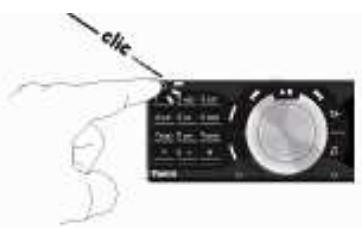
- To replace the faceplate, put it in front of the car stereo and push it.

Make sure not to push the screen during the faceplate installation.
-
To remove the entire car stereo:
-
Remove the car stereo's faceplate.
- Insert the keys into the appropriate holes until they remain stuck.
- Pull the device towards you.
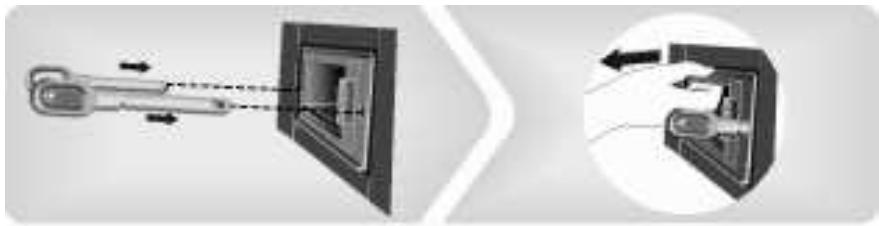

To properly save the Parrot RK8200 parameters, make sure the device is turned off before removing the face plate.
Installing the PARROT RK8200

We advise our customers to have the Parrot RK8200 fitted by a professional.
- Get you previous car stereo out of the dash.
Refer to your previous car stereo user guide or contact your car dealer for more information. - Insert the mounting bracket and fix it into the dashboard using the bracket mounting tabs.
- Pull the ends of the wires out of the dashboard through the mounting bracket.
- Connect the audio and power connectors to the connectors of your Parrot RK8200.
If this connection is impossible, you have to obtain an ISO cable to adapt your car radio to the ISO connectors of the Parrot RK8200. Consult our website www.parrotshopping.com for more information.
5. Compare the Parrot RK8200 antenna connector to the antenna connector of your vehicle.
If an adapter is necessary, contact your car dealer for more information.
6. Check the polarity of your car radio. To do so, turn the ignition off once the Parrot RK8200 is installed: the message “Goodbye!” must be displayed.
- If it is the case, you can skip to step 7.
- If it is not the case, it is necessary to inverse the positions of the red and yellow wires. Indeed, the red wire of the power cable must be connected to the permanent 12V, the yellow wire to the 12V ignition and the black wire to the ground. This can be done simply by reversing both terminal spade tags located on the Parrot wiring.

Do not connect the yellow wire to the permanent 12V, otherwise you can cause the vehicle battery to go flat.
- Slide the car stereo into the mounting bracket and attach the faceplate.

The microphone located on the lower edge of the faceplate may be obstructed because of the design of your dashboard. In that case, you may need an external microphone.
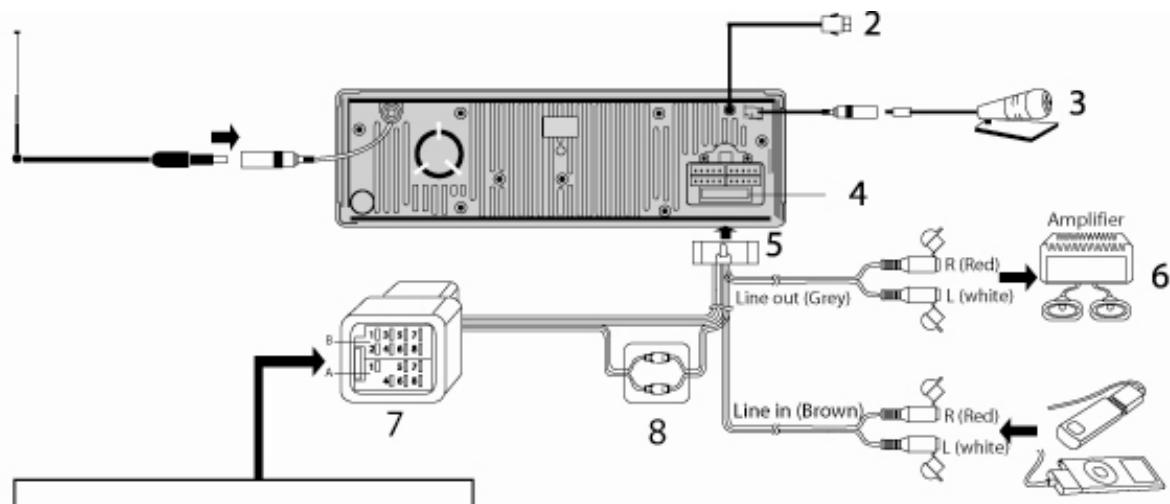
B.
- Right rear speaker + (purple)
- Right rear speaker - (purple black)
- Right front speaker + (grey)
- Right front speaker - (grey black)
5.Left front speaker ^+ (white)
6.Left front speaker - (white black)
7.Left rear speaker ^+ (green)
8.Left rear speaker - (green black)
A.
- Tel. Mute (pink)
- Ignition key +12 V (yellow)
5.AMP/ANT Remote (blue) - Illumination (orange)
- Battery + (red)
- Ground Lead (black)
1.Car antenna
2.Car accessory
3. External microphone (optional)
4.Fuse 15A
5. Connector
6. External car amplifier
7.ISO plug
8.Terminalbullet
Navigating through the menus
- Menu structure
Phonebook: this menu allows you to access your contacts if your mobile phone has the automatic synchronization function. If it is not the case, you have to send your contacts from your phone to the kit by selecting Phone > Receive contacts.
| This menu is only available if you have connected a phone to the Parrot RK8200. |
Internal memory: this menu allows you to access the music files stored into the Parrot RK8200 internal memory. Refer to the « Using the internal memory of the Parrot RK8200 » section for further information.
| This menu is only available if you have stored music files in the Parrot RK8200. |
Radio: this menu allows you to access different radio frequencies you can listen to (FM1, FM2, FM3, and AM) and to modify the settings.
Auxiliary input: this menu allows you to select the front line in or the back line in depending on the connection you want to use.
Bluetooth Audio: this menu allows you to access the list of the A2DP compatible devices previously paired with the Parrot RK8200. It also allows you to search for new devices to use the Audio Streaming function.
Audio effects: this menu allows you to adjust the audio settings (Virtual Bass, Equalizer, Balance...).
Phone: this menu allows you to access the different settings of the Phone function, such as voice tags recording, contacts management, speed dialing function, etc.
| This menu is only available if you have connected a phone to the Parrot RK8200. |
Settings: this menu allows you to change settings such as the language, the display, the ringtones, etc.
- Browsing through the menus
| Buttons | Functions |
| Navigate through the menus Short press: Enter the main menu / confirm the selection | |
| Go back to previous menu | |
| Select the source of your audio files. | |
| Refer to the Using the Music function section for further information. | |
| Enter the audio effects menu | |
| Refer to the Adjusting the audio effects for further information. | |
| Short press: Exit the menu Long press: Turn the Parrot RK8200 in standby mode |
Customizing your Parrot RK8200
The Parrot RK8200 allows you to customize the display of the screen by changing some parameters.
Changing the brightness
- From the main menu, select Settings > Display > Brightness.
- Increase or decrease the brightness using the jog wheel.
- Press the jog wheel to confirm.
You can press the key to go back to main menu.
Changing the display color
- From the main menu, select Settings > Display > Theme.
- Select a color using the jog wheel.
- Press the jog wheel to confirm.
You can press the key to go back to main menu.
Changing the wallpaper
- From the main menu, select Settings > Display > Wallpaper.
- Use the jog wheel to select a wallpaper from the selection proposed by default.
- Press the jog wheel to confirm.
You can press the key to go back to main menu.
- Customizing the wallpaper
It is possible to send a photo to the Parrot RK8200 and use it as wallpaper. To do so :
- Ensure that the Parrot RK8200 is visible to all Bluetooth® devices. To do so, select Settings > Bluetooth > Visibility.
- From the main menu, select Settings > Display > Wallpaper.
- Select Customize > Add.
« Waiting for picture » is displayed on your Parrot RK8200.
- From your Bluetooth device (PC, mobile phone...), send the photo via Bluetooth to the Parrot RK8200.
Refer to the user guide of your device for further information about sending photos via Bluetooth.
- Select the display mode of the cover
You can visualize the sleeve of the album you are listening if it is included in the audio file.

If no picture is included in the tags of your audio files, you can add a picture in .jpg format in the corresponding folder If various pictures are in this folder, the Parrot RK8200 displays primarily the cover.jpg one.
- From the main menu, select Settings > Display > Cover.
- Select the desired display mode using the jog wheel.
- Press the jog wheel to confirm.
You can press the key to go back to main menu.
If it is the first time you use this phone with the Parrot RK8200, you have to pair both devices. The pairing process is only required once. You will then only have to connect the Parrot RK8200 with your phone before using the telephony function.
Pairing your phone with the Parrot
RK8200
If you are using your phone with the Parrot RK8200 for the first time:
Ensure that the frame is visible to all Bluetooth devices. To do so, select Settings > Bluetooth > Visibility.
- From your phone, search for Bluetooth peripherals.
The Bluetooth peripherals list is displayed.
Refer to your phone user guide for more information. - When the search is complete, select « Parrot RK8200 »
- Enter « 0000 » when the PIN Code is required.
> « Pairing successful » is displayed on the Parrot RK8200.You can now connect both devices.
You can pair until 10 devices. If you pair an 11^th one, a “full memory” message is displayed on the Parrot RK8200. To pair another device, you have to release memory by removing one of your paired devices. To do so, select Settings > Bluetooth > Paired devices.
Connecting your phone to the Parrot RK8200
- If it is the first time you are using your phone with the Parrot RK8200, refer to the Pairing your phone with the Parrot RK8200 section.
If you are using a phone you already paired with the Parrot RK8200:
- Press the jog wheel to access the main menu, then select Settings > Bluetooth > Connect Phone or press the jog wheel for 2 seconds if you are in inactive mode.
The list of the devices paired with the Parrot RK8200 is displayed.

You also can connect your phone by selecting Bluetooth Audio and selecting directly your device in the list. The listed phones are those which are compatible with the A2DP service. For further information, refer to the user guide of your phone.
- Select the device you want to use and press the jog wheel.
Both devices are connected.
You can now use the telephony function of the Parrot RK8200 or send music files via Bluetooth.
Refer to the Using the telephony function section for more information.

If there are various phones already paired with the Parrot RK8200 in the vehicle, you can select the device with which the connection will be established by default. To do so :
- Select Settings > Bluetooth > Paired devices
- Select the device you want to connect by default.
- Select the Preferred option.
Disconnecting your phone from the Parrot RK8200
If you want to disconnect your phone from the Parrot RK8200 :
- Press the jog wheel to enter the main menu and select Settings > Bluetooth > Paired devices.
- Select your phone.
- Select the Disconnect option.

You can also delete this phone from the paired phones list. To do so, select the Delete option.
Before using your Parrot RK8200 telephony function, you first have to connect both devices. If you are using this device for the first time, you will have to pair both devices before connecting them.
Refer to the Connecting a phone via Bluetooth section for more information.
Synchronization of the phonebook
With some Bluetooth phones, the phonebook is automatically synchronized in the kit's memory. If your phone doesn't support automatic synchronization, you can also use the Object Push function of your phone to send contacts from your mobile to the car kit via Bluetooth. To do so:
- From the main menu, select Phone > Receive contacts.
« Waiting for contact » is displayed on the screen of the Parrot RK8200.
- Refer to your phones' user guide for more information about sending contacts via Object Push.

You can then associate a picture to all your contacts. To do so:
- Press the jog wheel then select Phone > Contacts management.
- Select the contact then press the jog wheel.
- Select Pictures > Add picture.
- Follow the prompts given by the Parrot RK8200.
Receiving a call
A pop-up is displayed on the screen of the Parrot RK8200 to inform you of an incoming call.
- Press the key to accept this call. Then, press the key to end the call.
- Press the key to reject this call.
Making a call
- If the contact you want to call is in the phonebook of the phone connected to the Parrot RK8200:

You first have to synchronize the phonebook of the mobile phone on the Parrot RK8200's memory.
Refer to the Synchronization of the phonebook section for further information.
- Press the jog wheel to enter the main menu and select Phonebook.
You access the phonebook of the connected phone.
- Select the contact and press the jog wheel or the key to make the call.

You can also use the numerical pad of the Parrot RK8200 to browse your agenda more rapidly.
-
If the contact you want to call is not in the phonebook of the phone connected to the Parrot RK8200, stop your vehicle in an appropriate place, then :
-
Dial your contact phone number using your phone or the numerical pad of the Parrot RK8200.
- Press the key to make the call.
The call is automatically in hands-free mode.
-
To make a call via voice recognition function:
-
Press the key to launch the voice recognition mode.
- Say the name of the contact you want to call.
The call is automatically realized.
Refer to the Using the voice recognition function for further information.
Using the Parrot RK8200 during a call
During a call, you can :
- Transfer an ongoing call to your phone (if you want to leave your vehicle for example): to do so, press the key. Press again the key to exit the discreet mode.
- Mute the microphone: to do so, press the key.
- Adjust the volume: to do so, use the jog wheel.
- Send DTMF (to manage your voice mail for example). To do so, use the numerical pad of your Parrot RK8200.
Using the radial function
To call the last number dialed via the Parrot RK8200, hold down the key for 2 seconds.
The call is automatically initiated.
Using the speed dialing function
The Parrot RK8200 allows you to assign a key of the numerical pad to one of your contact to facilitate the calls to this contact.
To realize the call using the speed dialing function, hold down the numerical key associated to the contact you want to call.

First, you have to connect your phone to the kit to record the speed dialing entries for your contacts.
Refer to the Connecting your phone to the Parrot RK8200 section for further information.
Associating a number to a contact
- Press the jog wheel to enter the main menu then select Phone > Speed dialing.
- Select a number using the jog wheel.
The list of your contacts is displayed.
-
Select the contact to which you want to associate a number using the jog wheel.
A confirmation message is displayed on the screen.
-
Press the key to confirm or the key to cancel the process and go back to the main menu.
- Deleting a speed dialing entry
- Press the jog wheel to enter the main menu then select Phone > Speed dialing.
- Select the number you want to delete with the jog wheel.
> A confirmation message is displayed on the screen.
- Press the key to confirm or the key to cancel the process and go back to the main menu.
Using the voice recognition function
- Recording keywords
The Parrot RK8200 allows you to record the keywords: “general”, “mobile”, “work”, “home”, and “other”. These keywords allow you to choose the phone number to call if the contact has more than one
phone number. To record the keywords:
- Press the jog wheel and select Voice > Voice commands > Keywords.
- Select the keyword you want to record and press the jog wheel to start recording.
- Follow the prompts given by the Parrot RK8200.

-
You will have to record each keyword twice to obtain a better recognition.
-
Record the keywords with a monotonous voice to improve the voice recognition feature efficiency.
- Recording voice tags
The Parrot RK8200 also allows you to add a voice tag to a contact. To do so:

First, you have to connect your phone to the Parrot RK8200 to record voice tags for your contacts.
Refer to the Connecting your phone to the Parrot RK8200 section for further information.
- Press the jog wheel to enter the menu and select Phone > Contact management.
- Select the contact then press the jog wheel.
- Select the Add voice tag option to start recording.
- Follow the prompts given by the Parrot RK8200.
Press the SOURCE key repeatedly to select the source of your music files.
Using the Audio Streaming function
- Press the jog wheel to access the main menu and select Bluetooth Audio.
The list of the devices paired with the Parrot RK8200 and compatible with the audio streaming function is displayed.
If the device you want to use is already in this list, go directly to step 5. - If you are using a device that has not been already paired with the Parrot RK8200, select the Search option.
The list of the available Bluetooth peripherals is displayed.
- Select your device and press the jog wheel.
- Enter "0000" on your phone/album player when you are prompted to do so.
- Select your device and press the jog wheel.
You can now start playing the track on your phone / audio player.
The sound comes through the speakers of your vehicle.

Depending on the model of your phone, the connection with the Parrot RK8200 may only be possible from your phone menu.
Using the internal memory of the Parrot RK8200
The Parrot RK8200 has an internal memory of 1GB. You can use this internal memory to store music files. To do so:
- Connect the Parrot RK8200 to your computer using the provided USB/mini USB cable.
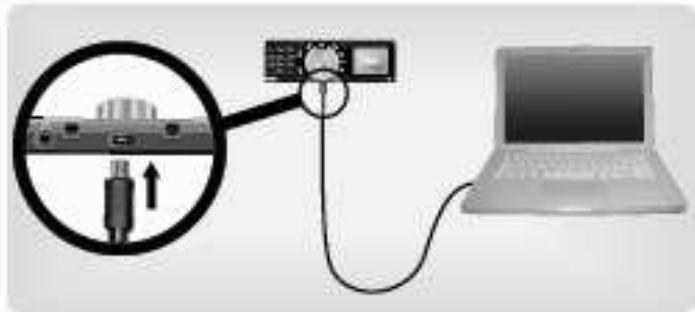
- Copy your music files in MP3 or WMA formats as if it was an USB flash drive.
To get to the music files stored in the internal memory of the Parrot RK8200 :
- Press the SOURCE key repeatedly to select the Internal Memory contents.
- Use the jog wheel to browse the internal memory of the Parrot RK8200 and press the jog wheel to enter a directory or start playback of the selected music file.
Using the Parrot RK8200 with an external source

The USB cable and the docking cable for iPod are located behind the removable faceplate. Use this place for your iPod or mass storage peripheral.
-
Connect your external source to the Parrot RK8200.
-
Use the USB cable if your peripheral is an MP3 player or an USB key.

If you connect an iPhone to the Parrot RK8200, the following message may be displayed: «This accessory is not made to work with iPhone. Would you like to turn on airplane mode to reduce audio interference? ». In that case, do not select any option: the message disappears automatically after a few seconds.
- Use the docking cable for iPod if your peripheral is an iPod.
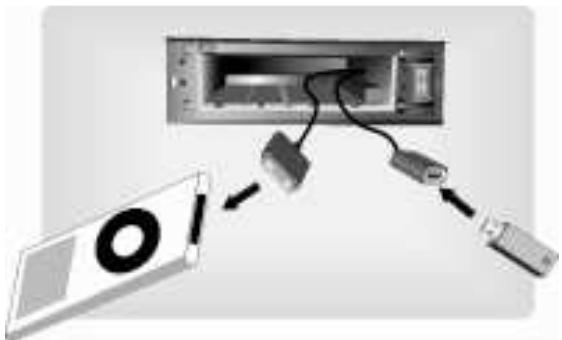
- Insert the SD card into the appropriate slot.
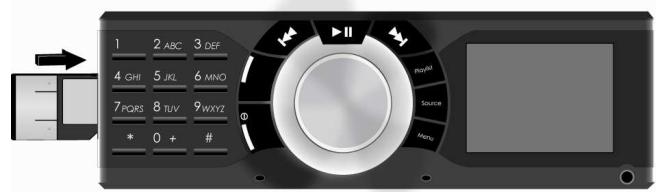

We advise you to switch off your Parrot RK8200 before inserting or removing an SD card.

key
-
Depending on the available peripherals, press the repeatedly to select:
-
USB to listen to the music files stored in the USB mass storage peripheral.
- iPod to listen to the music files stored in an iPod.
-
SD to listen to the music files stored in the SD card.
-
Press the jog wheel to access the content of the selected source.
-
If the tags of your audio files are correctly defined or if the device connected to the Parrot RK8200 is an iPod, select one of these classification features: playlist, artist, album, songs, genres and years, and press the jog wheel.
- If the tags of your audio files are not defined:
a. Select Browse by directory.
b. Press the jog wheel to play the selected music file.

If your Parrot is connected to an iPod and an USB flash drive, the iPod is priority: you only can browse your iPod content.
Using the Parrot RK8200 with an audio cable
The Parrot RK8200 allows you to listen to music files from another type of audio player such as a CD player. To do so:
- Connect your audio player using a Jack/Jack cable (not provided) into the jack socket on the front of the faceplate.

You can also use the Line In connector located at the back of the Parrot RK8200. To do so:
- From the main menu, select Auxiliary input.
- Select Back line in with the jog wheel depending on the connection you want to use.

- Press the key repeatedly to access the Line In source.
- Launch the playback from your audio player.
The sound is directly streamed through the speakers of your vehicle.

You can press the connection.

key to choose the back or front line
Using the Radio function

- Press the key repeatedly to select Tuner.
- Select the desired radio station. To do so:

- Press the keys to select a radio station manually.
- Hold down the keys to tune to the next available radio station.
- If you have already saved the radio station:
a. Press the key.
b. Use the numerical pad of the Parrot RK8200 to select the radio station associated to the number.

You also can directly use the numerical keypad of the Parrot RK8200 to select a saved radio station. To do so, associate your keypad to the Tuner mode by selecting Tuner > Settings > Keypad use.
- Saving a radio station
- Press the

key and select Store New.
- Select a place and press the jog wheel to confirm.

You also can press the

key then hold down a number
from the numerical pad of the station.
Parrot RK8200 to save a radio
Changing the radio settings
The Parrot RK8200 allows you to change the following settings.
- Auto store: seek automatically and store the 12 radio stations with the highest RF level in the current band.
- RDS scan: activate / deactivate the RDS scan which allows to change automatically the frequency of the current radio station when the signal becomes too weak.
- Traffic alert: activate / deactivate the traffic alert which allows to activate the Radio source when the current station starts broadcasting traffic information.
- FM step: select the FM step (50 or 100 kHz.)
- Activate AM: activate / deactivate the AM frequencies.
To change the settings :
- Enter the main menu and select Radio > Settings.
- Change the settings using the jog wheel.
Adjusting the audio effects
The Parrot RK8200 allows you to change some audio settings. To do
so, press the key or select the Audio effects option.
Using the Virtual Super Bass effect
The VS Bass effect allows you to amplify the low frequencies.
To activate it, press the key and select the virtual super bass option.

You can change the settings of this effect by selecting Audio effect > Settings> Vsb preferences.
Using the equalizer
The equalizer allows you to adjust the low, medium and high frequencies depending on your preferences. To activate it, press the

key and select the Equalizer option.
You can choose between 6 default presets to adapt the frequencies to the music style you are listening to. If you don't find one corresponding to your preferences, you also can create your own
preset during the playback of a track. To do so, press the key and select Settings > Preferences Eq. > Customize. Then, use the jog wheel to modify the frequencies.
Using the automatic volume control
The automatic volume control option allows you to adapt the volume
depending on the surrounding noise. To activate it, press the key and select the automatic volume control option.
Controlling the balance
You can change the balance settings. To do so, press the key and select the Balance option. Then, use the jog wheel to adjust it.
- Activate the Repetition / Random options
To launch the random playback of the music files or activate the
repetition, press the key then select Settings then Repetition or Random.

The iPod settings are priority to those of the Parrot RK8200.
Technical Specification
| Interface | 2.4-inch TFT screen with 262 144 colors 12-key numeric keypad 8 control buttons + 1 rotary button |
| Display | Phone information Phonebook, caller names and numbers Playlist, album cover, artist and title |
| Audio | 4x45W amplifier with 20-bit DAC Minimal impedance of 4 ohms Line-out socket for external amplifiers |
| Tuner | FM and AM bands (PO and GO), RDS 48 recordable stations (presets) Digital & analogue connections: Specific iPod and USB connector SD card reader Analogue jack line-in socket at the front Analogue RCA line-in socket at the back |
| Telephony | Automatic phonebook synchronization Complete call records Number of contacts: total of 8 000 Voice recognition Speech synthesis of the names in the phonebook (TTS) |
| Sound | Full duplex and echo cancellation Parrot DCBM noise reduction Double microphone built into the faceplate Automatic detection of the speaker's position Bluetooth stereo (A2DP) compatible Transmission through the vehicle's speakers |
| Bluetooth | Bluetooth v1.2 Profiles supported: HSP 1.0 (Headset Profile) HFP 0.96 / 1.0 / 1.5 (Hands Free Profile) A2DP (Advanced Audio Distribution Profile) AVRCP (Audio Video Remote Control Profile) OPP (Object Push Profile) |
PBAP (Phone Book Access Profile)
SYNC
Maximum range: 10 meters
Pairing by PIN code, maximum of 10
Updates via USB
Dimensions
- Faceplate
Height = 59 mm
Width = 189 mm
Depth = 29 mm
Weight = 132g
Unit
Height = 58mm
Width = 180 mm
Depth = 174 mm
Weight = 1038g
Processor
Parrot P5+ (32 bits) @ 208 MHz
Memory: Flash = 1 GB
RAM = 128 Mbits
| Problems | Solutions |
| I can't turn on my Parrot RK8200. | Check the cables and the adapter used to install the Parrot RK8200. To do so, refer to the « Installing the Parrot RK8200 » of this user guide. |
| My Parrot RK8200 does not find the content of my USB flash drive. | Check that the Parrot RK8200 is not connected to your USB flash drive and to an iPod/iPhone at the same time. If it is the case, disconnect your iPod/iPhone to access the content of your USB flash drive. |
| Is it possible to connect an USB external hard disk to the Parrot RK8200? | Yes it is, but make sure this device can be stored in the internal location behind the faceplate. |
| When I use my iPod with my Parrot RK8200, my device is blocked. | If your iPod does not work anymore, reset the device by pressing simultaneously the Menu key and the central key of your iPod. Refer to the user guide of your iPod for further information. |
| I can't connect my phone to the Parrot RK8200 by Bluetooth from the kit. | Try to connect your phone to the Parrot RK8200 directly from the phone. Refer to the user guide of your phone for further information. |
| An error message is displayed when I connect my iPhone to the Parrot RK8200. | When you connect an iPhone to the Parrot RK8200, the following message may be displayed on your iPhone: « This accessory is not made to work with iPhone. Would you like to turn on airplane mode to reduce audio interference? ». If it is the case, do not select any of the 2 options: the message disappears after several minutes. |
| The message “full memory” is displayed on my Parrot RK8200 when I try to pair my phone. | You can pair up to 10 devices to the Parrot RK8200. If you pair an 11thdevice, the Parrot RK8200 displays “full memory”. To pair a new device, you have to release memory. To do so, select Settings > Bluetooth > Paired devices. |
| It is difficult to hear me when I make or receive calls on my Parrot RK8200. | The dashboard of your vehicle may obstruct the Parrot RK8200 microphone located on the lower edge of the faceplate. An external microphone may be necessary. |
If you have any other type of problem, not detailed in this section, please contact our hotline from Monday to Friday between 9am and 6 pm (GMT+1) by mail hot-line@parrot.com or by phone:
Europe: [+33] (0) 1 48 03 60 69 (Spoken languages: English, French, Spanish and German)
Italy: [+39] 02 59 90 15 97
Spain: [+34] 902 404 202
UK: [+44] (0)870 112 5872
Germany: 0900 172 77 68
USA: [+1] (877) 9 PARROT (toll free)
China: [+ 86] (0)2164 601 944