V.SMILE V-MOTION WALL.E - Jouets éducatifs VTECH - Notice d'utilisation et mode d'emploi gratuit
Retrouvez gratuitement la notice de l'appareil V.SMILE V-MOTION WALL.E VTECH au format PDF.

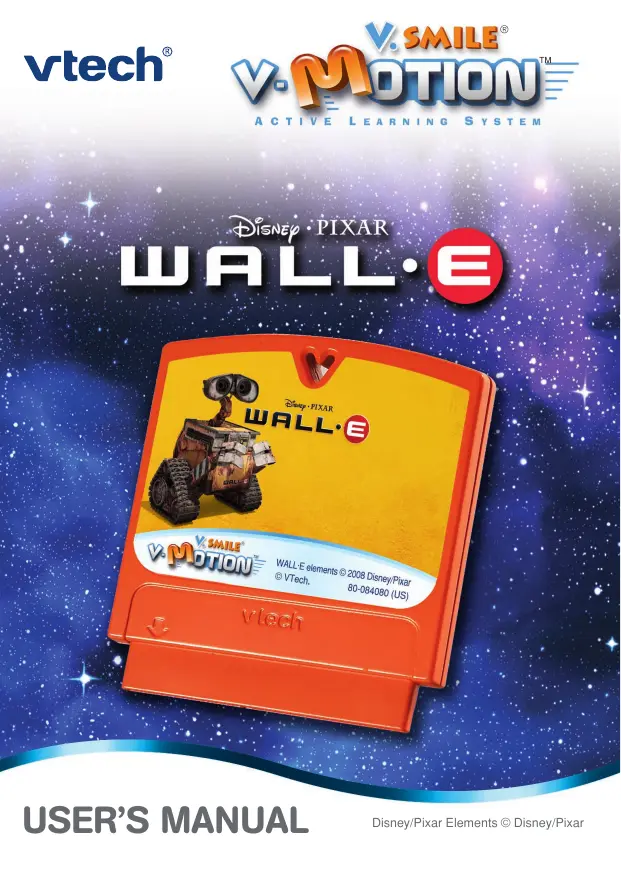

| Type de produit | Console de jeux éducative pour enfants |
| Caractéristiques techniques principales | Compatible avec les jeux V.Smile et V.Motion, écran couleur, manette sans fil |
| Alimentation électrique | Adaptateur secteur inclus |
| Dimensions approximatives | 30 cm x 25 cm x 10 cm |
| Poids | 1,5 kg |
| Compatibilités | Jeux V.Smile et V.Motion, compatible avec certains téléviseurs |
| Type de batterie | Non applicable (fonctionne sur secteur) |
| Tension | Adaptateur 9V |
| Puissance | Consommation électrique faible, adaptée aux enfants |
| Fonctions principales | Jeux éducatifs, activités interactives, développement des compétences motrices et cognitives |
| Entretien et nettoyage | Essuyer avec un chiffon doux, ne pas immerger dans l'eau |
| Pièces détachées et réparabilité | Réparabilité limitée, pièces non disponibles en vente libre |
| Informations générales | Recommandé pour les enfants de 3 à 7 ans, contenu éducatif varié |
FOIRE AUX QUESTIONS - V.SMILE V-MOTION WALL.E VTECH
Questions des utilisateurs sur V.SMILE V-MOTION WALL.E VTECH
0 question sur cet appareil. Repondez a celles que vous connaissez ou posez la votre.
Poser une nouvelle question sur cet appareil
Téléchargez la notice de votre Jouets éducatifs au format PDF gratuitement ! Retrouvez votre notice V.SMILE V-MOTION WALL.E - VTECH et reprennez votre appareil électronique en main. Sur cette page sont publiés tous les documents nécessaires à l'utilisation de votre appareil V.SMILE V-MOTION WALL.E de la marque VTECH.
MODE D'EMPLOI V.SMILE V-MOTION WALL.E VTECH
DISNEY·PIXAR WALL
Dear Parent,
At VTech, we know that every year, children are asking to play video games at younger and younger ages. At the same time, we understand the hesitation of most parents to expose their children to the inappropriate content of many popular video games. How can parents responsibly allow their children to play these games, and still educate and entertain them in a healthy, age-appropriate manner?
Our answer to this question is V-Motion™ Active Learning System! A big breakthrough for junior gamers, V-Motion™ takes educational video gaming to a whole new level with a motion-activated gaming system that engages both active minds and bodies.
V-Motion™ plugs directly into the TV to provide kids with a high-tech gaming experience using thrilling, age-appropriate learning games and a motion-activated, intuitive wireless controller. The V-Motion™ Active Learning System engages children with two modes of play: the Learning Adventure - an exciting exploratory journey in which learning concepts are seamlessly integrated, and the Learning Zone - a series of games designed to focus on specific skills in a fun, engaging way. Each Smaartridge™ game encourages active gaming while giving kids' minds a workout, too, as they learn basic math, reading, science, spelling and more.
In addition to the action-packed Smartridge™ game play, the V-Motion™ includes the VLink™ (USB drive) that connects kids to VTech®s secure online site to unlock bonus games and track their scores against other gamers.
At VTech®, we are proud to provide parents with a much-needed solution to the video game dilemma, as well as another innovative way for children to learn while having fun. We thank you for trusting VTech® with the important job of helping your child explore a new world of learning!
sincerely,

Julia Fitzgerald
Vice President, Marketing
V Tech Electronics, NA
To learn more about the V-Motion™ Active Learning System and other VTech® toys, visit www.vtechkids.com

INTRODUCTION
In the future, Earth is polluted with trash. Humans have left the planet and live on ships in space. WALL-E is the last robot on Earth. WALL-E works everyday to clean up the planet. One day WALL-E meets a sleek robot named EVE and discovers a new purpose in life. Join WALL-E and EVE on an exciting adventure across the galaxy!

GETTING STARTED
STEP 1: Choose Your Play Mode
Move the joystick up or down to choose the play mode you want. Press the ENTER button to confirm your selection.

1. Learning Adventure
In this play mode, you can join WALL•E and EVE on a fantastic journey, just like in the movie!
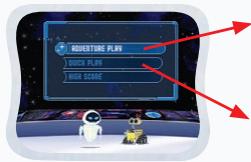
Adventure Play
Play all four games in sequence according to the story.
Quick Play
Play each of the games individually in any order.
Adventure Play
Start the adventure from the beginning by choosing New Game or start from the last place you played before exiting by choosing Continue Game. If this is the first time you've played this Smartridge™, this screen will be skipped and you'll start from the beginning.
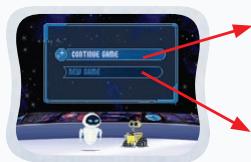
Continue Game
Start the adventure from the last place you played before exiting the game.
New Game
Start the adventure from the beginning.
Quick Play
In the Quick Play menu, choose any of the games you'd like to play. Move the joystick to select the game you want and press ENTER to play.
2. Learning Zone
Practice specific skills in the four games of the Learning Zone. Move the joystick to select the game you want and press ENTER to confirm your choice.
3. Options
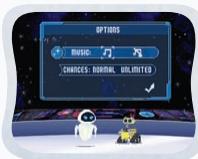
In the Options screen, you can turn the music On or Off, and choose between Standard or Unlimited chances in the games. Move the joystick to select the option you want. Move the cursor to the checkmark, then press Enter to confirm your choices.
STEP 2: Choose Your Game Settings
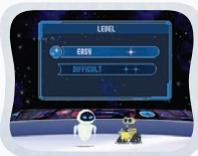
- Level: Move the joystick to choose Easy Level or Difficult Level. Press ENTER to confirm your selection.
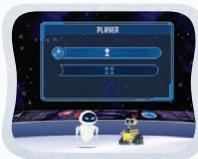
- Number of Players: Move the joystick to choose one player or two players.
Note: Two-player mode is not available when played on the V.Smile® Pocket™ or V.Smile® Cyber Pocket™. Press ENTER to confirm your selection.
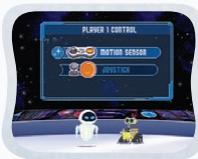
- Controller Mode: Move the joystick to choose Motion Controller Mode or Joystick Mode.
STEP 3: Start Your Game
For Learning Adventure games, please go to the "Activities - Learning Adventure" section.
For Learning Zone games, please go to the "Activities - Learning Zone" section.

FEATURES
HELP Button
When you press the HELP button during a game, a HELP icon will pop up and give you instructions or a hint.
EXIT Button
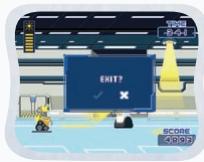
When you press the EXIT button, the game will pause. An EXIT icon will appear onscreen to make sure you want to quit. Move the joystick left to the to leave the game or right to the 3 to cancel the exit screen and keep playing. Press the ENTER button to choose.
LEARNING ZONE Button
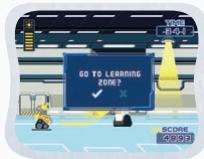
The LEARNING ZONE button is a shortcut that takes you to the Learning Zone game selection screen. When you press the LEARNING ZONE button, the game will pause. A window will pop up to make sure you really want to quit. Move the joystick left to the to leave the game or right to the to cancel the Learning Zone screen and keep playing. Press the ENTER button to choose.

V.LinkTM Connection (Only for consoles supporting V.LinkTM)
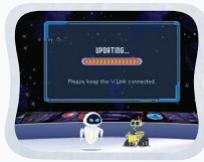
When you plug the V.Link™ into the console, a new selection - "V.Link™ Connection" - will appear under the main menu. You can select it to download your game score to the V.Link™. After downloading your score, plug the V.Link™ into your computer and unlock some fun bonus games on the V.Smile™ Web Site. Please don't unplug the V.Link™ during the downloading process.
Bonus Games on the V.Smile™ Web Site
When you reach a certain score in Adventure Play mode, you'll be rewarded with special gold coins. You can save your score to the V.Link™ and then plug the V.Link™ into your computer. The gold coins can be used to unlock special bonus games on the V.Smile™ Web Site.
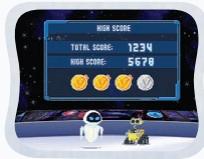
How to Earn Gold Coins:
| 1stgold coin | Earn a total score of 250 or finish Learning Adventure Game 1. |
| 2ndgold coin | Earn a total score of 700 or finish Learning Adventure Games 1 & 2. |
| 3rdgold coin | Earn a total score of 900 or finish Learning Adventure Games 1, 2 & 3. |
| 4thgold coin | Earn a total score of 1200 or finish all Learning Adventure games. |
Educational Curriculum
Learning Adventure
Curriculum
Game 1 - A Day at Work
Colors
Game 2 - Searching for EVE
Shape Matching
Game 3 - Space Dash
Letter Matching
Game 4 - Race to the Holo-Detector
Number Order
Learning Zone
Curriculum
Game 1 - M-O Cleans Up
Following Directions
Game 2-WALL·E's Collection
Patterns and Classification
Game 3 - Puzzle Shapes
Puzzles
Game 4 -Trash Chute Sorting
Sorting
How to Play
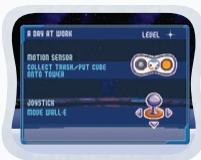
At the beginning of each game in Learning Adventure and Learning Zone, a "How to Play" screen shows you the game settings and controls.
Status Bars
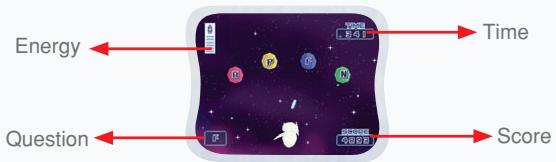
During some games, the status bars will appear on the screen to show your time, score, questions and energy.
Question - The question that should be answered.
Energy - The life remaining for current player.
Score - The points you have earned during the current game.
Time - How much time you have left in the game.
Saving Game Status
Your game status will be saved automatically inside the V-MOTION™ system after you reach a checkpoint or complete a game.
You can also save your record onto V.Link™ (sold separately and subject to availability) in the V.Link™ Connection screen under Main Menu.
Learning Adventure
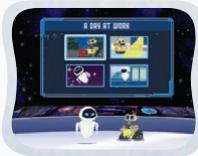
A Day at Work
Game Play
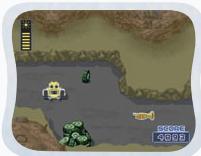
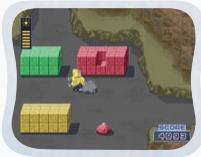
In an abandoned area on Earth, trash is everywhere. Help WALL•E clean up. Move WALL•E to a work area, then collect and cube the colored trash. Put the cube onto the correct colored trash tower. Pick up items for WALL•E's collection and avoid obstacles along the way!
Curriculum: Colors

Easy Level: Primary colors -- red, yellow and blue.

Difficult Level: Combine colors to make secondary colors - green, purple and orange.
2-Player Mode: Players will take turns to play this game. Player 2's turn begins after Player 1 finishes the first round of questions or loses all energy.
Operations:
| Control | Motion Controller Mode | Joystick Mode |
| Move WALL·E | Move the joystick to the left or right or up or down. | Move the joystick to the left or right or up or down. |
| Collect trash | Tilt the controller left and right. | Press the Enter button. |
| Put cube onto tower | Tilt the controller forward. | Press the Enter button. |
Searching for EVE
Game Play
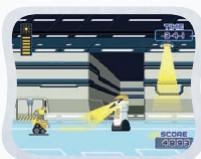
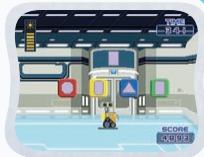
Move WALL-E through the Axiom to search for EVE. Avoid the lights of the Stewards and the security cameras. When you reach a door, find the matching shape to help keep WALL-E moving forward.
Curriculum: Shape Matching

Easy Level: Match simple shapes.

Difficult Level: Match more complex shapes. Finish the game before time runs out.
2-Player Mode: Players will take turns to play this game. Player 2's turn begins after Player 1 finishes the first round of questions or loses all energy.
Operations:
| Control | Motion Controller Mode | Joystick Mode |
| Move WALL•E faster | Tilt the controller left and right. | Move the joystick to the left and right. |
| Hide WALL•E | Press the Enter button. | Press the Enter button. |
| Choose a shape | Press the Color buttons. | Press the Color buttons. |
Space Dash
Game Play
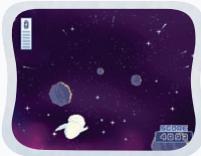
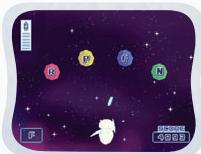
Get WALL-E and EVE back together. Move WALL-E and EVE through space and avoid the flying space rocks. Look at the letter at the bottom of the screen. Blast the space rock with the correct letter.
Curriculum: Letter Matching

Easy Level: Match uppercase letters.

Difficult Level: Match upper- and lowercase letters.
2-Player Mode: Players will take turns to play this game. Player 2's turn begins after Player 1 finishes the first round of questions or loses all energy.
Operations:
| Control | Motion Controller Mode | Joystick Mode |
| Move EVE/WALL·E | Tilt the controller left and right. | Move the joystick to the left and right. |
| Blast a letter rock | Press the Color buttons. | Press the Color buttons. |
Race to the Holo-Detector
Game Play
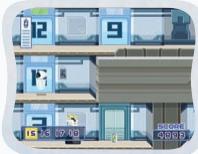
Help EVE get to the holo-detector. Look at the highlighted area at the bottom of the screen and find the elevator with the next number in the sequence. Watch out for Stewards!
Curriculum: Number Order
Easy Level: Simple sequences of numbers 12 or less.
Difficult Level: Ascending/descending sequences of numbers 16 or less.
2-Player Mode: Players will take turns to play this game. Player 2's turn begins after Player 1 finishes the first round of questions or loses all energy.
Operations:
| Control | Motion Controller Mode | Joystick Mode |
| Move EVE | Tilt the controller left and right. | Move the joystick to the left and right. |
| Move EVE into an elevator | Tilt the controller forward. | Move the joystick up. |
| Blast the laser | Press the Enter button. | Press the Enter button. |
Learning Zone
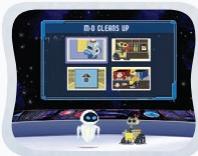
M-O Cleans Up
Game Play
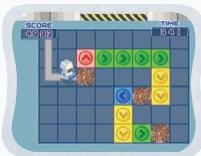
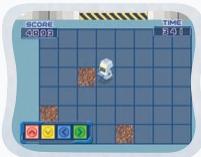
Help M-O clean up all the dirt spots on the floor.
Curriculum: Following Directions
Easy Level: Follow the colored arrows to clean the dirt spots along the path.
Hard Level: Clean all the dirt spots within the time limit.
2-Player Mode: Players will take turns to play this game. Each player will clean an entire area.
Operations:
Control
Motion Controller Mode
Joystick Mode
Move M-O
Press the Color buttons.
Press the Color buttons.
Clean a dirt spot
Tilt the controller forward and backward.
Move the joystick up and down.
WALL·E's Collection
Game Play
Help WALL-E find the objects and rows that are different from the others.
Curriculum: Patterns and Classification

Easy Level: Select one different object from four objects in each row. Answer as many questions as possible within the time limit.

Difficult Level: Select one different row from three rows. Answer as many questions as possible within the time limit.

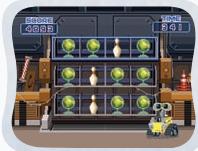
2-Player Mode: Players will take turns to play this game. Each player will try to answer nine questions within the time limit.
Operations:
Control
Motion Controller Mode
Highlight an object /a row of objects
Tilt the controller to the left or right or forward or backward.
Joystick Mode
Move the joystick to the left or right or up or down.
Choose an object/a row
Press the Enter button.
Press the Enter button.
Puzzle Shapes
Game Play
Choose the correct shapes to complete the puzzle.
Curriculum: Puzzles

Easy Level: Complete a puzzle with the 3 shape pieces provided.

Difficult Level: Complete a puzzle with the 4 shape pieces provided within the time limit.
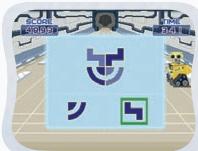
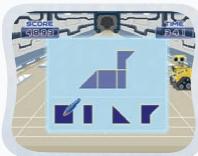

2-Player Mode: Players will take turns to play this game. Players will try to complete 4 puzzles each. In Difficult level, each player must complete the puzzles within the time limit.
Operations:
| Control | Joystick Mode | Pen Mode |
| Highlight a shape / Fill in the puzzle | Move the joystick to the left or right | Drag the pen on the drawing pad. |
| Choose a shape | Press the Enter button. | Hold the pen on the pad to grab the shape. |
| Rotate a shape | Press the Green button. | Move the joystick to desired direction. |
Trash Chute Sorting
Game Play
Help WALL-E catch the falling trash and put it into the correct recycling bin.
Curriculum: Patterns and Classification

Easy Level: Catch two different trash objects and put them into the correct bin. Catch and sort as many objects as you can within the time limit.

Difficult Level: Catch three different trash objects and put them into the correct bin. Catch and sort as many objects as you can within the time limit.
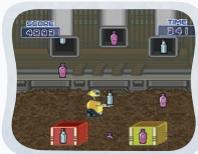
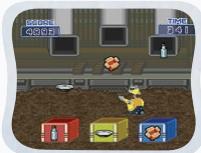
2-Player Mode: Players will take turns to play this game. Each player will try to catch and sort as many objects as possible within the time limit.
Operations:
| Control | Motion Controller Mode | Joystick Mode |
| Move WALL·E | Tilt the controller left and right. | Move the joystick to the left and right. |
| Choose a recycling bin | Press the Color buttons. | Press the Color buttons. |
CARE & MAINTENANCE
- Keep your V-MOTION™ clean by wiping it with a slightly damp cloth. Never use solvents or abrasives.
- Keep it out of direct sunlight and away from direct sources of heat.
- Remove the batteries when not using it for an extended period of time.
- Avoid dropping it. NEVER try to dismantle it.
- Always keep the V-MOTION™ away from water.
WARNING
A very small percentage of the public, due to an existing condition, may experience epileptic seizures or momentary loss of consciousness when viewing certain types of flashing colors or patterns, especially on television. While the V-MOTION™ Active Learning System does not contribute to any additional risks, we do recommend that parents supervise their children while they play video games. If your child experiences dizziness, altered vision, disorientation, or convulsions, discontinue use immediately and consult your physician. Please note that focusing on a television screen at close range and handling a joystick for a prolonged period of time may cause fatigue or discomfort. We recommend that children take a 15-minute break for every hour of play.

TECHNICAL SUPPORT
If you have a problem that cannot be solved by using this manual, we encourage you to visit us online or contact our Consumer Services Department with any problems and/or suggestions that you might have. A support representative will be happy to assist you.
Before requesting support, please be ready to provide or include the information below:
- The name of your product or model number (the model number is typically located on the back or bottom of your product).
The actual problem you are experiencing.
The actions you took right before the problem occurred.
Internet: www.vtechkids.com
Phone: 1-800-521-2010 in the U.S. or 1-877-352-8697 in Canada

OTHER INFO
DISCLAIMER AND LIMITATION OF LIABILITY
VTetc^ ® Electronics North America, L.L.C. and its suppliers assume no responsibility for any damage or loss resulting from the use of this handbook. VTetc^ ® Electronics North America, L.L.C. and its suppliers assume no responsibility for any loss or claims by third parties that may arise through the use of this software. VTetc^ ® Electronics North America, L.L.C. and its suppliers assume no responsibility for any damage or loss caused by deletion of data as a result of malfunction, dead battery, or repairs. Be sure to make backup copies of important data on other media to protect against data loss.
COMPANY: VTech® Electronics North America, L.L.C.
ADDRESS: 1155 West Dundee, Suite 130, Arlington Heights, IL 60004 USA
TEL NO.: 1-800-521-2010 in the U.S. or 1-877-352-8697 in Canada.
NOTE:
This equipment has been tested and found to comply with the limits for a Class B digital device, pursuant to Part 15 of the FCC Rules. These limits are designed to provide reasonable protection against harmful interference in a residential installation. This equipment generates, uses and can radiate radio frequency energy and, if not installed and used in accordance with the instructions, may cause harmful interference to radio communications. However, there is no guarantee that interference will not occur in a particular installation. If this equipment does cause harmful interference to radio or television reception, which can be determined by turning the equipment off and on, the user is encouraged to try to correct the interference by one or more of the following measures:
Reorient or relocate the receiving antenna.
- Increase the separation between the equipment and receiver.
- Connect the equipment into an outlet on a circuit different from that to which the receiver is connected.
- Consult the dealer or an experienced radio/TV technician for help.
Caution: Changes or modifications not expressly approved by the party responsible for compliance could void the user's authority to operate the equipment.