
VCR4350 - Lecteur de vidéo DAEWOO - Notice d'utilisation et mode d'emploi gratuit
Retrouvez gratuitement la notice de l'appareil VCR4350 DAEWOO au format PDF.

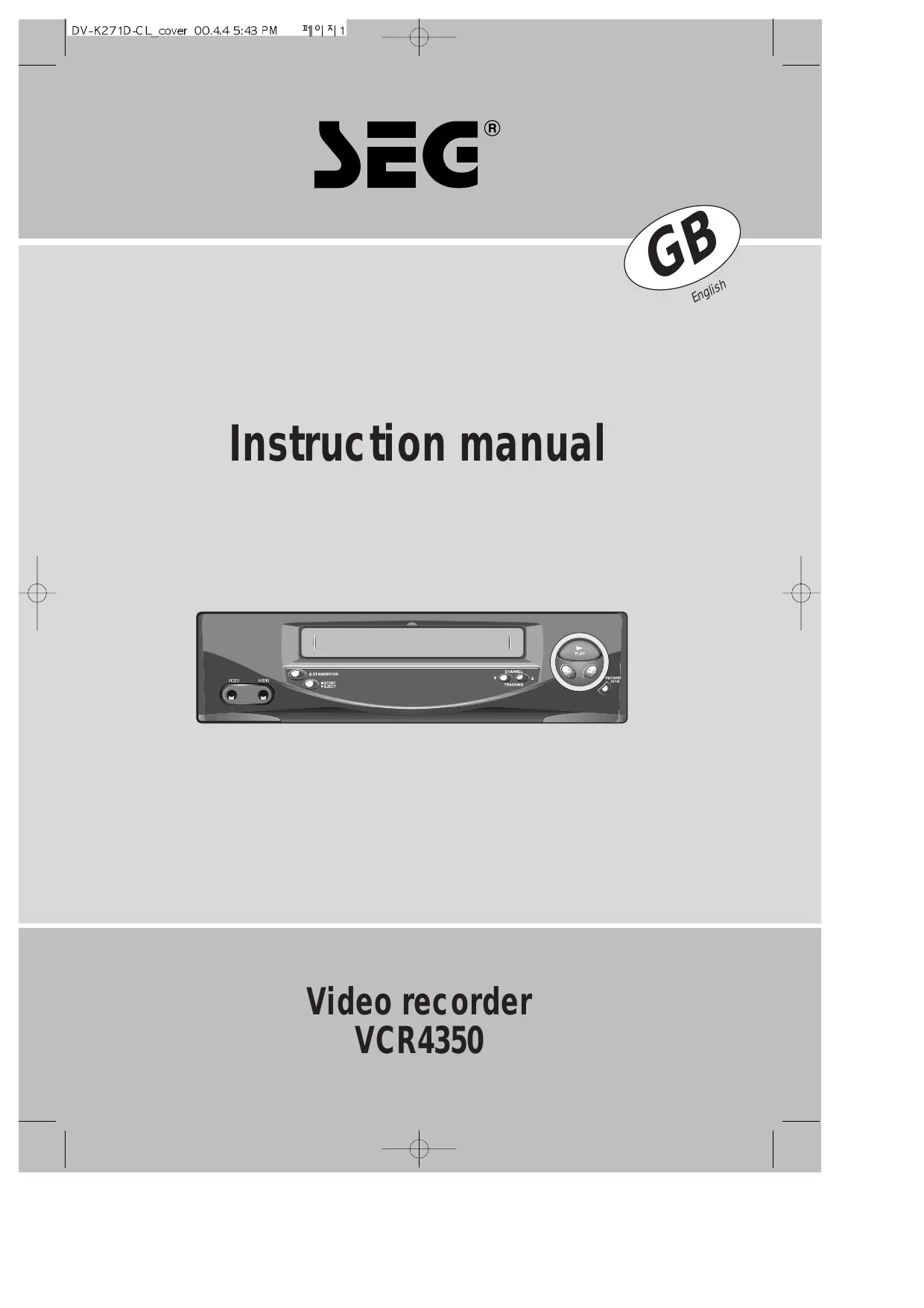

| Type de produit | VCR (lecteur/enregistreur de cassettes vidéo) |
| Caractéristiques techniques principales | Lecture et enregistrement de cassettes VHS, compatibilité avec les cassettes PAL/SECAM |
| Alimentation électrique | 220-240 V, 50 Hz |
| Dimensions approximatives | 360 mm x 250 mm x 100 mm |
| Poids | 3,5 kg |
| Compatibilités | Compatible avec les téléviseurs analogiques et certains modèles numériques via adaptateur |
| Type de batterie | Non applicable (appareil secteur) |
| Tension | 220-240 V |
| Puissance | 25 W |
| Fonctions principales | Lecture, enregistrement, arrêt instantané, programmation d'enregistrement |
| Entretien et nettoyage | Nettoyer régulièrement les têtes de lecture/enregistrement avec un kit de nettoyage VHS |
| Pièces détachées et réparabilité | Disponibilité de pièces détachées limitée, consulter un professionnel pour les réparations |
| Sécurité | Ne pas exposer à l'humidité, débrancher l'appareil lors de l'entretien |
| Informations générales utiles | Vérifier la compatibilité des cassettes avant utilisation, conserver à l'abri de la chaleur |
FOIRE AUX QUESTIONS - VCR4350 DAEWOO
Questions des utilisateurs sur VCR4350 DAEWOO
0 question sur cet appareil. Repondez a celles que vous connaissez ou posez la votre.
Poser une nouvelle question sur cet appareil
Téléchargez la notice de votre Lecteur de vidéo au format PDF gratuitement ! Retrouvez votre notice VCR4350 - DAEWOO et reprennez votre appareil électronique en main. Sur cette page sont publiés tous les documents nécessaires à l'utilisation de votre appareil VCR4350 de la marque DAEWOO.
MODE D'EMPLOI VCR4350 DAEWOO
SEG®
GB
English
Instruction manual
Video recorder
VCR4350
W O R T H

Please keep the video machine's guarantee card and receipt safe for warranty purposes.
Precautions
Read carefully through this manual to familiarize yourself with this high-quality video recorder.
Make sure the rating of your household electricity supply matches that shown on the back of the video recorder.
Refer to this chapter and the "Initial installation" chapter to help you install and adjust your video recorder.
Do not ...
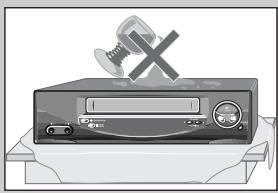
... expose the video recorder to high levels of humidity and heat, to avoid the risk of fire and electric shock.
... open the video recorder. Have a qualified technician carry out repairs.
... connect the video recorder to the power supply if you have just moved it from a cold to warm environment. This can result in condensation inside the recorder and cause serious damage to the machine and cassettes. Wait around two hours to allow it to reach room temperature.
Make sure ...
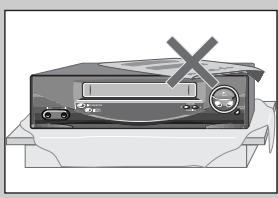
... the recorder is placed on a steady, flat surface.
... you place the recorder where there is good ventilation all around.
... you clean the recorder only with a soft, lint-free cloth; do not use aggressive or alcohol-based cleaning agents.
... you disconnect the power supply if the recorder appears to be working incorrectly, is making an unusual sound, has a strange smell, has smoke emitting from it or liquids have got inside it. Have a qualified technician check the recorder.
... you disconnect the power supply and aerial if you will not be using the recorder for a long period or during a thunderstorm.
For your own safety!

There are no components in this video recorder you can service or repair yourself.
Do not open the case of the video recorder. Only allow qualified personnel to repair or service your set.

This video recorder is designed for continuous operation. Switching it off does not disconnect it from the mains (stand-by). To disconnect it from the mains, you have to unplug it.
Recording any copyright protected material may infringe a copyright.
WORTH
k nowing
Before doing anything with the machine, please read the chapter "Initial installation".
Contents
Controls
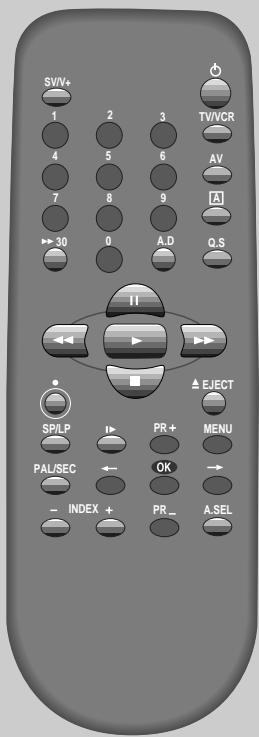
The remote control unit 2
The machine, On screen display 3
Initial installation
Connecting up the video recorder, Fitting the remote control's batteries .... 4
Setting up the video recorder 5
Playing cassettes
Playing back 6
Still, Variable picture search, Variable slow motion,
Accessing new recordings (index scan) 7
16:9 Wide Screen Format Playing back /Recording, CM Skip 8
Recording cassettes
Setting time and date 9
Simple recording, One touch recording (OTR) 10
Timer recording using ShowView 11
More functions
Normal timer recording 12
Timer Review - changing and erasing 13
Clock/Counter display, Remaining time and Cassette length,
Accessing counter zero position, Resetting the counter to zero 14
Menu languages, Child lock, Cassettes, and 15
Tuning new stations
Tuning 16
Station names 17
Sorting programme locations, Clearing programme locations 18
Connections and copying
To the TV via antenna cable (if you are not using a SCART cable) 19
Copying,Assembling 20
Appendix
Brief instruction for experienced users 21/22
Before you ask a specialist 23
Index, Technical data 24

- On the following pages, the pictures show the buttons you press on the remote control to perform the function, and what you should see in the On Screen Display or machine display (if present).
ShowView is a trademark applied for by Gemstar Development Corp.. The ShowView system is manufactured under license from Gemstar Development Corporation.
CONTROLS
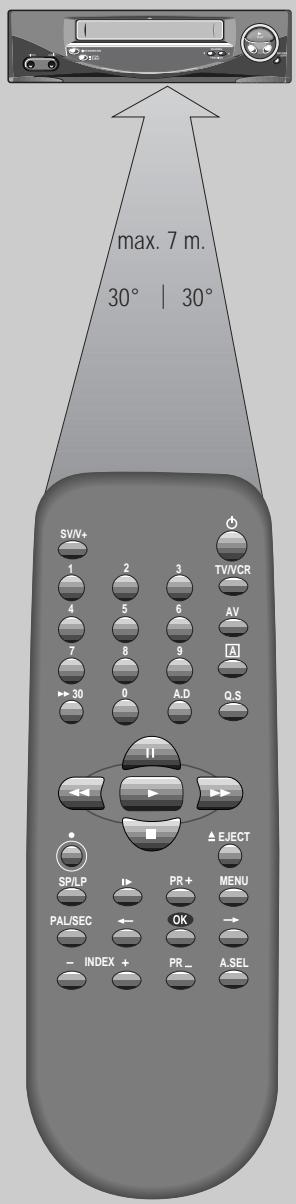

The buttons to use are marked on the following pages.
The remote control is the principle means of control, but the main playback and record functions are also available on the front of the machine.
Press any button to turn on the power.
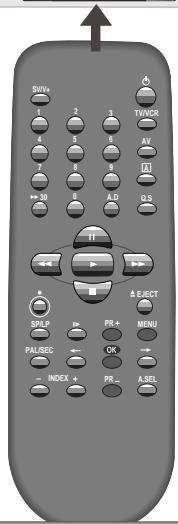
The remote control unit

power on/off

the controls for timer recording using the ShowView codes via On Screen Display

number buttons to select programmes (stations) or to type in numbers

TV or video viewing selection
(with the SCART connection, page 4)

a button for selecting input sources for recording: TV stations – input sockets

clock/counter on-screen display

this button is not available for this set

this button is not available for this set

CM skip button to cue the tape for 30 seconds

pause (record), still (playback)

playback start

playback stop


rewinding/fast forwarding a cassette from stop, or picture search backwards/forwards from playback mode

the record or OTR button

(One Touch Recording means: each time you press the button recording is extended by 30 minutes)

to eject the cassette

a button that doubles the maximum recording time for very long recordings

the variable slow motion button

the menu controls, programme (station) selection (PR + / -)

to search the beginnings of records (index)

this button is not available for this set

this button is not available for this set
Press any button to turn on the power.
CONTROLS
The machine

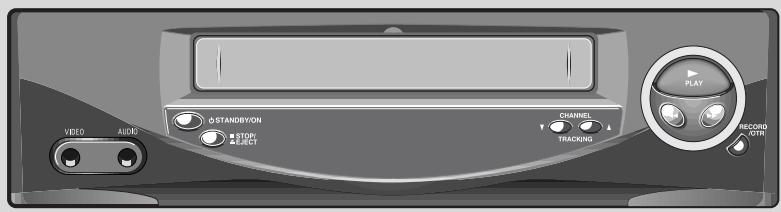
STANDBY/ON
power on/off

STOP/
playback stop and ejecting the cassette

front input sockets for connecting a camcorder
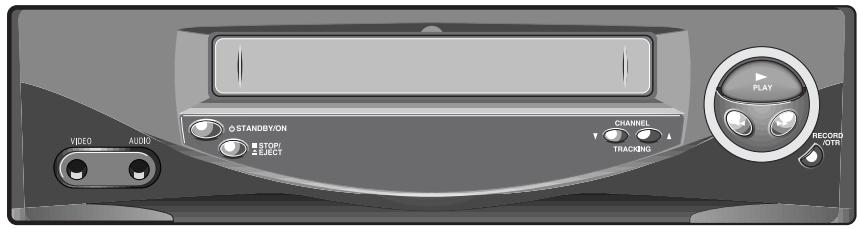

programme (station) selection

recording or OTR
(One Touch Recording means: each time you press the button recording is extended by 30 minutes)


rewinding / fast forwarding a cassette from Stop, or picture search backwards / forwards from playback mode.

playback start
On screen display
MENU
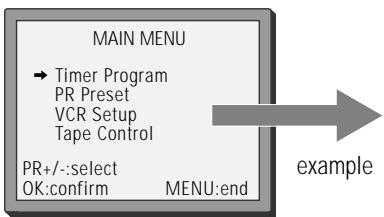
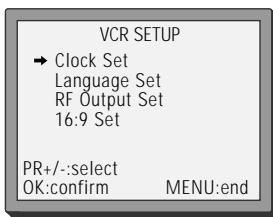
The video's menu system gives you easy-to-understand access to the less used functions such as tuning to stations, clock setting and more.
"Tape Control" Menu appears only when a tape is in the VCR.

2x

The menus show you which button to press for the next step.

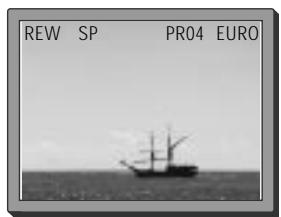
In addition, some other functions appear on screen temporarily.


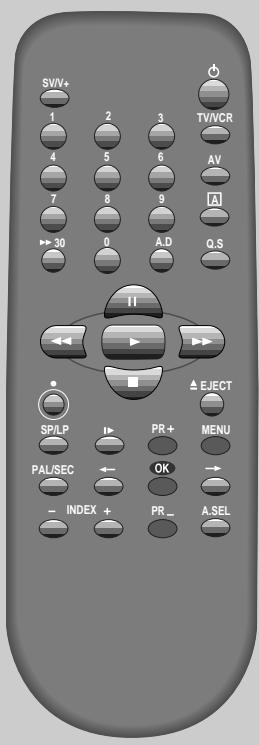

The buttons to use are marked on the following pages.
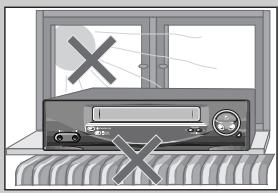
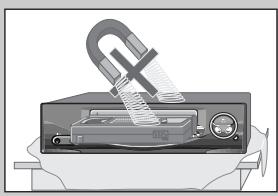
Place your video
horizontally on a flat, steady base so that air can circulate around it for ventilation.
away from humidity and heat, magnetic fields, such as those from loudspeakers etc., and with no heavy objects placed on top.
Connecting up the video recorder
Switch off all components when connecting or disconnecting cables.

AC 230V 50 Hz
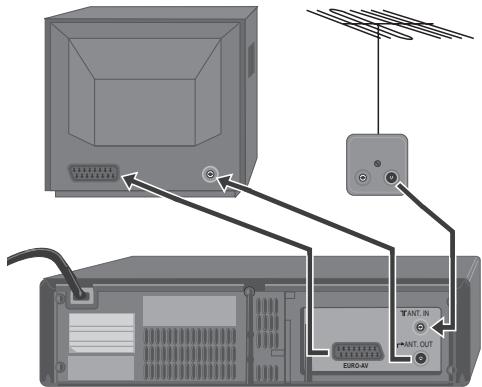
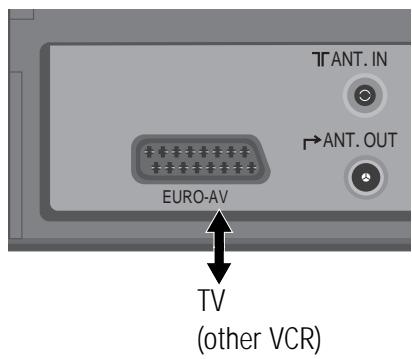
Unplug the aerial cable from your TV and plug it into the "ANT. IN" socket of the video. Plug the short coaxial cable provided into the "ANT.OUT" socket of the video and the aerial socket of the TV.
Plug an EURO AV (SCART) cable into the "EURO AV" socket of the video and the AV socket on the TV if available. This connection will provide best picture and sound quality. Ask your dealer for an appropriate cable if you do not have one.
Without a SCART cable, you need to follow the steps described under "If you are not using a SCART cable" (right page and page 19).
Make sure the rating of the household mains supply matches the rating shown on the back of the video.
Now plug in the mains lead. The display of the video should now light.
Fitting the remote control's batteries
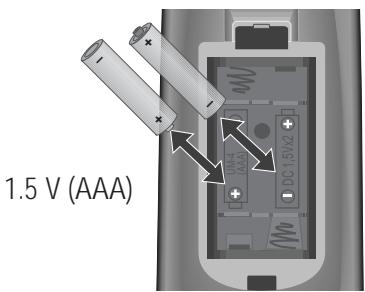
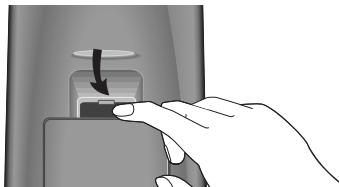
Fit the batteries as shown by the pictures in the bay.
Protect your environment by returning used batteries to your dealer. Since batteries contain toxic substances they require special disposal methods.
Make sure the batteries are always of the same type and age, and remove them from the remote control if you are not using it for a long period.
Switch the TV on.
You can also start "Auto Set" in the menu "PR Preset" "Auto Set".
To tune in new stations (manual tuning) and to enter station names see page 16-18.
l n i t i a l
INSTALLATION
Setting up the video recorder


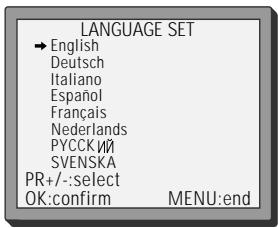
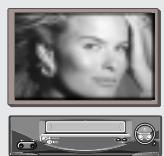
You should see this picture the first time you switch on the TV and video.
Choose your language.
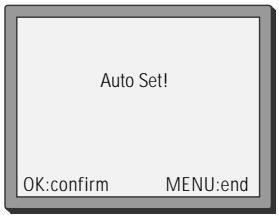
OK for "Auto Set!".
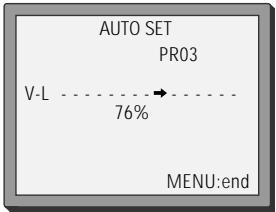
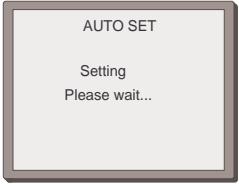
"AUTO SET" tunes in all the stations you can receive in your country and ...
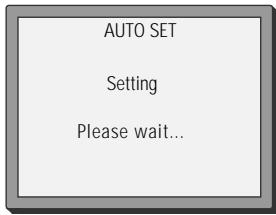
... sorts them in an order common for your country.
Clock is automatically set.
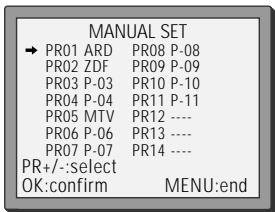
Should you wish the stations to have the same numbers as those used on the TV, follow the instructions in "Sorting programme locations" on page 18. Else ...
exit the basic installation function and enjoy your video recorder.


If you don't see this picture, because you don't use a SCART cable, search this picture now (CH 52) with the station tuning functions of your TV set (see its user manual).
RF52 In case of interference problems on CH 52, type in an other transmission channel between 21 and 69 using the number buttons.
PLAYING CAssettes

Your TV and your video recorder are switched on.
To see the picture from your video, press the station button on the TV reserved for video input or the AV (Audio/Video) button.
Playing back
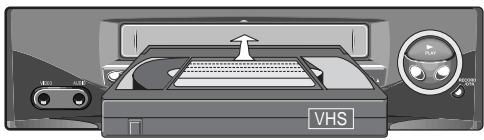
Load the cassette by pushing it smoothly and squarely into the cassette bay, with its windows pointing up.


Start playback.

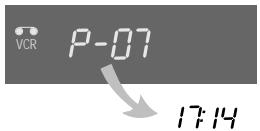
Stop playback.

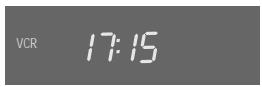
Eject the cassette.


Fast forward or rewind the cassette from stop.



Press the TV/VCR button to see TV's or the video's (VCR) picture on the screen (with the SCART connection to the TV).
When you load a protected cassette (e.g. pre-recorded film, see page 15) playback starts automatically.
PLAY switches back to normal playback.
During still, slow or search, you don't hear the sound.
If the still picture is jittering, you can steady it by using the PR + / - buttons.
You can reduce horizontal interference stripes resulting from inaccurate tracking (when playing tapes of poor quality or recorded on other machines) by using the PR +/- buttons during playback.
After approx. 5 minutes in still, the cassette plays back automatically.
NTSC PLAYBACK on PAL TV; If you playback the tapes, which have been recorded on NTSC color system, on this VCR, you can watch the pictures on a PAL TV.
Clock / Counter / Remaining time - page 14.
PLAYING
c a s s e t t e s
Still

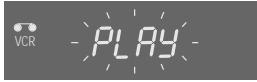
Still picture from playback.
Each press of the button advances the picture one frame.
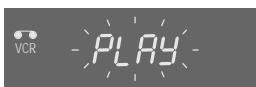
"PLAY" blinks during still.
PLAY switches back to normal playback.
Variable picture search


Starting from playback you can control search speed in 2 steps either forwards (▶▶) or backwards (▲▲). Press repeatedly.


PLAY switches back to normal playback.
Variable slow motion


Starting from playback you can control slow motion speed in 6 steps (1/15, 1/10, 1/5, 1/30, 1/25, 1/20, 1/15, ...). Press repeatedly.
PLAY switches back to normal playback.
Accessing new recordings (index scan)
Access the beginning of recordings in the middle of the tape using the Index + / - function. The video recorder automatically sets an electronic marker (index) at the beginning of each recording. It is these markers which the Index + / - function detects.


Select INDEX + or INDEX - to search forwards or backwards.
The video will now wind to the beginning of the first recording, play it for about 6 seconds then wind on to the next one.
When you see the recording you want, press PLAY.
PLAYING
cassette

16 : 9 Wide Screen Format Playing back / Recording
You can play and record the program of 16:9 Wide Screen format with this VCR.
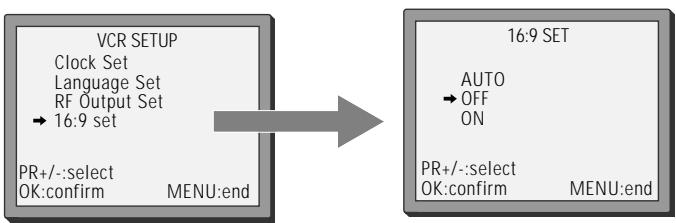
16:9 Set
- Auto : This VCR perceives the recorded program format (16:9 Wide Screen format & 4:3 normal TV-format) and plays the program with that format.
-ON : For recording and playing the program with 16:9 Wide Screen format - OFF : For recording and playing the program with 4:3 normal TV-format
If you watch a program which is recorded by 16:9 wide screen format with this VCR, your TV must have 16:9 wide screen function and you have to connect TV and VCR with the A/V scart.
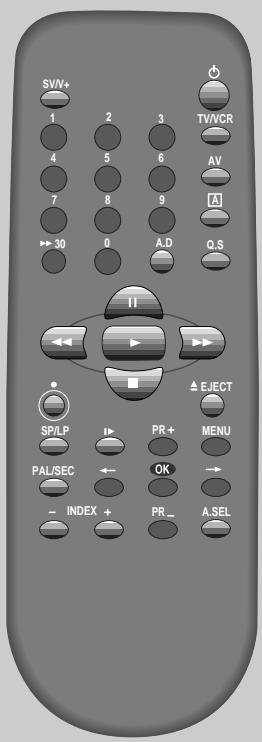
CM Skip

If you press [CM Skip] button on the remote control, tape advances for 30 seconds segment.
Setting time and date


2x

2x
CLOCK SET
Time - - - -
Date -/ -/ -
0-9:setup(hour)
/ :correct
MENU:end
Call the video's "MAIN MENU",
choose "VCR Setup", then "Clock Set".





CLOCK SET
Time 06:05
Date 08/04/2000(SAT)
0-9:setup(minute)
/ correct
OK: confirm
MENU:end
Move to the position you want to change and type in the new values.
Wait a few seconds after typing a one-digit number.


Store with OK button and exit with MENU button.
RECORDING
cassette

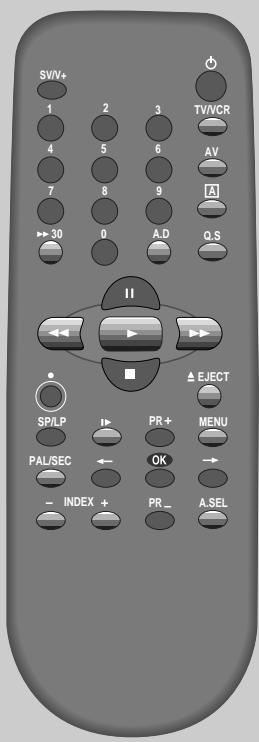
The TV stations on the video have been tuned in (page 5).
The video is switched on.
You can either watch the picture from the video on the TV by pressing the station button reserved for video input or the AV button, watch another TV station or switch off the TV altogether.
Simple recording
Load a cassette with its safety tab in place (see page 15).

1937


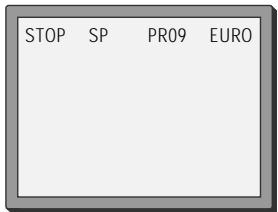
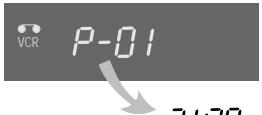
Choose the station whose programme you want to record.
If the programme you wish to record is very long, double the possible recording time with "LP" (Long Play).
Up to eight hours with an E-240 cassette.


Start your recording.


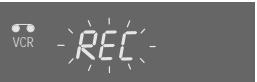
If you wish to interrupt recording briefly - then continue.
"REC" blinks during this period.
The video stops automatically, if pause exceeds five minutes.

Stop your recording.
21:30
One touch recording - OTR


Choose the station you want and press the button once for every 30 minutes of programme you wish to record.
Up to ten hours are possible.

If you want to record from a source connected to your video see page 20.
To cancel OTR press the button (stop) more than 5 seconds.
If the programme you are recording is not visible on the TV, press the TV/VCR button ("VCR" in the display).
Clock / Counter / Remaining time - page 14.
For timer recordings, clock, date, and stations must be set correctly.
Load a cassette with its safety tab in place (see page 15) and with sufficient free space for the recording.
RECORDING
c a s s e t t e s
Timer recording using ShowView





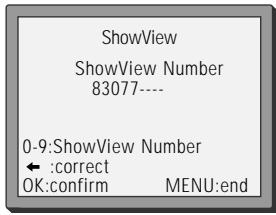
Call the ShowView menu.
From your TV magazine, type in the number next to the programme you want to record ...
... and confirm.

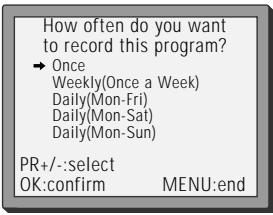
How often do you want to record this program?
Once
Weekly(Once a Week)
Daily(Mon-Fri)
Daily(Mon-Sat)
Daily(Mon-Sun)
PR+/select
OK: confirm
MENU:end
Decide if you want to record "Once", "Weekly" on "Daily"...
... and confirm.

TIMER PROGRAM (Once)
PR
t lime 21:20 T: 00:00
EndTim
t Date 08/04(SAT)
Tape Speed
/PDC ON
/ : 0
OK: confirm
MENU:end
If you wish to make changes:
Move to the position you want to change using the / buttons.
Change the setting using the / or number buttons. If all setting are ok, press ok, till you see "OK: confirm" in the bottom line.
Confirm.

2000
Switch your video off.

VPS/PDC is a service provided by some stations to enable you to perform timer recordings precisely even if the broadcaster delays the start time of the programme slightly. The time you enter is the VPS/PDC time so must be correct. Not all stations offer VPS/PDC, in which case the video will start at the time you enter and not the actual start time of the programme. If you wish to start recording at a specific time without it being adjusted by the VPS/PDC system in the event of a delay, switch VPS/PDC off otherwise the video will not record.
If you don't have the ShowView numbers see page 12 for the normal timer.
If you have made a mistake, move back to the relevant position with the button and change the setting.
If there is no programme location displayed under "PR" in the change menu, the video doesn't yet know the location number for the programme you want. Type it in and this will be stored for last recordings.
If you wish to record from a satellite receiver, select under "PR" the satellite programme location or AV (1/2) (depending on the connection with the antenna cable or the SCART-cable). Leave the satellite tuner switched on and to the programme you want.
Should programming overlap, you get a warning.
To cancel the recording press the button (stop) more than 5 seconds.
ShowView is a trademark applied for by Gemstar Development Corp.. The ShowView system is manufactured under license from Gemstar Development Corporation.
M O R E f u n c t i o n s

For timer recordings, clock, date, and stations must be set correctly.
Load a cassette with its safety tab in place (see page 15) and with sufficient free space for the recording.
Normal timer recording
MENU


2x


Call the video's "MAIN MENU", choose "Timer Program".
Decide if you want to record "Once", "Weekly" or "Daily"... and confirm.
Type in one after the other:
The programme location number;
the time the broadcast starts, the time the broadcast ends,
the day of the broadcast, if it is not today.
Select LP if you wish to make a very long recording.
Switch off VPS/PDC here if you need to (page 11).


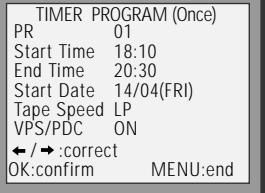
If you wish to make changes:
Move to the position you want to change using the / buttons.
Change the setting using the PR+/- or number buttons.
If all settings are ok, press or , till you see "OK: confirm" in the bottom line.
Confirm.
Switch your video off.

Wait a few seconds after typing a one-digit-number.
If you have made a mistake, move to the position you want to change using the / buttons and change the setting.
If programme timings overlap, the machine will give a warning message. If you don't adjust the times, the machine will record the first programme completely then continue with the second one.
If there is no sufficient free space for the recording on the cassette the video switches automatically to "LP" for double recording capacity.
The recorder will eject cassettes which have the safety tab removed (page15).
M O R E
f u n c t i o n s
Timer Review - changing and erasing
MENU

OK

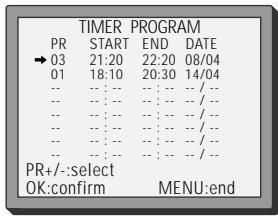
Call the video's "MAIN MENU", choose "Timer Program".
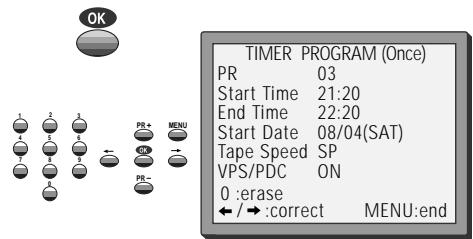
Select the programming to change or erase.
If you want to erase this programming press button 0, confirm with OK.
If you wish to make changes:
Move to the position you want to change using the / buttons.
Change the settings using the PR + / - or number buttons.
If all setting are ok, press or , till you see "OK: confirm" in the bottom line.
Confirm changes with OK. Exit the menus.


The counter counts in real time from the point you load the cassette. This does not have to be its beginning! The counter does not count unrecorded parts of the tape.
If you rewind beyond the zero position, the counter counts in negative values (e.g. -0:01:15).
Clock / counter display

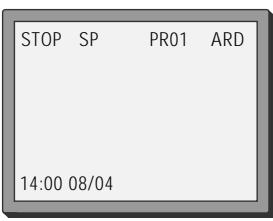
1x: Time and date+current status Time and date
2x: Counter+current status counter
3x: disappear
If didn't wind tape (PLAY, FF, REW,...), it doesn't appear the tape remain time.
Remaining time and cassette length
Call the video's "MAIN MENU", choose "Tape Control".
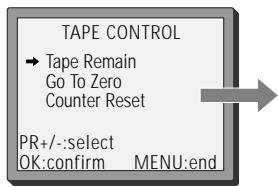

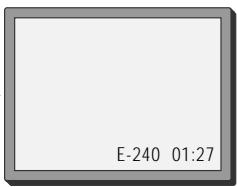
When you want the video to show the time remaining from the current video tape position (to find out if there is sufficient space for a recording, for example).
To ensure the remaining time shown is accurate, select the length of cassette currently loaded by selecting this function until you reach the correct length.
Remaining time display is only possible when the cassette is loaded.
Accessing counter zero position
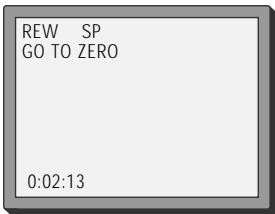
The video will wind to the position 0:00:00 and stop.
Resetting the counter to zero
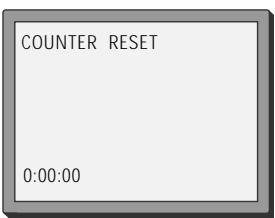
Reset the counter.
Menu languages
MENU


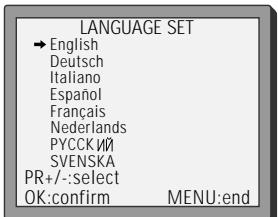
Call the video's "MAIN MENU", choose
"VCR Setup", then "Language Set".
Select your language.
Confirm.
Child lock

Press the button for about 5 seconds.
Your video can't be operated now, only timer recordings will be performed. Keep your remote control in a safe place.
To release child lock, press the button again for 5 seconds.
Cassettes

Use only good quality tape cassettes with the VHS logo.
Keep cassettes away from excessive moisture or dust, magnetic and electrical fields (loudspeakers and computer monitors, for example).
Always wind the tape to the beginning when you have finished. Store with the full spool at the bottom and with the cassette in its cover.
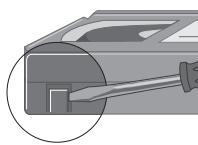
You can protect your precious recordings from being wiped by breaking out the safety tab on the side of the cassette (some cassettes have a slide).
Should you wish to re-use the tape after removing the tab, cover the hole with adhesive tape.
and ...
Dimmer
Your video recorder dims its display when switched to stand-by mode.
Auto power off
Your video recorder switches to stand-by when no tape is played and no station is received for more than 5 minutes.
Tuning in NEW STATIONS

- The TV and video recorder are switched on.
To see the picture from your video, press the station button on the TV reserved for video input or the AV (Audio / Video) button. - "AV1/2" should not be selected with the AV button on the video.
Tuning

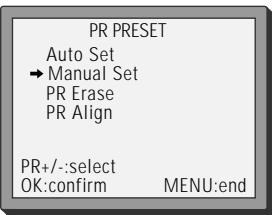
Call the video's "MAIN MENU", choose "PR Preset".

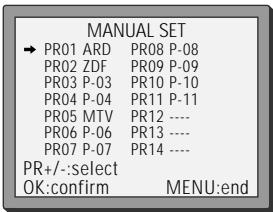
Select "Manual Set".

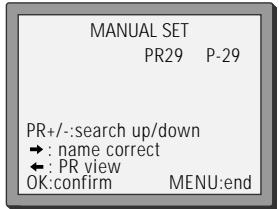
Choose any unused location number "----" or "P-xx" ... It's simplest to use the same location number on both the TV and video.

... and confirm.

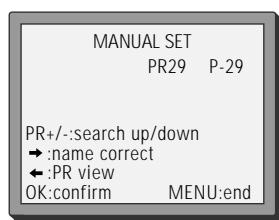
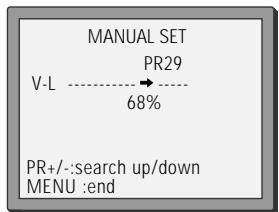
.Tune in the station you want.


Press button to see the picture.
If it isn't the station you want, or the picture is disturbed, carry on tuning. Once you see the station you want, store it.
Tune in further stations (from step 3 onwards) or exit tuning mode.
Tuning
NEW STATIONS
Station names
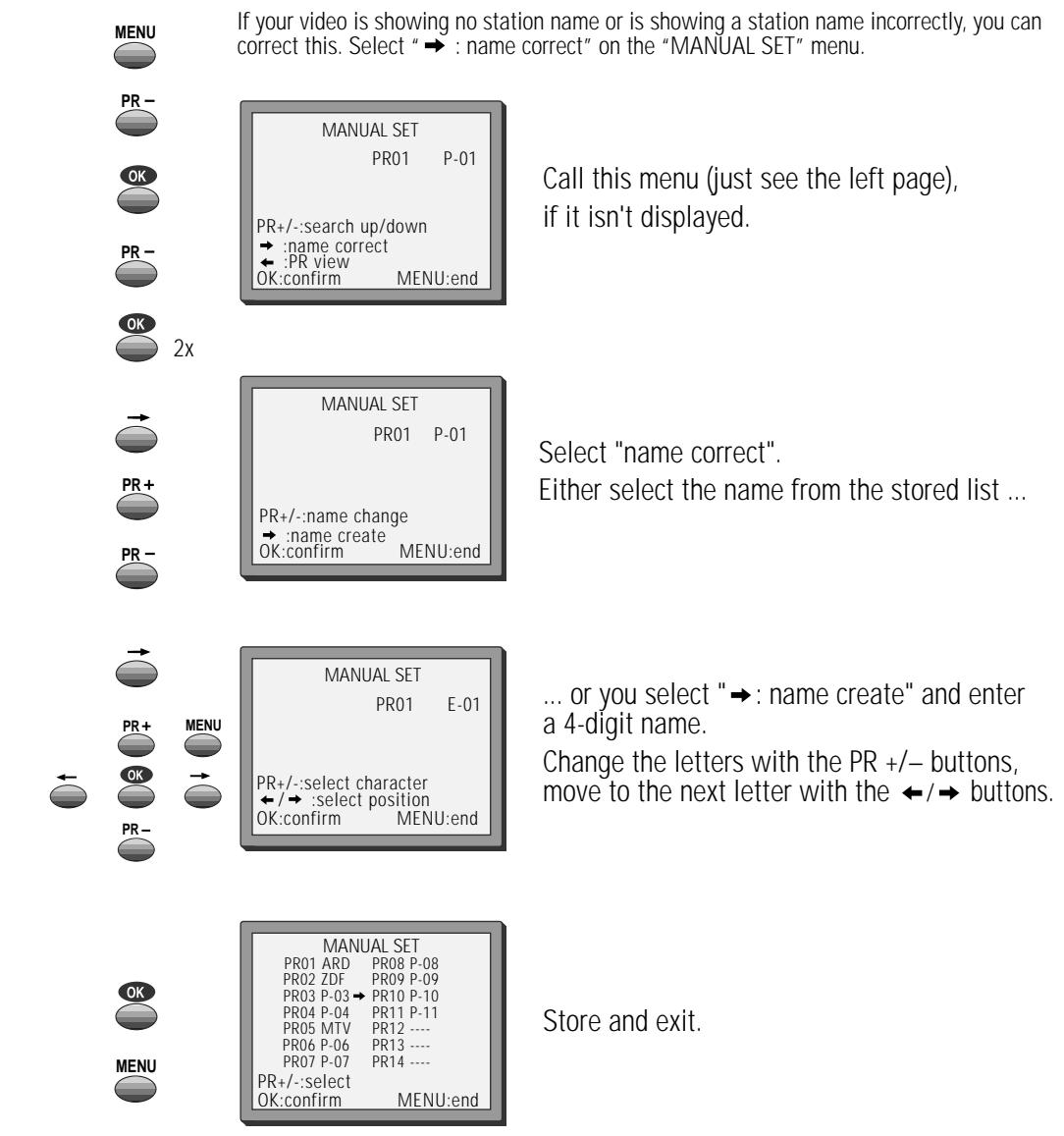

The video's automatic tuning system usually produces the best results. In poor reception areas, fine tuning may improve reception. Choose the station and tune using the / buttons. Store, typing in the location number again.
Should you wish to tune in all the channels available in your region, please refer to page 5.
Should you wish to sort or clear stations, please refer to page 18.
Tuning in NEW STATIONS

Sorting programme locations
MENU
PR-
OK
PR+
OK
PR+
PR-
OK
PR+
PR -
OK
MENU
If the location numbers used for programmes stored in your TV and video are different, you can change them on the video.
To do this, move the stations to the right numbers, until they are arranged the way you want.
Call the video's "MAIN MENU", choose "PR Preset" then "PR Align".
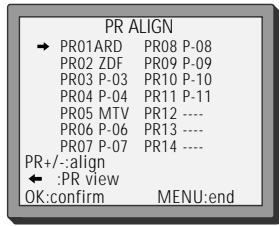
Select the programme to swap. Confirm.
Move the station to the desired location number.
Confirm.
Clearing programme locations
MENU
PR-
OK
PR+
2x
OK
PR+
PR-
OK
MENU
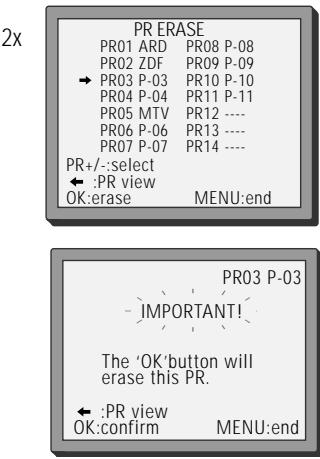
Call the video's "MAIN MENU", choose "PR Preset" then "PR Erase".
Select the station (location number) you want to clear.
Review the picture.
Clear.
CONNECTIONS
and copying
If you are using a SCART cable, select the AV input on the TV to see the picture from the video.
If you are not using a SCART cable, select the button number on the TV reserved for video input to see the picture from the video.
To the TV via antenna cable (if you are not using a SCART cable)
If you are not using a SCART cable, your video can transmit pictures and sound to the TV via the coax aerial cable. Just tune the TV to the video's transmitting channel (factory set to UHF CH 52). Tune the TV carefully to ensure the best pictures and sound.

5 Sec.
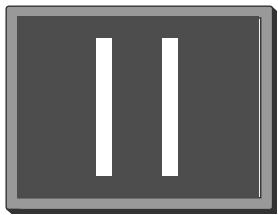
Once you have carried out the steps in "Connecting up the video recorder" (page 4), switch on your TV.
Press the OK button of the video's remote control longer than 5 seconds to call the video's test picture.
Tune the TV to the test picture using the channel pre-set functions of your TV as described in its manual.
When you have found the test picture, store it under the button number on your TV for video input.
Press the OK button of the video's remote control again longer than 5 seconds to release the test picture.


2x


2x

If the quality of the test picture transmitted to the TV is poor due to interference caused by a station transmitting on channel 52, you can tune the video to a different transmitting channel. Find a free channel between 21 and 69 on your TV.

MENU
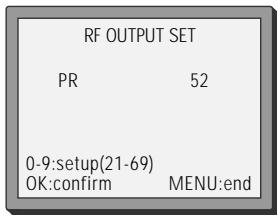
Call the video's "MAIN MENU" choose "VCR Setup" then "RF Output Set".
Type in the free channel.
Store and exit.

If the quality of the test picture transmitted to the TV is poor, fine-tuning on the TV may help (refer to the TV manual).
CONNECTIONS
and copying

Switch off all components when connecting or disconnecting cables.
Copying

To copy to your video from another video machine,
connect the two machines with a cable between their EURO AV (SCART) sockets and select as programme "AV" using the AV button.
Set the other video machine to playback and your machine to record.
To copy to another video machine from your video, connect the two machines by means of their EURO AV (SCART) sockets.
On the other video, select its AV input and set the machine to record.
Switch your video to play back at the position you want copying to start.

Assembling
Should you wish to assemble your own film, from camcorder footage for example, use the assembly technique for smooth edit points:


Move the tape to the position at which the new scene is to be added using the play functions (pages 6/7).

Wind back slightly before the edit point and put the machine into pause using the button (do not press STOP!).
Now go directly into record.


For the best results, the source cassette from which you are recording should already be playing back when you start recording.
BRIEF INSTRUCTION
f o r ` e x p e r i e n c e d ` u s e r s
Playing back
Your TV and your video recorder are switched on.
To see the picture from your video, press the station button on the TV reserved for video input or the AV (Audio/Video) button.

Start playback.

Stop playback.


Fast forward or rewind the cassette from stop.

Still picture from playback.
Each press of the button advances the picture one frame.
PLAY switches back to normal playback.


Starting from playback you can control search speed in 2 steps either forwards () or backwards () . Press repeatedly.
PLAY switches back to normal playback.

Starting from playback you can control slow motion speed in 6 steps (1/15, 1/10, 1/5, 1/30, 1/25, 1/20, 1/15, ...). Press repeatedly.
PLAY switches back to normal playback.

Select INDEX + or INDEX - to search forwards or backwards.
The video will now wind to the beginning of the first recording, play it for about 6 seconds then wind on to the next one.
When you see the recording you want, press PLAY.
Simple recording
- The TV stations on the video have been tuned in (page 5).
The video is switched on. - You can either watch the picture from the video on the TV by pressing the station button reserved for video input or the AV button, watch another TV station or switch off the TV altogether.
Load a cassette with its safety tab in place (see page 15).

Choose the station whose programme you want to record.

If the programme you wish to record is very long, double the possible recording time with "LP" (Long Play).

Up to eight hours with an E-240 cassette.

Start your recording.

If you wish to interrupt recording briefly – then continue.

Stop your recording.
One touch recording - OTR

Choose the station you want and press the button once for every 30 minutes of programme you wish to record.
Up to ten hours are possible.
BRIEF INSTRUCTION
f o r ` e x p e r i e n c e d ` u s e r s
Timer recording using ShowView
For timer recordings, clock, date, and stations must be set correctly.
Load a cassette with its safety tab in place (page 15) and with sufficient free space for the recording.
Normal timer
For timer recordings, clock, date, and stations must be set correctly.
Load a cassette with safety tab in place (page 15) and with sufficient free space for the recording.

Call the ShowView menu.
From your TV magazine, type in the number next to the programme you want to record
... and confirm.

Call the video's "MAIN MENU", choose "Timer Program".

2x


Decide if you want to record "Once", "Weekly" or "Daily"
... and confirm.


Decide if you want to record "Once", "Weekly" or "Daily"... and confirm.
Type in one after the other:
the programme location number.
the time the broadcast starts,
the time the broadcast ends,
the day of the broadcast, if it is not today.
select LP if you wish to make a very long recording.
switch off VPS/PDC here if you need to (page11).
If you wish to make changes: Move to the position you want to change using the / button. Change the setting using the +/- or number buttons.


If you wish to make changes: Move to the position you want to change using the / button. Change the setting using the +/- or number buttons.
If all setting are ok, press or , till you see "OK:confirm" in the last line.
Confirm.
Switch the video off.


If all setting are ok, press or , till you see "OK: confirm" in the last line.
Confirm.
Switch your video off.
APPENDIX
Before you ask a specialist
Mains supply
the video's display does not light the video doesn't work
Recording
doesn't start
the cassette starts playback or is ejected
Playback
no picture
poor picture quality
poor still picture
Remote control doesn't work
General
a cassette won't load
the cassette won't rewind, fast forward, play or record mode
timer is recording incorrectly
a loud noise when left in Stop mode
"ERR" occurs in the display
- The mains lead is not connected to the wall socket.
- condensation may have formed when moving the video recorder from a cold to a warm room. Wait until the video (and cassette!) reach room temperature.
Is a cassette loaded?
- the safety tab may be missing. Cover the hole with adhesive tape (page 15).
- Press TV/VCR button so that "VCR" appears on the video's display.
- Are the TV stations tuned in on the video (page 5)?
Is there a recording on the video tape?
- Use PR. -/+ buttons to adjust tracking if horizontal stripes appear.
Is the cassette of poor quality or worn out? Test with another cassette. - If you are not using a SCART cable, have you tuned the location for video input on the TV properly? pages 5/19.
-
Try a different cassette. The video head drum may need cleaning - ask your dealer.
-
Press 🏻 (pause) several times. Adjust with the PR +/- buttons until you get the best picture.
are the batteries run down?
- is the distance between remote control and video more than 7 meters?
- is there an object blocking the direct line between remote control and video?
- is there a cassette already loaded? If so, the video's display will indicate it.
- the cassette is already fully wound back or to the end.
- is the clock set correctly (page 9)?
- if no play or record function is used for about five minutes when left in Stop mode, the video switches its motor off to conserve the mechanism.
- Your video has detected abnormal conditions. Release this mode with any button, your video then safely switches to stand-by.
APPENDIX
Index
Aerial 4
Assembling recordings 20
Cassette length 14
Channel 5/16-19
Child lock 15
CMSkip 8
Condensation . . . . . . . . . . . . . . . . . . . . . . . . . . . . . . . . . . . . . . . . . . . . . . . . . . . . . . . . . . . . . . .
Counter 14
Euro AV 4/20
Fine-tuning 17
Location number 5/16-19
LP (Long Play) 10-12
Mains 4/24
Menu 3
OTR 10
PDC/VPS 11
Protected cassette 15
Remaining time 14
RF out 5/19
Satellite 11/20
SCART socket 4/20
ShowView 11
SP (Standard Play) 10-12
Stand-by . . . . . . . . . . . . . . . . . . . . . . . . . . . . . . . . . . . . . . . . . . . . . . . . Precautions
Station 5/16-19
Still frame adjustment 6
Test picture 19
TV/VCR button 6/10
Tracking 6
VPS/PDC 11
16:9 Set 8
Technical data
Dimensions
WxHxD 360x90x288mm
Weight 3.85 ~kg
Video
System VHS
Speeds SP/LP
Power supply
Voltage AC 230V 50 Hz
Power consumption 15 Watt
General
Temperature range 5 - 35^
Humidity range < 80 %
Timer 8 events, 1 month, VPS/PDC
System
Video PAL-B/G
channel range VHF 2-12, UHF 21-69
CATV S1 - S41, x, y, z (Hyperband)
channel locations 99 + AUX
RF Out UHF CH 21 - 69 (52)
Subject to technical alterations without notice.
VCR4350
Quick Start Guide

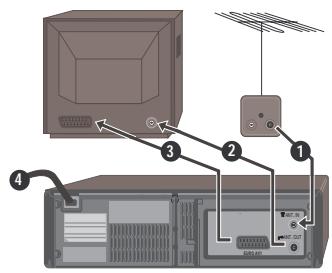
1 Unplug the aerial cable from your TV and plug it into the "ANT.IN" socket of the video.
2 Plug the short coaxial cable provided into the "ANT.OUT" socket of the video and the aerial socket of the TV.
Plug an EURO AV (SCART) cable into the "EURO AV" socket of the video and the AV socket on the TV if available.
Now plug in the main lead. The displayof the video should now light.
1,5V AAA
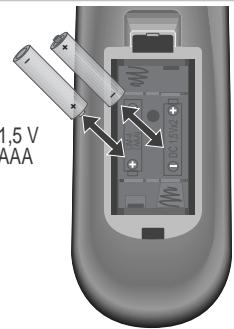
Fit the batteries as shown by the pictures in the bay.
Press any button to turn on the power.

LANGUAGE SET
English
Deutsch
Italiano
Italiano
Epanolol
Spanish Espanol
Francais
Nederlands
PYCCKM
SVENSKA
PR+/-:select
OK:confirm MENI:end
MENLI:end
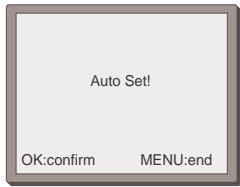


You should see this picture the first time you switch on the TV and video.
Choose your language.

OK for "Auto Set!".
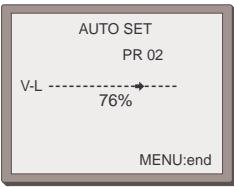
"AUTO SET" tunes in all the stations you can receive in your country and...
...sorts them in an order common for your country.
Clock is automatically set.
MANUAL SET
→PR01ARD PR08P-08
PRO2 ZDE PR09 P-09
PR03P-03 PR10P-10
PR03P-03PR16P-16 PR04R-04RR11R-11
PR04P-04 PR11P-11 PR05MTV PR12
PROSMTVFR12
PR06P-06 PR13
PR07 P-07 PR14 -
PR+/-:select
OK.confirm
MENU:end

Exit the basic installation function and enjoy your video recorder.
Instruction Manual Pages 4-5
