MODE D'EMPLOI GOPAL 5.0 MEDION
Software manual
GoPal Navigator Version 5

MEDION*GOPal
NAVIGATOR 5
Contents
CHAPTER 1: INTRODUCTION
Greeting. 1
Contents of CD/DVD 1
System requirements 3
Conventions in this manual 3
Tips and warnings. 4
Important information 4
Trademarks 5
Copyright and Warranty 5
CHAPTER 2: BASICS OF OPERATION 6
Operation in the menu view 6
Operation in the map view 8
CHAPTER 3: OPERATING THE GOPAL® NAVIGATION SOFTWARE. 9
Manually entering the address 10
Entering the country. 10
Entering the postcode or place name 10
Entering the street name 11
Entering the house number 11
Entering other destinations 12
Last locations 12
Points of interest 13
Favourites 14
Coordinates 16
Destination from map. 16
Calculating alternative routes 17
Starting route calculation 18
Route manager 18
Route planning. 18
Route information 20
Avoid route 22
Route simulation 23
Starting and displaying navigation 23
Other views 25
Compass display 25
Arrow view 26
Trip info 26
CHAPTER 4: OPERATION USING THE VOICE COMMAND FUNCTION 27
The voice command function in practice 28
Voice command function in the navigation menu 30
Destination entry using the voice command function 30
Selecting other destinations using the voice command function 31
Voice command function in the route manager 32
Route planning using the voice command function 32
Call up route information using the voice command function 32
Avoiding a route using the voice command function 33
Starting route simulation using the voice command function 33
Call up other applications using the voice command function 33
Adjusting the settings 33
Route options 33
Language settings 34
Device settings 34
Display 34
Program settings 35
Device settings 35
Configure special functions 35
Settings assistant 35
Voice command in the map view 35
CHAPTER 5: ADJUSTING THE SETTINGS 37
Specific settings for the navigation software 37
Adjusting the route options 38
Adjusting the Display 40
Adjusting the language settings 43
Adjusting the Program settings 44
Adjusting the device settings 46
Adjusting the special functions 48
Settings assistant 49
CHAPTER 6: MANUAL INSTALLATION AND START-UP 51
Initial operation 51
Reinstallation and updating the software 52
Transferring the map material and the POI data to the memory card 53
Transferring data to the internal memory of the navigation device 53
CHAPTER 7: INSTALLATION AND START-UP USING THE GOPAL® ASSISTANT
55
Installing the GoPal Assistant software 55
User interface of the GoPal Assistant 56
Setting the user language 57
Manual actions for data exchange 58
Actions using the Content Import Wizard 60
Management of GPS Tracks 60
Functions for device management 61
Changing the device name 62
Formattling the external memory card. 62
Shopping in the GoPal shop portal 63
Chapter 1: Introduction
Greeting
Welcome and thank you for choosing our mobile navigation system. While the instructions included with the device outline the basic operation of your navigation device and additional applications (MP3 Player, Picture Viewer etc.), this manual will cover the following topics:
- Operating the navigation software
- Adjusting the settings
- Installing the software and map material
- Operation using the voice command function (if available for your device)
Also, your navigation system's help function contains information about important operating steps and functions.
Your navigation device software is constantly undergoing development and can be kept current using updates that are either free or have an associated charge. The information contained in this manual refers exclusively to the scope of functions at the time your navigation system was delivered. In the event the software and/or hardware was subsequently changed and/or updated, the information printed here may vary from actual operating steps. In this case, please consult the support section of the Medion website (www.medion.de/downloads) for the current version of this manual, which will document any changes in operation. Please note that the manufacturer can accept no responsibility for loss or damage as a result of information or potentially incorrect information contained in this manual.
Contents of CD/DVD
The CD/DVD included contains all of the software packs necessary to operate your navigation system as well as installation files for additional applications which must either be installed on the memory of your navigation device or on your Windows PC. As soon as you insert the CD/DVD into the drive on your PC, a Setup Assistant automatically appears to help you with installation: Simply follow the instructions on the screen to automatically install the selected data.
If the installation assistant on the CD/DVD does not start automatically, you can also install the necessary data manually. The following information indicates which components are contained on the CD/DVD and which directory on the external memory card or on the flash memory of your navigation device to save them to in order to ensure smooth operation.
| Element | Description | Target folder |
| ActiveSync | This folder contains the installation data for the synchronisation software Microsoft ActiveSync®. This software synchronises your navigation device with a Windows PC. | This program must be installed to the Program Files directory on your PC (manually or using the Setup Assistant). |
| Adobe | This folder contains the installation data for Adobe Acrobat Reader®. This software enables you to open the digital PDF version of this manual on a Windows PC. | This program must be installed to the Program Files directory on your PC (manually or using the Setup Assistant). |
| APD | This folder contains data for the GoPal® Assistant. | This data is required only when installing the GoPal® Assistant on your PC and does not have to be manually copied. |
| Assistant | This folder contains the installation data for the GoPal® Assistant. | This data is required only when installing the GoPal® Assistant on your PC and does not have to be manually copied. |
| Installation | This folder contains the installation data for your navigation software. | These files must be installed (manually or using the GoPal® Assistant) in the directory My Flash Disk on the external memory card or in the My Flash Disk > INSTALL folder of your navigation system. |
| License Agreements | This folder contains the license information for using various services. | These files do not have to be copied. |
| Manuals | This folder contains the PDF versions of this manual in the respective language. | These files can be installed on your PC (manually or using the Setup Assistant) to the directory Programs>Medion GoPal Assistant>Manuals). |
| Map Regions | This folder contains the map data your navigation system needs for planning routes. | These files must be installed (manually or using the GoPal® Assistant) to the MapRegions directory on the external memory card or in the folderMy Flash Disk of your navigation device. |
| AUTORUN | This setup information/application ensures that the Setup Assistant, which helps you when installing the software components, is automatically started once the CD/DVD has been inserted. | This file does not need to be copied. |
| readme.txt | This text file contains important information about the contents of this CD/DVD and about the installation of various applications on the CD/DVD in the relevant language. | This file does not need to be copied. |
| Setup Assistant | Once the CD/DVD has been inserted, this application will start automatically and will help you install the software components. | This file does not need to be copied. |
Depending on the version and features of your navigation system, it is possible that some of the folders and files mentioned above are not contained on this CD/DVD or that the CD/DVD contains extra data. For more information about the data saved on the CD/DVD included, see theREADME file on the CD/DVD.
At the time of delivery various components, including the operating system and the navigation software, have already been pre-installed on your navigation device and/or the memory card included: That means that you can use your navigation system straightaway, without having to install anything else.
We do, however, recommend that you install additional applications like GoPal Assistant or Adobe Acrobat Reader to be able to take advantage of the corresponding functions. In addition, it may be necessary, due to a malfunction, for you to reinstall various software components for your navigation system after the fact. This procedure is described in Chapter 5: Manual installation and start-up and Chapter 6: Installation and start-up using the GoPal Assistant.
System requirements
Your mobile navigation system can be connected to a conventional Windows personal computer to install (after the fact) application data such as the navigation software, additional map material etc. Your PC must meet the following system requirements for smooth communication.
- Supported operating systems Windows 2000 from SP4, Windows XP & Vista™
- Hardware specifications of the current computer generation, minimum 128 RAM, min. one available USB 1.1 port
- Card-Reader for SD/MMC media recommended
- Necessary additional software: Microsoft ActiveSync (only Windows 2000/XP) for operation as mobile device with your PC, GoPal Assistant for automatic data transfer between navigation device and PC (as needed)

Tip
If you are working with the Microsoft Windows Vista™ operating system, you do not need the ActiveSync® communication software. The system files required for the data transfer are already integrated into your Vista™ operating system. Please connect your device to your PC using the USB cable supplied: Once your navigation device has been detected as a new device, the required drivers will be installed automatically. After it has been installed successfully, your new device is shown under Removable Devices on the Windows Explorer screen. If you have saved additional data to your navigation device, ensure that there is sufficient capacity available when transferring the data. If there is not enough space, remove unneeded files.
If your PC meets these requirements, you can connect your navigation device to an available USB port on your PC using the USB cable supplied to exchange data.
Conventions in this manual
The operation of your navigation system is directly based on the user guide in application software for a PC. That means that entries in the software can be visually displayed on the screen and executed from there. The operation itself is different: While functions on your PC are performed by clicking the mouse, you can operate your navigation device either by using the stylus supplied or by direct manual entry on the touch-sensitive screen of your navigation device. So, the following applies for the following descriptions:
- For entries that you perform with the mouse on your PC, we use the term "click"
- For entries using the stylus or a finger on the touchscreen of your navigation device, we use the term "type/tap".
At various points in this manual we refer to entries within a software application or to a path on your PC/memory card. In the following descriptions, these references are indicated as follows:
- Entries taken from the software (like buttons, menu items or labels for check boxes) are in bold.
- Specific functions and programs of your navigation system (e.g. MP3 Player etc.) or PC (e.g. Windows Explorer etc.) are italicised.
- Information about directories and paths (on the external SD card or on the flash memory of your navigation device) are italicised.
The information in this manual documents the operation of the navigation software, explains the graphic display on the screen of your navigation device and lists the available selection options for individual functions. So, the following applies for the following descriptions:
- Descriptions pertaining to executing a function are listed numerically, thus defining the order of the individual steps.
- Descriptions referring to various elements in a software window or similar, are also listed numerically, but in colour.
- Descriptions listing various equivalent options (as in this case), are indicated with bullet points.
Tips and warnings
At various places in this manual we give you practical tips or refer to circumstances which could disrupt the smooth running of your navigation system. These sections are indicated as follows in the following descriptions.

Tip
This symbol draws your attention to functions and features that speed up your work flow and facilitate the operation of your navigation system.

Note
This symbol indicates functions and features that are essential to the operation of your navigation system. Please obey all information to avoid malfunctions through operating error or incorrect entries.
The following contains important information regarding the operation of your navigation system. This information is repeated in the form of comments and tips at appropriate places in this manual.
- For safety reasons, entries may not be made by the driver whilst driving: Please make the necessary entries before beginning the journey.
- If you need to change your entries during the journey, stop your vehicle at a suitable point (parking spot etc.).
- Vehicle windscreens made of Thermoglas or metalised windscreens considerably limit the GPS reception. There is usually a special opening in this metallic coating, behind which the navigation device can be placed. If that is not the case, a commercially-available GPS antenna must be mounted outside the passenger cabin (e.g. on the roof of the vehicle).
- The instructions for the navigation system are recommendations only: Always pay attention to road traffic regulations.
- Please note that your navigation device must receive a valid GPS signal in order to calculate the route from the current position.
- Please note that your navigation device must be set to the local time zone to be able to calculate the correct time of arrival for future route calculations.
- You can also follow your current position on the map without entering a destination. If available, the name of the street you are currently on will be displayed
- Note that temporary local changes and/or restrictions to road traffic regulations (e. g. permitted maximum speed) cannot be accounted for in the route planning: Always obey signage and/or local traffic routing.
- Please note that the map material is current as of the time of delivery. However, the manufacturer cannot guarantee the information to be completely binding or that it corresponds to the road layout and/or signage.
Trademarks
All trademarks appearing in this manual and any brands or trademarks protected by third parties are subject without restriction to the conditions of the applicable trademark law and the right of ownership of the respective registered owners. All trademarks, trade names or company names used here are or can be trademarks or registered trademarks of their respective owners. All rights not expressly granted here are reserved.
The absence of an explicit name of the trademarks used in this manual does not mean that a name is free and clear of third party rights.
- Windows®, Windows XP®, Windows 2000®, Windows Vista™ and ActiveSync® are trademarks of the Microsoft Corporation.
- Acrobat® and Acrobat® Reader® are trademarks of Adobe® Systems Incorporated.
Copyright and Warranty
Copyright © 2009
Version 5
All rights reserved.
Any information in this manual may be changed without notice and in no way represents any obligation on the side of the manufacturer. The manufacturer accepts no responsibility for loss or damage as a result of information or potentially incorrect information contained in this manual.
We are grateful for any information regarding errors and for suggestions for improvement in order to offer you even more efficient products in the future.
This manual may not be reproduced, in whole or in part for any purpose and it may not be stored to an electronic medium or reproduced in any other form including electrically, optically, chemically, by photocopy or audio recording without the express, written consent of the manufacturer.
Chapter 2: Basics of operation
Your navigation device is ready to operate immediately: The navigation software and the map material included have been pre-installed on your device. However, in order to enter your own navigation destinations and user-specific settings, you must be familiar with the basic operating concept of your navigation system, which will be presented to you on the following pages. If you are already familiar with the operating concept, please go directly to Chapter 3: Operating the GoPal® navigation software.
Your navigation system features two operating modes: "menu view" and "map view".
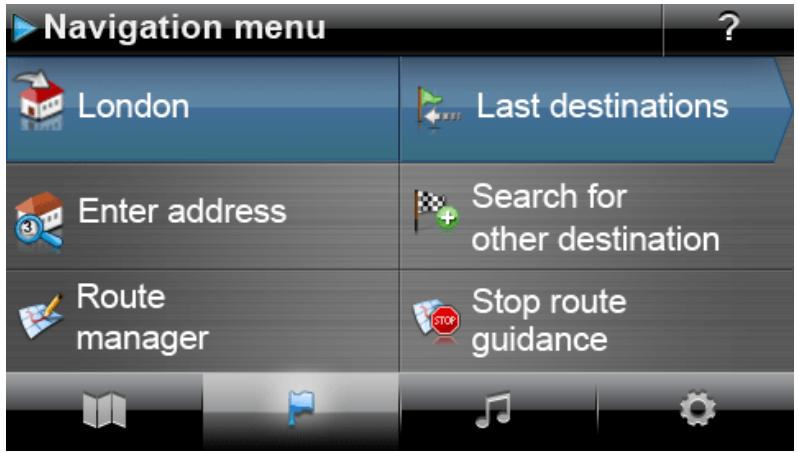
All of the software functions are organised in hierarchical menus which are called up by pressing the buttons on the touchscreen of your navigation device. Each button opens up the level underneath, which then provides access to other options relevant to this menu or function. If a button has not been assigned to another menu level, the function is performed directly.
For example:
...gives you acces to the sub-menus Buttons...
Within the menu levels you can use the available buttons to open up or exit other sub-menus to reach the appropriate main menu. Navigation within the menus is as follows:
- To open the desired menu and display the sub-menus contained within, tap the appropriate button.
- To close the sub-menu which is currently open and go to the appropriate main menu, tap the button.
- To go to another page within a menu level, tap the button.
Various screens require you to select from the available options in a list.
- To show hidden entries in the list, you can move the display area up or down using the or button. The current position in the list is displayed on the information bar between these buttons.
On various screens you can lower or raise a pre-set value.
- To lower or raise the currently displayed value, press the buttons l or l . The current value is displayed on the value scale between the two buttons.
On various screens you must choose whether a function or step is to be performed or cancelled.
- To perform a function or step, tap the button.
- To cancel a function or step, tap the × button.
Operation in the map view
Buttons and status are displayed in map view.
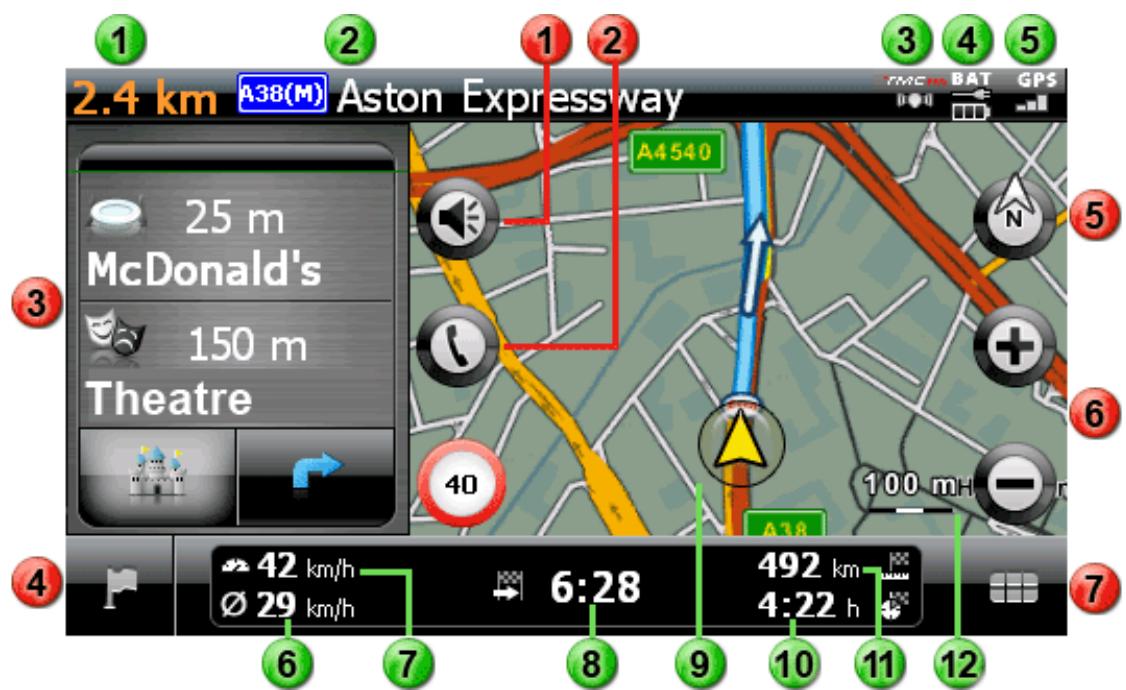
This button opens the settings window Volume: Adjust the volume of the voice, button click and MP3 Player output here.
This button is only available if your navigation system is equipped with a Bluetooth hands-free device (see device manual).
In split-screen mode, you may choose whether the arrow view is displayed or points of interest are available for direct selection.
This button takes you from the map view back to the navigation menu.
This button switches the map view between the options Map in direction of travel, North up and 3D map.
These buttons enlarge or make the displayed map sections smaller. If you tap one of the zoom buttons, you can use the button at any time to switch to Auto Zoom mode.
This button opens the Quick menu described in the Adjusting the Quick menu settings section.
Status displays
1 The distance to the next manoeuvre is displayed here.
The street you are currently on is displayed here.
3 The TMC reception quality is displayed here.
The charge status is displayed here.
5 The GPS reception quality is displayed here.
The average speed is displayed here.
The current speed is displayed here.
The estimated time of arrival at the destination is displayed here.
9 Your current position within the map section is displayed here.
The remaining travel time to the destination is displayed here.
The distance to the destination is displayed here.
The current scale on the map section is displayed here.
Chapter 3: Operating the GoPal® navigation software
This section covers the basic set-up and operation of your navigation software. The following description assumes that you are familiar with the basic operation of your navigation system and that you are working with the default settings as delivered. After start-up, your navigation system launches the settings assistant that guides you through all the important settings step by step. You can also accept the default settings, which you can change at any time in the Settings menu to meet your personal needs. If you have already adjusted certain settings to meet your personal needs, the description may differ from the content displayed on your system.

Tip
This manual only describes the operation of your navigation software. Information about operating the other functions on your navigation system can be found in the device manual.
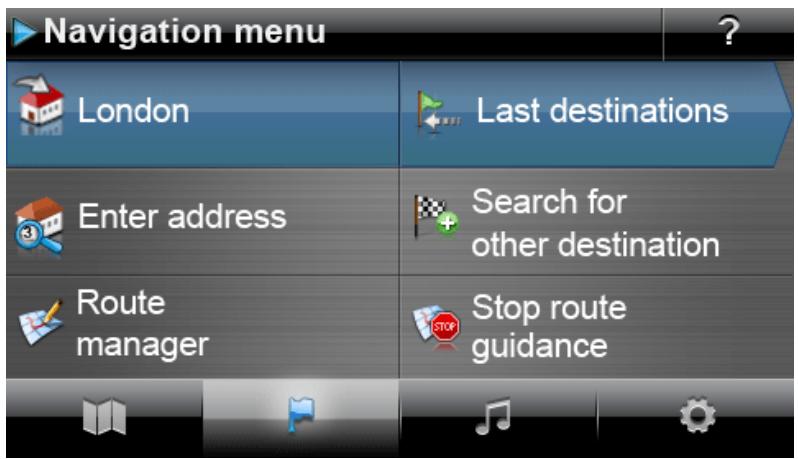
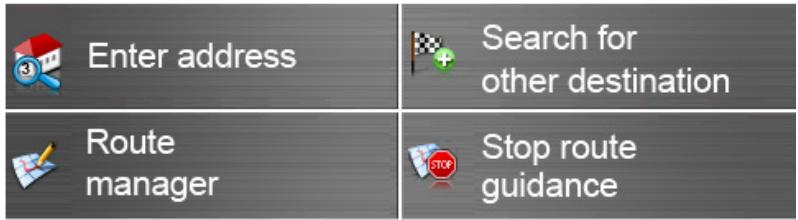
After selecting the Navigation menu, the following menus and functions are available for selection and for calculating the desired route(s):

Enter address

Search for other destination

Route manager

Stop route guidance
Enter a new destination here.
Here you can select the destination from the last towns entered, point of interest categories or your favourites. You can also define a destination using its coordinates or directly on the map.
Here you can show or edit various information about the current route or simulate it on the device.
Start the route calculation for the destination entered here.

Tip
If you have already entered one or more destinations into your navigation device, two buttons with the last entered destinations appear in the area above the menu keys. Using these buttons you can start the navigation to this destination directly.
Manually entering the address
After starting the navigation device, you can enter a destination to calculate a route from your current location to the desired position. With the basic settings, the route is calculated based on the default settings for the route options (see Adjusting the route options).
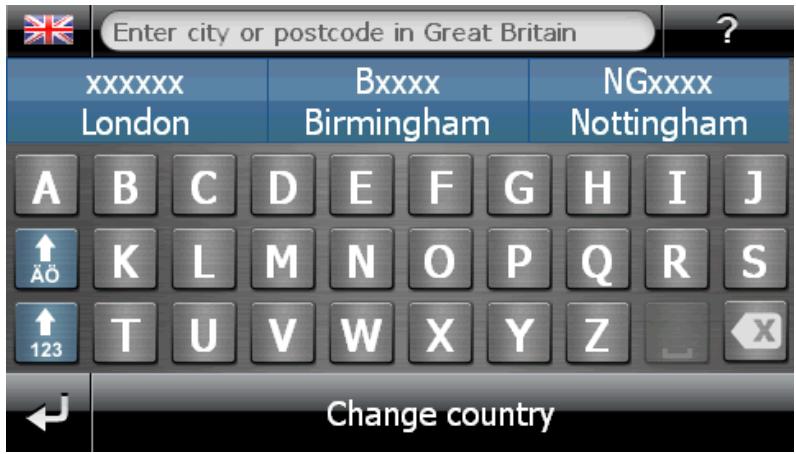
To enter destination information manually, tap the Enter address button in the navigation menu. The following screen then appears:

Tip
For safety reasons, entries may not be made by the driver whilst driving: Please make the necessary entries before beginning the journey.
Entering the country
In this menu, the preset country always corresponds to the language selected during installation. If you are planning on navigating to a foreign country, however, you can also select a different country. The only prerequisite is that the relevant map material is installed on your navigation system.
Proceed as follows to select another country:
- Tap the flag symbol in the upper-left corner of the screen or tap the Country button on the lower edge of the screen. A menu list of all of the countries whose map material is installed on the navigation system then opens.
- Tap on the desired country entry: The selection is accepted and the location entry screen appears again.

Note
With the help of the GoPal Assistant you can select which map material is saved on your navigation device. If necessary, you can install more map material on the external memory card or to the flash memory of your navigation device at any time. For further information, see Manual actions for data exchange.
Entering the postcode or place name
The destination can be selected either by entering the postcode or the place name: The entry of the postcode is automatically transferred to the place and vice versa.
Proceed as follows to enter the destination using its name or its postcode:
When entering the town or the postcode, the keyboard is automatically adapted and only the buttons permitted for entering the next character are available: All buttons that are not permitted are greyed out and cannot be tapped. You can undo any number or character entry with the × button.
After entering the first character, three buttons appear in the area between the name field on the upper edge and the keyboard:
- The first two buttons provide possible destinations for selection in accordance with the entries made so far. This preselection is readjusted after each entry. As soon as one of the preselections corresponds to your desired destination, you can select it directly by tapping the relevant button.
- You can use the third button More hits to open a list of all of the available preselection destinations in a separate window. For better orientation, you are shown the available preselection destinations on an overview map. Using the Hide map button, the map display closes. You can open it again with the Show map button.
Browse through the list using the and buttons and tap the desired entry: The selection is accepted.
If you do not want to make a selection or if you want to refine your entry, return to the character entry screen using the button.
After selecting the destination, the screen to enter the street name automatically pops up.
Entering the street name
On this screen you can either enter a specific street name, have the navigation go to the town centre or select a specific point of interest.
Proceed as follows to enter the street name:
- Type the first character on the screen keyboard: The keyboard is automatically adjusted and displays only those buttons/ characters with which a street name in the selected destination begins. All other buttons with which no street name begins in this place are greyed out and cannot be used.
- Continue entering until the desired street name has been entered. As soon as the desired street name appears on one of the two buttons for preselection, tap it to select the street directly. Alternatively, you can use the third button, All hits, to open a list of all available preselection destinations in a separate window. Browse through the list using the 和 and 和 buttons and tap the desired entry: The selection is accepted. If you do not want to make a selection, return to the character entry screen with the 和 button.
After selecting the street, the screen to enter the house number automatically pops up.
Instead of entering the street name manually, the two buttons between the name field on the top edge and the keyboard provide the following options:
- The Centre 'destination' button starts navigation towards the destination defined in the map material as the centre point for this town. This town centre point is displayed on an overview map on the Detailed information screen. Here you can store the destination as a favourite, show the route options, add another destination or start navigation. The following pages contain more information on this subject.
- The Points of interest button opens a list for you to select a point of interest at the destination selected. The following pages contain more information on this subject.
Entering the house number
The screen to enter the house number opens automatically after you have selected the street name at the destination using one of the buttons for preselection or the list view (More hits). The
following options are now available on this screen:
- Enter the house number manually: as soon as the desired house number appears on one of the two buttons for preselection, select it directly. Alternatively, you can use the third button All hits to open a list of all of the available house numbers in a separate window. Browse through the list using the + and + buttons and tap the desired entry: The selection is accepted. If you do not want to make a selection, return to the character entry screen with the + button.
- The Middle of the road button guides the navigation to the destination defined in the map material as the mid-point for this street.
- The Crossroads button allows you to enter the name of a side street that intersects the street originally entered: The destination is then assigned to these crossroads. Type the name of the side street on the keyboard: As soon as the desired street name appears on one of the two buttons for preselection, tap it to select the street directly. Alternatively, you can use the third button All hits to open a list of all of the available house numbers in a separate window. Browse the list using the buttons l & & and l & & and tap the desired entry: The selection is accepted and the selection list closes. If you do not want to make a selection, return to the character entry screen with the l & & button.
After you have made your selection, destination input is complete: The destination is displayed on the Detailed information screen on an overview map and indicated as an address. On this screen you can store this destination as a favourite, show the route options, add another destination or start navigation. The following pages contain more information on this subject.
Entering other destinations
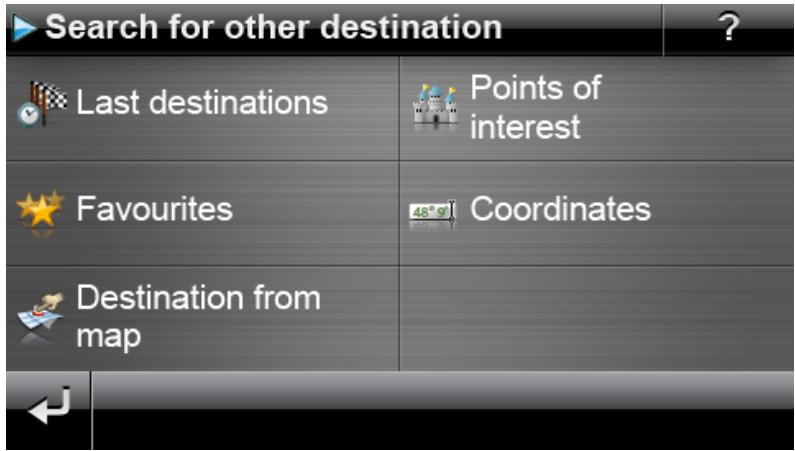
As an alternative to entering the town/street/house number manually, you can also enter or select your destination using other criteria. Tap the Search for other destination button in the navigation menu to do so.
Last locations
Your navigation device saves the last destinations entered in the Last locations list, which is accessed by the button of the same name. This lets you re-select these destinations without having to enter the destination information. Browse through the respective list using the and buttons and tap the desired entry: the destination is displayed on an overview map on the Detailed information screen. This screen allows you to add another destination, open and change the route options for navigation or start navigation. The following pages contain more information on this subject.

Tip
You can delete destinations you no longer need from the list using the relevant button. If you want to delete all last locations, tap the Delete all button on the lower edge of the screen.
Points of interest
The Points of interest button on the Enter new destination menu lets you use special points of interest, the POI data (points of interest) saved to the map material, for destination calculation. Using Other options in this menu, you can then determine in which category the desired point of interest should be searched for.

Note
The inclusion of POI data in delivery depends on the type of device as well as on the version of your navigation system: For this reason there may only be selected categories available in your navigation system.
Point of interest categories
The following options are available in the selection list for point of interest categories:
- The All points of interest button opens a window for you to select all available points of interest. Tap the Display all points of interest button to show all points of interest in a list.
Alternatively, you can enter the name or category (e.g. HOTEL) of the desired point of interest using the alphanumeric keyboard. Now tap the Display selection button to show a list of all points of interest meeting the criteria entered.
- Alternatively, you can select a particular point of interest category via the list (e. g. AUTO & TRAFFIC). After selecting the category onscreen, the navigation software opens an additional list within this category that lets you narrow your initial selection (e. g. AUTO & TRAFFIC > airports, harbours, train stations, car rental, etc.). Browse through the list using the and buttons and tap the desired entry: The selection is accepted.
The Display all 'points of interest' button shows a list of all available points of interest in this category.
You can also manually enter the name of the point of interest you are looking for using the keyboard. Following the first entry, use the Display selection entry to open a list containing all of the points of interest from the selected category, which correspond to your entry thus far.
Selecting Points of interest
Proceed as follows to select a point of interest:
- Tap the Points of interest button in the Enter new destination menu. A menu list containing all of the POI categories available to your navigation system then appears.
- Browse through the list using the and buttons and tap the desired category: The Where do you want to search? screen then appears.
-
Use the buttons to choose from the following options:
-
Tap on the At a certain place button, to enter a new destination. This process is described in the Manually entering the address section.
○ Tap the button Nearby to select a POI near your current position.
-
Tap the button Along the Route to show a list containing all destinations in direct proximity to the continued course of the current route.
o Tap the button At destination to select a POI at the currently selected destination.
-
Depending on the option selected, you can open a list containing all points of interest that correspond to the criteria selected using the Display all 'points of interest categories' button. Browse through the list using the and buttons and tap the desired entry: The selection is accepted. If you do not want to make a selection, return to the character entry screen with the button.
The desired special destination is now displayed on the Detailed information screen on an overview map together with the complete address and telephone number (if stored). This screen allows you to add another destination, open and change the route options for navigation, call the destination or start navigation.

Tip
You can also select points of interest directly when entering a new destination. In this case, the point of interest selection refers only to the destination entered. Weitere Informationen dazu erhalten Sie im Abschnitt Manually entering the address section.
Favourites
You can save frequent destinations to the memory of your navigation device using the Favourites button. Later on, you can call up these favourites directly, so manually entering this destination is no longer necessary.
Creating a favourite
When you use your navigation device for the first time (or after initialisation) there are no favourites saved to the device. Proceed as follows to create a new favourite:
- Tap the Favourites button in the Neues Ziel eingeben menu. The Favourites menu screen appears.
-
Touch the New favourite button on the lower edge of the screen: The New favourite screen is then opened, where you can select from the following options:
-
If you have already entered several destinations, you can select the last destination entered directly via the button at the top. If other recent destinations are available for selection, open a list of these destinations using the Last locations button. If you tap on one of the destinations, the selected destination is shown on the Detailed information screen. Close the entry on the Detailed information screen using the button.
-
Tap the Enter new destination button to enter the destination/favourite manually using the input menus for Country, Town/Postcode, Street and House Number. This process is described in the Manually entering the address section.
○ Tap the button Points of interest to select a destination/favourite from amongst the desired point of interest category. This process is described in the Points of interest section.
o Tap the Current position button, to store your current location as a favourite.
-
After selection/entry the screen for naming favourites appears.
- Enter the name for the favourites using the onscreen keyboard and close the input field with the button.
Calling up a favourite
After you have created one or more favourites, you can call it/them up directly from the Favourites menu. Proceed as follows:
- Tap the button Favourites. A selection list of the favourites you have created appears.
-
Browse through the respective list using the and buttons and tap the desired entry: the destination is displayed on an overview map on the Detailed information screen.
-
Close the input field using the button: Route calculation then starts for this destination.
Deleting all favourites
If you want to delete all favourites currently saved on your navigation device, tap the Delete all favours button on the lower edge of the screen: all entries in the favourites list are then deleted.
Editing favourites
You can edit individual favourites in the list in the Favourites menu as needed. Rename the favourite, assign it a symbol, save it as the home address or delete the entry.
- To edit a favourite, tap on the respective button in the list view. The Edit favourites screen then opens.
Proceed as follows to rename a selected favourite:
- Tap the button Name. The screen to enter names for the favourites appears again.
- Delete the current name as needed using the button.
- Enter the name for the favourites using the onscreen keyboard and close the input field with the button.
The changed favourite name is now accepted for display in the Edit favourite screen and the favourites list.
Proceed as follows to assign the selected favourite a new symbol:
- Tap the button Symbol. The Select symbol screen then appears.
- Browse the list using the buttons and and tap the desired entry: The selection is accepted and the selection list closes.
The changed symbol is now accepted for display in the Edit favourite screen and the favourites list.
Using the As home address button on the lower edge, you can save the selected favourite as "home address": in future you can directly select the home address as the destination via the first preselection button in the navigation menu. This way, you can select an often-used destination (such as your home or work address) directly without having to enter another destination.
- Tap on the As home address button on the lower edge of the screen. The entry is then assigned the symbol.
- This entry is now used as the first preselection button in the navigation menu and is available as the first option in the Favourites menu.

Note
If defined, the home address is always available via the first preselection button in the navigation menu, so it is not available in the Last locations selection list, which is opened using the button of the same name in the navigation menu.
The home address is always assigned to your favourites and is therefore always the first option in the Favourites menu. If you touch the Delete all button in the Favourites menu, the home address is also deleted and will have to be re-entered if necessary.
Please be aware: When setting new favourites, you cannot save these under the same name as the home address.
In addition, the Edit favourites menu gives you the option of deleting the selected favourite. Tap on the Delete button on the lower edge of the screen. The entry is deleted from the list.

Tip
Please note: Deleted favourites cannot be restored. Only use the delete function when you no longer need the favourites. Otherwise you will have to enter the favourites again.
Coordinates
You can enter the destination using its longitude and latitude coordinates in the appropriate sub-. menu.
Proceed as follows to enter the coordinates manually:
- Using the numerical keyboard, enter the desired latitude in degrees using decimals: to divide the numbers enter a comma (for example: 49,36 is interpreted as a latitude of 49^21' 36"). Close the input field using the button: The next screen will ask you to enter the longitude including decimals.

Tip
The degree notation button on the lower edge of the screen allows you to alternatively enter the coordinates in degrees: On the appropriate screen, enter the desired position in corresponding fields for degrees, arc minutes and arc seconds. You can also use the N < >S (for latitude) or E < >W (for longitude) button in the upper left corner of the screen to toggle between an equator or prime meridian point of reference.
- Use the numbers on the keyboard to enter the desired longitude: Depending on what you choose when entering the latitude, it can also be written either in decimals or degrees. Close the input field using the button:
Coordinate input is now complete: The destination is displayed on the Detailed information screen on an overview map along with the latitude and longitude. This screen allows you to add another destination, open and change the route options for navigation or start navigation. The following pages contain more information on this subject.
Destination from map
In the map view it is possible to manually enter a destination on the map. This way, you define the destination directly without the destination or coordinate entry described in the previous chapters.
Proceed as follows to enter the destination in the map view:
- Tap on the desired position within the map section displayed. If required, first zoom to the desired scale on the map section.
- The position you tapped is indicated on the map with this symbol . On the upper edge of the screen, the navigation system suggests a destination that corresponds with this position.
If an unambiguous destination (e. g. a point of interest) can be determined, the address is displayed in the header.
- If multiple unambiguous destinations can be determined, the number of suggested destinations is displayed as is the position of the displayed destination among these options (for example: 3/12 means destination 3 out of 12 available destinations). Browse through the list containing the available destinations using the and buttons on the lower edge of the screen.
If no unambiguous destination can be determined, the coordinates are displayed in the header.
- Tap on the button Detailed information to display the current destination on the Detailed information screen on an overview map: If address data are stored or available for this destinia
tion they are displayed. Using the buttons on the lower edge of the screen, you can add the current destination as a favourite and start the route calculation.
- Tap on the button on the lower edge of the screen to start route calculation for this destination.
Calculating alternative routes
Navigation is calculated based on the route options saved in your device settings (see the Specific settings for the navigation software section). The calculated route is set as the standard navigation accordingly and is available for selection on the left side of the screen using the S button: next to the distance to destination and calculated travel time, you also have an i button available to view current information about your navigation. The following destination information is displayed:
O Route distance
Estimated travel time
Estimated time of arrival
O Route distance via motorways
o Route distance via toll roads
O Route distance via ferries
Traffic flow-optimised navigation (yes/no)
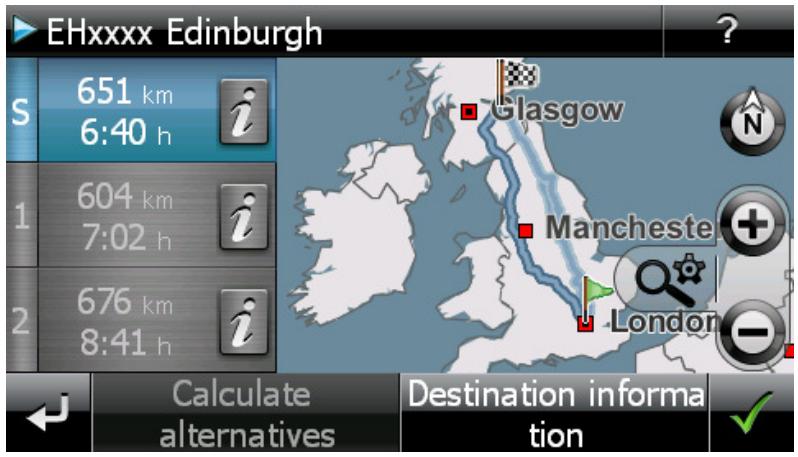
Using the Calculate alternatives button on the lower edge of the screen, you can have two alternative navigations calculated so you can plan your route more precisely. Deviating from the current route options, the navigation device may calculate a shorter or faster navigation. Über die Schaltfläche 1 und 2 erhalten Sie eine direkte Information über die Streckenlänge sowie die voraussichtliche Fahrzeit. Using the i button, you can show the destination information.
If needed, you can change the route options for the standard and both alternative routes. Proceed as follows:
- Tap the i button for the desired route (standard, alternative 1 or 2).
- Tap the Route options button on the lower edge of the screen.
- Change the route options for the selected route as needed (see the Specific settings for the navigation software section).
- Tap the button to return to the destination information.
- Tap the button again.
Route distance and travel time information will be updated and can thus be compared with the information of the other two routes.
Using the destination information button on the lower edge of the screen, you can show the selected destination in the Destination information window: the address entered will be displayed next to the overview map. Using the Location as favourite button, you can save the destination as a personal favourite to the memory of your navigation device. This process is described in the Favourites section.
Starting route calculation
After entering and selecting the destination, the Detailed information screen will appear. You will be given the following information about your selected destination:
- The selected destination is displayed on an overview map for quick orientation. If you tap on the overview map, the map view is opened. Using the Zoom buttons and the compass, you can zoom in/out on your map section as needed and also switch to 2D or 3D view. Use the button to return to the detailed information.
- The address entered will be displayed next to the overview map. If you have defined the destination using coordinates, these will appear.
- If a telephone number was saved to this point of interest and the telephone feature is available on your navigation device, you can call the point of interest using the Call now button.
The following options are also available in the footer of this window:
- Using the Location as favourite button, you can save the destination as a personal favourite to the memory of your navigation device. This process is described in the Favourites section.
- Using the Other destination button, you can extend navigation to include one or more additional destinations. This process is described in the Editing the entries in the route list section.
- Using the Route options button, you can adjust various parameters for navigation. This process is described in the Adjusting the route options section.
- Using the button, you start the calculation for navigation. Here you have other available options that are described in the next section.
Route manager
Using the Route manager button in the Navigation menu, you have the option to plan and simulate routes in advance, request current route information or redirect navigation by manually blocking route sections.
Route planning
Using the Route planning you can plan your route in advance or change and/or optimise a route already planned. In addition, this menu allows you to save frequently used tours and load them at a later time.

Tip
If you need to change your entries during the journey, stop your vehicle at a suitable point (parking spot etc.).
Entering the start position
There are no places saved on your navigation device when it comes from the factory that can be used as a start position for a new route.
Proceed as follows to create a starting point for the route:
- Tap on the list entry Last known position on the menu screen Change route: The menu New destination opens.
- Enter a new destination: this process is described in Chapter 3: Operating the GoPal® navigation software. Close the entry on the Detailed information screen using the button.
The destination entered will now be used as the starting position for the tour and is displayed as the top entry in the list in the Change route menu.
Adding a destination
Using the Add destination button on the lower edge of the screen, you can enter more route destinations. Entering an additional destination is identical to entering your starting position (see above). Once it is entered, the new destination is displayed as the next destination in the list in the Change route menu. Repeat this process to enter more destinations which will then be inserted into the list in the order they are entered. If you have created more than four destinations, you can browse through the list using the and buttons.
When you tap a destination in the list, it is displayed on the Detailed information screen on an overview map along with the stored address data or coordinates. Use the button to return to the Change route menu.
Editing the entries in the route list
You can delete the entries in the route list at any time as required or change the order of the entries in the list to alter the course of the route.
Proceed as follows to delete an entry from the list:
- Tap the button for the respective destination: The entry is deleted from the list. Unless the entry was the final destination on the route, all subsequent destinations move one position forward.

Note
Deleted destination entries cannot be restored. If required, you must enter the destination again.
Proceed as follows to edit the order of the entries in the list and thus also the tour order:
- Tap the button or for the respective destination: The entry in the list is moved one position up or down and the resulting route is diverted accordingly.
Optimising the route
The Optimise route button allows you to check the current route and adjust the navigation to be as efficient as possible: In so doing, your navigation device assumes that the starting point and ending point of your tour are the same. As a result, the order of the destinations is adjusted to calculate the shortest possible route overall.

Tip
Note that optimisation only takes place if the route comprises more than two destinations, not including the starting/end point. In addition, your navigation system assumes a direct connection as the crow flies for optimisation. The actual optimal routing may deviate from this theoretically optimised navigation and is only a suggestion.
Saving and loading a tour
If you frequently need the navigation for a given route, you can save this route on your navigation system and load it at a later point in time. Proceed as follows to save the current route planning:
- Tap the Load/Save button. The Edit route screen then opens.
- Tap the Save current route button on the lower edge of the screen. The screen to enter route names then appears.
- Enter the name using the onscreen keyboard and close the input field with the button.
After it has been entered, the entry for this route is displayed in the list on the Load and save route screen. Proceed as follows to load an entry from the list at any point in time:
- Tap the Load/Save button. The Load and save route screen then opens.
- Tap an entry in the list: A screen with a map display as well as information about this tour then appears.
- To start navigation for this tour, tap the button. If you do not want to make a selection, return to the Load and save route screen with the button.
If you no longer need a saved tour, tap the appropriate button × : The entry is deleted from the list.
Changing a planned route
If needed, you can also change the route at a later date. Proceed as follows:
- Tap the Load/Save button. The Load and save route screen then opens.
- Tap an entry in the list: A screen with a map display as well as information about this tour then appears.
- Use the buttons to choose from the following options:
The button takes you back to the Load and save routescreen without any changes.
The Edit button opens the Route planning screen again: All of the functions described previously are available to you at this point (Add destination, Change order, Delete destinations etc.).
The Rename button opens up the screen for name input again: Change the name and confirm the entry with the button. The changed name appears in the list on the Load and save route screen.
The Delete button removes this route from your navigation system. This process cannot be undone.
Use the button to start navigation for this tour.
In the Route information menu, you have the option to call up important information about your planned route.
Directions
Once you have started navigation for a route (new destination or saved route), the Directions button is available. The directions tell you which roads to use to reach your destination. All route information, along with the distance, is shown in a list on the Directions screen, serving as a preview of the planned manoeuvre. If the planned route cannot be displayed on a single screen, you can browse through the list using the and buttons.
Border crossings into other countries are marked for better orientation.
When you wish to exit the directions screen, use the button to return to the selection menu for route information.
Traffic conditions
This function enables you to display current traffic information received by your navigation system in a list and call up specific pieces of information. Proceed as follows to configure reception of traffic information:
- Tap the button Traffic information. The Traffic situation screen then appears.
- Tap on the Settings button in the lower portion of the screen: The menu TMC settings is then opened in the Program settings of your navigation system.
- Adjust the reception of the TMC services as needed: This process is described in the Adjusting the Program settings section.

Note
The TMC reception status is displayed using the indicator in the map view as well as on the Traffic situation screen. If reception is disrupted, your navigation system is unable to receive traffic reports.
After configuring the TMC station settings, you can take advantage of the available traffic information services. Proceed as follows to show current information about traffic conditions:
- Tap the button Traffic information. The Traffic situation screen then appears. The appropriate list then displays the traffic reports affecting your route: These entries are labelled with red traffic signs (e.g. ). The order of the entries depends on the distance from your location. The lower part of the list also displays results not on your route: These entries are labelled with grey symbols (e.g. ) and are in alphabetical order.
You can browse through the list of traffic reports using the and buttons.
- Tap the desired entry in the list to display the traffic report in the detailed view: The route, the route section, the type and length of the traffic disruption are described in the text of the traffic report. If the traffic disruption will influence your travel time, (traffic jam, stagnant traffic), the estimated loss of travel time is also displayed
If no alternate route can be calculated, the warning symbol on the map disappears but you can select the traffic disruption relevant to your route from the list view once again and then have an alternate route calculated in the traffic warning view.
- Tap the Show locationbutton to display the position of the traffic disturbance on the map view: You can zoom in on the section as needed. If you would like to leave the map view, tap the button:
- If the traffic disturbance is located on your current route, you can use the Alternative route button to have a detour around the traffic disturbance calculated: This option is only available if the option By Pass: Automatic is not active in the route options. Otherwise the alternate route is calculated automatically and navigation is diverted accordingly.
If no alternate route can be calculated, the warning symbol on the map disappears but you can select the traffic disruption relevant to your route from the list view once again and then have an alternate route calculated in the traffic warning view.
When you wish to exit the Traffic situation screen, use the button to return to the selection menu for route information.
Overview
Use the Overview button to show the calculated route from the location/startling point to the destination. The current location is indicated with the symbol, the destination(s) are labelled with the symbol: If you have planned several destinations, they are numbered. The calculated route between the location/startling point and the destination(s) is shown in blue. Using the Start navigation button, you can trigger navigation from this window directly.
Current position
Using the Current position Using the Current position button, you can show your current location on the map view: the symbol marks the current location. Using the Start navigation button, you can trigger navigation from this window directly.
Starting point
Using the Starting point button, you can show the starting point on the map view. The planned route is displayed in blue and leads out of the current map section. Using the Start navigation button, you can trigger navigation from this window directly.
Destination area
Use the Destination area button to show the next destination on the map view. The planned route is displayed in blue and goes into the current map section. Using the Start navigation button, you can trigger navigation from this window directly.
Avoid route
Under certain circumstances, traffic disturbances may occur on the planned routes which were unknown at the time the route was planned and thus were not taken into account during calculation. In this case, you can manually block off a section of the route to come after your current position in order to calculate an alternate route for the selected distance and to avoid the traffic disturbance in this way. Proceed as follows to avoid a section of the route:
- Tap the Avoid route button: The Length of avoided route screen then opens.
- Select the desired distance from the list: If the desired distance is not available in the current section of list, you can browse through the list using the and buttons. Choose from the following options: 100 / 500m , 1 / 2 / 5 / 10 / 15 / 25km .
- Once the distance has been selected, the Start of avoided route screen opens. Here you can choose at what distance (from your current position) the route should be avoided. In addition to the current position (entry: Immediately) the following options are available: 100/500 m, 1/2/5/10/15 km
Once the length has been selected, your navigation system calculates an alternative route and switches automatically to the map view. Navigation is updated and rerouted. The symbol in the map view marks the point from which the route is to be avoided. The diverted route is marked red on the map view. At the end of the detour your navigation system switches back to the planned route and continues navigation.
Proceed as follows to remove the blocks on sections of roads:
- Tap the Avoid route button: The Avoid route screen then opens.
- Tap the button: The current blocks are removed.
When you wish to exit the route avoidance screen, use the button to return to the selection menu for the Route manager.
Route simulation
You can simulate a planned route if needed: When you do this, navigation is displayed in the map view and it runs through all of the manoeuvres: Navigation takes place in real time based on one of the speed limits specified for the respective map section. The manoeuvres are documented visually on the screen as well as via your navigation system's voice. The following possibilities are available during simulation:
- You can stop the simulation at any time using the Stop simulation button. The map display with your current position is displayed on the screen once again.
- Within the simulation you can use the Next manoeuvre button to skip to the next manoeuvre, to shorten real time navigation. The time specifications regarding trip duration are adjusted accordingly.
In addition, all of the functions of your navigation system are available during simulation.
Starting and displaying navigation
Directly after entering or selecting the desired route, you can start calculation and thus navigation for this route.

Tip
You can also start the current navigation using the Start navigation button in the navigation menu. During navigation the Stop navigation appears instead. Use this button to end the current navigation.
Once navigation has been started, your navigation system switches to the map view. The calculated route is displayed there and compared to your current position in real time.
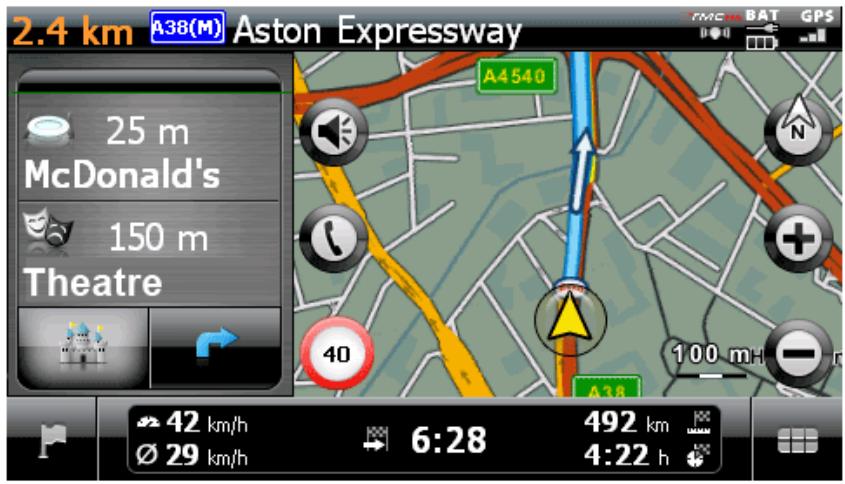
In split-screen mode the planned route is displayed as follows in the map view:
- The route is displayed in a map section oriented to the north. You can switch the map display from 2D to a 3D view using the N button if needed. The following display modes are available:
The map is displayed in a two-dimensional view. If you have set map view to Map in direction of travel in the Settings > Display menu, the map is always oriented to the direction of travel.
If you have set the map view to North up in the Settings > Display menu, the map is always oriented to the north.
If you have selected the Optimized option, the map is oriented to the north for low levels of zoom and in the direction of travel for higher levels of zoom (see also Adjusting the display).
In the mode 3D map, the map is tilted and three-dimensional. The three-dimensional display is always oriented to the direction of travel.

Tip
In the two-dimensional display modes, you can manually move the current map section by tapping a position within the map, holding it down and moving it in the desired direction: The map section is automatically adjusted. This function is not available in the three dimensional mode!
- The map section is displayed on the right side of the screen. Two options in split-screen are available on the left side:
If the Point of interest button is active, you can select the two closest points of interest directly using the two buttons located above. You can determine which point of interest categories should be displayed with the menu Settings > Display > Points of interest settings.
If the arrow key is active, navigation is enhanced with the arrow view in addition to the map: When there is an upcoming manoeuvre, arrow orientation indicates how you will be directed during the manoeuvre. The distance to the next manoeuvre is shown on the segment chain located next to the arrow.
- Within the map section, the planned route is shown in blue. In case of a manual or automatic traffic jam avoidance, the alternative route is shown in red.
- The street on which you are currently located is shown on the upper edge of the screen. Prior to a manoeuvre, the direction of navigation is shown in the arrow view, as is the distance to manoeuvre. A-roads and motorways are distinguished by colour and their number.
- Your current position is displayed on the map using the symbol.
- Information regarding the current and average speed, the distance to the destination, remaining travel and arrival time (only in the 480 × 272 pixel) is shown on the information bar on the lower edge of the map display (see also Operation in the map view).
- You can adjust the desired map zoom in the menu Settings > Display > Auto-zoom (see the Adjusting the display section). You can adjust the zoom of the map section manually using the + and buttons as needed. The current scale is displayed on the map.
- POIs such as petrol stations, rest areas etc. are displayed as symbols in the map display. You can determine which point of interest categories should be displayed with the menu Settings > Display > Points of interest settings.

Tip
You can manually move the current map section within the screen if needed, in order to, for example, show the POIs in the area of the calculated route in the map view. To do so, tap a suitable position in the map section, hold the position and move it around the screen as desired: The map section is adjusted accordingly.
In addition to the visual navigation, all manoeuvres are announced by voice commands at the same time, provided you have activated the feature in the menu Settings > Voice announcements. You can adjust the voice output during navigation as follows:
- Tap the button in the upper left area of the screen: The setting menu Volume then opens, which allows you to individually set the volume for voice output, the key click and audio playback of MP3 files using the additional MP3 Player application. The volume set here applies equally to playback via the internal speakers and via the earphone connection (3.5 mm mini jack) on your navigation device.
The buttons and allow you to individually lower or raise the volume for the respective signal output in seven steps. Output for the respective signal is muted at the lowest level.

Note
The volume setting is saved and the stored value will be used the next time you start-up your navigation system.
Other views
You can call up alternative views to the map display in the Quick menu. The Quick menu settings are described in the Adjusting the Quick menu settings section.
Compass display
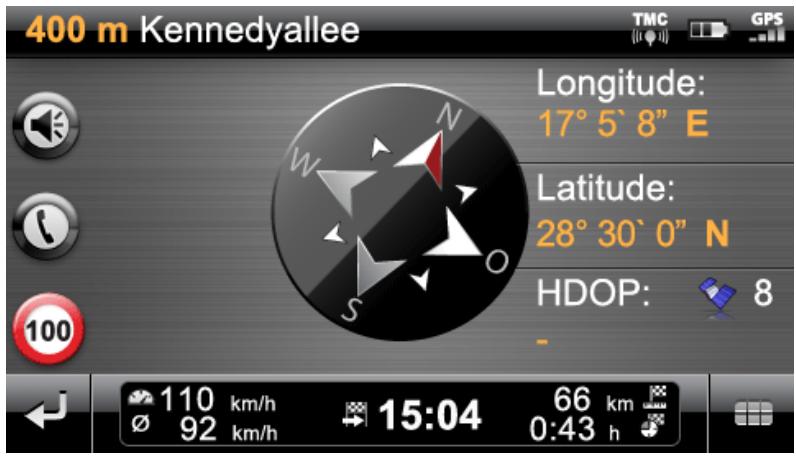
In compass display, your current position is shown in relation to the four cardinal points, North being labelled in colour for better orientation. In addition, your current position is stated with longitude and latitude in degrees, arc minutes and arc seconds. The compass orientation as well as the longitude and latitude display is continuously updated to enable precise orientation. As a rule, however, the accuracy of the measurement and the display depend on the quality of the GPS reception signal: For this reason, the GPS reception quality is also indicated as a value in the HDOP field. In addition, the number of satellites currently receiving the signal is displayed next to the symbol.
The information bar in the lower portion of the window shows all of the other information about the current route (such as speed, distance, calculated travel time etc.).

Tip
Your navigation system uses the signals from several satellites to determine the position. There may be overlap between the section areas of these satellite signals which reduces measuring accuracy. The HDOP value indicated in the compass describes the measuring accuracy within the horizontal 2D map: For values in the range to 6, a high to satisfactory measuring accuracy is guaranteed, for values over 6 deviation is increasingly common.

Note
Any speed limits entered for the current route section are displayed in the left corner using the symbol. A spoken warning only occurs if the Warning signs option in the Settings > Configure special functions menu and the Traffic advice in the Settings > Voice announcements menu have been activated and the speed has been exceeded by this value.
Arrow view
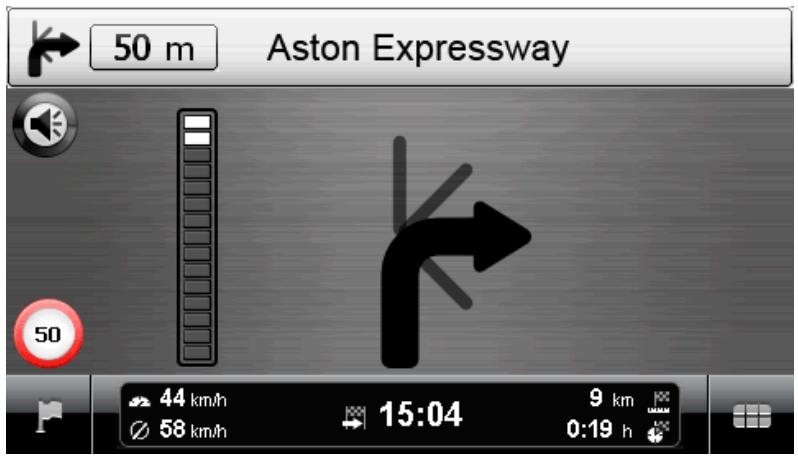
In the arrow view, you are guided by a guidance system based on arrows, independent of a map. The arrow view provides the following information:
- The current direction of travel is described using the arrow. When there is an upcoming manoeuvre, the orientation of the arrow indicates in what direction you will be led during the manoeuvre. Depending on the manoeuvre, side streets may also be displayed, but the main route is always clearly marked.
- The distance to the next manoeuvre is shown using the segment chain beside the arrow: The closer the manoeuvre comes, the more segments in the chain are filled. This allows you to readily estimate the actual distance from the manoeuvre based on your speed.
- The street on which you are currently located is shown on the upper edge of the screen, as is the route that you must travel on this street to the next manoeuvre. A-roads and motorways are distinguished by colour and their number.
- If manoeuvre is imminent, the display is switched: Now the distance to the manoeuvre is shown as well as the street/direction in which you will be guided after the manoeuvre.
The information bar in the lower portion of the window shows all of the other information about the current route (such as speed, distance, calculated travel time etc.).
Trip info
In the Trip info view, the following information is displayed about the current navigation:
Maximum speed
Average speed
- Route travelled
- Travel time
This information refers to all of the routes travelled since the last time the Trip info was reset (see below). To measure information about a specific route, you must reset the trip info at the start of navigation. To do this, activate the button: All values are reset to 0 and the measurement is restarted.

Note
The values in the Tripinfos are automatically reset to 0 if your navigation device has received no valid GPS data packet in two hours.
Chapter 4: Operation using the voice command function
In addition to manual operation via the touchscreen, your navigation system offers you the option of entering or controlling functions using voice commands. You also have the option of calling up lists of entries via a series of list numbers or browsing up or down the list view.

Note
Please be aware that this function is only available on certain types of device.

Tip
Please note that the voice command function is currently only available for selected languages. If you do not operate your navigation system in one of the following languages, you can skip the next sections.
The following languages are currently supported:
- German
- English
- French
Italian
Dutch
- Spanish
While manual operation of your navigation system is possible at all times, the voice command function must be activated separately: this ensures that your navigation device only reacts to certain voice commands and does not accidentally misinterpret other parts of the conversation. Proceed as follows to start the voice command function for your navigation system:
- Touch any point on the screen for around two seconds. A tone then sounds (a rising tone sequence): The voice command function is now activated on your navigation device.
- Alternatively, if your navigation device has a so-called Push-to-Talk-button (PTT), you can press this for around 2 seconds. A tone then sounds (a rising tone sequence): The voice command function is now activated on your navigation device.

Note
If your navigation system prompts you for input via a voice message, no additional tone is emitted.
During normal operation, the voice command function is ended once route planning has been entered successfully or the navigation system has not received a voice command for a certain period of time. If necessary, however, you can also stop the voice command function before this. Proceed as follows to stop the voice command function for your navigation system:
- Touch any point on the screen for around two seconds. A tone then sounds (a descending tone sequence): The voice command function on your navigation device is now deactivated.
- Alternatively, if your navigation device has a so-called Push-to-Talk-button (PTT), you can press this for around 2 seconds. A tone then sounds (a descending tone sequence): The voice command function on your navigation device is now deactivated.

Note
The allocation of the PTT function button differs from device to device. Information regarding which button carries out the PTT function on your device can be found in the device manual.
The voice command or voice recognition function is based in principle on the language set when your navigation device is installed. If, for example, you have selected "German" as the language for your navigation system, the voice command function will also be in German. The following points must be observed when using the voice command function:
Try to speak naturally!
- Strong dialects, speaking too clearly or too loudly may interfere with the voice command function.
- When using the voice command function, avoid loud background noise such as the radio or ventilation.
- For safety reasons, entries may not be made by the driver whilst driving: Please make the necessary entries before beginning the journey.

Tip
There are special terms for destinations entered for journeys abroad: While entries for functional control (such as the destination entry itself) are made in the pre-set language (e. g. German), the destination and street names must be entered in the language of the destination country: for planning a route to a destination in France, the destination information must be entered in French. This can, however, lead to voice recognition being affected by foreign accents.
The voice command function in practice
In the menus there are selected functions which can be controlled using the voice command function. The following section describes which functions can be controlled using the voice command function and which commands must be given to do so. As a rule, there is a choice of several interchangeable commands meaning the same thing for each function.
Along with the specific commands in each menu, there are commands for basic control and navigation. The following commands are identical in all menus:
| Function command | Voice com-mand | Alternative voice commands |
| Reject term/suggestion/command | No | |
| Accept term/suggestion/command | Yes | OK |
| Go back a step | Back | |
| Cancel dialog | Cancel | Abort |
| Open help | Help | General help, global help, general com-mands, global commands |
| Repeat entry | Repeat | Repeat entry, please repeat, repeat, again |
The selection of an option from a list is also identical for all menus:
| Function command | Voice com-mand | Alternative voice commands |
| Select first option | One | |
| Select second option | Two | |
| Select third option | Three | |
| Select fourth option | Four | |
| Go to next page | Scroll down | Move down |
| Go to previous page | Scroll up | Move up |
The following instructions apply to entering numbers:
| Entering the... | Note |
| house number | Please say the house number as a whole number (e.g.: 46 must be said forty-six). |
| Postcode | Please say the postcode as a series of individual numbers (e.g.: 91058 must be said nine one zero five eight). |

Tip
You can also carry out individual commands manually at any time whilst using the voice command function: The voice command function can then be continued as normal with the next step.
The following assumes that you have already activated voice command mode. If the navigation device cannot interpret a voice command, you will hear the message "Excuse me?" Repeat your voice command. If the command can be interpreted it will be carried out immediately, or, if there is a choice of more than one option, a list will appear.
If you do not issue a voice command after the tone or entry prompt, you will also hear "Excuse me?". If there is still no voice command, a help message will be announced and the dialog will ultimately be cancelled.

Note
The voice command function features a help function, which you can access by saying Help. The help announcement can be cancelled at any time by pressing the PTT button. The entire user guide is designed to make the voice command function as easy as possible. In case of doubt, you can repeat entries and an announcement informs you of the currently available options.
Voice command function in the navigation menu
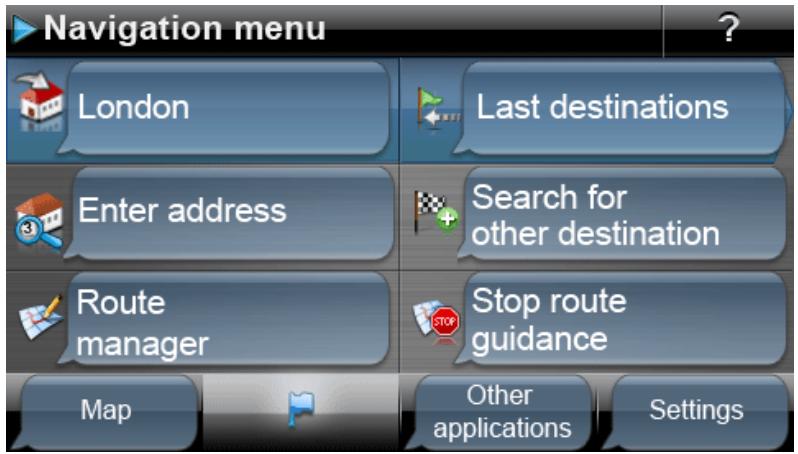
Here you can say:
| Voice command | Action |
| Enter address | Opens the menu for entering an address |
| Route manager | Opens the route manager |
| Search for other destination | Opens the menu Search for Other Destination |
| Start/stop navigation | Starts navigation of a planned route or stops the current navigation |
| Show map | Switches to the map view |
| Settings | Opens the menu Settings |
| Other applications | Opens the menu Other Applications |
| Last locations | Opens the selection list Last Locations |
Destination entry using the voice command function
You can use the Enter address command to enter your destination using the voice command function. Proceed as follows:
- Name the desired town when prompted.
- The entry is accepted and you are asked to enter a town. Say the place name: if more than one destination can be assigned to the place name, these destinations are displayed in a list.
- Say the number of the desired entry on the list (e.g. 1).
- After entering the destination, you will be asked to say the street name: If the street name said is not recognised clearly, the names interpreted will be shown in a list. Say the number of the desired entry on the list (e.g. 3).

Tip
Instead of a street name, you can also use the commands City center and Start navigation to enter a destination: Navigation to the town centre starts automatically
- After entering the street name, you will be asked to say the house number: If the house number is not recognised clearly, the entries interpreted will be shown in a list. Say the number of the desired entry on the list (e.g. 3).
The destination entered is shown on the Detail information screen. Your navigation system will now ask if you would like to start navigation. Say Yes (or OK), to start route calculation.
Selecting other destinations using the voice command function
You can use the Search for other destination command to select your destination from other destinations using the voice command function. Proceed as follows:
- In the navigation menu, say Search for other destination: the Search for other destination selection menu then opens.
- Say the desired entry in this menu. You have the following options:
Last locations
If you have already entered destinations, you can select the desired entry using the relevant number in the selection list: Say the number of the desired entry in the list (e.g. 1). You also have the option of resetting the selection list by saying Delete all.
Points of interest
Here you can select the desired point of interest category using the relevant entry. Depending on the category you have selected, you can select the desired point of interest entry by name. Alternatively, you can say Display all POIs.
You then have to refine your search: Say At a certain place or Nearby. If you have already entered a route, you can also select the options Along the route or At destination.
Favourites
If you have already entered favourites, you can select the desired entry using the relevant number in the selection list: Say the number of the desired entry in the list (e.g. 1). You also have the option of resetting the selection list by saying Delete all.
To create a new favourite, say New favourite: In the New favourite menu, you can now say Enter new destination, Points of interest or Current position.
Alternatively, you can select the favourite using the options at the upper edge of the screen by saying the relevant number.
o Coordinates
Say Coordinates to enter the destination using its coordinates. Any additional entries are made manually.
Destination from map
Say Destination from map to enter the destination in the map view. Any additional entries are made manually.
Voice command function in the route manager
Here you can say:
| Voice command | Action |
| Route planning | Opens the menu Route planning |
| Route information | Opens the menu Route information |
| Avoid route | Opens the menu Avoid route |
| Route simulation | Starts the simulation of a planned route |
| Back | Switches to the navigation menu |
Route planning using the voice command function
Proceed as follows to select the Route planning menu using the voice command function:
- Say Route planning. The Change route selection menu is opened.
- Select the desired option. Choose from the following:
Destination entry in the list
If the list already contains destinations, say the number for the desired entry in the list (e.g. 3).
Add destination
Use this command to open the destination entry (see previous chapter).
Optimise route
Use this command to optimise the current planned route.
Load/Save
Use this command to open the Load/Save Route menu. If you want to save the current route, say Save current route: you then have to enter the name manually.
If you want to load a planned route, say the number of the desired entry in the list (e.g. 2). The route is then loaded.
Other options in this menu must be selected manually.
Proceed as follows to select the Route information menu using the voice command function:
- Change to the Route manager, if you have not already done so.
- Say Route information. The selection menu for this is opened.
- Here you can select from the following options:
If you have already entered a destination and/or navigation is active, you can say the option Directions: all route information, along with the distance, is given in a list on the Directions screen and therefore acts as a preview for the planned manoeuvre. Say Back to leave this screen.
If you have already entered a destination and/or navigation is active, you can say the option Traffic situation (alternatively: traffic information): All traffic information, along with the distance, is shown in a list on the Traffic situation screen. Say Back to leave this screen.
If navigation is active, you can say the option Block route: A list is then shown where you can select the distance of the route to be avoided and therefore an alternative route: Any additional entries are made manually. Say Back to leave this screen.
If you have already entered a destination and/or navigation is active, you can say the option Current position, Starting point orDestination area: The current selection is displayed on the screen in the map view. Say Back to leave this screen.
Other options in this menu must be selected manually.
Avoiding a route using the voice command function
Proceed as follows to operate the Avoid route menu using the voice command function:
- Change to the Route manager, if you have not already done so.
- Say Avoid route. The relevant selection menu is opened and you are prompted to enter the length of the route to be avoided. Say the desired option (100/500 m, 1/2/5/10/15/25 km).
- Once the distance has been selected, you are prompted to enter how far away (based on your current position) you wish to avoid the route. Say the desired option (Immediately, 100/500 m, 1/2/5/10/15 km).
- Once the distance has been selected, your navigation device automatically returns to the Route manager.
Starting route simulation using the voice command function
Proceed as follows to start the simulation of an existing route:
- Change to the Route manager, if you have not already done so.
- Say Route simulation.
The planned route is calculated and your navigation system starts simulating the navigation automatically.
Call up other applications using the voice command function
Proceed as follows to select the Other applications selection menu using the voice command function:
- Say Other applications (or Applications), while in the navigation menu or Settings menu. The Other applications menu is then opened: Here you can access other programs such as the MP3 Player, Picture Viewer, Phone Book and others. The desired program must be selected manually.
Adjusting the settings
If required, you can select various settings for your navigation system using the voice command function and adjust them as described below. To do this, call up the Settings selection menu: If you have opened the menu manually, you now have to activate the PTT button on the device or touch any point on the screen for around two seconds.
Route options
Say Route options. The selection menu for route options is opened and you are asked to select the desired route. Say one of the following options:
O Active route
Standard
o Alternative 1
O Alternative 2
After you have selected the desired route, you can call up the following options:
- Type of vehicle
After selection, you can say the option Car, Pedestrian, Bicycle or Motorcycle. Alternatively, you can say the number of the entry (1, 2, 3 or 4).
- Route type
After selection, you can say the option Short, Traffic flow optimised, Fast and Economical.
Traffic jam avoidance
After selection, you can say the option None, Manual or Automatic.
- Ferries
After selection, you can say the option Use or Avoid
- Motorways
After selection, you can say the option Use or Avoid.
- Toll roads
After selection, you can say the option Use or Avoid.
After the desired route option has been selected, the menu is closed.
Language settings
Say Language settings to open the relevant settings menu. Further operation of this menu is carried out manually.
Device settings
Say Device settings to open the relevant settings menu. Further operation of this menu is carried out manually.
Display
Say Display to open the relevant settings menu. Say one of the following options:
Map view
After selection, you can say the option Map only, Arrow view, Map off, Splitscreen, Swap map and arrow or Swap map and splitscreen. Alternatively, say the number of the entry (1, 2, 3, 4, 5 or 6).
Day/night design
After selection, you can say the option Automatic, Day design or Night design. Alternatively, you can say the number of the entry (1, 2 or 3).
2D map orientation
After selection, you can say the option North up, In direction of travel or Optimised. Alternatively, you can say the number of the entry (1, 2 or 3).
3D elements
After selection, you can say the option No, Buildings, height relief or With buildings and height relief. Alternatively, you can say the number of the entry (1, 2, 3 or 4).
○ POI settings
Further operation of this menu is carried out manually.
When you say the menu option, the current setting is switched immediately. You can now say a different menu option in order to change it.
○ Auto zoom
After selection, you can say the option Nearby, Middle or Far. Alternatively, you can say the number of the entry (1, 2 or 3).
Program settings
Say Program settings to open the relevant settings menu. Say one of the following options:
TMC settings
Further operation of this menu is carried out manually.
Time zone
After selection, you can say one of the following options (e.g. Athens, Istanbul, Minsk). Alternatively, you can say the number of the entry (1,2,3,4,5,6;7;8;9 or 10).
Security mode
When you say the menu option, the current setting is switched immediately. You can now say a different menu option in order to change it.
Active map
After selection, you can say the number of the entry (1, 2, 3 or 4.
Plot GPS track
When you say the menu option, the current setting is switched immediately. You can now say a different menu option in order to change it.
。Unit
When you say the menu option, the current setting is switched immediately. You can now say a different menu option in order to change it.
Device settings
Say Device settings (alternatively: Device). The selection menu for the device settings is opened and you are asked to call up the desired device setting. Further operation of this menu is carried out manually.
Say Configure special functions to open the relevant settings menu. Further operation of this menu is carried out manually.
Settings assistant
Say Settings Assistant to open the relevant settings menu. Further operation of this menu is carried out manually.
Voice command in the map view
Using the voice command function you can switch between the menu and map view, if required, by saying Map (alternatively: Show map, Map view).
- If you are in the menu view, use the voice command Map (alternatively: Show map, Map view) to go to the map view.
- If you are in the map view, switch to menu view by using the voice command Menu (alternative: Navigation menu).
In the map view you have the following options for adjusting the display:
-
By saying Zoom in, you can increase the map's size and the current zoom level.
-
By saying Zoom out, you can reduce the map's size and the current zoom level.
If required, you can change the display mode of the map in the following ways:
- By saying Display compass (alternatively: Compass view, Compass) you can open the compass display.
- By saying Next (alternatively: Display next, Next map view, Next map, Next view) you can switch between Normal and Split-Screen display options.
- By saying 3D (alternatively: 3D display, 3D view) you activate the three dimensional map display.
- By saying North (alternatively: 2D north, North view, Display north, North map, Northern view), you activate the two-dimensional, north-oriented map display.
- By saying 2D (alternatively: Display 2D, Show 2D, 2D view, 2D map, 2D perspective) you activate the normal two-dimensional map display.
Chapter 5: Adjusting the settings
After starting your navigation device, the screen gives you the available function areas of your navigation system to choose from.
This button starts the map view.
This button starts the navigation menu.
This button starts the Other applications menu. Information about operating the other functions on your navigation system can be found in the device manual.
Use this button to start the settings menu to adjust the basic settings of your navigation system. The available setting options are described in the following section.
If you want to accept the default settings of your navigation system or have already made your personal settings, you can skip the following pages and go directly to the next chapter.
Specific settings for the navigation software
After start-up, your navigation system launches the settings assistant that guides you through all the important settings step by step. You can also accept the default settings, which you can change at any time in the Settings menu to meet your personal needs. Open the Settings menu by pressing the button, available at the lower edge of the screen in the Navigation menu. The settings assistant can also be called up at a later time using the settings menu of the same name.
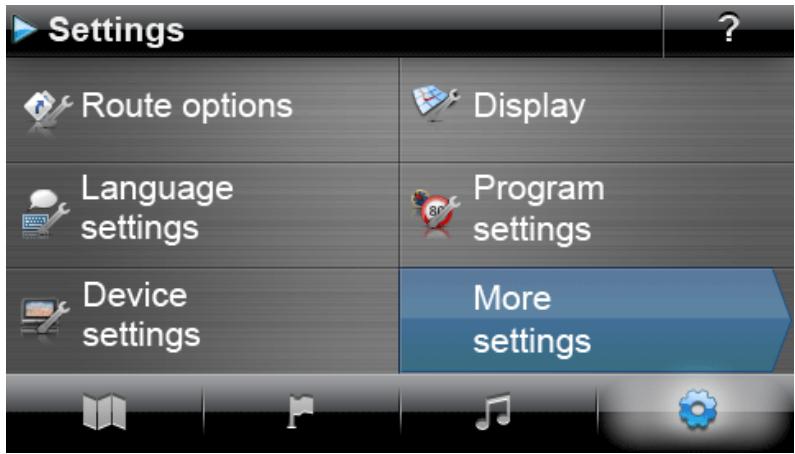
Choose from the following setting menus:
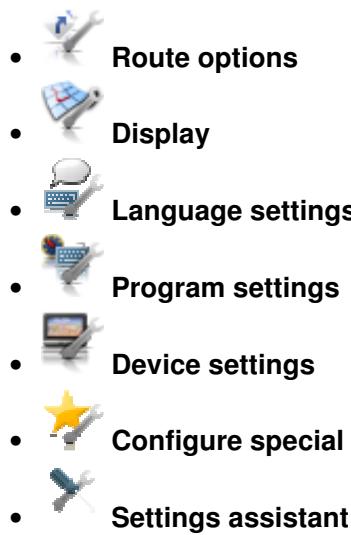
The following describes the available setting menus as well as the setting options available there. You can change the chosen settings again at any time.
Adjusting the route options
This sub-menu allows you to adapt the route calculation and navigation to your current personal needs. Note that the route options can affect each other: Depending on the selection of route type, other route options will be automatically deactivated.
After you have called up the Route options menu, you first have to select the route for which the options are to be adjusted. You can choose from the following options:
Active route
Here, you can change the route options of the current calculated and active route.
Standard
Here, you can change the route options that will be used in future to calculate the standard route.
Alternative 1/Alternative 2
Here, you can change the route options that will be used in future to calculate alternative navigation.
Using the buttons in the Route options menu, you can select the desired route to adjust the respective route options.
The following options are generally available for selection:


Cars
Route calculation has been optimised for cars. Road traffic regulations are in effect for this setting: This means that all roads may generally be used; however one-way streets may only be driven on in the proper direction of travel. As a rule, pedestrian zones are not directly accessible and a corresponding message is emitted.


Pedestrians
Route calculation has been optimised for Pedestrians (possible in a radius of up to 50km from the current position): Footpaths and cycling paths have also been taken into account when calculating the route; one-way streets can be used in both directions of travel and pedestrian zones are directly accessible. The shortest route is always calculated and the traffic jam detour function is generally not active. The use of motorways and toll roads is
excluded; the corresponding route options are automatically deactivated (see later section).

Bicycle
Route calculation has been optimised for Bicycle (possible in a radius of up to 50~km from the current position): Cycling paths have also been taken into account when calculating the route, pedestrian zones are directly accessible. The shortest route is always calculated and the traffic jam detour function is generally not active. The use of motorways and toll roads is excluded; the corresponding route options are automatically deactivated (see later section).

Motorcycle
Route calculation has been optimised for motorcyclists. Road traffic regulations are in effect for this setting: This means that all roads may generally be used; however one-way streets may only be driven on in the proper direction of travel. As a rule, pedestrian zones are not directly accessible and a corresponding message is emitted. Motorways are avoided when calculating the route.
- Route type


Short
Route calculation optimised with respect to distance: The shortest possible route is calculated.


Fast
Route calculation optimised with respect to travel time: The fastest possible route is calculated.


Economic
The route calculation represents a combination of the quickest and shortest route: This is the economic route.


Traffic-flow optimised
Using the Traffic-flow optimised option lets you identify the fastest possible route. However, in doing so the navigation device accesses specific information on traffic density which is indicated in the map material: junctions for which there is the risk of a traffic jam at the time of the route calculation, are avoided. Instead, an alternative route to the junctions is calculated, with optimised traffic flow.
- By pass


None
The traffic jam avoidance function is not active: Current traffic information (TMC) not taken into account during navigation.


Manual
When the manual traffic jam avoidance function is active, a warning symbol on the map view indicates the next traffic disruption on your route that will affect your travel time.


Automatic
When the automatic traffic jam avoidance function is active, the navigation software automatically uses available traffic information to calculate detours around traffic disruptions in your way that would affect your travel time.

Tip
The traffic jam avoidance option selected is also used for the TMC settings in the Program settings menu and can also be changed there (see Adjusting the Program settings).
- Ferries


Use
The use of ferries is taken into account for the purposes of route calculation.


Avoid
The use of ferries is excluded from route calculation.
- Motorways


Use
In addition to rural roads, roads and A-roads, motorways are also considered during route calculations.


Avoid
The use of motorways is excluded from route calculation: Only rural roads, roads and A-roads are considered during route calculation.
- Toll Roads


Use
Toll roads are considered for route calculation.


Avoid
The use of toll roads is excluded from route calculation.

Tip
Although the map material is up-to-date at the time the device was delivered, there is no guarantee that all of the toll roads are indicated.
Adjusting the Display
In this sub-menu you can adjust the appearance of the touchscreen on your navigation system to meet your personal needs. Choose from the following options:
Map view


Map only
In the Map only mode, the map is still shown during a manoeuvre. A smaller version of the manoeuvre arrow pops up in the map.


Arrow view
In the arrow view mode, navigation is shown only by a manoeuvre arrow; no map view is shown. You can also use the Quick menu to activate the arrow view.


Map off
In the Map off mode, no information is shown on the touchscreen: navigation is via voice commands only.


Split screen
In the Split screen mode, the display is divided. While the map is shown on the right side of the screen, you can choose between points of interest and the arrow view on the left side. In the points of interest view, the closest points of interest are available for direct selection; in arrow view, manoeuvre arrows show the navigation.
Swap map and arrow
In the swap map and arrow mode, the display changes dynamically from map view to arrow view during a manoeuvre. After the manoeuvre, the display switches back to map view.
Swap map and split-screen
In the swap map and split-screen mode, the display changes dynamically from map view to split-screen view during a manoeuvre. After the manoeuvre, the display switches back to map view.
Day/night design
Automatic
Map design adjusts automatically to daylight or darkness depending on the current time.
Day design
The map is displayed in a design optimised for daylight viewing.
Night design
The map is displayed in a design optimised for night time viewing.

Tip
Adjust the settings for daytime and night time viewing as needed in the menu Basic settings > Screen settings > Set brightness (see the Screen settings section).
- Points of interest settings
Points of interest on the map
You can select the points of interest categories to be displayed in map view in this selection list. To do so, tap the button next to the points of interest category: The display status is switched accordingly and the selection is transferred to the map.
Points of interest in split-screen
In this selection list, you can select which points of interest categories are shown in the split-screen and are available for selection (points of interest category selection mode). To do so, tap the buttons next to the points of interest category for this. The display status is switched accordingly and the selection is transferred to the selection keys in the split-screen.
o Preferred petrol stations
In this selection list you select which petrol station brand(s) should be shown on the map and in the split-screen. To do so, tap the button next to the petrol station brand to switch the display status.

Tip
Using the Show all points of interest button at the bottom of the screen, you can switch the status of all available entries globally.
2D map orientation
。 North up
In the North up mode the map is alway shown in the direction of north: in real terms, this means that direction you are travelling in may differ from or even be the complete opposite of the map orientation.
O

Map in direction of travel
In the Map in direction of travel mode the map is always shown in the direction you are currently travelling in: depending on the level of zoom, it may be that the region or land you are currently driving in is shown on its side or upside down on the screen.
O

Optimised
In the Optimised mode the map is oriented to the north or the direction of travel, depending on the map scale. In real terms this means that
At high zoom levels (extreme enlargement of the map section), the map is displayed in the direction of travel, thus making orientation based on the surroundings easier.
At low zoom levels (minimal enlargement of the map section), the map is automatically rotated so that it always faces north: This mode improves clarity and prevents countries or regions from being displayed upside down.

Tip
Switching between the 2D and tilted 3D map view is only possible using the onscreen compass symbol.
3D elements
If the 3D map display is activated using the compass symbol in the map view, the only available dispaly option is none.
O

None
In the None mode, the map is only shown tilted, but contains no information on topography in the environment. In this mode, the display is always in the direction of travel.
。

24 h
All time information within the navigation software is displayed using the 24-hour clock.
。

12 h
All time information within the navigation software is displayed using the 12-hour format (AM/PM).
- Auto zoom

Nearby
The current map section is magnified to a high zoom level.
。

Medium
When the auto zoom function is active, the current map section is enlarged to a medium zoom level if a manoeuvre is to be performed soon.
O

Far
The current map section is reduced to a low zoom level.
Automatic dimming
This option is only relevant for the battery mode of your navigation device. It decreases the amount of energy used by your device in order to increase operational performance.
O

Standard
In Standard mode screen brightness will automatically be dimmed (day mode: Brightness night; night mode: Reduced brightness night), if the device is not used for 30 seconds and there is no manoeuvre pending.
If the device is used or a manoeuvre is pending (car/motorbike: in 5 kilometers; bicycle in 750m) screen brightness will automatically reset to Brightness day as defined by the de
vice settings (see Screen settings) and subsequently be dimmed again.

Intelligent
In Intelligentmode screen brightness in night mode is graduated more precisely: depending on the distance to the next manoeuvre, screen brightness will automatically switch between minimal brightness (distance to next manoeuvre: >5 kilometres), a reduced Brightness night (distance to next manoeuvre: 2.5 - 5 kilometres) and Brightness night as defined in the device settings, (distance to next manoeuvre: <2.5 kilometres or device is being operated). Screen brightness will subsequently be dimmed again automatically.
Adjusting the language settings
In this sub-menu you can adjust language-specific parameters.
Language
The menu language of the navigation software is pre-set by selecting the country-specific installation file or by selecting the language during installation.
If several languages have been pre-installed on your navigation device, you can select another language by tapping the desired entry in the selection list displayed here.

Tip
Subsequent installation of other languages is possible by selecting country-specific installation files in the GoPal Assistant (see Actions using the Content Import Wizard).
- Keyboard selection
O abc Alphabetical
Entries are made alphanumeric (e. g. country, place and street names) on a keyboard with an alphabetically organised standard keyboard layout.
German
The arrangement of the keys is switched to the QWERTZ keyboard layout developed for typewriters and computer keyboards, intended for German-speaking areas as well as Poland, the Czech Republic and Russia.
English
The arrangement of the keys is switched to the QWERTY keyboard layout developed for typewriters and computer keyboards, intended for English-speaking areas, Scandinavia, Italy, Turkey, Greece, Portugal and the Netherlands.
。 French
The arrangement of the keys is switched to the AZERTY keyboard layout developed for typewriters and computer keyboards, intended for French-speaking countries.
AEB Cyrillic
The arrangement of the keys is switched to the keyboard layout developed for the Russian Cyrillic alphabet.
Greek
The arrangement of the keys is switched to the keyboard layout developed for the Greek Cyrillic alphabet.
Voice announcements
Street names
If this option is active, the street name is announced for the next manoeuvre.


Traffic advice
If this option is active, traffic advice is given for the next manoeuvre.


Directions
If this option is active, the direction is announced for the next manoeuvre.
Adjusting the Program settings
In this sub-menu you can adjust program-specific parameters.
TMC settings
This sub-menu allows you to adjust the reception of TMC traffic news.

Note
TMC is a digital radio data service which transmits information about traffic congestion via the Radio Data System (RDS) and can be interpreted by your navigation device. TMC uses data supplied by the police, traffic jam reports or other available sources. The reception quality of the traffic service signal is indicated via the status indicator on the upper edge of the map view.
You can select the following options via the buttons in lower portion of the screen:
Bypass


None
Traffic jam avoidance based on TMC information is not active.


Manual
With manual traffic jam avoidance, only a warning symbol in map view warns you of any traffic problems transmitted by TMC.


Automatic
The device calculates an automatic traffic jam avoidance (see also the Adjusting the route options section) using the available TMC information.
Station search


Automatic
Your navigation device automatically searches for a station. If reception quality deteriorates, the device immediately starts searching for a new station.


Manual
Using the manual station search, you can permanently set a TMC station using the and buttons. If reception quality deteriorates, the device does not search for a new station.

Note
The and buttons are only available if you search for the TMC station manually.
Time zone
The navigation software time zone is set to Greenwich Mean Time. This setting corresponds to the time zone in Edinburgh, Lisbon, London.
M T +1:00 The time zone of the navigation software is preset to GMT + 1:00 (Greenwich Mean Time plus 1 hour). This setting corresponds to the time zone in Amsterdam, Berlin, Rome.
The time zone is set to Greenwich Mean Time plus 2 hours. This setting corresponds to the time zone in Athens, Istanbul, Minsk.
The time zone is set to Greenwich Mean Time plus 2 hours. This setting corresponds to the time zone in Helsinki, Kiev, Riga, Sofia.
The time zone is set to Greenwich Mean Time plus 3 hours. This setting corresponds to the time zone in Moscow, Saint Petersburg, Volgograd.
The time zone is set to Greenwich Mean Time plus 4 hours. This setting corresponds to the time zone in Samara.
The time zone is set to Greenwich Mean Time plus 5 hours. This setting corresponds to the time zone in Ekaterinburg.
The time zone is set to Greenwich Mean Time plus 6 hours. This setting corresponds to the time zone in Omsk.
The time zone is set to Greenwich Mean Time plus 7 hours. This setting corresponds to the time zone in Krasnoyarsk.
The time zone is set to Greenwich Mean Time plus 8 hours. This setting corresponds to the time zone in Irkutstk.
Security mode

Activated
With this option you can activate the security mode: The security mode disables touch-screen operation of the device while driving to prevent distracting you from the traffic.

Deactivated
With this option you can deactivate the security mode: Touchscreen operation of the device is possible while driving.
Active map

The selection for the currently active map material is displayed here. If you have installed additional map material on your navigation system, you can select alternative maps here.
- Plot GPS track

Deactivated
The route already driven or completed is not plotted and saved as a GPS track on your navigation device.


Activated
If you select this option, current route plotting begins immediately. Plotting is stopped if you reset the information in the Trip info view (see the Trip info section) or select the Plot GPS track: Deactivated option.
Unit
Metric
All information on routes is provided in metric form. Announcements and information of distance on the screen are based on kilometres/metres.
Imperial
All information on routes is provided in imperial form. Announcements and information of distance on the screen are based on miles/feet.

This button displays the manufacturer and version information for the currently installed
map material.
Adjusting the device settings
Choose from the following setting menus:
Volume
- Screen settings
Power management
- Security settings (depending on device)
FM transmitter (depending on device)
- Restore factory settings
Tap one of the buttons to open the corresponding sub-menu. To close the menu again, tap the button.
Volume settings
In this sub-menu, you can set the volume individually for the voice output, the key click and audio playback of MP3 files via the additional MP3 player application. The volume set here applies equally to playback via the internal speakers and via the earphone connection (3.5 mm mini jack) on your navigation device.
The buttons l and l allow you to individually lower or raise the volume for the respective signal output in seven steps. Output for the respective signal is muted at the lowest level.
Screen settings
This sub-menu allows you to individually adjust the brightness settings for daytime/nighttime operation and to calibrate the screen.
- When you tap the Setup brightness button, you can individually lower or raise the Brightness level daytime and Brightness level nighttime to six levels using the l and l buttons.
- Tapping the Calibrate display button allows you to recalibrate the touchscreen of your navigation device. This becomes necessary when the entries on the touchscreen no longer correspond to the actions performed: For example, the assignment of keys to appropriate symbols or commands may deviate from the instructions.
To calibrate the device, follow the instructions on the screen by tapping the target sign. Finally, accept the new settings by tapping the screen again.

Note
If you format the flash memory of your navigation device in order to, for example, update to a newer version of the software, the screen must also be recalibrated during installation (refer also to the device manual).
The brightness settings will be saved and the stored value will be used the next time your start-up your navigation system.
Power management
This sub-menu enables you to adapt the energy options for either battery or mains operation. The current charge of the battery is displayed on a bar chart on the lower portion of the screen.
- If you tap the selection menu under the entry In battery mode you can select one of the following options from the list in the relevant pop-up menu:
Deactivated
The navigation device is only switched off when the capacity of the internal battery has been exhausted.
15/30/45 min/ 1/2 hr
If the navigation device is neither in use nor currently navigating, it is switched to stand-by mode following a pre-set period of time: When you press the ON/OFF switch, the device is reactivated and the most recently active screen is displayed.
- If you tap the selection menu under the entry Connected to charger you can select one of the following options from the list in the relevant pop-up menu:
Deactivated
The navigation device is never switched off.
15/30/45 min/ 1/2 hr
If the navigation device is neither in use nor currently navigating, it is switched to stand-by mode following a pre-set period of time: When you press the ON/OFF switch, the device is reactivated and the most recently active screen is displayed.
- In the Auto-Standby menu you determine how the device reacts when the power supply plug is pulled out while charging or while the device is in operation.
Deactivated
The device remains switched on regardless of the status of the power supply until the internal voltage has been exhausted. In this case, the settings you set in Power Management are valid.
1 Minute
When you tap the option 1 Minute in the list, the device is automatically switched off 1 minute after the plug has been pulled out.
2 Minutes
When you tap the option 2 Minutes in the list, the device is automatically switched off 2 minutes after the plug has been pulled out.
5 Minutes
When you tap the option 5 Minutes in the list, the device is automatically switched off 2 minutes after the plug has been pulled out.
If you did not select Auto-Standby: Deactivated, your navigation device displays the following screen after the power supply plug has been pulled out.
- The button returns you to the screen that was active before the plug was pulled out.
- The button switches the device off.
- The button restarts the device.
If you do not make any entry, the device switches to Standby mode after 5 minutes.

Note
Please be aware that this function is only available on certain types of device.
Security settings
Your navigation system gives you the option of protecting your system from access using a user-defined password. More information on the security settings can be found in the device manual.

Note
Please be aware that this setting is only available on certain types of device.
FM transmitter
Further information about the FM transmitter settings can be found in the device manual.

Note
Please be aware that this setting is only available on certain types of device.
Restore factory settings
This button allows you to restore the factory default settings to the device. All personal settings such as favourites or the last entered destinations are deleted in the process: Accordingly, you should only perform this function when you no longer need this information.
When you tap the button, a confirmation message pops up on your navigation device. Tap the button to restore the factory settings: Otherwise you can cancel the process with the button.
After the restart you must then select the language within the software. In addition, you have another opportunity to familiarise yourself with your navigation system by way of a brief introduction after the navigation software starts: You can also skip this step and start operating your navigation system immediately, as required.
Adjusting the special functions
- Speed limit
。 Do not show
The maximum speed limit information stored in the map material for each route section is not displayed onscreen and it is also not documented by an acoustic warning when the speed limit is exceeded (setting: Do not show).
Show without warning
The speed limit for this section of road is displayed on the map but your navigation system does not emit an acoustic signal when the limit is exceeded.

Warning at 5 km/h (alternative settings: 10/15/20/25/30 km/h)
The speed limit for this section of road is displayed on the map. Your navigation system also emits an acoustic warning signal when you exceed the speed limit by the selected amount.

Note
Depending on the distance format in the Program settings > Units (see below), exceeding the speed limit is measured and announced in kilometres per hour (metric) or miles per hour (imperial). However, the actual measurement for exceeding the speed limit is always based on the distance format stated in the map material and valid in the respective country: For example, the measurement for exceeding the speed limit in England is made in miles even if you have selected km for the distance format.
Settings assistant
Using this button you can start the settings assistant, which also appears when you first start up your navigation device. The settings assistant helps you select appropriate settings for your navigation device: You adjust the settings in steps by navigating between the setting options using the and keys. The settings assistant can be opened at any time and closed using the button. The settings made so far overwrite the settings that were previously valid for your navigation device.
The Quick menu is available by pressing the button located in the lower right corner of the map view, giving you direct access to functions otherwise only available using the conventional menus.
You can assign the option City to one of the Quick menu buttons, for example: In future you will jump directly to the city input field on the Enter address screen, when you tap the button. You could also assign, for example, the additional MP3 Player application to another Quick menu button in order to call this application up directly. Doing this allows you to configure up to four frequently used functions and call them up quickly using the Quick menu buttons.
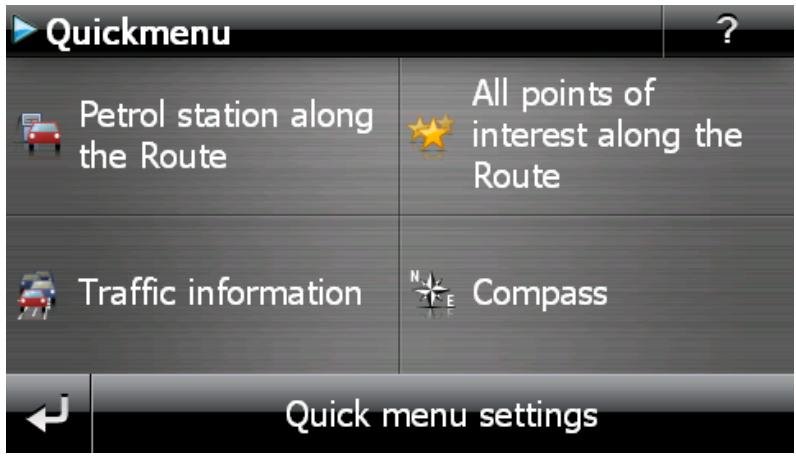
Proceed as follows to assign the desired functions to the buttons in the Quick menu:
- Tap on the button Quick menu settings in the toolbar in the Quick menu. A message then appears, prompting you to select one of the screen keys to change its function.
-
Tap any button to set up a new function assignment or to change the existing assignment.
-
On the screen Quick menu settings, tap the button for the main group belonging to the desired function. Choose from the following main groups:
Destination entry
。 Route information
Other applications
Points of interest
Settings
Other views
- Tap the button for the desired function available for selection within the main group. This function is now assigned to the Quick menu button.
If you wish to leave this screen without making a selection, tap the
Chapter 6: Manual installation and start-up
The Windows CE operating system has already been installed on your navigation device. In addition, software components such as the navigation software or map material for various countries (depending on the version) may already be pre-installed on the device or on the memory card supplied. If that is not the case, you must first install the navigation software as well as the map material necessary for route planning before operating your navigation system.
If you are updating or would like to install subsequently purchased navigation software or additional maps or POI files to your navigation device, you must remove individual or all data installed on your device before installing the newly purchased software. The following data can be manually installed by the user:
- GoPal® Navigator navigation software
Map material in the form of PSF files
- Point of interest data (POI data) in the form of PSF data
- Voice recognition data in the form of TSD data

Tip
Even though it is possible to install files manually, we recommend that you use the GoP-al Assistant supplied with the software to transfer and update software components on your navigation system. The next chapter describes the installation and data exchange using the GoPal Assistant.
The manual transfer of software components from CD/DVD to your mobile navigation device takes place in Windows Explorer on your PC. Select one of the two following methods to exchange data between your navigation system and your PC:
- If you have installed the Microsoft ActiveSync® software from a CD/DVD, you can connect your navigation device directly to the USB port of your PC using the USB cable supplied in order to synchronise the desired data. In this case, you have direct access to the internal flash memory of your navigation device.
- If your PC has a card reading device, you can insert the external memory card supplied directly and manually move the data in the file explorer. In this case, you do not have direct access to the internal flash memory of your navigation device.
Initial operation
Depending on the version of your navigation system, the software necessary for operation may not have been pre-installed on your navigation device and can instead be found on the memory card supplied: an appropriate comment indicating this can be found in theREADME file as well as on the packaging of your navigation device. In this case, you must install the software to operate your navigation system.
Proceed as follows to install:
- Carefully remove the memory card from its packaging. Take care that the contacts are not touched or contaminated: Otherwise data transfer may no longer be possible.
- Insert the memory card into the MMC/SD card slot of your navigation device until you hear a click.
- Switch on the navigation device by pressing the ON/OFF switch on the device (see device operating instructions).
The necessary software components will now be installed automatically.
If you switch on your navigation device without inserting the memory card supplied, the following screen appears.
Insert the memory card into your device and tap the button, to begin automatic installation. Once installation is complete, the start screen of your navigation system appears, giving you access to the various functions such as the navigation or MP3 Player etc..
Reinstallation and updating the software
If necessary, you can remove all or individual application files such as the navigation software or map material from the memory of your navigation device (see device operating instructions). This would be necessary, for example, to install a current version of the GoPal® Navigator software that you purchased at a later date. The software required for reinstallation/updating is located in the In-stallation folder on the CD/DVD and can be transferred to the navigation device using the memory card supplied.
Proceed as follows to manually install the navigation software onto the external memory card:
- If you have not already done so, carefully remove the memory card from its packaging and insert it into the card reading device (internal or external) of your PC: If the card clicks in correctly the contents of the card will be displayed in a new window in Windows Explorer. If the contents are not automatically displayed, open the directory manually.
- Open your PC's CD/DVD drive and insert the CD/DVD. If the CD/DVD Setup Assistant starts, close it.
- Open the directory of your CD/DVD drive using the context-dependent menu obtained by clicking the right mouse button and go to the directory Installation.
- Copy all of the folders and files in this directory.
- Go to the directory window of the external memory card and insert the copied contents.
To install the software copied onto the memory card on your navigation device, follow the steps described in the Initial operation section.

Note
You must remove the old software components before you can install the new software onto your navigation device. For information on how to do this, consult the operating instructions for your navigation device.
Transferring the map material and the POI data to the memory card
Regardless of the navigation software, you can also install additional map or POI material onto your device or replace existing data with current material from a CD/DVD purchased subsequently. However, your navigation device can only read this data automatically if they have been filed in the MapRegions directory on the memory card.

Note
Before you buy additional maps or POI material from the GoPal-Shop Portal, you must ensure that the data packs are compatible with your installed GoPal-software version. Information on compatibility can be found in the Shop in the product description of the data.
Proceed as follows to transfer map material and POI data to the memory card:
- Insert the memory card into the card reading device (internal or external) of your PC: The card clicks in and the contents of the card will be displayed in a new window in Windows Explorer. If the contents are not automatically displayed, open the directory manually.
- Open your PC's CD/DVD drive and insert the CD/DVD. If the CD/DVD Setup Assistant starts, close it.
- Open the directory of your CD/DVD drive and go to the MapRegions directory.
- Copy all of the desired files with the file ending .psf: The file names indicate the region to which the map data refers.
- Go to the directory window of the external memory card and create a new folder called MapRegions.
- Now put all of the copied files into this folder.
Proceed as follows to copy additional POI files from the inserted CD/DVD to the memory card:
- Open the POI folder in the directory of your CD/DVD drive.
- Copy the desired files (e.g. hotel.de.psf etc.).
- Go to the directory window MapRegions of the external memory card and insert the copied contents.
To install the map material and/or POI files copied onto the memory card on your navigation device, follow the steps described in the Initial operation section.

Note
You must remove (some of) the old files before you can install the new map and/or POI files onto your navigation device. For information on how to do this, consult the operating instructions for your navigation device.
Note that it is only possible to transfer files to the memory card and/or to the internal memory of your navigation device (see next section) if there is enough free disk space available. You may have to delete unnecessary data to free up disk space.
Transferring data to the internal memory of the navigation device
Your mobile navigation device has an internal, permanent memory that is located in the My Flash Disk folder. You can use this memory to transfer and then install the navigation software, map material and/or voice recognition files to your navigation device. However, you must have previously
installed the software Microsoft ActiveSync® supplied on the CD/DVD onto your PC either manually or using the Setup Assistant on the CD/DVD. In addition, your navigation device must be connected to the PC using the USB cable supplied.
The following description assumes that Microsoft ActiveSync® has already been installed. Proceed as follows to copy the installation files for you navigation software to the internal memory of your navigation device:
- Connect the navigation system to your PC using the USB cable.
- Once the navigation system has been recognised, the dialog box New Partnership pops up on your PC screen. To transfer the files it is sufficient to connect your navigation device to your PC as a Guest. So, choose the option No and then click on the button labelled Next.
- Select Mobile device in your Windows Explorer and go to the My Flash Disk directory.
- Right click on the directory and select New folder from the context menu: Name the newly created folder INSTALL and finish the entry by pressing the enter key.
- Change to the Installation directory in your CD/DVD drive and copy all files and folders in this directory.
- Go to the directory Mobile Device > My Flash Disk > INSTALL and put the copied contents there.
Proceed as follows to also copy map material to the internal memory of your navigation:
- Go to the MapRegions directory of your CD/DVD drive and copy all of the desired files ending in .psf: The file names indicate the region to which the map data refers.
- Select Mobile device in your Windows Explorer and go to the My Flash Disk directory.
- Right click on the directory and select New folder from the context menu: Name the newly created folder MapRegions and finish the entry by pressing the enter key.

Note
To ensure error-free transfer of the data you must take care to enter the spelling of "MapRegions" exactly as given. Otherwise the data will not be recognised properly.
- Now put all of the copied files into this folder.
If you have added POI files or the 'voice command' feature to your navigation software, you must transfer the appropriate data to the internal memory of your navigation device or onto the memory card: the respective function is only available following automatic installation of the data.
Proceed as follows to copy POI and/or voice recognition files to the internal memory of your navigation device:
- To transfer POI files, go to the POI directory of your CD/DVD drive and copy the desired PSF files (e.g. hotel.de.psf).
- Go to the directory Mobile Device > My Flash Disk > MapRegions and put the copied files there.
- To transfer voice command files, go to the TSD directory of your CD/DVD drive and copy your country-specific folder: The Ireland Great Britain TSD folder, for example, contains the voice recognition files for English-speaking countries. Naturally, you can also copy the voice command files/folder for other countries as needed and install them onto your navigation device.
Go to the directory Mobile Device > My Flash Disk > MapRegions and put the copied files there.
Chapter 7: Installation and start-up using the GoPal® Assistant
In addition to manual installation, it is also possible to transfer the necessary data from the CD/DVD to your mobile device using the GoPal® Assistant software: The GoPal® Assistant is a special tool which facilitates communication between your navigation device and your PC and simplifies the transfer of selected files. In addition, it is only with the help of the GoPal® Assistant that you can transfer GPS track data that you have recorded with your navigation device to the PC in order to store it there and exchange it with other users. To use GoPal® Assistant, it must first be installed on your PC.

Tip
Although manual installation and transfer of data is possible on your navigation device, we recommend performing all installations using the GoPal® Assistant software.
Installing the GoPal® Assistant software
As soon as you insert the supplied CD/DVD into the drive on your PC, a Setup Assistant opens automatically to help you with the installation of various software components on your PC.
Proceed as follows to install the GoPal Assistant on your PC:
- Open your PC's CD/DVD drive and insert the supplied CD/DVD. Once the CD/DVD has been read in, the Setup Assistant starts automatically: Continue to follow the on-screen instructions.
- In the dialog box Select components, click the Medion GoPal Assistant check box (checked) to select the GoPal Assistant for installation: If necessary you can now click on other check boxes to install additional software components (e.g. Medion GoPal Navigator, Microsoft ActiveSync, manuals etc.) in this step. After selecting the desired check boxes, click on the Continue button.

Note
If you are using the current Windows Vista™ operating system, the option ActiveSync is automatically greyed out, as this functionality is already integrated into the operating system and does not need to be installed separately.
- You must enter the storage path for the installation of the GoPal Assistant in this dialog window. Use the template or select an individual path and click Next.
- This dialog window allows you to rename the folder individually (not recommended): Click In-stall to accept the default path and install the selected software components on your PC.
The GoPal Assistant is installed in the program directory on your PC and is available immediately following installation. If you no longer need the GoPal Assistant, you can remove it from your system either by going to Control panel > Software or by using the Uninstall command located in the program directory under Start > All Programs > Medion GoPal Assistant.
Microsoft ActiveSync® must be installed on the PC to communicate and transfer data with the GoPal® Assistant: Installation can also be performed using the Setup Assistant on the CD/DVD. In addition, the navigation device must be connected to the PC via the USB cable.

Tip
ActiveSync® is only necessary when operating Windows 2000 SP4 or Windows XP. The software components necessary for data exchange are already integrated into Windows Vista™.
User interface of the GoPal® Assistant
Once it has been successfully installed, start the GoPal Assistant via the item Medion GoPal Assistant in the folder Start > All Programs > Medion GoPal Assistant.
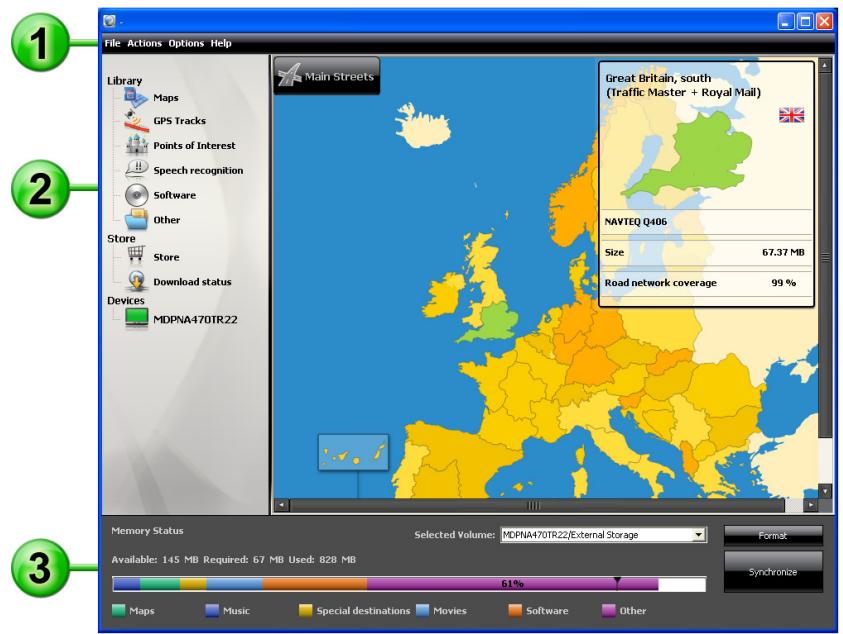
The GoPal Assistant interface is divided as follows:

You can operate all of the basic functions of the software via the menu bar. The menus are structured as follows:
File
Using the option Import GPX Files you can import recorded GPS tracks (e. g. hiking routes) into your library from an external medium.
Exit allows you to close the GoPal Assistant.
-
Actions
-
Import Content into Library starts the Content Import Wizard, which helps you transfer new content to the library of your GoPal Assistant (see Actions using the Content Import Wizard).
Using the Check for Software Update entry, you can let the GoPal Assistant automatically search the Internet for current software for your navigation system.
Using Check for Content Update, you can let the GoPal Assistant automatically search for current content for the information contained in the library.
Using Enter user information you can open a window where you can enter your email address and a password. This information is required for registration at the GoPal Shop portal.
-
Settings
Using the box Check for updates on startup, lets the GoPal Assistant automatically search the Internet for current software for your navigation system. The current setting is saved and loaded again the next time the program starts.
Using the box Check for content updates on startup, lets the GoPal Assistant automatically search the Internet for current content for your navigation system. The current setting is saved and loaded again the next time the program starts.
- You can change the language in the GoPal Assistant user interface to the desired language with the Change user language button.

Note
Please note that the newly selected user language will only be active once the GoPal Assistant has been restarted.
Help
The entry About opens the dialog box of the same name which contains information about the current version of the GoPal Assistant as well as legal licensing information.

The central area of the GoPal Assistant manages the software and content files for your navigation system as well as the connected devices.
Using the entries in the library you can select specific categories in order to transfer these files to your navigation device or to import files from the device to your PC. The following categories are available for selection Map data, GPS tracks, POIs, Voice recognition, Software and Other.
The shop gives you direct access to various additional products such as map material, POI data packs etc., which you can purchase directly from the GoPal shop portal and transfer to your navigation device using the GoPal Assistant. Under Download status you can also find information on the status of data packs already downloaded.
Devices
This is where you can select a connected navigation device, display specific information and rename the device.
Data selection area
This area is dynamically adapted to the selected option. When you select a category in the library, the available data is placed here for selection. When you select the Devices option, the device information is displayed here.

Volume area
In this area you manage the memory of the internal flash memory or the inserted memory card of the selected navigation device or a memory card inserted into a card reader connected to the PC. In addition to selecting the target memory for the import/export functions, you can format the external memory areas (SD card in the navigation or card reading device) as needed.

Tip
The volume area of the GoPal® Assistant also recognises external USB sticks connected to your PC. Accordingly, you can also select these volumes via the pop-up menu Selected Volume and format as needed.
Setting the user language
During installation, the GoPal Assistant user language is set to the language setting of your computer. However, if necessary, you can switch the GoPal Assistant user language to a setting different to that of the computer.
Proceed as follows to change the user language:
- Open the GoPal Assistant by going to the entry of the same name under Start > All Programs > Medion GoPal Assistant.
- Open the Settings menu and position the mouse pointer over the entry Change the user language: A pop-up menu is then displayed.
- In the pop-up menu, the box beside the currently active user language is checked. Click on the box for the desired user language to select the language. The Settings menu then closes.
The new user language has now been selected but is not yet active. To activate the user language you must first restart the GoPal Assistant.
Manual actions for data exchange
You can select specific information using the categories in the library and the graphic display in the data selection area, which can then either be transferred to the internal flash memory of the navigation device or to the inserted memory card or imported to the PC. After selecting a category in the library, the available options are displayed directly in the data selection area and can then be selected with the mouse. The following actions can be performed:
Use the category... ...to select...
| Maps | the available regions on the CD/DVD and transfer them automatically to your navigation system. |
| GPS Tracks | the available GPS Tracks, to display them in Google Maps™, to store them in another location on your computer or delete them from the library. |
| Points of interest | the available points of interest on the CD/DVD and transfer them automatically to your navigation system. |
| Speech recognition | the available speech recognition data on the CD/DVD and transfer them automatically to your navigation system. Please be aware that this data is only available for certain versions. |
| Software | the country-specific installation file on the CD/DVD, to automatically install the software onto your navigation device. |
| Other | additional map material for the 3D display of POI data, topographic height reliefs and special data sets on traffic flow, in order to transfer them to your navigation device. Please be aware that this data is only available for certain versions. |
| Download status | the additional data packs already purchased in the GoPal shop portal to transfer them to your navigation device. |
The following description assumes that the GoPal® Assistant and all necessary map and special destination files have been installed from the CD/DVD onto the internal volume of your PC with the help of the Setup Assistant. Proceed as follows to manually select and transfer data to your mobile navigation device:
- Open the GoPal Assistant by going to the entry of the same name under Start > All Programs >Medion GoPal Assistant.
- Select the desired category in the Library: The display in the data selection area is automatically adapted to the selected category.
- Select the desired data.
Maps
Left click on the desired region in the map view displayed: The appropriate pop-up window displays the region in question and indicates how much memory is required for the map data. Selected regions are green whereas non-selected regions are yellow. To cancel a selec
tion, click on the region again. The region is displayed in yellow again and is not selected for data transfer.
If necessary you can reduce the storage requirements on the navigation device using the button MRE: if you press the button, only the so-called Major Roads of Europe (major roads) are shown and then transferred to the navigation device. The storage space required is much less with this option, but as a consequence, destination entry and navigation are limited to these major routes. The routes to destinations which are not situated along these main roads cannot be directly computed.

Note
The MRE data is generally installed for all of Europe. However, parallel to this you can install detailed map data for each desired region: in this case, for these regions specific navigation to any number of destinations is possible, whereas in the rest of Europe only major roads can be entered as destinations.
GPS Tracks
Left click on the desired GPX entry in the lower section of the data selection area. In case your computer can connect to the internet, the Google Maps™ map service is loaded in the upper part of the data selection area. Using the buttons assigned to the GPX entries you can optionally delete the data from your library or save it in any directory on your computer. Via the storage process you can also export the data in the Google-Earth™ compatible KML format.
Points of interest
Left click the check box next to the desired POI entry (checked): Information about the provider, the version number, the number of datasets, memory and, if entered, a description appears on the appropriate line. To cancel a selection, click on the check box again (unchecked): The item is no longer selected for data transfer.
Speech recognition
Left click on the check box next to the entry for the desired speech recognition data (checked): Information about the version number, memory and a description of the file if entered are displayed on the appropriate line. To cancel a selection, click on the check box again (unchecked): The item is no longer selected for data transfer.
Software
Left click on the check box next to the entry for the country-specific installation file (checked): Information about the provider, the version number, memory and a description of the file are displayed on the appropriate line. To cancel a selection, click on the check box again (unchecked): The item is no longer selected for data transfer.
Other
Click on check box next to the entry for the relevant data pack with the lefthand mouse button (checked). Content for three-dimensional display of selected points of interest and topography is available for selection: These two options must be installed to activate such views in the 3D display type menu (see Adjusting the display).
You can also select so-called TrafficPattern data for certain regions. These packs contain information on traffic flow density at junctions and are required in order to calculate a route with optimal traffic flow (see Adjusting the route options).
In the accompanying text, information about the provider, version number, memory size and a file description are shown. To cancel a selection, click on the check box again (unchecked): The item is no longer selected for data transfer.
- Select the desired file destination using the Selected Volume pop-up menu in the volume area. The available and required capacities are displayed in the Memory Status section:
Available
This amount of space is available on the selected volume and is graphically displayed on
the progress bar. Colour coding indicates which data are saved in the memory. The following types of data are recognised: Map data, Audio, Points of interest, Video, Software and Other content.

Note
The memory currently used in the selected drive is marked by the slider on the memory status bar. If you select a data pack from the library, the memory status bar shows how much memory would be in use after installation of the data pack. This way you can check to see if enough memory is available for the installation.
Required
This amount of space is required to install the data selected in the library onto the volume.
Used
This amount of space has been used up on the selected volume.
The GoPal Assistant now performs data synchronisation between the selected items in the Library and the selected volume: The data sets are then installed onto the selected volume.
Actions using the Content Import Wizard
In addition to manual synchronization, the GoPal Assistant also offers the opportunity to automatically transfer the data in the library using the Content Import Wizard. Here, too, you can select specific data packs to have installed on your PC. Proceed as follows to transfer data with the help of the Content Import Wizard:
- Select Import Content into Library from the Actions menu in the GoPal Assistant's task bar. The Content Import Wizard dialog box then opens: Click Next.
- The Content Import Wizard starts searching for new content and displays content automatically in the Found Sources area. If you want to manually specify a certain source directory, click on the Browse button: In the dialog box indicate the directory in which the data is located and click Open. The interpretable data now pops up in the Found Sources area.
- Left click the check box beside the desired data entry (checked): Information about the data type and name as well as about available or existing versions pops up. To cancel the selection, click on the check box again (unchecked): The item is no longer selected for data transfer. Click Next.
- The data is now being imported and the progress of the current file as well as overall progress can be seen on the progress bar. Once the data transfer is complete, click Finish to close the Content Import Wizard.
The selected data is available in the respective category in the library immediately following transfer.
Management of GPS Tracks
The GoPal Assistant allows you to save GPS tracks you have recorded (e.g. most recently travelled route) to the computer using the synchronization process. The GoPal Assistant can then display the GPS tracks saved on the computer using the map service Google Maps™ or transfer them to the Google Earth™ compatible KML format. Proceed as follows to transfer GPS tracks from your navigation device to the computer and display them using Google Maps™:
- If you have not already done so, open the GoPal Assistant using the entry of the same name in Start > All Programs > Medion GoPal Assistant.
-
Click on the Synchronize button in the drive area of the GoPal Assistant. The Synchronize dialog box opens.
-
Select Import recorded GPS tracks and click on the Synchronize button: The GPS tracks will now be transferred to the computer.

Note
Please note that the GPS tracks on the navigation device will be deleted once they have been transferred to the computer.
- Go to the GoPal Assistant library and select the category GPS tracks: The GPS tracks (*.gpx) saved on the computer are now displayed in the bottom section of the data selection area.
- Click on the desired GPS track entry to select it: The corresponding GPS track is then displayed in the upper section of the data selection area within a Google Maps™ environment. The display can now be individually adjusted using the functions available for Google Maps™ (zoom in/out, move section, activate map/satellite/hybrid view).

Note
The GPS tracks can only be displayed using the Google Maps™ map service when the computer is connected to the Internet.
If necessary, you can delete the GPS tracks saved on the computer, save them somewhere else or convert them to the Google Earth™ compatible KML format.
Go to the category Library > GPS tracks to show the GPS tracks saved on the computer. The buttons in the lower section of the data selection area provide the following options:
- Click on the Delete file button associated with the desired GPS track entry. This will bring up a message box in which you either must confirm the command or cancel it. If you choose the option Yes, the corresponding GPS Track file (.gpx) is irretrievably deleted from your computer.
-
Click on the Save as button: the dialog box Select target folder then opens. Select the desired location in the Select target foldersection. If necessary, you can create and name a new target folder using the New directory button. In the entry field File name you can rename the GPS track. In the File type pop-up menu you can also choose between the options Gpx files (.gpx) and Kml files (.kml):
-
Choose the GPX file format, to exchange the track data with other users. This GPX file can now for example be sent by e-mail and be read in with a GoPal Assistant installed on another computer.
o Alternatively, choose the KML file format in order to open and display the GPS Track in the separate application Google EarthTM: KML files can be opened and displayed directly in Google Earth.
Click OK: The GPS track is saved in the specified folder with the selected name and file format.
Functions for device management
In the Devices area and in the volume area, the GoPal Assistant provides access to the currently connected navigation device: It is generally not possible to connect several navigation devices to your PC at the same time. However, you can connect the navigation devices to the PC one after the other to, for example, save the GPS track data saved there to the PC. The GoPal Assistant saves the IDs of all navigation devices connected to the PC and lists them in Devices. The navigation device currently connected is identified by a green button.
If you select the connected navigation device in Devices, the following information about the device appears in the data selection area:
Name
The current name of the device is displayed here. You can rename the device at any time (see below).
Device ID
The identification number of the device hardware is displayed here.
- Installed navigation software
The navigation software currently installed on the device is displayed here.
This shows the last time the data from the PC and the navigation device were synchronized.
Changing the device name
When delivered, your navigation device has a standard name derived from the product name. You can change this name at any time and replace it with a user-defined name which will be used when registering your PC. Proceed as follows to rename your navigation device:
- Select the connected navigation device from the Devices entry.
- Left click on Rename this Device.
- Enter the desired name into the Rename device dialog box and close with OK.
The changed name takes over and in future it is automatically assigned to the navigation device every time you log on to the GoPal® Assistant on this PC.

Note
Note that this is a user-defined name and it is not transferred to the device itself: If you connect the navigation device to another PC, it will be logged on under the original name.
In the volume area, the GoPal Assistant gives you the option to format an external memory card located in either the MMC/SD card slot of your navigation device, a card reading device or a USB stick connected to the PC. It is, however, only possible to format a memory card inserted into the navigation device if the connected navigation device is recognised as the current device. If you switch navigation devices while operating the GoPal Assistant you must first activate the connected device. Proceed as follows:
- Select the connected device identified by the green button in the Devices area.
- Left click on Switch to this Device. If this button is not available, the connected device has already been recognised as active.
Once the navigation device has been recognised as the currently connected device, proceed as follows to format the inserted memory card:
- In the volume area, select Current device name/External Storage via the Selected Volume pop-up menu.
- Now left click on Format.
- The Format dialog box appears: Left click on OK to begin formatting the memory card. To cancel the process, select the Cancel button.
- The GoPal Assistant performs the formatting and then displays a message that the formatting has been completed successfully: Left click on the OK button to close the message.

Tip
External memory cards in a card reading device and USB sticks can be selected from the Selected Volume menu and formatted at any time.
The available memory is displayed in the Memory Status area via the entries and the progress bar once formatting is complete.
With the Shop button the GoPal Assistant provides direct access to the GoPal shop portal: In this online area you can purchase optionally available data packs such as additional map material or POI data and transfer these to your navigation device using the GoPal Assistant.

Tip
Please note that your computer must be connected to the Internet in order to access the products on offer in the GoPal shop portal.
After you have tapped the Shop button, the GoPal shop portal is opened. You need to register before you can use the shop portal: to do so, enter your mail address along with a password of your choice in the welcome dialogue box. After you have entered this information the shop will be activated for you.
Basic operation of the GoPal shop portal is identical to the navigation in a normal Internet browser. The following buttons are available for this along the top of the browser window:
This button takes you to the GoPal shop portal home page.
This button takes you back to the previous page in the GoPal shop portal.
This button opens the next page for your shop visit.
This button stops the selected shop page from loading.
For further details on the operation and navigation in your GoPal shop portal, please follow the instructions in the shop window.