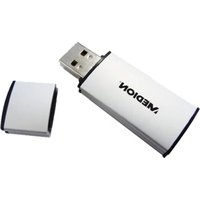
LIFE P89034 (MD 86164) - Clé USB MEDION - Notice d'utilisation et mode d'emploi gratuit
Retrouvez gratuitement la notice de l'appareil LIFE P89034 (MD 86164) MEDION au format PDF.


| Type de produit | Smartphone |
| Marque | MEDION |
| Modèle | LIFE P89034 (MD 86164) |
| Dimensions (H x L x P) | 158 x 76 x 8,5 mm |
| Poids | 180 g |
| Écran | 6,3 pouces IPS LCD, résolution 1080 x 2340 pixels |
| Processeur | Processeur octa-core 2,0 GHz |
| Système d'exploitation | Android 11 |
| Mémoire RAM | 4 Go |
| Stockage interne | 64 Go extensible via microSD jusqu'à 512 Go |
| Appareil photo arrière | Triple capteur : 16 MP + 8 MP + 2 MP |
| Appareil photo avant | 8 MP |
| Batterie | Li-ion 4000 mAh, non amovible |
| Connectivité | Wi-Fi 802.11 a/b/g/n, Bluetooth 5.0, GPS, NFC |
| Réseau | 4G LTE, double nano SIM |
| Ports | USB Type-C, prise casque 3,5 mm |
| Capteurs | Empreinte digitale (dos), accéléromètre, proximité, gyroscope |
| Fonctions principales | Appels, SMS, Internet, appareil photo, GPS, reconnaissance faciale |
| Entretien et nettoyage | Nettoyer avec un chiffon doux non pelucheux. Éviter liquides et aérosols. |
| Sécurité | Ne pas exposer à l'humidité, températures extrêmes, ou chocs violents. |
| Pièces détachées et réparabilité | Batterie, écran, connecteur de charge réparables en centre agréé. |
| Informations générales | Garantie 2 ans. Fabriqué en Chine. |
FOIRE AUX QUESTIONS - LIFE P89034 (MD 86164) MEDION
Questions des utilisateurs sur LIFE P89034 (MD 86164) MEDION
0 question sur cet appareil. Repondez a celles que vous connaissez ou posez la votre.
Poser une nouvelle question sur cet appareil
Téléchargez la notice de votre Clé USB au format PDF gratuitement ! Retrouvez votre notice LIFE P89034 (MD 86164) - MEDION et reprennez votre appareil électronique en main. Sur cette page sont publiés tous les documents nécessaires à l'utilisation de votre appareil LIFE P89034 (MD 86164) de la marque MEDION.
MODE D'EMPLOI LIFE P89034 (MD 86164) MEDION
User Manual
USB Flash Drive with built-in Micro-SD card reader P89034 (MD 86164)
Included with your USB Flash Drive
Please check that the contents listed below are supplied with your package. Your package should include the following components:
- 4 GB USB Flash Drive with built-in Micro-SD card reader
- Documentation
System Requirements
- Slot: USB port (USB 1.1/2.0)
- Operating system: Microsoft Windows® XP/Vista/ Windows®7
Safety Instructions
Please read this chapter carefully and observe all listed notes. This ensures a reliable operation and long life expectancy of your USB Flash Drive. Keep these instructions with your device at all times. In the event that you transfer ownership of this device, please provide these instructions to the new owner. Please contact our Service Centre if you are experiencing technical problems with your device.
Data Security
Note
Every time you update your data make back-up copies on an external storage medium. The supplier does not assume liability for data loss or damage to data storage units, and no claims can be accepted for damages resulting from the loss of data or consequential losses.
Operational Safety
- Follow the operating instructions of your computer.
- Keep the device away from humidity and avoid vibration, dust, heat, and direct sunlight, in order to prevent operational interference.
- Never open the case. This would void all warranty claims and it could possibly cause the destruction of the unit.
- Do not allow children to play with electrical devices without supervision. Children do not always recognize possible dangers.
- Before operating the device after a transport, allow it to become acclimatized. High temperature and humidity deviations can lead through condensation to moisture build up, which can cause an electrical short. Fasten down the plug cover before transportation.
Electromagnetic Compatibility
- While connecting the device, the guidelines for electromagnetic compatibility must be followed. Keep at least 1 meter distance from high frequency and magnetic sources of interference (TV, loudspeakers, mobile phones, etc.), to avoid operation disruption and data loss.
Cleaning Instructions
Normally cleaning of this device is unnecessary.
- Attention! This device does not contain parts that must be serviced or cleaned.
- Make sure the USB Flash Drive does not become contaminated. Do not use solvents, corrosives, or spray cleansers. If necessary, clean the casing with a moist cloth.
Recycling


Device
At the end of its life, the appliance must not be disposed of in household trash. Enquire about the options for environmentally-friendly disposal
Packaging
To avoid damage during transport, the device is stored in packaging. Packaging is produced mostly from materials which can be disposed of in an environmentally friendly manner and be professionally recycled. Contact your local authority waste department for further information.
Getting Started
Connecting
Remove the protective cover of the USB Flash Drive and connect the device with an available USB port.
The USB Flash Drive will be recognized and the operating system assigns the letter of an empty drive. Now you can use the device like a diskette drive (copy data, delete, etc.).
Removing USB Flash Drive
With some operating systems it may be necessary to sign off the device. The installed USB Flash Drive is displayed in the taskbar. Right click with the mouse “Unplug or Eject Hardware” (1) and choose the appropriate entry (2):

The instruction for device removal will follow:
Customer Service
Errors and Possible Causes
USB Flash Drive is not recognized:
- Is the device connected correctly?
- Check in the Windows® device manager, whether the USB units are correctly linked. If necessary re-install the USB controller.
Data cannot be read / written:
- Did you format the USB Flash Drive with another computer? Different formats (FAT/FAT32/HFS) may be incompatible. Save the data and reformat the USB Flash Drive with a compatible format.
Additional Support
If the suggestions in the above section have not solved your problem, please contact the service hotline and we will attempt to help you solve the problem. Before you contact the Helpline, however, please have the following information available:
• How is your computer configured?
• What additional peripherals do you use?
• What messages, if any, appear on your screen?
- What software were you using when the error occurred?
• What steps have you already undertaken to solve the problem?
- If you have been given a customer number previously, please quote this.
MEDION®
Medion Electronics Ltd.
120 Faraday Park, Faraday Road, Dorcan
Swindon SN3 5JF, Wiltshire
United Kingdom
Hotline (UK & N Ireland): 0871 37 61 020
Costs 7p/min from a BT landline, mobile costs may be higher
Hotline (Rep of Ireland): 1 800 992508
Fax: 01793 71 57 16
To contact us by email please visit the
‘Service and Support’ section of our website at
www.medion.co.uk
Copyright © 2010, All rights reserved.
Microsoft ® , MS-DOS ® , and Windows are registered trademarks of Microsoft Corporation in the U.S. and other countries.
The names of actual companies and products mentioned herein may be the trademarks of their respective owners.
Information in this document is subject to change without notice.


- USER MANUAL
- USB FLASH DRIVE WITH BUILT-IN MICRO-SD CARD READER P89034 (MD 86164)
- INCLUDED WITH YOUR USB FLASH DRIVE
- SYSTEM REQUIREMENTS
- SAFETY INSTRUCTIONS
- DATA SECURITY
- NOTE
- OPERATIONAL SAFETY
- ELECTROMAGNETIC COMPATIBILITY
- CLEANING INSTRUCTIONS
- RECYCLING
- GETTING STARTED
- CONNECTING
- REMOVING USB FLASH DRIVE
- CUSTOMER SERVICE
- ERRORS AND POSSIBLE CAUSES
- USB FLASH DRIVE IS NOT RECOGNIZED
- DATA CANNOT BE READ / WRITTEN
- ADDITIONAL SUPPORT
- MEDION®
Marque : MEDION
Modèle : LIFE P89034 (MD 86164)
Catégorie : Clé USB