
HOME SERVER - Serveur domestique MICROSOFT - Notice d'utilisation et mode d'emploi gratuit
Retrouvez gratuitement la notice de l'appareil HOME SERVER MICROSOFT au format PDF.


| Type de produit | Serveur domestique |
| Marque | Microsoft |
| Modèle | Windows Home Server |
| Système d'exploitation | Windows Home Server |
| Fonctions principales | Sauvegarde automatique des PC, accès à distance aux fichiers, partage de médias, stockage centralisé, gestion des utilisateurs |
| Capacité de stockage | Extensible par ajout de disques durs internes ou externes (USB 2.0 ou FireWire) |
| Connexion réseau | Ethernet 100 Mbps (câblée) |
| Configuration minimale requise | Routeur/switch avec connexion Ethernet, un ou plusieurs ordinateurs sous Windows Vista/XP SP2 |
| Dossiers partagés par défaut | Photos, Musique, Vidéos, Logiciels, Public, dossier personnel par utilisateur |
| Sauvegarde | Automatique quotidienne, restauration de fichiers ou de l'ordinateur entier |
| Accès à distance | Oui, via console Web après configuration |
| Mises à jour | Windows Update automatique recommandé |
| Alimentation | Typique pour serveur domestique : 100-240 V AC, 50-60 Hz (adaptateur secteur inclus) |
| Dimensions (approx.) | Environ 30 x 20 x 5 cm (format mini-tour) |
| Poids (approx.) | 2-3 kg selon configuration |
| Entretien et nettoyage | Dépoussiérer régulièrement, éviter l'humidité, ne pas obstruer les ventilations |
| Sécurité | Mot de passe fort requis pour l'administration, pare-feu intégré, sauvegardes automatiques |
| Pièces détachées et réparabilité | Disques durs remplaçables par l'utilisateur ; autres composants internes selon constructeur |
| Documents inclus | Notice d'utilisation (ce document), CD du connecteur Windows Home Server |
FOIRE AUX QUESTIONS - HOME SERVER MICROSOFT
Questions des utilisateurs sur HOME SERVER MICROSOFT
0 question sur cet appareil. Repondez a celles que vous connaissez ou posez la votre.
Poser une nouvelle question sur cet appareil
Téléchargez la notice de votre Serveur domestique au format PDF gratuitement ! Retrouvez votre notice HOME SERVER - MICROSOFT et reprennez votre appareil électronique en main. Sur cette page sont publiés tous les documents nécessaires à l'utilisation de votre appareil HOME SERVER de la marque MICROSOFT.
MODE D'EMPLOI HOME SERVER MICROSOFT
Windows Home Server
For distribution only with a Windows Home Server
Windows®
Home Server
Getting Started
Windows Home Server
Microsoft Corporation
Published: June 2007
Abstract
This document contains information about installing and configuring Microsoft Windows Home Server.
For the latest information about installing, configuring, and using Windows Home Server, see "Release Documentation for Windows Home Server" at the Microsoft Web site (http://go.microsoft.com/fwlink/?LinkID=84725).
Information in this document, including URL and other Internet Web site references, is subject to change without notice. Unless otherwise noted, the companies, organizations, products, domain names, e-mail addresses, logos, people, places, and events depicted in examples herein are fictitious. No association with any real company, organization, product, domain name, e-mail address, logo, person, place, or event is intended or should be inferred. Complying with all applicable copyright laws is the responsibility of the user. Without limiting the rights under copyright, no part of this document may be reproduced, stored in or introduced into a retrieval system, or transmitted in any form or by any means (electronic, mechanical, photocopying, recording, or otherwise), or for any purpose, without the express written permission of Microsoft Corporation.
Microsoft may have patents, patent applications, trademarks, copyrights, or other intellectual property rights covering subject matter in this document. Except as expressly provided in any written license agreement from Microsoft, the furnishing of this document does not give you any license to these patents, trademarks, copyrights, or other intellectual property.
© 2007 Microsoft Corporation. All rights reserved.
Microsoft, Windows, Windows Server, and Windows Vista are either registered trademarks or trademarks of Microsoft Corporation in the United States and/or other countries.
All other trademarks are property of their respective owners.
Contents
Windows Home Server Overview 5
Before You Begin 7
Network Requirements 7
Supported Operating Systems for Home Computers 8
Wireless Support. 9
Setup 11
Step 1: Connect and Power On. 11
Step 2: Install the Windows Home Server Connector Software. 12
Step 3: Complete Windows Home Server Setup . 13
Windows Home Server Quick Configuration 17
User Accounts 18
Shared Folders 19
Computer Backups 20
Server Storage 20
Windows Home Server Settings 21
More Information 23
Troubleshooting 25
Product Support. 27
Windows Home Server Documentation. 27
Technical Support Information. 27
Support Options. 28

Windows Home Server Overview
The Microsoft Windows Home Server operating system helps you centralize and connect your digital things, enabling you to share, store, access, and automatically protect your most important pictures, videos, music, and files.

Windows Home Server provides the following:
- Automated backup and simple restore of your home computers.
Windows Home Server provides you with the peace of mind you want by automatically backing up your home computers and your important files every night, making it easy to restore an entire home computer or just a file to a previous point in time.
- Access and share everything from anywhere.
Windows Home Server enables you to easily and more securely access your files and home computers from inside and outside your home. You can use Windows Home Server to store your important files in a central location, for access anytime and anywhere.
A server that grows with you.
Windows Home Server grows with you to meet your needs, today and into the future. It is incredibly easy to add hard drives as you need more space for your pictures, videos, music, and files.
Windows Home Server is an easy-to-use, affordable solution that enables you to unleash the power of your home network.

Before You Begin
Find a suitable place to put your home server before you run Windows Home Server Setup. The location you choose must have an available, wired network connection either to your broadband router or to a switch that is connected to your broadband router.
Network Requirements
To successfully use Windows Home Server, your home network must meet the following requirements:
| Requirement | Minimum |
| Server connection | 100 Mbps wired connection |
| Home computers | One or more computers that are running a supported operating system, with either a wired or a wireless network connection. |
| Internet connection | Broadband connection |
| Broadband router/firewall device | An external Internet broadband router/ firewall device with 100 Mbps wired Ethernet connection. Additionally, Windows Home Server assumes that your home computers get their IP address from the router/firewall device on your home network. |
Supported Operating Systems for Home Computers
The following operating systems for home computers are supported to work with Windows Home Server:
The Windows VistaTM Operating System
- Windows Vista Home Basic
- Windows Vista Home N (European Union only)
- Windows Vista Home Premium
- Windows Vista Business
- Windows Vista Business N (European Union only)
- Windows Vista Enterprise
- Windows Vista Ultimate
The Windows XP Operating System
- Windows XP Home with Service Pack 2 (SP2)
- Windows XP Professional with SP2
- Windows XP Media Center Edition 2005 with SP2 and Rollup 2
- Windows XP Media Center Edition 2005 with SP2
- Windows XP Media Center Edition 2004 with SP2
- Windows XP Tablet Edition with SP2
Wireless Support
-
You must use an Ethernet cable to connect your server to your broadband router or switch. Wirelessly connecting your server to your broadband router or switch is not supported.
-
After you connect your server to your home network, home computers that are wirelessly connected to your home network can connect to your server.

Setup
You can get Windows Home Server up and running in three easy steps:
Step 1: Connect and power on.
Step 2: Install the Windows Home Server Connector software.
Step 3: Complete Windows Home Server Setup.
Step 1: Connect and Power On
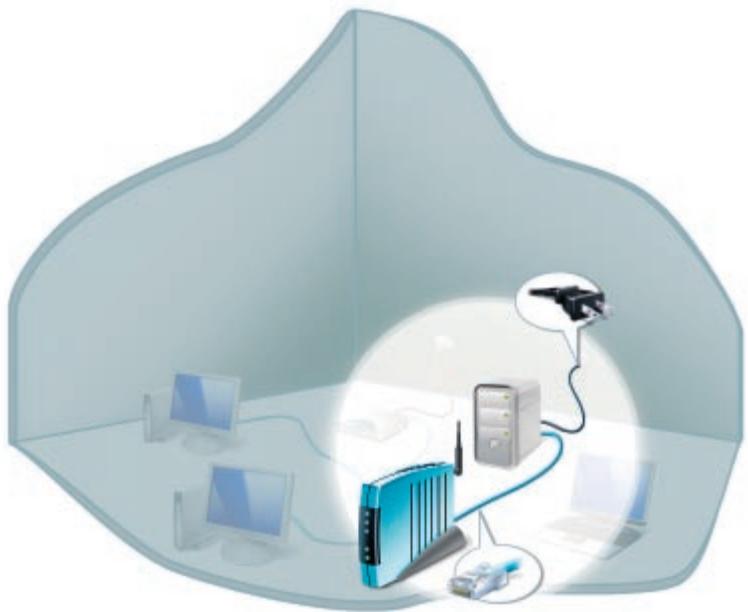
Use a wired connection to connect your home server to your broadband router or to a switch that is connected to your broadband router. Then connect your home server to an electrical outlet.
Press the power button on your home server to turn it on.
Step 2: Install the Windows Home Server Connector Software
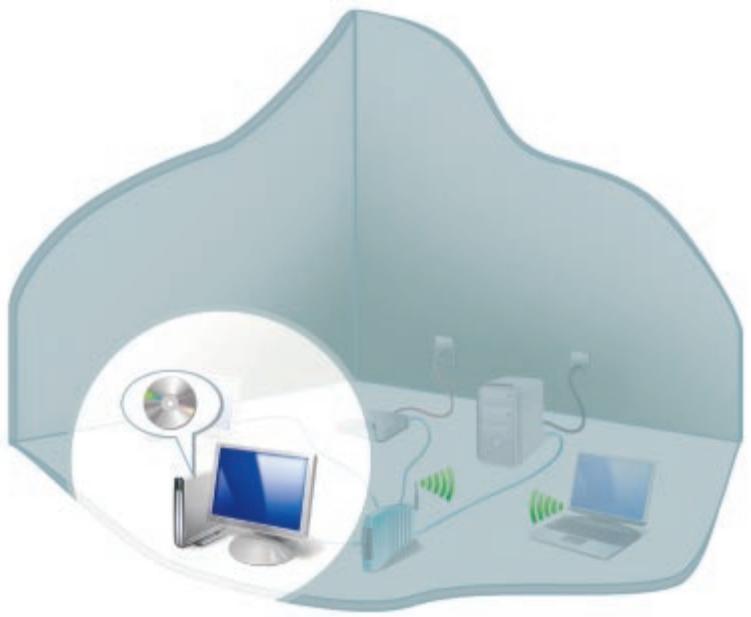
The Windows Home Server Connector software does the following:
- Connects your home computer to Windows Home Server.
- Automatically backs up your home computer nightly.
- Monitors the health of your home computer.
- Enables you to configure and remotely administer Windows Home Server from your home computer.
To install the Windows Home Server Connector software
- Insert the Windows Home Server Connector CD into a computer that is connected to your home network. The Windows Home Server Connector Wizard starts.
-
Complete the wizard to connect your computer to Windows Home Server.
-
Windows Home Server Setup starts next if this is the first time you have installed the Connector software.
After you complete Windows Home Server Setup, run the Windows Home Server Connector Wizard on all of your other home computers to connect them to Windows Home Server. Run the wizard on one computer at a time.
NOTE
If you do not have your Connector CD, you can install the Connector software from the Software shared folder on Windows Home Server.
Step 3: Complete Windows Home Server Setup
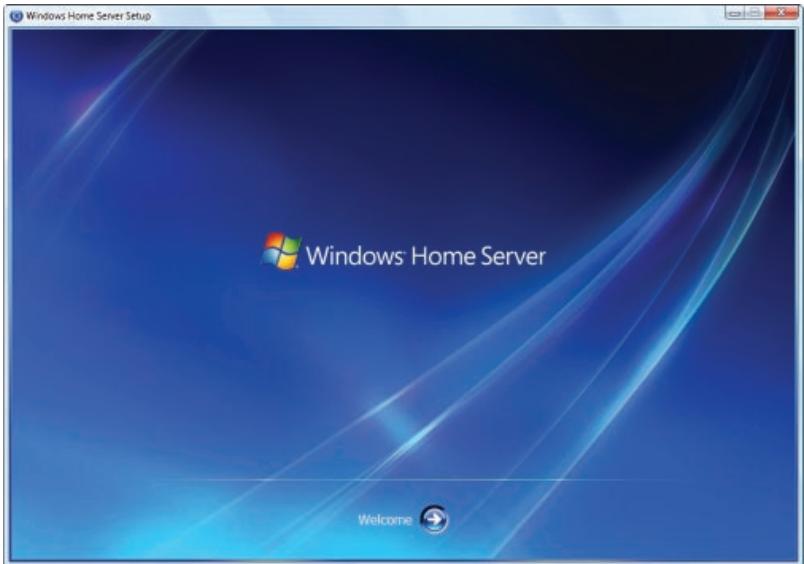
Windows Home Server Setup runs only once, from the first computer where you install the Windows Home Server Connector software. You must complete this step successfully to ensure Windows Home Server functions properly.
To complete Windows Home Server Setup
- On the Welcome screen, click Next. Windows Home Server initializes.
Depending on where you purchased your home server, you may see the Type your product key page next. If you do not, skip to step 3 of this procedure.
- On the Type your product key page, type the Windows Home Server product key that is provided by your system vendor, and then click Next.
- On the Name your home server page, type a name for your home server, and then click Next.
The default name is SERVER. The name you choose can contain the following:
15 characters maximum, with no spaces
- Letters (at least one), numbers, and hyphens
- On the Type a password for Windows Home Server page, type a password, the password confirmation, and a password hint, and then click Next.
This is the password that you use to manage your home server from the Windows Home Server Console. The password is case-sensitive, and it must be strong. A strong password must be at least seven characters long, and it must contain at least three of the following four character categories:
- Uppercase characters
- Lowercase characters
Numbers - Symbols (such as!, @, #, etc.)
A password hint helps you remember the password. If you forget the password, the password hint is displayed to help you remember it, so make sure you provide a helpful hint. The password hint can be seen by anybody who clicks on the link to display it. You will have to reset your server if you forget the password and the password hint does not help you remember it.
- On the Help protect Windows Home Server automatically page, click On or Off to configure Automatic Windows Updates, and then click Next.
The recommended setting is On to keep Windows Home Server up-to-date and to report problems to Microsoft.
- On the Customer Experience Improvement Program page, determine if you want to participate in this program, click Yes or No, and then click Next.
The Customer Experience Improvement Program helps improve Windows Home Server by reporting information about your computer hardware and how you use your home server. This information is collected without interrupting you. No information collected is used to identify or contact you.
- On the Windows Error Reporting page, determine if you want to automatically send error reports to Microsoft, click Yes or No, and then click Next.
If you previously chose to install updates on the Help protect Windows Home Server automatically page, you will see the Windows Home Server Update page next. If you do not, skip to step 9 of this procedure.
- On the Windows Home Server Update page, click Next to check for critical updates.
Setup checks for critical updates and automatically installs them if there are any. This may take a few minutes to complete. No other input is required from you while the updates are installed.
- On the final Setup page, click Start to start the Windows Home Server Console so that you can configure Windows Home Server.

Windows Home Server Quick Configuration
The following are tasks that you can do as soon as Windows Home Server is set up and your home computers are connected.
From the Windows Home Server Console, configure the following items:
- User accounts
- Shared folders
- Computer backups
Server storage - Windows Home Server Settings
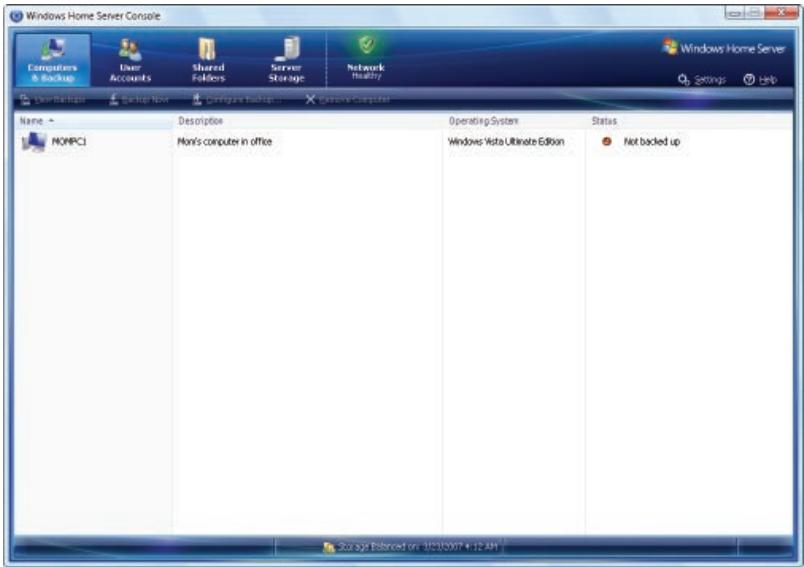
To learn more about configuring Windows Home Server, click Help on the console to open the Windows Home Server Console Help.

User Accounts
After you complete Windows Home Server Setup and install the Windows Home Server Connector software on all of your home computers, you are ready to add user accounts for the people in your household. User accounts are required in order to control access to the shared folders on Windows Home Server.
To add a user account
- From a home computer, right-click the Windows Home Server tray icon, and then click Windows Home Server Console.
- Type the Windows Home Server password, and then click Next.
- On the Windows Home Server Console, click the User Accounts tab.
- Click Add, and then complete the Add User Account Wizard.
- Repeat for each user account that you want to add.
NOTE
When you create user accounts on
Windows Home Server, use logon names that match the logon names of your existing user accounts on your home computers. Also, use the same password that you use for your existing user accounts. This makes it easier to access shared folders on Windows Home Server. If the user accounts and passwords do not match, you will be prompted for a user name and a password when you open Windows Home Server shared folders.
Shared Folders
Shared folders are places for you to organize and store files on Windows Home Server so that you can share them with other people on your home network.
The following shared folders are created automatically on Windows Home Server:
- Photos
Music
Videos - Software
Public - A personal shared folder for each user account
You can easily add more shared folders to meet your needs.
To add a shared folder
- From the Windows Home Server Console, click the Shared Folders tab.
- Click Add.
- Complete the Add a Shared Folder Wizard.
NOTE
A personal shared folder is created each time you add a new user account by using the Add User Account Wizard. By default, only this user account has access to the personal shared folder. Users can store personal files in this personal shared folder.
Computer Backups
By default, all of the hard-drive volumes on each home computer are backed up every night after you install the Windows Home Server Connector software.
You can customize the backup of each of your home computers from the Windows Home Server Console.
To customize a home-computer backup
- From the Windows Home Server Console, click the Computers & Backup tab.
- Right-click the computer that you want to customize, and then click Customize Backup.
- Complete the Backup Configuration Wizard to choose hard-drive volumes to back up and to exclude folders from the backup.
Server Storage
If you want to add more storage to
Windows Home Server, you can add external USB 2.0 hard drives, external FireWire (IEEE 1394) hard drives, or internal hard drives by using the Server Storage tab on the Windows Home Server Console.
CAUTION
Your hard drive will be formatted when it is added to your server storage. Make sure that you copy any files that you want to save from the hard drive before adding it to your server storage.
IMPORTANT
If you add an external USB hard drive, use a USB 2.0 hard drive. Both your computer hardware and your hard drive must support USB 2.0 for optimal performance. Using USB 1.1 devices can cause poor performance and unpredictable results.
To add a hard drive
- Connect or install the hard drive and power it on (if necessary).
- From the Windows Home Server Console, click the Server Storage tab.
- Under Non Storage Hard Drives, right-click the new hard drive, and then click Add.
- Complete the Add a Hard Drive Wizard to format the hard drive and to add it to your server storage.
CAUTION
If you want to remove an external or internal hard drive from your home server, use Remove on the console Server Storage tab. Right-click the hard drive that you want to remove, and then click Remove so Windows Home Server can safely move all of the files off of the hard drive before you disconnect it.
Windows Home Server Settings
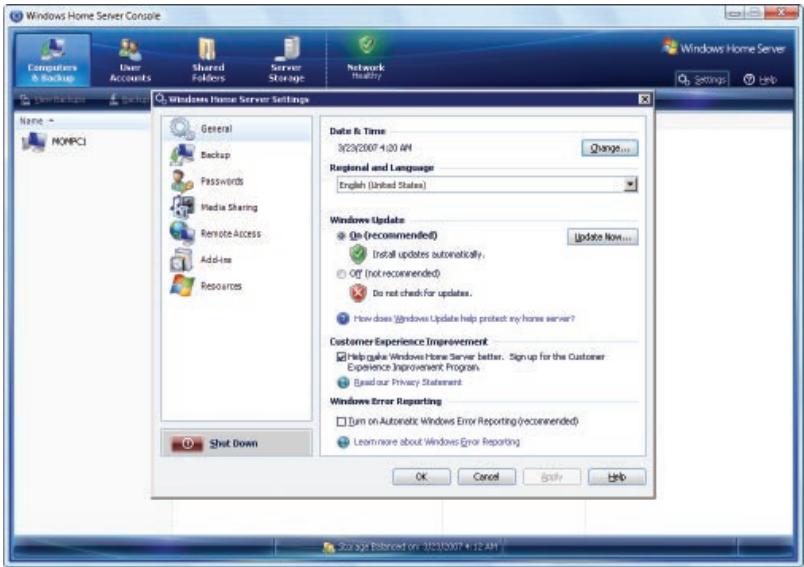
Click Settings on the Windows Home Server Console to open the Windows Home Server Settings dialog box:
You can use Windows Home Server Settings to configure the following items:
General
- Configure the date and time.
- Configure the regional settings.
- Configure Windows Update.
- Configure Customer Experience Improvement Program.
- Configure Windows error reporting.
Backup
- Configure the Backup Time.
- Configure Automatic Backup Management.
- Run Backup Cleanup.
Passwords
- Change the Windows Home Server password.
- Configure the User Accounts Password Policy.
Media Sharing
Configure Media Library Sharing for the Music, Photos, and Videos shared folders, so that you can stream digital media from Windows Home Server to a device that supports Windows Media Connect.
Remote Access
- Configure Web site connectivity.
- Configure your domain name.
- Configure your broadband router.
- Configure the settings for your Windows Home Server Web site.
Add-ins
Install and uninstall Windows Home Server Add-ins.
Resources
- Activate Windows Home Server.
View hardware information about your home server.
View Windows Home Server version information. - Learn more about Windows Home Server.
- Connect to the Windows Home Server Community.
- Contact Product Support.
In addition, you can shut down Windows Home Server from the Settings dialog box by clicking Shut Down.
For more information about Windows Home Server Settings, click Help on the Settings dialog box.
More Information
You can get more information about Windows Home Server from the following locations:
- Click Help on the Windows Home Server Console to open Windows Home Server Console Help.
- On a home computer, right-click the Windows Home Server task tray icon, and then click Help to open Windows Home Server Help.
- For more information about Windows Home Server documentation, see the Microsoft Web site (http://go.microsoft.com/fwlink/?LinkID=85098).
- To share ideas and information with other Windows Home Server enthusiasts, see the Windows Home Server Community Forums Web site (http://go.microsoft.com/fwlink/?LinkId=83211).
- To research troubleshooting tips, see the Microsoft Web site (http://go.microsoft.com/fwlink/?Linkld=88097).


Troubleshooting
If you are having problems setting up Windows Home Server, make sure you do the following:
- Plug in and power on your home server.
- Connect your home server with a wired network connection to your broadband router or to a switch that is connected to your broadband router.
If you are having problems setting up the Windows Home Server Connector software on your home computers, make sure you check the following:
- Connect your home computer to your home network (using either a wired or a wireless connection), and make sure the home computer is on the same logical network as Windows Home Server.
- Make sure firewall software on your home computer is not blocking access to Windows Home Server.
- If your computer has been joined to a corporate network (such as a corporate laptop), check with the corporate network administrator about the IPsec policy. This may block access from the corporate computer to Windows Home Server.
For the latest information about Windows Home Server, see "Release Documentation for Windows Home Server" at the Microsoft Web site (http://go.microsoft.com/fwlink/?LinkID=84725).

Product Support
Windows Home Server Documentation
To download a copy of this guide and for self-help content specific to Windows Home Server, see the Microsoft Web site at http://go.microsoft.com/fwlink/?Linkld=89784.
Technical Support Information
| Support Information Online | http://go.microsoft.com/fwlink/?LinkId=86561 |
| TTY Users | Microsoft text telephone (TTY/TDD) services are available at (425) 635-4948 in Washington state or (800) 892-5234 in the U.S. Call (866) 857-9850 in Canada. |
| Worldwide | The support options described in this guide are available in the United States and Canada only. Support elsewhere may vary. For regional contact details, visit http://go.microsoft.com/fwlink/?LinkId=62344. If there is no Microsoft subsidiary office in your country or region, please contact the establishment from which you obtained your Microsoft product to inquire about available support. |
| Conditions | Microsoft's support services are subject to then-current prices, terms, and conditions, which are subject to change without notice. |
| Evaluation versions | Evaluation versions of this product are not supported. Visit the Windows Home Server Community Forums Web site to communicate online with others about Windows Home Server at http://go.microsoft.com/fwlink/?LinkID=83211. |
Support Options
Computer manufacturers, System Builders, and Microsoft offer customers of the Windows® Home Server operating system a range of service and support options. You can select the support level that best fits your particular needs. Information about each service is briefly described below.
| Support Option | Benefits of Service |
| Computer Manufacturer or System Builder Distributed If your product came installed with a new computer or device, the hardware manufacturer or system builder provides technical support and assistance for Windows Home Server. Please contact them directly for support. | Your hardware manufacturer or system builder has the best information for supporting Windows Home Server on their hardware. |
| Self Support For self-help tools and content specific to Windows Home Server, see the Microsoft Web site at http://go.microsoft.com/fwlink/?LinkID=85678. | Windows Home Server documentation Other online resources |
| Windows Home Server Community Forums Visit the Windows Home Server Community Forums Web site to communicate online with others about Windows Home Server at http://go.microsoft.com/fwlink/?LinkID=83211. | Information about: - Announcements - FAQ and Known Issues - Software - Hardware - Suggestions |
| Incident-based support Assisted pay-per-incident support from Microsoft. Phone support: User Support - (866) 234-6020 Developers - (800) 936-5800 | Issues that cannot be resolved by other support options - Microsoft specific issues |
For more information on Windows Home Server, please visit:
www.microsoft.com/ windowshomeserver
IS IT Genuine? If you believe that the Certificate of Authenticity label or the Microsoft software you obtained with your system is not legally licensed and/or might be counterfeit, please send e-mail to Microsoft at piracy@microsoft.com, or go to www.microsoft.com/howtotell.
©2007 Microsoft Corporation. All rights reserved.
Microsoft, the Windows logo, and Windows are either registered trademarks or trademarks of Microsoft Corporation in the United States and/or other countries.
- Windows Home Server
- Windows®
- Home Server
- Getting Started
- Abstract
- Contents
- Windows Home Server Overview
- Before You Begin
- Network Requirements
- Supported Operating Systems for Home Computers
- The Windows VistaTM Operating System
- The Windows XP Operating System
- Wireless Support
- Setup
- Step 1: Connect and Power On
- Step 2: Install the Windows Home Server Connector Software
- To install the Windows Home Server Connector software
- NOTE
- Step 3: Complete Windows Home Server Setup
- To complete Windows Home Server Setup
- Windows Home Server Quick Configuration
- User Accounts
- To add a user account
- Shared Folders
- To add a shared folder
- Computer Backups
- To customize a home-computer backup
- Server Storage
- CAUTION
- IMPORTANT
- To add a hard drive
- Windows Home Server Settings
- General
- Backup
- Passwords
- Media Sharing
- Remote Access
- Add-ins
- Resources
- More Information
- Troubleshooting
- Product Support
- Windows Home Server Documentation
- Support Options
Marque : MICROSOFT
Modèle : HOME SERVER
Catégorie : Serveur domestique