
SCAN MULTI II SOFTWARE - Logiciel de numérisation KONICA MINOLTA - Notice d'utilisation et mode d'emploi gratuit
Retrouvez gratuitement la notice de l'appareil SCAN MULTI II SOFTWARE KONICA MINOLTA au format PDF.


| Type de produit | Logiciel de numérisation |
| Marque | KONICA MINOLTA |
| Modèle | SCAN MULTI II SOFTWARE |
| Compatibilité | PC (Windows 95/98/2000/NT 4.0) et Macintosh (Mac OS 7.5.3 à 9.0.4) |
| Processeur PC requis | Intel Pentium 90 MHz ou supérieur (Pentium III recommandé pour 16 bits et ROC/GEM) |
| Mémoire RAM PC minimale | 32 Mo (512 Mo recommandé pour 16 bits et ROC/GEM) |
| Espace disque PC | 600 Mo (2 Go recommandé pour 16 bits et ROC/GEM) |
| Processeur Mac requis | Power PC, Power Macintosh G3/G4 |
| Mémoire RAM Mac minimale | 32 Mo d'application RAM + OS (256 Mo recommandé pour 16 bits et ROC/GEM) |
| Espace disque Mac | 600 Mo (2 Go recommandé pour 16 bits et ROC/GEM) |
| Résolution d'entrée maximale | 2820 ppp (selon format film) |
| Résolution de sortie maximale | 2400 ppp (jusqu'à 2400 dpi) |
| Formats film supportés | 35 mm, moyen format (6x4.5 à 6x9), APS (avec adaptateur), 16 mm, transparents, TEM |
| Types de film | Négatif couleur, positif couleur, N&B négatif, N&B positif, spécial, détection automatique APS |
| Fonctions principales | Index scan, prescan, correction d'image (courbes, histogramme, luminosité/contraste, teinte/saturation, variations), Digital ROC, Digital GEM |
| Formats de fichier enregistrables | BMP, JPEG, TIFF, PICT (Mac) – selon utilitaire |
| Profondeur de couleur | 8 bits, 16 bits, 16 bits linéaire par canal |
| Langues disponibles | Anglais (autres langues traduites sur demande) |
| Mise à jour | Via enregistrement du logiciel |
| Type de licence | Logiciel propriétaire fourni avec le scanner |
| Numéro de série requis | Oui (sur l'étui du CD-ROM) |
| Installation | Via CD-ROM, pilote TWAIN ou plug-in Photoshop |
FOIRE AUX QUESTIONS - SCAN MULTI II SOFTWARE KONICA MINOLTA
Questions des utilisateurs sur SCAN MULTI II SOFTWARE KONICA MINOLTA
0 question sur cet appareil. Repondez a celles que vous connaissez ou posez la votre.
Poser une nouvelle question sur cet appareil
Téléchargez la notice de votre Logiciel de numérisation au format PDF gratuitement ! Retrouvez votre notice SCAN MULTI II SOFTWARE - KONICA MINOLTA et reprennez votre appareil électronique en main. Sur cette page sont publiés tous les documents nécessaires à l'utilisation de votre appareil SCAN MULTI II SOFTWARE de la marque KONICA MINOLTA.
MODE D'EMPLOI SCAN MULTI II SOFTWARE KONICA MINOLTA
Dimâge Scan multi II
Software Instruction Manual
Thank you for purchasing the Minolta Dimâge Scan Multi II. The Dimâge Scan Multi II is a multiple format film scanner capable of scanning medium-format, 35mm, 16mm, and sleeved APS film. With the optional APS adapter, advanced photo system film in the cassette can also be scanned.
This manual has been designed to help you understand the operation of your scanner. To realize all the benefits of your scanner, please read this manual and the accompanying hardware manual thoroughly.
The instructions in this manual assume you have a working knowledge of the operating system for your computer (Macintosh OS, Windows®95, Windows®98, Windows®2000, or Windows®NT) and its conventions. Familiarity with the mouse and standard operating system menus and commands is necessary before operating the Dimâge Scan Multi II software.
This manual does not instruct in the:
- basic use of personal computers.
- use of Window®95, Windows®98, Windows®2000, Windows®NT, or Mac OS.
- use of Adobe Photoshop, Paint Shop Pro, or Corel PHOTO-PAINT.
The examples in this manual use Windows software. The appearance of some screens may differ from the examples when using Windows NT or the Macintosh operating system.
- This manual may not be copied in part or whole without prior written permission from Minolta Co., Ltd. © 2000 Minolta Co., Ltd.
- Every necessary caution has been taken to ensure the accuracy of this instruction manual. Please contact us if you have any questions, find any errors, or notice missing information.
-
Minolta is not responsible for loss, damage, or other results occurring during the operation of this product.
-
Microsoft, Windows®, Windows 95®, Windows 98®, Windows 2000®, and Windows NT® are registered trademarks of the Microsoft Corporation.
- Macintosh™, Apple®, and Power Macintosh® are registered trademarks of Apple Computer, Inc.
Adobe® and Photoshop™ are registered trademarks of Adobe Systems Incorporated. - Digital ROC ^TM , Digital ROC ^TM , and Digital GEM ^TM are trademarks of Applied Science Fiction in U. S. A.
- Other corporate and product names are the trademarks and registered trademarks of their respective companies.
TABLE OF CONTENTS
SYSTEM REQUIREMENTS - PC/AT 7
SYSTEM REQUIREMENTS - MACINTOSH 8
INSTALL THE SOFTWARE 9
WINDOWS 95/98/98SE/2000/NT4.0 .9
MACINTOSH 12
INSTALL THE PLUG-IN - MACINTOSH 14
STARTING UP THE SOFTWARE -WINDOWS 15
WINDOWS 95/98/98SE/2000/NT 15
STARTING UP THE SOFTWARE - MACINTOSH 17
THE FLOW CHART TO PRESCAN 18
MAIN WINDOW 19
MAIN WINDOW - NAMES OF PARTS 19
SELECTING THE FILM FORMAT 20
SELECTING THE FILM TYPE 21
INDEX SCAN 22
INDEX WINDOW - NAMES OF PARTS 22
MAKING AN INDEX SCAN 23
SELECTING INDEX IMAGE 24
SELECTING FRAMES 24
ROTATING THE INDEX FRAMES 25
FLIPPING THE INDEX FRAMES 25
MAGNIFYING THE INDEX IMAGE 26
REVERSING THE INDEX IMAGE 27
SAVING AFTER LINING UP THE INDEX SCAN IMAGES 28
SAVING THE INDEX SCAN IMAGES AS AN INDEX FILE 30
LOADING THE INDEX SCAN IMAGES SAVED AS THE INDEX FILE 31
PRESCAN 32
MAKINGAPRESCAN 32
PRESCAN TAB - NAMES OF PARTS 33
ROTATING THE PRESCAN IMAGE 34
FLIPPING THE PRESCAN IMAGE 34
FULL-SCREEN VIEW 35
MAGNIFYING OR REDUCING THE VIEW 36
SCROLLING THE VIEW 37
AUTO EXPOSURE LOCK 38
AE AREA LOCK 39
FOCUS 40
POINT AF 40
MANUAL FOCUS 41
AUTO CROPPING 42
MANUAL CROPPING 43
APS FORMATS; C, H, AND P 45
DISPLAYING FRAME NUMBER 46
RGB/CMY INFO 46
TABLE OF CONTENTS
IMAGE CORRECTION 47
PRESCAN TAB - NAMES OF PARTS 47
TONE CURVES AND HISTOGRAM 48
CORRECTING THE TONE CURVES 49
TONE CURVES BY FREEHAND 50
SPECIFYING THE BLACK, WHITE OR GRAY POINT 51
CORRECTING THE HISTOGRAM 54
CORRECTING THE HISTOGRAM - AUTO SETTING 54
CORRECTING THE HISTOGRAM - EACH R, G, B CHANNEL 55
CORRECTING THE HISTOGRAM - RESET 55
CORRECTING BRIGHTNESS/CONTRAST/COLOR BALANCE 56
CORRECTING BRIGHTNESS/CONTRAST/COLOR BALANCE - AUTO SETTING 57
CORRECTING BRIGHTNESS/CONTRAST/COLOR BALANCE - RESET 57
CORRECTING HUE/SATURATION/LIGHTNESS 58
CORRECTING HUE/SATURATION/LIGHTNESS - AUTO SETTING 59
CORRECTING HUE/SATURATION/LIGHTNESS - RESET 59
VARIATION CORRECTION 60
VARIATION CORRECTION - COLOR BALANCE 61
VARIATION CORRECTION - BRIGHTNESS & CONTRAST CORRECTION 62
VARIATION CORRECTION - SATURATION CORRECTION 63
CANCELLING THE IMAGE CORRECTION 64
REDOTHECORRECTION 64
DELETING THE IMAGE CORRECTION (DELETING ALL THE IMAGE CORRECTIONS) 64
SNAPSHOT 65
IMAGE CORRECTION JOB 66
IMAGE CORRECTION JOB - SAVING IMAGE CORRECTION JOB 66
IMAGE CORRECTION JOB - LOADING IMAGE CORRECTION JOB 67
CHECKING THE CORRECTION RESULT WHILE LINING UP IMAGES 68
FULL-SCREEN VIEWING THE POST-CORRECTION IMAGE 68
DIGITAL ROC/GEM 69
DIGITAL ROC 69
DIGITAL GEM 70
THE FLOW CHART TO THE FINAL SCAN 74
JOB 75
LOADING A JOB 76
CATEGORIES 77
FINAL SCAN 78
TABLE OF CONTENTS
SCAN SETTINGS WINDOW 80
SCAN SETTINGS WINDOW - NAMES OF PARTS .80
REGARDING THE SETTING ITEMS OF THE SCAN SETTINGS WINDOW 81
EXAMPLE OF THE SCAN SETTING - WHEN DISPLAYING IN A MONITOR 84
EXAMPLE OF THE SCAN SETTING - WHEN PRINTING A SCANNED IMAGE 85
REGISTERING A JOB 86
DELETING A JOB 87
SETTING THE PREFERENCES 88
THE DISPLAY IN THE PREFERENCES WINDOW 88
REGARDING THE SETTING ITEMS OF THE PREFERENCES WINDOW 89
COLOR MATCHING 92
COLOR MATCHING - THE SETTING OF OUTPUT COLOR IMAGE 92
REGARDING OUTPUT COLOR SPACE SETTINGS AVAILABLE 93
COLOR MATCHING - THE SETTING OF ICC PROFILE 95
NAVIGATION 96
THE AUTOMATIC OPERATION BY THE NAVIGATION FUNCTION 98
INPUTTING THE NAME OF NAVIGATION SET AND SAVING IT 100
SELECTING A NAVIGATION SET 100
DELETING A NAVIGATION SET 101
SLIDE FEEDER (OPTIONAL ACCESSORY) 102
LOADING TIME -WINDOWS 104
LOADING TIME - MACINTOSH 105
JOBFILELIST-35MM 106
JOB FILE LIST - 6 X 4.5 108
JOB FILE LIST - 6 X 6 110
JOBFILE LIST-6X7 112
JOBFILELIST-6X8 114
JOBFILE LIST-6X9 116
JOB FILE LIST - APS 118
JOBFILELIST-16MM 120
JOB FILE LIST - CENTER AREA 2820 122
SOFTWARE REGISTRATION
Please register this software before using it.
You will receive technical support, as well as software upgrade and product information once this software is registered. Complete and return the enclosed Product & Software Registration form after detaching it from the Warranty. No postage is necessary.
- The information provided in the questionnaire will only be used for Minolta customer service and product research & development. The information you provide will be kept private and confidential.
The Dimage Scan Multi II and the supplied software are not designed for use with sepia color film. However, if you intend to use sepia color film, select Color Negative in the film type (p.xx). After the final scan, retouch the saved image using the image editing application so that a sepia tone is reproduced.
Also, when scanning sepia color film with an APS cassette, [The film type cannot be selected.] appears if the Auto Detect (color) is selected in the film type. In this case, select Color Negative and perform the final scan. After the final scan, retouch the saved image using the image editing application so that a sepia tone is reproduced.
SYSTEM REQUIREMENTS - PC/AT
CPU: IBM PC/AT compatible with an Intel Pentium processor 90 MHz or above.
- Support cannot be provided for custom or home built machines.
Pentium III Processor is recommended when loading with 16 bit or using the Digital ROC/GEM functions.
Operating System: Windows®95 (inc. OSR2), Windows®98 (inc. Second Edition),
Windows®2000 Professional, Windows®NT 4.0
Memory: A minimum of 32 MB (megabytes) of RAM.
A minimum of 512 MB when loading with 16 bit and using the Digital
ROC/GEM functions.
Hard Disk Space: About 600 MB or more of available hard disk space.
About 2 GB or more of available hard disk space when loading with 16 bit
and using the Digital ROC/GEM functions. (About 3 GB or more is
recommended.)
Monitor: Minimum VGA (640 x 480) monitor capable of displaying High Color (16 bit)
is required. XGA (1024 x 768) or larger is recommended.
CD-ROM Drive: Necessary (when installing the software.)
Recommended SCSI Board:
Adaptec AHA-1510B, AHA-1520B, AHA-1540CP, AHA-2910B, AHA-2910C,
AHA-2920C, AHA-2940, AHA-2940U/W/AU/UW/U2W, SCSI Card
19160/29160/29160N, AVA-2902E/2903B/2906
Other: Photoshop Ver. 3.0.5, Ver.4.0.1, Ver. 5.0.2, Ver. 5.5, Photoshop 5.0 LE, Paint
Shop Pro Ver. 6, Corel PHOTO-PAINT Ver. 9^* have been fully tested for use
with the TWAIN driver software.
*Corel Scan is not recommended.
SYSTEM REQUIREMENTS - MACINTOSH
| CPU: | Power PC, Power Macintosh G3, Blue & White Power Macintosh G3 and Power Macintosh G4 (Except for 68 K Macintosh and Mac OS compatible unit) Power Macintosh G4 is recommended when loading with 16 bit and using the Digital ROC/GEM functions. |
Operation System: Mac OS 7.5.3 to 9.0.4
| Memory: | A minimum of 32 MB (megabytes) application RAM in addition to the requirements for the Mac OS. 256 MB or more when loading with 16 bit and using the Digital ROC/GEM functions. |
| Hard Disk Space: | About 600 MB or more of available hard disk space. |
| About 2 GB or more of available hard disk space when loading with 16 bit and using the Digital ROC/GEM functions. (About 3 GB or more is recommended.) |
| Monitor: | Minimum 13 (640 x 480) inch monitor capable of displaying at least 32,000 Colors. |
| 19 inch(1024 x 768) or larger is recommended. |
CD-ROM Drive: Necessary (when installing the software.)
Recommended SCSI Board:
With a Power Macintosh and Power Macintosh G3
The standard built-in SCSI board
Connecting to the extension board inserted into the PCI bus/NuBus is not available.)
With a Blue & White Power Macintosh G3*, Power Macintosh G4
Adaptec PowerDomain 2940UW/U2W, PowerDomain 2930U, SCSI Card 2906, and AVA-2903B
- Some models in the Blue & White Power Macintosh G3 series use the Ultra2 Wide SCSI board as the standard built-in SCSI board, however, connecting the Dimage Scan Multi II to the standard built-in SCSI board is not recommended. The connecting capacity may be limited and the full capabilities of the PC may not be usable due to the specifications of the standard built-in SCSI board.
When using the model which has the standard built-in SCSI board, insert the recommended SCSI board as described above in the open slot without detaching the standard built-in SCSI board and then connect the Dimage Scan Multi II to the SCSI connector on the inserted SCSI board.
Other: Adobe PhotoShop Ver. 4.0.1, Ver. 5.0.2, Ver. 5.5 and Adobe Photoshop 5.0 LE have been fully tested for use with the plug-in software.
To use the Dimage Scan Multi II, install the software by following the procedure below.
CAUTION – Before installing
- Make sure that the Damage Scan Multi II is connected to your PC correctly. For connecting the Dimage Scan Multi II to the PC, refer to the hardware instruction manual.
- The antivirus system extensions may conflict with the operation of this installer. Remove or disable any extensions before launching this installer and replace or re-enable them when installations are complete.
WINDOWS 95/98/98SE/2000/NT4.0
These installation instructions assume drive C or D is the CD-ROM drive or the startup disk drive respectively.
1 Turn on the Dimâge Scan Multi II.
2 Turn on the PC and start up Windows.
- The"[New Hardware Found" window will appear.
FOR WINDOWS 2000/NT4.0
3 Select "Do not install a driver." and click on [OK].
- This dialog box may appear several times. Repeat step 3 until the dialog box no longer appears.
FOR WINDOWS 95 RELEASE 2 (OSR2)
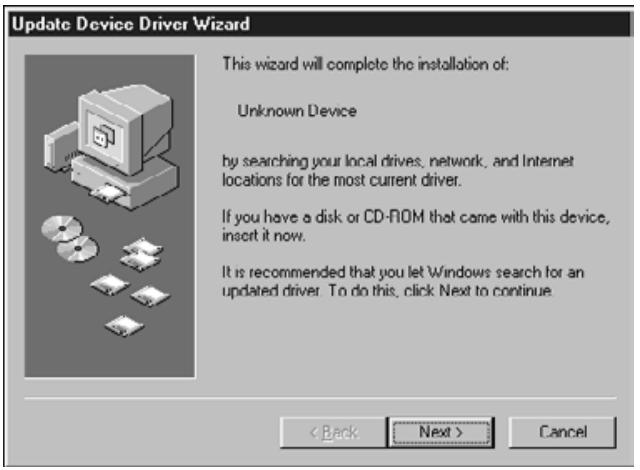
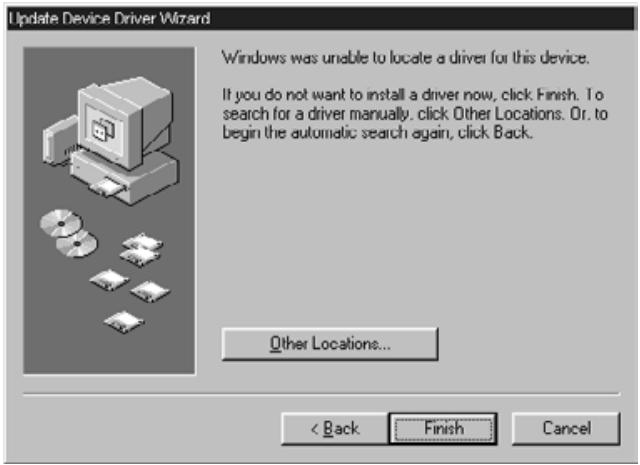
- The 2 dialog boxes shown on the left will appear.
3a Click on [Next >] in the first dialog box.
3b Click on [Finish] in the second dialog box.
FORWINDOWS98
3 Click on [Next >] until [Finish] appears and Click on [Finish] at last.
4 Insert the DimAge Scan Multi II CD-ROM into the CD-ROM drive.
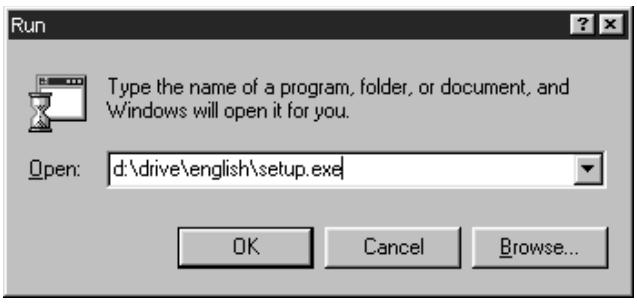
5 From the START button, select Run... When the Run dialog box appears, enter D:driver\english\setup.exe from the Open drop-down list, then click on [OK].
- The following dialog box will appear.
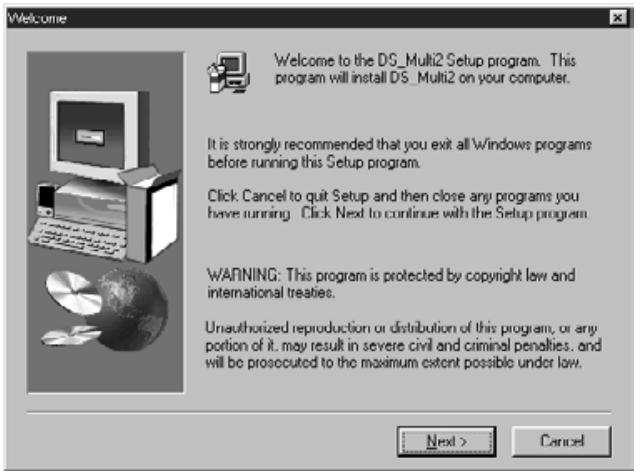
6 Click on [Next >].
- The Software License Agreement will appear.
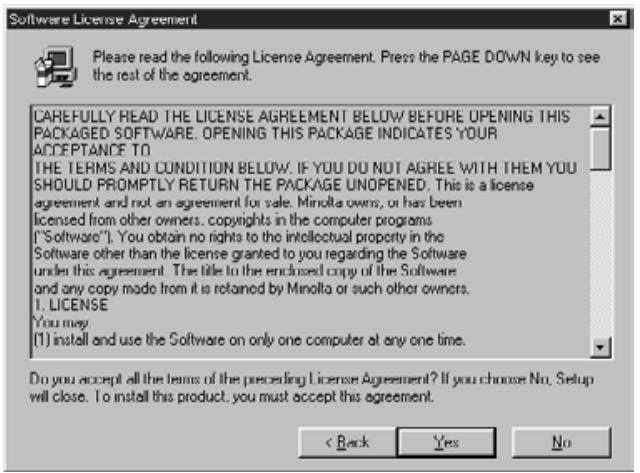
7 After reading the agreement, if you accept it, click on [Yes].
- The [Serial Number Input] dialog box will appear.
If you do not accept, click on [No]. Setup will be cancelled.

8 Enter your name, company name and the serial number described on the CD-ROM case and click on [Next >].
- The Choose Destination Location dialog box will appear.
- Take care to type them correctly, otherwise, [Next >] cannot be clicked.
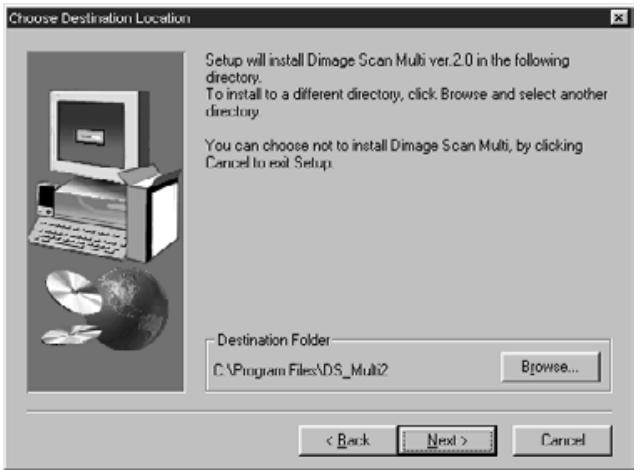
To install the software into the directory in the default setting ;C:\Program Files\DS_Multi II, click on [Next >].
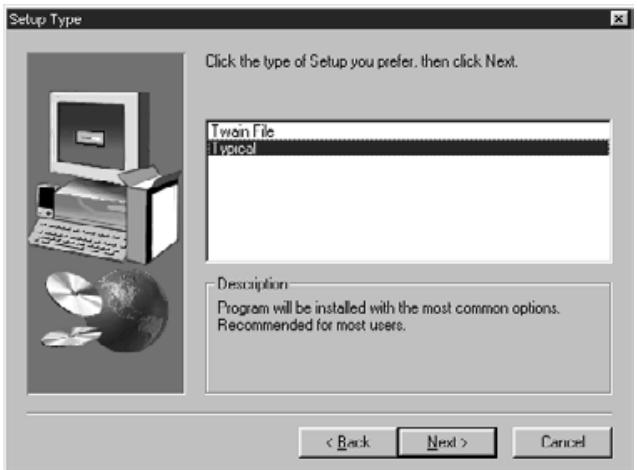
- The "Setup Type" dialog box will appear.
- To select another destination directory, click on [Browse...] and select the directory. Click on [OK].
10 Select the setup type and click on [Next >].
- Normally, select "Typical" When the DS Multi II Utility software is not used, select [TWAIN File].
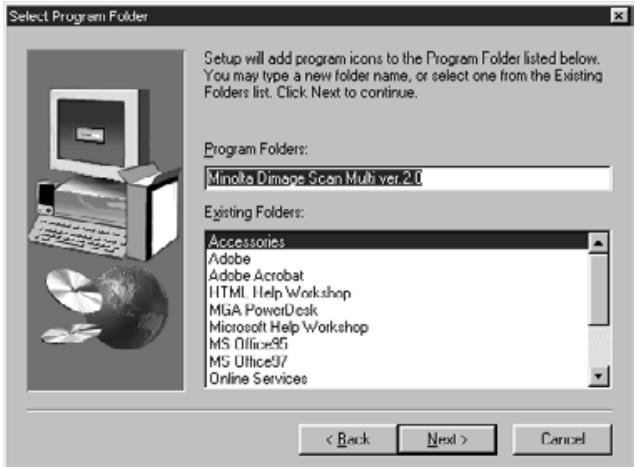
- When [Next >] is clicked on, the [Select Program Folder] dialog box appears.
The name of the program folder in which program icons will be added is displayed. Confirm the name and click on [Next >].
- Setup will begin.
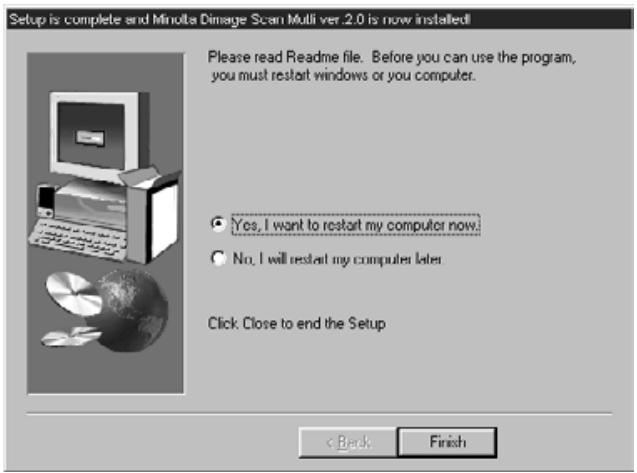
- When setup is complete, the "Setup is complete and Minolta Dimage Scan Multi ver.2.0 is now installed!" dialog box appears.
12 Make sure that the message “Yes, I want to restart my computer now.” is checkmarked and click on [Finish].
- Your computer is restarted.
MACINTOSH
1 Turn on the Dimâge Scan Multi II.
2 Turn on the PC and start up the Mac OS.
3 After the desk-top window is displayed, insert the Dimage Scan Multi II CD-ROM into the CD-ROM drive.
4 Double-click on the Dimage Scan Multi II CD-ROM icon.
Double-click on the Driver folder and English folder.
6 Double-click on the DS Multi II Installer icon.
- The install screen will appear.
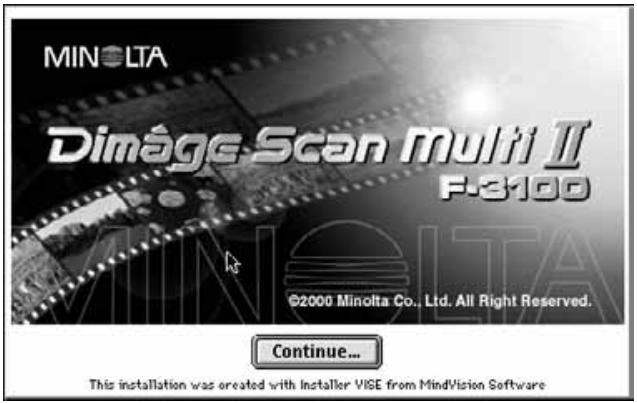
7 Click on [Continue...].
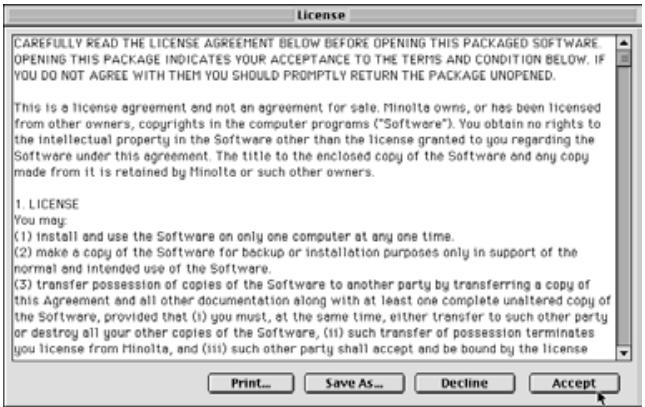
- The user License Agreement will appear.
8 After reading the agreement, if you accept it, click on [Accept].
- The Easy Install dialog box will appear.
When [Print...] is clicked, the user License Agreement can be printed.
When [Save As...] is clicked, the content of the License Agreement is saved as a text file.
If you do not accept the user License Agreement, click on [Decline]. The installation will be cancelled.
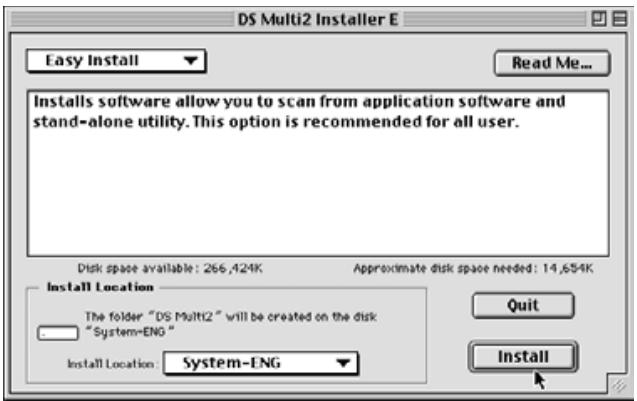
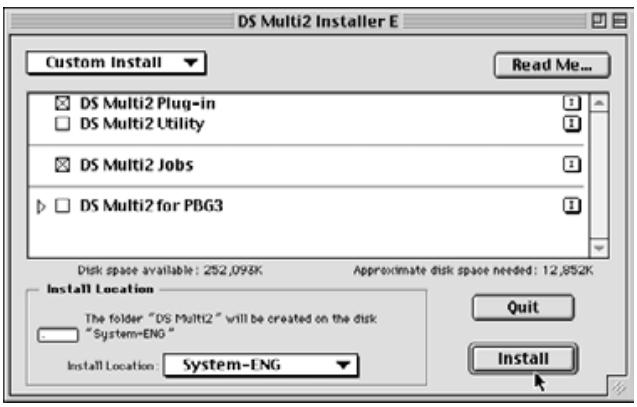
9 Confirm the install location of the software displayed in Install Location.
To change the location
- Select Install Lication from the Install Location pull-down menu and specify the folder or make a new folder.
When Easy Install is selected, all the folders are installed.
When installing either the DS Multi Plug-in or the DS Multi Utility, select the Custom Install.
1 Select Custom Install from the [Install Select] pull-down menu.
2 Click on the checkbox of the file to be installed.
10 Click on [Install].
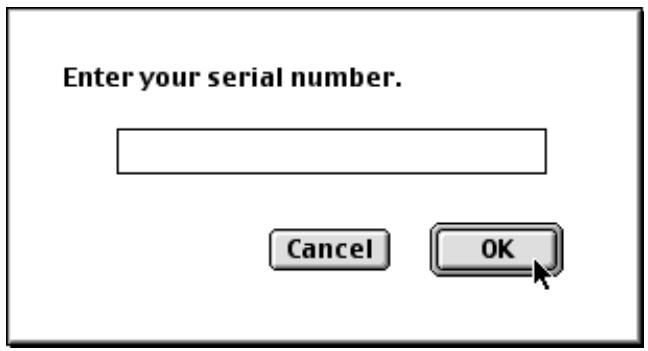
- The [Enter your serial number] dialog box will appear.
11 Enter the serial number described on the back of the CD-ROM case.
- Type it correctly.
12 Click on [OK].
- The installation will begin. Follow the procedure displayed in the window.
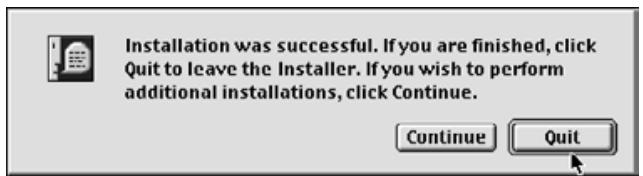
- When the installation is complete, a message appears informing you installation was successful.
13 Click on [Quit].
INSTALL THE PLUG-IN - MACINTOSH
Once the installation procedure is complete, move the DS Multi Plug-in from the Dimage Scan Multi folder to the appropriate folder for the host application.
You can use the DS Multi II Plug-in when Adobe Photoshop is functioning.
As this DS Multi Plug-in cannot be installed automatically, install this Plug-in by performing the following procedure after the installation is complete.
When using only the DS Multi Utility without activating the DS Multi Plug-in, the installation is not necessary.
1 If Adobe Photoshop is functioning, quit it.
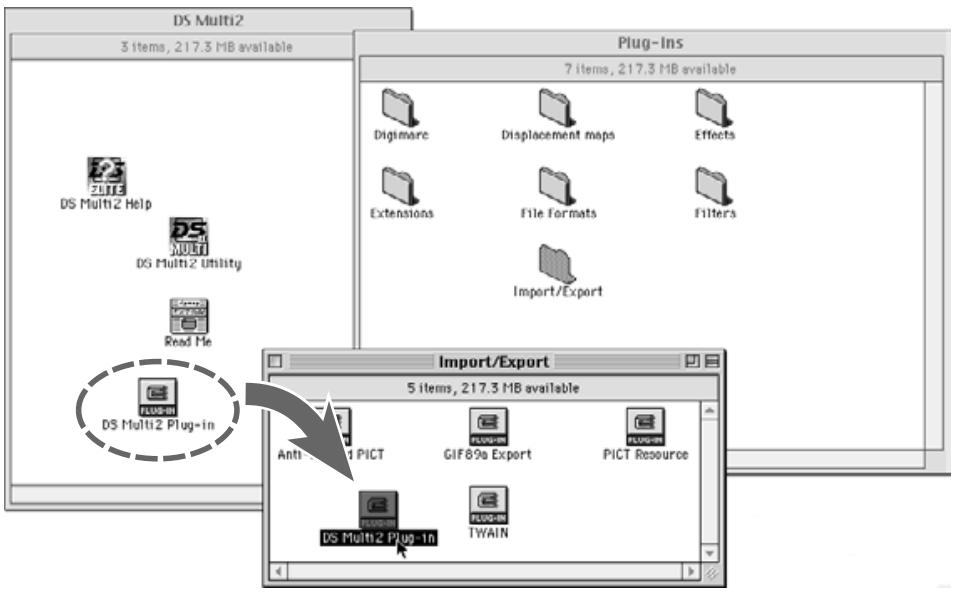
2 Open the Adobe Photoshop folder, and open the Photoshop Plug-ins folder.
3 Drag and drop the DS Multi II Plug-in folder in the DS Multi II folder into the Plug-in's Import/Export folder.
WINDOWS 95/98/98SE/2000/NT4.0
STARTING UP THE TWAIN DRIVER
This uses Adobe Photoshop 5.0LE as an example. The commands and displays may vary among applications. For details, refer to the instruction manual of the image editing software you use.
1 Turn on the Dimage Scan Multi II.
2 Turn on the PC and start up Windows.
3 Start up Adobe Photoshop LE.
4 Select File -> Import -> Select TWAIN_32 Source...
- The [Select TWAIN Source] dialog box appears.
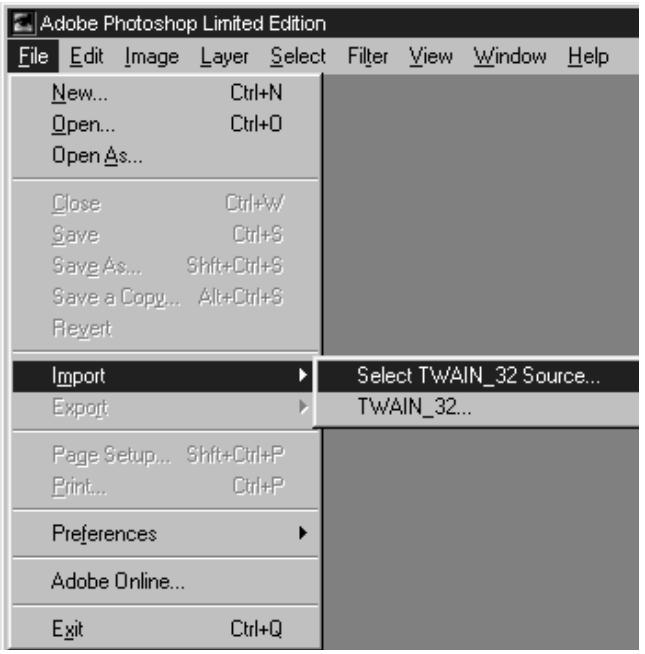
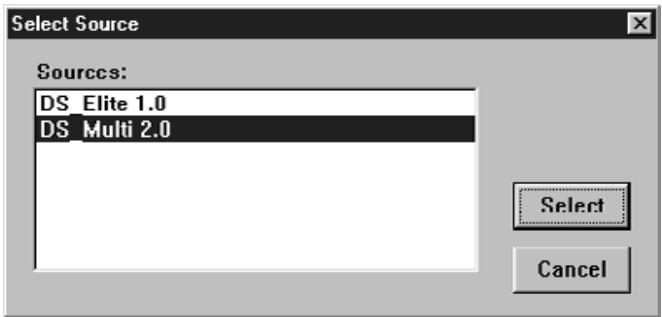
5 Select DS Multi 2.0 from the Source list, then click on Select.

6 Select File -> Import -> TWAIN_32.
STARTING UP THE UTILITY SOFTWARE
When you intend to scan and save images only, use the DS Multi II Utility software.
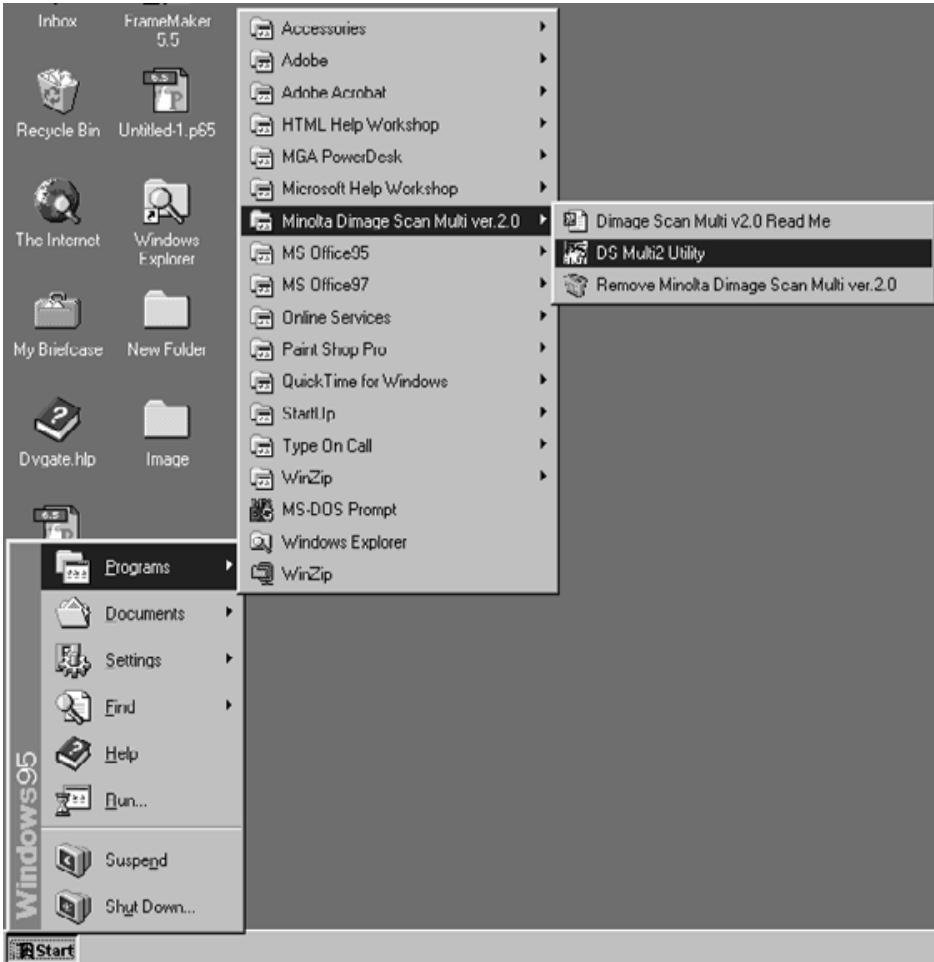
After performing step 1 and 2 on page 15, select Start -> Programs -> Minolta Dimage Scan Multi ver.2.0 -> DS Multi II Utility.
- The software will function and the Main window (p.19) will appear.
MACINTOSH
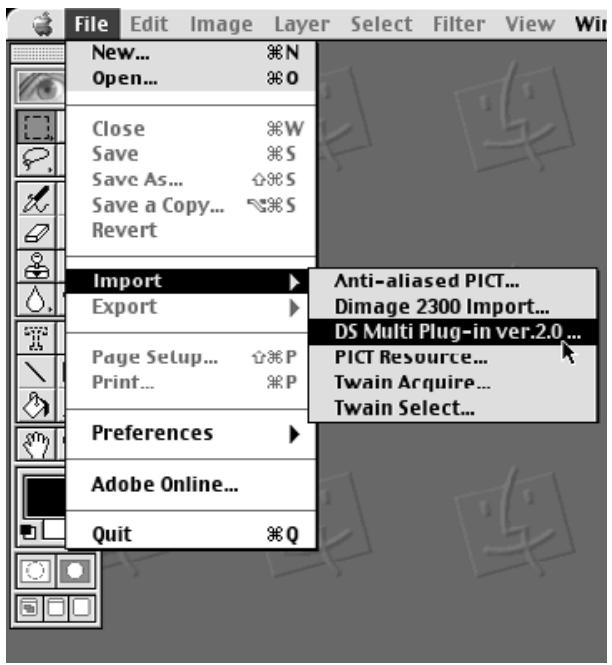
STARTING UP THE Adobe Photoshop PLUG-IN
This instruction assumes that the DS Multi II folder is installed in the Plug-ins Import/Export folder of Adobe Photoshop 5.0 LE. For the installation of the DS Multi II Plug-in, see page 14.
1 Turn on the Dimage Scan Multi II.
2 Turn on the PC and start up Mac OS.
3 Start up Adobe Photoshop LE.
4 Select File -> Import -> DS Multi Plugin in ver. 2.0....
- The software will function and the Main window (p.19) will appear.
STARTING UP THE UTILITY SOFTWARE
When you intend to scan and save images only, use the DS Multi ii Utility software.
1 Turn on the Dimage Scan Multi II.
2 Turn on the PC and start up Mac OS.
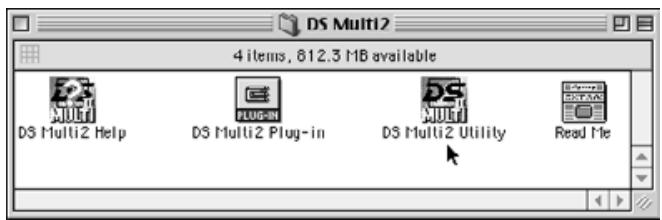
3 Double-click on the DS Multi II folder.
4 Double-click on the DS Multi II Utility icon.
- The software will function and the Main window (p.19) will appear.
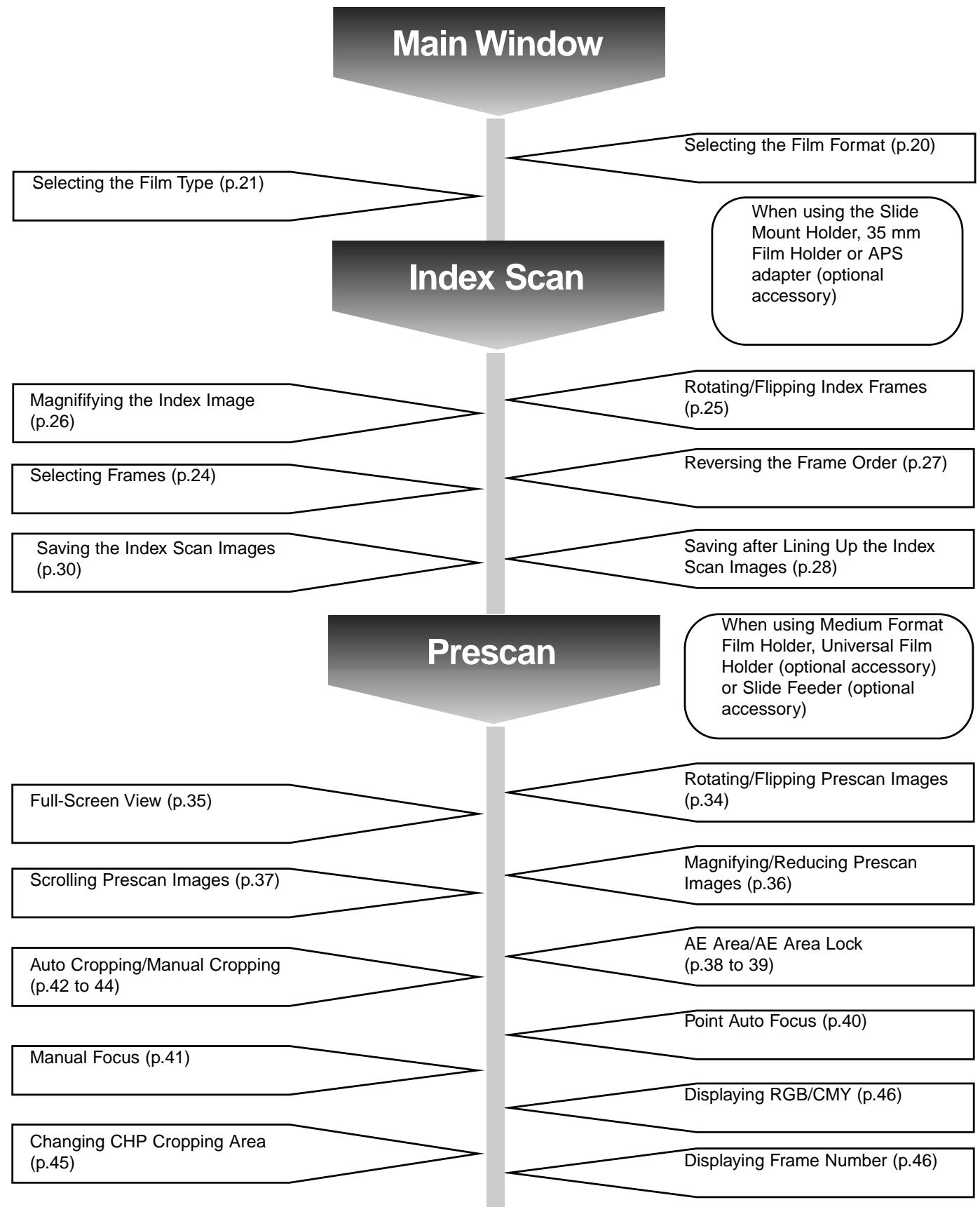
To the Image Correction Window (p.47)
The Main Window appears when you launch the software. This is the main window for the Dimâge Scan Multi II software.
MAIN WINDOW – NAMES OF PARTS
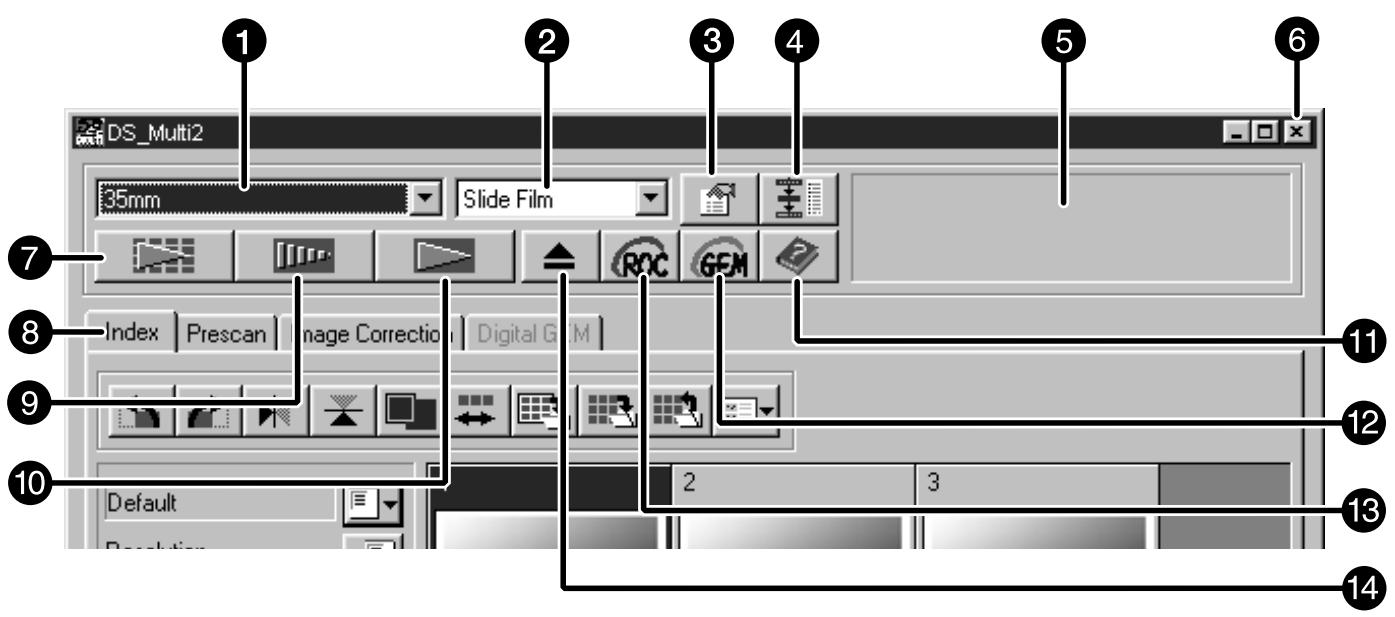
Film Format list box
2 Film Type list box
3 Preferences button
Navigation button
Status bar
Closing button (The upper left side of the window on Macintosh)
Index Scan button
Tab (Switching the Tab of the Index Scan/ Prescan/Image Correction/Digital GEM Window)
Prescan button
10 Scan button
Help button
Digital GEM button
Digital ROC button
Eject button
SELECTING THE FILM FORMAT
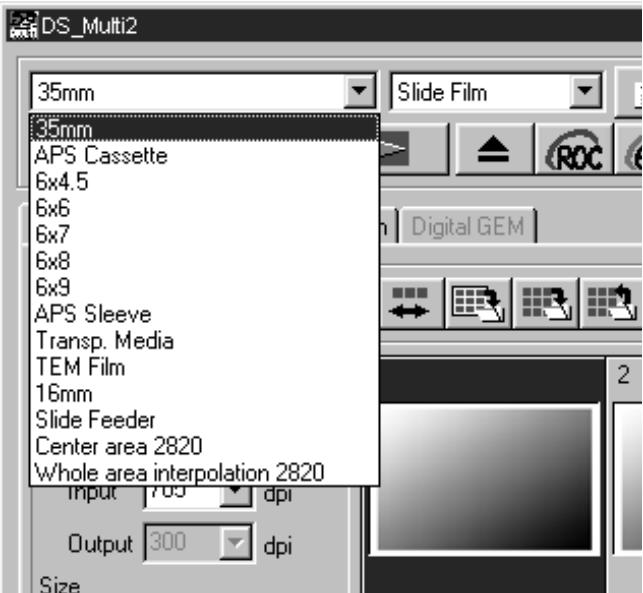
In the Main window, select the film format from the drop-down list.
- The Index window (p.22) will appear if 35mm or APS Cassette is selected.
- The Prescan window will (p.33) appear if a Medium-Format Film Size (6x4.5, 6x6, 6x7, 6x8, 6x9), APS Sleeve, Transparent Media, TEM Film, 16 mm, Center Area 2820 or Whole Area Interpolation 2820 is selected.
- The following list shows the film formats and appropriate holders for scanning.
| FILM FORMAT | HOLDER |
| 35mm | 35mm Film Holder FH-M1 (sleeved film)/Slide Mount Holder SH-M2 (mounted slides) |
| APS Cassette | APS Adapter AD-100* |
| 6x4.5, 6x6, 6x7, 6x8, 6x9 | Medium Format Film Holder MH-M1 and the mask corresponding to each film size, or Universal Holder UH-M1* and Wide Universal Mask WM-M1* |
| APS Sleeve | Medium Format Film Holder MH-M1 and APS mask |
| Transp. Media | Slide Mount Holder SH-M2, or Universal Holder UH-M1* and Wide Universal Mask WM-M1* |
| TEM Film | Medium Format Film Holder MH-M1 and the mask corresponding to each film size, or Universal Holder UH-M1* and Wide Universal Mask WM-M1* |
| 16mm | Medium Format Film Holder MH-M1 and 16mm mask |
| Slide Feeder | Slide Feeder SC-100* |
| Center area 2820/Whole area interpo-lation 2820 | Medium Format Film Holder MH-M1 and the mask corresponding to each film size, or Universal Holder UH-M1* and Wide Universal Mask WM-M1* |
- shows optional accessories.
SELECTING THE FILM TYPE
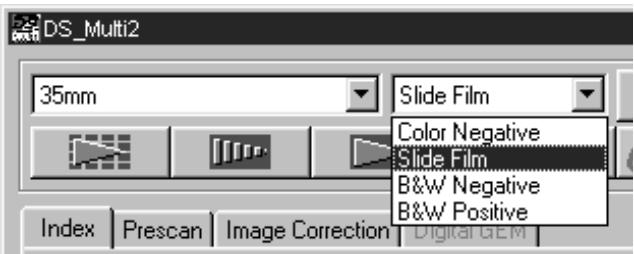
In the Main window, select the type of film from the drop-down list.
- The film type options differ according to the the film format currently selected.
| FILM FORMATS | FILM TYPES |
| 35mm, Medium-format films, APS Sleeve, 16mm, Slide Feeder | Color Negative, Color Positive, B&W Negative, B&W Positive |
| APS Cassette | Auto Detect (colour), Color Negative, Color Positive |
| Transparent Media | Special (colour), Color Negative, Color Positive, B&W Negative, B&W Positive |
| TEM film | Special (B&W), Color Negative, Color Positive, B&W Negative, B&W Positive |
| Center Area 2820/Whole Area interpolation 2820 | Special (colour), Special (B&W), Color Negative, Color Positive, B&W Negative, B&W Positive |
Auto Detect (APS Cassette)
The APS cassette has a built-in disk in which data such as the film sensitivity (ISO), the number of film or the type of film, etc. is recorded. When selecting the [Auto Detect], the scanner detects the information and specifies the film type automatically.
Special (Color/B&W)
The transparent media or TEM film differs from ordinary camera film in characteristics such as transparency rate, etc. When selecting [Special], the scanner specifies the film type according to the characteristics of the transparent media or TEM film.
When [35 mm] or [APS Cassette] is selected in the film format, the Index tab in the Main window is activated. (The Index window is displayed in the front.) When the index scan is performed, the index images of all frames set in a Slide Mount Holder SH-M2, 35 mm Film Holder FH-M1 or an APS adapter (optional accessory) are displayed in the Index window.
INDEX WINDOW - NAME OF PARTS
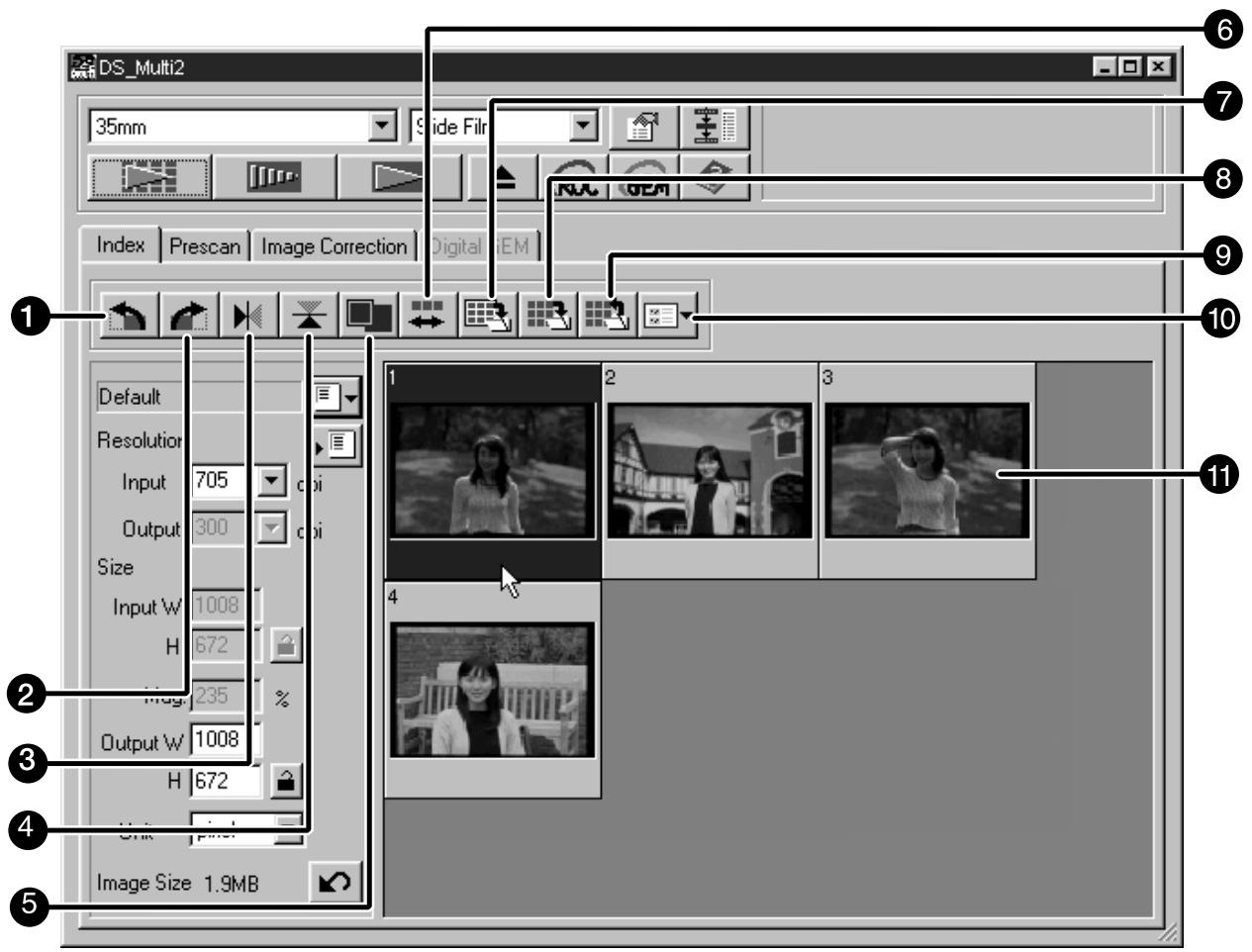
1 Rotate Left button
2 Rotate Right button
Flip Horizontal button
4 Flip Vertical button
Index Image Magnifying Display button
6 Reverse frame order button
Save Index Image button
Save Index Scan button
9 Index Load button
Image Correction Job Load button
Index images
MAKING AN INDEX SCAN
1 Insert the film holder into the scanner as instructed by the hardware manual.
- Index scans can only be performed when using the 35mm film holder, slide mount holder, or optional APS adapter.
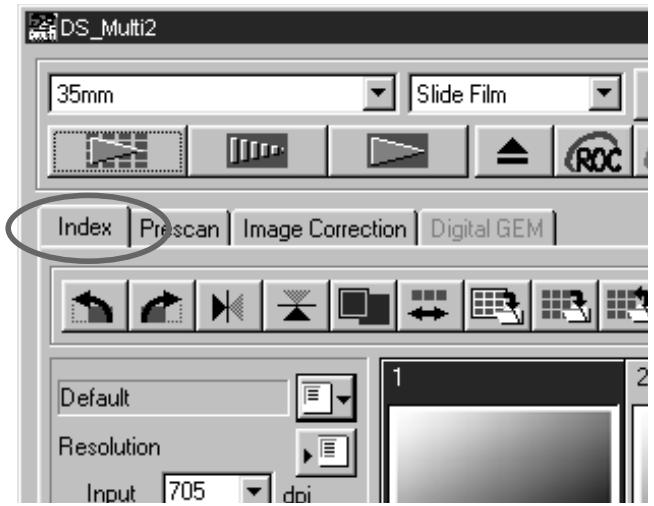
2 Click on in the Main window.
- All frames will be scanned and appear in the Index window in the order in which the frames are scanned.
-
When using the 35mm film holder, the frames are scanned in the following order: 1, 2, 4, 3, 5, 6. This is not a malfunction but for. The index images are displayed in the order of 1, 2, 3, 4, 5, 6.
-
There are two modes of the index scan; [High-Speed Scan] and [High-Quality Scan]. These modes can be switched in the Preferences. The default setting (after installing the software) is [High-Speed Scan].
- To cancel the index scan halfway:
Windows Press the Esc key.
Macintosh Press Command and the period key simultaneously.
- To delete all index images displayed in the Main window:
When the Index window is activated (displayed in the front),
Windows Press Ctrl, Shift, and R simultaneously.
Macintosh Press Command, Shift and R simultaneously.
SELECTING INDEX IMAGE
Index frame can be selected by clicking on the desired frame. The selected frame can be rotated in 90^ increments either clockwise or counterclockwise or flipped horizontally or vertically (p.25). Moreover, that can be also prescanned by clicking on the Prescan button (p.32).
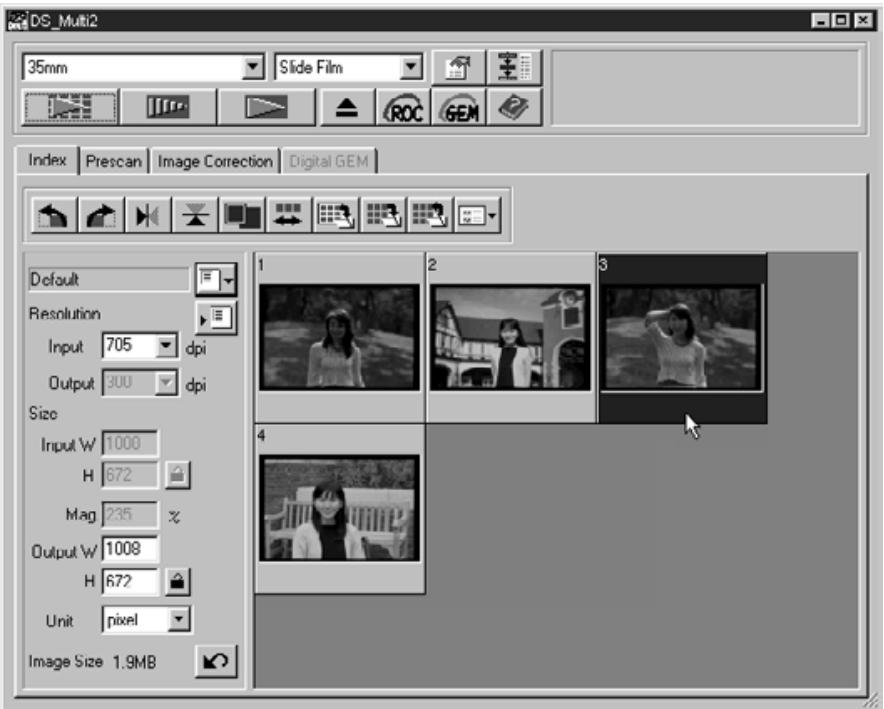
SELECTING FRAMES
To select more than 2 index frames, perform the following procedure when the Index window is displayed.
Windows
- Click on the desired index frames while holding the Ctrl key.
To cancel the selected frame, click on the frame to be cancelled again while holding the Ctrl key. - To select a sequence of index frames
Example: To select the images from frame numbers 2 to 9
Click on the images of frame numbers 2 and 9 while holding the Shift key.
- To select all the frames, press the Ctrl and A keys simultaneously.
Macintosh
- Click on the desired frames while holding the Command key.
To cancel the selected frame, click on the frame to be cancelled again while holding the Command key.
- To select a sequence of index frames
Example: To select the images from frame numbers 2 to 9
Click on the images of frame numbers 2 and 9 while holding the Shift key.
To select all the frames, press the Command and A keys simultaneously.
ROTATING THE INDEX FRAMES
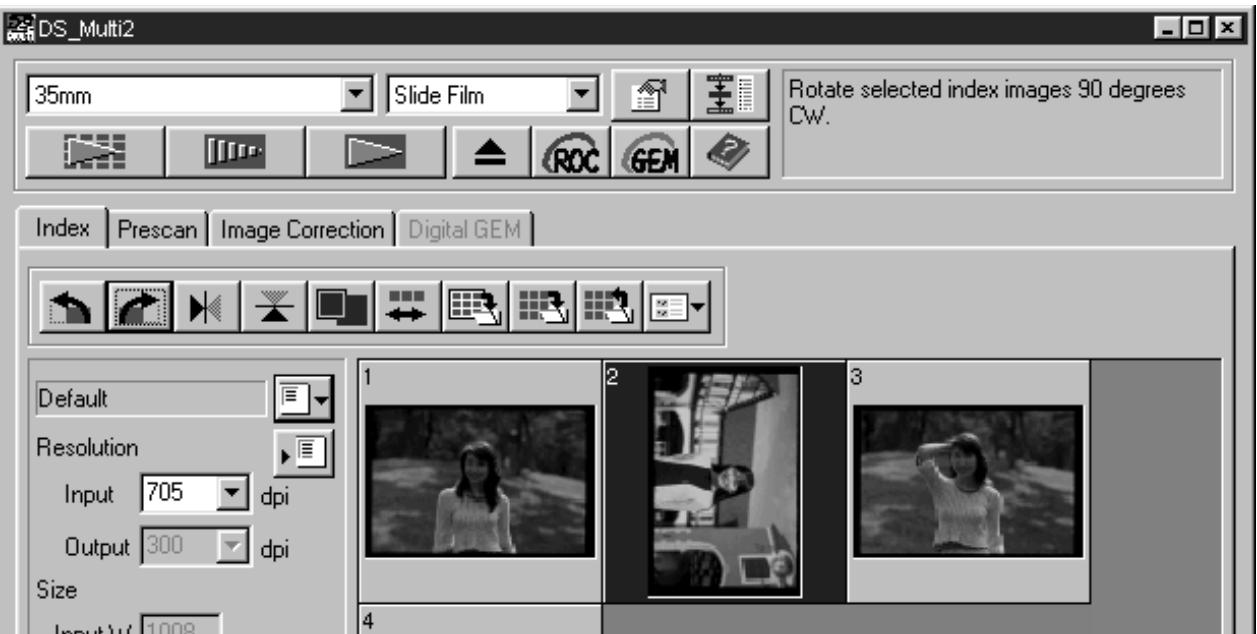
Select the frame (p. 24) to be rotated and click on or
- Each time the Rotate Left button or Rotate Right button is clicked, the index frame is rotated in 90^ increments either clockwise or counterclockwise.
FLIPPING THE INDEX FRAMES
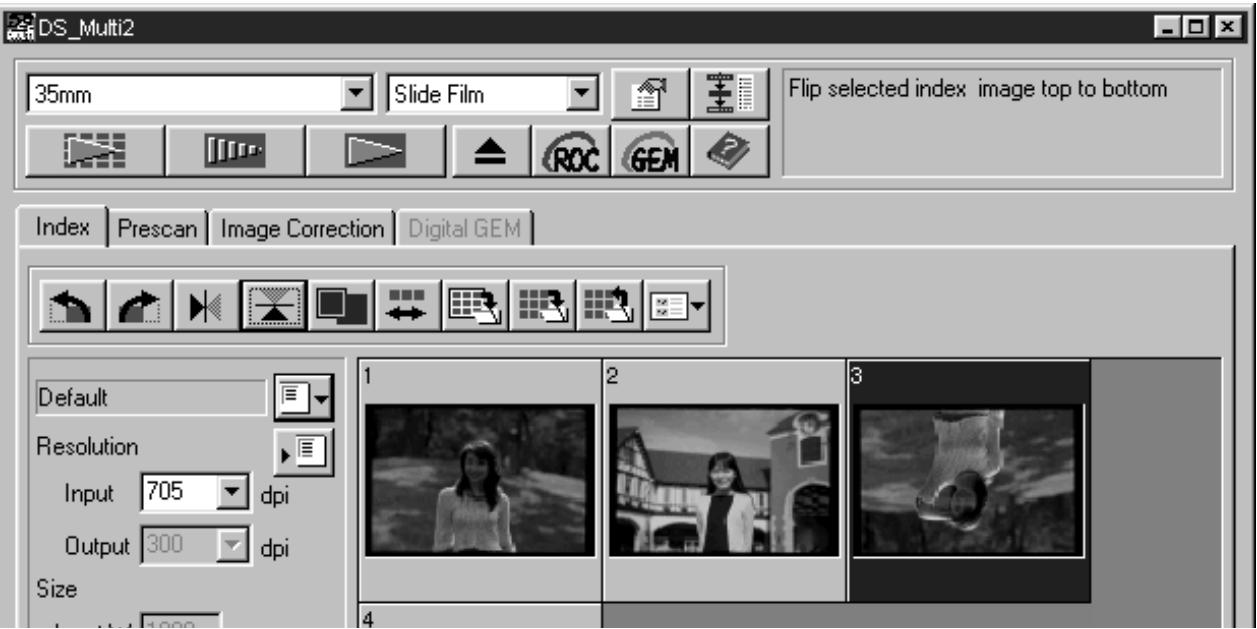
Select the frame (p. 24) to be flipped and click on or .
- To cancel flipping frame, click on the Flip Horizontal button or Flip Vertical button again.
MAGNIFYING THE INDEX IMAGE
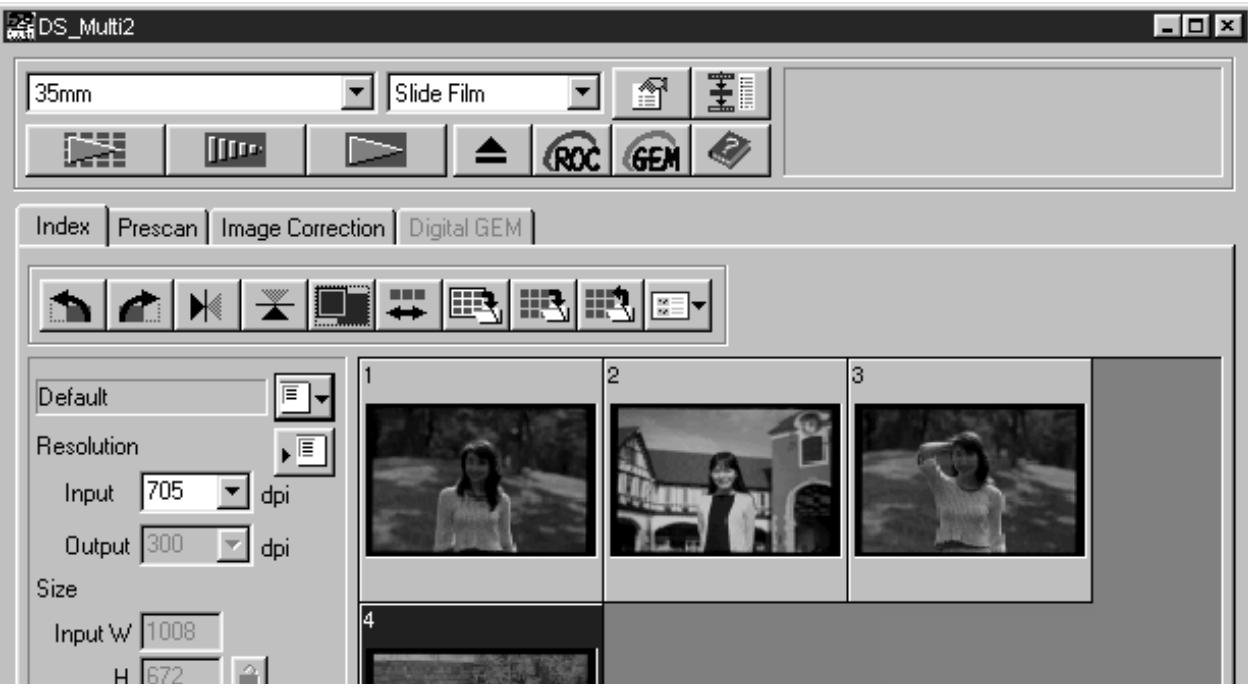
When is clicked, the index image is magnified. When the button is clicked again, the image returns to the previous size.

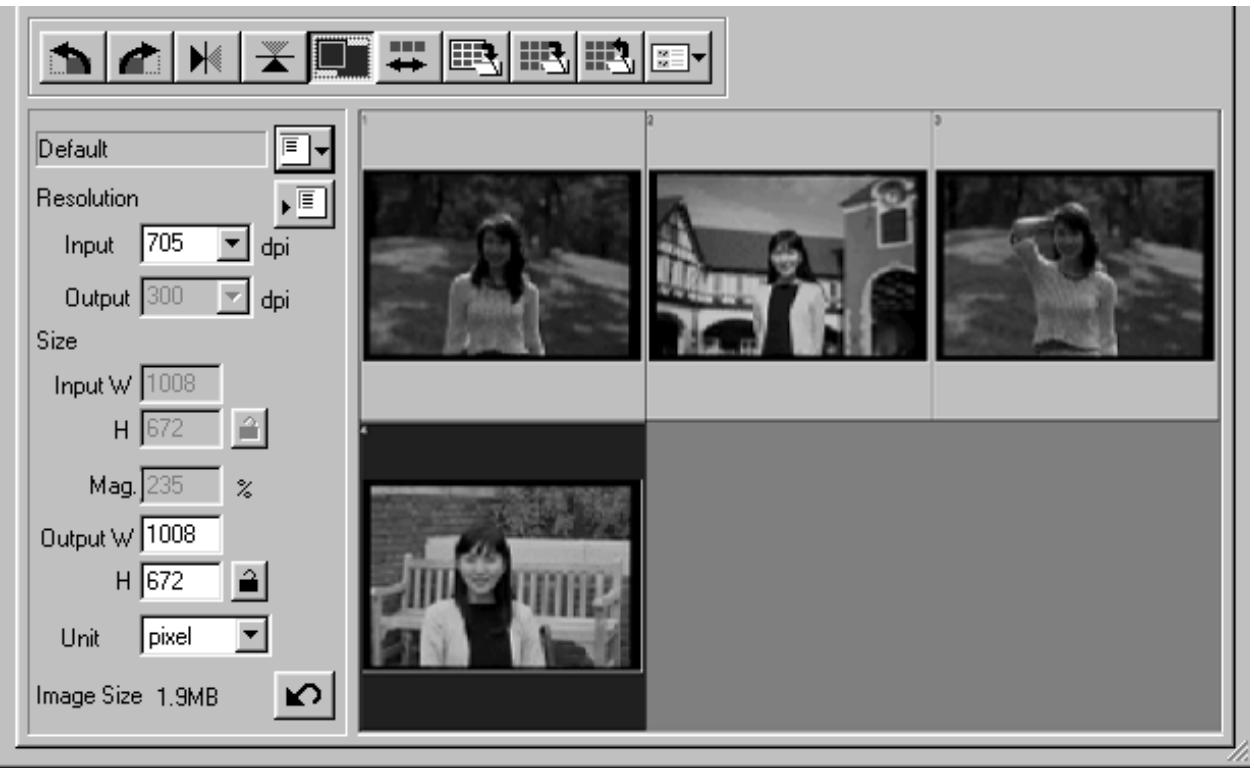
REVERSING THE INDEX IMAGE
Each time button is clicked, the order of the index frames is switched between reverse order and original order.
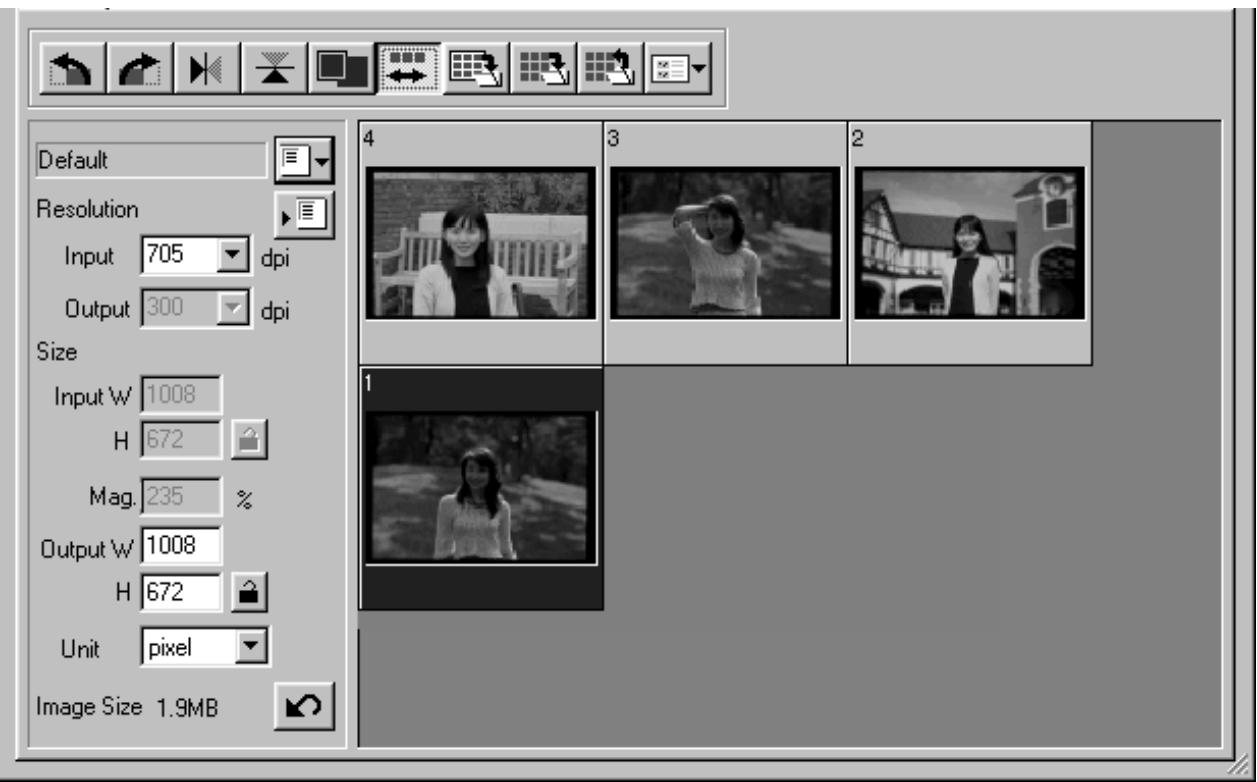
SAVING AFTER LINING UP THE INDEX SCAN IMAGES
The index scan images can be lined up like an album (as shown on the next page) and then saved as an image file.
1 Click on Save Index Image button
- The standard save dialog box for your operating system will appear.
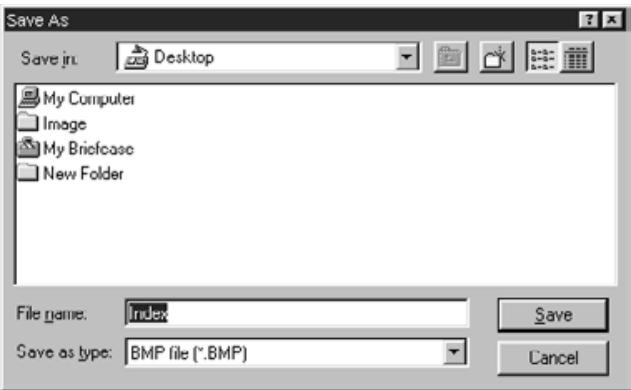
2 Select the file type to be saved from the [Save as Type] list box (or the file format pull-down menu).
- Windows: The displayed index scan image can be saved in the Windows® Bitmap (BMP) file format or the JPEG file format.
- Macintosh: The displayed index scan image can be saved in the PICT file format or JPEG file format.
3 Enter the desired file name, choose the file destination and then click on Save.
- When the index scan images are displayed, these images are saved regardless of the film set in the scanner.
- When the index images are not displayed, the index images are saved after performing the index scan.
- If there are index images which have not been scanned yet, those images will be scanned and then all index images including those images will be saved.
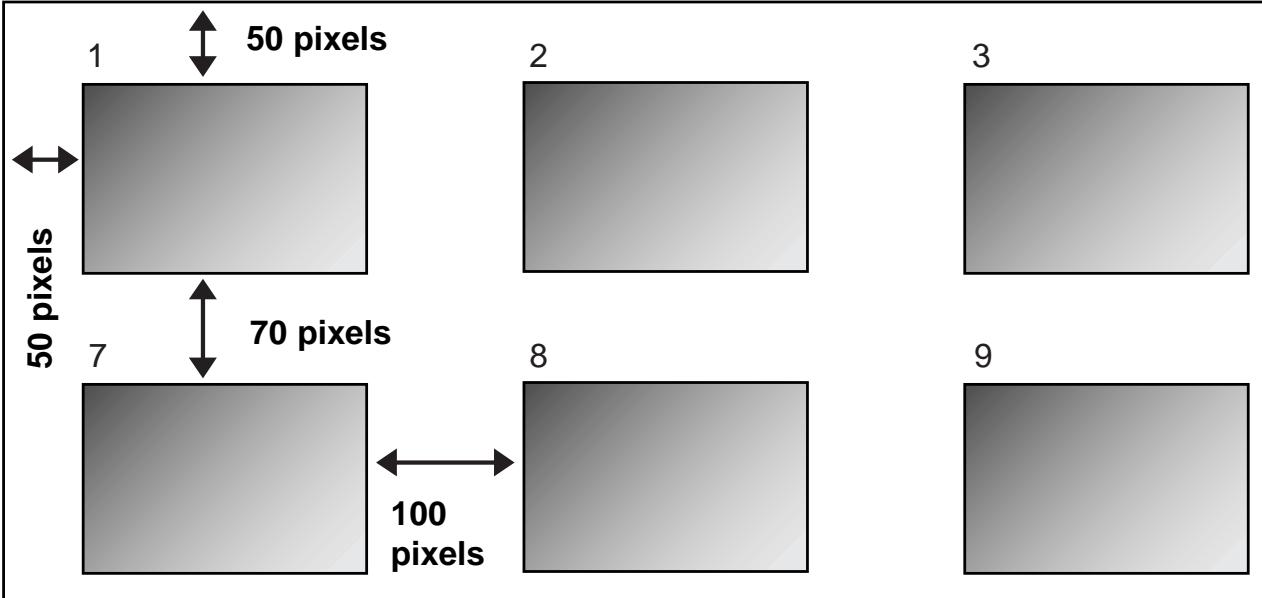
The index scan images are arranged in the image file to be saved as follows
- When there are 4 index frames, the frames are arranged in 4 columns of one line.
When there are more than 6 index frames, the frames are arranged in 6 columns multiplied by the necessary number of lines (for example, when there are 15 index frames, the frames are arranged in 6 columns multiplied by 3 lines.)
- A spacing of 50 pixels is allocated at the top, bottom, right and left sides of the window.
- The horizontal or vertical space between frames is 100 pixels or 70 pixels respectively.
- The output resolution of the image file to be saved is 300 dpi.
SAVING THE INDEX SCAN IMAGES AS AN INDEX FILE
The index images can also be saved as an index file using the original file format of this software.
1 Click on Save Index Scan button

- The standard save dialog box for your operating system will appear.
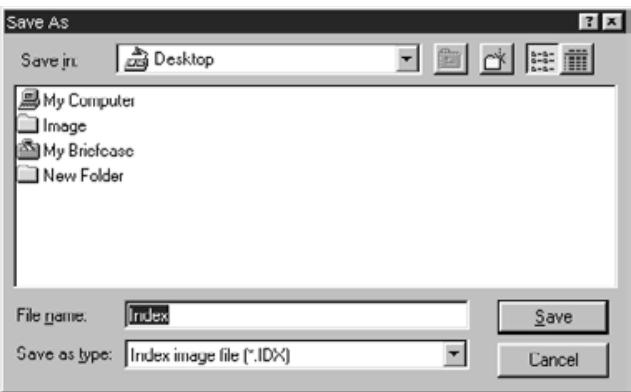
2 Enter the desired file name, choose the file destination, then click on Save.
- File types other than the Index Image file (*.idx) cannot be selected in the [Save as Type] list box (or the file format pull-down menu).
- When the index scan images are displayed, these images are saved regardless of the film set in the scanner.
- When the index images are not displayed, the index images are saved after performing the index scan.
- If there are index images which have not been scanned yet, those images will be scanned and then all index images including those images will be saved.
- The index image file is saved in the original format of this software.
LOADING THE INDEX SCAN IMAGES SAVED AS THE INDEX FILE
The index images can be displayed in the Index window by loading the index file saved in the original format of this software.
1 Click on Index Load button
- The standard open dialog box for your operating system will appear.
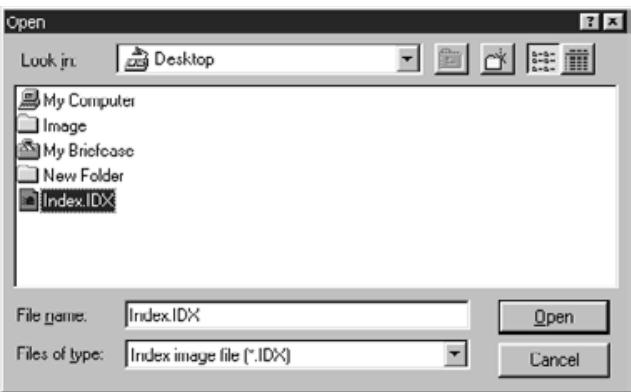
2 Select the file to be loaded and then click on [Open].
- When the previous index scan image is displayed, the image is replaced with the current loaded image.
MAKING A PRESCAN
1 Insert the film holder loaded with a film into the scanner by following the procedure of the hardware instruction manual.
- When using the slide mount holder, 35 ~mm film holder or APS adapter (optional accessory), select the index scan image to be prescanned by performing the index scan before making a prescan (p.23 to 24).
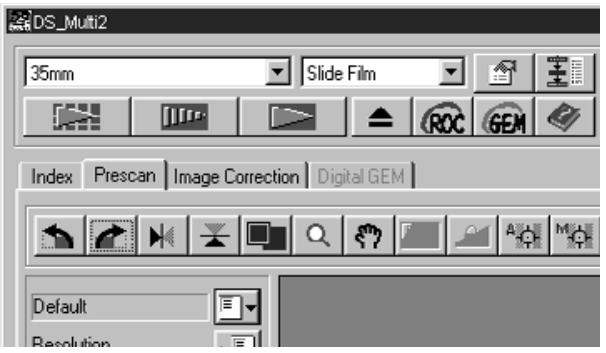
2 Click on in the Main window.
- The prescan will begin.
- When the prescan is complete, the pres-canned image appears in the Prescan window.
When prescan is performed, the Prescan window changes to the following window.
PRESCAN TAB - NAMES OF PARTS
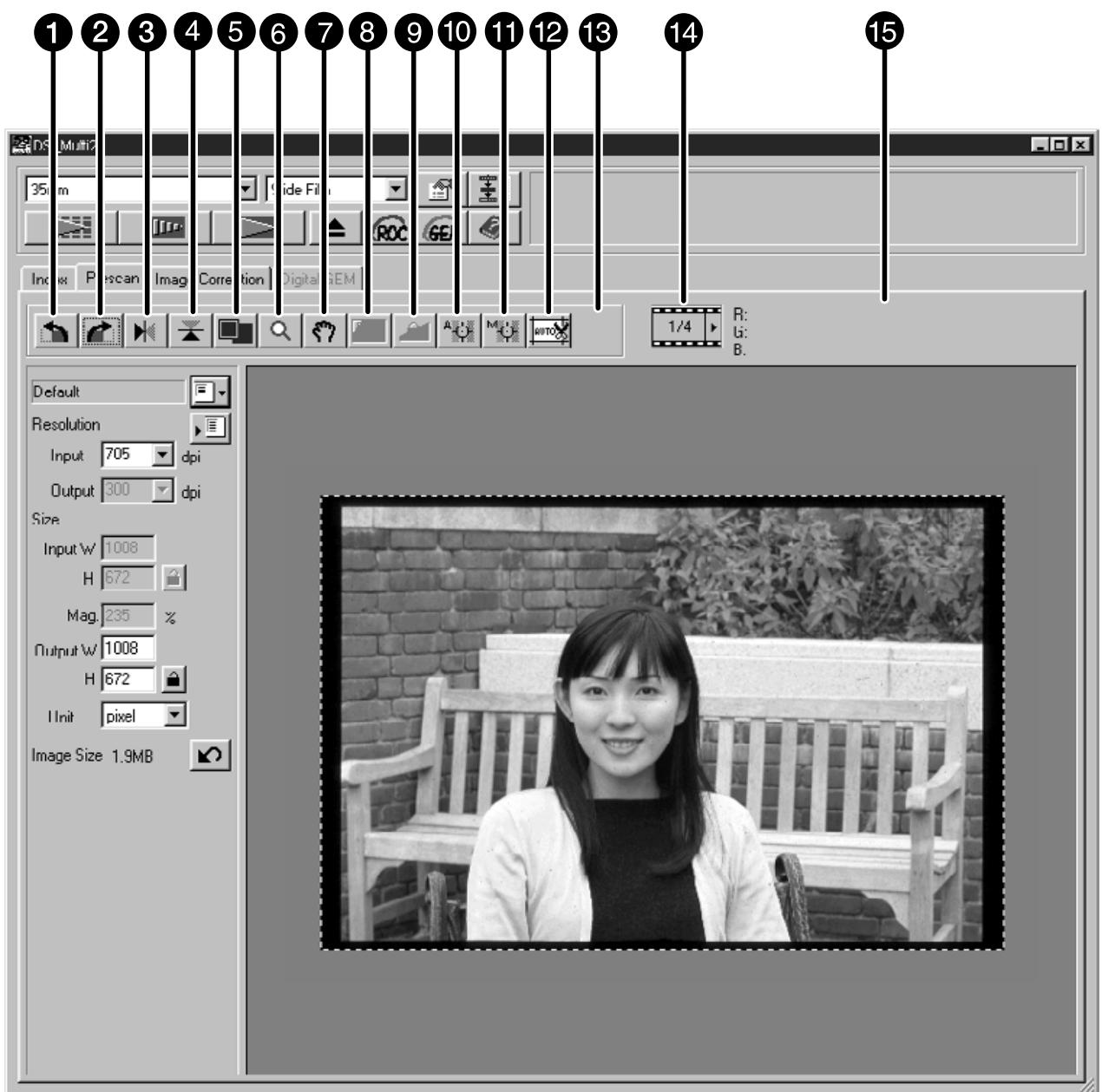
1 Rotate Left button
Rotate Right button
Flip Horizontal button
4 Flip Vertical button
Full-Scale View button
Zoom button
Scroll button
AE Area Lock button
AE Lock button
10 Point AE button
Manual Focus button
Auto Cropping button
Change CHP button (Only when [APS Cassette] or [APS Sleeve] is selected in the film format.)
14 Frame Number Display (Only when [35 mm] or [APS Cassette] is selected in the film format.)
RGB/CMY display
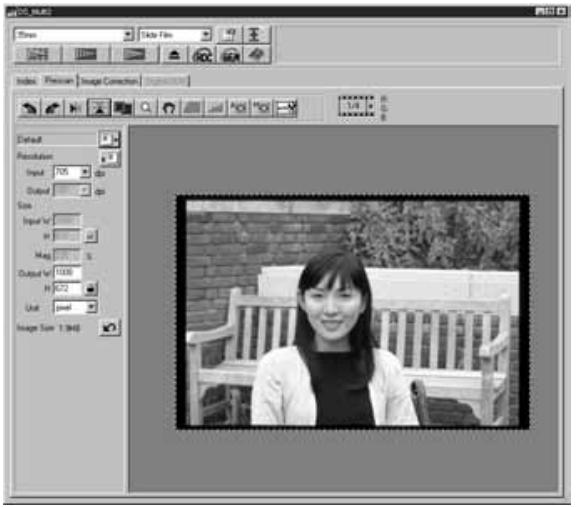
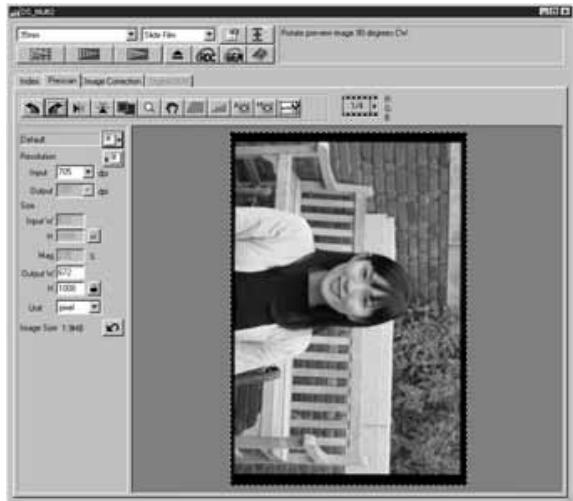
ROTATING THE PRESCAN IMAGE
Click on or
- Each time the Rotate Left button or Rotate Right button is clicked, the prescan image rotates in 90^ increments either counterclockwise or clockwise.
- Changes performed in the Prescan image will be reflected in the final scan.

FLIPPING THE PRESCAN IMAGE
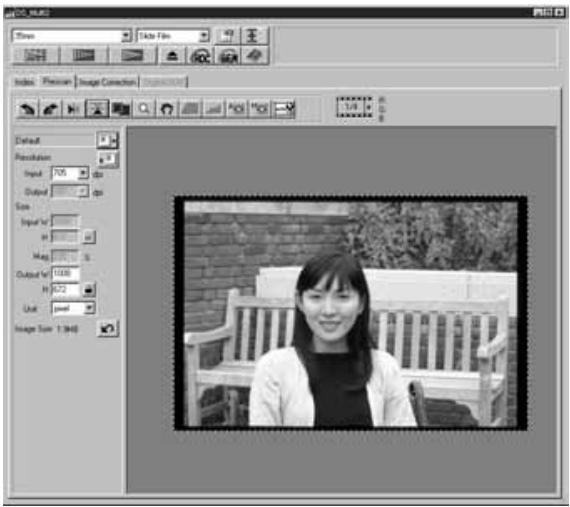
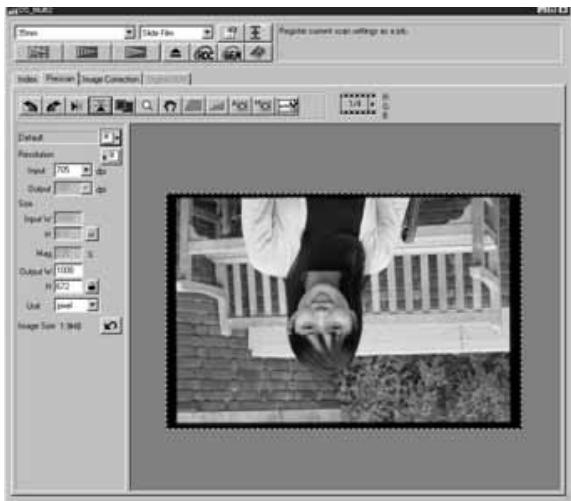
The Flip Vertical and Flip Horizontal buttons let you flip the image from top to bottom or left to right before scanning.
Click on × to flip the image from left to right.
Click on to flip the image from top to bottom.
- To cancel flipping frame, click on the Flip Horizontal button or Flip Vertical button again.
- Changes will be reflected in the Prescan image.

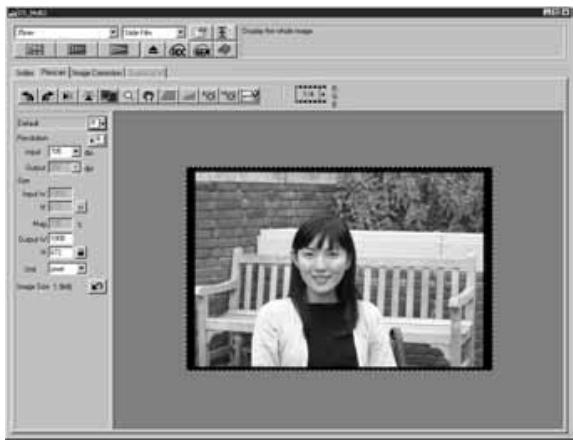
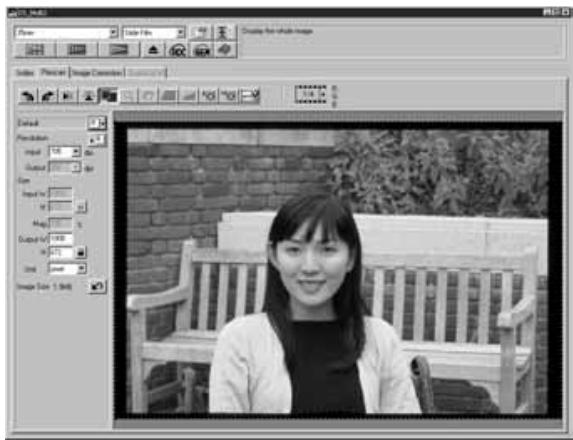
FULL-SCREEN VIEW
The Full-Screen View button enlarges the area inside the cropping frame so it fills the screen.
This allows you to see close details and view the final composition.
Click on
- The prescan image is magnified so that it fits in the Main window.
- When the Full-Screen button is clicked again, the prescan image returns to the previous size.

MAGNIFYING OR REDUCING THE VIEW
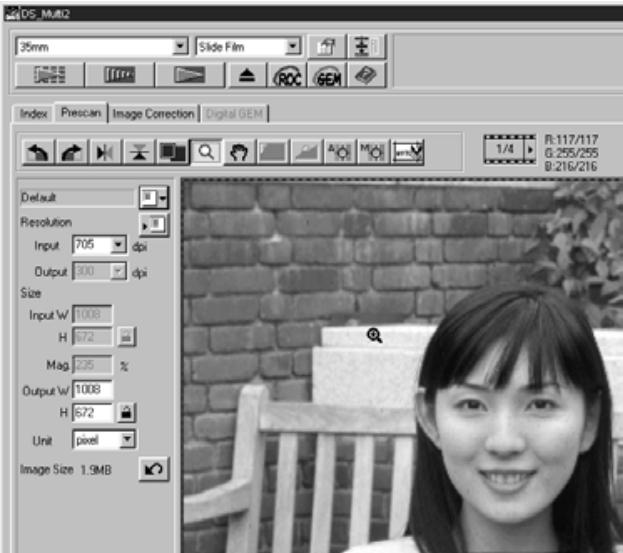
The Zoom button magnifies or reduces the prescan image regardless of the cropping frame.
1 Click on in the Prescan window.
- The pointer will change to a magnifying glass with a "+" inside.
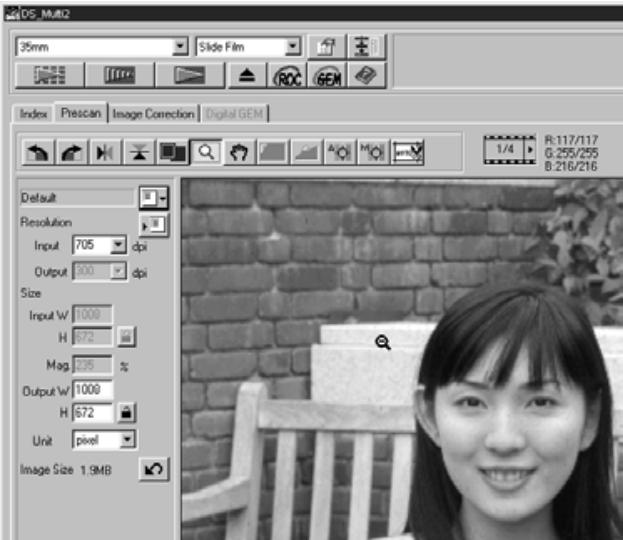
2 Click anywhere on the image to zoom in.
- The clicked position will be the center of the magnified view in the Prescan window. When clicking on repeatedly, the image is magnified accordingly.
- When the maximum magnification is reached, the "+" will disappear. The view of the prescan image cannot be magnified any further.
3 To reduce the view of the prescan image:
Windows:
Press and hold the Ctrl key.
Macintosh:
Press and hold the Option key.
- The pointer will change to a magnifying glass with a “-” inside.
4 Click anywhere on the image to zoom out.
- The clicked position will be the center of the reduced view in the Prescan window. When clicking on repeatedly, the image is reduced accordingly.
- When the maximum reduction is reached, the “-” will disappear. The view of the prescan image cannot be reduced any further.
SCROLLING THE VIEW
The Scroll button can only be selected when the view of the Prescan image has been magnified by the Zoom button. This function allows you to view other parts of the image when it is too big to fit in the window.
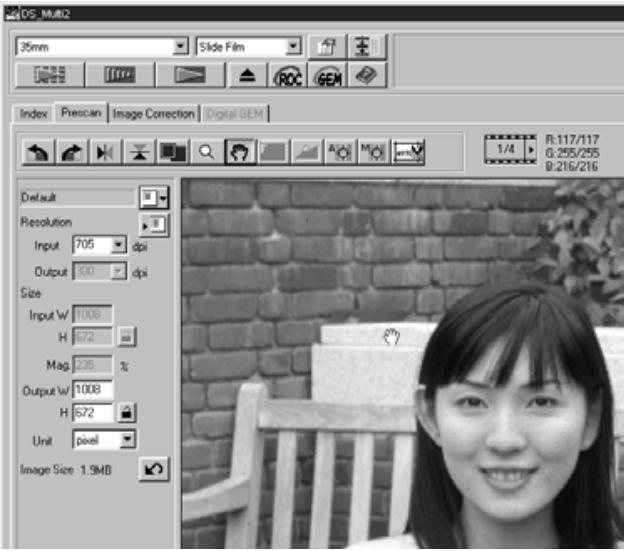
1 Click on
- The pointer will change to a hand icon.
2 Click on and drag the image to move the image.
- The image moves according to the movement of the mouse.
AUTO EXPOSURE LOCK
AE Lock allows you to lock an auto exposure value.
Once the auto exposure is locked, multiple images in a same film are scanned with the same exposure settings when performing the prescan and the final scan. With the AE lock function, for example, when scanning a backlit scene or a scene where exposure cooensation has been used, you can obtain a scanned image which reflects the exposure correction made when taking a photograph.
AE (Auto Exposure) function is performed in the following cases:
- When prescanning negative film.
- When selecting [Auto Expose for Slides] in the Preferences (p.89) and prescanning colour positive film.
1 Click on
- The prescan is performed with the AE function.
2 Click on
- The exposure setting displayed in the Prescan window is locked.
3 Select an image to which the same locked exposure setting is to be applied and click on the Prescan button.
- The locked exposure setting will apply to the selected prescan image.
- The prescan and the final scan will be performed with the locked exposure setting until the AE Lock function is cancelled by clicking on the AE lock button again.
- When [Auto Expose for Slides] in the Preferences (p. 89) is not checkmarked, the AE lock function is not available with a positive film.
AE AREA LOCK
A specified area in the prescan image can be exposed automatically.
1 Click on
- The prescan is performed with the AE function.
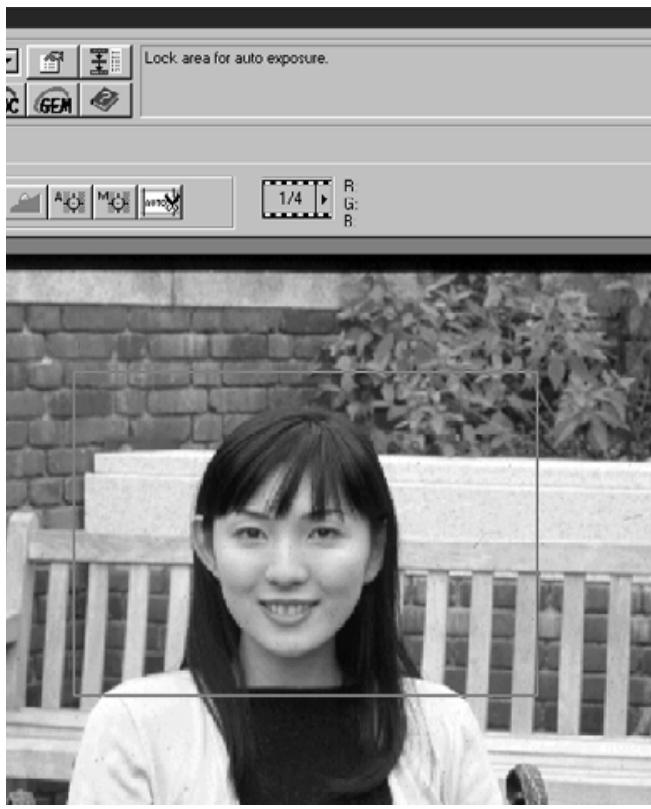
2 Click on
- When the Shift key is pressed, the AE area is indicated by a line instead of the cropping area indicated by a dashed line. By dragging the line surrounding AE area, the AE area can be specified.
3 Click on again.
- The specified area is exposed automatically.
- To cancel the AE area lock function, click on the AE Area Lock button again.
FOCUS
The Dimage Scan Multi II uses the center of the image to focus. If the film is warped or curled, or if [Auto Focus at Scan] is not checkmarked in the Preferences (p. 88), the focus should be adjusted with the Point AF or the Manual Focus function.
The focus is determined by detecting the contrast in an image. Therefore, the focus may not be adjusted appropriately in an area width no contrast (such as a white cloud or a solid black subject).
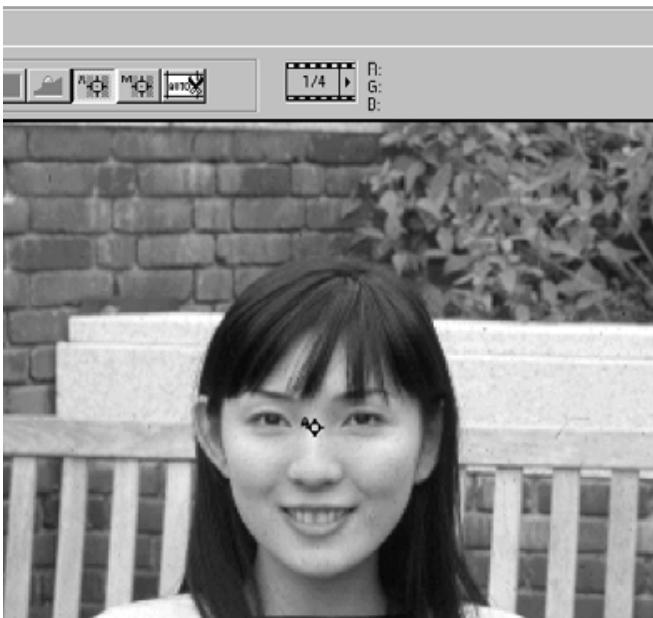
POINT AF
A specified point in the prescan image can be focused automatically.
MANUAL FOCUS
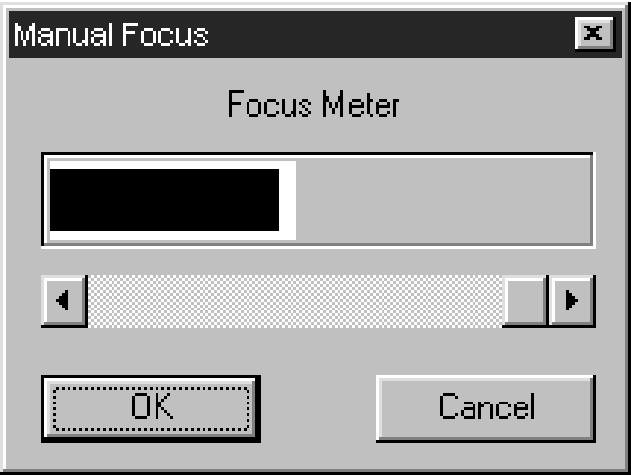
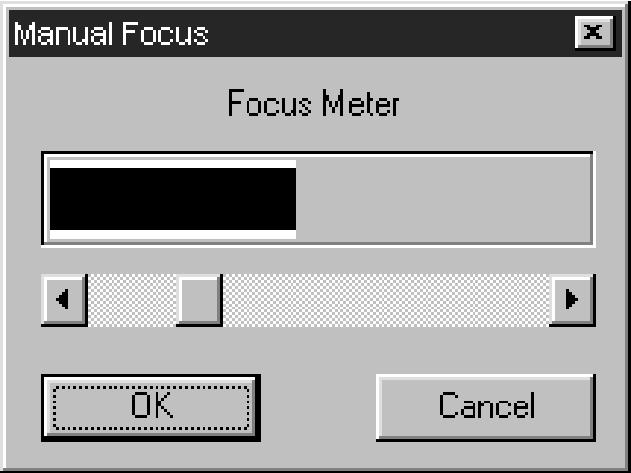
Use manual focus to focus on a specific area of the image or to reduce the appearance of grain in grainy film (such as high-speed or pushed film) by slightly defocusing it.
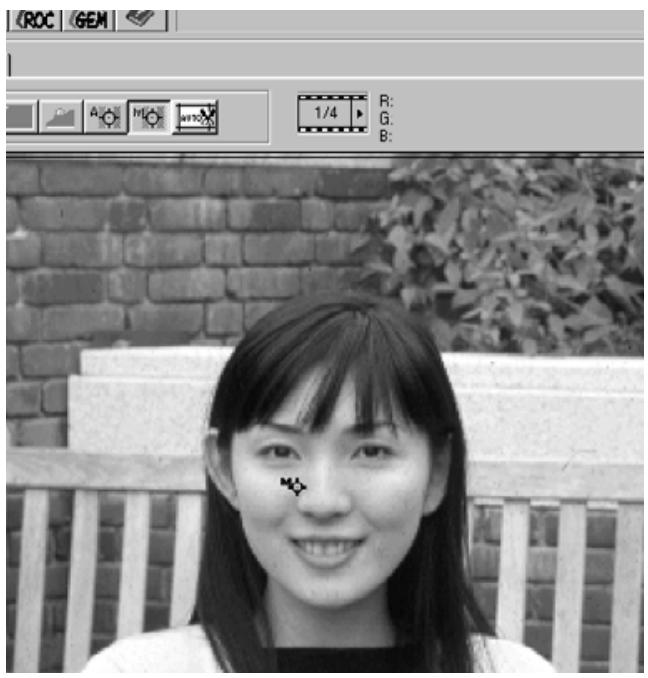
1 Press in the Prescan window.
- The pointer will change to the Manual Focus icon.
- When you click the Point AF button again, The pointer shape returns to the original one.
2 Click on the area of the image to be in sharp focus.
- The Focus Control dialog box will appear.
3 Adjust the slider until the black and white bars are at their longest for maximum focus.
- The black bar shows the current focus value and the white bar shows the maximum focus value previously obtained.
- Click and drag the slider to the left and right. Click on the slider arrow to make a small change. Click on the slider bar to make a larger change.
- When [Cancel] is clicked on, the manual focus setting is cancelled and the Focus Control dialog box disappears.
4 Click on [OK].
- The point clicked on step 2 will be focused and the prescan will begin again.
AUTO CROPPING
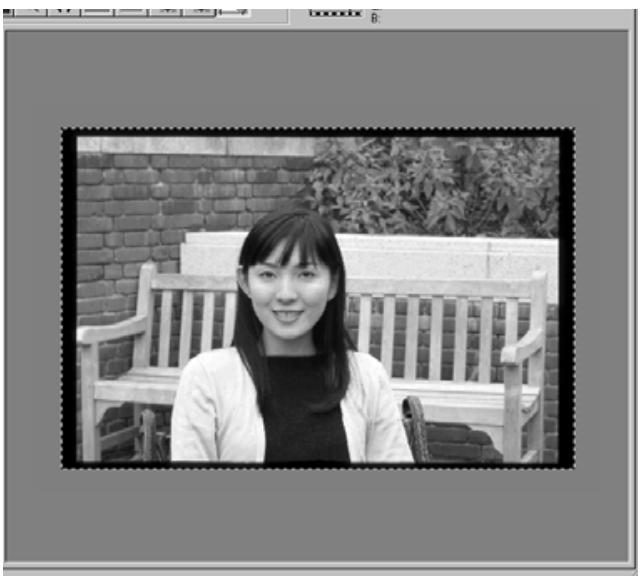
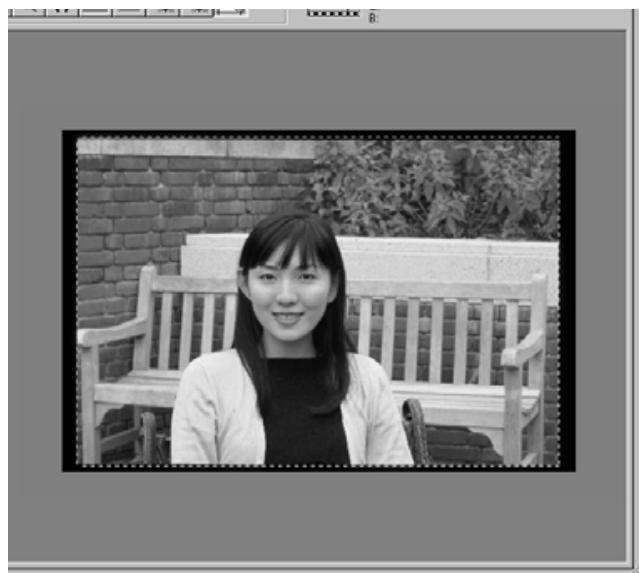
The prescan image can be cropped automatically so that a holder frame or a slide mount holder frame is removed.
Click on
- The auto cropping will begin and the prescan image can be cropped automatically so that a holder frame or a slide mount holder frame is removed.

MANUAL CROPPING
By adjusting the cropping frame indicated by a dashed line in the prescan image, the cropping area for the final scan can be determined. Unnecessary part can be removed before prescanning. The prescan can also be performed without cropping.
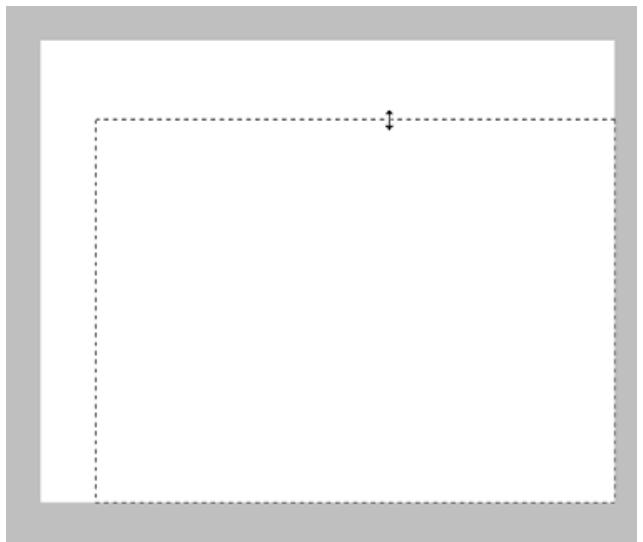
Resize only a cropping frame by clicking on the frame to be resized, then dragging the pointer up or down or left or right.
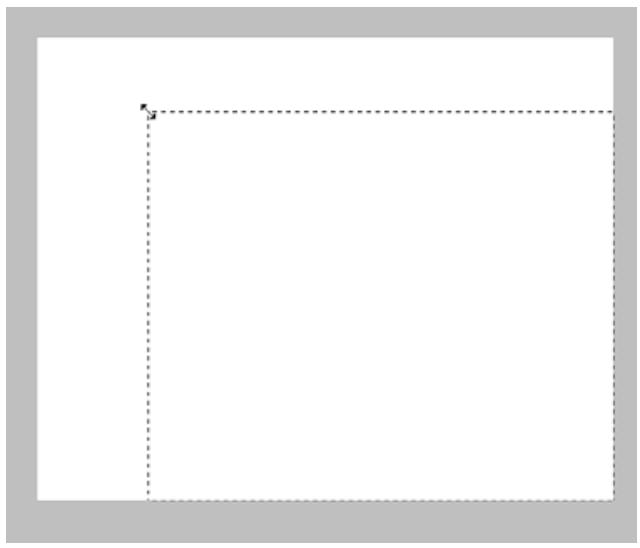
Resize the cropping frame proportionally by clicking on the corners of the frame, then dragging the pointer in or out.
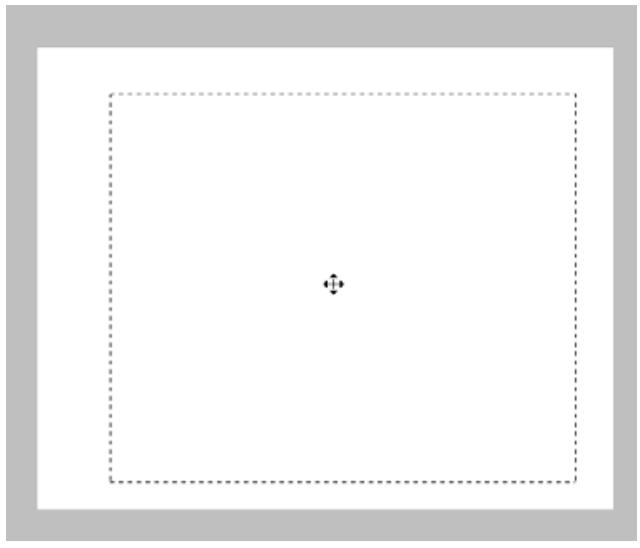
Move the cropping frame without changing its size by placing the pointer inside the frame, then click and drag it to its new location.
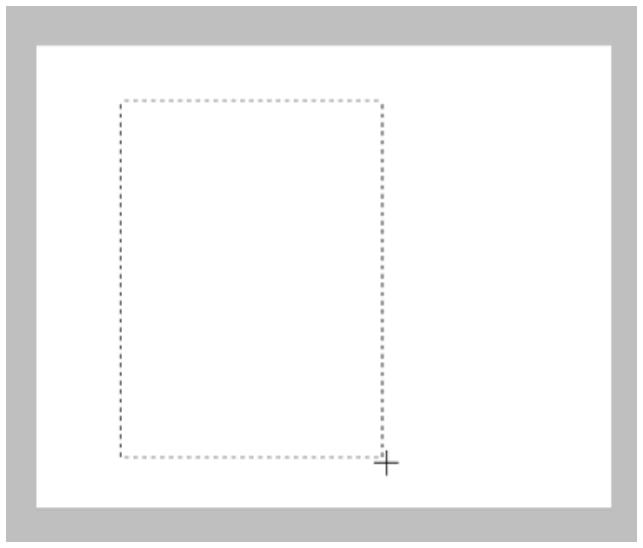
Define a new cropping frame by clicking and dragging outside the current frame. The previously displayed cropping frame is cancelled.
- You can resize the cropping frame to cover the full prescan image again by pressing the following keys.
When the Prescan window is displayed:
Windows: Press the Ctrl key and A key simultaneously.
Macintosh: Press the Command key and A key simultaneously.
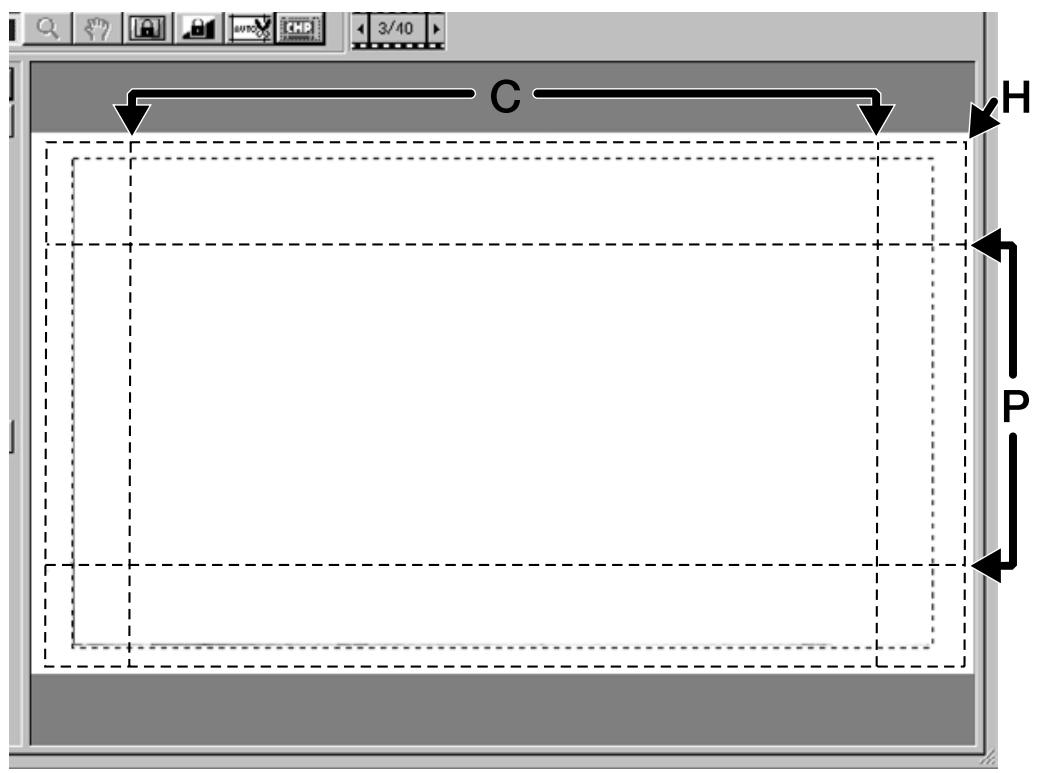
APS FORMATS; C, H, AND P
When APS Cassette or APS Sleeve is selected in the film format, the CHP button in the Prescan window allows you to quickly and easily define the cropping frame by the standard APS formats; C, H, and P.
Click on to display the APS cropping frames.
- Each time the CHP button is clicked, the cropping frames are displayed in the order of C, H and P.
- The cropping area can be defined by dragging the cropping frames (p.43 to 44).
DISPLAYING FRAME NUMBER
When 35mm or APS Cassette is selected in the film format, the frame number display appears in the Prescan window.
It shows the frame number of the currently displayed prescan image and the total frame number.
1 To display the next frame, click on the Right Arrow button.
2 To display the previous frame, click on the Left Arrow button.
- When the selected image is not prescanned yet, the prescan image is displayed after the image is prescanned.
RGB/CMY INFO
The RGB (red, green and blue channel) value at the pointer position or the CHY (cyan, magenta and yellow) value is displayed in the Prescan window.

Normally the RGB value is displayed.
To display the CMY value,
Windows:
Press and hold the Shift key while the Prescan window is displayed.
Macintosh:
Press and hold the Command key while the Prescan window is displayed.
While the key is pressed, the CMY value is displayed. When the key is released, the display returns to the RGB value.
To correct prescan images, click on the Image Correction tab.
The Prescan window changes to the following window.
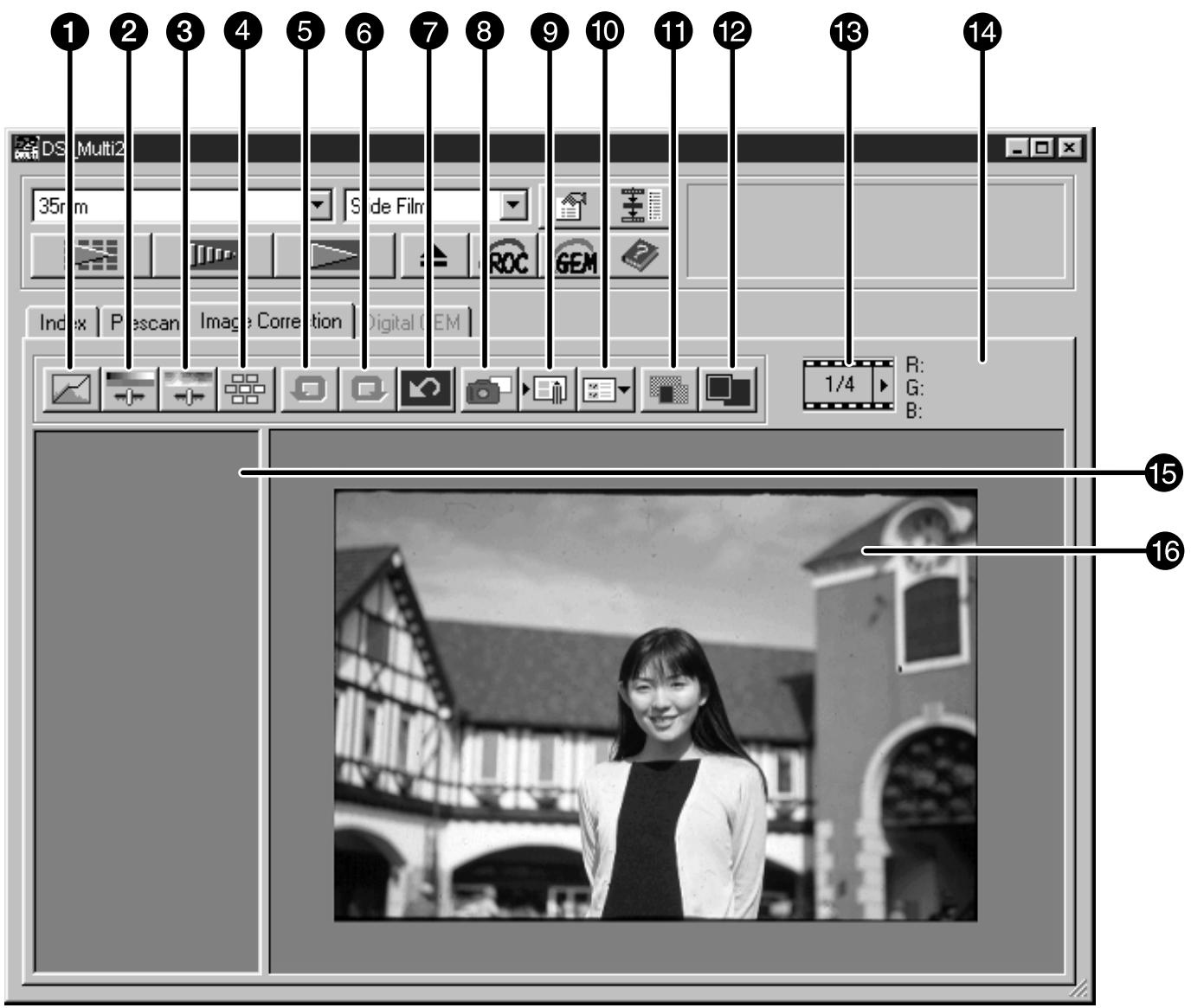
IMAGE CORRECTION TAB - NAMES OF PARTS
1 Tone Curves/Instagram Correction button
Brightness/Contrast/Color Balance Correction button
3 Hue/Saturation/Lightness Correction button
4 Variations button
5 Undo button
Redo button
7 Correction Reset button
8 Snapshot button
Image Correction Job Save button
Image Correction Job Load button
Pre/Post Correction Comparison Display button
12 Full-Screen View button
13 Frame Number display (Only when 35 mm or APS Cassette is selected in the film format)
RGB/CMY Value display
15 Snapshot display area
Image Correction display area
TONE CURVES AND HISTOGRAM
The Tone Curves and Histogram dialog box allows you to change the tone curves and correct the output value directly. Also, the Histogram part allows you to correct the input and output level in all RGB colours or in each RGB colour.
Click on

- Tone Curves and Histogram Correction dialog box will appear
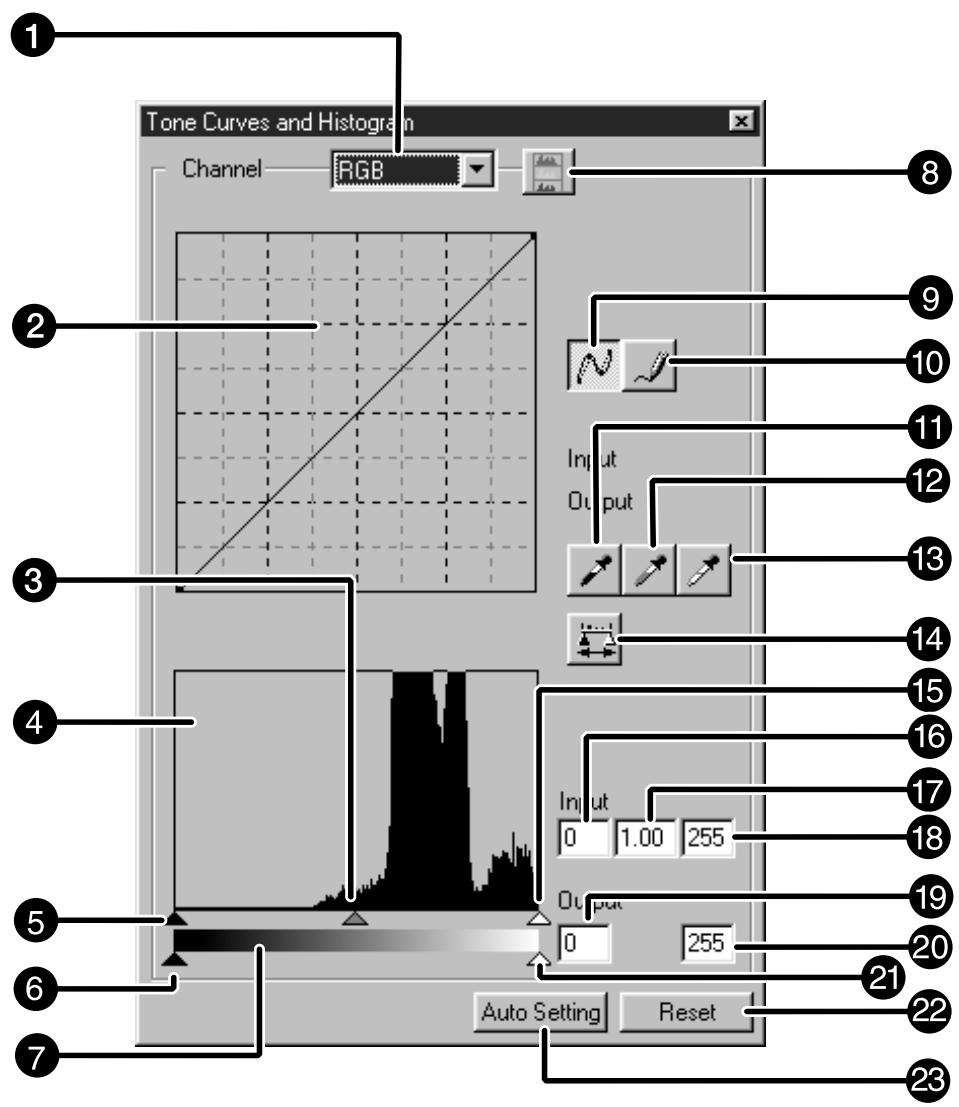
1 Channel Selection list box
2 Tone curves
3 Input Gamma slider
Higstogram
Input Shadow slider
Output Shadow slider
Gray scale
8 Histogram RGB display button
9 Tone curves/Smooth Curve button
10 Freehand curve button
Black point button
12 Gray point button
13 White point button
Apply button
Input Highlight slider
Input Shadow text box
17 Input Gamma text box
18 Input Highlight text box
19 Output Shadow text box
20 Output Highlight text box
2 Output Highlight slider
22 Reset button
23 Auto Setting
CORRECTING THE TONE CURVES
The tone curve shows the standard input level of Dimage Scan Multi II in the horizontal axis and the output level for corresponding input level in the vertical axis.
When selecting RGB in the Channel Selection list box, R, G and B are corrected at a same rate. And when selecting R, G or B, each colour is corrected separately.
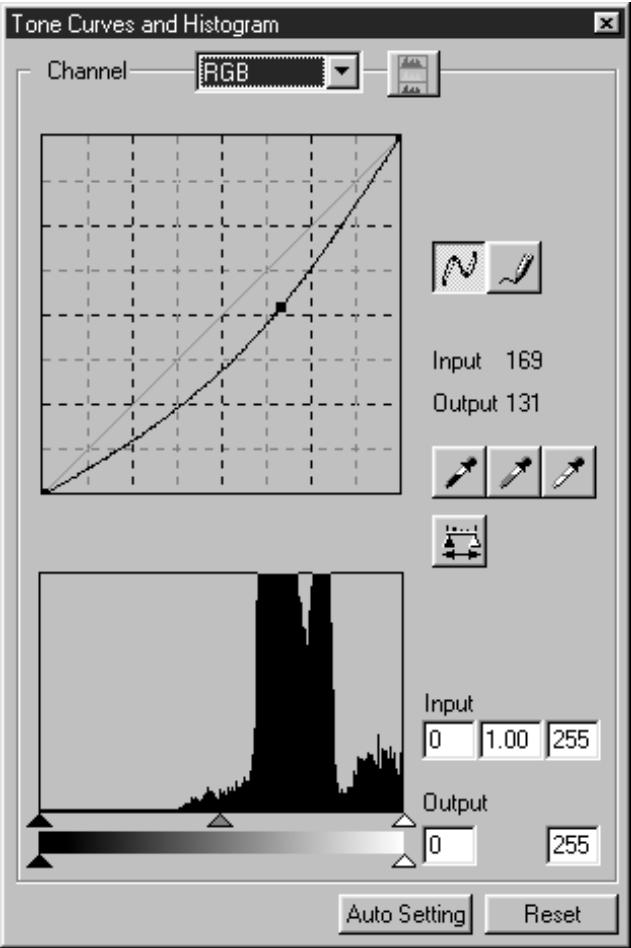
1 Click on the arrow next to the Channel Selection list box to select the channel (R, G, B, RGB) of the colour to be corrected.
- When a prescan image is monochrome, only RGB can be selected.
2 Click and drag the portion of the curve to be changed.
- The value of the horizontal axis is displayed in the Input box, and that of the vertical axis is displayed in the Output box respectively.
- The change will be reflected in the prescan image displayed in the Image Correction display area.
TONE CURVES BY FREEHAND
This function allows you to draw tone curves by freehands.
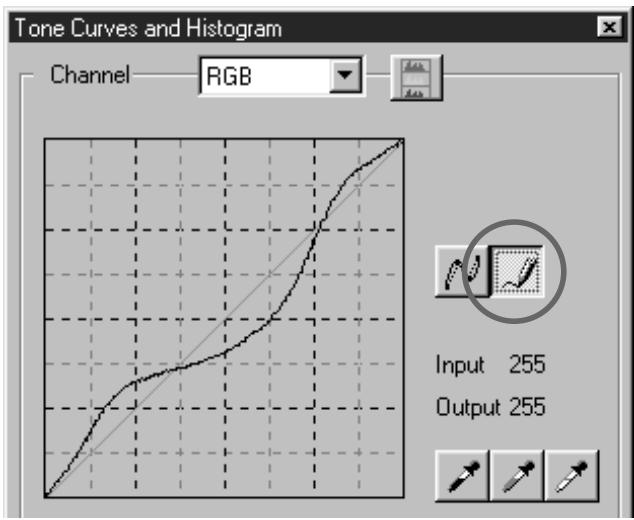
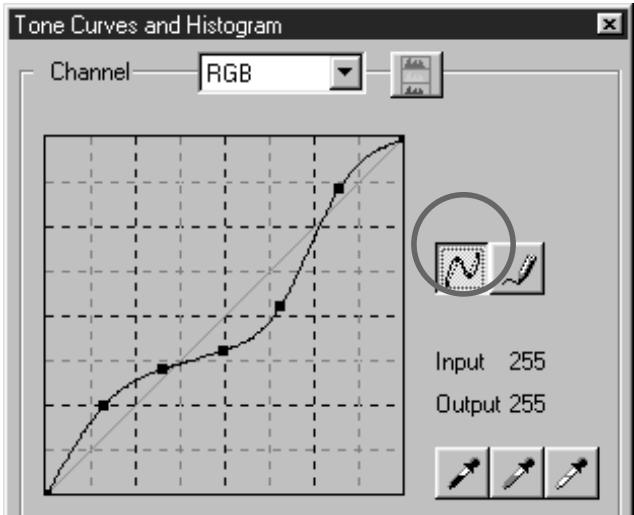
1 Click on the arrow next to the Channel Selection list box to select the channel (R, G, B, RGB) of the colour to be corrected.
- When a prescan image is monochrome, only RGB can be selected.
2 Click on and move the cursor on the tone curve display.
- The cursor changes to the pencil shape.
3 Draw the desired curve by dragging.
- The value of the horizontal axis is displayed in the Input box, and that of the vertical axis is displayed in the Output box respectively.
- The change will be reflected in the prescan image displayed in the Image Correction display area.
4 When the curve you drew is not smooth, click on N to smooth the curve point.
SPECIFYING THE BLACK, WHITE OR GRAY POINT
This function allows you to correct a prescan image by specifying the shadow point, highlight point or gray point.
Specifying the Black point
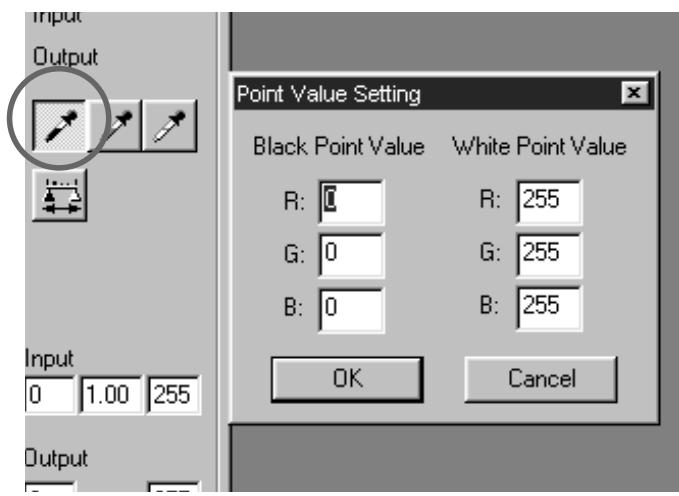
1 Double-click on
- The Point Value Setting dialog box is displayed.
- The initial value of the Black point is 0 in each R, G and B .
2 Input the desired black point value and click on [OK].
3 Click on
- The cursor changes to the black dropper shape.
4 Click on the shadow point to be corrected in the prescan image.
- The image is corrected so that the point you clicked is a shadow point. The colour of the shadow point is the black point value you input in step 2.
- The change will be reflected in the prescan image displayed in the Image Correction display area.
Setting the White point
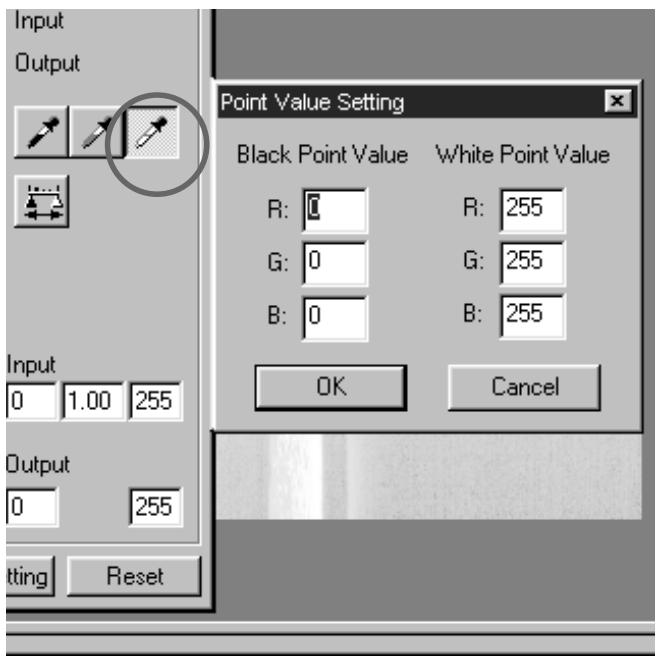
1 Double-click on
- The Point Value Setting dialog box is displayed.
- The initial value of the White point is 255 in each R, G and B.
2 Input the desired white point value and click on [OK].
3 Click on
- The cursor changes to the white dropper shape.
4 Click on the highlight point to be corrected in the prescan image.
- The image is corrected so that the point you clicked is a highlight point. The colour of the highlight point is the white point value you input in step 2.
- The change will be reflected in the prescan image displayed in the Image Correction display area.
Setting the Gray point
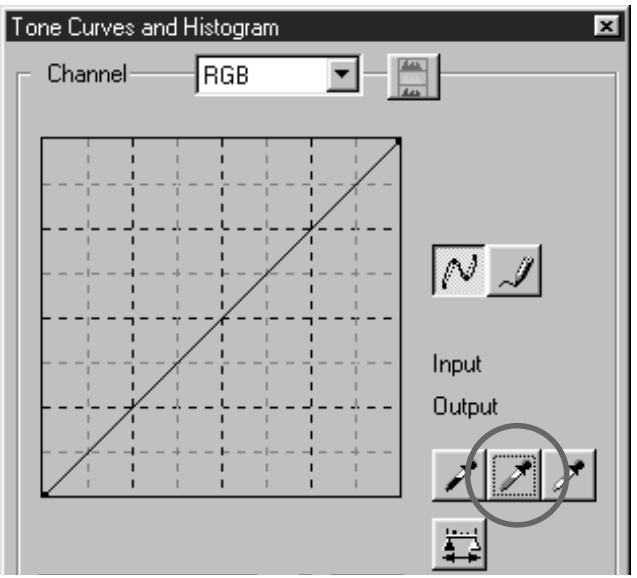
1 Click on
- The cursor changes to the gray dropper shape.
2 Click on the gray point to be corrected in the Prescan image.
- The image is corrected so that the point you clicked is a gray point. The colour is balanced and the value of brightness is not changed on that point.
- The change will be reflected in the prescan image displayed in the Image Correction display area.
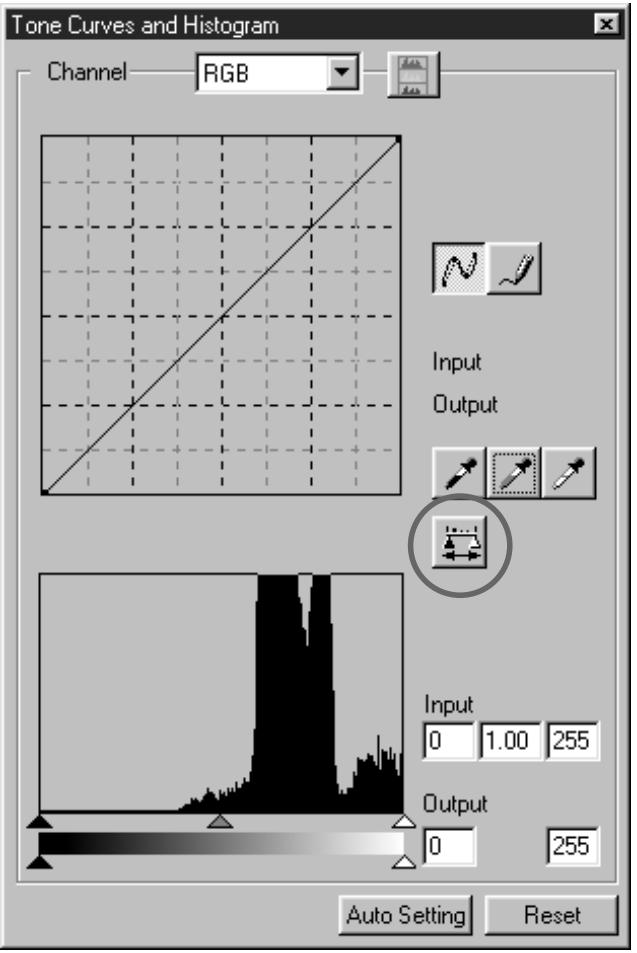
When 4 is clicked, the histogram of images after making corrections can be displayed.
The histogram after making corrections is displayed as long as you press this button. When the button is released, the histogram returns to the previous one.
CORRECTING THE HISTOGRAM
The Histogram part allows you to correct images by specifying the input and output area from the information including in a film. Also, this window displays the histogram of the image area inside the cropping frame in each RGB colour. The level is indicated in 256 colour steps (0 to 255) from left to right side.
The tone curves and histogram are linked each other. When the tone curve is corrected, the histogram is automatically corrected and vice versa.
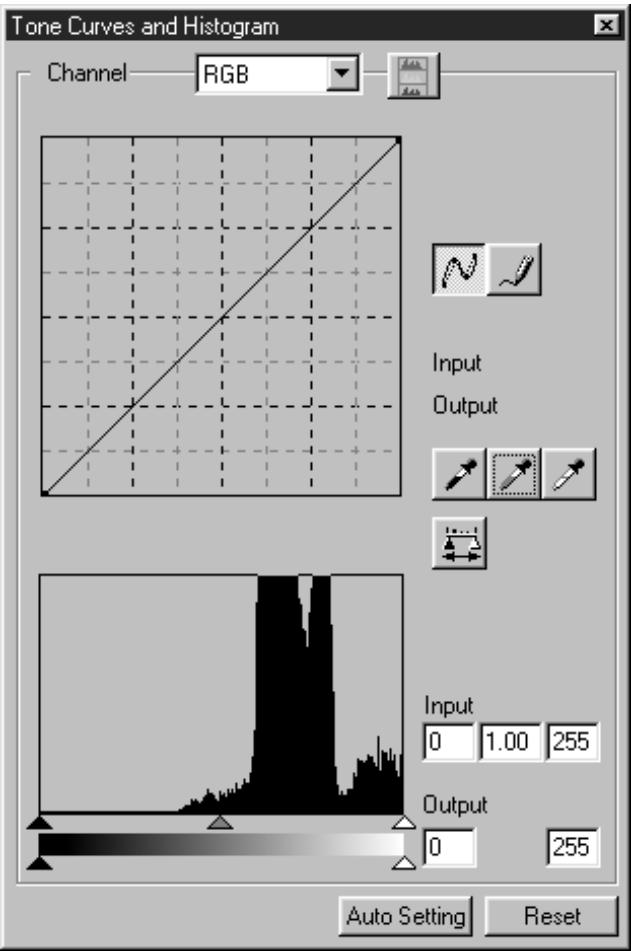
The input slide bar and the output slider are under the Histogram window.
The input slider has the Highlight slider (right), gamma slider (middle) and shadow slider (left). The output slider has the Highlight slider (right) and Shadow slider (left).
The Histogram can be corrected by dragging each slider or inputting the value directly in each Input or Output level box.
For example, if you use the input Highlight slider and input shadow slider to remove areas which contain no pixels (flat line at left or right) the original colour will be better represented.
Although the output slider does not normally need to be adjusted, use it according to the characteristics of the output equipment. For example, use the output slider when the black part is not printed clearly with the 0 setting in the black level. (In this case, adjust the Output level by moving the Output Shadow slider to the right slightly while checking the correction result).
CORRECTING THE HISTOGRAM - AUTO SETTING
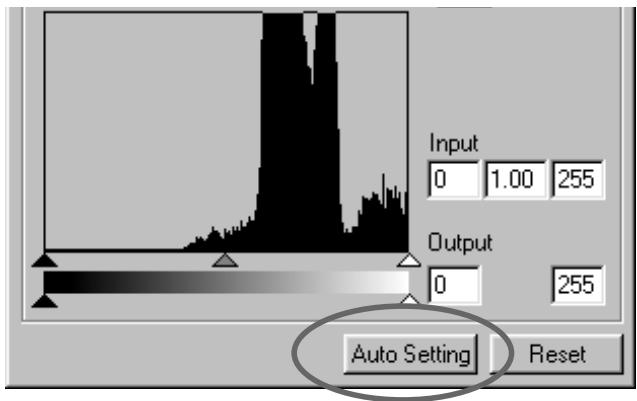
Click on the Auto setting button.
- The image is corrected automatically by removing no information (pixels) parts from the histogram and using all tone steps from 0 to 255.
- The change will be reflected in the prescan image displayed in the Image Correction display area.
CORRECTING THE HISTOGRAM - EACH R, G, B CHANNEL
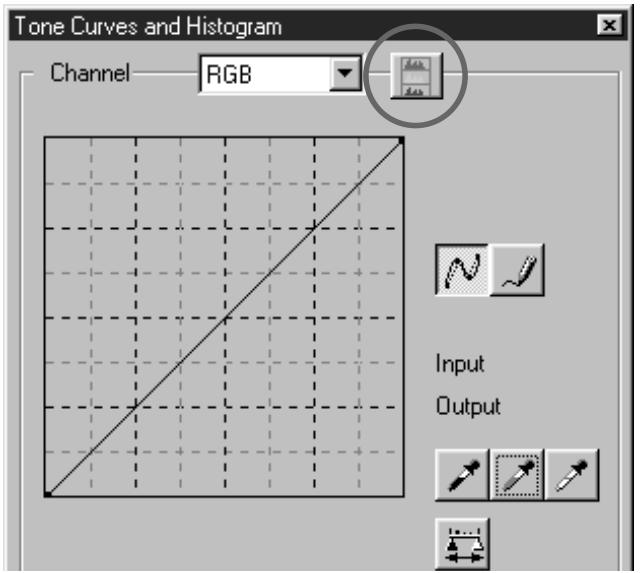
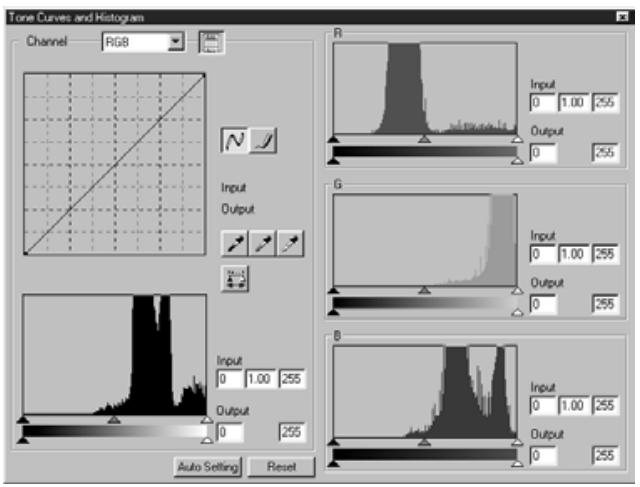
1 Click on the Histogram RGB display button.
- The RGB Histogram display will appear in the Tone Curves and Histogram dialog box.
- When the Histogram RGB display button is clicked again, the histogram of each R, G, B channel will disappear.
2 By dragging the Input Highlight slider (right) or the Input Shadow slider (left) in each R, G, B channel or inputting the value directly in each text box, the Histogram RGB can be corrected.
- The change will be reflected in the prescan image displayed in the Image Correction display area.
- The change corrected in each R, G, B channel will be also reflected in each corresponding tone curve.
CORRECTING THE HISTOGRAM - RESET

Click on the Reset button.
- All corrections made in the Tone Curves and Histogram dialog box will be reset. The prescan image will also return to the previous image.
CORRECTING BRIGHTNESS/CONTRAST/COLOR BALANCE
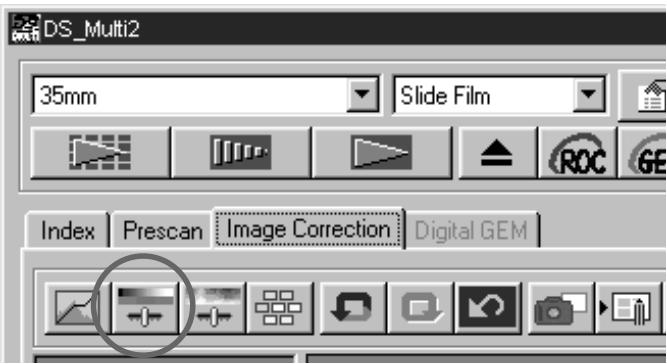
1 Click on
- The Brightness, Contrast, Color Balance Correction dialog box will appear.
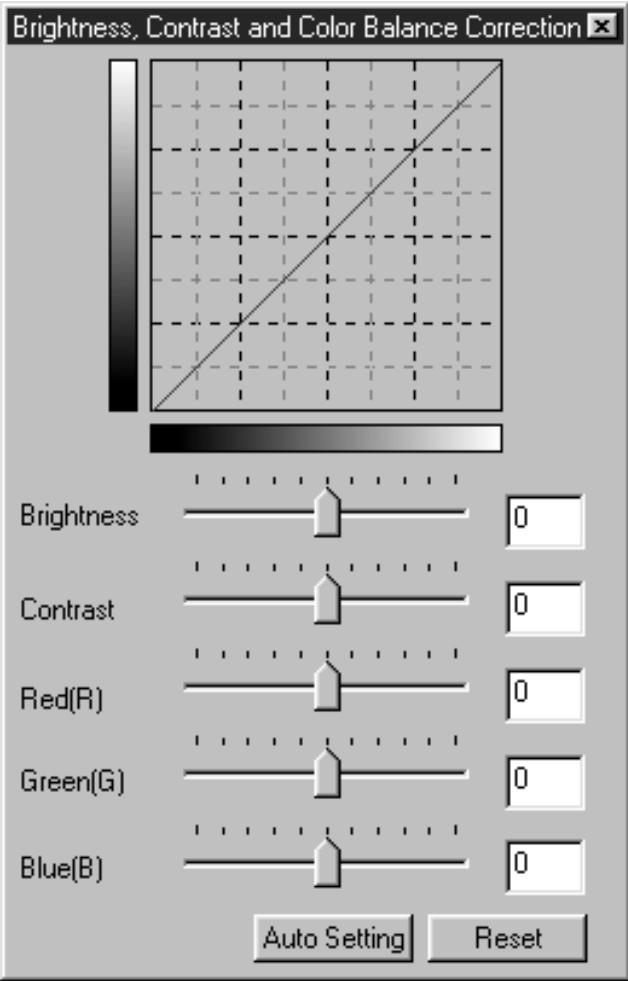
2 Drag each Brightness, Contrast, Red (R), Green (G) or Blue (B) slider or input each value directly in each text box.
- Values from -100 to +100 can be input.
- The change will be reflected in the prescan image displayed in the Image Correction display area.
Brightness correction:
By dragging the Brightness slider to the right (or inputting a big plus number in the text box), the brightness of the image is raised.
Contrast correction:
By dragging the Contrast slider to the right (or inputting a big plus number in the text box), bright parts will be made brighter and dark parts will be made darker.
RGB color balance correction:
By dragging the Colour Balance slider to the right (or inputting a big plus number in the text box), each colour content is increased to emphasize each colour.
CORRECTING BRIGHTNESS/CONTRAST/COLOR BALANCE - AUTO SETTING
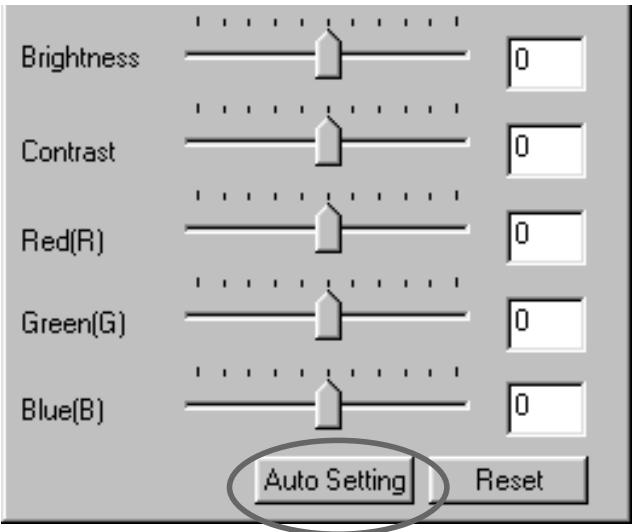
Click on the Auto Setting button.
- The brightness and contrast of the image is corrected automatically according to the lightness information without changing the RGB input colour balance.
- The change will be reflected in the prescan image displayed in the Image Correction display area.
CORRECTING BRIGHTNESS/CONTRAST/COLOR BALANCE - RESET
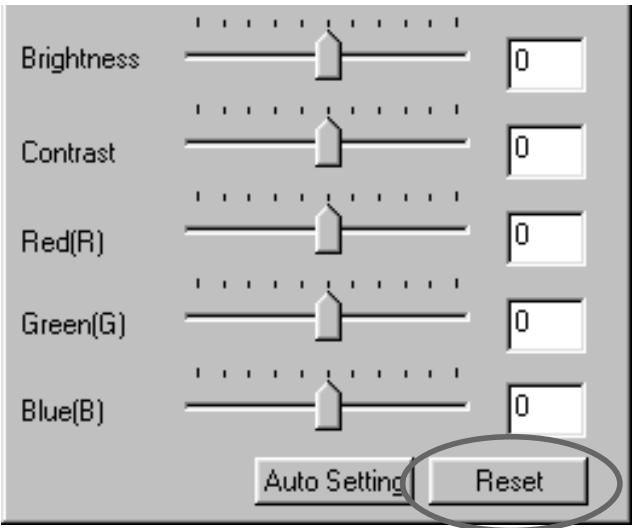
Click on the Reset button.
- The corrections made in the Brightness, Contrast, Colour Balance Correction dialog box will all be reset. The prescan image will also return to the previous image.
CORRECTING HUE/SATURATION/LIGHTNESS
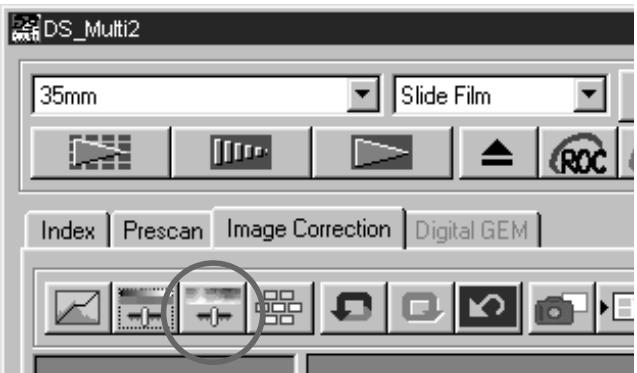
1 Click on
- The Hue, Saturation, Lightness Correction dialog box will appear.
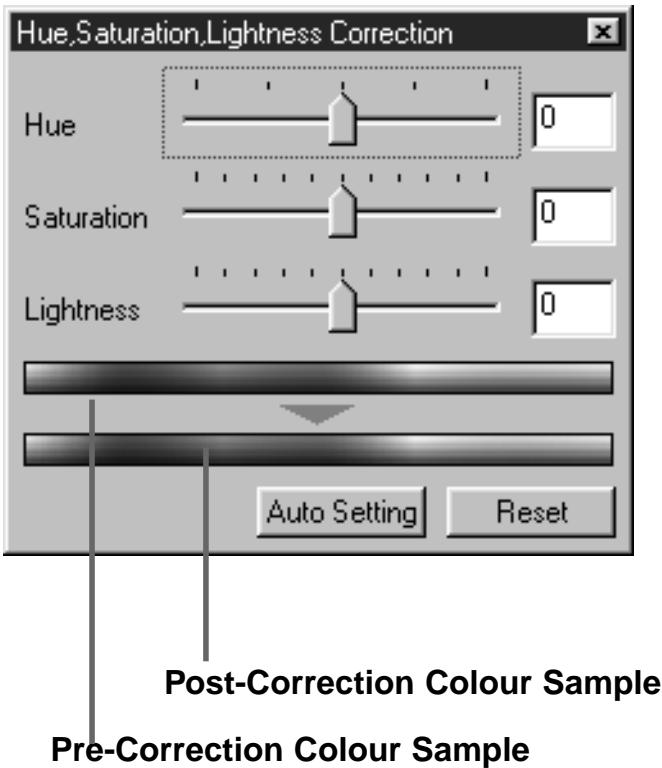
2 Drag each Hue, Saturation or Lightness slider or input each value directly in each text box.
- Values from -180 to +180 or -100 to +100 can be input in the Hue or the Saturation and Lightness respectively.
- The change will be reflected in the prescan image displayed in the Image Correction display area.
Hue correction:
By dragging the Hue slider, the colour of the image displayed in Pre-Correction Colour Sample is changed as shown in Post-Correction Colour Sample. When the Hue slider is dragged to the rightmost or leftmost side, the hue of the image is reversed.
Saturation correction:
By dragging the Saturation slider to the right (or inputting a big plus number in the text box), the colours become more saturated. By dragging the Saturation slider to the left (or inputting a big minus number in the text box), the saturation of the image is reduced.
Lightness correction:
By dragging the Lightness slider to the right (or inputting a big plus number in the text box), the lightness of the image is raised.
CORRECTING HUE/SATURATION/LIGHTNESS - AUTO SETTING
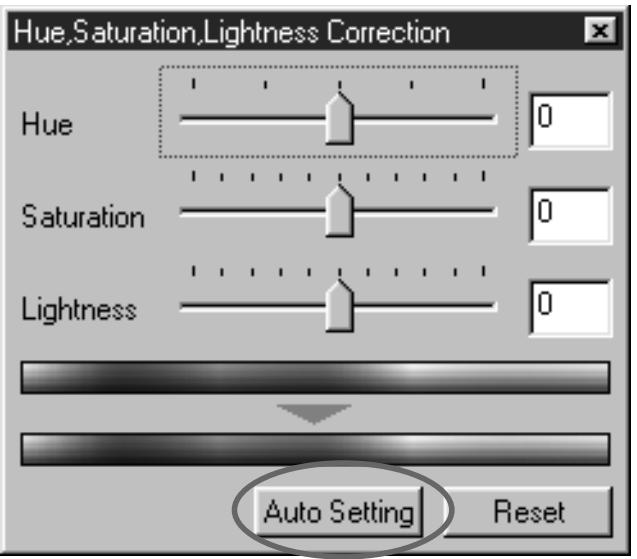
Click on the Auto Setting button.
- The saturation of the image is corrected automatically without changing the hue and lightness information.
- The change will be reflected in the prescan image displayed in the Image Correction display area.
CORRECTING HUE/SATURATION/LIGHTNESS - RESET
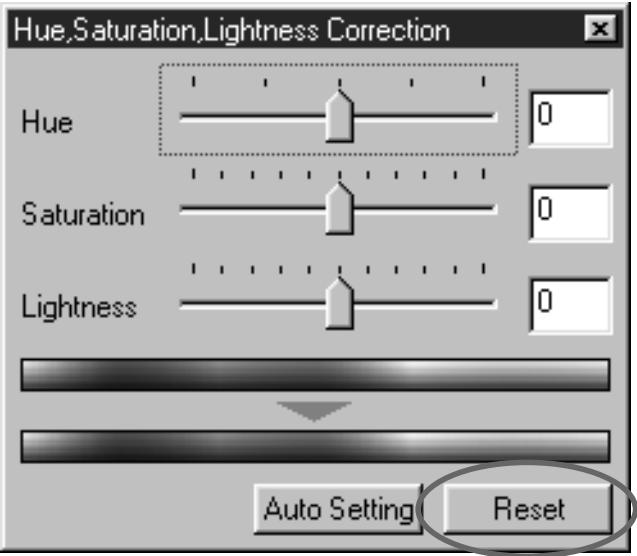
Click on the Reset button.
- The corrections made in the Hue, Saturation, Lightness Correction dialog box will all be reset. The prescan image will also return to the previous image.
VARIATION CORRECTION
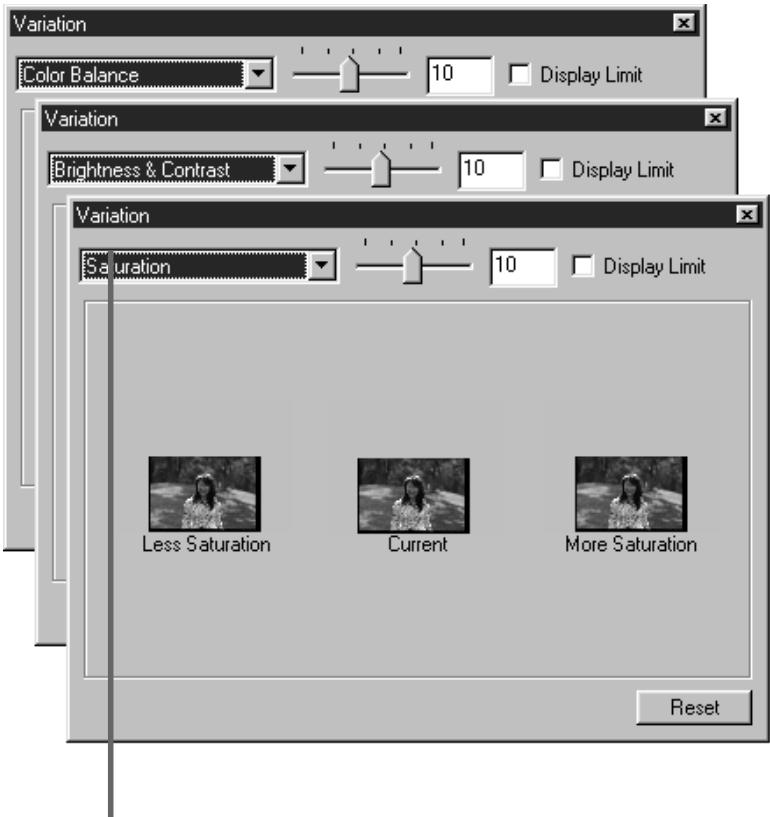
The Variation correction allows you to correct the brightness, contrast and saturation while checking the simulated image after correction.
Correction list box

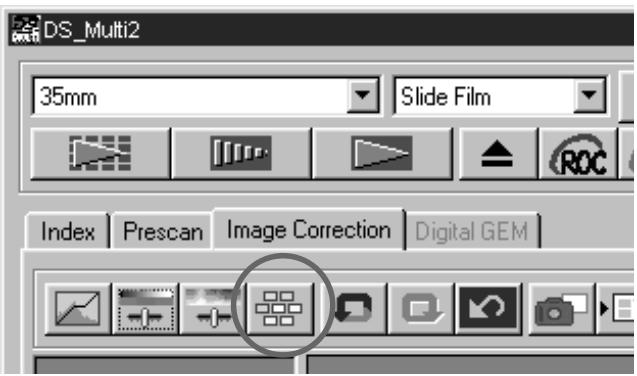
Click on

- The Variation correction dialog box will appear.

Click on the arrow in the Correction list box to select the correction item.
- Colour Balance, Brightness & Contrast and Saturation can be selected from the Correction list box.
- Colour Balance and Saturation cannot be selected when B&W is selected in the film type.
- A number of frames of variation images corrected according to the selected correction item are displayed.
VARIATION CORRECTION - COLOUR BALANCE
Variation Amount Control slider
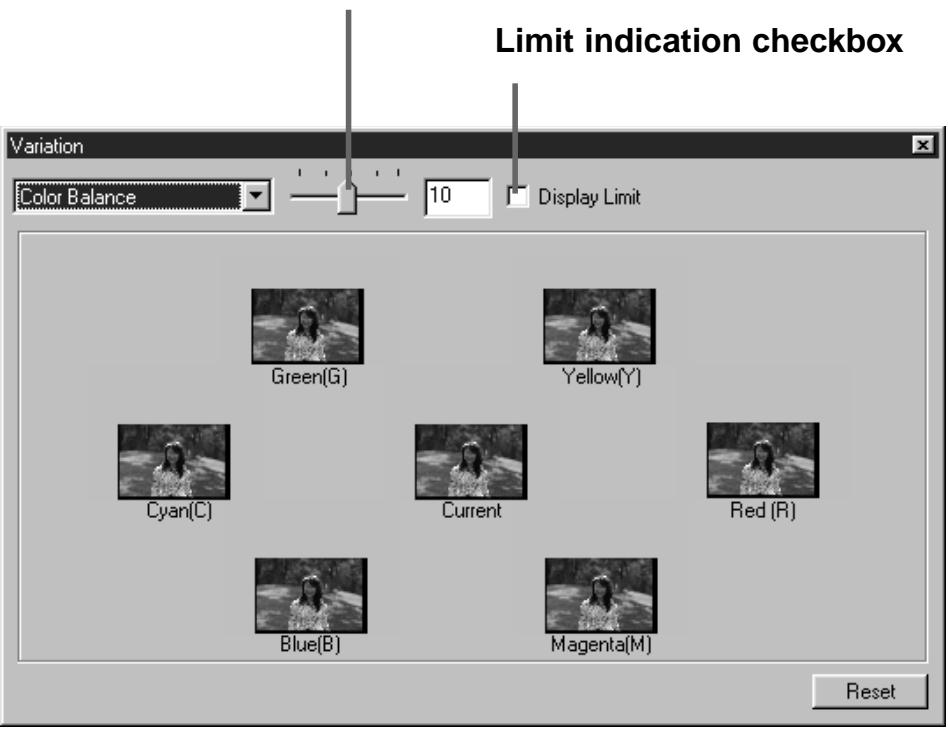
In the Colour Balance correction, 6 images that have been corrected by one-step in each red (R), magenta (M), blue (B), cyan (C), green (G) or yellow (Y) direction from the center image are displayed. When the image in the direction to be corrected is clicked, the image is placed in center and new variation images are displayed.
By dragging the Variation Amount Control slider, the value of correction can be changed in the range from 1 to 20 (The initial value is 10).
When the Limit indication check box is checkmarked and the image is corrected in each red (R), magenta (M), blue (B), cyan (C), green (G) or yellow (Y) direction, any part of the image which has been corrected beyond the range which can be displayed is displayed in reversed colour.
VARIATION CORRECTION - BRIGHTNESS & CONTRAST CORRECTION
Variation Amount Control slider
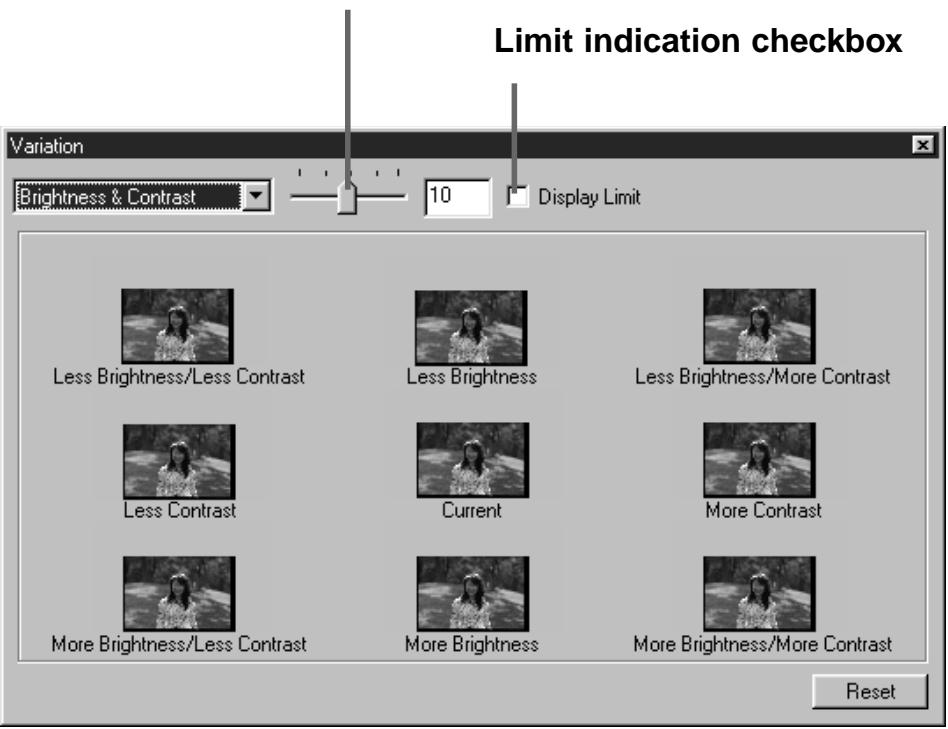
In the Brightness & Contrast correction, 8 images that have been corrected from the center image by one-step in the horizontal direction for brightness and in the vertical direction for contrast are displayed. When the image in the direction to be corrected is clicked, the image is placed in the center and new variation images are displayed.
By dragging the Variation Amount Control slider, the value of correction can be changed in the range from 1 to 20 (The initial value is 10).
When the Limit indication check box is checkmarked and the brightness and contrast are corrected, any part of the image which has been corrected beyond the range which can be displayed is displayed in reversed colour.
VARIATION CORRECTION - SATURATION CORRECTION
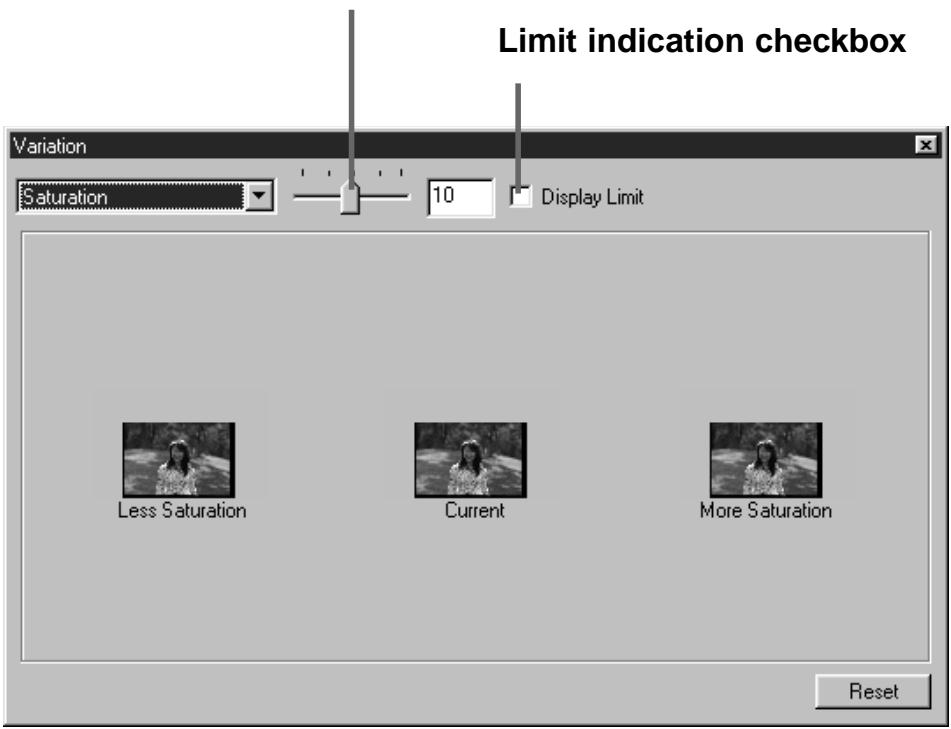
Variation Amount Control slider
In the Saturation correction, 2 images in which saturation has been corrected from the center image by one-step are displayed on the right and left sides of the center image. When the image in the direction to be corrected is clicked, the image is placed in the center and new variation images are displayed.
By dragging the Variation Amount Control slider, the value of correction can be changed in the range from 1 to 20 (The initial value is 10).
When the Limit indication check box is checkmarked and the saturation is corrected, any part of the image which has been corrected beyond the range which can be displayed is displayed in reversed colour.
CANCELLING THE IMAGE CORRECTION
Click on
- The image correction will be cancelled and the image will return to the previous one. The image before correction will be restored as long as sufficient memory is available.
REDO THE CORRECTION
Click on
- The cancelled image correction will be resumed.
DELETING THE IMAGE CORRECTION (DELETING ALL THE IMAGE CORRECTION)
Click on
- All the image corrections will be reset and the image will return to the initial state.
- All the correction items will be reset. Even if the Redo button is clicked, nothing can be resumed.
SNAPSHOT
The current prescan image can be stored in the Snapshot display area temporarily and displayed as a thumbnail.
Click on

- The current prescan images are stored in the Snapshot display area temporarily and displayed as a thumbnail.
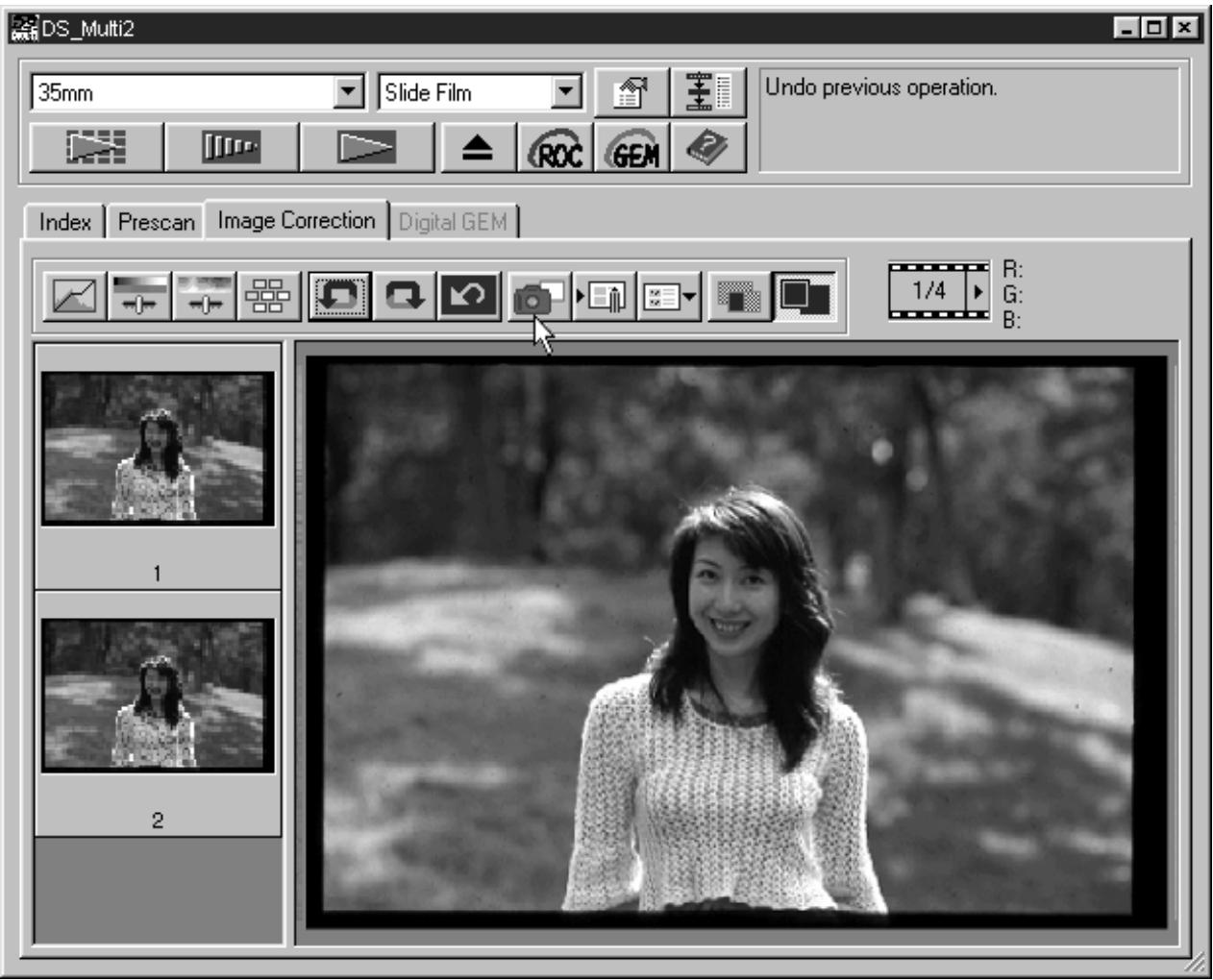
- The thumbnail images are displayed in the Snapshot display area as long as there is sufficient memory available.
- When the thumbnail image in the Snapshot display area is clicked, that image is displayed as a prescan image.
- To delete the thumbnail image in the Snapshot display area, click on the thumbnail image to be deleted then press the Delete key (Press the Command key and D key simultaneously for Macintosh).
- When the Correction Reset button (p.64) is clicked or the software is shut down, all the thumb-nail images in the Snapshot display area are deleted.
IMAGE CORRECTION JOB
The image correction setting in each correction window can be saved as an image correction job. Once the correction item is saved, you can easily correct the image by loading the appropriate correction job.
IMAGE CORRECTION JOB - SAVING IMAGE CORRECTION JOB
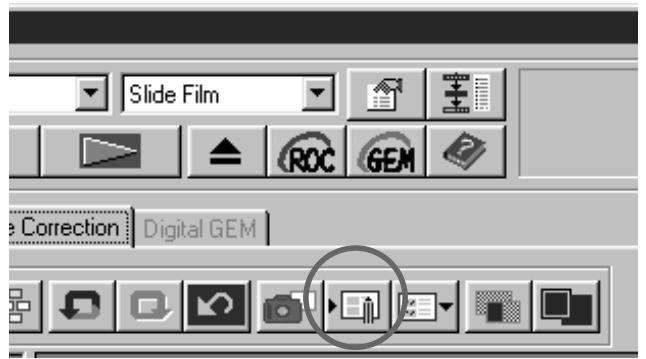
1 Click on
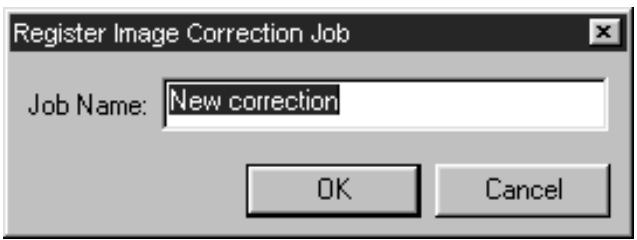
- The register Image Correction Job dialog box will appear.
2 Input the job name and click on [OK].
- The current image correction setting is saved as an image correction job.
IMAGE CORRECTION JOB - LOADING IMAGE CORRECTION JOB
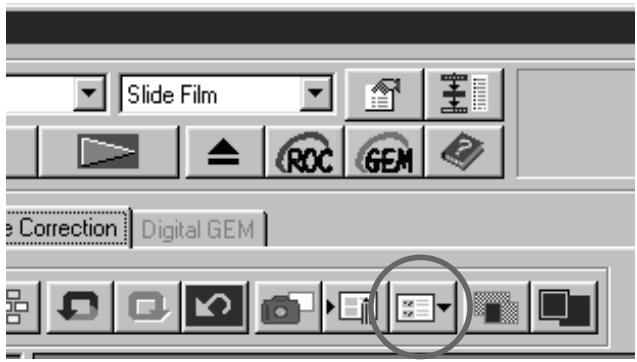
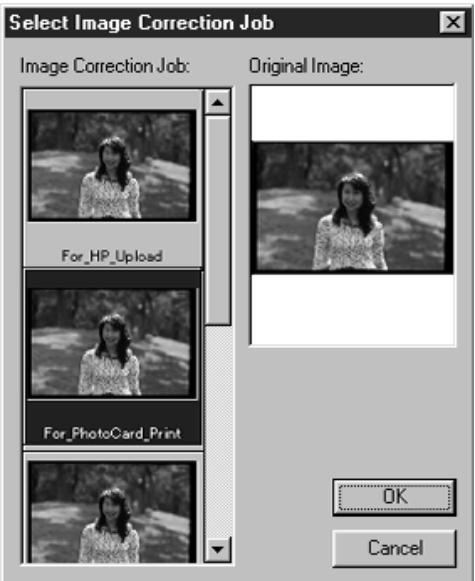
1 Click on
- The Select Image Correction Job dialog box will appear.
2 Select the image correction job and click on [OK].
- The saved image correction job will be applied to the currently displayed prescan image.
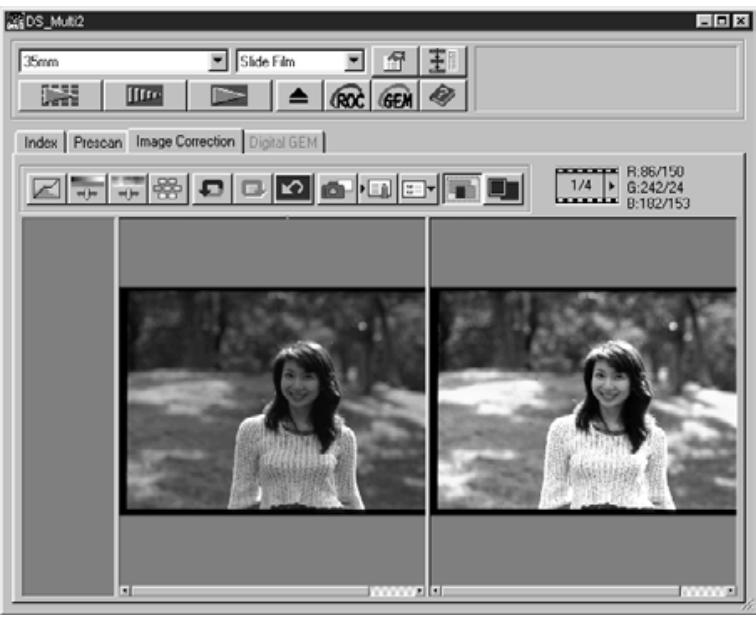
CHECKING THE CORRECTION RESULT WHILE LINING UP IMAGES
Click on

- The correction result can be checked easily because the pre-correction image is displayed in the left side and the post-correction image is displayed in the right side.
FULL-SCREEN VIEWING THE POST-CORRECTION IMAGE
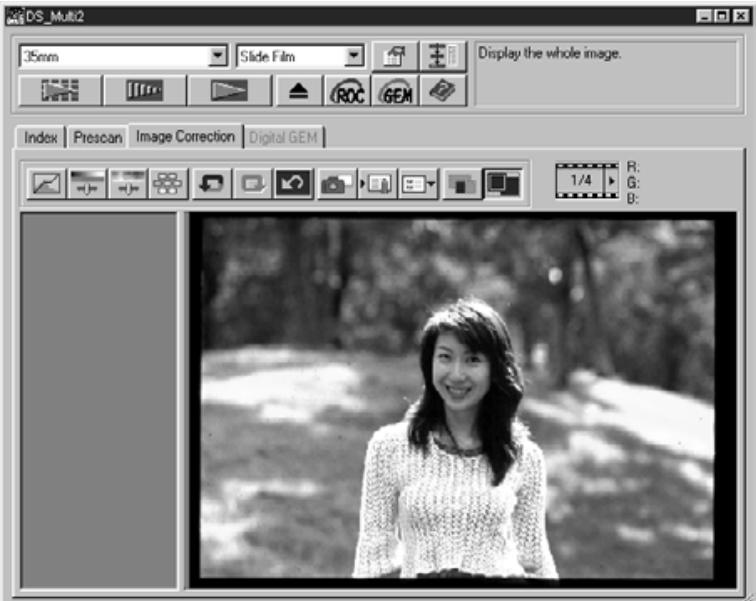
Click on

- The post-correction image will be displayed in the Image Correction display area.
DIGITAL ROC
The Digital ROC (Reconstruction Of Colour) function is an image correct function that can restore the colour quality of a faded image.
If the colour of the film has faded with the passage of time, the changed colour can be corrected automatically by reconstructing colour when scanning so that a digital image with an appropriate colour can be restored.
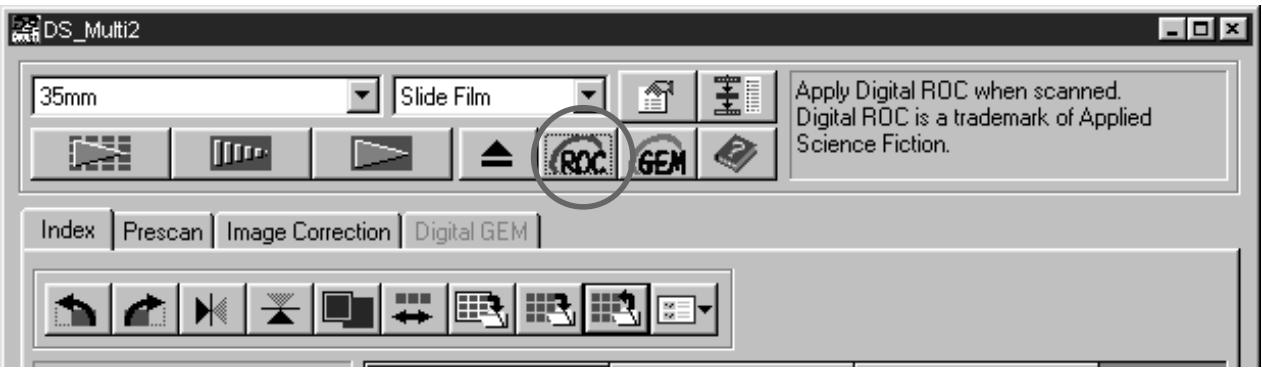
Click on ROC in the Main window.
- The Digital ROC function is turned on. When the preview scan and final scan (p.78) are performed, the colour quality of a faded image is restored and the corrected image is displayed.
- When scanning a B&W film, or a colour film when 16 bit linear is selected as the scanning mode in the Preferences, the Digital ROC function cannot be used.
- When the Digital ROC function is turned on, the settings of [Auto Expose for Slides] in the Preferences, the colour matching, the AE Lock function when prescanning (p.38) or the AE Area Lock function (p.39) are cancelled.
- When using the Digital ROC function, be sure and perform the prescan and adjust the focus with the Point AF or Manual Focus function (p.40 to 41) before the final scan. Putting a checkmark on [Auto Focus at Scan] in the Preferences is recommended.
- To turn off the Digital ROC function, click on the Digital ROC button again.
- The Digital ROC function may not always be obtained effectively depending on the conditions of the film or the faded colour.
- Much more time is required for scanning when the Digital ROC function is turned on, compared with when that function is turned off.
DIGITAL GEM
The images of developed film are composed of high-density grains. These grains sometimes clump together so that the images look rough. This function detects the grains when scanning and equalizes them. So, a sharp and smooth image can be obtained even when the image of 35 mm film is magnified.
1 Click on GEM in the Main window.
- The [Digital GEM] tab will be activated.
2 Click on in the Main window.
- The prescan will begin.
- The Prescan window will appear and the prescan image will be displayed in the window.
3 Select the desired Input Resolution in the Scan Settings window (P. 80-81).
4 Click on [Digital GEM] tab.
- The next page window will appear.
Digital GEM Adjust slider
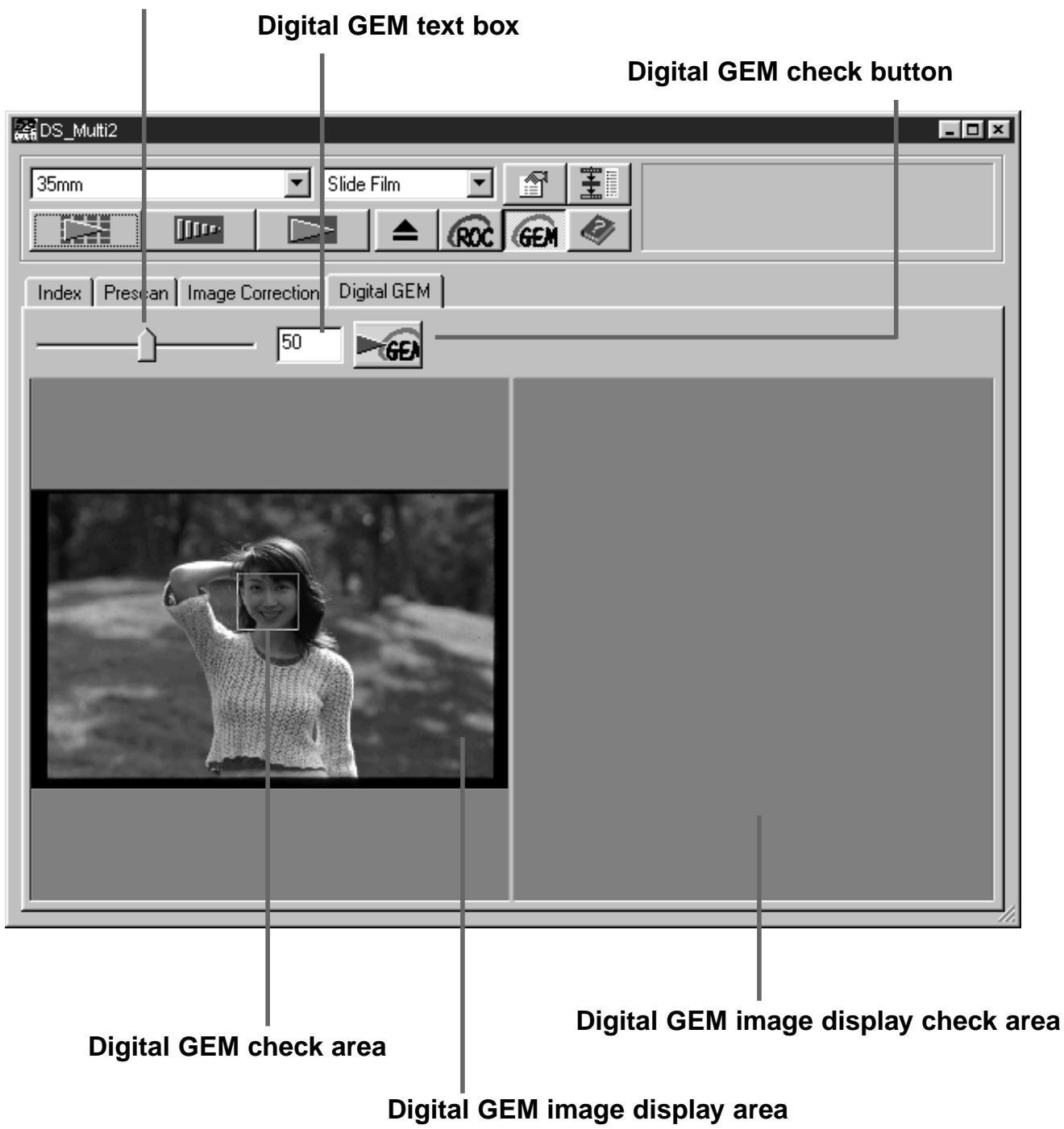
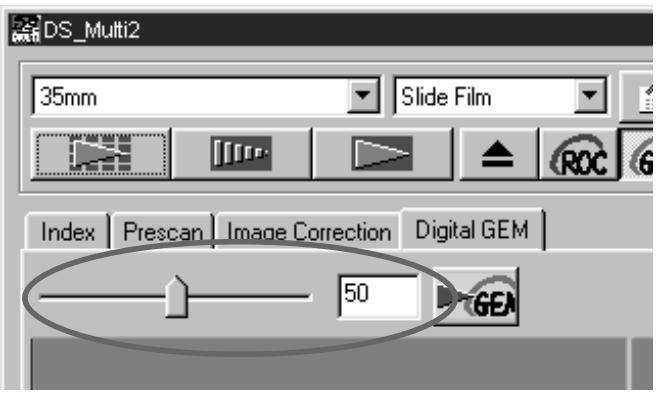
5 Drag the Digital GEM Adjust slider or input the desired value directly in the text box.
- Values from 0 to 100 can be input.
- The bigger the value is, the more effective the correction result is.
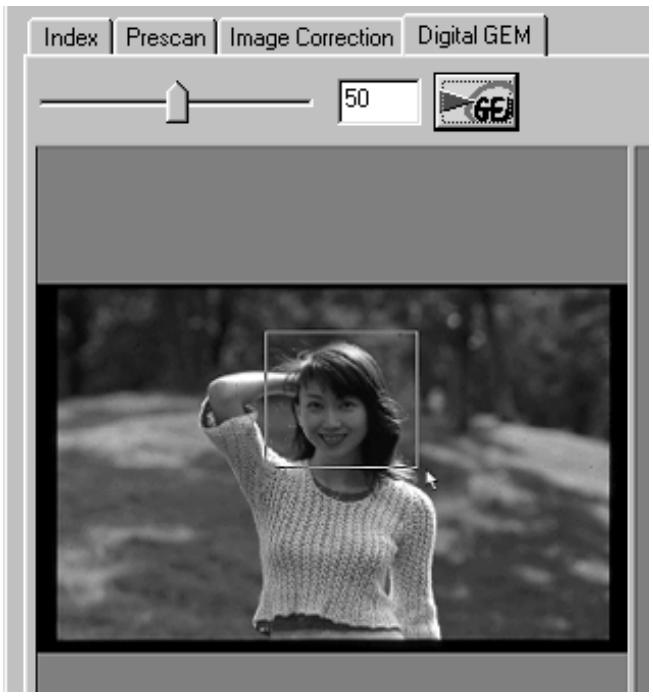

6 Change the Digital GEM check area size or move that area if necessary and specify the image area to be checked.
- The Digital GEM check area is specified in the center of the image and the size of 64 pixels x 64 pixels.
- To move the area or change the area size, refer to the operations of the cropping frame (p.43 to 44).
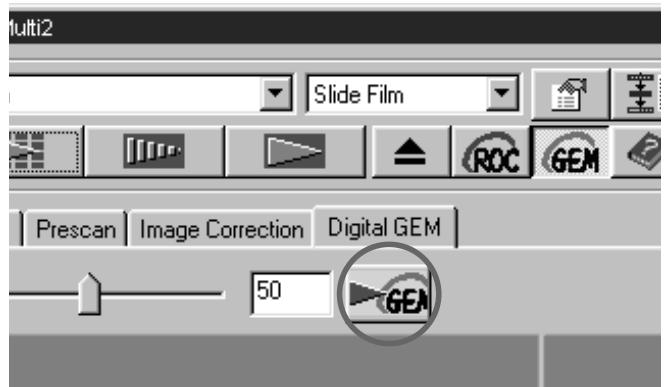
7 Click on the Digital GEM check button.
- To get the Digital GEM check image, the film will be scanned according to the input resolution specified in step 3.
- The image area specified in step 6 will be corrected according to the value specified in step 5, and displayed in the Digital GEM check image display area and the correction result can be checked.
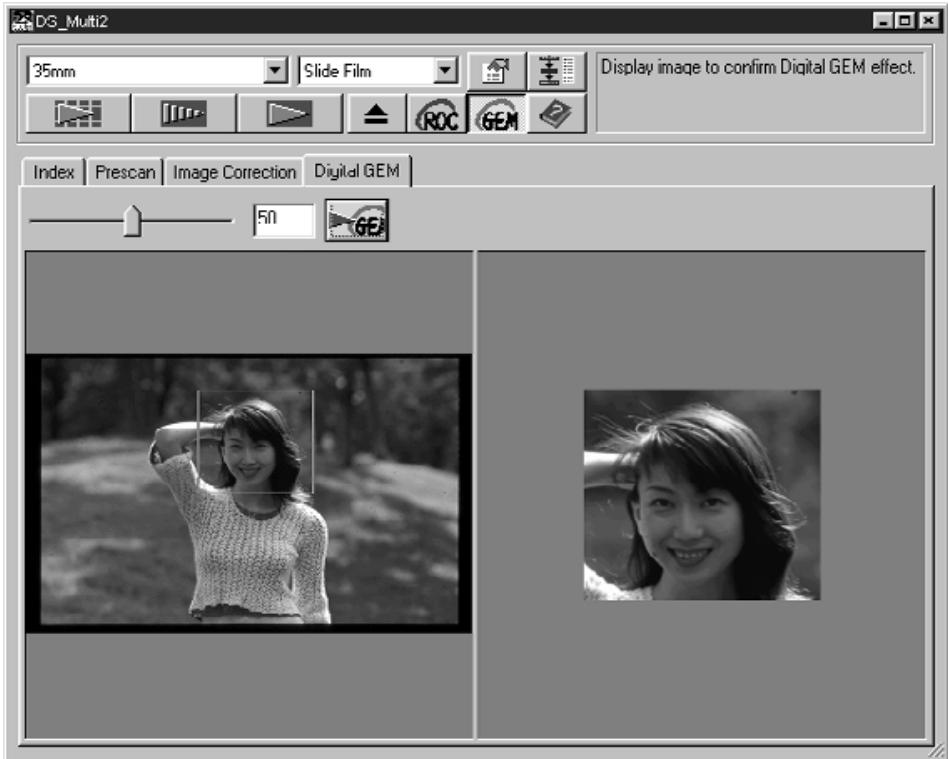
Repeat steps 5 to 7 if necessary and specify the Digital GEM adjust value so that an appropriate correction result can be obtained.
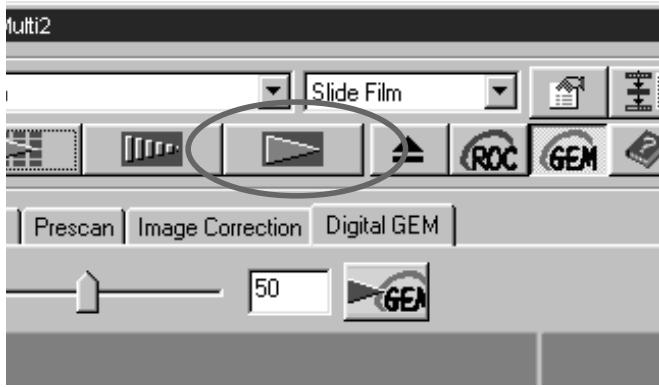
9 Click on
- The image will be scanned and corrected according to the specified value (Digital GEM adjust value).
-
For operations after performing the final scan, see page 86.
-
When scanning a B&W film, the Digital GEM function is not available.
- When using the Digital GEM function, be sure and perform the prescan and adjust focus with the Point AF or Manual Focus function (p.40 to 41) before the final scan. Putting a checkmark on [Auto Focus at Scan] in the Preferences is recommended.
- The Digital GEM function may not always operate effectively depending on the condition of the film.
- Much more time is required for scanning when the Digital GEM function is turned on compared with when that function is turned off.
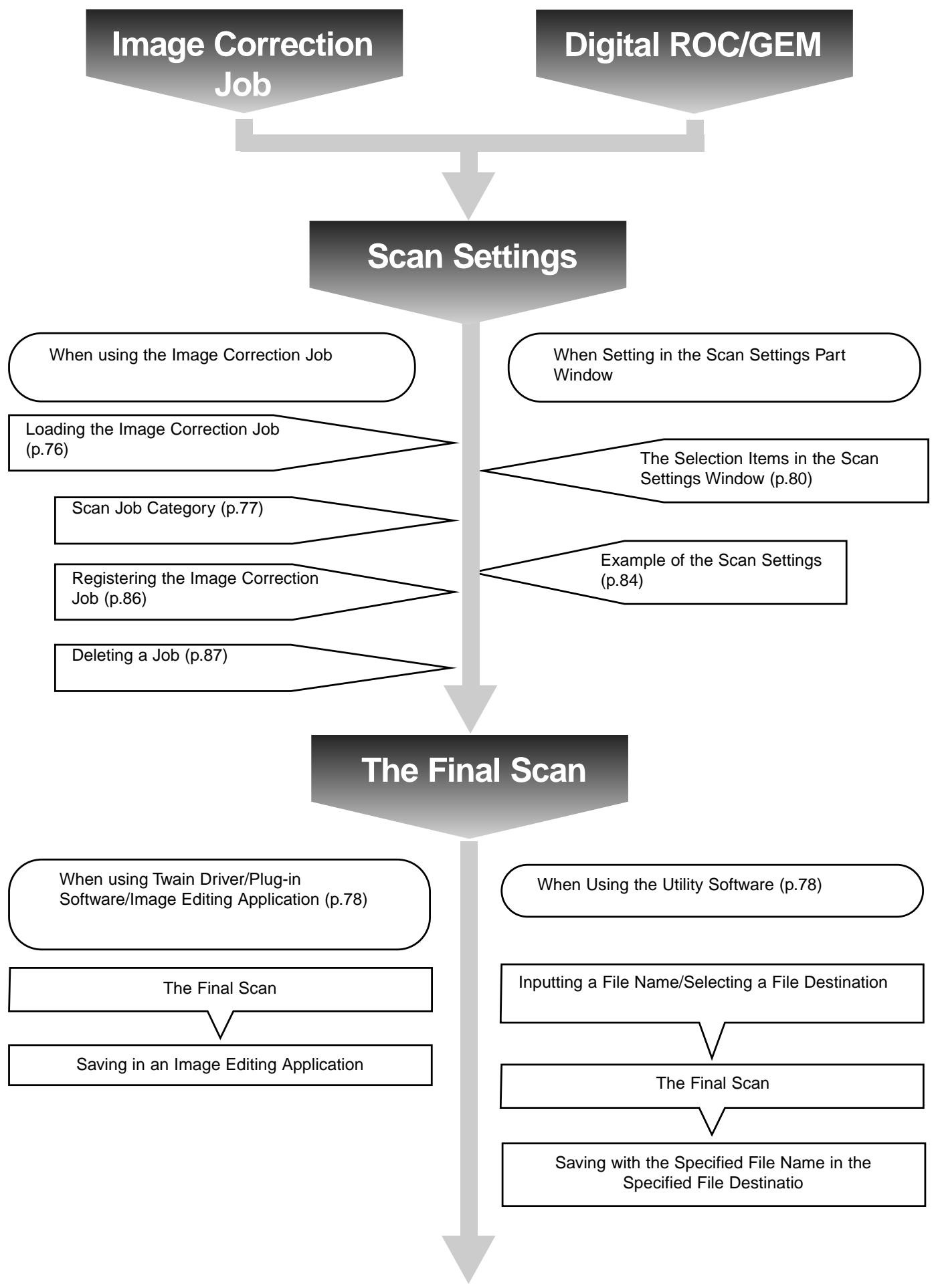
Before scanning, it is necessary to make various settings in the Scan Settings window (p. 80) such as the amount of detail required to read the original film (input resolution), the amount of detail required for output (output resolution), the size required for output (output size/magnifications), etc.
It is important that these settings are made properly in order to achieve optimal results for the size and/or purpose of the final image. A beginner may find these settings to be complicated and difficult to understand.
"Job" is a function that allows you to save all the item settings made to the Scan Settings window to a particular file so that this file can be recalled when necessary for any future jobs that require the same settings. Properly used, this function can simplify the complicated process of setting the resolution, image size, magnifications, etc. scanner settings, so that even a beginner can easily execute the ideal settings required for the job.
Up to 8 items can be set to numerical values in the Scan Settings window. One pattern reflecting settings for each of the 8 items can be saved to a Job file. Should these settings be changed, the new settings can be saved to another job file. All Job files are collected within the "Job File List" that designates 10 individual categories for each image output destination (device to which the job is to be output). In total, approximately 570 different types are available.
Because other optional settings can be registered to the Job File List, intermediate and advanced users can increase their work efficiency by saving commonly used scanner settings to the Job File List. Also, it is possible to reduce work time by saving settings to the Job File List when specific settings are required, regardless of the image to be scanned.
- When installing the setup program (installer) by following the instructions, the job files are installed in the following folders for each category.
When using Windows® (The startup hard disk assumes drive C.)
[C:] -> [Program Files Folder] -> [DS_Multi II Folder] -> [Job Folder]
When using Macintosh
[System Folder of Start Up Disk] ->[Preferences Folder] ->[DSMulti II Jobs Folder]
- For adding or deleting a job file, see "Registering a Job" or "Deleting a Job" described on the following pages. The files in the folders described above can not be operated with Explorer (or Finder on Macintosh).
- The "Scan Job File List" in which all the scan job settings are listed, is at the end of this instruction manual.
LOADING A JOB
The scan setting of the job file can be applied to the current prescan image by loading a job file from the preset Job File List.
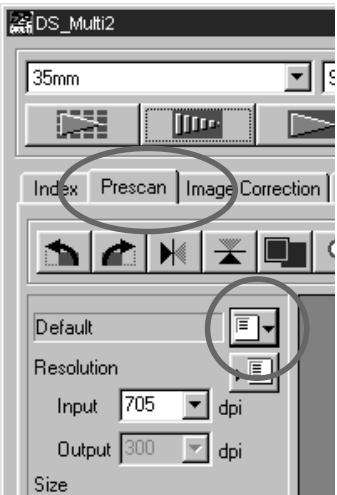
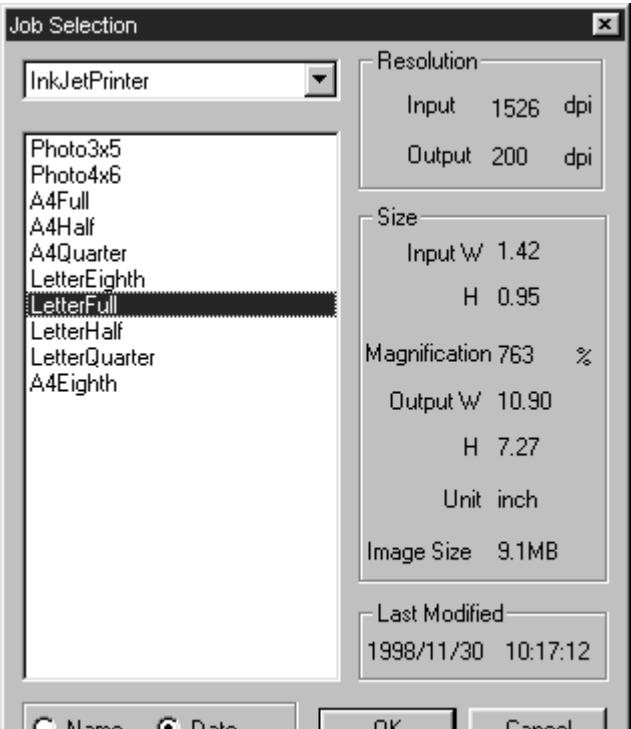
1 Click on the Prescan tab.
2 Click on
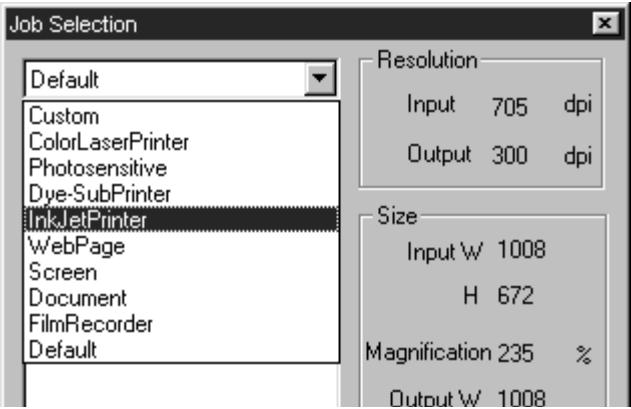
- The Job Selection dialog box will appear.
3 Select the appropriate category from the list box.
4 Select the job file name to be applied from the list.
- The scan setting saved in the selected job file will be displayed in the right of the window. When another job file is selected, the setting is changed correspondingly.
- By clicking on the Name or Date option button, the format of the Job File List can be changed.
5 Click on [OK].
- The selected scan setting will applied to the prescan image and the Job Selection dialog box will disappear. The selected job will be displayed in the Job Name list box.
CATEGORIES:
| Scan Job Category | Description |
| Custom | This category allows the user to create customized settings using the Scan Settings part. |
| Colour Laser Printer (Digital colour copiers and colour laser printers) | Uses an output resolution of 400 dpi. There are two image-size options; letter and A4. |
| Photosensitive (Printers that use photosensitive/photographic material) | Uses an output resolution of 400 dpi, 300 dpi 267 dpi and 180 dpi. The image size will vary. |
| Dye-sub (Dye-sublimation printers) | Uses an output resolution of 300 dpi. There are 11 available image sizes. |
| Ink-jet (Ink-jet printers) | Uses an output resolution of 200 dpi. The image size will vary. |
| Web Page (For use on home pages) | Uses an output resolution of 72 dpi. Image size is listed in pixels and will vary. There also 4 standard PhotoCD size available. |
| Screen (For display on monitors) | Uses an output resolution of 72 dpi. Image size is listed in pixels and will be the VGA standard of 640 x 480 pixels or larger. |
| Document (For insertion into documents) | Uses an output resolution of 72 dpi. Image size can be determined by a variety of paper sizes. |
| Film Recorder | For high input resolution images that will be output to a film recorder. |
| Default | This category uses the default settings for each film format. The settings appear in the Job Selection window. |
After cropping frames, correcting images and specifying the scanning settings, the final scan is performed.
When using Twain Driver/Plug-in Software
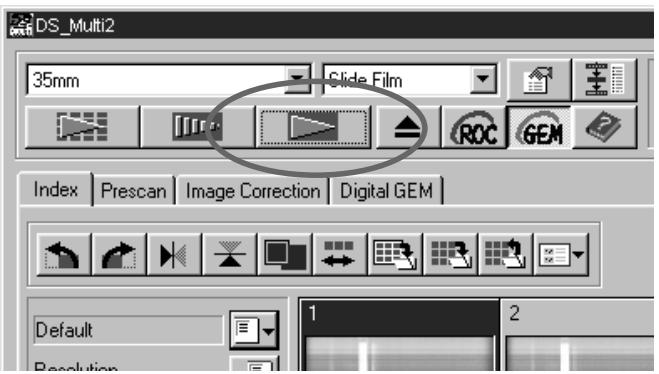
1 Click on in the Main window.
- The final scan will begin.
- When the final scan is complete, the final scan images will appear in the window of the image editing application you use.
2 Perform subsequent operations according to the instruction for your image editing application.
- For details, see the instruction manual for the image editing application.
When Using the Utility Software
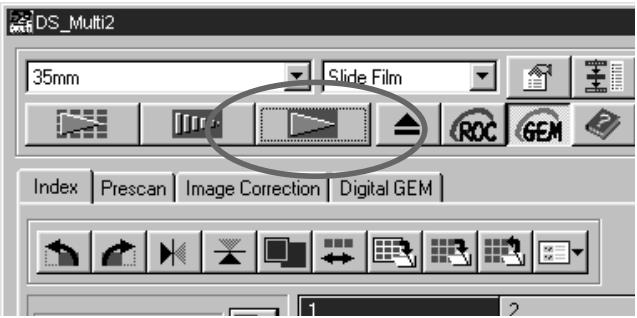
1 Click on in the Main window.
- The standard save dialog box for your operating system will appear.
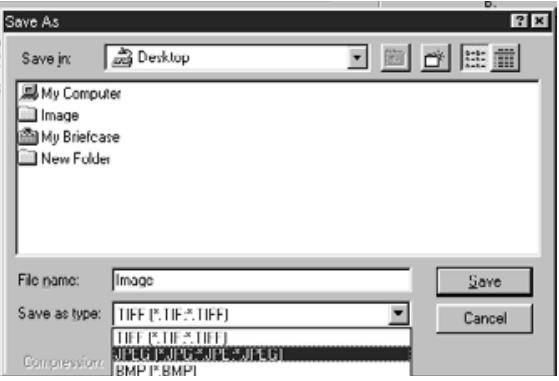
2 Enter the desired file name and select the file destination.
3 Select the file type from the [Save as type] list box (or the file format dropdown list).
With the DS Multi II Utility software, you can save the final scan in one of the following file fomats.
Windows® Bitmap (BMP)
(Windows only) The BMP graphic file format is for bit-mapped images.
BMP images are supported by the Paint accessory and can easily be opened on most PCs running Windows.
JPEG
The JPEG (Joint Photographic Experts Group) compression standard is capable of producing a high compression ratio while maintaining image quality. JPEG is a widely supported image file format.
TIFF
Tagged Image File Format (TIFF) files contain bit-mapped data. In addition to being a widely supported format, TIFF is able to handle the colour palette needed for professional-quality images and graphics.
PICT (Macintosh operating system only)
The PICT graphic file format uses a lossless compression scheme and is compatible with many Macintosh applications.
- Only TIFF can be selected when using a utility software and selecting 16-bit or 16-bit linear in the [Colour depth] of the Preferences (p.89).
- PICT can not be selected when the width of the image size is over 4096 pixel.
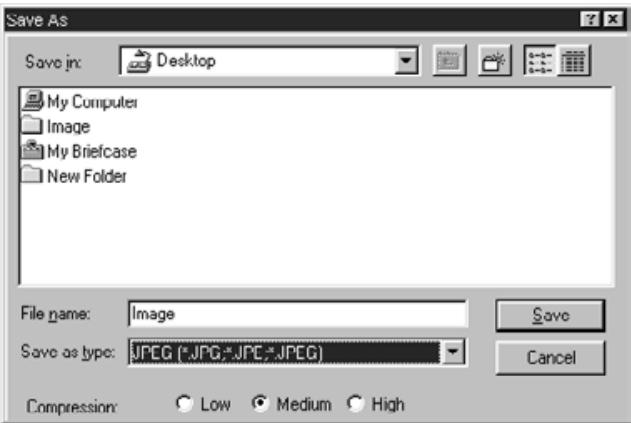
4 Select the compression rate when selecting JPEG as a file type.
- When 'low' is selected, the file size is large. However, the deterioration of image is reduced compared with selecting [Medium] or [High compression].
- When 'High' is selected, the file size is smaller. However, there is more degradation to image quality, compared to using medium or low.
5 Click on [Save] (or [OK]).
- The final scan will begin.
- When the final scan is complete, the final scan image is saved in the selected location, with the file name you input, and in the specified file type.
- After the image is saved, the display returns to the Prescan window.
The Scan Settings window allows you to make various settings such as the amount of detail required to read the original film (input resolution), the amount of detail required for output (output resolution), the size required for output (output size/magnifications), etc.
When the Scan Settings window is not displayed
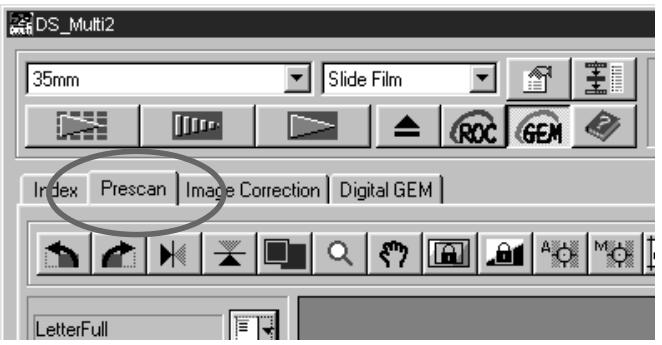
Click on the Prescan tab in the Main window.
SCAN SETTINGS WINDOW - NAMES OF PARTS
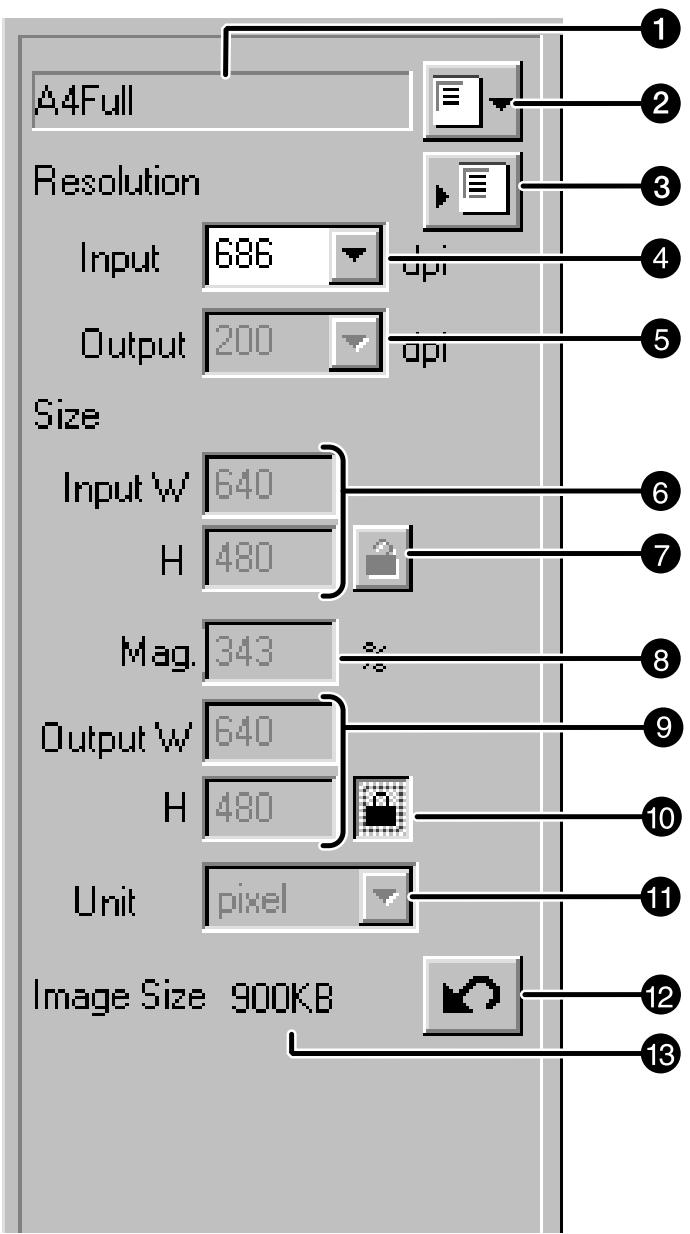
Job Name list box
Job Load button
Job Save button
4 Input Resolution list box
Output Resolution list box
Input size text box
Input size lock button
Magnification size text box
Output size text box
Output size lock button
Unit list box
Reset button
Image Size display
regarding the setting items of the scan settings window
Job Name list box
This shows the selected job file name. When a job file is not selected, the job file in the default setting is selected and "Default" appears in the box. When the job file in the default setting is not specified, ["Untitled"] appears in the box.
Job Load button
This opens the Job Selection dialog box (p.76).
Job Registry button
This opens the Job Registry dialog box (p.86).
This allows you to save (register) the settings in the Scan Settings dialog box naming it as a job file.
Input Resolution list box
This allows you to specify an input resolution by selecting from the values displayed in this list or by inputting value directly.
The values displayed in this list vary depending on the film format as shown below.
The value with “#” is the default setting.
2820/1410/940/#705/470/352/282
(When inputting value directly, the desired value from 176 to 2820 is available.)
2820/1128/564/376/#282/188/141/112
(When inputting value directly, the desired value from 70 to 2820 is available.)
Output Resolution list box
This allows you to specify an output resolution by selecting from the values displayed in this list or by inputting value directly.
The values displayed in this list are the followings.
The value with “#” is the default setting.
2400/1200/800/720/600/400/360/350/#300/240/200/180/150/96/72/36
(When inputting value directly, the desired value from 36 to 2400 is available.)
- When "pixel" is selected in the Unit list box, the output resolution cannot be selected or specified.
Input Size text box
This allows you to specify an input size. Although the input size is normally determined according to the size of the cropping frame you specified (p.42 to 44), you can also input a value in each W (wide) or H (Height) box. In this case, the size of the cropping frame changes according to the value you input.
- When "pixel" is selected in the Unit list box, the input resolution cannot be selected or specified.
Input size lock button
This locks the value in each Input size W or H text box so that you cannot change the value. While the Input size is locked, the cropping frame is also locked, therefore, that size cannot be changed.
Magnification Size text box
This allows you to specify a magnification size. Normally, the value which an input resolution is divided by an output resolution or the value which an output size is divided by an input size is indicated in percentage. You can also input a value in this box.
- When the input and output sizes are not locked, the input resolution and the output sizes are changed according to the magnification size you specified.
- When the output size is locked, the input resolution and the input sizes (W/H) are changed according to the magnification size you specified.
- When the input size is locked, the input resolution and the output sizes (W/H) are changed according to the magnification size you specified.
- When "pixel" is selected in the Unit list box, the magnification size cannot be selected or specified.
Output Size text box
This allows you to specify an output size. With the default setting, the image is printed in a scale of 100% after performing the final scan.
Although the output size is normally determined by the input and output resolutions and the cropping frame you specified (p.42 to 44), you can also input a value directly in each W (Wide) or H (Height) box. In this case, the input resolution and the input size change according to the values you input and the size of cropping frame also changes correspondingly.
Output size lock button
This locks the value in each Output size W or H text box so that you cannot change the value.
Unit list box
This allows you to select the unit of Input size and Output size from the following units displayed in the list box. The value with “#” is the default setting.
pixel/mm/cm/inch/pica/point
Reset button
This resets the scan settings to the settings of the currently selected job file.
Image Size display
This shows the estimated image file size after performing the final scan with the current settings.
Resolution and Output size
Image resolution is the number of pixels per inch (about 25.4mm ) and represented in dpi (dot per inch). As the image size and resolution affect the size of image data file, the higher the resolution value of image is, the longer the scanning time and printing time are required compared with the lower value resolution of image.
The necessary resolution value is determined by the output device such as a printer, monitor, etc. For example, for a commonly used monitor or printer, the resolution value needs 72 dpi or 300 to 400 dpi respectively. Each item can be represented in the following formula.
$$ \frac {\text {I n p u t r e s o l u t i o n}}{\text {O u t p u t r e s o l u t i o n}} = \frac {\text {O u t p u t s i z e}}{\text {I n p u t s i z e}} = \text {M a g n i f i c a t i o n s i z e} $$
Example: When printing the image of 35mm film using the printer with the resolution value of 400 dpi, in the size of 15cm × 10cm and with a high-quality image as possible.
$$ \frac {\text {I n p u t r e s o l u t i o n}}{4 0 0 \mathrm {d p i}} = \frac {1 0 0 \mathrm {m m}}{2 4 \mathrm {m m}} = \text {a b o u t} 4 \text {t i m e s} (\text {t h e s h o r t e r s i d e o f t h e f i l m}) $$
It shows that an input resolution value of 1600 dpi (400 dpi x 4) is necessary.
EXAMPLE OF THE SCAN SETTING -WHEN DISPLAYING IN A MONITOR
This explains how to display in a 13 inch monitor (640 x 480) as an example.
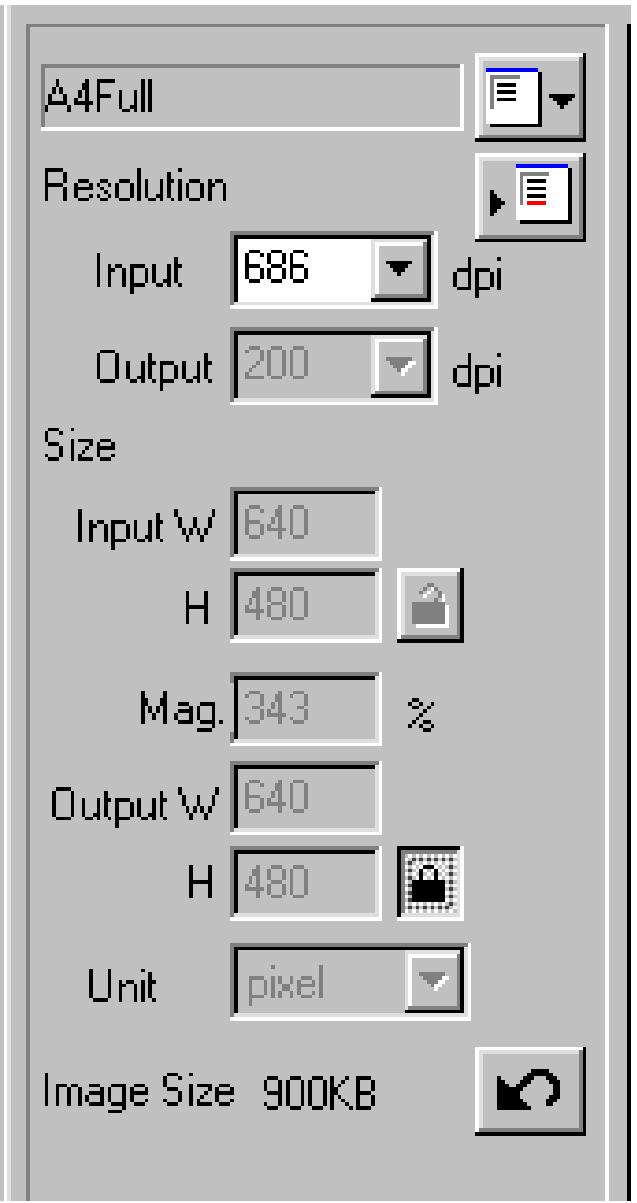
1 Select "Pixel" from the Unit list box.
- The Output Resolution list box and the Input W and H size text boxes are not available.
2 Input "640" and "480" in the Output W and H size text boxes respectively and click on the Output size lock button.
- The Output size is locked so that the size cannot be changed.
3 Drag the cropping frame to determine the cropping area.
- While the cropping area is changed, the input resolution is also changed accordingly.
*The scan settings are complete.
EXAMPLE OF THE SCAN SETTING - WHEN PRINTING A SCANNED IMAGE
This explains how to print in a post card of 148 × 100 mm (width x height) with the resolution of 360 dpi printer as an example.
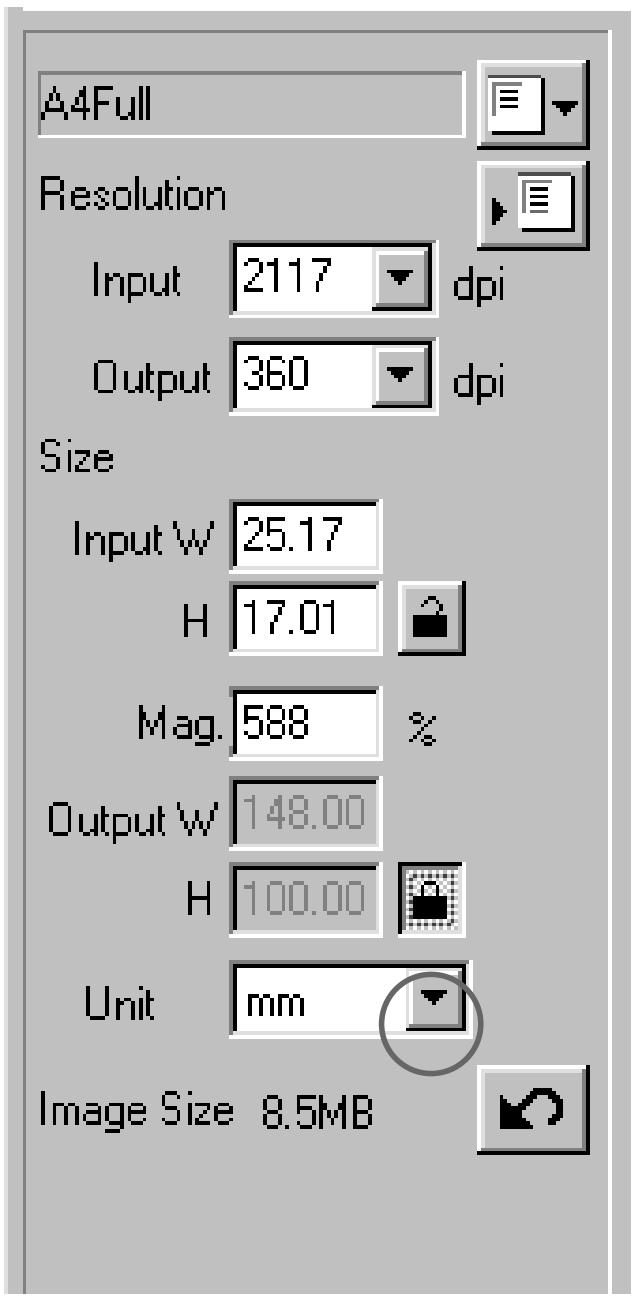
1 Select "mm" from the Unit list box.
2 Select "360" from the Output resolution list box.
3 Input 148 and 100 in the Output W and H size text boxes respectively and click on the Output size lock button.
- The Output size is locked so that the size cannot be changed.
4 Drag the cropping frame to determine the cropping area.
- While the cropping area is changed, the input resolution is also changed accordingly.
- As the output size is locked, the ratio of length and breadth of the cropping frame is not changed. To change that ratio, click on the Output size lock button again to cancel the lock mode. In this case, however, the image size is changed according to the cropping area.
*The scan settings are complete.
REGISTERING A JOB
In addition to the Job settings included with the software, it is possible to register your own Job settings in the Job File List.
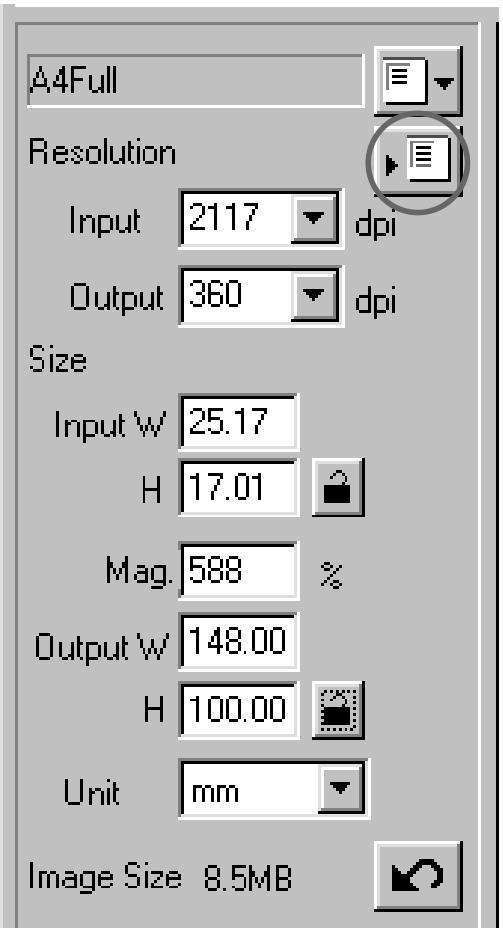
1 Specify the scan settings to be registered in the Scan Settings window.
2 Click on
- The Job Registry dialog box will appear.
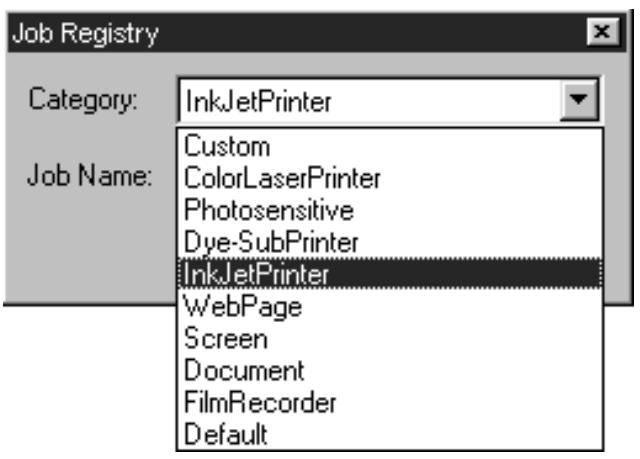
3 Select the desired category to be registered from the Category list box.
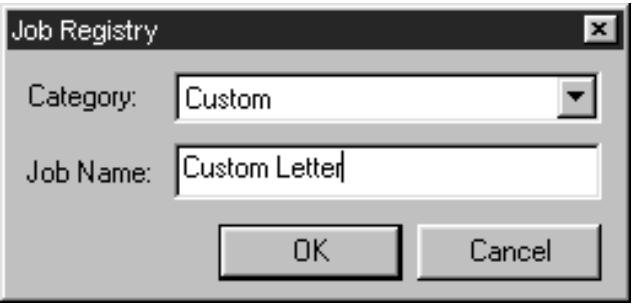
4 Input the job name to be registered and click on [OK].
- The scan settings you specified are registered with the specified name as a job file. The Job Registry dialog box will disappear.
- Input the job name within 24 characters.
DELETING A JOB
It is possible to delete a job file from the Job File List when it is no longer needed.
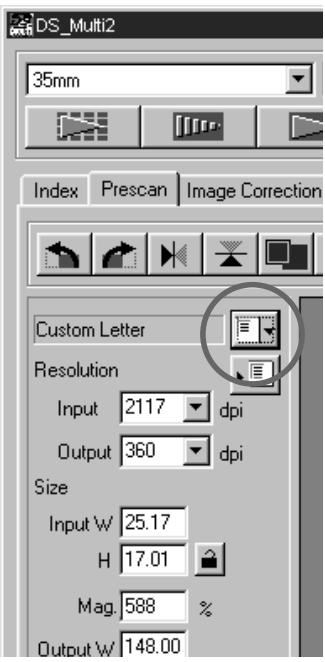
1 Click on
- The Job Selection dialog box will appear.
2 From the Category list box, select the category in which the job to be deleted is registered.
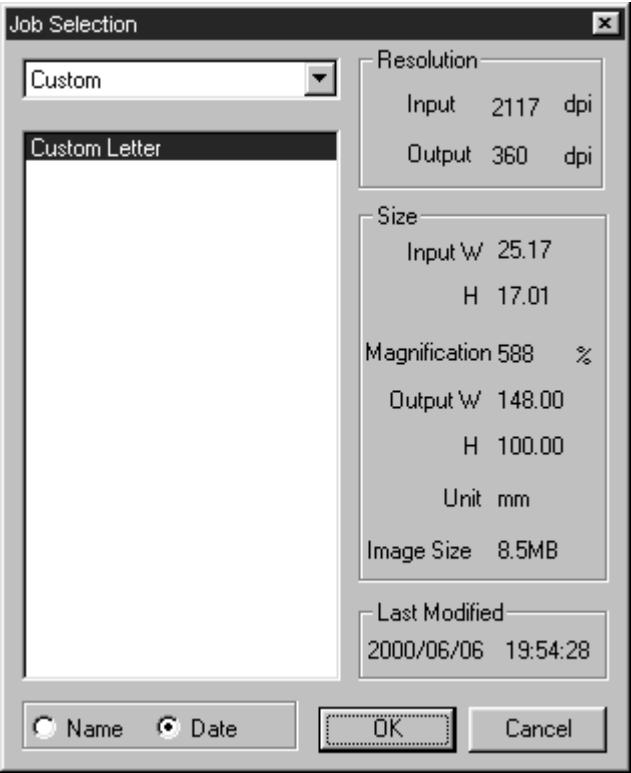
3 After clicking on the job name to be deleted,
Windows®: Press the Delete key.
Macintosh: Press the Command key and D key simultaneously.
- The deleted job cannot be restored again. If you delete the job mistakenly, register the job again by following the procedure described on page 86.
THE PREFERENCE WINDOW DISPLAY
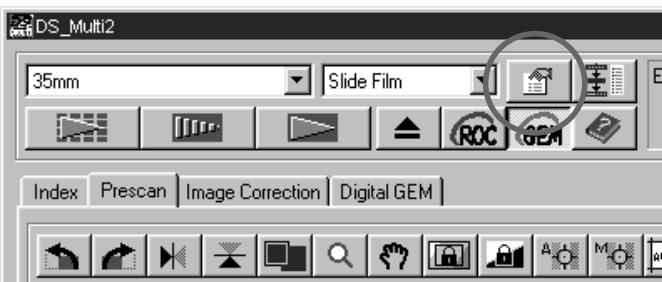
1 Click on in the Main window.
- The Preferences window will appear.
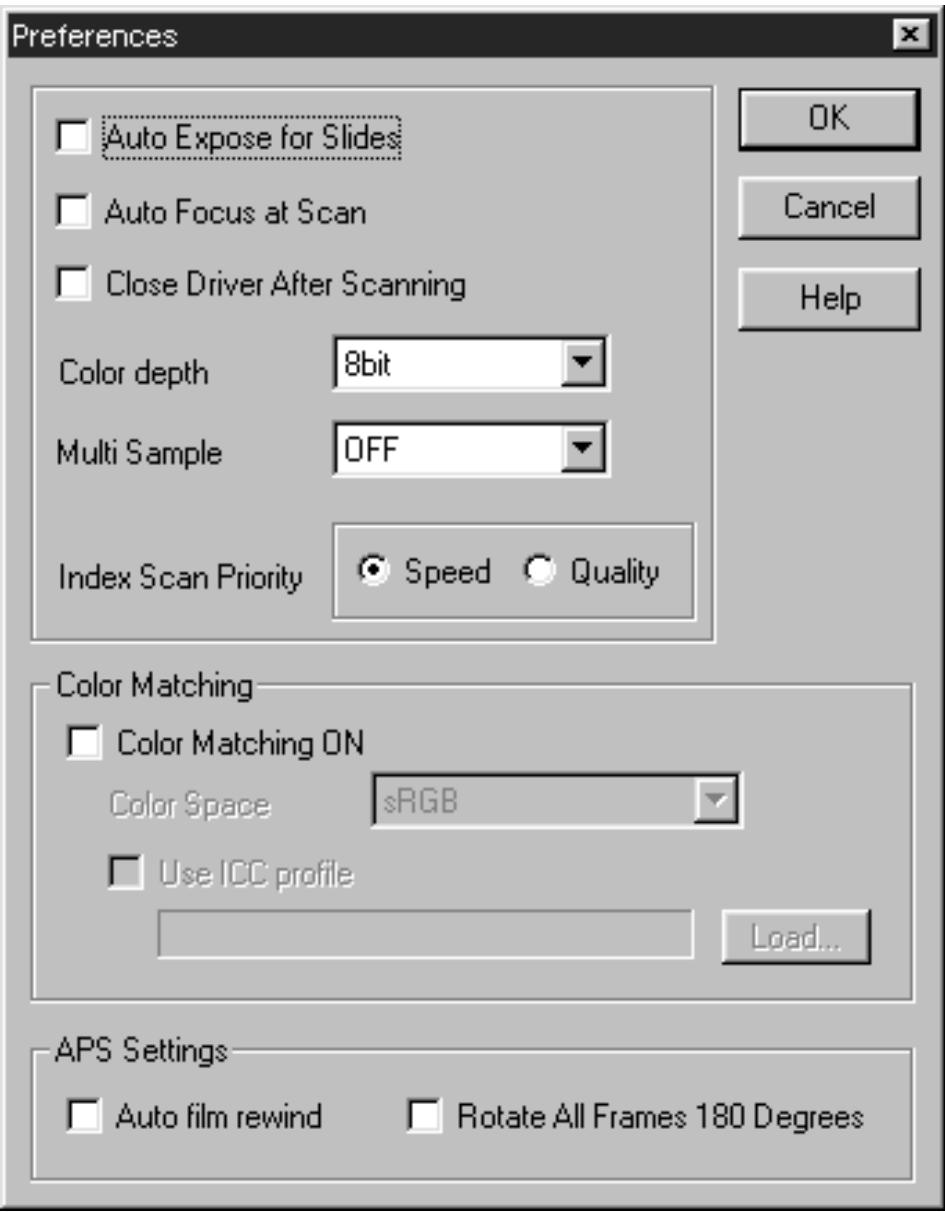
regarding the setting items of the preferences window
Auto Expose for Slides
This option allows you to select whether to perform auto exposure during the prescan or the final scan when using colour slides. As colour slide users often adjust the exposure and colour when taking a photograph, the Auto Expose function when performing the prescan or final scan is turned off in the default setting (The checkmark is not on the checkbox). However, when scanning a slide which is underexposed or when using the AE Lock or AE Area lock function (p.38, 39), click on the checkbox of "Auto Expose for Slide" so that the Auto Expose function is turned on.
Auto Focus at Scan
This option allows you to select whether to use the Autofocus function when performing the prescan or the final scan.
To obtain higher scanning speed, the Autofocus function is turned off in the default setting (The checkmark is not on the checkbox). However, if you intend to use the Autofocus function when scanning, click on the checkbox of "Auto Focus at Scan".
When using the Digital ROC or Digital GEM function (p.69 to 73), it is recommended to turn on the Autofocus function by clicking on the checkbox of "Auto Focus at Scan".
Close the Driver Software After Scanning
This option allows you to select whether to close the driver software after scanning when using Twain driver or Plug-in Software and image editing application.
The driver software is specified not to be closed after scanning in the default setting (The checkmark is not on the checkbox). This setting is convenient when scanning multiple images continuously and loading them into an image editing application such as Adobe Photoshop. However, if you intend to retouch each image in the editing software after scanning, click on the checkbox to display the checkmark.
Colour depth
This option allows you to specify the format when outputting the scanned data to a file or an application software. Select one from the following items of the list box.
The default setting is 8 bit.
8 bit Outputs an image of 8 bits for each R, G or B channel
16 bit Outputs the image of 16 bits for each R, G or B channel
16 bit linear Outputs the image of 16 bits for each R, G or B channel but corrections
such as a gamma correction cannot be made. Therefore, when scanning a negative film, it is output as a negative image.
- Only TIFF can be selected when using the utility software and selecting 16 bit or 16 bit linear as a colour depth.
- When selecting 16 bit, the image size display in the Scan Settings window is represented in the 16 bit size (8 bit x 2).
- Some types of graphic application software cannot handle 16 bit image files.
Multi Sample
This option allows you to select the Multi-Sampling setting. This function reduces random noise in the image by analyzing the data of a number of sample scans in advance. Select one from the following items of the list box.
The Multi-Sample Scanning function is turned off in the default setting.
OFF Multi-Sample Scanning functionnot used.
2 times Performs sampling 2 times.
4 times Performs sampling 4 times.
8 times Performs sampling 8 times.
16 times Performs sampling 16 times.
- The more times the image is sampled, the longer the required time for scanning.
Index Scan Priority
This option allows you to select either a high speed index scan or a quality index scan by clicking on "Speed" or "Quality". The default setting is "Speed".
Speed This performs the index scan at high speed. The autofocus function is not used while scanning. The index images are displayed in a thumbnail representation after only easy-auto expose function is performed for each frame.
Quality After rescanning each frame, the size of the prescan images is reduced and those images are displayed in the thumbnail representation. Therefore, it takes longer to display index images. However, the prescan image can then be immediately displayed just by double-clicking the index image. Whether the autofocus function or the auto expose function for a colour slide film is performed when prescanning depends on the setting of Auto Focus at Scan or Auto Exposure for Slides.
Colour Matching
When displaying the scanned image in the monitor of the PC, the colour of the image varies depending on the type of the monitor. This option allows you to match the colour data of the scanned image to the monitor specifications.
For details, see page 92.
APS Settings – Auto Film Rewind
This option allows you to select whether to rewind or not to rewind the film in the APS cassette automatically before the APS adapter (optional accessory) is ejected. The film is rewound in the default setting. (The checkmark is on the checkbox). When setting not to rewind a film, click on the checkbox to remove the checkmark.
- When ejecting the APS adapter by pressing the eject button in front of this scanner, the film is rewound regardless of this setting.
APS Settings - Rotate All Frames 180 Degrees
This option allows you to select whether to display or not to display all index frames in the Index window rotated by 180 degrees when performing the index scan with the APS adapter (optional accessory).
When using an APS film shot by a camera in which the film holder is on the left side of the back, such as Minolta Vectis S-1/S-100, all index frames are displayed upside-down with the normal setting of the index scan. In this case, click on the checkbox to display the checkmark so that the frames are displayed correctly.
The frames are not rotated in the default setting (The checkmark is not on the checkbox).
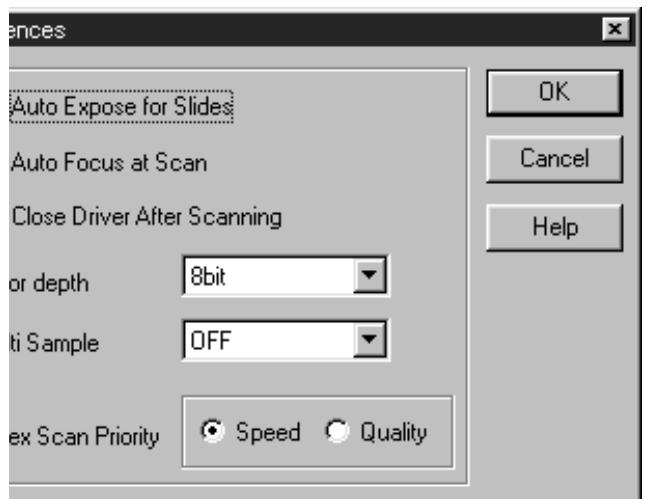
When clicking on [OK], the settings in the Preferences are determined. The Preferences window will disappear.
When clicking on [Cancel], each setting is reset to the previous one.
When clicking on [Help], the Help file is displayed.
COLOUR MATCHING
When displaying the scanned image in the monitor of the PC, the colour or light and shade of the image varies depending on the colour format of the monitor or the characteristics of colour representation. The Colour Matching function matches the colour data of the image to the monitor specifications (colour space).
COLOUR MATCHING - THE SETTING OF OUTPUT COLOUR IMAGE
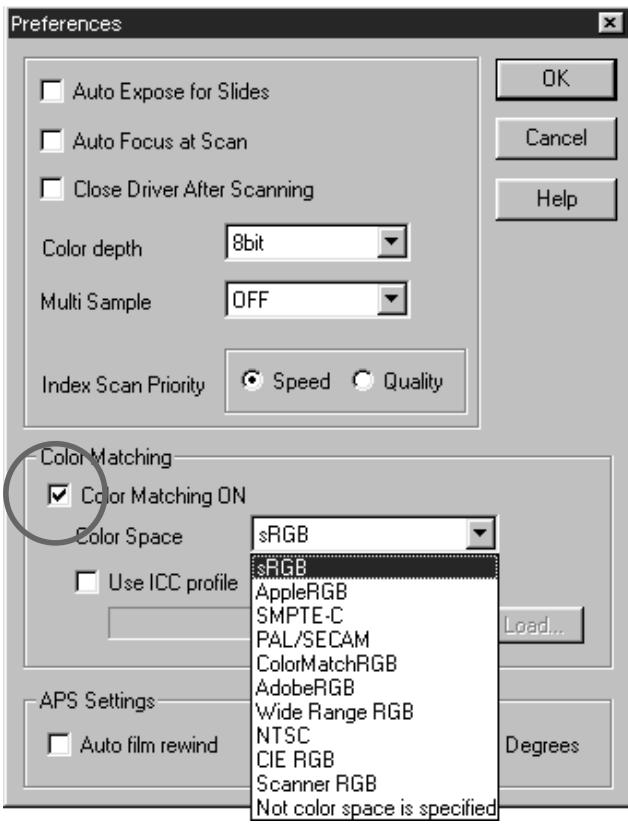
1 Click on Colour Matching ON to display the checkmark.
- When this checkmark is displayed, the required time of scanning becomes longer.
2 Select the desired colour space from the Output Colour Space list box.
- For the available colour space setting, see the next page.
REGARDING OUTPUT COLOUR SPACE SETTINGS AVAILABLE
sRGB
This is the colour spacing standard promoted by Hewlett-Packard and Microsoft. Because sRGB reflects the quality of average PC monitors, this standard is well suited for handling images that are to be displayed on the Web. However, because of its limited colour scale, it is not suitable for professional prepress usage. sRGB is widely used around the world, and is considered to be the colour spacing standard for multi-media and Internet usage.
Apple RGB
This Apple based colour spacing has been available since the Apple 13 model. It is used as a standard default setting for software such as Adobe Illustrator, Adobe Photoshop Ver. 4 and higher, etc. Because this colour spacing standard is widely used in the world of Desktop Publishing (DTP), it is suited for the reproduction of older version DTP files. As this standard affords a wider colour scale than sRGB, it is commonly employed when a printed product is the intended objective.
SMPTE-C
This colour spacing is currently the accepted standard used in the USA for television broadcasting. This standard is the most suitable colour spacing available for work intended for television broadcast in the USA.
PAL/SECAM
This colour spacing is currently the accepted standard used in Europe for television broadcasting. This standard is the most suitable colour spacing available for work intended for television broadcasting in Europe.
ColourMatch RGB
This colour spacing standard has a wide colour scale and is considered ideal for use with Radius Press View monitors, which are used commonly in the prepress (publishing?) world.
Adobe RGB
This colour spacing standard offers a wider colour scale than ColourMatch RGB. The extensive range of colours available with this colour spacing make this standard the most suitable standard for prepress usage. However, this range also includes many colours that cannot be printed (colours other than CMYK, etc.).
Broad Spectrum Colour Scale RGB
Utilizing the genuine coordinates of the colour spectrum, this colour spacing standard offers an extremely extensive selection of colours. However, most of the colours available in this range cannot be displayed on standard computer monitors, or be used for printing.
NTSC
This colour spacing is currently the accepted standard used in Japan for television broadcasting. This standard is the most suitable colour spacing available for work intended for television broadcast in Japan.
CIE RGB
This is the colour spacing defined by the CIE (Commissin Internationale d'Eclairage).
SETTING THE PREFERENCES
The recommendable settings of "Output colour space" and "ICC profile use/not use" according to the combination of each operating system and the image editing application are as follows:
| OS | Using application | Output colour space | ICC profile |
| Windows®/ Mac OS | Adobe Photoshop Ver.5.0.2/5.5 The monitor colour matching function is set to ON. | Select the same colour space as specified in the application. | use |
| Adobe Photoshop Ver.5.0.2/5.5 The monitor colour matching function is set to OFF. | No colour space is specified | use | |
| Windows®/ Mac OS | When using an application other than Adobe Photoshop and the monitor colour matching function is set to off, or when using an application other than Adobe Photoshop and that application does not have the monitor colour matching function. | No colour space is specified | use |
| Windows®98 | When using an application other than Adobe Photoshop and that application is applied to the sRGB colour space. | "sRGB" | use |
COLOUR MATCHING - THE SETTING OF ICC PROFILE
To use the ICC profile, specify the ICC profile of the monitor you use by following the procedure below.
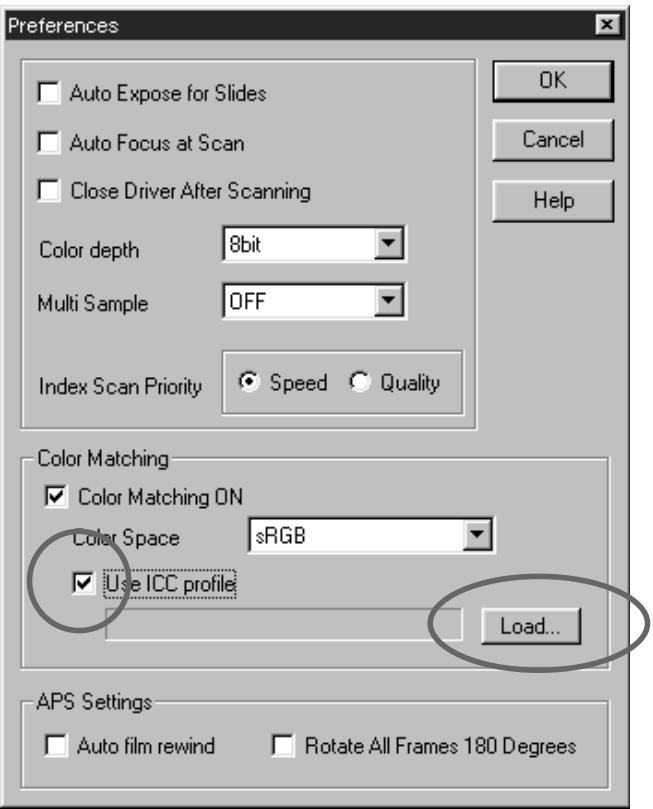
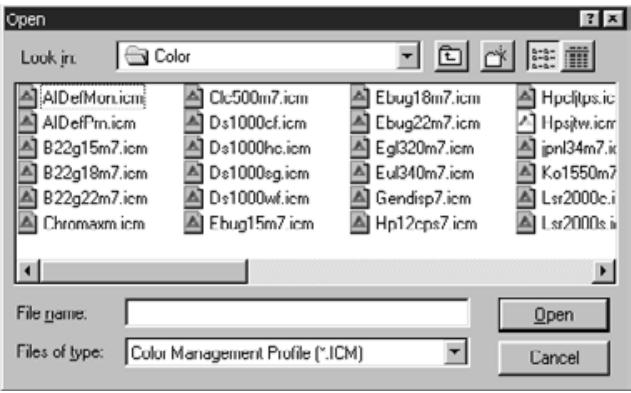
1 Click on the checkbox of Use ICC profile to display the checkmark and click on Load.
- The file open dialog box will appear.
2 Select the ICC profile of the monitor you use and click on [Open].
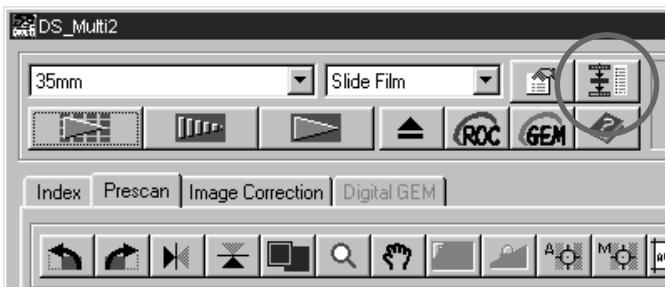
The Navigation function allows you to automate a series of operations of scanning. When clicking on the Navigation button in the Main window, the Navigation window appears.
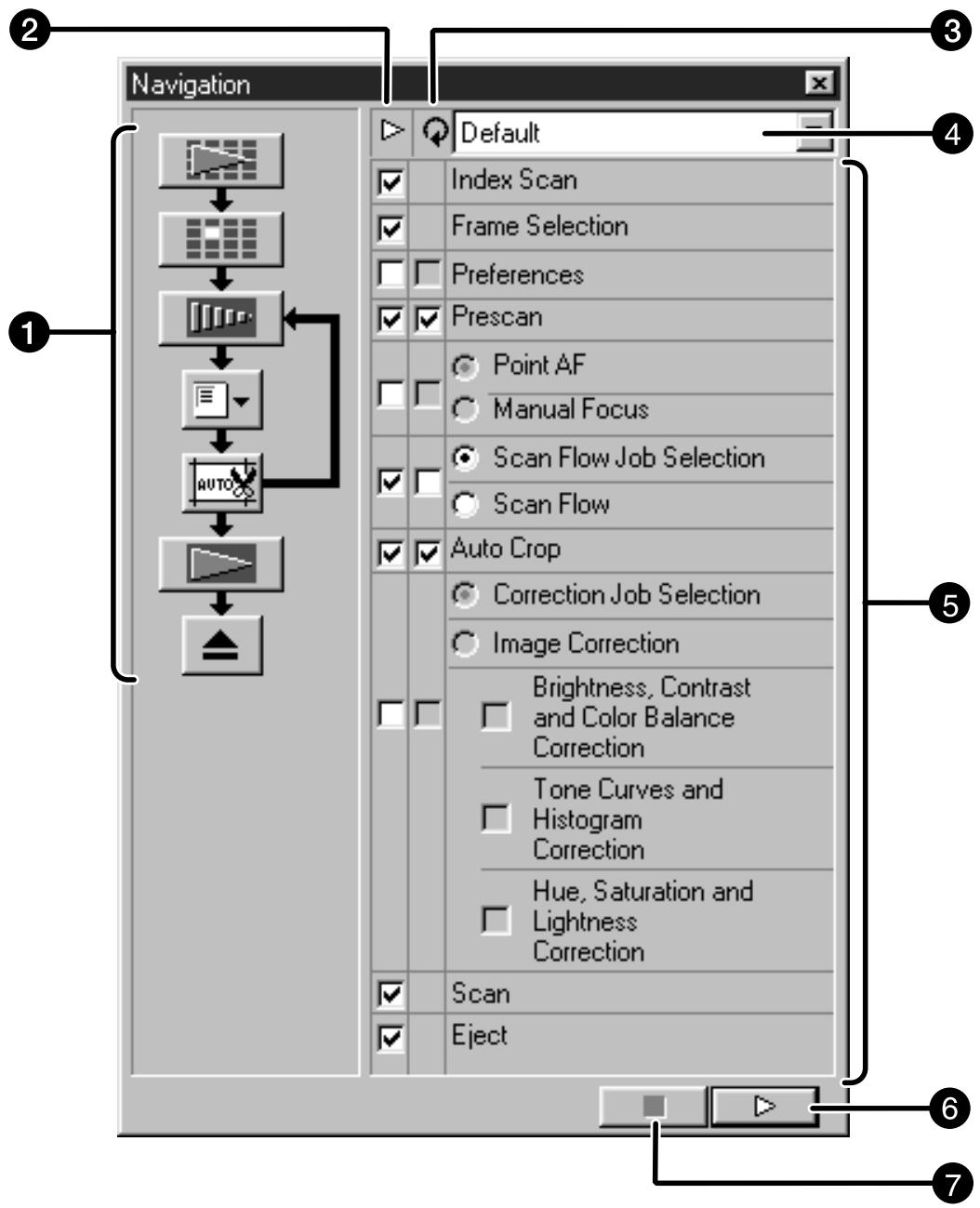
Navigation Flow
Operation Item checkboxes
Repeated Operation Item checkboxes
Navigation Menu list box
Operation items
Navigation Start button
Navigation Stop button
Navigation Flow
The flow chart for the automatic operation is represented by icons according to the settings of the Operation Item checkboxes and the Repeated Operation Item checkboxes.
By clicking on the icon, the operation can be started from the item of the icon you clicked.
Operation Item checkboxes
Only the items which are selected in these checkboxes can be performed in the automatic operation. The icons in the flow chart change depending on the settings of the Operation Item checkboxes. When the checkbox is clicked to remove the checkmark, the icon of the clicked item is removed from the flow chart. The checkboxes of "Index Scan" and "Frame Selection" are available only when "35 mm" or "APS Cassette" is selected in the film format (p.20).
Repeated Operation Item checkboxes
The items which are selected in these checkboxes are performed repeatedly for each frame. The icons in the flow chart change depending on the settings of the Repeated Operation Item checkbox. When the checkbox is clicked to remove the checkmark, the icon of the clicked item is removed from the flow chart. These checkboxes are available only when "35 mm" or "APS Cassette" is selected in the film format (p.20).
Navigation Menu list box
The flow determined by the settings of the Operation Item checkboxes and the Repeated Operation Item checkboxes is called a "Navigation Set". By clicking on the Navigation Menu list box to display the menu, operations such as naming a navigation set and saving it, or selecting or deleting the saved navigation set can be performed.
When the Navigation window is displayed for the first time, the default setting is selected.
Operation Items
The operations which can be performed automatically are displayed. The order of the item cannot be changed. It is not possible to add items to the list or delete them from it.
Navigation Start button
This button activates automatic operation according to the settings of the Operation Item checkboxes and the Repeated Operation Item checkboxes.
Navigation Stop button
This button stops the automatic operation. When the Navigation Start button is clicked in this mode, the operation resumes.
AUTOMATIC OPERATION USING THE NAVIGATION FUNCTION
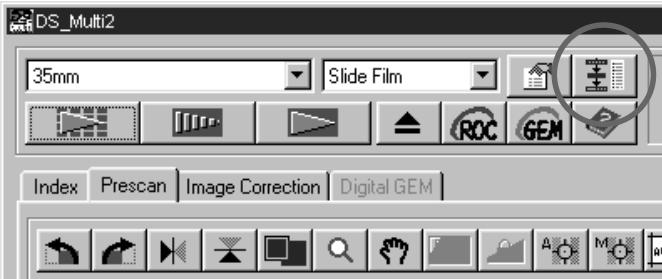
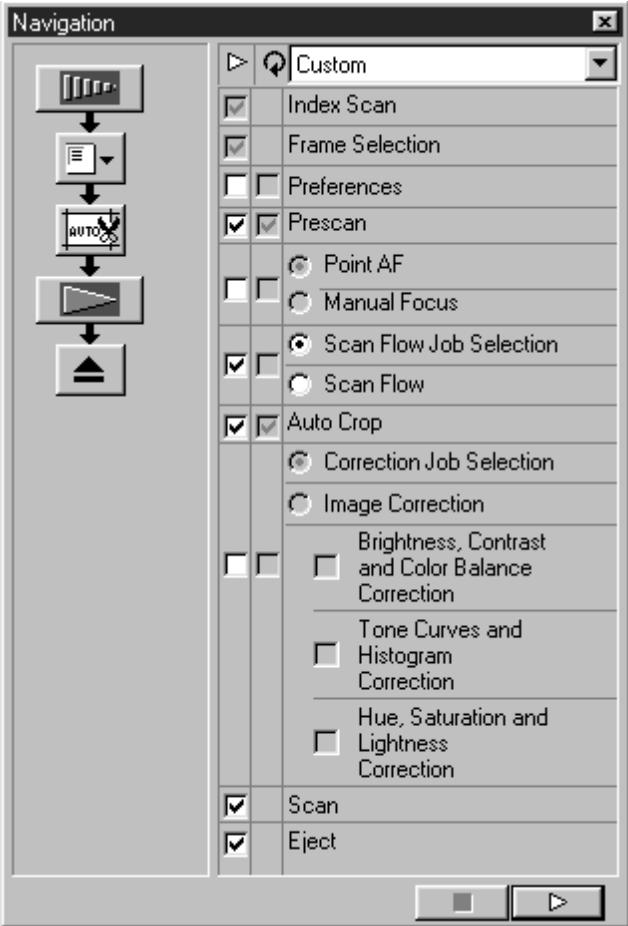
1 Click on the Navigation button.
- The Navigation window will appear.
- When the Navigation window is displayed for the first time, the navigation set in the default setting is selected.
2 Select the operation items to be automated in the Operation Item checkboxes and the Repeated Operation Item checkboxes.
- The Index Scan or Frame Selection is available only when "35 mm" or "APS Cassette" is selected in the film format.
- The Repeated Operation Item checkboxes are available only when "35 mm" or "APS Cassette" is selected in the film format.
- When performing the automatic operation in the default setting, skip this step.
- When Point AF or Manual Focus, Auto Crop, Correction Job Selection or Image Correction are selected, be sure and select the Prescan Operation Item checkbox at the same time.
3 Click on the Navigation Start button.
- The automatic operation will start.
- If you click on the Navigation Stop button, the automatic operation stops temporarily. To resume the operation, click on the Navigation Start button.
Though the Navigation function automates a series of scanning operations, the operations which require you to select or input something cannot be automated.

For example, when performing the Navigation set described on the left, the operation stops temporarily after performing the index scan of all frames and the frames are displayed in a thumbnail representation. After performing "Frame Selection" by clicking on the image to be prescanned and pressing the Enter key, or by double-clicking on the image to be prescanned, the operation resumes.
And, when "Scan Flow Job Selection" is swlected, the Job Selection window appears and the operation stops temporarily. After selecting the job file to be applied, the operation re-starts.
When using the utility software, rather than the Twain Driver/Plug-in Software, the file save dialog box is displayed and the operation stops temporarily when "Scan" is readied. After specifying or inputting the file destination, file name and file type and clicking on Save in the file save dialog box, the operation resumes and the final scan is performed.
NAMING AND SAVING A NAVIGATION SET
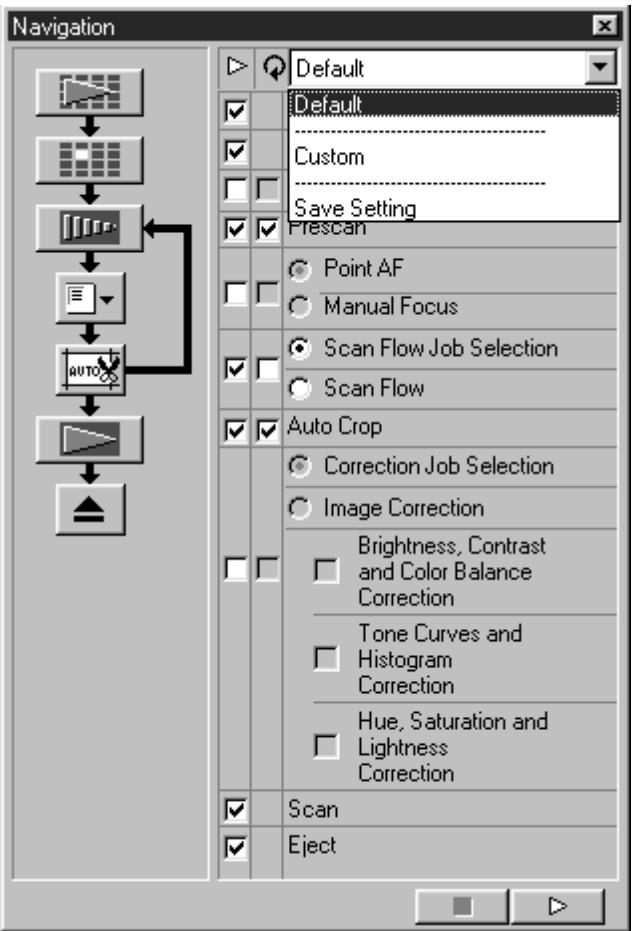
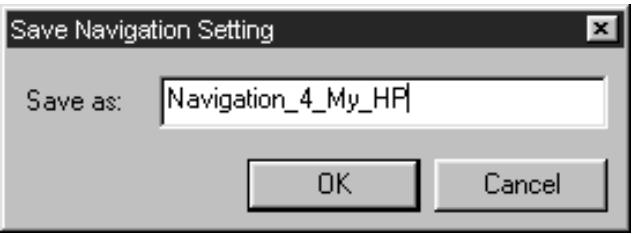
1 Select the operation items to be automated in the Operation Item checkboxes and the Repeated Operation Item checkboxes.
2 Click on the Navigation Menu list box to select [Save Setting].
- The navigation set saving dialog box will appear.
3 Input the name of the navigation set and click on OK.
SELECTING A NAVIGATION SET
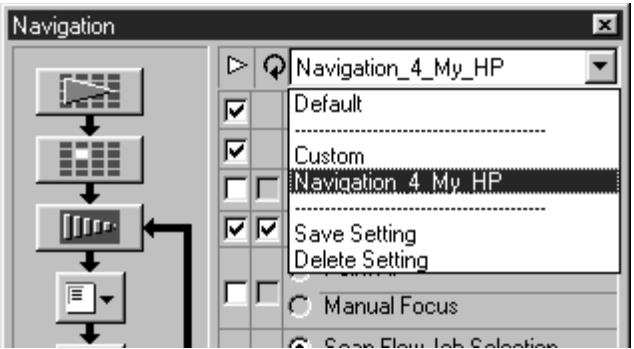
Click on the Navigation Menu list box to select the menu to be used.
DELETING A NAVIGATION SET
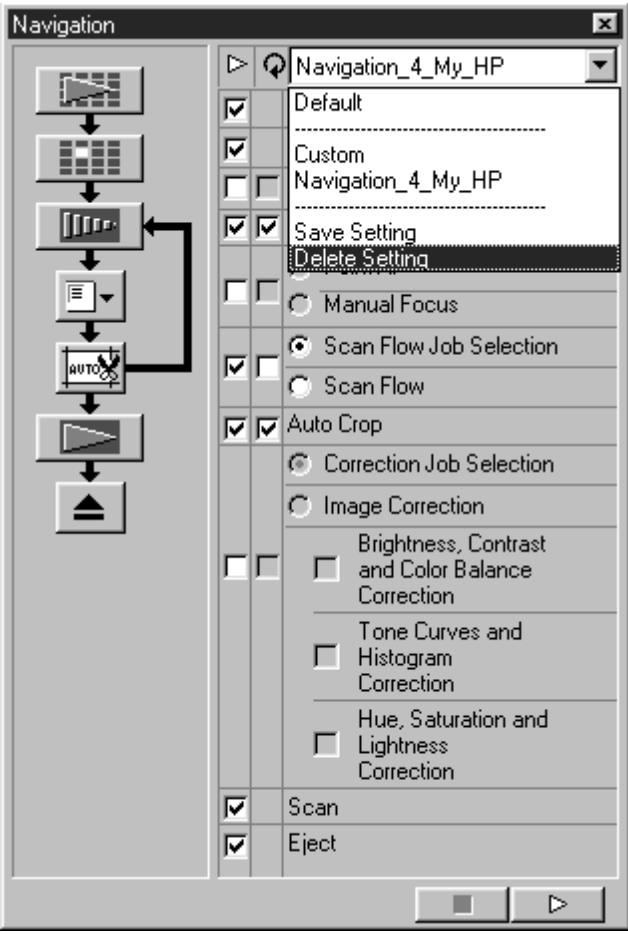
1 Click on the Navigation Menu list box to select [Delete Setting].
- The navigation set deleting dialog box will appear.
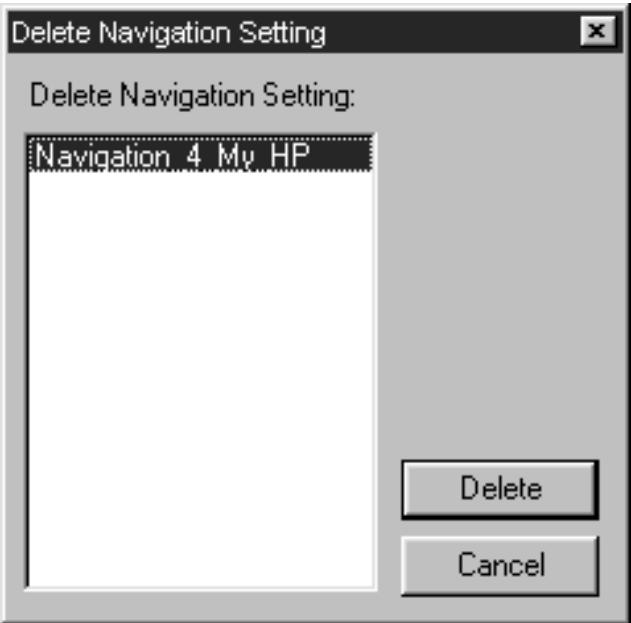
2 Select the navigation set to be deleted and click on Delete.
SLIDE FEEDER (optional accessory)
The optional slide feeder can scan automatically up to 50 mounted 35mm slides continuously. The data of scanned images can be also saved onto a hard disc, etc.
For the names of parts of the slide feeder, and instructions for attaching to or detaching from the Dimage Scan Multi II or loading the slides, see the instruction manual supplied with the slide feeder.
1 Attach the slide feeder to the Dimage Scan Multi II and load the slides by following the procedure described in the instruction manual supplied with the slide feeder.
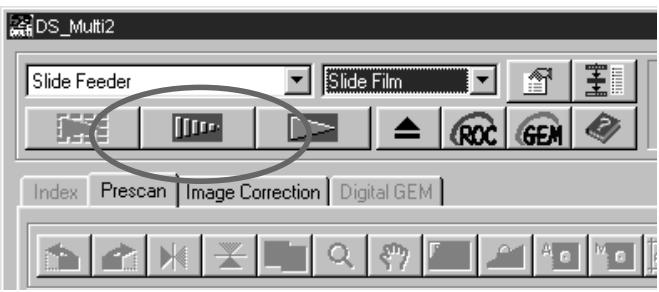
2 Select Slide Feeder from the Film Format list box and select the film to be set from the Film Type list box.
3 Click on in the Main window.
- The first slide to be scanned in the supply-side storage (on the left side) is loaded into the scanner and prescanned, and the prescan image is displayed.
- The cropping frame function or image corrections described on page 48 to 68 or the Digital ROC/GEM functions described on page 69 to 73 can be applied to the prescan image.
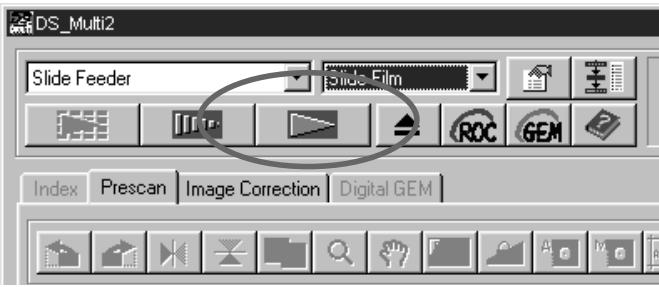
4 After performing the image correction, click on in the Main window.
- The file save dialog box will appear.
- The same image correction performed for the prescan image is applied to the other slides.
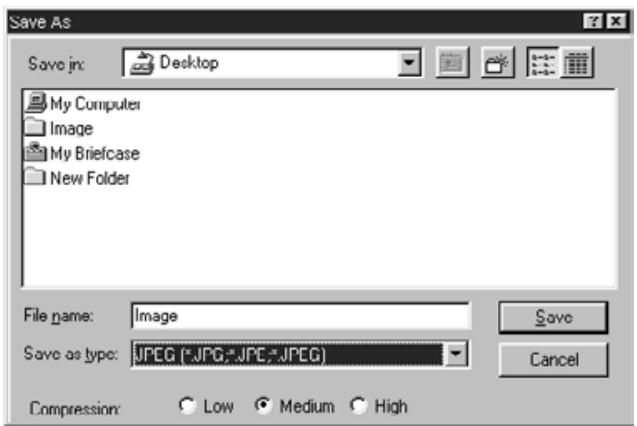
5 Specify the file destination and input the file name to be saved.
6 When using the DS Multi II Utility software, select the file type to be saved from the [Save as Type] list box (or the file format pull-down menu).
-
When selecting JPEG as a file type, select the compression rate from the 3 items.
-
The number of frames with which [Continuous Scanning -> Continuous Loading] can be performed varies depending on the image editing application. For details, refer to the instruction manual supplied with the image editing application you use.
7 Click on [Save] (or [OK]).
- The final scan will begin.
- Every time an image is scanned, the image is saved with the input file name adding a serial number of 2 digits in the specified location and file type.
For example, when inputting My_Birthday as a file name and specifying JPEG as a file type, the image is saved with the file name of My_Birthday01.jpg, My_Birthday02.jpg, My_Birthday03.jpg, My_Birthday04.jpg...
| Film Format | Digital ROC/Digital GEM | Operations | |
| Prescan | Final Scan (after Prescan) | ||
| 35mm in 2820 dpi (Colour Positive) | Digital ROC OFF/Digital GEM OFF | about 14 sec. | about 45 sec. |
| Digital ROC ON/Digital GEM OFF | about 1 min. 30 sec. | about 60 sec. | |
| Digital ROC OFF/Digital GEM ON | about 35 sec. | about 2 min. 40 sec. | |
| Digital ROC ON/Digital GEM ON | about 1 min. 30 sec. | about 2 min. 00 sec. | |
| 6 x 9 in 1128 dpi (Colour Positive) | Digital ROC OFF/Digital GEM OFF | about 25 sec. | about 55 sec. |
| Digital ROC ON/Digital GEM OFF | about 3 min. 20 sec. | about 1 min. 20 sec. | |
| Digital ROC OFF/Digital GEM ON | about 50 sec. | about 2 min. 40 sec. | |
| Digital ROC ON/Digital GEM ON | about 3 min. 20 sec. | about 2 min. 10 sec. | |
| 6 x 9 in 2820 dpi (Colour Positive) | Digital ROC OFF/Digital GEM OFF | about 25 sec. | about 4 min. 00 sec. |
| Digital ROC ON/Digital GEM OFF | about 3 min. 20 sec. | about 7 min. 40 sec. | |
| Digital ROC OFF/Digital GEM ON | about 50 sec. | about 13 min. 40 sec. | |
| Digital ROC ON/Digital GEM ON | about 3 min. 20 sec. | about 13 min. 00 sec. | |
The preferences in loading time
CPU Pentium III 700MHz
RAM : 757MB
OS : Winsows®98 Second Edition
Applications AdobePhotoshop5.5
Memory allocation to applications : 570MB
Colour matching OFF
Driver TWAIN_32 Sources
ASPI version : 4.57
SCSI board :Adaptec AHA-2940AU
*The loading time changes according to the preferences you use.
*The values described above do not include the transfer time to the PC.
| Film Format | Digital ROC/Digital GEM | Operations | |
| Prescan | Final Scan (after Prescan) | ||
| 35mm in 2820 dpi (Colour Positive) | Digital ROC OFF/Digital GEM OFF | about 7 sec. | about 50 sec. |
| Digital ROC ON/Digital GEM OFF | about 3 min. 10 sec. | about 55 sec. | |
| Digital ROC OFF/Digital GEM ON | about 20 sec. | about 6 min. 30 sec. | |
| Digital ROC ON/Digital GEM ON | about 3 min. 10 sec. | about 3 min. 50 sec. | |
| 6 x 9 in 1128 dpi (Colour Positive) | Digital ROC OFF/Digital GEM OFF | about 10 sec. | about 55 sec. |
| Digital ROC ON/Digital GEM OFF | about 7 min. 30 sec. | about 1 min. 10 sec. | |
| Digital ROC OFF/Digital GEM ON | about 20 sec. | about 6 min. 20 sec. | |
| Digital ROC ON/Digital GEM ON | about 7 min. 30 sec. | about 4 min. 00 sec. | |
| 6 x 9 in 2820 dpi (Colour Positive) | Digital ROC OFF/Digital GEM OFF | about 10 sec. | about 4 min. 30 sec. |
| Digital ROC ON/Digital GEM OFF | about 7 min. 30 sec. | about 7 min. 50 sec. | |
| Digital ROC OFF/Digital GEM ON | about 20 sec. | about 25 min. 30 sec. | |
| Digital ROC ON/Digital GEM ON | about 7 min. 30 sec. | about 21 min. 20 sec. | |
The preferences in loading time
CPU : PowerPC G4 450MHz
RAM : 768MB
OS : Mac OS 9.0.4
Applications AdobePhotoshop5.5
Memory allocation to applications : 570MB
Colour matching OFF
Driver : Dimage Scan Multi Photoshop Plug-in 2.0
Virtual memory : OFF
SCSI board:AdaptecPowerDomain2940UW
*The loading time changes according to the preferences you use.
*The values described above do not include the transfer time to the Mac.
| Category | Job name | Input Res. | Output Res. | Mag. | Unit | Input Size | Lock(IN) | Output Size | Lock(OUT) | Input Pixels | |||
| W | H | W | H | W | H | ||||||||
| 2820 | 34 | 24 | 4032 | 2688 | |||||||||
| Custom | default | 705 | 300 | 235 | pixel | 1008 | 672 | OFF | 1008 | 672 | OFF | 1008 | 672 |
| ColorLaserPrinter | MaxSize_600dpi | 2820 | 600 | 470 | mm | 36 | 24 | OFF | 170 | 113 | ON | 4032 | 2688 |
| A4Quater_600dpi | 2447 | 600 | 407 | mm | 36 | 24 | OFF | 148 | 99 | ON | 3496 | 2331 | |
| A4Eighth_600dpi | 1735 | 600 | 289 | mm | 36 | 24 | OFF | 105 | 70 | ON | 2480 | 1653 | |
| LetterQuarter_600dpi | 2291 | 600 | 381 | inch | 1 | 1 | OFF | 5 | 4 | ON | 3276 | 2184 | |
| LetterEighth_600dpi | 1702 | 600 | 283 | inch | 1 | 1 | OFF | 4 | 3 | ON | 2430 | 1620 | |
| MaxSize_400dpi | 2820 | 400 | 705 | mm | 36 | 24 | OFF | 256 | 170 | ON | 4032 | 2688 | |
| A4Half_400dpi | 2313 | 400 | 578 | mm | 36 | 24 | OFF | 210 | 140 | ON | 3307 | 2204 | |
| A4Quater_400dpi | 1622 | 400 | 405 | mm | 36 | 24 | OFF | 147 | 98 | ON | 2315 | 1543 | |
| A4Eighth_400dpi | 1156 | 400 | 289 | mm | 36 | 24 | OFF | 105 | 70 | ON | 1653 | 1100 | |
| LetterHalf_400dpi | 2291 | 400 | 572 | inch | 1 | 1 | OFF | 8 | 5 | ON | 3276 | 2184 | |
| LetterQuater_400dpi | 1526 | 400 | 381 | inch | 1 | 1 | OFF | 5 | 4 | ON | 2180 | 1452 | |
| LetterEighth_400dpi | 1133 | 400 | 283 | inch | 1 | 1 | OFF | 4 | 3 | ON | 1620 | 1080 | |
| Photosensitive | MaxSize | 2820 | 400 | 705 | mm | 36 | 24 | OFF | 256 | 170 | ON | 4032 | 2688 |
| A5_400dpi | 2313 | 400 | 578 | mm | 36 | 24 | OFF | 210 | 140 | ON | 3307 | 2204 | |
| 8x10_400dpi | 2798 | 400 | 699 | inch | 1 | 1 | OFF | 10 | 7 | ON | 4000 | 2664 | |
| 5x7_400dpi | 1961 | 400 | 490 | inch | 1 | 1 | OFF | 7 | 5 | ON | 2804 | 1868 | |
| PostCard4x6_400dpi | 1678 | 400 | 419 | inch | 1 | 1 | OFF | 6 | 4 | ON | 2400 | 1600 | |
| Letter_267dpi | 2039 | 267 | 763 | inch | 1 | 1 | OFF | 11 | 7 | ON | 2910 | 1941 | |
| A4_267dpi | 2187 | 267 | 819 | mm | 36 | 24 | OFF | 297 | 198 | ON | 3122 | 2081 | |
| A5_267dpi | 1545 | 267 | 578 | mm | 36 | 24 | OFF | 210 | 140 | ON | 2207 | 1471 | |
| 8x10_267dpi | 1870 | 267 | 700 | inch | 1 | 1 | OFF | 10 | 7 | ON | 2670 | 1780 | |
| 5x7_267dpi | 1307 | 267 | 489 | inch | 1 | 1 | OFF | 7 | 5 | ON | 1869 | 1244 | |
| PostCard4x6_267dpi | 1120 | 267 | 419 | inch | 1 | 1 | OFF | 6 | 4 | ON | 1602 | 1068 | |
| 1597 | 360 | 443 | mm | 36 | 24 | OFF | 161 | 107 | ON | 2281 | 1516 | ||
| 2L_360dpi | 1727 | 360 | 479 | mm | 36 | 24 | OFF | 174 | 116 | ON | 2466 | 1644 | |
| 14x17_180dpi | 2123 | 180 | 1179 | mm | 36 | 24 | OFF | 428 | 285 | ON | 3033 | 2019 | |
| 11x14_180dpi | 1747 | 180 | 970 | mm | 36 | 24 | OFF | 352 | 235 | ON | 2494 | 1665 | |
| 10x12_180dpi | 1494 | 180 | 830 | mm | 36 | 24 | OFF | 301 | 200 | ON | 2133 | 1417 | |
| 797 | 180 | 442 | mm | 36 | 24 | OFF | 160 | 107 | ON | 1133 | 758 | ||
| 2L_180dpi | 863 | 180 | 479 | mm | 36 | 24 | OFF | 174 | 116 | ON | 1233 | 822 | |
| Dye-SubPrinter | A4Full | 2455 | 300 | 818 | mm | 36 | 24 | OFF | 297 | 198 | ON | 3507 | 2340 |
| A4Half | 1735 | 300 | 578 | mm | 36 | 24 | OFF | 210 | 140 | ON | 2480 | 1653 | |
| A4Quater | 1223 | 300 | 407 | mm | 36 | 24 | OFF | 148 | 99 | ON | 1748 | 1165 | |
| A4Eighth | 867 | 300 | 289 | mm | 36 | 24 | OFF | 105 | 70 | ON | 1240 | 827 | |
| LetterFull | 2291 | 300 | 763 | inch | 1 | 1 | OFF | 11 | 7 | ON | 3270 | 2184 | |
| LetterHalf | 1714 | 300 | 571 | inch | 1 | 1 | OFF | 8 | 5 | ON | 2451 | 1632 | |
| LetterQuater | 1144 | 300 | 381 | inch | 1 | 1 | OFF | 5 | 4 | ON | 1635 | 1089 | |
| LetterEighth | 850 | 300 | 283 | inch | 1 | 1 | OFF | 4 | 3 | ON | 1215 | 810 | |
| 1223 | 300 | 407 | mm | 36 | 24 | OFF | 148 | 99 | ON | 1748 | 1165 | ||
| Photo4x6 | 1240 | 300 | 413 | mm | 36 | 24 | OFF | 150 | 100 | ON | 1771 | 1182 | |
| Photo3x5/Photo9x13 | 1049 | 300 | 349 | mm | 36 | 24 | OFF | 127 | 85 | ON | 1500 | 999 | |
| Ink-JetPrinter | A4Full | 1637 | 200 | 818 | mm | 36 | 24 | OFF | 297 | 198 | ON | 2338 | 1559 |
| A4Half | 1156 | 200 | 578 | mm | 36 | 24 | OFF | 210 | 139 | ON | 1653 | 1094 | |
| A4Quater | 814 | 200 | 407 | mm | 36 | 24 | OFF | 148 | 99 | ON | 1165 | 775 | |
| A4Eighth | 577 | 200 | 288 | mm | 36 | 24 | OFF | 105 | 70 | ON | 826 | 549 | |
| LetterFull | 1526 | 200 | 763 | inch | 1 | 1 | OFF | 11 | 7 | ON | 2180 | 1454 | |
| LetterHalf | 1144 | 200 | 572 | inch | 1 | 1 | OFF | 8 | 5 | ON | 1634 | 1090 | |
| LetterQuater | 763 | 200 | 381 | inch | 1 | 1 | OFF | 5 | 4 | ON | 1090 | 726 | |
| LetterEighth | 566 | 200 | 283 | inch | 1 | 1 | OFF | 4 | 3 | ON | 810 | 540 | |
| 814 | 200 | 407 | mm | 36 | 24 | OFF | 148 | 99 | ON | 1165 | 775 | ||
| Photo4x6 | 826 | 200 | 413 | mm | 36 | 24 | OFF | 150 | 100 | ON | 1181 | 787 | |
| Photo3x5/Photo9x13 | 699 | 200 | 349 | mm | 36 | 24 | OFF | 127 | 85 | ON | 1000 | 665 | |
| WebPage | 1023x682 | 716 | 300 | 238 | pixel | 1023 | 682 | OFF | 1023 | 682 | ON | 1023 | 682 |
| 960x640 | 671 | 300 | 223 | pixel | 960 | 640 | OFF | 960 | 640 | ON | 960 | 640 | |
| 870x580 | 608 | 300 | 202 | pixel | 870 | 580 | OFF | 870 | 580 | ON | 870 | 580 | |
| 768x512 | 537 | 300 | 179 | pixel | 768 | 512 | OFF | 768 | 512 | ON | 768 | 512 | |
| 624x416 | 436 | 300 | 145 | pixel | 624 | 416 | OFF | 624 | 416 | ON | 624 | 416 | |
| 600x400 | 419 | 300 | 139 | pixel | 600 | 400 | OFF | 600 | 400 | ON | 600 | 400 | |
| 490x320 | 335 | 300 | 111 | pixel | 480 | 320 | OFF | 480 | 320 | ON | 480 | 320 | |
| PhotoCD2048x3072 | 2148 | 300 | 716 | pixel | 3072 | 2048 | OFF | 3072 | 2048 | ON | 3072 | 2048 | |
| PhotoCD1024x1536 | 1074 | 300 | 358 | pixel | 1536 | 1024 | OFF | 1536 | 1024 | ON | 1536 | 1024 | |
| PhotoCD512x768 | 537 | 300 | 179 | pixel | 768 | 512 | OFF | 768 | 512 | ON | 768 | 512 | |
| PhotoCD256x348 | 243 | 300 | 81 | pixel | 348 | 232 | OFF | 348 | 232 | ON | 348 | 232 | |
| Screen | 1280x1024 | 895 | 300 | 298 | pixel | 1280 | 853 | OFF | 1280 | 853 | ON | 1280 | 853 |
| 1280x960 | 895 | 300 | 298 | pixel | 1280 | 853 | OFF | 1280 | 853 | ON | 1280 | 853 | |
| 1152x870 | 805 | 300 | 268 | pixel | 1152 | 768 | OFF | 1152 | 768 | ON | 1152 | 768 | |
| 1024x768 | 716 | 300 | 238 | pixel | 1024 | 682 | OFF | 1024 | 682 | ON | 1024 | 682 | |
| 832x624 | 582 | 300 | 194 | pixel | 832 | 554 | OFF | 832 | 554 | ON | 832 | 554 | |
| 800x600 | 559 | 300 | 186 | pixel | 800 | 533 | OFF | 800 | 533 | ON | 800 | 533 | |
| 640x480 | 447 | 300 | 149 | pixel | 640 | 426 | OFF | 640 | 426 | ON | 640 | 426 | |
| Document | A4Half | 416 | 72 | 577 | mm | 36 | 24 | OFF | 210 | 139 | ON | 595 | 396 |
| A4Quater | 293 | 72 | 406 | mm | 36 | 24 | OFF | 148 | 98 | ON | 419 | 277 | |
| A4Eighth | 207 | 72 | 287 | mm | 37 | 24 | OFF | 104 | 70 | ON | 297 | 198 | |
| LetterHalf | 411 | 72 | 570 | inch | 1 | 1 | OFF | 8 | 5 | ON | 587 | 391 | |
| LetterQuater | 274 | 72 | 380 | inch | 1 | 1 | OFF | 5 | 4 | ON | 391 | 260 | |
| LetterEighth | 203 | 72 | 281 | inch | 1 | 1 | OFF | 4 | 3 | ON | 290 | 193 | |
| FilmRecorder | 35mmSlideFull | 2382 | 2400 | 99 | mm | 36 | 24 | OFF | 36 | 24 | ON | 3401 | 2267 |
| 35mmSlideHalf | 1586 | 2400 | 66 | mm | 36 | 24 | OFF | 24 | 16 | ON | 2267 | 1511 | |
| 35mmSlideQuarter | 1189 | 2400 | 49 | mm | 37 | 24 | OFF | 18 | 12 | ON | 1700 | 1133 | |
| Category | Job name | Input Res. | Output Res. | Mag. | Unit | Input Size | Lock(IN) | Output Size | Lock(OUT) | Input Pixels | |||
| W | H | W | H | W | H | ||||||||
| 1128 | 42 | 56 | 1856 | 2496 | |||||||||
| Custom | default | 282 | 300 | 94 | pixel | 464 | 624 | OFF | 464 | 624 | OFF | 464 | 624 |
| ColorLaserPrinter | MaxSize_600dpi | 1128 | 600 | 188 | mm | 42 | 56 | OFF | 79 | 105 | ON | 1856 | 2496 |
| A4Eighth_600dpi | 1065 | 600 | 177 | mm | 42 | 56 | OFF | 74 | 100 | ON | 1752 | 2355 | |
| LetterEighth_600dpi | 985 | 600 | 164 | inch | 2 | 2 | OFF | 3 | 4 | ON | 1620 | 2178 | |
| MaxSize_400dpi | 1128 | 400 | 282 | mm | 41 | 56 | OFF | 117 | 158 | ON | 1856 | 2496 | |
| A4Quater_400dpi | 1006 | 400 | 251 | mm | 42 | 56 | OFF | 105 | 141 | ON | 1653 | 2220 | |
| A4Eighth_400dpi | 709 | 400 | 177 | mm | 42 | 56 | OFF | 74 | 100 | ON | 1166 | 1568 | |
| LetterEighth_400dpi | 657 | 400 | 164 | inch | 2 | 2 | OFF | 3 | 4 | ON | 1080 | 1452 | |
| Photosensitive | MaxSize | 1128 | 400 | 282 | mm | 42 | 56 | OFF | 117 | 158 | ON | 1856 | 2496 |
| PostCard4x6_400dpi | 975 | 400 | 243 | inch | 2 | 2 | OFF | 4 | 5 | ON | 1604 | 2156 | |
| A5_267dpi | 946 | 267 | 354 | mm | 42 | 56 | OFF | 148 | 199 | ON | 1555 | 2091 | |
| 5x7_267dpi | 813 | 267 | 304 | inch | 2 | 2 | OFF | 5 | 7 | ON | 1337 | 1796 | |
| PostCard4x6_267dpi | 731 | 267 | 273 | inch | 2 | 2 | OFF | 5 | 6 | ON | 1201 | 1615 | |
| 1035 | 360 | 287 | mm | 42 | 56 | OFF | 120 | 161 | ON | 1700 | 2281 | ||
| 2L_360dpi | 1097 | 360 | 304 | mm | 42 | 56 | OFF | 127 | 171 | ON | 1800 | 2423 | |
| 11x14_180dpi | 988 | 180 | 548 | mm | 42 | 56 | OFF | 229 | 308 | ON | 1622 | 2182 | |
| 10x12_180dpi | 969 | 180 | 538 | mm | 42 | 56 | OFF | 225 | 302 | ON | 1594 | 2140 | |
| 517 | 180 | 287 | mm | 42 | 56 | OFF | 120 | 161 | ON | 850 | 1140 | ||
| 2L_180dpi | 547 | 180 | 303 | mm | 42 | 56 | OFF | 127 | 171 | ON | 900 | 1211 | |
| Dye-SubPrinter | MaxSize | 1128 | 300 | 376 | mm | 42 | 56 | OFF | 157 | 211 | ON | 1856 | 2496 |
| A4Half | 1065 | 300 | 355 | mm | 42 | 56 | OFF | 148 | 199 | ON | 1748 | 2350 | |
| A4Quater | 748 | 300 | 249 | mm | 42 | 56 | OFF | 104 | 140 | ON | 1228 | 1653 | |
| A4Eighth | 531 | 300 | 177 | mm | 42 | 56 | OFF | 74 | 100 | ON | 874 | 1175 | |
| LetterHalf | 995 | 300 | 331 | inch | 2 | 2 | OFF | 5 | 7 | ON | 1638 | 2202 | |
| LetterQuater | 744 | 300 | 248 | inch | 2 | 2 | OFF | 4 | 5 | ON | 1224 | 1644 | |
| LetterEighth | 492 | 300 | 164 | inch | 2 | 2 | OFF | 3 | 4 | ON | 810 | 1089 | |
| 718 | 300 | 239 | mm | 42 | 56 | OFF | 100 | 134 | ON | 1181 | 1582 | ||
| Photo4x6 | 1077 | 300 | 359 | mm | 42 | 56 | OFF | 150 | 201 | ON | 1771 | 2374 | |
| Photo3x5, Photo9x13 | 631 | 300 | 210 | mm | 42 | 56 | OFF | 88 | 118 | ON | 1039 | 1393 | |
| Ink-JetPrinter | A4Full | 1006 | 200 | 503 | mm | 42 | 56 | OFF | 210 | 282 | ON | 1653 | 2220 |
| A4Half | 709 | 200 | 354 | mm | 42 | 56 | OFF | 148 | 199 | ON | 1165 | 1566 | |
| A4Quater | 502 | 200 | 251 | mm | 42 | 56 | OFF | 105 | 141 | ON | 826 | 1110 | |
| A4Eighth | 353 | 200 | 176 | mm | 42 | 56 | OFF | 74 | 99 | ON | 582 | 782 | |
| LetterFull | 995 | 200 | 497 | inch | 2 | 2 | OFF | 8 | 11 | ON | 1638 | 2200 | |
| LetterHalf | 663 | 200 | 331 | inch | 2 | 2 | OFF | 5 | 7 | ON | 1090 | 1468 | |
| LetterQuater | 496 | 200 | 248 | inch | 2 | 2 | OFF | 4 | 5 | ON | 816 | 1096 | |
| LetterEighth | 328 | 200 | 164 | inch | 2 | 2 | OFF | 3 | 4 | ON | 540 | 726 | |
| 478 | 200 | 239 | mm | 42 | 56 | OFF | 100 | 134 | ON | 787 | 1055 | ||
| Photo4x6 | 718 | 200 | 359 | mm | 42 | 56 | OFF | 150 | 201 | ON | 1181 | 1582 | |
| Photo3x5, Photo9x13 | 420 | 200 | 210 | mm | 42 | 56 | OFF | 88 | 118 | ON | 692 | 929 | |
| WebPage | 761x1024 | 462 | 300 | 154 | pixel | 761 | 1024 | OFF | 761 | 1024 | ON | 761 | 1024 |
| 714x960 | 434 | 300 | 144 | pixel | 714 | 960 | OFF | 714 | 960 | ON | 714 | 960 | |
| 647x870 | 393 | 300 | 131 | pixel | 647 | 870 | OFF | 647 | 870 | ON | 647 | 870 | |
| 571x768 | 347 | 300 | 115 | pixel | 571 | 768 | OFF | 571 | 768 | ON | 571 | 768 | |
| 464x624 | 282 | 300 | 94 | pixel | 464 | 624 | OFF | 464 | 624 | ON | 464 | 624 | |
| 446x600 | 271 | 300 | 90 | pixel | 446 | 600 | OFF | 446 | 600 | ON | 446 | 600 | |
| 356x480 | 216 | 300 | 72 | pixel | 356 | 480 | OFF | 356 | 480 | ON | 356 | 480 | |
| PhotoCD1024x1536 | 622 | 300 | 207 | pixel | 1024 | 1377 | OFF | 1024 | 1377 | ON | 1024 | 1377 | |
| PhotoCD512x768 | 311 | 300 | 103 | pixel | 512 | 688 | OFF | 512 | 688 | ON | 512 | 688 | |
| PhotoCD256x348 | 155 | 300 | 51 | pixel | 256 | 344 | OFF | 256 | 344 | ON | 256 | 344 | |
| PhotoCD128x192 | 77 | 300 | 25 | pixel | 128 | 172 | OFF | 128 | 172 | ON | 128 | 172 | |
| Screen | 1280x1024 | 578 | 300 | 192 | pixel | 952 | 1280 | OFF | 952 | 1280 | ON | 952 | 1280 |
| 1280x960 | 578 | 300 | 192 | pixel | 952 | 1280 | OFF | 952 | 1280 | ON | 952 | 1280 | |
| 1152x870 | 521 | 300 | 173 | pixel | 857 | 1152 | OFF | 857 | 1152 | ON | 857 | 1152 | |
| 1024x768 | 462 | 300 | 154 | pixel | 761 | 1024 | OFF | 761 | 1024 | ON | 761 | 1024 | |
| 832x624 | 376 | 300 | 125 | pixel | 618 | 832 | OFF | 618 | 832 | ON | 618 | 832 | |
| 800x600 | 361 | 300 | 120 | pixel | 595 | 800 | OFF | 595 | 800 | ON | 595 | 800 | |
| 640x480 | 218 | 300 | 72 | pixel | 360 | 484 | OFF | 360 | 484 | ON | 360 | 484 | |
| Document | A4Half | 254 | 72 | 352 | mm | 42 | 57 | OFF | 148 | 198 | ON | 419 | 561 |
| A4Quater | 180 | 72 | 250 | mm | 42 | 56 | OFF | 105 | 140 | ON | 297 | 396 | |
| A4Eighth | 127 | 72 | 176 | mm | 42 | 57 | OFF | 74 | 99 | ON | 209 | 280 | |
| LetterHalf | 238 | 72 | 330 | inch | 2 | 2 | OFF | 5 | 7 | ON | 392 | 526 | |
| LetterQuater | 178 | 72 | 247 | inch | 2 | 2 | OFF | 4 | 5 | ON | 293 | 393 | |
| LetterEighth | 117 | 72 | 162 | inch | 2 | 2 | OFF | 3 | 4 | ON | 193 | 259 | |
| Category | Job name | Input Res. | Output Res. | Mag. | Unit | Input Size | Lock(IN) | Output Size | Lock(OUT) | Input Pixels | |||
| W | H | W | H | W | H | ||||||||
| 1128 | 56 | 56 | 2496 | 2496 | |||||||||
| Custom | default | 282 | 300 | 94 | pixel | 624 | 624 | OFF | 624 | 624 | OFF | 624 | 624 |
| ColorLaserPrinter | MaxSize_600dpi | 1128 | 600 | 188 | mm | 56 | 56 | OFF | 105 | 105 | ON | 2488 | 2488 |
| A4Eighth_600dpi | 791 | 600 | 131 | mm | 57 | 57 | OFF | 74 | 74 | ON | 1748 | 1748 | |
| LetterQuater_600dpi | 1128 | 600 | 188 | inch | 2 | 2 | OFF | 4 | 4 | ON | 2496 | 2496 | |
| LetterEighth_600dpi | 732 | 600 | 122 | inch | 2 | 2 | OFF | 3 | 3 | ON | 1620 | 1620 | |
| MaxSize_400dpi | 1128 | 400 | 282 | mm | 56 | 56 | OFF | 158 | 158 | ON | 2488 | 2488 | |
| A4Quater_400dpi | 748 | 400 | 187 | mm | 56 | 56 | OFF | 105 | 105 | ON | 1653 | 1653 | |
| A4Eighth_400dpi | 526 | 400 | 131 | mm | 57 | 57 | OFF | 74 | 74 | ON | 1165 | 1165 | |
| LetterQuater_400dpi | 770 | 400 | 192 | inch | 2 | 2 | OFF | 4 | 4 | ON | 1700 | 1700 | |
| LetterEighth_400dpi | 488 | 400 | 122 | inch | 2 | 2 | OFF | 3 | 3 | ON | 1080 | 1080 | |
| Photosensitive | MaxSize | 1128 | 400 | 282 | mm | 56 | 56 | OFF | 158 | 158 | ON | 2496 | 2496 |
| A5_400dpi | 1053 | 400 | 263 | mm | 56 | 56 | OFF | 148 | 148 | ON | 2330 | 2330 | |
| 5x7_400dpi | 905 | 400 | 226 | inch | 2 | 2 | OFF | 5 | 5 | ON | 2000 | 2000 | |
| PostCard4x6_400dpi | 723 | 400 | 180 | inch | 2 | 2 | OFF | 4 | 4 | ON | 1600 | 1600 | |
| A5_267dpi | 704 | 267 | 263 | mm | 56 | 56 | OFF | 148 | 148 | ON | 1555 | 1555 | |
| 5x7_267dpi | 604 | 267 | 226 | inch | 2 | 2 | OFF | 5 | 5 | ON | 1335 | 1335 | |
| PostCard4x6_267dpi | 482 | 267 | 180 | inch | 2 | 2 | OFF | 4 | 4 | ON | 1068 | 1068 | |
| 770 | 360 | 213 | mm | 56 | 56 | OFF | 120 | 120 | ON | 1700 | 1700 | ||
| 2L_360dpi | 815 | 360 | 226 | mm | 56 | 56 | OFF | 127 | 127 | ON | 1800 | 1800 | |
| 14x17_180dpi | 1128 | 180 | 626 | mm | 56 | 56 | OFF | 352 | 352 | ON | 2496 | 2496 | |
| 11x14_180dpi | 880 | 180 | 488 | mm | 56 | 56 | OFF | 274 | 274 | ON | 1948 | 1941 | |
| 10x12_180dpi | 802 | 180 | 445 | mm | 56 | 56 | OFF | 250 | 250 | ON | 1771 | 1771 | |
| 381 | 180 | 212 | mm | 56 | 56 | OFF | 119 | 119 | ON | 843 | 843 | ||
| 2L_180dpi | 407 | 180 | 226 | mm | 56 | 56 | OFF | 127 | 127 | ON | 900 | 900 | |
| Dye-SubPrinter | MaxSize | 1128 | 300 | 376 | mm | 56 | 56 | OFF | 211 | 211 | ON | 2496 | 2496 |
| A4Quater | 560 | 300 | 186 | mm | 56 | 56 | OFF | 104 | 104 | ON | 1228 | 1228 | |
| A4Eighth | 395 | 300 | 131 | mm | 56 | 56 | OFF | 74 | 74 | ON | 872 | 872 | |
| LetterQuater | 576 | 300 | 192 | inch | 2 | 2 | OFF | 4 | 4 | ON | 1275 | 1275 | |
| LetterEighth | 366 | 300 | 122 | inch | 2 | 2 | OFF | 3 | 3 | ON | 810 | 810 | |
| 533 | 300 | 177 | mm | 56 | 56 | OFF | 100 | 100 | ON | 1179 | 1179 | ||
| Photo4x6 | 533 | 300 | 177 | mm | 56 | 56 | OFF | 100 | 100 | ON | 1179 | 1179 | |
| Photo3x5, Photo9x13 | 470 | 300 | 156 | mm | 56 | 56 | OFF | 88 | 88 | ON | 1039 | 1039 | |
| Ink-JetPrinter | A4Full | 748 | 200 | 374 | mm | 56 | 56 | OFF | 210 | 210 | ON | 1653 | 1653 |
| A4Half | 526 | 200 | 263 | mm | 56 | 56 | OFF | 148 | 148 | ON | 1165 | 1165 | |
| A4Quater | 373 | 200 | 186 | mm | 56 | 56 | OFF | 104 | 104 | ON | 818 | 818 | |
| A4Eighth | 263 | 200 | 131 | mm | 56 | 56 | OFF | 74 | 74 | ON | 581 | 581 | |
| LetterFull | 770 | 200 | 385 | inch | 2 | 2 | OFF | 9 | 9 | ON | 1702 | 1702 | |
| LetterHalf | 492 | 200 | 246 | inch | 2 | 2 | OFF | 5 | 5 | ON | 1090 | 1090 | |
| LetterQuater | 384 | 200 | 192 | inch | 2 | 2 | OFF | 4 | 4 | ON | 850 | 850 | |
| LetterEighth | 244 | 200 | 122 | inch | 2 | 2 | OFF | 3 | 3 | ON | 540 | 540 | |
| 356 | 200 | 178 | mm | 56 | 56 | OFF | 100 | 100 | ON | 786 | 786 | ||
| Photo4x6 | 356 | 200 | 178 | mm | 56 | 56 | OFF | 100 | 100 | ON | 786 | 786 | |
| Photo3x5, Photo9x13 | 312 | 200 | 156 | mm | 56 | 56 | OFF | 88 | 88 | ON | 691 | 691 | |
| WebPage | 1024x1024 | 462 | 300 | 154 | pixel | 1024 | 1024 | OFF | 1024 | 1024 | ON | 1024 | 1024 |
| 960x960 | 434 | 300 | 144 | pixel | 960 | 960 | OFF | 960 | 960 | ON | 960 | 960 | |
| 870x870 | 393 | 300 | 131 | pixel | 870 | 870 | OFF | 870 | 870 | ON | 870 | 870 | |
| 768x768 | 347 | 300 | 115 | pixel | 768 | 768 | OFF | 768 | 768 | ON | 768 | 768 | |
| 624x624 | 282 | 300 | 94 | pixel | 624 | 624 | OFF | 624 | 624 | ON | 624 | 624 | |
| 600x600 | 271 | 300 | 90 | pixel | 600 | 600 | OFF | 600 | 600 | ON | 600 | 600 | |
| 480x480 | 216 | 300 | 72 | pixel | 480 | 480 | OFF | 480 | 480 | ON | 480 | 480 | |
| PhotoCD2048x3072 | 925 | 300 | 308 | pixel | 2048 | 2048 | OFF | 2048 | 2048 | ON | 2048 | 2048 | |
| PhotoCD1024x1536 | 462 | 300 | 154 | pixel | 1024 | 1024 | OFF | 1024 | 1024 | ON | 1024 | 1024 | |
| PhotoCD512x768 | 231 | 300 | 77 | pixel | 512 | 512 | OFF | 512 | 512 | ON | 512 | 512 | |
| PhotoCD256x348 | 115 | 300 | 38 | pixel | 256 | 256 | OFF | 256 | 256 | ON | 256 | 256 | |
| Screen | 1280x1024 | 462 | 300 | 154 | pixel | 1024 | 1024 | OFF | 1024 | 1024 | ON | 1024 | 1024 |
| 1280x960 | 434 | 300 | 144 | pixel | 960 | 960 | OFF | 960 | 960 | ON | 960 | 960 | |
| 1152x870 | 393 | 300 | 131 | pixel | 870 | 870 | OFF | 870 | 870 | ON | 870 | 870 | |
| 1024x768 | 347 | 300 | 115 | pixel | 768 | 768 | OFF | 768 | 768 | ON | 768 | 768 | |
| 832x624 | 282 | 300 | 94 | pixel | 624 | 624 | OFF | 624 | 624 | ON | 624 | 624 | |
| 800x600 | 271 | 300 | 90 | pixel | 600 | 600 | OFF | 600 | 600 | ON | 600 | 600 | |
| 640x480 | 216 | 300 | 72 | pixel | 480 | 480 | OFF | 480 | 480 | ON | 480 | 480 | |
| Document | A4Half | 189 | 72 | 262 | mm | 56 | 56 | OFF | 147 | 147 | ON | 419 | 419 |
| A4Quater | 134 | 72 | 186 | mm | 56 | 56 | OFF | 104 | 104 | ON | 297 | 297 | |
| A4Eighth | 94 | 72 | 130 | mm | 57 | 57 | OFF | 74 | 74 | ON | 209 | 209 | |
| LetterHalf | 177 | 72 | 245 | inch | 2 | 2 | OFF | 5 | 5 | ON | 391 | 391 | |
| LetterQuater | 138 | 72 | 191 | inch | 2 | 2 | OFF | 4 | 4 | ON | 306 | 306 | |
| LetterEighth | 87 | 72 | 120 | inch | 2 | 2 | OFF | 3 | 3 | ON | 193 | 193 | |
| Category | Job name | Input Res. | Output Res. | Mag. | Unit | Input Size | Lock(IN) | Output Size | Lock(OUT) | Input Pixels | |||
| W | H | W | H | W | H | ||||||||
| 1128 | 70 | 56 | 3104 | 2496 | |||||||||
| Custom | default | 282 | 300 | 94 | pixel | 776 | 624 | OFF | 776 | 624 | OFF | 776 | 624 |
| ColorLaserPrinter | MaxSize 600dpi | 1128 | 600 | 188 | mm | 70 | 56 | OFF | 131 | 105 | ON | 3104 | 2496 |
| A4Eighth 600dpi | 791 | 600 | 131 | mm | 70 | 56 | OFF | 92 | 74 | ON | 1448 | 1748 | |
| LetterQuater 600dpi | 1128 | 600 | 188 | inch | 3 | 2 | OFF | 5 | 4 | ON | 3102 | 2496 | |
| LetterEighth 600dpi | 732 | 600 | 122 | inch | 3 | 2 | OFF | 3 | 3 | ON | 2016 | 1620 | |
| MaxSize 400dpi | 1128 | 400 | 282 | mm | 70 | 56 | OFF | 197 | 158 | ON | 3104 | 2496 | |
| A4Half 400dpi | 1053 | 400 | 263 | mm | 70 | 56 | OFF | 184 | 148 | ON | 2897 | 2330 | |
| A4Quater 400dpi | 748 | 400 | 187 | mm | 70 | 56 | OFF | 130 | 105 | ON | 2047 | 1653 | |
| A4Eighth 400dpi | 526 | 400 | 131 | mm | 70 | 57 | OFF | 92 | 74 | ON | 1448 | 1165 | |
| LetterHalf 400dpi | 985 | 400 | 246 | inch | 3 | 2 | OFF | 7 | 5 | ON | 2712 | 2180 | |
| LetterQuater 400dpi | 770 | 400 | 192 | inch | 3 | 2 | OFF | 5 | 4 | ON | 2116 | 1700 | |
| LetterEighth 400dpi | 488 | 400 | 122 | inch | 3 | 2 | OFF | 3 | 3 | ON | 1344 | 1080 | |
| Photosensitive | MaxSize | 1128 | 400 | 282 | mm | 70 | 56 | OFF | 197 | 158 | ON | 3104 | 2496 |
| A5 400dpi | 1053 | 400 | 263 | mm | 70 | 56 | OFF | 184 | 148 | ON | 2897 | 2330 | |
| 5x7 400dpi | 905 | 400 | 226 | inch | 3 | 2 | OFF | 6 | 5 | ON | 2488 | 2000 | |
| PostCard4x6 400dpi | 723 | 400 | 180 | inch | 3 | 2 | OFF | 5 | 4 | ON | 1988 | 1600 | |
| A4 267dpi | 999 | 267 | 374 | mm | 70 | 56 | OFF | 261 | 210 | ON | 2743 | 2207 | |
| A5 267dpi | 704 | 267 | 263 | mm | 70 | 56 | OFF | 184 | 148 | ON | 1934 | 1555 | |
| 8x10 267dpi | 965 | 267 | 361 | inch | 3 | 2 | OFF | 10 | 8 | ON | 2656 | 2136 | |
| 5x7 267dpi | 604 | 267 | 226 | inch | 3 | 2 | OFF | 6 | 5 | ON | 1660 | 1335 | |
| PostCard4x6 267dpi | 482 | 267 | 180 | inch | 3 | 2 | OFF | 5 | 4 | ON | 1326 | 1068 | |
| 770 | 360 | 213 | mm | 70 | 56 | OFF | 149 | 120 | ON | 2111 | 1700 | ||
| 2L 360dpi | 815 | 360 | 226 | mm | 70 | 56 | OFF | 158 | 127 | ON | 2239 | 1800 | |
| 14x17 180dpi | 1128 | 180 | 626 | mm | 70 | 56 | OFF | 438 | 352 | ON | 3103 | 2494 | |
| 11x14 180dpi | 880 | 180 | 488 | mm | 70 | 56 | OFF | 341 | 274 | ON | 2416 | 1941 | |
| 10x12 180dpi | 802 | 180 | 445 | mm | 70 | 56 | OFF | 311 | 250 | ON | 2203 | 1771 | |
| 384 | 180 | 213 | mm | 70 | 56 | OFF | 149 | 119 | ON | 1055 | 843 | ||
| 2L 180dpi | 407 | 180 | 226 | mm | 70 | 56 | OFF | 158 | 127 | ON | 1119 | 900 | |
| Dye-SubPrinter | MaxSize | 1128 | 300 | 376 | mm | 70 | 56 | OFF | 262 | 211 | ON | 3104 | 2496 |
| A4Half | 791 | 300 | 263 | mm | 70 | 56 | OFF | 184 | 148 | ON | 2173 | 1748 | |
| A4Quater | 560 | 300 | 186 | mm | 70 | 56 | OFF | 130 | 104 | ON | 1535 | 1228 | |
| A4Eighth | 395 | 300 | 131 | mm | 70 | 56 | OFF | 92 | 74 | ON | 1086 | 872 | |
| LetterHalf | 740 | 300 | 246 | inch | 3 | 2 | OFF | 7 | 5 | ON | 2037 | 1638 | |
| LetterQuater | 576 | 300 | 192 | inch | 3 | 2 | OFF | 5 | 4 | ON | 1584 | 1275 | |
| LetterEighth | 366 | 300 | 122 | inch | 3 | 2 | OFF | 3 | 3 | ON | 1008 | 810 | |
| 533 | 300 | 177 | mm | 70 | 56 | OFF | 124 | 100 | ON | 1464 | 1179 | ||
| Photo4x6 | 532 | 300 | 177 | mm | 70 | 56 | OFF | 124 | 100 | ON | 1464 | 1177 | |
| Photo3x5, Photo9x13 | 470 | 300 | 156 | mm | 70 | 56 | OFF | 109 | 88 | ON | 1287 | 1039 | |
| Ink-JetPrinter | A4Full | 748 | 200 | 374 | mm | 70 | 56 | OFF | 261 | 210 | ON | 2055 | 1653 |
| A4Half | 526 | 200 | 263 | mm | 70 | 56 | OFF | 184 | 148 | ON | 1448 | 1165 | |
| A4Quater | 373 | 200 | 186 | mm | 70 | 56 | OFF | 130 | 104 | ON | 1023 | 818 | |
| A4Eighth | 263 | 200 | 131 | mm | 70 | 56 | OFF | 92 | 74 | ON | 723 | 581 | |
| LetterFull | 770 | 200 | 385 | inch | 3 | 2 | OFF | 11 | 9 | ON | 2120 | 1700 | |
| LetterHalf | 492 | 200 | 246 | inch | 3 | 2 | OFF | 7 | 5 | ON | 1356 | 1090 | |
| LetterQuater | 384 | 200 | 192 | inch | 3 | 2 | OFF | 5 | 4 | ON | 1058 | 850 | |
| LetterEighth | 244 | 200 | 122 | inch | 3 | 2 | OFF | 3 | 3 | ON | 670 | 540 | |
| 356 | 200 | 178 | mm | 70 | 56 | OFF | 124 | 100 | ON | 976 | 786 | ||
| Photo4x6 | 354 | 200 | 177 | mm | 70 | 56 | OFF | 124 | 100 | ON | 976 | 787 | |
| Photo3x5, Photo9x13 | 312 | 200 | 156 | mm | 70 | 56 | OFF | 109 | 88 | ON | 858 | 689 | |
| WebPage | 1273x1024 | 462 | 300 | 154 | pixel | 1273 | 1024 | OFF | 1273 | 1024 | ON | 1273 | 1024 |
| 1194x960 | 434 | 300 | 144 | pixel | 1194 | 960 | OFF | 1194 | 960 | ON | 1194 | 960 | |
| 1082x870 | 393 | 300 | 131 | pixel | 1082 | 870 | OFF | 1082 | 870 | ON | 1082 | 870 | |
| 955x768 | 347 | 300 | 115 | pixel | 955 | 768 | OFF | 955 | 768 | ON | 955 | 768 | |
| 776x624 | 282 | 300 | 94 | pixel | 776 | 624 | OFF | 776 | 624 | ON | 776 | 624 | |
| 746x600 | 271 | 300 | 90 | pixel | 746 | 600 | OFF | 746 | 600 | ON | 746 | 600 | |
| 597x480 | 216 | 300 | 72 | pixel | 597 | 480 | OFF | 597 | 480 | ON | 597 | 480 | |
| Category | Job name | Input Res. | Output Res. | Mag. | Unit | Input Size | Lock(IN) | Output Size | Lock(OUT) | Input Pixels | |||
| W | H | W | H | W | H | ||||||||
| 1128 | 78 | 56 | 3472 | 2496 | |||||||||
| Custom | default | 282 | 300 | 94 | pixel | 868 | 624 | OFF | 868 | 624 | OFF | 868 | 624 |
| ColorLaserPrinter | MaxSize_600dpi | 1128 | 600 | 188 | mm | 78 | 56 | OFF | 146 | 105 | ON | 3472 | 2496 |
| A4Eighth_600dpi | 753 | 600 | 125 | mm | 78 | 56 | OFF | 98 | 70 | ON | 2315 | 1664 | |
| LetterQuater_600dpi | 1065 | 600 | 177 | inch | 3 | 2 | OFF | 5 | 4 | ON | 3270 | 2351 | |
| LetterEighth_600dpi | 732 | 600 | 122 | inch | 3 | 2 | OFF | 4 | 3 | ON | 2253 | 1620 | |
| MaxSize_400dpi | 1128 | 400 | 282 | mm | 78 | 56 | OFF | 220 | 158 | ON | 3472 | 2496 | |
| A4Half_400dpi | 1053 | 400 | 263 | mm | 78 | 56 | OFF | 205 | 148 | ON | 3242 | 2331 | |
| A4Quater_400dpi | 748 | 400 | 187 | mm | 78 | 56 | OFF | 146 | 105 | ON | 2300 | 1654 | |
| A4Eighth_400dpi | 526 | 400 | 131 | mm | 79 | 56 | OFF | 102 | 74 | ON | 1621 | 1165 | |
| LetterHalf_400dpi | 985 | 400 | 246 | inch | 3 | 2 | OFF | 8 | 5 | ON | 3032 | 2180 | |
| LetterQuater_400dpi | 708 | 400 | 177 | inch | 3 | 2 | OFF | 5 | 4 | ON | 2180 | 1566 | |
| LetterEighth_400dpi | 488 | 400 | 122 | inch | 3 | 2 | OFF | 4 | 3 | ON | 1500 | 1080 | |
| Photosensitive | MaxSize | 1128 | 400 | 282 | mm | 78 | 56 | OFF | 220 | 158 | ON | 3472 | 2496 |
| A5_400dpi | 1053 | 400 | 263 | mm | 78 | 56 | OFF | 205 | 148 | ON | 3228 | 2331 | |
| 5x7_400dpi | 905 | 400 | 226 | inch | 3 | 2 | OFF | 7 | 5 | ON | 2780 | 2000 | |
| PostCard4x6_400dpi | 723 | 400 | 180 | inch | 3 | 2 | OFF | 6 | 4 | ON | 2224 | 1600 | |
| A4_267dpi | 999 | 267 | 374 | mm | 78 | 56 | OFF | 292 | 210 | ON | 3069 | 2207 | |
| A5_267dpi | 704 | 267 | 263 | mm | 78 | 56 | OFF | 205 | 148 | ON | 2155 | 1556 | |
| 8x10_267dpi | 869 | 267 | 325 | inch | 3 | 2 | OFF | 10 | 7 | ON | 2670 | 1919 | |
| 5x7_267dpi | 604 | 267 | 226 | inch | 3 | 2 | OFF | 7 | 5 | ON | 1856 | 1335 | |
| PostCard4x6_267dpi | 482 | 267 | 180 | inch | 3 | 2 | OFF | 6 | 4 | ON | 1485 | 1068 | |
| 770 | 360 | 213 | mm | 78 | 56 | OFF | 166 | 120 | ON | 2353 | 1701 | ||
| 2L_360dpi | 815 | 360 | 226 | mm | 78 | 56 | OFF | 176 | 127 | ON | 2494 | 1800 | |
| 14x17_180dpi | 1009 | 180 | 560 | mm | 78 | 56 | OFF | 438 | 315 | ON | 3104 | 2231 | |
| 11x14_180dpi | 820 | 180 | 455 | mm | 78 | 56 | OFF | 356 | 256 | ON | 2523 | 1813 | |
| 10x12_180dpi | 702 | 180 | 390 | mm | 78 | 56 | OFF | 305 | 219 | ON | 2161 | 1552 | |
| 384 | 180 | 213 | mm | 78 | 56 | OFF | 166 | 120 | ON | 1176 | 850 | ||
| 2L_180dpi | 407 | 180 | 226 | mm | 78 | 56 | OFF | 176 | 127 | ON | 1247 | 900 | |
| Dye-SubPrinter | MaxSize | 1128 | 300 | 376 | mm | 78 | 56 | OFF | 293 | 211 | ON | 3472 | 2496 |
| A4Half | 791 | 300 | 263 | mm | 78 | 56 | OFF | 205 | 148 | ON | 2421 | 1748 | |
| A4Quater | 560 | 300 | 186 | mm | 78 | 56 | OFF | 146 | 105 | ON | 1724 | 1240 | |
| A4Eighth | 395 | 300 | 131 | mm | 79 | 57 | OFF | 102 | 74 | ON | 1205 | 874 | |
| LetterHalf | 740 | 300 | 246 | inch | 3 | 2 | OFF | 8 | 5 | ON | 2274 | 1635 | |
| LetterQuater | 531 | 300 | 177 | inch | 3 | 2 | OFF | 5 | 4 | ON | 1635 | 1175 | |
| LetterEighth | 366 | 300 | 122 | inch | 3 | 2 | OFF | 4 | 3 | ON | 1125 | 810 | |
| 533 | 300 | 177 | mm | 79 | 56 | OFF | 139 | 100 | ON | 1642 | 1181 | ||
| Photo4x6 | 544 | 300 | 181 | mm | 78 | 56 | OFF | 141 | 102 | ON | 1665 | 1205 | |
| Photo3x5, Photo9x13 | 465 | 300 | 155 | mm | 77 | 56 | OFF | 120 | 87 | ON | 1417 | 1028 | |
| Ink-JetPrinter | A4Full | 748 | 200 | 374 | mm | 78 | 56 | OFF | 292 | 210 | ON | 2299 | 1654 |
| A4Half | 526 | 200 | 263 | mm | 78 | 56 | OFF | 205 | 148 | ON | 1543 | 1166 | |
| A4Quater | 373 | 200 | 186 | mm | 78 | 56 | OFF | 145 | 104 | ON | 1138 | 818 | |
| A4Eighth | 263 | 200 | 131 | mm | 79 | 56 | OFF | 102 | 74 | ON | 803 | 582 | |
| LetterFull | 742 | 200 | 371 | inch | 3 | 2 | OFF | 11 | 8 | ON | 2280 | 1640 | |
| LetterHalf | 492 | 200 | 246 | inch | 3 | 2 | OFF | 8 | 5 | ON | 1516 | 1090 | |
| LetterQuater | 370 | 200 | 185 | inch | 3 | 2 | OFF | 6 | 4 | ON | 1140 | 820 | |
| LetterEighth | 244 | 200 | 122 | inch | 3 | 2 | OFF | 4 | 3 | ON | 750 | 540 | |
| 356 | 200 | 178 | mm | 78 | 56 | OFF | 139 | 100 | ON | 1094 | 787 | ||
| Photo4x6 | 363 | 200 | 181 | mm | 78 | 56 | OFF | 142 | 102 | ON | 1117 | 803 | |
| Photo3x5, Photo9x13 | 309 | 200 | 154 | mm | 79 | 56 | OFF | 121 | 87 | ON | 952 | 685 | |
| WebPage | 1280x920 | 416 | 300 | 138 | pixel | 1280 | 920 | OFF | 1280 | 920 | ON | 1280 | 920 |
| 1152x828 | 374 | 300 | 124 | pixel | 1152 | 828 | OFF | 1152 | 828 | ON | 1152 | 828 | |
| 1024x736 | 332 | 300 | 110 | pixel | 1024 | 736 | OFF | 1024 | 736 | ON | 1024 | 736 | |
| 832x598 | 270 | 300 | 90 | pixel | 832 | 598 | OFF | 832 | 598 | ON | 832 | 598 | |
| 800x575 | 259 | 300 | 86 | pixel | 800 | 575 | OFF | 800 | 575 | ON | 800 | 575 | |
| 640x460 | 208 | 300 | 69 | pixel | 640 | 460 | OFF | 640 | 460 | ON | 640 | 460 | |
| PhotoCD2048x3072 | 925 | 300 | 308 | pixel | 2848 | 2048 | OFF | 2848 | 2048 | ON | 2848 | 2048 | |
| PhotoCD1024x1536 | 462 | 300 | 154 | pixel | 1424 | 1024 | OFF | 1424 | 1024 | ON | 1424 | 1024 | |
| PhotoCD512x768 | 231 | 300 | 77 | pixel | 712 | 512 | OFF | 712 | 512 | ON | 712 | 512 | |
| PhotoCD256x348 | 113 | 300 | 37 | pixel | 348 | 250 | OFF | 348 | 250 | ON | 348 | 250 | |
| 1280x1024 | 416 | 300 | 138 | pixel | 1280 | 920 | OFF | 1280 | 920 | ON | 1280 | 920 | |
| 1280x960 | 416 | 300 | 138 | pixel | 1280 | 920 | OFF | 1280 | 920 | ON | 1280 | 920 | |
| 1152x870 | 374 | 300 | 124 | pixel | 1152 | 828 | OFF | 1152 | 828 | ON | 1152 | 828 | |
| 1024x768 | 332 | 300 | 110 | pixel | 1024 | 736 | OFF | 1024 | 736 | ON | 1024 | 736 | |
| 832x624 | 270 | 300 | 90 | pixel | 832 | 598 | OFF | 832 | 598 | ON | 832 | 598 | |
| 800x600 | 259 | 300 | 86 | pixel | 800 | 575 | OFF | 800 | 575 | ON | 800 | 575 | |
| 640x480 | 208 | 300 | 69 | pixel | 640 | 460 | OFF | 640 | 460 | ON | 640 | 460 | |
| Document | A4Half | 189 | 72 | 262 | mm | 79 | 56 | OFF | 206 | 148 | ON | 584 | 420 |
| A4Quater | 134 | 72 | 186 | mm | 79 | 56 | OFF | 146 | 105 | ON | 414 | 298 | |
| A4Eighth | 94 | 72 | 130 | mm | 79 | 57 | OFF | 103 | 74 | ON | 292 | 210 | |
| LetterHalf | 177 | 72 | 245 | inch | 3 | 2 | OFF | 8 | 5 | ON | 546 | 392 | |
| LetterQuater | 133 | 72 | 184 | inch | 3 | 2 | OFF | 6 | 4 | ON | 411 | 295 | |
| LetterEighth | 87 | 72 | 120 | inch | 3 | 2 | OFF | 4 | 3 | ON | 270 | 193 | |
| Category | Job name | Input Res. | Output Res. | Mag. | Unit | Input Size | Lock(IN) | Output Size | Lock(OUT) | Input Pixels | |||
| W | H | W | H | W | H | ||||||||
| 1128 | 84 | 56 | 3712 | 2496 | |||||||||
| Custom | default | 282 | 300 | 94 | pixel | 928 | 624 | OFF | 928 | 624 | OFF | 928 | 624 |
| ColorLaserPrinter | MaxSize_600dpi | 1128 | 600 | 188 | mm | 84 | 56 | OFF | 157 | 105 | ON | 3712 | 2496 |
| A4Quater_600dpi | 1065 | 600 | 177 | mm | 84 | 56 | OFF | 148 | 100 | ON | 3496 | 2355 | |
| A4Eighth_600dpi | 753 | 600 | 125 | mm | 84 | 56 | OFF | 105 | 71 | ON | 2480 | 1667 | |
| LetterQuater_600dpi | 995 | 600 | 165 | inch | 3 | 2 | OFF | 5 | 4 | ON | 3276 | 2202 | |
| LetterEighth_600dpi | 776 | 600 | 129 | inch | 3 | 2 | OFF | 4 | 3 | ON | 2550 | 1716 | |
| MaxSize_400dpi | 1128 | 400 | 282 | mm | 84 | 56 | OFF | 235 | 158 | ON | 3712 | 2496 | |
| A4Half_400dpi | 1006 | 400 | 251 | mm | 84 | 56 | OFF | 210 | 141 | ON | 3307 | 2220 | |
| A4Quater_400dpi | 709 | 400 | 177 | mm | 84 | 56 | OFF | 148 | 100 | ON | 2330 | 1568 | |
| A4Eighth_400dpi | 503 | 400 | 125 | mm | 84 | 57 | OFF | 105 | 71 | ON | 1653 | 1111 | |
| LetterHalf_400dpi | 1035 | 400 | 258 | inch | 3 | 2 | OFF | 9 | 6 | ON | 3404 | 2288 | |
| LetterQuater_400dpi | 663 | 400 | 165 | inch | 3 | 2 | OFF | 5 | 4 | ON | 2184 | 1468 | |
| LetterEighth_400dpi | 517 | 400 | 129 | inch | 3 | 2 | OFF | 4 | 3 | ON | 1700 | 1144 | |
| Photosensitive | MaxSize | 1128 | 400 | 282 | mm | 84 | 56 | OFF | 235 | 158 | ON | 3712 | 2496 |
| A5_400dpi | 1006 | 400 | 251 | mm | 84 | 56 | OFF | 210 | 141 | ON | 3307 | 2220 | |
| 5x7_400dpi | 851 | 400 | 212 | inch | 3 | 2 | OFF | 7 | 5 | ON | 2800 | 1884 | |
| PostCard4x6_400dpi | 731 | 400 | 182 | inch | 3 | 2 | OFF | 6 | 4 | ON | 2404 | 1616 | |
| A4_267dpi | 949 | 267 | 355 | mm | 84 | 56 | OFF | 297 | 199 | ON | 3122 | 2091 | |
| A5_267dpi | 671 | 267 | 251 | mm | 84 | 56 | OFF | 210 | 140 | ON | 2207 | 1471 | |
| 8x10_267dpi | 813 | 267 | 304 | inch | 3 | 2 | OFF | 10 | 7 | ON | 2670 | 1796 | |
| 5x7_267dpi | 568 | 267 | 212 | inch | 3 | 2 | OFF | 7 | 5 | ON | 1869 | 1254 | |
| PostCard4x6_267dpi | 486 | 267 | 182 | inch | 3 | 2 | OFF | 6 | 4 | ON | 1602 | 1076 | |
| 711 | 360 | 197 | mm | 84 | 56 | OFF | 165 | 110 | ON | 2338 | 1559 | ||
| 2L_360dpi | 768 | 360 | 213 | mm | 84 | 56 | OFF | 178 | 119 | ON | 2522 | 1686 | |
| 14x17_180dpi | 931 | 180 | 517 | mm | 84 | 56 | OFF | 432 | 290 | ON | 3061 | 2055 | |
| 11x14_180dpi | 768 | 180 | 426 | mm | 84 | 56 | OFF | 356 | 239 | ON | 2522 | 1693 | |
| 10x12_180dpi | 657 | 180 | 365 | mm | 84 | 56 | OFF | 305 | 205 | ON | 2161 | 1452 | |
| 355 | 180 | 197 | mm | 84 | 56 | OFF | 165 | 110 | ON | 1169 | 779 | ||
| 2L_180dpi | 383 | 180 | 212 | mm | 84 | 56 | OFF | 177 | 119 | ON | 1254 | 843 | |
| Dye-SubPrinter | MaxSize | 1128 | 300 | 376 | mm | 84 | 56 | OFF | 314 | 211 | ON | 3712 | 2496 |
| A4Half | 753 | 300 | 251 | mm | 84 | 56 | OFF | 210 | 141 | ON | 2480 | 1665 | |
| A4Quater | 531 | 300 | 177 | mm | 84 | 56 | OFF | 148 | 100 | ON | 1748 | 1175 | |
| A4Eighth | 376 | 300 | 125 | mm | 84 | 56 | OFF | 104 | 71 | ON | 1228 | 833 | |
| LetterHalf | 913 | 300 | 304 | inch | 3 | 2 | OFF | 10 | 7 | ON | 3000 | 2022 | |
| LetterQuater | 638 | 300 | 212 | inch | 3 | 2 | OFF | 7 | 5 | ON | 2100 | 1413 | |
| LetterEighth | 547 | 300 | 182 | inch | 3 | 2 | OFF | 6 | 4 | ON | 1803 | 1212 | |
| 531 | 300 | 177 | mm | 84 | 56 | OFF | 148 | 100 | ON | 1748 | 1175 | ||
| Photo4x6 | 538 | 300 | 179 | mm | 84 | 56 | OFF | 150 | 100 | ON | 1772 | 1192 | |
| Photo3x5, Photo9x13 | 456 | 300 | 152 | mm | 84 | 56 | OFF | 127 | 85 | ON | 1500 | 1008 | |
| Ink-JetPrinter | A4Full | 711 | 200 | 355 | mm | 84 | 56 | OFF | 297 | 199 | ON | 2338 | 1573 |
| A4Half | 503 | 200 | 251 | mm | 84 | 56 | OFF | 210 | 141 | ON | 1655 | 1113 | |
| A4Quater | 354 | 200 | 177 | mm | 84 | 56 | OFF | 148 | 100 | ON | 1165 | 784 | |
| A4Eighth | 251 | 200 | 125 | mm | 84 | 56 | OFF | 105 | 70 | ON | 826 | 554 | |
| LetterFull | 663 | 200 | 331 | inch | 3 | 2 | OFF | 11 | 7 | ON | 2184 | 1468 | |
| LetterHalf | 607 | 200 | 303 | inch | 3 | 2 | OFF | 10 | 7 | ON | 2000 | 1345 | |
| LetterQuater | 425 | 200 | 212 | inch | 3 | 2 | OFF | 7 | 5 | ON | 1401 | 942 | |
| LetterEighth | 365 | 200 | 182 | inch | 3 | 2 | OFF | 6 | 4 | ON | 1201 | 807 | |
| 354 | 200 | 177 | mm | 84 | 57 | OFF | 148 | 100 | ON | 1165 | 784 | ||
| Photo4x6 | 359 | 200 | 179 | mm | 84 | 57 | OFF | 150 | 100 | ON | 1181 | 794 | |
| Photo3x5, Photo9x13 | 303 | 200 | 151 | mm | 84 | 57 | OFF | 127 | 85 | ON | 1000 | 671 | |
| WebPage | 1023x688 | 311 | 300 | 103 | pixel | 1023 | 688 | OFF | 1023 | 688 | ON | 1023 | 688 |
| 960x646 | 291 | 300 | 97 | pixel | 960 | 646 | OFF | 960 | 646 | ON | 960 | 646 | |
| 870x585 | 264 | 300 | 88 | pixel | 870 | 585 | OFF | 870 | 585 | ON | 870 | 585 | |
| 768x516 | 233 | 300 | 77 | pixel | 768 | 516 | OFF | 768 | 516 | ON | 768 | 516 | |
| 624x419 | 189 | 300 | 63 | pixel | 624 | 419 | OFF | 624 | 419 | ON | 624 | 419 | |
| 600x403 | 182 | 300 | 60 | pixel | 600 | 403 | OFF | 600 | 403 | ON | 600 | 403 | |
| 480x322 | 145 | 300 | 48 | pixel | 480 | 322 | OFF | 480 | 322 | ON | 480 | 322 | |
| PhotoCD2048x3072 | 934 | 300 | 311 | pixel | 3072 | 2067 | OFF | 3072 | 2067 | ON | 3072 | 2067 | |
| PhotoCD1024x1536 | 467 | 300 | 155 | pixel | 1536 | 1033 | OFF | 1536 | 1033 | ON | 1536 | 1033 | |
| PhotoCD512x768 | 233 | 300 | 77 | pixel | 768 | 516 | OFF | 768 | 516 | ON | 768 | 516 | |
| PhotoCD256x348 | 105 | 300 | 35 | pixel | 348 | 234 | OFF | 348 | 234 | ON | 348 | 234 | |
| Screen | 1280x1024 | 389 | 300 | 129 | pixel | 1280 | 861 | OFF | 1280 | 861 | ON | 1280 | 861 |
| 1280x960 | 389 | 300 | 129 | pixel | 1280 | 861 | OFF | 1280 | 861 | ON | 1280 | 861 | |
| 1152x870 | 350 | 300 | 116 | pixel | 1152 | 775 | OFF | 1152 | 775 | ON | 1152 | 775 | |
| 1024x768 | 311 | 300 | 103 | pixel | 1024 | 688 | OFF | 1024 | 688 | ON | 1024 | 688 | |
| 832x624 | 252 | 300 | 84 | pixel | 832 | 559 | OFF | 832 | 559 | ON | 832 | 559 | |
| 800x600 | 243 | 300 | 81 | pixel | 800 | 538 | OFF | 800 | 538 | ON | 800 | 538 | |
| 640x480 | 194 | 300 | 64 | pixel | 640 | 430 | OFF | 640 | 430 | ON | 640 | 430 | |
| Document | A4Half | 180 | 72 | 250 | mm | 84 | 57 | OFF | 210 | 141 | ON | 595 | 400 |
| A4Quater | 127 | 72 | 176 | mm | 84 | 56 | OFF | 148 | 99 | ON | 419 | 281 | |
| A4Eighth | 90 | 72 | 125 | mm | 84 | 56 | OFF | 105 | 70 | ON | 297 | 199 | |
| LetterHalf | 218 | 72 | 302 | inch | 3 | 2 | OFF | 10 | 7 | ON | 720 | 484 | |
| LetterQuater | 153 | 72 | 212 | inch | 3 | 2 | OFF | 7 | 5 | ON | 504 | 338 | |
| LetterEighth | 131 | 72 | 181 | inch | 3 | 2 | OFF | 6 | 4 | ON | 432 | 290 | |
| Category | Job name | Input Res. | Output Res. | Mag. | Unit | Input Size | Lock(IN) | Output Size | Lock(OUT) | Input Pixels | |||
| W | H | W | H | W | H | ||||||||
| 2820 | 30 | 17 | 3328 | 1920 | |||||||||
| Custom | default | 705 | 300 | 235 | pixel | 832 | 480 | OFF | 832 | 480 | OFF | 832 | 480 |
| ColorLaserPrinter | MaxSize_600dpi | 2820 | 600 | 470 | mm | 30 | 17 | OFF | 140 | 81 | ON | 3328 | 1920 |
| A4Eighth_600dpi | 2104 | 600 | 350 | mm | 30 | 17 | OFF | 105 | 61 | ON | 2483 | 1433 | |
| LetterEighth_600dpi | 2161 | 600 | 360 | inch | 1 | 1 | OFF | 4 | 2 | ON | 2550 | 1471 | |
| MaxSize_400dpi | 2820 | 400 | 705 | mm | 30 | 17 | OFF | 211 | 121 | ON | 3328 | 1920 | |
| A4Half_400dpi | 2809 | 400 | 702 | mm | 30 | 17 | OFF | 210 | 121 | ON | 3315 | 1912 | |
| A4Quater_400dpi | 1977 | 400 | 494 | mm | 30 | 17 | OFF | 148 | 85 | ON | 2334 | 1346 | |
| A4Eighth_400dpi | 1401 | 400 | 350 | mm | 30 | 17 | OFF | 105 | 61 | ON | 1654 | 954 | |
| LetterQuater_400dpi | 1851 | 400 | 462 | inch | 1 | 1 | OFF | 5 | 3 | ON | 2184 | 1260 | |
| LetterEighth_400dpi | 1440 | 400 | 360 | inch | 1 | 1 | OFF | 4 | 2 | ON | 1700 | 981 | |
| Photosensitive | MaxSize | 2820 | 400 | 705 | mm | 30 | 17 | OFF | 211 | 121 | ON | 3328 | 1920 |
| A5_400dpi | 2809 | 400 | 702 | mm | 30 | 17 | OFF | 210 | 121 | ON | 3315 | 1912 | |
| 5x7_400dpi | 2374 | 400 | 593 | inch | 1 | 1 | OFF | 7 | 4 | ON | 2802 | 1616 | |
| PostCard4x6_400dpi | 2039 | 400 | 509 | inch | 1 | 1 | OFF | 6 | 3 | ON | 2406 | 1388 | |
| Letter_267dpi | 2472 | 267 | 925 | inch | 1 | 1 | OFF | 11 | 6 | ON | 2917 | 1683 | |
| A4_267dpi | 2654 | 267 | 994 | mm | 30 | 17 | OFF | 297 | 171 | ON | 3132 | 1807 | |
| A5_267dpi | 1870 | 267 | 700 | mm | 30 | 17 | OFF | 210 | 121 | ON | 2207 | 1273 | |
| 8x10_267dpi | 2263 | 267 | 847 | inch | 1 | 1 | OFF | 10 | 6 | ON | 2670 | 1540 | |
| 5x7_267dpi | 1586 | 267 | 594 | inch | 1 | 1 | OFF | 7 | 4 | ON | 1871 | 1080 | |
| PostCard4x6_267dpi | 1359 | 267 | 508 | inch | 1 | 1 | OFF | 6 | 3 | ON | 1604 | 925 | |
| 1935 | 360 | 537 | mm | 30 | 17 | OFF | 161 | 93 | ON | 2284 | 1317 | ||
| 2L_360dpi | 2092 | 360 | 581 | mm | 30 | 17 | OFF | 174 | 100 | ON | 2469 | 1424 | |
| 14x17_180dpi | 2578 | 180 | 1432 | mm | 30 | 17 | OFF | 429 | 247 | ON | 3042 | 1755 | |
| 11x14_180dpi | 2117 | 180 | 1176 | mm | 30 | 17 | OFF | 352 | 203 | ON | 2498 | 1441 | |
| 10x12_180dpi | 1809 | 180 | 1005 | mm | 30 | 17 | OFF | 301 | 173 | ON | 2135 | 1231 | |
| 966 | 180 | 536 | mm | 30 | 17 | OFF | 160 | 93 | ON | 1140 | 657 | ||
| 2L_180dpi | 1046 | 180 | 581 | mm | 30 | 17 | OFF | 174 | 100 | ON | 1234 | 712 | |
| Dye-SubPrinter | MaxSize | 2820 | 300 | 940 | mm | 30 | 17 | OFF | 281 | 162 | ON | 3328 | 1920 |
| A4Half | 2104 | 300 | 701 | mm | 30 | 17 | OFF | 210 | 121 | ON | 2483 | 1429 | |
| A4Quater | 1482 | 300 | 494 | mm | 30 | 17 | OFF | 148 | 85 | ON | 1749 | 1009 | |
| A4Eighth | 1050 | 300 | 350 | mm | 30 | 17 | OFF | 105 | 61 | ON | 1240 | 715 | |
| LetterFull | 2776 | 300 | 925 | inch | 1 | 1 | OFF | 11 | 6 | ON | 3276 | 1890 | |
| LetterHalf | 2161 | 300 | 720 | inch | 1 | 1 | OFF | 9 | 5 | ON | 2550 | 1471 | |
| LetterQuater | 1385 | 300 | 461 | inch | 1 | 1 | OFF | 5 | 3 | ON | 1635 | 943 | |
| LetterEighth | 1080 | 300 | 360 | inch | 1 | 1 | OFF | 4 | 2 | ON | 1275 | 735 | |
| 1500 | 300 | 500 | mm | 30 | 17 | OFF | 150 | 86 | ON | 1771 | 1021 | ||
| Photo3x5, Photo9x13 | 1270 | 300 | 423 | mm | 30 | 17 | OFF | 127 | 73 | ON | 1500 | 864 | |
| Ink-JetPrinter | A4Full | 1977 | 200 | 988 | mm | 30 | 17 | OFF | 297 | 171 | ON | 2338 | 1346 |
| A4Half | 1401 | 200 | 700 | mm | 30 | 17 | OFF | 210 | 121 | ON | 1654 | 954 | |
| A4Quater | 987 | 200 | 493 | mm | 30 | 17 | OFF | 148 | 85 | ON | 1165 | 672 | |
| A4Eighth | 700 | 200 | 350 | mm | 30 | 17 | OFF | 105 | 60 | ON | 826 | 476 | |
| LetterFull | 1846 | 200 | 923 | inch | 1 | 1 | OFF | 11 | 6 | ON | 2180 | 1256 | |
| LetterHalf | 1440 | 200 | 720 | inch | 1 | 1 | OFF | 9 | 5 | ON | 1700 | 981 | |
| LetterQuater | 924 | 200 | 462 | inch | 1 | 1 | OFF | 5 | 3 | ON | 1090 | 629 | |
| LetterEighth | 720 | 200 | 360 | inch | 1 | 1 | OFF | 4 | 2 | ON | 850 | 490 | |
| Photo4x6 | 1001 | 200 | 500 | mm | 30 | 17 | OFF | 150 | 86 | ON | 1181 | 681 | |
| Photo3x5, Photo9x13 | 846 | 200 | 423 | mm | 30 | 17 | OFF | 127 | 73 | ON | 1000 | 574 | |
| WebPage | 1280x739 | 1085 | 300 | 361 | pixel | 1280 | 739 | OFF | 1280 | 739 | ON | 1280 | 739 |
| 1152x665 | 976 | 300 | 325 | pixel | 1152 | 665 | OFF | 1152 | 665 | ON | 1152 | 665 | |
| 1024x590 | 867 | 300 | 289 | pixel | 1024 | 590 | OFF | 1024 | 590 | ON | 1024 | 590 | |
| 832x480 | 705 | 300 | 235 | pixel | 832 | 480 | OFF | 832 | 480 | ON | 832 | 480 | |
| 800x461 | 678 | 300 | 226 | pixel | 800 | 461 | OFF | 800 | 461 | ON | 800 | 461 | |
| 640x369 | 542 | 300 | 180 | pixel | 640 | 369 | OFF | 640 | 369 | ON | 640 | 369 | |
| PhotoCD1024x1536 | 1303 | 300 | 434 | pixel | 1536 | 887 | OFF | 1536 | 887 | ON | 1536 | 887 | |
| PhotoCD512x768 | 650 | 300 | 216 | pixel | 768 | 443 | OFF | 768 | 443 | ON | 768 | 443 | |
| PhotoCD256x348 | 294 | 300 | 98 | pixel | 348 | 200 | OFF | 348 | 200 | ON | 348 | 200 | |
| Screen | 1280x1024 | 1085 | 300 | 361 | pixel | 1280 | 739 | OFF | 1280 | 739 | ON | 1280 | 739 |
| 1280x960 | 1085 | 300 | 361 | pixel | 1280 | 739 | OFF | 1280 | 739 | ON | 1280 | 739 | |
| 1152x870 | 976 | 300 | 325 | pixel | 1152 | 665 | OFF | 1152 | 665 | ON | 1152 | 665 | |
| 1024x768 | 867 | 300 | 289 | pixel | 1024 | 590 | OFF | 1024 | 590 | ON | 1024 | 590 | |
| 832x624 | 705 | 300 | 235 | pixel | 832 | 480 | OFF | 832 | 480 | ON | 832 | 480 | |
| 800x600 | 678 | 300 | 226 | pixel | 800 | 461 | OFF | 800 | 461 | ON | 800 | 461 | |
| 640x480 | 542 | 300 | 180 | pixel | 640 | 369 | OFF | 640 | 369 | ON | 640 | 369 | |
| Document | A4Half | 504 | 72 | 700 | mm | 30 | 17 | OFF | 210 | 121 | ON | 595 | 343 |
| A4Quater | 355 | 72 | 493 | mm | 30 | 17 | OFF | 148 | 85 | ON | 419 | 241 | |
| A4Eighth | 251 | 72 | 348 | mm | 30 | 17 | OFF | 105 | 60 | ON | 297 | 171 | |
| LetterHalf | 518 | 72 | 719 | inch | 1 | 1 | OFF | 9 | 5 | ON | 612 | 352 | |
| LetterQuater | 332 | 72 | 461 | inch | 1 | 1 | OFF | 5 | 3 | ON | 392 | 226 | |
| LetterEighth | 259 | 72 | 359 | inch | 1 | 1 | OFF | 4 | 2 | ON | 306 | 175 | |
| Category | Job name | Input Res. | Output Res. | Mag. | Unit | Input Size | Lock(IN) | Output Size | Lock(OUT) | Input Pixels | |||
| W | H | W | H | W | H | ||||||||
| 2820 | 36 | 15 | 4032 | 1680 | |||||||||
| Custom | default | 705 | 300 | 235 | pixel | 1008 | 420 | OFF | 1008 | 420 | OFF | 1008 | 420 |
| ColorLaserPrinter | MaxSize_600dpi | 2820 | 600 | 470 | mm | 36 | 15 | OFF | 170 | 71 | ON | 4032 | 1680 |
| A4Quater_600dpi | 2447 | 600 | 407 | mm | 36 | 15 | OFF | 148 | 61 | ON | 3496 | 1438 | |
| A4Eighth_600dpi | 1735 | 600 | 289 | mm | 36 | 15 | OFF | 105 | 43 | ON | 2480 | 1015 | |
| LetterQuater_600dpi | 2291 | 600 | 381 | inch | 1 | 1 | OFF | 5 | 2 | ON | 3270 | 1362 | |
| LetterEighth_600dpi | 1782 | 600 | 297 | inch | 1 | 1 | OFF | 4 | 2 | ON | 2544 | 1062 | |
| MaxSize_400dpi | 2820 | 400 | 705 | mm | 36 | 15 | OFF | 256 | 106 | ON | 4032 | 1680 | |
| A4Half_400dpi | 2313 | 400 | 578 | mm | 36 | 15 | OFF | 210 | 87 | ON | 3307 | 1370 | |
| A4Quater_400dpi | 1629 | 400 | 407 | mm | 36 | 15 | OFF | 148 | 61 | ON | 2330 | 960 | |
| A4Eighth_400dpi | 1156 | 400 | 289 | mm | 36 | 15 | OFF | 105 | 43 | ON | 1653 | 677 | |
| LetterHalf_400dpi | 2382 | 400 | 595 | inch | 1 | 1 | OFF | 8 | 4 | ON | 3396 | 1416 | |
| LetterQuater_400dpi | 1526 | 400 | 381 | inch | 1 | 1 | OFF | 5 | 2 | ON | 2180 | 908 | |
| LetterEighth_400dpi | 1187 | 400 | 296 | inch | 1 | 1 | OFF | 4 | 2 | ON | 1696 | 708 | |
| Photosensitive | MaxSize | 2820 | 400 | 705 | mm | 36 | 15 | OFF | 256 | 106 | ON | 4032 | 1680 |
| A5_400dpi | 2313 | 400 | 578 | mm | 36 | 15 | OFF | 210 | 87 | ON | 3307 | 1370 | |
| 8x10_400dpi | 2798 | 400 | 699 | inch | 1 | 1 | OFF | 10 | 4 | ON | 4000 | 1664 | |
| 5x7_400dpi | 1961 | 400 | 490 | inch | 1 | 1 | OFF | 7 | 3 | ON | 2800 | 1164 | |
| PostCard4x6_400dpi | 1678 | 400 | 419 | inch | 1 | 1 | OFF | 6 | 3 | ON | 2400 | 1000 | |
| Letter_267dpi | 2039 | 267 | 763 | inch | 1 | 1 | OFF | 11 | 5 | ON | 2910 | 1212 | |
| A4_267dpi | 2187 | 267 | 819 | mm | 36 | 15 | OFF | 297 | 123 | ON | 3122 | 1292 | |
| A5_267dpi | 1545 | 267 | 578 | mm | 36 | 15 | OFF | 210 | 87 | ON | 2207 | 914 | |
| 8x10_267dpi | 1870 | 267 | 700 | inch | 1 | 1 | OFF | 10 | 4 | ON | 2670 | 1110 | |
| 5x7_267dpi | 1307 | 267 | 489 | inch | 1 | 1 | OFF | 7 | 3 | ON | 1869 | 776 | |
| PostCard4x6_267dpi | 1120 | 267 | 419 | inch | 1 | 1 | OFF | 6 | 3 | ON | 1602 | 667 | |
| 1637 | 360 | 454 | mm | 36 | 15 | OFF | 165 | 68 | ON | 2338 | 963 | ||
| 2L_360dpi | 1765 | 360 | 490 | mm | 36 | 15 | OFF | 178 | 74 | ON | 2522 | 1048 | |
| 14x17_180dpi | 2142 | 180 | 1190 | mm | 36 | 15 | OFF | 432 | 180 | ON | 3061 | 1275 | |
| 11x14_180dpi | 1765 | 180 | 980 | mm | 36 | 15 | OFF | 356 | 148 | ON | 2522 | 1048 | |
| 10x12_180dpi | 1513 | 180 | 840 | mm | 36 | 15 | OFF | 305 | 127 | ON | 2161 | 900 | |
| 818 | 180 | 454 | mm | 36 | 15 | OFF | 165 | 68 | ON | 1169 | 481 | ||
| 2L_180dpi | 882 | 180 | 490 | mm | 36 | 15 | OFF | 178 | 74 | ON | 1261 | 524 | |
| Dye-SubPrinter | A4Full | 2455 | 300 | 818 | mm | 36 | 15 | OFF | 297 | 123 | ON | 3507 | 1452 |
| A4Half | 1735 | 300 | 578 | mm | 36 | 15 | OFF | 210 | 87 | ON | 2480 | 1027 | |
| A4Quater | 1223 | 300 | 407 | mm | 36 | 15 | OFF | 148 | 61 | ON | 1748 | 720 | |
| A4Eighth | 867 | 300 | 289 | mm | 36 | 15 | OFF | 105 | 43 | ON | 1240 | 507 | |
| LetterFull | 2291 | 300 | 763 | inch | 1 | 1 | OFF | 11 | 5 | ON | 3270 | 1362 | |
| LetterHalf | 1782 | 300 | 594 | inch | 1 | 1 | OFF | 8 | 4 | ON | 2547 | 1062 | |
| LetterQuater | 1144 | 300 | 381 | inch | 1 | 1 | OFF | 5 | 2 | ON | 1635 | 681 | |
| LetterEighth | 890 | 300 | 296 | inch | 1 | 1 | OFF | 4 | 2 | ON | 1272 | 531 | |
| 1223 | 300 | 407 | mm | 36 | 15 | OFF | 148 | 61 | ON | 1748 | 720 | ||
| Photo4x6 | 1240 | 300 | 413 | mm | 36 | 15 | OFF | 150 | 62 | ON | 1771 | 732 | |
| Photo3x5, Photo9x13 | 1049 | 300 | 349 | mm | 36 | 15 | OFF | 127 | 52 | ON | 1500 | 614 | |
| Ink-JetPrinter | A4Full | 1637 | 200 | 818 | mm | 36 | 15 | OFF | 297 | 123 | ON | 2338 | 968 |
| A4Half | 1156 | 200 | 578 | mm | 36 | 15 | OFF | 210 | 87 | ON | 1653 | 685 | |
| A4Quater | 814 | 200 | 407 | mm | 36 | 15 | OFF | 148 | 61 | ON | 1165 | 480 | |
| A4Eighth | 577 | 200 | 288 | mm | 36 | 15 | OFF | 105 | 43 | ON | 826 | 338 | |
| LetterFull | 1526 | 200 | 763 | inch | 1 | 1 | OFF | 11 | 5 | ON | 2180 | 908 | |
| LetterHalf | 1189 | 200 | 594 | inch | 1 | 1 | OFF | 8 | 4 | ON | 1698 | 708 | |
| LetterQuater | 763 | 200 | 381 | inch | 1 | 1 | OFF | 5 | 2 | ON | 1090 | 454 | |
| LetterEighth | 593 | 200 | 296 | inch | 1 | 1 | OFF | 4 | 2 | ON | 848 | 354 | |
| 814 | 200 | 407 | mm | 36 | 15 | OFF | 148 | 61 | ON | 1165 | 480 | ||
| Photo4x6 | 826 | 200 | 413 | mm | 36 | 15 | OFF | 150 | 62 | ON | 1181 | 488 | |
| Photo3x5, Photo9x13 | 699 | 200 | 349 | mm | 36 | 15 | OFF | 127 | 52 | ON | 1000 | 409 | |
| WebPage | 1024x426 | 716 | 300 | 238 | pixel | 1024 | 426 | OFF | 1024 | 426 | ON | 1024 | 426 |
| 960x400 | 671 | 300 | 223 | pixel | 960 | 400 | OFF | 960 | 400 | ON | 960 | 400 | |
| 870x362 | 608 | 300 | 202 | pixel | 870 | 362 | OFF | 870 | 362 | ON | 870 | 362 | |
| 768x320 | 537 | 300 | 179 | pixel | 768 | 320 | OFF | 768 | 320 | ON | 768 | 320 | |
| 624x260 | 436 | 300 | 145 | pixel | 624 | 260 | OFF | 624 | 260 | ON | 624 | 260 | |
| 600x250 | 419 | 300 | 139 | pixel | 600 | 250 | OFF | 600 | 250 | ON | 600 | 250 | |
| 480x200 | 335 | 300 | 111 | pixel | 480 | 200 | OFF | 480 | 200 | ON | 480 | 200 | |
| PhotoCD2048x3072 | 2148 | 300 | 716 | pixel | 3072 | 1280 | OFF | 3072 | 1280 | ON | 3072 | 1280 | |
| PhotoCD1024x1536 | 1074 | 300 | 358 | pixel | 1536 | 640 | OFF | 1536 | 640 | ON | 1536 | 640 | |
| PhotoCD512x768 | 537 | 300 | 179 | pixel | 768 | 320 | OFF | 768 | 320 | ON | 768 | 320 | |
| PhotoCD256x348 | 243 | 300 | 81 | pixel | 348 | 144 | OFF | 348 | 144 | ON | 348 | 144 | |
| Screen | 1280x1024 | 895 | 300 | 298 | pixel | 1280 | 533 | OFF | 1280 | 533 | ON | 1280 | 533 |
| 1280x960 | 895 | 300 | 298 | pixel | 1280 | 533 | OFF | 1280 | 533 | ON | 1280 | 533 | |
| 1152x870 | 805 | 300 | 268 | pixel | 1152 | 480 | OFF | 1152 | 480 | ON | 1152 | 480 | |
| 1024x768 | 716 | 300 | 238 | pixel | 1024 | 426 | OFF | 1024 | 426 | ON | 1024 | 426 | |
| 832x624 | 582 | 300 | 194 | pixel | 832 | 346 | OFF | 832 | 346 | ON | 832 | 346 | |
| 800x600 | 559 | 300 | 186 | pixel | 800 | 333 | OFF | 800 | 333 | ON | 800 | 333 | |
| 640x480 | 447 | 300 | 149 | pixel | 640 | 266 | OFF | 640 | 266 | ON | 640 | 266 | |
| Document | A4Half | 416 | 72 | 577 | mm | 36 | 15 | OFF | 210 | 87 | ON | 595 | 247 |
| A4Quater | 293 | 72 | 406 | mm | 36 | 15 | OFF | 148 | 61 | ON | 420 | 173 | |
| A4Eighth | 208 | 72 | 288 | mm | 37 | 15 | OFF | 105 | 43 | ON | 298 | 122 | |
| LetterHalf | 427 | 72 | 593 | inch | 1 | 1 | OFF | 8 | 4 | ON | 611 | 254 | |
| LetterQuater | 274 | 72 | 380 | inch | 1 | 1 | OFF | 5 | 2 | ON | 392 | 163 | |
| LetterEighth | 213 | 72 | 295 | inch | 1 | 1 | OFF | 4 | 2 | ON | 305 | 127 | |
| Category | Job name | Input Res. | Output Res. | Mag. | Unit | Input Size | Lock(IN) | Output Size | Lock(OUT) | Input Pixels | |||
| W | H | W | H | W | H | ||||||||
| 2820 | 87 | 24 | 9280 | 2688 | |||||||||
| Custom | default | 705 | 300 | 235 | pixel | 2320 | 672 | OFF | 2320 | 672 | OFF | 2320 | 672 |
A Minolta Austria Ges.m.b.H Amalienstr. 59-61, A-1131 Wien, Osterreich Tel:01 87868 176 Fax:01 87868 153 http://www.minoltaeurope.com
B Minolta Belgium Branch Prins Boudewijnlaan 1 B-2550 Kontich, Belgie Tel: 03 451 07 00 Fax: 03 458 50 48 http://www.minolta.be en http://www.minolta.nl
CAN Minolta Canada Inc., Head Office 369 Britannia Road East, Mississauga, Ontario L4Z 2H5, Canada Tel.0905 890 66 00 Fax0905 890 71 99 http://www.minolta.com
CH Minolta (Schweiz) AG
Riedstr. 6, CH-8953 Dietikon, Schweiz
Tel:157 57 11 (sFr 2.15/min)
Fax:01 741 33 12
http://www.minolta.ch
D Minolta Europe GmbH Minoltaring 11, D-30855 Langenhagen, Deutschland
Reparatur/Repair Senator-Helmken-Strasse 1, D-28279 Bremen, Deutschland
Hotline: Tel: 0221 5 60 60 31 Fax: 0221 5 60 60 40
http://www.minolta.de
DK Paul Westheimer A/S
Erhervsvej 30, DK-2610 Rødovre, Danmark
Tel:44 85 34 00
Fax:44 85 34 01
http://www.minoltaeurope.com
E Videosonic S.A. c/ Valportillo II, 8, Pol. Ind. de Alcobendas, E-28108 Alcobendas/Madrid, Spain Tel:91 4840077 Fax:91 4840079 http://www.minoltaeurope.com
F Minolta France S. A. 365, Route de Saint-Germain, F-78420 Carrières-Sur-Seine, France Tel:0130 86 62 37 Fax:0130 86 62 82 http://www.minolta.fr
FIN Minolta Finland Branch
Niittykatu 6, PL 37 SF-02201 Espoo, Finland
Tel:435 565 0
Fax:435 565 56
http://www.minolta.fi
GB Minolta (UK) LTD. Photographic Division
Precedent Drive,
Rooksley, Milton Keynes, MK13 8HF, England
Tel:01 908 208 349
Fax:01 908 208 334
http://www.minoltaeurope.com
IRL Photopak Sales
241 Western Industrial Estate, Naas Road, Dublin 12, Ireland
Tel:01 45 66 400
Fax:01 45 00 452
http://www.minoltaeurope.com
I Rossi & C. S.p.A. Via Ticino 40, I - 50019 Osmannoro Sesto Fiorentino (Fi), Italy Tel.:055 323141 Fax:055 32314252 http://www.minoltaoto.it
N Scandiafilm AS Enebakkveien 304, N-1188 Oslo 11, Norge Tel:022 28 00 00 Fax:022 28 17 42 http://www.minoltaeurope.com
NL Minolta Camera Benelux B.V. Zonnebaan 39, Postbus 6000 3600 HA Maarssen, Nederland Tel: 030 247 08 09 Fax: 030 247 08 88 http://www.minolta.nl
P Minolta Portugal Lda Av. do Brasil 33-a, P-1700 Lisboa, Portugal Tel:01793 00 16 Fax:01 793 10 64 http://www.minoltaeurope.com
S Minolta Svenska AB P.O.Box 9058,Albygatan 114,S-17109 Solna, Sverige Tel:08 627 76 50 Fax:08 627 76 21 http://www.minoltaeurope.com
Sin Minolta Singapore (Pte) Limited
10 Teban Gardens Crescent, Singapore 2260
Tel:56 35 533
Fax:56 10 217
http://www.minolta.com

- Dimâge Scan multi II
- Software Instruction Manual
- TABLE OF CONTENTS
- IMAGE CORRECTION 47
- DIGITAL ROC/GEM 69
- THE FLOW CHART TO THE FINAL SCAN 74
- JOB 75
- FINAL SCAN 78
- SCAN SETTINGS WINDOW 80
- SETTING THE PREFERENCES 88
- NAVIGATION 96
- SLIDE FEEDER (OPTIONAL ACCESSORY) 102
- LOADING TIME -WINDOWS 104
- LOADING TIME - MACINTOSH 105
- JOBFILELIST-35MM 106
- JOB FILE LIST - 6 X 4.5 108
- JOB FILE LIST - 6 X 6 110
- JOBFILE LIST-6X7 112
- JOBFILELIST-6X8 114
- JOBFILE LIST-6X9 116
- JOB FILE LIST - APS 118
- JOBFILELIST-16MM 120
- JOB FILE LIST - CENTER AREA 2820 122
- SOFTWARE REGISTRATION
- SYSTEM REQUIREMENTS - PC/AT
- Recommended SCSI Board:
- SYSTEM REQUIREMENTS - MACINTOSH
- Operation System: Mac OS 7.5.3 to 9.0.4
- CD-ROM Drive: Necessary (when installing the software.)
- Other: Adobe PhotoShop Ver. 4.0.1, Ver. 5.0.2, Ver. 5.5 and Adobe Photoshop 5.0 LE have been fully tested for use with the plug-in software.
- CAUTION – Before installing
- WINDOWS 95/98/98SE/2000/NT4.0
- FOR WINDOWS 2000/NT4.0
- FOR WINDOWS 95 RELEASE 2 (OSR2)
- FORWINDOWS98
- MACINTOSH
- Confirm the install location of the software displayed in Install Location.
- To change the location
- Click on [Install].
- Enter the serial number described on the back of the CD-ROM case.
- Click on [OK].
- Click on [Quit].
- INSTALL THE PLUG-IN - MACINTOSH
- STARTING UP THE TWAIN DRIVER
- STARTING UP THE UTILITY SOFTWARE
- After performing step 1 and 2 on page 15, select Start -> Programs -> Minolta Dimage Scan Multi ver.2.0 -> DS Multi II Utility.
- STARTING UP THE Adobe Photoshop PLUG-IN
- MAIN WINDOW – NAMES OF PARTS
- SELECTING THE FILM FORMAT
- In the Main window, select the film format from the drop-down list.
- SELECTING THE FILM TYPE
- In the Main window, select the type of film from the drop-down list.
- Auto Detect (APS Cassette)
- Special (Color/B&W)
- INDEX WINDOW - NAME OF PARTS
- MAKING AN INDEX SCAN
- SELECTING INDEX IMAGE
- SELECTING FRAMES
- Windows
- ROTATING THE INDEX FRAMES
- Select the frame (p. 24) to be rotated and click on or
- FLIPPING THE INDEX FRAMES
- Select the frame (p. 24) to be flipped and click on or .
- MAGNIFYING THE INDEX IMAGE
- REVERSING THE INDEX IMAGE
- SAVING AFTER LINING UP THE INDEX SCAN IMAGES
- Click on Save Index Image button
- Select the file type to be saved from the [Save as Type] list box (or the file format pull-down menu).
- Enter the desired file name, choose the file destination and then click on Save.
- SAVING THE INDEX SCAN IMAGES AS AN INDEX FILE
- Click on Save Index Scan button
- Enter the desired file name, choose the file destination, then click on Save.
- LOADING THE INDEX SCAN IMAGES SAVED AS THE INDEX FILE
- Click on Index Load button
- Select the file to be loaded and then click on [Open].
- MAKING A PRESCAN
- PRESCAN TAB - NAMES OF PARTS
- ROTATING THE PRESCAN IMAGE
- Click on or
- FLIPPING THE PRESCAN IMAGE
- FULL-SCREEN VIEW
- Click on
- MAGNIFYING OR REDUCING THE VIEW
- Click on Q in the Prescan window.
- Click anywhere on the image to zoom in.
- To reduce the view of the prescan image:
- Windows:
- Macintosh:
- Click anywhere on the image to zoom out.
- SCROLLING THE VIEW
- Click on
- Click on and drag the image to move the image.
- AUTO EXPOSURE LOCK
- AE (Auto Exposure) function is performed in the following cases:
- Click on
- Select an image to which the same locked exposure setting is to be applied and click on the Prescan button.
- AE AREA LOCK
- Click on again.
- FOCUS
- POINT AF
- MANUAL FOCUS
- Press in the Prescan window.
- Click on the area of the image to be in sharp focus.
- Adjust the slider until the black and white bars are at their longest for maximum focus.
- Click on [OK].
- AUTO CROPPING
- MANUAL CROPPING
- APS FORMATS; C, H, AND P
- Click on to display the APS cropping frames.
- DISPLAYING FRAME NUMBER
- RGB/CMY INFO
- TONE CURVES AND HISTOGRAM
- CORRECTING THE TONE CURVES
- TONE CURVES BY FREEHAND
- SPECIFYING THE BLACK, WHITE OR GRAY POINT
- Specifying the Black point
- Double-click on
- Input the desired black point value and click on [OK].
- Click on
- Click on the shadow point to be corrected in the prescan image.
- Setting the White point
- Input the desired white point value and click on [OK].
- Click on the highlight point to be corrected in the prescan image.
- Setting the Gray point
- Click on the gray point to be corrected in the Prescan image.
- CORRECTING THE HISTOGRAM
- CORRECTING THE HISTOGRAM - AUTO SETTING
- Click on the Auto setting button.
- CORRECTING THE HISTOGRAM - EACH R, G, B CHANNEL
- Click on the Histogram RGB display button.
- By dragging the Input Highlight slider (right) or the Input Shadow slider (left) in each R, G, B channel or inputting the value directly in each text box, the Histogram RGB can be corrected.
- CORRECTING THE HISTOGRAM - RESET
- Click on the Reset button.
- CORRECTING BRIGHTNESS/CONTRAST/COLOR BALANCE
- CORRECTING BRIGHTNESS/CONTRAST/COLOR BALANCE - AUTO SETTING
- CORRECTING BRIGHTNESS/CONTRAST/COLOR BALANCE - RESET
- CORRECTING HUE/SATURATION/LIGHTNESS
- Drag each Hue, Saturation or Lightness slider or input each value directly in each text box.
- Hue correction:
- Saturation correction:
- Lightness correction:
- CORRECTING HUE/SATURATION/LIGHTNESS - AUTO SETTING
- CORRECTING HUE/SATURATION/LIGHTNESS - RESET
- VARIATION CORRECTION
- Click on the arrow in the Correction list box to select the correction item.
- VARIATION CORRECTION - COLOUR BALANCE
- VARIATION CORRECTION - BRIGHTNESS & CONTRAST CORRECTION
- VARIATION CORRECTION - SATURATION CORRECTION
- CANCELLING THE IMAGE CORRECTION
- REDO THE CORRECTION
- DELETING THE IMAGE CORRECTION (DELETING ALL THE IMAGE CORRECTION)
- SNAPSHOT
- IMAGE CORRECTION JOB
- IMAGE CORRECTION JOB - SAVING IMAGE CORRECTION JOB
- Input the job name and click on [OK].
- IMAGE CORRECTION JOB - LOADING IMAGE CORRECTION JOB
- Select the image correction job and click on [OK].
- CHECKING THE CORRECTION RESULT WHILE LINING UP IMAGES
- FULL-SCREEN VIEWING THE POST-CORRECTION IMAGE
- DIGITAL ROC
- Click on ROC in the Main window.
- DIGITAL GEM
- Click on GEM in the Main window.
- Click on in the Main window.
- Select the desired Input Resolution in the Scan Settings window (P. 80-81).
- Click on [Digital GEM] tab.
- Digital GEM Adjust slider
- Click on
- LOADING A JOB
- When using Twain Driver/Plug-in Software
- Click on in the Main window.
- Perform subsequent operations according to the instruction for your image editing application.
- When Using the Utility Software
- Enter the desired file name and select the file destination.
- Select the file type from the [Save as type] list box (or the file format dropdown list).
- Windows® Bitmap (BMP)
- JPEG
- TIFF
- PICT (Macintosh operating system only)
- Select the compression rate when selecting JPEG as a file type.
- Click on [Save] (or [OK]).
- When the Scan Settings window is not displayed
- SCAN SETTINGS WINDOW - NAMES OF PARTS
- regarding the setting items of the scan settings window
- Job Name list box
- Job Load button
- Job Registry button
- Input Resolution list box
- Output Resolution list box
- Input Size text box
- Input size lock button
- Magnification Size text box
- Output Size text box
- Output size lock button
- Unit list box
- Reset button
- Image Size display
- Resolution and Output size
- EXAMPLE OF THE SCAN SETTING -WHEN DISPLAYING IN A MONITOR
- Select "Pixel" from the Unit list box.
- Input "640" and "480" in the Output W and H size text boxes respectively and click on the Output size lock button.
- Drag the cropping frame to determine the cropping area.
- EXAMPLE OF THE SCAN SETTING - WHEN PRINTING A SCANNED IMAGE
- REGISTERING A JOB
- DELETING A JOB
- THE PREFERENCE WINDOW DISPLAY
- regarding the setting items of the preferences window
- Auto Expose for Slides
- Auto Focus at Scan
- Close the Driver Software After Scanning
- Colour depth
- Multi Sample
- Index Scan Priority
- Colour Matching
- APS Settings – Auto Film Rewind
- APS Settings - Rotate All Frames 180 Degrees
- COLOUR MATCHING - THE SETTING OF OUTPUT COLOUR IMAGE
- REGARDING OUTPUT COLOUR SPACE SETTINGS AVAILABLE
- sRGB
- Apple RGB
- SMPTE-C
- PAL/SECAM
- ColourMatch RGB
- Adobe RGB
- Broad Spectrum Colour Scale RGB
- NTSC
- CIE RGB
- SETTING THE PREFERENCES
- COLOUR MATCHING - THE SETTING OF ICC PROFILE
- Navigation Flow
- Operation Item checkboxes
- Repeated Operation Item checkboxes
- Navigation Menu list box
- Operation Items
- Navigation Start button
- Navigation Stop button
- AUTOMATIC OPERATION USING THE NAVIGATION FUNCTION
- Click on the Navigation button.
- Select the operation items to be automated in the Operation Item checkboxes and the Repeated Operation Item checkboxes.
- Click on the Navigation Start button.
- NAMING AND SAVING A NAVIGATION SET
- SELECTING A NAVIGATION SET
- DELETING A NAVIGATION SET
- SLIDE FEEDER (optional accessory)
- Click on in the Main window.
- After performing the image correction, click on in the Main window.
- The preferences in loading time
Marque : KONICA MINOLTA
Modèle : SCAN MULTI II SOFTWARE
Catégorie : Logiciel de numérisation