
SD 501 - Imprimante KONICA MINOLTA - Notice d'utilisation et mode d'emploi gratuit
Retrouvez gratuitement la notice de l'appareil SD 501 KONICA MINOLTA au format PDF.


| Type de produit | Module de finition (piqueuse-plieuse) pour imprimante professionnelle |
| Marque | KONICA MINOLTA |
| Modèle | SD-501 |
| Dimensions (L × P × H) | 1170 × 775 × 1020 mm (1441 mm de profondeur avec le bac de sortie déployé) |
| Poids | Environ 263 kg |
| Alimentation | Alimentation interne via l’imprimante principale |
| Fonctions principales | Plis multiples (centre et lettre), Pliage + agrafage (piqûre à cheval), Massicotage (coupe des bords), Sortie directe |
| Types de papier | Papier ordinaire de 60 à 220 g/m² (13 à 43 lb), couverture de 160 à 250 g/m² (60 à 91 lb) pour certaines fonctions |
| Formats de papier max. | 324 × 460 mm (large), formats courants : 12x18, 11x17, A3, A4, etc. |
| Capacité du bac de sortie (piqûre à cheval) | 15 à 50 jeux selon le nombre de feuilles par jeu (voir manuel) |
| Nombre maximal de feuilles agrafées | 50 feuilles (80 g/m²) ou 49 + 1 couverture 200 g/m² |
| Position d'agrafage réglable | 90 à 165 mm |
| Capacité du bac à déchets | À vider régulièrement (indicateur de remplissage sur l'écran) |
| Nettoyage et entretien | Nettoyer la courroie de transport avec un chiffon imbibé d'alcool ; vider le bac à déchets ; remplacer la cartouche d'agrafes |
| Pièces détachées et réparabilité | Cartouche d'agrafes, lame de massicot (remplacement par technicien), courroies |
| Informations générales | Option pour les imprimantes bizhub PRO 1050/1050P ; manuel d'utilisation et consignes de sécurité fournis |
FOIRE AUX QUESTIONS - SD 501 KONICA MINOLTA
Questions des utilisateurs sur SD 501 KONICA MINOLTA
0 question sur cet appareil. Repondez a celles que vous connaissez ou posez la votre.
Poser une nouvelle question sur cet appareil
Téléchargez la notice de votre Imprimante au format PDF gratuitement ! Retrouvez votre notice SD 501 - KONICA MINOLTA et reprennez votre appareil électronique en main. Sur cette page sont publiés tous les documents nécessaires à l'utilisation de votre appareil SD 501 de la marque KONICA MINOLTA.
MODE D'EMPLOI SD 501 KONICA MINOLTA
bizhub PRO 1050/ bizhub PRO 1050P Additional Information
- SD-501 Saddle Studcher
SD-501 Saddle Stitcher is an optional device newly added to the configuration of bizhub PRO 1050 / bizhub PRO 1050P options. Some screens of bizhub PRO 1050P appear partially different from those of bizhub PRO 1050, however, setting procedure is just the same.
Please refer to this guide for the operation and safety information on the saddle stretcher, and keep this guide inside the user's guide of the main body, readily available for reference.
Also, be sure to read Section 1: Safety Information of the bizhub PRO 1050 / bizhub PRO 1050P User's Guide - Main Body.
Section 1: Machine Information
Installation Space. 1-2
Machine Configuration 1-4
SD-501 Saddle Stitcher 1-4
External View 1-5
Internal View 1-5
Standard/Optional Equipment 1-6
Inserting a New Staple Cartridge into SD-501 Saddle Stitcher..... 1-7
Cleaning Conveyance Belt of Saddle Stitcher Tray 1-9
Empty Dust Box of SD-501 Saddle Studcher 1-12
If "Trim Receiver Exchange" Message Is Displayed 1-14
Paper Information 1-15
Specifications 1-17
SD-501 Saddle Stitcher 1-17
Section 2: Copying Operations
Copy Conditions Incompatible with Saddle Stitcher 2-2
Adjusting Position of Copy Image (Image Shift) 2-3
Selecting an Output Tray 2-6
Making Folded Booklet (Fold&Staple / Trimming) 2-8
Folding A Copied Set (Multi Center / Multi Letter) 2-11
Section 3: Adjustment
Finisher Adjustment Outlines 3-2
05 Saddle Stitcher Adjustment 3-3
01 Stapling Center Adjustment 3-3
02 Stapling Paper Width Adjustment 3-5
03 Staple Pitch Adjustment 3-7
04 Folding Position Adjustment 3-9
05 Three-Fold Position Adjustment 3-11
06 Fold Paper Width Adjustment 3-13
07 Trimming Adjustment 3-14
SECTION
1
Machine Information
Precautions for Installation and Use and Machine Management
Installation Space 1-2
Machine Configuration. 1-4
Inserting a New Staple Cartridge into SD-501 Saddle Stitcher..... 1-7
Cleaning Conveyance Belt of Saddle Stitcher Tray 1-9
Empty Dust Box of SD-501 Saddle Stitcher 1-12
If "Trim Receiver Exchange" Message Is Displayed .... 1-14
Paper Information 1-15
Specifications 1-17
Installation Space
Allow sufficient space for facilitating copy operation, changing parts, and periodic inspection. Leave an adequate space behind the machine to let hot air out from the rear fan.
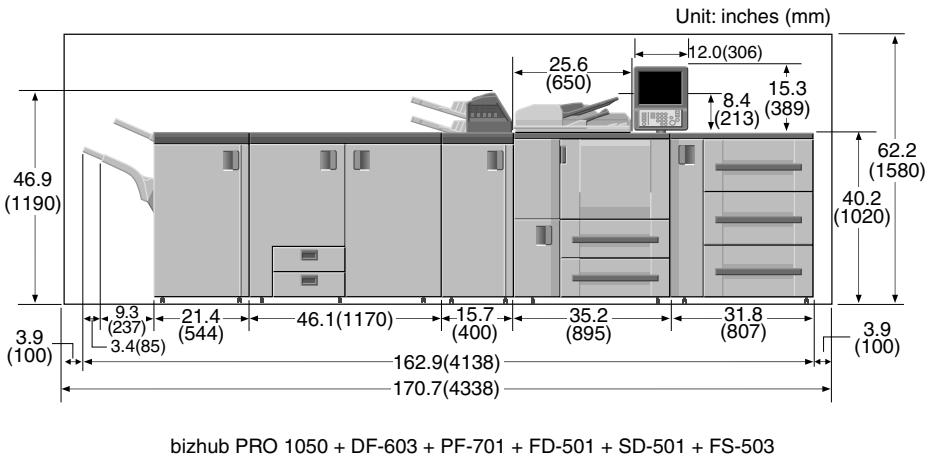
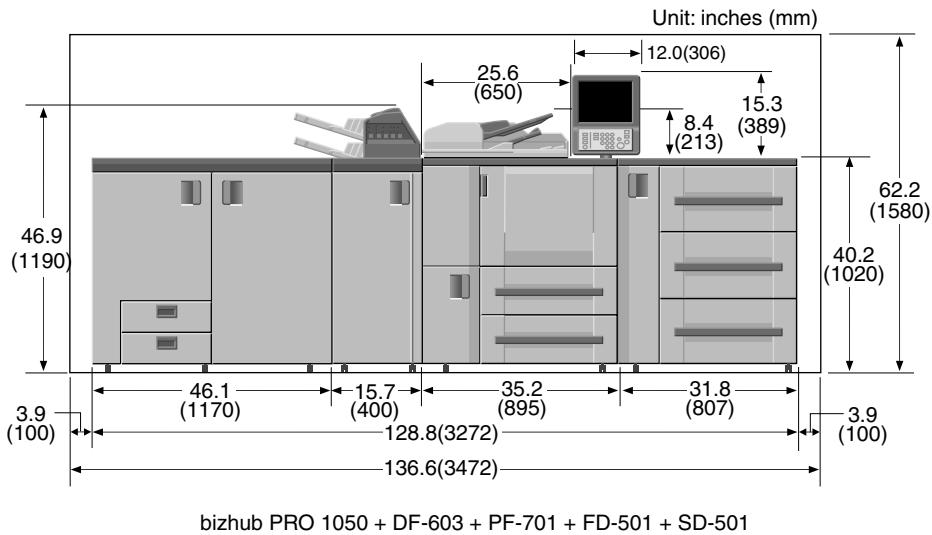
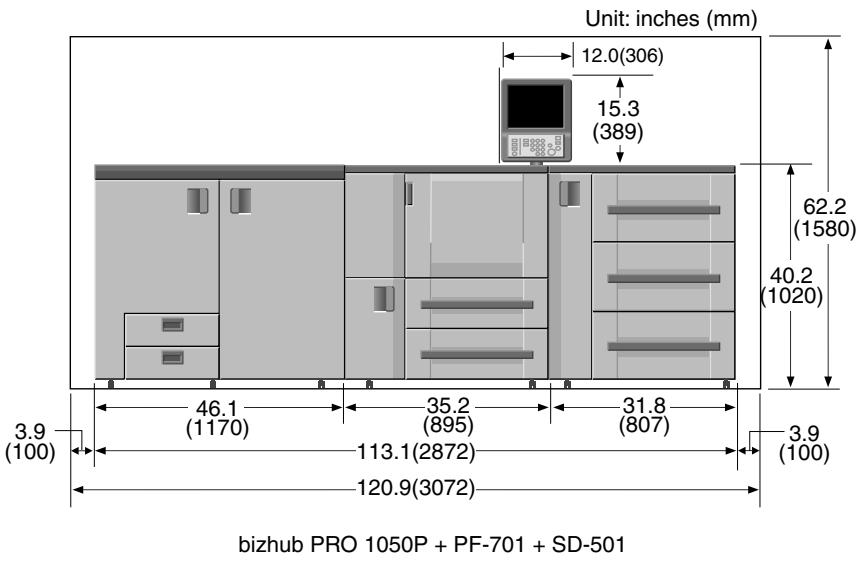
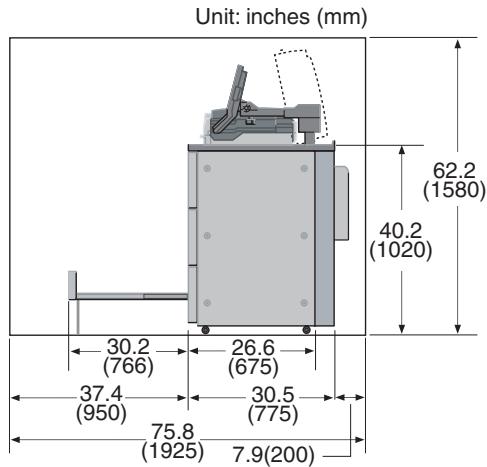

DETAILS
The whole machine may weigh approx. 945kg at maximum, depending on the combination of options. Be sure to choose a level and solid floor for the installation place.
SD-501 Saddle Stitcher
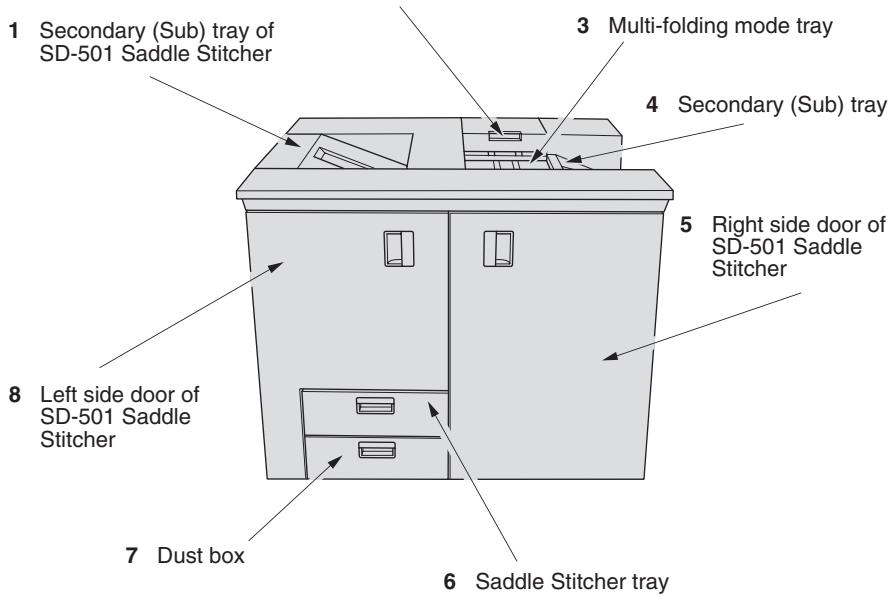
2 Multi-folding mode outlet cover handle
13 Outlet conveyance lever
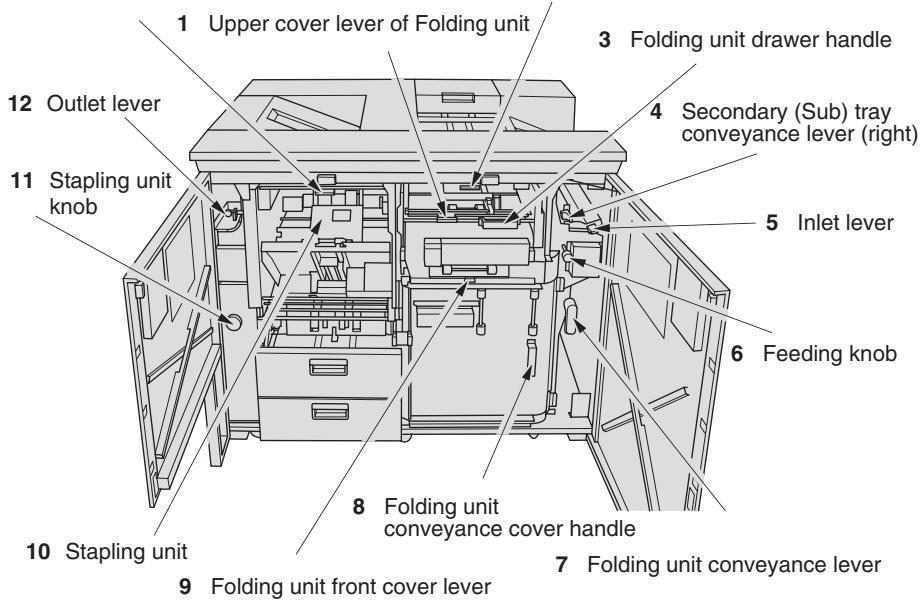
2 Secondary (Sub) tray conveyance lever (middle)
External View
1 Secondary (Sub) tray of SD-501 Saddle Stitcher holds non-sorted sets output from Saddle Stitcher.
2 Multi-folding mode outlet cover handle opens the cover to remove paper misfed when using multi-folding mode.
3 Multi-folding mode tray holds sets output in multi-folding mode.
4 Secondary (Sub) tray holds non-sorted sets output from the machine on the right side of the Saddle Stitcher.
5 Right side door of SD-501 Saddle Stitcher opens to remove mishandled paper.
6 Saddle Stitcher tray is withdrawn when using Fold&Staple mode.
7 Dust box is withdrawn to remove waste paper.
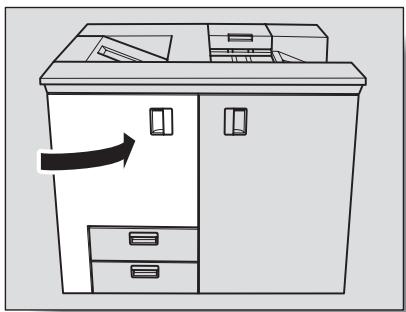
8 Left side door of SD-501 Saddle Stitcher opens for staple supply or to remove mishandled paper.
Internal View
1 Upper cover lever of Folding unit opens the upper cover to remove paper misfed inside the Folding unit.
2 Secondary (Sub) tray conveyance lever (middle) opens downward to remove mishandled paper.
3 Folding unit drawer handle opens the drawer to remove paper misfed inside the Folding unit.
4 Secondary (Sub) tray conveyance lever (right) opens upward to remove mishandled paper.
5 Inlet lever opens leftward to remove mishandled paper.
6 Feeding knob can be turned clockwise to feed mishandled paper to the Folding unit.
7 Folding unit conveyance lever opens rightward to remove mishandled paper.
8 Folding unit conveyance cover handle opens the cover to remove mishandled paper.
9 Folding unit front cover lever opens upward to remove mishandled paper.
10 Stapling unit staples folded sets.
11 Stapling unit knob can be turned clockwise to feed mishandled paper.
12 Outlet lever opens leftward to remove mishandled paper.
13 Outlet conveyance lever opens downward to remove mishandled paper.
Standard/Optional Equipment
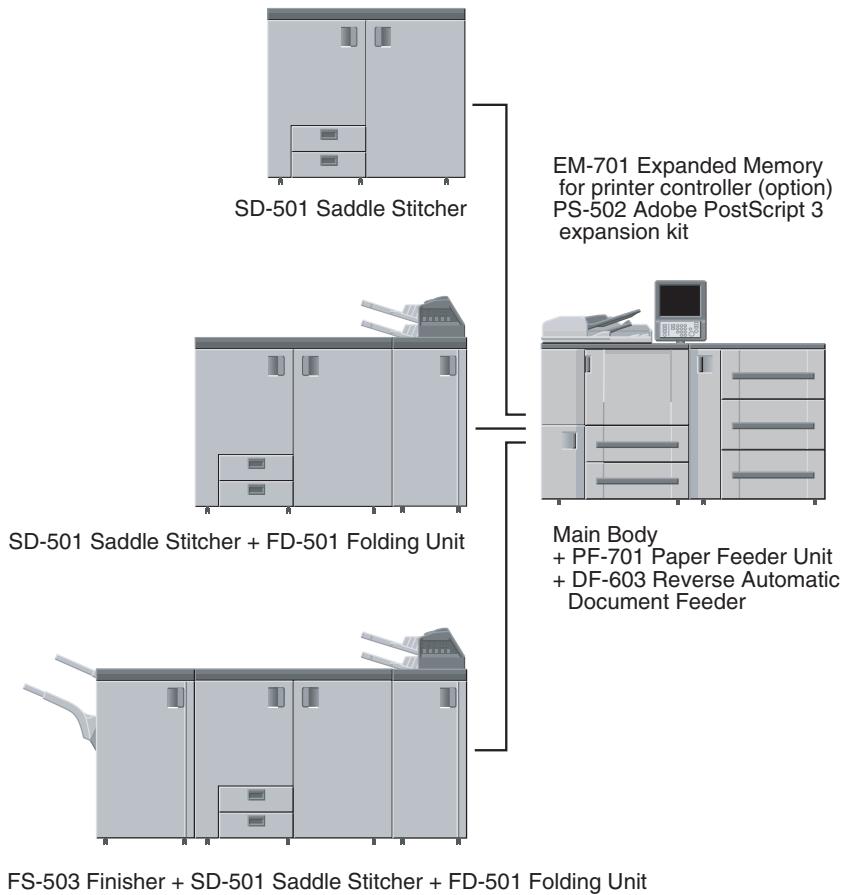
Inserting a New Staple Cartridge into SD-501 Saddle Stitcher
When the staple cartridge of the SD-501 Saddle Stitcher is empty, the Cartridge indicator lights in red in the option status area of the Machine Status Screen. If printing job is in progress, a message will be displayed on the Copy Screen.
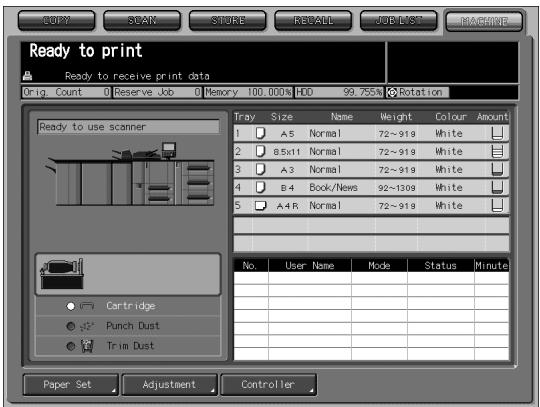
Follow the procedure below to replace the staple cartridge.
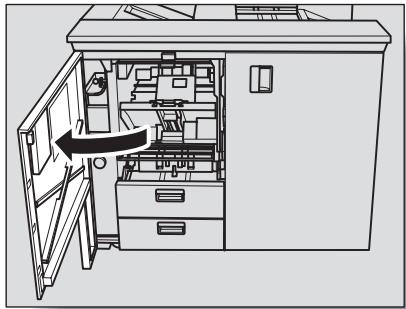
1. Open the left side door of the Saddle Stitcher.
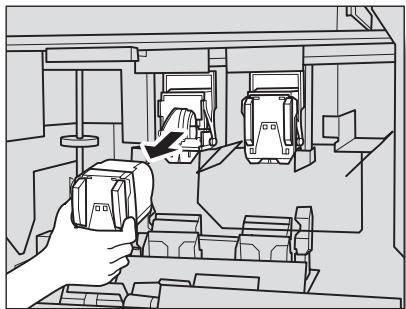
2. Remove the empty cartridge.
Hold both left and right sides of the staple cartridge, then draw it forward.

DETAILS
The machine is mounted with two staple cartridges. Be sure to remove the empty one.
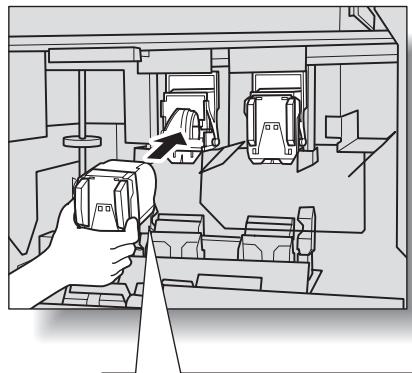
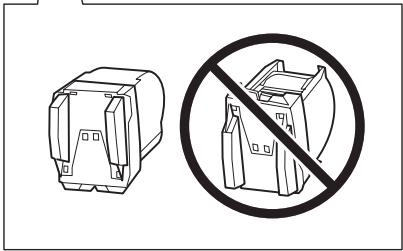
3. Set the new cartridge.

Reminder!
Check that the top side of the staple cartridge is up, otherwise it cannot be inserted.
4. Close the left side door of the Saddle Stitcher.
Cleaning Conveyance Belt of Saddle Stitcher Tray
The conveyance belt of saddle stitcher tray should be kept clean, otherwise soil marks may be copied. Follow the procedure below to clean the conveyance belt. In order to maintain optimum copy quality, we recommend to clean it every time before using the saddle stitcher tray.

DETAILS
If any soil marks are found while printing, perform this cleaning procedure immediately.
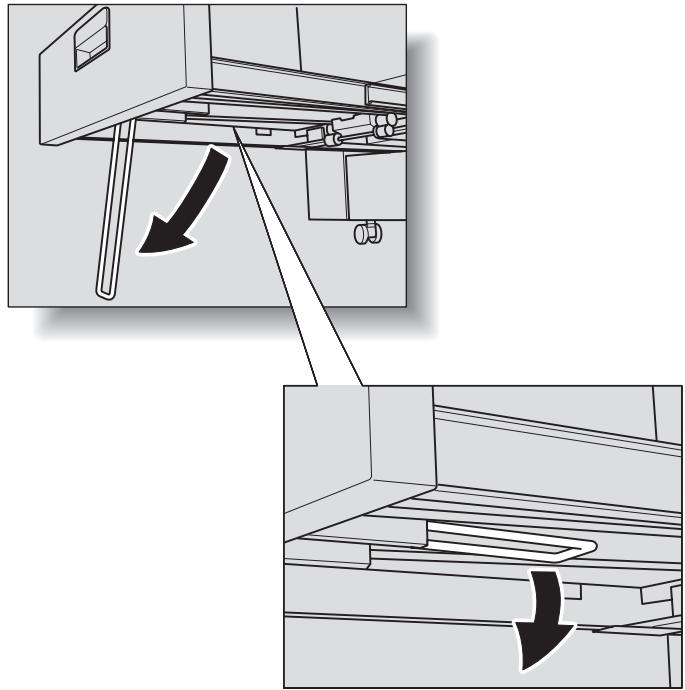
1. Fully withdraw the Saddle stretcher tray, then open the tray stand.

Reminder!
Never fail to open the tray stand, otherwise the machine may be damaged.
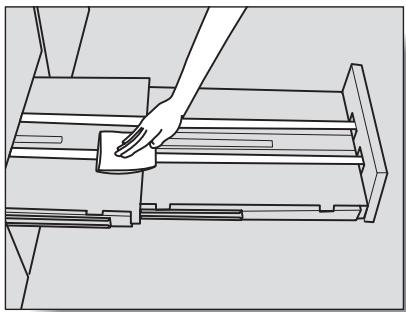
2. Clean the surface of the two conveyance belts with a soft cloth dampened slightly with alcohol (cleaner).
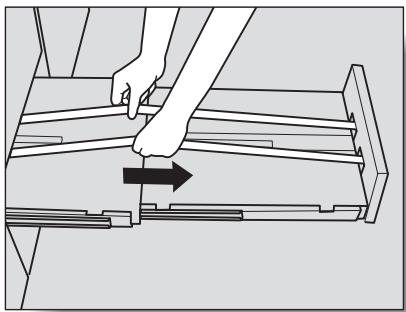
3. Move the conveyance belt to clean the whole length.
Raise the two belts lightly, then pull them both frontward at the same time in order to show the hidden parts.

Reminder!
Do not raise the belt higher than need be, or never fail to pull the two belts at the same time; otherwise machine trouble may be caused.
Clean the belts in the same way as above, using a soft cloth dampened with alcohol.
Repeat steps 2 and 3 (about three times) to clean the whole round of the belt.

Reminder!
Be sure to clean the whole round of the conveyance belt.
4. Clean the bottom plate of the saddle stitcher tray.
Wipe the whole surface of the bottom plate with a soft cloth slightly dampened with alcohol (cleaner).
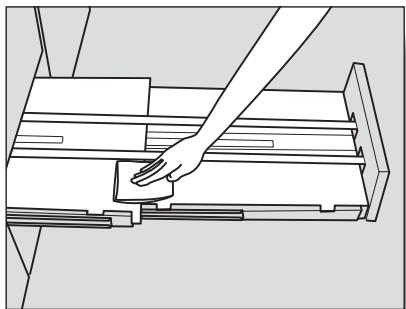
5. Return the tray stand to its original position, then return the saddle stretcher tray.

Reminder!
Never return the saddle stretcher tray to its original position with the tray stand opened.
Empty Dust Box of SD-501 Saddle Stitcher
When the dust box of the SD-501 Saddle Stitcher becomes full, the Trim Dust indicator lights in red in the option status area of the Machine Status Screen. If printing job is in progress, a message will be displayed on the Copy Screen.
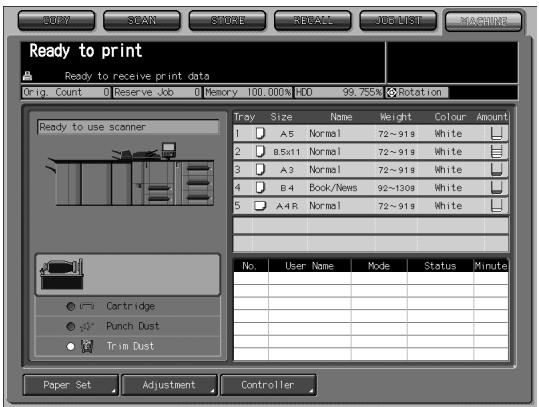
Follow the procedure below to empty the dust box.
1. Withdraw the dust box.
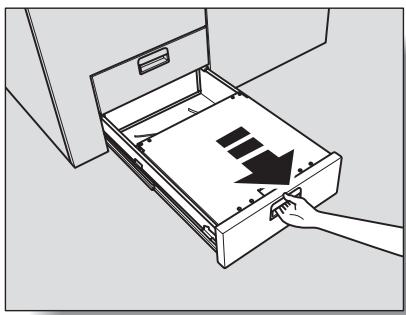

The dust box cannot be withdrawn while machine operation is in progress. Be sure to confirm that the machine has stopped its operation before withdrawing the dust box.
2. Open the top cover of the dust box.
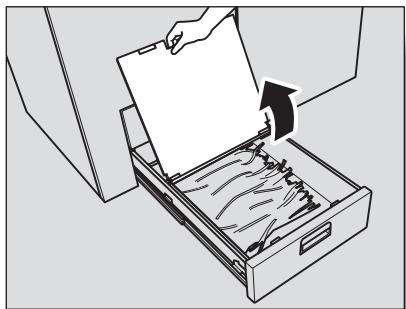
3. Take waste paper out of the dust box.
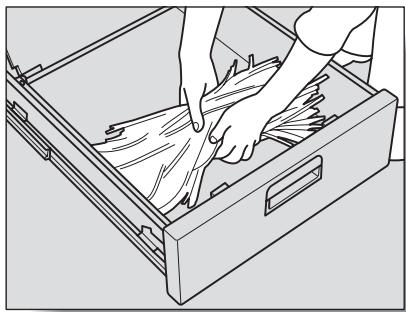
4. Close the top cover of the dust box, then return it to its original position.
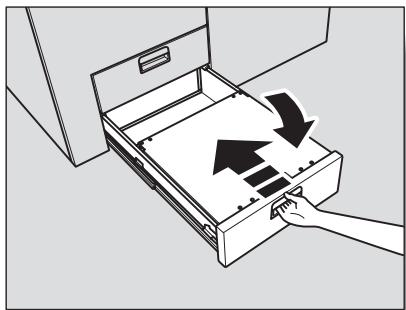

Reminder!
Be sure to return the dust box to its original position, otherwise the trimming function cannot be performed.
If "Trim Receiver Exchange" Message Is Displayed
This machine trims the printed sets using a cutting blade and its receiver, which may require replacement in a long period of use.
When replacement is due, a "Trim Receiver exchange" message appears under the Trim Dust indicator in the option status area of the Machine Status Screen.
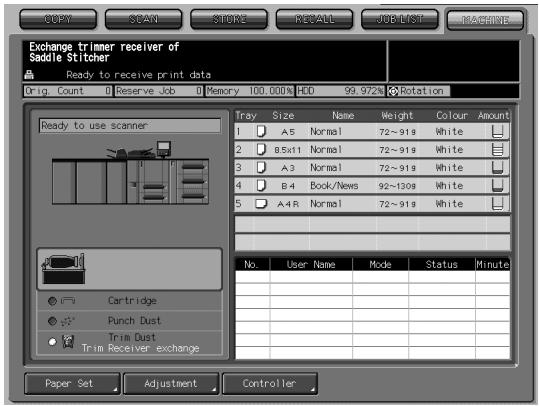
If the above message is displayed, please contact your service representative.

DETAILS
The machine manager can call for service using the Utility setting (06 Machine Manager Setting>06 System Connection>01 User Call). See p. 5-81 of POD Administrator's reference.
In this case, you don't have to make a call for preventive maintenance, because your machine has been monitored automatically by your service representative.
Paper Information
SD-501 Saddle Stitcher provides the following functions.
- Fold & Staple
- Trimming
- Multi-Folding (Multi Center, Multi Letter)
- Straight delivery
Each function is limited in paper weight, size, quantity and tray capacity as described below.
| Fold & Staple | Trimming | Multi-Folding function | Straight delivery | ||
| Multi Center | Multi Letter | ||||
| Weight | 13 ~ 43 lb, 60 ~ 91 lb (cover) | 13 ~ 24 lb | 13~43 lb, 60~105 lb (cover) | ||
| Size | 12x18, 11x17, 8.5x14, 8.5x11R, A3, B4, A4R, B5R, F4*, 8K, 16KR, Wide size paper (max. 324 mm x 460 mm) | 8.5x11R, A4R | 12x18, 11x17, 8.5x14, 8.5x11, 8.5x11R, 5.5x8.5, 5.5x8.5R, A3, B4, A4, A4R, B5, B5R, A5, A5R, B6R, F4, 8K, 16K, 16KR, Tab paper, Wide size paper (max. 324 mm x 460 mm) | ||
| Quantity | See the table below and p. 1-16 for the maximum number of folded & stapled sheets and tray capacity. | Max. trimmed sheets: 50 (20 lb) x 2 {49 (20 lb) + 1 (74 lb cover)} x 2 Tray capacity is the same as Fold & Staple mode. | Max. folded sheets: 5 sheets (20 lb) Tray capacity: 30 sets | Max. folded sheets: 5 sheets (20 lb) Tray capacity 1-sheet-folded set: 40 sets or more, 2~3-sheet-folded set: 30 sets or more, 4~5-sheet-folded set: 20 sets or more | 200 sheets |
- F4 indicates the following four sizes: 8.5x13, 8.125x13.25, 8x13, 8.25x13.

DETAILS
Maximum number of folded and stapled sheets varies according to the paper weight. See the table below.
Paper weight and number of folded and stapled sheets
| Paper weight | Maximum number of folded&stapled sheets |
| 13 ~ 20 lb | 50 sheets or 49 sheets + 1 (74 lb cover paper) |
| 24 lb | 30 sheets or 29 sheets + 1 (74 lb cover paper) |
| 28 ~ 35 lb | 20 sheets or 19 sheets + 1 (74 lb cover paper) |
| 36 ~ 43 lb | 15 sheets or 14 sheets + 1 (74 lb cover paper) |
| 60 ~ 74 lb (cover) | 10 sheets |
| 80 ~ 91 lb (cover) | 5 sheets |
- Some types of fine paper (13~24 lb) may be limited to 30 sheets or 29 sheets + 1 (74 lb cover paper). Contact your service representative for details.
- Fine (vertically laid) paper (16~24 lb) 300 mm or less in length will be limited to 30 sheets or 29 sheets + 1 (74 lb cover paper).
- For using coated paper, heed the following limit.
| Paper weight | Maximum number of folded&stapled sheets |
| 13 ~ 20 lb | 25 sheets or 24 sheets + 1 (74 lb cover paper) |
| 24 lb | 15 sheets or 14 sheets + 1 (74 lb cover paper) |
| 28 ~ 35 lb | 10 sheets or 9 sheets + 1 (74 lb cover paper) |
| 36 ~ 43 lb | 5 sheets or 4 sheets + 1 (74 lb cover paper) |

DETAILS
When using Fold&Staple mode, Saddle stitcher tray capacity depends on the number of folded and stapled sheets finished as a set. Heed the limits by referring to the table below.
The Saddle stitcher tray should be fully withdrawn in order to accommodate the maximum number.
| Number of sheets (1 set) | Saddle stitcher tray capacity |
| 2 ~ 10 | 50 sets |
| 11 ~ 20 | 30 sets |
| 21 ~ 40 | 20 sets |
| 41 ~ 50 | 15 sets |

DETAILS
Height of the folded and stapled booklet
The following table shows the standard height of folded and stapled booklet according to the number of sheets and paper size.
| Number of sheets (1 set) | Paper size | |||
| 12x18, 11x17, A3 (401mm or more) | 8.5x14, B4, 8K (301 ~ 400mm) | 8.5x11R, A4R, 16KR (261 ~ 300mm) | B5R (260mm or less) | |
| 2 ~ 5 | 35 mm | 40 mm | 45 mm | Not specified |
| 6 ~ 15 | 45 mm | 50 mm | Not specified | Not specified |
| 16 ~ 30 | 50 mm | 55 mm | Not specified | Not specified |
| 31 ~ 50 | 60 mm | 65 mm | Not specified | Not specified |
SD-501 Saddle Stitcher
| Functions: | Multi-folding (Multi Center, Multi Letter), Fold&Staple, Trimming, Straight delivery |
| Processing capability: | 105 sheets per minute at maximum |
| Types of paper: | 13 to 43 lb, 60 to 91 lb (cover) paper (Multi Center, Fold&Staple, Trimming) 13 to 24 lb paper (Multi Letter) |
| Paper sizes: | Multi Center, Fold&Staple, and Trimming; 12"x18", 11"x17", 8.5"x14", 8.5"x11"R, A3, B4, A4R, B5R, F4, 8K, 16KR, Wide size paper (max. 324mm x 460mm) Multi Letter; 8.5"x11"R, A4R |
| Staple position: | Available to be changed (90 ~ 165 mm) |
| Number of sheets (1 set): | Multi Center, Multi Letter; 5 sheets (13 to 20 lb paper) 3 sheets (24 lb paper) Fold&Staple; see table on p. 1-15. Trimming; 50 sheets (20 lb paper) x 2, or {49 sheets (20 lb) + 1 sheet (74 lb cover)} x 2 |
| Stack capacity: | 30 sets max. (Multi Center, Multi Letter) |
| Saddle stretcher tray capacity: | See p. 1-16. |
| Dimensions: | 1170 (W) x 775 (D) x 1020 (H) mm 1441(D) mm with Saddle stretcher tray fully withdrawn |
| Weight: | Approx. 263 kg |
| Power source: | Internal battery |
SECTION
2
Copying Operations
How to Make a Copy Using Saddle Stitcher
Copy Conditions Incompatible with Saddle Stitcher 2-2
Adjusting Position of Copy Image (Image Shift) 2-3
Selecting an Output Tray 2-6
Making Folded Booklet (Fold&Staple / Trimming) 2-8
Folding A Copied Set (Multi Center / Multi Letter) 2-11
Copy Conditions Incompatible with Saddle Stitcher
| Copy Conditions Incompatible with Settings Using Saddle Stitcher | Output Application | |||||
| Fold&Staple | Multi Center | Multi Letter (Inside Print) | Multi Letter (Outside Print) | Trimming (*5) | ||
| Original Setting | Mixed Original | x | x | x | x | x |
| Z-Folded Original | ||||||
| Custom Size | ||||||
| Custom Size (Full Area) | ||||||
| Tab Paper | ||||||
| Output Application | Collated (Offset) | □ | □ | □ | □ | □ |
| Uncollated | □ | □ | □ | □ | □ | |
| Collated (Rotation) | - | - | - | - | - | |
| Uncollated (Rotation) | - | - | - | - | - | |
| 1 Stapling (Upper Left) | □ | □ | □ | □ | □ | |
| 1 Stapling (Upper Right) | □ | □ | □ | □ | □ | |
| 2 Stapling (Top) | □ | □ | □ | □ | □ | |
| 2 Stapling (Left) | □ | □ | □ | □ | □ | |
| 2 Stapling (Right) | □ | □ | □ | □ | □ | |
| Fold&Staple | □ | □ | □ | |||
| Multi Center | □ | □ | □ | □ | ||
| Multi Letter (Inside Print) | □ | □ | □ | □ | ||
| Multi Letter (Outside Print) | □ | □ | □ | □ | ||
| Trimming (*5) | □ | □ | □ | |||
| Z-Fold | □ | □ | □ | □ | □ | |
| Folding (Inside Print) | □ | □ | □ | □ | □ | |
| Folding (Outside Print) | □ | □ | □ | □ | □ | |
| Letter Fold-in (Inside Print) | □ | □ | □ | □ | □ | |
| Letter Fold-in (Outside Print) | □ | □ | □ | □ | □ | |
| Letter Fold-out (Inside Print) | □ | □ | □ | □ | □ | |
| Letter Fold-out (Outside Print) | □ | □ | □ | □ | □ | |
| Double Parallel (Inside Print) | □ | □ | □ | □ | □ | |
| Double Parallel (Outside Print) | □ | □ | □ | □ | □ | |
| Gate (Inside Print) | □ | □ | □ | □ | □ | |
| Gate (Outside Print) | □ | □ | □ | □ | □ | |
| Hole-Punch (Right) | □ | □ | □ | □ | □ | |
| Hole-Punch (Left) | □ | □ | □ | □ | □ | |
| Hole-Punch (Top) | □ | □ | □ | □ | □ | |
| Face Up | x | x | x | x | x | |
| Face Down | ||||||
| 1 to N | ||||||
| N to 1 | x | x | x | x | x | |
| Right & Left Binding | ||||||
| Upper Binding | ||||||
| HDD (*2) | ||||||
None : Compatible
x : Grayed out (including automatic release)
:Released automatically
| Copy Conditions Incompatible with Settings Using Saddle Stitcher | Output Application | ||||||
| Fold&Staple | Multi Center | Multi Letter (Inside Print) | Multi Letter (Outside Print) | Trimming (*5) | |||
| Application / File Edit | Program Job (First job) | x | x | x | x | - | |
| Sheet Insertion | |||||||
| Insertion using PI | |||||||
| Front Cover | |||||||
| Back Cover | |||||||
| Front PI (Upper/Lower) | *1 | *1 | *1 | *1 | |||
| Back PI (Upper/Lower) | *1 | *1 | *1 | *1 | |||
| Chapter | |||||||
| Chapter (Print Insertion) | |||||||
| Combination | x | x | |||||
| Booklet | x | x | |||||
| Adhesive Binding | x | x | x | x | |||
| OHP Interleave | x | x | x | x | x | ||
| Image Insert | *4 | ||||||
| Book Copy | *4 | *4 | x | x | *4 | ||
| Application / Image Edit | Neg. Pos. Reverse | x | x | x | x | x | |
| Repeat | x | x | |||||
| Repeat (Auto) (*6) | x | x | |||||
| Repeat (2/4/8 Repeat) | x | x | |||||
| Frame Erasure | |||||||
| Fold Erasure | |||||||
| Image Centring | |||||||
| Image Shift | |||||||
| Reduce & Shift | |||||||
| Non-Image Area Erase | |||||||
| All-Image Area | |||||||
| Stamp | |||||||
| Page Numbering | |||||||
| Set Numbering | |||||||
| Date | |||||||
| Watermark | |||||||
| Watermark/Numbering | |||||||
| Overlay Memory | |||||||
| Overlay (*3) | x | x | |||||
1 : Back cover using cover paper is unavailable.
2 : Limited to Job Store function in Copy mode.
3 : Overlay cannot be selected in Program Job.
4 : Available only when Booklet is selected.
5 : Released automatically if using secondary tray for output.
6 : Selecting Auto in Repeat, Non-Image Area Erase will also be selected automatically and cannot be released.
Adjusting Position of Copy Image (Image Shift)
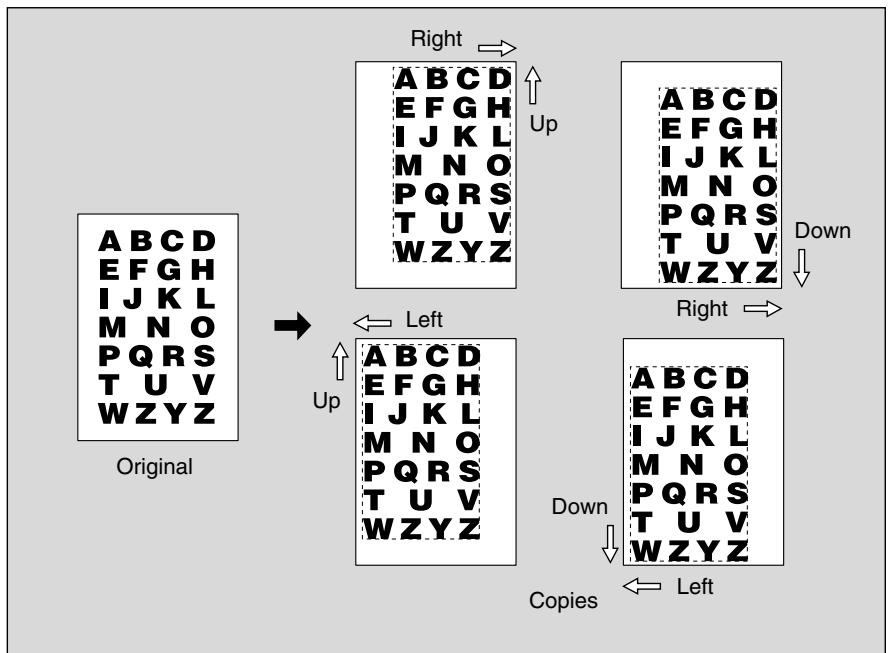
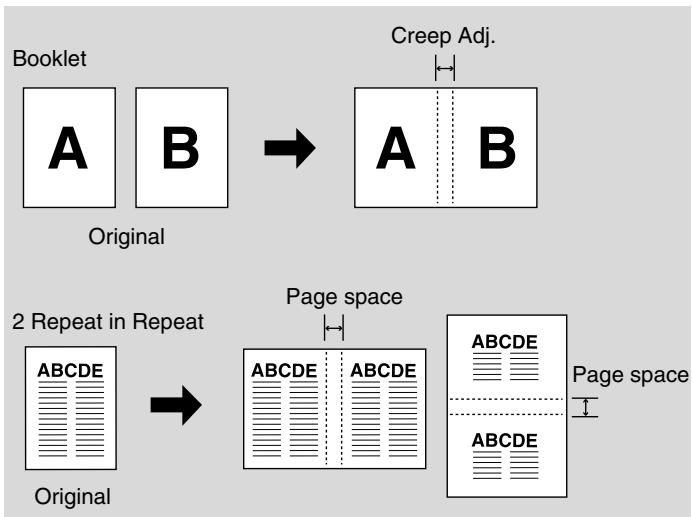
Use Image Shift to adjust the position of copy images, e.g. for the purpose of creating a new binding margin on originals to make it easier for filing purposes. Page Space function is available only when Booklet or 2 Repeat mode of Repeat has been already selected. Use this function to make the desired amount of blank space between the two images on a page. See the illustration on p. 2-5 for details.
If image loss is likely, select the Reduce & Shift mode instead of regular Image shift. See p. 11-51 of User's Guide (Copier).
Specifications for Image Shift
Shift amount: 0 to 250mm in 1 mm increments
Setting in 0.1mm increments using up/down arrow key is also available. This setting change can be made on the Utility Menu Screen.
- Select the copy mode and paper size from the Copy Screen, as required.
- Touch Application on the Copy Screen.

Reminder!
When starting a new copying job, be sure to close the ADF securely, then press [Reset].
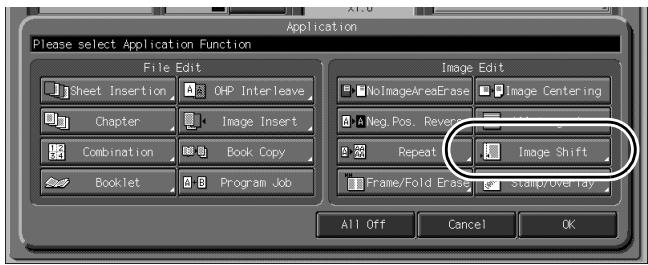
3. Touch Image Shift on the Application popup menu.
4. Touch Image Shift on the Image Shift Screen, then specify the shift direction and amount.
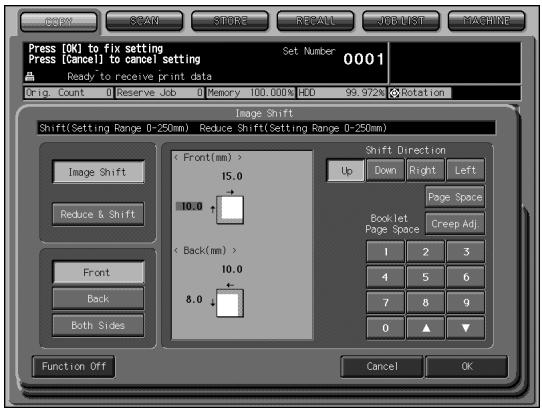
Touch Front or Back to specify the shift direction and amount individually; or touch Both Sides to specify collectively. The Back and Both Sides keys function only for duplex copying.
Touch to highlight the desired shift direction key in the upper right area, then use the touch panel keypad or up/down arrow key to enter the desired shift amount, from 0 to 250mm in 1 mm increments.
The image display on the screen allows you to view the shift direction and amount to be created on the printed sheets.
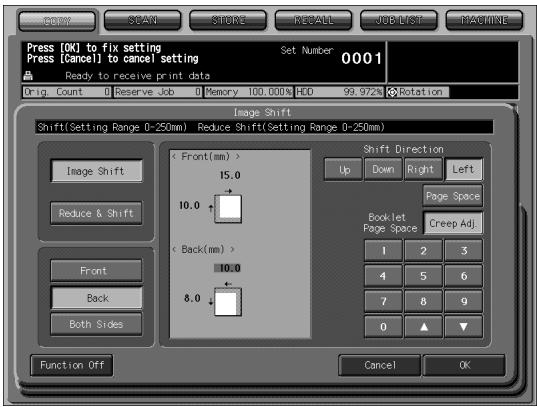
When Booklet or 2 Repeat mode of Repeat has been already selected, the Creep Adj. or Page Space key appears clear on the screen to show its availability.
Touch Creep Adj. to make space between left and right pages of a booklet. Or, touch Page Space to highlight it, then enter the desired amount of the space between the two repeated images using the touch panel keypad or up/down arrow key.
5. Touch OK.
The Application popup menu will be restored.
6. Touch OK on the Application popup menu.
The Copy Screen will be restored.

DETAILS: Creep Adj. and Page Space
Selecting an Output Tray
This section describes how to select an output tray of the saddle stretcher.
To select an output tray of any other optional equipment, see p. 12-6 of User's Guide (Copier).
1. Touch Output Application on the Copy Screen.
The Output Application Screen appears.
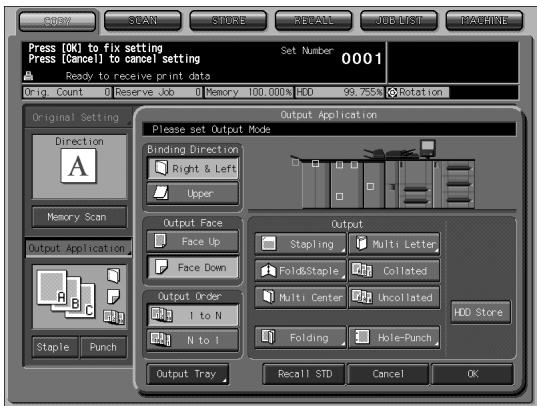
Trays that can output paper will be have keys on the front image of the machine, and the tray that is currently set to output paper is shown with a depressed key.
2. Touch Output Tray.
An Output Tray Selection Screen reflecting the combination of optional devices will appear.
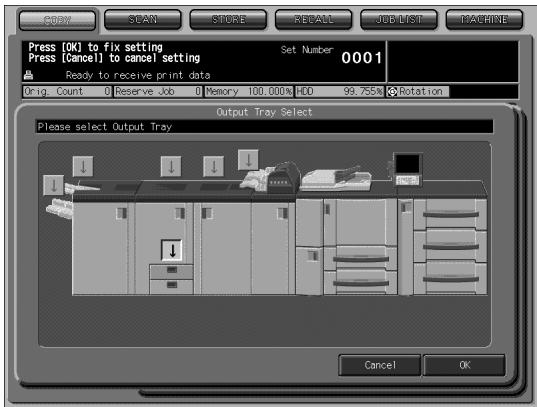
3. Select the desired output tray.
Touch the desired tray position key [] to select it.
4. Touch OK on the Output Tray Selection Screen.
It will return to the Output Application Screen.
The output tray location is indicated by a depressed key on the front image of the machine.
5. Touch OK on the Output Application Screen.
It will return to the Copy Screen.
6. Be sure to fully withdraw the Saddle stitcher tray, if selected as an output tray.
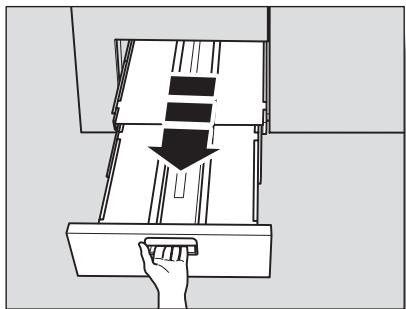

Reminder!
Be careful not to exceed the tray capacity when selecting the print quantity, otherwise unexpected trouble may be caused.
Making Folded Booklet (Fold&Staple / Trimming)
Use Fold & Staple mode in combination with Booklet feature to make two-sided signature booklet, folded and stapled at two positions (saddle stitched) in the center. Use Trimming mode to trim the edge that opens the booklet, if desired.
Specifications for Fold&Staple / Trimming
Paper weight: 13 43 lb, 60 91 lb (cover)
Paper size: 12x18, 11x17, 8.5x14, 8.5x11R, A3, B4, A4R, B5R, F4, 8K, 16KR, Wide size paper (max. 324 mm x 460 mm)
Max. number of folded & stapled sheets: Varies according to the paper weight to be used. See p. 1-15 for details.
Saddle stitcher tray capacity: Varies according to the number of folded & stapled sheets. See p. 1-16 for details.
Staple position: Variable (90 ~ 165 mm)
Stapling method: Inline clinch
Trimming width: 2 10 mm
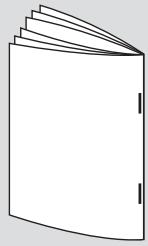
Fold & Staple
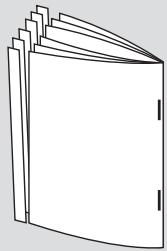
Fold & Staple and Trimming
1. Touch Output Application on the Copy Screen.
The Output Application Screen appears.
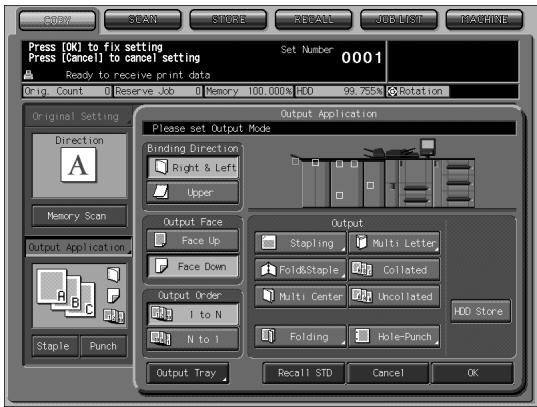
2. Touch Fold&Staple, then select to use Trimming or not.
The Fold&Staple Screen will be displayed.
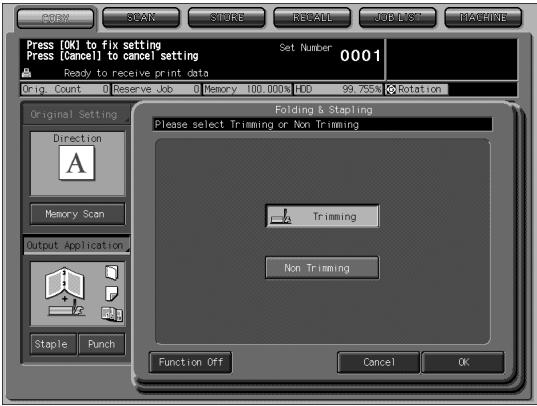
Touch Trimming or Non Trimming to select it.
3. Touch OK.
The Output Application Screen will be restored.

DETAILS
If you touch Cancel, the previous setting will be restored.
Touching Function Off will deselect the Fold&Staple (and Trimming) mode, however, the specified setting will be kept in memory.
4. Touch OK on the Output Application Screen.
The output icon of the selected output mode will be displayed on the Copy Screen.
Booklet function in the Application setting has been selected automatically.
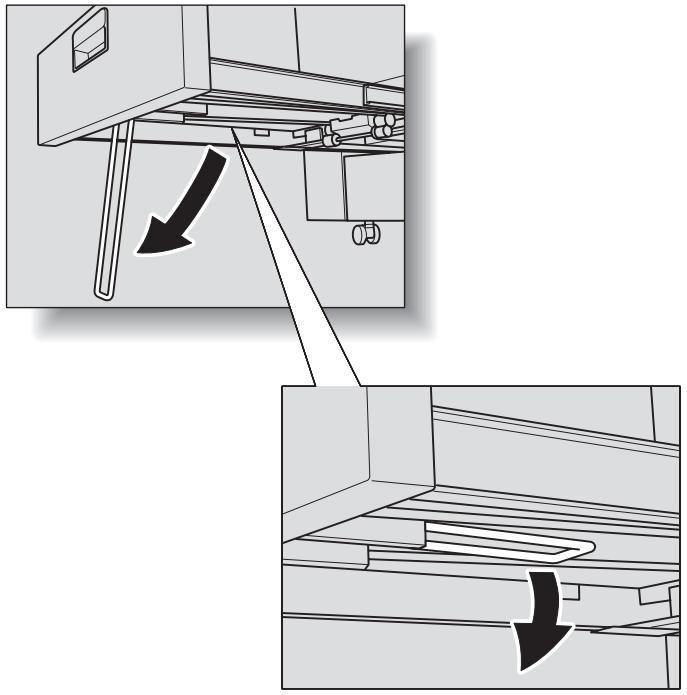
5. Withdraw the Saddle stitcher tray.
Open the tray stand when fully withdrawn.

DETAILS
The folded and stapled (and trimmed) sets will be delivered into the Saddle stitcher tray. If the tray is not fully withdrawn, the machine will detect that the tray is filled up, even with less number of finished sets than that specified in specifications.

Reminder!
Never return the Saddle stitcher tray to its original position with the tray stand opened.
Folding A Copied Set (Multi Center / Multi Letter)
Use Multi Center mode to double-fold up to 5 sheets of copied set, or use Multi Letter to fold it inside in three.
Using Multi Letter, the print side can be specified on the screen.
Specifications for Multi Center / Multi Letter
Paper weight: Multi Center 13 ~ 43 lb, 60 ~ 91 lb (cover), Multi Letter 13 ~ 24 lb
Paper size: Multi Center 12x18, 11x17, 8.5x14, 8.5x11R, A3, B4, A4R, B5R, F4, 8K, 16KR, Wide size paper (max. 324 mm x 460 mm) Multi Letter 8.5x11R, A4R
Max. number of folded sheets: 5 sheets max. (20 lb)
Tray capacity: Multi Center (Saddle stitcher tray) 30 sets
Multi Letter (Multi-folding tray) 30 sets
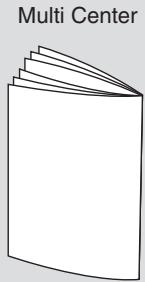
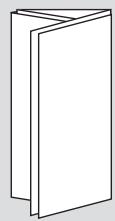
Multi Letter
1. Touch Output Application on the Copy Screen.
The Output Application Screen appears.
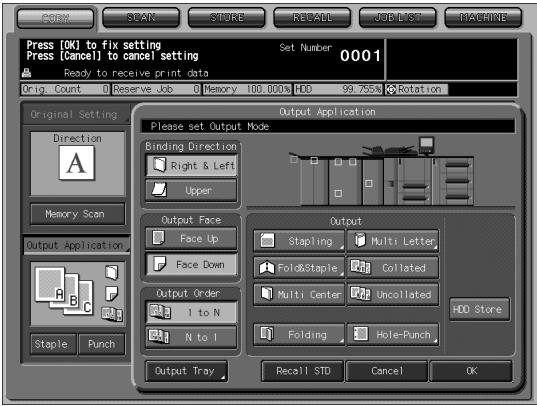
2. Touch Multi Center or Multi Letter to select it.
If Multi Letter is selected, the Multi Letter Screen will be displayed to specify the print side.
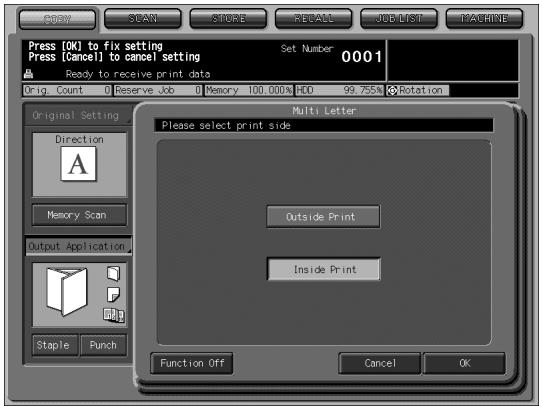
Touch Outside Print or Inside Print to select it.
Touch OK. The Output Application Screen will be restored.

DETAILS
If you touch Cancel, the previous setting will be restored.
Touching Function Off will deselect the mode, however, the specified setting will be kept in memory.
3. Touch OK on the Output Application Screen.
The output icon of the selected output mode will be displayed on the Copy Screen.
With Multi Center selected, Booklet function in the Application setting has been selected automatically.
4. If Multi Center is selected, withdraw the Saddle stitcher tray. Open the tray stand when fully withdrawn.
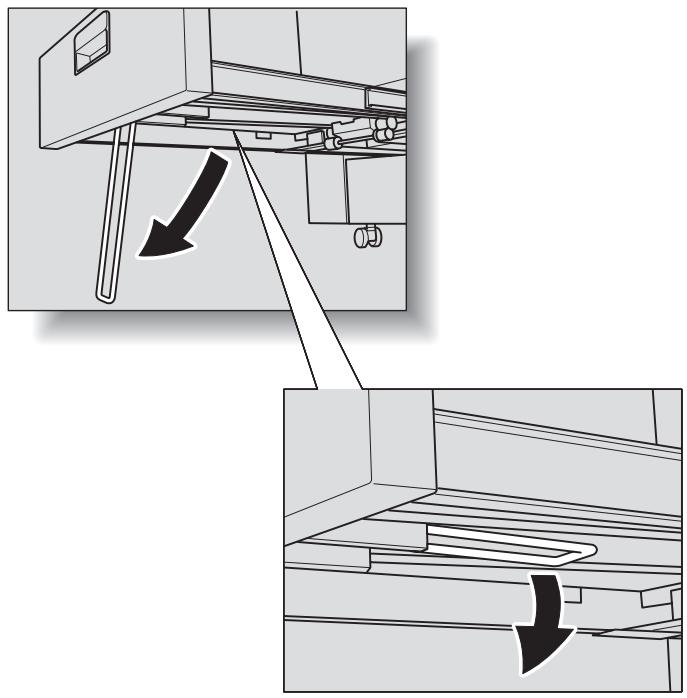

DETAILS
- The double-folded sets will be delivered into the Saddle stitcher tray. If the tray is not fully withdrawn, the machine will detect that the tray is filled up, even with less number of finished sets than that specified in specifications.
- The triple-folded sets will be delivered into the Multi-folding tray.

Reminder!
Never return the Saddle stitcher tray to its original position with the tray stand opened.
SECTION
3
Adjustment
How to Make an Adjustment to Saddle Stitcher
Finisher Adjustment Outlines 3-2
05 Saddle Stitcher Adjustment 3-3
Finisher Adjustment Outlines
Use this function to make the following fine adjustments on SD-501 Saddle Stitcher.

DETAILS
- See POD Administrator's reference for the adjustment on finishing options other than the saddle stretcher.
- The target adjustment items vary depending upon the configuration of installed options.
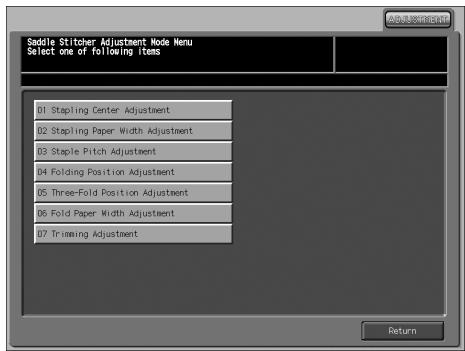
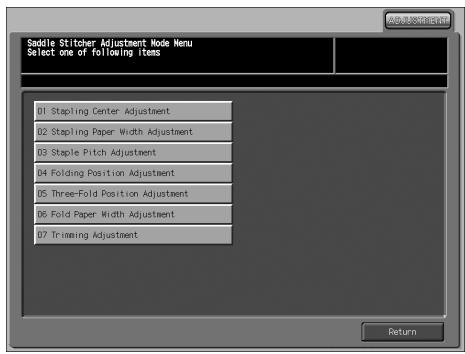
01 Stapling Center Adjustment
Adjust the dislocation of the center position of staples.
02 Stapling Paper Width Adjustment
Adjust the dislocation of sheets in the stapled set.
03 Staple Pitch Adjustment
Adjust the pitch between two staples.
04 Folding Position Adjustment
Adjust the double-folding position.
05 Three-Fold Position Adjustment
Adjust the three-folding position.
06 Fold Paper Width Adjustment
Adjust the dislocation between sheets.
07 Trimming Adjustment
Adjust the trim width.
05 Saddle Stitcher Adjustment
01 Stapling Center Adjustment
Perform this adjustment for the center (folding) position of copied/printed sheets and of staples processed by the SD-501 Saddle Stitcher.
The paper width adjustment (06) and folding position adjustment (04) are supposed to be completed before this adjustment.
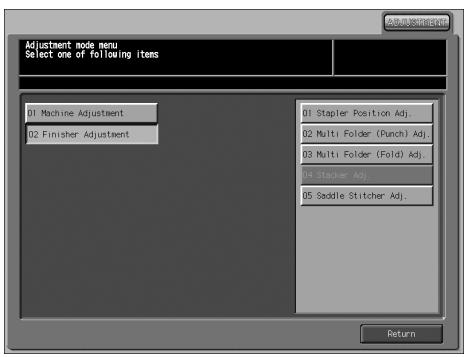
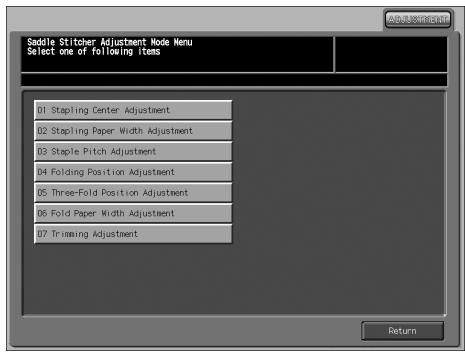
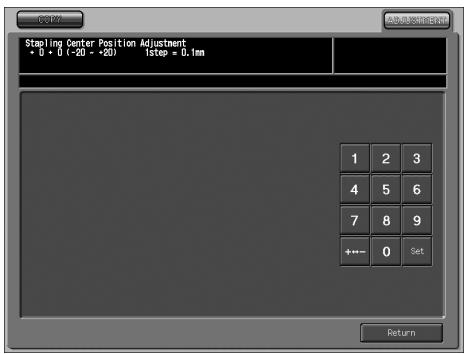
Procedure
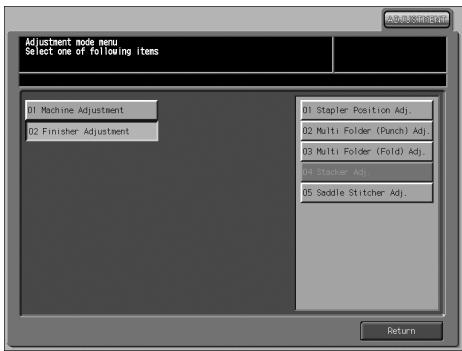
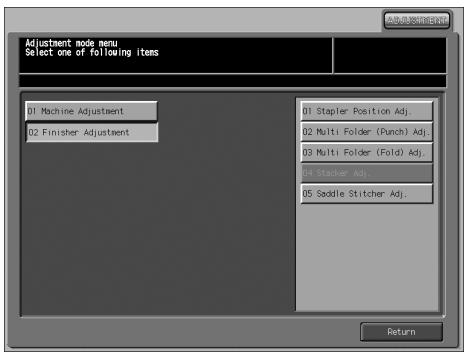
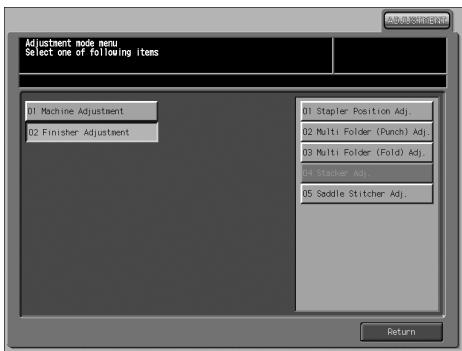
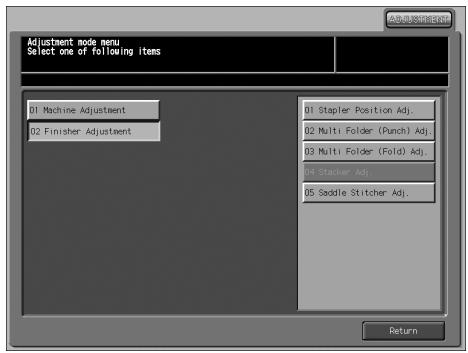
1 Touch Adjustment - 02 Finisher Adjustment - 05 Saddle Stitcher Adj.
2 Touch 01 Stapling Center Adjustment to display the Stapling Center Position Adjustment Screen.
3 Touch the COPY tab to display the Copy Screen.
4 Select the Fold&Staple mode, then press [Start]. A sample copy will be output.
5 Check misalignment (a) of the folded line and stapling position.
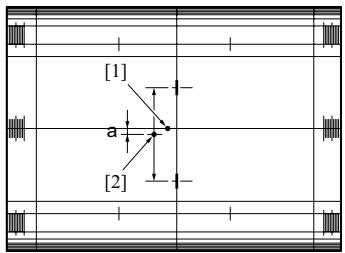
6 If the test desired result cannot be obtained, touch the ADJUSTMENT tab.
7 Use the touch panel keypad to enter the desired adjustment value, then touch Set.
Available range: -20 (forward) to +20 (backward), 1 step = 0.1 mm
8 Repeat the adjustment steps from 3 to 7 until the desired result is obtained.
9 Touch Return to restore the Saddle Stitcher Adjustment Mode Menu Screen.
02 Stapling Paper Width Adjustment
Perform this adjustment if stapled sheets are not aligned neatly processed by the SD-501 Saddle Stitcher.
Procedure
1 Touch Adjustment - 02 Finisher Adjustment - 05 Saddle Stitcher Adj.
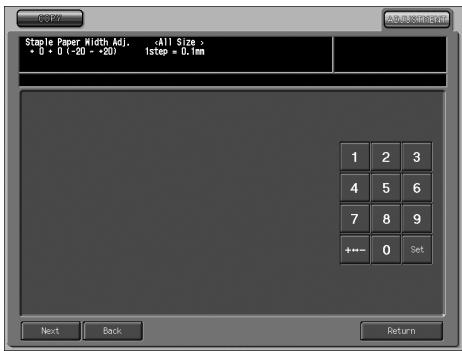
2 Touch 02 Stapling Paper Width Adjustment to display the Staple Paper Width Adjustment Screen.
3 Touch the COPY tab to display the Copy Screen.
4 Load the desired size of paper to be adjusted on a tray, select Fold&Staple and then press [Start]. A sample pattern (No. 16) will be output.
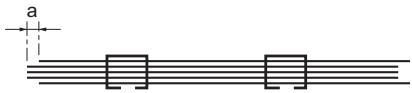
5 Check misalignment (a), in which misalignment occurs if the paper width setting is larger than the actual width, or paper curving (b), in which a sample set is curved if the paper width setting is smaller than the actual width has occurred.

6 If the desired result cannot be obtained, touch the ADJUSTMENT tab.
7 Touch Next or Back to select the paper size to be adjusted.
Touching Next continuously will change the paper size as follows.
All Size - 11x17 - A3 - B4 - 8.5x14 - A4R - 8.5x11R - B5R - 8x13 - 8.12x13.2 -
8.5x13 - 8.25x13 - 8K - 16KR - 12x18 - A3W - B4W - A4WR - B5WR - 12x18W -
11x17W - 8.5x11WR - Special
8 Use the touch panel keypad to enter the desired adjustment value, then touch Set.
Available range: -20 (wide) to +20 (narrow), 1 step = 0.1 mm

DETAILS
The following limitation is put on the paper width setting according to the actual paper width.
| Actual paper width | Minimum value | Maximum value |
| ~ 222 mm | 91 mm | Actual width minus 91 mm |
| 222 mm ~ 290 mm | Not limited | Not limited |
| 290 mm ~ | Not limited | 165 mm |
Using paper size of which actual width is less than 222mm such as A4R, the staple pitch will be set to 91 mm automatically even if the value shorter than 91 mm of staple pitch is entered.
9 Repeat the adjustment steps from 3 to 8 until the desired result is obtained.
10 If adjustment in any other paper size is required, repeat steps from 3 to 8.
11 Touch Return to restore the Saddle Stitcher Adjustment Mode Menu Screen.
03 Staple Pitch Adjustment
Perform this adjustment for the staple pitch processed by SD-501 Saddle Stitcher.
Procedure
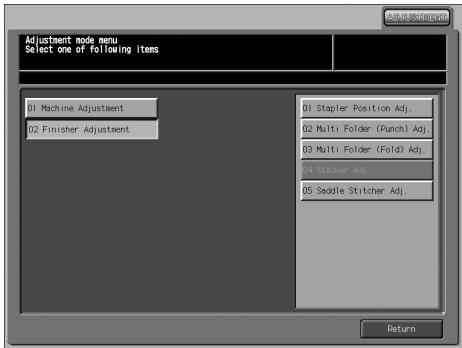
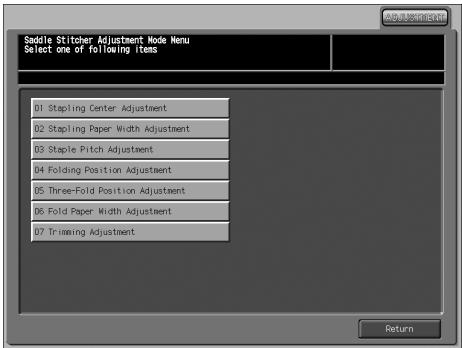
1 Touch Adjustment - 02 Finisher Adjustment - 05 Saddle Stitcher Adj.
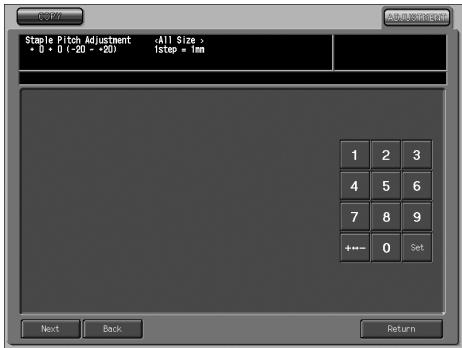
2 Touch 03 Staple Pitch Adjustment to display the Staple Pitch Adjustment Screen.
3 Touch the COPY tab to display the Copy Screen.
4 Load the desired size of paper to be adjusted on a tray, specify Fold&Staple, then press [Start]. A sample pattern (No. 16) will be output.
5 Check the staple pitch (a) of the sample sheet.
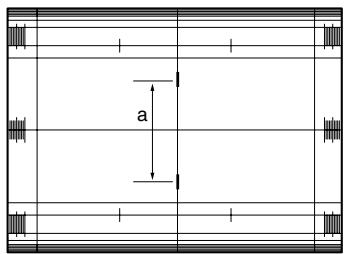
6 If the desired result cannot be obtained, touch the ADJUSTMENT tab.
7 Touch Next or Back to select the paper size to be adjusted.
Touching Next continuously will change the paper size as follows.
All Size - 11x17 - A3 - B4 - 8.5x14 - A4R - 8.5x11R - B5R - 8x13 - 8.12x13.2 -
8.5x13 - 8.25x13 - 8K - 16KR - 12x18 - A3W - B4W - A4WR - B5WR - 12x18W -
11x17W - 8.5x11WR - Special
8 Use the touch panel keypad to enter the desired adjustment value, then touch Set.
Available range: -20 (wide) to +20 (narrow), 1 step = 1 mm
9 Repeat the adjustment steps from 3 to 8 until the desired result is obtained.
10 If adjustment in any other paper size is required, repeat steps from 3 to 8.
11 Touch Return to restore the Saddle Stitcher Adjustment Mode Menu Screen.
04 Folding Position Adjustment
Perform this adjustment for the double-folding position processed by the SD-501 Saddle Stitcher.
Procedure
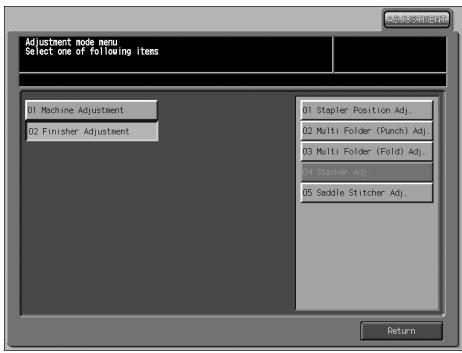
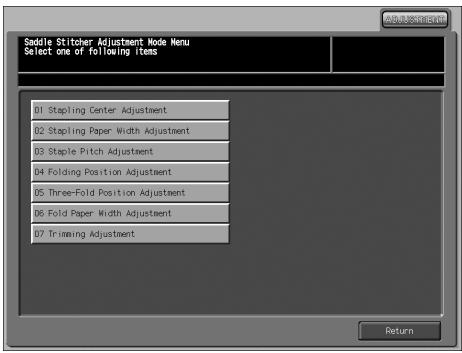
1 Touch Adjustment - 02 Finisher Adjustment - 05 Saddle Stitcher Adj.
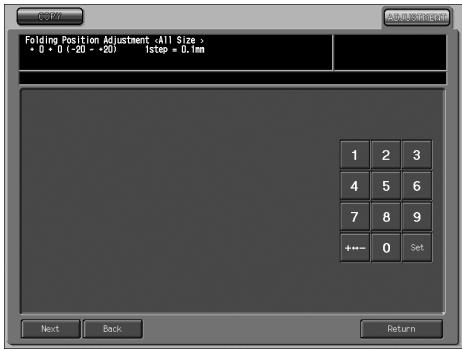
2 Touch 04 Folding Position Adjustment to display the Folding Position Adjustment Screen.
3 Touch the COPY tab to display the Copy Screen.
4 Load the desired size of paper to be adjusted on a tray, specify Multi Center, then press [Start]. A sample pattern (No. 16) will be output.
5 Check the misalignment (a) of the edge of the feeding sheets.
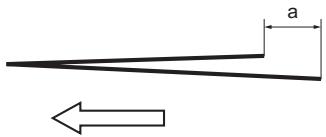
Paper feed direction
6 If the desired result cannot be obtained, touch the ADJUSTMENT tab.
7 Touch Next or Back to select the paper size to be adjusted.
Touching Next continuously will change the paper size as follows:
All Size - 11x17 - A3 - B4 - 8.5x14 - A4R - 8.5x11R - B5R - 8x13 - 8.12x13.2 -
8.5x13 - 8.25x13 - 8K - 16KR - 12x18 - A3W - B4W - A4WR - B5WR - 12x18W -
11x17W - 8.5x11WR - Special
8 Use the touch panel keypad to enter the desired adjustment value, then touch Set.
Available range: -20 to +20, 1 step = 0.1 mm
Note:
When misalignment (a) of step 5 has occurred, enter the "+" value.
9 Repeat the adjustment steps from 3 to 8 until the desired result is obtained.
10 If adjustment in any other size is required, repeat steps 3 to 8.
11 Touch Return to restore the Saddle Stitcher Adjustment Mode Menu Screen.
05 Three-Fold Position Adjustment
Perform this adjustment for the three-folding positions processed by the SD-501 Saddle Stitcher.

Reminder!
- When adjusting both Single Fold and Double Fold, be sure to start with the Double Fold adjustment.
- The baseline of Single Fold is calculated from the edge of the sheet, while that of Double Fold is calculated from the position of the first fold line, therefore a distance (b) in step 5 will be altered by changing the position of either Single Fold or Double Fold.
Procedure
1 Touch Adjustment - 02 Finisher Adjustment - 05 Saddle Stitcher Adj.
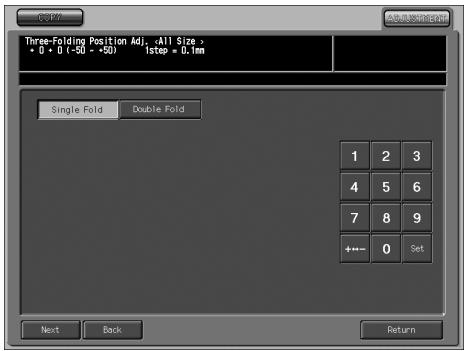
2 Touch 05 Three-Fold Position Adjustment to display the Three-Folding Position Adjustment Screen.
3 Touch the COPY tab to display the Copy Screen.
4 Load the desired size of paper to be adjusted on a tray, specify Multi Letter, then press [Start]. A sample pattern (No. 16) will be output.
5 Check a distance (a) and distance (b) on the output sheet.
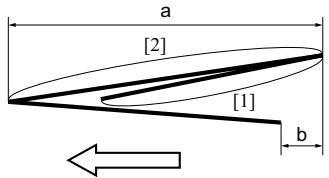
Paper feed direction
6 If the desired result cannot be obtained, touch the ADJUSTMENT tab.
7 Touch Next or Back to select the paper size to be adjusted.
Touching Next continuously will change the paper size as follows:
All Size - A4R - 8.5x11R
8 Touch Double Fold.
9 Use the touch panel keypad to enter the desired adjustment value, then touch Set.
Available range: -50 to +50, 1 step = 0.1 mm
Note:
The distance (a) in step 5 will increase when the "+" value is entered, and decrease when the "-" value is entered.
10 Touch Single Fold. Repeat step 9.
Note:
The distance (b) in step 5 will increase when the "+" value is entered, and decrease when the "-" value is entered.
11 Repeat steps 3 to 10 until the desired result is obtained.
12 If adjustment in any other size is required, repeat steps 3 to 10.
13 Touch Return to restore the Saddle Stitcher Adjustment Mode Menu Screen.
06 Fold Paper Width Adjustment
Perform this adjustment if folding position processed by the SD-501 Saddle Stitcher dislocates in the folded set.
Procedure
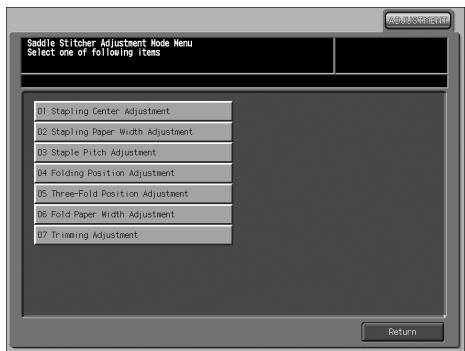
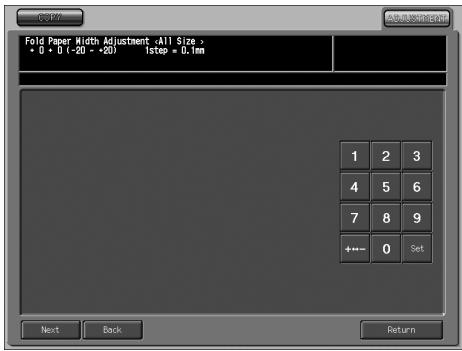
1 Touch Adjustment - 02 Finisher Adjustment - 05 Saddle Stitcher Adj.
2 Touch 06 Fold Paper Width Adjustment to display the Fold Paper Width Adjustment Screen.
3 Touch the COPYtab to display the Copy Screen.
4 Load the desired size of paper to be adjusted on a tray, specify the number of sheets to 5, then press [Start]. A sample pattern will be output.
5 Check that any dislocation is found in the output set.
6 If the desired result cannot be obtained, touch the ADJUSTMENT tab.
7 Touch Next or Back to select the paper size to be adjusted.
Touching Next continuously will change the paper size as follows.
All Size - 11x17 - A3 - B4 - 8.5x14 - A4R - 8.5x11R - B5R - 8x13 - 8.12x13.2 -
8.5x13 - 8.25x13 - 8K - 16KR - 12x18 - A3W - B4W - A4WR - B5WR - 12x18W - 11x17W - 8.5x11WR - Special
8 Use the touch panel keypad to enter the desired adjustment value, then touch Set.
Available range: -20 (wide) to +20 (narrow), 1 step = 0.1 mm
Note:
If the setting is too wide, the distance of misalignment may be larger.
9 Repeat the adjustment steps from 3 to 8 until the desired result is obtained.
10 If adjustment in any other size is required, repeat steps 3 to 8.
11 Touch Return to restore the Saddle Stitcher Adjustment Mode Menu Screen.
07 Trimming Adjustment
Perform this adjustment for the position of punch holes to the direction of paper feed.
Procedure
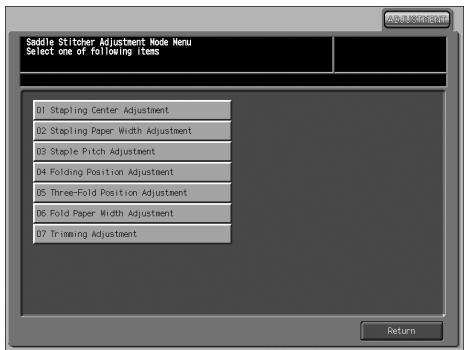
1 Touch Adjustment - 02 Finisher Adjustment - 05 Saddle Stitcher Adj.
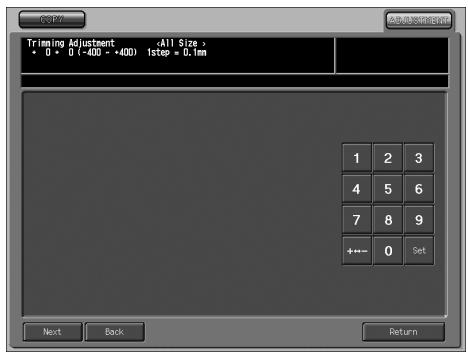
2 Touch 07 Trimming Adjustment to display the Trimming Adjustment Screen.
3 Touch the COPY tab to display the Copy Screen.
4 Load the desired size of paper to be adjusted on a tray, specify Fold&Staple, then press [Start]. A sample pattern (No. 16) will be output.
5 Check the trimmed width (a) from the edge of the feeding sheet.
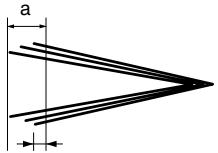
2.0mm or more
6 If the desired result cannot be obtained, touch the ADJUSTMENT tab.
7 Touch Next or Back to select the paper size to be adjusted. Touching Next continuously will change the paper size as follows. All Size - 11x17 - A3 - B4 - 8.5x14 - A4R - 8.5x11R - B5R - 8x13 - 8.12x13.2 - 8.5x13 - 8.25x13 - 8K - 16KR - 12x18 - A3W - B4W - A4WR - B5WR - 12x18W - 11x17W - 8.5x11WR - Special
8 Use the touch panel keypad to enter the desired adjustment value, then touch Set.
Available range: -400 (wide) to +400 (narrow), 1 step = 0.1 mm
9 Repeat the adjustment steps from 3 to 8 until the desired result is obtained.
10 If adjustment in any other paper size is required, repeat steps from 3 to 8.
11 Touch Return to restore the Saddle Stitcher Adjustment Mode Menu Screen.

DETAILS
- Enter the value so that the cover should be cut more than 2.0 ~mm .
- If "All Size" is selected as paper size, the entered adjustment value will be applied to all sizes. If specific paper size is selected, adjustment value will be the sum of the entered value and the value previously specified for "All Size".
- bizhub PRO 1050/ bizhub PRO 1050P Additional Information
- - SD-501 Saddle Studcher
- Section 1: Machine Information
- Section 2: Copying Operations
- Section 3: Adjustment
- SECTION
- 1
- Machine Information
- Precautions for Installation and Use and Machine Management
- Installation Space
- DETAILS
- SD-501 Saddle Stitcher
- Outlet conveyance lever
- External View
- Internal View
- Standard/Optional Equipment
- Inserting a New Staple Cartridge into SD-501 Saddle Stitcher
- Open the left side door of the Saddle Stitcher.
- Remove the empty cartridge.
- Set the new cartridge.
- Reminder!
- Close the left side door of the Saddle Stitcher.
- Cleaning Conveyance Belt of Saddle Stitcher Tray
- Fully withdraw the Saddle stretcher tray, then open the tray stand.
- Clean the surface of the two conveyance belts with a soft cloth dampened slightly with alcohol (cleaner).
- Move the conveyance belt to clean the whole length.
- Clean the bottom plate of the saddle stitcher tray.
- Return the tray stand to its original position, then return the saddle stretcher tray.
- Empty Dust Box of SD-501 Saddle Stitcher
- Withdraw the dust box.
- Open the top cover of the dust box.
- Take waste paper out of the dust box.
- Close the top cover of the dust box, then return it to its original position.
- If "Trim Receiver Exchange" Message Is Displayed
- Paper Information
- Height of the folded and stapled booklet
- 2
- Copying Operations
- How to Make a Copy Using Saddle Stitcher
- Copy Conditions Incompatible with Saddle Stitcher
- Adjusting Position of Copy Image (Image Shift)
- Specifications for Image Shift
- Touch Image Shift on the Application popup menu.
- Touch Image Shift on the Image Shift Screen, then specify the shift direction and amount.
- Touch OK.
- Touch OK on the Application popup menu.
- Selecting an Output Tray
- Touch Output Application on the Copy Screen.
- Touch Output Tray.
- Select the desired output tray.
- Touch OK on the Output Tray Selection Screen.
- Touch OK on the Output Application Screen.
- Be sure to fully withdraw the Saddle stitcher tray, if selected as an output tray.
- Making Folded Booklet (Fold&Staple / Trimming)
- Specifications for Fold&Staple / Trimming
- Touch Fold&Staple, then select to use Trimming or not.
- Touch OK.
- Touch OK on the Output Application Screen.
- Withdraw the Saddle stitcher tray.
- Folding A Copied Set (Multi Center / Multi Letter)
- Specifications for Multi Center / Multi Letter
- Touch Multi Center or Multi Letter to select it.
- Touch OK on the Output Application Screen.
- If Multi Center is selected, withdraw the Saddle stitcher tray. Open the tray stand when fully withdrawn.
- Adjustment
- How to Make an Adjustment to Saddle Stitcher
- Finisher Adjustment Outlines
- Stapling Center Adjustment
- Stapling Paper Width Adjustment
- Staple Pitch Adjustment
- Folding Position Adjustment
- Three-Fold Position Adjustment
- Fold Paper Width Adjustment
- Trimming Adjustment
- Saddle Stitcher Adjustment
- Procedure
- Note:
Marque : KONICA MINOLTA
Modèle : SD 501
Catégorie : Imprimante