
DS-UNHC - Station d'accueil pour disque dur Sabrent - Notice d'utilisation et mode d'emploi gratuit
Retrouvez gratuitement la notice de l'appareil DS-UNHC Sabrent au format PDF.


| Type de produit | Adaptateur USB-C vers HDMI |
| Connecteur d'entrée | USB-C mâle |
| Connecteur de sortie | HDMI femelle |
| Résolution maximale | 4K Ultra HD (3840x2160) à 30 Hz |
| Compatibilité | USB-C avec prise en charge DisplayPort Alt Mode |
| Longueur de câble | Environ 15 cm |
| Poids | 20 g |
| Matériau du boîtier | Aluminium brossé |
| Alimentation | Alimentation par bus USB (aucune source externe requise) |
| Fonctions principales | Extension d'affichage, mode miroir, lecture vidéo 4K |
| Entretien et nettoyage | Nettoyer avec un chiffon doux et sec. Ne pas utiliser de liquides. |
| Sécurité | Ne pas exposer à l'humidité, aux chocs ou aux températures extrêmes. |
| Pièces détachées et réparabilité | Non réparable par l'utilisateur. Pièces non disponibles séparément. |
| Garantie | 1 an |
FOIRE AUX QUESTIONS - DS-UNHC Sabrent
Questions des utilisateurs sur DS-UNHC Sabrent
0 question sur cet appareil. Repondez a celles que vous connaissez ou posez la votre.
Poser une nouvelle question sur cet appareil
Téléchargez la notice de votre Station d'accueil pour disque dur au format PDF gratuitement ! Retrouvez votre notice DS-UNHC - Sabrent et reprennez votre appareil électronique en main. Sur cette page sont publiés tous les documents nécessaires à l'utilisation de votre appareil DS-UNHC de la marque Sabrent.
MODE D'EMPLOI DS-UNHC Sabrent
SABRENT Connecting Differently™
USB TYPE-C DOCKING STATION FOR M.2 PCIe NVMe + 2.5" /3.5" SATA SSD & HDD
(WITH OFFLINE CLONE FUNCTION)

natural_image
Black SABRENT device with blue ventilation slots and control buttons (no readable text or symbols beyond branding)DS-UNHC / USER MANUAL
SCHEMATIC DIAGRAM OF PRODUCT APPEARANCE

A: Clone start button
B: Cloning direction switch
C: USB 3.2 (10Gbps) Type-C port
D: DC input 12V
E: Power switch
PRODUCT INTRODUCTION
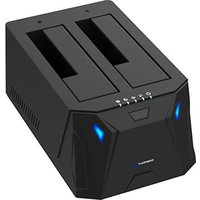
- Sleek, angled design to fit your gaming décor. The aluminum exterior is also engineered to assist with heat dissipation during the cloning process.
- The tool-free insertion and extraction process makes the dock easy to use. The SATA interface also has a protective cover.
• Supports multiple M.2 SSD form factors including 2242, 2260, and 2280. - USB 3.2 (10Gbps) transmission rate for responsive access.
• Supports M.2 PCIe NVMe drives via two PCIe 3.0 lanes.
• Supports the SSD TRIM and UASP functions. - The downlink supports both PCIe and SATA interface protocols simultaneously. Both drives may be displayed and accessed at the same time.
• Uses the USB Type-C interface for convenience.
• Supports bidirectional cloning via the cloning direction switch. - Has four LED indicators to indicate cloning progress in real time.
- Plug and play with no drivers required. Hot-swappable.
PRODUCT FUNCTION
- Press and hold the clone button for 3-5 seconds until all LEDs begin to blink, then quickly double-tap the clone button to start cloning.
Note: Before cloning, confirm that the source drive is equal to or smaller in capacity than the destination drive within the cloning pair. Additionally, double-check the direction of the clone switch, otherwise, an error may result in accidental data loss.
LED LIGHT STATUS

- Power light - blue. Always on when the power is on.
- M.2 & SATA drive lights – blue, and independent. Will be lit when a drive is inserted. Will flash during read/write access. Light will turn off automatically for sleep mode after 30 minutes of idling.
- Clone progress indicator - white, four sections. Each section indicates 25% progress of the cloning process with all four lit upon 100% completion.
- If the destination drive is smaller than the cloned source drive the clone progress indicator will fill and an error will be reported with two flashes.
INSTALLATION METHOD OF M.2 SSD AND 2.5"/3.5" SATA SSD & HDD

natural_image
3D rendering of a black rectangular electronic device with a blue plastic clip attached, labeled '1' in the corner (no text or symbols on the device itself)STEP 1
Open the M.2 SSD slot heatsink door on the front of the product as shown above, and the M.2 M Key socket is revealed

natural_image
3D rendering of a black rectangular electronic device labeled 'M-2 SSD Drive' with a blue arrow pointing to it, showing no readable text or symbols beyond the label.STEP 2
As shown in the picture above, insert the M.2 SSD vertically into the M.2 socket of the docking station; please pay attention to the position of the keying gap and do not insert the drive forcefully

natural_image
Black rectangular electronic device with a blue internal component and a label 'M2 S2' inserted, connected to a cable (no readable text or symbols beyond branding)STEP 3
Close the heatsink door to complete the installation; connect the USB cable to supply power and access the drive

natural_image
Two black electronic devices with labeled ports and a metallic internal component, shown from different angles (no text or symbols on the devices themselves)STEP 4
Insert the 2.5"/3.5" SSD or HDD into the top slot in the correct orientation to match the connectors; when using a 3.5" HDD the docking station must have the power adapter connected
NOTICES
- When using this product during a M.2 SSD installation please be careful to avoid static electricity discharge on the drive (it is recommended to place your hands on metal objects to safely discharge before handling).
- This product uses the M Key interface which belongs to the NVMe protocol. When installing the M.2 SSD for this product please make sure the drive is NVMe with the proper keying.
- Only install the M.2 SSD when the power is off and the USB cable is disconnected.
- When inserting the 2.5"/3.5" SSD or HDD please be careful to insert as gently as possible to avoid scratching the components on the motherboard.
- When disassembling and installing the docking station please treat all accessories with care in order to prevent loss.
- When using both bays simultaneously, whether for accessing or cloning, make sure to connect the power adapter. The USB connector on its own can only supply enough power for a single drive.
- Use the "safely remove hardware" functionality of the operating system before unplugging the docking station from the computer.
FREQUENTLY ASKED QUESTIONS (FAQ)
1) Why is performance slow, not reaching the read and write speed of USB 3.1 Gen2 on my system?
Answer: This product has undergone rigorous testing and the read and write speed can reach USB 3.1 performance under normal read and write conditions. If the read and write speeds are slow, it is recommended to confirm whether the USB host port you are connected to is capable of 10Gbps speeds; if not, speeds will be limited to USB 3.0 or 2.0 depending on the port type.
2) Under Windows, after the new drive is installed, why can't I find the drive or the corresponding drive letter in "My Computer"?
Answer: When using a new drive for the first time you need to initialize, format, and partition the newly added disk in "Disk Management" under "Computer Management" before the drive can be accessed normally.
3) Why can't the Windows XP system recognize a drive with a capacity of more than 2TB?
Answer: Due to the operating system limitation of Windows XP, the drive capacity that can be recognized on the system cannot exceed 2TB. Larger drives are only supported by computers using 64-bit Windows Vista or higher. It is recommended to convert the disk to a GPT disk, otherwise drive partitions larger than 2TB will not be supported.
4) How do I protect the drives and their data after use?
Answer: It is recommended that the user utilize the "safely remove hardware" functionality of the operating system before disconnecting the docking station.
5) Can NVMe protocol SSDs be used in Windows prior to version 8.1?
Answer: Windows 7/8 host systems may need to install an NVMe support patch. Windows 8.1 and later versions have an integrated NVMe driver.
6) Why can only one drive be seen in "My Computer" after the cloning procedure?
Answer: After the hard disk is cloned the identification ID of the drives are exactly the same and the operating system can only recognize one at a time. The other drive will be displayed as offline in Disk Management.
7) Can this product be used to clone an operating system?
Answer: This product is based on a drive hardware clone which does not affect the use of the operating system after successful cloning. However, due to changes in the operating conditions of the hardware and software environments after cloning, the incompatibility of the driver may cause an operating system boot failure. For problems that do not belong to this product, please seek third-party technical support for solutions. For example, after cloning the operating system SSD of the original SATA protocol to an NVMe SSD, the operating system driver may be incompatible, a situation outside the technical support scope of this device. You need to enable the NVMe function according to your own computer motherboard and/or solve the driver compatibility of the operating system. In addition, drive encryption and identification-locking systems may cause issues that are not a technical fault of the device; please consult the system administrator.
8) How does sleep work on this device?
Answer: This device enters a sleep state after 30 minutes of no reading or writing by default, and automatically wakes up when there is a reading or writing operation again, all without manual intervention. However, if the operating system itself has a hibernation policy, this device will preferentially obey the operating system which may be inconsistent with the 30-minute hibernation time of this device; this is a normal phenomenon.
SABRENT
FOR HELP, COMMENTS, QUESTIONS OR CONCERNS PLEASE CONTACT OUR TECH SUPPORT TEAM VIA OUR WEBSITE WWW.SABRENT.COM



Marque : Sabrent
Modèle : DS-UNHC
Catégorie : Station d'accueil pour disque dur