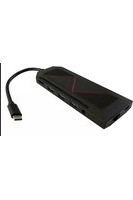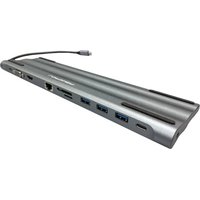
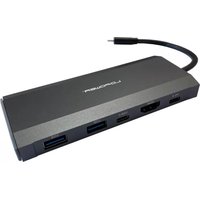
LC-Power HUB-C-MULTI-8 - Hub USB

HUB-C-MULTI-8 - Hub USB LC-Power - Notice d'utilisation et mode d'emploi gratuit

Retrouvez gratuitement la notice de l'appareil HUB-C-MULTI-8 LC-Power au format PDF.

📄 1 pages Français FR Télécharger 💬 Question IA 10 questions ⚙️ Specs
Notice LC-Power HUB-C-MULTI-8 - page 1
Choisissez votre langue et indiquez votre email : nous vous enverrons une version traduite specifiquement.
Type de produit Hub USB
Marque LC-Power
Modèle HUB-C-MULTI-8
Nombre de ports USB 8 (1x USB-C, 7x USB-A)
Version USB USB 3.0 (compatible USB 2.0/1.1)
Débit de transfert maximal 5 Gbit/s
Alimentation Bus USB (auto-alimenté) ou adaptateur secteur optionnel (non inclus)
Dimensions (approx.) 10 cm x 5 cm x 2 cm
Poids (approx.) 50 g
Longueur du câble 15 cm
Matière du boîtier Plastique ABS
Indicateur LED Oui, pour l'alimentation et l'activité
Systèmes d'exploitation compatibles Windows, macOS, Linux
Compatibilité Ordinateurs, tablettes, smartphones avec port USB-C ou USB-A
Plug & Play Oui, sans pilote nécessaire
Entretien et nettoyage Nettoyer avec un chiffon doux et sec. Ne pas utiliser de liquides agressifs.
Température de fonctionnement 0 °C à 45 °C
Sécurité Protection contre les surtensions et les courts-circuits
Pièces détachées et réparabilité Non réparable par l'utilisateur. Contacter le service client pour tout problème.
Contenu de l'emballage Hub USB, câble USB-C intégré, manuel d'utilisation

FOIRE AUX QUESTIONS - HUB-C-MULTI-8 LC-Power

Combien de ports possède le HUB-C-MULTI-8 ?
Le hub dispose de 8 ports : un port USB-C pour la connexion à l'ordinateur et sept ports USB-A pour périphériques.
Quelle est la vitesse de transfert maximale ?
Il supporte l'USB 3.0 avec un débit allant jusqu'à 5 Gbit/s, compatible avec les versions antérieures (USB 2.0 et 1.1).
Est-il compatible avec mon MacBook ?
Oui, le hub est compatible avec les ordinateurs Apple équipés d'un port USB-C ou Thunderbolt 3/4, ainsi qu'avec les PC Windows et Linux.
Dois-je installer des pilotes ?
Non, le hub est Plug & Play. Il est reconnu automatiquement par Windows, macOS et Linux sans installation de pilote.
Le hub nécessite-t-il une alimentation externe ?
En utilisation normale, il est auto-alimenté via le bus USB. Pour les périphériques gourmands en énergie (disques durs externes), un adaptateur secteur optionnel (non inclus) peut être nécessaire.
Puis-je connecter un disque dur externe sur ce hub ?
Oui, mais si le disque nécessite plus de 500 mA, il est recommandé d'utiliser un adaptateur secteur pour éviter une sous-alimentation.
Le hub fonctionne-t-il avec un smartphone ou une tablette ?
Oui, il est compatible avec les smartphones et tablettes Android et iPad dotés d'un port USB-C prenant en charge l'OTG.
Comment nettoyer le hub ?
Utilisez un chiffon doux et sec pour nettoyer le boîtier. Évitez tout produit chimique ou liquide agressif.
Que faire si un périphérique n'est pas reconnu ?
Vérifiez d'abord la connexion USB-C. Essayez un autre port sur l'ordinateur ou un autre câble. Redémarrez l'ordinateur. Si le problème persiste, testez le périphérique directement sur l'ordinateur.
Où puis-je trouver la notice complète ?
La notice PDF est disponible sur notice-facile.com pour le modèle LC-Power HUB-C-MULTI-8. Vous pouvez la télécharger gratuitement.

Questions des utilisateurs sur HUB-C-MULTI-8 LC-Power

0 question sur cet appareil. Repondez a celles que vous connaissez ou posez la votre.

Poser une nouvelle question sur cet appareil

L'email reste privé : il sert seulement à vous prévenir si quelqu'un répond à votre question.

Aucune question pour l'instant. Soyez le premier à en poser une.

Téléchargez la notice de votre Hub USB au format PDF gratuitement ! Retrouvez votre notice HUB-C-MULTI-8 - LC-Power et reprennez votre appareil électronique en main. Sur cette page sont publiés tous les documents nécessaires à l'utilisation de votre appareil HUB-C-MULTI-8 de la marque LC-Power.

MODE D'EMPLOI HUB-C-MULTI-8 LC-Power

LCPOWER

LC-HUB-C-MULTI-8
LC-Power HUB-C-MULTI-8 - LCPOWER - 1

natural_image Line drawing of a rectangular electronic device with a cable and indicator lights (no text or symbols)

Introduction

Thank you for choosing our product. Please read the

product. Please read the manual carefully before you

manual carefully before you use the product.

2014.12.2020

Service

If you need technical support, please contact you/la

please contact us via support@ls-power.net

support@lc-power.com. If you need after sales service.

please contact your retailer.

Silent Power Electronics GmbH, Formerweg 8, 47877 Willich, Germany

Features
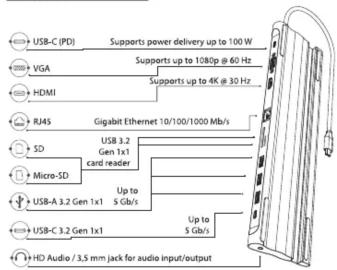
LC-Power HUB-C-MULTI-8 - LCPOWER - 2

flowchart
graph TD
    A["USB-C (PD)"] --> B["Supports power delivery up to 100 W"]
    C["VGA"] --> D["Supports up to 1080p @ 60 Hz"]
    E["HDMI"] --> F["Supports up to 4K @ 30 Hz"]
    G["RJ45"] --> H["Gigabit Ethernet 10/100/1000 Mb/s"]
    I["SD"] --> J["Gen 1x1 card reader"]
    K["Micro-SD"] --> L["Up to 5 Gb/s"]
    M["USB-A 3.2 Gen 1x1"] --> N["Up to 5 Gb/s"]
    O["USB-C 3.2 Gen 1x1"] --> P["Up to 5 Gb/s"]
    Q["HD Audio 3.5 mm jack for audio input/output"] --> R["Up to 5 Gb/s"]
  1. The HDMI port supports a resolution up to 4K @ 30 Hz refresh rate or up to 1080p @ 60 Hz refresh rate when the VGA port is used simultaneously.

  2. The VGA port supports a resolution up to 1080p @ 60 Hz refresh rate.

  3. Both USB 3.2 Gen 1x1 card readers can work simultaneously and

support transfer speeds up to 5 Gb/s.

  1. The USB 3.2 Gen 1x1 ports support transfer speeds up to 5 Gb/s.

  2. The RJ45 port supports network speeds up to 1000 Mb/s.

  3. The USB-C power delivery port supports PD 3.0 up to 100 W.

  4. The 3,5 mm audio jack supports audio inout and output.

LC-Power HUB-C-MULTI-8 - LCPOWER - 3

Display settings (Windows reference)

Right-click desktop > Display settings
Home Find a Setting System Display Notifications&actions Power & Sleep Battery Storage Tablet Mode About Display Select and rearrange displays. Select a display to change its settings. Some settings apply to all displays. 1 2 3 Resolution 1680x1050 1600x900 1440x900 1400x1050 1366x768 1360x768 1280x1024 1280x960

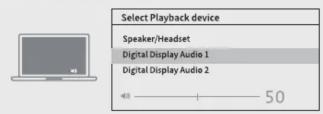
Sound settings for Win10
LC-Power HUB-C-MULTI-8 - Display settings (Windows reference) - 2

LC-Power HUB-C-MULTI-8 - Display settings (Windows reference) - 3

Display settings (Windows reference)

Clone mode
Right-click desktop > Graphics settings > Display
General Settings Color Settings Multiple Settings Custom Resolutions DisplayPort Topology Select Display Mode Single Display 1 2 3 ✓ Clone Display Detect Extended Desktop Collage Select One or More Active Displays Built-in Display HDMI Display VGA Display

LC-Power HUB-C-MULTI-8 - Display settings (Windows reference) - 2

flowchart
graph TD
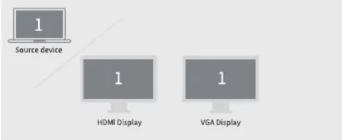
    A["1 Source device"] --> B["1 HDMI Display"]
    A --> C["1 VGA Display"]

LC-Power HUB-C-MULTI-8 - Display settings (Windows reference) - 3

Display settings (Windows reference)

Extended desktop
Right-click desktop > Graphics settings > Display
General Settings Color Settings Multiple Settings Custom Resolutions DisplayPort Topology Select Display Mode Single Display 1 2 3 Clone Display Detect ✓ Extended Desktop Collage Select One or More Active Displays Built-In Display HDMI Display VGA Display

LC-Power HUB-C-MULTI-8 - Display settings (Windows reference) - 2

LC-Power HUB-C-MULTI-8 - Display settings (Windows reference) - 3

Display settings (Mac reference)

Apple logo > System preferences > Displays
Display Color Optimize for: Digital Display Best for Digital Display Scaled 100kfs150 100kfs150 100kfs150 100kfs162 100kfs148 Show law resolution modes Brightness: Automatically adjust brightness Gather Windows

Apple logo > System preferences > Sound
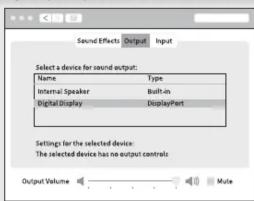
Sound Effects Output Input Select a device for sound output: Name Type Internal Speaker Built-in Digital Display DisplayPort Settings for the selected device: The selected device has no output controls Output Volume -Mute

LC-Power HUB-C-MULTI-8 - Display settings (Mac reference) - 3

Display settings (Mac reference)

Mirror display
Apple logo > System preferences > Displays
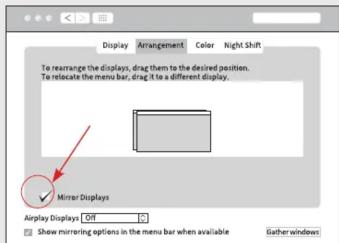
Display Arrangement Color Night Shift To rearrange the displays, drag them to the desired position. To relocate the menu bar, drag it to a different display. Mirror Displays Display Display Off Show mirroring options in the menu bar when available Gather windows

LC-Power HUB-C-MULTI-8 - Display settings (Mac reference) - 2

LC-Power HUB-C-MULTI-8 - Display settings (Mac reference) - 3

Display settings (Mac reference)

Extend display
Apple logo > System preferences > Displays
Display Arrangement Color Night Shift To rearrange the displays, drag them to the desired position. To relocate the menu bar, drag it to a different display. Mirror Displays Display Display Diff Show mirroring options in the menu bar when available Gather windows

LC-Power HUB-C-MULTI-8 - Display settings (Mac reference) - 2

flowchart
graph TD
    A["1 Source device"] --> B["2 HDMI Display"]
    B --> C["2 VCA Display"]

LC-Power HUB-C-MULTI-8 - Display settings (Mac reference) - 3

Sommaire Cliquez un titre pour y accéder
Assistant notice
Powered by Anthropic
En attente de votre message
Informations produit

Marque : LC-Power

Modèle : HUB-C-MULTI-8

Catégorie : Hub USB