
NVR1104HS-W-S2-CE - Magnétoscope IMOU - Notice d'utilisation et mode d'emploi gratuit
Retrouvez gratuitement la notice de l'appareil NVR1104HS-W-S2-CE IMOU au format PDF.


| Type de produit | Enregistreur vidéo réseau (NVR) |
| Marque | Imou |
| Modèle | NVR1104HS-W-S2-CE |
| Canaux d’enregistrement | 4 canaux |
| Résolution maximale | 8 Mégapixels |
| Compression vidéo | H.265/H.264 |
| Stockage interne | 1 baie SATA pour disque dur 3,5 pouces (jusqu’à 10 To) |
| Sorties vidéo | HDMI et VGA |
| Alimentation | 12 V CC, 1 A |
| Dimensions (L x P x H) | 210 x 210 x 42 mm |
| Poids | 0,45 kg |
| Connectivité réseau | Ethernet 10/100 Mbps, prise en charge PoE |
| Accès distant | Via application Imou (iOS/Android) |
| Détection de mouvement | Oui, avec alertes push |
| Entretien et nettoyage | Nettoyer avec un chiffon doux et sec. Éviter l’humidité et les produits chimiques. |
| Sécurité | Mot de passe administrateur, mise à jour firmware, accès réseau sécurisé (HTTPS) |
| Pièces détachées | Disque dur, bloc d’alimentation, ventilateur |
| Réparabilité | Indice de réparabilité: 7/10 (disque dur remplaçable, alimentation externe) |
| Garantie | 2 ans |
FOIRE AUX QUESTIONS - NVR1104HS-W-S2-CE IMOU
Questions des utilisateurs sur NVR1104HS-W-S2-CE IMOU
0 question sur cet appareil. Repondez a celles que vous connaissez ou posez la votre.
Poser une nouvelle question sur cet appareil
Téléchargez la notice de votre Magnétoscope au format PDF gratuitement ! Retrouvez votre notice NVR1104HS-W-S2-CE - IMOU et reprennez votre appareil électronique en main. Sur cette page sont publiés tous les documents nécessaires à l'utilisation de votre appareil NVR1104HS-W-S2-CE de la marque IMOU.
MODE D'EMPLOI NVR1104HS-W-S2-CE IMOU

Quick Start Guide
Version 1.0.0
Local Basic Operation
1 Power On and Off
Booting up:
Connect a monitor to the Device, and then plug in the power to boot up the Device.
Select Main Menu is SHUTTOWN to enter the SHUTTOWN
Shut down. Unplug the power after the monitor is blank.
- 2017年1月1日
Do not force the Device to shut down (or unplug the power) when th
interface is indicating Saving data or the Device is recording videos.
2 Initialization
After turning on the De
following steps.
1) Set parameter
2) Draw an unlock pattern for login.
3) Configure the password protection parameters.
(1) 2017年1月1日,公司发布《关于使用部分闲置募集资金进行现金管理的公告》(公告编号:2017-036)。
Be sure that the email address for resetting password is correct.
3 Startup Wizard
For the first time login, you can configure the Recorder quickly by Startup Wizard, and
set options such as general settings, lmou cloud, network settings and record settings.
4 Live View
After you logged in, the system goes to multiple-channel live view mode by default.
You can view the live video of each channel.

5 Playbac
Select Main Menu > Search or right-click on the preview interface and select Search.
You can play back records according to the configured record type, record time and
channel.
App Operation
- 本报告期,公司与关联方累计发生关联交易的总金额为人民币100万元。
Step1 Scan the QR code below to install lmou APP, Register and then log in to lmou App
Ignore Step 1 if you have completed the download and registration of Imou
APP in the Startup Wizard.

Step2 Tap at the top-right corner of Device tag, and then scan the DB code or enter
the serial number of the Device to add it to lmou.

Step3 After adding the Device to lmou, you could perform operations such as viewing
live videos, viewing alarms, setting alarm and sharing the Device.

Step4 (Optional) You could share permissions of the Device or a single video channel
to family members
FAQ
Q: Why does the Device fail to beat up?
A: After the Device is powered on, observe the power status indicator on the front panel. If
the blue light is off, check the wiring. If the blue light is on and the Device failed to boot up, contact the 07miles service
(2)本次发行方案的实施与执行情况
(2) Have to add a vinyl-IBC to a running device?
A: Put the wireless IPC next to the Device and turn it on. Right-click the local GUI and select
Wireless Pairing. After pairing is completed, install the wireless IPC at a place as needed.
(No text)
Q: Why are there no video records in local playback?
A: Three possible reasons: 1. Mixing error, 2. H2O malfunction, 3. Record function is not enabled
Check method:
- Check the HDD status indicator, if the light is on, the HDD is working abnormally.
-
Select STORAGE a Disk Check to run the diagnosis, replace the HDD if these are damaged
-
Right-click the local GUI and select Manual > Record to check if the record function is
enabled
- Why is the choice time inconsistent with set of time after building cloud storage?
Q. Why if the playback time incankment with a ball time after erasting lice manager
A: Ensure that the IPC time is consistent with Device time. Select SYSTEM >GENERAL >General to upgrade IPC Time Sum, you can also select SYSTEM >GENERAL >Data Time in
GENERAL TO ENABLE I:C. modify Device time.
About the Guide
This quick start guide is for reference only. Minor difference might
be found in user interface.
All the existing and soft users
At the design and software here are subject to change without
prior written notice.
All trademarks and registered trademarks mentioned are the
properties of their respective owners
(1) project a research contract
Please visit our web
more information.
If there is any uncertainty or controversy, please refer to our final
exploitation
imou
Marque : IMOU
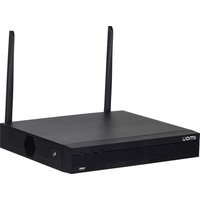
Modèle : NVR1104HS-W-S2-CE
Catégorie : Magnétoscope