
C260 - Webcam LOGITECH - Notice d'utilisation et mode d'emploi gratuit
Retrouvez gratuitement la notice de l'appareil C260 LOGITECH au format PDF.
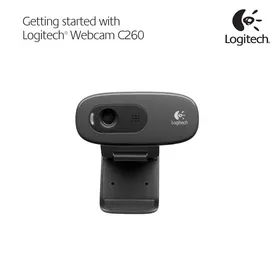


| Type de produit | Webcam |
| Marque | Logitech |
| Modèle | C260 |
| Résolution vidéo maximale | 640 x 480 pixels |
| Fréquence d'images maximale | 30 images par seconde |
| Microphone intégré | Oui, omnidirectionnel |
| Type de fixation | Clip/base flexible pour écran ou trépied |
| Interface de connexion | USB 2.0 |
| Longueur du câble | Environ 1,8 mètre |
| Systèmes d'exploitation compatibles | Windows 7/8/10, macOS 10.10 ou ultérieur |
| Logiciel inclus | Logitech Webcam Software, Logitech Vid HD |
| Alimentation | Via port USB |
| Dimensions (L x H x P) | Environ 7,5 x 3,0 x 4,5 cm |
| Poids | Environ 100 grammes |
| Couleur | Noir |
| Garantie constructeur | 2 ans |
| Entretien et nettoyage | Essuyer avec un chiffon doux et sec. Ne pas utiliser de produits chimiques. |
| Sécurité | Ne pas exposer à l'humidité ou à des températures extrêmes. Maintenir hors de portée des enfants. |
| Pièces détachées et réparabilité | Non applicable pour ce modèle (produit non réparable par l'utilisateur). |
FOIRE AUX QUESTIONS - C260 LOGITECH
Questions des utilisateurs sur C260 LOGITECH
0 question sur cet appareil. Repondez a celles que vous connaissez ou posez la votre.
Poser une nouvelle question sur cet appareil
Téléchargez la notice de votre Webcam au format PDF gratuitement ! Retrouvez votre notice C260 - LOGITECH et reprennez votre appareil électronique en main. Sur cette page sont publiés tous les documents nécessaires à l'utilisation de votre appareil C260 de la marque LOGITECH.
MODE D'EMPLOI C260 LOGITECH


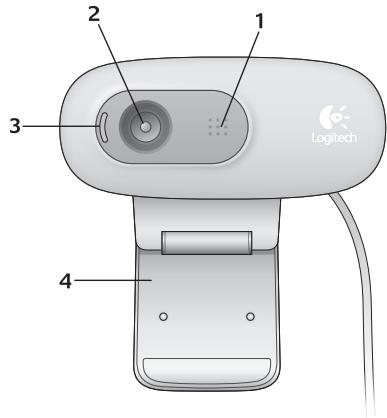
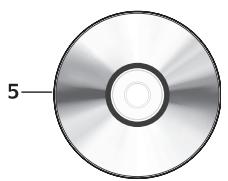
Caractéristiques
- Microphone
- Objectif
- Voyant d'activité
- Clip/base flexible
- Logiciel Logitech® pour webcam
- Documentation produit
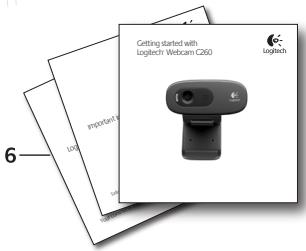
Merci d'avoir acheté une webcam Logitech !
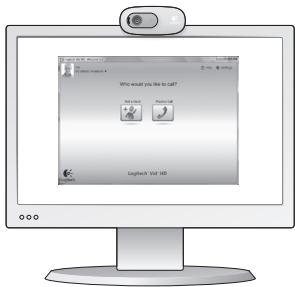
Utilisez ce guide pour configurer votre webcam Logitech et commencer à passer des appels vidéo.
Si vous avez des questions avant de commencer, veuillez consulter les sites Web ci-dessous pour en savoir plus sur les webcams Logitech et les appels vidéo.
http://www.logitech.com/support
http://www.logitech.com/webcam_howto
http://www.logitech.com/whatisvid
http://www.logitech.com
Configuration de votre webcam
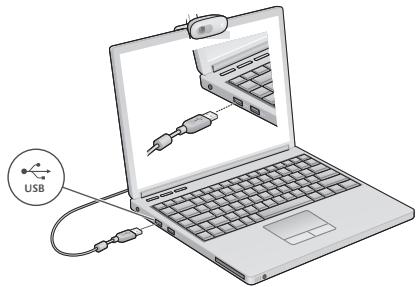
1. Placez votre webcam
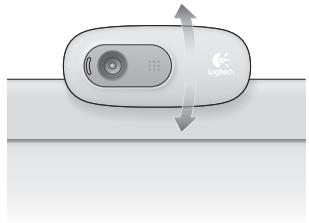
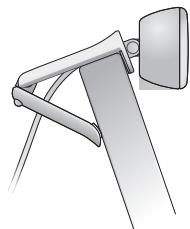

Installez le logiciel
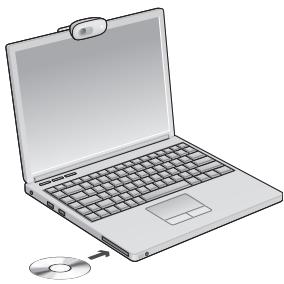

Lorsque vous y êtes invité, connectez votre webcam
Premiers pas avec les appels vidéo

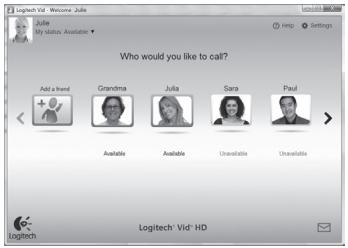
Votre webcam est livrée avec Logitech® Vid™ HD
Avec Logitech Vid HD, les appels vidéo en direct sur Internet ne nécessitent que quelques étapes simples :
- Installez Logitech Vid HD
- Créez un compte
- Ajoutez un ami et effectuez un appel vidéo
En savoir plus : http://www.logitech.com/whatisvid
Configuration de Logitech Vid HD
1
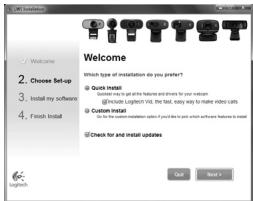
Installez Logitech Vid HD
Nous vous recommandons d'installer à la fois le logiciel Logitech Webcam et Logitech Vid HD.
Astuce : Si vous préférez une autre application d'appel vidéo, vous devrez télécharger et installer un logiciel tiers.
Pour en savoir plus : http://www.logitech.com/webcam_howto
2
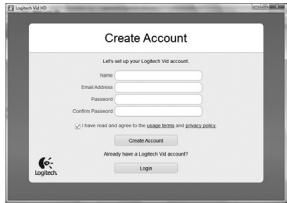
Créer un compte
Suivez les instructions à l'écran pour créer votre compte Logitech Vid HD et configurer votre webcam pour les appels vidéo.
Pour passer des appels vidéo avec n'importe quelle application, vous et votre correspondant devez disposer :
D'une webcam - D'un ordinateur avec haut-parleurs et microphone (ou d'un casque avec microphone ; de nombreuses webcams Logitech ont un microphone intégré) - D'une connexion Internet haut débit (par exemple, DSL, T1 ou câble)
- De la même application d'appel vidéo (par exemple, Logitech Vid HD) Comptes d'appel vidéo
3
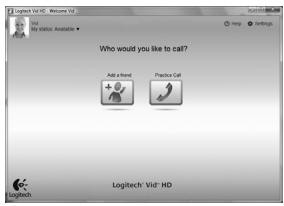
Ajouter un ami ou passer un appel d'essai

Cliquez sur la vignette Appel d'essai pour tester vos paramètres.
Astuce : La vignette Appel d'essai est toujours disponible dans votre liste de contacts pour tester vos paramètres.

Pour ajouter un ami, cliquez sur la vignette Ajouter un ami et saisissez l'adresse e-mail de votre ami lorsque vous y êtes invité.
Après que votre ami a accepté votre invitation, cliquez sur la photo de votre ami pour passer un appel.
Accès aux paramètres du compte et lancement des applications
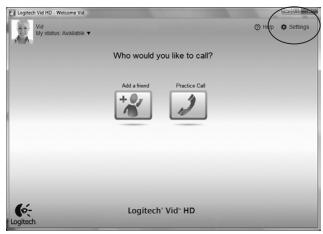
Logitech détecte et ajuste automatiquement les meilleurs paramètres pour votre webcam. Si vous souhaitez reprendre votre photo de profil ou mettre à jour vos paramètres, cliquez sur l'icône Paramètres.
Double-cliquez sur les icônes pour lancer vos applications.
- Logiciel Logitech Webcam
- Logitech Vid HD
Astuce : L'icône Logitech Vid HD n'est présente que si vous avez choisi d'installer Logitech Vid HD. Pour en savoir plus sur les appels vidéo tiers, veuillez visiter :
www.logitech.com/webcam_howto
Naviguer dans le logiciel Logitech Webcam
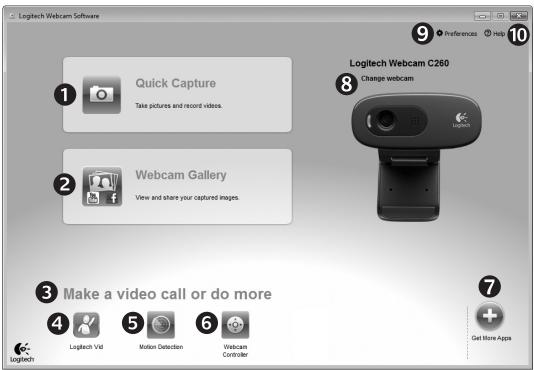
- Capturez des photos et des vidéos
- Visualisez les images capturées et partagez-les par e-mail, Facebook ou YouTube.
- Une zone pour un accès facile à vos applications liées à la webcam installées
- Lancez Logitech Vid HD (si installé)
- Capturez des vidéos déclenchées par un mouvement détecté
- Contrôlez vos effets vidéo et votre webcam lors d'un appel vidéo
- Téléchargez des applications webcam supplémentaires
- Changer de webcam (lorsque vous en avez plus d'une)
- Ouvrir les paramètres du logiciel Logitech Webcam Software
- Ouvrir le tableau de bord d'aide (manuels et vidéos pratiques)
Capturer des vidéos et prendre des photos
La galerie : visualiser et partager
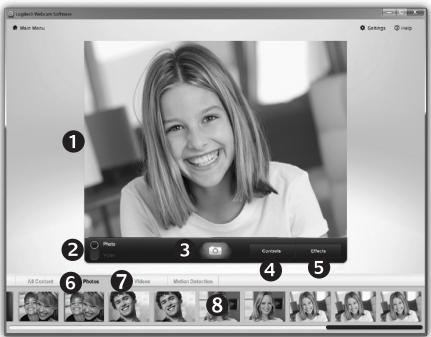
Quick Capture vous permet de prendre des photos ou d'enregistrer des vidéos facilement.
Vous avez un accès facile aux commandes et paramètres de la webcam ainsi qu'aux effets vidéo pour personnaliser vos images et enregistrements.
- Fenêtre d'aperçu
- Mode de capture : photo/vidéo
- Bouton de capture
- Commandes de la webcam
- Effets vidéo et filtres amusants (pour les webcams prenant en charge cette fonctionnalité)
- Miniatures de photos
- Miniatures de vidéos
- Cliquez sur une miniature pour entrer dans la galerie.
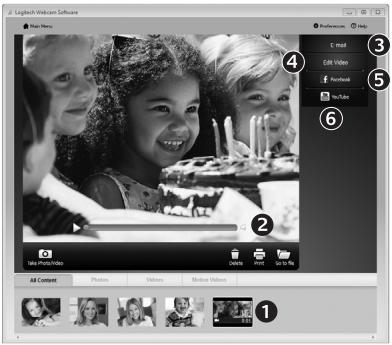
Cliquer sur une miniature d'image dans la galerie (1) ouvre la vidéo ou la photo dans la fenêtre de visualisation (2).
- Joindre un fichier vidéo ou photo à un e-mail (3)
- Modifier une photo ou assembler des vidéos (4)
- Télécharger une photo ou une vidéo sur Facebook (5)
- Télécharger une vidéo sur YouTube (6)
Vous pouvez également faire glisser et déposer une image de la galerie sur l'une des vignettes de fonction (éléments 3 à 6) pour lancer une application de modification ou pour joindre ou télécharger.
Utilisation de la détection de mouvement
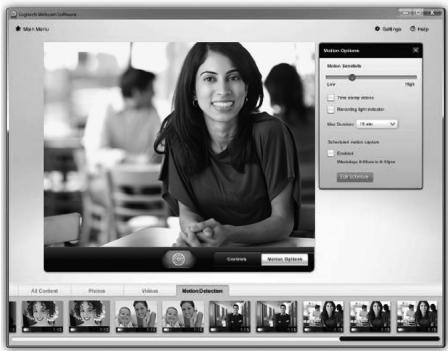
- Configurez votre webcam pour enregistrer une vidéo lorsqu'elle détecte un mouvement.
- Ajustez la durée de la vidéo capturée et la sensibilité de détection.
- La vidéo capturée est automatiquement enregistrée sur votre ordinateur. Visualisez le contenu dans la galerie ou téléchargez-le à l'aide de la fenêtre de téléchargement en un clic.
Réglage fin de votre webcam pendant un appel vidéo
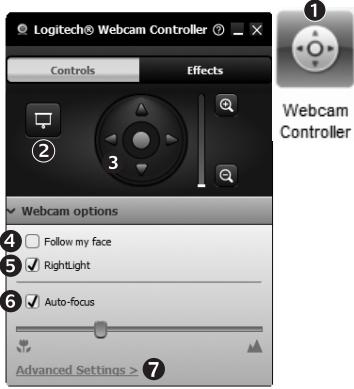
Contrôleur de webcam


Donc m = 3/11


(1 + u)/7 = 70%


Donc m = 3/11 ;
Donc m - 1 ≠ 0 ;


Donc m = 3/11
Donc m = 3/11
(1 + u)/7 = 70 %
1
1


1


le contrôleur de webcam lors d'un appel vidéo. notre image vidéo avec une photo pendant que votre connexion reste active. et inclinaison pour trouver le meilleur angle. "Suivi de visage" pour que vous soyez toujours dans le cadre. pour les environnements à faible luminosité en utilisant la lumière. être entre la mise au point automatique ou manuelle pour les webcams qui prennent en charge cette fonctionnalité. caractéristiques de fonctionnement de la webcam.
Tous les modèles de webcam n'offrent pas toutes ces fonctionnalités de webcam.
Appuyez sur ce bouton pour obtenir plus d'applications de webcam.
Téléchargez et installez des applications supplémentaires pour votre webcam, comme les appels vidéo, le montage photo et vidéo, et d'autres programmes à valeur ajoutée.
Obtenir de l'aide
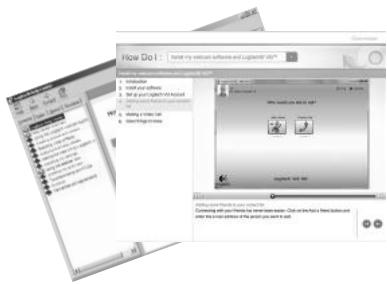
Cliquez sur l'icône d'aide pour accéder à un manuel d'utilisation complet, ou regardez des vidéos pratiques qui vous montrent comment tirer le meilleur parti de votre webcam et de votre logiciel Logitech.
Astuce : Si vous n'êtes pas sûr d'une fonctionnalité, cliquez sur l'icône d'aide, et notre manuel s'ouvrira à la bonne page.

www.logitech.com/support
États-Unis +1 646-454-3200
www.logitech.com
© 2010 Logitech. Tous droits réservés. Logitech, le logo Logitech et les autres marques Logitech sont la propriété de Logitech et peuvent être déposés. Toutes les autres marques sont la propriété de leurs détenteurs respectifs. Logitech décline toute responsabilité en cas d'erreurs pouvant apparaître dans ce manuel. Les informations contenues dans ce document sont sujettes à modification sans préavis.
620-002802.003


- CARACTÉRISTIQUES
- MERCI D'AVOIR ACHETÉ UNE WEBCAM LOGITECH
- CONFIGURATION DE VOTRE WEBCAM
- PLACEZ VOTRE WEBCAM
- INSTALLEZ LE LOGICIEL
- PREMIERS PAS AVEC LES APPELS VIDÉO
- VOTRE WEBCAM EST LIVRÉE AVEC LOGITECH® VID™ HD
- CONFIGURATION DE LOGITECH VID HD
- INSTALLEZ LOGITECH VID HD
- CRÉER UN COMPTE
- AJOUTER UN AMI OU PASSER UN APPEL D'ESSAI
- ACCÈS AUX PARAMÈTRES DU COMPTE ET LANCEMENT DES APPLICATIONS
- NAVIGUER DANS LE LOGICIEL LOGITECH WEBCAM
- CAPTURER DES VIDÉOS ET PRENDRE DES PHOTOS
- LA GALERIE : VISUALISER ET PARTAGER
- UTILISATION DE LA DÉTECTION DE MOUVEMENT
- RÉGLAGE FIN DE VOTRE WEBCAM PENDANT UN APPEL VIDÉO
- OBTENIR DE L'AIDE
Marque : LOGITECH
Modèle : C260
Catégorie : Webcam