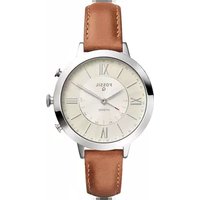
Q Jacqueline Hybrid FTW5012 - Montre FOSSIL - Notice d'utilisation et mode d'emploi gratuit
Retrouvez gratuitement la notice de l'appareil Q Jacqueline Hybrid FTW5012 FOSSIL au format PDF.


| Type de produit | Montre connectée hybride |
| Marque | Fossil |
| Modèle | Q Jacqueline Hybrid FTW5012 |
| Dimensions du boîtier | 38 mm |
| Épaisseur du boîtier | 10 mm |
| Poids | 52 g |
| Diamètre du cadran | 38 mm |
| Largeur du bracelet | 18 mm |
| Matière du boîtier | Acier inoxydable |
| Matière du bracelet | Cuir véritable |
| Type d'affichage | Analogique avec aiguilles |
| Alimentation | Pile CR2430 (remplaçable) |
| Autonomie de la pile | Jusqu'à 6 mois |
| Connectivité | Bluetooth 4.0 LE |
| Compatibilité | iOS 9.0+ / Android 4.4+ |
| Fonctions principales | Notifications, suivi d'activité, contrôle musical, réglage de l'heure via application |
| Capteurs | Accéléromètre |
| Résistance à l'eau | 3 ATM (éclaboussures, pluie) |
| Entretien et nettoyage | Utiliser un chiffon doux et sec. Éviter l'eau et les produits chimiques. |
| Sécurité | Ne pas exposer à des températures extrêmes ou à des chocs violents. |
| Pièces détachées et réparabilité | Pile et bracelet remplaçables par un professionnel. |
| Garantie | 2 ans (selon conditions) |
| Contenu de la boîte | Montre, câble de chargement (pour la pile ?), documentation |
FOIRE AUX QUESTIONS - Q Jacqueline Hybrid FTW5012 FOSSIL
Questions des utilisateurs sur Q Jacqueline Hybrid FTW5012 FOSSIL
0 question sur cet appareil. Repondez a celles que vous connaissez ou posez la votre.
Poser une nouvelle question sur cet appareil
Téléchargez la notice de votre Montre au format PDF gratuitement ! Retrouvez votre notice Q Jacqueline Hybrid FTW5012 - FOSSIL et reprennez votre appareil électronique en main. Sur cette page sont publiés tous les documents nécessaires à l'utilisation de votre appareil Q Jacqueline Hybrid FTW5012 de la marque FOSSIL.
MODE D'EMPLOI Q Jacqueline Hybrid FTW5012 FOSSIL
Q HYBRID SMARTWATCH
QUICK-START GUIDE
To get started, download the Fossil Q App and follow the prompts on your phone. To set your watch in pairing mode, make sure to hold the middle button on the smartwatch until the device vibrates and the hands move.

NOTIFICATIONS
Scroll through the Settings list to Notifications on the app.
Press Select a Contact and choose a contact in your address book.
Choose the hour on the smartphone to identify with the contact.
When you get a notification from that contact, the smartwatch will vibrate, and its hour and minute hands will point to the hour chosen.
CUSTOMIZABLE BUTTONS
Select Customize Device from the app navigation.
Pick a button to edit.
Assign a feature for that button to do.
Press the button on the smartwatch to perform the assigned feature.

natural_image
Diagram of a mechanical device with a rotating knob and directional arrows indicating motion (no text or symbols)CHANGING BATTERY
When the battery is low, both hands will point to "6". To replace...
- Turn the watch over, revealing the caseback with two dots lining up.
• Using a coin, turn the caseback counterclockwise. - Apply light pressure on one side and pry it open on the other.
- Remove the used battery and replace with a new one, minus side down and plus side up.
- Close and tighten the caseback, re-aligning the dots and eliminating the gap around the watch.
- Need a new battery? Contact Customer Care at the number below.

CHANGING STRAPS
Flip the watch over and release the pin on the strap. Place the new strap in one link at a time. Lock the pin strap by securing it to the right.
To remove links on a bracelet, please visit your nearest Fossil store.
ACTIVITY & GOALS
Track everyday accomplishments: steps, distance, calories burned and sleep duration and quality. Set a goal and press the assigned button to log your progress, whether it's drinking eight glasses of water or exercising once a day.
STAYING CONNECTED
Having trouble keeping your smartwatch connected? Here are a few steps you can take:
- Make sure Bluetooth is on. If it's already on, try turning it off and on again.
- Keep your smartwatch and smartphone updated with the latest firmware.
- Restart the Fossil Q App if it doesn't connect immediately.


Marque : FOSSIL
Modèle : Q Jacqueline Hybrid FTW5012
Catégorie : Montre